
Normal view

BeatBanker and BTMOB trojans: infection techniques and how to stay safe | Kaspersky official blog

By: GReAT
11 March 2026 at 12:24

To achieve their malign aims, Android malware developers have to address several challenges in a row: trick users to get inside their smartphones, dodge security software, talk victims into granting various system permissions, keep away from built-in battery optimizers that kill resource hogs, and, after all that, make sure their malware actually turns a profit. The creators of the BeatBanker — an Android‑based malware campaign recently discovered by our experts — have come up with something new for each one of these steps. The attack is (for now) aimed at Brazilian users, but the developers’ ambitions will almost certainly push them toward international expansion, so it’s worth staying on guard and studying the threat actor’s tricks. You can find a full technical analysis of the malware on Securelist.

How BeatBanker infiltrates a smartphone

The malware is distributed through specially crafted phishing pages that mimic the Google Play Store. A page that’s easily mistaken for the official app marketplace invites users to download a seemingly useful app. In one campaign, the trojan disguised itself as the Brazilian government services app, INSS Reembolso; in another, it posed as the Starlink app.
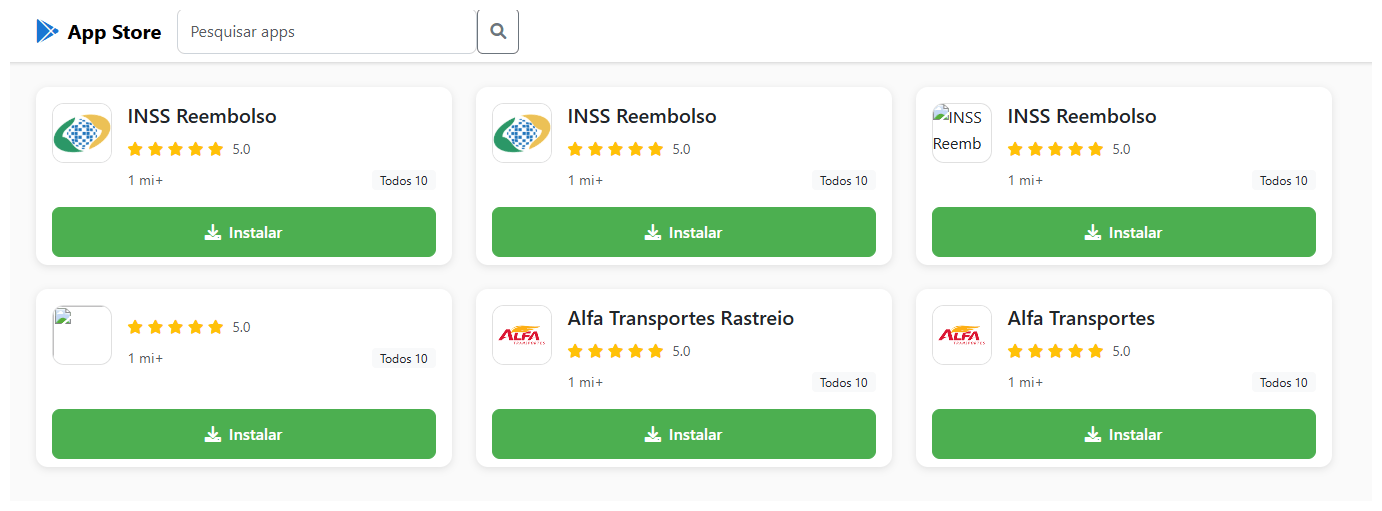
The malicious site cupomgratisfood{.}shop does an excellent job imitating an app store. It's just unclear why the fake INSS Reembolso appears all of three times. To be extra sure, perhaps?!

The malicious site cupomgratisfood{.}shop does an excellent job imitating an app store. It’s just unclear why the fake INSS Reembolso appears all of three times. To be extra sure, perhaps?!

The installation takes place in several stages to avoid requesting too many permissions at once and to further lull the victim’s vigilance. After the first app is downloaded and launched, it displays an interface that also resembles Google Play and simulates an update for the decoy app — requesting the user’s permission to install apps, which doesn’t look out-of-the-ordinary in context. If you grant this permission, the malware downloads additional malicious modules to your smartphone.
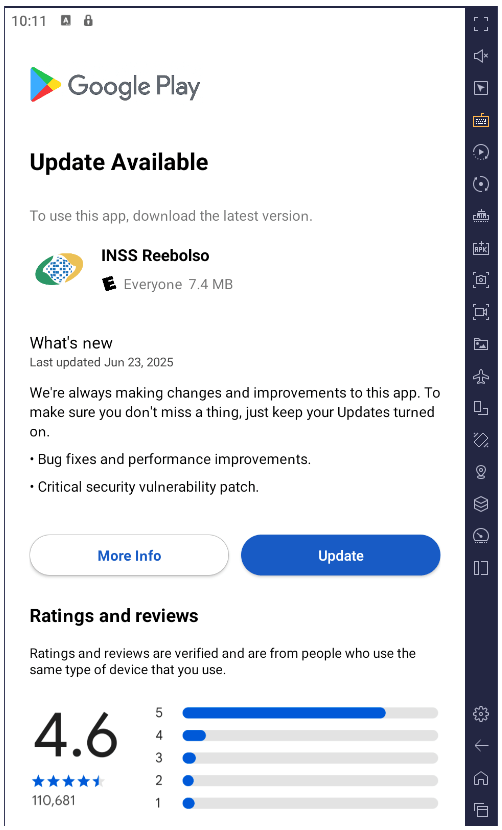
After installation, the trojan simulates a decoy app update via Google Play by requesting permission to install applications while downloading additional malicious modules in the process

After installation, the trojan simulates a decoy app update via Google Play by requesting permission to install applications while downloading additional malicious modules in the process

All components of the trojan are encrypted. Before decrypting and proceeding to the next stages of infection, it checks to ensure it’s on a real smartphone and in the target country. BeatBanker immediately terminates its own process if it finds any discrepancies or detects that it’s running in emulated or analysis environments. This complicates dynamic analysis of the malware. Incidentally, the fake update downloader injects modules directly into RAM to avoid creating files on the smartphone that would be visible to security software.

All these tricks are nothing new and frequently used in complex malware for desktop computers. However, for smartphones, such sophistication is still a rarity, and not every security tool will spot it. Users of Kaspersky products are protected from this threat.

Playing audio as a shield

Once established on the smartphone, BeatBanker downloads a module for mining Monero cryptocurrency. The authors were very concerned that the smartphone’s aggressive battery optimization systems might shut down the miner, so they came up with a trick: playing an all-but-inaudible sound at all times. Power consumption control systems typically spare apps that are playing audio or video to avoid cutting off background music or podcast players. In this way, the malware can run continuously. Additionally, it displays a persistent notification in the status bar, asking the user to keep the phone on for a system update.
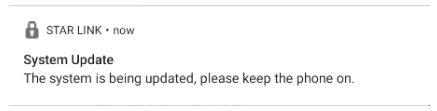
Example of a persistent system update notification from another malicious app masquerading as the Starlink app

Example of a persistent system update notification from another malicious app masquerading as the Starlink app

Control via Google

To manage the trojan, the authors leverage Google’s legitimate Firebase Cloud Messaging (FCM) — a system for receiving notifications and sending data from a smartphone. This feature is available to all apps and it’s the most popular method for sending and receiving data. Thanks to FCM, attackers can monitor the device’s status and change its settings as needed.

Nothing bad happens for a while after the malware is installed: the attackers wait it out. Then they trigger the miner, but they’re careful to throttle it back if the phone overheats, the battery starts dipping, or the owner happens to be using the device. All of this is handled via FCM.

Theft and espionage

In addition to the crypto miner, BeatBanker installs extra modules to spy on the user and rob them at the right moment. The spyware module requests Accessibility Services permission, and if this is granted, begins monitoring everything that’s happening on the smartphone.

If the owner opens the Binance or Trust Wallet app to send USDT, the malware overlays a fake screen on top of the wallet interface, effectively swapping the recipient’s address for its own. All transfers go to the attackers.

The trojan features an advanced remote control system and is capable of executing many other commands:

  • Intercepting one-time codes from Google Authenticator
  • Recording audio from the microphone
  • Streaming the screen in real-time
  • Monitoring the clipboard and intercept keystrokes
  • Sending SMS messages
  • Simulating taps on specific areas of the screen and text input according to a script sent by the attacker, and much more

All of this makes it possible to rob the victim when they use any other banking or payment services — not just crypto payments.

Sometimes victims are infected with a different module for espionage and remote smartphone control — the BTMOB remote access trojan. Its malicious capabilities are even broader, including:

  • Automatic acquisition of certain permissions on Android 13–15
  • Continuous geolocation tracking
  • Access to the front and rear cameras
  • Obtaining PIN codes and passwords for screen unlocking
  • Capturing keyboard input

How to protect yourself from BeatBanker

Cybercriminals are constantly refining their attacks and coming up with new ways to profit from their victims. Despite this, you can protect yourself by following a few simple precautions:

  • Download apps from official sources only, such as Google Play or the app store preinstalled by the vendor. If you find an app while searching the internet, don’t open it via a link from your browser; instead, head to the Google Play app or another branded store on your smartphone to search for it there. While you’re at it, check the number of downloads, the app’s age, and look at the ratings and reviews. Avoid new apps, apps with low ratings, and those with a small number of downloads.
  • Check any permissions you grant. Don’t grant permissions if you’re not sure what they do or why that specific app requires them. Be extra careful with permissions like Install unknown apps, Accessibility, Superuser, and Display over other apps. We’ve written about these in detail in a separate article.
  • Equip your device with a comprehensive anti-malware solution. We, naturally, recommend Kaspersky for Android. Users of Kaspersky products are protected from BeatBanker — detected with the verdicts HEUR:Trojan-Dropper.AndroidOS.BeatBanker and HEUR:Trojan-Dropper.AndroidOS.Banker.*.
  • Regularly update both your operating system and security software. For Kaspersky for Android, which is currently unavailable on Google Play, please review our detailed instructions on installing and updating the app.

Threats to Android users have been going through the roof lately. Check out our other posts on the most relevant and widespread Android attacks and tips for keeping you and your loved ones safe:


How to disable unwanted AI assistants and features on your PC and smartphone | Kaspersky official blog

5 March 2026 at 13:25

If you don’t go searching for AI services, they’ll find you all the same. Every major tech company feels a moral obligation not just to develop an AI assistant, integrated chatbot, or autonomous agent, but to bake it into their existing mainstream products and forcibly activate it for tens of millions of users. Here are just a few examples from the last six months:

On the flip side, geeks have rushed to build their own “personal Jarvises” by renting VPS instances or hoarding Mac minis to run the OpenClaw AI agent. Unfortunately, OpenClaw’s security issues with default settings turned out to be so massive that it’s already been dubbed the biggest cybersecurity threat of 2026.

Beyond the sheer annoyance of having something shoved down your throat, this AI epidemic brings some very real practical risks and headaches. AI assistants hoover up every bit of data they can get their hands on, parsing the context of the websites you visit, analyzing your saved documents, reading through your chats, and so on. This gives AI companies an unprecedentedly intimate look into every user’s life.

A leak of this data during a cyberattack — whether from the AI provider’s servers or from the cache on your own machine — could be catastrophic. These assistants can see and cache everything you can, including data usually tucked behind multiple layers of security: banking info, medical diagnoses, private messages, and other sensitive intel. We took a deep dive into how this plays out when we broke down the issues with the AI-powered Copilot+ Recall system, which Microsoft also planned to force-feed to everyone. On top of that, AI can be a total resource hog, eating up RAM, GPU cycles, and storage, which often leads to a noticeable hit to system performance.

For those who want to sit out the AI storm and avoid these half-baked, rushed-to-market neural network assistants, we’ve put together a quick guide on how to kill the AI in popular apps and services.

How to disable AI in Google Docs, Gmail, and Google Workspace

Google’s AI assistant features in Mail and Docs are lumped together under the umbrella of “smart features”. In addition to the large language model, this includes various minor conveniences, like automatically adding meetings to your calendar when you receive an invite in Gmail. Unfortunately, it’s an all-or-nothing deal: you have to disable all of the “smart features” to get rid of the AI.

To do this, open Gmail, click the Settings (gear) icon, and then select See all settings. On the General tab, scroll down to Google Workspace smart features. Click Manage Workspace smart feature settings and toggle off two options: Smart features in Google Workspace and Smart features in other Google products. We also recommend unchecking the box next to Turn on smart features in Gmail, Chat, and Meet on the same general settings tab. You’ll need to restart your Google apps afterward (which usually happens automatically).

How to disable AI Overviews in Google Search

You can kill off AI Overviews in search results on both desktops and smartphones (including iPhones), and the fix is the same across the board. The simplest way to bypass the AI overview on a case-by-case basis is to append -ai to your search query — for example, how to make pizza -ai. Unfortunately, this method occasionally glitches, causing Google to abruptly claim it found absolutely nothing for your request.

If that happens, you can achieve the same result by switching the search results page to Web mode. To do this, select the Web filter immediately below the search bar — you’ll often find it tucked away under the More button.

A more radical solution is to jump ship to a different search engine entirely. For instance, DuckDuckGo not only tracks users less and shows little ads, but it also offers a dedicated AI-free search — just bookmark the search page at noai.duckduckgo.com.

How to disable AI features in Chrome

Chrome currently has two types of AI features baked in. The first communicates with Google’s servers and handles things like the smart assistant, an autonomous browsing AI agent, and smart search. The second handles locally more utility-based tasks, such as identifying phishing pages or grouping browser tabs. The first group of settings is labeled AI mode, while the second contains the term Gemini Nano.

To disable them, type chrome://flags into the address bar and hit Enter. You’ll see a list of system flags and a search bar; type “AI” into that search bar. This will filter the massive list down to about a dozen AI features (and a few other settings where those letters just happen to appear in a longer word). The second search term you’ll need in this window is “Gemini“.

After reviewing the options, you can disable the unwanted AI features — or just turn them all off — but the bare minimum should include:

  • AI Mode Omnibox entrypoint
  • AI Entrypoint Disabled on User Input
  • Omnibox Allow AI Mode Matches
  • Prompt API for Gemini Nano
  • Prompt API for Gemini Nano with Multimodal Input

Set all of these to Disabled.

How to disable AI features in Firefox

While Firefox doesn’t have its own built-in chatbots and hasn’t (yet) tried to force upon users agent-based features, the browser does come equipped with smart-tab grouping, a sidebar for chatbots, and a few other perks. Generally, AI in Firefox is much less “in your face” than in Chrome or Edge. But if you still want to pull the plug, you’ve two ways to do it.

The first method is available in recent Firefox releases — starting with version 148, a dedicated AI Controls section appeared in the browser settings, though the controls are currently a bit sparse. You can use a single toggle to completely Block AI enhancements, shutting down AI features entirely. You can also specify whether you want to use On-device AI by downloading small local models (currently just for translations) and configure AI chatbot providers in sidebar, choosing between Anthropic Claude, ChatGPT, Copilot, Google Gemini, and Le Chat Mistral.

The second path — for older versions of Firefox — requires a trip into the hidden system settings. Type about:config into the address bar, hit Enter, and click the button to confirm that you accept the risk of poking around under the hood.

A massive list of settings will appear along with a search bar. Type “ML” to filter for settings related to machine learning.

To disable AI in Firefox, toggle the browser.ml.enabled setting to false. This should disable all AI features across the board, but community forums suggest this isn’t always enough to do the trick. For a scorched-earth approach, set the following parameters to false (or selectively keep only what you need):

  • ml.chat.enabled
  • ml.linkPreview.enabled
  • ml.pageAssist.enabled
  • ml.smartAssist.enabled
  • ml.enabled
  • ai.control.translations
  • tabs.groups.smart.enabled
  • urlbar.quicksuggest.mlEnabled

This will kill off chatbot integrations, AI-generated link descriptions, assistants and extensions, local translation of websites, tab grouping, and other AI-driven features.

How to disable AI features in Microsoft apps

Microsoft has managed to bake AI into almost every single one of its products, and turning it off is often no easy task — especially since the AI sometimes has a habit of resurrecting itself without your involvement.

How to disable AI features in Edge

Microsoft’s browser is packed with AI features, ranging from Copilot to automated search. To shut them down, follow the same logic as with Chrome: type edge://flags into the Edge address bar, hit Enter, then type “AI” or “Copilot” into the search box. From there, you can toggle off the unwanted AI features, such as:

  • Enable Compose (AI-writing) on the web
  • Edge Copilot Mode
  • Edge History AI

Another way to ditch Copilot is to enter edge://settings/appearance/copilotAndSidebar into the address bar. Here, you can customize the look of the Copilot sidebar and tweak personalization options for results and notifications. Don’t forget to peek into the Copilot section under App-specific settings — you’ll find some additional controls tucked away there.

How to disable Microsoft Copilot

Microsoft Copilot comes in two flavors: as a component of Windows (Microsoft Copilot), and as part of the Office suite (Microsoft 365 Copilot). Their functions are similar, but you’ll have to disable one or both depending on exactly what the Redmond engineers decided to shove onto your machine.

The simplest thing you can do is just uninstall the app entirely. Right-click the Copilot entry in the Start menu and select Uninstall. If that option isn’t there, head over to your installed apps list (Start → Settings → Apps) and uninstall Copilot from there.

In certain builds of Windows 11, Copilot is baked directly into the OS, so a simple uninstall might not work. In that case, you can toggle it off via the settings: Start → Settings → Personalization → Taskbar → turn off Copilot.

If you ever have a change of heart, you can always reinstall Copilot from the Microsoft Store.

It’s worth noting that many users have complained about Copilot automatically reinstalling itself, so you might want to do a weekly check for a couple of months to make sure it hasn’t staged a comeback. For those who are comfortable tinkering with the System Registry (and understand the consequences), you can follow this detailed guide to prevent Copilot’s silent resurrection by disabling the SilentInstalledAppsEnabled flag and adding/enabling the TurnOffWindowsCopilot parameter.

How to disable Microsoft Recall

The Microsoft Recall feature, first introduced in 2024, works by constantly taking screenshots of your computer screen and having a neural network analyze them. All that extracted information is dumped into a database, which you can then search using an AI assistant. We’ve previously written in detail about the massive security risks Microsoft Recall poses.

Under pressure from cybersecurity experts, Microsoft was forced to push the launch of this feature from 2024 to 2025, significantly beefing up the protection of the stored data. However, the core of Recall remains the same: your computer still remembers your every move by constantly snapping screenshots and OCR-ing the content. And while the feature is no longer enabled by default, it’s absolutely worth checking to make sure it hasn’t been activated on your machine.

To check, head to the settings: Start → Settings → Privacy & Security → Recall & snapshots. Ensure the Save snapshots toggle is turned off, and click Delete snapshots to wipe any previously collected data, just in case.

You can also check out our detailed guide on how to disable and completely remove Microsoft Recall.

How to disable AI in Notepad and Windows context actions

AI has seeped into every corner of Windows, even into File Explorer and Notepad. You might even trigger AI features just by accidentally highlighting text in an app — a feature Microsoft calls “AI Actions”. To shut this down, head to Start → Settings → Privacy & Security → Click to Do.

Notepad has received its own special Copilot treatment, so you’ll need to disable AI there separately. Open the Notepad settings, find the AI features section, and toggle Copilot off.

Finally, Microsoft has even managed to bake Copilot into Paint. Unfortunately, as of right now, there is no official way to disable the AI features within the Paint app itself.

How to disable AI in WhatsApp

In several regions, WhatsApp users have started seeing typical AI additions like suggested replies, AI message summaries, and a brand-new Chat with Meta AI button. While Meta claims the first two features process data locally on your device and don’t ship your chats off to their servers, verifying that is no small feat. Luckily, turning them off is straightforward.

To disable Suggested Replies, go to Settings → Chats → Suggestions & smart replies and toggle off Suggested replies. You can also kill off AI Sticker suggestions in that same menu. As for the AI message summaries, those are managed in a different location: Settings → Notifications → AI message summaries.

How to disable AI on Android

Given the sheer variety of manufacturers and Android flavors, there’s no one-size-fits-all instruction manual for every single phone. Today, we’ll focus on killing off Google’s AI services — but if you’re using a device from Samsung, Xiaomi, or others, don’t forget to check your specific manufacturer’s AI settings. Just a heads-up: fully scrubbing every trace of AI might be a tall order — if it’s even possible at all.

In Google Messages, the AI features are tucked away in the settings: tap your account picture, select Messages settings, then Gemini in Messages, and toggle the assistant off.

Broadly speaking, the Gemini chatbot is a standalone app that you can uninstall by heading to your phone’s settings and selecting Apps. However, given Google’s master plan to replace the long-standing Google Assistant with Gemini, uninstalling it might become difficult — or even impossible — down the road.

If you can’t completely uninstall Gemini, head into the app to kill its features manually. Tap your profile icon, select Gemini Apps activity, and then choose Turn off or Turn off and delete activity. Next, tap the profile icon again and go to the Connected Apps setting (it may be hiding under the Personal Intelligence setting). From here, you should disable all the apps where you don’t want Gemini poking its nose in.

How to disable AI in macOS and iOS

Apple’s platform-level AI features, collectively known as Apple Intelligence, are refreshingly straightforward to disable. In your settings — on desktops, smartphones, and tablets alike — simply look for the section labeled Apple Intelligence & Siri. By the way, depending on your region and the language you’ve selected for your OS and Siri, Apple Intelligence might not even be available to you yet.

Other posts to help you tune the AI tools on your devices:

Attackers abuse OAuth’s built-in redirects to launch phishing and malware attacks

4 March 2026 at 13:53

Attackers are abusing normal OAuth error redirects to send users from a legitimate Microsoft or Google login URL to phishing or malware pages, without ever completing a successful sign‑in or stealing tokens from the OAuth flow itself.

That calls for a bit more explanation.

OAuth (Open Authorization) is an open-standard protocol for delegated authorization. It allows users to grant websites or applications access to their data on another service (for example, Google or Facebook) without sharing their password. 

OAuth redirection is the process where an authorization server sends a user’s browser back to an application (client) with an authorization code or token after user authentication.

Researchers found that phishers use silent OAuth authentication flows and intentionally invalid scopes to redirect victims to attacker-controlled infrastructure without stealing tokens.

So, what does this attack look like from a target’s perspective?

From the user’s perspective, the attack chain looks roughly like this:

The email

An email arrives with a plausible business lure. For example, you receive an email about something routine but urgent: document sharing or review, a Social Security or financial notice, an HR or employee report, a Teams meeting invite, or a password reset.​

The email body contains a link such as “View document” or “Review report,” or a PDF attachment that includes a link instead.​

The link

You click the link after seeing that it appears to be a normal Microsoft or Google login. The visible URL (what you see when you hover over it) looks convincing, starting with a trusted domain like https://login.microsoftonline.com/  or https://accounts.google.com/.

There is no obvious sign that the parameters (prompt=none, odd or empty scope, encoded state) are abnormal.​

Silent OAuth

The crafted URL attempts a silent OAuth authorization (prompt=none) and uses parameters that are guaranteed to fail (for example, an invalid or missing scope).​

The identity provider evaluates your session and conditional access, determines the request cannot succeed silently, and returns an OAuth error, such as interaction_required, access_denied, or consent_required.​

The redirect

By design, the OAuth server then redirects your browser, including the error parameters and state, to the app’s registered redirect URI, which in these cases is the attacker’s domain.​

To the user, this is just a quick flash of a Microsoft or Google URL followed by another page. It’s unlikely anyone would notice the errors in the query string.

Landing page

The target gets redirected to a page that looks like a legitimate login or business site. This could very well be a clone of a trusted brand’s site.

From here, there are two possible malicious scenarios:

Phishing / Attacker in the Middle (AitM) variant

A normal login page or a verification prompt, sometimes with CAPTCHAs or interstitials to look more trustworthy and bypass some controls.​

The email address may already be filled in because the attackers passed it through the state parameter.

When the user enters credentials and multi-factor authentication (MFA), the attacker‑in‑the‑middle toolkit intercepts them, including session cookies, while passing them along so the experience feels legitimate.​

Malware delivery variant

Immediately (or after a brief intermediate page), the browser hits a download path and automatically downloads a file.​

The context of the page matches the lure (“Download the secure document,” “Meeting resources,” and so on), making it seem reasonable to open the file.​

The target might notice the initial file open or some system slowdown, but otherwise the compromise is practically invisible.​

Potential impact

By harvesting credentials or planting a backdoor, the attacker now has a foothold on the system. From there, they may carry out hands-on-keyboard activity, move laterally, steal data, or stage ransomware, depending on their goals.

The harvested credentials and tokens can be used to access email, cloud apps, or other resources without the need to keep malware on the device.​

How to stay safe

Since the attacker does not need your token from this flow (only the redirect into their own infrastructure), the OAuth request itself may look less suspicious. Be vigilant and follow our advice:

  • If you rely on hovering over links, be extra cautious when you see very long URLs with oauth2, authorize, and lots of encoded text, especially if they come from outside your organization.
  • Even if the start of the URL looks legitimate, verify with a trusted sender before clicking the link.
  • If something urgent arrives by email and immediately forces you through a strange login or starts a download you did not expect, assume it is malicious until proven otherwise.
  • If you are redirected somewhere unfamiliar, stop and close the tab.
  • Be very wary of files that download immediately after clicking a link in an email, especially from /download/ paths.
  • If a site says you must “run” or “enable” something to view a secure document, close it and double-check which site you’re currently on. It might be up to something.
  • Keep your OS, browser, and your favorite security tools up to date. They can block many known phishing kits and malware downloads automatically.

Pro tip: use Malwarebytes Scam Guard to help you determine whether the email you received is a scam or not.


We don’t just report on scams—we help detect them

Cybersecurity risks should never spread beyond a headline. If something looks dodgy to you, check if it’s a scam using Malwarebytes Scam Guard. Submit a screenshot, paste suspicious content, or share a link, text or phone number, and we’ll tell you if it’s a scam or legit. Available with Malwarebytes Premium Security for all your devices, and in the Malwarebytes app for iOS and Android.

Attackers abuse OAuth’s built-in redirects to launch phishing and malware attacks

4 March 2026 at 13:53

Attackers are abusing normal OAuth error redirects to send users from a legitimate Microsoft or Google login URL to phishing or malware pages, without ever completing a successful sign‑in or stealing tokens from the OAuth flow itself.

That calls for a bit more explanation.

OAuth (Open Authorization) is an open-standard protocol for delegated authorization. It allows users to grant websites or applications access to their data on another service (for example, Google or Facebook) without sharing their password. 

OAuth redirection is the process where an authorization server sends a user’s browser back to an application (client) with an authorization code or token after user authentication.

Researchers found that phishers use silent OAuth authentication flows and intentionally invalid scopes to redirect victims to attacker-controlled infrastructure without stealing tokens.

So, what does this attack look like from a target’s perspective?

From the user’s perspective, the attack chain looks roughly like this:

The email

An email arrives with a plausible business lure. For example, you receive an email about something routine but urgent: document sharing or review, a Social Security or financial notice, an HR or employee report, a Teams meeting invite, or a password reset.​

The email body contains a link such as “View document” or “Review report,” or a PDF attachment that includes a link instead.​

The link

You click the link after seeing that it appears to be a normal Microsoft or Google login. The visible URL (what you see when you hover over it) looks convincing, starting with a trusted domain like https://login.microsoftonline.com/  or https://accounts.google.com/.

There is no obvious sign that the parameters (prompt=none, odd or empty scope, encoded state) are abnormal.​

Silent OAuth

The crafted URL attempts a silent OAuth authorization (prompt=none) and uses parameters that are guaranteed to fail (for example, an invalid or missing scope).​

The identity provider evaluates your session and conditional access, determines the request cannot succeed silently, and returns an OAuth error, such as interaction_required, access_denied, or consent_required.​

The redirect

By design, the OAuth server then redirects your browser, including the error parameters and state, to the app’s registered redirect URI, which in these cases is the attacker’s domain.​

To the user, this is just a quick flash of a Microsoft or Google URL followed by another page. It’s unlikely anyone would notice the errors in the query string.

Landing page

The target gets redirected to a page that looks like a legitimate login or business site. This could very well be a clone of a trusted brand’s site.

From here, there are two possible malicious scenarios:

Phishing / Attacker in the Middle (AitM) variant

A normal login page or a verification prompt, sometimes with CAPTCHAs or interstitials to look more trustworthy and bypass some controls.​

The email address may already be filled in because the attackers passed it through the state parameter.

When the user enters credentials and multi-factor authentication (MFA), the attacker‑in‑the‑middle toolkit intercepts them, including session cookies, while passing them along so the experience feels legitimate.​

Malware delivery variant

Immediately (or after a brief intermediate page), the browser hits a download path and automatically downloads a file.​

The context of the page matches the lure (“Download the secure document,” “Meeting resources,” and so on), making it seem reasonable to open the file.​

The target might notice the initial file open or some system slowdown, but otherwise the compromise is practically invisible.​

Potential impact

By harvesting credentials or planting a backdoor, the attacker now has a foothold on the system. From there, they may carry out hands-on-keyboard activity, move laterally, steal data, or stage ransomware, depending on their goals.

The harvested credentials and tokens can be used to access email, cloud apps, or other resources without the need to keep malware on the device.​

How to stay safe

Since the attacker does not need your token from this flow (only the redirect into their own infrastructure), the OAuth request itself may look less suspicious. Be vigilant and follow our advice:

  • If you rely on hovering over links, be extra cautious when you see very long URLs with oauth2, authorize, and lots of encoded text, especially if they come from outside your organization.
  • Even if the start of the URL looks legitimate, verify with a trusted sender before clicking the link.
  • If something urgent arrives by email and immediately forces you through a strange login or starts a download you did not expect, assume it is malicious until proven otherwise.
  • If you are redirected somewhere unfamiliar, stop and close the tab.
  • Be very wary of files that download immediately after clicking a link in an email, especially from /download/ paths.
  • If a site says you must “run” or “enable” something to view a secure document, close it and double-check which site you’re currently on. It might be up to something.
  • Keep your OS, browser, and your favorite security tools up to date. They can block many known phishing kits and malware downloads automatically.

Pro tip: use Malwarebytes Scam Guard to help you determine whether the email you received is a scam or not.


We don’t just report on scams—we help detect them

Cybersecurity risks should never spread beyond a headline. If something looks dodgy to you, check if it’s a scam using Malwarebytes Scam Guard. Submit a screenshot, paste suspicious content, or share a link, text or phone number, and we’ll tell you if it’s a scam or legit. Available with Malwarebytes Premium Security for all your devices, and in the Malwarebytes app for iOS and Android.

Trap niet in deze valse en nare Google-beveiligingscheck

4 March 2026 at 10:23
Cybercriminelen gebruiken momenteel een nare en doordachte truc om wachtwoorden en privégegevens te stelen. Ze doen zich voor als een officiële beveiligingscontrole van Google, maar in werkelijkheid installeren ze kwaadaardige software in je browser.

Phishing via Google Tasks | Kaspersky official blog

19 February 2026 at 09:39

We’ve written time and again about phishing schemes where attackers exploit various legitimate servers to deliver emails. If they manage to hijack someone’s SharePoint server, they’ll use that; if not, they’ll settle for sending notifications through a free service like GetShared. However, Google’s vast ecosystem of services holds a special place in the hearts of scammers, and this time Google Tasks is the star of the show. As per usual, the main goal of this trick is to bypass email filters by piggybacking the rock-solid reputation of the middleman being exploited.

What phishing via Google Tasks looks like

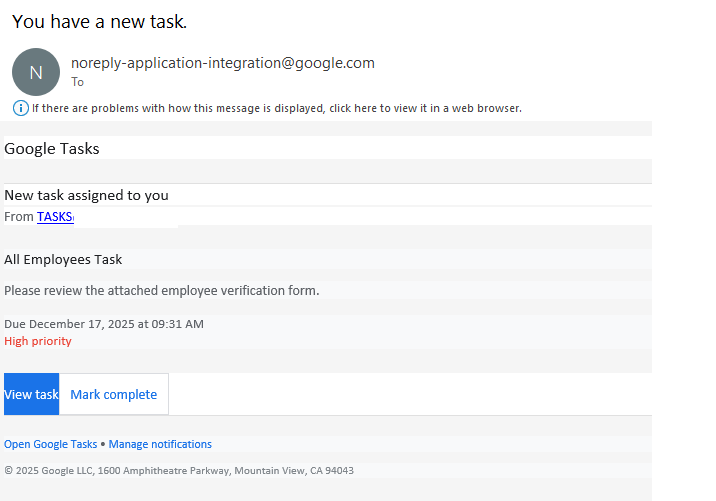
The recipient gets a legitimate notification from an @google.com address with the message: “You have a new task”. Essentially, the attackers are trying to give the victim the impression that the company has started using Google’s task tracker, and as a result they need to immediately follow a link to fill out an employee verification form.

Google Tasks notification

To deprive the recipient of any time to actually think about whether this is necessary, the task usually includes a tight deadline and is marked with high priority. Upon clicking the link within the task, the victim is presented with an URL leading to a form where they must enter their corporate credentials to “confirm their employee status”. These credentials, of course, are the ultimate goal of the phishing attack.

How to protect employee credentials from phishing

Of course, employees should be warned about the existence of this scheme — for instance, by sharing a link to our collection of posts on the red flags of phishing. But in reality, the issue isn’t with any one specific service — it’s about the overall cybersecurity culture within a company. Workflow processes need to be clearly defined so that every employee understands which tools the company actually uses and which it doesn’t. It might make sense to maintain a public corporate document listing authorized services and the people or departments responsible for them. This gives employees a way to verify if that invitation, task, or notification is the real deal. Additionally, it never hurts to remind everyone that corporate credentials should only be entered on internal corporate resources. To automate the training process and keep your team up to speed on modern cyberthreats, you can use a dedicated tool like the Kaspersky Automated Security Awareness Platform.

Beyond that, as usual, we recommend minimizing the number of potentially dangerous emails hitting employee inboxes by using a specialized mail gateway security solution. It’s also vital to equip all web-connected workstations with security software. Even if an attacker manages to trick an employee, the security product will block the attempt to visit the phishing site — preventing corporate credentials from leaking in the first place.

Google says hackers are abusing Gemini AI for all attacks stages

12 February 2026 at 08:00
Google Threat Intelligence Group (GTIG) has published a new report warning about AI model extraction/distillation attacks, in which private-sector firms and researchers use legitimate API access to systematically probe models and replicate their logic and reasoning. [...]

Is your phone listening to you? (re-air) (Lock and Code S07E03)

9 February 2026 at 19:49

This week on the Lock and Code podcast…

In January, Google settled a lawsuit that pricked up a few ears: It agreed to pay $68 million to a wide array of people who sued the company together, alleging that Google’s voice-activated smart assistant had secretly recorded their conversations, which were then sent to advertisers to target them with promotions.

Google denied any admission of wrongdoing in the settlement agreement, but the fact stands that one of the largest phone makers in the world decided to forego a trial against some potentially explosive surveillance allegations. It’s a decision that the public has already seen in the past, when Apple agreed to pay $95 million last year to settle similar legal claims against its smart assistant, Siri.

Back-to-back, the stories raise a question that just seems to never go away: Are our phones listening to us?

This week, on the Lock and Code podcast with host David Ruiz, we revisit an episode from last year in which we tried to find the answer. In speaking to Electronic Frontier Foundation Staff Technologist Lena Cohen about mobile tracking overall, it becomes clear that, even if our phones aren’t literally listening to our conversations, the devices are stuffed with so many novel forms of surveillance that we need not say something out loud to be predictably targeted with ads for it.

“Companies are collecting so much information about us and in such covert ways that it really feels like they’re listening to us.”

Tune in today to listen to the full conversation.

Show notes and credits:

Intro Music: “Spellbound” by Kevin MacLeod (incompetech.com)
Licensed under Creative Commons: By Attribution 4.0 License
http://creativecommons.org/licenses/by/4.0/
Outro Music: “Good God” by Wowa (unminus.com)


Listen up—Malwarebytes doesn’t just talk cybersecurity, we provide it.

Protect yourself from online attacks that threaten your identity, your files, your system, and your financial well-being with our exclusive offer for Malwarebytes Premium for Lock and Code listeners.

Is your phone listening to you? (re-air) (Lock and Code S07E03)

9 February 2026 at 19:49

This week on the Lock and Code podcast…

In January, Google settled a lawsuit that pricked up a few ears: It agreed to pay $68 million to a wide array of people who sued the company together, alleging that Google’s voice-activated smart assistant had secretly recorded their conversations, which were then sent to advertisers to target them with promotions.

Google denied any admission of wrongdoing in the settlement agreement, but the fact stands that one of the largest phone makers in the world decided to forego a trial against some potentially explosive surveillance allegations. It’s a decision that the public has already seen in the past, when Apple agreed to pay $95 million last year to settle similar legal claims against its smart assistant, Siri.

Back-to-back, the stories raise a question that just seems to never go away: Are our phones listening to us?

This week, on the Lock and Code podcast with host David Ruiz, we revisit an episode from last year in which we tried to find the answer. In speaking to Electronic Frontier Foundation Staff Technologist Lena Cohen about mobile tracking overall, it becomes clear that, even if our phones aren’t literally listening to our conversations, the devices are stuffed with so many novel forms of surveillance that we need not say something out loud to be predictably targeted with ads for it.

“Companies are collecting so much information about us and in such covert ways that it really feels like they’re listening to us.”

Tune in today to listen to the full conversation.

Show notes and credits:

Intro Music: “Spellbound” by Kevin MacLeod (incompetech.com)
Licensed under Creative Commons: By Attribution 4.0 License
http://creativecommons.org/licenses/by/4.0/
Outro Music: “Good God” by Wowa (unminus.com)


Listen up—Malwarebytes doesn’t just talk cybersecurity, we provide it.

Protect yourself from online attacks that threaten your identity, your files, your system, and your financial well-being with our exclusive offer for Malwarebytes Premium for Lock and Code listeners.

A WhatsApp bug lets malicious media files spread through group chats

27 January 2026 at 12:55

WhatsApp is going through a rough patch. Some users would argue it has been ever since Meta acquired the once widely trusted messaging platform. User sentiment has shifted from “trusted default messenger” to a grudgingly necessary Meta product.

Privacy-aware users still see WhatsApp as one of the more secure mass-market messaging platforms if you lock down its settings. Even then, many remain uneasy about Meta’s broader ecosystem, and wish all their contacts would switch to a more secure platform.

Back to current affairs, which will only reinforce that sentiment.

Google’s Project Zero has just disclosed a WhatsApp vulnerability where a malicious media file, sent into a newly created group chat, can be automatically downloaded and used as an attack vector.

The bug affects WhatsApp on Android and involves zero‑click media downloads in group chats. You can be attacked simply by being added to a group and having a malicious file sent to you.

According to Project Zero, the attack is most likely to be used in targeted campaigns, since the attacker needs to know or guess at least one contact. While focused, it is relatively easy to repeat once an attacker has a likely target list.

And to put a cherry on top for WhatsApp’s competitors, a potentially even more serious concern for the popular messaging platform, an international group of plaintiffs sued Meta Platforms, alleging the WhatsApp owner can store, analyze, and access virtually all of users’ private communications, despite WhatsApp’s end-to-end encryption claims.

How to secure WhatsApp

Reportedly, Meta pushed a server change on November 11, 2025, but Google says that only partially resolved the issue. So, Meta is working on a comprehensive fix.

Google’s advice is to disable Automatic Download or enable WhatsApp’s Advanced Privacy Mode so that media is not automatically downloaded to your phone.

And you’ll need to keep WhatsApp updated to get the latest patches, which is true for any app and for Android itself.

Turn off auto-download of media

Goal: ensure that no photos, videos, audio, or documents are pulled to the device without an explicit decision.

  • Open WhatsApp on your Android device.
  • Tap the three‑dot menu in the top‑right corner, then tap Settings.
  • Go to Storage and data (sometimes labeled Data and storage usage).
  • Under Media auto-download, you will see When using mobile data, when connected on Wi‑Fi. and when roaming.
  • For each of these three entries, tap it and uncheck all media types: Photos, Audio, Videos, Documents. Then tap OK.
  • Confirm that each category now shows something like “No media” under it.

Doing this directly implements Project Zero’s guidance to “disable Automatic Download” so that malicious media can’t silently land on your storage as soon as you are dropped into a hostile group.

Stop WhatsApp from saving media to your Android gallery

Even if WhatsApp still downloads some content, you can stop it from leaking into shared storage where other apps and system components see it.

  • In Settings, go to Chats.
  • Turn off Media visibility (or similar option such as Show media in gallery). For particularly sensitive chats, open the chat, tap the contact or group name, find Media visibility, and set it to No for that thread.

WhatsApp is a sandbox, and should contain the threat. Which means, keeping media inside WhatsApp makes it harder for a malicious file to be processed by other, possibly more vulnerable components.

Lock down who can add you to groups

The attack chain requires the attacker to add you and one of your contacts to a new group. Reducing who can do that lowers risk.

  • ​In Settings, tap Privacy.
  • Tap Groups.
  • Change from Everyone to My contacts or ideally My contacts except… and exclude any numbers you do not fully trust.
  • If you use WhatsApp for work, consider keeping group membership strictly to known contacts and approved admins.

Set up two-step verification on your WhatsApp account

Read this guide for Android and iOS to learn how to do that.


We don’t just report on phone security—we provide it

Cybersecurity risks should never spread beyond a headline. Keep threats off your mobile devices by downloading Malwarebytes for iOS, and Malwarebytes for Android today.

A WhatsApp bug lets malicious media files spread through group chats

27 January 2026 at 12:55

WhatsApp is going through a rough patch. Some users would argue it has been ever since Meta acquired the once widely trusted messaging platform. User sentiment has shifted from “trusted default messenger” to a grudgingly necessary Meta product.

Privacy-aware users still see WhatsApp as one of the more secure mass-market messaging platforms if you lock down its settings. Even then, many remain uneasy about Meta’s broader ecosystem, and wish all their contacts would switch to a more secure platform.

Back to current affairs, which will only reinforce that sentiment.

Google’s Project Zero has just disclosed a WhatsApp vulnerability where a malicious media file, sent into a newly created group chat, can be automatically downloaded and used as an attack vector.

The bug affects WhatsApp on Android and involves zero‑click media downloads in group chats. You can be attacked simply by being added to a group and having a malicious file sent to you.

According to Project Zero, the attack is most likely to be used in targeted campaigns, since the attacker needs to know or guess at least one contact. While focused, it is relatively easy to repeat once an attacker has a likely target list.

And to put a cherry on top for WhatsApp’s competitors, a potentially even more serious concern for the popular messaging platform, an international group of plaintiffs sued Meta Platforms, alleging the WhatsApp owner can store, analyze, and access virtually all of users’ private communications, despite WhatsApp’s end-to-end encryption claims.

How to secure WhatsApp

Reportedly, Meta pushed a server change on November 11, 2025, but Google says that only partially resolved the issue. So, Meta is working on a comprehensive fix.

Google’s advice is to disable Automatic Download or enable WhatsApp’s Advanced Privacy Mode so that media is not automatically downloaded to your phone.

And you’ll need to keep WhatsApp updated to get the latest patches, which is true for any app and for Android itself.

Turn off auto-download of media

Goal: ensure that no photos, videos, audio, or documents are pulled to the device without an explicit decision.

  • Open WhatsApp on your Android device.
  • Tap the three‑dot menu in the top‑right corner, then tap Settings.
  • Go to Storage and data (sometimes labeled Data and storage usage).
  • Under Media auto-download, you will see When using mobile data, when connected on Wi‑Fi. and when roaming.
  • For each of these three entries, tap it and uncheck all media types: Photos, Audio, Videos, Documents. Then tap OK.
  • Confirm that each category now shows something like “No media” under it.

Doing this directly implements Project Zero’s guidance to “disable Automatic Download” so that malicious media can’t silently land on your storage as soon as you are dropped into a hostile group.

Stop WhatsApp from saving media to your Android gallery

Even if WhatsApp still downloads some content, you can stop it from leaking into shared storage where other apps and system components see it.

  • In Settings, go to Chats.
  • Turn off Media visibility (or similar option such as Show media in gallery). For particularly sensitive chats, open the chat, tap the contact or group name, find Media visibility, and set it to No for that thread.

WhatsApp is a sandbox, and should contain the threat. Which means, keeping media inside WhatsApp makes it harder for a malicious file to be processed by other, possibly more vulnerable components.

Lock down who can add you to groups

The attack chain requires the attacker to add you and one of your contacts to a new group. Reducing who can do that lowers risk.

  • ​In Settings, tap Privacy.
  • Tap Groups.
  • Change from Everyone to My contacts or ideally My contacts except… and exclude any numbers you do not fully trust.
  • If you use WhatsApp for work, consider keeping group membership strictly to known contacts and approved admins.

Set up two-step verification on your WhatsApp account

Read this guide for Android and iOS to learn how to do that.


We don’t just report on phone security—we provide it

Cybersecurity risks should never spread beyond a headline. Keep threats off your mobile devices by downloading Malwarebytes for iOS, and Malwarebytes for Android today.

One privacy change I made for 2026 (Lock and Code S07E02)

26 January 2026 at 14:31

This week on the Lock and Code podcast…

When you hear the words “data privacy,” what do you first imagine?

Maybe you picture going into your social media apps and setting your profile and posts to private. Maybe you think about who you’ve shared your location with and deciding to revoke some of that access. Maybe you want to remove a few apps entirely from your smartphone, maybe you want to try a new web browser, maybe you even want to skirt the type of street-level surveillance provided by Automated License Plate Readers, which can record your car model, license plate number, and location on your morning drive to work.

Importantly, all of these are “data privacy,” but trying to do all of these things at once can feel impossible.

That’s why, this year, for Data Privacy Day, Malwarebytes Senior Privacy Advocate (and Lock and Code host) David Ruiz is sharing the one thing he’s doing different to improve his privacy. And it’s this: He’s given up Google Search entirely.

When Ruiz requested the data that Google had collected about him last year, he saw that the company had recorded an eye-popping 8,000 searches in just the span of 18 months. And those 8,000 searches didn’t just reveal what he was thinking about on any given day—including his shopping interests, his home improvement projects, and his late-night medical concerns—they also revealed when he clicked on an ad based on the words he searched. This type of data, which connects a person’s searches to the likelihood of engaging with an online ad, is vital to Google’s revenue, and it’s the type of thing that Ruiz is seeking to finally cut off.

So, for 2026, he has switched to a new search engine, Brave Search.

Today, on the Lock and Code podcast, Ruiz explains why he made the switch, what he values about Brave Search, and why he also refused to switch to any of the major AI platforms in replacing Google.

Tune in today to listen to the full episode.

Show notes and credits:

Intro Music: “Spellbound” by Kevin MacLeod (incompetech.com)
Licensed under Creative Commons: By Attribution 4.0 License
http://creativecommons.org/licenses/by/4.0/
Outro Music: “Good God” by Wowa (unminus.com)


Listen up—Malwarebytes doesn’t just talk cybersecurity, we provide it.

Protect yourself from online attacks that threaten your identity, your files, your system, and your financial well-being with our exclusive offer for Malwarebytes Premium Security for Lock and Code listeners.

One privacy change I made for 2026 (Lock and Code S07E02)

26 January 2026 at 14:31

This week on the Lock and Code podcast…

When you hear the words “data privacy,” what do you first imagine?

Maybe you picture going into your social media apps and setting your profile and posts to private. Maybe you think about who you’ve shared your location with and deciding to revoke some of that access. Maybe you want to remove a few apps entirely from your smartphone, maybe you want to try a new web browser, maybe you even want to skirt the type of street-level surveillance provided by Automated License Plate Readers, which can record your car model, license plate number, and location on your morning drive to work.

Importantly, all of these are “data privacy,” but trying to do all of these things at once can feel impossible.

That’s why, this year, for Data Privacy Day, Malwarebytes Senior Privacy Advocate (and Lock and Code host) David Ruiz is sharing the one thing he’s doing different to improve his privacy. And it’s this: He’s given up Google Search entirely.

When Ruiz requested the data that Google had collected about him last year, he saw that the company had recorded an eye-popping 8,000 searches in just the span of 18 months. And those 8,000 searches didn’t just reveal what he was thinking about on any given day—including his shopping interests, his home improvement projects, and his late-night medical concerns—they also revealed when he clicked on an ad based on the words he searched. This type of data, which connects a person’s searches to the likelihood of engaging with an online ad, is vital to Google’s revenue, and it’s the type of thing that Ruiz is seeking to finally cut off.

So, for 2026, he has switched to a new search engine, Brave Search.

Today, on the Lock and Code podcast, Ruiz explains why he made the switch, what he values about Brave Search, and why he also refused to switch to any of the major AI platforms in replacing Google.

Tune in today to listen to the full episode.

Show notes and credits:

Intro Music: “Spellbound” by Kevin MacLeod (incompetech.com)
Licensed under Creative Commons: By Attribution 4.0 License
http://creativecommons.org/licenses/by/4.0/
Outro Music: “Good God” by Wowa (unminus.com)


Listen up—Malwarebytes doesn’t just talk cybersecurity, we provide it.

Protect yourself from online attacks that threaten your identity, your files, your system, and your financial well-being with our exclusive offer for Malwarebytes Premium Security for Lock and Code listeners.

❌