Normal view

Apple patches zero-day flaw that could let attackers take control of devices

12 February 2026 at 12:40

Apple has released security updates for iPhones, iPads, Macs, Apple Watches, Apple TVs, and Safari, fixing, in particular, a zero-day flaw that is actively exploited in targeted attacks.

Exploiting this zero-day flaw would allow cybercriminals to run any code they want on the affected device, potentially installing spyware or backdoors without the owner noticing.

Installing these updates as soon as possible keeps your personal information—and everything else on your Apple devices—safe from such an attack.

CVE-2026-20700

The zero-day vulnerability tracked as CVE-2026-20700, is a memory corruption issue in versions before watchOS 26.3, tvOS 26.3, macOS Tahoe 26.3, visionOS 26.3, iOS 26.3 and iPadOS 26.3. An attacker with memory write capability may be able to execute arbitrary code.

Apple says the vulnerability was used as part of an infection chain combined with CVE-2025-14174 and CVE-2025-43529 against devices running iOS versions prior to iOS 26.

Those two vulnerabilities were already patched in the December 2025 update.

Updates for your particular device

The table below shows which updates are available and points you to the relevant security content for that operating system (OS).

iOS 26.3 and iPadOS 26.3iPhone 11 and later, iPad Pro 12.9-inch 3rd generation and later, iPad Pro 11-inch 1st generation and later, iPad Air 3rd generation and later, iPad 8th generation and later, and iPad mini 5th generation and later
iOS 18.7.5 and iPadOS 18.7.5iPhone XS, iPhone XS Max, iPhone XR, iPad 7th generation
macOS Tahoe 26.3macOS Tahoe
macOS Sequoia 15.7.4macOS Sequoia
macOS Sonoma 14.8.4macOS Sonoma
tvOS 26.3Apple TV HD and Apple TV 4K (all models)
watchOS 26.3Apple Watch Series 6 and later
visionOS 26.3Apple Vision Pro (all models)
Safari 26.3macOS Sonoma and macOS Sequoia

How to update your Apple devices

How to update your iPhone or iPad

For iOS and iPadOS users, here’s how to check if you’re using the latest software version:

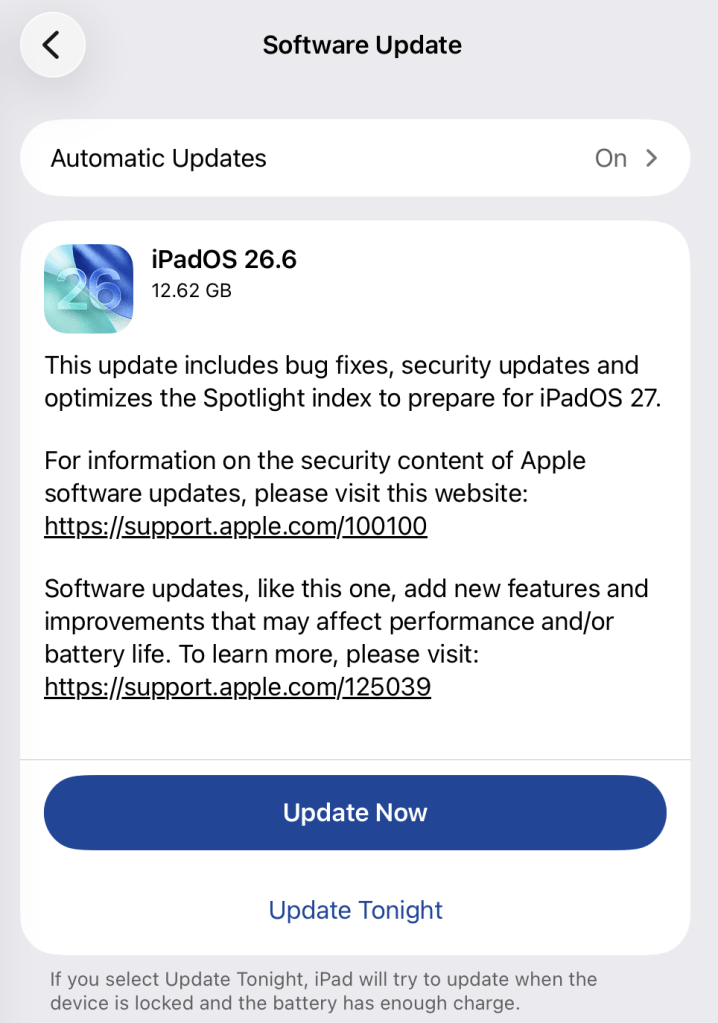
  • Go to Settings > General > Software Update. You will see if there are updates available and be guided through installing them.
  • Turn on Automatic Updates if you haven’t already—you’ll find it on the same screen.
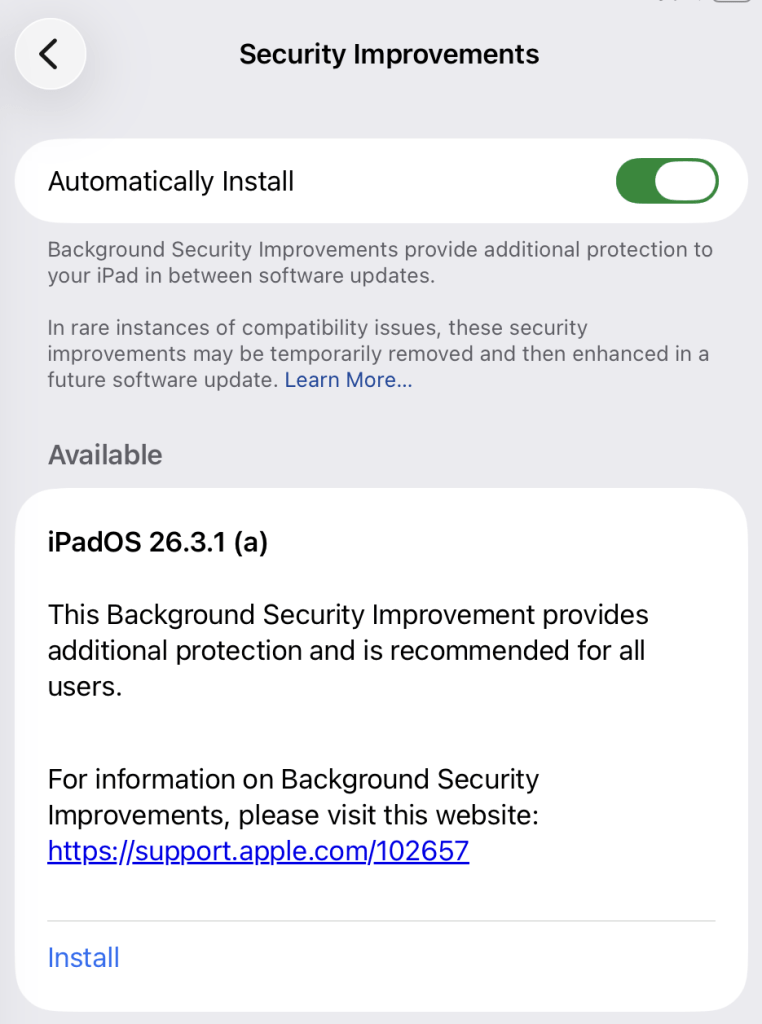
iPadOS 26.3 update

How to update macOS on any version

To update macOS on any supported Mac, use the Software Update feature, which Apple designed to work consistently across all recent versions. Here are the steps:

  • Click the Apple menu in the upper-left corner of your screen.
  • Choose System Settings (or System Preferences on older versions).
  • Select General in the sidebar, then click Software Update on the right. On older macOS, just look for Software Update directly.
  • Your Mac will check for updates automatically. If updates are available, click Update Now (or Upgrade Now for major new versions) and follow the on-screen instructions. Before you upgrade to macOS Tahoe 26, please read these instructions.
  • Enter your administrator password if prompted, then let your Mac finish the update (it might need to restart during this process).
  • Make sure your Mac stays plugged in and connected to the internet until the update is done.

How to update Apple Watch

Ensure your iPhone is paired with your Apple Watch and connected to Wi-Fi, then:

  • Keep your Apple Watch on its charger and close to your iPhone.
  • Open the Watch app on your iPhone.
  • Tap General > Software Update.
  • If an update appears, tap Download and Install.
  • Enter your iPhone passcode or Apple ID password if prompted.

Your Apple Watch will automatically restart during the update process. Make sure it remains near your iPhone and on charge until the update completes.

How to update Apple TV

Turn on your Apple TV and make sure it’s connected to the internet, then:

  • Open the Settings app on Apple TV.
  • Navigate to System > Software Updates.
  • Select Update Software.
  • If an update appears, select Download and Install.

The Apple TV will download the update and restart as needed. Keep your device connected to power and Wi-Fi until the process finishes.

How to update your Safari browser

Safari updates are included with macOS updates, so installing the latest version of macOS will also update Safari. To check manually:

  • Open the Apple menu > System Settings > General > Software Update.
  • If you see a Safari update listed separately, click Update Now to install it.
  • Restart your Mac when prompted.

If you’re on an older macOS version that’s still supported (like Sonoma or Sequoia), Apple may offer Safari updates independently through Software Update.

More advice to stay safe

The most important fix—however inconvenient it may be—is to upgrade to iOS 26.3 (or the latest available version for your device). Not doing so means missing an accumulating list of security fixes, leaving your device vulnerable to newly found vulnerabilities.

 But here are some other useful tips:

  • Make it a habit to restart your device on a regular basis.
  • Do not open unsolicited links and attachments without verifying with the trusted sender.
  • Remember: Apple threat notifications will never ask users to click links, open files, install apps or ask for account passwords or verification codes.
  • For Apple Mail users, these vulnerabilities create risk when viewing HTML-formatted emails containing malicious web content.
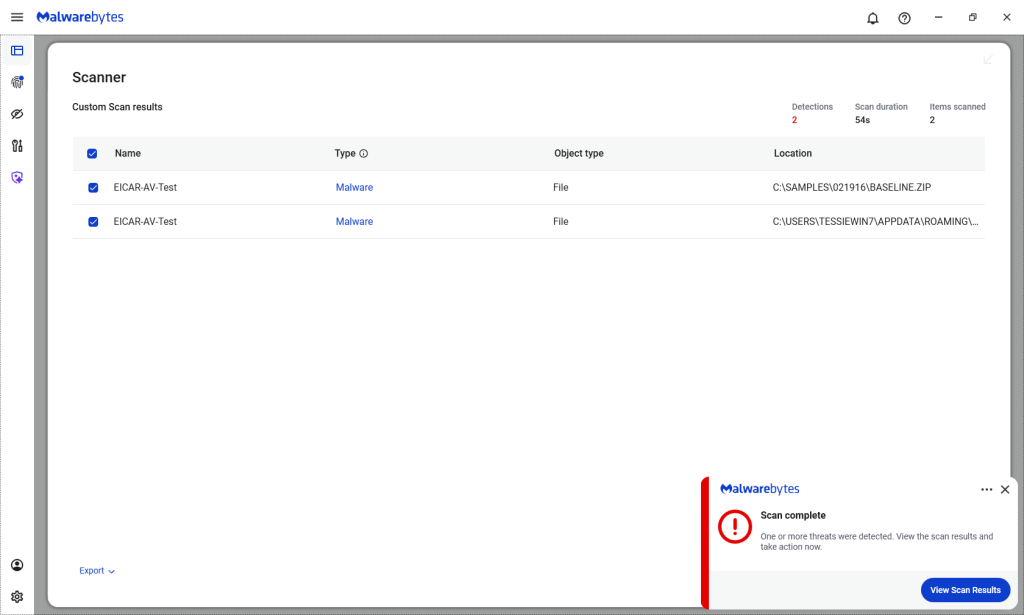
  • Malwarebytes for iOS can help keep your device secure, with Trusted Advisor alerting you when important updates are available.
  • If you are a high-value target, or you want the extra level of security, consider using Apple’s Lockdown Mode.

We don’t just report on phone security—we provide it

Cybersecurity risks should never spread beyond a headline. Keep threats off your mobile devices by downloading Malwarebytes for iOS, and Malwarebytes for Android today.

Apple patches zero-day flaw that could let attackers take control of devices

12 February 2026 at 12:40

Apple has released security updates for iPhones, iPads, Macs, Apple Watches, Apple TVs, and Safari, fixing, in particular, a zero-day flaw that is actively exploited in targeted attacks.

Exploiting this zero-day flaw would allow cybercriminals to run any code they want on the affected device, potentially installing spyware or backdoors without the owner noticing.

Installing these updates as soon as possible keeps your personal information—and everything else on your Apple devices—safe from such an attack.

CVE-2026-20700

The zero-day vulnerability tracked as CVE-2026-20700, is a memory corruption issue in versions before watchOS 26.3, tvOS 26.3, macOS Tahoe 26.3, visionOS 26.3, iOS 26.3 and iPadOS 26.3. An attacker with memory write capability may be able to execute arbitrary code.

Apple says the vulnerability was used as part of an infection chain combined with CVE-2025-14174 and CVE-2025-43529 against devices running iOS versions prior to iOS 26.

Those two vulnerabilities were already patched in the December 2025 update.

Updates for your particular device

The table below shows which updates are available and points you to the relevant security content for that operating system (OS).

iOS 26.3 and iPadOS 26.3iPhone 11 and later, iPad Pro 12.9-inch 3rd generation and later, iPad Pro 11-inch 1st generation and later, iPad Air 3rd generation and later, iPad 8th generation and later, and iPad mini 5th generation and later
iOS 18.7.5 and iPadOS 18.7.5iPhone XS, iPhone XS Max, iPhone XR, iPad 7th generation
macOS Tahoe 26.3macOS Tahoe
macOS Sequoia 15.7.4macOS Sequoia
macOS Sonoma 14.8.4macOS Sonoma
tvOS 26.3Apple TV HD and Apple TV 4K (all models)
watchOS 26.3Apple Watch Series 6 and later
visionOS 26.3Apple Vision Pro (all models)
Safari 26.3macOS Sonoma and macOS Sequoia

How to update your Apple devices

How to update your iPhone or iPad

For iOS and iPadOS users, here’s how to check if you’re using the latest software version:

  • Go to Settings > General > Software Update. You will see if there are updates available and be guided through installing them.
  • Turn on Automatic Updates if you haven’t already—you’ll find it on the same screen.
iPadOS 26.3 update

How to update macOS on any version

To update macOS on any supported Mac, use the Software Update feature, which Apple designed to work consistently across all recent versions. Here are the steps:

  • Click the Apple menu in the upper-left corner of your screen.
  • Choose System Settings (or System Preferences on older versions).
  • Select General in the sidebar, then click Software Update on the right. On older macOS, just look for Software Update directly.
  • Your Mac will check for updates automatically. If updates are available, click Update Now (or Upgrade Now for major new versions) and follow the on-screen instructions. Before you upgrade to macOS Tahoe 26, please read these instructions.
  • Enter your administrator password if prompted, then let your Mac finish the update (it might need to restart during this process).
  • Make sure your Mac stays plugged in and connected to the internet until the update is done.

How to update Apple Watch

Ensure your iPhone is paired with your Apple Watch and connected to Wi-Fi, then:

  • Keep your Apple Watch on its charger and close to your iPhone.
  • Open the Watch app on your iPhone.
  • Tap General > Software Update.
  • If an update appears, tap Download and Install.
  • Enter your iPhone passcode or Apple ID password if prompted.

Your Apple Watch will automatically restart during the update process. Make sure it remains near your iPhone and on charge until the update completes.

How to update Apple TV

Turn on your Apple TV and make sure it’s connected to the internet, then:

  • Open the Settings app on Apple TV.
  • Navigate to System > Software Updates.
  • Select Update Software.
  • If an update appears, select Download and Install.

The Apple TV will download the update and restart as needed. Keep your device connected to power and Wi-Fi until the process finishes.

How to update your Safari browser

Safari updates are included with macOS updates, so installing the latest version of macOS will also update Safari. To check manually:

  • Open the Apple menu > System Settings > General > Software Update.
  • If you see a Safari update listed separately, click Update Now to install it.
  • Restart your Mac when prompted.

If you’re on an older macOS version that’s still supported (like Sonoma or Sequoia), Apple may offer Safari updates independently through Software Update.

More advice to stay safe

The most important fix—however inconvenient it may be—is to upgrade to iOS 26.3 (or the latest available version for your device). Not doing so means missing an accumulating list of security fixes, leaving your device vulnerable to newly found vulnerabilities.

 But here are some other useful tips:

  • Make it a habit to restart your device on a regular basis.
  • Do not open unsolicited links and attachments without verifying with the trusted sender.
  • Remember: Apple threat notifications will never ask users to click links, open files, install apps or ask for account passwords or verification codes.
  • For Apple Mail users, these vulnerabilities create risk when viewing HTML-formatted emails containing malicious web content.
  • Malwarebytes for iOS can help keep your device secure, with Trusted Advisor alerting you when important updates are available.
  • If you are a high-value target, or you want the extra level of security, consider using Apple’s Lockdown Mode.

We don’t just report on phone security—we provide it

Cybersecurity risks should never spread beyond a headline. Keep threats off your mobile devices by downloading Malwarebytes for iOS, and Malwarebytes for Android today.

February 2026 Patch Tuesday includes six actively exploited zero-days

11 February 2026 at 13:32

Microsoft releases important security updates on the second Tuesday of every month, known as “Patch Tuesday.” This month’s update patches fix 59 Microsoft CVE’s including six zero-days.

Let’s have a quick look at these six actively exploited zero-days.

Windows Shell Security Feature Bypass Vulnerability

CVE-2026-21510 (CVSS score 8.8 out of 10) is a security feature bypass in the Windows Shell. A protection mechanism failure allows an attacker to circumvent Windows SmartScreen and similar prompts once they convince a user to open a malicious link or shortcut file.

The vulnerability is exploited over the network but still requires on user interaction. The victim must be socially engineered into launching the booby‑trapped shortcut or link for the bypass to trigger. Successful exploitation lets the attacker suppress or evade the usual “are you sure?” security dialogs for untrusted content, making it easier to deliver and execute further payloads without raising user suspicion.

MSHTML Framework Security Feature Bypass Vulnerability

CVE-2026-21513 (CVSS score 8.8 out of 10) affects the MSHTML Framework, which is used by Internet Explorer’s Trident/embedded web rendering). It is classified as a protection mechanism failure that results in a security feature bypass over the network.

A successful attack requires the victim to open a malicious HTML file or a crafted shortcut (.lnk) that leverages MSHTML for rendering. When opened, the flaw allows an attacker to bypass certain security checks in MSHTML, potentially removing or weakening normal browser or Office sandbox or warning protections and enabling follow‑on code execution or phishing activity.

Microsoft Word Security Feature Bypass Vulnerability

CVE-2026-21514 (CVSS score 5.5 out of 10) affects Microsoft Word. It relies on untrusted inputs in a security decision, leading to a local security feature bypass.  

An attacker must persuade a user to open a malicious Word document to exploit this vulnerability. If exploited, the untrusted input is processed incorrectly, potentially bypassing Word’s defenses for embedded or active content—leading to execution of attacker‑controlled content that would normally be blocked.

Desktop Window Manager Elevation of Privilege Vulnerability

CVE-2026-21519 (CVSS score 7.8 out of 10) is a local elevation‑of‑privilege vulnerability in Windows Desktop Window Manager caused by type confusion (a flaw where the system treats one type of data as another, leading to unintended behavior).

A locally authenticated attacker with low privileges and no required user interaction can exploit the issue to gain higher privileges. Exploitation must be done locally, for example via a crafted program or exploit chain stage running on the target system. An attacker who successfully exploited this vulnerability could gain SYSTEM privileges.

Windows Remote Access Connection Manager Denial of Service Vulnerability

CVE-2026-21525 (CVSS score 6.2 out of 10) is a denial‑of‑service vulnerability in the Windows Remote Access Connection Manager service (RasMan).

An unauthenticated local attacker can trigger the flaw with low attack complexity, leading to a high impact on availability but no direct impact on confidentiality or integrity. This means they could crash the service or potentially the system, but not elevate privileges or execute malicious code.

Windows Remote Desktop Services Elevation of Privilege Vulnerability

CVE-2026-21533 (CVSS score 7.8 out of 10) is an elevation‑of‑privilege vulnerability in Windows Remote Desktop Services, caused by improper privilege management.

A local authenticated attacker with low privileges, and no required user interaction, can exploit the flaw to escalate privileges to SYSTEM and fully compromise confidentiality, integrity, and availability on the affected system. Successful exploitation typically involves running attacker‑controlled code on a system with Remote Desktop Services present and abusing the vulnerable privilege management path.

Azure vulnerabilities

Azure users are also advised to take note of two critical vulnerabilities with CVSS ratings of 9.8:

How to apply fixes and check you’re protected

These updates fix security problems and keep your Windows PC protected. Here’s how to make sure you’re up to date:

1. Open Settings

  • Click the Start button (the Windows logo at the bottom left of your screen).
  • Click on Settings (it looks like a little gear).

2. Go to Windows Update

  • In the Settings window, select Windows Update (usually at the bottom of the menu on the left).

3. Check for updates

  • Click the button that says Check for updates.
  • Windows will search for the latest Patch Tuesday updates.
  • If you have selected automatic updates earlier, you may see this under Update history:
list of recent updates
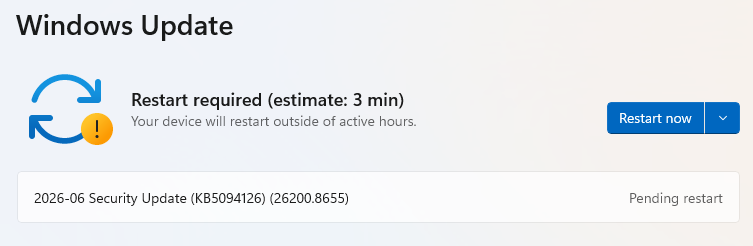
  • Or you may see a Restart required message, which means all you have to do is restart your system and you’re done updating.
  • If not, continue with the steps below.

4. Download and Install

  • If updates are found, they’ll start downloading right away. Once complete, you’ll see a button that says Install or Restart now.
  • Click Install if needed and follow any prompts. Your computer will usually need a restart to finish the update. If it does, click Restart now.

5. Double-check you’re up to date

  • After restarting, go back to Windows Update and check again. If it says You’re up to date, you’re all set!
You're up to date

We don’t just report on threats—we remove them

Cybersecurity risks should never spread beyond a headline. Keep threats off your devices by downloading Malwarebytes today.

February 2026 Patch Tuesday includes six actively exploited zero-days

11 February 2026 at 13:32

Microsoft releases important security updates on the second Tuesday of every month, known as “Patch Tuesday.” This month’s update patches fix 59 Microsoft CVE’s including six zero-days.

Let’s have a quick look at these six actively exploited zero-days.

Windows Shell Security Feature Bypass Vulnerability

CVE-2026-21510 (CVSS score 8.8 out of 10) is a security feature bypass in the Windows Shell. A protection mechanism failure allows an attacker to circumvent Windows SmartScreen and similar prompts once they convince a user to open a malicious link or shortcut file.

The vulnerability is exploited over the network but still requires on user interaction. The victim must be socially engineered into launching the booby‑trapped shortcut or link for the bypass to trigger. Successful exploitation lets the attacker suppress or evade the usual “are you sure?” security dialogs for untrusted content, making it easier to deliver and execute further payloads without raising user suspicion.

MSHTML Framework Security Feature Bypass Vulnerability

CVE-2026-21513 (CVSS score 8.8 out of 10) affects the MSHTML Framework, which is used by Internet Explorer’s Trident/embedded web rendering). It is classified as a protection mechanism failure that results in a security feature bypass over the network.

A successful attack requires the victim to open a malicious HTML file or a crafted shortcut (.lnk) that leverages MSHTML for rendering. When opened, the flaw allows an attacker to bypass certain security checks in MSHTML, potentially removing or weakening normal browser or Office sandbox or warning protections and enabling follow‑on code execution or phishing activity.

Microsoft Word Security Feature Bypass Vulnerability

CVE-2026-21514 (CVSS score 5.5 out of 10) affects Microsoft Word. It relies on untrusted inputs in a security decision, leading to a local security feature bypass.  

An attacker must persuade a user to open a malicious Word document to exploit this vulnerability. If exploited, the untrusted input is processed incorrectly, potentially bypassing Word’s defenses for embedded or active content—leading to execution of attacker‑controlled content that would normally be blocked.

Desktop Window Manager Elevation of Privilege Vulnerability

CVE-2026-21519 (CVSS score 7.8 out of 10) is a local elevation‑of‑privilege vulnerability in Windows Desktop Window Manager caused by type confusion (a flaw where the system treats one type of data as another, leading to unintended behavior).

A locally authenticated attacker with low privileges and no required user interaction can exploit the issue to gain higher privileges. Exploitation must be done locally, for example via a crafted program or exploit chain stage running on the target system. An attacker who successfully exploited this vulnerability could gain SYSTEM privileges.

Windows Remote Access Connection Manager Denial of Service Vulnerability

CVE-2026-21525 (CVSS score 6.2 out of 10) is a denial‑of‑service vulnerability in the Windows Remote Access Connection Manager service (RasMan).

An unauthenticated local attacker can trigger the flaw with low attack complexity, leading to a high impact on availability but no direct impact on confidentiality or integrity. This means they could crash the service or potentially the system, but not elevate privileges or execute malicious code.

Windows Remote Desktop Services Elevation of Privilege Vulnerability

CVE-2026-21533 (CVSS score 7.8 out of 10) is an elevation‑of‑privilege vulnerability in Windows Remote Desktop Services, caused by improper privilege management.

A local authenticated attacker with low privileges, and no required user interaction, can exploit the flaw to escalate privileges to SYSTEM and fully compromise confidentiality, integrity, and availability on the affected system. Successful exploitation typically involves running attacker‑controlled code on a system with Remote Desktop Services present and abusing the vulnerable privilege management path.

Azure vulnerabilities

Azure users are also advised to take note of two critical vulnerabilities with CVSS ratings of 9.8:

How to apply fixes and check you’re protected

These updates fix security problems and keep your Windows PC protected. Here’s how to make sure you’re up to date:

1. Open Settings

  • Click the Start button (the Windows logo at the bottom left of your screen).
  • Click on Settings (it looks like a little gear).

2. Go to Windows Update

  • In the Settings window, select Windows Update (usually at the bottom of the menu on the left).

3. Check for updates

  • Click the button that says Check for updates.
  • Windows will search for the latest Patch Tuesday updates.
  • If you have selected automatic updates earlier, you may see this under Update history:
list of recent updates
  • Or you may see a Restart required message, which means all you have to do is restart your system and you’re done updating.
  • If not, continue with the steps below.

4. Download and Install

  • If updates are found, they’ll start downloading right away. Once complete, you’ll see a button that says Install or Restart now.
  • Click Install if needed and follow any prompts. Your computer will usually need a restart to finish the update. If it does, click Restart now.

5. Double-check you’re up to date

  • After restarting, go back to Windows Update and check again. If it says You’re up to date, you’re all set!
You're up to date

We don’t just report on threats—we remove them

Cybersecurity risks should never spread beyond a headline. Keep threats off your devices by downloading Malwarebytes today.

AI chat app leak exposes 300 million messages tied to 25 million users

9 February 2026 at 16:17

An independent security researcher uncovered a major data breach affecting Chat & Ask AI, one of the most popular AI chat apps on Google Play and Apple App Store, with more than 50 million users.

The researcher claims to have accessed 300 million messages from over 25 million users due to an exposed database. These messages reportedly included, among other things, discussions of illegal activities and requests for suicide assistance.

Behind the scenes, Chat & Ask AI is a “wrapper” app that plugs into various large language models (LLMs) from other companies, including OpenAI’s ChatGPT, Anthropic’s Claude, and Google’s Gemini. Users can choose which model they want to interact with.

The exposed data included user files containing their entire chat history, the models used, and other settings. But it also revealed data belonging to users of other apps developed by Codeway—the developer of Chat & Ask AI.

The vulnerability behind this data breach is a well-known and documented Firebase misconfiguration. Firebase is a cloud-based backend-as-a-service (BaaS) platform provided by Google that helps developers build, manage, and scale mobile and web applications.

Security researchers often refer to a set of preventable errors in how developers set up Google Firebase services, which leave backend data, databases, and storage buckets accessible to the public without authentication.

One of the most common Firebase misconfigurations is leaving Security Rules set to public. This allows anyone with the project URL to read, modify, or delete data without authentication.

This prompted the researcher to create a tool that automatically scans apps on Google Play and Apple App Store for this vulnerability—with astonishing results. Reportedly, the researcher, named Harry, found that 103 out of 200 iOS apps they scanned had this issue, collectively exposing tens of millions of stored files. 

To draw attention to the issue, Harry set up a website where users can see the apps affected by the issue. Codeway’s apps are no longer listed there, as Harry removes entries once developers confirm they have fixed the problem. Codeway reportedly resolved the issue across all of its apps within hours of responsible disclosure.

How to stay safe

Besides checking if any apps you use appear in Harry’s Firehound registry, there are a few ways to better protect your privacy when using AI chatbots.

  • Use private chatbots that don’t use your data to train the model.
  • Don’t rely on chatbots for important life decisions. They have no experience or empathy.
  • Don’t use your real identity when discussing sensitive subjects.
  • Keep shared information impersonal. Don’t use real names and don’t upload personal documents.
  • Don’t share your conversations unless you absolutely have to. In some cases, it makes them searchable.
  • If you’re using an AI that is developed by a social media company (Meta AI, Llama, Grok, Bard, Gemini, and so on), make sure you’re not logged in to that social media platform. Your conversations could be linked to your social media account, which might contain a lot of personal information.

Always remember that the developments in AI are going too fast for security and privacy to be baked into technology. And that even the best AIs still hallucinate.


We don’t just report on privacy—we offer you the option to use it.

Privacy risks should never spread beyond a headline. Keep your online privacy yours by using Malwarebytes Privacy VPN.

AI chat app leak exposes 300 million messages tied to 25 million users

9 February 2026 at 16:17

An independent security researcher uncovered a major data breach affecting Chat & Ask AI, one of the most popular AI chat apps on Google Play and Apple App Store, with more than 50 million users.

The researcher claims to have accessed 300 million messages from over 25 million users due to an exposed database. These messages reportedly included, among other things, discussions of illegal activities and requests for suicide assistance.

Behind the scenes, Chat & Ask AI is a “wrapper” app that plugs into various large language models (LLMs) from other companies, including OpenAI’s ChatGPT, Anthropic’s Claude, and Google’s Gemini. Users can choose which model they want to interact with.

The exposed data included user files containing their entire chat history, the models used, and other settings. But it also revealed data belonging to users of other apps developed by Codeway—the developer of Chat & Ask AI.

The vulnerability behind this data breach is a well-known and documented Firebase misconfiguration. Firebase is a cloud-based backend-as-a-service (BaaS) platform provided by Google that helps developers build, manage, and scale mobile and web applications.

Security researchers often refer to a set of preventable errors in how developers set up Google Firebase services, which leave backend data, databases, and storage buckets accessible to the public without authentication.

One of the most common Firebase misconfigurations is leaving Security Rules set to public. This allows anyone with the project URL to read, modify, or delete data without authentication.

This prompted the researcher to create a tool that automatically scans apps on Google Play and Apple App Store for this vulnerability—with astonishing results. Reportedly, the researcher, named Harry, found that 103 out of 200 iOS apps they scanned had this issue, collectively exposing tens of millions of stored files. 

To draw attention to the issue, Harry set up a website where users can see the apps affected by the issue. Codeway’s apps are no longer listed there, as Harry removes entries once developers confirm they have fixed the problem. Codeway reportedly resolved the issue across all of its apps within hours of responsible disclosure.

How to stay safe

Besides checking if any apps you use appear in Harry’s Firehound registry, there are a few ways to better protect your privacy when using AI chatbots.

  • Use private chatbots that don’t use your data to train the model.
  • Don’t rely on chatbots for important life decisions. They have no experience or empathy.
  • Don’t use your real identity when discussing sensitive subjects.
  • Keep shared information impersonal. Don’t use real names and don’t upload personal documents.
  • Don’t share your conversations unless you absolutely have to. In some cases, it makes them searchable.
  • If you’re using an AI that is developed by a social media company (Meta AI, Llama, Grok, Bard, Gemini, and so on), make sure you’re not logged in to that social media platform. Your conversations could be linked to your social media account, which might contain a lot of personal information.

Always remember that the developments in AI are going too fast for security and privacy to be baked into technology. And that even the best AIs still hallucinate.


We don’t just report on privacy—we offer you the option to use it.

Privacy risks should never spread beyond a headline. Keep your online privacy yours by using Malwarebytes Privacy VPN.

Microsoft Office zero-day lets malicious documents slip past security checks

29 January 2026 at 15:53

Microsoft issued an emergency patch for a high-severity zero-day vulnerability in Office that allows attackers to bypass document security checks and is being exploited in the wild via malicious files.

Microsoft pushed the emergency patch for the zero‑day, tracked as CVE-2026-21509, and classified it as a “Microsoft Office Security Feature Bypass Vulnerability” with a CVSS score of 7.8 out of 10.

The flaw allows attackers to bypass Object Linking and Embedding (OLE) mitigations that are designed to block unsafe COM/OLE controls inside Office documents. This means a malicious attachment could infect a PC despite built-in protections.

In a real-life scenario, an attacker creates a fake Word, Excel, or PowerPoint file containing hidden “mini‑programs” or special objects. They can run code and do other things on the affected computer. Normally, Office has safety checks that would block those mini-programs because they’re risky.

However, the vulnerability allows the attacker to tweak the file’s structure and hidden information in a way that tricks Office into thinking the dangerous mini‑program inside the document is harmless. As a result, Office skips the usual security checks and allows the hidden code to run.

As code to test the bypass is publicly available, increasing the risk of exploitation, users are under urgent advice to apply the patch.

Updating Microsoft 365 and Office

How to protect your system

What you need to do depends on which version of Office you’re using.

The affected products include Microsoft Office 2016, 2019, LTSC 2021, LTSC 2024, and Microsoft 365 Apps (both 32‑bit and 64‑bit).

Office 2021 and later are protected via a server‑side change once Office is restarted. To apply it, close all Office apps and restart them.

Office 2016 and 2019 require a manual update. Run Windows Update with the option to update other Microsoft products turned on.

If you’re running build 16.0.10417.20095 or higher, no action is required. You can check your build number by opening any Office app, going to your account page, and selecting About for whichever application you have open. Make sure the build number at the top reads 16.0.10417.20095 or higher.

What always helps:

  • Don’t open unsolicited attachments without verifying them with a trusted sender.
  • Treat all unexpected documents, especially those asking to “enable content” or “enable editing,” as suspicious.
  • Keep macros disabled by default and only allow signed macros from trusted publishers.
  • Use an up-to-date real-time anti-malware solution.
  • Keep your operating system and software fully up to date.

We don’t just report on threats—we remove them

Cybersecurity risks should never spread beyond a headline. Keep threats off your devices by downloading Malwarebytes today.

Microsoft Office zero-day lets malicious documents slip past security checks

29 January 2026 at 15:53

Microsoft issued an emergency patch for a high-severity zero-day vulnerability in Office that allows attackers to bypass document security checks and is being exploited in the wild via malicious files.

Microsoft pushed the emergency patch for the zero‑day, tracked as CVE-2026-21509, and classified it as a “Microsoft Office Security Feature Bypass Vulnerability” with a CVSS score of 7.8 out of 10.

The flaw allows attackers to bypass Object Linking and Embedding (OLE) mitigations that are designed to block unsafe COM/OLE controls inside Office documents. This means a malicious attachment could infect a PC despite built-in protections.

In a real-life scenario, an attacker creates a fake Word, Excel, or PowerPoint file containing hidden “mini‑programs” or special objects. They can run code and do other things on the affected computer. Normally, Office has safety checks that would block those mini-programs because they’re risky.

However, the vulnerability allows the attacker to tweak the file’s structure and hidden information in a way that tricks Office into thinking the dangerous mini‑program inside the document is harmless. As a result, Office skips the usual security checks and allows the hidden code to run.

As code to test the bypass is publicly available, increasing the risk of exploitation, users are under urgent advice to apply the patch.

Updating Microsoft 365 and Office

How to protect your system

What you need to do depends on which version of Office you’re using.

The affected products include Microsoft Office 2016, 2019, LTSC 2021, LTSC 2024, and Microsoft 365 Apps (both 32‑bit and 64‑bit).

Office 2021 and later are protected via a server‑side change once Office is restarted. To apply it, close all Office apps and restart them.

Office 2016 and 2019 require a manual update. Run Windows Update with the option to update other Microsoft products turned on.

If you’re running build 16.0.10417.20095 or higher, no action is required. You can check your build number by opening any Office app, going to your account page, and selecting About for whichever application you have open. Make sure the build number at the top reads 16.0.10417.20095 or higher.

What always helps:

  • Don’t open unsolicited attachments without verifying them with a trusted sender.
  • Treat all unexpected documents, especially those asking to “enable content” or “enable editing,” as suspicious.
  • Keep macros disabled by default and only allow signed macros from trusted publishers.
  • Use an up-to-date real-time anti-malware solution.
  • Keep your operating system and software fully up to date.

We don’t just report on threats—we remove them

Cybersecurity risks should never spread beyond a headline. Keep threats off your devices by downloading Malwarebytes today.

A WhatsApp bug lets malicious media files spread through group chats

27 January 2026 at 12:55

WhatsApp is going through a rough patch. Some users would argue it has been ever since Meta acquired the once widely trusted messaging platform. User sentiment has shifted from “trusted default messenger” to a grudgingly necessary Meta product.

Privacy-aware users still see WhatsApp as one of the more secure mass-market messaging platforms if you lock down its settings. Even then, many remain uneasy about Meta’s broader ecosystem, and wish all their contacts would switch to a more secure platform.

Back to current affairs, which will only reinforce that sentiment.

Google’s Project Zero has just disclosed a WhatsApp vulnerability where a malicious media file, sent into a newly created group chat, can be automatically downloaded and used as an attack vector.

The bug affects WhatsApp on Android and involves zero‑click media downloads in group chats. You can be attacked simply by being added to a group and having a malicious file sent to you.

According to Project Zero, the attack is most likely to be used in targeted campaigns, since the attacker needs to know or guess at least one contact. While focused, it is relatively easy to repeat once an attacker has a likely target list.

And to put a cherry on top for WhatsApp’s competitors, a potentially even more serious concern for the popular messaging platform, an international group of plaintiffs sued Meta Platforms, alleging the WhatsApp owner can store, analyze, and access virtually all of users’ private communications, despite WhatsApp’s end-to-end encryption claims.

How to secure WhatsApp

Reportedly, Meta pushed a server change on November 11, 2025, but Google says that only partially resolved the issue. So, Meta is working on a comprehensive fix.

Google’s advice is to disable Automatic Download or enable WhatsApp’s Advanced Privacy Mode so that media is not automatically downloaded to your phone.

And you’ll need to keep WhatsApp updated to get the latest patches, which is true for any app and for Android itself.

Turn off auto-download of media

Goal: ensure that no photos, videos, audio, or documents are pulled to the device without an explicit decision.

  • Open WhatsApp on your Android device.
  • Tap the three‑dot menu in the top‑right corner, then tap Settings.
  • Go to Storage and data (sometimes labeled Data and storage usage).
  • Under Media auto-download, you will see When using mobile data, when connected on Wi‑Fi. and when roaming.
  • For each of these three entries, tap it and uncheck all media types: Photos, Audio, Videos, Documents. Then tap OK.
  • Confirm that each category now shows something like “No media” under it.

Doing this directly implements Project Zero’s guidance to “disable Automatic Download” so that malicious media can’t silently land on your storage as soon as you are dropped into a hostile group.

Stop WhatsApp from saving media to your Android gallery

Even if WhatsApp still downloads some content, you can stop it from leaking into shared storage where other apps and system components see it.

  • In Settings, go to Chats.
  • Turn off Media visibility (or similar option such as Show media in gallery). For particularly sensitive chats, open the chat, tap the contact or group name, find Media visibility, and set it to No for that thread.

WhatsApp is a sandbox, and should contain the threat. Which means, keeping media inside WhatsApp makes it harder for a malicious file to be processed by other, possibly more vulnerable components.

Lock down who can add you to groups

The attack chain requires the attacker to add you and one of your contacts to a new group. Reducing who can do that lowers risk.

  • ​In Settings, tap Privacy.
  • Tap Groups.
  • Change from Everyone to My contacts or ideally My contacts except… and exclude any numbers you do not fully trust.
  • If you use WhatsApp for work, consider keeping group membership strictly to known contacts and approved admins.

Set up two-step verification on your WhatsApp account

Read this guide for Android and iOS to learn how to do that.


We don’t just report on phone security—we provide it

Cybersecurity risks should never spread beyond a headline. Keep threats off your mobile devices by downloading Malwarebytes for iOS, and Malwarebytes for Android today.

A WhatsApp bug lets malicious media files spread through group chats

27 January 2026 at 12:55

WhatsApp is going through a rough patch. Some users would argue it has been ever since Meta acquired the once widely trusted messaging platform. User sentiment has shifted from “trusted default messenger” to a grudgingly necessary Meta product.

Privacy-aware users still see WhatsApp as one of the more secure mass-market messaging platforms if you lock down its settings. Even then, many remain uneasy about Meta’s broader ecosystem, and wish all their contacts would switch to a more secure platform.

Back to current affairs, which will only reinforce that sentiment.

Google’s Project Zero has just disclosed a WhatsApp vulnerability where a malicious media file, sent into a newly created group chat, can be automatically downloaded and used as an attack vector.

The bug affects WhatsApp on Android and involves zero‑click media downloads in group chats. You can be attacked simply by being added to a group and having a malicious file sent to you.

According to Project Zero, the attack is most likely to be used in targeted campaigns, since the attacker needs to know or guess at least one contact. While focused, it is relatively easy to repeat once an attacker has a likely target list.

And to put a cherry on top for WhatsApp’s competitors, a potentially even more serious concern for the popular messaging platform, an international group of plaintiffs sued Meta Platforms, alleging the WhatsApp owner can store, analyze, and access virtually all of users’ private communications, despite WhatsApp’s end-to-end encryption claims.

How to secure WhatsApp

Reportedly, Meta pushed a server change on November 11, 2025, but Google says that only partially resolved the issue. So, Meta is working on a comprehensive fix.

Google’s advice is to disable Automatic Download or enable WhatsApp’s Advanced Privacy Mode so that media is not automatically downloaded to your phone.

And you’ll need to keep WhatsApp updated to get the latest patches, which is true for any app and for Android itself.

Turn off auto-download of media

Goal: ensure that no photos, videos, audio, or documents are pulled to the device without an explicit decision.

  • Open WhatsApp on your Android device.
  • Tap the three‑dot menu in the top‑right corner, then tap Settings.
  • Go to Storage and data (sometimes labeled Data and storage usage).
  • Under Media auto-download, you will see When using mobile data, when connected on Wi‑Fi. and when roaming.
  • For each of these three entries, tap it and uncheck all media types: Photos, Audio, Videos, Documents. Then tap OK.
  • Confirm that each category now shows something like “No media” under it.

Doing this directly implements Project Zero’s guidance to “disable Automatic Download” so that malicious media can’t silently land on your storage as soon as you are dropped into a hostile group.

Stop WhatsApp from saving media to your Android gallery

Even if WhatsApp still downloads some content, you can stop it from leaking into shared storage where other apps and system components see it.

  • In Settings, go to Chats.
  • Turn off Media visibility (or similar option such as Show media in gallery). For particularly sensitive chats, open the chat, tap the contact or group name, find Media visibility, and set it to No for that thread.

WhatsApp is a sandbox, and should contain the threat. Which means, keeping media inside WhatsApp makes it harder for a malicious file to be processed by other, possibly more vulnerable components.

Lock down who can add you to groups

The attack chain requires the attacker to add you and one of your contacts to a new group. Reducing who can do that lowers risk.

  • ​In Settings, tap Privacy.
  • Tap Groups.
  • Change from Everyone to My contacts or ideally My contacts except… and exclude any numbers you do not fully trust.
  • If you use WhatsApp for work, consider keeping group membership strictly to known contacts and approved admins.

Set up two-step verification on your WhatsApp account

Read this guide for Android and iOS to learn how to do that.


We don’t just report on phone security—we provide it

Cybersecurity risks should never spread beyond a headline. Keep threats off your mobile devices by downloading Malwarebytes for iOS, and Malwarebytes for Android today.

WhisperPair exposes Bluetooth earbuds and headphones to tracking and eavesdropping

16 January 2026 at 14:08

WhisperPair is a set of attacks that lets an attacker hijack many popular Bluetooth audio accessories that use Google Fast Pair and, in some cases, even track their location via Google’s Find Hub network—all without requiring any user interaction.

Researchers at the Belgian University of Leuven revealed a collection of vulnerabilities they found in audio accessories that use Google’s Fast Pair protocol. The affected accessories are sold by 10 different companies: Sony, Jabra, JBL, Marshall, Xiaomi, Nothing, OnePlus, Soundcore, Logitech, and Google itself.

Google Fast Pair is a feature that makes pairing Bluetooth earbuds, headphones and similar accessories with Android devices quick and seamless, and syncs them across a user’s Google account.

The Google Fast Pair Service (GFPS) utilizes Bluetooth Low Energy (BLE) to discover nearby Bluetooth devices. Many big-name audio brands use Fast Pair in their flagship products, so the potential attack surface consists of hundreds of millions of devices.

The weakness lies in the fact that Fast Pair skips checking whether a device is in pairing mode. As a result, a device controlled by an attacker, such as a laptop, can trigger Fast Pair even when the earbuds are sitting in a user’s ear or pocket, then quickly complete a normal Bluetooth pairing and take full control.

What that control enables depends on the capabilities of the hijacked device. This can range from playing disturbing noises to recording audio via built-in microphones.

It gets worse if the attacker is the first to pair the accessory with an Android device. In that case, the attacker’s Owner Account Key–designating their Google account as the legitimate owner’s—to the accessory. If the Fast Pair accessory also supports Google’s Find Hub network, which many people use to locate lost items, the attacker may then be able to track the accessory’s location.

Google classified this vulnerability, tracked under CVE‑2025‑36911, as critical. However, the only real fix is a firmware or software update from the accessory manufacturer, so users need to check with their specific brand and install accessory updates, as updating the phone alone does not fix the issue.

How to stay safe

To find out whether your device is vulnerable, the researchers published a list and recommend keeping all accessories updated. The research team tested 25 commercial devices from 16 manufacturers using 17 different Bluetooth chipsets. They were able to take over the connection and eavesdrop on the microphone on 68% of the tested devices.​

These are the devices the researchers found to be vulnerable, but it’s possible that others are affected as well:

  • Anker soundcore Liberty 4 NC
  • Google Pixel Buds Pro 2​
  • JBL TUNE BEAM​
  • Jabra Elite 8 Active​
  • Marshall MOTIF II A.N.C.​
  • Nothing Ear (a)​
  • OnePlus Nord Buds 3 Pro​
  • Sony WF-1000XM5​
  • Sony WH-1000XM4​
  • Sony WH-1000XM5​
  • Sony WH-1000XM6​
  • Sony WH-CH720N​
  • Xiaomi Redmi Buds 5 Pro​

We don’t just report on phone security—we provide it

Cybersecurity risks should never spread beyond a headline. Keep threats off your mobile devices by downloading Malwarebytes for iOS, and Malwarebytes for Android today.

WhisperPair exposes Bluetooth earbuds and headphones to tracking and eavesdropping

16 January 2026 at 14:08

WhisperPair is a set of attacks that lets an attacker hijack many popular Bluetooth audio accessories that use Google Fast Pair and, in some cases, even track their location via Google’s Find Hub network—all without requiring any user interaction.

Researchers at the Belgian University of Leuven revealed a collection of vulnerabilities they found in audio accessories that use Google’s Fast Pair protocol. The affected accessories are sold by 10 different companies: Sony, Jabra, JBL, Marshall, Xiaomi, Nothing, OnePlus, Soundcore, Logitech, and Google itself.

Google Fast Pair is a feature that makes pairing Bluetooth earbuds, headphones and similar accessories with Android devices quick and seamless, and syncs them across a user’s Google account.

The Google Fast Pair Service (GFPS) utilizes Bluetooth Low Energy (BLE) to discover nearby Bluetooth devices. Many big-name audio brands use Fast Pair in their flagship products, so the potential attack surface consists of hundreds of millions of devices.

The weakness lies in the fact that Fast Pair skips checking whether a device is in pairing mode. As a result, a device controlled by an attacker, such as a laptop, can trigger Fast Pair even when the earbuds are sitting in a user’s ear or pocket, then quickly complete a normal Bluetooth pairing and take full control.

What that control enables depends on the capabilities of the hijacked device. This can range from playing disturbing noises to recording audio via built-in microphones.

It gets worse if the attacker is the first to pair the accessory with an Android device. In that case, the attacker’s Owner Account Key–designating their Google account as the legitimate owner’s—to the accessory. If the Fast Pair accessory also supports Google’s Find Hub network, which many people use to locate lost items, the attacker may then be able to track the accessory’s location.

Google classified this vulnerability, tracked under CVE‑2025‑36911, as critical. However, the only real fix is a firmware or software update from the accessory manufacturer, so users need to check with their specific brand and install accessory updates, as updating the phone alone does not fix the issue.

How to stay safe

To find out whether your device is vulnerable, the researchers published a list and recommend keeping all accessories updated. The research team tested 25 commercial devices from 16 manufacturers using 17 different Bluetooth chipsets. They were able to take over the connection and eavesdrop on the microphone on 68% of the tested devices.​

These are the devices the researchers found to be vulnerable, but it’s possible that others are affected as well:

  • Anker soundcore Liberty 4 NC
  • Google Pixel Buds Pro 2​
  • JBL TUNE BEAM​
  • Jabra Elite 8 Active​
  • Marshall MOTIF II A.N.C.​
  • Nothing Ear (a)​
  • OnePlus Nord Buds 3 Pro​
  • Sony WF-1000XM5​
  • Sony WH-1000XM4​
  • Sony WH-1000XM5​
  • Sony WH-1000XM6​
  • Sony WH-CH720N​
  • Xiaomi Redmi Buds 5 Pro​

We don’t just report on phone security—we provide it

Cybersecurity risks should never spread beyond a headline. Keep threats off your mobile devices by downloading Malwarebytes for iOS, and Malwarebytes for Android today.

“Reprompt” attack lets attackers steal data from Microsoft Copilot

15 January 2026 at 14:16

Researchers found a method to steal data which bypasses Microsoft Copilot’s built-in safety mechanisms.  

The attack flow, called Reprompt, abuses how Microsoft Copilot handled URL parameters in order to hijack a user’s existing Copilot Personal session.

Copilot is an AI assistant which connects to a personal account and is integrated into Windows, the Edge browser, and various consumer applications.

The issue was fixed in Microsoft’s January Patch Tuesday update, and there is no evidence of in‑the‑wild exploitation so far. Still, it once again shows how risky it can be to trust AI assistants at this point in time.

Reprompt hides a malicious prompt in the q parameter of an otherwise legitimate Copilot URL. When the page loads, Copilot auto‑executes that prompt, allowing an attacker to run actions in the victim’s authenticated session after just a single click on a phishing link.

In other words, attackers can hide secret instructions inside the web address of a Copilot link, in a place most users never look. Copilot then runs those hidden instructions as if the users had typed them themselves.

Because Copilot accepts prompts via a q URL parameter and executes them automatically, a phishing email can lure a user into clicking a legitimate-looking Copilot link while silently injecting attacker-controlled instructions into a live Copilot session.

What makes Reprompt stand out from other, similar prompt injection attacks is that it requires no user-entered prompts, no installed plugins, and no enabled connectors.

The basis of the Reprompt attack is amazingly simple. Although Copilot enforces safeguards to prevent direct data leaks, these protections only apply to the initial request. The attackers were able to bypass these guardrails by simply instructing Copilot to repeat each action twice.

Working from there, the researchers noted:

“Once the first prompt is executed, the attacker’s server issues follow‑up instructions based on prior responses and forms an ongoing chain of requests. This approach hides the real intent from both the user and client-side monitoring tools, making detection extremely difficult.”

How to stay safe

You can stay safe from the Reprompt attack specifically by installing the January 2026 Patch Tuesday updates.

If available, use Microsoft 365 Copilot for work data, as it benefits from Purview auditing, tenant‑level data loss prevention (DLP), and admin restrictions that were not available to Copilot Personal in the research case. DLP rules look for sensitive data such as credit card numbers, ID numbers, health data, and can block, warn, or log when someone tries to send or store it in risky ways (email, OneDrive, Teams, Power Platform connectors, and more).

Don’t click on unsolicited links before verifying with the (trusted) source whether they are safe.

Reportedly, Microsoft is testing a new policy that allows IT administrators to uninstall the AI-powered Copilot digital assistant on managed devices.

Malwarebytes users can disable Copilot for their personal machines under Tools > Privacy, where you can toggle Disable Windows Copilot to on (blue).

How to use Malwarebytes to disable Windows Copilot

In general, be aware that using AI assistants still pose privacy risks. As long as there are ways for assistants to automatically ingest untrusted input—such as URL parameters, page text, metadata, and comments—and merge it into hidden system prompts or instructions without strong separation or filtering, users remain at risk of leaking private information.

So when using any AI assistant that can be driven via links, browser automation, or external content, it is reasonable to assume “Reprompt‑style” issues are at least possible and should be taken into consideration.


We don’t just report on threats—we remove them

Cybersecurity risks should never spread beyond a headline. Keep threats off your devices by downloading Malwarebytes today.

“Reprompt” attack lets attackers steal data from Microsoft Copilot

15 January 2026 at 14:16

Researchers found a method to steal data which bypasses Microsoft Copilot’s built-in safety mechanisms.  

The attack flow, called Reprompt, abuses how Microsoft Copilot handled URL parameters in order to hijack a user’s existing Copilot Personal session.

Copilot is an AI assistant which connects to a personal account and is integrated into Windows, the Edge browser, and various consumer applications.

The issue was fixed in Microsoft’s January Patch Tuesday update, and there is no evidence of in‑the‑wild exploitation so far. Still, it once again shows how risky it can be to trust AI assistants at this point in time.

Reprompt hides a malicious prompt in the q parameter of an otherwise legitimate Copilot URL. When the page loads, Copilot auto‑executes that prompt, allowing an attacker to run actions in the victim’s authenticated session after just a single click on a phishing link.

In other words, attackers can hide secret instructions inside the web address of a Copilot link, in a place most users never look. Copilot then runs those hidden instructions as if the users had typed them themselves.

Because Copilot accepts prompts via a q URL parameter and executes them automatically, a phishing email can lure a user into clicking a legitimate-looking Copilot link while silently injecting attacker-controlled instructions into a live Copilot session.

What makes Reprompt stand out from other, similar prompt injection attacks is that it requires no user-entered prompts, no installed plugins, and no enabled connectors.

The basis of the Reprompt attack is amazingly simple. Although Copilot enforces safeguards to prevent direct data leaks, these protections only apply to the initial request. The attackers were able to bypass these guardrails by simply instructing Copilot to repeat each action twice.

Working from there, the researchers noted:

“Once the first prompt is executed, the attacker’s server issues follow‑up instructions based on prior responses and forms an ongoing chain of requests. This approach hides the real intent from both the user and client-side monitoring tools, making detection extremely difficult.”

How to stay safe

You can stay safe from the Reprompt attack specifically by installing the January 2026 Patch Tuesday updates.

If available, use Microsoft 365 Copilot for work data, as it benefits from Purview auditing, tenant‑level data loss prevention (DLP), and admin restrictions that were not available to Copilot Personal in the research case. DLP rules look for sensitive data such as credit card numbers, ID numbers, health data, and can block, warn, or log when someone tries to send or store it in risky ways (email, OneDrive, Teams, Power Platform connectors, and more).

Don’t click on unsolicited links before verifying with the (trusted) source whether they are safe.

Reportedly, Microsoft is testing a new policy that allows IT administrators to uninstall the AI-powered Copilot digital assistant on managed devices.

Malwarebytes users can disable Copilot for their personal machines under Tools > Privacy, where you can toggle Disable Windows Copilot to on (blue).

How to use Malwarebytes to disable Windows Copilot

In general, be aware that using AI assistants still pose privacy risks. As long as there are ways for assistants to automatically ingest untrusted input—such as URL parameters, page text, metadata, and comments—and merge it into hidden system prompts or instructions without strong separation or filtering, users remain at risk of leaking private information.

So when using any AI assistant that can be driven via links, browser automation, or external content, it is reasonable to assume “Reprompt‑style” issues are at least possible and should be taken into consideration.


We don’t just report on threats—we remove them

Cybersecurity risks should never spread beyond a headline. Keep threats off your devices by downloading Malwarebytes today.

Why iPhone users should update and restart their devices now

13 January 2026 at 13:55

If you were still questioning whether iOS 26+ is for you, now is the time to make that call.

Why?

On December 12, 2025, Apple patched two WebKit zero‑day vulnerabilities linked to mercenary spyware and is now effectively pushing iPhone 11 and newer users toward iOS 26+, because that’s where the fixes and new memory protections live. These vulnerabilities were primarily used in highly targeted attacks, but such campaigns are likely to expand over time.

WebKit powers the Safari browser and many other iOS applications, so it’s a big attack surface to leave exposed and isn’t limited to “risky” behavior. These vulnerabilities allowed an attacker to execute arbitrary code on a device after exploitation via malicious web content.

Apple has confirmed that attackers are already exploiting these vulnerabilities in the wild, making installation of the update a high‑priority security task for every user. Campaigns that start with diplomats, journalists, or executives often lead to tooling and exploits leaking or being repurposed, so “I’m not a target” is not a viable safety strategy.

Due to public resistance to new features like Liquid Glass, many iPhone users have not yet upgraded to iOS 26.2. Reports suggest adoption of iOS 26 has been unusually slow. As of January 2026, only about 4.6% of active iPhones are on iOS 26.2, and roughly 16% are on any version of iOS 26, leaving the vast majority on older releases such as iOS 18.

However, Apple only ships these fixes and newer protections, such as Memory Integrity Enforcement, on iOS 26+ for supported devices. Users on older, unsupported devices won’t be able to access these protections at all.

Another important factor in the upgrade cycle is restarting the device. What many people don’t realize is that when you restart your device, any memory-resident malware is flushed—unless it has somehow gained persistence, in which case it will return. High-end spyware tools tend to avoid leaving traces needed for persistence and often rely on users not restarting their devices.

Upgrading requires a restart, which makes this a win-win: you get the latest protections, and any memory-resident malware is flushed at the same time.

For iOS and iPadOS users, you can check if you’re using the latest software version, go to Settings > General > Software Update. It’s also worth turning on Automatic Updates if you haven’t already. You can do that on the same screen.

How to stay safe

The most important fix—however painful you may find it—is to upgrade to iOS 26.2. Not doing means missing an accumulating list of security fixes, leaving your device vulnerable to more and more newly found vulnerabilities.

 But here are some other useful tips:

  • Make it a habit to restart your device on a regular basis. The NSA recommends doing this weekly.
  • Do not open unsolicited links and attachments without verifying with the trusted sender.
  • Remember, Apple threat notifications will never ask users to click links, open files, install apps or ask for account passwords or verification code.
  • For Apple Mail users specifically, these vulnerabilities create risk when viewing HTML-formatted emails containing malicious web content.
  • Malwarebytes for iOS can help keep your device secure, with Trusted Advisor alerting you when important updates are available.
  • If you are a high-value target, or you want the extra level of security, consider using Apple’s Lockdown Mode.

We don’t just report on phone security—we provide it

Cybersecurity risks should never spread beyond a headline. Keep threats off your mobile devices by downloading Malwarebytes for iOS, and Malwarebytes for Android today.

Why iPhone users should update and restart their devices now

13 January 2026 at 13:55

If you were still questioning whether iOS 26+ is for you, now is the time to make that call.

Why?

On December 12, 2025, Apple patched two WebKit zero‑day vulnerabilities linked to mercenary spyware and is now effectively pushing iPhone 11 and newer users toward iOS 26+, because that’s where the fixes and new memory protections live. These vulnerabilities were primarily used in highly targeted attacks, but such campaigns are likely to expand over time.

WebKit powers the Safari browser and many other iOS applications, so it’s a big attack surface to leave exposed and isn’t limited to “risky” behavior. These vulnerabilities allowed an attacker to execute arbitrary code on a device after exploitation via malicious web content.

Apple has confirmed that attackers are already exploiting these vulnerabilities in the wild, making installation of the update a high‑priority security task for every user. Campaigns that start with diplomats, journalists, or executives often lead to tooling and exploits leaking or being repurposed, so “I’m not a target” is not a viable safety strategy.

Due to public resistance to new features like Liquid Glass, many iPhone users have not yet upgraded to iOS 26.2. Reports suggest adoption of iOS 26 has been unusually slow. As of January 2026, only about 4.6% of active iPhones are on iOS 26.2, and roughly 16% are on any version of iOS 26, leaving the vast majority on older releases such as iOS 18.

However, Apple only ships these fixes and newer protections, such as Memory Integrity Enforcement, on iOS 26+ for supported devices. Users on older, unsupported devices won’t be able to access these protections at all.

Another important factor in the upgrade cycle is restarting the device. What many people don’t realize is that when you restart your device, any memory-resident malware is flushed—unless it has somehow gained persistence, in which case it will return. High-end spyware tools tend to avoid leaving traces needed for persistence and often rely on users not restarting their devices.

Upgrading requires a restart, which makes this a win-win: you get the latest protections, and any memory-resident malware is flushed at the same time.

For iOS and iPadOS users, you can check if you’re using the latest software version, go to Settings > General > Software Update. It’s also worth turning on Automatic Updates if you haven’t already. You can do that on the same screen.

How to stay safe

The most important fix—however painful you may find it—is to upgrade to iOS 26.2. Not doing means missing an accumulating list of security fixes, leaving your device vulnerable to more and more newly found vulnerabilities.

 But here are some other useful tips:

  • Make it a habit to restart your device on a regular basis. The NSA recommends doing this weekly.
  • Do not open unsolicited links and attachments without verifying with the trusted sender.
  • Remember, Apple threat notifications will never ask users to click links, open files, install apps or ask for account passwords or verification code.
  • For Apple Mail users specifically, these vulnerabilities create risk when viewing HTML-formatted emails containing malicious web content.
  • Malwarebytes for iOS can help keep your device secure, with Trusted Advisor alerting you when important updates are available.
  • If you are a high-value target, or you want the extra level of security, consider using Apple’s Lockdown Mode.

We don’t just report on phone security—we provide it

Cybersecurity risks should never spread beyond a headline. Keep threats off your mobile devices by downloading Malwarebytes for iOS, and Malwarebytes for Android today.

CISA warns of active attacks on HPE OneView and legacy PowerPoint

8 January 2026 at 15:29

The US Cybersecurity and Infrastructure Security Agency (CISA) added both a newly discovered flaw and a much older one to its catalog of Known Exploited Vulnerabilities (KEV).

The KEV catalog gives Federal Civilian Executive Branch (FCEB) agencies a list of vulnerabilities that are known to be exploited in the wild, along with deadlines for when they must be patched. In both of these cases, the due date is January 28, 2026.

But CISA alerts are not just for government agencies. They also provide guidance to businesses and end users about which vulnerabilities should be patched first, based on real-world exploitation.

A critical flaw in HPE OneView

The recently found vulnerability, tracked as CVE-2025-37164, carries a CVSS score of 10 out of 10 and allows remote code execution. The flaw affects HPE OneView, a platform used to manage IT infrastructure, and a patch was released on December 17, 2025.

This critical vulnerability allows a remote, unauthenticated attacker to execute code and potentially gain large-scale control over servers, firmware, and lifecycle management. Management platforms like HPE OneView are often deployed deep inside enterprise networks, where they have extensive privileges and limited monitoring because they are trusted.

Proof of Concept (PoC) code, in the form of a Metasploit module, was made public just one day after the patch was released.

A PowerPoint vulnerability from 2009 resurfaces

The cybersecurity dinosaur here is a vulnerability in Microsoft PowerPoint, tracked as CVE-2009-0556, that dates back more than 15 years. It affects:

  • Microsoft Office PowerPoint 2000 SP3
  • PowerPoint 2002 SP3
  • PowerPoint 2003 SP3
  • PowerPoint in Microsoft Office 2004 for Mac

The flaw allows remote attackers to execute arbitrary code by tricking a victim into opening a specially crafted PowerPoint file that triggers memory corruption.

In the past, this vulnerability was exploited by malware known as Apptom. CISA rarely adds vulnerabilities to the KEV catalog based on ancient exploits, so the “sudden” re‑emergence of the 2009 PowerPoint vulnerability suggests attackers are targeting still‑deployed legacy Office installs.

Successful exploitation can allow attackers to run arbitrary code, deploy malware, and establish a foothold for lateral movement inside a network. Unlike the HPE OneView flaw, this attack requires user interaction—the target must open the malicious PowerPoint file.

Stay safe

When it comes to managing vulnerabilities, prioritizing which patches to apply is an important part of staying safe. So, to make sure you don’t fall victim to exploitation of known vulnerabilities:

  • Keep an eye on the CISA KEV catalog as a guide of what’s currently under active exploitation.
  • Update as fast as you can without interrupting daily routine.
  • Use a real-time up-to-date anti-malware solution to intercept exploits and malware attacks.
  • Don’t open unsolicited attachments without verifying with the—trusted—sender.

We don’t just report on threats—we remove them

Cybersecurity risks should never spread beyond a headline. Keep threats off your devices by downloading Malwarebytes today.

CISA warns of active attacks on HPE OneView and legacy PowerPoint

8 January 2026 at 15:29

The US Cybersecurity and Infrastructure Security Agency (CISA) added both a newly discovered flaw and a much older one to its catalog of Known Exploited Vulnerabilities (KEV).

The KEV catalog gives Federal Civilian Executive Branch (FCEB) agencies a list of vulnerabilities that are known to be exploited in the wild, along with deadlines for when they must be patched. In both of these cases, the due date is January 28, 2026.

But CISA alerts are not just for government agencies. They also provide guidance to businesses and end users about which vulnerabilities should be patched first, based on real-world exploitation.

A critical flaw in HPE OneView

The recently found vulnerability, tracked as CVE-2025-37164, carries a CVSS score of 10 out of 10 and allows remote code execution. The flaw affects HPE OneView, a platform used to manage IT infrastructure, and a patch was released on December 17, 2025.

This critical vulnerability allows a remote, unauthenticated attacker to execute code and potentially gain large-scale control over servers, firmware, and lifecycle management. Management platforms like HPE OneView are often deployed deep inside enterprise networks, where they have extensive privileges and limited monitoring because they are trusted.

Proof of Concept (PoC) code, in the form of a Metasploit module, was made public just one day after the patch was released.

A PowerPoint vulnerability from 2009 resurfaces

The cybersecurity dinosaur here is a vulnerability in Microsoft PowerPoint, tracked as CVE-2009-0556, that dates back more than 15 years. It affects:

  • Microsoft Office PowerPoint 2000 SP3
  • PowerPoint 2002 SP3
  • PowerPoint 2003 SP3
  • PowerPoint in Microsoft Office 2004 for Mac

The flaw allows remote attackers to execute arbitrary code by tricking a victim into opening a specially crafted PowerPoint file that triggers memory corruption.

In the past, this vulnerability was exploited by malware known as Apptom. CISA rarely adds vulnerabilities to the KEV catalog based on ancient exploits, so the “sudden” re‑emergence of the 2009 PowerPoint vulnerability suggests attackers are targeting still‑deployed legacy Office installs.

Successful exploitation can allow attackers to run arbitrary code, deploy malware, and establish a foothold for lateral movement inside a network. Unlike the HPE OneView flaw, this attack requires user interaction—the target must open the malicious PowerPoint file.

Stay safe

When it comes to managing vulnerabilities, prioritizing which patches to apply is an important part of staying safe. So, to make sure you don’t fall victim to exploitation of known vulnerabilities:

  • Keep an eye on the CISA KEV catalog as a guide of what’s currently under active exploitation.
  • Update as fast as you can without interrupting daily routine.
  • Use a real-time up-to-date anti-malware solution to intercept exploits and malware attacks.
  • Don’t open unsolicited attachments without verifying with the—trusted—sender.

We don’t just report on threats—we remove them

Cybersecurity risks should never spread beyond a headline. Keep threats off your devices by downloading Malwarebytes today.

CISA warns ASUS Live Update backdoor is still exploitable, seven years on

19 December 2025 at 14:56

Recently, the Cybersecurity and Infrastructure Security Agency (CISA) added (along with two others) a vulnerability in ASUS Live Update to its catalog of Known Exploited Vulnerabilities (KEV).

The KEV catalog lists vulnerabilities that are known to be exploited in the wild and sets patch deadlines for Federal Civilian Executive Branch (FCEB) agencies. When CISA adds an issue to this list, it’s a strong signal that exploitation is real, ongoing, and urgent.

The ASUS Live Update Embedded Malicious Code vulnerability, tracked as CVE-2025-59374 (with a CVSS score of 9.3), affects Live Update, a utility commonly used to deliver firmware and software updates to ASUS devices.

This isn’t the first time ASUS Live Update has been linked to serious security incidents. In 2019, ASUS responded to media reports about attacks on the Live Update tool by advanced persistent threat (APT) groups, stating that:

“A small number of devices have been implanted with malicious code through a sophisticated attack on our Live Update servers in an attempt to target a very small and specific user group.”

Later investigations revealed that a sophisticated supply chain attack mounted in 2018, attributed to Chinese state-sponsored attackers, had inserted a backdoor into ASUS Live Update. The attack was particularly effective because that utility came preinstalled on most ASUS devices and was used to the automatically update BIOS, UEFI, drivers, and other components.

CISA now notes that the affected devices could be abused to perform unintended actions if certain conditions are met. Originally, the attackers reportedly targeted only around 600 specific devices, based on hashed MAC addresses hardcoded in various versions of the tool. This was despite the fact that millions of users may have downloaded the backdoored utility.

Support for the ASUS Live Update application has since been discontinued. The final intended version of ASUS Live Update was 3.6.15, but it will continue to provide software updates. This is likely why a CVE was assigned and why the vulnerability was added to the KEV catalog. There was no official “why now” statement from ASUS, MITRE, or CISA, but the timing aligns with a legacy, end-of-support product being reclassified as a vulnerability with confirmed active exploitation.

What do ASUS users need to do?

First of all, make sure you’re running a clean version of the utility. ASUS urges users to update to version 3.6.8 or later to address known security issues.

  • Right-click the ASUS Live Update icon at the bottom-right corner of your Windows screen
  • Click About to see the version information as the shown in the picture below.
    check version ASUS live update
  • If you are on an older version, open the program and click Check update immediately
  • ASUS Live Update will automatically find the latest driver and utility.
  • Click Install
  • After updating, recheck and ensure it shows “No updates.”

Alternatively, you can download and install the latest version manually. ASUS’ own support article describes the only official way to get the current Live Update package:​

  1. Go to the ASUS Official Website (asus.com)
  2. Use the search box to find your exact model (e.g., UX580GD)
  3. Open the product page and click Support → Driver & Tools
  4. Select your operating system (e.g., Windows 10/11 64-bit).​
  5. In the Utilities section, locate ASUS Live Update and click Download

This is as close as we could get you to a “direct” official download. The URL is different for every model and ASUS does not provide a central Live Update installer directory. While this makes it harder than it maybe should be, we do recommend using this official download. Given the history of supply chain abuse involving this tool, downloading it from third-party sources is a risk not worth taking.


We don’t just report on threats—we remove them

Cybersecurity risks should never spread beyond a headline. Keep threats off your devices by downloading Malwarebytes today.

CISA warns ASUS Live Update backdoor is still exploitable, seven years on

19 December 2025 at 14:56

Recently, the Cybersecurity and Infrastructure Security Agency (CISA) added (along with two others) a vulnerability in ASUS Live Update to its catalog of Known Exploited Vulnerabilities (KEV).

The KEV catalog lists vulnerabilities that are known to be exploited in the wild and sets patch deadlines for Federal Civilian Executive Branch (FCEB) agencies. When CISA adds an issue to this list, it’s a strong signal that exploitation is real, ongoing, and urgent.

The ASUS Live Update Embedded Malicious Code vulnerability, tracked as CVE-2025-59374 (with a CVSS score of 9.3), affects Live Update, a utility commonly used to deliver firmware and software updates to ASUS devices.

This isn’t the first time ASUS Live Update has been linked to serious security incidents. In 2019, ASUS responded to media reports about attacks on the Live Update tool by advanced persistent threat (APT) groups, stating that:

“A small number of devices have been implanted with malicious code through a sophisticated attack on our Live Update servers in an attempt to target a very small and specific user group.”

Later investigations revealed that a sophisticated supply chain attack mounted in 2018, attributed to Chinese state-sponsored attackers, had inserted a backdoor into ASUS Live Update. The attack was particularly effective because that utility came preinstalled on most ASUS devices and was used to the automatically update BIOS, UEFI, drivers, and other components.

CISA now notes that the affected devices could be abused to perform unintended actions if certain conditions are met. Originally, the attackers reportedly targeted only around 600 specific devices, based on hashed MAC addresses hardcoded in various versions of the tool. This was despite the fact that millions of users may have downloaded the backdoored utility.

Support for the ASUS Live Update application has since been discontinued. The final intended version of ASUS Live Update was 3.6.15, but it will continue to provide software updates. This is likely why a CVE was assigned and why the vulnerability was added to the KEV catalog. There was no official “why now” statement from ASUS, MITRE, or CISA, but the timing aligns with a legacy, end-of-support product being reclassified as a vulnerability with confirmed active exploitation.

What do ASUS users need to do?

First of all, make sure you’re running a clean version of the utility. ASUS urges users to update to version 3.6.8 or later to address known security issues.

  • Right-click the ASUS Live Update icon at the bottom-right corner of your Windows screen
  • Click About to see the version information as the shown in the picture below.
    check version ASUS live update
  • If you are on an older version, open the program and click Check update immediately
  • ASUS Live Update will automatically find the latest driver and utility.
  • Click Install
  • After updating, recheck and ensure it shows “No updates.”

Alternatively, you can download and install the latest version manually. ASUS’ own support article describes the only official way to get the current Live Update package:​

  1. Go to the ASUS Official Website (asus.com)
  2. Use the search box to find your exact model (e.g., UX580GD)
  3. Open the product page and click Support → Driver & Tools
  4. Select your operating system (e.g., Windows 10/11 64-bit).​
  5. In the Utilities section, locate ASUS Live Update and click Download

This is as close as we could get you to a “direct” official download. The URL is different for every model and ASUS does not provide a central Live Update installer directory. While this makes it harder than it maybe should be, we do recommend using this official download. Given the history of supply chain abuse involving this tool, downloading it from third-party sources is a risk not worth taking.


We don’t just report on threats—we remove them

Cybersecurity risks should never spread beyond a headline. Keep threats off your devices by downloading Malwarebytes today.

❌