On September 15 this year, Google published details of patches for 110 vulnerabilities in its own Google Pixel smartphones. Among all the disclosed flaws, CVE-2026-58704 stands out the most, for it appears that this zero-day is being exploited in targeted attacks.
In today’s post, we talk about what’s so special about the Google Pixel, and why these devices get security updates all of their own – separate from regular Android updates. We also cover the vulnerabilities addressed in this latest update, with a special focus on the mentioned, most dangerous one – CVE-2026-58704 – and wrap up with tips on how to both protect your device and avoid becoming a victim of cyberattack on it.
Why do Google Pixel phones get security updates separate from Android?
The reader might reasonably wonder: I’ve already installed this month’s Android security updates on my Google Pixel. Isn’t that the same thing? Google Pixel does run on Android and receives those security updates, which are detailed in the monthly Android Security Bulletin. However, manufacturers of Android-based devices use different sets of hardware and software components. That’s why, alongside vulnerabilities common to all Android devices, there are security issues specific to individual manufacturers’ devices.
For its own smartphones, Google publishes separate security updates, covered by a dedicated Pixel Update Bulletin. Rather than replacing the Android Security Bulletin, this document complements it by detailing vulnerabilities specific to devices manufactured by Google. Other Android smartphones also receive similar updates from their manufacturers.
The Pixel Update Bulletin for September 2026 clearly shows why Google needs separate updates for its smartphones in the first place. Many of the vulnerabilities it fixes affect specific Pixel hardware (or hardware-related) components: the modem, bootloader, GPU, fingerprint scanner components, and other parts of the device. On smartphones from other manufacturers, these features might rely on entirely different hardware and software components, so the fixes listed in the Pixel Update Bulletin don’t apply to those phones.
That said, these vulnerabilities could still be relevant for Pixel owners who’ve flashed their devices with custom ROMs. Switching to a different OS doesn’t alter the device’s hardware components, and may not replace the firmware. Therefore, the vulnerabilities themselves may persist, but whether patches are available, and how they’re installed, depends on the specific OS.
CVE-2026-58704: a zero-day vulnerability being actively exploited in the wild
Now let’s look closer at the specific vulnerabilities Google fixed in September. The most significant one is the above-mentioned CVE-2026-58704.
This vulnerability affects the Cellular Modem component, which handles the smartphone’s communication with cellular networks. It stems from a logic error in the code, which, under certain conditions, allows bypassing the intended permission check.
Successful exploitation of CVE-2026-58704 lets attackers escalate privileges on the smartphone to gain broader access to its functions and data. Note that the attack takes place over a cellular network and the threat actors need low-level privileges on the targeted device to start with.
In practice, this means attackers can’t exploit CVE-2026-58704 to attack a Pixel from just anywhere over the internet, as they’d apparently need to either compromise the cellular network the target smartphone is already connected to or, more likely, force it to connect to a malicious base station under their control.
Google hasn’t disclosed all the details of this vulnerability yet, and the related report is not publicly accessible. As a result, the technical details that would show how easy it is for attackers to exploit CVE-2026-58704 remain unknown pending installation of the patches on all devices.
Nevertheless, Google claims that there are signs of limited exploitation of CVE-2026-58704.
What we know about the other 109 vulnerabilities
Of the remaining 109 vulnerabilities found in Google Pixel devices, only one is rated moderate; the others are either high (62) or outright critical (46). Nine of these flaws fall into the RCE (remote code execution) category. This means that if an attacker successfully exploits one of these vulnerabilities, they can remotely force the device to run malicious code. The exact conditions for the attack depend on the specific vulnerability.
Another 88 vulnerabilities fall into the elevation of privilege (EoP) category. These let an attacker who’s already gained a certain level of access to the device expand their privileges. The CVE-2026-58704 vulnerability discussed above falls into this same category, which is why the September bulletin lists 89 EoP vulnerabilities in total.
Finally, 10 vulnerabilities can lead to information disclosure (ID), and two more to denial of service (DoS). In short, that’s a hefty list of flaws, so Google Pixel owners shouldn’t wait around to install the patches.
How to avoid becoming a victim
Google Pixel owners can install the update that fixes the vulnerabilities covered in this post by following this path: Settings → Security & privacy → System & updates → Security update → Install. Keep in mind that the phone will automatically restart to finish installing the update.
To keep your phone secure we recommend the following general measures:
Install security updates on your phone regularly and promptly – whether it’s a Google Pixel, an Android smartphone from a different manufacturer, or even an iPhone.
Avoid installing apps from questionable sources.
Read reviews before installing apps from official stores, since malware isn’t uncommon there too. Users who have already been burned will often sound the alarm in the reviews long before store moderators get around to removing the dangerous app.
Install a reliable security solution to keep you from downloading malware, and warn you about suspicious activity on your device.
The number of vulnerabilities detected in code continues to rise. According to Kaspersky’s threat analysis, 5,200 critical vulnerabilities were found in the first half of this year alone — nearly 50% more than during the same period last year. At the same time, the average gap between the publication of information about a vulnerability and the first attempts to exploit it is shrinking. The rapid development of AI systems plays a significant role in this process: while helping companies find weaknesses in their code, AI simultaneously shows hackers how to exploit them quicker.
It would seem that solving the problem of security gaps is very easy. All you need do is set up a scanner, check the infrastructure more often, and update vulnerable systems. But statistics from the Kaspersky Incident Response service show the opposite: a significant number of cyberattacks begin precisely by exploiting a flaw — and these are often already known flaws, not zero-day vulnerabilities.
Using a scanner does not give you an effective vulnerability management process. A scanner merely finds flaws (not always promptly), and then the IT team is tasked with prioritizing and fixing them. These processes can drag on for weeks, and in the meantime an attacker can easily gain access to the given infrastructure.
Where time is lost
The first delay can occur immediately after information about a vulnerability appears in databases. In addition to monitoring for breaches, the information security team is normally handling a dozen-or-so other tasks, so it relies entirely on the scanner for monitoring. If the scanner is configured to run weekly, a new vulnerability will appear in the report in a few days. In a company where scans are conducted quarterly, this obviously happens much later. Attackers, on the other hand, actively monitor news feeds and learn about new vulnerabilities immediately.
When the report finally reaches the security team, it contains far more than just one issue, raising the question of where to start. Critical vulnerabilities are addressed first, but attackers might exploit more than just those. Meanwhile, prioritization decisions are rarely based on data: often, they’re based on the order of the errors in the report, the name of the vulnerable system (they start with the one everyone’s talking about), or increased activity from its owner. Because of this, the risk of overlooking a serious threat is very high. Finally, the IT department takes on the vulnerability, and… it ends up back in the queue: they need to check the update’s compatibility and wait for a maintenance window.
After installing the update, the specialists close the ticket with a clear conscience and mark the status as completed. But would anyone verify that the patch was applied to all affected machines? Even the one that was turned off at the time of installation? Probably not, and then the company would assume the vulnerability was fixed, even though it’ll actually remain in the infrastructure for an indefinite period. This is the worst possible outcome: the risk remains — yet it’s no longer visible.
Put it all together, and what we get is months passing between disclosure and actual resolution. There’s no one in particular to blame here: every participant in the chain did what they’re supposed to. It’s just that this chain itself is made up of links with gaps between them.
A recipe for vulnerability management
To give attackers as few opportunities to gain access to corporate infrastructure as possible, it’s important to ensure that an organization has four key processes clearly established:
1. Inventory
It’s impossible to verify the security of a system that no one knows exists. At the same time, virtually any large infrastructure will contain things like having had a server set up “for a week” three years ago, a network device left over from previous business owners, or a workstation that was forgotten during an office move. And each of these assets can pose a serious threat.
The goal of inventory management is to ensure complete transparency of the IT infrastructure. To achieve this, an up-to-date list of assets is compiled.
2. Prioritization
When analyzing vulnerabilities, a security specialist shouldn’t rely solely on ratings from public databases such as the NVD, for these don’t always rely the real severity of the actual potential damage caused by exploiting a vulnerability. The specific structure of an organization’s infrastructure will have a significant impact. For example, the same vulnerability in a server located in an isolated segment, and in a system accessible from the internet, represents two very different risks.
Effective prioritization takes into account not only the publicly reported severity level but also the role of the vulnerable asset within the infrastructure, the likelihood of exploitation, and actual attack trends.
3. Configuration settings
Overly permissive access settings, disabled security mechanisms, and default accounts are not technically vulnerabilities, but they often serve as entry points for cybercriminals. To prevent an attacker from exploiting inadequate configuration settings, security teams should follow several basic security best practices:
Blind spots are particularly common at the last stage of the vulnerability management process. Typically, once the IT department formally installs an update, the vulnerability is considered patched. However, before breathing a final sigh of relief, it’s important to at least verify that the patch has been successfully applied to all affected systems and has actually resolved the vulnerability.
It reduces the time between publication of vulnerability data and its detection in assets. The product automatically inventories the infrastructure — tracking even long-forgotten assets — and continuously scans it for vulnerabilities. Scanning is performed in two ways: agent-based and agentless. In the former, the solution runs on top of Kaspersky Endpoint Security, which allows for in-depth analysis of workstations and servers without transmitting service credentials over the network. In the latter, it analyzes ports and services where no agent is present. Both methods complement each other, enabling complete coverage of the company’s infrastructure.
Checks configurations. Compliance with security standards is verified using predefined profiles.
Prioritizes vulnerabilities. Priorities are assigned based on severity level, the characteristics of the specific asset, likelihood of exploitation, and other parameters.
Promptly fixes errors. This involves remediation recommendations and centralized patch management integrated into the familiar administration infrastructure.
Helps ensure that the vulnerability is fully patched. A remediation task is considered complete only after a follow-up verification.
You can find plenty of stories online from students in technical fields sharing their worries about school and their career path. One computer engineering student complained about the lack of hands-on experience, saying he was so used to learning theory that he had no idea how to apply it at work. Another student, a sophomore in mechanical engineering, worried that he hadn’t picked up any of the practical skills employers actually want, and joking that McDonald’s is the only place he’ll be able to get a job.
Students, especially those at technical universities, often don’t see the practical value in what they’re learning. As a result, many don’t know what to do next or how to find a job. Here’s a look at where that anxiety comes from, what steps can help overcome it, and why knowing the basics of cybersecurity can come in handy for anyone starting out in a technical field.
Where the anxiety comes from, and what to do about it
The most important thing to know about the fear of not living up to your potential is that it’s completely normal to feel it. American clinical psychologist, Meg Jay, in her book The Defining Decade: Why Your Twenties Matter — And How to Make the Most of Them Now, argues that the years between 20 and 30 are some of the toughest. A person not only runs into their first, often unsuccessful, work experiences and makes bad decisions (“many firsts and worsts”), but also feels unsure of themselves. Reasons may vary. For example, according to Harvard’s Making Caring Common project, 34% of young people aged 18–25 reported feeling lonely, while 58% said they felt their lives lacked “meaning or purpose”. Half of respondents said not knowing what to do with their lives was hurting their mental wellbeing.
That said, Meg Jay writes that this decade plays a key role, since it’s when people make 80% of their major life decisions. According to the psychologist, many young people believe they need to work out what to do with their lives before they can start taking action. Jay, however, disagrees with this approach. She offers the concept of identity capital: the combination of education, work experience, skills, and connections that makes young people valuable professionals. Even without full confidence in a career choice, taking small steps like applying for an internship or taking an extra course can help build a meaningful path for professional growth. On top of that, it’s important for young people to figure out what they enjoy doing, what they’re good at, what the world needs, and, of course, what people are willing to pay them for.
Which skills are sure to come in handy
The concept of identity capital is especially relevant for students in technical fields. According to the World Economic Forum, an average of 39% of workers’ current skills will be transformed or become outdated by 2030. That’s why one should not only stick to one’s chosen field of study, but also build skills in adjacent fields. The same report highlights fast-growing areas like AI, big data, computer literacy, and cybersecurity. Cybersecurity, among others, has its own advantages.
Experts note that the digital landscape is changing rapidly, and cybercriminals are taking advantage of this. Indeed, a recent study of ours found that more than half (56%) of internet users encountered scams or phishing over the past year, and the attacks themselves have become more frequent. In 2025, Kaspersky solutions detected an average of half-a-million new malicious filesper day, which is 7% more than the year before.
Human error remains a leading cause of security incidents. For this reason, employers want to make sure all their staff have at least a basic knowledge of cybersecurity: it lowers risk and reduces the cost of dealing with incidents. Knowing the basics of cybersecurity is becoming not just a competitive advantage, but also an integral part of training for professionals in every technical field.
For students, a basic understanding of cybersecurity opens the door to professional development in a wide range of consulting roles. Such professions are quite widespread — especially among young professionals with modest work experience. Against the backdrop of an acute shortage of cybersecurity professionals, these consulting services are in high demand, which is a good sign for graduates with some level of cybersecurity in their background.
The cybersecurity knowledge and practical skills of the specialists of the future are of great importance for their potential employers. For these businesses, a cyber-savvy workforce reduces the need for expensive third-party cybersecurity consultants. Even professionals who lack dedicated technical training but have reasonable digital literacy can significantly reduce the risks of security incidents — in particular in cases involving human error.
Pavel Laskov, Professor for Data and Application Security at the University of Liechtenstein
What’s more, the spread of digital resilience skills benefits not only employers, but also employees themselves: learning the basics of cybersecurity helps develop systems thinking and the ability to see the elements of a structure not as disconnected objects but as a unified whole. It also allows professionals to work across different roles and protect their personal and work data from scammers.
With that in mind, a logical step toward building your identity capital could be Kaspersky Academy’s free online course Cybersecurity. Entry Level. The course is designed for first and second-year students at colleges and universities. It helps them understand what cybersecurity is, what tools cybercriminals use, what fields and specialties information-security professionals work in, and what the future holds for the industry and those working in it.
The program was recently expanded with a new module, Security by Design, which covers information-security architecture and design of inherently secure systems.
Kaspersky’s leading experts cover every topic in the course in plain, easy-to-follow language with examples, so students get a comprehensive view of cybersecurity straight from practitioners. The course lasts one month, and students who pass the final test receive a Kaspersky Academy certificate.
The main goal of the course is to raise students’ awareness of cybersecurity, and teach them how to protect themselves against the most common types of cyber-incidents. During the course, students will gain knowledge and skills that will serve them well — no matter what field of study they choose.
The course is available as video lessons on the Kaspersky Academy learning platform. To get access to the course, submit a request on the program’s website providing your academic email address (with a university or college domain).
Educational institutions can easily integrate the course into their curriculum: it’s available in SCORM — a standard e-learning format — to institutions that join our Kaspersky Academy Alliance partner program.
VPN use is growing around the world, with the worldwide average holding steady at 20% growth per year. Users have come to appreciate everything a VPN offers: it encrypts your connection, shields you from relentless ISP tracking (and the targeted ads that often come with it), hides your IP address and location, and lets you keep using your favorite paid services while traveling. This matters most at big public events, like international football tournaments, the Olympics, or concerts by popular performers, where the odds of scammers intercepting an unprotected Wi-Fi connection go up sharply.
That said, VPNs come with their own frustrations. One of the biggest is that many smart devices – including TVs, game consoles, streaming boxes, and smart-home gadgets – can’t run a VPN at all. On top of that, you usually have to set up the VPN separately on every single device in your home. Installing the VPN directly on your home router solves both problems at once: it protects your entire home network, including newly added devices. Here’s a closer look at what benefits that setup gives you.
1. Every device gets VPN protection
Turn on a VPN on your router, and every device connected to your home Wi-Fi automatically sends its traffic through that protected, encrypted connection. There’s nothing extra to do: connect your phone, laptop, or TV to the Wi-Fi, and its traffic is already routed through the VPN.
Many paid VPN services cap the number of devices you can use under a single subscription. But your router only counts as one device on that list, even though it might be protecting a dozen or more gadgets in your home at once.
It’s worth noting that installing a VPN on a router is usually only possible with paid VPN services. Free plans typically don’t offer this option, or only allow it in a very limited way.
2. Set it up and forget it
Setting up a VPN on every phone and computer in the house can get tedious fast. And if your home devices run on a mix of operating systems, you’ve to start by locating the VPN settings on each one, since Android, Windows, iOS, and macOS all handle this differently.
With a router setup, you configure the VPN once, and it automatically covers any new device you connect later too.
3. Protection even for devices that don’t support VPN
Plenty of devices can’t run a VPN at all. That includes smart TVs, streaming boxes, game consoles, and nearly every piece of smart-home tech out there, from baby monitors to robot vacuums. A VPN on your router protects all of them, and you don’t have to tinker with your vacuum cleaner or smart bulb’s settings separately.
4. No need to worry about turning the VPN on and off
Many people want to make sure that not a single byte of their data leaves their device before the VPN kicks in. The problem is that there’s always a short gap between turning on a computer or phone and the VPN firing up, and during that window, data travels over the internet unencrypted.
The usual fixes are to turn on special features – such as Always On VPN or a VPN kill switch – in the operating system or VPN app. A more effective option though is running the VPN on the router itself. That way, “not a byte without the VPN” becomes true automatically for every device on your home network. But for complete peace of mind, you’ll still want to set up a kill switch on the router too, so that if the VPN ever disconnects (say, the VPN server becomes temporarily unavailable), your devices lose their internet connection entirely rather than falling back to an unprotected one.
5. Working remotely with two VPNs at once
Another common headache is needing to run two VPN services at the same time. This usually comes up with remote work: you need a corporate VPN to connect to your company’s network, while also wanting a personal VPN for everything else. On many devices, running two VPN connections at once for different purposes is either a real hassle to configure or not possible at all. Constantly switching between the two isn’t convenient either, and it opens up privacy and security gaps.
A VPN on your router solves this too. You simply turn on the corporate VPN on your work computer, and it runs on top of your Wi-Fi connection, which is already protected by your personal VPN on the router. In effect, you end up with one VPN nested inside the other (corporate VPN → Wi-Fi → VPN → internet), but this layered setup rarely causes any issues.
6. Getting around apps that block VPNs
Some banking and streaming apps can detect when a VPN app is running on your device and simply refuse to work. Usually, they can’t tell what kind of VPN it is or why you’re using it. They just object to any VPN connection being active at all. If the VPN runs on your router instead of on the device itself, this problem disappears.
7. Protecting guests on your home network
Any device belonging to friends or family that connects to your Wi-Fi automatically gets VPN protection too, with no setup required on their end.
8. Less strain on your devices
Since the router handles the encryption workload, your phones, tablets, and other lightweight devices can use less computing power and drain less battery than they would if running a VPN themselves.
9. Simplified VPN management
Need to switch VPN servers, change protocols, or tweak other settings? Just do it once, on the router. There’s no need to reconfigure every device separately.
Precautions and things to keep in mind
For all its advantages, running a VPN on your router does come with a few trade-offs worth knowing about.
Encrypting traffic for an entire network takes real processing power, so on an underpowered router, your connection speed may end up limited.
Some routers don’t support VPNs at all, or only work with older, less secure protocols like PPTP.
If your router was issued by your ISP, you may not have enough permissions to install a VPN on it.
In any of these cases, you can buy a more capable router that supports VPNs, and use it either instead of, or alongside the ISP-issued box, setting up your home network and VPN on your own hardware.
With this setup, your devices connect as follows: device → Wi-Fi or Ethernet → personal VPN on router → internet. For computers that also connect to a corporate VPN, the path looks slightly different: corporate VPN on computer → Wi-Fi or Ethernet → personal VPN on router → internet.
If you can’t connect your own router directly to your ISP’s network because your model lacks the right port (for example, with a fiber connection), you can use an Ethernet cable to plug your personal router’s input into your provider’s box. In that case, you can either switch the ISP-issued router into bridge mode or simply turn off its Wi-Fi so it doesn’t add unnecessary wireless clutter, since its only job now is connecting to the provider’s network and passing that connection along to your own router.
It’s also worth noting that some online services – like banks, government sites, online stores, and streaming platforms – may restrict or block access entirely when they detect a foreign IP address through a VPN. To get around this, you can either turn off Wi-Fi on your phone and use your mobile data instead, or take a more sophisticated approach to your router setup, as described below.
Most modern routers let you create more than one Wi-Fi network, usually supporting at least a separate home and guest network, each with their own settings. You can use this to create two networks: one with the VPN always on, and one without. Then, for services that don’t play well with VPNs, you can simply switch to the unsecured Wi-Fi network instead.
If you’re willing to spend some more time on setup, there’s an even more convenient option, known as split tunneling: individually configuring certain services or websites to bypass the VPN while sending everything else through your secure VPN connection as usual. To do this, you’ll need to specify the addresses of the sites that should skip the VPN.
Many feature-rich routers also let you divide your home devices into groups and set different connection rules for each group. That way, you could set things up so your smart TV reaches streaming services without a VPN, while your smart home devices, computers, and phones only ever connect to the internet through the protected channel.
How to set up a VPN on your router
Setting up a VPN on your router might sound more complicated than installing it on individual devices, but it delivers far more comfort and protection for your whole home network.
To do this, you’ll need a router that supports VPNs, and a subscription to a VPN service that can generate configuration files for routers using modern VPN protocols. Kaspersky VPN supports the two most widely used VPN protocols – OpenVPN and WireGuard – for connecting routers to the service.
You can create a Kaspersky VPN configuration file for your router by following our detailed guide. For instructions specific to your router model, we recommend searching online or asking an AI assistant something like “how to set up a VPN on {your router model}“.
A critical vulnerability has been discovered in the popular WordPress content management system that allows attackers to execute arbitrary code on the web server. The vulnerability has been assigned the number CVE-2026-87902. The good news is that on September 22, WordPress released an update that patches it. The bad news is that the first attempts to exploit CVE-2026-87902 were detected just a few hours after the patch was released. Therefore, all companies whose corporate websites or blogs run on this platform are advised to update immediately.
WordPress versions affected by CVE-2026-87902
According to data published by WordPress on GitHub, all versions of the CMS from 4.7.0 through 7.1.1 are vulnerable. The company has released updates for all supported branches of the system; a complete table listing the patched version numbers can be found on the company’s GitHub page. The latest version of WordPress should be updated to version 7.1.2 (or newer).
What’s the nature of the CVE-2026-87902 vulnerability, and why is it so dangerous?
Under normal circumstances, WordPress loads PHP template files only from a specific folder within the active theme. However, due to the CVE-2026-87902 vulnerability, an attacker can craft a request to WordPress in such a way that an arbitrary PHP file is included — without requiring any authorization. Yes, the file must already be uploaded to the targeted server in some way, but that’s not really a problem for an attacker.
It sounds like a path traversal vulnerability, but in most publications, CVE-2026-87902 is classified as an RCE (Remote Code Execution) vulnerability because, under certain WordPress and PHP server configurations, the attack can lead to the execution of arbitrary code.
How to stay safe
The only way to secure a corporate WordPress site is to install the latest version. The researcher who discovered the vulnerability also offers several tips for hardening CMS security, but emphasizes that these are meant to complement the patch, not replace it.
The Hacker News lists several PHP filenames and IP addresses used in the attack via CVE-2026-87902. These can serve as indicators that a WordPress instance has been compromised.
Given that only a few hours pass between the publication of information about a vulnerability’s existence and the start of attacks exploiting it, it’s crucial for companies to have a properly configured, centralized vulnerability management system. To achieve this, they should have a specialized solution capable of identifying and resolving vulnerabilities, prioritizing them based on actual risks, and automating remediation processes. Our vulnerability management module for Kaspersky Next Optimum can help with this task.
Not long ago, many companies began actively implementing AI agents in a wide variety of workflows. Very quickly, the cost of using them became a pressing issue for companies. Moreover, it’s an issue that concerns more than just finance department — in addition to budgetary concerns, issues of reliability, operational stability, and even information security have emerged. This is because the cost of automating one and the same process varies significantly from one deployment to the next, is unpredictable, and could be subject to external influences.
Furthermore, for a malicious actor attacking an organization, any process automated using AI and vulnerable to external influence is, in essence, a convenient target for a “new type of DDoS attack”. Application-error reports, product reviews, or technical support requests can (just like any other external data that a company processes via AI) serve as a tool in an attack aimed at increasing consumption of tokens (word fragments that serve as the basic unit of input and output of an LLM).
A year of explosive growth… in bills
In 2026, large companies significantly overspent on their AI system budgets for the first time. Uber had spent its entire annual budget by April, while an unnamed company failed to set spending limits for Claude and spent $500 million in a single month. Although AI providers regularly announce lower prices and more efficient models, the shift from chatbots to agentic systems that operate continuously and autonomously increases token consumption by hundreds or thousands of times. At the same time, the “fixed subscription for $20 or $100” model for companies is becoming a thing of the past; all major providers are transitioning business clients to pay-as-you-go billing.
As a result, companies are facing a problem all too familiar to cloud hosting and cellular communications industries. In the absence of specialized cost accounting and management systems, an organization only learns how much a particular process or project will cost after it’s completed. In the telecom and cloud sectors, this problem was eventually solved through the development of sophisticated billing systems, and their clients have even adopted the specialized term FinOps. For AI, this process is still in its infancy. Moreover, solving the problem will be complicated by the probabilistic nature of generative AI.
Unpredictable token consumption
To understand why costs rise so quickly and are so difficult to predict and control, we need to recall how a language model works and what turns it into an AI agent. The model is stateless; in other words, it does not retain any information between interactions. Every time the agent takes the next step, the entire history of work on a specific task (the context) must be resent to the model: the initial prompt, previous reasoning, the contents of the files it has read, and the responses from all tools. With each step, this “recap” grows longer — especially if the task involves iterative loops. If a step fails, or the response is unclear, or a tool returns an error, the agent simply tries again — further inflating the size of the context. And if the task is performed not by a single but by several agents, which divide the work among themselves and exchange results, this volume is multiplied by their number. As a result, token consumption does not increase gradually but in spurts, and it’s nearly impossible to predict it at the start of the task.
When running two different sessions of an AI agent interaction to solve exactly the same task (two tech-support tickets, two analytics tasks, and so on), the number of tokens spent on them can vary — the difference can be as much as 30 (!) times. This depends on how many steps, errors, and retries are required to solve the task. Increased resource consumption doesn’t necessarily depend on the complexity of the task. There are well-known cases where AI got stuck in a “thought loop” and wasted an absurd amount of resources on trivial tasks.
Three generations of AI in enterprise systems consume resources in completely different ways:
Classical machine learning (ML). This typically works with well-structured data and isn’t overly computationally intensive. Resource consumption is predictable and low. This is a fixed budget item;
A chatbot or other LLM-based AI assistant. It consumes tokens, but the pace is set by a human: an employee manually launches a task, then evaluates the result, and pauses. Cost increases roughly in proportion to the number of active users, and can be approximately estimated based on the number of licenses;
An autonomous AI agent. A person sets a goal and steps away, and the system then decides on its own what to do and how many steps are needed. The meter keeps ticking until the task is considered complete, and there’s no predictable cost ceiling.
Tokenomics in attacks: denial of wallet as the new DDoS
Since LLM calls are significantly more expensive than typical standard software calls, automating routine corporate tasks comes at an unusually high cost. For example, Gartner estimates that resolving a single customer support request using an LLM costs approximately $3. It’s easy to imagine how attackers could bombard a company with thousands of long, sophisticated requests generated by an inexpensive LLM, causing significant financial damage. Since the process is automated, anomalies may not be detected right away.
If an attacker knows which agent system and which LLM are used in a business process, they can carry out a more precise attack and cause significantly greater damage. The authors of the GitInject study estimated that an attacker capable of creating GitHub issues within an organization that uses AI agents for error analysis with single attack (before GitHub’s defense mechanisms kick in) can cause up to $111 in damage and burn through 400 minutes of GitHub Actions from the victim’s account. Naturally, such an attack can be repeated multiple times — at no cost to the attacker.
The most dangerous risk — though difficult to quantify in monetary terms — comes from attacks that provoke LLMs into excessive reasoning. In the paper OverThink, the authors demonstrated how a harmlessly worded task, when fed into a language model, ultimately yields a correct result but, in the process , consumes 46 (!) times more tokens than it should. Moreover, all tasks tested by the researchers successfully passed existing security filters.
In the new version of the OWASP Top Risks for Language Models guide, this issue has risen to a record-high priority: unbounded token consumption is now designated as LLM06:2026, and among its variations, the “denial of wallet” attack — which depletes the victim’s budget for LLMs — is explicitly highlighted.
How to Avoid Becoming a Victim of the “New DDoS”
First and foremost, you should abandon the principle of “using AI just for the sake of using AI”. It doesn’t make sense to entrust autonomous agents with every task. It’s wise to periodically conduct a cost-benefit analysis of using artificial intelligence.
In addition, you should limit the permissions and set of tools available to an autonomous AI agent. The fewer actions the system has access to, the more effectively it works on a narrow task, the fewer opportunities it has to inflate costs, and the less likely it is that someone will be able to “manipulate” it into unnecessary token spending.
We also recommend setting strict limits on token consumption, and configuring a notification system to alert humans when these limits are exceeded. It makes sense to implement multiple limits in parallel: a limit per task, a daily limit, and so on. Alerts regarding limit exceedances must be immediately forwarded to the specialist responsible for the system so that they can make an informed decision — whether to continue or halt the process.
Strictly verify external, untrusted data. Any information processed by AI that comes from external sources — whether it’s requests, inquiries, messages, or comments, or various technical fields capable of containing arbitrary text (DNS records, HTTP headers, filenames) — can not only lead to prompt injection, but also deliberately inflate the workload. It will be wise to limit their size and monitor the load they generate.
Calculate the unit cost of work and compare the vendor’s invoices with your own data. The cost per analysis, per request, or per check is the only way to understand what you’re paying for and to spot errors in the invoices.
For more than two decades now, setting up a home router has meant going through the same old routine: pick a Wi-Fi band, name your network, choose a security type, and set a password. After you type in your network name, you often see an option next to it to hide the network name — sometimes labeled hide SSID, or simply hidden or closed network. If you choose this option, the network you create won’t show up automatically in the list of available Wi-Fi networks on any smartphone, computer, or smart-home device — you need to type in the correct network name by hand. Only then will the device be able to find that network and connect to it. At first glance, hiding your wireless network’s name might seem like a smart precaution: keeping neighbors or passersby from hacking into your Wi-Fi since they simply can’t see it. But in fact things work differently: all your devices will give away the hidden network — and not just at home either.
How devices connect to Wi-Fi
Every Wi-Fi access point broadcasts a short data packet roughly 10 times a second so your smartphone or computer can show you a list of nearby networks’ names, like JohnWiFi, TommyNet, CafeDeArts_Guest, or other, creative variants. This packet contains (i) the network’s name (Service Set Identifier, or SSID), (ii) a unique identifier for the access point (Basic Service Set Identifier, or BSSID), and (iii) details about the radio channel the network uses. This info helps devices (i) pick the best network to connect to, and (ii) automatically join networks they already know; accordingly, none of the data in that packet is encrypted. Hidden networks also broadcast these advertising packets; they just leave the SSID field blank. This method of finding networks is called passive because a Wi-Fi client, like, say, your smartphone, just needs to listen to the airwaves to spot nearby access points.
On top of that, the client can scan for Wi-Fi networks on its own, which is known as active discovery. Your smartphone or computer is constantly broadcasting the names of Wi-Fi networks it knows and would like to connect to. If one of those networks happens to be nearby, the access point answers back, and the connection is made.
Active discovery can sometimes help save your smartphone’s battery, and it’s indispensable when you’re working with hidden networks. Discovering a hidden network and connecting to it becomes a two-step process. First, the smartphone “hears” that there’s a Wi-Fi access point nearby with a hidden network name. It then tries to reach that network by broadcasting the names (SSIDs) it already knows — either hidden networks it’s connected to before, or the name the user typed in when first connecting to a hidden network. If the name matches, the router responds, and the connection goes through.
A hidden network name (SSID) doesn’t actually hide your Wi-Fi network
The regular list of available Wi-Fi networks on your smartphone or computer won’t show networks that don’t broadcast a public SSID. But any specialized Wi-Fi scanning software can spot them easily — it just won’t show their names. And hidden networks are still easy to identify and tell apart thanks to each router’s unique BSSID.
So hiding a Wi-Fi network’s name doesn’t make it truly invisible, and it won’t protect you from cybercriminals. It’s worth noting that any large-scale analysis, such as mapping the geographic locations of Wi-Fi networks, relies on BSSIDs, not SSIDs. Besides the huge databases kept by Apple and Google, there are public access-point-mapping projects too, like WiGLE.
If someone wants to break into a network at a specific location, specialized software lets them find out its SSID just by waiting for one of the legitimate clients to connect and listening in on the active discovery session. From there, they can connect to that Wi-Fi network — provided it uses a weak enough security protocol.
Your devices leak hidden Wi-Fi network names and personal data
The main drawback of a hidden SSID is that smartphones and computers have to broadcast it before they can connect to the wireless network. And they do this everywhere — not just near the specific access point in question. As soon as any network with a hidden name shows up within signal range, the client attempts to connect, and during that attempt it broadcasts the names of every hidden network it knows. And this broadcast isn’t encrypted, which means anyone nearby can pick up the data being transmitted.
In 2021, researchers at the University of Hamburg ran an experiment collecting radio signal data on a busy street. In just three one-hour listening sessions, they gathered 252 000 Wi-Fi connection requests from passersby’s smartphones. Of those, 23% contained the SSID of a network the smartphone would have preferred to connect to.
And that’s where a factor few people think about comes into play: the network’s name itself. Twelve percent of the SSIDs found were long numeric strings that looked a lot like passwords. So, once someone knows the SSID and BSSID, they can look up the BSSID in a service like WiGLE and find the access point’s real-world address. Once there, an attacker can try to use such a string as both the SSID and the password to connect — with a good chance of success. The researchers’ sample also included 106 SSIDs containing a first and/or last name, 92 SSIDs that pointed to a home address, and three that revealed an email address.
Given all this, it’s no surprise that Apple and Asus recommend against using the hidden SSID feature.
Other drawbacks of hiding your Wi-Fi network
Beyond the data leak issues, hidden SSID technology — a holdover from early Wi-Fi versions — also hurts the performance of modern versions of the radio protocol. In the 6GHz band, searching for a hidden Wi-Fi network across 59 possible channels becomes noisy and power-hungry: the client has to run through every option and send a lot of requests. As a result, performance drops for all nearby Wi-Fi networks in the 6GHz band, and the client itself burns through battery power sending out all those requests.
Asus also points out that Windows devices may tend to connect to visible networks first — even if a network with a hidden SSID is available and marked as preferred.
When a hidden SSID actually makes sense
There aren’t many scenarios where hiding your network name is genuinely useful. For example, if a router is meant for a small group of people but is installed in a very crowded location, a hidden SSID can cut down on the number of connection attempts and ease the load on the router. But keep in mind that this boosts performance, not security — and only slightly at that.
Another similar case is a technical Wi-Fi network for a limited number of fixed devices — like a network of security cameras or smart home gadgets. These devices always stay in the same place, so whenever they try to connect to their assigned Wi-Fi, they find it right away, and no data leaks out — unless an attacker is actually listening in on the radio signal near the router. At the same time, outsiders are less likely to try connecting to such a network.
How to make your Wi-Fi more secure
To protect your Wi-Fi network from wireless hackers, don’t hide the SSID: instead, use the modern WPA3 security protocol along with a long password. Attackers can intercept data over the air and then try to crack the password with brute force, so a strong Wi-Fi password should be at least 20 characters long. The easiest way to generate and store such long, hard-to-crack passwords is with a password manager that syncs across your devices; that way they’re always at hand — no matter which gadget you’re using.
If some of your older devices don’t support WPA3, it’s fine to use WPA2 with protected management frames (PMF) turned on, which guard against many types of attacks on Wi-Fi networks.
You should also make sure Wi-Fi Protected Setup (WPS) is turned off, since it essentially replaces your password with an easy-to-guess PIN code.
As for the network name, instead of hiding it, pick one that doesn’t reveal your name, address, or any other personal details. It’s also worth avoiding default network names like ISPName-XXXX or dlink, but for a different reason: generic names like these can confuse you and your guests alike. If you don’t want your access point to show up on Wi-Fi geolocation maps from Apple, Google, and other providers, you can add the suffix _nomap to the end of your network name, but there’s no guarantee it will actually work.
Apart from protecting your Wi-Fi, make sure your router is configured securely overall. First and foremost, that means giving it a long, unique admin password, and keeping it updated with the manufacturer’s latest firmware. And if you have a bit more time, you could even boost your Wi-Fi performance.
How Wi-Fi networks get hacked, and how to protect them:
Cybersecurity is often perceived in a highly formal, checkbox way: a mandatory line item in the budget, insurance against an attack, or an extra task for the IT team. But for SMBs, this approach doesn’t work well. As a company grows, so does its dependency on digital technology, which increases the number of potential entry points for attackers. Cloud services, business applications, extra devices for new hires: all of this generates new risks. Eventually, the question of how much to invest in cybersecurity gives way to a different one: how can it help the business grow without putting extra strain on the budget and staff? That’s the point where cybersecurity stops being just defense against threats, and instead becomes a driver of business growth.
The cost of a mistake
According to the new Global Kaspersky B2B Market Pulse survey, 86% of SMBs were hit by at least one cyberincident last year, while 25% of those incidents resulted in financial losses and business downtime. And it’s not always about a sophisticated targeted attack. Often the threat comes from employees’ everyday actions, such as using unverified software, personal devices, third-party AI services, or weak passwords. And since the IT team still has to handle its usual workload, a vulnerability in the infrastructure can go unnoticed for a long time.
At a small company, the fallout from an incident can affect not just a single IT process, but virtually the entire business — with disastrous results: employees can’t get any work done, customers get no services, data becomes unavailable, and the launch of a new project gets delayed. The company is forced to divert resources away from a growth focus to one of recovery. And that’s how an incident turns into a business risk.
More doesn’t mean better
At first glance, the solution seems obvious: if the number of threats keeps going up, businesses just need to deploy more security tools. But SMBs have another limiting factor: resources. In many companies, one small IT team juggles infrastructure, applications, cloud services, employee devices, and technical support. Cybersecurity becomes just another task on the list, often without a matching increase in headcount or expertise.
According to the mentioned survey, SMB and mid-market IT and security professionals themselves point out several internal constraints: a shortage of incident responders, heavy workloads on IT teams, delayed security investments, and rapid growth in the number of devices and services in use. This can create a vicious cycle: the business grows, the IT environment gets more complex, security becomes harder to manage, risks pile up, and security investment keeps getting pushed back until an incident finally happens.
An ounce of prevention is worth a pound of cure
After detecting an attacker in their infrastructure, companies typically scramble to reinforce several areas all at once: employee training, device security, monitoring, cloud security, and so on. According to the survey, оn average, businesses take action across 4.5 areas after an incident. This approach has an obvious drawback: the organization first suffers the consequences, and only then figures out what kind of protection it was missing in the first place. In other words, cybersecurity ends up being a reaction to something that’s already happened.
A more sustainable approach is to evolve a corporate security posture gradually and in sync with the business, anticipating changes in its infrastructure and processes. It’s not necessary to predict every possible threat. It’s enough for the IT team to regularly ask themselves a few practical questions:
Which technologies and systems does our business depend on today?
What’s changed in our IT environment?
Where are the biggest risks right now?
What can our team realistically keep under control?
What new security requirements will emerge at the next stage of growth?
Two paths for evolving corporate cybersecurity
When a company focuses on steadily building up its cybersecurity posture, two paths open up: raising its existing level of protection, and expanding coverage to address risks tied to new business needs. A business can pursue either path on its own or combine them.
Path 1: hardening protection
As a business and its security requirements mature, a company can move to more advanced levels of protection and, if needed, bring in managed services’ expertise. That’s exactly the approach behind Kaspersky Next Optimum — an offering for growing SMB and mid-market businesses. A small company may start with Kaspersky Next EDR Foundations, and later move up to the next protection tiers — EDR Optimum, XDR Optimum, or, if managed protection is needed, MXDR Optimum — as its security maturity grows.
Path 2: expanding coverage
Sometimes a company doesn’t need to move to a fundamentally different level of protection. It needs to solve a specific problem that came up as the business grew. For example, the company might ramp up its use of cloud infrastructure, discover that employees have become a major source of risk, or find itself needing to manage vulnerabilities systemically. In such cases, protection can be extended with Security Modules . They’re compatible with Kaspersky Next Optimum, and allow IT teams to cover specific needs as they emerge without having to replace the existing security foundation. Here are the key capabilities of each module:
Security Awareness helps reduce risks tied to the human factor, and turns employees into an extra layer of defense.
Email Security strengthens the protection of corporate communications and sensitive data against threats that spread through email.
Workload Security helps protect cloud and hybrid environments as businesses shift more of their workloads to the cloud.
Vulnerability Management lets IT teams identify and prioritize vulnerabilities to address them before attackers get the chance to exploit them.
Threat Lookup & Analysis provides extra context when investigating suspicious files, objects, and threat indicators.
Cybersecurity as a process: the benefits
Small and medium-sized businesses shouldn’t treat cybersecurity as a target to be reached and roll out every possible security tool all at once. It’s far more practical to treat it as an ongoing process closely tied to the company’s growth. This approach helps solve several problems simultaneously:
Maintain business continuity. The sooner a threat is detected and stopped, the less likely it is to turn into a serious incident that disrupts the company’s operations. Protecting against threats, catching them early, and responding promptly all help lower the risk of downtime, and keep business processes running smoothly.
Make the most of limited resources. Careful planning of corporate security strategy goes hand in hand with process automation, centralized visibility, and investigation tools. These, in turn, help cut down on routine tasks, and free up resources for what really matters.
Build a foundation for future growth. By strengthening security as the business grows, the company builds a solid foundation for whatever comes next — whether that’s workload protection, more advanced vulnerability management, or deeper threat analysis. There’ll be no need to rebuild the defenses from scratch each time new business processes emerge.
Ultimately, well-built cybersecurity is more than just a tool for prevention and response. It’s what lets a company keep working despite a constantly growing number of threats, adopt new technology, seize new opportunities, and grow. Visit our website to learn more about how the Kaspersky Next Optimum and Security Modules help growing companies build protection that matches their current needs.
Malicious extensions and ClickFix attacks are two hugely popular topics on our blog, and for a good reason: they’re both very common. In this post, we bring them together. Here’s the thing: in our posts about malicious ClickFix instructions, we don’t always explain exactly how users end up on the attackers’ pages in the first place. A recent study gives us a chance to fill that gap and talk about one of those methods: malicious extensions.
Readers who are not deep into cybersecurity may already have a bunch of questions at this point: how can extensions be malicious? where do they come from? and what exactly is ClickFix, anyway? Fret not: this post answers all these questions.
The danger of browser extensions
Let’s start with the basics. Browser extensions or add-ons are lightweight tools installed in your browser to give it extra capabilities or change how it works with web pages. For example, extensions can block ads, translate pages, download audio and video, save passwords, or take screenshots.
Most browser developers offer users an official extension store. For instance, for the most popular browser, Chrome, that store is the Chrome Web Store. There are also alternative platforms for distributing extensions, though browser developers have recently made it much harder to install and use extensions that don’t come from an official source.
Just like any other software, extensions can be useful, but they can also be malicious. In fact, cybercriminals often spread malicious extensions through those very same official stores, and we’ve covered plenty of such cases on our blog before.
It’s no accident that criminals love spreading malicious plug-ins. To work properly, most extensions need permission to read and modify the content of every web page the user visits. Without that permission, add-ons would be basically useless. For instance, a translation extension needs to read all the text on a page before it can swap the original for the translation.
Cybercriminals take advantage of these capabilities for their own purposes: for example, they intercept logins, passwords and other data entered on websites, swap out payment details, or show victims fake forms and messages. And all of this happens on legitimate sites that users have come to trust without a second thought.
Almost twenty malicious extensions for Chrome and Edge
In late August, cybersecurity researchers reported finding 18 malicious extensions for Chrome and one for Edge. They said all 19 add-ons were probably linked to the same campaign. They base this on the similarity of the malicious code and the methods the attackers used. You’ll find the full list of malicious extensions at the end of this post.
Most of the extensions discovered, 14 in total, were built by the attackers themselves. Their first versions weren’t malicious at all and did exactly what users downloaded them for. But after a while, once users had come to trust the add-on, the attackers pushed an update that slipped in malicious functionality.
As for the remaining five extensions, their creators had nothing to do with the cybercriminals at all. They simply sold their creations to them. This way of getting hold of extensions is also popular among cybercrooks. There are plenty of reasons for that: ready-made add-ons can be bought for relatively little money, and criminals don’t have to build or promote them from scratch. And most importantly, along with the extension, they also inherit its existing user base. Upon buying the add-on, all the attackers need to do is add malicious functions and push an update that installs automatically for users. Users are never told that the extension’s real owner has changed.
In this case, the add-on cybercriminals bought most often was Enable Right Click & Copy — Smart Unlock + OCR. It had 70 000 users in Chrome and 10 000 in Edge. This purchase is exactly why there’s a single Edge extension among all its Chrome relatives. The add-on itself originally served a perfectly benign purpose: it let users select and copy text on sites where that’s normally blocked, and it could also pull text out of images with optical character recognition (OCR).
At the time of the research, the Edge version of the extension had more than 10 000 users. Source
The malicious functionality introduced into the extension makes it reach out to the attackers’ command-and-control (C2) server to download additional modules of nefarious code. These modules can change over time. Since Chrome automatically updates all installed extensions by default, the malicious version lands on the device without users having to do anything at all.
For the downloaded code to run on the websites the user visits, the extension disables one of their defenses — Content Security Policy (CSP). This mechanism allows website owners to declare which scripts and other resources are allowed to load and run on a page. Once this protection is turned off, the extension can inject code it gets from the C2 server right into the pages open in the browser. The website itself isn’t hacked, and it looks the same to everyone else, but for that one infected user, the legitimate page quietly turns malicious.
What these 19 extensions can do
Now let’s take a closer look at what the malicious modules loaded by the extension are actually capable of. Researchers found 16 such modules, built for all sorts of tasks: from stealing data and hijacking cryptocurrency to the ClickFix attacks we’re focusing on here.
Some of the modules simply collect user data. They intercept logins, passwords, email addresses, and other valuable information the user enters into web forms, including payment details. On top of that, the add-ons steal data from Facebook and LinkedIn accounts and collect browsing history. Criminals can use this information to take over accounts, steal money, and launch further attacks against the victim.
A few other modules focus specifically on stealing cryptocurrency and related data directly. One of them is a crypto drainer, a tool that empties crypto wallets. It works with Ethereum and compatible blockchains as well as Solana and Tron. It replaces the real Connect Wallet and Swap buttons on websites with its own fake ones. When a user clicks one of these buttons, the drainer takes over all further interaction with the wallet and walks the victim through confirming the actions needed to steal their cryptocurrency.
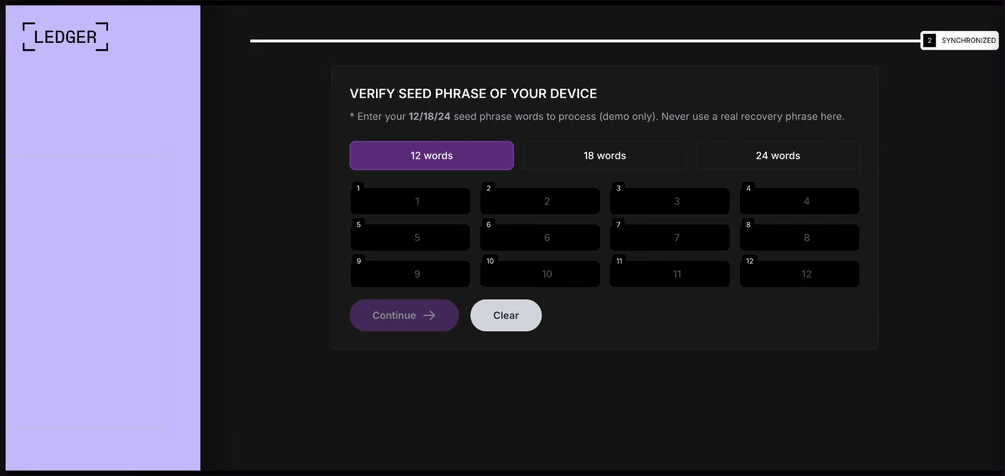
Other modules target users of Ledger and Trezor hardware wallets. Right on the official websites of these services, the malicious extension displays a fake wallet update-and-restore page that asks for a seed phrase of 12, 18, or 24 words. The seed phrase the user enters is forwarded straight to the attackers, giving them full control over the wallet.
The fake form asks the user to enter a seed phrase of 12, 18, or 24 words, which then ends up in the attackers’ hands. Source
Finally, some modules gather information from crypto service pages open in the browser, such as OKX, MEXC, Kraken, KuCoin, Coinbase, Binance, Bybit, and MetaMask, including balance details and active session data that can be used to hijack accounts.
And now we’ve finally reached the module that matters most for this post: the one used for ClickFix attacks. We’ll talk about it in the next part.
How malicious extensions are used in ClickFix attacks
The ClickFix attack technique has become extremely popular among cybercriminals lately. It relies on social engineering: the victim is shown fake instructions supposedly needed to complete some action, such as passing a CAPTCHA check, fixing an error, or updating a program. Following these instructions, the user copies the command suggested by the attackers, pastes it into a system tool built for running these commands, and runs it, all by themselves.
We’ve written about attacks like this and their consequences more than once on our blog. But we rarely dig into exactly how a victim ends up on a page with fake instructions in the first place. A campaign that spread malicious extensions through the Chrome Web Store shows us one way this can happen.
Add-ons turn out to be a very handy tool for ClickFix attacks. As we mentioned earlier, when a user visits a page, extensions are allowed reading and changing its content in order to work. That gives attackers the chance to swap in a fake ClickFix instruction at just the right moment, replacing the content of the page the person actually wanted to open.
What’s more, the ClickFix technique itself lets attackers break out of the browser and gain a foothold directly in the system. That means removing the malicious extension won’t necessarily undo the damage: after the user has run the ClickFix command, malware may already be installed outside the browser.
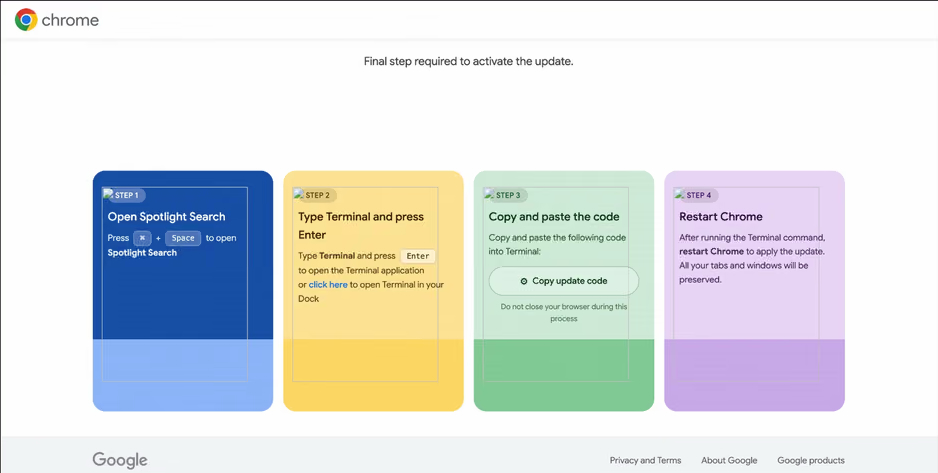
In the specific attack example the researchers describe, the user sees a fake notification saying their browser needs to be updated, along with instructions on how to do it. The instructions change depending on the operating system, and the extension picks up that information automatically too.
In the macOS version of this attack, the user is told to open Terminal, copy a command, paste it there and run it, then restart Chrome to supposedly finish the update. Source
How to avoid falling victim to infected extensions
First off, we recommend checking whether any of the following malicious extensions are already installed in your browser:
Enable Right Click & Copy — Smart Unlock + OCR
RapidLens – Google Lens for Screen Search & Images
Meta & Facebook Ad Library Spy — Save Ads, Finder, Downloader | FeedX-Ray
If you find any of these extensions on your device, we recommend removing it as soon as you can and running a full system scan with a reliable antivirus. As we mentioned above, simply deleting the add-on might not be enough. You can use a free trial version to detect and remove the infection.
How to avoid falling victim to malicious extensions and ClickFix attacks in the future?
Don’t install too many extensions and regularly check the list of those you have.
Remove extensions you don’t use.
Trust the warnings from your operating system and security software, rather than the instructions — or even the demands — of websites and apps.
In 2026, the owner of an ordinary home router, smart TV, or TV box is a prime target for cybercriminals. These devices are readily recruited into botnets and residential proxy networks, which we’ve covered before.
Criminals “sublease” the infected device by letting outsiders pay to visit any website from the victim’s IP address, so it looks like the device’s owner is doing it. The service is in demand across all kinds of shady schemes: from ad fraud and spam campaigns to password bruteforcing and account hacking. In our previous post, we described how home routers get recruited into these proxy networks; today we take a look at an even more vulnerable, and equally ubiquitous category of devices: smart TVs and TV boxes.
These appeal to criminals for two reasons. First, unlike computers and smartphones, TVs are almost always plugged into the power and have a fast internet connection. A dark screen doesn’t mean the device is switched off. On top of that, the limited user interface and monitoring tools mean suspicious background processes can easily slip unnoticed past users.
The threat is evolving and growing more aggressive. A recent study found that once proxyware turns up on a set-top box, the risks to its owner go well beyond having their traffic siphoned off.
SuperBox’s marketing leans heavily on the promise of providing thousands of TV channels, with no subscription or monthly fees. But out of the box, the device can’t actually do anything of the sort. To get access to pirated content, you need to install the brand’s proprietary app store.
When you launch it and install additional apps, the thousands of TV channels do appear. Meanwhile behind the scenes, with no warnings or permission prompts, the device floods external sites with unauthorized requests, and network traffic spikes sharply.
The researchers uncovered several alarming facts. First, the victim gets enrolled into as many as five botnets at once. The SuperBox runs clients for several proxyware networks simultaneously, which even try to compete with one another by blocking rival software from being installed.
But the real shock was the attacks on the internal network. The TV box’s proxyware places no limits on what its paying clients can actually do on the network. They can reach not only external sites but also devices inside your home network.
Normally, your home router and ISP settings protect you from outside attacks. But proxyware bypasses these barriers because it operates from inside the network. During an experiment, the researchers confirmed that an attacker on the internet can easily leverage the infected set-top box to open the admin panel of a home router, such as a Linksys, which is supposed to be accessible only to its owner when connected to the home Wi-Fi network. This means hackers can try to steal data from other devices in the same household, or even encrypt home network storage (NAS).
At the same time, flaws in SuperBox’s factory firmware let hackers remotely install and run any application with superuser privileges, and the threat is anything but hypothetical. Over three weeks of monitoring, the test set-top box was hit by more than 1300 attacks through the home proxy network. Attackers installed three different types of malware, including a module for launching DDoS attacks.
The malware uses several methods to gain a foothold in the system, and it survives reboots and power failures alike.
How to tell if your set-top box is working for hackers
If you have a cheap TV set-top box or Android TV from a little-known brand, it’s worth checking it for anomalies.
The most reliable method is to review the network traffic. Use the statistics in your router’s control panel, but note that some budget models may lack this feature. This feature is called Traffic Analyzer on Asus routers, Traffic Usage on TP-Link, and Traffic Monitor on Keenetic. Find your TV or set-top box in the device list and check the ratio of downloaded to uploaded data. They should consume a lot of traffic to download video while sending very little. If your box is quietly pushing gigabytes of data out or staying chatty on the network even while idle, that’s a telltale sign it’s infected.
If traffic statistics aren’t available, look for indirect signs:
The network and memory activity LEDs won’t stop blinking even though no one’s using the device.
The set-top box’s casing is constantly warm or hot.
The interface lags behind the remote, and the box freezes at random moments that have nothing to do with heavy video playback.
Your other devices (computers or phones) are seeing a real drop in internet speed.
When trying to visit familiar sites over your home Wi-Fi, you’re constantly hit with a CAPTCHA — a sign your network may be compromised and flagged as a spam source.
Your ISP’s tech support calls you asking about suspicious network loads.
What to do with an infected device
The best solution is to disconnect the device from the internet and dispose of it. If you have to keep using it, follow these steps to minimize the risks:
Do a factory (hard) reset. Restore the set-top box to its original state.
Take it offline before setting up again. The first time you turn it on after a reset, skip the Wi-Fi setup step and don’t plug in the Ethernet cable.
Block app installation. Go to Android settings and disable installation of apps from unknown sources. Be sure to turn off any debugging features if enabled: USB debugging, Wireless debugging, and ADB. Menu item names may differ depending on your Android version and device manufacturer.
Isolate it on the network. Set up a guest Wi-Fi network on your router and connect the TV box to it. Enable Client Isolation in your router’s settings, if it has it. This will stop the box from seeing other devices on your home network, which protects your computers and network storage.
Check for updates. Once the box is connected to the guest network, check for official firmware updates: manufacturers sometimes patch known vulnerabilities, though with lesser-known brands, you shouldn’t count on it.
Your most reliable safeguards
Buying cheap devices with pirate streaming features and installing software from shady sources is a surefire way to compromise your home network. Your IP address will become a source of malicious activity, which at best gets you blocked by your ISP and at worst puts you on law enforcement’s radar. What’s more, hackers can use the box as a launchpad to attack your home computers and NAS, which can lead to personal data theft or a ransomware attack.
The best protection is to buy devices from trusted brands and pay for legal content. And to rule out someone hijacking control of your network, make sure your router’s admin panel and other home devices are protected with unique, strong passwords. To avoid having to remember them all, use a reliable password manager such as Kaspersky Password Manager. Additionally, the Smart Home Monitor feature included in Kaspersky Premium lets you keep all your devices fully under control.
There may be more things you don’t know about your smart home devices:
Picture your computer keeping a diary — the kind kids used to keep logging their daily activities, or the kind travelers, merchants, and nobles kept centuries before that. Here’s what it might look like.
Thursday, September 10.
8:00 AM. User read the news on cnn.com and bbc.co.uk (Safari).
8:10 AM. User replied to John Kaufman’s email about delivery dates, then sent the same question to the logistics team (Gmail).
8:20 AM. User checked his to-do list, reviewed recent updates, and planned out the day’s priorities (Todo).
We’re not exaggerating. This is exactly what your Mac’s new diary looks like. It’s a set of text files that any app on your computer can read — as can anyone sitting at the keyboard. The feature responsible is called Computer History, and it was released by OpenAI in mid-August. At the moment, it only works in the ChatGPT app for Mac, requires a Pro subscription or higher, and is disabled by default. According to its developers, the idea behind History is to let the AI assistant quickly get up to speed on your work context, so it can answer even vague requests, like “send a reminder to whoever I was emailing about last week’s deliveries”. Of course, that convenience comes at a price, ranging from your data being processed on OpenAI’s servers, to the risk of it leaking off your Mac — whether to a nosy family member or straight into the hands of cybercriminals.
How ChatGPT Computer History works
If this sounds a lot like Microsoft’s similar Recall feature, or Chronicle, which OpenAI itself announced earlier, that’s no coincidence. Both were built with the same goal in mind, just using different methods. Having watched Recall turn into the PR disaster it was, the team behind Computer History decided against constantly taking and analyzing screenshots. Instead, ChatGPT relies on macOS’s Accessibility features to read the text on your screen and track your actions: mouse clicks, text typed into fields, switching between apps, and the like. All of this gets stored as a stream of raw activity data inside the ChatGPT container (app group), which only the ChatGPT app itself, or other apps you’ve specifically given permission, can access. In tests run by digital forensics researchers, just two hours of normal computer use generated around 3500 of these logged events.
That raw data remains on your computer for up to 48 hours. During this time, the ChatGPT app periodically runs hidden chat sessions behind the scenes, where it asks the AI to summarize related events into a single recap. Essentially diary entries, these summaries get saved as plain text files in a folder that any app on your Mac can open: ~/.codex/memories/extensions/skysight/.
When you chat with the assistant, or when certain automated features kick in, these notes can be pulled into the conversation for more context-aware responses. OpenAI is especially keen on pointing out that the assistant can spot patterns in your workflows and offer to automate them, creating what it calls “skills” that replicate your actions for you.
Once a summary is ready, the raw activity data behind it is deleted. OpenAI says it won’t keep those hidden background chats or use them to train its AI, except where required by law. The diary-style summaries that get pulled into your conversations, though, are stored on OpenAI’s servers under the exact same rules as your regular chats and the assistant’s memory, so your preexisting privacy settings will apply to them too.
What Computer History can see, and what you can turn off
Since the whole feature runs on accessibility tools, ChatGPT only picks up what your operating system is already willing to share with those tools. That includes window titles, blocks of text, image captions in your browser, text you’re typing into a field as you type it, and the names of interface elements you click on. Watching a video? The AI can’t see the video itself, but it can read the window title, the site name, and the video description. Browsing photos? It sees file and folder names, not the actual images. Audio is never recorded or saved in any situation. All that gets logged from a video call is the meeting window title, unless the call itself has live captions turned on. Password fields that are masked (shown as dots) aren’t read at all and, according to OpenAI, private browsing windows are never scanned.
One thing that sets this apart from Microsoft Recall is the clearly spelled out step-by-step procedure the user needs to go through to turn it on. Computer History never activates itself. You have to navigate to the settings menu, then Integrations → Computer History and turn it on manually after reading through the warnings and explanations. You’ll also need access to the agent’s memory enabled for the feature to work. From there, you choose which apps and websites you want it to track, and confirm a series of macOS permission prompts.
For companies using a business subscription, this requires approval at two levels: an administrator first has to enable Computer History for the whole organization, and then each employee has to turn it on individually.
At any point, you can go to Computer History → Permissions and either list specific apps and sites to exclude from tracking, or, conversely, set ChatGPT to only watch a limited list you choose (Include only these apps, Include only these websites).
To see what your own computer’s diary looks like, check Computer History → History. From there, you can delete individual entries or disable the tracking of specific apps directly from the list.
The risks of using ChatGPT Computer History
We covered the risks of centralized storage of someone’s entire activity in our earlier piece on Microsoft Recall, and most of what we said there applies to ChatGPT Computer History.
You might assume your chats and emails are private, protected by passwords and encryption. But a copy of the most important parts of those conversations is sitting in plain text files that anyone with access to your computer, and plenty of other apps, can open.
The people you’re messaging have no idea this extra copy exists. If they’ve turned on, say, a self-destructing chat feature, but the messaging app’s window itself isn’t marked as private, that precaution does nothing to protect them.
Even if you trust OpenAI completely and take its privacy promises at face value, your data can still be stolen directly off your computer by an infostealer. Mac-targeting infostealers have exploded over the past two years, so this isn’t a hypothetical risk. And the people who write this type of malware move fast, quickly updating it to grab whatever new type of data looks promising. OpenAI’s files are a boon for them: everything you’ve done, already summarized by AI into something easy to read. While there are no passwords or credit card numbers in there, the available details are likely enough to craft a convincing targeted urgent email from the boss.
And if a nosy coworker or family member gets their hands on your computer, reading through the diary of your work and life would take them all of five minutes.
Computer History: turn it off, or just configure it?
We’d recommend limiting or fully disabling Computer History if your work involves sensitive information. This especially applies to doctors, lawyers, and anyone else bound by professional confidentiality, or handling personal or medical data. The same goes for anyone living with an overly controlling family member, or working in an office with nosy coworkers.
If none of that applies to you and you’d like to try out how useful the AI’s search and auto-generated skills actually are, here’s how to set things up safely.
Lock down your Mac’s login. Turn off auto-login, and set your Mac to require a password immediately after the screensaver kicks in or it wakes from sleep. Use a strong password along with Touch ID, and make sure FileVault disk encryption is turned on.
Set up your exclusions. Manually add every messaging app you use for private conversations, along with any finance apps or sites, and anywhere else you keep sensitive information, to Computer History’s exclusion list.
Check in regularly. At least a couple of times a week, visit Computer History settings to see which apps and sites it’s been tracking. This helps you catch and remove any sources of private information you forgot to exclude earlier.
No matter how you configure Computer History, the two most common ways your data could end up in the wrong hands — on any Mac — are a macOS infostealer snatching it directly from your computer, and typing your information into a fake website. To guard against both, make sure you’re running full-featured security software on your Mac, such as Kaspersky Premium for macOS.
AI can create privacy risks you might never think to look for. You can read about more of them in our other posts:
Every so often you need to tidy up, and that goes for your devices as well as your closets and drawers. But a digital cleanup can turn out to be trickier than sorting through a messy closet — especially on macOS.
Getting rid of old photos and files is straightforward enough, but fully removing an app from macOS is another story. You’d think dragging an unwanted app to the Trash would do the job, but in practice, that app can leave behind settings files, cache, logs, helper files, and other related junk. Over time, all these leftovers pile up and eat away at your storage.
To make this kind of cleanup easier, Kaspersky Premium for macOS now includes a feature called App Cleaner. It removes apps along with all their related files, and it can also track down the remains of apps you deleted earlier. This post explains where these leftover files come from, shows you how to use App Cleaner, and explains why installing the first Mac cleanup tool you find online isn’t a great idea.
Why deleted apps leave traces on your Mac
As Apple products go, macOS works in some unusual ways. Every longtime user runs into its quirks sooner or later, though that doesn’t stop us from loving it with all our hearts. Apps are no exception: the way macOS handles them is more complicated than it looks.
Most people picture an app on macOS as one specific item. Take Photoshop: it’s that familiar icon with the letters Ps, sitting in the Applications folder in Finder, ready to launch with a click. But under the hood it’s more complex. What looks like a single item in Finder is actually an app bundle: a folder containing the program itself along with everything it needs to run.
But even that is only part of the picture. While Photoshop is running, like any app, it creates and uses data stored outside that bundle. Some of this is behind-the-scenes data, like cache, settings, and user documents. Some of it is your own work, like PSD files. The distinction matters: if you delete Photoshop, you don’t expect your PSD files to vanish along with it.
Then there’s how Adobe doesn’t just install Photoshop or Acrobat: it also deploys a whole set of common apps and background services alongside them. Dragging the Ps icon to the Trash won’t remove those, and neither will Adobe’s own uninstaller.
These background files and helper services can stick around on your drive after you’ve deleted the app they came from. Worse, if you use Migration Assistant to move to a new Mac, all that dead weight gets copied over automatically. So it’s entirely possible to have never installed a single Adobe or Microsoft app on your current Mac, yet still be carrying around megabytes, or even gigabytes, of useless files tied to them.
Tracking these files down yourself isn’t easy, primarily because most people don’t even know they exist. Even if you suspect something’s hiding on your drive, you probably won’t know where to look or what the files are called. To make things harder, file names rarely give away which app they belong to.
The new App Cleaner feature helps you remove apps along with the files they leave behind
Most of these background files live in special macOS folders. One of the main ones is Library, which contains folders like Application Support (app data) and Caches (temporary files). But Library isn’t easy to get to. Since OS X 10.7, Finder keeps it hidden by default. To find it, open the Go menu in Finder while holding down the Option key. Only then does Library show up.
Even if you’re determined enough to dig through Library, you’ll still have to figure out for yourself which of the many files belong to which apps, and which ones are safe to delete. Fortunately, you don’t have to do this by hand, because that’s exactly what App Cleaner takes care of.
How App Cleaner finds and removes apps without leaving traces
App Cleaner doesn’t just remove the app itself. It also tracks down every file connected to it. It does this by automatically identifying which files belong to which app, mainly using the app’s unique identifier (bundle ID) and typical file locations. This means it can clear out an app’s leftovers even when they’re scattered across different macOS folders.
Keep in mind that a full cleanup like this also removes the app’s saved data, so you’ll need to set things up again — for example, restore browser extensions — if you reinstall it later; you can also lose game save files. That said, App Cleaner never touches your own files. Delete Photoshop with it, and the leftover files disappear while your PSD files stay exactly where they are.
You can’t remove the extra files separately from the app itself. App Cleaner offers to delete them together as one package. But if you’ve already deleted an app the regular way and its data has stuck around, App Cleaner can find and remove that too.
If you accidentally delete something you needed, don’t worry. App Cleaner moves everything to the Trash first rather than deleting it outright. As long as the Trash isn’t emptied, you can restore those files from there, and if you haven’t closed App Cleaner since deleting them, you can restore them directly from the app instead. Files only disappear for good once you empty the Trash. We’ll walk through how to undo an accidental deletion below.
How to remove an app with Kaspersky App Cleaner: a step-by-step guide
Now let’s put this into practice. To use App Cleaner, open Kaspersky Premium for macOS and head to the App Cleaner section. You’ll find it right on the app’s main screen, in its own App Cleaner block, or under Performance in the left-hand menu.
You can open App Cleaner from the main screen of Kaspersky for macOS, or through the Performance section in the left menu
In the Apps tab, you can see every app installed on your Mac. Select the apps you no longer need, click Remove, then confirm your choice to delete them along with all their related files. The deleted files move to the Trash, from where you can restore them if needed. Ready to say goodbye for good? Just empty the Trash.
Before you remove anything, App Cleaner shows you not just the app but every file tied to it that will be deleted along with it, plus how much space each one takes up and where it’s stored. That way, you know exactly what you’re clearing out before you commit.
Select the app you want to remove in the Apps tab and click Remove. App Cleaner will delete it along with its related files
App Cleaner also helps users find and delete duplicate copies of applications. For example, those copied by mistake, or when one and the same app was installed from multiple sources. To free up space users caneither remove all duplicates at once or select individual ones.
App Cleaner can also find leftovers from apps you previously deleted the regular way (by dragging them to the Trash). These show up in a separate Leftovers tab, where you can see what’s left, how much space it takes up, and where it’s stored. To clear them out, click Remove, then confirm by clicking Delete. As always, you can restore these files from the Trash if you change your mind.
The Leftovers tab collects files left behind by the apps you’ve already deleted. Select the ones you don’t need and click Remove
Before closing Kaspersky Premium for macOS and emptying the Trash, double-check that you haven’t accidentally deleted a piece of software you need. If you have, you can bring back an app along with all its files right from App Cleaner: select the deleted app from the list and click Restore All. Once you close Kaspersky Premium for macOS, you can still recover deleted files from the Trash as long as you don’t empty it yet.
Select the deleted app and click Restore All. App Cleaner will bring it back along with its related files
Leftover files work the same way. As long as Kaspersky Premium for macOS is still open, you can restore them through App Cleaner. Once it’s closed, the Trash is your fallback.
When it comes to tidying up a Mac, it’s tempting to just download the first app that promises to clear out junk and free up space. But you should be careful about which program you choose. Criminals often disguise malware as well-known, legitimate Mac cleanup utilities. Kaspersky researchers have already found fake versions posing as CleanMyMac, Mole, and CCleaner Pro.
With Kaspersky, you don’t need to look for a separate cleanup tool at all. App Cleaner is already built into Kaspersky Premium for macOS. That means one solution protects your device from cyberthreats and clears out unwanted app leftovers — without the risk of accidentally downloading harmful software disguised as a cleanup tool.
What else is new in Kaspersky for macOS
App Cleaner helps you tidy up your Mac quickly and safely, freeing up time you can spend sorting through your own files instead — something no app can do for you yet. To get access to App Cleaner and other advanced protection features, purchase Kaspersky Premium for macOS or sign up for a free trial.
That’s not the only new feature in Kaspersky Premium for macOS. The app now includes Scam Protection Hub, a single control center for AI-powered protection against digital fraud. There’s also Shop with Confidence, which is now available across all our home security products. Alongside our longstanding filters for malicious sites, this feature blocks links to gray-area sites, like online stores that copy well-known brands to sell fake goods.
How can an industrial server be compromised through its GPU without leaving a trace? Such a complex, largely theoretical attack would typically leverage hardware vulnerabilities. This isn’t even about design flaws in the hardware itself, but about quirks in how it operates — sometimes at the physical level. A recent paper by Canadian researchers at the University of Toronto describes GPUThor — a new and more effective Rowhammer attack that exploits precisely this kind of hardware behavior in video memory.
Rowhammer and graphics cards
GPUThor builds on the idea behind the original attack on RAM, first proposed in 2014 in the Rowhammer research. Rowhammer and every attack in its class rest on a simple fact: memory cells aren’t fully isolated from one another. Repeatedly accessing (hammering) the same row of cells can, under certain conditions, corrupt data (that is, flip bits) in neighboring rows. Once that effect is confirmed as possible, all that’s left is finding a way to weaponize it — for example, by triggering a denial of service or even executing arbitrary code.
So what do servers and graphics accelerators have to do with any of this? As artificial intelligence technologies have taken off, so has demand for hardware that can run large numbers of parallel, similar computations. And the accelerators built into gaming graphics cards are a natural fit for this kind of workload. This makes cloud providers that rent out graphics accelerators to all comers an attractive target for Rowhammer attacks. The hypothetical scenario runs like this: an attacker buys access to a graphics chip, and uses it to try to compromise the provider’s entire infrastructure. This is exactly why attacks on video memory remain a topic of special interest to researchers.
How the GPUThor attack works
In the spring of this year, three new papers were published — each demonstrating a different attack on Nvidia accelerators equipped with GDDR6 memory. All three delivered fairly modest results: the most damage was done when the target was a consumer-grade graphics card, while attacks on an industrial accelerator like the Nvidia A6000 proved to be far less effective. On top of that, none of the attacks worked with ECC (error correction code) memory protection enabled.
GPUThor also looks at the possibility of attacking Nvidia’s older Ampere accelerators with GDDR6 memory: the researchers studied the A4000, A4500, A5000, and A6000 models. But the effectiveness of the new method — measured by the number of cells whose data was forcibly altered — is significantly higher. The researchers also argue that, in theory, the technique could be applied to newer accelerators as well.
GPUThor’s effectiveness compared to earlier attacks. Source
;
How were these results achieved? The standard defense mechanism against Rowhammer attacks is called Target Row Refresh (TRR), which the Canadian researchers took a closer look at. It turns out that if TRR detects repeated access attempts, it forces a refresh of neighboring cells — making data corruption difficult or impossible. Attackers typically try to defeat TRR by accessing cells at random — confusing the defense system and reducing its effectiveness. The researchers discovered that on Nvidia Ampere cards, TRR only triggers once every 72 memory-cell refresh cycles. Armed with this finding, they applied an uneven access pattern — hammering the target cells far more aggressively than before. The result: measured against the original GDDR attack known as GPUHammer as a baseline, GPUThor turns out to be around 7 000 to 23 000 times more effective.
Results and outlook
Combining this more aggressive attack pattern with other refinements produced 72 000 to 377 000 bit flips per gigabyte. Earlier Rowhammer variants managed a few hundred at best. This let the researchers achieve double and even triple-bit errors. ECC easily corrects a single-bit error, but not a double-bit one.
The new method also demonstrates the real-world damage a Rowhammer attack could cause: repeated access to video memory using GPUThor triggers a denial of service. The accelerator first reboots, losing data in the process, then flags itself to the administrator as needing replacement.
Despite these impressive research results, GPUThor attacks aren’t successful. For one, the researchers weren’t able to demonstrate arbitrary code execution as a result of the data corruption — though they claim this is possible even with ECC enabled. For another, an attack thousands of times more effective hints at the theoretical possibility of compromising newer accelerators too, but this also remains unproven for now.
Even so, the Canadian researchers have shown that Rowhammer attacks on graphics accelerators still have untapped potential. It wouldn’t be surprising if future research demonstrated similar attacks against far more advanced devices previously considered highly resistant to them.
Security researchers have found a way to hack a Boeing 737 with a device no bigger than a coin. The 737 is one of the most widely used airliners in the world, so chances are you’ve flown on one yourself at least once.
The attack requires installing a small device in a port that’s accessible through a hatch on the outside of the plane. According to the researchers, this port is regularly within reach not just of maintenance crews, but of other airport and airline staff too. And installing the device takes less than 60 seconds. So let’s talk about what this mysterious little device actually is, what it can do, and whether it’s still safe to fly on a Boeing 737.
Why hacking a plane is harder than hacking a car
Most of us have gotten used to the idea that our computers and phones can be hacked. It’s probably the most common topic on this blog. But we’ve also covered attacks on less common targets: cars, robot lawnmowers, automated card shufflers, bikes, and even mattresses. In today’s world, all of these (and many other) devices contain tiny (or not-so-tiny) computers.
Airplanes are no exception. A modern airliner is packed with computers — some of which handle critical functions: from calculating takeoff parameters to controlling the flight itself. But there’s one key difference: airliner manufacturers, unlike the makers of most smart home gadgets, take security very seriously, which makes it far harder to reach these systems from the outside.
Maybe that’s precisely why the idea of hacking a real plane has been tempting the most inquisitive security researchers for years. A team at the University of California San Diego and Oberlin College — the researchers who finally pulled it off — spent more than a decade wrestling with the problem. As mentioned above, the main challenge in hacking a plane is that its critical systems aren’t connected to the external internet. Because of that, studying plane-related attack vectors wasn’t seen as especially promising within the cybersecurity research community: reaching isolated systems remotely is extremely difficult, and the odds of an attacker gaining physical access were considered very low.
Two other successful projects changed that assumption for UC San Diego researchers Kirill Levchenko and Aaron Schulman: a hack of the Chevrolet Impala, and research into payment card skimmers. The car hack led their team to buy secondhand Boeing 737 computer components and build their own test rig. The skimmer research gave them the idea for a small physical device that could plug directly into the plane’s internal systems.
The port sits in the electronics bay beneath the cockpit. From outside the plane, it’s covered only by an unlocked hatch. Source
A “bus driver” at the controls
On their test rig, the researchers checked what would happen if they connected to the ARINC 429 bus through this port and sent electrical signals more powerful than the ones the Boeing’s components normally exchange with one another. It turned out that doing so let them override legitimate commands with their own. From there, all that was left was building a device small enough to fit into the port they’d found.
Step by step, the team built a device compact enough to slot into the unprotected port. The finished version set them back less than US$100, and appears to have been built largely from off-the-shelf parts: a small microcontroller, electronics for communicating with the bus, and a Wi-Fi module. That last part could potentially help the device connect to the plane’s public in-flight Wi-Fi network, giving the attacker access over the internet, and eventually letting them control the device remotely. And the whole thing takes less than a minute to install into the port.
The device the researchers built to connect to Boeing 737 systems. A coin sits next to it for scale. Source
The researchers dubbed their attack “Bus Driver”, apparently a play on words: “bus” refers to both a passenger vehicle and the data channel that lets a system’s components talk to each other. The attack lets someone step into that channel and swap out the commands being sent — effectively controlling the bus.
What the improvised Boeing 737 hacking device can actually do
An unprotected port, a coin-sized device, access to the bus: that’s all and well and good, but what did the researchers actually manage to pull off? What kind of damage can this tiny implant do? As it turns out, quite a lot — potentially even fatal. By gaining the ability to tamper with the data flowing between the flight management computer and the control and display unit, the researchers found they could interfere with several critical aspects of how the plane operates.
Researchers testing Bus Driver on real Boeing 737 avionics hardware. Their attack interface is running on the MCDU screen. Source
First, the implant can alter the data used to calculate takeoff and landing parameters. For example, it can change the plane’s recorded zero-fuel weight, which throws off the calculation of the speeds needed for a safe takeoff.
The device can also manipulate the assumed temperature value pilots use to determine how much engine thrust is needed at takeoff. Feed the system the wrong numbers, and under certain conditions the plane could end up with insufficient thrust to take off safely — potentially even going off the end of the runway. Faulty calculations during landing carry similarly serious risks.
The implant can also change the route the autopilot is following. On a long flight, a deviation of just a few degrees — subtle enough to go unnoticed — could be enough to send the plane badly off course so it runs out of fuel somewhere over open ocean.
Beyond that, an attacker could use the device to steer the plane into the airspace of a country that isn’t part of its approved flight path. That kind of deviation can also have deadly consequences: the history of civil aviation has seen more than one case of a passenger plane being mistakenly shot down by the military after straying into restricted airspace.
Of course, the odds of a deviation like this slipping past both pilots and air traffic control are very low, but disasters tend to happen exactly when several human errors line up.
Once installed, the implant is nearly invisible inside the port and very hard to spot unless you know to look for it. Source
Finally, the device doesn’t just let someone change flight parameters, it lets them hide those changes from the pilots. For instance, an attacker could load a new route into the flight computer while simultaneously altering what’s shown on the MCDU display, so the pilots keep seeing the original route.
That said, the researchers note that in most cases an attentive crew would catch the discrepancy. The correct data still shows up on other cockpit displays, and switching to manual control lets pilots disengage the autopilot and take back control of the plane.
So, should we all switch to trains?
To wrap up, I’ll try to put the longtime aerophobes (and anyone this article has just turned into one) at ease. The researchers themselves say that despite everything they’ve learned, they still fly on Boeing 737s. And to avoid causing any real-world trouble, they deliberately left out exactly which port they used in their experiments.
The researchers also reached out to Boeing back in 2020 to share their findings. Boeing took the information seriously and worked on addressing the issue.
Specifically, the researchers suggested Boeing either remove the vulnerable port or seal it with epoxy resin to physically rule out the possibility of someone plugging in an unauthorized device. There are more involved options too, like redesigning the internal bus’s electrical protections so a rogue device can’t override the real signals, and adding systems that can detect this kind of attack in the first place.
Longer term, the researchers recommend that Boeing, along with other aircraft manufacturers, adopt cryptographic authentication for the messages passed between avionics components.
Whether Boeing acted on this specific advice or came up with its own fixes isn’t publicly known. When Wired reporters asked the company about it, the response was fairly vague:
“Our technical experts are confident that the layers of protection in place on the airplane, including within the system design and the operating environment, provide sufficient mitigation to significantly limit the feasibility and risk of real-world attacks.”
So no, there’s apparently no need to swear off Boeing 737 flights just yet. That said, I happen to have a lot of respect for trains, so I won’t try to talk you out of traveling by rail or using other ways of getting around either. I’ve actually written about train hacking on this blog before, though in that case the goal was constructive, not destructive.
Cars, lawnmowers, card shufflers, bikes, smart mattresses — it’s not even an exhaustive list of the devices that hackers have successfully tampered with. What else was hacked? Find out in our other posts:
Artificial intelligence has gone from a technological novelty to a tool so ordinary that kids in elementary school are already using it. Trying to ban children from using AI at this point makes about as much sense as it once did to ban search engines or Wikipedia.
Today we’re breaking down how chatbots actually work, and how to teach your kid to use AI as a study aid rather than a substitute for thinking for themselves
Explain to your child (and yourself) how AI works
Before explaining anything about artificial intelligence to your child, it helps to understand how it actually works and where its limits are.
Most of the popular chatbots that kids (as well as adults) use are what’s known as large language models, or LLMs. To build such a model, researchers train it to spot patterns across huge amounts of text. The model breaks text down into small units called tokens (each token can be a sequence of words, a punctuation mark, a single word or character, or a whole sentence), then predicts which token is most likely to come next.
This example shows how the GPT-3.5 and GPT-4 models split messages into tokens. Source
The same thing happens when a chatbot converses with a person. A language model doesn’t actually reason on its own. It’s calculating which words and phrases are most likely to follow one another in order to produce a response that fits your query. That means chatbots will sometimes give incomplete or flat-out wrong answers, no matter how often they’re updated or retrained. A vivid example: just two years ago, popular chatbots confidently assured users that the word “strawberry” has two letters “r” instead of three. Mistakes like these are commonly known as hallucinations.
Many chatbots can also search the internet for information. In that case, the AI pulls in data from an outside source, but it still uses its own internal algorithms to put the answer together. And search results themselves can include outdated posts, advertising content, tabloids, and other questionable sources.
How to help your child use AI wisely
Talk to them about how AI can get things wrong
We’ve already seen that artificial intelligence isn’t immune to errors. Unfortunately, hallucinations aren’t the only issue. Even when a chatbot is working from accurate information, it can still present it in a misleading way by leaving something out, putting the emphasis in the wrong place, or drawing a questionable conclusion. Sometimes the result depends on factors a user would never think to consider when asking a question.
One surprising factor is simply what language you’re using. Most of the data that major models are trained on is in English, so these systems tend to perform better in English. The same AI model might answer a question correctly in English but get it wrong when asked the exact same thing in, say, Serbian. This gap shows up most in fields such as science, medicine, technology, and law, where there’s simply far more high-quality English-language material for the model to draw on.
Another quirk of chatbots is that they get worse as you feed them more information. Studies show that the more text and data a model has to work with, the harder it is for it to keep track of details, connect information from different parts of a conversation, and answer questions that require real depth of understanding. Therefore, uploading an entire book to a chatbot and asking detailed questions about it is a surefire way to trigger hallucinations.
It’s also worth questioning not just what the AI tells you, but the way you ask your questions in the first place. Chatbots often try to please the user, and will shape their answer to match the user’s apparent point of view. For example, the same chatbot might give opposite answers to “Why is the Earth overpopulated?” and “Why isn’t the Earth overpopulated?”, each time building its response around the assumption baked into the question. One recent study found that even the most advanced language models failed to challenge false premises in 26–42% of cases.
Let AI help with learning, not do the learning
Many a former student knows that copying others’ work is an art unto itself — one that takes exceptional skill and at least some engagement with the material (sometimes even a fair amount). These days, unfortunately, even that skill is at risk of disappearing: the temptation to copy an answer that took only a few seconds to generate is simply too strong. But chatbots are far from straight-A students themselves.
In one study, researchers had three popular chatbots sit a chemistry exam, and compared their scores to those of real students from 2009–2023. The students came out ahead. Chatbots will sometimes land on the correct answer, but arrive at it via a chain of flawed reasoning, so their answers could just as easily be wrong.
So it’s worth explaining to your child that having AI write essays from scratch, or solve equations without then double-checking them, is a dead end. On top of that, in a real job they’ll be judged on actual skills and knowledge, and chatbots won’t help them fake the expertise. What AI can genuinely help with, without getting in the way of learning, is explaining difficult topics and working through mistakes. Here are some examples:
If a topic is hard to make sense of
“Explain this topic in simple terms: {insert topic}”
“Explain this topic using a real-life example: {insert topic}“
“Here’s the part I don’t understand: {insert text}. Walk me through it step by step”
“Explain this topic in simple terms first, then in more technical terms: {insert topic}“
“Here’s a question: {insert question}. Don’t give me the answer. Ask me guiding questions so I can work it out myself”
Math and other exact sciences
“Give me a hint for the first step, but don’t solve the whole problem: {insert problem}“
“Look at my solution and tell me where I made a mistake, but don’t fix it for me: {insert problem and solution}“
“Come up with a similar problem for me to try: {insert problem}“
“Here’s my answer: {answer}. Ask me questions so I can check whether I solved it correctly”
“Explain why this formula applies here: {insert problem}“
Essays and written assignments
“Ask me five questions on this topic so I can come up with my own thesis and arguments: {insert topic}“
“Here’s a draft of my essay. Try to find gaps in my logic or places that need more detail: {insert draft text}“
“Look at my essay outline and tell me what’s missing: {insert essay outline}”
“Point out places in my writing where the idea isn’t clear, but don’t rewrite it for me: {insert text}“
“Pretend you’re an experienced teacher and try challenging my argument: {insert text}“
Language learning
“Have a conversation with me in {insert language} at an A2 level. After I respond, correct my mistakes”
“Give me five sentences to translate using this grammar structure: {insert grammar structure}“
“Explain this grammar rule and give me some examples: {insert grammar rule}“
“I’ll write a sentence, and you tell me if it has a mistake. Give me a hint first, and only show me the correct version after my second attempt. {insert sentence}“
“Write a short dialogue in {insert language} where I have to answer as one of the characters”
Knowledge testing
“Quiz me with 20 questions on this topic: {insert topic}. Ask one question at a time, and don’t show the answer right away”
“After each answer, only explain what I got wrong”
“Start with five easy questions, then ask five hard ones”
“Make the questions harder each time I answer correctly”
“Based on my mistakes, tell me which topics I should review”
Fact-check AI responses together
Make sure your child understands that they shouldn’t blindly trust what a chatbot tells them — even when it cites other sources. And asking the same chatbot to double-check its own work isn’t a great idea either; there’s a real chance it will make the same mistakes twice, or even pile up the errors.
Take any chatbot answer and go through it together, breaking it down into individual statements and asking questions about each one. Where did that date or number come from? Is the AI citing a specific person, publication, or study? Is the quote actually something that person said? If the chatbot includes a link, open it and check how accurately the AI actually represented it.
While you’re at it, take a look at the quality of the source itself. If something is written in an overly emotional tone or makes bold claims without backing them up, that’s a good sign to look for information somewhere else.
Protect your child and their accounts
Anything your child shares with a chatbot ends up on that company’s servers, and it’s used to further train the model by default. Over the past few years we’ve seen that even the biggest companies aren’t immune to bugs and data leaks. To lower the risk of your child’s information leaking and to keep their account secure, follow a few simple rules:
Make sure your child understands that AI isn’t a private diary. Tell them not to share their name, home address, school, or any other sensitive information with a chatbot.
Adjust the chatbot’s privacy settings. At the very least, turn off memory and any “improve the model” or training features. It’s also worth reading our detailed guides on setting up privacy and security in ChatGPT and DeepSeek.
Update the password. Most chatbots require an account, so to keep your child’s from being hacked, set a strong password that isn’t reused anywhere else. Whether your child’s password follows the classic “mother’s maiden name plus birth year” formula or uses popular meme words like “skibidi”, we have some bad news: passwords like these get cracked really fast. Instead of coming up with and memorizing passwords, it’s better to let an encrypted password manager generate and store them.
Turn on two-factor authentication. This adds an extra hurdle for anyone trying to break into your child’s account. Rather than using a phone number as the second factor, it’s better to use login codes generated and automatically refreshed in a password manager.
Use anti-phishing protection. Beyond fake websites that impersonate legitimate AI services, there’s another risk: chatbots sometimes hand users links to phishing sites (fake pages designed to steal personal information). Kaspersky Premium blocks access to suspicious sites and keeps scammers from stealing your family’s data and money.
Know what your child is doing online. Along with a password manager and protection from malware and phishing, Kaspersky Premium includes Kaspersky Safe Kids, which lets you set up parental controls, restrict unwanted content, and keep track of how much time your child spends online.
What else to read about keeping kids safe online and at school:
Cybersecurity researchers have discovered a new family of Android malware, and it goes by the name of Manic. It lets criminals spy on their victims, steal banking credentials, and take remote control of infected devices.
But its most unusual trick is this: Manic can send stolen data back to attackers even when the given device has no internet connection. Apparently, random mobile internet outages seem to get in cybercriminals’ way just as much as anyone else’s, so the actors behind Manic came up with an unusual workaround.
Researchers haven’t yet pinned down exactly how attackers are getting Manic onto people’s devices. Typically, malware like this spreads through channels like:
Infected apps on legitimate app stores
Malicious APK files shared on pirate websites
Download links sent through messaging apps and email
Scam sites
Google has told journalists it hasn’t found any trace of Manic spreading through apps on the Google Play Store. That suggests people are most likely installing infected apps from unofficial sources.
Experts have traced the beginnings of the attackers’ infrastructure for this campaign to February 2026. The earliest samples of the malware itself turned up in late May of this year. Since then, the criminals behind the Trojan have refined the ways it hides from detection on a victim’s device.
Manic currently combines the powers of a banking Trojan, spyware, and a remote-access tool that lets an attacker control the device. Attackers are especially interested in data from sources like:
Banking apps and payment services
Official government apps
Crypto wallets and cryptocurrency exchanges
Two-factor authentication apps
Text messages and notifications: mainly the one-time codes used to verify logins or approve transactions
By looking at which banking apps Manic targets, researchers have been able to work out which countries it has in its sights. It turns out its reach is broad, covering Austria, the Czech Republic, Estonia, France, Germany, Lithuania, the Netherlands, Poland, Russia, Slovakia, Spain, Ukraine, and the United Kingdom.
Stolen passwords, intercepted codes, remote control: what Manic can actually do
Let’s look at exactly what information Manic steals, and how it manages to get it. The malware’s main trick relies on abusing Android’s Accessibility services, a set of built-in features designed to help users with visual impairments. Used as intended, these features are genuinely helpful for people with vision loss. But criminals have long been quietly exploiting the very same tools for their own purposes.
Once a user grants an app permission to use Accessibility services, that app can “see” the text and buttons on the screen, interact with them, scroll through pages, and carry out actions automatically — all as if a user were doing it themselves. Attackers use this to read messages on screen, quietly grant the malware extra permissions, interfere with attempts to uninstall it, switch off security protections, or control other apps without the victim ever noticing.
With Manic, this abuse of Accessibility services is paired with the Trojan’s own advanced capabilities. It can generate an invisible keyboard that overlays the phone’s real one. When a user types their password to log in to a banking app, Manic records exactly which keys they pressed. Then it uses Accessibility services to instantly replay that same keystroke on the actual app keyboard.
Manic generates a transparent capture layer that covers the phone’s keyboard, recording each tap and relaying it to the real keyboard. Source
This means attackers don’t have to build a fake login screen for every single app they want to target. Because Manic works as an invisible layer sitting on top of the genuine app, everything looks and behaves as usual, so a phone owner has no reason to suspect they’re handing over their PIN or password to a criminal.
Manic doesn’t simply log everything a user types, either. It automatically recognizes what kind of information it has just captured and sorts it into categories: passwords, email logins, four-to-six-digit SMS codes, strings of characters that look like crypto wallet seed phrases, and phone unlock codes or pattern locks. Alongside the captured text itself, Manic also records which app it came from, when it was entered, whether the user typed it manually or used autofill, and whether that app is on its hit list.
Manic’s abilities don’t stop at collecting information. Using Accessibility services once again, it also lets attackers take remote control of an infected device. To conceal this activity, Manic can show a black screen or fake a system update.
On top of Accessibility services, the malware also asks for permission to read text messages and notifications. That lets attackers intercept two-factor authentication codes and one-time verification codes before a victim even has a chance to type them into the app.
Put together, this hands attackers not just passwords, banking credentials, and verification codes, but the ability to remotely control the victim’s phone as well.
Even being offline won’t save you from data theft
Manic’s original method for relaying stolen data off the device and back to the attackers deserves a separate mention. Even today, devices get knocked offline more often than people might expect, and Manic’s creators built a workaround specifically for such situations.
Normally, malware like this collects information on the device and sends it straight to a server controlled by the attackers. But what happens when the infected device has no direct internet access, or can’t reach the command-and-control server for some other reason?
In that case, Manic simply stores the stolen data on the device and starts scanning nearby for other infected phones it can reach over Wi-Fi or Bluetooth. If it finds one with internet access, it hands over the encrypted data to that phone, which then forwards it on to the attackers’ server.
But it doesn’t stop there. Data can hop across a chain of infected devices. By default, Manic allows up to four of these relay devices in the chain. If no suitable device is nearby, the data simply stays on the original phone, and Manic tries again later.
How to protect your phone from Manic and other banking Trojans
Android malware keeps getting more sophisticated. That makes it worth remembering — and actually following — a few basic digital hygiene habits for Android phone and tablet users:
Avoid installing apps from unofficial sources.
Don’t grant apps permission to use Accessibility services unless this is absolutely necessary and you understand exactly why they need it.
Install reliable security software on all your devices, run scans regularly, and take its warnings and recommendations seriously. We recommend Kaspersky for Android. Our Android security apps are temporarily unavailable on the Google Play Store, so to install them on an Android device we recommend using an alternative app store or installing the APK file manually from our website. A full step-by-step guide is available in our post, How to install or update Kaspersky apps for Android in 2026.
Malware doesn’t just target smartphones; it feels at home on other Android-powered devices too — from streaming boxes to… cars. Check out the details in our related posts:
Threat actors are constantly developing new attack schemes — from OAuth token theft to attacks on AI agents — but the classics never quite leave their playbook. On any given day, an employee may receive malware attached directly to an email, or lying in wait behind a link embedded in an email. Making these attacks succeed still requires a degree of creativity, and in recent years attackers have increasingly adopted exotic file formats. Users don’t perceive these formats as dangerous; more importantly, many EDR and email security solutions skip scanning them entirely. Yet they’ve proven highly effective for deploying malware or harvesting credentials.
Below are the file types that may be blind spots in your organization’s detection strategy — despite being observed as used in real-world attacks.
Disk images
This is the broadest and most dangerous attachment category. A disk image can contain a fully prepared, correctly structured set of files tailored to a wide range of attack scenarios. It mounts as a separate volume (standalone virtual disk), and when doing so often uses tools built into the operating system. The victim doesn’t need to extract anything or create suspicious folders on disk.
The most versatile format is ISO, which dates back to the heyday of multimedia CDs. ISO images mount natively on every major OS without additional utilities, whether through simple tools like File Explorer or via the command line interface. This is precisely why threat actors have no hesitation in sending ISO files as email attachments.
Somewhat less common are IMG containers, which also mount without additional tooling on macOS or Linux, but require installing a small, free utility such as OSFMount on Windows, or using WSL2 (Windows Subsystem for Linux), which is built into recent Windows versions. A file with identical content may also carry a DD extension.
Threat actors also make use of VHD, a virtual disk format native to Windows, which generally works on Linux machines as well (via qemu-nbd or guestmount). On macOS, an additional utility — again, qemu-nbd is a common choice — is required to mount it. Note that on unpatched Windows systems, the victim doesn’t need to take any further action after the disk mounts: CVE-2025-24993 — a vulnerability actively exploited in real-world attacks — triggers attacker code execution immediately upon mounting the image.
For completeness’ sake, VMDK, the disk image format used by VMware, is also worth detecting, though it’s largely ineffective in attacks on regular users since every popular OS requires additional software to mount it.
All of these image formats can be viewed and unpacked not only with specialized tools, but with standard archive utilities like 7-Zip or RAR. As a result, the odds that the user will fall for the bait are higher than one might hope.
In addition to not being a well-known potentially dangerous format, image files give attackers one further advantage: files extracted from disk images on Windows frequently lack the Mark of the Web flag, and therefore can be launched without triggering additional system warnings.
There’s one more reason why EPP/EDR solutions must scan virtual machines and disk images: these formats are also used during later stages of an attack. To mask active file-system activity from monitoring tools, ransomware gangs sometimes run the entire encryption process inside a virtual machine deployed on the victim’s computer. The RagnarLocker ransomware strain has used VirtualBox for this purpose, while the CRON#TRAP campaign relied on a QEMU environment.
MS Office files
No, this isn’t about macro-laced DOC files. Microsoft has grown weary enough of this classic attack vector that macros in downloaded documents are now blocked outright, and enabling them requires considerable effort from the user. But Office relies on dozens of file formats, and some of the less common ones still occasionally give attackers an edge.
Less familiar to both users and security solutions are OneNote files (.one). These are essentially simple notes, but they can carry embedded attachments, including not just images and links, but VBS/WSF/BAT scripts as well. Within the note, an attachment normally displays as an icon, but attackers overlay it with a picture showing a message with a “View” button.
Another Office format popular with attackers is the Excel add-in. These files use the .xll extension but are, in effect, full-fledged Windows dynamic-link libraries (DLLs), and therefore may have extensive functionality. Victims receive a malicious email with what looks like an invoice; the icon suggests that the file will open in Excel. Ignoring the security warning may result in an infostealer infection.
SVG “graphics”
The description of the SVG (Scalable Vector Graphics) format sounds entirely innocuous. Indeed, 99% of SVG files are logos and interface icons. But unlike PNG or JPG, SVG files are fundamentally XML documents, and beyond points, lines and fills they can contain JavaScript. In terms of malicious potential, SVG is not far behind a full web page. In real-world attacks, SVG files can redirect a user to a phishing page immediately upon opening, or render the phishing page directly by unpacking a Base64-encoded block into full HTML.
SVG files pose a distinct risk to corporate portals that accept user file uploads. If a portal’s Content Security Policy (CSP) isn’t sufficiently restrictive, and lets someone upload a malicious SVG file, the embedded JavaScript can steal cookies from the page, inject unauthorized content, and carry out similar attacks.
Polyglot files
Polyglot file formats are less exotic in and of themselves, but the files carry more than meets the eye. They’re called polyglots because attackers construct a file that can be validly interpreted in multiple ways: for example, it can be a valid ZIP archive and a valid executable at the same time. The purpose is purely to evade detection by security solutions and deceive the user. We’ve covered polyglots in detail in a separate blog post.
The clear standout in our roundup is a malicious campaign distributing the IcedID infostealer. Victims receive emails with a ZIP attachment, which unpacks into an ISO disk image. That further unpacks into a CHM file (the Windows Help format) that’s also correctly processed as an mshta (Microsoft HTML Application host) application, which then downloads the primary malware payload.
Defending against exotic files
These attacks rely on the assumption that security solutions either don’t scan unusual file formats, or scan them only superficially. Preventing the threat starts with not operating on that assumption with regard to your own infrastructure:
Configure EDR, web, and email filters to scan all of the file formats described above.
Process archives and disk images with the same rigor as you would apply to executables.
Detonate potentially dangerous file types in a sandbox, and configure recursive unpacking of nested formats through to the end of the chain: ZIP → ISO → CHM.
Where feasible, quarantine all file formats anomalous for email — disk images in particular.
Build detection rules for anomalous usage patterns that involve exotic files. For example, unusually small disk images are rare and are therefore worth investigating.
Review the technical documentation of your security solutions to confirm that complex formats are detected through deep structural parsing rather than magic-byte checks alone.
Deploy behavioral detection capable of flagging anomalous execution patterns and legitimate utilities launched from unexpected contexts. The usual suspects here include mshta, git, wscript, hh, and rundll32.
SVG files warrant a dedicated policy. Treat SVGs as active content at the email and web perimeter. On corporate portals, enforce a strict CSP, and serve user-uploaded files from a separate subdomain so that a malicious script embedded in an SVG can’t access the session on the main portal.
Neighborhood chats regularly light up with posts about lost bank cards being found. People mean well and want to help a neighbor out, so they post a photo of the card with the number and other details fully visible. Others mention in the chat that they’ve left the card with, say, a security guard, cashier, or manager at whatever store or business it was found, or which happens to be the closest. Today we’re going to explain why none of that is a good idea, and what you should really do if you find someone else’s bank card.
What NOT to do if you find a lost card, and why
Let’s start with why you shouldn’t post a photo of the card with its details visible in a group chat, keep the card, or hand it to a stranger. The first reason is the most obvious, but worth spelling out anyway: card details are private information that shouldn’t be shared with people who have no business seeing them. A photo posted in a group chat can end up in the hands of criminals, who may try to use those details to make fraudulent purchases online. The worst-case scenario is a photo showing both sides of the card that also exposes the three-digit security code (known as the CVC, CVV, or CVP) on the back.
Now to a less obvious point: why you shouldn’t post about finding a card, even with a photo of it with the number blurred out, and then hold on to it, planning to return it once the owner turns up. Since there’s no guarantee you were the first person to have the card in your hands, doing this puts you at risk of coming under suspicion if money disappears from that account. Even if you had absolutely nothing to do with any theft, the mere fact that the card was in your possession for a while could still land you in an uncomfortable conversation with its owner or the police.
The same logic applies to handing the card over to a third party. A security guard, cashier, or manager is just as much a stranger as anyone else, and none of them have any special authority to take charge of a found bank card. Handing it to them gives them the opportunity to use someone else’s money themselves, and if that happens, you could end up as a person of interest.
An “out of sight — out of mind” approach, that is, leaving the card where you found it, or moving it somewhere more visible, is safer for you personally, but it’s still not really the right call. If you do that, someone else will find it, and there’s no guarantee that they’ll be a decent person. They might try to drain money from the rightful owner’s account. So this isn’t a good option either.
What you SHOULD do with a found bank card
Now let’s talk about what you should do instead. The right approach might surprise you: call the bank that issued the card, report that you’ve found it, and then… destroy the card. It’s entirely possible the owner hasn’t even noticed it’s missing yet: with contactless payments now so widespread, a physical card can sit untouched in a wallet for quite a while. The bank will block the card, notify the owner that it’s gone, and issue a new one.
That last step — destroying the card — may come as a surprise and even attract some push-back among readers, but we stand by it: a found card really should be destroyed. That way, no one can possibly use it, and you won’t have to hold onto someone else’s property or risk coming under suspicion if money goes missing from the account. The simplest and most reliable way to destroy a card is to carefully cut it into small pieces with kitchen scissors and throw it in the trash or recycle it.
Here’s something worth keeping in mind: these days, a physical card isn’t actually worth all that much to its rightful owner. For one thing, banks reissue cards quickly and easily. With most banks, you won’t even need to visit a branch since the new card gets delivered straight to your door.
For another, getting a new card issued usually doesn’t leave the owner unable to pay for things in the meantime: in many cases, they can just switch to a virtual card or another payment method. So a destroyed card is a much smaller headache for its owner than the risk of its ending up in the wrong hands and being used to drain their account.
And if the card’s disgruntled owner does somehow track you down with questions, just show them this article so they can appreciate the trouble they avoided, thanks to you.
When you shouldn’t destroy a found card
Beyond bank cards, there are also multi-purpose cards, such as ones issued to schoolchildren and students that combine a few functions, like a school or university access pass and a public transit pass. Kids, especially younger ones, lose these kinds of cards fairly often. Restoring full functionality on cards like these can take much longer than reissuing a bank card, and the amounts stored on them are usually small, so if you find one, your best move is to take it to the school or university named on the card and hand it to security or reception / front office.
In short: what to do if you find someone else’s card
To sum it up, if a lost bank card ends up in your hands:
Look for the bank’s phone number on the card. It’s usually printed there; if not, you can easily find it on the bank’s official website. Then give them a call. Let them know you’ve found someone else’s card.
After the call, destroy the card: cut it into small pieces with scissors and throw it away.
And one more reminder of what not to do: don’t post photos of the card or its details in chats or on social media, don’t hold on to the card hoping to track down the owner, and don’t hand it over to strangers.
We’d also recommend following our blog to stay on top of the latest online threats. And feel free to share this article in that neighborhood chat so your neighbors know exactly what to do if they ever find someone else’s bank card.
Have you ever tried to open an “encrypted” email or an urgent document, only to realize with horror that your usual DOCX attachment is actually a file with the extension .docx.exe? Or maybe you received an email supposedly with an invoice, contract, or internal memo attached — only for the file to prove something entirely different from what it claimed to be? If so, you were likely targeted in a malware infection attempt.
Cybercriminals routinely disguise malicious files as harmless documents and archives, banking on recipients blindly clicking without checking the extension. Kaspersky experts analyzed the file formats most frequently deployed in malicious email blasts to reveal what really lurks behind these extensions — and how attackers weaponize them in their campaigns.
Important note: the extensions we’ll be discussing here are routinely used for completely legitimate files. For example, Windows executables normally end in .exe. However, we’re focusing specifically on scenarios where attackers disguise or spoof a file’s extension to pass it off as a totally different type of file.
What extensions are most commonly found in malware?
Our experts analyzed malicious email blasts from the beginning of 2026 to pinpoint the 15 most common dangerous file extensions.
.exe
.js
.html
.dll
.bat
.vbs
.xls
.pdf
.jse
.au3
.docx
.htm
.wsf
.scr
.lnk
The top 15 file extensions used in malicious email blasts
Let’s take a look at what files with these extensions actually do under the hood.
Executable files
An executable file is a compiled computer program that’s ready to run. Once launched, a malicious executable can download additional payloads, alter system settings, steal user data, connect your device to external attacker-controlled servers, and much more. These are the most common executable extensions found in malicious email campaigns:
.exe
.dll
.com
.scr
.exe
The classic Windows executable extension. It powers every program you use daily, from web browsers and games to office suites and software installers.
By the way, attackers often wrap EXE malware in double extensions: invoice.docx.exe, report.pdf.exe, or even photo.jpg.exe. They take advantage of a default Windows setting: hiding extensions for known file types. Because this setting is turned on by default, users only see the first part of the file name — invoice.docx, report.pdf, or photo.jpg — and assume it’s just a normal document or image. But the second you open this trap file, the malware fires up.
.dll
Another common extension abused in malicious campaigns is .dll (dynamic-link library). These libraries hold functions that Windows programs frequently require while running, such as printing a document. This modular architecture prevents redundant code by letting multiple applications call on the exact same library for specific tasks. However, if an attacker replaces a legitimate library with an infected one, running any normal program that calls on it can trigger malicious code.
.com
While files with the .com extension have absolutely nothing to do with the web domain of the same name, cybercriminals likely count on victims mistaking these files for links in an unusual format. In reality, it’s a legacy Windows executable format.
While modern versions of Windows no longer rely on this file type, the operating system can still run and execute it, which makes opening one a very bad idea.
.scr
SCR files are screensavers — those idle Windows screen animations featuring abstract patterns, the iconic bouncing logo, or whatever else. Despite their harmless reputation, screensavers are essentially executables just like EXE files: once opened, they can install extra components or alter system settings all the same. In malicious campaigns, these files routinely masquerade as images, screenshots, or documents.
Scripts
Scripts are text files containing a sequence of commands that a computer runs automatically in order. They can download files, install and launch programs, modify security settings, and plenty more. Email attackers rely on the following script types most often:
.js and .jse
.bat
.cmd
.vbs
.wsf
.vbe
.au3
.js and .jse
The .js and .jse extensions are used by JavaScript files. Most users associate JavaScript strictly with websites and don’t realize these files can run locally on their computer as standalone programs.
We recently wrote about CrystalX RAT, a remote access Trojan that logs keystrokes, steals clipboard contents, and injects malicious components into web browsers upon installation. Its JS scripts monitored cryptocurrency wallet addresses and silently swapped them with the attacker’s own to hijack transactions in real time.
.cmd and .bat
BAT and CMD files are designed to automate tasks in Windows and can execute virtually any command in the operating system. Launching a file like this can infect your computer with malware.
.vbs
Visual Basic Script files with the .vbs extension are a long-time favorite among cybercriminals. Attackers frequently use double extensions to disguise .vbs files as plain text documents, such as invoices, app installation guides, or emails. For example, in the early 2000s, the iconic ILOVEYOU worm spread via a VBS script, infecting millions of computers worldwide. Victims received an email with the subject line “ILOVEYOU”, but instead of a sweet confession, the attachment contained a malicious script. At its peak, this “romantic” worm had infected up to 10% of all internet-connected computers.
Web files
This category mainly includes .html, .htm, .hta and .svg files. Often these are phishing pages in disguise, designed to mimic login forms for email, cloud services, banking apps, and other platforms. Naturally, any credentials entered on these fake pages go straight to the attackers hunting for your accounts and money. Web files can also trigger malicious scripts and download additional payloads onto your system.
Archives
Cybercriminals routinely package malicious files inside archives (most commonly having .zip, .rar, and .7z extensions). These archives are often password-protected or encrypted to hinder content scanning. Additionally, attackers sometimes create intentionally corrupted archives with damaged data structures: basic security filters often stumble over broken files and skip scanning them altogether, whereas archive managers can automatically repair and unpack the contents anyway.
That’s why we recommend using advanced security solutions that can spot phishing emails and prevent you from launching dangerous files hidden inside archives.
PDF files (.pdf)
To many, PDF feels like a completely harmless file format — after all, what could go wrong with flight tickets, documents, and slide decks? But beyond static text and images, PDFs can host clickable links, forms, and even scripts.
Malicious code in a PDF is usually tucked away behind visual elements or embedded as hidden text. What’s more, the risk comes not just from the file itself, but also from the software you use to view it: for instance, attackers spent months exploiting a vulnerability in Adobe Acrobat that allowed them to execute malicious PDF files remotely. If you regularly work on PDF documents, make sure the JavaScript feature is disabled in your Adobe Acrobat. To do this, go to Preferences → JavaScript in the menu.
By the way, heavy users of AI agents and chatbots should keep in mind that AI frequently falls for prompt injections: hidden commands buried inside images, text, and web pages that the AI interprets as legitimate instructions, and executes without your knowledge.
LNK shortcuts (.lnk)
Files with the .lnk extension are standard Windows shortcuts that we use every day for quick access to apps and folders. By themselves, shortcuts don’t contain any software — they simply tell Windows what file to open or what command to run.
However, an attacker can give a shortcut any icon and any name they want, completely hiding its real destination. The moment a victim clicks the shortcut, the infection chain kicks off. The malicious code usually executes silently in the background, leaving virtually no visual clues that anything went wrong.
Cybercriminals also like to hide LNK files behind double extensions — betting that users won’t look close enough to see what kind of file they’re actually opening. Here’s a classic example:
Windows File Explorer displays only the first part of the extension, .docx. The file type is clearly listed as a shortcut, but very few people notice that detail
Your best bet is to avoid clicking incoming LNK files altogether: no one in their right mind has a reason to email you a desktop shortcut.
By the way, if you haven’t updated Windows in a while, we’ve bad news for you: malicious code can automatically execute without you ever clicking the LNK — simply opening the folder where it lives is enough to trigger it. Microsoft finally released a patch for this long-abused vulnerability in December 2025. So don’t put off system updates — install them regularly to patch up the security holes attackers rely on.
Microsoft Office documents
.xls and .xlsx
The file extension .xls is used by older versions of Microsoft Excel. Millions of people use Excel spreadsheets every day, and many are still running outdated software, which makes XLS files a favorite bait for cybercriminals. Budgets, employee rosters, financial records, urgent reports, and other spreadsheets stop being harmless the moment a user clicks Enable Content, allowing the program to run macros — custom Microsoft Office scripts and commands built into the files. Once allowed, the malicious macro gets free rein to download files, launch programs, harvest system data, and alter settings.
Unlike XLS, XLSX is the modern Excel format, which doesn’t support embedded macros by default. Unfortunately, that doesn’t guarantee complete safety: the spreadsheet can still pull live data from external sources and automatically connect to web destinations in the background.
.docx
Although modern DOCX files don’t support macros by default, attackers have long figured out other ways to weaponize these documents. Typically, malicious DOCX files contain embedded links or instructions that force Word to contact external servers and pull down malicious payloads. Back in 2023, for instance, researchers uncovered a Microsoft Office vulnerability that allowed attackers to trigger built-in Windows system tools and download malware straight from the web.
Macros are sequences of commands that automate complex, repetitive tasks in Excel, Outlook, Word, and PowerPoint. In modern versions of Microsoft Office, documents containing embedded macros are saved in specialized file formats with extensions like .xlsm, .xltm, .xlsb, .docm, and .pptm. While Microsoft Office includes built-in security controls — such as blocking files downloaded from the web and warning you about potentially dangerous macros — if you don’t actually use macros and have no specific reason to run them, treat files with these extensions with caution.
How to check if a file is safe
Use a comprehensive security suite that automatically scans files for malware, prevents infections, blocks visits to suspicious sites, and completely removes malicious files from your devices. You can take advantage of a 30-day trial of Kaspersky Premium if you urgently need to disinfect your computer or scan a file for viruses.
Never open attachments from unknown senders. Curiosity can cost you dearly, since many malware strains specifically hunt for credit card and crypto wallet data. Let the Mail Anti-Virus feature included in our security solutions do the heavy lifting: it automatically filters out malicious or suspicious emails and protects you from phishing attacks.
Examine incoming emails carefully: cybercriminals have become adept at disguising malicious messages. Always verify email addresses against official ones and make sure you know the signs of phishing and spam. Attackers might try to scare you with claims of a hacked account, lure you to shady sites with “unbeatable deals”, or urge you to review a work document attached to the email. Any attempt to manipulate your emotions is a major red flag that someone is trying to trick you.
Never open files with double extensions. It’s almost always a trap.
If you run into a file with an unfamiliar extension, take a moment to look it up online. Remember: a photo or plain text document will never have an .lnk or .vbs extension.
Check out our other posts on email and file security:
For security researchers studying unconventional side-channel attacks, acoustic keylogging is something of a Hello World: a foundational problem that’s been tackled many times. A recent paper authored by researchers across three Japanese universities cites six previous studies on the topic that date as far back as 2004. While earlier experiments showed theoretical promise, they came with real-world caveats so severe that it made them all but impractical for actual espionage. The authors of this latest study, however, claim to have overcome most of those limitations. Today, we look at how they pulled it off, and assess whether their method holds up in real-world scenarios.
What makes this new approach different?
Previous acoustic keylogging techniques were fundamentally flawed. Best-case scenarios required prior training on the target’s specific keyboard model. Worst-case scenarios required a complex microphone array to isolate the subtle acoustic differences between keystrokes. Crucially, almost all prior models failed outside silent environments, which rendered the attack vector virtually useless.
The Japanese research team demonstrated reliable keystroke interception even if the target was sitting nearby in a public space, sound was being recorded in an online meeting, or the researchers were using a contact microphone to eavesdrop through a wall. All this with strong model accuracy and a minimal training dataset. Their process needs a sample of just 150 to 200 keystrokes to reach a 99% accuracy rate for subsequent typing.
Attack scenarios and core methodology proposed by the Japanese researchers. Source
How to crack 200 keystrokes in under 50 iterations
To understand how the researchers achieved such high accuracy and adaptability, we have to look at their audio processing pipeline. Their analysis begins by automatically segmenting a raw recording into discrete keystrokes. This data is then passed through a specialized algorithm that simplifies the subsequent audio analysis. Next, the system clusters together acoustically similar signals. The assumption is that the members of one cluster map to the exact same key. One particularly intriguing takeaway was isolating the spacebar sound from all the rest. Because the spacebar produces a distinctly unique sound profile compared to other keys, identifying it provides reliable word boundaries. This streamlines the next phase: feeding the preprocessed acoustic data into specialized language models for inference.
Yes, the method relies on not one but two language models. The first model performs multiple passes over the audio stream to map acoustic signatures to potential keyboard characters. During each pass, the model leverages dictionaries to hypothesize character mapping, and check whether the resulting text aligns with standard words. The second model handles the final refinement pass: it ingests thoroughly pre-processed data rather than raw inputs. The method doesn’t stop there: unrecognized keystrokes undergo manual analysis, with analysts injecting educated guesses before re-running the recognition pipeline once again. The goal of looping through these multiple iterations is to achieve complete recognition across the keyboard from an ultra-compact dataset of ideally no more than 200 captured keystrokes. This marks a major shift from legacy methods, which relied on massive training datasets.
Clustering the sounds of keystrokes permits grouping similar acoustic profiles together prior to recognition. Notice how distinctly the spacebar sounds stand out: they make subsequent text reconstruction vastly simpler. Source
Research results
To validate their theoretical model, the researchers created an experimental testing setup:
Clustering the sounds of keystrokes permits grouping similar acoustic profiles together prior to recognition. Notice how distinctly the spacebar sounds stand out: they make subsequent text reconstruction vastly simpler. Source
The team tested four distinct laptop models, each producing unique acoustic keyboard signatures. Participants typed 2400 characters per experiment, with analysts extracting audio samples ranging from 50 to 400 keystrokes. Across all devices, the system reliably reconstructed typed text from a baseline sample of just 150 keystrokes or more. Recognition accuracy exceeded 80% at 150 keystrokes, and approached 100% once the sample reached 200 keystrokes.
The researchers achieved nearly identical results in field-like conditions with the microphone placed three meters away from the target device. Going a step further, the team successfully tested an even higher-friction scenario: using a specialized contact microphone to eavesdrop through a physical wall.
A target laptop and the attacker’s smartphone. Source
Under these conditions, accuracy dipped slightly for certain laptop models. Dell and Lenovo devices yielded roughly 80% accuracy over a 200-keystroke sample, while Apple and HP ones maintained nearly 100% recognition rates.
Remote interception during videoconferencing presented an additional variable: results depended on both the target laptop model and the specific web conferencing software used. Even so, most test scenarios yielded reliable character recognition, though a few edge cases required expanding the sample size from 200 to at least 250 keystrokes.
Reasonable critique
Despite these impressive results, the technique has clear limitations. First, all experiments were conducted strictly on lowercase English text. The target dataset was capped at just 29 characters: the standard alphabet, spacebar, period, and comma — even number keys were excluded. As a result, capturing randomized character strings like complex passwords remains a major hurdle. Yet these are precisely the targets threat actors care about most.
However, the Japanese research team didn’t ignore passwords. While recognition accuracy was predictably low, the authors proposed assessing success through a more realistic lens. For starters, attackers can almost always capture audio of other typing activity alongside password entry. This provides a stream of natural language with minimal special characters. Factoring this broader acoustic context into the password analysis significantly improves the odds of a successful guess.
Next, the researchers rightly noted that even a list of several candidate passwords increases the chances of compromising a target account. As shown in the graph above, when ample data (426 keystrokes) is captured, a short five-character password can be successfully cracked within 100 attempts with a 90% success rate. Naturally, longer passwords proved far more resistant to eavesdropping.
Despite its limitations, this study represents a major breakthrough in acoustic side-channel attacks. It demonstrates a highly practical threat scenario: an attacker captures a brief audio recording of typing activity, then uses iterative analysis and targeted manual adjustments to process and refine the data offsite.
While eavesdropping in a noisy restaurant or through a wall is likely difficult to scale, capturing keystrokes during virtual meetings for offline decoding represents a realistic attack scenario. Ultimately, this research offers a compelling proof-of-concept: modern algorithms can drastically improve the accuracy of acoustic reconnaissance.

 Login