❌

Reading view

How fake Android IPTV apps are stealing users’ money and data | Kaspersky official blog

Threat actors are already gearing up for this year’s biggest football (soccer) event, the World Cup 2026. With millions of fans looking for ways to stream matches online, many will turn to IPTV apps to watch live TV broadcasts over the internet. It’s no surprise, then, that cybersecurity researchers have discovered multiple campaigns over the past few months where malware was disguised as fake Android IPTV apps.

In this post, we discuss what IPTV apps are, how criminals use fake versions to spread malware, what this malware is capable of, and, most importantly, how to avoid becoming a victim.

What are IPTV apps?

IPTV stands for Internet Protocol Television. This technology delivers TV content over the internet instead of through cable, over-the-air antennas, or satellites. Naturally, the simplest and most common examples of IPTV are the official platforms of TV networks, which can include both websites and dedicated apps.

However, alongside official options, pirate IPTV services also exist. They usually lure users with free or dirt-cheap access to content that can otherwise be hard to find without expensive subscriptions — most notably broadcasts of various sporting events; football matches in particular.

As is typically the case with pirated content, these apps are blocked from official app stores, forcing users to download them from third-party sites. Consequently, the risk of using these services isn’t tied to IPTV technology itself, but rather to the fake apps and modified APK files distributed under the guise of well-known platforms — both official and pirated.

Massiv banking Trojan disguised as IPTV apps

For instance, in February researchers found the Massiv banking Trojan distributed under the guise of fake IPTV apps. Even then, experts noted that this wasn’t the only malware leveraging this tactic — several others were also spotted in the wild. The primary targets of these IPTV-mimicking malicious fakes have mostly been users in Portugal, Spain, France, and Türkiye.

In most cases, the discovered fake IPTV apps lacked the advertised functionality, so users didn’t get access to any content after installing the apps. Instead, the fake app would open the website of a legitimate IPTV service in a built-in browser to mimic normal functioning and avoid raising user suspicion.

Of course, the most interesting activity happened out of the user’s sight. These are some of the features the malware did have:

  • Displaying fake windows on top of legitimate ones: fake forms for entering bank details or signing in to official services, as shown in the screenshot below.
  • Activating a keylogger: recording and transmitting screen keyboard taps to the attackers.
  • Hijacking control of the compromised device.
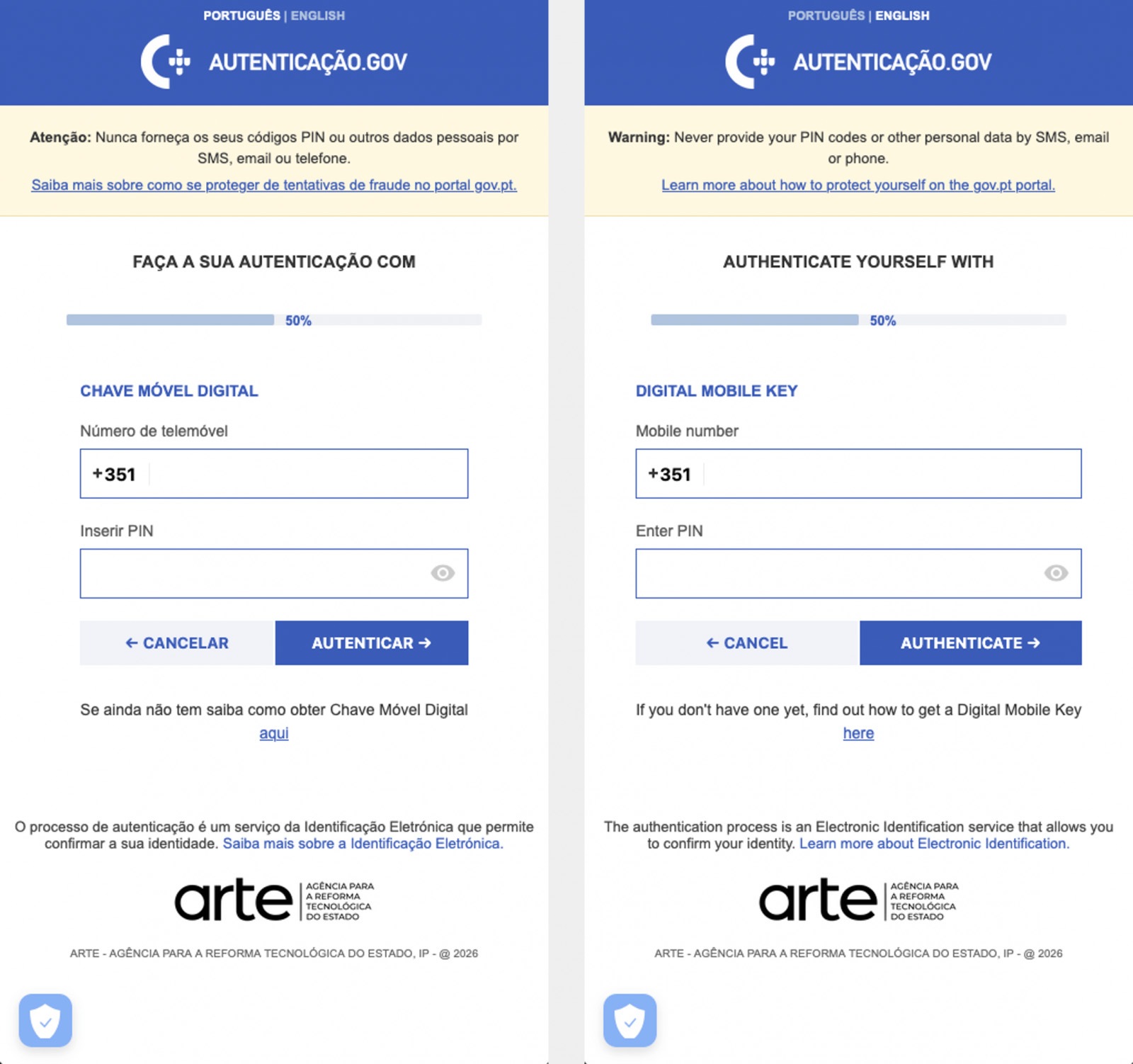
Massiv Trojan steals Chave Móvel Digital data

The Massiv banking Trojan mimics the interface of the Portuguese government app Chave Móvel Digital in a fake pop-up window, looking even more convincing than the official version from Google Play. Source

Perseus steals valuable information from users’ notes

In March, researchers reported on a new campaign where several fake IPTV apps were used to distribute an even more advanced and feature-rich malware strain: Perseus.

Research into Perseus shows that the malware is based on the source code of an Android banking Trojan called Cerberus, which leaked nearly six years ago. Perseus comes in two different versions: Turkish and English. The English-language version is more advanced and shows clear signs of AI-driven refinement.

Perseus abuses Accessibility Services, a set of Android features originally designed to make life easier for users with severe visual impairments. Fraudsters learned long ago how to leverage this tool to steal data from Android devices — a topic we’ve covered in detail across several of our posts.

Fake IPTV app used for distributing Perseus

An example of a malicious APK disguised as Roja Directa TV, another IPTV app. Source

By abusing Accessibility Services, Perseus gains remote control over the victim’s device. Here’s what it can do:

  • Continuously capture and exfiltrate screenshots.
  • Send a structured map of the device’s UI for remote manipulation.
  • Mimic taps, swipes, text input, long presses, and other UI interactions.
  • Turn on the screen, launch apps, and block them from running.
  • Trigger a pitch-black screen overlay to hide its activities.
  • Log keystrokes.

On top of that, the English-language version of Perseus boasts another notable feature. The malware can hunt for sensitive information like passwords, recovery phrases, and financial data across an entire range of note-taking apps: Google Keep, Xiaomi Notes, Samsung Notes, ColorNote, Evernote, Microsoft OneNote, and Simple Notes.

All of these capabilities help criminals drain football fans’ money not just from various banking services, but from cryptocurrency apps as well.

How not to let cybercrooks ruin your World Cup

The World Cup is just around the corner, and millions of fans worldwide will definitely want to tune in to this year’s premier football event. Past experience shows that cybercriminals frequently cash in on major spectacles like this. So, how can you watch the  matches safely?

  • Don’t download apps from unofficial stores.
  • Even when downloading an app from an official store — since malware occasionally slips through the cracks there, too— read the reviews carefully. Users who have been burned by fakes and malware often leave comments to warn others.
  • Install a robust security app to keep all your devices safe from malware.
  • Avoid storing passwords or other sensitive information in note-taking apps. To ensure your data and finances stay secure, use a reliable password manager. By the way, Kaspersky Password Manager includes an encrypted note-taking feature, allowing you to store your valuable information safely.

You can’t even watch TV safely anymore these days! Check out other threats facing TV lovers:

  •  

Patch Tuesday, May 2026 Edition

Artificial intelligence platforms may be just as susceptible to social engineering as human beings, but they are proving remarkably good at finding security vulnerabilities in human-made computer code. That reality is on full display this month with some of the more widely-used software makers — including Apple, Google, Microsoft, Mozilla and Oracle — fixing near record volumes of security bugs, and/or quickening the tempo of their patch releases.

As it does on the second Tuesday of every month, Microsoft today released software updates to address at least 118 security vulnerabilities in its various Windows operating systems and other products. Remarkably, this is the first Patch Tuesday in nearly two years that Microsoft is not shipping any fixes to deal with emergency zero-day flaws that are already being exploited. Nor have any of the flaws fixed today been previously disclosed (potentially giving attackers a heads up in how to exploit the weakness).

Sixteen of the vulnerabilities earned Microsoft’s most-dire “critical” label, meaning malware or miscreants could abuse these bugs to seize remote control over a vulnerable Windows device with little or no help from the user. Rapid7 has done much of the heavy lifting in identifying some of the more concerning critical weaknesses this month, including:

  • CVE-2026-41089: A critical stack-based buffer overflow in Windows Netlogon that offers an attacker SYSTEM privileges on the domain controller. No privileges or user interaction are required, and attack complexity is low. Patches are available for all versions of Windows Server from 2012 onwards.
  • CVE-2026-41096: A critical RCE in the Windows DNS client implementation worthy of attention despite Microsoft assessing exploitation as less likely.
  • CVE-2026-41103: A critical elevation of privilege vulnerability that allows an unauthorized attacker to impersonate an existing user by presenting forged credentials, thus bypassing Entra ID. Microsoft expects that exploitation is more likely.

May’s Patch Tuesday is a welcome respite from April, which saw Microsoft fix a near-record 167 security flaws. Microsoft was among a few dozen tech giants given access to a “Project Glasswing,” a much-hyped AI capability developed by Anthropic that appears quite effective at unearthing security vulnerabilities in code.

Apple, another early participant in Project Glasswing, typically fixes an average of 20 vulnerabilities each time it ships a security update for iOS devices, said Chris Goettl, vice president of product management at Ivanti. On May 11, Apple shipped updates to address at least 52 vulnerabilities and backported the changes all the way to iPhone 6s and iOS 15.

Last month, Mozilla released Firefox 150, which resolved a whopping 271 vulnerabilities that were reportedly discovered during the Glasswing evaluation.

“Since Firefox 150.0.0 released, they have been on a more aggressive weekly cadence for security updates including the release of Firefox 150.0.3 on May Patch Tuesday resolving between three to five CVEs in each release,” Goettl said.

The software giant Oracle likewise recently increased its patch pace in response to their work with Glasswing. In its most recent quarterly patch update, Oracle addressed at least 450 flaws, including more than 300 fixes for remotely exploitable, unauthenticated flaws. But at the end of April, Oracle announced it was switching to a monthly update cycle for critical security issues.

On May 8, Google started rolling out updates to its Chrome browser that fixed an astonishing 127 security flaws (up from just 30 the previous month). Chrome automagically downloads available security updates, but installing them requires fully restarting the browser.

If you encounter any weirdness applying the updates from Microsoft or any other vendor mentioned here, feel free to sound off in the comments below. Meantime, if you haven’t backed up your data and/or drive lately, doing that before updating is generally sound advice. For a more granular look at the Microsoft updates released today, checkout this inventory by the SANS Internet Storm Center.

  •  

Google Chrome’s silent 4GB AI download problem [updated]

Google Chrome has been quietly downloading a 4GB AI model onto users’ devices without asking first.

Security researcher Alexander Hanff, aka ThatPrivacyGuy, reports that Chrome has been silently installing Gemini Nano, Google’s on-device AI model, as a file called weights.bin stored in the OptGuideOnDeviceModel directory within users’ Chrome profiles. This 4GB download happens automatically when Chrome determines your device meets the hardware requirements. It does not ask for consent, and sends no notification—not even one of those annoying cookie banners you’ve learned to dismiss without reading.

The Gemini Nano model powers features like “Help me write” text composition assistance, on-device scam detection, and a Summarizer API that websites can call directly. These features are enabled by default in some recent Chrome versions. And here’s the kicker: if you discover the file and delete it, Chrome simply downloads it again.

Why this matters

Let’s start with the obvious problem: a 4GB download isn’t trivial for everyone. If you’re lucky enough to have unlimited fiber internet, you might not notice. But for users on metered connections, mobile hotspots, or in developing countries where data is expensive, Google just cost them real money without permission. For rural users or those with bandwidth caps, this kind of silent transfer can blow through monthly limits in minutes.

Hanff focuses on the environmental angle. He calculated that if this model were pushed to just 1 billion Chrome users (roughly 30% of Chrome’s user base), the distribution alone would consume 240 gigawatt-hours of energy and generate 60,000 tons of CO2 equivalent. That’s not including actually using the model, just the downloads.

But to us, the most troubling aspect is the broader pattern this represents. Just a few weeks ago, we reported another unsolicited AI invasion on our personal computers discovered by Hanff. He documented how Anthropic’s Claude Desktop app, which silently installed browser integration files across multiple Chromium browsers, including five browsers he didn’t even have installed. The integration would reinstall itself if removed, and it also happened without any meaningful user disclosure.

Hanff argues that both cases likely violate EU privacy law, specifically the ePrivacy Directive’s rules about storing data on user devices and the GDPR’s requirements around transparency and lawful processing. While these claims haven’t been tested in court, they highlight a fundamental tension: can companies just install whatever they want on your computer as long as they say it’s a feature of an app you installed?

Google might argue that having an AI on your device provides better privacy than cloud-based alternatives. Which is generally true, but it does not apply here, since Chrome’s most prominent AI feature—the “AI Mode” pill in the address bar—doesn’t even use the local model. According to Hanff’s analysis, it routes queries to Google’s cloud servers anyway. 

All in all, users see a 4GB local AI model and reasonably assume their data stays private, when in reality, the most visible AI feature sends everything to Google’s servers.

Tech companies need to stop treating silent deployment as acceptable practice. We see no valid excuse for this. Your device is yours. The storage is yours. The bandwidth is yours. And the electricity bill is yours.

What happened to asking for permission? And when I remove it, I want it gone permanently—not automatic reinstallation.

When are the tech giants going to learn that we don’t want to be left discovering after the fact that our devices have become deployment targets for features we never asked for.

Update May 12, 2026 with do it yourself instructions

How to check if the AI model is on your computer (Windows)

  1. Open File Explorer
  2. At the top of the File Explorer window, click the address bar and paste:

%LOCALAPPDATA%\Google\Chrome\User Data

  1. Press Enter
  2. Look for a folder named:

OptGuideOnDeviceModel

  1. If you see it, Chrome has likely downloaded the AI model
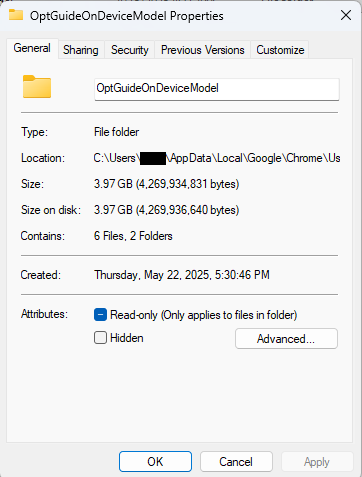
Properties of the OptGuideOnDeviceModel folder
Properties of the folder

How to check on a Mac

  1. Open Finder
  2. In the menu bar at the top of the screen, click Go > Go to Folder
  3. Paste:

~/Library/Application Support/Google/Chrome/

  1. Look for a folder named:

OptGuideOnDeviceModel

Now, remember, this isn’t malware, and its presence doesn’t mean your computer is infected.

Turn off Chrome AI features

This part is relatively easy. You may find online instructions telling you to edit the Windows registry or use Chrome policies, but for most people the simplest and safest approach is to disable the features directly in Chrome.

We don’t recommend manually editing the registry unless you fully understand what you’re doing. Incorrect changes can cause system problems.

Instead, try this first:

  1. Open Chrome
  2. You can copy and paste this directly into Chrome’s address bar and press Enter:

chrome://settings/ai

  1. On the page that opens, you can turn off features such as:
    • “Help me write”
    • AI summaries
    • On-device AI features

 The exact options may vary depending on your Chrome version and region.

  1. Then restart Chrome to make sure the changes take effect.

This may stop Chrome from downloading or using the AI model, although some users report the files can return after browser updates.

There is probably no need to delete the files unless you specifically need the storage space.

If chrome://settings/ai does not work, the feature may not yet be available in your region, you may be using a managed work or school account, or your version of Chrome may not support these settings yet.

Do you need to delete the OptGuideOnDeviceModel folder?

You can, but there is probably no need to.

If you disable Chrome’s AI features, the downloaded model should no longer be actively used for those features. Leaving the files in place may also prevent Chrome from downloading them again at a later point.


Browse like no one’s watching. 

Malwarebytes Privacy VPN encrypts your connection and never logs what you do, so the next story you read doesn’t have to feel personal. Try it free → 

  •  

Google warns quantum computers could hack encrypted systems by 2029

Banks, governments and tech providers urged to upgrade security because current systems will soon be obsolete

Banks, governments and technology providers need to be prepared for quantum computer hackers capable of breaking most existing encryption systems by 2029, Google has warned.

The tech company said in a blogpost that quantum computers would pose a “significant threat to current cryptographic standards” before the end of the decade and urged other companies to follow its lead.

Continue reading...

© Photograph: Reuters

© Photograph: Reuters

© Photograph: Reuters

  •  

Google Cloud Authenticator: The Hidden Mechanisms of Passwordless Authentication

Explore Google’s synced passkey architecture. Unit 42 details its mechanisms, key management, and secure communication in passwordless systems."

The post Google Cloud Authenticator: The Hidden Mechanisms of Passwordless Authentication appeared first on Unit 42.

  •  

Attackers abuse OAuth’s built-in redirects to launch phishing and malware attacks

Attackers are abusing normal OAuth error redirects to send users from a legitimate Microsoft or Google login URL to phishing or malware pages, without ever completing a successful sign‑in or stealing tokens from the OAuth flow itself.

That calls for a bit more explanation.

OAuth (Open Authorization) is an open-standard protocol for delegated authorization. It allows users to grant websites or applications access to their data on another service (for example, Google or Facebook) without sharing their password. 

OAuth redirection is the process where an authorization server sends a user’s browser back to an application (client) with an authorization code or token after user authentication.

Researchers found that phishers use silent OAuth authentication flows and intentionally invalid scopes to redirect victims to attacker-controlled infrastructure without stealing tokens.

So, what does this attack look like from a target’s perspective?

From the user’s perspective, the attack chain looks roughly like this:

The email

An email arrives with a plausible business lure. For example, you receive an email about something routine but urgent: document sharing or review, a Social Security or financial notice, an HR or employee report, a Teams meeting invite, or a password reset.​

The email body contains a link such as “View document” or “Review report,” or a PDF attachment that includes a link instead.​

The link

You click the link after seeing that it appears to be a normal Microsoft or Google login. The visible URL (what you see when you hover over it) looks convincing, starting with a trusted domain like https://login.microsoftonline.com/  or https://accounts.google.com/.

There is no obvious sign that the parameters (prompt=none, odd or empty scope, encoded state) are abnormal.​

Silent OAuth

The crafted URL attempts a silent OAuth authorization (prompt=none) and uses parameters that are guaranteed to fail (for example, an invalid or missing scope).​

The identity provider evaluates your session and conditional access, determines the request cannot succeed silently, and returns an OAuth error, such as interaction_required, access_denied, or consent_required.​

The redirect

By design, the OAuth server then redirects your browser, including the error parameters and state, to the app’s registered redirect URI, which in these cases is the attacker’s domain.​

To the user, this is just a quick flash of a Microsoft or Google URL followed by another page. It’s unlikely anyone would notice the errors in the query string.

Landing page

The target gets redirected to a page that looks like a legitimate login or business site. This could very well be a clone of a trusted brand’s site.

From here, there are two possible malicious scenarios:

Phishing / Attacker in the Middle (AitM) variant

A normal login page or a verification prompt, sometimes with CAPTCHAs or interstitials to look more trustworthy and bypass some controls.​

The email address may already be filled in because the attackers passed it through the state parameter.

When the user enters credentials and multi-factor authentication (MFA), the attacker‑in‑the‑middle toolkit intercepts them, including session cookies, while passing them along so the experience feels legitimate.​

Malware delivery variant

Immediately (or after a brief intermediate page), the browser hits a download path and automatically downloads a file.​

The context of the page matches the lure (“Download the secure document,” “Meeting resources,” and so on), making it seem reasonable to open the file.​

The target might notice the initial file open or some system slowdown, but otherwise the compromise is practically invisible.​

Potential impact

By harvesting credentials or planting a backdoor, the attacker now has a foothold on the system. From there, they may carry out hands-on-keyboard activity, move laterally, steal data, or stage ransomware, depending on their goals.

The harvested credentials and tokens can be used to access email, cloud apps, or other resources without the need to keep malware on the device.​

How to stay safe

Since the attacker does not need your token from this flow (only the redirect into their own infrastructure), the OAuth request itself may look less suspicious. Be vigilant and follow our advice:

  • If you rely on hovering over links, be extra cautious when you see very long URLs with oauth2, authorize, and lots of encoded text, especially if they come from outside your organization.
  • Even if the start of the URL looks legitimate, verify with a trusted sender before clicking the link.
  • If something urgent arrives by email and immediately forces you through a strange login or starts a download you did not expect, assume it is malicious until proven otherwise.
  • If you are redirected somewhere unfamiliar, stop and close the tab.
  • Be very wary of files that download immediately after clicking a link in an email, especially from /download/ paths.
  • If a site says you must “run” or “enable” something to view a secure document, close it and double-check which site you’re currently on. It might be up to something.
  • Keep your OS, browser, and your favorite security tools up to date. They can block many known phishing kits and malware downloads automatically.

Pro tip: use Malwarebytes Scam Guard to help you determine whether the email you received is a scam or not.


We don’t just report on scams—we help detect them

Cybersecurity risks should never spread beyond a headline. If something looks dodgy to you, check if it’s a scam using Malwarebytes Scam Guard. Submit a screenshot, paste suspicious content, or share a link, text or phone number, and we’ll tell you if it’s a scam or legit. Available with Malwarebytes Premium Security for all your devices, and in the Malwarebytes app for iOS and Android.

  •  

Is your phone listening to you? (re-air) (Lock and Code S07E03)

This week on the Lock and Code podcast…

In January, Google settled a lawsuit that pricked up a few ears: It agreed to pay $68 million to a wide array of people who sued the company together, alleging that Google’s voice-activated smart assistant had secretly recorded their conversations, which were then sent to advertisers to target them with promotions.

Google denied any admission of wrongdoing in the settlement agreement, but the fact stands that one of the largest phone makers in the world decided to forego a trial against some potentially explosive surveillance allegations. It’s a decision that the public has already seen in the past, when Apple agreed to pay $95 million last year to settle similar legal claims against its smart assistant, Siri.

Back-to-back, the stories raise a question that just seems to never go away: Are our phones listening to us?

This week, on the Lock and Code podcast with host David Ruiz, we revisit an episode from last year in which we tried to find the answer. In speaking to Electronic Frontier Foundation Staff Technologist Lena Cohen about mobile tracking overall, it becomes clear that, even if our phones aren’t literally listening to our conversations, the devices are stuffed with so many novel forms of surveillance that we need not say something out loud to be predictably targeted with ads for it.

“Companies are collecting so much information about us and in such covert ways that it really feels like they’re listening to us.”

Tune in today to listen to the full conversation.

Show notes and credits:

Intro Music: “Spellbound” by Kevin MacLeod (incompetech.com)
Licensed under Creative Commons: By Attribution 4.0 License
http://creativecommons.org/licenses/by/4.0/
Outro Music: “Good God” by Wowa (unminus.com)


Listen up—Malwarebytes doesn’t just talk cybersecurity, we provide it.

Protect yourself from online attacks that threaten your identity, your files, your system, and your financial well-being with our exclusive offer for Malwarebytes Premium for Lock and Code listeners.

  •  

PwC and Google Cloud Ink $400 Million Deal to Scale AI-Powered Defense

The announcement comes just weeks after Palo Alto Networks and Google Cloud announced a multibillion-dollar AI and cloud security deal.

The post PwC and Google Cloud Ink $400 Million Deal to Scale AI-Powered Defense appeared first on SecurityWeek.

  •  

A WhatsApp bug lets malicious media files spread through group chats

WhatsApp is going through a rough patch. Some users would argue it has been ever since Meta acquired the once widely trusted messaging platform. User sentiment has shifted from “trusted default messenger” to a grudgingly necessary Meta product.

Privacy-aware users still see WhatsApp as one of the more secure mass-market messaging platforms if you lock down its settings. Even then, many remain uneasy about Meta’s broader ecosystem, and wish all their contacts would switch to a more secure platform.

Back to current affairs, which will only reinforce that sentiment.

Google’s Project Zero has just disclosed a WhatsApp vulnerability where a malicious media file, sent into a newly created group chat, can be automatically downloaded and used as an attack vector.

The bug affects WhatsApp on Android and involves zero‑click media downloads in group chats. You can be attacked simply by being added to a group and having a malicious file sent to you.

According to Project Zero, the attack is most likely to be used in targeted campaigns, since the attacker needs to know or guess at least one contact. While focused, it is relatively easy to repeat once an attacker has a likely target list.

And to put a cherry on top for WhatsApp’s competitors, a potentially even more serious concern for the popular messaging platform, an international group of plaintiffs sued Meta Platforms, alleging the WhatsApp owner can store, analyze, and access virtually all of users’ private communications, despite WhatsApp’s end-to-end encryption claims.

How to secure WhatsApp

Reportedly, Meta pushed a server change on November 11, 2025, but Google says that only partially resolved the issue. So, Meta is working on a comprehensive fix.

Google’s advice is to disable Automatic Download or enable WhatsApp’s Advanced Privacy Mode so that media is not automatically downloaded to your phone.

And you’ll need to keep WhatsApp updated to get the latest patches, which is true for any app and for Android itself.

Turn off auto-download of media

Goal: ensure that no photos, videos, audio, or documents are pulled to the device without an explicit decision.

  • Open WhatsApp on your Android device.
  • Tap the three‑dot menu in the top‑right corner, then tap Settings.
  • Go to Storage and data (sometimes labeled Data and storage usage).
  • Under Media auto-download, you will see When using mobile data, when connected on Wi‑Fi. and when roaming.
  • For each of these three entries, tap it and uncheck all media types: Photos, Audio, Videos, Documents. Then tap OK.
  • Confirm that each category now shows something like “No media” under it.

Doing this directly implements Project Zero’s guidance to “disable Automatic Download” so that malicious media can’t silently land on your storage as soon as you are dropped into a hostile group.

Stop WhatsApp from saving media to your Android gallery

Even if WhatsApp still downloads some content, you can stop it from leaking into shared storage where other apps and system components see it.

  • In Settings, go to Chats.
  • Turn off Media visibility (or similar option such as Show media in gallery). For particularly sensitive chats, open the chat, tap the contact or group name, find Media visibility, and set it to No for that thread.

WhatsApp is a sandbox, and should contain the threat. Which means, keeping media inside WhatsApp makes it harder for a malicious file to be processed by other, possibly more vulnerable components.

Lock down who can add you to groups

The attack chain requires the attacker to add you and one of your contacts to a new group. Reducing who can do that lowers risk.

  • ​In Settings, tap Privacy.
  • Tap Groups.
  • Change from Everyone to My contacts or ideally My contacts except… and exclude any numbers you do not fully trust.
  • If you use WhatsApp for work, consider keeping group membership strictly to known contacts and approved admins.

Set up two-step verification on your WhatsApp account

Read this guide for Android and iOS to learn how to do that.


We don’t just report on phone security—we provide it

Cybersecurity risks should never spread beyond a headline. Keep threats off your mobile devices by downloading Malwarebytes for iOS, and Malwarebytes for Android today.

  •  
❌