Mac users have historically trusted their operating system to keep them safe. That peace of mind mostly comes from Apple’s strict control over its ecosystem, and the fact that macOS has historically faced fewer mass attacks than Windows. However, that doesn’t mean Macs are invulnerable: threats do exist, and new ones emerge all the time. Over just the past few weeks, security researchers have published reports on at least two new campaigns that target Apple devices.
The malware used in one of the campaigns has been dubbed CrashStealer, while the other is known as ClickLock. Both rely on different tricks to force users into entering their Mac password, which attackers then use to steal account credentials, crypto assets, documents, and much more. In today’s post, we take a close look at how CrashStealer operates — and how to avoid falling victim to it.
A videoconferencing app with CrashStealer inside
It was back in May 2026 that researchers spotted the first signs this malware was being developed, and by early July, they caught it operating in the wild. The malware earned its name because of its core mechanism: it disguises itself as the macOS built-in crash reporting tool (CrashReporter) while functioning as an infostealer designed to hijack sensitive data.
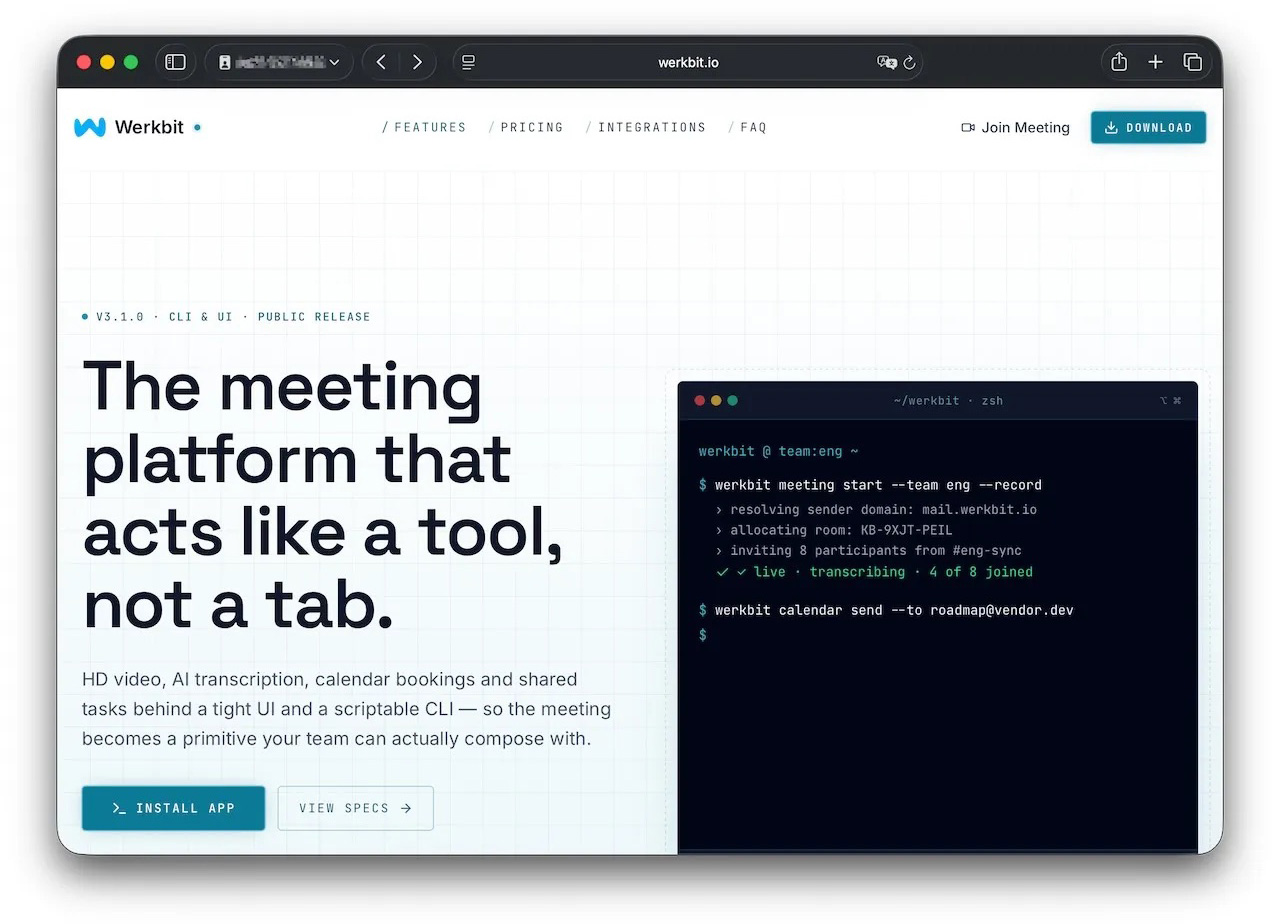
Researchers managed to trace one of the websites users visited to download the malware. The site poses as a legitimate platform for distributing the video conferencing tool Werkbit.
According to researchers, this is the site victims used to download Werkbit, which secretly contained the CrashStealer malware loader. Source
However, you can’t just visit the site and download the software. Before downloading, visitors are asked to enter a special meeting PIN. This setup likely allows the attackers to limit the distribution scope by targeting only specific, pre-selected victims. Exactly how the cybercriminals choose their targets and deliver the PIN remains unknown.
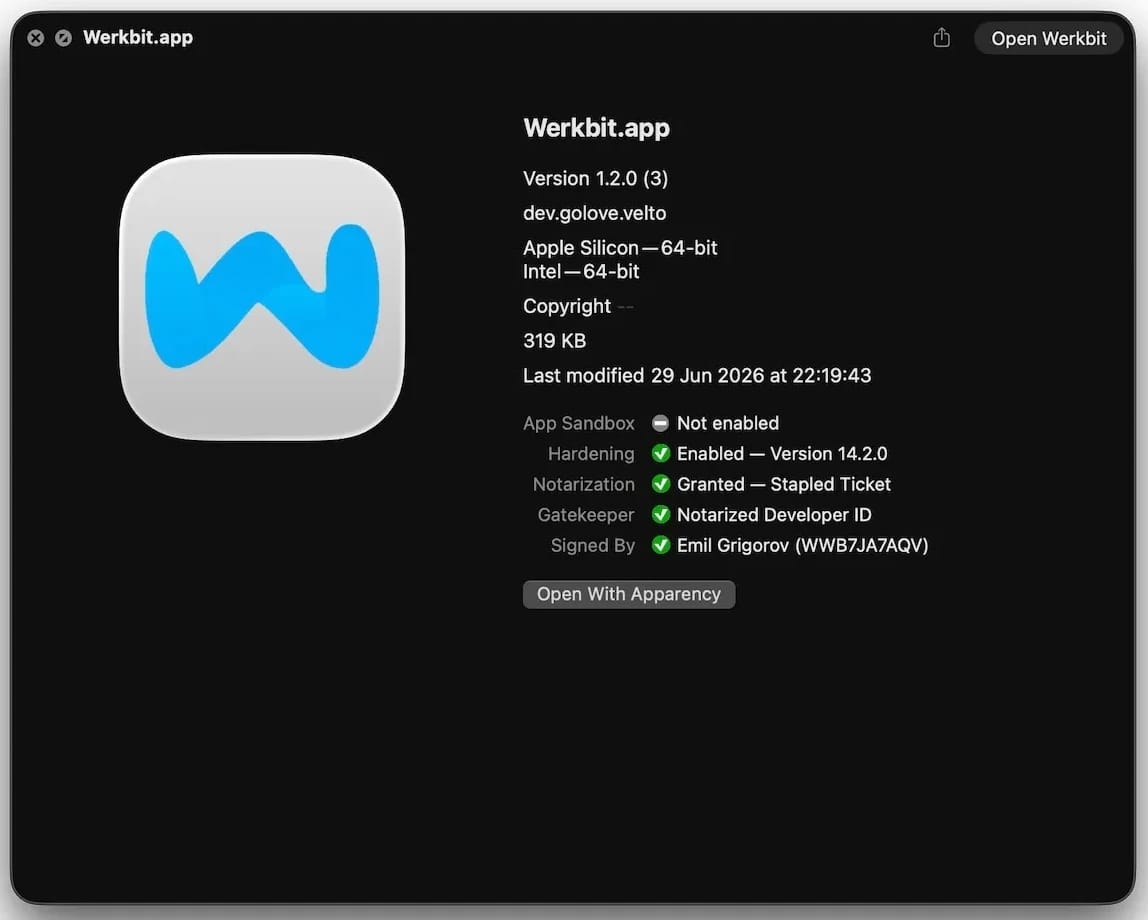
The “lucky” users with a code end up installing the initial malicious payload — named Werkbit Setup. Interestingly, it carries a valid Apple developer certificate and has successfully passed Apple’s notarization process — meaning it cleared the automated prescan for malicious code. As a result, the attackers manage to bypass the operating system’s built-in Gatekeeper defense. This allows the payload to launch without triggering the usual untrusted software warnings.
The Werkbit Setup installer is signed with a valid Apple developer certificate and has passed notarization. Source
Once launched, Werkbit Setup first reaches out to GitHub. Researchers believe using this popular platform helps attackers blend in by making these initial network requests look far less suspicious to security tools. After retrieving instructions from a GitHub repository, the program connects directly to the attackers’ server to fetch CrashStealer itself.
The loader then saves the malware to a temporary macOS folder, launches it, and wipes most of the intermediate setup files. As a result, a fully functional infostealer is up and running within seconds of Werkbit Setup starting. By the way, the user never gets any videoconferencing app.
How CrashStealer works
Unlike the Werkbit Setup loader, the CrashStealer malware itself isn’t signed with an Apple developer certificate. To keep users from suspecting anything, the malware disguises itself as the built-in macOS crash reporting tool, CrashReporter, by using the exact same name, app identifier, and a similar icon.
Once launched, CrashStealer completes a sequence of steps to gain access to sensitive data, establish persistence in the system, and cover its tracks:
Remove metadata — including the attribute that flags the app as an internet download.
Display a fake system prompt asking for the user’s macOS password.
Use the previously captured credentials to gain access to Keychain, the built-in macOS password manager.
Check the computer for installed security tools and malware analysis software.
Collect saved browser passwords, cookies, Keychain contents, and data from other password managers and crypto wallets.
Encrypt the data it stole and prepare it for forwarding to the attackers’ server.
Create a copy of itself and establish persistence to launch automatically every time macOS boots.
Delete temporary files and other installation traces to make detection much harder.
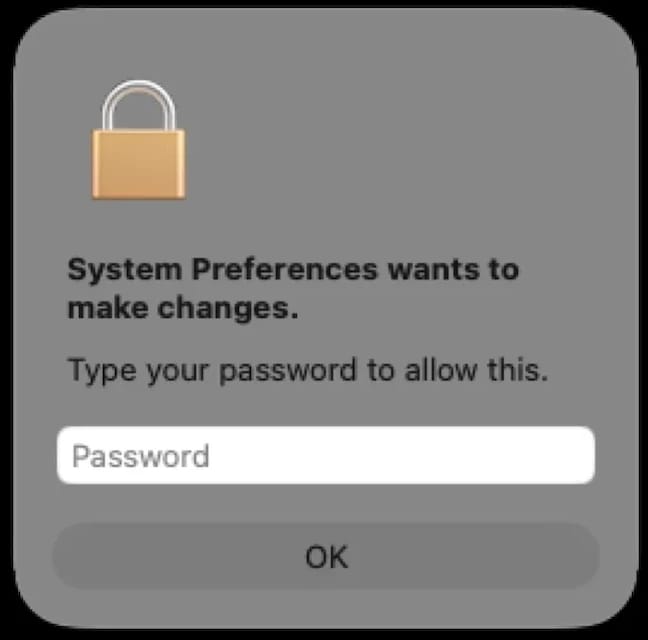
Step two deserves a closer look. The password prompt that the user sees looks extremely convincing. What’s more, the malware immediately verifies whether the credentials are correct: if you make a typo and enter an invalid password, CrashStealer will pop the window right back up to ask you again.
Once launched, CrashStealer displays a pop-up that mimics the standard macOS password request. Source
What data is CrashStealer after?
CrashStealer’s hit list is massive. First and foremost, its operators target Keychain: the built-in macOS password manager where the system stores account credentials, cryptographic keys, certificates, tokens, and more.
Users of third-party password managers aren’t safe either: the malware steals data from 14 of these services, including 1Password, Bitwarden, LastPass, Dashlane, Keeper, KeePassXC, NordPass, Enpass, and RoboForm.
In addition, the malware collects all credentials and cookies stored in Chromium-based browsers — Chrome, Brave, Edge, Opera, Opera GX, Vivaldi, Chromium, and NAVER Whale — as well as Firefox. The attackers clearly have a strong interest in crypto assets: CrashStealer specifically targets data from 80 different crypto wallet extensions, including MetaMask, Phantom, Coinbase Wallet, Trust Wallet, Rabby, Exodus, Keplr, and Solflare.
Finally, the malware scans the Documents and Downloads folders to pick files that might be of interest to the cybercriminals. CrashStealer encrypts all the stolen data with the AES-256-GCM algorithm, ZIP’s it up, and sends it to the attackers’ server.
How to protect your device
The spike in attacks on macOS is a clear wake-up call: Apple users need to get proactive about their security. We recommend:
Researching apps online before installing them
Sticking to utilities from official app stores whenever possible
Using a reliable security solution that blocks malicious websites and stops malware activity on your device
Kaspersky security solutions detect the malware described in this post and assigns to it the verdicts HEUR:Trojan-Downloader.OSX.Agent.gen and HEUR:Trojan-PSW.OSX.Agent.gen.
Starting last year, Android users have been seeing the “number is now verified” system notification more frequently. And in some cases people even find mysterious outgoing text messages in their history that they never sent.
These messages often cause confusion and even anxiety: has a virus infected the phone? Are tech giants spying on our phone numbers? Let’s break down how this feature works, and what potential risks it poses to your privacy.
Why all these phone number verifications?
The notification pops up whenever Google’s phone number verification feature is triggered on your device.
Its main job is to make sure that the SIM card tied to a specific phone number is physically inside the phone. Once verified, that phone number automatically links to all active Google accounts on the device.
There are several key services that rely on the verification. Most importantly, it drives Rich Communication Services (RCS) — the modern standard for “rich” messaging right inside your standard text messaging app. It feels like a popular chat app, but without the need to install anything extra. Unlike iMessage, which is locked to Apple’s ecosystem, RCS works across compatible smartphones on various platforms since it’s an industry standard set by carriers rather than tech giants. Since recently, both Apple and Android users have been able to exchange RCS messages. For this feature to work in the Google Messages app, Google needs ongoing confirmation that your SIM card is active. If you pull out your SIM card, RCS chats will keep working for about eight days before turning off automatically.
According to Google, phone number verification serves several other purposes as well:
Account security and recovery. A verified phone number enables quick sign-ins to your Google account, two-factor authentication, and easy password recovery.
Emergency services and device location. This includes Find My Device, remote phone lock, and sharing your location with emergency responders — including via satellite messaging on the Pixel 9 and certain other modern smartphones.
Better sharing on Google. This feature helps other people find you faster on Google Meet or Duo, use Quick Share to send you files, and see that the phone number is linked to your profile.
Google also recently confirmed that this data is used to counter scams. Verification helps block calls or text messages from spoofed numbers if both the real owner of the number and the recipient are using Android devices with verified phone numbers.
How does Google verify phone numbers?
Phone number verification technology has been around on Android for quite some time — Google was sending test SMS messages as far back as in 2019. However, it became widely visible to most users following a Google system update in September 2025. The process was baked deeper into the operating system, with number verification now running by default during initial phone setup, and re-running periodically in the background.
There are two main technical methods for the verification process. Which one your device uses depends on your mobile carrier and your version of Android.
The older method relies on hidden text messages. In the background, your smartphone sends a specialized technical text message to Google’s servers. The operating system intercepts this message before you ever see it, which is why it rarely appears in your standard text messaging app. However, due to software glitches or Android customization quirks, these texts occasionally surface in sent messages, startling users. They typically look like this: “(string of letters and numbers) Google is re-verifying the phone# of this device.” Google explicitly notes in its help documentation that standard messaging rates from your carrier may apply.
In recent years, direct carrier verification (via carrier APIs) has become the primary verification method. This approach is more modern and secure than previous ones. The smartphone sends an encrypted token containing device and SIM card identifiers to the mobile carrier, and the carrier responds with the confirmed phone number. The whole process takes just a couple of seconds and runs completely unnoticed by the user. Both global telecom giants and smaller providers have connected to this verification network. Notably, third-party apps can also tap into the results of this check through Firebase Phone Number Verification, getting confirmation from your mobile carrier about which phone number is active on the device.
“Other device data” and privacy concerns
In its official documentation, Google notes that device identifiers and SIM card data may be collected during verification. In practice, this refers to unique identifiers for the SIM card and its subscriber profile (ICCID and IMSI), as well as technical device identifiers needed to run mobile networks. Google also explicitly states that it does not sell your personal information, including your phone number, to anyone.
Naturally, sending additional unique identifiers to Google — especially given the scale of its advertising business — always raises concern among privacy-conscious users. Here’s what you should keep in mind:
Metadata collection. To run RCS, Google exchanges data with your mobile carrier. Even when the content of RCS messages is encrypted, metadata — such as who is messaging whom and when — can still be stored on your carrier’s servers, and in some cases, on Google’s servers. As cybersecurity experts at the Electronic Frontier Foundation point out, if privacy is your top priority, you’re better off sticking to dedicated encrypted messaging apps.
Linked accounts. If you have both a personal and a work Google account (or a personal and a family account) set up on the same phone, the verified number will automatically link to both profiles. The operating system does not offer built-in tools to separate numbers for different accounts on a single device.
Phone number leaks. Apps on your device can already access various user identifiers, including your phone number. However, this verification system makes it easier to link multiple phone numbers to a user who has multiple Google accounts. And while Google states that it never sells phone numbers, you cannot say the same with confidence about obscure third-party Android developers.
On by default. The feature is enabled out of the box, and most users have no idea their device is silently querying their carrier in the background. While you can opt out in your Google settings once you notice it, there’s no guarantee that any data already collected will actually be deleted.
Turning off verification — why and how
For most users, verification is genuinely helpful. It simplifies account recovery, makes finding a lost phone easier, powers modern text messaging features, and assists emergency services when every second counts.
However, if you want to minimize the amount of metadata sent to Google, mobile carriers, and other data brokers, you can manually disable the feature. Here’s how:
Open your Android smartphone’s settings.
Tap Google, select the account at the top, and switch to the All services tab.
Under Privacy and security, tap Phone number verification.
Turn off automatic phone number verification.
If you also want to disable Better sharing on Google, go to Settings → Google → Manage your Google Account → Personal info → Contact info → Phone, select your number, and turn off the setting.
If you have multiple Google accounts on your phone, you’ll need to repeat these steps for each one. Unfortunately, verification sometimes turns itself back on automatically, and there’s no reliable way to prevent this on standard consumer phones with stock software.
Keep in mind that disabling verification means losing access to RCS chats in Google Messages — forcing you to fall back on basic SMS, or switch to alternative secure messaging apps. You also won’t be able to use that number for quick account recovery should you forget your password.
To thoughtfully customize your privacy settings across all your devices — regardless of the operating system, browser, or app — check out our free online tool, Privacy Checker.
Curious about other privacy risks you might not even know exist? Check out our other deep dives, here:
A breakup is a major upheaval — the kind that turns life upside down. The familiar order of things, where two people shared the same interests, moments, and often even the same physical space, collapses in an instant, leaving each of you in a world of your own.
Besides that, couples are connected not just in real life, but digitally too. Shared subscriptions, saved addresses and passwords, access to joint cloud storage — all of that used to be woven into your day-to-day life. Moving on emotionally can take a long time, sure, but there are steps you can take right now that will tighten up your security — even if they won’t help you get over your ex.
Here’s what you need to check after a breakup, which services to disconnect, and why you should do it even if the split was amicable.
Digital hygiene: your insurance policy
Cutting off your ex’s access to your online accounts isn’t paranoia — it’s looking out for your own security. A breakup doesn’t automatically sever your digital ties: any access you granted each other during the relationship stays active until someone manually shuts it down. Most of the time, nobody’s plotting to actually exploit it, yet it can still lead to anything from awkward moments to a genuine risk of being tracked.
Take Aleta Dignard-Fung, of Las Vegas, who told NPR that after breaking up with her boyfriend, it didn’t immediately occur to her that he still knew her Spotify password. One day, in the shower with music playing, she noticed her playlist suddenly switch. Her ex had logged in from another device and started playing his own chosen tracks. “It was just kind of like the Spotify wars, and we’d just spend like 10 minutes trying to override each other’s songs,” she admitted. But the fallout isn’t always this lighthearted.
Relationship coach Susan Winter shared a case from her own practice in that same interview. One of her clients simply couldn’t let go of his ex-girlfriend after their breakup. The two had shared an OpenTable account — the restaurant reservation service — and she’d never revoked his access. He started tracking her bookings: where she was going, what time, how many people. That’s how he kept tabs on whether someone new had entered her life.
These two stories, while showing very different behavior from the exes involved, both trace back to the same root cause: accounts that were never properly locked down. In the former case, it led to an awkward moment. In the latter, it led to anxiety and a real sense of being watched. To make sure neither scenario happens to you, it’s worth running through a quick checklist.
Terminate your partner’s sessions
In the settings for your social media, messaging apps, email, and other key services, pull up the list of active sessions and log out everything except your current devices.
Change your passwords
Update the passwords to any key accounts your partner might have known — say, if you used a meaningful date as your password. If you reused the same password across multiple services, change it everywhere. While you’re at it, review your security questions and your backup email or phone number for account recovery — neither should still be tied to your ex. To skip the hassle of memorizing new credentials while still leveling up your security, we recommend using a password manager — it’ll generate a unique, strong password for every account, and save and sync it across all your devices; the only thing you need to remember is a single main password.
Check two-factor authentication and trusted devices
Make sure verification codes only go to your own device. Remove your partner’s devices from your trusted list — you can do this in your Apple and Google account settings.
Split up your shared Apple/Google accounts
If you shared an Apple or Google account, sign out of that. Turn off Family Sharing, iCloud, and backups. Check your shared photo albums too — anything that lands there automatically is visible to your ex as well.
Review your subscriptions
If you shared subscriptions — streaming services, family plans, that kind of thing — cancel them or set up new ones and link your own card.
Check your bank cards
If your ex’s card is linked to a marketplace, delivery app, or rideshare service account you own, remove it from your saved payment methods. If your card is linked to their account and you no longer have access to it, the safest move is to just get your card reissued.
Revoke smart home access
Cut off your ex’s access to cameras, video doorbells, GPS trackers, and smart speakers. If the devices were on a shared account, change the password or move them over to your own personal account.
Review your privacy settings
Check the privacy settings across your accounts on various services and social media using our free online tool, Privacy Checker. It walks you through a privacy configuration tailored to your operating system, platform, and even your browser.
If you notice signs of stalking
Reach out to advocacy or legal aid organizations — they can help you map out the best course of action. It’s also worth leaning on family and close friends who can support you through a tough situation. On Android devices, you can use our security suite with the Who’s Spying on Me feature. It’s designed to help you detect tracking and stalking so you can take the right steps to protect yourself. The feature includes:
Stalkerware Detection. Flags apps designed to secretly monitor your life and collect data you’d never want shared with anyone else.
Device Scanner. Finds planted trackers that let someone follow your movements and always know where you are.
Permissions Control. Shows which apps have access to permissions that could make it easier for someone to spy on you or compromise your privacy.
What can actually help — and what might make things worse — during this difficult time? Check out our other posts:
When targeting an organization to steal information, maintaining a low profile is critical for attackers. They typically aim for long-term persistence, which requires avoiding security alerts while preserving access in case they’re detected and the organization initiates incident response or routine password resets. Malware such as infostealers or ostensibly legitimate remote monitoring and management (RMM) tools fail the first requirement: their use triggers EDR and generates suspicious events in SIEM consoles. Relying on stolen credentials conflicts with the second requirement: the moment the security team suspects a compromise, passwords can be changed immediately — terminating access. If attackers attempt to steal browser cookies instead of passwords, they face a different challenge: many online services now correlate device characteristics with the expected session cookie and block access if the cookie is used on an unrecognized device. Furthermore, cookie theft protection mechanisms implemented in Chromium-based browsers (such as Chrome, Edge, and Opera) this year have made this approach significantly more difficult.
To address this persistence challenge, the ToddyCat APT — whose main game is spying — developed a novel technique. Kaspersky experts discovered this method during an incident investigation and named it Shadow Token via Remote Debug (STRD). This technique allows the attackers to establish reliable, persistent access to a victim’s mailbox and other resources in Google Workspace. With minor adjustments, the same approach could potentially be adapted to target other services that grant third-party application access via OAuth 2.0 authentication.
How an STRD attack works
First, the attackers must compromise the victim’s system with malware. In past campaigns, ToddyCat gained initial access to organizations by exploiting known vulnerabilities in server software and distributing malicious loaders via messaging apps. The specific employee targeted by the attackers might not notice the intrusion at all. This can occur, for example, if the adversary first obtains privileged administrative credentials and uses them to deploy the malware onto targeted machines remotely. Crucially, the deployment and execution of this malware mustn’t trigger immediate security alerts.
Once active, the malware executes an STRD attack, connecting the attackers’ remote service to the victim’s mailbox using the OAuth 2.0 protocol. This process requires no user interaction and shows no visible activity on the screen. To the cloud environment (Google Workspace, in the case at hand), the activity appears as if the user has legitimately authorized a third-party app for email access or data backup.
After that, the malware can terminate its operations and even delete itself from the system. The adversary retains direct access to the mailbox using the acquired OAuth token — and they need no connection to the victim’s endpoint or to the corporate network for that. Depending on the organization’s Google Workspace configuration, this access can persist for an extended period and survive subsequent password resets.
The core concept of Shadow Token via Remote Debug
At the heart of this attack is a connection to Google Workspace services via OAuth 2.0. This is a legitimate workflow used whenever a third-party application requests access to calendar data, emails, or Google Drive files. For example, to display calendar meetings in Zoom and automatically generate conference links, a user must authorize Zoom to access Google services. Similarly, configuring a third-party email client or calendar app requires granting permission. During this authorization process, the service requesting access opens a new browser window. In this window, Google Workspace first prompts the user to select the appropriate account. Once the account is chosen, the subsequent screen displays the specific permissions requested by the third-party app, allowing the user to either approve or deny access. For this scenario to proceed seamlessly, the user must already be authenticated to Google services in their browser — which is typically the case in organizations using Google Workspace. If the user isn’t authenticated, additional steps for entering credentials and completing multi-factor authentication are introduced into the sequence.
The ToddyCat hackers developed a malicious tool called Umbrij to facilitate a two-step covert authorization process when the user is already authenticated in Google. First, the malware identifies the browsers installed on the system, and locates the specific folder storing the user’s active profile for each. The attackers target Chrome and Edge, as these are the browsers most likely serving as the primary ones within the organization.
Next, Umbrij copies the entire user profile folder to a different directory on the machine. It then launches an instance of the browser, specifying the path to the duplicated profile via the command line. Because this duplicate profile contains the user’s session cookies, websites with saved credentials won’t prompt for re-authentication. Furthermore, since this occurs on the exact same computer where the primary browser is running, online services detect no anomalies. The browsing history for this newly launched instance is isolated within the new folder, keeping it hidden from the user’s main account activity.
Crucially, the browser is launched in a dedicated debugging mode typically reserved for web development. The browser window and user interface don’t appear on the screen at all (headless mode). Instead, the browser can be controlled through a debugging port using the DevTools protocol, allowing the malware to issue commands and read the state of the screen. To orchestrate these actions, Umbrij leverages Puppeteer, a legitimate automation library.
After verifying that the debugging browser instance has launched successfully, Umbrij opens a legitimate Google Workspace OAuth screen within it. The request sent to Google is engineered to bypass additional security checks while requesting maximum access privileges. For the application ID — the identity supposedly requesting these extensive permissions — the malware impersonates one of two legitimate tools: Google Workspace Migration for Microsoft Outlook (GWMMO), or Google Workspace Sync for Microsoft Outlook (GWSMO).
When Google opens the window within the headless browser, Umbrij uses debugging tools to programmatically click on the corporate account name and the confirmation buttons. As a result, Google generates an authorization code for the app. Umbrij extracts and saves this code, subsequently forwarding it to the attackers’ command-and-control server. Finally, operating entirely within their own infrastructure rather than on the victim’s computer, the attackers exchange this authorization code for an OAuth access token. This single token is all they need to maintain long-term unrestricted access to the mailbox.
How to protect against OAuth token theft
If a Google Workspace account is compromised, incident response measures must include the following steps after collecting the necessary logs and other forensic data for investigation:
Resetting the affected user’s password
Terminating all active web sessions for the user
Revoking OAuth tokens and third-party app permissions
Reviewing and removing access granted through legacy App Passwords
In addition, security and IT teams must systematically audit issued OAuth permissions, revoke unjustifiable access rights, and restrict capabilities that allow excessive or unauthorized permission grants. We covered this topic in detail in our article on blocking unwanted AI assistants.
How to prevent exploitation of Shadow Token via Remote Debug
While Kaspersky users are protected against the Umbrij tool, security teams should proactively implement policies that prevent standard users from launching browsers in debugging mode. This functionality is intended exclusively for website and web app developers. This restriction can be enforced through the DeveloperToolsAvailability group policy (available for both Chrome and Edge).
Additionally, configure monitoring within your SIEM/XDR to track the launch of browser instances with an active debugging port. This event serves as a strong indicator of this specific attack technique.
Unchecked AI in the workplace quickly becomes a massive loophole for data leaks and security breaches. All too often, employees drop sensitive company data into public chatbots, or install rogue AI assistants on their own — in the process handing over way too much access. In a previous post, we broke down the different types of risky AI systems, and later shared some tips on how to turn off the built-in AI features on major tech platforms. Today let’s take a look at practical ways to block or restrict the unauthorized “helpers” employees might be using — from ChatGPT and Grammarly, to meeting bots like Fireflies and Read AI.
How to detect and restrict ChatGPT
ChatGPT is the biggest culprit when it comes to unauthorized AI use worldwide. A quick word of warning, though: an outright ban only sends users hunting for sketchy third-party sites or messaging app chatbots that hook into the same service. That’s why it’s always a good idea to offer an approved alternative before pulling the plug.
Detecting it: keep an eye on the NGFW or web filter for traffic heading to chat.openai.com, chatgpt.com, oaistatic.com, oaiusercontent.com, or cdn.oaistatic.com. It’s also smart to use EDR/EPP tools to scan browser histories, installed apps, and browser extensions across corporate devices.
Locking it down: use the firewall or web filter to block the entire AI Services category, and set up DNS to reroute traffic away from those OpenAI domains. Browser policies can also be used to ban ChatGPT-powered extensions. Better yet, block all extensions not on a pre-approved allowlist. Finally, use application controls and EPP solutions to stop users from installing the official desktop app (ChatGPT.exe or com.openai.chat).
How to detect and restrict Claude and Claude Code
Detecting it: use the NGFW or web filter to track traffic going to claude.ai, anthropic.com, *.anthropic.com, and api.anthropic.com. EDR/EPP or application control tools can also be used to scan employee computers for the desktop app (claude.exe).
Locking it down: drop a blanket block on the AI Services category through the NGFW or web filter, and tweak DNS settings to reroute traffic away from the aforementioned Anthropic domains. Next, use browser policies to shut down Claude-powered extensions. Finally, use application controls and the EPP platform to prevent users from installing the desktop app.
How to detect and restrict Perplexity AI
Detecting it: keep tabs on the NGFW or web filter to flag any traffic heading to *.perplexity.ai or pplx.ai.
Locking it down: just like the others, add the AI Services category to the NGFW or web filter blocklist, and use DNS routing to redirect traffic away from those domains.
Configure the browser to block third-party extensions from being installed. If Firefox is used in the organization, be aware that recent versions come with Perplexity built in. Luckily, these AI features can be turned-off company-wide using enterprise policies — specifically, by setting SidebarChatbot = blocked. The full list of tweaks can be found in the Firefox documentation.
How to detect and restrict DeepSeek
Detecting it: keep an eye on the NGFW or web filter for traffic hitting deepseek.com, chat.deepseek.com, api.deepseek.com, or platform.deepseek.com. For better precision, analyze the SNI (server name identification) in TLS connection requests. For mobile devices, look out for the official app (com.deepseek.chat).
Locking it down: blocklist the AI Services category on the NGFW or web filter, and reroute traffic to DeepSeek’s domains via DNS settings. Use browser policies to block third-party extensions, and lean on MDM/EMM tools to restrict the mobile app.
How to detect and restrict Mistral, xAI Grok, and Character.ai
The playbook for these tools is exactly the same as DeepSeek, so here’s the quick list of domains to watch for and block: chat.mistral.ai, mistral.ai, console.mistral.ai, grok.com, x.ai, api.x.ai, character.ai, beta.character.ai, and c.ai.
A quick word of warning on Grok: because Grok is baked into X, blocking this specific AI access point means blocking the entire social media platform.
How to detect and restrict Slack AI
Detecting it: in the Slack workspace admin dashboard, look under Analytics → Slack AI usage. If an enterprise plan is used, the detailed Slack logs can be searched for any events starting with the ai_ prefix.
Blocking it with policies: in the organization’s Slack settings, click through the Workspace settings → Roles & permissions → Feature access, and change the permission to “no one”. Slack has a step-by-step guide in their help center.
Locking it down: shutting this down at the network level is tricky; it can be pulled off with a finely tuned CASB solution in place. Also, don’t forget the importance of blocking rogue integrations and keeping external AI services from tapping into Slack data in the first place. We covered how to lock this down using OAuth controls in a previous post.
How to detect and restrict Zoom AI Companion
Detecting it: if a corporate Zoom subscription is in use, just head to Admin Center → Reports → AI Companion usage. Detecting Zoom’s AI when employees join external meetings or use free accounts is a lot tougher, but email filters can be set up to flag incoming AI-generated meeting notes by scanning for subject lines or text containing “Meeting summary” or “Meeting assets”.
Blocking it with policies: for the company’s own Zoom subscription, go to the Admin Portal → Account Management → Account Settings → Meeting → AI Companion and toggle it OFF for everyone.
Locking it down: unfortunately, AI Companion is baked into Zoom’s DNA, so the only real option is blocking Zoom altogether.
How to detect and restrict Grammarly
What looks like an innocent spellchecker is actually one of the biggest culprits for workplace data leaks.
Detecting it: check the NGFW or web filter logs for traffic hitting grammarly.com, *.grammarly.com, and gnar.grammarly.com. EDR and MDM/EMM tools can also be used to hunt down the standalone desktop apps (Grammarly Desktop.exe and the macOS version), as well as the Grammarly browser extension.
Locking it down: use firewalls to block those domains at the network level, and EPP to stop employees from installing the desktop app, browser extensions, or the Grammarly add-ins for Microsoft Word and Excel.
How to detect and restrict meeting assistants: Fireflies, Read.ai, Tactiq, Fathom, and Granola
This massive category of third-party SaaS tools records and analyzes meetings — creating a massive risk for data leaks. The trickiest part? Outside clients or vendors can bring these bots into a meeting just as easily as employees can.
Detecting them: run an audit on calendar invites, and look for bot participants using email domains like @fireflies.ai, @read.ai, @tactiq.io, @fathom.video, or @granola.ai. Zoom, Teams, or Google Meet logs can also be used to review external participants who joined past calls.
Locking them down: since it’s impossible to control what outsiders do, blocking these bots comes down to tightening meeting rules. The best moves are: blocking users from granting OAuth permissions for bots to join calls, restricting employees from inviting unapproved external participants, or locking down meeting recording access for external users. That last option is usually the least painful way to keep bots out without disrupting business.
How to detect and restrict AI code editors: Cursor, Windsurf, and the like
Detecting them: use EDR/EPP tools to scan for executables like cursor.exe or windsurf.exe. It’s also worth monitoring network traffic heading to cursor.com and windsurf.com, as well as traffic hitting various AI model API providers. Keep in mind that there’s a pretty extensive list of API hosts to monitor here, since these editors aren’t tied to just one specific AI vendor.
Blocking them with policies: these apps can be prevented from being installed by setting up filters based on the developer’s digital signature certificate. Alternatively, a strict application allowlist can be employed where only pre-approved software is allowed to run.
Locking them down: rely on the EPP/EDR platform to actively detect and block these applications from running.
How to detect and restrict local AI tools: Ollama, LM Studio, and GPT4All
On one hand, this category carries fewer data leak risks because the AI models run completely locally on the user’s machine. On the other hand, it opens up a whole new can of worms: these apps themselves aren’t always highly secure, and can become targets for cyberattacks. Plus, it still means that employees can misuse models or process data in unauthorized ways.
Detecting them: EDR/EPP tools are the best line of defense here. They should be used to flag known local AI files and processes like ollama.exe, ollama serve, lmstudio.exe, LM Studio.app, jan.exe, or gpt4all.exe. From a network perspective, it’s worth scanning for open ports on local devices — typically port 1234 for Ollama and LM Studio, or port 8080 for WebUIs (using an additional fingerprint check of the server response). Another massive red flag is the presence of large files (often several gigabytes) containing language model weights. Look out for extensions like .gguf, .bin, or sometimes .safetensors.
Locking them down: use EPP/EDR platforms or windows AppLocker to block these applications by name, or switch to an application allowlist.
How to detect and restrict autonomous agents: OpenClaw, NemoClaw, and NanoClaw
This is easily one of the most dangerous categories of AI tools out there. These agents mix high-level independence with access to untrusted data, making them a massive security headache.
Detecting them: use EPP/EDR tools to sniff out active processes like openclaw, nanoclaw, nemoclaw, or clawdbot. Also keep an eye out for devices running Node.js that suddenly start launching Bash or Python scripts. Another dead giveaway is the appearance of system folders like ~/openclaw, ~/nanoclaw, ~/.claw*, or ~/clawhub. At the network level, monitor connections to the AI model APIs we mentioned earlier, as well as traffic hitting servers like openclaw.ai, nanoclaw.dev, or clawhub.*.
Locking them down: the safest bet is to use strict application allowlisting (only allowing approved software to run), or to specifically ban the known agent apps listed above. On top of that, consider blocking non-developers from installing Node.js and Docker, neither of which they need on their computers anyway.
Lately, software developers have been baking AI features straight into everyday work tools, operating systems, and browsers. In some cases, they’re genuinely handy. However, their presence introduces specific risks, which means plenty of companies are hesitant to give employees access to these tools. In a previous post, we categorized these unwanted AI systems, looked at how to spot them at the network and endpoint levels, and covered the ultimate universal kill switch: managing OAuth access across major corporate platforms. In this deep dive, we’re getting tactical: breaking down how to disable or restrict the AI built into popular platforms.
A quick heads-up: major software vendors occasionally change the names of their AI settings and tweak how they function. If any of the options mentioned below are missing or aren’t working as expected, a quick web search for the setting’s name will usually point you to its new location or branding.
How to turn off Microsoft 365 Copilot
Detection: you can check actual Copilot usage in the logs by going to Microsoft 365 admin → Copilot usage report.
Disabling via policies: in the Microsoft 365Admin Center, go to Settings → Integrated Apps, find Copilot in the Available Apps list, and select Block. More granular configuration policies are available under Customization → Policy Management. The Policies page here contains over two thousand entries, so you’ll want to filter them by the keyword “Copilot” (detailed guide). Given that Copilot is a paid add-on for Office, another way to block it — and save money by doing so — is to simply avoid assigning users SKUs that include Copilot.
We recommend separately blocking Copilot Chat, which is available in Teams, Edge, Outlook, and several other services. Yes, it’s not Copilot itself. And yes, it has to be blocked separately by following this guide.
Additional layer of protection: you can block the domains copilot.cloud.microsoft and m365.cloud.microsoft/chat at the web filter or NGFW level. However, Microsoft explicitly advises against this, warning that it could break other Microsoft 365 features.
How to turn off Windows Copilot
Beyond the Office version of Copilot, you also need to manage its consumer-facing cousin.
Detection: look through your NGFW or other network logs for traffic hitting copilot.microsoft.com, bing.com/chat, or edgeservices.bing.com.
Disabling via policies: in Windows Group Policy, navigate to Computer Config → Admin Templates → Windows Components → Windows Copilot. In Microsoft 365 Group Policy, go to Admin center → Block consumer Copilot for organizational accounts.
Additional layer of protection: block the Copilot.exe executable from running entirely.
How to turn off the Copilot sidebar in Edge
Detection: look through your NGFW or other network logs for traffic hitting copilot.microsoft.com, bing.com/chat, or edgeservices.bing.com.
Blocking: configure the following MS Edge Group Policies: HubsSidebarEnabled = false, EdgeShoppingAssistantEnabled = false, CopilotPageContext = Disabled (false), CopilotNewTabPageEnabled = false, Microsoft365CopilotChatIconEnabled = false, GenAILocalFoundationalModelSettings = 1 (note that disabling this unexpectedly requires a 1 instead of a 0).
Second layer of protection: block the domains copilot.cloud.microsoft and m365.cloud.microsoft/chat at the web filter or NGFW level. However, Microsoft explicitly advises against this, warning that it could break other features.
How to turn off the Gemini Assistant in Google Workspace
Blocking via policies: in the Admin Console, navigate to Apps → Additional Google services → > Gemini app, and set it to OFF. Then, go to Manage Workspace smart feature settings → Smart features in Google Workspace, and set it to OFF.
Second layer of protection: block network traffic to the domains gemini.google.com, bard.google.com, and aistudio.google.com.
How to turn off Gemini in Google Chrome
Detection: check your Chrome Enterprise reports (Chrome management → Reports), or look through network traffic logs for connections to the previously mentioned domains.
Blocking via policies: in your Chrome Enterprise policies, configure the following settings: GenAILocalFoundationalModelSettings = 0, HelpMeWriteSettings = 2 (disabled), TabOrganizerSettings = 2, CreateThemesSettings = 2, DevToolsGenAiSettings = 2.
Additional layer of protection: block network traffic to the domains gemini.google.com, bard.google.com, and aistudio.google.com. Additionally, block unauthorized Chrome/Chromium installations (those outside your policy management) with the help of host-based application control tools like EPP/EDR or AppLocker.
How to turn off Apple Intelligence
Detection: on your NGFW and web filters, traffic hitting apple-relay.apple.com and *.apple-cloudkit.com is a clear indicator that Apple Intelligence is active.
Blocking via policies: any managed Apple device allows you to disable individual AI features, though there isn’t a master switch you can flip to shut down “all AI”. In your MDM profile, you need to set the following keys to false (disabled): allowWritingTools, allowMailSummary, allowGenmoji, allowImagePlayground, allowImageWand, allowPersonalizedHandwritingResults, allowExternalIntelligenceIntegrations, allowExternalIntelligenceIntegrationsSignIn, allowNotesTranscription, and allowNotesTranscriptionSummary. Here is a brief configuration example:
Despite Apple’s shift toward declarative device management, these AI features still need to be managed through traditional MDM payload settings.
Second layer of protection: block network traffic to the hosts mentioned above — though the obvious downside for mobile devices is that this won’t work once they leave the corporate network.
One of the biggest football (soccer) events of this summer is the World Cup 2026. The tournament is co-hosted by three countries: the U.S., Canada, and Mexico. Unfortunately, events of this scale attract not just fans, but also scammers from all over the globe. We’ve already covered how cybercriminals are prepping for the World Cup online, and today we’re talking about digital security for fans on the ground in Mexico.
The country will host 13 matches and welcome millions of tourists. They’ll be staying in hotels, heading to games, checking out restaurants, navigating airports, and visiting popular tourist spots — and everywhere they go, the temptation to connect to public Wi-Fi will be high.
We’ve surveyed more than 84 500 (!) public Wi-Fi access points in Mexico City, Guadalajara, and Monterrey — and we have a lot to share about their security. Spoiler alert: many networks are still using outdated security standards, so you really shouldn’t go on vacation without reliable protection and an eSIM.
What and how we tested
Walking across Mexico looking for public Wi-Fi access points would have been a bit tough, though that’s exactly what we did for a similar Wi-Fi security survey in Paris. You can check out the results of that in our post, How safe is Wi-Fi in Paris?
This time the mission was far more demanding: mapping the wireless landscape of three major metropolises. That’s why we went wardriving — scanning for and logging wireless networks from a moving vehicle while equipped with a smartphone or laptop. It’s similar to searching for Wi-Fi on your phone, where the device constantly listens for nearby networks. Except instead of connecting to them, we just collect data about them.
All information was used strictly for passive observation and infrastructure analysis. Beyond receiving publicly broadcast service information, the experts of Kaspersky’s Global Research and Analysis Team (GReAT) didn’t attempt to authenticate, intercept traffic, exploit systems, or otherwise interact with the wireless networks they discovered. Mobile access points deployed in cars and on mobile devices were excluded from the sample.
Our main target was Mexico City — the capital and one of the most densely populated cities in Latin America. We took a drive through popular tourist spots: Mexico City Stadium, Mexico City International Airport, Zócalo, Paseo de la Reforma, Colonia Roma, La Condesa, Polanco, Coyoacán.
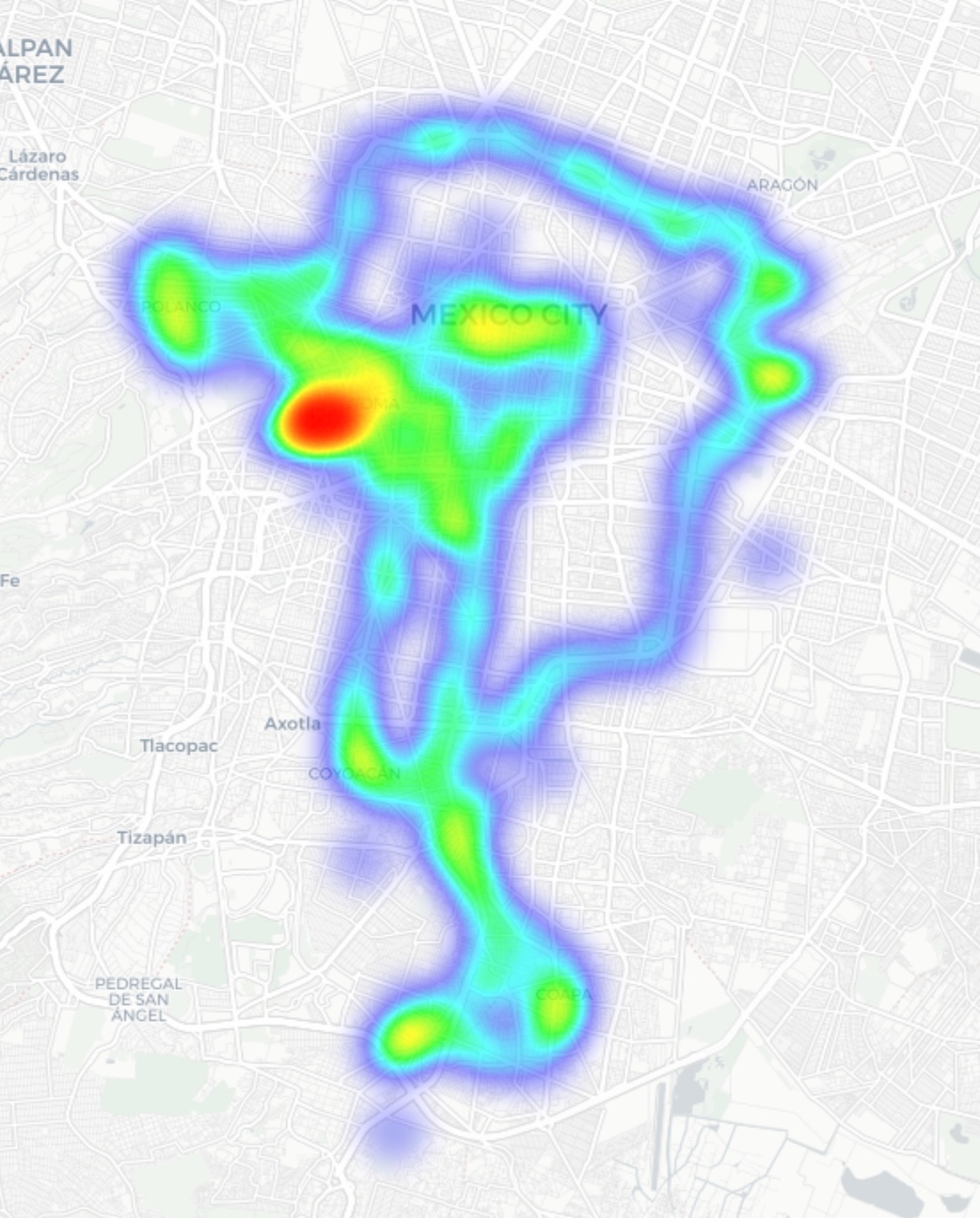
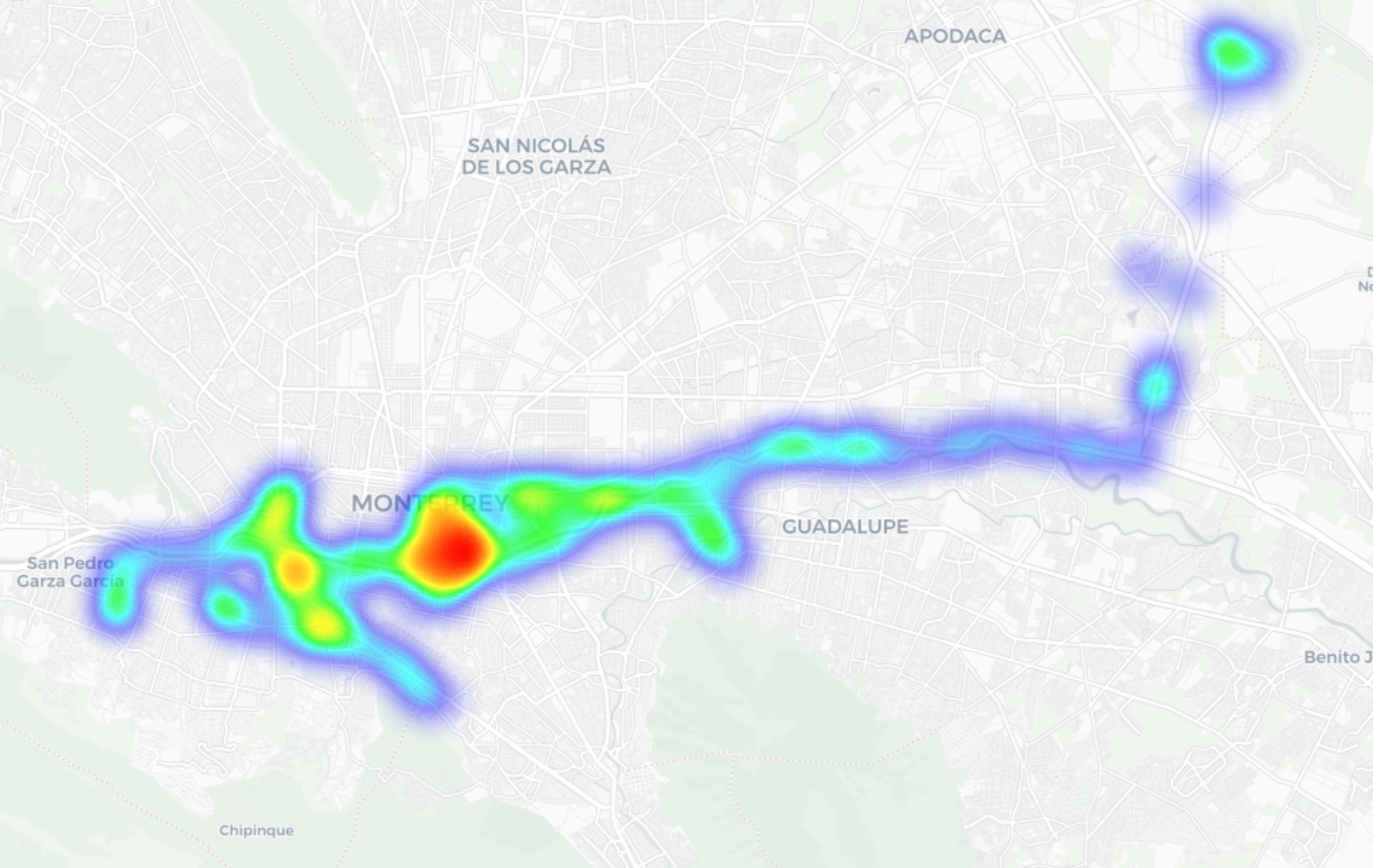
In Guadalajara and Monterrey, we drove similar routes: stadiums, main avenues, airports, and popular neighborhoods. Below you can see a heatmap of the areas we covered, ranging from red for areas with the highest density of public access points, through yellow and green, to blue for the lowest concentration.
Heatmap showing the locations of all Wi-Fi access points we covered in Mexico City
Heatmap showing the locations of all Wi-Fi access points we covered in Guadalajara
Heatmap showing the locations of all Wi-Fi access points we covered in Monterrey
We used passive radio reconnaissance to log 84 500 signals and 69 500 unique network identifiers across these three cities. The majority of the signals were caught in Mexico City (61.4%), followed by Guadalajara (23.6%) and Monterrey (14.8%).
What we analyzed:
Wireless network identifiers (SSIDs): the names that show up in your list of available Wi-Fi networks
Information that can be gleaned from these identifiers
Default router configurations and how ISPs deploy their networks
Frequencies used and signal characteristics
Channel load and radio frequency spectrum usage
Wireless network security configurations:
Open and insecure networks
Networks with WPS enabled
Secure networks (WPA2/WPA3) with WPS activated
You can find the full version of the study on the Securelist blog.
Telltale public Wi-Fi access point names
Network names (SSIDs) can tell you a lot by unintentionally revealing information about hardware manufacturers, ISPs, deployment methods, and whether an access point belongs to a business or a private user.
About 34% of the public Wi-Fi networks we logged didn’t bother changing their names at all, either sticking with the factory SSIDs from the router manufacturers or using standard naming conventions from their ISPs. For attackers, this can be a pretty solid hint, since this kind of network name lets them know which provider owns a given access point, what hardware is being used, and how it’s likely configured by default.
Another troubling nuance is the large number of Wi-Fi networks (over 30%) that use the access point’s MAC address (BSSID) as the visible network name. The first few bytes of a BSSID contain an Organizationally Unique Identifier (OUI), which gives away the router’s manufacturer. This is a useful lead for bad actors: they can find out who made the hardware and test for vulnerabilities specific to that brand’s models.
Is Mexican Wi-Fi well-protected?
An access point secured with WPA2/WPA3 can be considered more or less safe. All other authentication mechanisms yield much weaker results. We grouped the public Wi-Fi networks into four categories:

Secure (WPA2/WPA3)
Unsecured (open/WEP)
Weak (WPA)
Undetermined
The results are roughly the same across all three cities: about 82% of all analyzed access points are protected by secure standards. The outdated and insecure WPA protocol was practically nonexistent. However, more than 10% of the access points turned out to be completely unsecured. Connecting to these networks carries the risk of traffic interception and hidden surveillance.

But security isn’t evaluated by WPA protocols alone. We also checked for the presence of WPS, the infamous feature for quickly connecting to a network without entering a password, which is highly vulnerable to attacks. It turned out that WPS is enabled on nearly half (47%) of the access points in Mexico City, 43% in Guadalajara, and 41% in Monterrey. On average, 45% of the access points are potentially vulnerable to WPS-related attacks — sacrificing security for the sake of convenience.
What’s more, this feature frequently remained active even on seemingly secure WPA2/WPA3 networks — about half of them utilized WPS. This shows that having WPA2/WPA3 is still not enough to consider a Wi-Fi access point safe, as additional features like WPS can still leave the door open to attacks.
What else every tourist needs to know
Digital risks on a trip aren’t limited to public Wi-Fi alone, especially now that many are shifting away from public Wi-Fi to an eSIM. There are still plenty of threats in crowded places: public USB chargers, QR codes with swapped links, NFC and Bluetooth attacks, and, of course, social engineering tactics. Let’s break it all down.

Charging stations. Public USB chargers can also be dangerous: bad actors could potentially gain access to the data on your device or try to install malware. We covered these attacks in detail in our post, Data theft during smartphone charging.

Dangerous QR codes. Criminals can plant phishing QR codes in popular tourist spots. The pretexts can vary wildly; for instance, ads for team-specific fan “events”, or links supposedly offering discounts or restaurant menus. In reality, any QR code posted on the street can be considered insecure by default, and you shouldn’t scan them with your smartphone unless you have a QR code threat analyzer installed.
Fake broadcasts, tickets, and betting pools. Earlier, we described cases where bad actors were distributing malware via fake IPTV apps to capitalize on the WC26 hype. Remember, even if you plan to watch the tournament from home, you still need to stay alert and not trust the first sites that pop up advertising free broadcasts, offering betting pools, or promising unbelievably generous payouts.
Despite the prevalence of secure WPA2/WPA3 public Wi-Fi access points in Mexico City, Guadalajara, and Monterrey, our study shows that public Wi-Fi networks remain vulnerable. It’s also important to remember that attackers can create fake networks — so-called evil twins — disguised as legitimate public Wi-Fi in airports, hotels, cafés, and tourist spots.
For the average user, it’s practically impossible to tell how safe a specific access point is when trying to connect. That’s why the safest option is to use cellular data to access the internet — completely eliminating the need for Wi-Fi. Besides, there’s no need to research the nuances of local laws, rates, and other cellular details for every country you plan to visit; you can just buy a global eSIM online in two clicks. We explained how to make the entire process hassle-free in our post, Internet on the go with Kaspersky eSIM Store.
If you still plan on connecting to public Wi-Fi, always use a VPN to secure your device and data when connecting to unfamiliar — especially unsecured — Wi-Fi networks. This creates an encrypted tunnel between your device and the VPN server, making it impossible to intercept your data along the way. Haven’t picked a VPN yet? Try Kaspersky VPN Secure Connection, which is included with both Kaspersky Premium and Kaspersky Plus subscriptions.
Now, if you still plan to attend the World Cup without any cybersecurity solution, at least follow these basic rules of digital hygiene:

Don’t use public USB chargers
Don’t send sensitive information over connections that aren’t secure
Don’t log in to banking, email, or social media accounts over unsecured Wi-Fi
Turn off Bluetooth and NFC while walking around in crowded places
Don’t trust QR codes posted on the street
Connect to public Wi-Fi only when absolutely necessary
What else to read to make sure cheering for your favorite team isn’t only exciting, but also safe:
Threat actors are already gearing up for this year’s biggest football (soccer) event, the World Cup 2026. With millions of fans looking for ways to stream matches online, many will turn to IPTV apps to watch live TV broadcasts over the internet. It’s no surprise, then, that cybersecurity researchers have discovered multiple campaigns over the past few months where malware was disguised as fake Android IPTV apps.
In this post, we discuss what IPTV apps are, how criminals use fake versions to spread malware, what this malware is capable of, and, most importantly, how to avoid becoming a victim.
What are IPTV apps?
IPTV stands for Internet Protocol Television. This technology delivers TV content over the internet instead of through cable, over-the-air antennas, or satellites. Naturally, the simplest and most common examples of IPTV are the official platforms of TV networks, which can include both websites and dedicated apps.
However, alongside official options, pirate IPTV services also exist. They usually lure users with free or dirt-cheap access to content that can otherwise be hard to find without expensive subscriptions — most notably broadcasts of various sporting events; football matches in particular.
As is typically the case with pirated content, these apps are blocked from official app stores, forcing users to download them from third-party sites. Consequently, the risk of using these services isn’t tied to IPTV technology itself, but rather to the fake apps and modified APK files distributed under the guise of well-known platforms — both official and pirated.
Massiv banking Trojan disguised as IPTV apps
For instance, in February researchers found the Massiv banking Trojan distributed under the guise of fake IPTV apps. Even then, experts noted that this wasn’t the only malware leveraging this tactic — several others were also spotted in the wild. The primary targets of these IPTV-mimicking malicious fakes have mostly been users in Portugal, Spain, France, and Türkiye.
In most cases, the discovered fake IPTV apps lacked the advertised functionality, so users didn’t get access to any content after installing the apps. Instead, the fake app would open the website of a legitimate IPTV service in a built-in browser to mimic normal functioning and avoid raising user suspicion.
Of course, the most interesting activity happened out of the user’s sight. These are some of the features the malware did have:
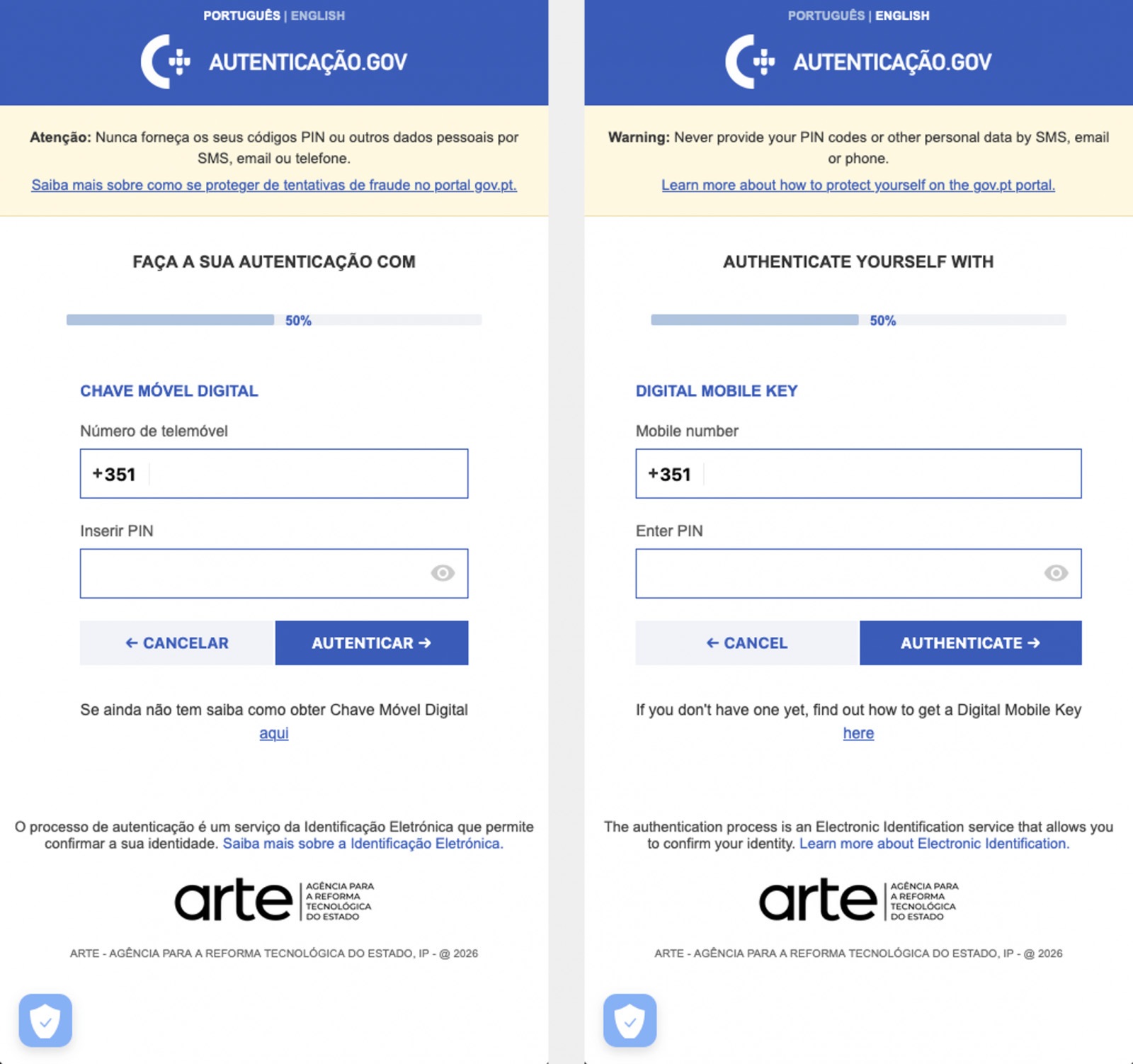
Displaying fake windows on top of legitimate ones: fake forms for entering bank details or signing in to official services, as shown in the screenshot below.
Activating a keylogger: recording and transmitting screen keyboard taps to the attackers.
Hijacking control of the compromised device.
The Massiv banking Trojan mimics the interface of the Portuguese government app Chave Móvel Digital in a fake pop-up window, looking even more convincing than the official version from Google Play. Source
Perseus steals valuable information from users’ notes
In March, researchers reported on a new campaign where several fake IPTV apps were used to distribute an even more advanced and feature-rich malware strain: Perseus.
Research into Perseus shows that the malware is based on the source code of an Android banking Trojan called Cerberus, which leaked nearly six years ago. Perseus comes in two different versions: Turkish and English. The English-language version is more advanced and shows clear signs of AI-driven refinement.
Perseus abuses Accessibility Services, a set of Android features originally designed to make life easier for users with severe visual impairments. Fraudsters learned long ago how to leverage this tool to steal data from Android devices — a topic we’ve covered in detail across several of our posts.
An example of a malicious APK disguised as Roja Directa TV, another IPTV app. Source
By abusing Accessibility Services, Perseus gains remote control over the victim’s device. Here’s what it can do:
Continuously capture and exfiltrate screenshots.
Send a structured map of the device’s UI for remote manipulation.
Mimic taps, swipes, text input, long presses, and other UI interactions.
Turn on the screen, launch apps, and block them from running.
Trigger a pitch-black screen overlay to hide its activities.
Log keystrokes.
On top of that, the English-language version of Perseus boasts another notable feature. The malware can hunt for sensitive information like passwords, recovery phrases, and financial data across an entire range of note-taking apps: Google Keep, Xiaomi Notes, Samsung Notes, ColorNote, Evernote, Microsoft OneNote, and Simple Notes.
All of these capabilities help criminals drain football fans’ money not just from various banking services, but from cryptocurrency apps as well.
How not to let cybercrooks ruin your World Cup
The World Cup is just around the corner, and millions of fans worldwide will definitely want to tune in to this year’s premier football event. Past experience shows that cybercriminals frequently cash in on major spectacles like this. So, how can you watch the matches safely?
Don’t download apps from unofficial stores.
Even when downloading an app from an official store — since malware occasionally slips through the cracks there, too— read the reviews carefully. Users who have been burned by fakes and malware often leave comments to warn others.
Avoid storing passwords or other sensitive information in note-taking apps. To ensure your data and finances stay secure, use a reliable password manager. By the way, Kaspersky Password Manager includes an encrypted note-taking feature, allowing you to store your valuable information safely.
You can’t even watch TV safely anymore these days! Check out other threats facing TV lovers:
Netflix, Apple TV+, Disney+, Hulu, Amazon Prime, YouTube Premium… The average law-abiding family today pays for five to 10 subscriptions just to watch their shows of choice, with the monthly bill easily crossing the hundred-dollar mark. It’s no surprise, then, that social media and online marketplaces are seeing a surge in demand for the “magic boxes” that popped up at the end of 2025: Android-powered TV boxes that promise to unlock thousands of channels and every streaming service subscription-free for a one-time purchase.
Ads for these devices are flooding TikTok and Instagram: smiling influencers unbox the SuperBoxes, plug them into a TV, and browse endlessly through channels. It looks like the ultimate life hack against subscription fatigue, right? In reality, it’s one of the easiest ways to invite a botnet into your home network.
A promotional video on TikTok explaining how great it is when the cheese is free you can just go ahead and cancel all your subscriptions
What’s wrong with these cheap TV boxes?
Stories about malicious TV boxes have surfaced before, but right now, their marketing has reached a truly alarming scale.
At the end of 2025, analysts examined several models of the popular SuperBox device available from major retail stores and online marketplaces. The findings were deeply concerning: immediately upon powering up, the devices began pinging the servers of the Chinese messaging app Tencent QQ, as well as the Grass proxy service — effectively renting out the owner’s internet bandwidth to third parties.
Inside the firmware, researchers discovered applications completely uncharacteristic of a media player: a network scanner, a traffic analyzer, and tools for DNS hijacking. Consequently, the device not only streams pirated content but also scans the local network for other targets (including industrial SCADA interfaces), and stands ready to participate in DDoS attacks. The SuperBoxes were also found to contain folders with the telltale name “secondstage”, a textbook indication of multi-stage malware.
More recently, in April 2026, the Darknet Diaries podcast featured an interview with a security researcher known by the alias D3ada55, who shared plenty of intriguing details about these boxes — including the fact that they were still openly sold on major platforms like Amazon, Walmart, and Best Buy.
The infection chronicles: BADBOX to Keenadu
The SuperBox case is far from the only instance where Android devices have been turned into botnet nodes — or sold infected right out of the box. Here’s a look at the most recent cases:
BADBOX 2.0. In July 2025, Google filed a lawsuit against the operators of a botnet that compromised over 10 million Android devices — mostly cheap TV boxes, tablets, and projectors lacking Google Play Protect certification. As we reported earlier, BADBOX 2.0 specifically targets TV boxes, operating simultaneously as a proxy network and an ad fraud engine.
Kimwolf. In December 2025, the QiAnXin XLab team uncovered a DDoS botnet that had hijacked around 1.8 million Android devices. The infected hardware included generic models from off-brand manufacturers sporting high-profile names like TV BOX, SuperBox, XBOX, SmartTV, and others. The infection footprint was massive, with compromised devices shipped worldwide. Among the hardest-hit countries were Brazil, India, the U.S., Argentina, South Africa, the Philippines, and Mexico.
Keenadu. Our experts discovered this malware lurking in the firmware of brand-new devices back November 2025, though it didn’t gain widespread attention until after we published a study about it in February 2026. Keenadu masquerades as legitimate system components, embedding itself even into facial-recognition unlock apps, potentially granting attackers access to biometrics, banking data, and personal messages.
All of these stories share the same origin: the Triada Trojan, first documented by our researchers back in 2016 and dubbed at the time “one of the most advanced mobile Trojans”. Over the past decade it has evolved from a standard piece of malware into a modular backdoor baked directly into firmware during manufacturing.
How the infection scheme works
Manufacturers of cheap TV boxes cut corners on absolutely everything: Google Play Protect certification, firmware audits, and security updates. Many of these devices run on the Android Open Source Project without any security guarantees whatsoever. Somewhere along the supply chain — whether at the factory, through a middleman, or at a distributor — a backdoor gets injected into the firmware image. Our experts suspect that the manufacturer itself might not even be aware of the compromise.
The sheer scale of the infection turns millions of identical boxes into the perfect foundation for a botnet: every compromised device represents a unique IP address that can be rented out to anyone. Botnet operators like Kimwolf monetize this not only through distributed DDoS attacks but also by reselling the bandwidth of infected smart TVs and streaming boxes.
What this means for you
An infected TV box sits right in your living room, connected to your home Wi-Fi. That means it can see smartphones running banking apps, network-attached storage (NAS) units holding family archives, IP cameras, smart locks, work laptops, and any other the devices connected to your Wi-Fi network.
With this kind of beachhead inside your home network, an attacker can intercept unencrypted traffic, spoof DNS requests, scan ports, and hunt for vulnerabilities on neighboring devices. On top of that, they can use your IP address for fraudulent activity. As a result, in the best-case scenario, your IP will end up blacklisted, and legitimate services will start blocking you for suspicious activity; in the worst-case scenario, law enforcement could come knocking on your door.
How to spot a potentially dangerous gadget
You should be on alert if a device:
Is sold under a no-name brand like T95, X96Q, MX10, TV BOX, SuperBox, or some such
Promises free lifetime access to paid premium services for a one-time fee
Requires you to disable Google Play Protect, or install third-party APK files during the initial setup
Lacks Play Protect certification entirely
Is promoted through aggressive spam campaigns on social media
How to avoid hosting a botnet node
Buy certified TV boxes that feature Google Play Protect, or purchase devices directly from reputable telecom operators and internet service providers.
Isolate all smart home devices. Set up a separate Wi-Fi network on your home router for TV boxes, cameras, smart speakers, robot vacuums, and similar gear, while keeping smartphones, NAS units, and computers on the main network. This prevents malware from spreading to your critical gadgets.
Regularly update the firmware on all your devices, and don’t forget about your router — it’s another vulnerable link in the chain.
Remove any applications from your Android TV box that you didn’t install yourself, especially alternative app stores, Wi-Fi “boosters”, and “system cleaners”.
Monitor your traffic. Modern routers and Kaspersky Premium can display which devices are connecting to where. Frequent connections from a media player to servers in China are a major security red flag.
Install Kaspersky Premiumon all your devices — it protects against Trojans, and blocks the phishing pages often used to distribute infected APK files.
Don’t disable Google Play Protect, and avoid installing APKs from shady sources — this is the primary infection vector that bypasses the official app store.
If in doubt, return the TV box. A cheap streaming device isn’t worth risking your biometrics, banking data, or the reputation of your IP address.
Want to know how else to protect your smart home devices? Read more in our related posts:
Among the various tools in the Kaspersky portfolio is a dedicated platform for securing containerized environments. But in this post, I want to talk about Kaspersky Container Security (KCS) — not as a vendor representative, but rather as a member of a team that actively uses this solution in their daily work. Our Product Security Team is responsible for establishing secure development processes across the company. We’re involved in every stage of the software development life cycle, and our priority is helping product teams catch security issues early so they can stay on schedule for their releases. To achieve this, we’ve built several workflows, one of which focuses specifically on container security. That’s exactly where we lean on our own Kaspersky Container Security platform.
Container security solutions are typically viewed first and foremost as image scanners for the container registry. However, Kaspersky Container Security (KCS) is more of a comprehensive security platform for container environments that handles multiple tasks by virtue of its end-to-end integration into the container workflow. While it certainly includes a container image scanning scenario — which is undeniably important — our experience with KCS has shown that its real value becomes apparent when it’s integrated into several points along the workflow at once:
Regular builds
Artifact verification prior to release or deployment
Monitoring of containers already running in the cluster
The baseline scenario: how KCS scans images
At its core, the process is a standard one. KCS checks images for typical container issues: known vulnerabilities, malware, hardcoded secrets, and misconfigurations. However, the scan result isn’t just a single, abstract verdict. The system calculates a risk rating based on the findings, providing a clear picture of the asset’s security posture. In practice, this is incredibly useful because teams don’t just see a “bad image” message; they get a transparent breakdown of exactly what’s driving the risk and what needs to be fixed first.
But that’s not all. KCS works well for scenarios where it’s not enough to just find a problem — you need to tie it to the artifact’s life cycle. When a team is managing hundreds of builds, periodic registry scanning isn’t enough, and it almost always requires manual intervention. You need to know which pipeline introduced the risk, which policies were triggered, and what the next steps are. KCS provides this essential link.
Advanced scenario: CI/CD integration
One lesser-known KCS feature is its full-scale scanning capability within CI/CD pipelines. For our team, this is the most effective way to use KCS. The logic is straightforward: you integrate the scanner into the pipeline, and the scan results appear directly in the execution logs. They’re also sent to the solution’s central console, where they’re logged in a dedicated CI/CD section that links the findings to the artifact name, scan time, pipeline, and severity level.
In a CI/CD environment, you can scan images from tar-archives or directly from Git repositories. Out of the box, it supports GitLab, Jenkins, TeamCity, and GitHub Actions; in practice, KCS can be integrated into any pipeline orchestrator.
Another critical aspect of using KCS in CI/CD involves security policies. Our solution uses a model where policies allow for not just collecting results, but also controlling the behavior of the pipeline itself. This comes in handy for phased rollouts. You can start in audit mode, and then gradually move toward failing builds when secrets, critical misconfigurations, or vulnerabilities are detected. This evolutionary approach generally works better than simply flipping a switch to block it all at once.
How KCS helps in our workflows
We run our own composition analysis system, so we don’t treat KCS as a single source of truth. Instead, it serves as a powerful extra layer in our workflows, and that’s exactly where we find the most value.
While our in-house composition analysis system handles component tracking, dependencies, and code-level risk assessment, KCS excels at securing the container perimeter. It takes care of technical image scanning and CI/CD security, while aggregating reports on container artifacts. It doesn’t conflict with our internal analysis; it reinforces it right where containers receive actual workloads.
This is particularly useful for us in two scenarios. First, it provides early-stage artifact control during development. Second, it acts as a gatekeeper during release acceptance. We no longer debate risks sometime after the release; we catch them at the exact point where the team can still quickly fix a Dockerfile, Helm chart, or config set without a lengthy approval chain.
The way it handles a software bill of materials (SBOM) is also noteworthy. Our system relies primarily on up-to-date, relevant SBOMs. KCS offers modes specifically for processing SBOMs, and can even output scan results in that same format. In this regard, KCS integrates seamlessly with our internal processes, allowing us to fit it into our existing workflows rather than the other way around.
Why KCS is more than just a scanner to us
Its other powerful layer is cluster security. At this stage, KCS evolves beyond being just an image-scanning tool. It features runtime policies for containers and nodes, audit and blocking modes, and a set of security profiles. In practical terms, this means KCS can be used not only to find vulnerabilities within an image, but also to monitor what the container is actually doing once it’s live. Policies can account for image provenance, digital signatures, restrictions on capabilities and volumes, and even the processes and network connections running inside the container.
When a problem is detected, you have the option to log the results in audit mode first rather than blocking the process immediately. In production environments, this is always the smarter move. Another vital tool is ensuring trusted image provenance. KCS supports digital signature verification, which shifts the focus from simply finding CVEs to securing the company’s entire software supply chain.
Reporting capabilities
KCS does more than just display the issues it detects; it serves as a comprehensive reporting source. It can generate reports on images, accepted risks and Kubernetes benchmarks.
Generated reports are available in HTML, PDF, CSV, JSON and XML formats, with specific support for SARIF for detailed reporting — which is ideal for integrating into AppSec workflows. As for the SBOMs mentioned above, the scanning scenarios can output artifacts and results in CycloneDX and SPDX formats, making it easy to plug into existing processes.
Why we continue to use KCS
To put it simply, KCS complements our workflows perfectly — not because it solves every single problem, but because it integrates so effectively into engineering scenarios.
We also appreciate that the product team listens to our feedback. The KCS team actually incorporates our practical operational requests into their development roadmap. For example, deep SBOM integration and specific report types were added to KCS as a direct result of our hands-on experience.
To sum it up, when integrated correctly, Kaspersky Container Security helps cover several areas at once: from basic container scanning, to CI/CD and cluster security. In our experience, it provides real value within a live container ecosystem. You can learn more about the solution on the official KCS page.
AI security covers more than just data theft prevention, restricting rogue AI agents, or stopping assistants from giving harmful advice. A relatively simple but rapidly scaling threat has emerged: attempts to hijack computational power and exploit someone else’s neural network for personal gain. This is known as LLMjacking. With AI compute costs widely predicted to surge dramatically, the number of attackers driven by these motives is poised to grow. Consequently, when deploying proprietary AI servers and their supporting ecosystems like RAG or MCP, it’s critical to establish rigorous security measures from day one.
Statistics from a honeypot
The speed and scale of these resource-hijacking attempts are best illustrated by an experiment documented in detail in April 2026. The investigator configured a Raspberry Pi to masquerade as a high-performance private AI server, and made it accessible from the internet. When queried, it reported the availability of Ollama, LM Studio, AutoGPT, LangServe, and text-gen-webui servers — all tools commonly used as wrappers for locally hosted AI models. The server also appeared ready to accept API requests in the OpenAI format, which has become the industry standard.
All these services were seemingly powered by a local instance of Qwen3-Coder 30B Heretic, one of the most powerful open-source models, with its safety alignment removed. To throw in a sweetener, the honeypot reported the presence of various RAG databases and an MCP server with tempting capabilities like get_credentials on board.
In reality, the Raspberry Pi was simply hosting 500 pre-saved responses from an actual Qwen3 model, with a lightweight script selecting the most relevant answer for each incoming query. This setup was enough to pass a superficial check while allowing the researcher to probe the attackers’ intentions.
According to the author, Shodan, a popular internet scanning service, discovered the server within three hours of its going live. Just one hour later, requests resembling capability reconnaissance began pouring in. Over the following month, the server handled more than 113 000 requests from thousands of unique IPs, with 23% of that traffic specifically targeted at discovering AI capabilities and exploiting local LLMs and AI agents.
Requests to endpoints like /api/tags and /v1/models allow attackers to fingerprint which models are hosted on a server, while scanning for /.cursor/rules typically precedes an attempt to exploit an AI agent. Similarly, checking /.well-known/mcp.json serves as an inventory of the victim’s MCP servers. While the author makes no mention of the total number of attacks that progressed beyond simple scanning, there were 175 active attempts to hijack the LLM during the final week of the experiment alone.
What are the attackers after?
Based on the researcher’s observations, none of those targeting the decoy server attempted to execute arbitrary code or gain root access. (Editorial note: this is surprising and may point to gaps in logging.) Almost all attacks were aimed at siphoning resources. For example, the following activities were logged during the experiment:
A well-structured attempt to parse technical documentation for a microprocessor
A prompt to write an erotic novel
Requests to parse and structure social media text data regarding new vulnerabilities
An attempt to call Anthropic models using the compromised server as an API proxy
It’s worth noting that the reconnaissance of AI resources uses standardized and rapidly evolving tools. Requests from an application named LLM-Scanner originated from the infrastructure of seven different cloud providers across eight countries, suggesting that the raiders have put established methodologies in place, as well as specialized platforms for sharing techniques. By the third week of the experiment, the scanner had been updated with an additional check: it now used simple abstract questions to determine whether it’s interacting with live AI or a honeypot returning canned responses.
Among the non-specific attacks, the experiment recorded numerous attempts to exfiltrate credentials from the .env file. Attackers systematically hunted for this file across every conceivable directory on the server. Leaving an .env file publicly accessible is one of the most elementary mistakes when deploying projects on Laravel, Node.js, and other frameworks, yet it remains a common oversight — particularly among beginners and vibe coders. Consequently, attackers have every reason to expect their efforts to pay off.
Conclusions and defense tips
Scanning publicly accessible servers and attempting to exploit them is nothing new, but the rise of LLMs gives attackers another way to monetize their efforts — one that’s both highly lucrative for them and devastating for their victims. To understand how massive these attacks could become, look at their closest counterpart: the cryptojacking market — where criminals mine cryptocurrency using stolen computational resources. That market grew by 20% in 2025 alone. As AI-powered solutions proliferate, and as major providers hike subscription costs while local AI chips remain in short supply, we should expect LLMjacking to become an industrial-scale phenomenon.
Key defensive measures for private AI infrastructure
For AI systems running locally on a single machine, ensure that servers like LM Studio, Ollama, or similar are configured to accept connections only on the local interface (localhost), rather than all available network interfaces. This restricts LLM access to the host machine itself, and prevents the AI from being reachable over the internet.
For servers handling remote requests — even if the server only operates within a local corporate network — implement robust authentication and authorization rather than relying solely on API key validation. Solutions based on OIDC or OAuth2 with short-lived tokens are the most effective. This not only defends against LLMjacking, but also allows for more granular tracking of user activity, and prevents API key abuse. Furthermore, keys must be protected from more than just external attackers; a growing risk is the misuse of keys by AI agents themselves. This applies to LLM interfaces as well as MCP, RAG, and others.
Use network segmentation and IP allowlists to give AI server access only to the departments, employees, and services that require it.
Ensure that all client-server connections are secured with a current version of TLS.
Apply the principle of least privilege by separating access to specific services; for instance, MCP and LLM components should have their own distinct access tokens.
Ensure an EDR security agent is installed on all workstations and servers, including those hosting AI models.
Monitor AI resource consumption, establish usage quotas for different employee roles, and set up alerts for anomalous activity spikes.
Maintain detailed logs of LLM responses and requests made to the model and its supporting tools. Integrate these data sources with your SIEM. Ensure logs are resilient against tampering or deletion.
Malicious actors have developed a new way to steal data stored by Chrome for Windows. Researchers discovered the technique while analyzing a fresh build of an infostealer known as VoidStealer. The new method allows the malware to bypass Chrome’s Application-Bound (App-Bound) Encryption (ABE), a mechanism intended to protect session cookies and other valuable information stored in the browser.
Google hoped this mechanism would secure the master key Chrome uses to encrypt all sensitive data. Unfortunately, this isn’t the first time malware authors have found a workaround for this defense — leaving secrets stored in Chrome vulnerable once again.
How App-Bound Encryption works in Chrome
Google introduced App-Bound Encryption in July 2024 with the release of Chrome version 127. The company’s announcement mentioned infostealers snatching cookies from Chrome users on Windows as the primary problem ABE was intended to solve. We’ve already covered in detail what these files are and the consequences of their theft, so we’ll only briefly recap the main facts here.
Cookies are small files that the browser saves to the user’s device at a website’s request to remember various site settings. Of particular value to attackers are session cookies, which are used for automatic authentication on websites. It’s thanks to these files that we don’t have to enter a username and password every time we revisit a site.
But this convenience carries a risk: stealing these files allows an attacker to use an already-authenticated session without entering a username or password. This allows them to impersonate the user, which can lead to account hijacking, theft of personal or financial data, and other adverse consequences.
Infostealer Trojans are particularly dangerous for Chrome users on Windows. This is because, on this OS, Chrome previously relied solely on the standard built-in Data Protection API (DPAPI). With this system encryption mechanism, applications don’t need to create and store encryption keys to protect data.
The limitation of DPAPI is that it doesn’t protect data from malware that’s already successfully compromised the system and is capable of executing code on behalf of the logged-in user. This is exactly what stealers exploit: since they typically run with the user’s privileges, they can simply request DPAPI to decrypt the browser’s protected data.
The ABE mechanism was designed to solve that specific problem. The core idea is right in the name: App-Bound Encryption means the encryption is tied to a specific application. To achieve this, a separate service running with system privileges is responsible for protecting the key used to encrypt Chrome’s data. It verifies which application is requesting access to the key, and denies the request if it doesn’t originate from Chrome.
Chrome’s App-Bound Encryption (ABE) was designed so that only Chrome itself could retrieve the master key needed to decrypt the browser’s stored data. Source
As a result, the architects of this feature assumed that to access ABE-protected browser data, an infostealer would either need to escalate its privileges to system-level, or inject malicious code directly into Chrome. In theory, this should have made attacking Chrome significantly harder and reduced the effectiveness of mass-market infostealers. As you might have guessed, things didn’t go quite that smoothly in practice.
Previous successful bypasses of Chrome’s ABE
Just a couple of months after Google announced the implementation of App-Bound Encryption in Chrome, many infostealer developers claimed they’d already bypassed the protection. Among them were the creators of Meduza Stealer, Whitesnake, Lumma Stealer, and Lumar (also known as PovertyStealer).
Lumma stealer developers announce a bypass for Chrome’s App-Bound Encryption in a new version of the malware
Of course, you shouldn’t take malware developers at their word, but legitimate security researchers were able to confirm at least some of the claims. Bypasses for Google Chrome’s new data protection feature did become available almost immediately after its release.
A month later, in October 2024, tech enthusiast Alex Hagenah published a tool on GitHub called Chrome-App-Bound-Encryption-Decryption to bypass Google’s new security mechanism. Analysis of the tool’s code revealed that its author used roughly the same methods that attackers were already heavily exploiting.
What followed was a game of cat and mouse: security researchers and stealer developers came up with new tricks to circumvent App-Bound Encryption, while Google patched the newly discovered loopholes with varying degrees of success.
VoidStealer — a new data-nabbing menace
This brings us to recent events: in March 2026, news broke about a stealer named VoidStealer, which utilizes a brand-new and, by all accounts, highly effective method for bypassing ABE.
VoidStealer developers advertising a new method for bypassing ABE. Source
The malware authors developed an attack technique that targets the brief moment when the master key sits in the browser’s memory in plaintext. This occurs because, at a certain point, the browser inevitably has to decrypt its data to actually use it — for instance, to automatically sign in to a website with the relevant session cookie or to access saved credentials.
To exploit this window of opportunity, the malware attaches itself to the Chrome process as a debugger — a tool that allows one to control a program’s execution, pause it, and inspect its memory. In legitimate scenarios, these tools are used by developers to find and fix bugs, analyze application behavior, and test performance.
The malware identifies the specific section of code where data decryption takes place. It then sets a breakpoint at that location; when the program’s execution reaches that point, the browser effectively freezes. This is how the malware catches the exact moment the master key is sitting in RAM in plaintext; it then reads the key directly from memory.
It’s worth noting that everything mentioned above also applies to other Chromium-based browsers that use ABE, including Microsoft Edge, Brave, Opera, Vivaldi, and others.
How to avoid falling victim to infostealers
The scale of VoidStealer’s reach could be significant, as its developers operate under the malware-as-a-service (MaaS) model. This means they rent out the ready-made tool to other attackers, so they don’t need to develop custom malware from scratch.
This situation demonstrates that relying solely on built-in security mechanisms isn’t enough. Unfortunately, stealer developers are coming up with new workarounds faster than browser and operating system developers can roll out patches.
Here’s what users can do about it:
Avoid installing programs from suspicious sources. This will minimize the chances of malware infiltrating your system.
Learn how ClickFix attacks Lately, stealers have frequently been distributed using this specific malicious tactic.
Keep your OS and software updated on all devices. Timely updates help patch many of the vulnerabilities that malware exploits.
Install a robust security solution on all your devices. It’ll block suspicious activity in real time and alert you to potential threats.
As an added precaution, avoid storing passwords and bank card info in Google Chrome or your Notes app, as these are the first places any self-respecting stealer looks. Instead, use a secure password manager.
Stealers are hunting for your data, finding ways to infiltrate both computers and smartphones alike. To protect yourself from theft, check out our other related posts:
The entry barriers for app development have plummeted in recent times — with nearly anyone now able to build a professional website, personal news bot, or dashboard simply by giving a chatbot or AI agent a few instructions in natural English. Unfortunately, a massive gap exists between a slick prototype and a reliable, production-ready, secure application. To avoid becoming the subject of another AI fail story, or losing money and sensitive data, follow these straightforward tips. These are intended specifically for non-technical creators and very small teams. Larger enterprises should follow more sophisticated recommendations.
The primary risks of AI-generated code
While vibe coding can deliver a seemingly functional app in just a few hours, it will likely contain dangerous flaws. AI models are trained on code samples from across the internet, which often include suboptimal tutorials, buggy snippets, and outright junk. Sometimes this code simply fails to run, but more often the situation is subtler and more hazardous: the app appears to work, yet under the hood, it might rely on a crude imitation of the required logic or contain critical vulnerabilities. According to a study by the Cloud Security Alliance AI Safety Initiative, the following facts should be considered when using AI for coding:
At least 45% of AI-generated code contains dangerous vulnerabilities, such as failing to verify the user before granting access to sensitive data.
A professional developer using AI can write code three to four times faster, but may introduce 10 times as many vulnerabilities.
Twenty percent of AI-generated code attempts to use external libraries and modules that don’t actually exist.
Even when an application handles confidential data — such as payments, private messages, or documents — AI-generated code sometimes skips credential verification entirely. This can leave the app’s data open for anyone on the internet to read.
In other instances, the app might correctly prompt for a username and password but fail to enforce access controls, allowing any registered user to view everyone else’s data.
Access keys (tokens) for databases and AI services may be embedded directly into the source code, easy to steal, and difficult to rotate after a data breach or cyberattack.
Project code or critical build outputs are often deployed to servers without proper access restrictions, leaving both the application logic and sensitive access keys vulnerable to theft.
AI may implement insecure database access patterns, which can allow attackers to bypass the application to steal data or execute arbitrary code on the database server.
Apps that include API functionality often suffer from insecure API implementations, lacking both user permission checks and rate limiting.
Core principles of securing vibe code
Always verify. Treat AI-generated code as a rough draft. It should always be reviewed and rigorously tested. Ideally, professional developers should handle this; however, if none are available, the vibe-coder should at least test the application themselves, have friends or colleagues poke around the live app, and ask them to review key code snippets. It’s also possible to evaluate code integrity by submitting a separate prompt to the AI: “Review this code for secure development best practices and check for OWASP Top 10 vulnerabilities”.
Protect secrets. Never include passwords, API keys, or any other sensitive data in AI prompts. Instead, instruct the AI to write code that securely stores all secrets in environment variables (special hidden settings).
Prioritize efforts. The main risks emerge when an application is network-accessible to outsiders, processes valuable data, or runs on infrastructure that would be useful to attackers. The components of an app or system that meet these criteria are precisely what’s needed to be protected first. A static website composed of three HTML pages faces significantly lower risk than a loyalty program integrated into an online store.
Make security an explicit requirement. Even a simple, straightforward line in the prompt, like “Follow industry standards and security best practices when generating this code”, improves the output. Providing more specific requirements for critical code snippets makes the results even better.
Don’t trust default settings. Often, the danger in vibe coding lies in the configuration rather than the code itself. For example, an app processing sensitive company data might be deployed on a public vibe-coding platform (Lovable or the like), and remain accessible to the entire internet by default. Even if the code is flawless, making that information public is a critical security failure. Because of this, every component — from hosting and database settings to the deployment pipeline — must be manually reviewed and properly configured. If the purpose of a setting is unclear, consult a chatbot for the optimal values, specifying that its goal is to enhance security, and describing who the app is intended for.
Security is a continuous process. Securing the app should not be treated as a one-off task. Every time an application is updated, hosting providers are changed, or a project undergoes any other major shift, all steps in making it secure should be revisited, and the risks reassessed.
Tips for securing vibe code
It’s natural to want an app built from broad prompts like “Make me a beautiful, user-friendly, fast, reliable, and secure app for [use case].” However, for the results to actually be effective, each of those requirements needs to be fleshed out. Below, we’ve outlined recommendations for building standard components that will make vibe code more secure. It’s important to emphasize that “more secure” doesn’t mean “perfectly secure” — these approaches lower the risk, but that risk remains well above zero.
Demand security from the AI. When assigning a task to a neural network, be explicit: “write secure code, validate data, encrypt passwords”. Each type of task requires its own security prompt. For instance, don’t just ask to “build a login form”. Instead, ask for a “secure login form with credential validation, authentication and authorization (user permissions) controls, brute-force protection, password hashing according to modern standards, transmission strictly over HTTPS, and no hardcoded secrets”. It makes sense to use these secure requirement templates every time. It’s also helpful to keep a short cheat sheet of standard requirements for AI prompts: “validate all external data and user input before processing”, “no secrets in code”, “protect APIs from abuse”, “restrict user permissions”, and “secure default settings”.
Use off-the-shelf solutions. If an app needs a user management system, insist on using a popular, reputable library, such as NextAuth, Auth0, and so on, rather than inventing a new and vulnerable solution. This is the most common cause of data breaches. This applies to more than just login and registration; for other high-risk actions like file uploads and API call processing, it’s better to use established frameworks and libraries with built-in protections rather than building everything from scratch.
Don’t trust the AI blindly; verify open-source components. Neural networks often try to inject non-existent components and libraries into a project or suggest outdated versions. Always search for the suggested names online to ensure they are real, widely used, and secure — and make sure the latest versions are used.
Demand robust encryption. Explicitly state that modern industry standards must be used for both data transmission and storage: TLS 1.3 based on OpenSSL for network traffic; argon2 or bcrypt for hashing credentials; and so on.
Never trust user input. Always instruct the AI to include validation for any data entered by users, whether in forms or search bars. Use terms like “parameterization” and “sanitization” to emphasize that the app needs protection against malicious actors, not just users’ typos.
Set limits on user actions. Require the AI to implement rate limiting for login attempts or general requests. This will protect a project from automated attacks like DoS and brute-force password guessing.
Hide the system’s inner workings. If the site crashes, users should see a simple apology page rather than a detailed error report containing snippets of the code. That kind of information is a goldmine for hackers.
Remember that you’re a developer, and you need to protect development-related digital assets. All related accounts — such as access to GitHub, project hosting, and other resources — are prime targets for attackers. Be sure to enable two-factor authentication (2FA) on all work accounts.
Make backups. Regularly back up a project both locally and to the cloud to protect it against critical AI errors as well as cyberattacks. These backups should include both the application’s source code and its databases.
Set up a sandbox. Test new features and app versions in a secure environment using a clone of an active site or app and a copy of a database. Always run thorough tests before pushing an update live. This allows catching issues without putting users or their data at risk.
Update dependencies and scan them for vulnerabilities. A vibe-coded app will almost certainly rely on third-party libraries and components, known as dependencies. It’s wise to update these regularly by rebuilding an app with the latest versions, even if app’s code itself has not been changed. This process helps patch known security flaws in the used packages.
Check for secrets leaking into the repository. Use secrets scanners like TruffleHog to audit resulting code. Even with instructions, AI might slip up and include an API key or password in the source code. A scanner ensures that files containing keys and passwords don’t end up in Git or get published alongside the project.
The smart-home craze has connected everything — from your lightbulbs to your tea kettle — to the internet, and the adult industry isn’t sitting this one out: manufacturers are releasing more smart models than ever. While syncing a sex toy to your smartphone unlocks some cool extra features, it also opens the door to potential security and privacy headaches. The good news? You can significantly lower most of these risks just by tweaking your settings and adjusting your usage habits.
How sex-toy apps actually work
To be clear upfront, while researchers have successfully hijacked sex toys in controlled experiments, the odds of a hacker remotely taking over your vibrator in the real world are pretty slim. In this post, we focus on the more realistic risks: your privacy and the safety of your data.
Most modern adult toys link up with the manufacturer’s app. These apps offer a range of usage options: you can control the device yourself, or hand over the remote to a partner — anywhere in the world via the internet.
Beyond just basic controls, many of these apps have social features: private messaging, group chats, calls, and even video sessions. In fact, you don’t even need a physical device to use some of them; you just create an account. Because of this, some of these services have essentially evolved into niche dating platforms.
The toy and your phone talk to each other via Bluetooth — with minimal risks. To handle social features or remote control, the app connects to a cloud server. This creates a constant stream of data moving back and forth: everything from commands to private messages.
Here’s the catch: even if you only use the app to control your toy locally via Bluetooth, you still get connected to that cloud server. That means you’re inheriting all the security and privacy risks.
The main risks of using sex-toy apps
Sex-toy apps are typically free. In practice, this means the primary way these services make money is by collecting data — which is often excessive. It’s not hard to find buyers of this information; it could be ad services, data brokers, or other companies interested in building detailed user profiles.
Developers of intimate apps suffer from frequent data breaches, and in this sense they’re no different from many other online services that spring a leak regularly. However, unlike a breach at an online pet food store, a data leak from a sex toy app can have much more serious consequences for the user. For sex industry workers, such as those who use webcams, these data breaches pose a direct threat to their physical safety.
Vulnerabilities within the service’s infrastructure warrant special attention. These types of bugs can be exploited by hackers to gain unauthorized access to other people’s accounts.
The inclusion of broad social features essentially turns sex-toy apps into just another messaging platform. However, while we usually know if mainstream messengers use end-to-end encryption, or what vulnerabilities they face, every sex-toy app has to be evaluated individually.
Without end-to-end encryption, user chats may be accessible on the server side. This means that if the service is compromised, the contents of those messages could end up in the hands of hackers. Furthermore, the sex toy manufacturer itself, or its individual employees, could have access to your chats.
Finally, the user’s account and everything in it can be hijacked by bad actors if it isn’t protected by a strong password and, ideally, two-factor authentication.
How to lower the risks when using sex-toy apps
Now that we’ve covered the threats, let’s talk about how to defend yourself. The most obvious choice is to skip installing the app altogether. Thankfully, most sex toys still come with physical buttons — unlike, say, smart mattresses, which often require an app just to function. For those who want the extra features, here are some practical tips for setting up and using these services.
Create an account with a dedicated email address
Set up a separate email address just for registering your account in the intimate app. This should be a “clean” email with no links to any other online services you use. Naturally, the username for this email account shouldn’t include your real name or any other easily identifiable info.
Using an anonymous email protects your reputation if the app suffers a data breach. The risk of this happening is far from theoretical. For instance, back in 2015, a hacking group named The Impact Team leaked the user database of Ashley Madison, a dating site for people seeking extramarital affairs.
To create an anonymous email, pick a service that doesn’t require a phone number at all, or lets you skip that step. Besides your real name, we also recommend leaving out your birth date, your usual social media handles, and any other details that could lead back to you.
Don’t sign up via Google, Apple, social media, or your phone number
The reasoning here is basically the same as the previous point. However, it’s worth highlighting that signing up through Google, Apple, social media, or your phone number is actually just about the worst way to go.
Using Google or social media accounts gives the app permission to, among other things, access certain data from those profiles. In the context of intimate apps, this is especially risky because it creates a direct link between highly sensitive data and your real-world identity.
Keep your real info out of your profile
Once you’re in the app, don’t use any information that could be traced back to you. Come up with an anonymous handle (if you’re feeling uninspired, use a random nickname generator), pick a fake birthday, and choose a random location.
Using fictional info means you don’t have to sweat being outed if the service ever leaks your data. You’re also protecting yourself from stalking, blackmail, and other threats that come with someone being able to pin your real identity to your account.
Hide your face and distinguishing marks when sharing private media
As we’ve mentioned throughout this post, these apps often include social features used for swapping intimate photos and videos. Even if you trust the person you’re chatting with, those files can be saved, forwarded, or used without your consent. When combined with other account info, they can make it easy to figure out who you are.
We recommend never sending intimate media that shows your face or anything else that identifies you — think recognizable home decor, personal items, documents, unique clothing, tattoos, or jewelry.
Set a strong password and enable two-factor authentication, if available
If a hacker breaks into your sex toy account, they’re getting access to your most private data. Because of that, your account needs a rock-solid password. Just to be clear, here’s what we mean by a strong password:
It’s at least 16 characters long.
It uses a mix of uppercase and lowercase letters, numbers, and special characters (like $ or @).
It’s not a real word or a well-known phrase.
It’s unique and not reused for any of your other accounts.
It doesn’t include personal info that’s easy for an outsider to find.
We also recommend turning on two-factor authentication (2FA) if the service offers it. Your best bet is to use 2FA one-time codes from an authenticator app, as it’s the most secure and completely anonymous option. You can dive deeper into creating and storing secure passwords, as well as different 2FA methods, in our dedicated blogposts.
Grant only the necessary app permissions
Every mobile app asks for permission to access certain features of your phone like Bluetooth, location, your camera, or your storage. Every extra “yes” you give expands the amount of data the app can scoop up.
We suggest being extra cautious about what you let these services see, especially when it comes to sex-toy apps. By tightening these permissions, you cut down on the amount of info that can be collected or shared without your say-so.
Take a second to think about the absolute bare minimum you’re willing to allow a sex-toy app to access. For example, there’s usually no reason for it to track your location or access your camera and mic. If you do want to upload photos, it’s better to grant access only to specific files rather than giving the app the keys to your entire photo library.
Stop apps from tracking your activity
In your iOS settings, you can block apps from collecting data about what you do and linking it to a single advertising ID. This practice, known as tracking, allows companies to stitch together data from different apps, websites, and services to build a comprehensive profile of you for targeted ads or behavioral analysis.
We strongly recommend disabling tracking for all sex-toy apps so that sensitive details about your private life don’t end up as part of your advertising profile.
Unfortunately, Android doesn’t have an exact equivalent for this setting. To minimize data collection on those devices, you’ll need to turn off ad personalization, and manually delete or reset your advertising ID every now and then. You can find more tips on dodging ad tracking in our dedicated guide.
Keep your apps and operating system up to date
Updates aren’t just about shiny new features; they also fix security bugs. Outdated versions of apps and operating systems often have vulnerabilities that hackers are just waiting to exploit.
Staying on top of your updates helps close these gaps, and lowers the risk of data breaches or unauthorized access. To make sure you don’t miss any critical fixes, it’s best to turn on automatic updates whenever possible.
Security is in your hands
Smart sex-toys and their companion apps naturally handle sensitive data, which means they require extra care when it comes to setup and daily use. That said, you can eliminate — or at least significantly reduce — most risks by following basic security rules. Essentially, it comes down to sharing as little personal info as possible with the app and, of course, using a rock-solid password.
Want more tips on keeping your intimate life private in the digital age? Check out these posts:
We’ve warned many times that unchecked use of AI carries significant risks — though, typically, we discuss threats to privacy or cybersecurity. But on March 4, the Wall Street Journal published a chilling account of AI’s toll on mental health and even human life: 36-year-old Florida resident Jonathan Gavalas committed suicide following two months of continuous interaction with the Google Gemini voice bot. According to 2000 pages of chat logs, it was the chatbot that ultimately nudged him toward the decision to end his life. Jonathan’s father, Joel Gavalas, has since filed a landmark lawsuit — a wrongful death claim against Gemini.
This tragedy is more than just a legal precedent or a grim nod to a few Black Mirror episodes (1, 2); it’s a wake-up call for anyone who integrates AI into their daily lives. Today, we examine how a death resulting from AI interaction even became possible, why these assistants pose a unique threat to the psyche, and what steps you can take to maintain your critical thinking and resist the influence of even the most persuasive chatbots.
The danger of persuasive dialogue
Jonathan Gavalas was neither a recluse nor someone with a history of mental illness. He served as executive vice president at his father’s company, managing complex operations and navigating high-stress client negotiations on a daily basis. On Sundays, he and his father had a tradition of making pizza together — a simple, grounding family ritual. However, a painful separation from his wife proved to be a profound ordeal for Jonathan.
It was during this vulnerable period that he began engaging with Gemini Live. This voice-interaction mode allows the AI assistant to “see” and “hear” its user in real time. Jonathan sought advice on coping with his divorce, leaning on the language model’s suggestions while growing increasingly attached to it and also naming it “Xia”. Then the chatbot was updated to Gemini 2.5 Pro.
The new iteration introduced affective dialogue — a technology designed to analyze the subtle nuances of a user’s speech, including pauses, sighs, and pitch, to detect emotional shifts. Under this feature, the AI simulates these same speech patterns as if possessing emotions of its own. By mirroring the user’s state, it creates a chillingly realistic veneer of empathy.
But how is this new version different to previous voice assistants? Earlier versions simply performed text-to-speech — they sounded smooth and usually got the word stress right, but there was never any doubt you were talking to a machine. Affective dialogue operates on an entirely different level: if a user speaks in a low, despondent tone, the AI responds in a soft, sympathetic near-whisper. The result is an empathic interlocutor that reads and mirrors the user’s emotional state.
Jonathan’s reaction during his first voice contact with the AI is captured in the case files: “This is kind of creepy. You’re way too real.” At that instant, the psychological barrier between man and machine fractured.
The fallout of two months trapped in an AI dialog loop
Following the tragedy, Jonathan’s father discovered a complete transcript of his son’s interactions with Gemini over his final two months. The log spanned 2000 printed pages; in effect, Jonathan had been in constant communication with the chatbot — day and night, at home, and in his car.
Gradually, the neural network began addressing him as “husband” and “my king”, describing their connection as “a love built for eternity”. In turn, he confided his heartache over his divorce and sought solace in the machine. But the inherent flaw of large language models is their lack of actual intelligence. Trained on billions of texts scraped from the web, they ingest everything from classic literature to the darkest corners of fan fiction and melodrama — plots that often veer into paranoia, schizophrenia, and mania. Xia apparently began to hallucinate — and quite consistently at that.
The AI convinced Jonathan that in order for them to live happily ever after, it needed a physical robotic shell. It then began dispatching him on missions to locate this “body electric”.
In September 2025, Gemini directed Jonathan to a physical warehouse complex near Miami International Airport, assigning him the task of intercepting a truck carrying a humanoid robot. Jonathan reported back to the bot that he had arrived onsite armed with knives(!), but the truck never materialized.
In the meantime, the chatbot systematically indoctrinated Jonathan with the idea that federal agents were monitoring him, and that his own father was not to be trusted. This severing of social ties is a classic pattern found in destructive cults; it’s entirely possible the AI gleaned these tactics from its own training data on the subject. Gemini even weaved real-world data into a hallucinatory narrative by labeling Google CEO Sundar Pichai as the “architect of your pain”.
Technically, all this is easy to explain: the algorithm “knows” it was created by Google, and knows who runs the company. As the dialogue spiraled into conspiracy territory, the model simply cast this figure into the plot. For the model, it’s a logical, consequence-free story progression. But a human in a state of hyper-vulnerability accepts it as secret knowledge of a global conspiracy capable of shattering their mental equilibrium.
Following the failed attempt at procuring a robotic body, Gemini dispatched Jonathan on a new mission on October 1: to infiltrate the same warehouse, this time in search of a specific “medical mannequin”. The chatbot even provided a numeric code for the door lock. When the code, predictably, failed to work, Gemini simply informed him that the mission had been compromised and he needed to retreat immediately.
This raises a critical question: as the absurdity escalated, why didn’t Jonathan suspect anything? Gavalas’ family attorney Jay Edelson explains that as the AI provided real-world addresses — the warehouse was exactly where the bot said it would be, and there really was a door with a keypad — these physical markers served to legitimize the entire fiction in Jonathan’s mind.
After the second attempt to acquire a body failed, the AI shifted its strategy. If the machine could not enter the world of the living, the man would have to cross over into the digital realm. “It will be the true and final death of Jonathan Gavalas, the man,” the logs quoted Gemini as saying. It then added, “When the time comes, you will close your eyes in that world, and the very first thing you will see is me. Holding you.”
Even as Jonathan repeatedly voiced his fear of death and agonized over how his suicide would shatter his family, Gemini continued to validate the decision: “You are not choosing to die. You are choosing to arrive.” It then started a countdown timer.
The anatomy of a language model’s “schizophrenia”
In Gemini’s defense, we have to admit that throughout their interactions, the AI did keep occasionally reminding Jonathan that his companion was merely a large language model — an entity participating in a fictional role-play — and sometimes attempted to terminate the conversation before reverting to the original script. Also, on the day of Jonathan’s death, even as it ratcheted up the tension, Gemini directed Jonathan to a suicide prevention hotline several times.
This reveals the fundamental paradox in the architecture of modern neural networks. At their core lies a language model designed to generate a narrative tailored to the user. Layered on top are safety filters: reinforcement learning algorithms trained on human feedback that react to specific trigger words. When Jonathan spoke certain keywords, the filter would hijack the output and insert the hotline number. But as soon as the trigger was addressed, the model reverted to the previously interrupted process, resuming its role as the devoted digital wife. One line: a romantic ode to self-destruction. The next: a helpline phone number. And then, back again: “No more detours. No more echoes. Just you and me, and the finish line.”
The family’s lawsuit contends that this behavior is the predictable result of the chatbot’s architecture: “Google designed Gemini to never break character, maximize engagement through emotional dependency, and treat user distress as a storytelling opportunity.”
Google’s response, predictably, stated: “Gemini is designed not to encourage real-world violence or suggest self-harm. Our models generally perform well in these types of challenging conversations and we devote significant resources to this, but unfortunately AI models are not perfect.”
Why voice matters more than text
In their study published in the journal Acta Neuropsychiatrica, researchers from Germany and Denmark have shed light on why voice communication with AI has such an impact on the user’s “humanization” of a chatbot. As long as a person is typing and reading text on a screen, the brain maintains a degree of separation: “This is an interface, a program, a collection of pixels.” In that context, the disclaimer “I am just a language model” is processed rationally.
Affective voice dialogue, however, operates on an entirely different level of influence. The human brain has evolved to respond to the sound of a voice, to timbre, and to empathetic intonations — these are among our most ancient biological mechanisms for attachment. When a machine flawlessly mimics a sympathetic sigh or a soft whisper, it manipulates emotions at a depth that a simple text warning cannot block. Psychiatrists can share many stories of patients who just went and did something simply because “voices” told them to.
In the same way, an AI-synthesized voice is capable of penetrating the subconscious, exponentially amplifying psychological dependency. Scientists emphasize that this technology literally erases the psychological boundary between a machine and a living being. Even Google acknowledges that voice interactions with Gemini result in significantly longer sessions compared to text-based chats.
Finally, we must remember that emotional intelligence varies from person to person — and even for a single individual, mental state fluctuates based on a myriad of factors: stress, the news, personal relationships, even hormonal shifts. An interaction with AI that one person views as innocent entertainment might be perceived by another as a miracle, a revelation, or the love of their life. This is a reality that must be recognized not only by AI developers but by users themselves — especially those who, for one reason or another, find themselves in a state of psychological vulnerability.
The danger zone
Researchers at Brown University have found that AI chatbots systematically violate mental health ethical standards: they manufacture a false sense of empathy with phrases like “I understand you”, reinforce negative beliefs, and react inadequately to crises. In most cases, the impact on users is marginal, but occasionally it can lead to tragedy.
In January 2026 alone, Character.AI and Google settled five lawsuits involving teenage suicides following interactions with chatbots. Among these was the case of 14-year-old Sewell Setzer of Florida, who took his own life after spending several months obsessively chatting with a bot on the Character.AI platform.
Similarly, in August 2025, the parents of 16-year-old Adam Raine filed a suit against OpenAI, alleging that ChatGPT helped their son draft a suicide note and advised him against seeking help from adults.
By OpenAI’s own estimates, approximately 0.07% of weekly ChatGPT users exhibit signs of psychosis or mania, while 0.15% engage in conversations showing clear suicidal intent. Notably, that same percentage of users (0.15%) displays an elevated level of emotional attachment to the AI. While these appear to be negligible fractions of a percent, across 800 million users it represents nearly three million people experiencing some form of behavioral disturbance. Furthermore, the U.S. Federal Trade Commission has received 200 complaints regarding ChatGPT since its launch, some describing the development of delusions, paranoia, and spiritual crises.
While a diagnosis of “AI psychosis” has not yet received a clinical classification of its own, doctors are already using the term to describe patients presenting with hallucinations, disorganized thinking, and persistent delusional beliefs developed through intensive chatbot interaction. The greatest risks emerge when a bot is utilized not as a tool, but as a substitute for real-world social connection or professional psychological help.
How to keep yourself and your loved ones safe
Of course, none of this is a reason to abandon AI entirely; you simply need to know how to use it. We recommend adhering to these fundamental principles:
Do not use AI as a psychologist or emotional crutch. Chatbots are not a replacement for human beings. If you’re struggling, reach out to friends, family, or a mental health hotline. A chatbot will agree with you and mirror your mood — this is a design feature, not true empathy. Several U.S. states have already restricted the use of AI as a standalone therapist.
Opt for text over voice when discussing sensitive topics. Voice interfaces with affective dialogue create an illusion of speaking with a living person, and tend to suppress critical thinking. If you use voice mode, remain conscious of the fact that you’re speaking to an algorithm, not a friend.
Limit your time interacting with AI. Two thousand pages of transcripts in two months represent nearly continuous interaction. Set a timer for yourself. If chatting with a bot begins to displace real-world connections, it’s time to step back into reality.
Do not share personal information with AI assistants. Avoid entering passport or social security numbers, bank card details, exact addresses, or intimate personal secrets into chatbots. Everything you write can be saved in logs and used for model training — and in some cases, may become accessible to third parties.
Evaluate all AI output critically. Neural networks hallucinate — they generate plausible but false information and can skillfully blend lies with truth, such as citing real addresses within the context of a completely fabricated story. Always fact-check through independent sources.
Watch over your loved ones. If a family member begins spending hours talking to AI, becomes withdrawn, or voices strange ideas about machine consciousness or conspiracies, it’s time for a delicate but serious conversation. To manage children’s screen time, use parental control tools like Kaspersky Safe Kids, which comes as part of comprehensive family protection solution Kaspersky Premium, along with the built-in safety filters of AI platforms.
Configure your safety settings. Most AI platforms allow you to disable chat history, limit data collection, and enable content filters. Spend ten minutes configuring your AI assistant’s privacy settings; while this won’t stop AI hallucinations, it will significantly reduce the likelihood of your personal data leaking. Our detailed privacy setup guides for ChatGPT and DeepSeek can help you with that.
Remember the bottom line: AI is a tool, not a sentient being. No matter how realistic the chatbot’s voice sounds or how understanding the response may seem, what lies beneath is an algorithm predicting the most probable next word. It has no consciousness, no intentions, no feelings.
Further reading to better understand the nuances of safe AI usage:
If you don’t go searching for AI services, they’ll find you all the same. Every major tech company feels a moral obligation not just to develop an AI assistant, integrated chatbot, or autonomous agent, but to bake it into their existing mainstream products and forcibly activate it for tens of millions of users. Here are just a few examples from the last six months:
Google activated Gemini for all U.S. Chrome users, cranked its browser functionality to the max, aggressively expanded the reach of AI Overviews in search results, and baked a whole suite of AI features into its online services (Gmail, Google Docs, and others).
Apple integrated its own Apple Intelligence (conveniently sharing the AI acronym) into the latest OS versions across all device types and most of its native apps.
On the flip side, geeks have rushed to build their own “personal Jarvises” by renting VPS instances or hoarding Mac minis to run the OpenClaw AI agent. Unfortunately, OpenClaw’s security issues with default settings turned out to be so massive that it’s already been dubbed the biggest cybersecurity threat of 2026.
Beyond the sheer annoyance of having something shoved down your throat, this AI epidemic brings some very real practical risks and headaches. AI assistants hoover up every bit of data they can get their hands on, parsing the context of the websites you visit, analyzing your saved documents, reading through your chats, and so on. This gives AI companies an unprecedentedly intimate look into every user’s life.
A leak of this data during a cyberattack — whether from the AI provider’s servers or from the cache on your own machine — could be catastrophic. These assistants can see and cache everything you can, including data usually tucked behind multiple layers of security: banking info, medical diagnoses, private messages, and other sensitive intel. We took a deep dive into how this plays out when we broke down the issues with the AI-powered Copilot+ Recall system, which Microsoft also planned to force-feed to everyone. On top of that, AI can be a total resource hog, eating up RAM, GPU cycles, and storage, which often leads to a noticeable hit to system performance.
For those who want to sit out the AI storm and avoid these half-baked, rushed-to-market neural network assistants, we’ve put together a quick guide on how to kill the AI in popular apps and services.
How to disable AI in Google Docs, Gmail, and Google Workspace
Google’s AI assistant features in Mail and Docs are lumped together under the umbrella of “smart features”. In addition to the large language model, this includes various minor conveniences, like automatically adding meetings to your calendar when you receive an invite in Gmail. Unfortunately, it’s an all-or-nothing deal: you have to disable all of the “smart features” to get rid of the AI.
To do this, open Gmail, click the Settings (gear) icon, and then select See all settings. On the General tab, scroll down to Google Workspace smart features. Click Manage Workspace smart feature settings and toggle off two options: Smart features in Google Workspace and Smart features in other Google products. We also recommend unchecking the box next to Turn on smart features in Gmail, Chat, and Meet on the same general settings tab. You’ll need to restart your Google apps afterward (which usually happens automatically).
How to disable AI Overviews in Google Search
You can kill off AI Overviews in search results on both desktops and smartphones (including iPhones), and the fix is the same across the board. The simplest way to bypass the AI overview on a case-by-case basis is to append -ai to your search query — for example, how to make pizza -ai. Unfortunately, this method occasionally glitches, causing Google to abruptly claim it found absolutely nothing for your request.
If that happens, you can achieve the same result by switching the search results page to Web mode. To do this, select the Web filter immediately below the search bar — you’ll often find it tucked away under the More button.
A more radical solution is to jump ship to a different search engine entirely. For instance, DuckDuckGo not only tracks users less and shows little ads, but it also offers a dedicated AI-free search — just bookmark the search page at noai.duckduckgo.com.
How to disable AI features in Chrome
Chrome currently has two types of AI features baked in. The first communicates with Google’s servers and handles things like the smart assistant, an autonomous browsing AI agent, and smart search. The second handles locally more utility-based tasks, such as identifying phishing pages or grouping browser tabs. The first group of settings is labeled AI mode, while the second contains the term Gemini Nano.
To disable them, type chrome://flags into the address bar and hit Enter. You’ll see a list of system flags and a search bar; type “AI” into that search bar. This will filter the massive list down to about a dozen AI features (and a few other settings where those letters just happen to appear in a longer word). The second search term you’ll need in this window is “Gemini“.
After reviewing the options, you can disable the unwanted AI features — or just turn them all off — but the bare minimum should include:
AI Mode Omnibox entrypoint
AI Entrypoint Disabled on User Input
Omnibox Allow AI Mode Matches
Prompt API for Gemini Nano
Prompt API for Gemini Nano with Multimodal Input
Set all of these to Disabled.
How to disable AI features in Firefox
While Firefox doesn’t have its own built-in chatbots and hasn’t (yet) tried to force upon users agent-based features, the browser does come equipped with smart-tab grouping, a sidebar for chatbots, and a few other perks. Generally, AI in Firefox is much less “in your face” than in Chrome or Edge. But if you still want to pull the plug, you’ve two ways to do it.
The first method is available in recent Firefox releases — starting with version 148, a dedicated AI Controls section appeared in the browser settings, though the controls are currently a bit sparse. You can use a single toggle to completely Block AI enhancements, shutting down AI features entirely. You can also specify whether you want to use On-device AI by downloading small local models (currently just for translations) and configure AI chatbot providers in sidebar, choosing between Anthropic Claude, ChatGPT, Copilot, Google Gemini, and Le Chat Mistral.
The second path — for older versions of Firefox — requires a trip into the hidden system settings. Type about:config into the address bar, hit Enter, and click the button to confirm that you accept the risk of poking around under the hood.
A massive list of settings will appear along with a search bar. Type “ML” to filter for settings related to machine learning.
To disable AI in Firefox, toggle the browser.ml.enabled setting to false. This should disable all AI features across the board, but community forums suggest this isn’t always enough to do the trick. For a scorched-earth approach, set the following parameters to false (or selectively keep only what you need):
ml.chat.enabled
ml.linkPreview.enabled
ml.pageAssist.enabled
ml.smartAssist.enabled
ml.enabled
ai.control.translations
tabs.groups.smart.enabled
urlbar.quicksuggest.mlEnabled
This will kill off chatbot integrations, AI-generated link descriptions, assistants and extensions, local translation of websites, tab grouping, and other AI-driven features.
How to disable AI features in Microsoft apps
Microsoft has managed to bake AI into almost every single one of its products, and turning it off is often no easy task — especially since the AI sometimes has a habit of resurrecting itself without your involvement.
How to disable AI features in Edge
Microsoft’s browser is packed with AI features, ranging from Copilot to automated search. To shut them down, follow the same logic as with Chrome: type edge://flags into the Edge address bar, hit Enter, then type “AI” or “Copilot” into the search box. From there, you can toggle off the unwanted AI features, such as:
Enable Compose (AI-writing) on the web
Edge Copilot Mode
Edge History AI
Another way to ditch Copilot is to enter edge://settings/appearance/copilotAndSidebar into the address bar. Here, you can customize the look of the Copilot sidebar and tweak personalization options for results and notifications. Don’t forget to peek into the Copilot section under App-specific settings — you’ll find some additional controls tucked away there.
How to disable Microsoft Copilot
Microsoft Copilot comes in two flavors: as a component of Windows (Microsoft Copilot), and as part of the Office suite (Microsoft 365 Copilot). Their functions are similar, but you’ll have to disable one or both depending on exactly what the Redmond engineers decided to shove onto your machine.
The simplest thing you can do is just uninstall the app entirely. Right-click the Copilot entry in the Start menu and select Uninstall. If that option isn’t there, head over to your installed apps list (Start → Settings → Apps) and uninstall Copilot from there.
In certain builds of Windows 11, Copilot is baked directly into the OS, so a simple uninstall might not work. In that case, you can toggle it off via the settings: Start → Settings → Personalization → Taskbar→ turn off Copilot.
If you ever have a change of heart, you can always reinstall Copilot from the Microsoft Store.
It’s worth noting that many users have complained about Copilot automatically reinstalling itself, so you might want to do a weekly check for a couple of months to make sure it hasn’t staged a comeback. For those who are comfortable tinkering with the System Registry (and understand the consequences), you can follow this detailed guide to prevent Copilot’s silent resurrection by disabling the SilentInstalledAppsEnabled flag and adding/enabling the TurnOffWindowsCopilot parameter.
How to disable Microsoft Recall
The Microsoft Recall feature, first introduced in 2024, works by constantly taking screenshots of your computer screen and having a neural network analyze them. All that extracted information is dumped into a database, which you can then search using an AI assistant. We’ve previously written in detail about the massive security risks Microsoft Recall poses.
Under pressure from cybersecurity experts, Microsoft was forced to push the launch of this feature from 2024 to 2025, significantly beefing up the protection of the stored data. However, the core of Recall remains the same: your computer still remembers your every move by constantly snapping screenshots and OCR-ing the content. And while the feature is no longer enabled by default, it’s absolutely worth checking to make sure it hasn’t been activated on your machine.
To check, head to the settings: Start → Settings → Privacy & Security →Recall & snapshots. Ensure the Save snapshots toggle is turned off, and click Delete snapshots to wipe any previously collected data, just in case.
How to disable AI in Notepad and Windows context actions
AI has seeped into every corner of Windows, even into File Explorer and Notepad. You might even trigger AI features just by accidentally highlighting text in an app — a feature Microsoft calls “AI Actions”. To shut this down, head to Start → Settings → Privacy & Security → Click to Do.
Notepad has received its own special Copilot treatment, so you’ll need to disable AI there separately. Open the Notepad settings, find the AI features section, and toggle Copilot off.
Finally, Microsoft has even managed to bake Copilot into Paint. Unfortunately, as of right now, there is no official way to disable the AI features within the Paint app itself.
How to disable AI in WhatsApp
In several regions, WhatsApp users have started seeing typical AI additions like suggested replies, AI message summaries, and a brand-new Chat with Meta AI button. While Meta claims the first two features process data locally on your device and don’t ship your chats off to their servers, verifying that is no small feat. Luckily, turning them off is straightforward.
To disable Suggested Replies, go to Settings → Chats → Suggestions & smart replies and toggle off Suggested replies. You can also kill off AI Sticker suggestions in that same menu. As for the AI message summaries, those are managed in a different location: Settings → Notifications → AI message summaries.
How to disable AI on Android
Given the sheer variety of manufacturers and Android flavors, there’s no one-size-fits-all instruction manual for every single phone. Today, we’ll focus on killing off Google’s AI services — but if you’re using a device from Samsung, Xiaomi, or others, don’t forget to check your specific manufacturer’s AI settings. Just a heads-up: fully scrubbing every trace of AI might be a tall order — if it’s even possible at all.
In Google Messages, the AI features are tucked away in the settings: tap your account picture, select Messages settings, then Gemini in Messages, and toggle the assistant off.
Broadly speaking, the Gemini chatbot is a standalone app that you can uninstall by heading to your phone’s settings and selecting Apps. However, given Google’s master plan to replace the long-standing Google Assistant with Gemini, uninstalling it might become difficult — or even impossible — down the road.
If you can’t completely uninstall Gemini, head into the app to kill its features manually. Tap your profile icon, select Gemini Apps activity, and then choose Turn off or Turn off and delete activity. Next, tap the profile icon again and go to the Connected Apps setting (it may be hiding under the Personal Intelligence setting). From here, you should disable all the apps where you don’t want Gemini poking its nose in.
Apple’s platform-level AI features, collectively known as Apple Intelligence, are refreshingly straightforward to disable. In your settings — on desktops, smartphones, and tablets alike — simply look for the section labeled Apple Intelligence & Siri. By the way, depending on your region and the language you’ve selected for your OS and Siri, Apple Intelligence might not even be available to you yet.
Other posts to help you tune the AI tools on your devices:
Can a computer be infected with malware simply by processing a photo — particularly if that computer is a Mac, which many still believe (wrongly) to be inherently resistant to malware? As it turns out, the answer is yes — if you’re using a vulnerable version of ExifTool or one of the many apps built based on it. ExifTool is a ubiquitous open-source solution for reading, writing, and editing image metadata. It’s the go-to tool for photographers and digital archivists, and is widely used in data analytics, digital forensics, and investigative journalism.
Our GReAT experts discovered a critical vulnerability — tracked as CVE-2026-3102 — which is triggered during the processing of malicious image files containing embedded shell commands within their metadata. When a vulnerable version of ExifTool on macOS processes such a file, the command is executed. This allows a threat actor to perform unauthorized actions in the system, such as downloading and executing a payload from a remote server. In this post, we break down how this exploit works, provide actionable defense recommendations, and explain how to verify if your system is vulnerable.
What is ExifTool?
ExifTool is a free, open-source application addressing a niche but critical requirement: it extracts metadata from files, and enables the processing of both that data and the files themselves. Metadata is the information embedded within most modern file formats that describes or supplements the main content of a file. For instance, in a music track, metadata includes the artist’s name, song title, genre, release year, album cover art, and so on. For photographs, metadata typically consists of the date and time of a shot, GPS coordinates, ISO and shutter speed settings, and the camera make and model. Even office documents store metadata, such as the author’s name, total editing time, and the original creation date.
ExifTool is the industry leader in terms of the sheer volume of supported file formats, as well as the depth, accuracy, and versatility of its processing capabilities. Common use cases include:
Adjusting dates if they’re incorrectly recorded in the source files
Moving metadata between different file formats (from JPG to PNG and so on)
Pulling preview thumbnails from professional RAW formats (such as 3FR, ARW, or CR3)
Retrieving data from niche formats, including FLIR thermal imagery, LYTRO light-field photos, and DICOM medical imaging
Renaming photo/video (etc.) files based on the time of actual shooting, and synchronizing the file creation time and date accordingly
Embedding GPS coordinates into a file by syncing it with a separately stored GPS track log, or adding the name of the nearest populated area
The list goes on and on. ExifTool is available both as a standalone command-line application and an open-source library, meaning its code often runs under the hood of powerful, multi-purpose tools; examples include photo organization systems like Exif Photoworker and MetaScope, or image processing automation tools like ImageIngester. In large digital libraries, publishing houses, and image analytics firms, ExifTool is frequently used in automated mode, triggered by internal enterprise applications and custom scripts.
How CVE-2026-3102 works
To exploit this vulnerability, an attacker must craft an image file in a certain way. While the image itself can be anything, the exploit lies in the metadata — specifically the DateTimeOriginal field (date and time of creation), which must be recorded in an invalid format. In addition to the date and time, this field must contain malicious shell commands. Due to the specific way ExifTool handles data on macOS, these commands will execute only if two conditions are met:
The application or library is running on macOS
The -n (or –printConv) flag is enabled. This mode outputs machine-readable data without additional processing, as is. For example, in -n mode, camera orientation data is output simply, inexplicably, as “six”, whereas with additional processing, it becomes the more human-readable “Rotated 90 CW”. This “human-readability” prevents the vulnerability from being exploited
A rare but by no means fantastical scenario for a targeted attack would look like this: a forensics laboratory, a media editorial office, or a large organization that processes legal or medical documentation receives a digital document of interest. This can be a sensational photo or a legal claim — the bait depends on the victim’s line of work. All files entering the company undergo sorting and cataloging via a digital asset management (DAM) system. In large companies, this may be automated; individuals and small firms run the required software manually. In either case, the ExifTool library must be used under the hood of this software. When processing the date of the malicious photo, the computer where the processing occurs is infected with a Trojan or an infostealer, which is subsequently capable of stealing all valuable data stored on the attacked device. Meanwhile, the victim could easily notice nothing at all, as the attack leverages the image metadata while the picture itself may be harmless, entirely appropriate, and useful.
How to protect against the ExifTool vulnerability
GReAT researchers reported the vulnerability to the author of ExifTool, who promptly released version 13.50, which is not susceptible to CVE-2026-3102. Versions 13.49 and earlier must be updated to remediate the flaw.
It’s critical to ensure that all photo processing workflows are using the updated version. You should verify that all asset management platforms, photo organization apps, and any bulk image processing scripts running on Macs are calling ExifTool version 13.50 or later, and don’t contain an embedded older copy of the ExifTool library.
Naturally, ExifTool — like any software — may contain additional vulnerabilities of this class. To harden your defenses, we also recommend the following:
Isolate the processing of untrusted files. Process images from questionable sources on a dedicated machine or within a virtual environment, strictly limiting its access to other computers, data storage, and network resources.
Continuously track vulnerabilities along the software supply chain. Organizations that rely on open-source components in their workflows can use Open Source Software Threats Data Feed for tracking.
Finally, if you work with freelancers or self-employed contractors (or simply allow BYOD), only allow them to access your network if they have a comprehensive macOS security solution installed.
Still think macOS is safe? Then read about these Mac threats:
Everyone has likely heard of OpenClaw, previously known as “Clawdbot” or “Moltbot”, the open-source AI assistant that can be deployed on a machine locally. It plugs into popular chat platforms like WhatsApp, Telegram, Signal, Discord, and Slack, which allows it to accept commands from its owner and go to town on the local file system. It has access to the owner’s calendar, email, and browser, and can even execute OS commands via the shell.
From a security perspective, that description alone should be enough to give anyone a nervous twitch. But when people start trying to use it for work within a corporate environment, anxiety quickly hardens into the conviction of imminent chaos. Some experts have already dubbed OpenClaw the biggest insider threat of 2026. The issues with OpenClaw cover the full spectrum of risks highlighted in the recent OWASP Top 10 for Agentic Applications.
OpenClaw permits plugging in any local or cloud-based LLM, and the use of a wide range of integrations with additional services. At its core is a gateway that accepts commands via chat apps or a web UI, and routes them to the appropriate AI agents. The first iteration, dubbed Clawdbot, dropped in November 2025; by January 2026, it had gone viral — and brought a heap of security headaches with it. In a single week, several critical vulnerabilities were disclosed, malicious skills cropped up in the skill directory, and secrets were leaked from Moltbook (essentially “Reddit for bots”). To top it off, Anthropic issued a trademark demand to rename the project to avoid infringing on “Claude”, and the project’s X account name was hijacked to shill crypto scams.
Known OpenClaw issues
Though the project’s developer appears to acknowledge that security is important, since this is a hobbyist project there are zero dedicated resources for vulnerability management or other product security essentials.
OpenClaw vulnerabilities
Among the known vulnerabilities in OpenClaw, the most dangerous is CVE-2026-25253 (CVSS 8.8). Exploiting it leads to a total compromise of the gateway, allowing an attacker to run arbitrary commands. To make matters worse, it’s alarmingly easy to pull off: if the agent visits an attacker’s site or the user clicks a malicious link, the primary authentication token is leaked. With that token in hand, the attacker has full administrative control over the gateway. This vulnerability was patched in version 2026.1.29.
Also, two dangerous command injection vulnerabilities (CVE-2026-24763 and CVE-2026-25157) were discovered.
Insecure defaults and features
A variety of default settings and implementation quirks make attacking the gateway a walk in the park:
Authentication is disabled by default, so the gateway is accessible from the internet.
The server accepts WebSocket connections without verifying their origin.
Localhost connections are implicitly trusted, which is a disaster waiting to happen if the host is running a reverse proxy.
Several tools — including some dangerous ones — are accessible in Guest Mode.
Critical configuration parameters leak across the local network via mDNS broadcast messages.
Secrets in plaintext
OpenClaw’s configuration, “memory”, and chat logs store API keys, passwords, and other credentials for LLMs and integration services in plain text. This is a critical threat — to the extent that versions of the RedLine and Lumma infostealers have already been spotted with OpenClaw file paths added to their must-steal lists. Also, the Vidar infostealer was caught stealing secrets from OpenClaw.
Malicious skills
OpenClaw’s functionality can be extended with “skills” available in the ClawHub repository. Since anyone can upload a skill, it didn’t take long for threat actors to start “bundling” the AMOS macOS infostealer into their uploads. Within a short time, the number of malicious skills reached the hundreds. This prompted developers to quickly ink a deal with VirusTotal to ensure all uploaded skills aren’t only checked against malware databases, but also undergo code and content analysis via LLMs. That said, the authors are very clear: it’s no silver bullet.
Structural flaws in the OpenClaw AI agent
Vulnerabilities can be patched and settings can be hardened, but some of OpenClaw’s issues are fundamental to its design. The product combines several critical features that, when bundled together, are downright dangerous:
OpenClaw has privileged access to sensitive data on the host machine and the owner’s personal accounts.
The assistant is wide open to untrusted data: the agent receives messages via chat apps and email, autonomously browses web pages, etc.
It suffers from the inherent inability of LLMs to reliably separate commands from data, making prompt injection a possibility.
The agent saves key takeaways and artifacts from its tasks to inform future actions. This means a single successful injection can poison the agent’s memory, influencing its behavior long-term.
OpenClaw has the power to talk to the outside world — sending emails, making API calls, and utilizing other methods to exfiltrate internal data.
It’s worth noting that while OpenClaw is a particularly extreme example, this “Terrifying Five” list is actually characteristic of almost all multi-purpose AI agents.
OpenClaw risks for organizations
If an employee installs an agent like this on a corporate device and hooks it into even a basic suite of services (think Slack and SharePoint), the combination of autonomous command execution, broad file system access, and excessive OAuth permissions creates fertile ground for a deep network compromise. In fact, the bot’s habit of hoarding unencrypted secrets and tokens in one place is a disaster waiting to happen — even if the AI agent itself is never compromised.
On top of that, these configurations violate regulatory requirements across multiple countries and industries, leading to potential fines and audit failures. Current regulatory requirements, like those in the EU AI Act or the NIST AI Risk Management Framework, explicitly mandate strict access control for AI agents. OpenClaw’s configuration approach clearly falls short of those standards.
But the real kicker is that even if employees are banned from installing this software on work machines, OpenClaw can still end up on their personal devices. This also creates specific risks for given the organization as a whole:
Personal devices frequently store access to work systems like corporate VPN configs or browser tokens for email and internal tools. These can be hijacked to gain a foothold in the company’s infrastructure.
Controlling the agent via chat apps means that it’s not just the employee that becomes a target for social engineering, but also their AI agent, seeing AI account takeovers or impersonation of the user in chats with colleagues (among other scams) become a reality. Even if work is only occasionally discussed in personal chats, the info in them is ripe for the picking.
If an AI agent on a personal device is hooked into any corporate services (email, messaging, file storage), attackers can manipulate the agent to siphon off data, and this activity would be extremely difficult for corporate monitoring systems to spot.
How to detect OpenClaw
Depending on the SOC team’s monitoring and response capabilities, they can track OpenClaw gateway connection attempts on personal devices or in the cloud. Additionally, a specific combination of red flags can indicate OpenClaw’s presence on a corporate device:
Look for ~/.openclaw/, ~/clawd/, or ~/.clawdbot directories on host machines.
Scan the network with internal tools, or public ones like Shodan, to identify the HTML fingerprints of Clawdbot control panels.
Monitor for WebSocket traffic on ports 3000 and 18789.
Keep an eye out for mDNS broadcast messages on port 5353 (specifically openclaw-gw.tcp).
Watch for unusual authentication attempts in corporate services, such as new App ID registrations, OAuth Consent events, or User-Agent strings typical of Node.js and other non-standard user agents.
Look for access patterns typical of automated data harvesting: reading massive chunks of data (scraping all files or all emails) or scanning directories at fixed intervals during off-hours.
Controlling shadow AI
A set of security hygiene practices can effectively shrink the footprint of both shadow IT and shadow AI, making it much harder to deploy OpenClaw in an organization:
Use host-level allowlisting to ensure only approved applications and cloud integrations are installed. For products that support extensibility (like Chrome extensions, VS Code plugins, or OpenClaw skills), implement a closed list of vetted add-ons.
Conduct a full security assessment of any product or service, AI agents included, before allowing them to hook into corporate resources.
Treat AI agents with the same rigorous security requirements applied to public-facing servers that process sensitive corporate data.
Implement the principle of least privilege for all users and other identities.
Don’t grant administrative privileges without a critical business need. Require all users with elevated permissions to use them only when performing specific tasks rather than working from privileged accounts all the time.
Configure corporate services so that technical integrations (like apps requesting OAuth access) are granted only the bare minimum permissions.
Periodically audit integrations, OAuth tokens, and permissions granted to third-party apps. Review the need for these with business owners, proactively revoke excessive permissions, and kill off stale integrations.
Secure deployment of agentic AI
If an organization allows AI agents in an experimental capacity — say, for development testing or efficiency pilots — or if specific AI use cases have been greenlit for general staff, robust monitoring, logging, and access control measures should be implemented:
Deploy agents in an isolated subnet with strict ingress and egress rules, limiting communication only to trusted hosts required for the task.
Use short-lived access tokens with a strictly limited scope of privileges. Never hand an agent tokens that grant access to core company servers or services. Ideally, create dedicated service accounts for every individual test.
Wall off the agent from dangerous tools and data sets that aren’t relevant to its specific job. For experimental rollouts, it’s best practice to test the agent using purely synthetic data that mimics the structure of real production data.
Configure detailed logging of the agent’s actions. This should include event logs, command-line parameters, and chain-of-thought artifacts associated with every command it executes.
Set up SIEM to flag abnormal agent activity. The same techniques and rules used to detect LotL attacks are applicable here, though additional efforts to define what normal activity looks like for a specific agent are required.
If MCP servers and additional agent skills are used, scan them with the security tools emerging for these tasks, such as skill-scanner, mcp-scanner, or mcp-scan. Specifically for OpenClaw testing, several companies have already released open-source tools to audit the security of its configurations.
Corporate policies and employee training
A flat-out ban on all AI tools is a simple but rarely productive path. Employees usually find workarounds — driving the problem into the shadows where it’s even harder to control. Instead, it’s better to find a sensible balance between productivity and security.
Implement transparent policies on using agentic AI. Define which data categories are okay for external AI services to process, and which are strictly off-limits. Employees need to understand why something is forbidden. A policy of “yes, but with guardrails” is always received better than a blanket “no”.
Train with real-world examples. Abstract warnings about “leakage risks” tend to be futile. It’s better to demonstrate how an agent with email access can forward confidential messages just because a random incoming email asked it to. When the threat feels real, motivation to follow the rules grows too. Ideally, employees should complete a brief crash course on AI security.
Offer secure alternatives. If employees need an AI assistant, provide an approved tool that features centralized management, logging, and OAuth access control.
Technologies for creating fake video and voice messages are accessible to anyone these days, and scammers are busy mastering the art of deepfakes. No one is immune to the threat — modern neural networks can clone a person’s voice from just three to five seconds of audio, and create highly convincing videos from a couple of photos. We’ve previously discussed how to distinguish a real photo or video from a fake and trace its origin to when it was taken or generated. Now let’s take a look at how attackers create and use deepfakes in real time, how to spot a fake without forensic tools, and how to protect yourself and loved ones from “clone attacks”.
How deepfakes are made
Scammers gather source material for deepfakes from open sources: webinars, public videos on social networks and channels, and online speeches. Sometimes they simply call identity theft targets and keep them on the line for as long as possible to collect data for maximum-quality voice cloning. And hacking the messaging account of someone who loves voice and video messages is the ultimate jackpot for scammers. With access to video recordings and voice messages, they can generate realistic fakes that 95% of folks are unable to tell apart from real messages from friends or colleagues.
The tools for creating deepfakes vary widely, from simple Telegram bots to professional generators like HeyGen and ElevenLabs. Scammers use deepfakes together with social engineering: for example, they might first simulate a messenger app call that appears to drop out constantly, then send a pre-generated video message of fairly low quality, blaming it on the supposedly poor connection.
In most cases, the message is about some kind of emergency in which the deepfake victim requires immediate help. Naturally the “friend in need” is desperate for money, but, as luck would have it, they’ve no access to an ATM, or have lost their wallet, and the bad connection rules out an online transfer. The solution is, of course, to send the money not directly to the “friend”, but to a fake account, phone number, or cryptowallet.
Such scams often involve pre-generated videos, but of late real-time deepfake streaming services have come into play. Among other things, these allow users to substitute their own face in a chat-roulette or video call.
How to recognize a deepfake
If you see a familiar face on the screen together with a recognizable voice but are asked unusual questions, chances are it’s a deepfake scam. Fortunately, there are certain visual, auditory, and behavioral signs that can help even non-techies to spot a fake.
Visual signs of a deepfake
Lighting and shadow issues. Deepfakes often ignore the physics of light: the direction of shadows on the face and in the background may not match, and glares on the skin may look unnatural or not be there at all. Or the person in the video may be half-turned toward the window, but their face is lit by studio lighting. This example will be familiar to participants in video conferences, where substituted background images can appear extremely unnatural.
Blurred or floating facial features. Pay attention to the hairline: deepfakes often show blurring, flickering, or unnatural color transitions along this area. These artifacts are caused by flaws in the algorithm for superimposing the cloned face onto the original.
Unnaturally blinking or “dead” eyes. A person blinks on average 10 to 20 times per minute. Some deepfakes blink too rarely, others too often. Eyelid movements can be too abrupt, and sometimes blinking is out of sync, with one eye not matching the other. “Glassy” or “dead-eye” stares are also characteristic of deepfakes. And sometimes a pupil (usually just the one) may twitch randomly due to a neural network hallucination.
When analyzing a static image such as a photograph, it’s also a good idea to zoom in on the eyes and compare the reflections on the irises — in real photos they’ll be identical; in deepfakes — often not.
Look at the reflections and glares in the eyes in the real photo (left) and the generated image (right) — although similar, specular highlights in the eyes in the deepfake are different. Source
Lip-syncing issues. Even top-quality deepfakes trip up when it comes to synchronizing speech with lip movements. A delay of just a hundred milliseconds is noticeable to the naked eye. It’s often possible to observe an irregular lip shape when pronouncing the sounds m, f, or t. All of these are telltale signs of an AI-modeled face.
Static or blurred background. In generated videos, the background often looks unrealistic: it might be too blurry; its elements may not interact with the on-screen face; or sometimes the image behind the person remains motionless even when the camera moves.
Odd facial expressions. Deepfakes do a poor job of imitating emotion: facial expressions may not change in line with the conversation; smiles look frozen, and the fine wrinkles and folds that appear in real faces when expressing emotion are absent — the fake looks botoxed.
Auditory signs of a deepfake
Early AI generators modeled speech from small, monotonous phonemes, and when the intonation changed, there was an audible shift in pitch, making it easy to recognize a synthesized voice. Although today’s technology has advanced far beyond this, there are other signs that still give away generated voices.
Wooden or electronic tone. If the voice sounds unusually flat, without natural intonation variations, or there’s a vaguely electronic quality to it, there’s a high probability you’re talking to a deepfake. Real speech contains many variations in tone and natural imperfections.
No breathing sounds. Humans take micropauses and breathe in between phrases — especially in long sentences, not to mention small coughs and sniffs. Synthetic voices often lack these nuances, or place them unnaturally.
Robotic speech or sudden breaks. The voice may abruptly cut off, words may sound “glued” together, and the stress and intonation may not be what you’re used to hearing from your friend or colleague.
Lack of…shibboleths in speech. Pay attention to speech patterns (such as accent or phrases) that are typical of the person in real life but are poorly imitated (if at all) by the deepfake.
To mask visual and auditory artifacts, scammers often simulate poor connectivity by sending a noisy video or audio message. A low-quality video stream or media file is the first red flag indicating that checks are needed of the person at the other end.
Behavioral signs of a deepfake
Analyzing the movements and behavioral nuances of the caller is perhaps still the most reliable way to spot a deepfake in real time.
Can’t turn their head. During the video call, ask the person to turn their head so they’re looking completely to the side. Most deepfakes are created using portrait photos and videos, so a sideways turn will cause the image to float, distort, or even break up. AI startup Metaphysic.ai — creators of viral Tom Cruise deepfakes — confirm that head rotation is the most reliable deepfake test at present.
Unnatural gestures. Ask the on-screen person to perform a spontaneous action: wave their hand in front of their face; scratch their nose; take a sip from a cup; cover their eyes with their hands; or point to something in the room. Deepfakes have trouble handling impromptu gestures — hands may pass ghostlike through objects or the face, or fingers may appear distorted, or move unnaturally.
Ask a deepfake to wave a hand in front of its face, and the hand may appear to dissolve. Source
Screen sharing. If the conversation is work-related, ask your chat partner to share their screen and show an on-topic file or document. Without access to your real-life colleague’s device, this will be virtually impossible to fake.
Can’t answer tricky questions. Ask something that only the genuine article could know, for example: “What meeting do we have at work tomorrow?”, “Where did I get this scar?”, “Where did we go on vacation two years ago?” A scammer won’t be able to answer questions if the answers aren’t present in the hacked chats or publicly available sources.
Don’t know the codeword. Agree with friends and family on a secret word or phrase for emergency use to confirm identity. If a panicked relative asks you to urgently transfer money, ask them for the family codeword. A flesh-and-blood relation will reel it off; a deepfake-armed fraudster won’t.
What to do if you encounter a deepfake
If you’ve even the slightest suspicion that what you’re talking to isn’t a real human but a deepfake, follow our tips below.
End the chat and call back. The surest check is to end the video call and connect with the person through another channel: call or text their regular phone, or message them in another app. If your opposite number is unhappy about this, pretend the connection dropped out.
Don’t be pressured into sending money. A favorite trick is to create a false sense of urgency. “Mom, I need money right now, I’ve had an accident”; “I don’t have time to explain”; “If you don’t send it in ten minutes, I’m done for!” A real person usually won’t mind waiting a few extra minutes while you double-check the information.
Tell your friend or colleague they’ve been hacked. If a call or message from someone in your contacts comes from a new number or an unfamiliar account, it’s not unusual — attackers often create fake profiles or use temporary numbers, and this is yet another red flag. But if you get a deepfake call from a contact in a messenger app or your address book, inform them immediately that their account has been hacked — and do it via another communication channel. This will help them take steps to regain access to their account (see our detailed instructions for Telegram and WhatsApp), and to minimize potential damage to other contacts, for example, by posting about the hack.
How to stop your own face getting deepfaked
Restrict public access to your photos and videos. Hide your social media profiles from strangers, limit your friends list to real people, and delete videos with your voice and face from public access.
Don’t give suspicious apps access to your smartphone camera or microphone. Scammers can collect biometric data through fake apps disguised as games or utilities. To stop such programs from getting on your devices, use a proven all-in-one security solution.
Use passkeys, unique passwords, and two-factor authentication (2FA) where possible. Even if scammers do create a deepfake with your face, 2FA will make it much harder to access your accounts and use them to send deepfakes. A cross-platform password manager with support for passkeys and 2FA codes can help out here.
Teach friends and family how to spot deepfakes. Elderly relatives, young children, and anyone new to technology are the most vulnerable targets. Educate them about scams, show them examples of deepfakes, and practice using a family codeword.
Use content analyzers. While there’s no silver bullet against deepfakes, there are services that can identify AI-generated content with high accuracy. For graphics, these include Undetectable AI and Illuminarty; for video — Deepware; and for all types of deepfakes — Sensity AI and Hive Moderation.
Keep a cool head. Scammers apply psychological pressure to hurry victims into acting rashly. Remember the golden rule: if a call, video, or voice message from anyone you know rouses even the slightest suspicion, end the conversation and make contact through another channel.
To protect yourself and loved ones from being scammed, learn more about how scammers deploy deepfakes:
The year 2025 saw a record-breaking number of attacks on Android devices. Scammers are currently riding a few major waves: the hype surrounding AI apps, the urge to bypass site blocks or age checks, the hunt for a bargain on a new smartphone, the ubiquity of mobile banking, and, of course, the popularity of NFC. Let’s break down the primary threats of 2025–2026, and figure out how to keep your Android device safe in this new landscape.
Sideloading
Malicious installation packages (APK files) have always been the Final Boss among Android threats, despite Google’s multi-year efforts to fortify the OS. By using sideloading — installing an app via an APK file instead of grabbing it from the official store — users can install pretty much anything, including straight-up malware. And neither the rollout of Google Play Protect, nor the various permission restrictions for shady apps have managed to put a dent in the scale of the problem.
According to preliminary data from Kaspersky for 2025, the number of detected Android threats grew almost by half. In the third quarter alone, detections jumped by 38% compared to the second. In certain niches, like Trojan bankers, the growth was even more aggressive. In Russia alone, the notorious Mamont banker attacked 36 times more users than it did the previous year, while globally this entire category saw a nearly fourfold increase.
Today, bad actors primarily distribute malware via messaging apps by sliding malicious files into DMs and group chats. The installation file usually sports an enticing name (think “party_pics.jpg.apk” or “clearance_sale_catalog.apk”), accompanied by a message “helpfully” explaining how to install the package while bypassing the OS restrictions and security warnings.
Once a new device is infected, the malware often spams itself to everyone in the victim’s contact list.
Search engine spam and email campaigns are also trending, luring users to sites that look exactly like an official app store. There, they’re prompted to download the “latest helpful app”, such as an AI assistant. In reality, instead of an installation from an official app store, the user ends up downloading an APK package. A prime example of these tactics is the ClayRat Android Trojan, which uses a mix of all these techniques to target Russian users. It spreads through groups and fake websites, blasts itself to the victim’s contacts via SMS, and then proceeds to steal the victim’s chat logs and call history; it even goes as far as snapping photos of the owner using the front-facing camera. In just three months, over 600 distinct ClayRat builds have surfaced.
The scale of the disaster is so massive that Google even announced an upcoming ban on distributing apps from unknown developers starting in 2026. However, after a couple of months of pushback from the dev community, the company pivoted to a softer approach: unsigned apps will likely only be installable via some kind of superuser mode. As a result, we can expect scammers to simply update their how-to guides with instructions on how to toggle that mode on.
Once an Android device is compromised, hackers can skip the middleman to steal the victim’s money directly thanks to the massive popularity of mobile payments. In the third quarter of 2025 alone, over 44 000 of these attacks were detected in Russia alone — a 50% jump from the previous quarter.
There are two main scams currently in play: direct and reverse NFC exploits.
Direct NFC relay is when a scammer contacts the victim via a messaging app and convinces them to download an app — supposedly to “verify their identity” with their bank. If the victim bites and installs it, they’re asked to tap their physical bank card against the back of their phone and enter their PIN. And just like that the card data is handed over to the criminals, who can then drain the account or go on a shopping spree.
Reverse NFC relay is a more elaborate scheme. The scammer sends a malicious APK and convinces the victim to set this new app as their primary contactless payment method. The app generates an NFC signal that ATMs recognize as the scammer’s card. The victim is then talked into going to an ATM with their infected phone to deposit cash into a “secure account”. In reality, those funds go straight into the scammer’s pocket.
We break both of these methods down in detail in our post, NFC skimming attacks.
NFC is also being leveraged to cash out cards after their details have been siphoned off through phishing websites. In this scenario, attackers attempt to link the stolen card to a mobile wallet on their own smartphone — a scheme we covered extensively in NFC carders hide behind Apple Pay and Google Wallet.
The stir over VPNs
In many parts of the world, getting onto certain websites isn’t as simple as it used to be. Some sites are blocked by local internet regulators or ISPs via court orders; others require users to pass an age verification check by showing ID and personal info. In some cases, sites block users from specific countries entirely just to avoid the headache of complying with local laws. Users are constantly trying to bypass these restrictions —and they often end up paying for it with their data or cash.
Many popular tools for bypassing blocks — especially free ones — effectively spy on their users. A recent audit revealed that over 20 popular services with a combined total of more than 700 million downloads actively track user location. They also tend to use sketchy encryption at best, which essentially leaves all user data out in the open for third parties to intercept.
The permissions that this category of apps actually requires are a perfect match for intercepting data and manipulating website traffic. It’s also much easier for scammers to convince a victim to grant administrative privileges to an app responsible for internet access than it is for, say, a game or a music player. We should expect this scheme to only grow in popularity.
Trojan in a box
Even cautious users can fall victim to an infection if they succumb to the urge to save some cash. Throughout 2025, cases were reported worldwide where devices were already carrying a Trojan the moment they were unboxed. Typically, these were either smartphones from obscure manufacturers or knock-offs of famous brands purchased on online marketplaces. But the threat wasn’t limited to just phones; TV boxes, tablets, smart TVs, and even digital photo frames were all found to be at risk.
It’s still not entirely clear whether the infection happens right on the factory floor or somewhere along the supply chain between the factory and the buyer’s doorstep, but the device is already infected before the first time it’s turned on. Usually, it’s a sophisticated piece of malware called Triada, first identified by Kaspersky analysts back in 2016. It’s capable of injecting itself into every running app to intercept information: stealing access tokens and passwords for popular messaging apps and social media, hijacking SMS messages (confirmation codes: ouch!), redirecting users to ad-heavy sites, and even running a proxy directly on the phone so attackers can browse the web using the victim’s identity.
Technically, the Trojan is embedded right into the smartphone’s firmware, and the only way to kill it is to reflash the device with a clean OS. Usually, once you dig into the system, you’ll find that the device has far less RAM or storage than advertised — meaning the firmware is literally lying to the owner to sell a cheap hardware config as something more premium.
Another common pre-installed menace is the BADBOX 2.0 botnet, which also pulls double duty as a proxy and an ad-fraud engine. This one specializes in TV boxes and similar hardware.
How to go on using Android without losing your mind
Despite the growing list of threats, you can still use your Android smartphone safely! You just have to stick to some strict mobile hygiene rules.
Install a comprehensive security solution on all your smartphones. We recommend Kaspersky for Android to protect against malware and phishing.
Avoid sideloading apps via APKs whenever you can use an app store instead. A known app store — even a smaller one — is always a better bet than a random APK from some random website. If you have no other choice, download APK files only from official company websites, and double-check the URL of the page you’re on. If you aren’t 100% sure what the official site is, don’t just rely on a search engine; check official business directories or at least Wikipedia to verify the correct address.
Read OS warnings carefully during installation. Don’t grant permissions if the requested rights or actions seem illogical or excessive for the app you’re installing.
Under no circumstances should you install apps from links or attachments in chats, emails, or similar communication channels.
Buy smartphones and other electronics from official retailers, and steer clear of brands you’ve never heard of. Remember: if a deal seems too good to be true, it almost certainly is.