
Normal view

Zombie ZIP method can fool antivirus during the first scan

16 March 2026 at 17:09

A researcher published “Zombie ZIP,” a simple way to change the first part (header) of a ZIP file so it falsely claims its contents are uncompressed while they are actually compressed.

Many antivirus products trust that header and never properly decompress or inspect the real payload. In tests conducted about a week after disclosure, around 60 of 63 common antivirus suites failed to detect malware hidden this way—roughly 95% of engines let it pass.

Zombie ZIP is essentially a method to create a malformed ZIP file that can bypass detection by most antivirus scanners. The technique has a major caveat, though. The malformed ZIP file requires a custom loader to open it correctly. Any normal archive utility like the built-in Windows extractor, 7-zip, WinRAR, and others will also flag the file as malformed.

The vulnerability is tracked as CVE-2026-0866, although several cybersecurity researchers dispute whether it should be categorized as a vulnerability or assigned a CVE at all. The fact that it requires a custom loader makes it almost impossible for this method to infect a system that is not already compromised.

It still allows anti-malware solutions to detect both the custom loader and any known malware once the payload is properly decompressed. In other words, the bypass only affects the initial inspection of the ZIP file, not the actual execution of already known malware.

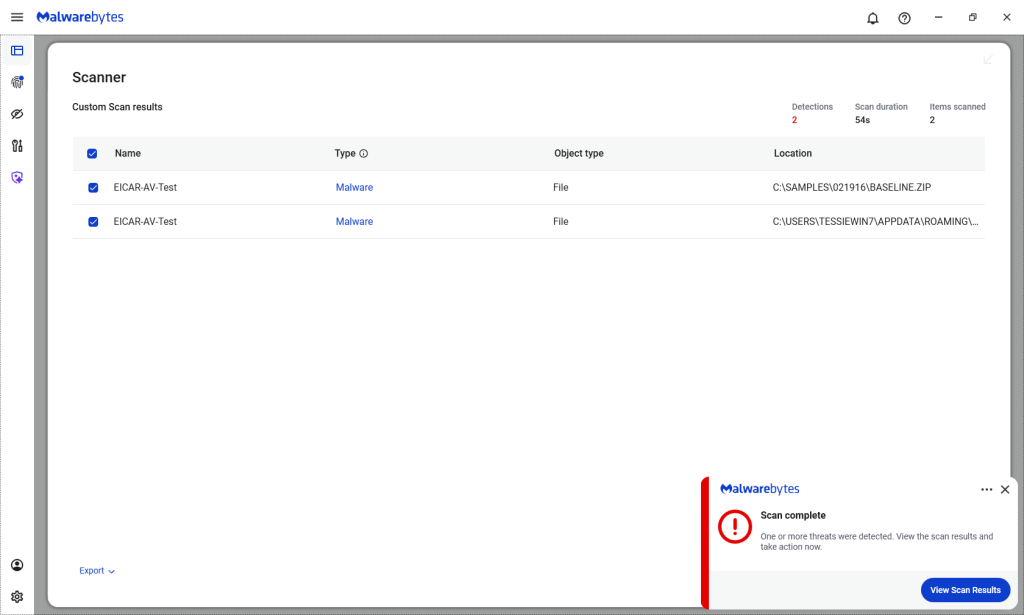
Malwarebytes/ThreatDown products detected both files, by the way.

Malwarebytes detects Zombie ZIPs

Technical details

On their GitHub page (currently blocked by Malwarebytes Browser Guard due to a risky pattern), the researchers explain how the Zombie ZIP method works.

By changing the file’s compressiontype to 0 (STORED), tools trying to read the archive assume the file’s contents are simply stored inside the ZIP file and not compressed.

“AV engines trust the ZIP Method field. When Method=0 (STORED), they scan the data as raw uncompressed bytes. But the data is actually DEFLATE compressed — so the scanner sees compressed noise and finds no signatures.

The CRC is set to the uncompressed payload’s checksum, creating an additional mismatch that causes standard extraction tools (7-Zip, unzip, WinRAR) to report errors or extract corrupted output.

However, a purpose-built loader that ignores the declared method and decompresses as DEFLATE recovers the payload perfectly.

The vulnerability is scanner evasion: security controls assert ‘no malware present’ while malware is present and trivially recoverable by attacker tooling.”

Security researcher Didier Stevens published a method to safely examine the content of a malformed Zombie ZIP file. One way to spot the manipulation is by comparing the ZIP header fields compressedsize and uncompressedsize. If they are different, that means the ZIP file is not actually STORED, but compressed.


We don’t just report on threats—we remove them

Cybersecurity risks should never spread beyond a headline. Keep threats off your devices by downloading Malwarebytes today.
A week in security (March 9 – March 15)

16 March 2026 at 08:16

Last week on Malwarebytes Labs:

Stay safe!


We don’t just report on scams—we help detect them

Cybersecurity risks should never spread beyond a headline. If something looks dodgy to you, check if it’s a scam using Malwarebytes Scam Guard. Submit a screenshot, paste suspicious content, or share a link, text or phone number, and we’ll tell you if it’s a scam or legit. Available with Malwarebytes Premium Security for all your devices, and in the Malwarebytes app for iOS and Android.

[updated] Google patches two Chrome zero-days under active attack

13 March 2026 at 13:58

Update March 16, 2026
Earlier this week, Google incorrectly reported that an actively exploited vulnerability in Chrome had been fixed, and has now announced it will roll out a new update to protect users against the vulnerability tracked as CVE-2026-3909.

Original content:

Google has released an out-of-band security update for Chrome desktop that patches two high‑severity zero‑day vulnerabilities.

Both bugs can be exploited remotely and require only that a user visit a malicious website. Because the attack complexity is low, the vulnerabilities pose a higher real-world risk.

How to update Chrome

The latest version numbers are 146.0.7680.75/76 for Windows and macOS and 146.0.7680.75 for Linux. If your Chrome browser is on version 146.0.7680.75 or later, you’re protected from these vulnerabilities.

The easiest way to stay up to date is to allow Chrome to update automatically. However, updates can lag if you rarely close your browser, or if something interferes with the update process.

To update manually:

  1. Click the More menu (three dots)
  2. Go to Settings > About Chrome.
  3. If an update is available, Chrome will start downloading it.
  4. Restart Chrome to complete the update, and you’ll be protected against these vulnerabilities.
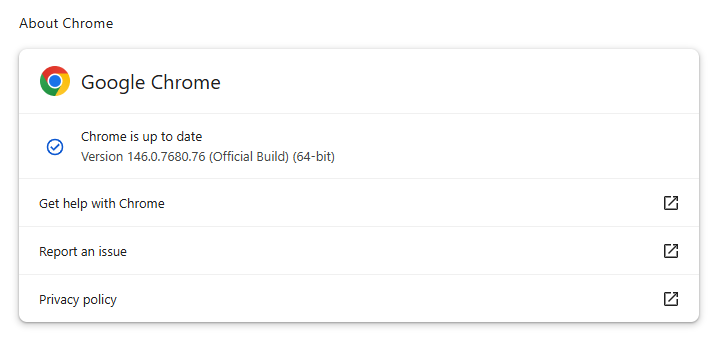
Chrome on Windows up to date
Chrome (on Windows) is up to date

You can also find step-by-step instructions in our guide to how to update Chrome on every operating system, which includes instructions for checking your version number.

Technical details

Google reports that it discovered and fixed both bugs internally, with patches landing within roughly two days of reporting.

CVE‑2026‑3909 is an out‑of‑bounds write vulnerability in Skia, Chrome’s 2D graphics library used to render web content and UI elements. A remote attacker can lure a user to a malicious webpage that triggers the bug, corrupts memory, and potentially achieves code execution in the browser context. Skia is an open source 2D graphics library used not only in Google Chrome but also in many other products.

CVE‑2026‑3910 is an inappropriate implementation flaw in the V8 JavaScript and WebAssembly engine. A specially crafted HTML page could allow a remote attacker to execute arbitrary code inside the V8 sandbox. V8 is the engine that Google developed for processing JavaScript, and it has seen more than its fair share of bugs.

Chrome’s Skia and V8 components are prime targets because they sit directly on the path between untrusted web content and the underlying system.

It is possible to chain an out‑of‑bounds write in Skia with other bugs to break out of the renderer sandbox, while V8 implementation flaws frequently appear in exploit chains used by targeted threat actors and spyware vendors.

How to stay safe

To protect your device, update Chrome as soon as possible. Here are some more tips to avoid becoming a victim, even before a zero-day is patched:

  • Don’t click on unsolicited links in emails, messages, unknown websites, or on social media.
  • Enable automatic updates and restart regularly. Many users leave browsers open for days, which delays protection even if the update is downloaded in the background.
  • Use an up-to-date, real-time anti-malware solution which includes a web protection component.

Users of other Chromium-based browsers can expect to see a similar update soon.


We don’t just report on threats—we remove them

Cybersecurity risks should never spread beyond a headline. Keep threats off your devices by downloading Malwarebytes today.
Apple patches Coruna exploit kit flaws for older iOS versions

12 March 2026 at 18:49

On March 3, 2026, Google warned about a powerful exploit kit targeting Apple iPhone models running iOS version 13.0 (released in September 2019) up to version 17.2.1 (released in December 2023).

In the latest security updates, Apple patched the vulnerabilities used in the Coruna exploit kit for older mobile devices that can no longer be updated to the latest iOS version. For newer iOS versions, patches associated with the Coruna exploit were already shipped in iOS 16.6 through 17.2 in updates released in 2023 and 2024.

The Coruna exploit kit was first observed in highly targeted attacks, but was later seen in watering hole attacks targeting Ukrainian users by a suspected Russian espionage group. Later still, it appeared on a very large set of fake Chinese financial websites, suggesting the exploit was being used by more mainstream cybercriminals.

The exploit relies on WebKit vulnerabilities (CVE-2023-43000 and CVE-2024-23222) that can be triggered by processing  maliciously crafted web content, and then gains kernel privileges by abusing a separate kernel vulnerability tracked as CVE-2023-41974.

The table below shows which updates are available and points you to the relevant security content for that operating system (OS).

iOS 16.7.15 and iPadOS 16.7.15iPhone 8, iPhone 8 Plus, iPhone X, iPad (5th generation), iPad Pro 9.7-inch, and iPad Pro 12.9-inch (1st generation)
iOS 15.8.7 and iPadOS 15.8.7iPhone XS, iPhone XS Max, iPhone XR, iPad (7th generation)

How to update your iPhone or iPad

For iOS and iPadOS users, here’s how to check if you’re using the latest software version:

  • Go to Settings > General > Software Update. You will see if there are updates available and be guided through installing them.
  • Turn on Automatic Updates if you haven’t already. You’ll find it on the same screen.

We don’t just report on phone security—we provide it

Cybersecurity risks should never spread beyond a headline. Keep threats off your mobile devices by downloading Malwarebytes for iOS, and Malwarebytes for Android today.

This Android vulnerability can break your lock screen in under 60 seconds

12 March 2026 at 14:13

A vulnerability in Android devices can allow attackers to gain access to a phone in less than a minute.

The vulnerability, tracked as CVE-2026-20435, affects certain MediaTek SoCs (System-on-a-Chip) using Trustonic’s TEE (Trusted Execution Environment). That may sound rare, but reportedly that’s about one in four Android phones, mostly cheaper models.

Researchers demonstrated the vulnerability by connecting a vulnerable phone to a laptop over USB, showing how their exploit recovered the handset PIN, decrypted storage, and extracted seed phrases from several software wallets.

You may argue that if an attacker has your phone, you’re already in trouble. Which is true. But the protection you rely on to keep your data safe if your phone is lost or stolen doesn’t help one bit here.

The exploit was able to extract the root keys protecting full‑disk encryption before Android fully boots and then decrypt storage. While full‑disk encryption and lock screen are supposed to be your safety net if the phone is stolen or lost, those layers fail on affected devices.

Is my phone affected?

If you’re not sure whether this vulnerability affects your mobile device, you can look up your phone on a platform like GSMArena  or your vendor’s website to see which SoC it uses, then cross‑check with MediaTek’s March Security bulletin under CVE-2026-20435.

MediaTek released a firmware patch that device manufacturers can include in security updates for their phones. So all you can do is make sure you’re fully patched with the latest security update from your manufacturer. Which, depending on the patch gaps and how far along your device is in the EOL cycle, can take anywhere from days to forever.

EOL (End-of-Life) refers to the point in a product’s lifecycle when the manufacturer stops selling, marketing, or providing full support for it.

But obviously the best advice we can give you is to keep a close eye on your phone, so it doesn’t get lost or stolen.


We don’t just report on phone security—we provide it

Cybersecurity risks should never spread beyond a headline. Keep threats off your mobile devices by downloading Malwarebytes for iOS, and Malwarebytes for Android today.

Microsoft Authenticator could leak login codes—update your app now

12 March 2026 at 11:24

A vulnerability in Microsoft Authenticator for both iOS and Android (CVE-2026-26123) could leak your one-time sign-in codes or authentication deep links to a malicious app on the same device. 

Deep links are predefined URIs (Uniform Resource Identifiers) that allow direct access to an activity in a web or mobile application when clicked. In simple terms, they are specifically constructed links used to open an app and complete actions like signing in.

Microsoft Authenticator is a mobile app that generates time-based one-time codes and handles sign-in links and QR-based logins for Microsoft and other accounts. It is widely used for multi-factor authentication (MFA) on personal phones, including BYOD (Bring Your Own Device) devices that protect access to corporate and production services.

This vulnerability affects users who have Microsoft Authenticator installed on an iOS or Android device. For the vulnerability to be exploited, the user would first need to install a malicious app on their device and then accidentally choose that app to handle a sign‑in deep link.

If that happens, the malicious app receives the one-time code or sign-in information and can potentially use it to authenticate as the victim.​

If successful, an attacker could:

  • Complete login flows to services that trust your Microsoft Authenticator codes.
  • Access the information and services available to the compromised account (email, files, cloud apps, or production systems in a BYOD context).​
  • Potentially pivot to additional accounts if those are also protected by codes delivered via Authenticator on the same device.

How to stay safe

The fix for CVE-2026-26123 is already included in current releases, so installing updates is the most effective mitigation.

  • On iOS: Open the App Store. Tap the My Account button or your photo at the top of the screen. Scroll down to see pending updates and release notes. Tap Update next to an app to update only that app, or tap Update All.
  • On Android: Open the Google Play Store app. At the top right, tap the profile icon. Tap Manage apps & device. Under “Updates available,” tap See details. Next to the app you want to update, tap Update. To update all your apps at the same time, tap Update all.

Note: If your device manufacturer has implemented a different method to apply app updates, the steps may vary slightly.

If you are temporarily unable to update the app, avoid installing new apps that request to handle authentication links, QR-based sign-ins, or web-to-app sign-in flows.

When scanning QR codes or tapping sign-in links, verify that the handler is Microsoft Authenticator or another trusted app, and not an unknown, recently installed, or otherwise suspicious app.​

Where possible, use alternative MFA options you already trust (such as built-in authentication in your password manager or platform-specific solutions like Apple’s password features) until you can apply the update.

Use anti-malware protection for your mobile devices that can help detect malicious apps.


We don’t just report on phone security—we provide it

Cybersecurity risks should never spread beyond a headline. Keep threats off your mobile devices by downloading Malwarebytes for iOS, and Malwarebytes for Android today.

March 2026 Patch Tuesday fixes two zero-day vulnerabilities

11 March 2026 at 11:47

Microsoft releases important security updates on the second Tuesday of every month, known as Patch Tuesday. This month’s update fixes 79 Microsoft CVEs including two zero-day vulnerabilities.

Microsoft defines a zero-day as “a flaw in software for which no official patch or security update is available yet.” So, since the patch is now available, those two are no longer zero-days. There is also no reason to believe they were ever actively exploited.

But let’s have a look at the possible consequences if you don’t install the update.

The vulnerability tracked as CVE-2026-21262 (CVSS score 8.8 out of 10) is a bug in Microsoft SQL Server that lets a logged-in user quietly climb the privilege ladder and potentially become a full database administrator (sysadmin). With that level of control, they can read, change, or delete data, create new accounts, and tamper with database configurations or jobs. Where SQL Server is supposed to check what each user is allowed to do, in this case it can be tricked into granting more power than intended.

There is no user interaction required once the attacker has that foothold: exploitation can happen over the network using crafted SQL requests that abuse the flawed permission checks. In a typical real‑world scenario, this bug would be the second act in an attack chain: first get in with low privileges, then use CVE-2026-21262 to quietly promote yourself to database king and start rewriting the script.

CVE-2026-26127 (CVSS score 7.5 out of 10) is a bug in Microsoft’s .NET platform that lets an attacker remotely crash .NET applications, effectively taking them offline for a while. The flaw lives in Microsoft .NET 9.0 and 10.0, across Windows, macOS, and Linux, in the .NET runtime or libraries, not in a specific app. In other words, it’s a bug in the engine that runs .NET code, so any app created with affected .NET versions could be at risk until patched.

The main outcome is denial of service: an attacker can cause targeted .NET processes to crash or become unstable, leading to downtime or degraded performance. For a public‑facing web API, a payment service, or any line‑of‑business app built on .NET, this can mean real‑world outages and angry users while services are repeatedly knocked over.

Vulnerabilities affecting Microsoft Office users are two remote code execution flaws in Microsoft Office (CVE-2026-26110 and CVE-2026-26113) which can both be exploited via the preview pane, and a Microsoft Excel information disclosure flaw (CVE-2026-26144), which could be used to exfiltrate data via Microsoft Copilot. Office vulnerabilities appear regularly in Patch Tuesday releases, and in this case none have been reported as actively exploited.

How to apply fixes and check if you’re protected

These updates fix security problems and keep your Windows PC protected. Here’s how to make sure you’re up to date:

1. Open Settings

  • Click the Start button (the Windows logo at the bottom left of your screen).
  • Click on Settings (it looks like a little gear).

2. Go to Windows Update

  • In the Settings window, select Windows Update (usually at the bottom of the menu on the left).

3. Check for updates

  • Click the button that says Check for updates.
  • Windows will search for the latest Patch Tuesday updates.
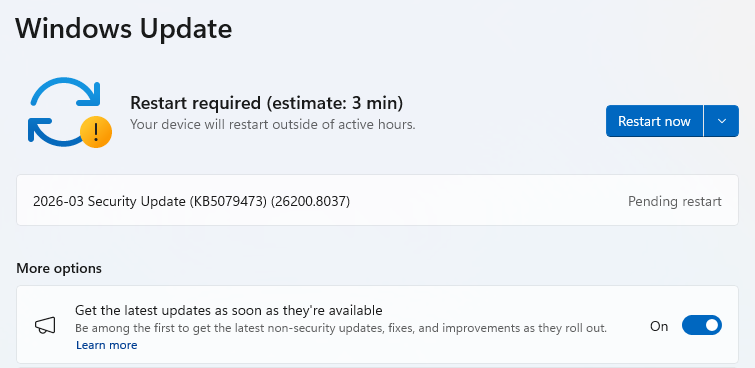
  • If you have selected to get the latest updates as soon as they’re available, you may see this under More options.
  • In which case you may see a Restart required message. Restart your system and the update will complete.
    Restart now to apply patches
  • If not, continue with the steps below.

4. Download and Install

  • If updates are found, they’ll start downloading right away. Once complete, you’ll see a button that says Install or Restart now.
  • Click Install if needed and follow any prompts. Your computer will usually need a restart to finish the update. If it does, click Restart now.
    Windows up to date

5. Double-check you’re up to date

  • After restarting, go back to Windows Update and check again. If it says You’re up to date, you’re all set!

We don’t just report on threats—we remove them

Cybersecurity risks should never spread beyond a headline. Keep threats off your devices by downloading Malwarebytes today.
March 2026 Patch Tuesday fixes two zero-day vulnerabilities

11 March 2026 at 11:47

Microsoft releases important security updates on the second Tuesday of every month, known as Patch Tuesday. This month’s update fixes 79 Microsoft CVEs including two zero-day vulnerabilities.

Microsoft defines a zero-day as “a flaw in software for which no official patch or security update is available yet.” So, since the patch is now available, those two are no longer zero-days. There is also no reason to believe they were ever actively exploited.

But let’s have a look at the possible consequences if you don’t install the update.

The vulnerability tracked as CVE-2026-21262 (CVSS score 8.8 out of 10) is a bug in Microsoft SQL Server that lets a logged-in user quietly climb the privilege ladder and potentially become a full database administrator (sysadmin). With that level of control, they can read, change, or delete data, create new accounts, and tamper with database configurations or jobs. Where SQL Server is supposed to check what each user is allowed to do, in this case it can be tricked into granting more power than intended.

There is no user interaction required once the attacker has that foothold: exploitation can happen over the network using crafted SQL requests that abuse the flawed permission checks. In a typical real‑world scenario, this bug would be the second act in an attack chain: first get in with low privileges, then use CVE-2026-21262 to quietly promote yourself to database king and start rewriting the script.

CVE-2026-26127 (CVSS score 7.5 out of 10) is a bug in Microsoft’s .NET platform that lets an attacker remotely crash .NET applications, effectively taking them offline for a while. The flaw lives in Microsoft .NET 9.0 and 10.0, across Windows, macOS, and Linux, in the .NET runtime or libraries, not in a specific app. In other words, it’s a bug in the engine that runs .NET code, so any app created with affected .NET versions could be at risk until patched.

The main outcome is denial of service: an attacker can cause targeted .NET processes to crash or become unstable, leading to downtime or degraded performance. For a public‑facing web API, a payment service, or any line‑of‑business app built on .NET, this can mean real‑world outages and angry users while services are repeatedly knocked over.

Vulnerabilities affecting Microsoft Office users are two remote code execution flaws in Microsoft Office (CVE-2026-26110 and CVE-2026-26113) which can both be exploited via the preview pane, and a Microsoft Excel information disclosure flaw (CVE-2026-26144), which could be used to exfiltrate data via Microsoft Copilot. Office vulnerabilities appear regularly in Patch Tuesday releases, and in this case none have been reported as actively exploited.

How to apply fixes and check if you’re protected

These updates fix security problems and keep your Windows PC protected. Here’s how to make sure you’re up to date:

1. Open Settings

  • Click the Start button (the Windows logo at the bottom left of your screen).
  • Click on Settings (it looks like a little gear).

2. Go to Windows Update

  • In the Settings window, select Windows Update (usually at the bottom of the menu on the left).

3. Check for updates

  • Click the button that says Check for updates.
  • Windows will search for the latest Patch Tuesday updates.
  • If you have selected to get the latest updates as soon as they’re available, you may see this under More options.
  • In which case you may see a Restart required message. Restart your system and the update will complete.
    Restart now to apply patches
  • If not, continue with the steps below.

4. Download and Install

  • If updates are found, they’ll start downloading right away. Once complete, you’ll see a button that says Install or Restart now.
  • Click Install if needed and follow any prompts. Your computer will usually need a restart to finish the update. If it does, click Restart now.
    Windows up to date

5. Double-check you’re up to date

  • After restarting, go back to Windows Update and check again. If it says You’re up to date, you’re all set!

We don’t just report on threats—we remove them

Cybersecurity risks should never spread beyond a headline. Keep threats off your devices by downloading Malwarebytes today.
Apple patches zero-day flaw that could let attackers take control of devices

12 February 2026 at 12:40

Apple has released security updates for iPhones, iPads, Macs, Apple Watches, Apple TVs, and Safari, fixing, in particular, a zero-day flaw that is actively exploited in targeted attacks.

Exploiting this zero-day flaw would allow cybercriminals to run any code they want on the affected device, potentially installing spyware or backdoors without the owner noticing.

Installing these updates as soon as possible keeps your personal information—and everything else on your Apple devices—safe from such an attack.

CVE-2026-20700

The zero-day vulnerability tracked as CVE-2026-20700, is a memory corruption issue in versions before watchOS 26.3, tvOS 26.3, macOS Tahoe 26.3, visionOS 26.3, iOS 26.3 and iPadOS 26.3. An attacker with memory write capability may be able to execute arbitrary code.

Apple says the vulnerability was used as part of an infection chain combined with CVE-2025-14174 and CVE-2025-43529 against devices running iOS versions prior to iOS 26.

Those two vulnerabilities were already patched in the December 2025 update.

Updates for your particular device

The table below shows which updates are available and points you to the relevant security content for that operating system (OS).

iOS 26.3 and iPadOS 26.3iPhone 11 and later, iPad Pro 12.9-inch 3rd generation and later, iPad Pro 11-inch 1st generation and later, iPad Air 3rd generation and later, iPad 8th generation and later, and iPad mini 5th generation and later
iOS 18.7.5 and iPadOS 18.7.5iPhone XS, iPhone XS Max, iPhone XR, iPad 7th generation
macOS Tahoe 26.3macOS Tahoe
macOS Sequoia 15.7.4macOS Sequoia
macOS Sonoma 14.8.4macOS Sonoma
tvOS 26.3Apple TV HD and Apple TV 4K (all models)
watchOS 26.3Apple Watch Series 6 and later
visionOS 26.3Apple Vision Pro (all models)
Safari 26.3macOS Sonoma and macOS Sequoia

How to update your Apple devices

How to update your iPhone or iPad

For iOS and iPadOS users, here’s how to check if you’re using the latest software version:

  • Go to Settings > General > Software Update. You will see if there are updates available and be guided through installing them.
  • Turn on Automatic Updates if you haven’t already—you’ll find it on the same screen.
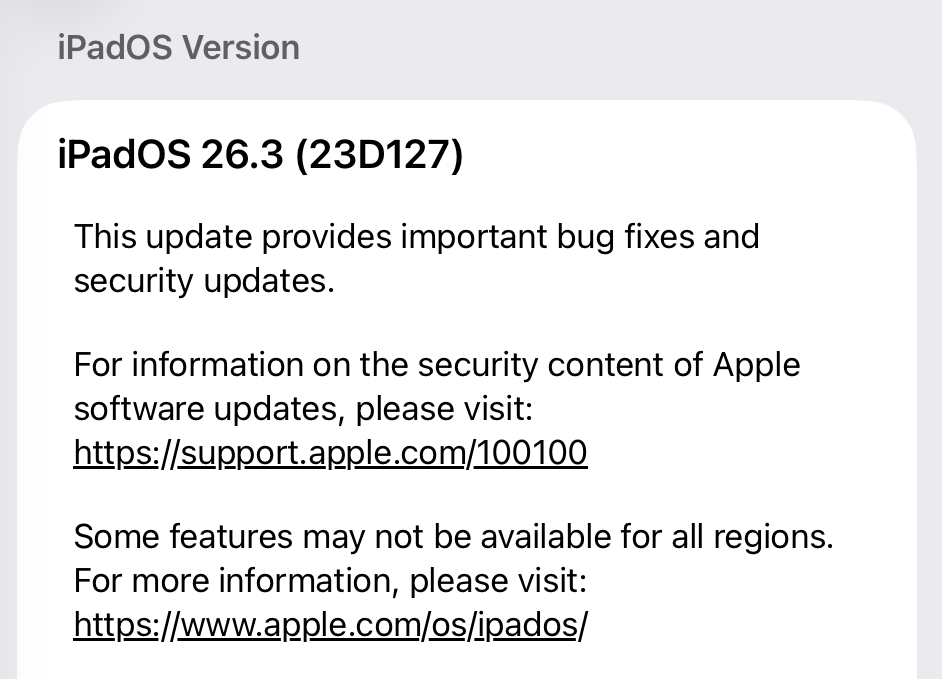
iPadOS 26.3 update

How to update macOS on any version

To update macOS on any supported Mac, use the Software Update feature, which Apple designed to work consistently across all recent versions. Here are the steps:

  • Click the Apple menu in the upper-left corner of your screen.
  • Choose System Settings (or System Preferences on older versions).
  • Select General in the sidebar, then click Software Update on the right. On older macOS, just look for Software Update directly.
  • Your Mac will check for updates automatically. If updates are available, click Update Now (or Upgrade Now for major new versions) and follow the on-screen instructions. Before you upgrade to macOS Tahoe 26, please read these instructions.
  • Enter your administrator password if prompted, then let your Mac finish the update (it might need to restart during this process).
  • Make sure your Mac stays plugged in and connected to the internet until the update is done.

How to update Apple Watch

Ensure your iPhone is paired with your Apple Watch and connected to Wi-Fi, then:

  • Keep your Apple Watch on its charger and close to your iPhone.
  • Open the Watch app on your iPhone.
  • Tap General > Software Update.
  • If an update appears, tap Download and Install.
  • Enter your iPhone passcode or Apple ID password if prompted.

Your Apple Watch will automatically restart during the update process. Make sure it remains near your iPhone and on charge until the update completes.

How to update Apple TV

Turn on your Apple TV and make sure it’s connected to the internet, then:

  • Open the Settings app on Apple TV.
  • Navigate to System > Software Updates.
  • Select Update Software.
  • If an update appears, select Download and Install.

The Apple TV will download the update and restart as needed. Keep your device connected to power and Wi-Fi until the process finishes.

How to update your Safari browser

Safari updates are included with macOS updates, so installing the latest version of macOS will also update Safari. To check manually:

  • Open the Apple menu > System Settings > General > Software Update.
  • If you see a Safari update listed separately, click Update Now to install it.
  • Restart your Mac when prompted.

If you’re on an older macOS version that’s still supported (like Sonoma or Sequoia), Apple may offer Safari updates independently through Software Update.

More advice to stay safe

The most important fix—however inconvenient it may be—is to upgrade to iOS 26.3 (or the latest available version for your device). Not doing so means missing an accumulating list of security fixes, leaving your device vulnerable to newly found vulnerabilities.

 But here are some other useful tips:

  • Make it a habit to restart your device on a regular basis.
  • Do not open unsolicited links and attachments without verifying with the trusted sender.
  • Remember: Apple threat notifications will never ask users to click links, open files, install apps or ask for account passwords or verification codes.
  • For Apple Mail users, these vulnerabilities create risk when viewing HTML-formatted emails containing malicious web content.
  • Malwarebytes for iOS can help keep your device secure, with Trusted Advisor alerting you when important updates are available.
  • If you are a high-value target, or you want the extra level of security, consider using Apple’s Lockdown Mode.

We don’t just report on phone security—we provide it

Cybersecurity risks should never spread beyond a headline. Keep threats off your mobile devices by downloading Malwarebytes for iOS, and Malwarebytes for Android today.

Apple patches zero-day flaw that could let attackers take control of devices

12 February 2026 at 12:40

Apple has released security updates for iPhones, iPads, Macs, Apple Watches, Apple TVs, and Safari, fixing, in particular, a zero-day flaw that is actively exploited in targeted attacks.

Exploiting this zero-day flaw would allow cybercriminals to run any code they want on the affected device, potentially installing spyware or backdoors without the owner noticing.

Installing these updates as soon as possible keeps your personal information—and everything else on your Apple devices—safe from such an attack.

CVE-2026-20700

The zero-day vulnerability tracked as CVE-2026-20700, is a memory corruption issue in versions before watchOS 26.3, tvOS 26.3, macOS Tahoe 26.3, visionOS 26.3, iOS 26.3 and iPadOS 26.3. An attacker with memory write capability may be able to execute arbitrary code.

Apple says the vulnerability was used as part of an infection chain combined with CVE-2025-14174 and CVE-2025-43529 against devices running iOS versions prior to iOS 26.

Those two vulnerabilities were already patched in the December 2025 update.

Updates for your particular device

The table below shows which updates are available and points you to the relevant security content for that operating system (OS).

iOS 26.3 and iPadOS 26.3iPhone 11 and later, iPad Pro 12.9-inch 3rd generation and later, iPad Pro 11-inch 1st generation and later, iPad Air 3rd generation and later, iPad 8th generation and later, and iPad mini 5th generation and later
iOS 18.7.5 and iPadOS 18.7.5iPhone XS, iPhone XS Max, iPhone XR, iPad 7th generation
macOS Tahoe 26.3macOS Tahoe
macOS Sequoia 15.7.4macOS Sequoia
macOS Sonoma 14.8.4macOS Sonoma
tvOS 26.3Apple TV HD and Apple TV 4K (all models)
watchOS 26.3Apple Watch Series 6 and later
visionOS 26.3Apple Vision Pro (all models)
Safari 26.3macOS Sonoma and macOS Sequoia

How to update your Apple devices

How to update your iPhone or iPad

For iOS and iPadOS users, here’s how to check if you’re using the latest software version:

  • Go to Settings > General > Software Update. You will see if there are updates available and be guided through installing them.
  • Turn on Automatic Updates if you haven’t already—you’ll find it on the same screen.
iPadOS 26.3 update

How to update macOS on any version

To update macOS on any supported Mac, use the Software Update feature, which Apple designed to work consistently across all recent versions. Here are the steps:

  • Click the Apple menu in the upper-left corner of your screen.
  • Choose System Settings (or System Preferences on older versions).
  • Select General in the sidebar, then click Software Update on the right. On older macOS, just look for Software Update directly.
  • Your Mac will check for updates automatically. If updates are available, click Update Now (or Upgrade Now for major new versions) and follow the on-screen instructions. Before you upgrade to macOS Tahoe 26, please read these instructions.
  • Enter your administrator password if prompted, then let your Mac finish the update (it might need to restart during this process).
  • Make sure your Mac stays plugged in and connected to the internet until the update is done.

How to update Apple Watch

Ensure your iPhone is paired with your Apple Watch and connected to Wi-Fi, then:

  • Keep your Apple Watch on its charger and close to your iPhone.
  • Open the Watch app on your iPhone.
  • Tap General > Software Update.
  • If an update appears, tap Download and Install.
  • Enter your iPhone passcode or Apple ID password if prompted.

Your Apple Watch will automatically restart during the update process. Make sure it remains near your iPhone and on charge until the update completes.

How to update Apple TV

Turn on your Apple TV and make sure it’s connected to the internet, then:

  • Open the Settings app on Apple TV.
  • Navigate to System > Software Updates.
  • Select Update Software.
  • If an update appears, select Download and Install.

The Apple TV will download the update and restart as needed. Keep your device connected to power and Wi-Fi until the process finishes.

How to update your Safari browser

Safari updates are included with macOS updates, so installing the latest version of macOS will also update Safari. To check manually:

  • Open the Apple menu > System Settings > General > Software Update.
  • If you see a Safari update listed separately, click Update Now to install it.
  • Restart your Mac when prompted.

If you’re on an older macOS version that’s still supported (like Sonoma or Sequoia), Apple may offer Safari updates independently through Software Update.

More advice to stay safe

The most important fix—however inconvenient it may be—is to upgrade to iOS 26.3 (or the latest available version for your device). Not doing so means missing an accumulating list of security fixes, leaving your device vulnerable to newly found vulnerabilities.

 But here are some other useful tips:

  • Make it a habit to restart your device on a regular basis.
  • Do not open unsolicited links and attachments without verifying with the trusted sender.
  • Remember: Apple threat notifications will never ask users to click links, open files, install apps or ask for account passwords or verification codes.
  • For Apple Mail users, these vulnerabilities create risk when viewing HTML-formatted emails containing malicious web content.
  • Malwarebytes for iOS can help keep your device secure, with Trusted Advisor alerting you when important updates are available.
  • If you are a high-value target, or you want the extra level of security, consider using Apple’s Lockdown Mode.

We don’t just report on phone security—we provide it

Cybersecurity risks should never spread beyond a headline. Keep threats off your mobile devices by downloading Malwarebytes for iOS, and Malwarebytes for Android today.

February 2026 Patch Tuesday includes six actively exploited zero-days

11 February 2026 at 13:32

Microsoft releases important security updates on the second Tuesday of every month, known as “Patch Tuesday.” This month’s update patches fix 59 Microsoft CVE’s including six zero-days.

Let’s have a quick look at these six actively exploited zero-days.

Windows Shell Security Feature Bypass Vulnerability

CVE-2026-21510 (CVSS score 8.8 out of 10) is a security feature bypass in the Windows Shell. A protection mechanism failure allows an attacker to circumvent Windows SmartScreen and similar prompts once they convince a user to open a malicious link or shortcut file.

The vulnerability is exploited over the network but still requires on user interaction. The victim must be socially engineered into launching the booby‑trapped shortcut or link for the bypass to trigger. Successful exploitation lets the attacker suppress or evade the usual “are you sure?” security dialogs for untrusted content, making it easier to deliver and execute further payloads without raising user suspicion.

MSHTML Framework Security Feature Bypass Vulnerability

CVE-2026-21513 (CVSS score 8.8 out of 10) affects the MSHTML Framework, which is used by Internet Explorer’s Trident/embedded web rendering). It is classified as a protection mechanism failure that results in a security feature bypass over the network.

A successful attack requires the victim to open a malicious HTML file or a crafted shortcut (.lnk) that leverages MSHTML for rendering. When opened, the flaw allows an attacker to bypass certain security checks in MSHTML, potentially removing or weakening normal browser or Office sandbox or warning protections and enabling follow‑on code execution or phishing activity.

Microsoft Word Security Feature Bypass Vulnerability

CVE-2026-21514 (CVSS score 5.5 out of 10) affects Microsoft Word. It relies on untrusted inputs in a security decision, leading to a local security feature bypass.  

An attacker must persuade a user to open a malicious Word document to exploit this vulnerability. If exploited, the untrusted input is processed incorrectly, potentially bypassing Word’s defenses for embedded or active content—leading to execution of attacker‑controlled content that would normally be blocked.

Desktop Window Manager Elevation of Privilege Vulnerability

CVE-2026-21519 (CVSS score 7.8 out of 10) is a local elevation‑of‑privilege vulnerability in Windows Desktop Window Manager caused by type confusion (a flaw where the system treats one type of data as another, leading to unintended behavior).

A locally authenticated attacker with low privileges and no required user interaction can exploit the issue to gain higher privileges. Exploitation must be done locally, for example via a crafted program or exploit chain stage running on the target system. An attacker who successfully exploited this vulnerability could gain SYSTEM privileges.

Windows Remote Access Connection Manager Denial of Service Vulnerability

CVE-2026-21525 (CVSS score 6.2 out of 10) is a denial‑of‑service vulnerability in the Windows Remote Access Connection Manager service (RasMan).

An unauthenticated local attacker can trigger the flaw with low attack complexity, leading to a high impact on availability but no direct impact on confidentiality or integrity. This means they could crash the service or potentially the system, but not elevate privileges or execute malicious code.

Windows Remote Desktop Services Elevation of Privilege Vulnerability

CVE-2026-21533 (CVSS score 7.8 out of 10) is an elevation‑of‑privilege vulnerability in Windows Remote Desktop Services, caused by improper privilege management.

A local authenticated attacker with low privileges, and no required user interaction, can exploit the flaw to escalate privileges to SYSTEM and fully compromise confidentiality, integrity, and availability on the affected system. Successful exploitation typically involves running attacker‑controlled code on a system with Remote Desktop Services present and abusing the vulnerable privilege management path.

Azure vulnerabilities

Azure users are also advised to take note of two critical vulnerabilities with CVSS ratings of 9.8:

How to apply fixes and check you’re protected

These updates fix security problems and keep your Windows PC protected. Here’s how to make sure you’re up to date:

1. Open Settings

  • Click the Start button (the Windows logo at the bottom left of your screen).
  • Click on Settings (it looks like a little gear).

2. Go to Windows Update

  • In the Settings window, select Windows Update (usually at the bottom of the menu on the left).

3. Check for updates

  • Click the button that says Check for updates.
  • Windows will search for the latest Patch Tuesday updates.
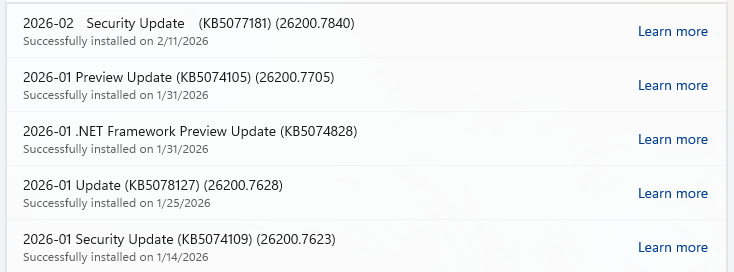
  • If you have selected automatic updates earlier, you may see this under Update history:
list of recent updates
  • Or you may see a Restart required message, which means all you have to do is restart your system and you’re done updating.
  • If not, continue with the steps below.

4. Download and Install

  • If updates are found, they’ll start downloading right away. Once complete, you’ll see a button that says Install or Restart now.
  • Click Install if needed and follow any prompts. Your computer will usually need a restart to finish the update. If it does, click Restart now.

5. Double-check you’re up to date

  • After restarting, go back to Windows Update and check again. If it says You’re up to date, you’re all set!
You're up to date

We don’t just report on threats—we remove them

Cybersecurity risks should never spread beyond a headline. Keep threats off your devices by downloading Malwarebytes today.
February 2026 Patch Tuesday includes six actively exploited zero-days

11 February 2026 at 13:32

Microsoft releases important security updates on the second Tuesday of every month, known as “Patch Tuesday.” This month’s update patches fix 59 Microsoft CVE’s including six zero-days.

Let’s have a quick look at these six actively exploited zero-days.

Windows Shell Security Feature Bypass Vulnerability

CVE-2026-21510 (CVSS score 8.8 out of 10) is a security feature bypass in the Windows Shell. A protection mechanism failure allows an attacker to circumvent Windows SmartScreen and similar prompts once they convince a user to open a malicious link or shortcut file.

The vulnerability is exploited over the network but still requires on user interaction. The victim must be socially engineered into launching the booby‑trapped shortcut or link for the bypass to trigger. Successful exploitation lets the attacker suppress or evade the usual “are you sure?” security dialogs for untrusted content, making it easier to deliver and execute further payloads without raising user suspicion.

MSHTML Framework Security Feature Bypass Vulnerability

CVE-2026-21513 (CVSS score 8.8 out of 10) affects the MSHTML Framework, which is used by Internet Explorer’s Trident/embedded web rendering). It is classified as a protection mechanism failure that results in a security feature bypass over the network.

A successful attack requires the victim to open a malicious HTML file or a crafted shortcut (.lnk) that leverages MSHTML for rendering. When opened, the flaw allows an attacker to bypass certain security checks in MSHTML, potentially removing or weakening normal browser or Office sandbox or warning protections and enabling follow‑on code execution or phishing activity.

Microsoft Word Security Feature Bypass Vulnerability

CVE-2026-21514 (CVSS score 5.5 out of 10) affects Microsoft Word. It relies on untrusted inputs in a security decision, leading to a local security feature bypass.  

An attacker must persuade a user to open a malicious Word document to exploit this vulnerability. If exploited, the untrusted input is processed incorrectly, potentially bypassing Word’s defenses for embedded or active content—leading to execution of attacker‑controlled content that would normally be blocked.

Desktop Window Manager Elevation of Privilege Vulnerability

CVE-2026-21519 (CVSS score 7.8 out of 10) is a local elevation‑of‑privilege vulnerability in Windows Desktop Window Manager caused by type confusion (a flaw where the system treats one type of data as another, leading to unintended behavior).

A locally authenticated attacker with low privileges and no required user interaction can exploit the issue to gain higher privileges. Exploitation must be done locally, for example via a crafted program or exploit chain stage running on the target system. An attacker who successfully exploited this vulnerability could gain SYSTEM privileges.

Windows Remote Access Connection Manager Denial of Service Vulnerability

CVE-2026-21525 (CVSS score 6.2 out of 10) is a denial‑of‑service vulnerability in the Windows Remote Access Connection Manager service (RasMan).

An unauthenticated local attacker can trigger the flaw with low attack complexity, leading to a high impact on availability but no direct impact on confidentiality or integrity. This means they could crash the service or potentially the system, but not elevate privileges or execute malicious code.

Windows Remote Desktop Services Elevation of Privilege Vulnerability

CVE-2026-21533 (CVSS score 7.8 out of 10) is an elevation‑of‑privilege vulnerability in Windows Remote Desktop Services, caused by improper privilege management.

A local authenticated attacker with low privileges, and no required user interaction, can exploit the flaw to escalate privileges to SYSTEM and fully compromise confidentiality, integrity, and availability on the affected system. Successful exploitation typically involves running attacker‑controlled code on a system with Remote Desktop Services present and abusing the vulnerable privilege management path.

Azure vulnerabilities

Azure users are also advised to take note of two critical vulnerabilities with CVSS ratings of 9.8:

How to apply fixes and check you’re protected

These updates fix security problems and keep your Windows PC protected. Here’s how to make sure you’re up to date:

1. Open Settings

  • Click the Start button (the Windows logo at the bottom left of your screen).
  • Click on Settings (it looks like a little gear).

2. Go to Windows Update

  • In the Settings window, select Windows Update (usually at the bottom of the menu on the left).

3. Check for updates

  • Click the button that says Check for updates.
  • Windows will search for the latest Patch Tuesday updates.
  • If you have selected automatic updates earlier, you may see this under Update history:
list of recent updates
  • Or you may see a Restart required message, which means all you have to do is restart your system and you’re done updating.
  • If not, continue with the steps below.

4. Download and Install

  • If updates are found, they’ll start downloading right away. Once complete, you’ll see a button that says Install or Restart now.
  • Click Install if needed and follow any prompts. Your computer will usually need a restart to finish the update. If it does, click Restart now.

5. Double-check you’re up to date

  • After restarting, go back to Windows Update and check again. If it says You’re up to date, you’re all set!
You're up to date

We don’t just report on threats—we remove them

Cybersecurity risks should never spread beyond a headline. Keep threats off your devices by downloading Malwarebytes today.

AI chat app leak exposes 300 million messages tied to 25 million users

9 February 2026 at 16:17

An independent security researcher uncovered a major data breach affecting Chat & Ask AI, one of the most popular AI chat apps on Google Play and Apple App Store, with more than 50 million users.

The researcher claims to have accessed 300 million messages from over 25 million users due to an exposed database. These messages reportedly included, among other things, discussions of illegal activities and requests for suicide assistance.

Behind the scenes, Chat & Ask AI is a “wrapper” app that plugs into various large language models (LLMs) from other companies, including OpenAI’s ChatGPT, Anthropic’s Claude, and Google’s Gemini. Users can choose which model they want to interact with.

The exposed data included user files containing their entire chat history, the models used, and other settings. But it also revealed data belonging to users of other apps developed by Codeway—the developer of Chat & Ask AI.

The vulnerability behind this data breach is a well-known and documented Firebase misconfiguration. Firebase is a cloud-based backend-as-a-service (BaaS) platform provided by Google that helps developers build, manage, and scale mobile and web applications.

Security researchers often refer to a set of preventable errors in how developers set up Google Firebase services, which leave backend data, databases, and storage buckets accessible to the public without authentication.

One of the most common Firebase misconfigurations is leaving Security Rules set to public. This allows anyone with the project URL to read, modify, or delete data without authentication.

This prompted the researcher to create a tool that automatically scans apps on Google Play and Apple App Store for this vulnerability—with astonishing results. Reportedly, the researcher, named Harry, found that 103 out of 200 iOS apps they scanned had this issue, collectively exposing tens of millions of stored files. 

To draw attention to the issue, Harry set up a website where users can see the apps affected by the issue. Codeway’s apps are no longer listed there, as Harry removes entries once developers confirm they have fixed the problem. Codeway reportedly resolved the issue across all of its apps within hours of responsible disclosure.

How to stay safe

Besides checking if any apps you use appear in Harry’s Firehound registry, there are a few ways to better protect your privacy when using AI chatbots.

  • Use private chatbots that don’t use your data to train the model.
  • Don’t rely on chatbots for important life decisions. They have no experience or empathy.
  • Don’t use your real identity when discussing sensitive subjects.
  • Keep shared information impersonal. Don’t use real names and don’t upload personal documents.
  • Don’t share your conversations unless you absolutely have to. In some cases, it makes them searchable.
  • If you’re using an AI that is developed by a social media company (Meta AI, Llama, Grok, Bard, Gemini, and so on), make sure you’re not logged in to that social media platform. Your conversations could be linked to your social media account, which might contain a lot of personal information.

Always remember that the developments in AI are going too fast for security and privacy to be baked into technology. And that even the best AIs still hallucinate.


We don’t just report on privacy—we offer you the option to use it.

Privacy risks should never spread beyond a headline. Keep your online privacy yours by using Malwarebytes Privacy VPN.

AI chat app leak exposes 300 million messages tied to 25 million users

9 February 2026 at 16:17

An independent security researcher uncovered a major data breach affecting Chat & Ask AI, one of the most popular AI chat apps on Google Play and Apple App Store, with more than 50 million users.

The researcher claims to have accessed 300 million messages from over 25 million users due to an exposed database. These messages reportedly included, among other things, discussions of illegal activities and requests for suicide assistance.

Behind the scenes, Chat & Ask AI is a “wrapper” app that plugs into various large language models (LLMs) from other companies, including OpenAI’s ChatGPT, Anthropic’s Claude, and Google’s Gemini. Users can choose which model they want to interact with.

The exposed data included user files containing their entire chat history, the models used, and other settings. But it also revealed data belonging to users of other apps developed by Codeway—the developer of Chat & Ask AI.

The vulnerability behind this data breach is a well-known and documented Firebase misconfiguration. Firebase is a cloud-based backend-as-a-service (BaaS) platform provided by Google that helps developers build, manage, and scale mobile and web applications.

Security researchers often refer to a set of preventable errors in how developers set up Google Firebase services, which leave backend data, databases, and storage buckets accessible to the public without authentication.

One of the most common Firebase misconfigurations is leaving Security Rules set to public. This allows anyone with the project URL to read, modify, or delete data without authentication.

This prompted the researcher to create a tool that automatically scans apps on Google Play and Apple App Store for this vulnerability—with astonishing results. Reportedly, the researcher, named Harry, found that 103 out of 200 iOS apps they scanned had this issue, collectively exposing tens of millions of stored files. 

To draw attention to the issue, Harry set up a website where users can see the apps affected by the issue. Codeway’s apps are no longer listed there, as Harry removes entries once developers confirm they have fixed the problem. Codeway reportedly resolved the issue across all of its apps within hours of responsible disclosure.

How to stay safe

Besides checking if any apps you use appear in Harry’s Firehound registry, there are a few ways to better protect your privacy when using AI chatbots.

  • Use private chatbots that don’t use your data to train the model.
  • Don’t rely on chatbots for important life decisions. They have no experience or empathy.
  • Don’t use your real identity when discussing sensitive subjects.
  • Keep shared information impersonal. Don’t use real names and don’t upload personal documents.
  • Don’t share your conversations unless you absolutely have to. In some cases, it makes them searchable.
  • If you’re using an AI that is developed by a social media company (Meta AI, Llama, Grok, Bard, Gemini, and so on), make sure you’re not logged in to that social media platform. Your conversations could be linked to your social media account, which might contain a lot of personal information.

Always remember that the developments in AI are going too fast for security and privacy to be baked into technology. And that even the best AIs still hallucinate.


We don’t just report on privacy—we offer you the option to use it.

Privacy risks should never spread beyond a headline. Keep your online privacy yours by using Malwarebytes Privacy VPN.

Microsoft Office zero-day lets malicious documents slip past security checks

29 January 2026 at 15:53

Microsoft issued an emergency patch for a high-severity zero-day vulnerability in Office that allows attackers to bypass document security checks and is being exploited in the wild via malicious files.

Microsoft pushed the emergency patch for the zero‑day, tracked as CVE-2026-21509, and classified it as a “Microsoft Office Security Feature Bypass Vulnerability” with a CVSS score of 7.8 out of 10.

The flaw allows attackers to bypass Object Linking and Embedding (OLE) mitigations that are designed to block unsafe COM/OLE controls inside Office documents. This means a malicious attachment could infect a PC despite built-in protections.

In a real-life scenario, an attacker creates a fake Word, Excel, or PowerPoint file containing hidden “mini‑programs” or special objects. They can run code and do other things on the affected computer. Normally, Office has safety checks that would block those mini-programs because they’re risky.

However, the vulnerability allows the attacker to tweak the file’s structure and hidden information in a way that tricks Office into thinking the dangerous mini‑program inside the document is harmless. As a result, Office skips the usual security checks and allows the hidden code to run.

As code to test the bypass is publicly available, increasing the risk of exploitation, users are under urgent advice to apply the patch.

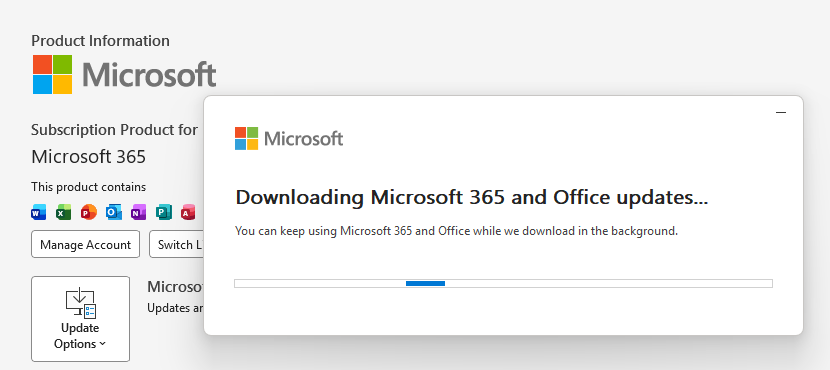
Updating Microsoft 365 and Office

How to protect your system

What you need to do depends on which version of Office you’re using.

The affected products include Microsoft Office 2016, 2019, LTSC 2021, LTSC 2024, and Microsoft 365 Apps (both 32‑bit and 64‑bit).

Office 2021 and later are protected via a server‑side change once Office is restarted. To apply it, close all Office apps and restart them.

Office 2016 and 2019 require a manual update. Run Windows Update with the option to update other Microsoft products turned on.

If you’re running build 16.0.10417.20095 or higher, no action is required. You can check your build number by opening any Office app, going to your account page, and selecting About for whichever application you have open. Make sure the build number at the top reads 16.0.10417.20095 or higher.

What always helps:

  • Don’t open unsolicited attachments without verifying them with a trusted sender.
  • Treat all unexpected documents, especially those asking to “enable content” or “enable editing,” as suspicious.
  • Keep macros disabled by default and only allow signed macros from trusted publishers.
  • Use an up-to-date real-time anti-malware solution.
  • Keep your operating system and software fully up to date.

We don’t just report on threats—we remove them

Cybersecurity risks should never spread beyond a headline. Keep threats off your devices by downloading Malwarebytes today.

Microsoft Office zero-day lets malicious documents slip past security checks

29 January 2026 at 15:53

Microsoft issued an emergency patch for a high-severity zero-day vulnerability in Office that allows attackers to bypass document security checks and is being exploited in the wild via malicious files.

Microsoft pushed the emergency patch for the zero‑day, tracked as CVE-2026-21509, and classified it as a “Microsoft Office Security Feature Bypass Vulnerability” with a CVSS score of 7.8 out of 10.

The flaw allows attackers to bypass Object Linking and Embedding (OLE) mitigations that are designed to block unsafe COM/OLE controls inside Office documents. This means a malicious attachment could infect a PC despite built-in protections.

In a real-life scenario, an attacker creates a fake Word, Excel, or PowerPoint file containing hidden “mini‑programs” or special objects. They can run code and do other things on the affected computer. Normally, Office has safety checks that would block those mini-programs because they’re risky.

However, the vulnerability allows the attacker to tweak the file’s structure and hidden information in a way that tricks Office into thinking the dangerous mini‑program inside the document is harmless. As a result, Office skips the usual security checks and allows the hidden code to run.

As code to test the bypass is publicly available, increasing the risk of exploitation, users are under urgent advice to apply the patch.

Updating Microsoft 365 and Office

How to protect your system

What you need to do depends on which version of Office you’re using.

The affected products include Microsoft Office 2016, 2019, LTSC 2021, LTSC 2024, and Microsoft 365 Apps (both 32‑bit and 64‑bit).

Office 2021 and later are protected via a server‑side change once Office is restarted. To apply it, close all Office apps and restart them.

Office 2016 and 2019 require a manual update. Run Windows Update with the option to update other Microsoft products turned on.

If you’re running build 16.0.10417.20095 or higher, no action is required. You can check your build number by opening any Office app, going to your account page, and selecting About for whichever application you have open. Make sure the build number at the top reads 16.0.10417.20095 or higher.

What always helps:

  • Don’t open unsolicited attachments without verifying them with a trusted sender.
  • Treat all unexpected documents, especially those asking to “enable content” or “enable editing,” as suspicious.
  • Keep macros disabled by default and only allow signed macros from trusted publishers.
  • Use an up-to-date real-time anti-malware solution.
  • Keep your operating system and software fully up to date.

We don’t just report on threats—we remove them

Cybersecurity risks should never spread beyond a headline. Keep threats off your devices by downloading Malwarebytes today.

A WhatsApp bug lets malicious media files spread through group chats

27 January 2026 at 12:55

WhatsApp is going through a rough patch. Some users would argue it has been ever since Meta acquired the once widely trusted messaging platform. User sentiment has shifted from “trusted default messenger” to a grudgingly necessary Meta product.

Privacy-aware users still see WhatsApp as one of the more secure mass-market messaging platforms if you lock down its settings. Even then, many remain uneasy about Meta’s broader ecosystem, and wish all their contacts would switch to a more secure platform.

Back to current affairs, which will only reinforce that sentiment.

Google’s Project Zero has just disclosed a WhatsApp vulnerability where a malicious media file, sent into a newly created group chat, can be automatically downloaded and used as an attack vector.

The bug affects WhatsApp on Android and involves zero‑click media downloads in group chats. You can be attacked simply by being added to a group and having a malicious file sent to you.

According to Project Zero, the attack is most likely to be used in targeted campaigns, since the attacker needs to know or guess at least one contact. While focused, it is relatively easy to repeat once an attacker has a likely target list.

And to put a cherry on top for WhatsApp’s competitors, a potentially even more serious concern for the popular messaging platform, an international group of plaintiffs sued Meta Platforms, alleging the WhatsApp owner can store, analyze, and access virtually all of users’ private communications, despite WhatsApp’s end-to-end encryption claims.

How to secure WhatsApp

Reportedly, Meta pushed a server change on November 11, 2025, but Google says that only partially resolved the issue. So, Meta is working on a comprehensive fix.

Google’s advice is to disable Automatic Download or enable WhatsApp’s Advanced Privacy Mode so that media is not automatically downloaded to your phone.

And you’ll need to keep WhatsApp updated to get the latest patches, which is true for any app and for Android itself.

Turn off auto-download of media

Goal: ensure that no photos, videos, audio, or documents are pulled to the device without an explicit decision.

  • Open WhatsApp on your Android device.
  • Tap the three‑dot menu in the top‑right corner, then tap Settings.
  • Go to Storage and data (sometimes labeled Data and storage usage).
  • Under Media auto-download, you will see When using mobile data, when connected on Wi‑Fi. and when roaming.
  • For each of these three entries, tap it and uncheck all media types: Photos, Audio, Videos, Documents. Then tap OK.
  • Confirm that each category now shows something like “No media” under it.

Doing this directly implements Project Zero’s guidance to “disable Automatic Download” so that malicious media can’t silently land on your storage as soon as you are dropped into a hostile group.

Stop WhatsApp from saving media to your Android gallery

Even if WhatsApp still downloads some content, you can stop it from leaking into shared storage where other apps and system components see it.

  • In Settings, go to Chats.
  • Turn off Media visibility (or similar option such as Show media in gallery). For particularly sensitive chats, open the chat, tap the contact or group name, find Media visibility, and set it to No for that thread.

WhatsApp is a sandbox, and should contain the threat. Which means, keeping media inside WhatsApp makes it harder for a malicious file to be processed by other, possibly more vulnerable components.

Lock down who can add you to groups

The attack chain requires the attacker to add you and one of your contacts to a new group. Reducing who can do that lowers risk.

  • ​In Settings, tap Privacy.
  • Tap Groups.
  • Change from Everyone to My contacts or ideally My contacts except… and exclude any numbers you do not fully trust.
  • If you use WhatsApp for work, consider keeping group membership strictly to known contacts and approved admins.

Set up two-step verification on your WhatsApp account

Read this guide for Android and iOS to learn how to do that.


We don’t just report on phone security—we provide it

Cybersecurity risks should never spread beyond a headline. Keep threats off your mobile devices by downloading Malwarebytes for iOS, and Malwarebytes for Android today.

A WhatsApp bug lets malicious media files spread through group chats

27 January 2026 at 12:55

WhatsApp is going through a rough patch. Some users would argue it has been ever since Meta acquired the once widely trusted messaging platform. User sentiment has shifted from “trusted default messenger” to a grudgingly necessary Meta product.

Privacy-aware users still see WhatsApp as one of the more secure mass-market messaging platforms if you lock down its settings. Even then, many remain uneasy about Meta’s broader ecosystem, and wish all their contacts would switch to a more secure platform.

Back to current affairs, which will only reinforce that sentiment.

Google’s Project Zero has just disclosed a WhatsApp vulnerability where a malicious media file, sent into a newly created group chat, can be automatically downloaded and used as an attack vector.

The bug affects WhatsApp on Android and involves zero‑click media downloads in group chats. You can be attacked simply by being added to a group and having a malicious file sent to you.

According to Project Zero, the attack is most likely to be used in targeted campaigns, since the attacker needs to know or guess at least one contact. While focused, it is relatively easy to repeat once an attacker has a likely target list.

And to put a cherry on top for WhatsApp’s competitors, a potentially even more serious concern for the popular messaging platform, an international group of plaintiffs sued Meta Platforms, alleging the WhatsApp owner can store, analyze, and access virtually all of users’ private communications, despite WhatsApp’s end-to-end encryption claims.

How to secure WhatsApp

Reportedly, Meta pushed a server change on November 11, 2025, but Google says that only partially resolved the issue. So, Meta is working on a comprehensive fix.

Google’s advice is to disable Automatic Download or enable WhatsApp’s Advanced Privacy Mode so that media is not automatically downloaded to your phone.

And you’ll need to keep WhatsApp updated to get the latest patches, which is true for any app and for Android itself.

Turn off auto-download of media

Goal: ensure that no photos, videos, audio, or documents are pulled to the device without an explicit decision.

  • Open WhatsApp on your Android device.
  • Tap the three‑dot menu in the top‑right corner, then tap Settings.
  • Go to Storage and data (sometimes labeled Data and storage usage).
  • Under Media auto-download, you will see When using mobile data, when connected on Wi‑Fi. and when roaming.
  • For each of these three entries, tap it and uncheck all media types: Photos, Audio, Videos, Documents. Then tap OK.
  • Confirm that each category now shows something like “No media” under it.

Doing this directly implements Project Zero’s guidance to “disable Automatic Download” so that malicious media can’t silently land on your storage as soon as you are dropped into a hostile group.

Stop WhatsApp from saving media to your Android gallery

Even if WhatsApp still downloads some content, you can stop it from leaking into shared storage where other apps and system components see it.

  • In Settings, go to Chats.
  • Turn off Media visibility (or similar option such as Show media in gallery). For particularly sensitive chats, open the chat, tap the contact or group name, find Media visibility, and set it to No for that thread.

WhatsApp is a sandbox, and should contain the threat. Which means, keeping media inside WhatsApp makes it harder for a malicious file to be processed by other, possibly more vulnerable components.

Lock down who can add you to groups

The attack chain requires the attacker to add you and one of your contacts to a new group. Reducing who can do that lowers risk.

  • ​In Settings, tap Privacy.
  • Tap Groups.
  • Change from Everyone to My contacts or ideally My contacts except… and exclude any numbers you do not fully trust.
  • If you use WhatsApp for work, consider keeping group membership strictly to known contacts and approved admins.

Set up two-step verification on your WhatsApp account

Read this guide for Android and iOS to learn how to do that.


We don’t just report on phone security—we provide it

Cybersecurity risks should never spread beyond a headline. Keep threats off your mobile devices by downloading Malwarebytes for iOS, and Malwarebytes for Android today.

WhisperPair exposes Bluetooth earbuds and headphones to tracking and eavesdropping

16 January 2026 at 14:08

WhisperPair is a set of attacks that lets an attacker hijack many popular Bluetooth audio accessories that use Google Fast Pair and, in some cases, even track their location via Google’s Find Hub network—all without requiring any user interaction.

Researchers at the Belgian University of Leuven revealed a collection of vulnerabilities they found in audio accessories that use Google’s Fast Pair protocol. The affected accessories are sold by 10 different companies: Sony, Jabra, JBL, Marshall, Xiaomi, Nothing, OnePlus, Soundcore, Logitech, and Google itself.

Google Fast Pair is a feature that makes pairing Bluetooth earbuds, headphones and similar accessories with Android devices quick and seamless, and syncs them across a user’s Google account.

The Google Fast Pair Service (GFPS) utilizes Bluetooth Low Energy (BLE) to discover nearby Bluetooth devices. Many big-name audio brands use Fast Pair in their flagship products, so the potential attack surface consists of hundreds of millions of devices.

The weakness lies in the fact that Fast Pair skips checking whether a device is in pairing mode. As a result, a device controlled by an attacker, such as a laptop, can trigger Fast Pair even when the earbuds are sitting in a user’s ear or pocket, then quickly complete a normal Bluetooth pairing and take full control.

What that control enables depends on the capabilities of the hijacked device. This can range from playing disturbing noises to recording audio via built-in microphones.

It gets worse if the attacker is the first to pair the accessory with an Android device. In that case, the attacker’s Owner Account Key–designating their Google account as the legitimate owner’s—to the accessory. If the Fast Pair accessory also supports Google’s Find Hub network, which many people use to locate lost items, the attacker may then be able to track the accessory’s location.

Google classified this vulnerability, tracked under CVE‑2025‑36911, as critical. However, the only real fix is a firmware or software update from the accessory manufacturer, so users need to check with their specific brand and install accessory updates, as updating the phone alone does not fix the issue.

How to stay safe

To find out whether your device is vulnerable, the researchers published a list and recommend keeping all accessories updated. The research team tested 25 commercial devices from 16 manufacturers using 17 different Bluetooth chipsets. They were able to take over the connection and eavesdrop on the microphone on 68% of the tested devices.​

These are the devices the researchers found to be vulnerable, but it’s possible that others are affected as well:

  • Anker soundcore Liberty 4 NC
  • Google Pixel Buds Pro 2​
  • JBL TUNE BEAM​
  • Jabra Elite 8 Active​
  • Marshall MOTIF II A.N.C.​
  • Nothing Ear (a)​
  • OnePlus Nord Buds 3 Pro​
  • Sony WF-1000XM5​
  • Sony WH-1000XM4​
  • Sony WH-1000XM5​
  • Sony WH-1000XM6​
  • Sony WH-CH720N​
  • Xiaomi Redmi Buds 5 Pro​

We don’t just report on phone security—we provide it

Cybersecurity risks should never spread beyond a headline. Keep threats off your mobile devices by downloading Malwarebytes for iOS, and Malwarebytes for Android today.

WhisperPair exposes Bluetooth earbuds and headphones to tracking and eavesdropping

16 January 2026 at 14:08

WhisperPair is a set of attacks that lets an attacker hijack many popular Bluetooth audio accessories that use Google Fast Pair and, in some cases, even track their location via Google’s Find Hub network—all without requiring any user interaction.

Researchers at the Belgian University of Leuven revealed a collection of vulnerabilities they found in audio accessories that use Google’s Fast Pair protocol. The affected accessories are sold by 10 different companies: Sony, Jabra, JBL, Marshall, Xiaomi, Nothing, OnePlus, Soundcore, Logitech, and Google itself.

Google Fast Pair is a feature that makes pairing Bluetooth earbuds, headphones and similar accessories with Android devices quick and seamless, and syncs them across a user’s Google account.

The Google Fast Pair Service (GFPS) utilizes Bluetooth Low Energy (BLE) to discover nearby Bluetooth devices. Many big-name audio brands use Fast Pair in their flagship products, so the potential attack surface consists of hundreds of millions of devices.

The weakness lies in the fact that Fast Pair skips checking whether a device is in pairing mode. As a result, a device controlled by an attacker, such as a laptop, can trigger Fast Pair even when the earbuds are sitting in a user’s ear or pocket, then quickly complete a normal Bluetooth pairing and take full control.

What that control enables depends on the capabilities of the hijacked device. This can range from playing disturbing noises to recording audio via built-in microphones.

It gets worse if the attacker is the first to pair the accessory with an Android device. In that case, the attacker’s Owner Account Key–designating their Google account as the legitimate owner’s—to the accessory. If the Fast Pair accessory also supports Google’s Find Hub network, which many people use to locate lost items, the attacker may then be able to track the accessory’s location.

Google classified this vulnerability, tracked under CVE‑2025‑36911, as critical. However, the only real fix is a firmware or software update from the accessory manufacturer, so users need to check with their specific brand and install accessory updates, as updating the phone alone does not fix the issue.

How to stay safe

To find out whether your device is vulnerable, the researchers published a list and recommend keeping all accessories updated. The research team tested 25 commercial devices from 16 manufacturers using 17 different Bluetooth chipsets. They were able to take over the connection and eavesdrop on the microphone on 68% of the tested devices.​

These are the devices the researchers found to be vulnerable, but it’s possible that others are affected as well:

  • Anker soundcore Liberty 4 NC
  • Google Pixel Buds Pro 2​
  • JBL TUNE BEAM​
  • Jabra Elite 8 Active​
  • Marshall MOTIF II A.N.C.​
  • Nothing Ear (a)​
  • OnePlus Nord Buds 3 Pro​
  • Sony WF-1000XM5​
  • Sony WH-1000XM4​
  • Sony WH-1000XM5​
  • Sony WH-1000XM6​
  • Sony WH-CH720N​
  • Xiaomi Redmi Buds 5 Pro​

We don’t just report on phone security—we provide it

Cybersecurity risks should never spread beyond a headline. Keep threats off your mobile devices by downloading Malwarebytes for iOS, and Malwarebytes for Android today.

❌