❌

Reading view

Malicious Chrome and Edge add-ons: how to spot them and why they’re dangerous | Kaspersky official blog

Malicious extensions and ClickFix attacks are two hugely popular topics on our blog, and for a good reason: they’re both very common. In this post, we bring them together. Here’s the thing: in our posts about malicious ClickFix instructions, we don’t always explain exactly how users end up on the attackers’ pages in the first place. A recent study gives us a chance to fill that gap and talk about one of those methods: malicious extensions.

Readers who are not deep into cybersecurity may already have a bunch of questions at this point: how can extensions be malicious? where do they come from? and what exactly is ClickFix, anyway? Fret not: this post answers all these questions.

The danger of browser extensions

Let’s start with the basics. Browser extensions or add-ons are lightweight tools installed in your browser to give it extra capabilities or change how it works with web pages. For example, extensions can block ads, translate pages, download audio and video, save passwords, or take screenshots.

Most browser developers offer users an official extension store. For instance, for the most popular browser, Chrome, that store is the Chrome Web Store. There are also alternative platforms for distributing extensions, though browser developers have recently made it much harder to install and use extensions that don’t come from an official source.

Just like any other software, extensions can be useful, but they can also be malicious. In fact, cybercriminals often spread malicious extensions through those very same official stores, and we’ve covered plenty of such cases on our blog before.

It’s no accident that criminals love spreading malicious plug-ins. To work properly, most extensions need permission to read and modify the content of every web page the user visits. Without that permission, add-ons would be basically useless. For instance, a translation extension needs to read all the text on a page before it can swap the original for the translation.

Cybercriminals take advantage of these capabilities for their own purposes: for example, they intercept logins, passwords and other data entered on websites, swap out payment details, or show victims fake forms and messages. And all of this happens on legitimate sites that users have come to trust without a second thought.

Now let’s move on to a fresh piece of research about a campaign that spread 19 malicious add-ons through the Chrome and Edge extension stores. We’ll use it as an example to look at what these tools can actually do.

Almost twenty malicious extensions for Chrome and Edge

In late August, cybersecurity researchers reported finding 18 malicious extensions for Chrome and one for Edge. They said all 19 add-ons were probably linked to the same campaign. They base this on the similarity of the malicious code and the methods the attackers used. You’ll find the full list of malicious extensions at the end of this post.

Most of the extensions discovered, 14 in total, were built by the attackers themselves. Their first versions weren’t malicious at all and did exactly what users downloaded them for. But after a while, once users had come to trust the add-on, the attackers pushed an update that slipped in malicious functionality.

As for the remaining five extensions, their creators had nothing to do with the cybercriminals at all. They simply sold their creations to them. This way of getting hold of extensions is also popular among cybercrooks. There are plenty of reasons for that: ready-made add-ons can be bought for relatively little money, and criminals don’t have to build or promote them from scratch. And most importantly, along with the extension, they also inherit its existing user base. Upon buying the add-on, all the attackers need to do is add malicious functions and push an update that installs automatically for users. Users are never told that the extension’s real owner has changed.

In this case, the add-on cybercriminals bought most often was Enable Right Click & Copy — Smart Unlock + OCR. It had 70 000 users in Chrome and 10 000 in Edge. This purchase is exactly why there’s a single Edge extension among all its Chrome relatives. The add-on itself originally served a perfectly benign purpose: it let users select and copy text on sites where that’s normally blocked, and it could also pull text out of images with optical character recognition (OCR).
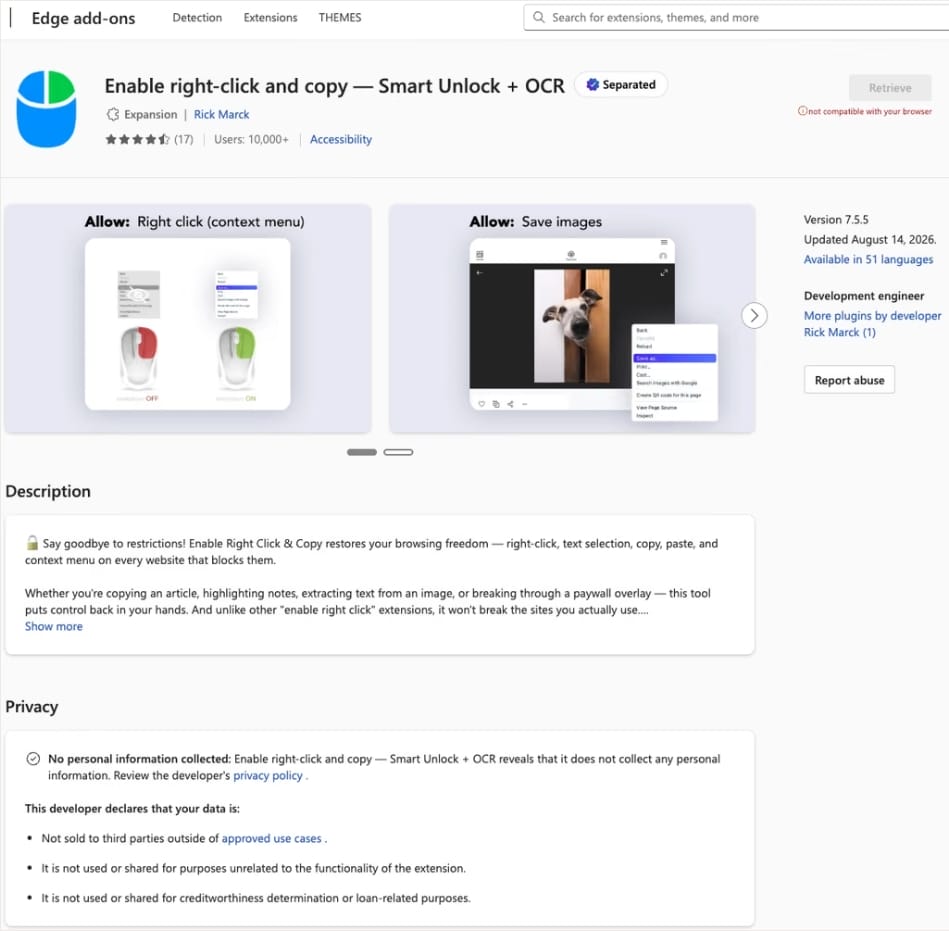
The Enable Right Click & Copy: Smart Unlock + OCR extension in the Microsoft Edge Add-ons store

At the time of the research, the Edge version of the extension had more than 10 000 users. Source

The malicious functionality introduced into the extension makes it reach out to the attackers’ command-and-control (C2) server to download additional modules of nefarious code. These modules can change over time. Since Chrome automatically updates all installed extensions by default, the malicious version lands on the device without users having to do anything at all.

For the downloaded code to run on the websites the user visits, the extension disables one of their defenses — Content Security Policy (CSP). This mechanism allows website owners to declare which scripts and other resources are allowed to load and run on a page. Once this protection is turned off, the extension can inject code it gets from the C2 server right into the pages open in the browser. The website itself isn’t hacked, and it looks the same to everyone else, but for that one infected user, the legitimate page quietly turns malicious.

What these 19 extensions can do

Now let’s take a closer look at what the malicious modules loaded by the extension are actually capable of. Researchers found 16 such modules, built for all sorts of tasks: from stealing data and hijacking cryptocurrency to the ClickFix attacks we’re focusing on here.

Some of the modules simply collect user data. They intercept logins, passwords, email addresses, and other valuable information the user enters into web forms, including payment details. On top of that, the add-ons steal data from Facebook and LinkedIn accounts and collect browsing history. Criminals can use this information to take over accounts, steal money, and launch further attacks against the victim.

A few other modules focus specifically on stealing cryptocurrency and related data directly. One of them is a crypto drainer, a tool that empties crypto wallets. It works with Ethereum and compatible blockchains as well as Solana and Tron. It replaces the real Connect Wallet and Swap buttons on websites with its own fake ones. When a user clicks one of these buttons, the drainer takes over all further interaction with the wallet and walks the victim through confirming the actions needed to steal their cryptocurrency.

Other modules target users of Ledger and Trezor hardware wallets. Right on the official websites of these services, the malicious extension displays a fake wallet update-and-restore page that asks for a seed phrase of 12, 18, or 24 words. The seed phrase the user enters is forwarded straight to the attackers, giving them full control over the wallet.
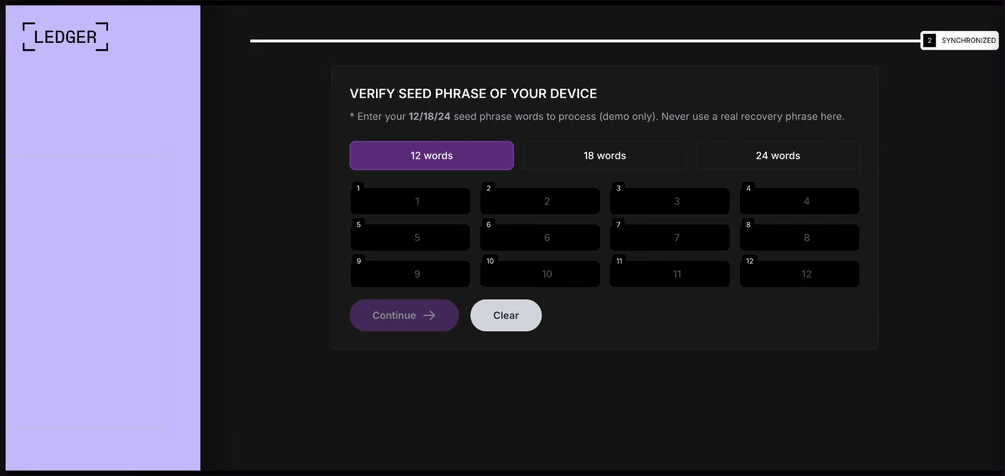
Fake form for entering a Ledger seed phrase

The fake form asks the user to enter a seed phrase of 12, 18, or 24 words, which then ends up in the attackers’ hands. Source

Finally, some modules gather information from crypto service pages open in the browser, such as OKX, MEXC, Kraken, KuCoin, Coinbase, Binance, Bybit, and MetaMask, including balance details and active session data that can be used to hijack accounts.

And now we’ve finally reached the module that matters most for this post: the one used for ClickFix attacks. We’ll talk about it in the next part.

How malicious extensions are used in ClickFix attacks

The ClickFix attack technique has become extremely popular among cybercriminals lately. It relies on social engineering: the victim is shown fake instructions supposedly needed to complete some action, such as passing a CAPTCHA check, fixing an error, or updating a program. Following these instructions, the user copies the command suggested by the attackers, pastes it into a system tool built for running these commands, and runs it, all by themselves.

We’ve written about attacks like this and their consequences more than once on our blog. But we rarely dig into exactly how a victim ends up on a page with fake instructions in the first place. A campaign that spread malicious extensions through the Chrome Web Store shows us one way this can happen.

Add-ons turn out to be a very handy tool for ClickFix attacks. As we mentioned earlier, when a user visits a page, extensions are allowed reading and changing its content in order to work. That gives attackers the chance to swap in a fake ClickFix instruction at just the right moment, replacing the content of the page the person actually wanted to open.

What’s more, the ClickFix technique itself lets attackers break out of the browser and gain a foothold directly in the system. That means removing the malicious extension won’t necessarily undo the damage: after the user has run the ClickFix command, malware may already be installed outside the browser.

In the specific attack example the researchers describe, the user sees a fake notification saying their browser needs to be updated, along with instructions on how to do it. The instructions change depending on the operating system, and the extension picks up that information automatically too.
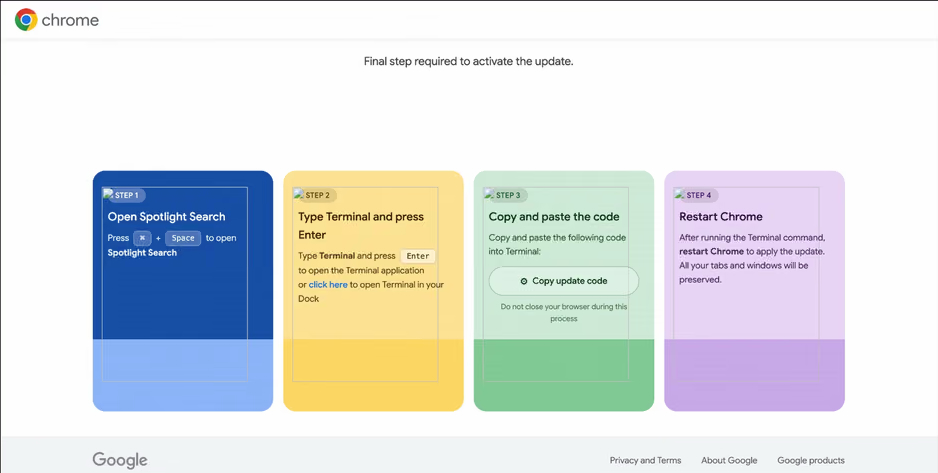
Fake Chrome update guide

In the macOS version of this attack, the user is told to open Terminal, copy a command, paste it there and run it, then restart Chrome to supposedly finish the update. Source

How to avoid falling victim to infected extensions

First off, we recommend checking whether any of the following malicious extensions are already installed in your browser:

  • Enable Right Click & Copy — Smart Unlock + OCR
  • RapidLens – Google Lens for Screen Search & Images
  • QuickLens – Search Screen with Google Lens
  • Password Protect PDF
  • Allow Copy – Select & Enable Right Click
  • PixelCheck
  • Creative Library – Ad Spy Tool
  • Website Traffic Checker: MirrorSphere SEO Stats
  • Site Signal – Website Traffic & SEO Checker
  • SEO Pulse Pro – Website Traffic & SEO Analyzer
  • Private Crypto News Reader
  • Blockfolio: Address Monitor
  • Crypto Rates & Fiat Converter
  • Crypto Alerter: Price Alarms & Volatility Warnings
  • DeFi Pulse Tracker
  • Crypto Price Badge: Quick Glance
  • Multi-Chain Explorer
  • LedgerLook: Wallet Checker
  • Meta & Facebook Ad Library Spy — Save Ads, Finder, Downloader | FeedX-Ray

If you find any of these extensions on your device, we recommend removing it as soon as you can and running a full system scan with a reliable antivirus. As we mentioned above, simply deleting the add-on might not be enough. You can use a free trial version to detect and remove the infection.

How to avoid falling victim to malicious extensions and ClickFix attacks in the future?

  • Don’t install too many extensions and regularly check the list of those you have.
  • Remove extensions you don’t use.
  • Trust the warnings from your operating system and security software, rather than the instructions — or even the demands — of websites and apps.
  • Install a trusted security solution on all your devices.

What else makes browser extensions and the ClickFix technique dangerous? Find out in our other posts:


  •  

This Android malware steals banking credentials even without an internet connection | Kaspersky official blog

Cybersecurity researchers have discovered a new family of Android malware, and it goes by the name of Manic. It lets criminals spy on their victims, steal banking credentials, and take remote control of infected devices.

But its most unusual trick is this: Manic can send stolen data back to attackers even when the given device has no internet connection. Apparently, random mobile internet outages seem to get in cybercriminals’ way just as much as anyone else’s, so the actors behind Manic came up with an unusual workaround.

People across a wide range of European countries are at risk, from Russia to the United Kingdom. In this post, we walk through what this Trojan can actually do, how it smuggles stolen data out to attackers, and how you can protect your Android device from Manic and other similar threats.

How Manic spreads, and who’s at risk

Researchers haven’t yet pinned down exactly how attackers are getting Manic onto people’s devices. Typically, malware like this spreads through channels like:

  • Infected apps on legitimate app stores
  • Malicious APK files shared on pirate websites
  • Download links sent through messaging apps and email
  • Scam sites

Google has told journalists it hasn’t found any trace of Manic spreading through apps on the Google Play Store. That suggests people are most likely installing infected apps from unofficial sources.

Experts have traced the beginnings of the attackers’ infrastructure for this campaign to February 2026. The earliest samples of the malware itself turned up in late May of this year. Since then, the criminals behind the Trojan have refined the ways it hides from detection on a victim’s device.

Manic currently combines the powers of a banking Trojan, spyware, and a remote-access tool that lets an attacker control the device. Attackers are especially interested in data from sources like:

  • Banking apps and payment services
  • Official government apps
  • Crypto wallets and cryptocurrency exchanges
  • Two-factor authentication apps
  • Text messages and notifications: mainly the one-time codes used to verify logins or approve transactions

By looking at which banking apps Manic targets, researchers have been able to work out which countries it has in its sights. It turns out its reach is broad, covering Austria, the Czech Republic, Estonia, France, Germany, Lithuania, the Netherlands, Poland, Russia, Slovakia, Spain, Ukraine, and the United Kingdom.

Stolen passwords, intercepted codes, remote control: what Manic can actually do

Let’s look at exactly what information Manic steals, and how it manages to get it. The malware’s main trick relies on abusing Android’s Accessibility services, a set of built-in features designed to help users with visual impairments. Used as intended, these features are genuinely helpful for people with vision loss. But criminals have long been quietly exploiting the very same tools for their own purposes.

Once a user grants an app permission to use Accessibility services, that app can “see” the text and buttons on the screen, interact with them, scroll through pages, and carry out actions automatically — all as if a user were doing it themselves. Attackers use this to read messages on screen, quietly grant the malware extra permissions, interfere with attempts to uninstall it, switch off security protections, or control other apps without the victim ever noticing.

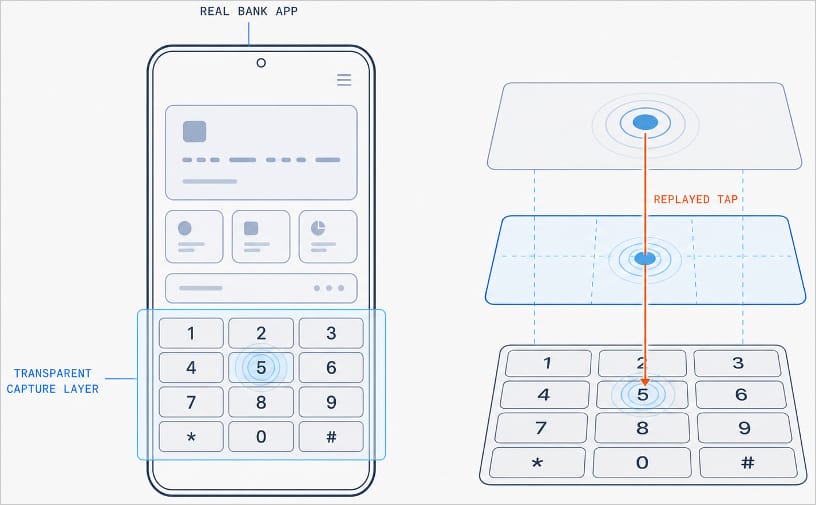
With Manic, this abuse of Accessibility services is paired with the Trojan’s own advanced capabilities. It can generate an invisible keyboard that overlays the phone’s real one. When a user types their password to log in to a banking app, Manic records exactly which keys they pressed. Then it uses Accessibility services to instantly replay that same keystroke on the actual app keyboard.

Manic generates a transparent capture layer that covers the phone's keyboard

Manic generates a transparent capture layer that covers the phone’s keyboard, recording each tap and relaying it to the real keyboard. Source

This means attackers don’t have to build a fake login screen for every single app they want to target. Because Manic works as an invisible layer sitting on top of the genuine app, everything looks and behaves as usual, so a phone owner has no reason to suspect they’re handing over their PIN or password to a criminal.

Manic doesn’t simply log everything a user types, either. It automatically recognizes what kind of information it has just captured and sorts it into categories: passwords, email logins, four-to-six-digit SMS codes, strings of characters that look like crypto wallet seed phrases, and phone unlock codes or pattern locks. Alongside the captured text itself, Manic also records which app it came from, when it was entered, whether the user typed it manually or used autofill, and whether that app is on its hit list.

Manic’s abilities don’t stop at collecting information. Using Accessibility services once again, it also lets attackers take remote control of an infected device. To conceal this activity, Manic can show a black screen or fake a system update.

On top of Accessibility services, the malware also asks for permission to read text messages and notifications. That lets attackers intercept two-factor authentication codes and one-time verification codes before a victim even has a chance to type them into the app.

Put together, this hands attackers not just passwords, banking credentials, and verification codes, but the ability to remotely control the victim’s phone as well.

Even being offline won’t save you from data theft

Manic’s original method for relaying stolen data off the device and back to the attackers deserves a separate mention. Even today, devices get knocked offline more often than people might expect, and Manic’s creators built a workaround specifically for such situations.

Normally, malware like this collects information on the device and sends it straight to a server controlled by the attackers. But what happens when the infected device has no direct internet access, or can’t reach the command-and-control server for some other reason?

In that case, Manic simply stores the stolen data on the device and starts scanning nearby for other infected phones it can reach over Wi-Fi or Bluetooth. If it finds one with internet access, it hands over the encrypted data to that phone, which then forwards it on to the attackers’ server.

But it doesn’t stop there. Data can hop across a chain of infected devices. By default, Manic allows up to four of these relay devices in the chain. If no suitable device is nearby, the data simply stays on the original phone, and Manic tries again later.

How to protect your phone from Manic and other banking Trojans

Android malware keeps getting more sophisticated. That makes it worth remembering — and actually following — a few basic digital hygiene habits for Android phone and tablet users:

  • Avoid installing apps from unofficial sources.
  • Don’t grant apps permission to use Accessibility services unless this is absolutely necessary and you understand exactly why they need it.
  • Install reliable security software on all your devices, run scans regularly, and take its warnings and recommendations seriously. We recommend Kaspersky for Android. Our Android security apps are temporarily unavailable on the Google Play Store, so to install them on an Android device we recommend using an alternative app store or installing the APK file manually from our website. A full step-by-step guide is available in our post, How to install or update Kaspersky apps for Android in 2026.

Malware doesn’t just target smartphones; it feels at home on other Android-powered devices too — from streaming boxes to… cars. Check out the details in our related posts:

  •  

Detection blind spots: non-standard file formats in malicious email campaigns | Kaspersky official blog

Threat actors are constantly developing new attack schemes — from OAuth token theft to attacks on AI agents — but the classics never quite leave their playbook. On any given day, an employee may receive malware attached directly to an email, or lying in wait behind a link embedded in an email. Making these attacks succeed still requires a degree of creativity, and in recent years attackers have increasingly adopted exotic file formats. Users don’t perceive these formats as dangerous; more importantly, many EDR and email security solutions skip scanning them entirely. Yet they’ve proven highly effective for deploying malware or harvesting credentials.

Below are the file types that may be blind spots in your organization’s detection strategy — despite being observed as used in real-world attacks.

Disk images

This is the broadest and most dangerous attachment category. A disk image can contain a fully prepared, correctly structured set of files tailored to a wide range of attack scenarios. It mounts as a separate volume (standalone virtual disk), and when doing so often uses tools built into the operating system. The victim doesn’t need to extract anything or create suspicious folders on disk.

The most versatile format is ISO, which dates back to the heyday of multimedia CDs. ISO images mount natively on every major OS without additional utilities, whether through simple tools like File Explorer or via the command line interface. This is precisely why threat actors have no hesitation in sending ISO files as email attachments.

Somewhat less common are IMG containers, which also mount without additional tooling on macOS or Linux, but require installing a small, free utility such as OSFMount on Windows, or using WSL2 (Windows Subsystem for Linux), which is built into recent Windows versions. A file with identical content may also carry a DD extension.

Threat actors also make use of VHD, a virtual disk format native to Windows, which generally works on Linux machines as well (via qemu-nbd or guestmount). On macOS, an additional utility — again, qemu-nbd is a common choice — is required to mount it. Note that on unpatched Windows systems, the victim doesn’t need to take any further action after the disk mounts: CVE-2025-24993 — a vulnerability actively exploited in real-world attacks — triggers attacker code execution immediately upon mounting the image.

For completeness’ sake, VMDK, the disk image format used by VMware, is also worth detecting, though it’s largely ineffective in attacks on regular users since every popular OS requires additional software to mount it.

All of these image formats can be viewed and unpacked not only with specialized tools, but with standard archive utilities like 7-Zip or RAR. As a result, the odds that the user will fall for the bait are higher than one might hope.

In addition to not being a well-known potentially dangerous format, image files give attackers one further advantage: files extracted from disk images on Windows frequently lack the Mark of the Web flag, and therefore can be launched without triggering additional system warnings.

There’s one more reason why EPP/EDR solutions must scan virtual machines and disk images: these formats are also used during later stages of an attack. To mask active file-system activity from monitoring tools, ransomware gangs sometimes run the entire encryption process inside a virtual machine deployed on the victim’s computer. The RagnarLocker ransomware strain has used VirtualBox for this purpose, while the CRON#TRAP campaign relied on a QEMU environment.

MS Office files

No, this isn’t about macro-laced DOC files. Microsoft has grown weary enough of this classic attack vector that macros in downloaded documents are now blocked outright, and enabling them requires considerable effort from the user. But Office relies on dozens of file formats, and some of the less common ones still occasionally give attackers an edge.

Less familiar to both users and security solutions are OneNote files (.one). These are essentially simple notes, but they can carry embedded attachments, including not just images and links, but VBS/WSF/BAT scripts as well. Within the note, an attachment normally displays as an icon, but attackers overlay it with a picture showing a message with a “View” button.

Another Office format popular with attackers is the Excel add-in. These files use the .xll extension but are, in effect, full-fledged Windows dynamic-link libraries (DLLs), and therefore may have extensive functionality. Victims receive a malicious email with what looks like an invoice; the icon suggests that the file will open in Excel. Ignoring the security warning may result in an infostealer infection.

SVG “graphics”

The description of the SVG (Scalable Vector Graphics) format sounds entirely innocuous. Indeed, 99% of SVG files are logos and interface icons. But unlike PNG or JPG, SVG files are fundamentally XML documents, and beyond points, lines and fills they can contain JavaScript. In terms of malicious potential, SVG is not far behind a full web page. In real-world attacks, SVG files can redirect a user to a phishing page immediately upon opening, or render the phishing page directly by unpacking a Base64-encoded block into full HTML.

SVG files pose a distinct risk to corporate portals that accept user file uploads. If a portal’s Content Security Policy (CSP) isn’t sufficiently restrictive, and lets someone upload a malicious SVG file, the embedded JavaScript can steal cookies from the page, inject unauthorized content, and carry out similar attacks.

Polyglot files

Polyglot file formats are less exotic in and of themselves, but the files carry more than meets the eye. They’re called polyglots because attackers construct a file that can be validly interpreted in multiple ways: for example, it can be a valid ZIP archive and a valid executable at the same time. The purpose is purely to evade detection by security solutions and deceive the user. We’ve covered polyglots in detail in a separate blog post.

The clear standout in our roundup is a malicious campaign distributing the IcedID infostealer. Victims receive emails with a ZIP attachment, which unpacks into an ISO disk image. That further unpacks into a CHM file (the Windows Help format) that’s also correctly processed as an mshta (Microsoft HTML Application host) application, which then downloads the primary malware payload.

Defending against exotic files

These attacks rely on the assumption that security solutions either don’t scan unusual file formats, or scan them only superficially. Preventing the threat starts with not operating on that assumption with regard to your own infrastructure:

  • Configure EDR, web, and email filters to scan all of the file formats described above.
  • Process archives and disk images with the same rigor as you would apply to executables.
  • Detonate potentially dangerous file types in a sandbox, and configure recursive unpacking of nested formats through to the end of the chain: ZIP → ISO → CHM.
  • Where feasible, quarantine all file formats anomalous for email — disk images in particular.
  • Build detection rules for anomalous usage patterns that involve exotic files. For example, unusually small disk images are rare and are therefore worth investigating.
  • Review the technical documentation of your security solutions to confirm that complex formats are detected through deep structural parsing rather than magic-byte checks alone.
  • Deploy behavioral detection capable of flagging anomalous execution patterns and legitimate utilities launched from unexpected contexts. The usual suspects here include mshta, git, wscript, hh, and rundll32.
  • SVG files warrant a dedicated policy. Treat SVGs as active content at the email and web perimeter. On corporate portals, enforce a strict CSP, and serve user-uploaded files from a separate subdomain so that a malicious script embedded in an SVG can’t access the session on the main portal.

  •  
❌