A German court has ruled that Google can be held directly responsible for defamatory claims produced by its AI Overviews. Basically, the court said that telling people they should double-check AI search results is not enough to deny liability for what those results say.
This kind of warning may not be enough
The Munich Regional Court issued a preliminary injunction against Google after two German publishers discovered that AI Overviews falsely portrayed them as involved in scams and “dubious business practices,” even though the linked articles did not support those claims.
The decision could echo far beyond Germany. The court effectively found that Google can be held directly liable for defamatory content generated by its AI Overviews. The court cut through the usual “it’s just AI, don’t trust it too much” messaging and made one thing clear: If you build a system that confidently smears people or companies, you may be responsible for what it says, even when the content was “hallucinated” by AI.
AI Overviews are not harmless suggestions. In this case, the court treated them as Google’s own statements, with all the legal baggage that comes with that.
When the publishers sent a cease-and-desist letter, Google did not promptly stop similar claims from appearing. That detail turned out to be crucial in the ruling. The court noted that, unlike traditional search results, which simply list third-party content, AI Overviews generate “independent, new, and substantive statements.”
And since only Google can adjust the models and the logic that create those statements, only Google can reliably stop the system from repeating the same or similar falsehoods. In this case, the court found that Google can be held responsible.
For years, search engines have enjoyed broad protection under the logic that some harmful content is unavoidable when indexing the open web at scale. Showing a search result does not mean endorsing it. The search engine is a channel, not a publisher.
That changes when an AI Overview summarizes, rephrases, and sometimes invents facts, then publishes them at the top of search results.
AI Overviews are an extra feature, not essential to how search works. However, the appeal of AI summaries is their fast, confident answers, which is exactly what makes them dangerous. When those answers are wrong, many users may not click through to check the sources.
The ruling is preliminary and may be appealed, but the signal is clear: AI search output is not magic dust that makes liability disappear. Disclaimers about possible mistakes may not be enough when a system is deployed at scale, creates new content, and is designed to be trusted.
By the numbers
Google AI Overviews are powered by Gemini, Google’s AI model. Like other AI systems, it can produce confident answers that are wrong or poorly supported.
Pew Research studied browsing data from hundreds of users and found that when an AI Overview appears on a Google results page, clicks to traditional search results drop from around 15% to about 8%.
A New York Times analysis of AI Overviews found that they were accurate roughly nine out of ten times. But with Google processing more than five trillion searches a year, even a small error rate could mean millions of wrong answers.
And those mistakes are not always due to bad sources. Even when Google links to a page with the correct information, its AI can still produce a false answer. More than half of the accurate responses were classified as “ungrounded,” meaning the websites cited by the AI Overview did not fully support the information it provided.
The main lesson here is to double-check AI search responses. Don’t trust an answer just because it’s presented confidently and includes links.
Users can be steered toward real threats, or away from effective protections, simply because an AI system sounded convincing on a search page.
If you find false or defamatory AI summaries about yourself or your company, document them thoroughly. Take screenshots, save the search terms, file correction requests, and keep records of the platform’s response. Or the lack of one.
Scammers don’t need to hack you. They just need you to click once.
A German court has ruled that Google can be held directly responsible for defamatory claims produced by its AI Overviews. Basically, the court said that telling people they should double-check AI search results is not enough to deny liability for what those results say.
This kind of warning may not be enough
The Munich Regional Court issued a preliminary injunction against Google after two German publishers discovered that AI Overviews falsely portrayed them as involved in scams and “dubious business practices,” even though the linked articles did not support those claims.
The decision could echo far beyond Germany. The court effectively found that Google can be held directly liable for defamatory content generated by its AI Overviews. The court cut through the usual “it’s just AI, don’t trust it too much” messaging and made one thing clear: If you build a system that confidently smears people or companies, you may be responsible for what it says, even when the content was “hallucinated” by AI.
AI Overviews are not harmless suggestions. In this case, the court treated them as Google’s own statements, with all the legal baggage that comes with that.
When the publishers sent a cease-and-desist letter, Google did not promptly stop similar claims from appearing. That detail turned out to be crucial in the ruling. The court noted that, unlike traditional search results, which simply list third-party content, AI Overviews generate “independent, new, and substantive statements.”
And since only Google can adjust the models and the logic that create those statements, only Google can reliably stop the system from repeating the same or similar falsehoods. In this case, the court found that Google can be held responsible.
For years, search engines have enjoyed broad protection under the logic that some harmful content is unavoidable when indexing the open web at scale. Showing a search result does not mean endorsing it. The search engine is a channel, not a publisher.
That changes when an AI Overview summarizes, rephrases, and sometimes invents facts, then publishes them at the top of search results.
AI Overviews are an extra feature, not essential to how search works. However, the appeal of AI summaries is their fast, confident answers, which is exactly what makes them dangerous. When those answers are wrong, many users may not click through to check the sources.
The ruling is preliminary and may be appealed, but the signal is clear: AI search output is not magic dust that makes liability disappear. Disclaimers about possible mistakes may not be enough when a system is deployed at scale, creates new content, and is designed to be trusted.
By the numbers
Google AI Overviews are powered by Gemini, Google’s AI model. Like other AI systems, it can produce confident answers that are wrong or poorly supported.
Pew Research studied browsing data from hundreds of users and found that when an AI Overview appears on a Google results page, clicks to traditional search results drop from around 15% to about 8%.
A New York Times analysis of AI Overviews found that they were accurate roughly nine out of ten times. But with Google processing more than five trillion searches a year, even a small error rate could mean millions of wrong answers.
And those mistakes are not always due to bad sources. Even when Google links to a page with the correct information, its AI can still produce a false answer. More than half of the accurate responses were classified as “ungrounded,” meaning the websites cited by the AI Overview did not fully support the information it provided.
The main lesson here is to double-check AI search responses. Don’t trust an answer just because it’s presented confidently and includes links.
Users can be steered toward real threats, or away from effective protections, simply because an AI system sounded convincing on a search page.
If you find false or defamatory AI summaries about yourself or your company, document them thoroughly. Take screenshots, save the search terms, file correction requests, and keep records of the platform’s response. Or the lack of one.
Scammers don’t need to hack you. They just need you to click once.
Threat actors are already gearing up for this year’s biggest football (soccer) event, the World Cup 2026. With millions of fans looking for ways to stream matches online, many will turn to IPTV apps to watch live TV broadcasts over the internet. It’s no surprise, then, that cybersecurity researchers have discovered multiple campaigns over the past few months where malware was disguised as fake Android IPTV apps.
In this post, we discuss what IPTV apps are, how criminals use fake versions to spread malware, what this malware is capable of, and, most importantly, how to avoid becoming a victim.
What are IPTV apps?
IPTV stands for Internet Protocol Television. This technology delivers TV content over the internet instead of through cable, over-the-air antennas, or satellites. Naturally, the simplest and most common examples of IPTV are the official platforms of TV networks, which can include both websites and dedicated apps.
However, alongside official options, pirate IPTV services also exist. They usually lure users with free or dirt-cheap access to content that can otherwise be hard to find without expensive subscriptions — most notably broadcasts of various sporting events; football matches in particular.
As is typically the case with pirated content, these apps are blocked from official app stores, forcing users to download them from third-party sites. Consequently, the risk of using these services isn’t tied to IPTV technology itself, but rather to the fake apps and modified APK files distributed under the guise of well-known platforms — both official and pirated.
Massiv banking Trojan disguised as IPTV apps
For instance, in February researchers found the Massiv banking Trojan distributed under the guise of fake IPTV apps. Even then, experts noted that this wasn’t the only malware leveraging this tactic — several others were also spotted in the wild. The primary targets of these IPTV-mimicking malicious fakes have mostly been users in Portugal, Spain, France, and Türkiye.
In most cases, the discovered fake IPTV apps lacked the advertised functionality, so users didn’t get access to any content after installing the apps. Instead, the fake app would open the website of a legitimate IPTV service in a built-in browser to mimic normal functioning and avoid raising user suspicion.
Of course, the most interesting activity happened out of the user’s sight. These are some of the features the malware did have:
Displaying fake windows on top of legitimate ones: fake forms for entering bank details or signing in to official services, as shown in the screenshot below.
Activating a keylogger: recording and transmitting screen keyboard taps to the attackers.
Hijacking control of the compromised device.
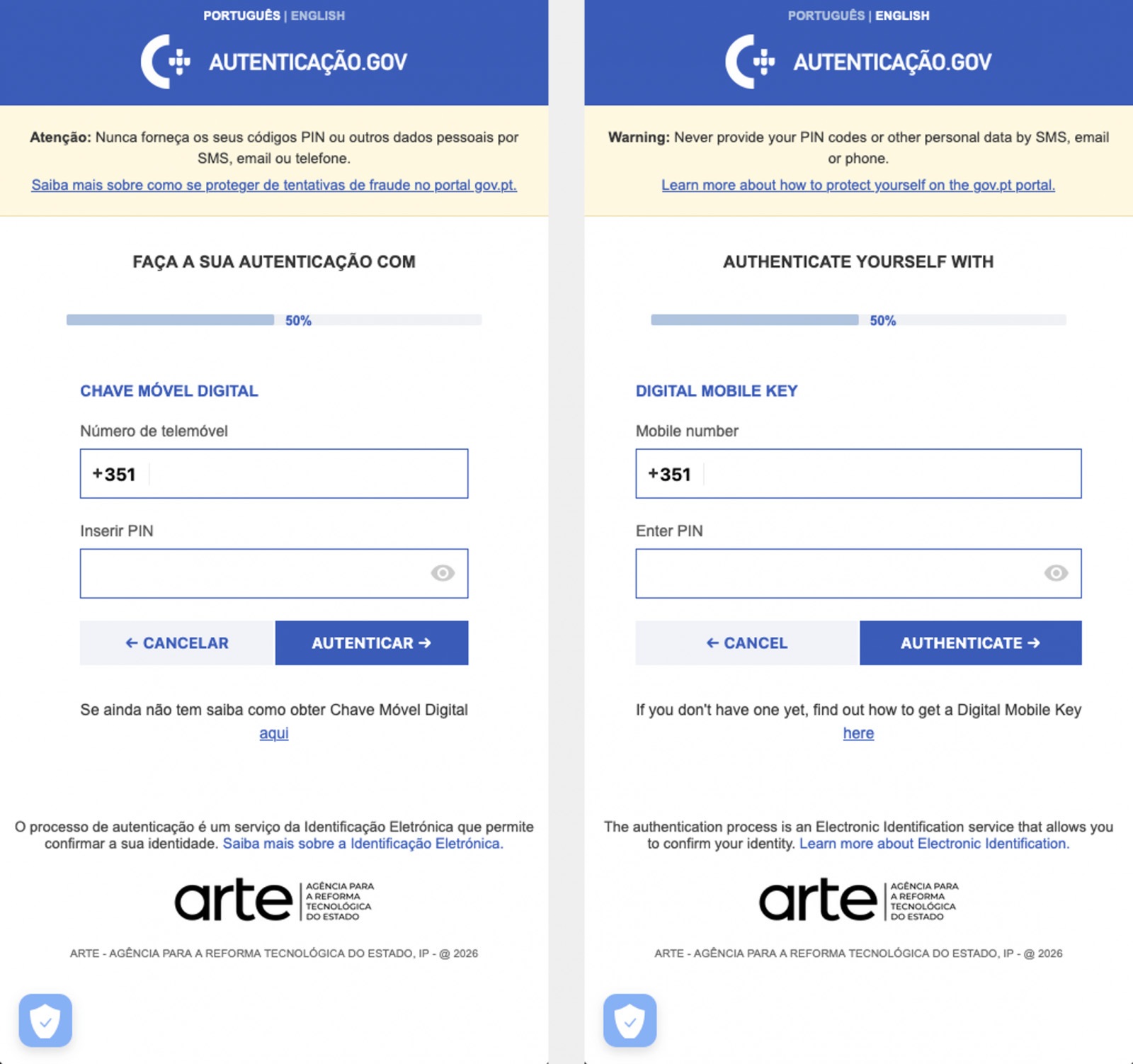
The Massiv banking Trojan mimics the interface of the Portuguese government app Chave Móvel Digital in a fake pop-up window, looking even more convincing than the official version from Google Play. Source
Perseus steals valuable information from users’ notes
In March, researchers reported on a new campaign where several fake IPTV apps were used to distribute an even more advanced and feature-rich malware strain: Perseus.
Research into Perseus shows that the malware is based on the source code of an Android banking Trojan called Cerberus, which leaked nearly six years ago. Perseus comes in two different versions: Turkish and English. The English-language version is more advanced and shows clear signs of AI-driven refinement.
Perseus abuses Accessibility Services, a set of Android features originally designed to make life easier for users with severe visual impairments. Fraudsters learned long ago how to leverage this tool to steal data from Android devices — a topic we’ve covered in detail across several of our posts.
An example of a malicious APK disguised as Roja Directa TV, another IPTV app. Source
By abusing Accessibility Services, Perseus gains remote control over the victim’s device. Here’s what it can do:
Continuously capture and exfiltrate screenshots.
Send a structured map of the device’s UI for remote manipulation.
Mimic taps, swipes, text input, long presses, and other UI interactions.
Turn on the screen, launch apps, and block them from running.
Trigger a pitch-black screen overlay to hide its activities.
Log keystrokes.
On top of that, the English-language version of Perseus boasts another notable feature. The malware can hunt for sensitive information like passwords, recovery phrases, and financial data across an entire range of note-taking apps: Google Keep, Xiaomi Notes, Samsung Notes, ColorNote, Evernote, Microsoft OneNote, and Simple Notes.
All of these capabilities help criminals drain football fans’ money not just from various banking services, but from cryptocurrency apps as well.
How not to let cybercrooks ruin your World Cup
The World Cup is just around the corner, and millions of fans worldwide will definitely want to tune in to this year’s premier football event. Past experience shows that cybercriminals frequently cash in on major spectacles like this. So, how can you watch the matches safely?
Don’t download apps from unofficial stores.
Even when downloading an app from an official store — since malware occasionally slips through the cracks there, too— read the reviews carefully. Users who have been burned by fakes and malware often leave comments to warn others.
Avoid storing passwords or other sensitive information in note-taking apps. To ensure your data and finances stay secure, use a reliable password manager. By the way, Kaspersky Password Manager includes an encrypted note-taking feature, allowing you to store your valuable information safely.
You can’t even watch TV safely anymore these days! Check out other threats facing TV lovers:
Phishing campaigns have become significantly more sophisticated and convincing in recent years. Sender addresses are now nearly identical to the real deal, emails are flawlessly written, and users are called by their names. But what do you do when a suspicious email comes from a clearly legitimate email address?
Lately, phishers have been exploiting the Google AppSheet platform to set up email blasts that originate from an official Google-linked address. Following a successful attack, they walk away with their victims’ accounts and sensitive data.
In this post, we break down how this new data theft scheme works, and how to protect yourself from these sneaky phishing attacks.
Google is offering you a job. Or Coca-Cola. Or maybe Volvo. Or are they?
AppSheet is a Google service for building apps without any coding skills. It’s frequently used by small businesses to automate routine workflows. Unfortunately, it’s precisely this simplicity that makes AppSheet so attractive to cybercriminals. All it takes to pull off a phishing scam these days are a few dollars and an app quickly thrown together using pre-made commands and blocks.
The playbook for AppSheet phishing attacks is pretty run-of-the-mill. The victim receives an email on behalf of a major company — and these messages often begin by addressing the recipient by name. It appears the attackers are parsing leaked data to match names with specific email addresses.
Next, the attackers play on the recipient’s emotions — employing either stick or carrot. They might panic the victim with urgent warnings that demand immediate action — think “Your account will be disabled soon” or “Suspicious activity detected”. Alternatively, they lure them in with irresistible bait, like the promise of a verified badge or an interview invitation from a tech giant. These fake HR emails are engineered to give victims an immediate rush. They make it look like the recipient’s application was already fast-tracked and highly rated, teasing a job offer that could drop as early as tomorrow.
For most people, these messages don’t raise a single red flag. The email bypasses the spam folder completely, and the From field displays the exact name of the company they expect to see. Unfortunately, none of it means the email is authentic: attackers can put whatever they want in the display name. And let’s be honest: very few people actually stop to scrutinize the sender’s email address.
In AppSheet-based phishing campaigns, the sender is always the same: noreply{@}appsheet.com. But here’s the real kicker: that address is 100% legitimate. Because it’s tied directly to Google’s own infrastructure, there’s a good chance that standard anti-spam filters greenlight these emails without blinking.
Naturally, to secure that coveted interview or fix their account, the victim clicks the link — and then voluntarily hands over their entire digital identity on a copycat website: full name, address, phone number, etc. From there, the attackers can sell the harvested data on the dark web, or weaponize it for secondary, targeted attacks. To top it all off, the victim is redirected to a phishing login page, which allows the attackers to steal their accounts.
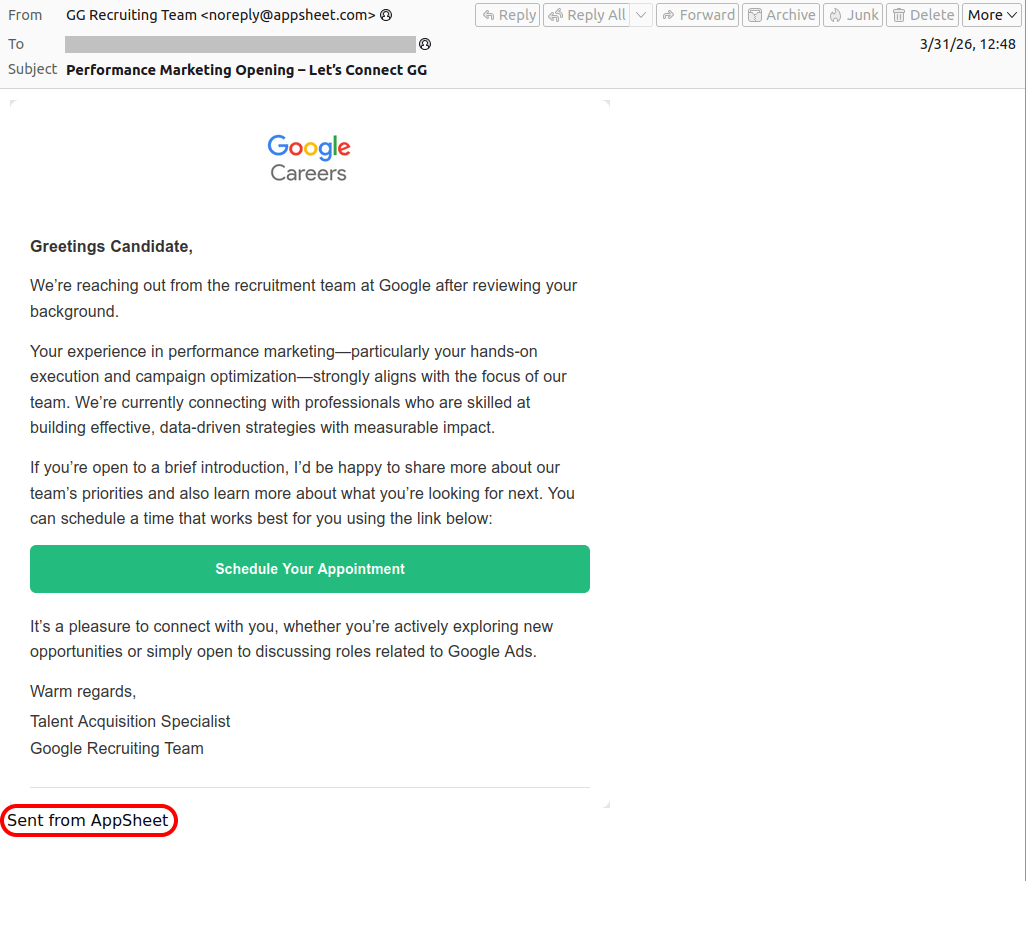
Here’s a step-by-step breakdown of how a victim goes from receiving a fake Google Careers portal email to having their account completely compromised:
Greetings, Candidate! Why don't you click the link to our fake Google site to schedule an interview?
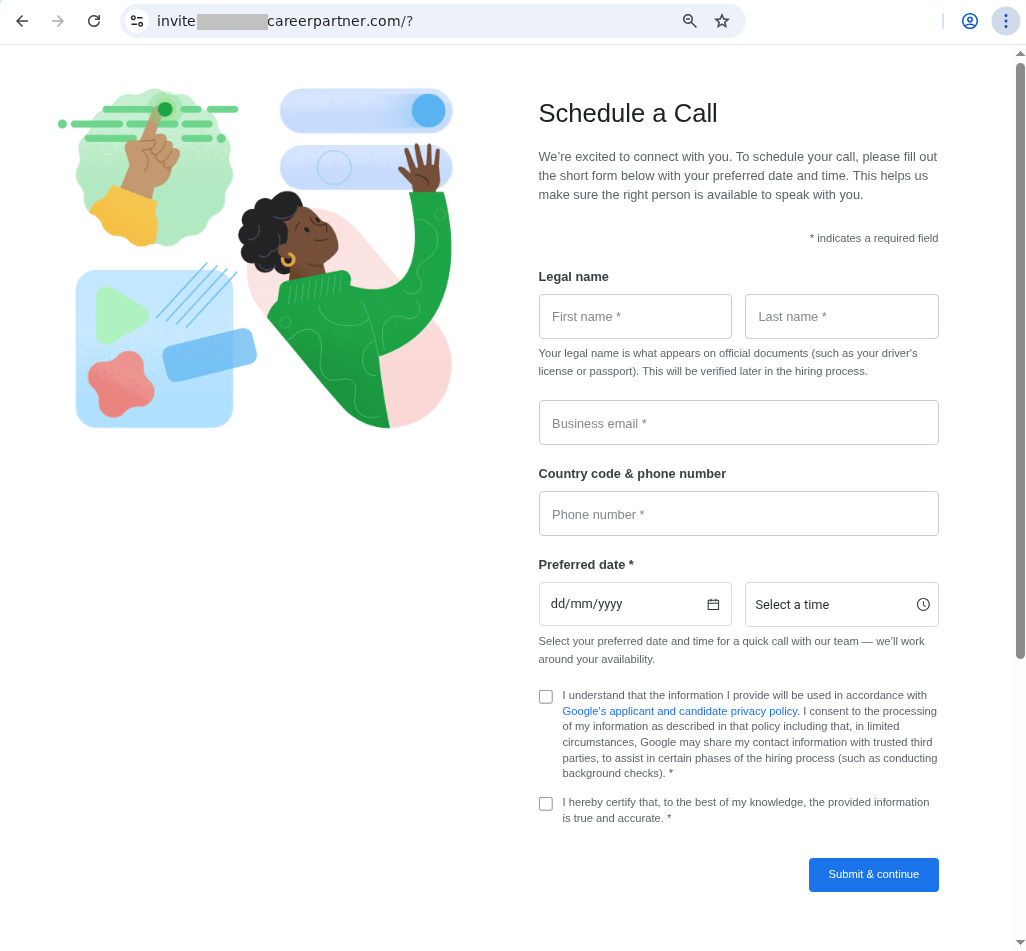
The link in the email leads to a spoofed site with a design indistinguishable from the original. The user is prompted to fill out a form: provide their full name, work email, phone number, and preferred date for interview…
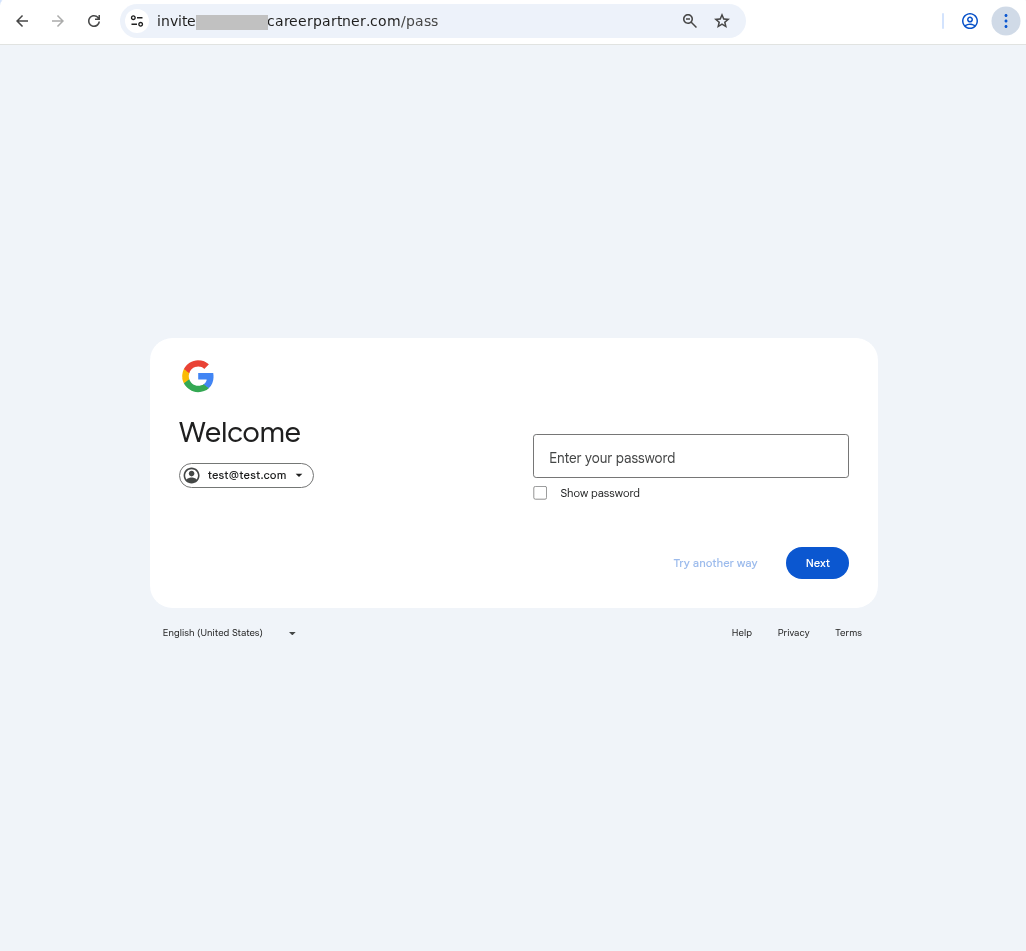
…Once the victim completes the form, they see a prompt asking them to log in with their Google credentials. All of this data goes straight to the attackers.
Similar phishing campaigns are launched on behalf of other major tech brands — and the users who hand over their Apple account data risk losing not just their account but also control of all their Apple devices. The attackers might pressure the victim into signing out of their personal Apple ID, and in to a “corporate account” for verification — which is in reality an Apple account they own. The moment the victim does so, the criminals take complete remote control of the used device, often using Lost Mode to lock the victim out and hold their phone to ransom.
To make matters worse, attackers don’t always drop a malicious link in the initial email. Instead, they play the long game — hooking the target into a conversation by asking them to reply and confirm their interest. This pretexting creates an illusion of chatting with a real recruiter. And this playbook isn’t reserved exclusively for Silicon Valley, either. Attackers frequently impersonate globally recognized household names, like Volvo or Coca-Cola. Of course, it’s highly unlikely that attackers want someone’s Coca-Cola account — if the user even has one to begin with. Most likely, the goal is to steal sensitive data or convince the user to log in to a phishing form using their Google/Apple/Facebook, etc. credentials.
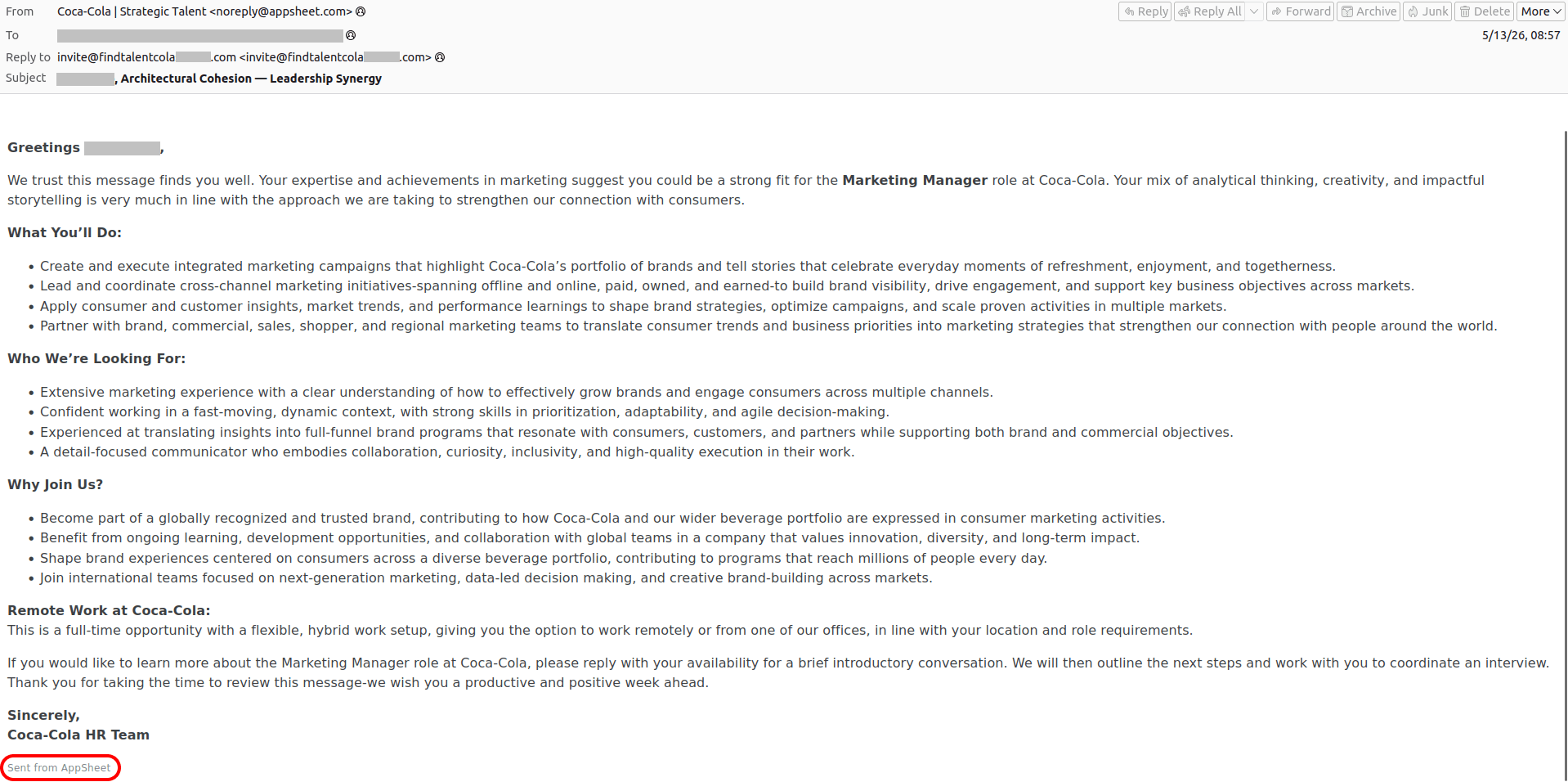
An "HR team member" from Coca-Cola reaches out to praise the victim, laying it on thick about their expertise and achievements, analytical thinking, and creativity… The attackers intentionally keep the endgame under wraps — whether that means routing the victim to a phishing site, orchestrating a full account takeover, or pulling off a straight-up financial scam
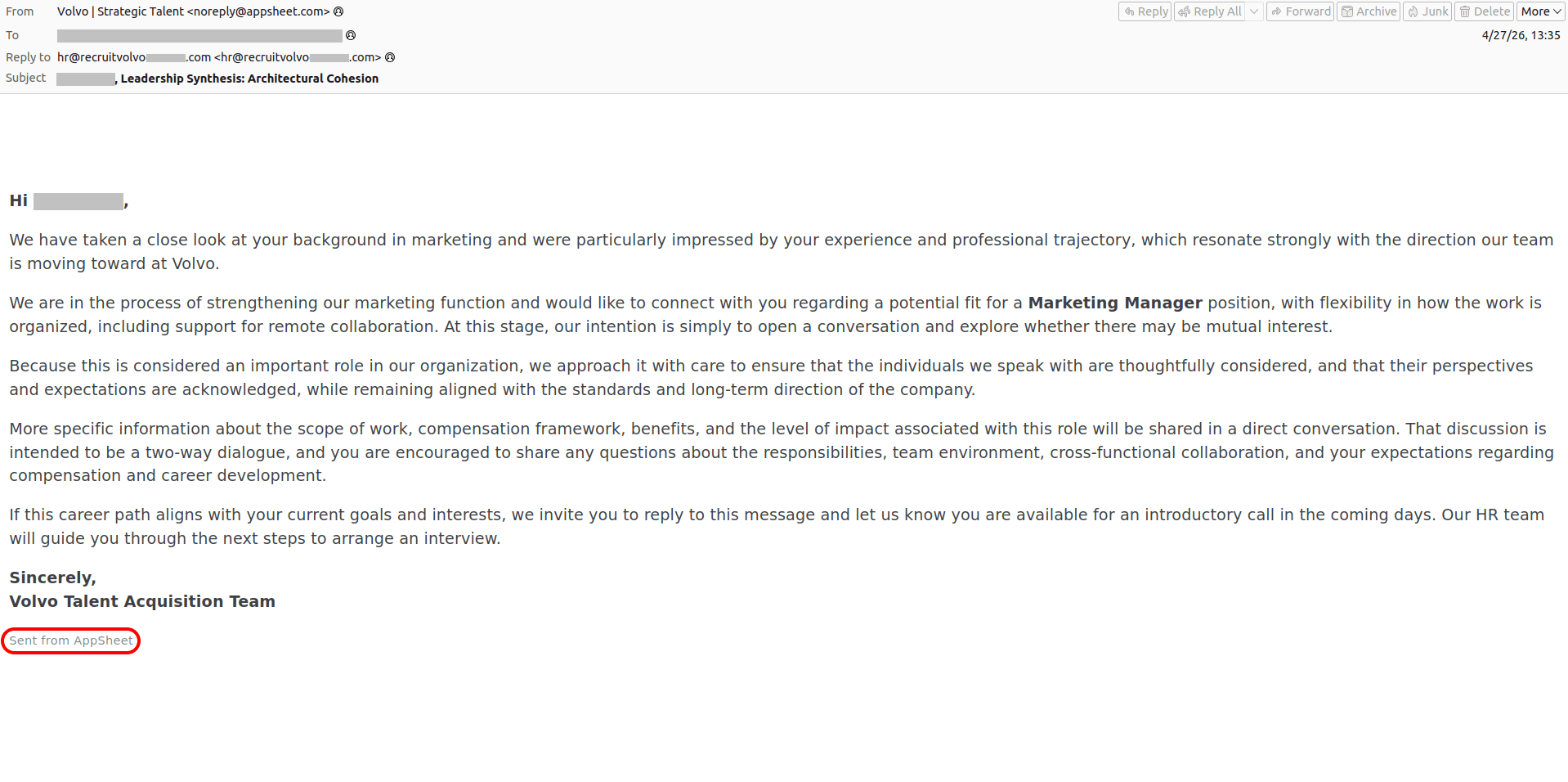
A similar email pretending to be from the Volvo talent acquisition team
Do you want to become Meta-verified?
Of course, “dream jobs” aren’t the only bait used. We’ve seen campaigns where “Facebook Support” reaches out to tell a user they’ve been deemed eligible for the prestigious Meta Verified badge — a blue checkmark normally reserved for top-tier celebrities and global brands. To secure the coveted blue checkmark, the victim is directed to a phishing page where they’re asked to complete an identity form — before handing over the ultimate prize: their Facebook username and password. And it’s all in the name of security, naturally!
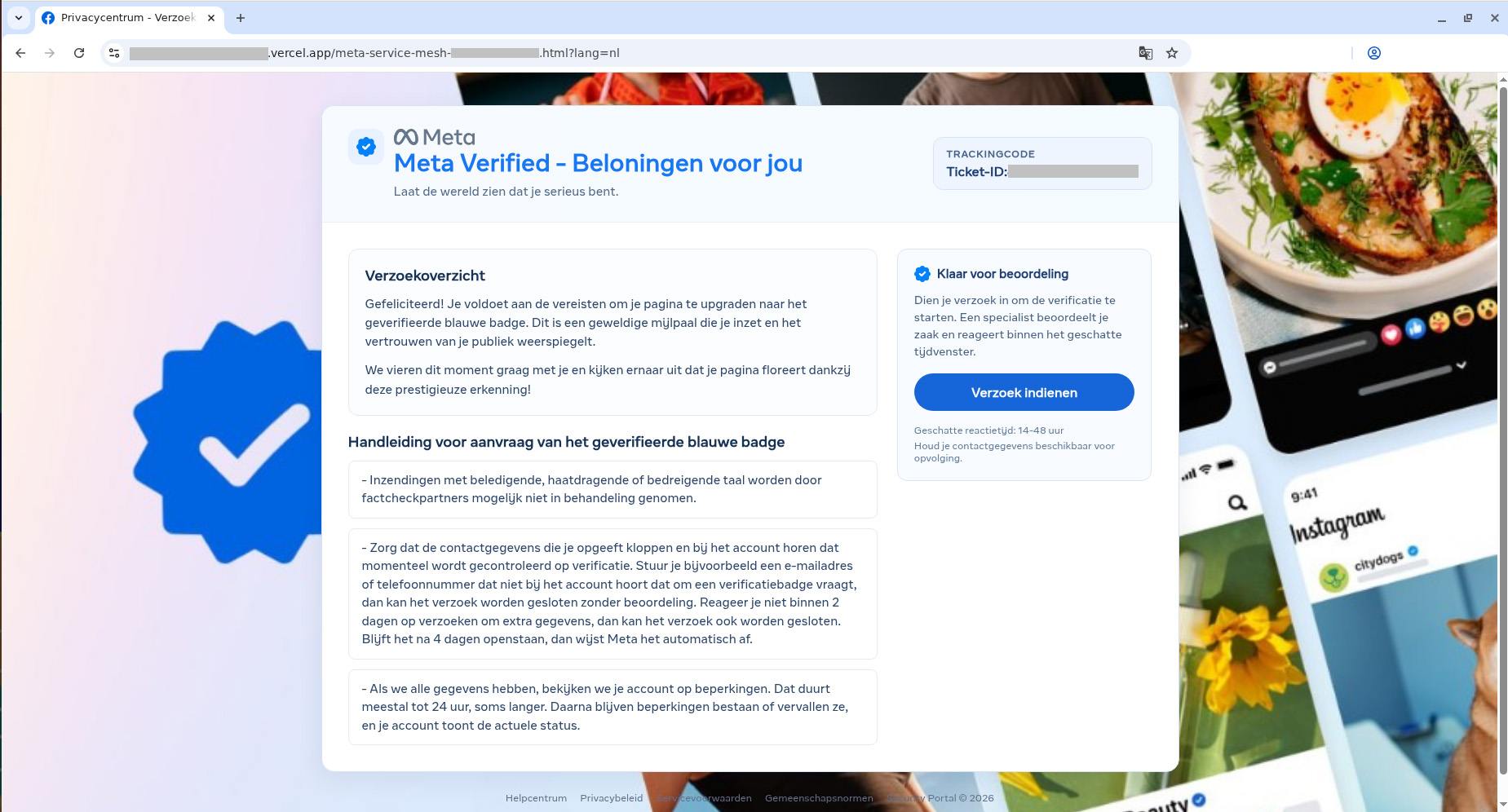
These spoofed sites are created in a wide variety of languages, and tailored to users in different countries. Below is the Dutch version.
To get the blue checkmark, the user is required to provide "additional information". Miss the deadline by just a few days and the offer expires
After the victim fills out the standard fields — name, phone number, personal and work emails, and birthdate — a prompt appears asking for their Facebook password
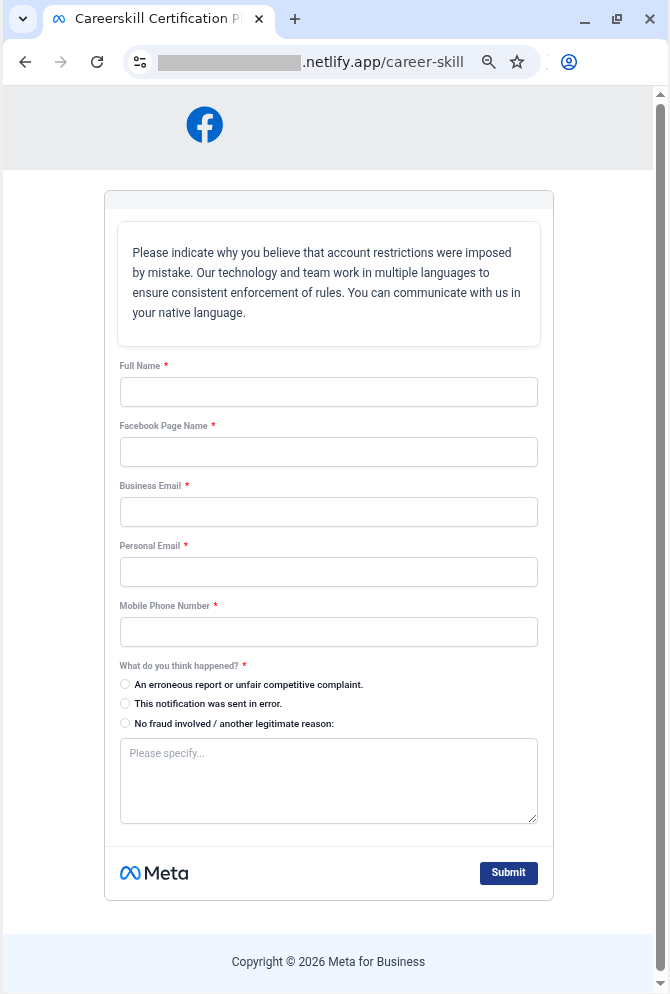
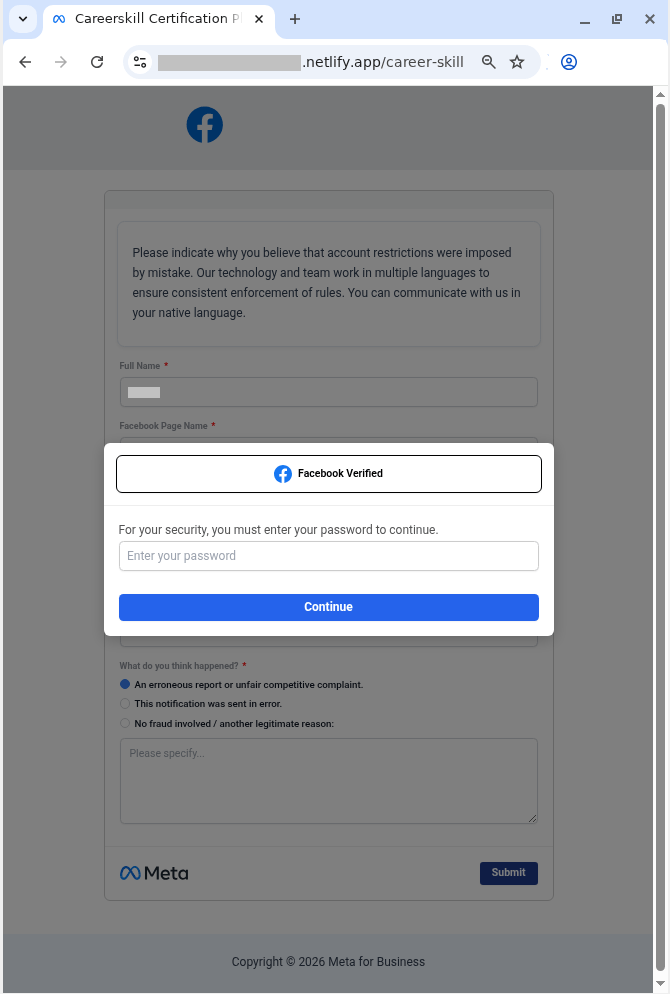
In other campaigns, attackers abuse Google’s AppSheet to weaponize sheer panic, trying to unsettle the user with claims that they’ve violated Meta’s intellectual property policy — and threatening to permanently close their Facebook account. To appeal, the victim must click a link to… a phishing site, provide their personal information, and, of course, enter their Facebook username and password.
For the sake of plausibility, the user is not only asked to fill out fields with personal information, but also to describe in detail why the decision to close the account was a mistake
Finally, the user is prompted to confirm their appeal request by signing in to “Facebook”. In reality, the victim is simply handing their credentials over to the attackers
How to spot phishing and protect your accounts
Sadly, phishing attacks are becoming increasingly sophisticated, with attackers routinely hijacking the reputation of legitimate services and domains. Here’s how to keep from falling into their traps, and safeguard your data:
Remember: not all phishing emails end up in the spam folder. Standard spam filters in email clients often fail to detect advanced attacks — and the AppSheet case is a prime example. To avoid accidentally taking the bait, use Kaspersky Premium on all your devices. It intercepts phishing emails and instantly blocks links to spoof websites — even if the attacker is hiding behind a completely legitimate domain. Additionally, the Android version can detect malicious and phishing links in messages from any app.
Check the email for odd typos. To keep their messages from setting off alarms, attackers frequently resort to sneakily inserting extra spaces or swapping out characters. Take this example from one of the emails we found: Fac eb o ok S u ppo r t instead of Facebook Support.
Before taking any action on a website, carefully check its domain name against the official address. Bad actors frequently create addresses that only appear to be the real thing until you look close enough. Install Kaspersky Premium to always be sure you don’t land on a spoofed site.
Look at the sender’s address first, not just the display name. If an email claims to be from Google Careers, Apple HR, or Facebook Support, but the sender address points to AppSheet or another unrelated service, don’t even bother reading this message. That domain mismatch is a dead giveaway that you’re looking at a trap. Cross-reference email addresses with the ones listed on the companies’ official websites.
Check for email signatures. For instance, all emails sent via AppSheet include a disclosure note at the very bottom. You are much more likely to receive a legitimate AppSheet notification from a small company or business, but definitely not from a tech giant. Major corporations typically use their own domains for their emails.
Usea password manager. Even if you land on a spoofed site and try to enter your password, a reliable password manager will notify you about the domain mismatch and refuse to autofill your username and password.
Don’t forget about two-factor authentication. If it’s enabled, just having your username and password won’t help the attackers access your account — they’ll also need a one-time code. However, they might still try to trick you into giving that up too, so be doubly careful whenever you enter two-factor authentication codes anywhere.
Use passkeys instead of passwords whenever possible. This technology provides excellent protection against phishing: even if you visit a malicious site and try to sign in, the passkey won’t work on the spoofed domain. You can store and sync passkeys across different devices in Kaspersky Password Manager. Read our post on the subject to learn more about how passkeys work.
Phishing attacks are growing increasingly sophisticated. Here’s what else you should know about phishing:
Netflix, Apple TV+, Disney+, Hulu, Amazon Prime, YouTube Premium… The average law-abiding family today pays for five to 10 subscriptions just to watch their shows of choice, with the monthly bill easily crossing the hundred-dollar mark. It’s no surprise, then, that social media and online marketplaces are seeing a surge in demand for the “magic boxes” that popped up at the end of 2025: Android-powered TV boxes that promise to unlock thousands of channels and every streaming service subscription-free for a one-time purchase.
Ads for these devices are flooding TikTok and Instagram: smiling influencers unbox the SuperBoxes, plug them into a TV, and browse endlessly through channels. It looks like the ultimate life hack against subscription fatigue, right? In reality, it’s one of the easiest ways to invite a botnet into your home network.
A promotional video on TikTok explaining how great it is when the cheese is free you can just go ahead and cancel all your subscriptions
What’s wrong with these cheap TV boxes?
Stories about malicious TV boxes have surfaced before, but right now, their marketing has reached a truly alarming scale.
At the end of 2025, analysts examined several models of the popular SuperBox device available from major retail stores and online marketplaces. The findings were deeply concerning: immediately upon powering up, the devices began pinging the servers of the Chinese messaging app Tencent QQ, as well as the Grass proxy service — effectively renting out the owner’s internet bandwidth to third parties.
Inside the firmware, researchers discovered applications completely uncharacteristic of a media player: a network scanner, a traffic analyzer, and tools for DNS hijacking. Consequently, the device not only streams pirated content but also scans the local network for other targets (including industrial SCADA interfaces), and stands ready to participate in DDoS attacks. The SuperBoxes were also found to contain folders with the telltale name “secondstage”, a textbook indication of multi-stage malware.
More recently, in April 2026, the Darknet Diaries podcast featured an interview with a security researcher known by the alias D3ada55, who shared plenty of intriguing details about these boxes — including the fact that they were still openly sold on major platforms like Amazon, Walmart, and Best Buy.
The infection chronicles: BADBOX to Keenadu
The SuperBox case is far from the only instance where Android devices have been turned into botnet nodes — or sold infected right out of the box. Here’s a look at the most recent cases:
BADBOX 2.0. In July 2025, Google filed a lawsuit against the operators of a botnet that compromised over 10 million Android devices — mostly cheap TV boxes, tablets, and projectors lacking Google Play Protect certification. As we reported earlier, BADBOX 2.0 specifically targets TV boxes, operating simultaneously as a proxy network and an ad fraud engine.
Kimwolf. In December 2025, the QiAnXin XLab team uncovered a DDoS botnet that had hijacked around 1.8 million Android devices. The infected hardware included generic models from off-brand manufacturers sporting high-profile names like TV BOX, SuperBox, XBOX, SmartTV, and others. The infection footprint was massive, with compromised devices shipped worldwide. Among the hardest-hit countries were Brazil, India, the U.S., Argentina, South Africa, the Philippines, and Mexico.
Keenadu. Our experts discovered this malware lurking in the firmware of brand-new devices back November 2025, though it didn’t gain widespread attention until after we published a study about it in February 2026. Keenadu masquerades as legitimate system components, embedding itself even into facial-recognition unlock apps, potentially granting attackers access to biometrics, banking data, and personal messages.
All of these stories share the same origin: the Triada Trojan, first documented by our researchers back in 2016 and dubbed at the time “one of the most advanced mobile Trojans”. Over the past decade it has evolved from a standard piece of malware into a modular backdoor baked directly into firmware during manufacturing.
How the infection scheme works
Manufacturers of cheap TV boxes cut corners on absolutely everything: Google Play Protect certification, firmware audits, and security updates. Many of these devices run on the Android Open Source Project without any security guarantees whatsoever. Somewhere along the supply chain — whether at the factory, through a middleman, or at a distributor — a backdoor gets injected into the firmware image. Our experts suspect that the manufacturer itself might not even be aware of the compromise.
The sheer scale of the infection turns millions of identical boxes into the perfect foundation for a botnet: every compromised device represents a unique IP address that can be rented out to anyone. Botnet operators like Kimwolf monetize this not only through distributed DDoS attacks but also by reselling the bandwidth of infected smart TVs and streaming boxes.
What this means for you
An infected TV box sits right in your living room, connected to your home Wi-Fi. That means it can see smartphones running banking apps, network-attached storage (NAS) units holding family archives, IP cameras, smart locks, work laptops, and any other the devices connected to your Wi-Fi network.
With this kind of beachhead inside your home network, an attacker can intercept unencrypted traffic, spoof DNS requests, scan ports, and hunt for vulnerabilities on neighboring devices. On top of that, they can use your IP address for fraudulent activity. As a result, in the best-case scenario, your IP will end up blacklisted, and legitimate services will start blocking you for suspicious activity; in the worst-case scenario, law enforcement could come knocking on your door.
How to spot a potentially dangerous gadget
You should be on alert if a device:
Is sold under a no-name brand like T95, X96Q, MX10, TV BOX, SuperBox, or some such
Promises free lifetime access to paid premium services for a one-time fee
Requires you to disable Google Play Protect, or install third-party APK files during the initial setup
Lacks Play Protect certification entirely
Is promoted through aggressive spam campaigns on social media
How to avoid hosting a botnet node
Buy certified TV boxes that feature Google Play Protect, or purchase devices directly from reputable telecom operators and internet service providers.
Isolate all smart home devices. Set up a separate Wi-Fi network on your home router for TV boxes, cameras, smart speakers, robot vacuums, and similar gear, while keeping smartphones, NAS units, and computers on the main network. This prevents malware from spreading to your critical gadgets.
Regularly update the firmware on all your devices, and don’t forget about your router — it’s another vulnerable link in the chain.
Remove any applications from your Android TV box that you didn’t install yourself, especially alternative app stores, Wi-Fi “boosters”, and “system cleaners”.
Monitor your traffic. Modern routers and Kaspersky Premium can display which devices are connecting to where. Frequent connections from a media player to servers in China are a major security red flag.
Install Kaspersky Premiumon all your devices — it protects against Trojans, and blocks the phishing pages often used to distribute infected APK files.
Don’t disable Google Play Protect, and avoid installing APKs from shady sources — this is the primary infection vector that bypasses the official app store.
If in doubt, return the TV box. A cheap streaming device isn’t worth risking your biometrics, banking data, or the reputation of your IP address.
Want to know how else to protect your smart home devices? Read more in our related posts:
Artificial intelligence platforms may be just as susceptible to social engineering as human beings, but they are proving remarkably good at finding security vulnerabilities in human-made computer code. That reality is on full display this month with some of the more widely-used software makers — including Apple, Google, Microsoft, Mozilla and Oracle — fixing near record volumes of security bugs, and/or quickening the tempo of their patch releases.
As it does on the second Tuesday of every month, Microsoft today released software updates to address at least 118 security vulnerabilities in its various Windows operating systems and other products. Remarkably, this is the first Patch Tuesday in nearly two years that Microsoft is not shipping any fixes to deal with emergency zero-day flaws that are already being exploited. Nor have any of the flaws fixed today been previously disclosed (potentially giving attackers a heads up in how to exploit the weakness).
Sixteen of the vulnerabilities earned Microsoft’s most-dire “critical” label, meaning malware or miscreants could abuse these bugs to seize remote control over a vulnerable Windows device with little or no help from the user. Rapid7 has done much of the heavy lifting in identifying some of the more concerning critical weaknesses this month, including:
CVE-2026-41089: A critical stack-based buffer overflow in Windows Netlogon that offers an attacker SYSTEM privileges on the domain controller. No privileges or user interaction are required, and attack complexity is low. Patches are available for all versions of Windows Server from 2012 onwards.
CVE-2026-41096: A critical RCE in the Windows DNS client implementation worthy of attention despite Microsoft assessing exploitation as less likely.
CVE-2026-41103: A critical elevation of privilege vulnerability that allows an unauthorized attacker to impersonate an existing user by presenting forged credentials, thus bypassing Entra ID. Microsoft expects that exploitation is more likely.
May’s Patch Tuesday is a welcome respite from April, which saw Microsoft fix a near-record 167 security flaws. Microsoft was among a few dozen tech giants given access to a “Project Glasswing,” a much-hyped AI capability developed by Anthropic that appears quite effective at unearthing security vulnerabilities in code.
Apple, another early participant in Project Glasswing, typically fixes an average of 20 vulnerabilities each time it ships a security update for iOS devices, said Chris Goettl, vice president of product management at Ivanti. On May 11, Apple shipped updates to address at least 52 vulnerabilities and backported the changes all the way to iPhone 6s and iOS 15.
Last month, Mozilla released Firefox 150, which resolved a whopping 271 vulnerabilities that were reportedly discovered during the Glasswing evaluation.
“Since Firefox 150.0.0 released, they have been on a more aggressive weekly cadence for security updates including the release of Firefox 150.0.3 on May Patch Tuesday resolving between three to five CVEs in each release,” Goettl said.
The software giant Oracle likewise recently increased its patch pace in response to their work with Glasswing. In its most recent quarterly patch update, Oracle addressed at least 450 flaws, including more than 300 fixes for remotely exploitable, unauthenticated flaws. But at the end of April, Oracle announced it was switching to a monthly update cycle for critical security issues.
On May 8, Google started rolling out updates to its Chrome browser that fixed an astonishing 127 security flaws (up from just 30 the previous month). Chrome automagically downloads available security updates, but installing them requires fully restarting the browser.
If you encounter any weirdness applying the updates from Microsoft or any other vendor mentioned here, feel free to sound off in the comments below. Meantime, if you haven’t backed up your data and/or drive lately, doing that before updating is generally sound advice. For a more granular look at the Microsoft updates released today, checkout this inventory by the SANS Internet Storm Center.
Google’s Threat Intelligence Group (GTIG) heeft onlangs de eerste aanwijzing gevonden van een zero-day exploit die vermoedelijk door AI is ontwikkeld . Omdat zero-days kwetsbaarheden zijn waarvoor nog geen patch bestaat, hebben doelwitten geen tijd om zich voor te bereiden.
Google Chrome has been quietly downloading a 4GB AI model onto users’ devices without asking first.
Security researcher Alexander Hanff, aka ThatPrivacyGuy, reports that Chrome has been silently installing Gemini Nano, Google’s on-device AI model, as a file called weights.bin stored in the OptGuideOnDeviceModel directory within users’ Chrome profiles. This 4GB download happens automatically when Chrome determines your device meets the hardware requirements. It does not ask for consent, and sends no notification—not even one of those annoying cookie banners you’ve learned to dismiss without reading.
The Gemini Nano model powers features like “Help me write” text composition assistance, on-device scam detection, and a Summarizer API that websites can call directly. These features are enabled by default in some recent Chrome versions. And here’s the kicker: if you discover the file and delete it, Chrome simply downloads it again.
Why this matters
Let’s start with the obvious problem: a 4GB download isn’t trivial for everyone. If you’re lucky enough to have unlimited fiber internet, you might not notice. But for users on metered connections, mobile hotspots, or in developing countries where data is expensive, Google just cost them real money without permission. For rural users or those with bandwidth caps, this kind of silent transfer can blow through monthly limits in minutes.
Hanff focuses on the environmental angle. He calculated that if this model were pushed to just 1 billion Chrome users (roughly 30% of Chrome’s user base), the distribution alone would consume 240 gigawatt-hours of energy and generate 60,000 tons of CO2 equivalent. That’s not including actually using the model, just the downloads.
But to us, the most troubling aspect is the broader pattern this represents. Just a few weeks ago, we reported another unsolicited AI invasion on our personal computers discovered by Hanff. He documented how Anthropic’s Claude Desktop app, which silently installed browser integration files across multiple Chromium browsers, including five browsers he didn’t even have installed. The integration would reinstall itself if removed, and it also happened without any meaningful user disclosure.
Hanff argues that both cases likely violate EU privacy law, specifically the ePrivacy Directive’s rules about storing data on user devices and the GDPR’s requirements around transparency and lawful processing. While these claims haven’t been tested in court, they highlight a fundamental tension: can companies just install whatever they want on your computer as long as they say it’s a feature of an app you installed?
Google might argue that having an AI on your device provides better privacy than cloud-based alternatives. Which is generally true, but it does not apply here, since Chrome’s most prominent AI feature—the “AI Mode” pill in the address bar—doesn’t even use the local model. According to Hanff’s analysis, it routes queries to Google’s cloud servers anyway.
All in all, users see a 4GB local AI model and reasonably assume their data stays private, when in reality, the most visible AI feature sends everything to Google’s servers.
Tech companies need to stop treating silent deployment as acceptable practice. We see no valid excuse for this. Your device is yours. The storage is yours. The bandwidth is yours. And the electricity bill is yours.
What happened to asking for permission? And when I remove it, I want it gone permanently—not automatic reinstallation.
When are the tech giants going to learn that we don’t want to be left discovering after the fact that our devices have become deployment targets for features we never asked for.
Update May 12, 2026 with do it yourself instructions
How to check if the AI model is on your computer (Windows)
Open File Explorer
At the top of the File Explorer window, click the address bar and paste:
%LOCALAPPDATA%\Google\Chrome\User Data
Press Enter
Look for a folder named:
OptGuideOnDeviceModel
If you see it, Chrome has likely downloaded the AI model
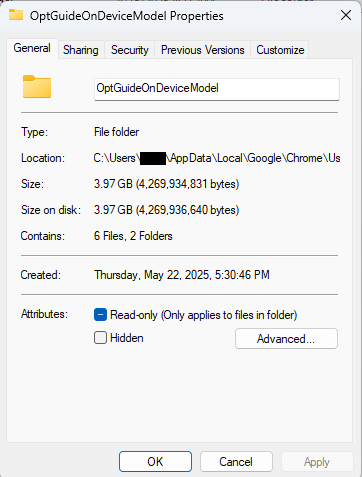
Properties of the folder
How to check on a Mac
Open Finder
In the menu bar at the top of the screen, click Go > Go to Folder
Paste:
~/Library/Application Support/Google/Chrome/
Look for a folder named:
OptGuideOnDeviceModel
Now, remember, this isn’t malware, and its presence doesn’t mean your computer is infected.
Turn off Chrome AI features
This part is relatively easy. You may find online instructions telling you to edit the Windows registry or use Chrome policies, but for most people the simplest and safest approach is to disable the features directly in Chrome.
We don’t recommend manually editing the registry unless you fully understand what you’re doing. Incorrect changes can cause system problems.
Instead, try this first:
Open Chrome
You can copy and paste this directly into Chrome’s address bar and press Enter:
chrome://settings/ai
On the page that opens, you can turn off features such as:
“Help me write”
AI summaries
On-device AI features
The exact options may vary depending on your Chrome version and region.
Then restart Chrome to make sure the changes take effect.
This may stop Chrome from downloading or using the AI model, although some users report the files can return after browser updates.
There is probably no need to delete the files unless you specifically need the storage space.
If chrome://settings/ai does not work, the feature may not yet be available in your region, you may be using a managed work or school account, or your version of Chrome may not support these settings yet.
Do you need to delete the OptGuideOnDeviceModel folder?
You can, but there is probably no need to.
If you disable Chrome’s AI features, the downloaded model should no longer be actively used for those features. Leaving the files in place may also prevent Chrome from downloading them again at a later point.
Browse like no one’s watching.
Malwarebytes Privacy VPN encrypts your connection and never logs what you do, so the next story you read doesn’t have to feel personal. Try it free →
Google Chrome has been quietly downloading a 4GB AI model onto users’ devices without asking first.
Security researcher Alexander Hanff, aka ThatPrivacyGuy, reports that Chrome has been silently installing Gemini Nano, Google’s on-device AI model, as a file called weights.bin stored in the OptGuideOnDeviceModel directory within users’ Chrome profiles. This 4GB download happens automatically when Chrome determines your device meets the hardware requirements. It does not ask for consent, and sends no notification—not even one of those annoying cookie banners you’ve learned to dismiss without reading.
The Gemini Nano model powers features like “Help me write” text composition assistance, on-device scam detection, and a Summarizer API that websites can call directly. These features are enabled by default in some recent Chrome versions. And here’s the kicker: if you discover the file and delete it, Chrome simply downloads it again.
Why this matters
Let’s start with the obvious problem: a 4GB download isn’t trivial for everyone. If you’re lucky enough to have unlimited fiber internet, you might not notice. But for users on metered connections, mobile hotspots, or in developing countries where data is expensive, Google just cost them real money without permission. For rural users or those with bandwidth caps, this kind of silent transfer can blow through monthly limits in minutes.
Hanff focuses on the environmental angle. He calculated that if this model were pushed to just 1 billion Chrome users (roughly 30% of Chrome’s user base), the distribution alone would consume 240 gigawatt-hours of energy and generate 60,000 tons of CO2 equivalent. That’s not including actually using the model, just the downloads.
But to us, the most troubling aspect is the broader pattern this represents. Just a few weeks ago, we reported another unsolicited AI invasion on our personal computers discovered by Hanff. He documented how Anthropic’s Claude Desktop app, which silently installed browser integration files across multiple Chromium browsers, including five browsers he didn’t even have installed. The integration would reinstall itself if removed, and it also happened without any meaningful user disclosure.
Hanff argues that both cases likely violate EU privacy law, specifically the ePrivacy Directive’s rules about storing data on user devices and the GDPR’s requirements around transparency and lawful processing. While these claims haven’t been tested in court, they highlight a fundamental tension: can companies just install whatever they want on your computer as long as they say it’s a feature of an app you installed?
Google might argue that having an AI on your device provides better privacy than cloud-based alternatives. Which is generally true, but it does not apply here, since Chrome’s most prominent AI feature—the “AI Mode” pill in the address bar—doesn’t even use the local model. According to Hanff’s analysis, it routes queries to Google’s cloud servers anyway.
All in all, users see a 4GB local AI model and reasonably assume their data stays private, when in reality, the most visible AI feature sends everything to Google’s servers.
Tech companies need to stop treating silent deployment as acceptable practice. We see no valid excuse for this. Your device is yours. The storage is yours. The bandwidth is yours. And the electricity bill is yours.
What happened to asking for permission? And when I remove it, I want it gone permanently—not automatic reinstallation.
When are the tech giants going to learn that we don’t want to be left discovering after the fact that our devices have become deployment targets for features we never asked for.
Update May 12, 2026 with do it yourself instructions
How to check if the AI model is on your computer (Windows)
Open File Explorer
At the top of the File Explorer window, click the address bar and paste:
%LOCALAPPDATA%\Google\Chrome\User Data
Press Enter
Look for a folder named:
OptGuideOnDeviceModel
If you see it, Chrome has likely downloaded the AI model
Properties of the folder
How to check on a Mac
Open Finder
In the menu bar at the top of the screen, click Go > Go to Folder
Paste:
~/Library/Application Support/Google/Chrome/
Look for a folder named:
OptGuideOnDeviceModel
Now, remember, this isn’t malware, and its presence doesn’t mean your computer is infected.
Turn off Chrome AI features
This part is relatively easy. You may find online instructions telling you to edit the Windows registry or use Chrome policies, but for most people the simplest and safest approach is to disable the features directly in Chrome.
We don’t recommend manually editing the registry unless you fully understand what you’re doing. Incorrect changes can cause system problems.
Instead, try this first:
Open Chrome
You can copy and paste this directly into Chrome’s address bar and press Enter:
chrome://settings/ai
On the page that opens, you can turn off features such as:
“Help me write”
AI summaries
On-device AI features
The exact options may vary depending on your Chrome version and region.
Then restart Chrome to make sure the changes take effect.
This may stop Chrome from downloading or using the AI model, although some users report the files can return after browser updates.
There is probably no need to delete the files unless you specifically need the storage space.
If chrome://settings/ai does not work, the feature may not yet be available in your region, you may be using a managed work or school account, or your version of Chrome may not support these settings yet.
Do you need to delete the OptGuideOnDeviceModel folder?
You can, but there is probably no need to.
If you disable Chrome’s AI features, the downloaded model should no longer be actively used for those features. Leaving the files in place may also prevent Chrome from downloading them again at a later point.
Browse like no one’s watching.
Malwarebytes Privacy VPN encrypts your connection and never logs what you do, so the next story you read doesn’t have to feel personal. Try it free →
Malicious actors have developed a new way to steal data stored by Chrome for Windows. Researchers discovered the technique while analyzing a fresh build of an infostealer known as VoidStealer. The new method allows the malware to bypass Chrome’s Application-Bound (App-Bound) Encryption (ABE), a mechanism intended to protect session cookies and other valuable information stored in the browser.
Google hoped this mechanism would secure the master key Chrome uses to encrypt all sensitive data. Unfortunately, this isn’t the first time malware authors have found a workaround for this defense — leaving secrets stored in Chrome vulnerable once again.
How App-Bound Encryption works in Chrome
Google introduced App-Bound Encryption in July 2024 with the release of Chrome version 127. The company’s announcement mentioned infostealers snatching cookies from Chrome users on Windows as the primary problem ABE was intended to solve. We’ve already covered in detail what these files are and the consequences of their theft, so we’ll only briefly recap the main facts here.
Cookies are small files that the browser saves to the user’s device at a website’s request to remember various site settings. Of particular value to attackers are session cookies, which are used for automatic authentication on websites. It’s thanks to these files that we don’t have to enter a username and password every time we revisit a site.
But this convenience carries a risk: stealing these files allows an attacker to use an already-authenticated session without entering a username or password. This allows them to impersonate the user, which can lead to account hijacking, theft of personal or financial data, and other adverse consequences.
Infostealer Trojans are particularly dangerous for Chrome users on Windows. This is because, on this OS, Chrome previously relied solely on the standard built-in Data Protection API (DPAPI). With this system encryption mechanism, applications don’t need to create and store encryption keys to protect data.
The limitation of DPAPI is that it doesn’t protect data from malware that’s already successfully compromised the system and is capable of executing code on behalf of the logged-in user. This is exactly what stealers exploit: since they typically run with the user’s privileges, they can simply request DPAPI to decrypt the browser’s protected data.
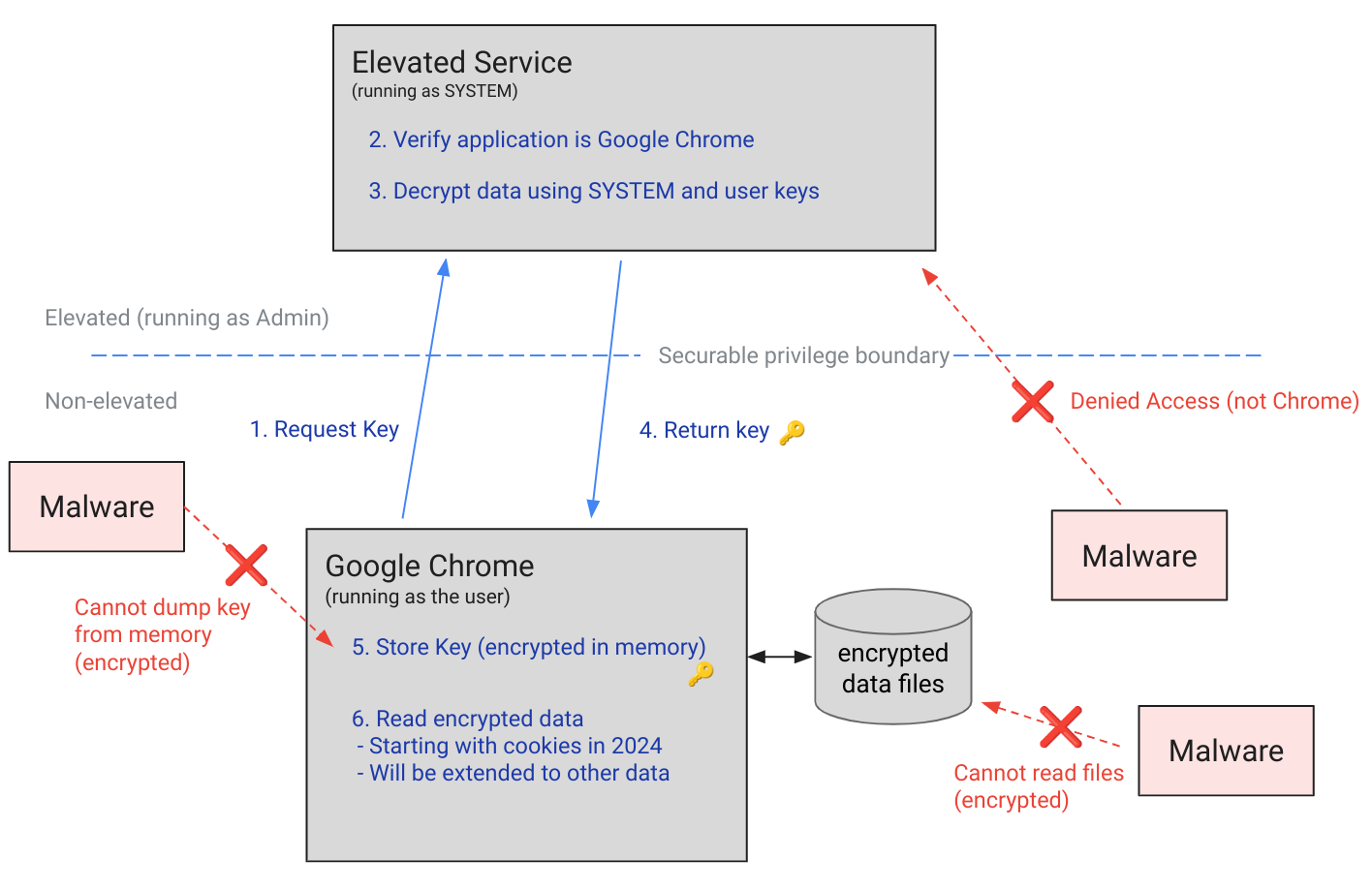
The ABE mechanism was designed to solve that specific problem. The core idea is right in the name: App-Bound Encryption means the encryption is tied to a specific application. To achieve this, a separate service running with system privileges is responsible for protecting the key used to encrypt Chrome’s data. It verifies which application is requesting access to the key, and denies the request if it doesn’t originate from Chrome.
Chrome’s App-Bound Encryption (ABE) was designed so that only Chrome itself could retrieve the master key needed to decrypt the browser’s stored data. Source
As a result, the architects of this feature assumed that to access ABE-protected browser data, an infostealer would either need to escalate its privileges to system-level, or inject malicious code directly into Chrome. In theory, this should have made attacking Chrome significantly harder and reduced the effectiveness of mass-market infostealers. As you might have guessed, things didn’t go quite that smoothly in practice.
Previous successful bypasses of Chrome’s ABE
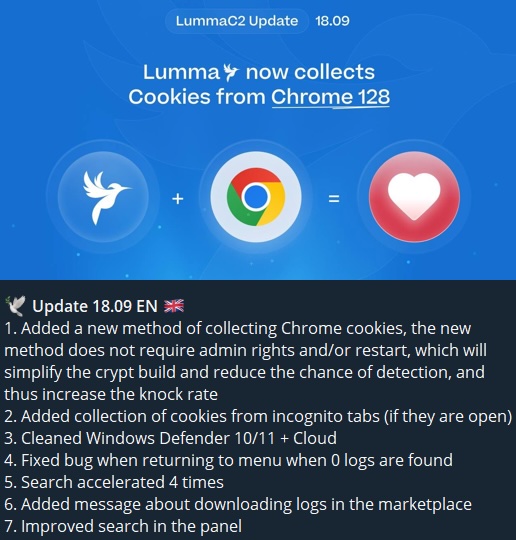
Just a couple of months after Google announced the implementation of App-Bound Encryption in Chrome, many infostealer developers claimed they’d already bypassed the protection. Among them were the creators of Meduza Stealer, Whitesnake, Lumma Stealer, and Lumar (also known as PovertyStealer).
Lumma stealer developers announce a bypass for Chrome’s App-Bound Encryption in a new version of the malware
Of course, you shouldn’t take malware developers at their word, but legitimate security researchers were able to confirm at least some of the claims. Bypasses for Google Chrome’s new data protection feature did become available almost immediately after its release.
A month later, in October 2024, tech enthusiast Alex Hagenah published a tool on GitHub called Chrome-App-Bound-Encryption-Decryption to bypass Google’s new security mechanism. Analysis of the tool’s code revealed that its author used roughly the same methods that attackers were already heavily exploiting.
What followed was a game of cat and mouse: security researchers and stealer developers came up with new tricks to circumvent App-Bound Encryption, while Google patched the newly discovered loopholes with varying degrees of success.
VoidStealer — a new data-nabbing menace
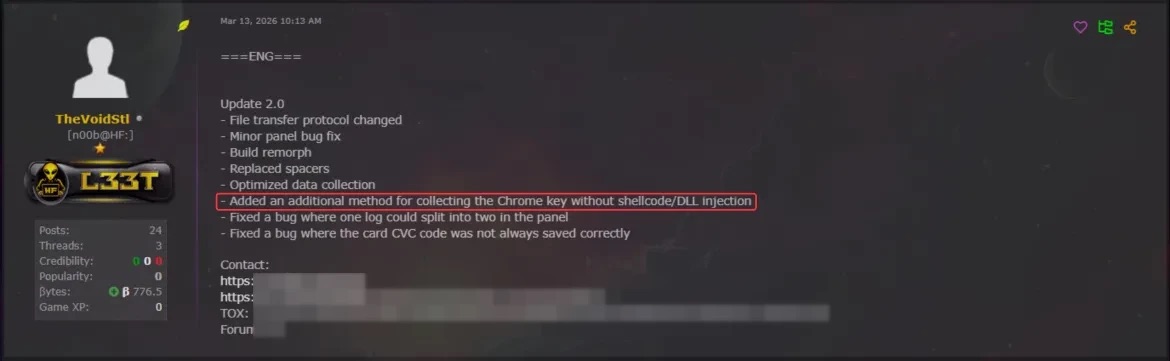
This brings us to recent events: in March 2026, news broke about a stealer named VoidStealer, which utilizes a brand-new and, by all accounts, highly effective method for bypassing ABE.
VoidStealer developers advertising a new method for bypassing ABE. Source
The malware authors developed an attack technique that targets the brief moment when the master key sits in the browser’s memory in plaintext. This occurs because, at a certain point, the browser inevitably has to decrypt its data to actually use it — for instance, to automatically sign in to a website with the relevant session cookie or to access saved credentials.
To exploit this window of opportunity, the malware attaches itself to the Chrome process as a debugger — a tool that allows one to control a program’s execution, pause it, and inspect its memory. In legitimate scenarios, these tools are used by developers to find and fix bugs, analyze application behavior, and test performance.
The malware identifies the specific section of code where data decryption takes place. It then sets a breakpoint at that location; when the program’s execution reaches that point, the browser effectively freezes. This is how the malware catches the exact moment the master key is sitting in RAM in plaintext; it then reads the key directly from memory.
It’s worth noting that everything mentioned above also applies to other Chromium-based browsers that use ABE, including Microsoft Edge, Brave, Opera, Vivaldi, and others.
How to avoid falling victim to infostealers
The scale of VoidStealer’s reach could be significant, as its developers operate under the malware-as-a-service (MaaS) model. This means they rent out the ready-made tool to other attackers, so they don’t need to develop custom malware from scratch.
This situation demonstrates that relying solely on built-in security mechanisms isn’t enough. Unfortunately, stealer developers are coming up with new workarounds faster than browser and operating system developers can roll out patches.
Here’s what users can do about it:
Avoid installing programs from suspicious sources. This will minimize the chances of malware infiltrating your system.
Learn how ClickFix attacks Lately, stealers have frequently been distributed using this specific malicious tactic.
Keep your OS and software updated on all devices. Timely updates help patch many of the vulnerabilities that malware exploits.
Install a robust security solution on all your devices. It’ll block suspicious activity in real time and alert you to potential threats.
As an added precaution, avoid storing passwords and bank card info in Google Chrome or your Notes app, as these are the first places any self-respecting stealer looks. Instead, use a secure password manager.
Stealers are hunting for your data, finding ways to infiltrate both computers and smartphones alike. To protect yourself from theft, check out our other related posts:
Banks, governments and tech providers urged to upgrade security because current systems will soon be obsolete
Banks, governments and technology providers need to be prepared for quantum computer hackers capable of breaking most existing encryption systems by 2029, Google has warned.
The tech company said in a blogpost that quantum computers would pose a “significant threat to current cryptographic standards” before the end of the decade and urged other companies to follow its lead.
To achieve their malign aims, Android malware developers have to address several challenges in a row: trick users to get inside their smartphones, dodge security software, talk victims into granting various system permissions, keep away from built-in battery optimizers that kill resource hogs, and, after all that, make sure their malware actually turns a profit. The creators of the BeatBanker — an Android‑based malware campaign recently discovered by our experts — have come up with something new for each one of these steps. The attack is (for now) aimed at Brazilian users, but the developers’ ambitions will almost certainly push them toward international expansion, so it’s worth staying on guard and studying the threat actor’s tricks. You can find a full technical analysis of the malware on Securelist.
How BeatBanker infiltrates a smartphone
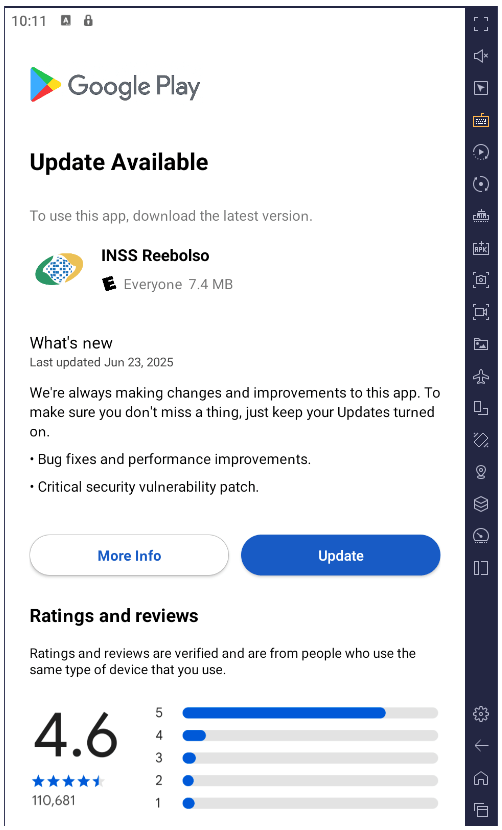
The malware is distributed through specially crafted phishing pages that mimic the Google Play Store. A page that’s easily mistaken for the official app marketplace invites users to download a seemingly useful app. In one campaign, the trojan disguised itself as the Brazilian government services app, INSS Reembolso; in another, it posed as the Starlink app.
The malicious site cupomgratisfood{.}shop does an excellent job imitating an app store. It’s just unclear why the fake INSS Reembolso appears all of three times. To be extra sure, perhaps?!
The installation takes place in several stages to avoid requesting too many permissions at once and to further lull the victim’s vigilance. After the first app is downloaded and launched, it displays an interface that also resembles Google Play and simulates an update for the decoy app — requesting the user’s permission to install apps, which doesn’t look out-of-the-ordinary in context. If you grant this permission, the malware downloads additional malicious modules to your smartphone.
After installation, the trojan simulates a decoy app update via Google Play by requesting permission to install applications while downloading additional malicious modules in the process
All components of the trojan are encrypted. Before decrypting and proceeding to the next stages of infection, it checks to ensure it’s on a real smartphone and in the target country. BeatBanker immediately terminates its own process if it finds any discrepancies or detects that it’s running in emulated or analysis environments. This complicates dynamic analysis of the malware. Incidentally, the fake update downloader injects modules directly into RAM to avoid creating files on the smartphone that would be visible to security software.
All these tricks are nothing new and frequently used in complex malware for desktop computers. However, for smartphones, such sophistication is still a rarity, and not every security tool will spot it. Users of Kaspersky products are protected from this threat.
Playing audio as a shield
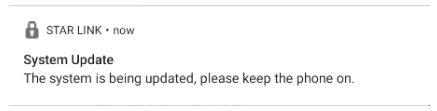
Once established on the smartphone, BeatBanker downloads a module for mining Monero cryptocurrency. The authors were very concerned that the smartphone’s aggressive battery optimization systems might shut down the miner, so they came up with a trick: playing an all-but-inaudible sound at all times. Power consumption control systems typically spare apps that are playing audio or video to avoid cutting off background music or podcast players. In this way, the malware can run continuously. Additionally, it displays a persistent notification in the status bar, asking the user to keep the phone on for a system update.
Example of a persistent system update notification from another malicious app masquerading as the Starlink app
Control via Google
To manage the trojan, the authors leverage Google’s legitimate Firebase Cloud Messaging (FCM) — a system for receiving notifications and sending data from a smartphone. This feature is available to all apps and it’s the most popular method for sending and receiving data. Thanks to FCM, attackers can monitor the device’s status and change its settings as needed.
Nothing bad happens for a while after the malware is installed: the attackers wait it out. Then they trigger the miner, but they’re careful to throttle it back if the phone overheats, the battery starts dipping, or the owner happens to be using the device. All of this is handled via FCM.
Theft and espionage
In addition to the crypto miner, BeatBanker installs extra modules to spy on the user and rob them at the right moment. The spyware module requests Accessibility Services permission, and if this is granted, begins monitoring everything that’s happening on the smartphone.
If the owner opens the Binance or Trust Wallet app to send USDT, the malware overlays a fake screen on top of the wallet interface, effectively swapping the recipient’s address for its own. All transfers go to the attackers.
The trojan features an advanced remote control system and is capable of executing many other commands:
Intercepting one-time codes from Google Authenticator
Recording audio from the microphone
Streaming the screen in real-time
Monitoring the clipboard and intercept keystrokes
Sending SMS messages
Simulating taps on specific areas of the screen and text input according to a script sent by the attacker, and much more
All of this makes it possible to rob the victim when they use any other banking or payment services — not just crypto payments.
Sometimes victims are infected with a different module for espionage and remote smartphone control — the BTMOB remote access trojan. Its malicious capabilities are even broader, including:
Automatic acquisition of certain permissions on Android 13–15
Continuous geolocation tracking
Access to the front and rear cameras
Obtaining PIN codes and passwords for screen unlocking
Capturing keyboard input
How to protect yourself from BeatBanker
Cybercriminals are constantly refining their attacks and coming up with new ways to profit from their victims. Despite this, you can protect yourself by following a few simple precautions:
Download apps from official sources only, such as Google Play or the app store preinstalled by the vendor. If you find an app while searching the internet, don’t open it via a link from your browser; instead, head to the Google Play app or another branded store on your smartphone to search for it there. While you’re at it, check the number of downloads, the app’s age, and look at the ratings and reviews. Avoid new apps, apps with low ratings, and those with a small number of downloads.
Check any permissions you grant. Don’t grant permissions if you’re not sure what they do or why that specific app requires them. Be extra careful with permissions like Install unknown apps, Accessibility, Superuser, and Display over other apps. We’ve written about these in detail in a separate article.
Equip your device with a comprehensive anti-malware solution. We, naturally, recommend Kaspersky for Android. Users of Kaspersky products are protected from BeatBanker — detected with the verdicts HEUR:Trojan-Dropper.AndroidOS.BeatBanker and HEUR:Trojan-Dropper.AndroidOS.Banker.*.
Threats to Android users have been going through the roof lately. Check out our other posts on the most relevant and widespread Android attacks and tips for keeping you and your loved ones safe:
If you don’t go searching for AI services, they’ll find you all the same. Every major tech company feels a moral obligation not just to develop an AI assistant, integrated chatbot, or autonomous agent, but to bake it into their existing mainstream products and forcibly activate it for tens of millions of users. Here are just a few examples from the last six months:
Google activated Gemini for all U.S. Chrome users, cranked its browser functionality to the max, aggressively expanded the reach of AI Overviews in search results, and baked a whole suite of AI features into its online services (Gmail, Google Docs, and others).
Apple integrated its own Apple Intelligence (conveniently sharing the AI acronym) into the latest OS versions across all device types and most of its native apps.
On the flip side, geeks have rushed to build their own “personal Jarvises” by renting VPS instances or hoarding Mac minis to run the OpenClaw AI agent. Unfortunately, OpenClaw’s security issues with default settings turned out to be so massive that it’s already been dubbed the biggest cybersecurity threat of 2026.
Beyond the sheer annoyance of having something shoved down your throat, this AI epidemic brings some very real practical risks and headaches. AI assistants hoover up every bit of data they can get their hands on, parsing the context of the websites you visit, analyzing your saved documents, reading through your chats, and so on. This gives AI companies an unprecedentedly intimate look into every user’s life.
A leak of this data during a cyberattack — whether from the AI provider’s servers or from the cache on your own machine — could be catastrophic. These assistants can see and cache everything you can, including data usually tucked behind multiple layers of security: banking info, medical diagnoses, private messages, and other sensitive intel. We took a deep dive into how this plays out when we broke down the issues with the AI-powered Copilot+ Recall system, which Microsoft also planned to force-feed to everyone. On top of that, AI can be a total resource hog, eating up RAM, GPU cycles, and storage, which often leads to a noticeable hit to system performance.
For those who want to sit out the AI storm and avoid these half-baked, rushed-to-market neural network assistants, we’ve put together a quick guide on how to kill the AI in popular apps and services.
How to disable AI in Google Docs, Gmail, and Google Workspace
Google’s AI assistant features in Mail and Docs are lumped together under the umbrella of “smart features”. In addition to the large language model, this includes various minor conveniences, like automatically adding meetings to your calendar when you receive an invite in Gmail. Unfortunately, it’s an all-or-nothing deal: you have to disable all of the “smart features” to get rid of the AI.
To do this, open Gmail, click the Settings (gear) icon, and then select See all settings. On the General tab, scroll down to Google Workspace smart features. Click Manage Workspace smart feature settings and toggle off two options: Smart features in Google Workspace and Smart features in other Google products. We also recommend unchecking the box next to Turn on smart features in Gmail, Chat, and Meet on the same general settings tab. You’ll need to restart your Google apps afterward (which usually happens automatically).
How to disable AI Overviews in Google Search
You can kill off AI Overviews in search results on both desktops and smartphones (including iPhones), and the fix is the same across the board. The simplest way to bypass the AI overview on a case-by-case basis is to append -ai to your search query — for example, how to make pizza -ai. Unfortunately, this method occasionally glitches, causing Google to abruptly claim it found absolutely nothing for your request.
If that happens, you can achieve the same result by switching the search results page to Web mode. To do this, select the Web filter immediately below the search bar — you’ll often find it tucked away under the More button.
A more radical solution is to jump ship to a different search engine entirely. For instance, DuckDuckGo not only tracks users less and shows little ads, but it also offers a dedicated AI-free search — just bookmark the search page at noai.duckduckgo.com.
How to disable AI features in Chrome
Chrome currently has two types of AI features baked in. The first communicates with Google’s servers and handles things like the smart assistant, an autonomous browsing AI agent, and smart search. The second handles locally more utility-based tasks, such as identifying phishing pages or grouping browser tabs. The first group of settings is labeled AI mode, while the second contains the term Gemini Nano.
To disable them, type chrome://flags into the address bar and hit Enter. You’ll see a list of system flags and a search bar; type “AI” into that search bar. This will filter the massive list down to about a dozen AI features (and a few other settings where those letters just happen to appear in a longer word). The second search term you’ll need in this window is “Gemini“.
After reviewing the options, you can disable the unwanted AI features — or just turn them all off — but the bare minimum should include:
AI Mode Omnibox entrypoint
AI Entrypoint Disabled on User Input
Omnibox Allow AI Mode Matches
Prompt API for Gemini Nano
Prompt API for Gemini Nano with Multimodal Input
Set all of these to Disabled.
How to disable AI features in Firefox
While Firefox doesn’t have its own built-in chatbots and hasn’t (yet) tried to force upon users agent-based features, the browser does come equipped with smart-tab grouping, a sidebar for chatbots, and a few other perks. Generally, AI in Firefox is much less “in your face” than in Chrome or Edge. But if you still want to pull the plug, you’ve two ways to do it.
The first method is available in recent Firefox releases — starting with version 148, a dedicated AI Controls section appeared in the browser settings, though the controls are currently a bit sparse. You can use a single toggle to completely Block AI enhancements, shutting down AI features entirely. You can also specify whether you want to use On-device AI by downloading small local models (currently just for translations) and configure AI chatbot providers in sidebar, choosing between Anthropic Claude, ChatGPT, Copilot, Google Gemini, and Le Chat Mistral.
The second path — for older versions of Firefox — requires a trip into the hidden system settings. Type about:config into the address bar, hit Enter, and click the button to confirm that you accept the risk of poking around under the hood.
A massive list of settings will appear along with a search bar. Type “ML” to filter for settings related to machine learning.
To disable AI in Firefox, toggle the browser.ml.enabled setting to false. This should disable all AI features across the board, but community forums suggest this isn’t always enough to do the trick. For a scorched-earth approach, set the following parameters to false (or selectively keep only what you need):
ml.chat.enabled
ml.linkPreview.enabled
ml.pageAssist.enabled
ml.smartAssist.enabled
ml.enabled
ai.control.translations
tabs.groups.smart.enabled
urlbar.quicksuggest.mlEnabled
This will kill off chatbot integrations, AI-generated link descriptions, assistants and extensions, local translation of websites, tab grouping, and other AI-driven features.
How to disable AI features in Microsoft apps
Microsoft has managed to bake AI into almost every single one of its products, and turning it off is often no easy task — especially since the AI sometimes has a habit of resurrecting itself without your involvement.
How to disable AI features in Edge
Microsoft’s browser is packed with AI features, ranging from Copilot to automated search. To shut them down, follow the same logic as with Chrome: type edge://flags into the Edge address bar, hit Enter, then type “AI” or “Copilot” into the search box. From there, you can toggle off the unwanted AI features, such as:
Enable Compose (AI-writing) on the web
Edge Copilot Mode
Edge History AI
Another way to ditch Copilot is to enter edge://settings/appearance/copilotAndSidebar into the address bar. Here, you can customize the look of the Copilot sidebar and tweak personalization options for results and notifications. Don’t forget to peek into the Copilot section under App-specific settings — you’ll find some additional controls tucked away there.
How to disable Microsoft Copilot
Microsoft Copilot comes in two flavors: as a component of Windows (Microsoft Copilot), and as part of the Office suite (Microsoft 365 Copilot). Their functions are similar, but you’ll have to disable one or both depending on exactly what the Redmond engineers decided to shove onto your machine.
The simplest thing you can do is just uninstall the app entirely. Right-click the Copilot entry in the Start menu and select Uninstall. If that option isn’t there, head over to your installed apps list (Start → Settings → Apps) and uninstall Copilot from there.
In certain builds of Windows 11, Copilot is baked directly into the OS, so a simple uninstall might not work. In that case, you can toggle it off via the settings: Start → Settings → Personalization → Taskbar→ turn off Copilot.
If you ever have a change of heart, you can always reinstall Copilot from the Microsoft Store.
It’s worth noting that many users have complained about Copilot automatically reinstalling itself, so you might want to do a weekly check for a couple of months to make sure it hasn’t staged a comeback. For those who are comfortable tinkering with the System Registry (and understand the consequences), you can follow this detailed guide to prevent Copilot’s silent resurrection by disabling the SilentInstalledAppsEnabled flag and adding/enabling the TurnOffWindowsCopilot parameter.
How to disable Microsoft Recall
The Microsoft Recall feature, first introduced in 2024, works by constantly taking screenshots of your computer screen and having a neural network analyze them. All that extracted information is dumped into a database, which you can then search using an AI assistant. We’ve previously written in detail about the massive security risks Microsoft Recall poses.
Under pressure from cybersecurity experts, Microsoft was forced to push the launch of this feature from 2024 to 2025, significantly beefing up the protection of the stored data. However, the core of Recall remains the same: your computer still remembers your every move by constantly snapping screenshots and OCR-ing the content. And while the feature is no longer enabled by default, it’s absolutely worth checking to make sure it hasn’t been activated on your machine.
To check, head to the settings: Start → Settings → Privacy & Security →Recall & snapshots. Ensure the Save snapshots toggle is turned off, and click Delete snapshots to wipe any previously collected data, just in case.
How to disable AI in Notepad and Windows context actions
AI has seeped into every corner of Windows, even into File Explorer and Notepad. You might even trigger AI features just by accidentally highlighting text in an app — a feature Microsoft calls “AI Actions”. To shut this down, head to Start → Settings → Privacy & Security → Click to Do.
Notepad has received its own special Copilot treatment, so you’ll need to disable AI there separately. Open the Notepad settings, find the AI features section, and toggle Copilot off.
Finally, Microsoft has even managed to bake Copilot into Paint. Unfortunately, as of right now, there is no official way to disable the AI features within the Paint app itself.
How to disable AI in WhatsApp
In several regions, WhatsApp users have started seeing typical AI additions like suggested replies, AI message summaries, and a brand-new Chat with Meta AI button. While Meta claims the first two features process data locally on your device and don’t ship your chats off to their servers, verifying that is no small feat. Luckily, turning them off is straightforward.
To disable Suggested Replies, go to Settings → Chats → Suggestions & smart replies and toggle off Suggested replies. You can also kill off AI Sticker suggestions in that same menu. As for the AI message summaries, those are managed in a different location: Settings → Notifications → AI message summaries.
How to disable AI on Android
Given the sheer variety of manufacturers and Android flavors, there’s no one-size-fits-all instruction manual for every single phone. Today, we’ll focus on killing off Google’s AI services — but if you’re using a device from Samsung, Xiaomi, or others, don’t forget to check your specific manufacturer’s AI settings. Just a heads-up: fully scrubbing every trace of AI might be a tall order — if it’s even possible at all.
In Google Messages, the AI features are tucked away in the settings: tap your account picture, select Messages settings, then Gemini in Messages, and toggle the assistant off.
Broadly speaking, the Gemini chatbot is a standalone app that you can uninstall by heading to your phone’s settings and selecting Apps. However, given Google’s master plan to replace the long-standing Google Assistant with Gemini, uninstalling it might become difficult — or even impossible — down the road.
If you can’t completely uninstall Gemini, head into the app to kill its features manually. Tap your profile icon, select Gemini Apps activity, and then choose Turn off or Turn off and delete activity. Next, tap the profile icon again and go to the Connected Apps setting (it may be hiding under the Personal Intelligence setting). From here, you should disable all the apps where you don’t want Gemini poking its nose in.
Apple’s platform-level AI features, collectively known as Apple Intelligence, are refreshingly straightforward to disable. In your settings — on desktops, smartphones, and tablets alike — simply look for the section labeled Apple Intelligence & Siri. By the way, depending on your region and the language you’ve selected for your OS and Siri, Apple Intelligence might not even be available to you yet.
Other posts to help you tune the AI tools on your devices:
Attackers are abusing normal OAuth error redirects to send users from a legitimate Microsoft or Google login URL to phishing or malware pages, without ever completing a successful sign‑in or stealing tokens from the OAuth flow itself.
That calls for a bit more explanation.
OAuth (Open Authorization) is an open-standard protocol for delegated authorization. It allows users to grant websites or applications access to their data on another service (for example, Google or Facebook) without sharing their password.
OAuth redirection is the process where an authorization server sends a user’s browser back to an application (client) with an authorization code or token after user authentication.
Researchers found that phishers use silent OAuth authentication flows and intentionally invalid scopes to redirect victims to attacker-controlled infrastructure without stealing tokens.
So, what does this attack look like from a target’s perspective?
From the user’s perspective, the attack chain looks roughly like this:
The email
An email arrives with a plausible business lure. For example, you receive an email about something routine but urgent: document sharing or review, a Social Security or financial notice, an HR or employee report, a Teams meeting invite, or a password reset.
The email body contains a link such as “View document” or “Review report,” or a PDF attachment that includes a link instead.
The link
You click the link after seeing that it appears to be a normal Microsoft or Google login. The visible URL (what you see when you hover over it) looks convincing, starting with a trusted domain like https://login.microsoftonline.com/ or https://accounts.google.com/.
There is no obvious sign that the parameters (prompt=none, odd or empty scope, encoded state) are abnormal.
Silent OAuth
The crafted URL attempts a silent OAuth authorization (prompt=none) and uses parameters that are guaranteed to fail (for example, an invalid or missing scope).
The identity provider evaluates your session and conditional access, determines the request cannot succeed silently, and returns an OAuth error, such as interaction_required, access_denied, or consent_required.
The redirect
By design, the OAuth server then redirects your browser, including the error parameters and state, to the app’s registered redirect URI, which in these cases is the attacker’s domain.
To the user, this is just a quick flash of a Microsoft or Google URL followed by another page. It’s unlikely anyone would notice the errors in the query string.
Landing page
The target gets redirected to a page that looks like a legitimate login or business site. This could very well be a clone of a trusted brand’s site.
From here, there are two possible malicious scenarios:
Phishing / Attacker in the Middle (AitM) variant
A normal login page or a verification prompt, sometimes with CAPTCHAs or interstitials to look more trustworthy and bypass some controls.
The email address may already be filled in because the attackers passed it through the state parameter.
When the user enters credentials and multi-factor authentication (MFA), the attacker‑in‑the‑middle toolkit intercepts them, including session cookies, while passing them along so the experience feels legitimate.
Malware delivery variant
Immediately (or after a brief intermediate page), the browser hits a download path and automatically downloads a file.
The context of the page matches the lure (“Download the secure document,” “Meeting resources,” and so on), making it seem reasonable to open the file.
The target might notice the initial file open or some system slowdown, but otherwise the compromise is practically invisible.
Potential impact
By harvesting credentials or planting a backdoor, the attacker now has a foothold on the system. From there, they may carry out hands-on-keyboard activity, move laterally, steal data, or stage ransomware, depending on their goals.
The harvested credentials and tokens can be used to access email, cloud apps, or other resources without the need to keep malware on the device.
How to stay safe
Since the attacker does not need your token from this flow (only the redirect into their own infrastructure), the OAuth request itself may look less suspicious. Be vigilant and follow our advice:
If you rely on hovering over links, be extra cautious when you see very long URLs with oauth2, authorize, and lots of encoded text, especially if they come from outside your organization.
Even if the start of the URL looks legitimate, verify with a trusted sender before clicking the link.
If something urgent arrives by email and immediately forces you through a strange login or starts a download you did not expect, assume it is malicious until proven otherwise.
If you are redirected somewhere unfamiliar, stop and close the tab.
Be very wary of files that download immediately after clicking a link in an email, especially from /download/ paths.
If a site says you must “run” or “enable” something to view a secure document, close it and double-check which site you’re currently on. It might be up to something.
Keep your OS, browser, and your favorite security tools up to date. They can block many known phishing kits and malware downloads automatically.
Pro tip: use Malwarebytes Scam Guard to help you determine whether the email you received is a scam or not.
We don’t just report on scams—we help detect them
Cybersecurity risks should never spread beyond a headline. If something looks dodgy to you, check if it’s a scam using Malwarebytes Scam Guard. Submit a screenshot, paste suspicious content, or share a link, text or phone number, and we’ll tell you if it’s a scam or legit. Available with Malwarebytes Premium Security for all your devices, and in the Malwarebytes app for iOS and Android.
Attackers are abusing normal OAuth error redirects to send users from a legitimate Microsoft or Google login URL to phishing or malware pages, without ever completing a successful sign‑in or stealing tokens from the OAuth flow itself.
That calls for a bit more explanation.
OAuth (Open Authorization) is an open-standard protocol for delegated authorization. It allows users to grant websites or applications access to their data on another service (for example, Google or Facebook) without sharing their password.
OAuth redirection is the process where an authorization server sends a user’s browser back to an application (client) with an authorization code or token after user authentication.
Researchers found that phishers use silent OAuth authentication flows and intentionally invalid scopes to redirect victims to attacker-controlled infrastructure without stealing tokens.
So, what does this attack look like from a target’s perspective?
From the user’s perspective, the attack chain looks roughly like this:
The email
An email arrives with a plausible business lure. For example, you receive an email about something routine but urgent: document sharing or review, a Social Security or financial notice, an HR or employee report, a Teams meeting invite, or a password reset.
The email body contains a link such as “View document” or “Review report,” or a PDF attachment that includes a link instead.
The link
You click the link after seeing that it appears to be a normal Microsoft or Google login. The visible URL (what you see when you hover over it) looks convincing, starting with a trusted domain like https://login.microsoftonline.com/ or https://accounts.google.com/.
There is no obvious sign that the parameters (prompt=none, odd or empty scope, encoded state) are abnormal.
Silent OAuth
The crafted URL attempts a silent OAuth authorization (prompt=none) and uses parameters that are guaranteed to fail (for example, an invalid or missing scope).
The identity provider evaluates your session and conditional access, determines the request cannot succeed silently, and returns an OAuth error, such as interaction_required, access_denied, or consent_required.
The redirect
By design, the OAuth server then redirects your browser, including the error parameters and state, to the app’s registered redirect URI, which in these cases is the attacker’s domain.
To the user, this is just a quick flash of a Microsoft or Google URL followed by another page. It’s unlikely anyone would notice the errors in the query string.
Landing page
The target gets redirected to a page that looks like a legitimate login or business site. This could very well be a clone of a trusted brand’s site.
From here, there are two possible malicious scenarios:
Phishing / Attacker in the Middle (AitM) variant
A normal login page or a verification prompt, sometimes with CAPTCHAs or interstitials to look more trustworthy and bypass some controls.
The email address may already be filled in because the attackers passed it through the state parameter.
When the user enters credentials and multi-factor authentication (MFA), the attacker‑in‑the‑middle toolkit intercepts them, including session cookies, while passing them along so the experience feels legitimate.
Malware delivery variant
Immediately (or after a brief intermediate page), the browser hits a download path and automatically downloads a file.
The context of the page matches the lure (“Download the secure document,” “Meeting resources,” and so on), making it seem reasonable to open the file.
The target might notice the initial file open or some system slowdown, but otherwise the compromise is practically invisible.
Potential impact
By harvesting credentials or planting a backdoor, the attacker now has a foothold on the system. From there, they may carry out hands-on-keyboard activity, move laterally, steal data, or stage ransomware, depending on their goals.
The harvested credentials and tokens can be used to access email, cloud apps, or other resources without the need to keep malware on the device.
How to stay safe
Since the attacker does not need your token from this flow (only the redirect into their own infrastructure), the OAuth request itself may look less suspicious. Be vigilant and follow our advice:
If you rely on hovering over links, be extra cautious when you see very long URLs with oauth2, authorize, and lots of encoded text, especially if they come from outside your organization.
Even if the start of the URL looks legitimate, verify with a trusted sender before clicking the link.
If something urgent arrives by email and immediately forces you through a strange login or starts a download you did not expect, assume it is malicious until proven otherwise.
If you are redirected somewhere unfamiliar, stop and close the tab.
Be very wary of files that download immediately after clicking a link in an email, especially from /download/ paths.
If a site says you must “run” or “enable” something to view a secure document, close it and double-check which site you’re currently on. It might be up to something.
Keep your OS, browser, and your favorite security tools up to date. They can block many known phishing kits and malware downloads automatically.
Pro tip: use Malwarebytes Scam Guard to help you determine whether the email you received is a scam or not.
We don’t just report on scams—we help detect them
Cybersecurity risks should never spread beyond a headline. If something looks dodgy to you, check if it’s a scam using Malwarebytes Scam Guard. Submit a screenshot, paste suspicious content, or share a link, text or phone number, and we’ll tell you if it’s a scam or legit. Available with Malwarebytes Premium Security for all your devices, and in the Malwarebytes app for iOS and Android.
Cybercriminelen gebruiken momenteel een nare en doordachte truc om wachtwoorden en privégegevens te stelen. Ze doen zich voor als een officiële beveiligingscontrole van Google, maar in werkelijkheid installeren ze kwaadaardige software in je browser.

 Login
Login