Picture your computer keeping a diary — the kind kids used to keep logging their daily activities, or the kind travelers, merchants, and nobles kept centuries before that. Here’s what it might look like.
Thursday, September 10.
8:00 AM. User read the news on cnn.com and bbc.co.uk (Safari).
8:10 AM. User replied to John Kaufman’s email about delivery dates, then sent the same question to the logistics team (Gmail).
8:20 AM. User checked his to-do list, reviewed recent updates, and planned out the day’s priorities (Todo).
We’re not exaggerating. This is exactly what your Mac’s new diary looks like. It’s a set of text files that any app on your computer can read — as can anyone sitting at the keyboard. The feature responsible is called Computer History, and it was released by OpenAI in mid-August. At the moment, it only works in the ChatGPT app for Mac, requires a Pro subscription or higher, and is disabled by default. According to its developers, the idea behind History is to let the AI assistant quickly get up to speed on your work context, so it can answer even vague requests, like “send a reminder to whoever I was emailing about last week’s deliveries”. Of course, that convenience comes at a price, ranging from your data being processed on OpenAI’s servers, to the risk of it leaking off your Mac — whether to a nosy family member or straight into the hands of cybercriminals.
How ChatGPT Computer History works
If this sounds a lot like Microsoft’s similar Recall feature, or Chronicle, which OpenAI itself announced earlier, that’s no coincidence. Both were built with the same goal in mind, just using different methods. Having watched Recall turn into the PR disaster it was, the team behind Computer History decided against constantly taking and analyzing screenshots. Instead, ChatGPT relies on macOS’s Accessibility features to read the text on your screen and track your actions: mouse clicks, text typed into fields, switching between apps, and the like. All of this gets stored as a stream of raw activity data inside the ChatGPT container (app group), which only the ChatGPT app itself, or other apps you’ve specifically given permission, can access. In tests run by digital forensics researchers, just two hours of normal computer use generated around 3500 of these logged events.
That raw data remains on your computer for up to 48 hours. During this time, the ChatGPT app periodically runs hidden chat sessions behind the scenes, where it asks the AI to summarize related events into a single recap. Essentially diary entries, these summaries get saved as plain text files in a folder that any app on your Mac can open: ~/.codex/memories/extensions/skysight/.
When you chat with the assistant, or when certain automated features kick in, these notes can be pulled into the conversation for more context-aware responses. OpenAI is especially keen on pointing out that the assistant can spot patterns in your workflows and offer to automate them, creating what it calls “skills” that replicate your actions for you.
Once a summary is ready, the raw activity data behind it is deleted. OpenAI says it won’t keep those hidden background chats or use them to train its AI, except where required by law. The diary-style summaries that get pulled into your conversations, though, are stored on OpenAI’s servers under the exact same rules as your regular chats and the assistant’s memory, so your preexisting privacy settings will apply to them too.
What Computer History can see, and what you can turn off
Since the whole feature runs on accessibility tools, ChatGPT only picks up what your operating system is already willing to share with those tools. That includes window titles, blocks of text, image captions in your browser, text you’re typing into a field as you type it, and the names of interface elements you click on. Watching a video? The AI can’t see the video itself, but it can read the window title, the site name, and the video description. Browsing photos? It sees file and folder names, not the actual images. Audio is never recorded or saved in any situation. All that gets logged from a video call is the meeting window title, unless the call itself has live captions turned on. Password fields that are masked (shown as dots) aren’t read at all and, according to OpenAI, private browsing windows are never scanned.
One thing that sets this apart from Microsoft Recall is the clearly spelled out step-by-step procedure the user needs to go through to turn it on. Computer History never activates itself. You have to navigate to the settings menu, then Integrations → Computer History and turn it on manually after reading through the warnings and explanations. You’ll also need access to the agent’s memory enabled for the feature to work. From there, you choose which apps and websites you want it to track, and confirm a series of macOS permission prompts.
For companies using a business subscription, this requires approval at two levels: an administrator first has to enable Computer History for the whole organization, and then each employee has to turn it on individually.
At any point, you can go to Computer History → Permissions and either list specific apps and sites to exclude from tracking, or, conversely, set ChatGPT to only watch a limited list you choose (Include only these apps, Include only these websites).
To see what your own computer’s diary looks like, check Computer History → History. From there, you can delete individual entries or disable the tracking of specific apps directly from the list.
The risks of using ChatGPT Computer History
We covered the risks of centralized storage of someone’s entire activity in our earlier piece on Microsoft Recall, and most of what we said there applies to ChatGPT Computer History.
You might assume your chats and emails are private, protected by passwords and encryption. But a copy of the most important parts of those conversations is sitting in plain text files that anyone with access to your computer, and plenty of other apps, can open.
The people you’re messaging have no idea this extra copy exists. If they’ve turned on, say, a self-destructing chat feature, but the messaging app’s window itself isn’t marked as private, that precaution does nothing to protect them.
Even if you trust OpenAI completely and take its privacy promises at face value, your data can still be stolen directly off your computer by an infostealer. Mac-targeting infostealers have exploded over the past two years, so this isn’t a hypothetical risk. And the people who write this type of malware move fast, quickly updating it to grab whatever new type of data looks promising. OpenAI’s files are a boon for them: everything you’ve done, already summarized by AI into something easy to read. While there are no passwords or credit card numbers in there, the available details are likely enough to craft a convincing targeted urgent email from the boss.
And if a nosy coworker or family member gets their hands on your computer, reading through the diary of your work and life would take them all of five minutes.
Computer History: turn it off, or just configure it?
We’d recommend limiting or fully disabling Computer History if your work involves sensitive information. This especially applies to doctors, lawyers, and anyone else bound by professional confidentiality, or handling personal or medical data. The same goes for anyone living with an overly controlling family member, or working in an office with nosy coworkers.
If none of that applies to you and you’d like to try out how useful the AI’s search and auto-generated skills actually are, here’s how to set things up safely.
Lock down your Mac’s login. Turn off auto-login, and set your Mac to require a password immediately after the screensaver kicks in or it wakes from sleep. Use a strong password along with Touch ID, and make sure FileVault disk encryption is turned on.
Set up your exclusions. Manually add every messaging app you use for private conversations, along with any finance apps or sites, and anywhere else you keep sensitive information, to Computer History’s exclusion list.
Check in regularly. At least a couple of times a week, visit Computer History settings to see which apps and sites it’s been tracking. This helps you catch and remove any sources of private information you forgot to exclude earlier.
No matter how you configure Computer History, the two most common ways your data could end up in the wrong hands — on any Mac — are a macOS infostealer snatching it directly from your computer, and typing your information into a fake website. To guard against both, make sure you’re running full-featured security software on your Mac, such as Kaspersky Premium for macOS.
AI can create privacy risks you might never think to look for. You can read about more of them in our other posts:
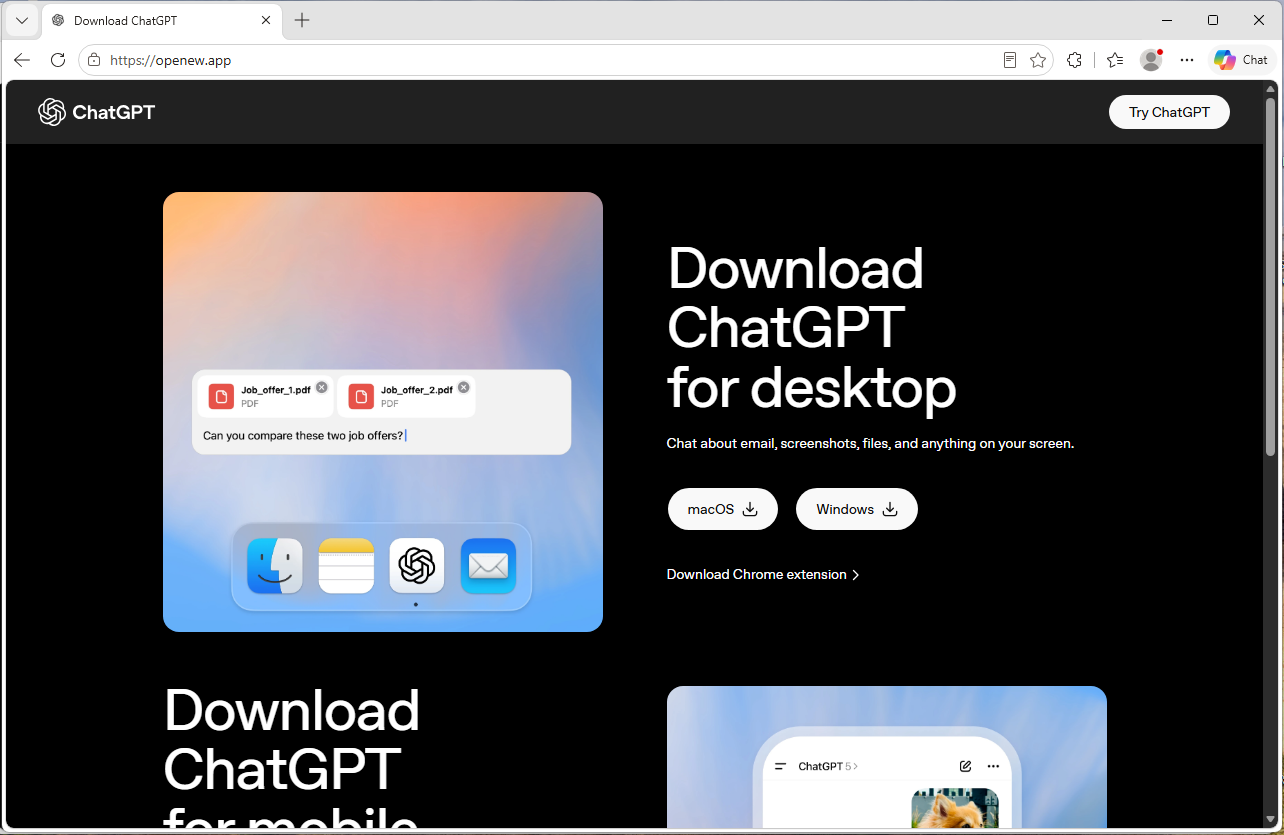
A convincing fake website is impersonating OpenAI’s ChatGPT download page and infecting visitors with malware designed to steal passwords, browser data, cryptocurrency wallets, and other sensitive information.
The site, openew[.]app, closely mimics OpenAI’s real ChatGPT download experience and offers what appear to be official desktop apps for both Windows and macOS. Instead, Windows users receive a credential-stealing malware loader, while Mac users get Odyssey Stealer, a fork of Atomic Stealer (AMOS), a well-known macOS malware family associated with cryptocurrency theft.
The dual-platform setup is what makes the operation notable. Clicking the Windows download delivers a fake installer that opens a back channel to an attacker-controlled server. Clicking the macOS button delivers malware that steals browser passwords, cookies, Telegram sessions, cryptocurrency wallets, and other sensitive files. It also attempts to replace legitimate Ledger and Trezor wallet apps with trojanized versions.
If you only download ChatGPT from OpenAI’s official download page or the Microsoft Store, you were not the target here. But if you searched for “ChatGPT download” and clicked an ad or unfamiliar result, you may have given attackers access to your online accounts, browser sessions, saved passwords, and potentially your cryptocurrency holdings.
Malwarebytes protects users from this malware.
Technical analysis
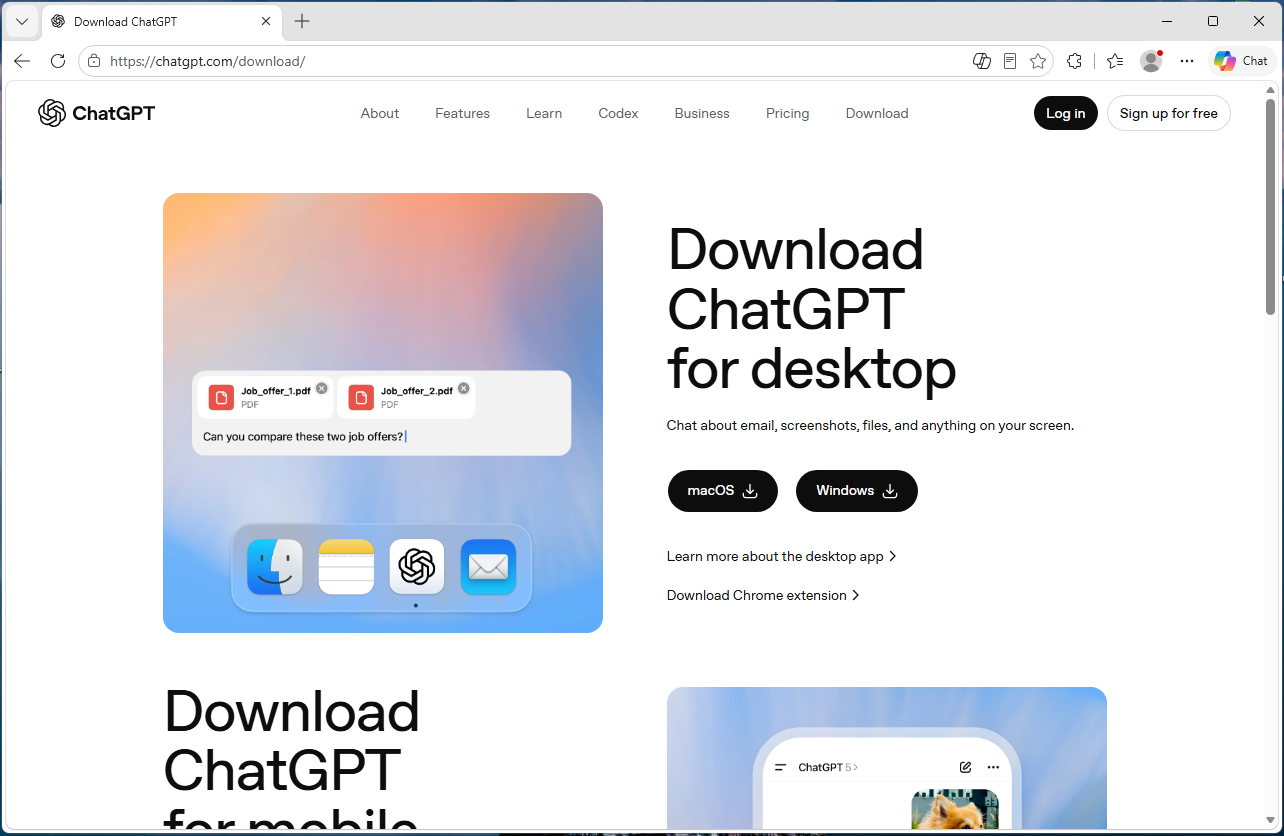
The domain, openew[.]app, closely resembles OpenAI’s real ChatGPT download experience. It uses a dark theme, OpenAI-style branding, familiar marketing copy, and prominent download buttons for macOS and Windows.
The .app top-level domain is operated by Google and requires HTTPS connections, meaning browsers display the familiar padlock icon without obvious certificate warnings.
The most important detail is the dual-platform setup. Real software vendors provide separate installers for Windows and macOS, and this fake site does exactly the same thing.
Clicking the Windows button delivers Chat_GPT.exe, while clicking the macOS button downloads a disk image containing ChatGpt.dmg.
The Windows malware
Chat_GPT.exe is built almost entirely from off-the-shelf parts. The installer uses Inno Setup, a free open-source toolkit used by thousands of legitimate Windows products. Inside is an Electron application skeleton—the same Chromium-based framework used by apps like Slack and Discord—bundled with standard support libraries publicly available from the Electron project.
When the victim runs the installer, it creates files under %APPDATA%\LeronApplication, launches EApp.exe, and spawns PowerShell with the flags -ExecutionPolicy Unrestricted -Command -. The trailing dash tells PowerShell to read commands from standard input, meaning the malicious instructions never touch the disk where scanners might detect them. Behavioral telemetry recorded HTTP traffic to 188.137.246.189 using a /laravel.php?api=api&hash=...&message=... endpoint, alongside injection-like activity and service/autorun persistence signals. Nine of 69 antivirus engines flagged the file as malicious at the time of analysis. The persistence evidence is better read as behavioral tradecraft than proof of a durable install, but the overall pattern is familiar commodity stealer/dropper territory: cheap, modular, and effective rather than technically novel.
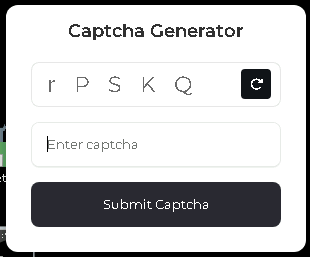
CAPTCHA displayed after the fake app launches, used to confirm that a real user is running it.
The macOS malware: Odyssey Stealer (an AMOS fork)
The macOS payload sits at the premium end of the commodity-malware market. It’s Odyssey, which is a fork of the renowned AMOS, a malware-as-a-service platform documented since 2023.
The identification is fairly clear-cut. The sandboxed sample matches documented Odyssey behavior patterns, which are inherited from its AMOS lineage: a long AppleScript chain passed to the macOS scripting engine, a silent password validation attempt using macOS directory-service commands, and, if that silent check fails, a fake macOS-style prompt reading “Please enter device password to continue,” complete with the familiar lock icon. Whatever the user types is validated against the same command. If it matches, the malware captures the user’s login password in cleartext.
From there, it follows a familiar Odyssey/AMOS-fork playbook. It copies the macOS keychain, harvests cookies and saved logins from 12 Chromium-based browsers plus Firefox and Waterfox, and extracts Telegram session data. It also scans 16 cryptocurrency wallet directories, including Ledger Live, Trezor Suite, Exodus, Electrum, and Sparrow. Finally, it searches Desktop and Documents folders for files with extensions like .wallet,.seed, .key, and .kdbx. The collected data is compressed into a temporary archive and sent to a hardcoded server.
The wallet replacement feature is especially dangerous
There’s one more part of the macOS payload, and it’s likely the feature that justifies the price tag. After the initial data theft, the script downloads trojanized versions of Ledger Live, Ledger Wallet, and Trezor Suite from a second server. It then attempts to delete the legitimate wallet apps and replace them with the attacker’s versions.
If the user’s password was captured earlier in the attack chain, the script uses sudo to force the replacement. If not, it falls back to a standard rm -rf deletion attempt, which can still succeed if the apps are installed in a user-writable location. Either way, the next time the victim opens what appears to be their wallet software, they may actually be launching the attacker’s replacement.
This wallet-replacement behavior is a hallmark of the Poseidon/Odyssey branch of the AMOS family and makes cryptocurrency theft the most likely goal.
What the operation cost to build
This is where the AI angle becomes interesting, because the Windows and macOS sides of the operation sit at very different price points.
The domain openew.app probably cost the operators around $15 a year through a normal registrar. The .app domain requires HTTPS by default, making it easy for operators to present the reassuring browser padlock users associate with legitimate websites. The landing page itself is simply a copy of OpenAI’s real download page, something modern cloning tools can reproduce in minutes.
On the Windows side, most of the tools are cheap or free. Inno Setup is free. Electron is free. The Chromium support files are public downloads. The server infrastructure appears to rely on low-cost commodity malware tooling and a basic VPS that could cost only a few dollars a month. Altogether, the Windows side of this operation could plausibly have cost under $100 to set up initially.
The macOS side is very different. Odyssey has reportedly rented for around $3,000 per month, paid in cryptocurrency. By comparison, Lumma—a popular Windows infostealer often treated as a similar product—has historically advertised entry tiers around $250 per month.
That price gap says a lot. The operators clearly believe a successful Mac infection is worth much more money than a typical Windows infection.
The likely reason is simple: Odyssey is designed specifically for cryptocurrency theft, including the wallet-replacement behavior seen in this campaign. The operators are betting that a meaningful number of Mac users hold cryptocurrency.
Getting victims to the site is probably the only major ongoing cost, and that’s where the AI branding becomes valuable. Search ads, SEO poisoning, YouTube spam, and links shared in AI-focused Discord and Telegram communities can all drive traffic to fake download pages. Some of those channels cost money. Others are almost free.
Why attackers are going after AI brands
Most established software already has trusted download habits built around it. If you want Chrome, you probably know to go to Google. If you want Photoshop, you go to Adobe. People already know where the real download lives.
AI tools are different because most users are still installing them for the first time, and that means relying on search results, ads, YouTube links, or social posts to find the download page. That creates an ideal environment for fake sites.
Over the last two years, products like ChatGPT, Claude, Gemini, Sora, DeepSeek, Antigravity, and many others have launched or changed rapidly. Every new release creates another wave of users searching for “download ChatGPT” or “install Claude” without knowing the official URL. That search traffic is exactly where attackers set up shop.
The fake pages also do not need to be especially sophisticated because legitimate AI product pages are already minimal by design: a modern layout, a logo, and a large download button. Openew[.]app matches what users expect to see. There is no broken English or aggressive pop-ups here, just identical branding, copy, and the reassuring browser padlock.
What makes this kind of operation durable is how easily it can rotate brands. When the ChatGPT lure stops attracting clicks, the operators can reuse the same infrastructure around the next trending AI product. The malware behind the download button stays the same. Only the branding changes.
What AI vendors could do
Most major AI vendors, including OpenAI, already provide official download channels. The problem is visibility and user habit. Many users still search for “ChatGPT download,” where results can include official links, unofficial mirrors, and outright malicious sites.
Large consumer brands and banks often run aggressive brand-protection campaigns against fake ads and impersonation domains. AI vendors may need to do the same more consistently.
The other issue is discoverability. Official desktop-app links are often buried in settings menus or sidebars, while search engines are faster and more obvious. That’s exactly where the fake download sites are waiting.
What to do if you may have installed the fake app
If you recently installed something claiming to be ChatGPT from anywhere other than OpenAI’s official download page or the Microsoft Store, you may have been affected. From a different, clean device:
Sign out of your important accounts using each service’s “sign out everywhere” option. This includes email, banking, cloud storage, GitHub, Discord, Telegram, and cryptocurrency exchanges.
Change passwords starting with your primary email account.
Rotate any API keys, SSH keys, and cloud credentials stored on the affected machine.
If you hold cryptocurrency, move funds immediately using a separate clean device. On macOS specifically, do not open Ledger Live or Trezor Suite on the affected machine before reinstalling the operating system, as the wallet-replacement function may have succeeded.
Monitor bank accounts and payment cards for suspicious activity.
Reinstall the operating system. The Windows sample showed PowerShell command-and-control behavior, while the macOS payload may have captured the user’s login password. A clean reinstall is the safest recovery path.
If this was a work device, contact your IT or security team immediately.
Malwarebytes protects users against this malware.
Closing thoughts
The reason this campaign is worth writing about is not the malware itself. Both payloads are already well documented. The Windows side is a commodity kit assembled from cheap, widely available parts. The macOS side, Odyssey Stealer is related to the AMOS malware family that has been tracked since 2023.
What’s more interesting is the shape of the operation around that malware. A single fake site delivers two different payloads aimed at two different victim economics. Windows victims are positioned for broad monetization through credential and cookie theft. Mac victims are targeted more narrowly and lucratively through cryptocurrency theft, with operators apparently willing to spend thousands per month on tooling because the returns justify it.
The lure tying both sides together is the AI brand itself. Right now, AI product names generate huge amounts of first-time-download traffic from users who do not yet know the official URLs.
This is what a mature delivery business looks like. The interesting layer is not the binary, but the supply chain around it: the domain, certificate, clone page, traffic source, malware subscription, and exfiltration infrastructure. Each piece is cheap, modular, replaceable, and available off the shelf.
And the operators are not choosing between Windows and macOS. They are serving both from the same page, with payloads tuned to each platform’s economics. When one AI brand stops converting, they can simply swap the branding and reuse the same infrastructure around the next trending product.
AI hype will eventually fade. The kit probably will not.
If you’ve ever stared at a suspicious text, email, or link and thought “Is this a scam… or am I overthinking it?” Well, you’re not alone.
Scams are getting harder to spot, and even savvy internet users get caught off guard. That’s why Malwarebytes is the first cybersecurity provider available directly inside ChatGPT, bringing trusted threat intelligence to millions of people right where these questions happen.
Simply ask: “Malwarebytes, is this a scam?” and you’ll get a clear, informed answer—super fast.
From then on, you can “@Malwarebytes” to check if a text message, DM, email, or other content seems malicious.
Cybersecurity help, right when and where you need it
Malwarebytes in ChatGPT lets you tap into our cybersecurity expertise without ever leaving the conversation. Whether something feels off or you want a second opinion, you can get trusted guidance in no time at all.
Here’s what you can do:
Spot scams faster
Paste in a suspicious text message, email, or DM and get:
A clear, point-by-point breakdown of phishing or any known red flags
An explanation of why something looks risky
Practical next steps to help you stay safe
You won’t get any jargon or guessing from us. What you will get is 100% peace of mind.
Check links, domains, and phone numbers
Not sure if a URL, website, or phone number is legit? Ask for a risk assessment informed by Malwarebytes threat intelligence, including:
Signs of suspicious activity
Whether the link or sender has been associated with scams
If a domain is newly registered, follows redirects, or other potentially suspicious elements
What to do next—block it, ignore it, or proceed with caution
Powered by real threat intelligence
The verdicts you get aren’t based on vibes or generic advice. They’re powered by Malwarebytes’ continuously updated threat intelligence—the same real-world data that helps protect millions of devices and people worldwide every day.
If you spot something suspicious, you can submit it directly to Malwarebytes through ChatGPT. Those reports help strengthen threat intelligence, making the internet safer not just for you, but for everyone.
Link reputation scanner: Checks URLs against threat intelligence databases, detects newly registered domains (<30 days), and follows redirects.
Phone number reputation check: Validates phone numbers against scam/spam databases, including carrier and location details.
Email address reputation check: Analyzes email domains for phishing & other malicious activity.
WHOIS domain lookup: Retrieves registration data such as registrar, creation and expiration dates, and abuse of contacts.
Verify domain legitimacy: Look up domain registration details to identify newly created or suspicious websites commonly used in phishing attacks.
Get geographic context: Receive warnings when phone numbers originate from unexpected regions, a common indicator of international scam operations.
Available now
Malwarebytes in ChatGPT is available wherever ChatGPT apps are available.
To get started, just ask ChatGPT:
“Malwarebytes, is this a scam?”
For deeper insights, proactive protection, and human support, download the Malwarebytes app—our security solutions are designed to stop threats before they reach you, and the damage is done.
| Bronwen Aker // Sr. Technical Editor, M.S. Cybersecurity, GSEC, GCIH, GCFE Go online these days and you will see tons of articles, posts, Tweets, TikToks, and videos about how […]

 Login