Apple has released security updates for iPhones, iPads, Macs, Apple Watches, Apple TVs, and Safari, fixing, in particular, a zero-day flaw that is actively exploited in targeted attacks.
Exploiting this zero-day flaw would allow cybercriminals to run any code they want on the affected device, potentially installing spyware or backdoors without the owner noticing.
Installing these updates as soon as possible keeps your personal information—and everything else on your Apple devices—safe from such an attack.
CVE-2026-20700
The zero-day vulnerability tracked as CVE-2026-20700, is a memory corruption issue in versions before watchOS 26.3, tvOS 26.3, macOS Tahoe 26.3, visionOS 26.3, iOS 26.3 and iPadOS 26.3. An attacker with memory write capability may be able to execute arbitrary code.
Apple says the vulnerability was used as part of an infection chain combined with CVE-2025-14174 and CVE-2025-43529 against devices running iOS versions prior to iOS 26.
Those two vulnerabilities were already patched in the December 2025 update.
Updates for your particular device
The table below shows which updates are available and points you to the relevant security content for that operating system (OS).
iPhone 11 and later, iPad Pro 12.9-inch 3rd generation and later, iPad Pro 11-inch 1st generation and later, iPad Air 3rd generation and later, iPad 8th generation and later, and iPad mini 5th generation and later
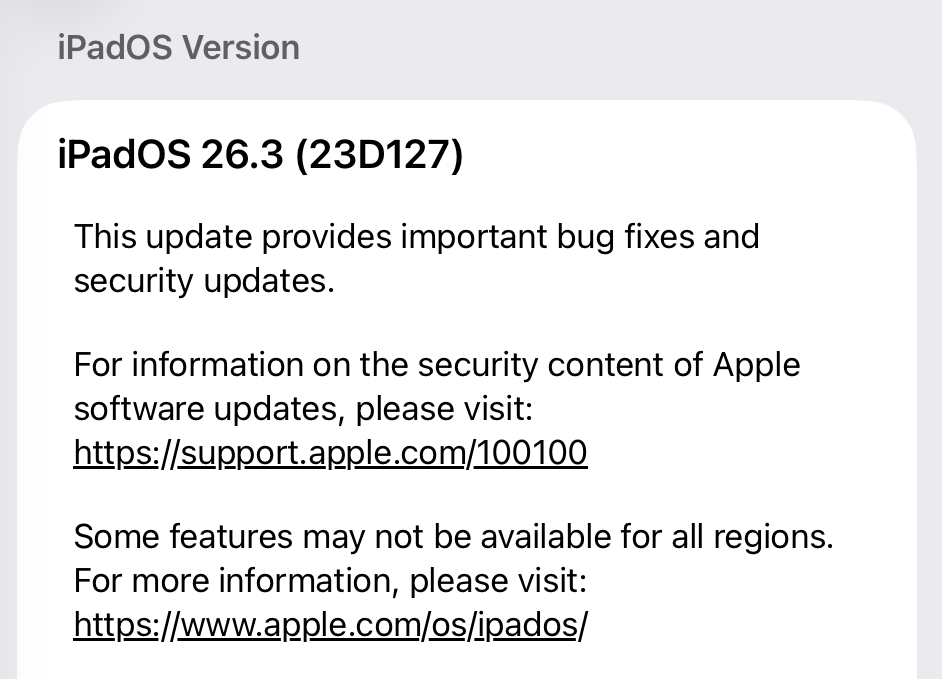
For iOS and iPadOS users, here’s how to check if you’re using the latest software version:
Go to Settings > General > Software Update. You will see if there are updates available and be guided through installing them.
Turn on Automatic Updates if you haven’t already—you’ll find it on the same screen.
How to update macOS on any version
To update macOS on any supported Mac, use the Software Update feature, which Apple designed to work consistently across all recent versions. Here are the steps:
Click the Apple menu in the upper-left corner of your screen.
Choose System Settings (or System Preferences on older versions).
Select General in the sidebar, then click Software Update on the right. On older macOS, just look for Software Update directly.
Your Mac will check for updates automatically. If updates are available, click Update Now (or Upgrade Now for major new versions) and follow the on-screen instructions. Before you upgrade to macOS Tahoe 26, please read these instructions.
Enter your administrator password if prompted, then let your Mac finish the update (it might need to restart during this process).
Make sure your Mac stays plugged in and connected to the internet until the update is done.
How to update Apple Watch
Ensure your iPhone is paired with your Apple Watch and connected to Wi-Fi, then:
Keep your Apple Watch on its charger and close to your iPhone.
Open the Watch app on your iPhone.
Tap General > Software Update.
If an update appears, tap Download and Install.
Enter your iPhone passcode or Apple ID password if prompted.
Your Apple Watch will automatically restart during the update process. Make sure it remains near your iPhone and on charge until the update completes.
How to update Apple TV
Turn on your Apple TV and make sure it’s connected to the internet, then:
Open the Settings app on Apple TV.
Navigate to System > Software Updates.
Select Update Software.
If an update appears, select Download and Install.
The Apple TV will download the update and restart as needed. Keep your device connected to power and Wi-Fi until the process finishes.
How to update your Safari browser
Safari updates are included with macOS updates, so installing the latest version of macOS will also update Safari. To check manually:
Open the Apple menu > System Settings > General > Software Update.
If you see a Safari update listed separately, click Update Now to install it.
Restart your Mac when prompted.
If you’re on an older macOS version that’s still supported (like Sonoma or Sequoia), Apple may offer Safari updates independently through Software Update.
More advice to stay safe
The most important fix—however inconvenient it may be—is to upgrade to iOS 26.3 (or the latest available version for your device). Not doing so means missing an accumulating list of security fixes, leaving your device vulnerable to newly found vulnerabilities.
Apple has released security updates for iPhones, iPads, Macs, Apple Watches, Apple TVs, and Safari, fixing, in particular, a zero-day flaw that is actively exploited in targeted attacks.
Exploiting this zero-day flaw would allow cybercriminals to run any code they want on the affected device, potentially installing spyware or backdoors without the owner noticing.
Installing these updates as soon as possible keeps your personal information—and everything else on your Apple devices—safe from such an attack.
CVE-2026-20700
The zero-day vulnerability tracked as CVE-2026-20700, is a memory corruption issue in versions before watchOS 26.3, tvOS 26.3, macOS Tahoe 26.3, visionOS 26.3, iOS 26.3 and iPadOS 26.3. An attacker with memory write capability may be able to execute arbitrary code.
Apple says the vulnerability was used as part of an infection chain combined with CVE-2025-14174 and CVE-2025-43529 against devices running iOS versions prior to iOS 26.
Those two vulnerabilities were already patched in the December 2025 update.
Updates for your particular device
The table below shows which updates are available and points you to the relevant security content for that operating system (OS).
iPhone 11 and later, iPad Pro 12.9-inch 3rd generation and later, iPad Pro 11-inch 1st generation and later, iPad Air 3rd generation and later, iPad 8th generation and later, and iPad mini 5th generation and later
For iOS and iPadOS users, here’s how to check if you’re using the latest software version:
Go to Settings > General > Software Update. You will see if there are updates available and be guided through installing them.
Turn on Automatic Updates if you haven’t already—you’ll find it on the same screen.
How to update macOS on any version
To update macOS on any supported Mac, use the Software Update feature, which Apple designed to work consistently across all recent versions. Here are the steps:
Click the Apple menu in the upper-left corner of your screen.
Choose System Settings (or System Preferences on older versions).
Select General in the sidebar, then click Software Update on the right. On older macOS, just look for Software Update directly.
Your Mac will check for updates automatically. If updates are available, click Update Now (or Upgrade Now for major new versions) and follow the on-screen instructions. Before you upgrade to macOS Tahoe 26, please read these instructions.
Enter your administrator password if prompted, then let your Mac finish the update (it might need to restart during this process).
Make sure your Mac stays plugged in and connected to the internet until the update is done.
How to update Apple Watch
Ensure your iPhone is paired with your Apple Watch and connected to Wi-Fi, then:
Keep your Apple Watch on its charger and close to your iPhone.
Open the Watch app on your iPhone.
Tap General > Software Update.
If an update appears, tap Download and Install.
Enter your iPhone passcode or Apple ID password if prompted.
Your Apple Watch will automatically restart during the update process. Make sure it remains near your iPhone and on charge until the update completes.
How to update Apple TV
Turn on your Apple TV and make sure it’s connected to the internet, then:
Open the Settings app on Apple TV.
Navigate to System > Software Updates.
Select Update Software.
If an update appears, select Download and Install.
The Apple TV will download the update and restart as needed. Keep your device connected to power and Wi-Fi until the process finishes.
How to update your Safari browser
Safari updates are included with macOS updates, so installing the latest version of macOS will also update Safari. To check manually:
Open the Apple menu > System Settings > General > Software Update.
If you see a Safari update listed separately, click Update Now to install it.
Restart your Mac when prompted.
If you’re on an older macOS version that’s still supported (like Sonoma or Sequoia), Apple may offer Safari updates independently through Software Update.
More advice to stay safe
The most important fix—however inconvenient it may be—is to upgrade to iOS 26.3 (or the latest available version for your device). Not doing so means missing an accumulating list of security fixes, leaving your device vulnerable to newly found vulnerabilities.
Apple has released security updates to fix a zero-day vulnerability that was exploited in an "extremely sophisticated attack" targeting specific individuals. [...]
North Korean hackers are running tailored campaigns using AI-generated video and the ClickFix technique to deliver malware for macOS and Windows to targets in the cryptocurrency sector. [...]
In January, Google settled a lawsuit that pricked up a few ears: It agreed to pay $68 million to a wide array of people who sued the company together, alleging that Google’s voice-activated smart assistant had secretly recorded their conversations, which were then sent to advertisers to target them with promotions.
Google denied any admission of wrongdoing in the settlement agreement, but the fact stands that one of the largest phone makers in the world decided to forego a trial against some potentially explosive surveillance allegations. It’s a decision that the public has already seen in the past, when Apple agreed to pay $95 million last year to settle similar legal claims against its smart assistant, Siri.
Back-to-back, the stories raise a question that just seems to never go away: Are our phones listening to us?
This week, on the Lock and Code podcast with host David Ruiz, we revisit an episode from last year in which we tried to find the answer. In speaking to Electronic Frontier Foundation Staff Technologist Lena Cohen about mobile tracking overall, it becomes clear that, even if our phones aren’t literally listening to our conversations, the devices are stuffed with so many novel forms of surveillance that we need not say something out loud to be predictably targeted with ads for it.
“Companies are collecting so much information about us and in such covert ways that it really feels like they’re listening to us.”
In January, Google settled a lawsuit that pricked up a few ears: It agreed to pay $68 million to a wide array of people who sued the company together, alleging that Google’s voice-activated smart assistant had secretly recorded their conversations, which were then sent to advertisers to target them with promotions.
Google denied any admission of wrongdoing in the settlement agreement, but the fact stands that one of the largest phone makers in the world decided to forego a trial against some potentially explosive surveillance allegations. It’s a decision that the public has already seen in the past, when Apple agreed to pay $95 million last year to settle similar legal claims against its smart assistant, Siri.
Back-to-back, the stories raise a question that just seems to never go away: Are our phones listening to us?
This week, on the Lock and Code podcast with host David Ruiz, we revisit an episode from last year in which we tried to find the answer. In speaking to Electronic Frontier Foundation Staff Technologist Lena Cohen about mobile tracking overall, it becomes clear that, even if our phones aren’t literally listening to our conversations, the devices are stuffed with so many novel forms of surveillance that we need not say something out loud to be predictably targeted with ads for it.
“Companies are collecting so much information about us and in such covert ways that it really feels like they’re listening to us.”
Apple is introducing a new privacy feature that lets users limit the precision of location data shared with cellular networks on some iPhone and iPad models. [...]
A newly discovered vulnerability named WhisperPair can turn Bluetooth headphones and headsets from many well-known brands into personal tracking beacons — regardless of whether the accessories are currently connected to an iPhone, Android smartphone, or even a laptop. Even though the technology behind this flaw was originally developed by Google for Android devices, the tracking risks are actually much higher for those using vulnerable headsets with other operating systems — like iOS, macOS, Windows, or Linux. For iPhone owners, this is especially concerning.
Connecting Bluetooth headphones to Android smartphones became a whole lot faster when Google rolled out Fast Pair, a technology now used by dozens of accessory manufacturers. To pair a new headset, you just turn it on and hold it near your phone. If your device is relatively modern (produced after 2019), a pop-up appears inviting you to connect and download the accompanying app, if it exists. One tap, and you’re good to go.
Unfortunately, it seems quite a few manufacturers didn’t pay attention to the particulars of this tech when implementing it, and now their accessories can be hijacked by a stranger’s smartphone in seconds — even if the headset isn’t actually in pairing mode. This is the core of the WhisperPair vulnerability, recently discovered by researchers at KU Leuven and recorded as CVE-2025-36911.
The attacking device — which can be a standard smartphone, tablet or laptop — broadcasts Google Fast Pair requests to any Bluetooth devices within a 14-meter radius. As it turns out, a long list of headphones from Sony, JBL, Redmi, Anker, Marshall, Jabra, OnePlus, and even Google itself (the Pixel Buds 2) will respond to these pings even when they aren’t looking to pair. On average, the attack takes just 10 seconds.
Once the headphones are paired, the attacker can do pretty much anything the owner can: listen in through the microphone, blast music, or — in some cases — locate the headset on a map if it supports Google Find Hub. That latter feature, designed strictly for finding lost headphones, creates a perfect opening for stealthy remote tracking. And here’s the twist: it’s actually most dangerous for Apple users and anyone else rocking non-Android hardware.
Remote tracking and the risks for iPhones
When headphones or a headset first shake hands with an Android device via the Fast Pair protocol, an owner key tied to that smartphone’s Google account is tucked away in the accessory’s memory. This info allows the headphones to be found later by leveraging data collected from millions of Android devices. If any random smartphone spots the target device nearby via Bluetooth, it reports its location to the Google servers. This feature — Google Find Hub — is essentially the Android version of Apple’s Find My, and it introduces the same unauthorized tracking risks as a rogue AirTag.
When an attacker hijacks the pairing, their key can be saved as the headset owner’s key — but only if the headset targeted via WhisperPair hasn’t previously been linked to an Android device and has only been used with an iPhone, or other hardware like a laptop with a different OS. Once the headphones are paired, the attacker can stalk their location on a map at their leisure — crucially, anywhere at all (not just within the 14-meter range).
Android users who’ve already used Fast Pair to link their vulnerable headsets are safe from this specific move, since they’re already logged in as the official owners. Everyone else, however, should probably double-check their manufacturer’s documentation to see if they’re in the clear — thankfully, not every device vulnerable to the exploit actually supports Google Find Hub.
How to neutralize the WhisperPair threat
The only truly effective way to fix this bug is to update your headphones’ firmware, provided an update is actually available. You can typically check for and install updates through the headset’s official companion app. The researchers have compiled a list of vulnerable devices on their site, but it’s almost certainly not exhaustive.
After updating the firmware, you absolutely must perform a factory reset to wipe the list of paired devices — including any unwanted guests.
If no firmware update is available and you’re using your headset with iOS, macOS, Windows, or Linux, your only remaining option is to track down an Android smartphone (or find a trusted friend who has one) and use it to reserve the role of the original owner. This will prevent anyone else from adding your headphones to Google Find Hub behind your back.
The update from Google
In January 2026, Google pushed an Android update to patch the vulnerability on the OS side. Unfortunately, the specifics haven’t been made public, so we’re left guessing exactly what they tweaked under the hood. Most likely, updated smartphones will no longer report the location of accessories hijacked via WhisperPair to the Google Find Hub network. But given that not everyone is exactly speedy when it comes to installing Android updates, it’s a safe bet that this type of headset tracking will remain viable for at least another couple of years.
Want to find out how else your gadgets might be spying on you? Check out these posts:
Apple and Google have confirmed that the next version of Siri will use Gemini and Google Cloud in a multi-year collaboration between the two tech giants. [...]
Apple heeft met de iOS 18.2-update in december een groot beveiligingslek verholpen. Het bedrijf laat op zijn eigen website weten dat gebruikers van de Wachtwoorden-app al sinds de lancering van iOS 18 waren blootgesteld aan phishing.
Apple-gebruikers kunnen dankzij het Zoek Mijn-netwerk makkelijk hun apparaten en accessoires vinden, maar die zijn blijkbaar niet de enige. Onderzoekers van de George Mason Universiteit hebben ontdekt dat hackers, ondanks Apple ’s maatregelen, stiekem mee kunnen kijken.
David Fletcher // Recently we were involved in an engagement where we expected to see a large number of Macs in the target environment. As an element of the engagement […]
Lawrence Hoffmann // So, Apple announced a new bug bounty program at BlackHat, and there are some interesting deviations from the norm in their plan to implement and pay out. […]

 Login
Login