You’re working hard late at night, replying to emails and planning the week ahead. Then suddenly, a PDF file requests access to your camera. Why would a PDF need camera access?
Cybercriminals often disguise spyware inside seemingly harmless files and programs. An unexpected request for access to your webcam can be a red flag that something is amiss.
Malwarebytes Windows Webcam Monitoring alerts you if a program tries to access your camera, so you can allow trusted programs to continue or block suspicious ones instantly.
Spyware doesn’t just steal passwords. Some malicious apps try to access webcams to secretly spy on victims or capture sensitive information.
What does Windows Webcam Monitoring do?
Sends you an instant alert when a program tries to access your webcam.
Allows only the programs you trust to access your camera, blocking everything else.
Lets you manage notification preferences in Privacy Controls. A dedicated “Webcam Monitoring” table shows recognized programs and gives you control over which apps trigger alerts, and which don’t.
With the benefit of real-time alerts, Windows Webcam Monitoring gives you visibility into which programs are trying to access your devices. And when it’s something you don’t recognize, it may even help you stop spyware before it can spy on you.
At Malwarebytes, we believe security shouldn’t be complicated. Windows Webcam Monitoring is another step toward giving you simple, proactive protection that works automatically, so you can stay focused on pretty much anything else.
Ready to take control?
Update Malwarebytes for Windows, go to Privacy Controls and enable Webcam Monitoring.
You’re working hard late at night, replying to emails and planning the week ahead. Then suddenly, a PDF file requests access to your camera. Why would a PDF need camera access?
Cybercriminals often disguise spyware inside seemingly harmless files and programs. An unexpected request for access to your webcam can be a red flag that something is amiss.
Malwarebytes Windows Webcam Monitoring alerts you if a program tries to access your camera, so you can allow trusted programs to continue or block suspicious ones instantly.
Spyware doesn’t just steal passwords. Some malicious apps try to access webcams to secretly spy on victims or capture sensitive information.
What does Windows Webcam Monitoring do?
Sends you an instant alert when a program tries to access your webcam.
Allows only the programs you trust to access your camera, blocking everything else.
Lets you manage notification preferences in Privacy Controls. A dedicated “Webcam Monitoring” table shows recognized programs and gives you control over which apps trigger alerts, and which don’t.
With the benefit of real-time alerts, Windows Webcam Monitoring gives you visibility into which programs are trying to access your devices. And when it’s something you don’t recognize, it may even help you stop spyware before it can spy on you.
At Malwarebytes, we believe security shouldn’t be complicated. Windows Webcam Monitoring is another step toward giving you simple, proactive protection that works automatically, so you can stay focused on pretty much anything else.
Ready to take control?
Update Malwarebytes for Windows, go to Privacy Controls and enable Webcam Monitoring.
Some Malwarebytes users have recently noticed frequent web protection alerts while reading email in Yahoo Mail’s web interface. These alerts are caused by background connections from the Yahoo Mail page to a set of third‑party domains that our products and other security tools currently classify as risky.
What we are seeing under the hood
When you open Yahoo Mail in a browser, the page loads various embedded components for navigation, features, and metrics. As part of this, the interface makes calls to domains such as cook.howduhtable.com and related subdomains, sometimes in the context of URLs that include /ybar/mail.yahoo.com/ and a long encoded parameter. That encoded string often resolves to a URL like:
This suggests the traffic is being routed through what appears to be a sandboxed web component that Yahoo can use for things like telemetry, testing infrastructure, or mail features. It may also be part of an advertising or tracking flow, but at this time we cannot say with certainty exactly what purpose Yahoo is using it for.
Regardless of intent, multiple security systems have observed these redirect domains and assigned them poor reputations. Characteristics include:
Frequently changing, opaque subdomains that do not resemble normal consumer‑facing Yahoo addresses
Use of encoded parameters and chained redirects that make it difficult for users, and sometimes defenders, to see the final destination at a glance
Existing detections and blocklists from other vendors that classify the infrastructure as suspicious or potentially malicious
Because of these signals, Malwarebytes Web Protection and Browser Guard have been blocking a growing list of related subdomains to protect users, which is why some people see repeated alerts while using Yahoo Mail.
What we are not saying
It is important to be clear about what we do and do not know.
We have not established that Yahoo Mail itself is compromised or that Yahoo is deliberately distributing malware through its mail platform. What we can say is that third‑party or internal components invoked from within the Yahoo Mail web interface are making connections through domains that behave very similarly to infrastructure commonly associated with malicious or deceptive advertising and tracking.
From a security standpoint, this creates unnecessary risk. Any mechanism that injects content or runs sandboxed components via opaque redirect chains could, if misused or subverted in the future, expose users to harmful content without them ever clicking a suspicious link.
Blocking these domains is a precautionary step in line with our normal protection standards.
Why Malwarebytes blocks these redirects
Our decision to block these connections is based on a combination of technical behavior and third‑party reputation data:
The redirects are triggered by embedded components in the Yahoo Mail interface, not by users intentionally browsing to those domains
The infrastructure relies on frequently changing, non‑descriptive domains and subdomains, a pattern we often see in malicious or evasive advertising and tracking systems
Multiple security vendors and automated reputation feeds already flag these domains as risky or malicious, and some have seen them associated with unwanted or harmful activity
Because of this, Malwarebytes products currently block connections to these third‑party domains when they are invoked as part of Yahoo Mail’s web experience. This does not mean that all of Yahoo Mail is considered malicious. It means we are specifically interrupting a narrow set of background calls that present elevated risk.
What this means for users
If you use Yahoo Mail in a browser with Malwarebytes enabled, you may see:
Web protection or MWAC alerts referencing domains like cook.howduhtable.com or similar names while you are reading or composing email
Multiple alerts in a short period, because the mail interface may retry or rotate through different subdomains or IP addresses in the same family
In most cases, your email content itself still loads, though certain embedded elements, metrics, or ad‑related content may fail to load or behave differently.
How to stay safe and reduce interruptions
You should not need to lower your protection to continue using Yahoo Mail. Here are some practical steps you can take:
Keep Malwarebytes protection enabled Leaving Web Protection and Browser Guard on ensures blocks remain in place if these redirects change behavior or begin serving harmful content in the future.
Avoid allowlisting the suspicious domains While it’s technically possible to add exclusions for individual domains, doing so would allow their traffic to load unfiltered in your browser. We don’t recommend this unless you fully understand and accept the risk.
Use private/incognito windows for Yahoo Mail Accessing Yahoo Mail in a private/incognito session can help reduce persistence of certain tracking and advertising data because the browser discards cookies and local storage when you close the window.
Clear cookies and site data periodically If you see repeated alerts, clearing Yahoo‑related cookies and cached data may reduce some of the underlying tracking behavior that triggers these redirects.
Consider fewer‑ads options Yahoo offers paid plans that reduce or remove ads, and users can also use reputable content‑blocking extensions alongside Malwarebytes to cut down on ad‑driven behavior in webmail interfaces.
Our ongoing monitoring
The domains and infrastructure involved in these redirects are operated outside Malwarebytes, and their configuration or behavior may change over time. We are actively monitoring telemetry, sandbox reports, and reputation data for these domains and related infrastructure, and we will adjust our detections if new information emerges.
Our priority is to keep users safe while being transparent about why protection events occur, especially in widely used services such as webmail. If we learn more about the exact role of this component within Yahoo Mail, or if Yahoo provides additional clarity, we will update this article accordingly.
Stop threats before they can do any harm.
Malwarebytes Browser Guard blocks phishing pages and malicious sites automatically. Free, one click to install. Add it to your browser →
Some Malwarebytes users have recently noticed frequent web protection alerts while reading email in Yahoo Mail’s web interface. These alerts are caused by background connections from the Yahoo Mail page to a set of third‑party domains that our products and other security tools currently classify as risky.
What we are seeing under the hood
When you open Yahoo Mail in a browser, the page loads various embedded components for navigation, features, and metrics. As part of this, the interface makes calls to domains such as cook.howduhtable.com and related subdomains, sometimes in the context of URLs that include /ybar/mail.yahoo.com/ and a long encoded parameter. That encoded string often resolves to a URL like:
This suggests the traffic is being routed through what appears to be a sandboxed web component that Yahoo can use for things like telemetry, testing infrastructure, or mail features. It may also be part of an advertising or tracking flow, but at this time we cannot say with certainty exactly what purpose Yahoo is using it for.
Regardless of intent, multiple security systems have observed these redirect domains and assigned them poor reputations. Characteristics include:
Frequently changing, opaque subdomains that do not resemble normal consumer‑facing Yahoo addresses
Use of encoded parameters and chained redirects that make it difficult for users, and sometimes defenders, to see the final destination at a glance
Existing detections and blocklists from other vendors that classify the infrastructure as suspicious or potentially malicious
Because of these signals, Malwarebytes Web Protection and Browser Guard have been blocking a growing list of related subdomains to protect users, which is why some people see repeated alerts while using Yahoo Mail.
What we are not saying
It is important to be clear about what we do and do not know.
We have not established that Yahoo Mail itself is compromised or that Yahoo is deliberately distributing malware through its mail platform. What we can say is that third‑party or internal components invoked from within the Yahoo Mail web interface are making connections through domains that behave very similarly to infrastructure commonly associated with malicious or deceptive advertising and tracking.
From a security standpoint, this creates unnecessary risk. Any mechanism that injects content or runs sandboxed components via opaque redirect chains could, if misused or subverted in the future, expose users to harmful content without them ever clicking a suspicious link.
Blocking these domains is a precautionary step in line with our normal protection standards.
Why Malwarebytes blocks these redirects
Our decision to block these connections is based on a combination of technical behavior and third‑party reputation data:
The redirects are triggered by embedded components in the Yahoo Mail interface, not by users intentionally browsing to those domains
The infrastructure relies on frequently changing, non‑descriptive domains and subdomains, a pattern we often see in malicious or evasive advertising and tracking systems
Multiple security vendors and automated reputation feeds already flag these domains as risky or malicious, and some have seen them associated with unwanted or harmful activity
Because of this, Malwarebytes products currently block connections to these third‑party domains when they are invoked as part of Yahoo Mail’s web experience. This does not mean that all of Yahoo Mail is considered malicious. It means we are specifically interrupting a narrow set of background calls that present elevated risk.
What this means for users
If you use Yahoo Mail in a browser with Malwarebytes enabled, you may see:
Web protection or MWAC alerts referencing domains like cook.howduhtable.com or similar names while you are reading or composing email
Multiple alerts in a short period, because the mail interface may retry or rotate through different subdomains or IP addresses in the same family
In most cases, your email content itself still loads, though certain embedded elements, metrics, or ad‑related content may fail to load or behave differently.
How to stay safe and reduce interruptions
You should not need to lower your protection to continue using Yahoo Mail. Here are some practical steps you can take:
Keep Malwarebytes protection enabled Leaving Web Protection and Browser Guard on ensures blocks remain in place if these redirects change behavior or begin serving harmful content in the future.
Avoid allowlisting the suspicious domains While it’s technically possible to add exclusions for individual domains, doing so would allow their traffic to load unfiltered in your browser. We don’t recommend this unless you fully understand and accept the risk.
Use private/incognito windows for Yahoo Mail Accessing Yahoo Mail in a private/incognito session can help reduce persistence of certain tracking and advertising data because the browser discards cookies and local storage when you close the window.
Clear cookies and site data periodically If you see repeated alerts, clearing Yahoo‑related cookies and cached data may reduce some of the underlying tracking behavior that triggers these redirects.
Consider fewer‑ads options Yahoo offers paid plans that reduce or remove ads, and users can also use reputable content‑blocking extensions alongside Malwarebytes to cut down on ad‑driven behavior in webmail interfaces.
Our ongoing monitoring
The domains and infrastructure involved in these redirects are operated outside Malwarebytes, and their configuration or behavior may change over time. We are actively monitoring telemetry, sandbox reports, and reputation data for these domains and related infrastructure, and we will adjust our detections if new information emerges.
Our priority is to keep users safe while being transparent about why protection events occur, especially in widely used services such as webmail. If we learn more about the exact role of this component within Yahoo Mail, or if Yahoo provides additional clarity, we will update this article accordingly.
Stop threats before they can do any harm.
Malwarebytes Browser Guard blocks phishing pages and malicious sites automatically. Free, one click to install. Add it to your browser →
Have you ever been on a website when a pop-up suddenly asked for access to your camera, microphone, location, or notifications? Whether you clicked “allow,” dismissed it, or just wondered why it appeared, those permission requests aren’t always harmless. Some sites can abuse those permissions.
With Access Control, a new feature in Browser Guard, you decide exactly which websites can access your device and stop the rest. That means you choose which websites can:
Use your camera
Use your microphone
Access your location
Send you notifications
Further, not only can you control which websites have access to your devices, but you can also block websites or even require those specific sites to request permission every single time they try to gain access to your machines. You can always allow trusted sites to access your camera or location while blocking everything else.
Access Control is now available for Malwarebytes subscribers using Chrome and Edge browsers on a Windows device.
How to use Access Control
We designed Access Control to be both powerful and simple because we know every moment you spend getting set up is another moment you’re left unprotected.
How to use Access Control:
Install/Open Browser Guard: Click the Malwarebytes icon in your browser’s header
Access Dashboard: Click the Dashboard tab at the bottom of the extension panel.
Navigate to Access Control: On the left sidebar of the web page, select Access Control.
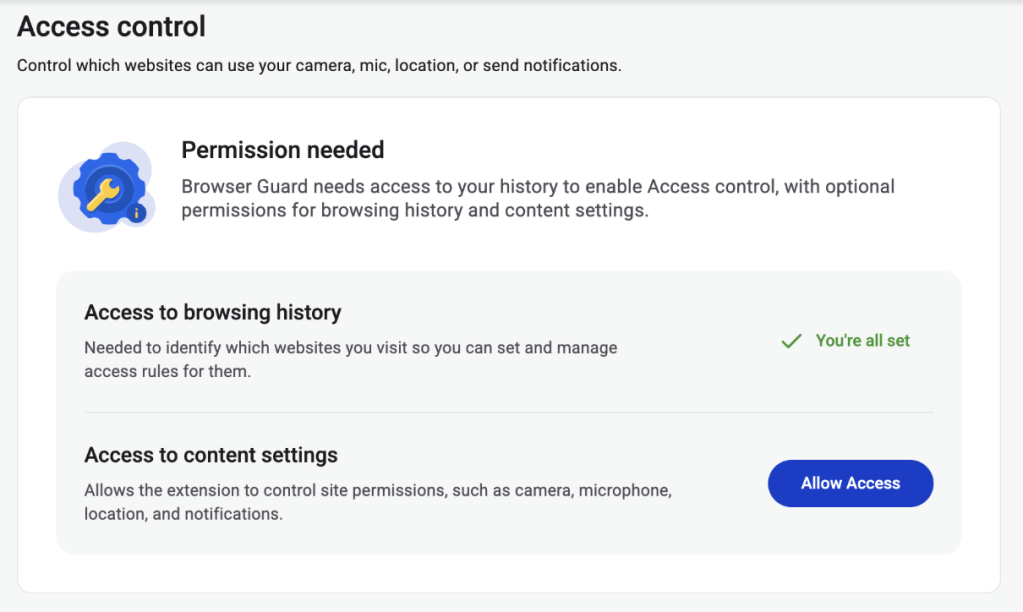
Manage Permissions: See visited websites, click “Allow” to enable or disable Malwarebytes’ ability to see visited sites.
Access Control requires some access to your browsing to protect you online
Access Control lets you choose individual sites to block and allow
This feature is rolling out in beta first, so you might see improvements and updates as we refine it. Currently, the feature works across Chrome and Edge, but will roll out to other browsers soon.
Access Control is another step toward making privacy simple and accessible. Not a subscriber yet? Check out Malwarebytes’ plans today to unlock this feature and more.
We don’t just report on threats—we remove them
Cybersecurity risks should never spread beyond a headline. Keep threats off your devices by downloading Malwarebytes today.
Have you ever been on a website when a pop-up suddenly asked for access to your camera, microphone, location, or notifications? Whether you clicked “allow,” dismissed it, or just wondered why it appeared, those permission requests aren’t always harmless. Some sites can abuse those permissions.
With Access Control, a new feature in Browser Guard, you decide exactly which websites can access your device and stop the rest. That means you choose which websites can:
Use your camera
Use your microphone
Access your location
Send you notifications
Further, not only can you control which websites have access to your devices, but you can also block websites or even require those specific sites to request permission every single time they try to gain access to your machines. You can always allow trusted sites to access your camera or location while blocking everything else.
Access Control is now available for Malwarebytes subscribers using Chrome and Edge browsers on a Windows device.
How to use Access Control
We designed Access Control to be both powerful and simple because we know every moment you spend getting set up is another moment you’re left unprotected.
How to use Access Control:
Install/Open Browser Guard: Click the Malwarebytes icon in your browser’s header
Access Dashboard: Click the Dashboard tab at the bottom of the extension panel.
Navigate to Access Control: On the left sidebar of the web page, select Access Control.
Manage Permissions: See visited websites, click “Allow” to enable or disable Malwarebytes’ ability to see visited sites.
Access Control requires some access to your browsing to protect you online
Access Control lets you choose individual sites to block and allow
This feature is rolling out in beta first, so you might see improvements and updates as we refine it. Currently, the feature works across Chrome and Edge, but will roll out to other browsers soon.
Access Control is another step toward making privacy simple and accessible. Not a subscriber yet? Check out Malwarebytes’ plans today to unlock this feature and more.
We don’t just report on threats—we remove them
Cybersecurity risks should never spread beyond a headline. Keep threats off your devices by downloading Malwarebytes today.
Connecting Threat Intelligence to Decision-Making: How Flashpoint Is Operationalizing Intelligence in 2026
At RSA Conference 2026, Flashpoint introduces new capabilities that enable security teams to move from visibility to defensible action by connecting adversary activity to business priorities, assets, and investigations.
Most organizations are not lacking visibility, but they are drowning in large volumes of information that are difficult to prioritize and even harder to tie back to clear action. In practice, this creates a familiar problem.
They can see what vulnerabilities exist. They can track threat activity. They can monitor alerts across their environment.
But the questions they struggle to answer are more important:
Which of these exposures actually matter? What do we fix first — and why? How does this activity translate to risk for the business?
As a result, teams fall back on patching cycles, compliance requirements, or best-effort prioritization and are left making decisions based on incomplete context.
This gap between data and decision-making has become one of the most persistent challenges in modern security operations.
At RSA Conference 2026, Flashpoint is sharing how we are addressing this gap directly — connecting adversary activity to assets, investigations, and defined business priorities so teams can make more consistent, defensible decisions.
“The industry has reached a tipping point where security teams are drowning in data that fails to align with their most important business requirements and decisions. Visibility alone is no longer a victory; it’s a baseline. By connecting underground adversary activity to an organization’s specific attack surface and strategic requirements, Flashpoint is raising the bar beyond passive observation. We are enabling defenders to stop asking ‘what do we own’ and start answering ‘what do we fix first, and why,’ turning raw data into an engine for risk reduction at speed.”
Josh Lefkowitz
What Flashpoint is Showcasing at RSA Conference 2026
Flashpoint is introducing a set of capabilities designed to connect threat intelligence directly to business risk, assets, and investigations:
Managed Attribution browser for anonymous investigations
Together, these capabilities enable organizations to move beyond passive monitoring and toward intelligence-driven action.
What Is Threat-Informed External Attack Surface Management (EASM)
Most organizations maintain an inventory of their external assets, but prioritizing them is a persistent challenge. Traditional EASM tools identify what you own but often fail to answer the critical “so what?”. Without contextual risk, prioritization is often driven by static severity scores, patch cycles, or compliance requirements rather than real-world attacker behavior. As a result, teams are left managing stale data through manual CSV uploads and struggling to determine which exposures actually matter.
Flashpoint’s EASM module transforms this stream of exposure data into a prioritized action plan. It continuously discovers a customer’s external attack surface, including domains, subdomains, and IP addresses, and automatically maps this live inventory directly to Flashpoint’s industry-leading vulnerability intelligence.
This allows security teams to:
Maintain a Dynamic Inventory: Eliminate manual uploads and stale CMDB exports with an always-current map of internet-facing assets.
Contextualize Risk Immediately: Go beyond simple asset discovery by mapping the specific software running on each asset to known vulnerabilities, including pre-NVD findings.
Prioritize with Precision: Connect the asset to the actual risk, showing teams not just their external exposure, but where they are truly vulnerable and what needs to be fixed first.
By layering deep vulnerability intelligence onto live asset discovery, Flashpoint enables defenders to move from reactive analysis to proactive, intelligence-driven risk reduction.
Why Priority Intelligence Requirements (PIRs) Are Foundational
Many intelligence teams operate without a formal structure that defines what their work is intended to support.
In day-to-day operations, this results in:
Reactive investigation of incoming alerts
Reporting driven by the availability of information rather than the need
Difficulty demonstrating how intelligence outputs influence decisions
Priority Intelligence Requirements (PIRs) are designed to address this, but in many organizations, they are not integrated into operational workflows.
In May, Flashpoint is introducing in-platform Intelligence Requirements to formalize this structure and embed it directly into the way teams work.
Alerts, investigations, and reporting can be tied to defined requirements, allowing teams to:
Focus on activities that directly align with defined business risk priorities
Maintain consistency in what is tracked and reported
Provide a clearer justification for the intelligence work being done
This creates a more structured intelligence program. Instead of producing outputs based on what is observed, teams can align their work to defined objectives and decision-making needs.
Enabling Safe, Scalable Investigations with Managed Attribution
Accessing adversary-controlled environments such as forums, marketplaces, and encrypted platforms is a core part of many intelligence workflows.
However, doing so safely requires careful setup. Analysts typically need to:
Use isolated infrastructure
Manage attribution and identity exposure
Avoid introducing risk to internal systems
This creates operational overhead and can slow down or limit investigation.
The new anonymous browser capability within Flashpoint Managed Attribution is designed to address this by providing a non-persistent, isolated environment for research and immediate triage. This removes setup friction and allows analysts to move immediately from detection, to investigation, to deeper analysis in the same environment.
Analysts can:
Access underground communities
Open suspicious links or files
Engage with threat actors
Without exposing their identity or internal infrastructure.
By removing the need for manual setup, this allows analysts to move directly into investigation while maintaining operational security.
See it at RSA Conference 2026
Security teams are being asked to do more than identify threats. They are expected to prioritize, act decisively, and justify those decisions.
That becomes difficult when the inputs — vulnerabilities, alerts, threat reporting — are not clearly connected to each other or to the business.
Intelligence needs to be tied to assets, aligned to defined priorities, and usable in day-to-day workflows. That’s the focus of Flashpoint’s updates this year.
At RSA Conference 2026, we’ll be walking through how this works in practice—how teams are connecting adversary activity to what they own, what matters, and what they do next. Flashpoint will be sharing more on these new innovations, including threat-informed EASM, in-platform Intelligence Requirements, and the Managed Attribution browser.If you’re attending, stop by Booth S-3341 to see how teams are moving from visibility to action. For a personalized demo, schedule a meeting with us.
Frequently Asked Questions
What is Flashpoint showcasing at RSA 2026?
Flashpoint is showcasing how its primary-source threat data connects directly to business assets and priorities. At the booth, attendees can get a sneak peek of the upcoming in-platform Priority Intelligence Requirements (PIRs), which formalize how security teams tie investigations to business risk. Flashpoint will also be discussing the upcoming general availability of threat-informed EASM for asset discovery and risk prioritization, alongside the Flashpoint Managed Attribution browser, designed for secure underground research.
What is Flashpoint Threat-Informed EASM?
Flashpoint External Attack Surface Management (EASM) goes beyond simple asset discovery by automatically mapping your external footprint to our industry-leading vulnerability intelligence. This allows teams to prioritize remediation by identifying which software versions are actually running on key assets, flagging critical risks often missed by public databases.
How do Flashpoint Priority Intelligence Requirements (PIRs) help security teams?
Flashpoint PIRs provide a formal in-platform structure that ties security alerts and investigations to specific business risks. This helps teams move away from reactive “activity-based” work and toward “decision-based” intelligence that is defensible to executive stakeholders.
What are the benefits of the Flashpoint Managed Attribution browser?
The Flashpoint Managed Attribution browser allows threat analysts to safely research the web using a disposable, anonymous environment. This prevents the analyst’s identity from being exposed and protects the corporate network from malware while conducting underground research.
How does Flashpoint’s new offering support a Continuous Threat Exposure Management (CTEM) framework?
Flashpoint facilitates the CTEM lifecycle by providing the primary source data necessary to move beyond traditional point-in-time scanning. EASM enables organizations to start focusing on the specific vulnerable software and high-risk exposures that threat actors are actively targeting.
You have done it a thousand times. Right-click. Delete. Empty Trash. Done.
Except it’s not done. That file, your tax return, your private photos, that EmbezzlementPlan.doc… it’s all still sitting on your drive. Invisible to you, but not to anyone with a $30 recovery tool downloaded from the internet.
The problem: Your deleted files aren’t actually gone
Most users assume that deleting a file removes it permanently. In reality, standard deletion only removes the file’s reference from the file system. The underlying data often remains intact on disk until it is overwritten by other files. Think of it like tearing the table of contents out of a book while leaving all the pages intact. The operating system forgets where the file is listed, but the data itself is still there.
The space the file used gets marked as available for new data. Until something else writes over it, the original file may remain fully readable on the disk. Depending on how you use your computer, that could take days, weeks, or even months.
Recovery software exploits this. It scans your drive for data that still exists but is no longer listed in the file system. If you’re trying to recover a file you accidentally deleted, this is a lifesaver. But if you’re trying to permanently dispose of sensitive information, it’s a serious problem.
The answer: Overwrite, don’t just delete
To address this privacy gap, we’ve introduced File Shredder for Windows. It permanently destroys the files and folders you’re trying to delete so they can’t be recovered.
When you overwrite a file, you replace every single byte of its contents with new data. The original information is physically altered on the disk surface. Once overwritten, the original data no longer exists. There is nothing left to recover.
But one overwrite is not always enough. Advanced recovery techniques can sometimes detect traces of previous data, especially on older hard drives where magnetic patterns leave subtle residue. That’s why File Shredder doesn’t just overwrite once. Depending on your chosen security level, it overwrites multiple times, using different patterns each pass.
How it works
File Shredder uses DoD 5220.22-M, a data sanitization standard developed by the US Department of Defense for securely destroying classified data stored on computers.
The standard overwrites data using specific patterns:
Zero-fill passes (every byte set to 0x00)
One-fill passes (every byte set to 0xFF)
Cryptographically random data passes
Verification to confirm the overwrite was successful
Why these specific patterns? Zeros and ones represent binary data. Random data adds unpredictability. By cycling through these patterns multiple times, the original magnetic or electronic state of the storage medium is thoroughly disrupted, making forensic recovery impractical.
When File Shredder finishes, that file isn’t just deleted. It’s gone.
Three levels of shredding
File Shredder overwrites a file before deleting it, helping prevent recovery after it is removed. This is most meaningful on traditional hard drives, where overwrite passes are more direct and predictable. On SSDs, storage works differently, so multiple passes do not provide the same level of assurance. File Shredder offers a few levels so you can choose the right balance of speed and confidence for your device and use case.
Not every file on your computer will need military-grade destruction. Shredding takes time because each pass means reading and writing the entire file contents. File Shredder gives you three options, so you can balance security against speed.
Basic (1 Pass)
The entire file is overwritten with zeros. This is the fastest option and is effective for everyday file deletion where you want to prevent casual recovery. If someone ran a recovery tool after a Basic shred, they would find nothing but empty data where your file used to be.
Best for: Temporary files, downloads you no longer need, general cleanup where speed matters.
Thorough (4 Passes, DoD 5220.22-M)
The file is overwritten with zeros, then ones, then random data, then zeros again. After these passes complete, File Shredder performs a verification step, reading the file back to confirm the overwrite patterns were successfully written. This catches any disk errors or write failures that might have left original data intact.
Best for: Financial documents, tax records, personal identification documents, medical records, anything you would not want exposed in a data breach or if your computer were stolen.
Paranoid (8 Passes, Extended DoD 5220.22-M)
This runs the full zeros-ones-random-zeros sequence twice, with verification after completion. The additional passes provide extra assurance against advanced forensic recovery techniques.
Pattern: Zeros > Ones > Random > Zeros > Zeros > Ones > Random > Zeros
Best for: Highly confidential business data, legal documents, intellectual property, anything subject to regulatory compliance, or situations where you need absolute certainty.
A note on SSDs
Solid-state drives (SSDs) behave differently from traditional hard drives because wear leveling and flash translation layers may redirect writes to different physical blocks. This means overwriting a file once or multiple times does not guarantee the original data was overwritten. Multi-pass shredding methods were designed for HDDs and are less predictable on SSDs.
How to get started
File Shredder lives in the Tools section of your Malwarebytes desktop software, alongside other system utilities. We designed it to be straightforward while ensuring you understand the permanence of what you are about to do.
Select
Choose individual files, entire folders, or multiple items at once. File Shredder automatically protects critical system files, so you cannot accidentally shred something that would damage Windows or your Malwarebytes installation. Before anything happens, you’ll see a complete list of every file that will be shredded, with full visibility into file names, locations, and sizes.
Confirm
Clear warning dialogs explain that destruction is permanent. You must explicitly acknowledge before anything is destroyed. Once a file is shredded, it cannot be recovered.
Shred
Choose your level (Basic, Thorough, or Paranoid) and confirm. During shredding, you’ll see real-time progress showing:
which file is being shredded
how far along the process is
estimated time remaining
You can pause or cancel the job. However, once File Shredder starts working on a file, it finishes shredding that file before stopping. This prevents files from being left in a partially overwritten state, which could leave them corrupted or difficult to delete properly.
Done
When shredding completes, File Shredder shows a report listing every file that was successfully destroyed. You’ll also receive a notification confirming the job is finished.
How File Shredder handles large files safely
Shredding large files or deeply nested directories can use a lot of CPU and resources on your machine. To balance security with performance, the implementation includes:
Buffered write operations for efficient disk access
Chunked overwrite processing to handle large files without excessive memory use
Recursive folder shredding that processes entire directory trees
Cancellation handling where feasible, without leaving partial data behind
Error reporting so you know if any file could not be shredded (for example, if it’s open in another application)
Preventing accidental shredding
Building a feature that claims to permanently destroy data is a serious responsibility. We did not just write the code and assume it worked. We tested aggressively.
Because shredding is irreversible, the UI incorporates multiple safeguards before execution:
Explicit file or folder selection
Clear warnings about permanent deletion
Confirmation prompts before shredding begins
Shredding prevention on protected system paths or Malwarebytes files
When you’re done with a file, it should really be done
For too long, “delete” has mostly meant out of sight, not out of existence. File Shredder changes that. By securely overwriting files before removing them, it helps ensure your sensitive data stays private even after you delete it.
We don’t just report on threats—we remove them
Cybersecurity risks should never spread beyond a headline. Keep threats off your devices by downloading Malwarebytes today.
Most of us think deleting a file means it’s gone for good. But “delete” on a Windows device often just means “out of sight,” not necessarily “out of reach.”
That’s where File Shredder, a new feature within Malwarebytes Tools for Windows, comes in. File Shredder lets you securely delete files from your hard drive or USB drive, so the files are not just removed—but completely unrecoverable, even with specialized recovery software.
What File Shredder does differently
When you delete a file by placing it in your Recycle Bin and emptying the contents, your computer typically removes the reference to it—but the data itself can remain on the drive until it’s overwritten. That leftover data can sometimes be recovered using basic digital tools, some of which can even be downloaded for free online. These data traces pose a problem if the file you want to delete includes personal, financial, or other sensitive information, like tax documents, scanned IDs, contracts, or anything else you would like to remain private forever.
File Shredder goes beyond standard deletion by instead permanently overwriting the file data, ensuring it can’t be reconstructed or recovered. Once a file is shredded, it’s gone for good—no undo, no recovery, no second chances.
That makes File Shredder especially useful when:
You’re cleaning up sensitive files before selling or donating a device
You need to securely remove files from a USB drive
You’re minimizing digital clutter without leaving data behind
You want peace of mind that private files stay private
How to use File Shredder
File Shredder is designed to be powerful without being complicated.
To use File Shredder:
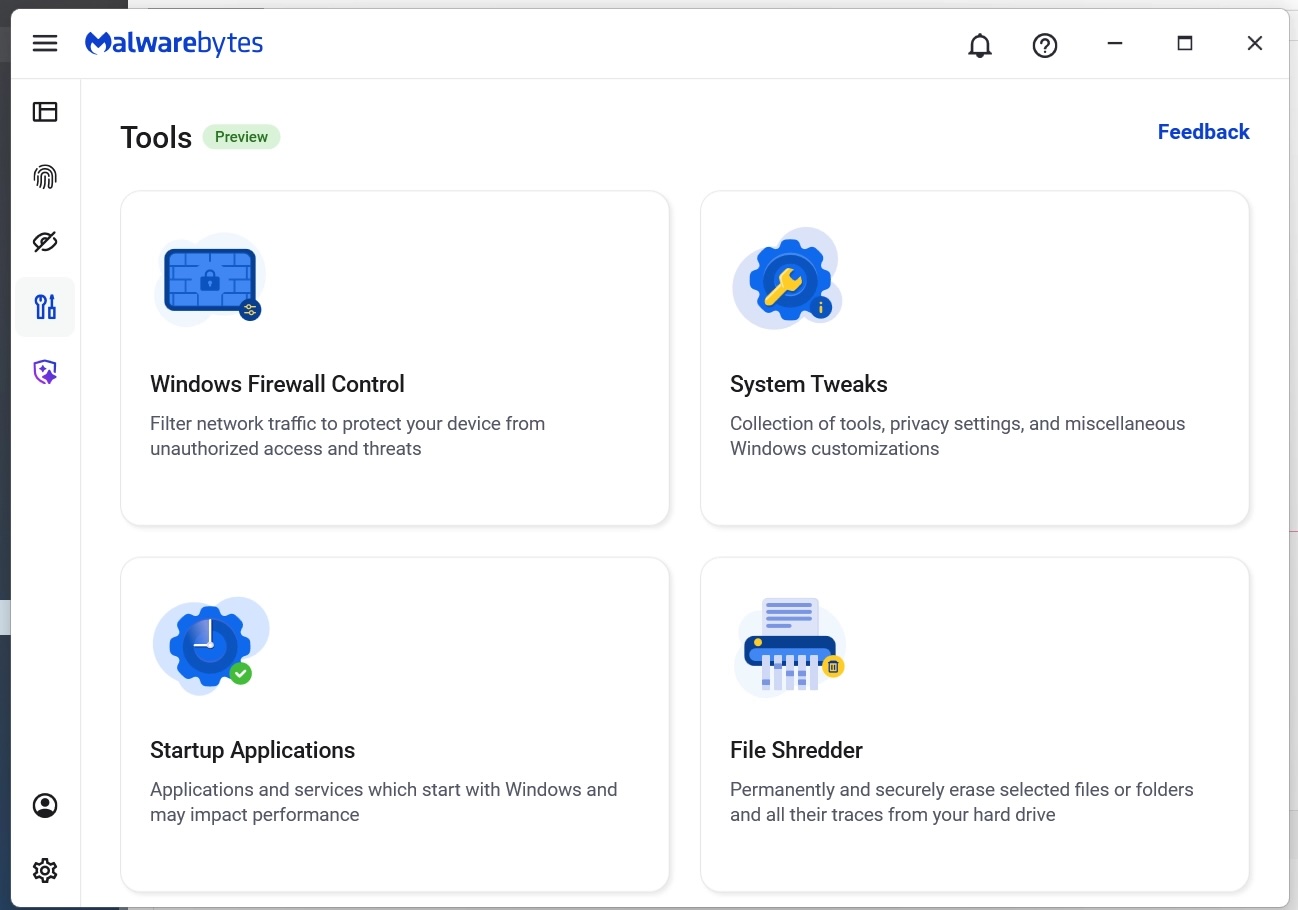
Open the Malwarebytes app and select the “Tools” icon from the lefthand menu (the screwdriver and wrench icon)
From this menu, find and click on “File Shredder”
Once here, you can manually add files or folders to the list and then click on the button “Delete permanently”
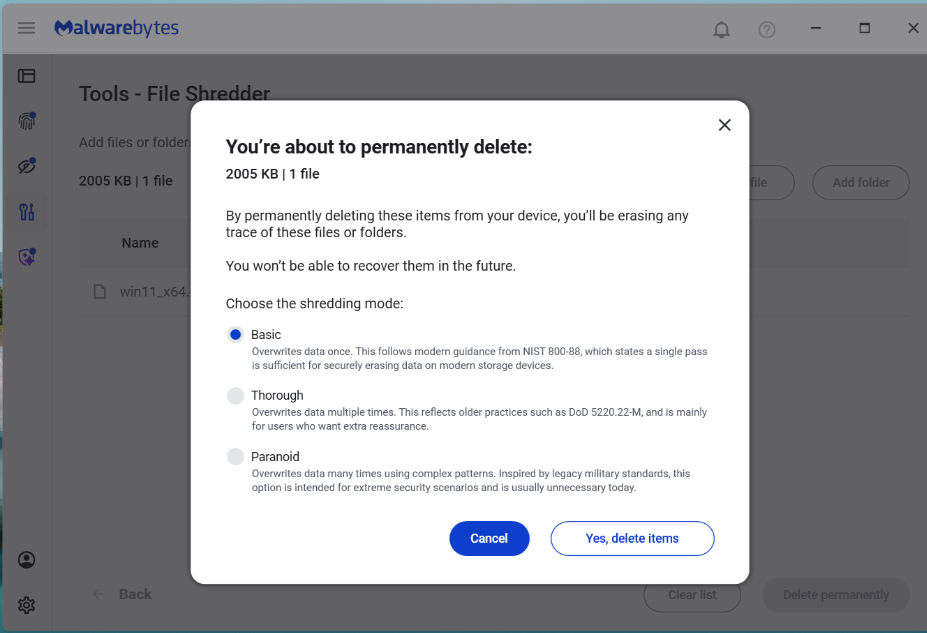
You will be asked to confirm your request before File Shredder deletes the files
The Malwarebytes Tools screen
Manually select files and folders for deletion
Confirm your deletion requests
Done!
After your files are deleted by File Shredder you can move on, confident that the data can’t be accessed again.
Protection means your data is in your control
Cybersecurity isn’t just about blocking threats—it’s also about giving you control over your own data. File Shredder provides a way to do exactly that, helping you close the door on files that you no longer want on your devices.
Because when you’re done with a file, it should really be done.
We don’t just report on threats—we remove them
Cybersecurity risks should never spread beyond a headline. Keep threats off your devices by downloading Malwarebytes today.
Most of us think deleting a file means it’s gone for good. But “delete” on a Windows device often just means “out of sight,” not necessarily “out of reach.”
That’s where File Shredder, a new feature within Malwarebytes Tools for Windows, comes in. File Shredder lets you securely delete files from your hard drive or USB drive, so the files are not just removed—but completely unrecoverable, even with specialized recovery software.
What File Shredder does differently
When you delete a file by placing it in your Recycle Bin and emptying the contents, your computer typically removes the reference to it—but the data itself can remain on the drive until it’s overwritten. That leftover data can sometimes be recovered using basic digital tools, some of which can even be downloaded for free online. These data traces pose a problem if the file you want to delete includes personal, financial, or other sensitive information, like tax documents, scanned IDs, contracts, or anything else you would like to remain private forever.
File Shredder goes beyond standard deletion by instead permanently overwriting the file data, ensuring it can’t be reconstructed or recovered. Once a file is shredded, it’s gone for good—no undo, no recovery, no second chances.
That makes File Shredder especially useful when:
You’re cleaning up sensitive files before selling or donating a device
You need to securely remove files from a USB drive
You’re minimizing digital clutter without leaving data behind
You want peace of mind that private files stay private
How to use File Shredder
File Shredder is designed to be powerful without being complicated.
To use File Shredder:
Open the Malwarebytes app and select the “Tools” icon from the lefthand menu (the screwdriver and wrench icon)
From this menu, find and click on “File Shredder”
Once here, you can manually add files or folders to the list and then click on the button “Delete permanently”
You will be asked to confirm your request before File Shredder deletes the files
The Malwarebytes Tools screen
Manually select files and folders for deletion
Confirm your deletion requests
Done!
After your files are deleted by File Shredder you can move on, confident that the data can’t be accessed again.
Protection means your data is in your control
Cybersecurity isn’t just about blocking threats—it’s also about giving you control over your own data. File Shredder provides a way to do exactly that, helping you close the door on files that you no longer want on your devices.
Because when you’re done with a file, it should really be done.
We don’t just report on threats—we remove them
Cybersecurity risks should never spread beyond a headline. Keep threats off your devices by downloading Malwarebytes today.
This article explains why Chrome’s “preloading” feature can cause scary-looking blocks in Malwarebytes Browser Guard and how to turn it off.
Modern browsers want to provide content instantly. To do that, Chrome includes a feature called page preloading. When this is enabled, Chrome doesn’t just wait for you to click a link. It guesses what you’re likely to click next and starts loading those pages in the background—before you decide whether to visit them.
That guesswork happens in several places. When you type a search into the address bar, Chrome may start preloading one or more of the top search results so that, if you click them, they open almost immediately. It can also preload pages that are linked from the site you’re currently on, based on Google’s prediction that they’re “likely next steps.” All of this happens quietly, without any extra tabs opening, and often without any obvious sign that more pages are being fetched.
From a performance point of view, that’s clever. From a privacy and security point of view, it’s more complicated.
Those preloaded pages can run code, drop cookies, and contact servers, even if you never actually visit them in the traditional sense. In other words, your browser can talk to a site you didn’t consciously choose to open.
Malwarebytes Browser Guard inspects web traffic and blocks connections to domains it considers malicious or suspicious. So, if Chrome decides to preload a search result that leads to a site on our blocklist, Browser Guard will still do its job and stop that background connection. The result can be confusing: You see a warning page (called a block page) for a site you don’t recognize and are sure you never clicked.
Nothing unusual is happening there, and it does not mean your browser is “clicking links by itself.” It simply means Chrome’s preloading feature made a behind-the-scenes request, and Browser Guard intercepted it as designed. Other privacy tools take a similar approach. Some popular content blockers disable preloading by default because it leaks more data and can contact unwanted sites.
For now, the simplest way to stop these unexpected block pages is to turn off preloading in Chrome’s settings, which prevents those speculative background requests.
How to manage Chrome’s preloading setting
We recommend turning off page preloading in Chrome to protect your browsing privacy and to stop seeing unexpected block pages when searching the web. If you don’t want to turn off page preloading, you can try using a different browser and repeating your search.
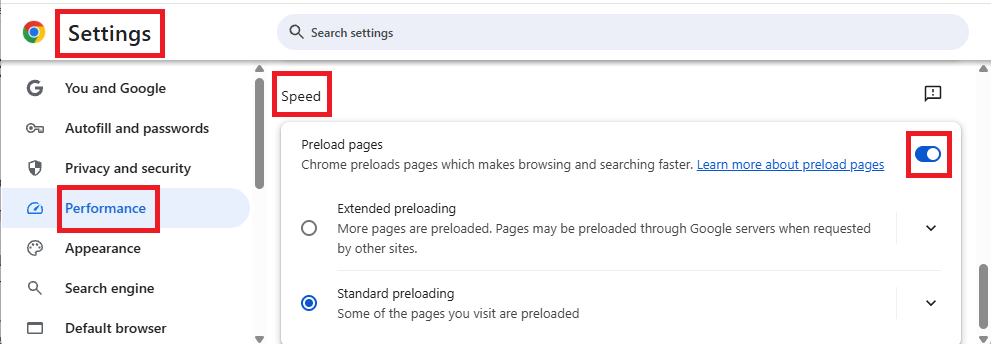
To turn off page preloading:
In your browser search bar, enter: chrome://settings
In the left sidebar, click Performance.
Scroll down to Speed, then toggle Preload pages off.
We don’t just report on data privacy—we help you remove your personal information
Cybersecurity risks should never spread beyond a headline. With Malwarebytes Personal Data Remover, you can scan to find out which sites are exposing your personal information, and then delete that sensitive data from the internet.
This article explains why Chrome’s “preloading” feature can cause scary-looking blocks in Malwarebytes Browser Guard and how to turn it off.
Modern browsers want to provide content instantly. To do that, Chrome includes a feature called page preloading. When this is enabled, Chrome doesn’t just wait for you to click a link. It guesses what you’re likely to click next and starts loading those pages in the background—before you decide whether to visit them.
That guesswork happens in several places. When you type a search into the address bar, Chrome may start preloading one or more of the top search results so that, if you click them, they open almost immediately. It can also preload pages that are linked from the site you’re currently on, based on Google’s prediction that they’re “likely next steps.” All of this happens quietly, without any extra tabs opening, and often without any obvious sign that more pages are being fetched.
From a performance point of view, that’s clever. From a privacy and security point of view, it’s more complicated.
Those preloaded pages can run code, drop cookies, and contact servers, even if you never actually visit them in the traditional sense. In other words, your browser can talk to a site you didn’t consciously choose to open.
Malwarebytes Browser Guard inspects web traffic and blocks connections to domains it considers malicious or suspicious. So, if Chrome decides to preload a search result that leads to a site on our blocklist, Browser Guard will still do its job and stop that background connection. The result can be confusing: You see a warning page (called a block page) for a site you don’t recognize and are sure you never clicked.
Nothing unusual is happening there, and it does not mean your browser is “clicking links by itself.” It simply means Chrome’s preloading feature made a behind-the-scenes request, and Browser Guard intercepted it as designed. Other privacy tools take a similar approach. Some popular content blockers disable preloading by default because it leaks more data and can contact unwanted sites.
For now, the simplest way to stop these unexpected block pages is to turn off preloading in Chrome’s settings, which prevents those speculative background requests.
How to manage Chrome’s preloading setting
We recommend turning off page preloading in Chrome to protect your browsing privacy and to stop seeing unexpected block pages when searching the web. If you don’t want to turn off page preloading, you can try using a different browser and repeating your search.
To turn off page preloading:
In your browser search bar, enter: chrome://settings
In the left sidebar, click Performance.
Scroll down to Speed, then toggle Preload pages off.
We don’t just report on data privacy—we help you remove your personal information
Cybersecurity risks should never spread beyond a headline. With Malwarebytes Personal Data Remover, you can scan to find out which sites are exposing your personal information, and then delete that sensitive data from the internet.
Scams aren’t so obvious anymore. They’re well-written, have working grammar, and can lead victims to very convincing branded webpages. Scammers increasingly use AI tools to clone sites and create highly sophisticated scams at scale, so don’t expect to rely on spotting obvious typos anymore.
That’s why Scam Guard, Malwarebytes’ free, AI-powered scam detection assistant, is now available on Windows and Mac. Previously mobile-only, Scam Guard helps you quickly figure out whether something you’re looking at is risky, all before you click, reply, or share.
When something feels off but you’re not sure what
Scams show up everywhere: emails, texts, pop-ups, messages, and websites that look legitimate. But when you’re moving fast, it’s easy to slip up.
Scam Guard is designed for exactly those moments. If you’re unsure about a message or link, you can ask Scam Guard to take a look. It uses AI to analyze the content and give you a clear, fast assessment so you can decide what to do next with more confidence.
How Scam Guard helps
Scam Guard provides a quick reality check just when you need it:
Real-time threat intelligence: An AI-powered chat companion backed by decades of Malwarebytes threat intelligence and cybersecurity expertise. Get instant verdicts you can trust, plus clear next steps.
Comprehensive scam detection: It flags suspicious messages and links, spots common scam tactics, and explains why something is risky. It covers romance, phishing, financial, text, robocall, and shipping scams, and more.
Built for where scams start: Works right on your desktop, where many scams begin.
24/7 support: Available around the clock, so you can get help anytime you need it.
Stop wondering to yourself “Is this legit?” With Scam Guard, you get an answer you can trust.
Now on desktop, right where scams happen
Many scams target users while they’re on their computers—checking email, browsing the web, or managing accounts. Bringing Scam Guard to Windows and Mac helps where it’s most useful.
Whether you’re reviewing an unexpected message, a pop-up that feels urgent, or a deal that sounds a little too good, Scam Guard gives you a smarter way to pause and check before reacting. Here’s how to share a scam with Scam Guard on your computer.
Extra protection, without extra stress
Staying safe online shouldn’t mean becoming suspicious of everything. It should mean having the right tools when something doesn’t add up. Scam Guard is there to help you slow down, spot warning signs, and avoid costly mistakes. It makes it easier to protect yourself from scams.
We don’t just report on scams—we help detect them
Cybersecurity risks should never spread beyond a headline. If something looks dodgy to you, check if it’s a scam using Malwarebytes Scam Guard. Submit a screenshot, paste suspicious content, or share a link, text or phone number, and we’ll tell you if it’s a scam or legit. Available with Malwarebytes Premium Security for all your devices, and in the Malwarebytes app for iOS and Android.
Scams aren’t so obvious anymore. They’re well-written, have working grammar, and can lead victims to very convincing branded webpages. Scammers increasingly use AI tools to clone sites and create highly sophisticated scams at scale, so don’t expect to rely on spotting obvious typos anymore.
That’s why Scam Guard, Malwarebytes’ free, AI-powered scam detection assistant, is now available on Windows and Mac. Previously mobile-only, Scam Guard helps you quickly figure out whether something you’re looking at is risky, all before you click, reply, or share.
When something feels off but you’re not sure what
Scams show up everywhere: emails, texts, pop-ups, messages, and websites that look legitimate. But when you’re moving fast, it’s easy to slip up.
Scam Guard is designed for exactly those moments. If you’re unsure about a message or link, you can ask Scam Guard to take a look. It uses AI to analyze the content and give you a clear, fast assessment so you can decide what to do next with more confidence.
How Scam Guard helps
Scam Guard provides a quick reality check just when you need it:
Real-time threat intelligence: An AI-powered chat companion backed by decades of Malwarebytes threat intelligence and cybersecurity expertise. Get instant verdicts you can trust, plus clear next steps.
Comprehensive scam detection: It flags suspicious messages and links, spots common scam tactics, and explains why something is risky. It covers romance, phishing, financial, text, robocall, and shipping scams, and more.
Built for where scams start: Works right on your desktop, where many scams begin.
24/7 support: Available around the clock, so you can get help anytime you need it.
Stop wondering to yourself “Is this legit?” With Scam Guard, you get an answer you can trust.
Now on desktop, right where scams happen
Many scams target users while they’re on their computers—checking email, browsing the web, or managing accounts. Bringing Scam Guard to Windows and Mac helps where it’s most useful.
Whether you’re reviewing an unexpected message, a pop-up that feels urgent, or a deal that sounds a little too good, Scam Guard gives you a smarter way to pause and check before reacting. Here’s how to share a scam with Scam Guard on your computer.
Extra protection, without extra stress
Staying safe online shouldn’t mean becoming suspicious of everything. It should mean having the right tools when something doesn’t add up. Scam Guard is there to help you slow down, spot warning signs, and avoid costly mistakes. It makes it easier to protect yourself from scams.
We don’t just report on scams—we help detect them
Cybersecurity risks should never spread beyond a headline. If something looks dodgy to you, check if it’s a scam using Malwarebytes Scam Guard. Submit a screenshot, paste suspicious content, or share a link, text or phone number, and we’ll tell you if it’s a scam or legit. Available with Malwarebytes Premium Security for all your devices, and in the Malwarebytes app for iOS and Android.
Malwarebytes is on a roll. Recently named one of PCMag’s “Best Tech Brands for 2026,” Malwarebytes also scored 100% on the first-ever MRG Effitas consumer security product test, cementing the fact that we are loved by users and trusted by experts.
“If your antivirus fails, and it don’t look good, who ya gonna call? The answer: Malwarebytes. Even tech support agents from competitors have instructed us to use it.”
PCMag
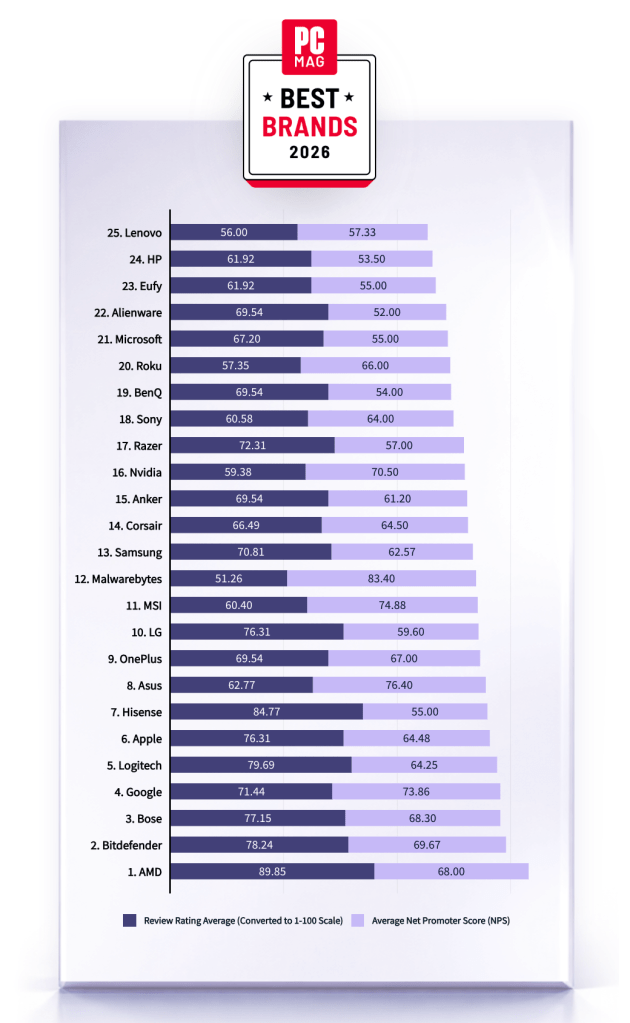
Malwarebytes has been named one of PCMag’s Best Tech Brands for 2026. Coming in at #12, Malwarebytes makes the list with the highest Net Promoter Score (NPS) of all the brands in the list (likelihood to recommend by users).
With this ranking, Malwarebytes made its third appearance as a PCMag Best Tech Brand! We’ve also achieved the year’s highest average Net Promoter Score, at 83.40. (Last year, we had the second-highest NPS, after only Toyota).
But NPS alone can’t put us on the list—excellent reviews are needed, too. PCMag’s Rubenking found plenty to be happy about in his assessments of our products in 2025. For example, Malwarebytes Premium adds real-time multi-layered detection that eradicates most malware to the stellar stopping power you get on demand in the free edition.
MRG Effitas
Malwarebytes has aced the first-ever MRG Effitas Consumer Assessment and Certification, which evaluated eight security applications to determine their capabilities in stopping malware, phishing, and other online threats. We detected and stopped all in-the-wild malware infections and phishing samples while also generating zero false positives.
We’re beyond excited to have reached a 100% detection rate for in-the-wild malware as well as a 100% rate for all phishing samples with zero false positives.
The testing criteria is designed to determine how well a product works to do what it promises based on what MRG Effitas refers to as “metrics that matter.” We understand that the question isn’t if a system will encounter malware, but when.
Malwarebytes is proud to be recognized for its work in protecting people against everyday threats online.
We don’t just report on threats—we remove them
Cybersecurity risks should never spread beyond a headline. Keep threats off your devices by downloading Malwarebytes today.
Malwarebytes is on a roll. Recently named one of PCMag’s “Best Tech Brands for 2026,” Malwarebytes also scored 100% on the first-ever MRG Effitas consumer security product test, cementing the fact that we are loved by users and trusted by experts.
“If your antivirus fails, and it don’t look good, who ya gonna call? The answer: Malwarebytes. Even tech support agents from competitors have instructed us to use it.”
PCMag
Malwarebytes has been named one of PCMag’s Best Tech Brands for 2026. Coming in at #12, Malwarebytes makes the list with the highest Net Promoter Score (NPS) of all the brands in the list (likelihood to recommend by users).
With this ranking, Malwarebytes made its third appearance as a PCMag Best Tech Brand! We’ve also achieved the year’s highest average Net Promoter Score, at 83.40. (Last year, we had the second-highest NPS, after only Toyota).
But NPS alone can’t put us on the list—excellent reviews are needed, too. PCMag’s Rubenking found plenty to be happy about in his assessments of our products in 2025. For example, Malwarebytes Premium adds real-time multi-layered detection that eradicates most malware to the stellar stopping power you get on demand in the free edition.
MRG Effitas
Malwarebytes has aced the first-ever MRG Effitas Consumer Assessment and Certification, which evaluated eight security applications to determine their capabilities in stopping malware, phishing, and other online threats. We detected and stopped all in-the-wild malware infections and phishing samples while also generating zero false positives.
We’re beyond excited to have reached a 100% detection rate for in-the-wild malware as well as a 100% rate for all phishing samples with zero false positives.
The testing criteria is designed to determine how well a product works to do what it promises based on what MRG Effitas refers to as “metrics that matter.” We understand that the question isn’t if a system will encounter malware, but when.
Malwarebytes is proud to be recognized for its work in protecting people against everyday threats online.
We don’t just report on threats—we remove them
Cybersecurity risks should never spread beyond a headline. Keep threats off your devices by downloading Malwarebytes today.
If you’ve ever stared at a suspicious text, email, or link and thought “Is this a scam… or am I overthinking it?” Well, you’re not alone.
Scams are getting harder to spot, and even savvy internet users get caught off guard. That’s why Malwarebytes is the first cybersecurity provider available directly inside ChatGPT, bringing trusted threat intelligence to millions of people right where these questions happen.
Simply ask: “Malwarebytes, is this a scam?” and you’ll get a clear, informed answer—super fast.
From then on, you can “@Malwarebytes” to check if a text message, DM, email, or other content seems malicious.
Cybersecurity help, right when and where you need it
Malwarebytes in ChatGPT lets you tap into our cybersecurity expertise without ever leaving the conversation. Whether something feels off or you want a second opinion, you can get trusted guidance in no time at all.
Here’s what you can do:
Spot scams faster
Paste in a suspicious text message, email, or DM and get:
A clear, point-by-point breakdown of phishing or any known red flags
An explanation of why something looks risky
Practical next steps to help you stay safe
You won’t get any jargon or guessing from us. What you will get is 100% peace of mind.
Check links, domains, and phone numbers
Not sure if a URL, website, or phone number is legit? Ask for a risk assessment informed by Malwarebytes threat intelligence, including:
Signs of suspicious activity
Whether the link or sender has been associated with scams
If a domain is newly registered, follows redirects, or other potentially suspicious elements
What to do next—block it, ignore it, or proceed with caution
Powered by real threat intelligence
The verdicts you get aren’t based on vibes or generic advice. They’re powered by Malwarebytes’ continuously updated threat intelligence—the same real-world data that helps protect millions of devices and people worldwide every day.
If you spot something suspicious, you can submit it directly to Malwarebytes through ChatGPT. Those reports help strengthen threat intelligence, making the internet safer not just for you, but for everyone.
Link reputation scanner: Checks URLs against threat intelligence databases, detects newly registered domains (<30 days), and follows redirects.
Phone number reputation check: Validates phone numbers against scam/spam databases, including carrier and location details.
Email address reputation check: Analyzes email domains for phishing & other malicious activity.
WHOIS domain lookup: Retrieves registration data such as registrar, creation and expiration dates, and abuse of contacts.
Verify domain legitimacy: Look up domain registration details to identify newly created or suspicious websites commonly used in phishing attacks.
Get geographic context: Receive warnings when phone numbers originate from unexpected regions, a common indicator of international scam operations.
Available now
Malwarebytes in ChatGPT is available wherever ChatGPT apps are available.
To get started, just ask ChatGPT:
“Malwarebytes, is this a scam?”
For deeper insights, proactive protection, and human support, download the Malwarebytes app—our security solutions are designed to stop threats before they reach you, and the damage is done.
If you’ve ever stared at a suspicious text, email, or link and thought “Is this a scam… or am I overthinking it?” Well, you’re not alone.
Scams are getting harder to spot, and even savvy internet users get caught off guard. That’s why Malwarebytes is the first cybersecurity provider available directly inside ChatGPT, bringing trusted threat intelligence to millions of people right where these questions happen.
Simply ask: “Malwarebytes, is this a scam?” and you’ll get a clear, informed answer—super fast.
From then on, you can “@Malwarebytes” to check if a text message, DM, email, or other content seems malicious.
Cybersecurity help, right when and where you need it
Malwarebytes in ChatGPT lets you tap into our cybersecurity expertise without ever leaving the conversation. Whether something feels off or you want a second opinion, you can get trusted guidance in no time at all.
Here’s what you can do:
Spot scams faster
Paste in a suspicious text message, email, or DM and get:
A clear, point-by-point breakdown of phishing or any known red flags
An explanation of why something looks risky
Practical next steps to help you stay safe
You won’t get any jargon or guessing from us. What you will get is 100% peace of mind.
Check links, domains, and phone numbers
Not sure if a URL, website, or phone number is legit? Ask for a risk assessment informed by Malwarebytes threat intelligence, including:
Signs of suspicious activity
Whether the link or sender has been associated with scams
If a domain is newly registered, follows redirects, or other potentially suspicious elements
What to do next—block it, ignore it, or proceed with caution
Powered by real threat intelligence
The verdicts you get aren’t based on vibes or generic advice. They’re powered by Malwarebytes’ continuously updated threat intelligence—the same real-world data that helps protect millions of devices and people worldwide every day.
If you spot something suspicious, you can submit it directly to Malwarebytes through ChatGPT. Those reports help strengthen threat intelligence, making the internet safer not just for you, but for everyone.
Link reputation scanner: Checks URLs against threat intelligence databases, detects newly registered domains (<30 days), and follows redirects.
Phone number reputation check: Validates phone numbers against scam/spam databases, including carrier and location details.
Email address reputation check: Analyzes email domains for phishing & other malicious activity.
WHOIS domain lookup: Retrieves registration data such as registrar, creation and expiration dates, and abuse of contacts.
Verify domain legitimacy: Look up domain registration details to identify newly created or suspicious websites commonly used in phishing attacks.
Get geographic context: Receive warnings when phone numbers originate from unexpected regions, a common indicator of international scam operations.
Available now
Malwarebytes in ChatGPT is available wherever ChatGPT apps are available.
To get started, just ask ChatGPT:
“Malwarebytes, is this a scam?”
For deeper insights, proactive protection, and human support, download the Malwarebytes app—our security solutions are designed to stop threats before they reach you, and the damage is done.
Independent recognition matters in cybersecurity, and it matters a lot to us. It shows how security products perform when they’re tested against in-the-wild threats, using lab environments designed to reflect what people actually face in the real world.
In 2025, Malwarebytes earned awards and recognition from a steady stream of third-party testing labs and industry groups. Here’s what those tests looked like and what they found.
AVLab Cybersecurity Foundation: Real-world malware, real results
Malwarebytes earned anotherAdvanced In-The-Wild badge from AVLab Cybersecurity Foundation in 2025, continuing a run of accolades.
In November, AVLab Cybersecurity Foundation tested 244 real-world malware samples across 14 cybersecurity products. Malwarebytes Premium Security detected every single one. On top of that, it removed threats with an average remediation time of 2.18 seconds—nearly 12 seconds faster than the industry average.
That result also marked our third Excellent badge in 2025, following earlier tests in July and September.
Earlier in the year, Malwarebytes Premium Security was also named Product of the Year for the third consecutive year, after it blocked 100% of in-the-wild malware samples.
MRG Effitas: Consistent Android protection, proven over time
MRG Effitas conducted in-depth testing of Androidantivirus apps using real-world scenarios, combining in-the-wild malware with benign samples to assess detection gaps and weaknesses.
Our mobile protection received the highest marks, achieving a near-perfect detection rate in MRG Effitas’ rigorous lab testing, reaffirming what our customers already know: Malwarebytes stops threats before they can cause harm.
Malwarebytes for Windows earned a Digital Trends 2025 Recommended Product designation, with reviewers highlighting its ease of use, fast and effective customer support, and strong value for money.
CNET: Best Malware Removal Service 2025
CNET named Malwarebytes the Best Malware Removal Service 2025 after testing setup, features, design, and performance. The review highlighted standout capabilities, including top-tier malware removal and comprehensive Browser Guard web protection.
AV Comparatives Stalkerware Test: 100% detection rate
In collaboration with the Electronic Frontier Foundation (EFF), AV-Comparatives tested 13 Android security solutions against 17 stalkerware-type apps—software often used for covert surveillance and abuse.
Only a few products handled detection and alerting responsibly. Malwarebytes was the only solution to achieve a 100% detection rate in the September 2025 test.
What we learned from a year of testing
All these results highlight our mission to reimagine security and protect people and data across all devices and platforms.
Flashpoint has earned multiple trust badges from G2’s Fall 2023 Reports, affirming our unwavering commitment to delivering timely, contextual intelligence to our clients so they can take rapid, decisive action to stop threats and reduce risk. Here are some highlights from G2’s reports.
‘Leader’ and ‘High Performer’
G2 awarded Flashpoint a “Leader Badge”—ranking us #1 in the Enterprise Americas Regional Grid for Threat Intelligence. Specifically, customers highlighted the value of Flashpoint’s finished intelligence reports, with 98 percent of customers emphasizing its utility.
In G2’s Enterprise Relationship Index for Threat Intelligence, Flashpoint has the highest score for “Most Likely to Recommend,” with 94 percent of surveyed customers endorsing Flashpoint as an intelligence partner.
Flashpoint also exceeded the index’s performance averages in all categories, including “Ease of Doing Business With” and “Quality of Support.”
‘Flashpoint has been a great partner of ours for many years, and the trust we’ve built with their team of managers and analysts is excellent.‘
—Fraud Intelligence Lead, Fortune 500 Technology Company
In G2’s Americas Regional Grid® Report, 99 percent of surveyed customers highlighted Flashpoint’s dark web monitoring capabilities.
Additionally, 90 percent of customers emphasized Flashpoint’s ticketing and RFI services, showcasing our commitment to the intersections between data, intelligence, and professional services support.
‘Flashpoint offers the greatest amount of data regarding the criminal underground in relation to their peers. The data is well sorted, well presented, and easy to search.‘
— SVP, DFIR Investigations, Public Sector
‘An Excellent Intelligence Tool’
Hear from our customers by reading Flashpoint review on G2, or sign up for a free trial today to see how “great” threat intelligence can help your organization reduce risk and mitigate threats.

 Login
Login