Login
Login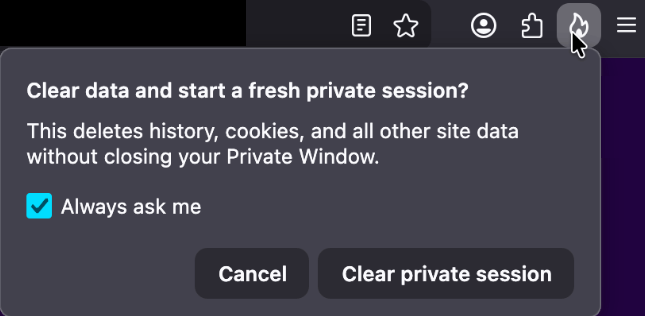


Firefox 151 packs big privacy upgrades into a small update
Mozilla has published release notes for Firefox browser version 151.0, and this update includes several genuinely meaningful privacy and security improvements.
Three changes stand out in particular:
- Stronger anti‑fingerprinting
- Broader protection for local network access
- More control over private sessions and permissions
Note that Mozilla says several Firefox 151 features are “part of a progressive roll out,” meaning they will appear for some users first and be expanded over time. So, you may not see all of them immediately.
Privacy
One of the more visible additions is a new “end private session” control in Private Browsing Mode. Instead of closing every private window to clear your traces, you now get a dedicated fire‑icon button next to the address bar that wipes the current private session’s data and immediately starts a fresh one.

Under the hood, this clears the usual private browsing artifacts for that session, including history, cookies, cached files, and other site data that would normally disappear only when the last private window closes.
For people who routinely mix normal and private windows, this is safer and less error‑prone than hunting down every private tab before you walk away from the machine.
Firefox 151 also tightens its defenses against browser fingerprinting in the default “Standard” Enhanced Tracking Protection (ETP) mode. Mozilla says Firefox now limits the amount of device and browser information exposed to websites in a way that reduces the number of uniquely identifiable users by about 14% overall, and by roughly 49% on macOS.
This makes it harder for trackers to pick you out of the crowd, especially on platforms with fewer users to begin with (like certain macOS configurations). This reduces the privacy risk surface by default, which makes it harder for phishing and landing pages that redirect visitors to “categorize” you.
Another important change is Firefox’s “local network access restrictions,” which are now rolling out to all users, not just those who turned Enhanced Tracking Protection to Strict.
This means that when a website wants to communicate with devices on your local network, or with apps and services running on your machine, Firefox now asks for permission first. Chrome and Edge have been rolling out similar permission prompts.
Security
Firefox 151 also quietly fixes several security vulnerabilities.
The most notable example is CVE‑2026‑8953, a sandbox escape due to a use‑after‑free in the Disability Access APIs component. While there are currently no reports of in‑the‑wild exploitation for this specific bug at the time of writing, this is the kind of bug cybercriminals love.
A use-after-free (UAF) is a software memory vulnerability where a program attempts to access a memory location after it has been freed. If the program fails to clear the pointer to that freed memory, attackers can manipulate the error to crash the system or execute arbitrary code. A memory corruption leading to a sandbox escape is exactly the kind of link attackers want to complete a browser exploit chain.
How to update
If you’re running Firefox in a home or small‑office environment, we recommend updating to Firefox 151 as soon as possible to get the fingerprinting protections, local network access prompts, and security patches.
To update Firefox:
- Open Firefox
- Click the menu (three stacked lines) in the upper-right corner
- Go to Help > About Firefox
- Firefox will automatically check for updates and begin downloading them
- Restart the browser when prompted to complete the update
Once your Firefox browser has been updated, it will show a green checkmark along with the message: “Firefox is up to date.”
Let’s face it, an incognito window can only do so much.
Breaches, dark web trading, credit fraud. Malwarebytes Identity Theft Protection monitors for all of it, alerts you fast, and comes with identity theft insurance.