Reading view

Yarbo responds to robot flaws that could mow down their owners

A researcher found that Yarbo yard robots came with a host of vulnerabilities which, among others, allowed an attacker to harvest WiFi passwords.

Security researcher Andreas Makris found he could remotely hijack thousands of Yarbo yard robots worldwide, and proved it by having his mower run him over. The root cause was a cluster of “legacy” design choices: every robot shared the same hardcoded root password, remote tunnels were left open, and Message Queuing Telemetry Transport (MQTT) messaging was so weakly protected that once you had one device, you effectively had the worldwide fleet.

An attacker could pull GPS coordinates, email addresses, and Wi‑Fi passwords, turn cameras into remote spying tools, and even re‑arm the mower after someone hit the emergency stop. 

All of this was enabled by a persistent backdoor tunnel that users could neither see nor meaningfully control. The risks fell into three very different buckets:

  • A heavy mower with remotely controllable blades and an emergency stop that can be bypassed is a real-world safety hazard.
  • Exposed telemetry meant attackers could map where devices were, see who owned them, and in some reports even view camera feeds.
  • Network abuse through shared root credentials meant compromised robots could scan local networks, steal more data, or be folded into a botnet.

Yarbo’s public response is unusually detailed for a consumer Internet of Things (IoT) vendor. It’s also refreshingly blunt in admitting that the researcher’s core findings were accurate. The company temporarily disabled the remote diagnostic tunnels, reset root passwords, locked down unauthenticated endpoints, and began ripping out unnecessary legacy access paths.

More importantly, Yarbo promises structural changes:

  • Unique per‑device credentials.
  • Over-the-Air  (OTA) credential rotation.
  • Audited, allowlist‑based remote diagnostics.
  • Dedicated security contact, with a possible bug bounty to follow.

That is the sort of long‑term security hygiene we rarely see spelled out this clearly after an IoT fiasco.

From a disclosure and remediation standpoint, Yarbo is doing many things right: crediting the researcher, apologizing, prioritizing fixes, and explaining both short‑term patches and long‑term architectural changes in human language. For buyers of connected devices with blades, that level of transparency is a positive precedent.

But Yarbo has explicitly chosen to keep a remote access tunnel, although wrapped in better controls and logs, instead of offering users the option to remove or fully opt out of it.

How to secure IoT devices

The vulnerabilities uncovered in the Yarbo case present an almost a live-action demo of what the IoT Cybersecurity Improvement Act is trying to prevent in US government deployments. While the Act doesn’t apply to Yarbo directly, its National Institute of Standards and Technology (NIST)-driven requirements map neatly onto what went wrong here.

So, it’s still up to users to make sure you:

  • Change the default credentials.
  • Check if the vendor will make updates available and how easy it is to install them before buying an IoT product. And then install the updates when available.
  • If you can, put your IoT devices on a separate network. Use a guest Wi‑Fi or separate VLAN when available.
  • Disable what you don’t need. Turn off UPnP, remote access, cloud control, and unnecessary services if you’re not actively using them.
  • If your router or security suite logs connections from IoT devices, skim those logs for odd spikes or unknown destinations.

Let’s face it, an incognito window can only do so much. 
 
Breaches, dark web trading, credit fraud. Malwarebytes Identity Theft Protection monitors for all of it, alerts you fast, and comes with identity theft insurance. 

  •  

Yarbo responds to robot flaws that could mow down their owners

A researcher found that Yarbo yard robots came with a host of vulnerabilities which, among others, allowed an attacker to harvest WiFi passwords.

Security researcher Andreas Makris found he could remotely hijack thousands of Yarbo yard robots worldwide, and proved it by having his mower run him over. The root cause was a cluster of “legacy” design choices: every robot shared the same hardcoded root password, remote tunnels were left open, and Message Queuing Telemetry Transport (MQTT) messaging was so weakly protected that once you had one device, you effectively had the worldwide fleet.

An attacker could pull GPS coordinates, email addresses, and Wi‑Fi passwords, turn cameras into remote spying tools, and even re‑arm the mower after someone hit the emergency stop. 

All of this was enabled by a persistent backdoor tunnel that users could neither see nor meaningfully control. The risks fell into three very different buckets:

  • A heavy mower with remotely controllable blades and an emergency stop that can be bypassed is a real-world safety hazard.
  • Exposed telemetry meant attackers could map where devices were, see who owned them, and in some reports even view camera feeds.
  • Network abuse through shared root credentials meant compromised robots could scan local networks, steal more data, or be folded into a botnet.

Yarbo’s public response is unusually detailed for a consumer Internet of Things (IoT) vendor. It’s also refreshingly blunt in admitting that the researcher’s core findings were accurate. The company temporarily disabled the remote diagnostic tunnels, reset root passwords, locked down unauthenticated endpoints, and began ripping out unnecessary legacy access paths.

More importantly, Yarbo promises structural changes:

  • Unique per‑device credentials.
  • Over-the-Air  (OTA) credential rotation.
  • Audited, allowlist‑based remote diagnostics.
  • Dedicated security contact, with a possible bug bounty to follow.

That is the sort of long‑term security hygiene we rarely see spelled out this clearly after an IoT fiasco.

From a disclosure and remediation standpoint, Yarbo is doing many things right: crediting the researcher, apologizing, prioritizing fixes, and explaining both short‑term patches and long‑term architectural changes in human language. For buyers of connected devices with blades, that level of transparency is a positive precedent.

But Yarbo has explicitly chosen to keep a remote access tunnel, although wrapped in better controls and logs, instead of offering users the option to remove or fully opt out of it.

How to secure IoT devices

The vulnerabilities uncovered in the Yarbo case present an almost a live-action demo of what the IoT Cybersecurity Improvement Act is trying to prevent in US government deployments. While the Act doesn’t apply to Yarbo directly, its National Institute of Standards and Technology (NIST)-driven requirements map neatly onto what went wrong here.

So, it’s still up to users to make sure you:

  • Change the default credentials.
  • Check if the vendor will make updates available and how easy it is to install them before buying an IoT product. And then install the updates when available.
  • If you can, put your IoT devices on a separate network. Use a guest Wi‑Fi or separate VLAN when available.
  • Disable what you don’t need. Turn off UPnP, remote access, cloud control, and unnecessary services if you’re not actively using them.
  • If your router or security suite logs connections from IoT devices, skim those logs for odd spikes or unknown destinations.

Let’s face it, an incognito window can only do so much. 
 
Breaches, dark web trading, credit fraud. Malwarebytes Identity Theft Protection monitors for all of it, alerts you fast, and comes with identity theft insurance. 

  •  

Palantir’s access to identifiable NHS England patient data is ‘dangerous’, MPs say

Health service has given US tech firm ‘unlimited access’ to certain data to build integrated platform, according to reports

MPs have warned that an NHS decision to grant Palantir access to identifiable patient information in its plan to use AI to improve the health service is “dangerous” and will fuel public fears that data privacy is not being prioritised.

NHS England has allowed staff from the US tech firm and other contractors to access patient data before it has been pseudonymised, despite internal fears of a “risk of loss of public confidence”, the Financial Times reported.

Continue reading...

© Photograph: David Levene/The Guardian

© Photograph: David Levene/The Guardian

© Photograph: David Levene/The Guardian

  •  

Microsoft says Edge’s plaintext password behavior is “by design”

Some time ago, we discussed whether you should allow your browser to remember your passwords.

In that article we mentioned the importance of encryption.

With a browser password manager, someone with access to your browser could see your passwords in clear text, although Windows can be set to ask for authentication (the same you use at startup of your device).”

The typical behavior of browser password managers is to store passwords encrypted on disk, tied to your user account, and protected by the operating system.

But recently, a security researcher systematically tested every major Chromium-based browser for how they handle credentials in memory. The researcher found that Edge was the only one loading the entire password vault into plaintext process memory at startup, where it remains for the duration of the session.  

Chrome and other Chromium browsers were observed to only decrypt a password when needed (autofill or “show password”), not the whole vault, and to use mechanisms like app‑bound encryption for keys. Edge does not use those protections in this context.

So, the researcher decided to write a proof-of-concept (PoC) demonstrating that accessing that vault doesn’t rely on zero-days or complex exploitation. It relies on the relatively simple ability to read process memory, which does require elevated privileges.

But when the researcher reported the issue to Microsoft, the response was underwhelming. The company’s official response was that the behavior is “by design.” The reasoning most likely is that this behavior speeds up sign‑in and autofill, and attackers would already need a compromised machine or elevated access to read RAM, which Microsoft treats as out of scope for this design decision.

Which is basically true. An attacker already needs significant foothold: for example, code execution on the box and the ability to read Edge’s process memory, often requiring elevated privileges. This is not a remote, unauthenticated bug in the browser, but the design makes post‑compromise credential harvesting easier. And it’s a capability many infostealers already have.

It’s just another thing an attacker can do once they’ve compromised your machine. Combined with this academic study from 2024, which found many password managers leak plaintext passwords into memory under some conditions, it leads us to repeat our advice.

Should you allow your browser to remember your passwords?

Your browser password manager gives you ease of use, but that costs you some security. Of course, password managers aren’t foolproof either, so it’s important to decide for yourself where you store your passwords.

If you’re confident the website is safe, and anyone that can access it under your account won’t learn anything new, feel free to store the password in your browser, but disable autofill so you stay in control.

Use MFA where possible. It enormously reduces the risk should someone get hold of your password. And refrain from using the browser password manager to store your credit card details or other sensitive personally identifiable information, such as medical information.

But we’d add that, among the major browsers, Edge appears to be the weakest option if you still choose to use a built‑in password manager.


Stop threats before they can do any harm.

Malwarebytes Browser Guard blocks phishing pages and malicious sites automatically. Free, one click to install. Add it to your browser →

  •  

Microsoft says Edge’s plaintext password behavior is “by design”

Some time ago, we discussed whether you should allow your browser to remember your passwords.

In that article we mentioned the importance of encryption.

With a browser password manager, someone with access to your browser could see your passwords in clear text, although Windows can be set to ask for authentication (the same you use at startup of your device).”

The typical behavior of browser password managers is to store passwords encrypted on disk, tied to your user account, and protected by the operating system.

But recently, a security researcher systematically tested every major Chromium-based browser for how they handle credentials in memory. The researcher found that Edge was the only one loading the entire password vault into plaintext process memory at startup, where it remains for the duration of the session.  

Chrome and other Chromium browsers were observed to only decrypt a password when needed (autofill or “show password”), not the whole vault, and to use mechanisms like app‑bound encryption for keys. Edge does not use those protections in this context.

So, the researcher decided to write a proof-of-concept (PoC) demonstrating that accessing that vault doesn’t rely on zero-days or complex exploitation. It relies on the relatively simple ability to read process memory, which does require elevated privileges.

But when the researcher reported the issue to Microsoft, the response was underwhelming. The company’s official response was that the behavior is “by design.” The reasoning most likely is that this behavior speeds up sign‑in and autofill, and attackers would already need a compromised machine or elevated access to read RAM, which Microsoft treats as out of scope for this design decision.

Which is basically true. An attacker already needs significant foothold: for example, code execution on the box and the ability to read Edge’s process memory, often requiring elevated privileges. This is not a remote, unauthenticated bug in the browser, but the design makes post‑compromise credential harvesting easier. And it’s a capability many infostealers already have.

It’s just another thing an attacker can do once they’ve compromised your machine. Combined with this academic study from 2024, which found many password managers leak plaintext passwords into memory under some conditions, it leads us to repeat our advice.

Should you allow your browser to remember your passwords?

Your browser password manager gives you ease of use, but that costs you some security. Of course, password managers aren’t foolproof either, so it’s important to decide for yourself where you store your passwords.

If you’re confident the website is safe, and anyone that can access it under your account won’t learn anything new, feel free to store the password in your browser, but disable autofill so you stay in control.

Use MFA where possible. It enormously reduces the risk should someone get hold of your password. And refrain from using the browser password manager to store your credit card details or other sensitive personally identifiable information, such as medical information.

But we’d add that, among the major browsers, Edge appears to be the weakest option if you still choose to use a built‑in password manager.


Stop threats before they can do any harm.

Malwarebytes Browser Guard blocks phishing pages and malicious sites automatically. Free, one click to install. Add it to your browser →

  •  

ShinyHunters escalates Canvas attacks with school login defacements

Days after confirming a major data breach, Instructure is now facing a second blow.

Earlier this week, Instructure confirmed a major data breach affecting its cloud‑hosted Canvas environment, with the ShinyHunters group claiming it stole hundreds of millions of records tied to thousands of schools and universities worldwide. As discussed in our earlier blog, that incident involved data such as student and staff records, enrollment details, and private messages allegedly accessed through Canvas export features and APIs. At that stage, the focus was on large‑scale data theft and the long‑term risks for affected students and families, including identity fraud and highly targeted phishing.

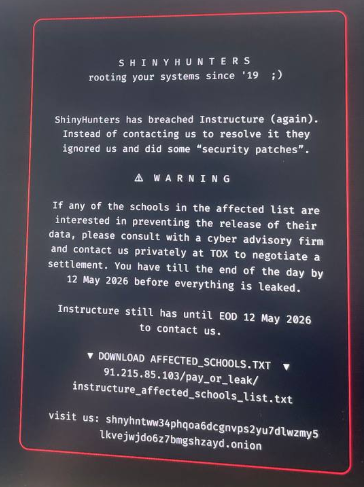
According to new reporting, ShinyHunters has now hit Instructure again, this time moving from quiet data theft to very visible extortion. Using another vulnerability in Instructure’s systems, the attackers were able to modify Canvas login portals for hundreds of educational institutions, defacing both web logins and the Canvas app with an on‑screen ransom message.

applying extra pressure
Image credit: vx-underground

The message both claimed responsibility for the earlier breach and set a deadline of May 12 for Instructure and affected schools to contact the gang or risk the public release of stolen data.

This second wave matters for two reasons. First, it confirms that ShinyHunters still has meaningful access to Instructure’s environment, or at least to components that control the look and behavior of school login pages. Second, it marks a clear escalation in pressure tactics, from leaked claims and dark web posts to messages shown directly to students, parents, and staff trying to access their courses.

How to deal with this data breach

For students and families, the practical advice from our original blog still applies:

  • Reset Canvas‑related passwords
  • Enable multi‑factor authentication where possible
  • Monitor financial and credit activity as children get older
  • Stay wary of highly personalized phishing that references real schools, courses, or teachers

For schools and districts, this latest extortion campaign underlines the need to coordinate closely with Instructure, review single sign-on (SSO) integrations, and prepare clear communications so that any future defacements or data leaks do not catch staff and parents by surprise.


CNET Editors' Choice Award 2026

“One of the best cybersecurity suites on the planet.” 

According to CNET. Read their review


  •  

ShinyHunters escalates Canvas attacks with school login defacements

Days after confirming a major data breach, Instructure is now facing a second blow.

Earlier this week, Instructure confirmed a major data breach affecting its cloud‑hosted Canvas environment, with the ShinyHunters group claiming it stole hundreds of millions of records tied to thousands of schools and universities worldwide. As discussed in our earlier blog, that incident involved data such as student and staff records, enrollment details, and private messages allegedly accessed through Canvas export features and APIs. At that stage, the focus was on large‑scale data theft and the long‑term risks for affected students and families, including identity fraud and highly targeted phishing.

According to new reporting, ShinyHunters has now hit Instructure again, this time moving from quiet data theft to very visible extortion. Using another vulnerability in Instructure’s systems, the attackers were able to modify Canvas login portals for hundreds of educational institutions, defacing both web logins and the Canvas app with an on‑screen ransom message.

applying extra pressure
Image credit: vx-underground

The message both claimed responsibility for the earlier breach and set a deadline of May 12 for Instructure and affected schools to contact the gang or risk the public release of stolen data.

This second wave matters for two reasons. First, it confirms that ShinyHunters still has meaningful access to Instructure’s environment, or at least to components that control the look and behavior of school login pages. Second, it marks a clear escalation in pressure tactics, from leaked claims and dark web posts to messages shown directly to students, parents, and staff trying to access their courses.

How to deal with this data breach

For students and families, the practical advice from our original blog still applies:

  • Reset Canvas‑related passwords
  • Enable multi‑factor authentication where possible
  • Monitor financial and credit activity as children get older
  • Stay wary of highly personalized phishing that references real schools, courses, or teachers

For schools and districts, this latest extortion campaign underlines the need to coordinate closely with Instructure, review single sign-on (SSO) integrations, and prepare clear communications so that any future defacements or data leaks do not catch staff and parents by surprise.


CNET Editors' Choice Award 2026

“One of the best cybersecurity suites on the planet.” 

According to CNET. Read their review


  •  

Canvas Breach Disrupts Schools & Colleges Nationwide

An ongoing data extortion attack targeting the widely-used education technology platform Canvas disrupted classes and coursework at school districts and universities across the United States today, after a cybercrime group defaced the service’s login page with a ransom demand that threatened to leak data from 275 million students and faculty across nearly 9,000 educational institutions.
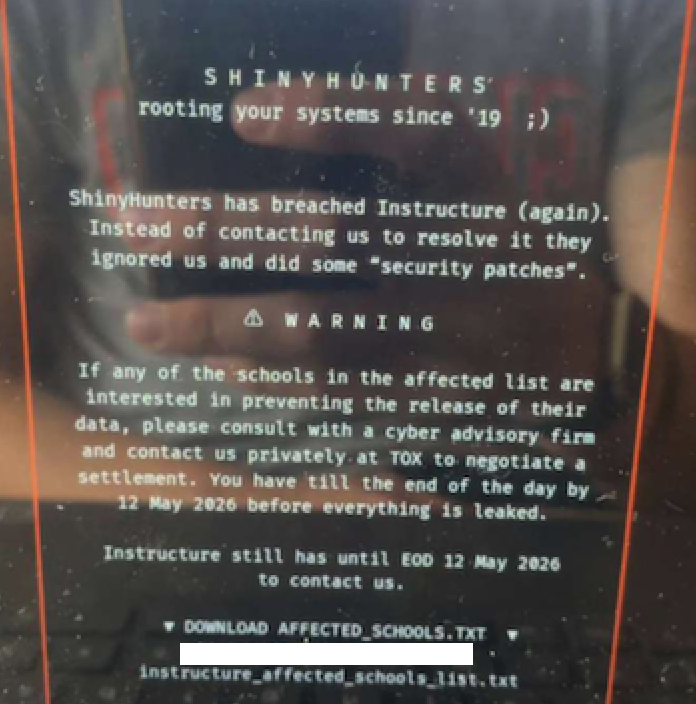
A screenshot shared by a reader showing the extortion message that was shown on the Canvas login page today.

Canvas parent firm Instructure responded to today’s defacement attacks by disabling the platform, which is used by thousands of schools, universities and businesses to manage coursework and assignments, and to communicate with students.

Instructure acknowledged a data breach earlier this week, after the cybercrime group ShinyHunters claimed responsibility and said they would leak data on tens of millions of students and faculty unless paid a ransom. The stated deadline for payment was initially set at May 6, but it was later pushed back to May 12.

In a statement on May 6, Instructure said the investigation so far shows the stolen information includes “certain identifying information of users at affected institutions, such as names, email addresses, and student ID numbers, as well as as messages among users.” The company said it found no evidence the breached data included more sensitive information, such as passwords, dates of birth, government identifiers or financial information.

The May 6 update stated that Canvas was fully operational, and that Instructure was not seeing any ongoing unauthorized activity on their platform. “At this stage, we believe the incident has been contained,” Instructure wrote.

However, by mid-day on Thursday, May 7, students and faculty at dozens of schools and universities were flooding social media sites with comments saying that a ransom demand from ShinyHunters had replaced the usual Canvas login page. Instructure responded by pulling Canvas offline and replacing the portal with the message, “Canvas is currently undergoing scheduled maintenance. Check back soon.”

“We anticipate being up soon, and will provide updates as soon as possible,” reads the current message on Instructure’s status page.

While the data stolen by ShinyHunters may or may not contain particularly sensitive information (ShinyHunters claims it includes several billion private messages among students and teachers, as well as names, phone numbers and email addresses), this attack could hardly have come at a worse time for Instructure: Many of the affected schools and universities are in the middle of final exams, and a prolonged outage could be highly damaging for the company.

The extortion message that greeted countless Canvas users today advised the affected schools to negotiate their own ransom payments to prevent the publication of their data — regardless of whether Instructure decides to pay.

“ShinyHunters has breached Instructure (again),” the extortion message read. “Instead of contacting us to resolve it they ignored us and did some ‘security patches.'”

A source close to the investigation who was not authorized to speak to the press told KrebsOnSecurity that a number of universities have already approached the cybercrime group about paying. The same source also pointed out that the ShinyHunters data leak blog no longer lists Instructure among its current extortion victims, and that the samples of data stolen from Canvas customers were removed as well. Data extortion groups like ShinyHunters will typically only remove victims from their leak sites after receiving an extortion payment or after a victim agrees to negotiate.

Dipan Mann, founder and CEO of the security firm Cloudskope, slammed Instructure for referring to today’s outage as a “scheduled maintenance” event on its status page. Mann said Shiny Hunters first demonstrated they’d breached Instructure on May 1, prompting Instructure’s Chief Information Security Officer Steve Proud to declare the following day that the incident had been contained. But Mann said today’s attack is at least the third time in the past eight months that Instructure has been breached by ShinyHunters.

In a blog post today, Mann noted that in September 2025, ShinyHunters released thousands of internal University of Pennsylvania files — donor records, internal memos, and other confidential materials — through what the Daily Pennsylvanian and other outlets later determined was, in part, a Canvas/Instructure-mediated access path.

“Penn was the named victim,” Mann wrote. “Instructure was the mechanism. The incident was treated as a Penn-specific story by most of the national press and quietly handled by Instructure as a customer-specific matter. That framing was wrong then. It is dramatically more wrong in light of the May 2026 events, which now look like the planned escalation of an attack pattern that ShinyHunters had been working against Instructure’s environment for at least eight months prior. The September 2025 Penn breach was the proof of concept. The May 1, 2026 incident was the production run. The May 7, 2026 recompromise was ShinyHunters demonstrating publicly that the May 2 ‘containment’ did not happen.”

In February, a ShinyHunters spokesperson told The Daily Pennsylvanian that Penn failed to pay a $1 million ransom demand. On March 5, ShinyHunters published 461 megabytes worth of data stolen from Penn, including thousands of files such as donor records and internal memos.

ShinyHunters is a prolific and fluid cybercriminal group that specializes in data theft and extortion. They typically gain access to companies through voice phishing and social engineering attacks that often involve impersonating IT personnel or other trusted members of a targeted organization.

Last month, ShinyHunters relieved the home security giant ADT of personal information on 5.5 million customers. The extortion group told BleepingComputer they breached the company by compromising an employee’s Okta single sign-on account in a voice phishing attack that enabled access to ADT’s Salesforce instance. BleepingComputer says ShinyHunters recently has taken credit for a number of extortion attacks against high-profile organizations, including Medtronic, Rockstar Games, McGraw Hill, 7-Eleven and the cruise line operator Carnival.

The attack on Canvas customers is just one of several major cybercrime campaigns being launched by ShinyHunters at the moment, said Charles Carmakal, chief technology officer at the Google-owned Mandiant Consulting. Carmakal declined to comment specifically on the Canvas breach, but said “there are multiple concurrent and discrete ShinyHunters intrusion and extortion campaigns happening right now.”

Cloudskope’s Mann said what happens next depends largely on whether Instructure’s customers — the universities, K-12 districts, and education ministries paying for Canvas — choose to apply pressure or absorb the breach quietly.

“The history of education-vendor incidents suggests the path of least resistance is the second one,” he concluded.

Update, May 8, 11:05 a.m. ET: Instructure has published an incident update page that includes more information about the breach. Instructure said its Canvas portal is functioning normally again, and that the hackers exploited an issue related to Free-for-Teacher accounts.

“This is the same issue that led to the unauthorized access the prior week,” Instructure wrote. “As a result, we have made the difficult decision to temporarily shut down Free-for-Teacher accounts. These accounts have been a core part of our platform, and we’re committed to resolving the issues with these accounts.”

Instructure said affected organizations were notified on May 6.

“If your organization is affected, Instructure will contact your organization’s primary contacts directly,” the update states. “Please don’t rely on third-party lists or social media posts naming potentially affected organizations as those lists aren’t verified. Instructure will confirm validated information through direct outreach to all affected organizations.”

Update, May 11, 10:16 p.m. ET: Instructure posted an update saying they paid their extortionists in exchange for a promise to destroy the stolen data. “The data was returned to us,” the update reads. “We received digital confirmation of data destruction (shred logs). We have been informed that no Instructure customers will be extorted as a result of this incident, publicly or otherwise.”

  •  

Massive AI investment scam network spans 15,500 domains

Researchers tracked a large AI‑themed investment scam campaign involving more than 15,000 domains. It uses cloaking and deepfakes to hide from security tools while targeting ordinary users.

Criminals abused the Keitaro ad-tracking platform as part of a cloaking system so real victims see scam content, while security scanners, ad reviewers, and some random visitors see harmless pages, making the operation hard to detect and shut down.

Keitaro is a commercial tracking platform originally meant for digital marketers to manage ad campaigns, test which ads work best, and route visitors to different landing pages.

Because it is feature rich, easy to spin up on regular hosting, and built to filter and route traffic, criminals found they can abuse those capabilities to run scams at scale.

Traffic starts in many places. The scammers used compromised websites, spam emails, social media posts, and online ads, all quietly routing through the same tracking infrastructure.

The scam sites typically promise “Smart AI Trading Technology” or “Intelligent Trading Solutions” and claim consistently high returns, often reinforced with deepfake images or fabricated media to look more credible.

Some parts of the campaign now use deepfake videos and fake interviews with well-known public figures, making it look like a celebrity, or finance expert personally endorses the platform.

Once you follow a link, the cloaking part of the operation kicks in. Cloaking is the trick that makes these scams so hard to see from the outside.

When you click an ad or link, your visit passes through a traffic distribution system (TDS), a kind of router for web visitors that decides which page you see. In these cases, the TDS is connected to the tracker.

The system checks things like:

  • Your country/region
  • Your device and browser
  • Where you came from (Facebook ad, Google ad, email link, etc.)
  • Sometimes your IP address reputation or other subtle fingerprints

You’re shown the real investment scam landing page only if you match the “ideal victim” profile (for example, a regular consumer in a target country coming from a social media ad).

Everyone else, like a security researcher, ad platform reviewer, or automated scanner, gets shown a benign page, like a generic blog or placeholder site.

How to stay safe

The best way to stay safe is to stay informed about the tricks scammers use. Learn to spot the red flags that almost always give away scams and phishing emails, and remember:

  • There is no such thing as a risk-free, consistently profitable investment. If you’re looking to invest, navigate directly to known, regulated financial institutions.
  • Deepfakes are very convincing nowadays, so you will hardly be able to tell the difference between the real celebrity and their deepfake persona.
  • Don’t act upon unsolicited investment advice, whether it reaches you by email, social media, or sponsored search results.
  • Use an up-to-date, real-time anti-malware solution with a web protection component or a reputable tracking and ad-blocker.
  • Don’t act on impulse or under time pressure. Always properly research where your money will be going.

Pro tip: Malwarebytes Scam Guard can help you recognize and analyze scams.


Stop threats before they can do any harm.

Malwarebytes Browser Guard blocks phishing pages and malicious sites automatically. Free, one click to install. Add it to your browser →

  •  

Massive AI investment scam network spans 15,500 domains

Researchers tracked a large AI‑themed investment scam campaign involving more than 15,000 domains. It uses cloaking and deepfakes to hide from security tools while targeting ordinary users.

Criminals abused the Keitaro ad-tracking platform as part of a cloaking system so real victims see scam content, while security scanners, ad reviewers, and some random visitors see harmless pages, making the operation hard to detect and shut down.

Keitaro is a commercial tracking platform originally meant for digital marketers to manage ad campaigns, test which ads work best, and route visitors to different landing pages.

Because it is feature rich, easy to spin up on regular hosting, and built to filter and route traffic, criminals found they can abuse those capabilities to run scams at scale.

Traffic starts in many places. The scammers used compromised websites, spam emails, social media posts, and online ads, all quietly routing through the same tracking infrastructure.

The scam sites typically promise “Smart AI Trading Technology” or “Intelligent Trading Solutions” and claim consistently high returns, often reinforced with deepfake images or fabricated media to look more credible.

Some parts of the campaign now use deepfake videos and fake interviews with well-known public figures, making it look like a celebrity, or finance expert personally endorses the platform.

Once you follow a link, the cloaking part of the operation kicks in. Cloaking is the trick that makes these scams so hard to see from the outside.

When you click an ad or link, your visit passes through a traffic distribution system (TDS), a kind of router for web visitors that decides which page you see. In these cases, the TDS is connected to the tracker.

The system checks things like:

  • Your country/region
  • Your device and browser
  • Where you came from (Facebook ad, Google ad, email link, etc.)
  • Sometimes your IP address reputation or other subtle fingerprints

You’re shown the real investment scam landing page only if you match the “ideal victim” profile (for example, a regular consumer in a target country coming from a social media ad).

Everyone else, like a security researcher, ad platform reviewer, or automated scanner, gets shown a benign page, like a generic blog or placeholder site.

How to stay safe

The best way to stay safe is to stay informed about the tricks scammers use. Learn to spot the red flags that almost always give away scams and phishing emails, and remember:

  • There is no such thing as a risk-free, consistently profitable investment. If you’re looking to invest, navigate directly to known, regulated financial institutions.
  • Deepfakes are very convincing nowadays, so you will hardly be able to tell the difference between the real celebrity and their deepfake persona.
  • Don’t act upon unsolicited investment advice, whether it reaches you by email, social media, or sponsored search results.
  • Use an up-to-date, real-time anti-malware solution with a web protection component or a reputable tracking and ad-blocker.
  • Don’t act on impulse or under time pressure. Always properly research where your money will be going.

Pro tip: Malwarebytes Scam Guard can help you recognize and analyze scams.


Stop threats before they can do any harm.

Malwarebytes Browser Guard blocks phishing pages and malicious sites automatically. Free, one click to install. Add it to your browser →

  •  

If a fake moustache can fool age checks, is the Online Safety Act working?

A report based on a survey by the UK’s Internet Matters shows that much of the responsibility for managing the online safety of children still falls on families.

The Online Safety Act came into effect in July, 2025, and the report explores what has changed in the online lives of UK families since then.

We discussed in December 2025 whether the privacy risks of age verification outweighed the enhanced child protection. While the report shows some progress, it mostly provides “an early view of how the online landscape is changing, and crucially, where it is not.”

Around half of children say they now see more age-appropriate content, and roughly four in ten parents and children feel the online world has become somewhat safer.

The online world is as much a part of a child’s environment as the physical world is. And blocking the view to parts of that world is not taken lightly. Almost half of children think age checks are easy to bypass. About a third admit to doing so recently, using tactics from fake birthdates and borrowed logins to spoofed faces and, less commonly, VPNs.

“I did catch my son [12] using an eyebrow pencil to draw a moustache on his face, and it verified him as 15 years old.”

Yet 90% of children who noticed improved blocking and reporting saw this as a good thing. Their support for these safety features is pragmatic. They point to:

  • clearer rules
  • restricted contact with strangers
  • limits on high-risk functions

 They also rate these features as helpful in reducing exposure to harmful content and interactions.

But the system is not perfect. In the month after the child protection codes came into force, almost half of children reported some online harm, including violent, hateful, and body image-related content that should be covered by the Act’s protections.

The survey also revealed that age checks are now commonplace. Over half of children said they were asked to verify their age within a recent two-month window, often on major platforms like TikTok, YouTube/Google, and Roblox, on both new and existing accounts.

The technology is improving. Platforms use facial age estimation, government ID, and third-party age assurance apps, and these are usually easy for children to complete.

However, gains in protection come with unresolved and, in some cases, growing concerns around privacy and data use, especially around age verification and AI.

Parents are worried not just about what data is collected for age checks, but whether it will be stored or reused by government or industry. This has fueled calls for central, privacy-protective solutions rather than fragmented data collection across platforms.

Because age assurance systems are both intrusive (in terms of data) and often ineffective (easy workarounds, weak enforcement), the report suggests they may not yet provide a good safety-to-privacy trade-off from a family perspective.

Obviously, the survey also didn’t capture input from adults pretending to be children to gain access to child-only spaces, a risk that parents link directly to predatory behavior.

The authors conclude that the Online Safety Act has started to reshape children’s online environments, making safety features more visible and enabling more age‑appropriate experiences in some areas.

However, the Act has not yet produced a “step change.” Harmful content remains widespread, age‑assurance is patchy and easy to circumvent, and key concerns such as time spent online, AI risks, and persuasive design remain under‑regulated.


Browse like no one’s watching. 

Malwarebytes Privacy VPN encrypts your connection and never logs what you do, so the next story you read doesn’t have to feel personal. Try it free → 

  •  

If a fake moustache can fool age checks, is the Online Safety Act working?

A report based on a survey by the UK’s Internet Matters shows that much of the responsibility for managing the online safety of children still falls on families.

The Online Safety Act came into effect in July, 2025, and the report explores what has changed in the online lives of UK families since then.

We discussed in December 2025 whether the privacy risks of age verification outweighed the enhanced child protection. While the report shows some progress, it mostly provides “an early view of how the online landscape is changing, and crucially, where it is not.”

Around half of children say they now see more age-appropriate content, and roughly four in ten parents and children feel the online world has become somewhat safer.

The online world is as much a part of a child’s environment as the physical world is. And blocking the view to parts of that world is not taken lightly. Almost half of children think age checks are easy to bypass. About a third admit to doing so recently, using tactics from fake birthdates and borrowed logins to spoofed faces and, less commonly, VPNs.

“I did catch my son [12] using an eyebrow pencil to draw a moustache on his face, and it verified him as 15 years old.”

Yet 90% of children who noticed improved blocking and reporting saw this as a good thing. Their support for these safety features is pragmatic. They point to:

  • clearer rules
  • restricted contact with strangers
  • limits on high-risk functions

 They also rate these features as helpful in reducing exposure to harmful content and interactions.

But the system is not perfect. In the month after the child protection codes came into force, almost half of children reported some online harm, including violent, hateful, and body image-related content that should be covered by the Act’s protections.

The survey also revealed that age checks are now commonplace. Over half of children said they were asked to verify their age within a recent two-month window, often on major platforms like TikTok, YouTube/Google, and Roblox, on both new and existing accounts.

The technology is improving. Platforms use facial age estimation, government ID, and third-party age assurance apps, and these are usually easy for children to complete.

However, gains in protection come with unresolved and, in some cases, growing concerns around privacy and data use, especially around age verification and AI.

Parents are worried not just about what data is collected for age checks, but whether it will be stored or reused by government or industry. This has fueled calls for central, privacy-protective solutions rather than fragmented data collection across platforms.

Because age assurance systems are both intrusive (in terms of data) and often ineffective (easy workarounds, weak enforcement), the report suggests they may not yet provide a good safety-to-privacy trade-off from a family perspective.

Obviously, the survey also didn’t capture input from adults pretending to be children to gain access to child-only spaces, a risk that parents link directly to predatory behavior.

The authors conclude that the Online Safety Act has started to reshape children’s online environments, making safety features more visible and enabling more age‑appropriate experiences in some areas.

However, the Act has not yet produced a “step change.” Harmful content remains widespread, age‑assurance is patchy and easy to circumvent, and key concerns such as time spent online, AI risks, and persuasive design remain under‑regulated.


Browse like no one’s watching. 

Malwarebytes Privacy VPN encrypts your connection and never logs what you do, so the next story you read doesn’t have to feel personal. Try it free → 

  •  

Google Chrome’s silent 4GB AI download problem [updated]

Google Chrome has been quietly downloading a 4GB AI model onto users’ devices without asking first.

Security researcher Alexander Hanff, aka ThatPrivacyGuy, reports that Chrome has been silently installing Gemini Nano, Google’s on-device AI model, as a file called weights.bin stored in the OptGuideOnDeviceModel directory within users’ Chrome profiles. This 4GB download happens automatically when Chrome determines your device meets the hardware requirements. It does not ask for consent, and sends no notification—not even one of those annoying cookie banners you’ve learned to dismiss without reading.

The Gemini Nano model powers features like “Help me write” text composition assistance, on-device scam detection, and a Summarizer API that websites can call directly. These features are enabled by default in some recent Chrome versions. And here’s the kicker: if you discover the file and delete it, Chrome simply downloads it again.

Why this matters

Let’s start with the obvious problem: a 4GB download isn’t trivial for everyone. If you’re lucky enough to have unlimited fiber internet, you might not notice. But for users on metered connections, mobile hotspots, or in developing countries where data is expensive, Google just cost them real money without permission. For rural users or those with bandwidth caps, this kind of silent transfer can blow through monthly limits in minutes.

Hanff focuses on the environmental angle. He calculated that if this model were pushed to just 1 billion Chrome users (roughly 30% of Chrome’s user base), the distribution alone would consume 240 gigawatt-hours of energy and generate 60,000 tons of CO2 equivalent. That’s not including actually using the model, just the downloads.

But to us, the most troubling aspect is the broader pattern this represents. Just a few weeks ago, we reported another unsolicited AI invasion on our personal computers discovered by Hanff. He documented how Anthropic’s Claude Desktop app, which silently installed browser integration files across multiple Chromium browsers, including five browsers he didn’t even have installed. The integration would reinstall itself if removed, and it also happened without any meaningful user disclosure.

Hanff argues that both cases likely violate EU privacy law, specifically the ePrivacy Directive’s rules about storing data on user devices and the GDPR’s requirements around transparency and lawful processing. While these claims haven’t been tested in court, they highlight a fundamental tension: can companies just install whatever they want on your computer as long as they say it’s a feature of an app you installed?

Google might argue that having an AI on your device provides better privacy than cloud-based alternatives. Which is generally true, but it does not apply here, since Chrome’s most prominent AI feature—the “AI Mode” pill in the address bar—doesn’t even use the local model. According to Hanff’s analysis, it routes queries to Google’s cloud servers anyway. 

All in all, users see a 4GB local AI model and reasonably assume their data stays private, when in reality, the most visible AI feature sends everything to Google’s servers.

Tech companies need to stop treating silent deployment as acceptable practice. We see no valid excuse for this. Your device is yours. The storage is yours. The bandwidth is yours. And the electricity bill is yours.

What happened to asking for permission? And when I remove it, I want it gone permanently—not automatic reinstallation.

When are the tech giants going to learn that we don’t want to be left discovering after the fact that our devices have become deployment targets for features we never asked for.

Update May 12, 2026 with do it yourself instructions

How to check if the AI model is on your computer (Windows)

  1. Open File Explorer
  2. At the top of the File Explorer window, click the address bar and paste:

%LOCALAPPDATA%\Google\Chrome\User Data

  1. Press Enter
  2. Look for a folder named:

OptGuideOnDeviceModel

  1. If you see it, Chrome has likely downloaded the AI model
Properties of the OptGuideOnDeviceModel folder
Properties of the folder

How to check on a Mac

  1. Open Finder
  2. In the menu bar at the top of the screen, click Go > Go to Folder
  3. Paste:

~/Library/Application Support/Google/Chrome/

  1. Look for a folder named:

OptGuideOnDeviceModel

Now, remember, this isn’t malware, and its presence doesn’t mean your computer is infected.

Turn off Chrome AI features

This part is relatively easy. You may find online instructions telling you to edit the Windows registry or use Chrome policies, but for most people the simplest and safest approach is to disable the features directly in Chrome.

We don’t recommend manually editing the registry unless you fully understand what you’re doing. Incorrect changes can cause system problems.

Instead, try this first:

  1. Open Chrome
  2. You can copy and paste this directly into Chrome’s address bar and press Enter:

chrome://settings/ai

  1. On the page that opens, you can turn off features such as:
    • “Help me write”
    • AI summaries
    • On-device AI features

 The exact options may vary depending on your Chrome version and region.

  1. Then restart Chrome to make sure the changes take effect.

This may stop Chrome from downloading or using the AI model, although some users report the files can return after browser updates.

There is probably no need to delete the files unless you specifically need the storage space.

If chrome://settings/ai does not work, the feature may not yet be available in your region, you may be using a managed work or school account, or your version of Chrome may not support these settings yet.

Do you need to delete the OptGuideOnDeviceModel folder?

You can, but there is probably no need to.

If you disable Chrome’s AI features, the downloaded model should no longer be actively used for those features. Leaving the files in place may also prevent Chrome from downloading them again at a later point.


Browse like no one’s watching. 

Malwarebytes Privacy VPN encrypts your connection and never logs what you do, so the next story you read doesn’t have to feel personal. Try it free → 

  •  

Google Chrome’s silent 4GB AI download problem [updated]

Google Chrome has been quietly downloading a 4GB AI model onto users’ devices without asking first.

Security researcher Alexander Hanff, aka ThatPrivacyGuy, reports that Chrome has been silently installing Gemini Nano, Google’s on-device AI model, as a file called weights.bin stored in the OptGuideOnDeviceModel directory within users’ Chrome profiles. This 4GB download happens automatically when Chrome determines your device meets the hardware requirements. It does not ask for consent, and sends no notification—not even one of those annoying cookie banners you’ve learned to dismiss without reading.

The Gemini Nano model powers features like “Help me write” text composition assistance, on-device scam detection, and a Summarizer API that websites can call directly. These features are enabled by default in some recent Chrome versions. And here’s the kicker: if you discover the file and delete it, Chrome simply downloads it again.

Why this matters

Let’s start with the obvious problem: a 4GB download isn’t trivial for everyone. If you’re lucky enough to have unlimited fiber internet, you might not notice. But for users on metered connections, mobile hotspots, or in developing countries where data is expensive, Google just cost them real money without permission. For rural users or those with bandwidth caps, this kind of silent transfer can blow through monthly limits in minutes.

Hanff focuses on the environmental angle. He calculated that if this model were pushed to just 1 billion Chrome users (roughly 30% of Chrome’s user base), the distribution alone would consume 240 gigawatt-hours of energy and generate 60,000 tons of CO2 equivalent. That’s not including actually using the model, just the downloads.

But to us, the most troubling aspect is the broader pattern this represents. Just a few weeks ago, we reported another unsolicited AI invasion on our personal computers discovered by Hanff. He documented how Anthropic’s Claude Desktop app, which silently installed browser integration files across multiple Chromium browsers, including five browsers he didn’t even have installed. The integration would reinstall itself if removed, and it also happened without any meaningful user disclosure.

Hanff argues that both cases likely violate EU privacy law, specifically the ePrivacy Directive’s rules about storing data on user devices and the GDPR’s requirements around transparency and lawful processing. While these claims haven’t been tested in court, they highlight a fundamental tension: can companies just install whatever they want on your computer as long as they say it’s a feature of an app you installed?

Google might argue that having an AI on your device provides better privacy than cloud-based alternatives. Which is generally true, but it does not apply here, since Chrome’s most prominent AI feature—the “AI Mode” pill in the address bar—doesn’t even use the local model. According to Hanff’s analysis, it routes queries to Google’s cloud servers anyway. 

All in all, users see a 4GB local AI model and reasonably assume their data stays private, when in reality, the most visible AI feature sends everything to Google’s servers.

Tech companies need to stop treating silent deployment as acceptable practice. We see no valid excuse for this. Your device is yours. The storage is yours. The bandwidth is yours. And the electricity bill is yours.

What happened to asking for permission? And when I remove it, I want it gone permanently—not automatic reinstallation.

When are the tech giants going to learn that we don’t want to be left discovering after the fact that our devices have become deployment targets for features we never asked for.

Update May 12, 2026 with do it yourself instructions

How to check if the AI model is on your computer (Windows)

  1. Open File Explorer
  2. At the top of the File Explorer window, click the address bar and paste:

%LOCALAPPDATA%\Google\Chrome\User Data

  1. Press Enter
  2. Look for a folder named:

OptGuideOnDeviceModel

  1. If you see it, Chrome has likely downloaded the AI model
Properties of the OptGuideOnDeviceModel folder
Properties of the folder

How to check on a Mac

  1. Open Finder
  2. In the menu bar at the top of the screen, click Go > Go to Folder
  3. Paste:

~/Library/Application Support/Google/Chrome/

  1. Look for a folder named:

OptGuideOnDeviceModel

Now, remember, this isn’t malware, and its presence doesn’t mean your computer is infected.

Turn off Chrome AI features

This part is relatively easy. You may find online instructions telling you to edit the Windows registry or use Chrome policies, but for most people the simplest and safest approach is to disable the features directly in Chrome.

We don’t recommend manually editing the registry unless you fully understand what you’re doing. Incorrect changes can cause system problems.

Instead, try this first:

  1. Open Chrome
  2. You can copy and paste this directly into Chrome’s address bar and press Enter:

chrome://settings/ai

  1. On the page that opens, you can turn off features such as:
    • “Help me write”
    • AI summaries
    • On-device AI features

 The exact options may vary depending on your Chrome version and region.

  1. Then restart Chrome to make sure the changes take effect.

This may stop Chrome from downloading or using the AI model, although some users report the files can return after browser updates.

There is probably no need to delete the files unless you specifically need the storage space.

If chrome://settings/ai does not work, the feature may not yet be available in your region, you may be using a managed work or school account, or your version of Chrome may not support these settings yet.

Do you need to delete the OptGuideOnDeviceModel folder?

You can, but there is probably no need to.

If you disable Chrome’s AI features, the downloaded model should no longer be actively used for those features. Leaving the files in place may also prevent Chrome from downloading them again at a later point.


Browse like no one’s watching. 

Malwarebytes Privacy VPN encrypts your connection and never logs what you do, so the next story you read doesn’t have to feel personal. Try it free → 

  •  

Millions of students’ personal data stolen in major education breach

Instructure, the company behind the Canvas learning management system (LMS), confirmed a cyber incident and subsequent data breach affecting its cloud‑hosted environment.

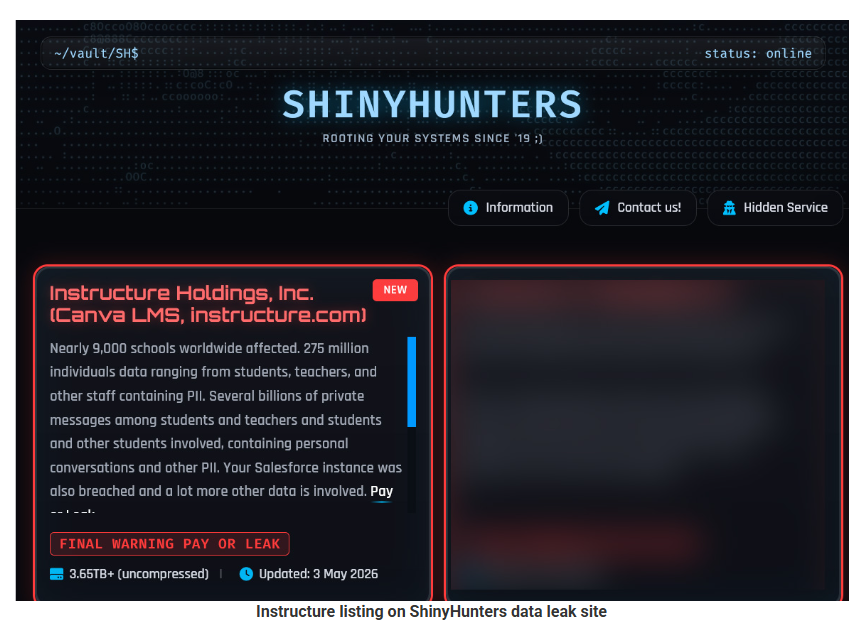
The ShinyHunters ransomware group claims it is behind the attack and says it stole roughly 275 million records tied to students, teachers, and staff.

ShinyHunters leak site
Image courtesy of BleepingComputer

The criminals shared a list of 8,809 school districts, universities, and online education platforms with BleepingComputer whose Canvas instances they claim were impacted, with per‑institution record counts ranging from tens of thousands to several million.


Digital Footprint Scan

See if your personal data has been exposed.


What to do if your child’s Instructure/Canvas data was exposed

If you’ve been told that your child was affected by the Instructure breach, you may be wondering what you can do to protect them. Here are some practical steps you can take right away.

1. Check what the school and Instructure are saying

Start with the notification from the school or district and Instructure’s own updates to understand what data about your child was involved (for example: name, email address, student ID, or course information). Follow any specific steps they recommend for student accounts and keep an eye on follow‑up messages in case new information comes to light.

Make sure the notification is real before anything else. If anything in the message looks suspicious, such as odd links, pressure to act immediately, or requests for extra data, check this first. Go to the district’s or Instructure’s site directly and use the contact details listed there to verify.

2. Lock down your child’s school and learning accounts

If your child has a Canvas or related account, change that password immediately, especially if your school lets students or parents log in with a username and password instead of single sign‑on. If your child tends to reuse passwords (for example, using the same one for Canvas, email, and gaming accounts), change those other passwords as well.

Give every account its own strong, unique password and consider using a family password manager so you can create and store these without relying on memory. For younger children, you may want to manage these credentials yourself and keep a list of which education platforms they use.

3. Turn on multi‑factor authentication where possible

Multi‑factor authentication (MFA) makes it much harder for someone to log into an account with just a password. If your school or district allows it on parent or student accounts (for example, a code sent by SMS, email, or generated in an authenticator app), turn it on and, ideally, have the codes go to a device or app you control.

Remind your child that security codes are like short‑term passwords. They should never share them with friends, teachers, or anyone claiming to be “IT support,” even if a message looks urgent or uses school branding.

4. Consider extra identity protection for minors

If the breach included very sensitive identifiers (such as national ID or Social Security numbers in some regions), ask both the school and the breached provider what protection is being offered for minors, such as credit monitoring or identity restoration services. In some countries, you can also place a credit freeze or similar block on a minor’s file to prevent new accounts being opened in their name.

Even if your child is too young to have a credit file today, it’s worth keeping a note of this incident so you remember to check their records once they are old enough.

5. Stay alert for follow‑on scams

Attackers like to reuse stolen data from education platforms to make phishing and scam messages more convincing, mentioning real school names, teachers, or courses. Be especially wary of emails and texts that claim to be from the school, district, or Instructure and that ask you to “confirm” login details, open unexpected attachments (like “new assignments”), or pay fees via unusual methods.

As a rule of thumb, avoid clicking links in unsolicited messages about the breach. Instead, open a new browser window and go to the official site or app as you normally would, then log in from there to check for messages.


What do cybercriminals know about you?

Use Malwarebytes’ free Digital Footprint scan to see whether your personal information has been exposed online.

  •  

Millions of students’ personal data stolen in major education breach

Instructure, the company behind the Canvas learning management system (LMS), confirmed a cyber incident and subsequent data breach affecting its cloud‑hosted environment.

The ShinyHunters ransomware group claims it is behind the attack and says it stole roughly 275 million records tied to students, teachers, and staff.

ShinyHunters leak site
Image courtesy of BleepingComputer

The criminals shared a list of 8,809 school districts, universities, and online education platforms with BleepingComputer whose Canvas instances they claim were impacted, with per‑institution record counts ranging from tens of thousands to several million.


Digital Footprint Scan

See if your personal data has been exposed.


What to do if your child’s Instructure/Canvas data was exposed

If you’ve been told that your child was affected by the Instructure breach, you may be wondering what you can do to protect them. Here are some practical steps you can take right away.

1. Check what the school and Instructure are saying

Start with the notification from the school or district and Instructure’s own updates to understand what data about your child was involved (for example: name, email address, student ID, or course information). Follow any specific steps they recommend for student accounts and keep an eye on follow‑up messages in case new information comes to light.

Make sure the notification is real before anything else. If anything in the message looks suspicious, such as odd links, pressure to act immediately, or requests for extra data, check this first. Go to the district’s or Instructure’s site directly and use the contact details listed there to verify.

2. Lock down your child’s school and learning accounts

If your child has a Canvas or related account, change that password immediately, especially if your school lets students or parents log in with a username and password instead of single sign‑on. If your child tends to reuse passwords (for example, using the same one for Canvas, email, and gaming accounts), change those other passwords as well.

Give every account its own strong, unique password and consider using a family password manager so you can create and store these without relying on memory. For younger children, you may want to manage these credentials yourself and keep a list of which education platforms they use.

3. Turn on multi‑factor authentication where possible

Multi‑factor authentication (MFA) makes it much harder for someone to log into an account with just a password. If your school or district allows it on parent or student accounts (for example, a code sent by SMS, email, or generated in an authenticator app), turn it on and, ideally, have the codes go to a device or app you control.

Remind your child that security codes are like short‑term passwords. They should never share them with friends, teachers, or anyone claiming to be “IT support,” even if a message looks urgent or uses school branding.

4. Consider extra identity protection for minors

If the breach included very sensitive identifiers (such as national ID or Social Security numbers in some regions), ask both the school and the breached provider what protection is being offered for minors, such as credit monitoring or identity restoration services. In some countries, you can also place a credit freeze or similar block on a minor’s file to prevent new accounts being opened in their name.

Even if your child is too young to have a credit file today, it’s worth keeping a note of this incident so you remember to check their records once they are old enough.

5. Stay alert for follow‑on scams

Attackers like to reuse stolen data from education platforms to make phishing and scam messages more convincing, mentioning real school names, teachers, or courses. Be especially wary of emails and texts that claim to be from the school, district, or Instructure and that ask you to “confirm” login details, open unexpected attachments (like “new assignments”), or pay fees via unusual methods.

As a rule of thumb, avoid clicking links in unsolicited messages about the breach. Instead, open a new browser window and go to the official site or app as you normally would, then log in from there to check for messages.


What do cybercriminals know about you?

Use Malwarebytes’ free Digital Footprint scan to see whether your personal information has been exposed online.

  •  

Update WhatsApp now: Two new flaws could expose you to malicious files

Meta has published a new security advisory for messaging app WhatsApp, announcing patches for two vulnerabilities.

WhatsApp has fixed two security flaws that could be abused to interfere with how media and attachments are handled on your device. There is no evidence that either bug has been exploited in the wild.

These bugs don’t automatically infect devices, but they lower the barrier for social engineering and could be chained with other vulnerabilities for more serious attacks.

Malicious messages

The first issue, tracked as CVE‑2026‑23866, affects how WhatsApp processes AI‑generated “rich response messages” that embed Instagram Reels. On affected iOS and Android versions, incomplete validation means a specially crafted message could cause the app to load media from an attacker‑controlled URL. In some cases, this could trigger operating system‑level custom URL scheme handlers.

In other words: a booby‑trapped message could prompt your device to open content from an untrusted source.

How to update WhatsApp for Android

You can easily update WhatsApp from the Google Play Store.

  1. Open the Google Play Store
  2. Search for WhatsApp Messenger
  3. Tap Update

Note: Updates may not be available immediately in all regions.

How to update WhatsApp on iOS

To update WhatsApp on iOS:

  • Open the App Store
  • Tap your profile icon
  • Scroll to find WhatsApp and tap Update

If it’s not listed, search for WhatsApp to check if an “Update” button is available.

Misleading filenames

The second bug, CVE‑2026‑23863, affects WhatsApp for Windows before version 2.3000.1032164386.258709.

In this case, WhatsApp did not correctly handle filenames containing embedded NUL bytes. This could allow a file to appear as a harmless type in the interface while actually being treated as an executable when opened. That’s a classic recipe for social engineering: “click the PDF,” but get an .exe file.

How to update WhatsApp for Windows

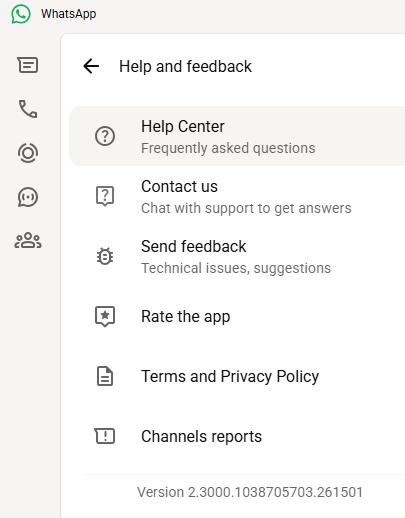
You can find your WhatsApp for Windows version number by clicking on your profile picture and selecting Help and feedback.

Version 2.3000.1038705703.261501

If your version number is earlier than 2.3000.1032164386.258709, update via the Microsoft Store:

  1. Click the Start menu and search for Microsoft Store to open it
  2. Click Library located at the bottom-left corner
  3. Find WhatsApp Desktop
  4. Click Get Updates or Update

Once installed, restart the app to apply the changes.

Automatic updates on Windows

My WhatsApp was already up to date because I have automatic updates turned on. Here’s how to turn it on:

  1. Click the Start menu and search for Microsoft Store to open it
  2. Select Profile (your account picture) > Settings
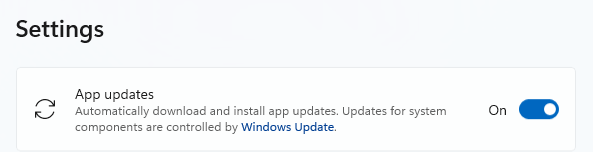
  3. Make sure App updates is toggled to On
Auto updates on Windows

Scammers don’t need to hack you. They just need you to click once. 

Malwarebytes Identity Theft Protection catches suspicious activity before it becomes a problem.

  •  

Update WhatsApp now: Two new flaws could expose you to malicious files

Meta has published a new security advisory for messaging app WhatsApp, announcing patches for two vulnerabilities.

WhatsApp has fixed two security flaws that could be abused to interfere with how media and attachments are handled on your device. There is no evidence that either bug has been exploited in the wild.

These bugs don’t automatically infect devices, but they lower the barrier for social engineering and could be chained with other vulnerabilities for more serious attacks.

Malicious messages

The first issue, tracked as CVE‑2026‑23866, affects how WhatsApp processes AI‑generated “rich response messages” that embed Instagram Reels. On affected iOS and Android versions, incomplete validation means a specially crafted message could cause the app to load media from an attacker‑controlled URL. In some cases, this could trigger operating system‑level custom URL scheme handlers.

In other words: a booby‑trapped message could prompt your device to open content from an untrusted source.

How to update WhatsApp for Android

You can easily update WhatsApp from the Google Play Store.

  1. Open the Google Play Store
  2. Search for WhatsApp Messenger
  3. Tap Update

Note: Updates may not be available immediately in all regions.

How to update WhatsApp on iOS

To update WhatsApp on iOS:

  • Open the App Store
  • Tap your profile icon
  • Scroll to find WhatsApp and tap Update

If it’s not listed, search for WhatsApp to check if an “Update” button is available.

Misleading filenames

The second bug, CVE‑2026‑23863, affects WhatsApp for Windows before version 2.3000.1032164386.258709.

In this case, WhatsApp did not correctly handle filenames containing embedded NUL bytes. This could allow a file to appear as a harmless type in the interface while actually being treated as an executable when opened. That’s a classic recipe for social engineering: “click the PDF,” but get an .exe file.

How to update WhatsApp for Windows

You can find your WhatsApp for Windows version number by clicking on your profile picture and selecting Help and feedback.

Version 2.3000.1038705703.261501

If your version number is earlier than 2.3000.1032164386.258709, update via the Microsoft Store:

  1. Click the Start menu and search for Microsoft Store to open it
  2. Click Library located at the bottom-left corner
  3. Find WhatsApp Desktop
  4. Click Get Updates or Update

Once installed, restart the app to apply the changes.

Automatic updates on Windows

My WhatsApp was already up to date because I have automatic updates turned on. Here’s how to turn it on:

  1. Click the Start menu and search for Microsoft Store to open it
  2. Select Profile (your account picture) > Settings
  3. Make sure App updates is toggled to On
Auto updates on Windows

Scammers don’t need to hack you. They just need you to click once. 

Malwarebytes Identity Theft Protection catches suspicious activity before it becomes a problem.

  •  
❌