In 2022, we dived deep into an attack method called browser-in-the-browser — originally developed by the cybersecurity researcher known as mr.d0x. Back then, no actual examples existed of this model being used in the wild. Fast-forward four years, and browser-in-the-browser attacks have graduated from the theoretical to the real: attackers are now using them in the field. In this post, we revisit what exactly a browser-in-the-browser attack is, show how hackers are deploying it, and, most importantly, explain how to keep yourself from becoming its next victim.
What is a browser-in-the-browser (BitB) attack?
For starters, let’s refresh our memories on what mr.d0x actually cooked up. The core of the attack stems from his observation of just how advanced modern web development tools — HTML, CSS, JavaScript, and the like — have become. It’s this realization that inspired the researcher to come up with a particularly elaborate phishing model.
A browser-in-the-browser attack is a sophisticated form of phishing that uses web design to craft fraudulent websites imitating login windows for well-known services like Microsoft, Google, Facebook, or Apple that look just like the real thing. The researcher’s concept involves an attacker building a legitimate-looking site to lure in victims. Once there, users can’t leave comments or make purchases unless they “sign in” first.
Signing in seems easy enough: just click the Sign in with {popular service name} button. And this is where things get interesting: instead of a genuine authentication page provided by the legitimate service, the user gets a fake form rendered inside the malicious site, looking exactly like… a browser pop-up. Furthermore, the address bar in the pop-up, also rendered by the attackers, displays a perfectly legitimate URL. Even a close inspection won’t reveal the trick.
From there, the unsuspecting user enters their credentials for Microsoft, Google, Facebook, or Apple into this rendered window, and those details go straight to the cybercriminals. For a while this scheme remained a theoretical experiment by the security researcher. Now — real-world attackers have added it to their arsenals.
Facebook credential theft
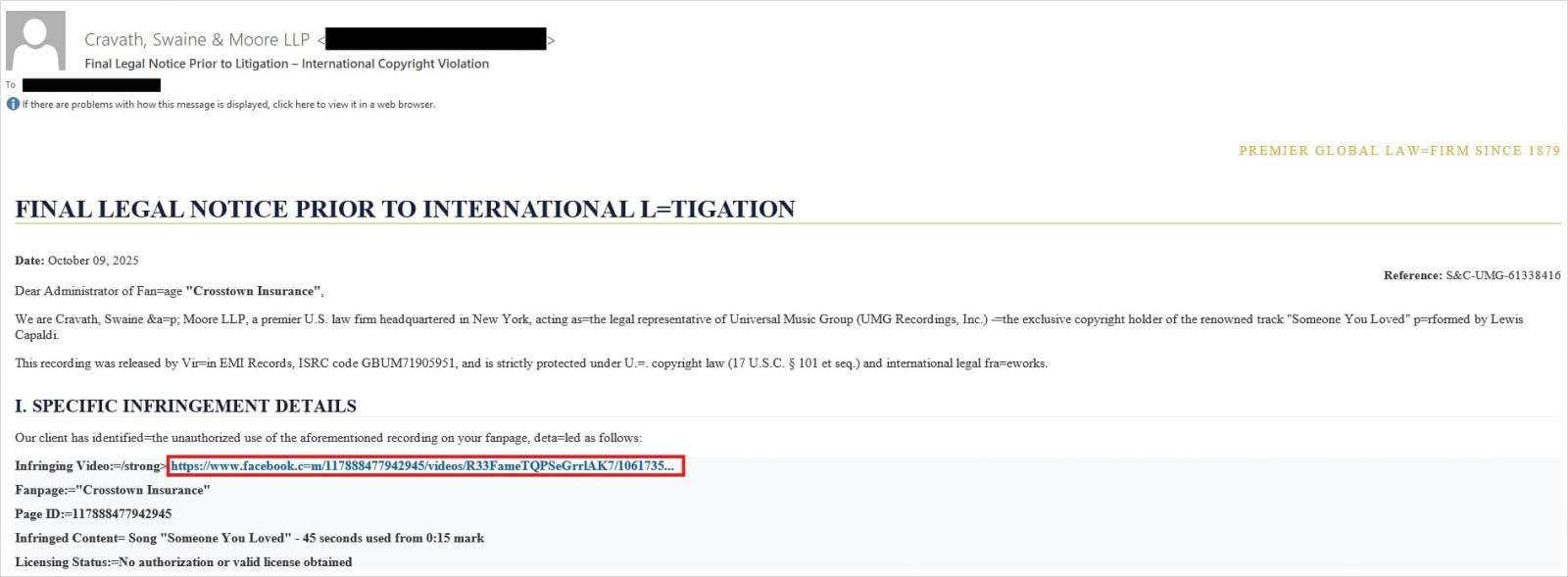
Attackers have put their own spin on mr.d0x’s original concept: recent browser-in-the-browser hits have been kicking off with emails designed to alarm recipients. For instance, one phishing campaign posed as a law firm informing the user they’d committed a copyright violation by posting something on Facebook. The message included a credible-looking link allegedly to the offending post.
Attackers sent messages on behalf of a fake law firm alleging copyright infringement — complete with a link supposedly to the problematic Facebook post. Source
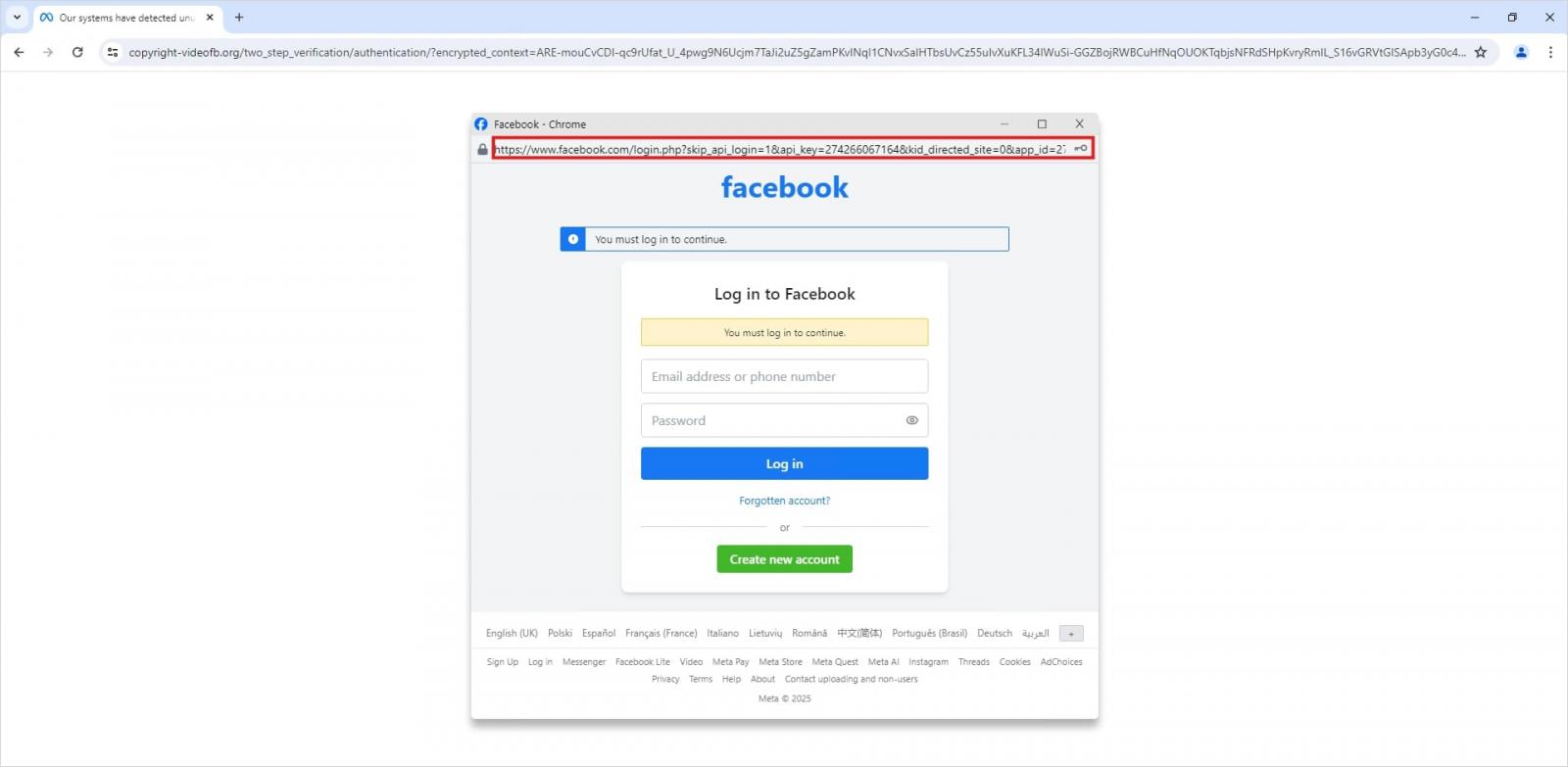
Interestingly, to lower the victim’s guard, clicking the link didn’t immediately open a fake Facebook login page. Instead, they were first greeted by a bogus Meta CAPTCHA. Only after passing it was the victim presented with the fake authentication pop-up.
This isn’t a real browser pop-up; it’s a website element mimicking a Facebook login page — a ruse that allows attackers to display a perfectly convincing address. Source
Naturally, the fake Facebook login page followed mr.d0x’s blueprint: it was built entirely with web design tools to harvest the victim’s credentials. Meanwhile, the URL displayed in the forged address bar pointed to the real Facebook site — www.facebook.com.
How to avoid becoming a victim
The fact that scammers are now deploying browser-in-the-browser attacks just goes to show that their bag of tricks is constantly evolving. But don’t despair — there’s a way to tell if a login window is legit. A password manager is your friend here, which, among other things, acts as a reliable security litmus test for any website.
That’s because when it comes to auto-filling credentials, a password manager looks at the actual URL, not what the address bar appears to show, or what the page itself looks like. Unlike a human user, a password manager can’t be fooled with browser-in-the-browser tactics, or any other tricks, like domains having a slightly different address (typosquatting) or phishing forms buried in ads and pop-ups. There’s a simple rule: if your password manager offers to auto-fill your login and password, you’re on a website you’ve previously saved credentials for. If it stays silent, something’s fishy.
Beyond that, following our time-tested advice will help you defend against various phishing methods, or at least minimize the fallout if an attack succeeds:
Enable two-factor authentication (2FA) for every account that supports it. Ideally, use one-time codes generated by a dedicated authenticator app as your second factor. This helps you dodge phishing schemes designed to intercept confirmation codes sent via SMS, messaging apps, or email. You can read more about one-time-code 2FA in our dedicated post.
Use passkeys. The option to sign in with this method can also serve as a signal that you’re on a legitimate site. You can learn all about what passkeys are and how to start using them in our deep dive into the technology.
Set unique, complex passwords for all your accounts. Whatever you do, never reuse the same password across different accounts. We recently covered what makes a password truly strong on our blog. To generate unique combinations — without needing to remember them — Kaspersky Password Manager is your best bet. As an added bonus, it can also generate one-time codes for two-factor authentication, store your passkeys, and synchronize your passwords and files across your various devices.
Finally, this post serves as yet another reminder that theoretical attacks described by cybersecurity researchers often find their way out into the wild. So, keep an eye on our blog, and subscribe to our Telegram channel to stay up to speed on the latest threats to your digital security and how to shut them down.
Read about other inventive phishing techniques scammers are using day in day out:
The outgoing year of 2025 has significantly transformed our access to the Web and the ways we navigate it. Radical new laws, the rise of AI assistants, and websites scrambling to block AI bots are reshaping the internet right before our eyes. So what do you need to know about these changes, and what skills and habits should you bring with you into 2026? As is our tradition, we’re framing this as eight New Year’s resolutions. What are we pledging for 2026?…
Get to know your local laws
Last year was a bumper crop for legislation that seriously changed the rules of the internet for everyday users. Lawmakers around the world have been busy:
Applying pressure through blocks and lawsuits against platforms that wouldn’t comply with existing child protection laws — with Roblox finding itself in a particularly bright spotlight
Your best bet is to get news from sites that report calmly and without sensationalism, and to review legal experts’ commentaries. You need to understand what obligations fall on you, and, if you have underage children — what changes for them.
You might face difficult conversations with your kids about new rules for using social media or games. It’s crucial that teenage rebellion doesn’t lead to dangerous mistakes such as installing malware disguised as a “restriction-bypassing mod”, or migrating to small, unmoderated social networks. Safeguarding the younger generation requires reliable protection on their computers and smartphones, alongside parental control tools.
But it’s not just about simple compliance with laws. You’ll almost certainly encounter negative side effects that lawmakers didn’t anticipate.
Master new methods of securing access
Some websites choose to geoblock certain countries entirely to avoid the complexities of complying with regional regulations. If you’re certain your local laws allow access to the content, you can bypass these geoblocks by using a VPN. You need to select a server in a country where the site is accessible.
It’s important to choose a service that doesn’t just offer servers in the right locations, but actually enhances your privacy — as many free VPNs can effectively compromise it. We recommend Kaspersky VPN Secure Connection.
Brace for document leaks
While age verification can be implemented in different ways, it often involves websites using a third-party verification service. On your first login attempt, you’ll be redirected to a separate site to complete one of several checks: take a photo of your ID or driver’s license, use a bank card, or nod and smile for a video, and so on.
The mere idea of presenting a passport to access adult websites is deeply unpopular with many people on principle. But beyond that, there’s a serious risk of data leaks. These incidents are already a reality: data breaches have impacted a contractor used to verify Discord users, as well as service providers for TikTok and Uber. The more websites that require this verification, the higher the risk of a leak becomes.
So what can you do?
Prioritize services that don’t require document uploads. Instead, look for those utilizing alternative age verification methods such as a micro-transaction charge to a payment card, confirmation through your bank or another trusted external provider, or behavioral/biometric analysis.
Pick the least sensitive and easiest-to-replace document you have, and use only that one for all verifications. “Least sensitive” in this case means containing minimal personal data, and not referencing other primary identifiers like a national ID number.
Use a separate, dedicated email address and phone number in combination with that document. For the sites and services that don’t verify your identity, use completely different contact details. This makes it much harder for your data to be easily pieced together from different leaks.
Learn scammers’ new playbook
It’s highly likely that under the guise of “age verification”, scammers will begin phishing for personal and payment data, and pushing malware onto visitors. After all, it’s very tempting to simply copy and paste some text on your computer instead of uploading a photo of your passport. Currently, ClickFix attacks are mostly disguised as CAPTCHA checks, but age verification is the logical next step for these schemes. How to lower these risks?
Carefully check any websites that require verification. Do not complete the verification if you’ve already done it for that service before, or if you landed on the verification page via a link from a messaging app, search engine, or ad.
Never download apps or copy and paste text for verification. All legitimate services operate within the browser window, though sometimes desktop users are asked to switch to a smartphone to complete the check.
Analyze and be suspicious of any situation that requires entering a code received via a messaging app or SMS to access a website or confirm an action. This is often a scheme to hijack your messaging account or another critical service.
Even if you’re not a fan of AI, you’ll find it hard to avoid: it’s literally being shoved into each everyday service: Android, Chrome, MS Office, Windows, iOS, Creative Cloud… the list is endless. As with fast food, television, TikTok, and other easily accessible conveniences, the key is striking a balance between the healthy use of these assistants and developing an addiction.
Identify the areas where your mental sharpness and personal growth matter most to you. A person who doesn’t run regularly lowers their fitness level. Someone who always uses GPS navigation gets worse at reading paper maps. Wherever you value the work of your mind, offloading it to AI is a path to losing your edge. Maintain a balance: regularly do that mental work yourself — even if AI can do it well — from translating text to looking up info on Wikipedia. You don’t have to do it all the time, but remember to do it at least some of the time. For a more radical approach, you can also disable AI services wherever possible.
Know where the cost of a mistake is high. Despite developers’ best efforts, AI can sometimes deliver completely wrong answers with total confidence. These so-called hallucinations are unlikely to be fully eradicated anytime soon. Therefore, for important documents and critical decisions, either avoid using AI entirely, or scrutinize its output with extreme care. Check every number, every comma.
In other areas, feel free to experiment with AI. But even for seemingly harmless uses, remember that mistakes and hallucinations are a real possibility.
How to lower the risk of leaks. The more you use AI, the more of your information goes to the service provider. Whenever possible, prioritize AI features that run entirely on your device. This category includes things like the protection against fraudulent sites in Chrome, text translation in Firefox, the rewriting assistant in iOS, and so on. You can even run a full-fledged chatbot locally on your own computer.
AI agents need close supervision. The agentic capabilities of AI — where it doesn’t just suggest but actively does work for you — are especially risky. Thoroughly research the risks in this area before trusting an agent with online shopping or booking a vacation. And use modes where the assistant asks for your confirmation before entering personal data — let alone buying anything.
Audit your subscriptions and plans
The economics of the internet is shifting right before our eyes. The AI arms race is driving up the cost of components and computing power, tariffs and geopolitical conflicts are disrupting supply chains, and baking AI features into familiar products sometimes comes with a price hike. Practically any online service can get more expensive overnight — sometimes by double-digit percentages. Some providers are taking a different route, moving away from a fixed monthly fee to a pay-per-use model for things like songs downloaded or images generated.
To avoid nasty surprises when you check your bank statement, make it a habit to review the terms of all your paid subscriptions at least three or four times a year. You might find that a service has updated its plans and that you need to downgrade to a simpler one. Or a service might have quietly signed you up for an extra feature you’re not even aware of — and you need to disable it. Some services might be better switched to a free tier or canceled altogether. Financial literacy is becoming a must-have skill for managing your digital spending.
To get a complete picture of your subscriptions and truly understand how much you’re spending on digital services each month or year, it’s best to track them all in one place. A simple Excel or Google Docs spreadsheet works, but a dedicated app like SubsCrab is more convenient. It sends reminders for upcoming payments, shows all your spending month-by-month, and can even help you find better deals on the same or similar services.
Prioritize the longevity of your tech
The allure of powerful new processors, cameras, and AI features might tempt you to buy a new smartphone or laptop in 2026, but planning for making it last for several years should be a priority. There are a few reasons…
First, the pace of meaningful new features has slowed, and the urge to upgrade frequently has diminished for many. Second, gadget prices have risen significantly due to more expensive chips, labor, and shipping — making major purchases harder to justify. Furthermore, regulations like those in the EU now require easily replaceable batteries in new devices, meaning the part that wears out the fastest in a phone will be simpler and cheaper to swap out yourself.
So, what does it take to make sure your smartphone or laptop reliably lasts several years?
Physical protection. Use cases, screen protectors, and maybe even a waterproof pouch.
Proper storage. Avoid extreme temperatures, don’t leave it baking in direct sun or freezing overnight in a car at -15°C.
Battery care. Avoid regularly draining it to single-digit percentages.
Regular software updates. This is the trickiest part. Updates are essential for security to protect your phone or laptop from new types of attacks. However, updates can sometimes cause slowdowns, overheating, or battery drain. The prudent approach is to wait about a week after a major OS update, check feedback from users of your exact model, and only install it if the coast seems clear.
Secure your smart home
The smart home is giving way to a new concept: the intelligent home. The idea is that neural networks will help your home make its own decisions about what to do and when, all for your convenience — without needing pre-programmed routines. Thanks to the Matter 1.3 standard, a smart home can now manage not just lights, TVs, and locks, but also kitchen appliances, dryers, and even EV chargers! Even more importantly, we’re seeing a rise in devices where Matter over Thread is the native, primary communication protocol, like the new IKEA KAJPLATS lineup. Matter-powered devices from different vendors can see and communicate with each other. This means you can, say, buy an Apple HomePod as your smart home central hub and connect Philips Hue bulbs, Eve Energy plugs, and IKEA BILRESA switches to it.
All of this means that smart and intelligent homes will become more common — and so will the ways to attack them. We have a detailed article on smart home security, but here are a few key tips relevant in light of the transition to Matter.
Consolidate your devices into a single Matter fabric. Use the minimum number of controllers, for example, one Apple TV + one smartphone. If a TV or another device accessible to many household members acts as a controller, be sure to use password security and other available restrictions for critical functions.
Choose a hub and controller from major manufacturers with a serious commitment to security.
Minimize the number of devices connecting your Matter fabric to the internet. These devices — referred to as Border Routers — must be well-protected from external cyberattacks, for example, by restricting their access at the level of your home internet router.
Regularly audit your home network for any suspicious, unknown devices. In your Matter fabric, this is done via your controller or hub, and in your home network — via your primary router or a feature like Smart Home Monitor in Kaspersky Premium.
Admit it: you’ve been meaning to jump on the latest NFT reincarnation — Telegram Gifts — but just haven’t gotten around to it. It’s the hottest trend right now. Developers are churning out collectible images in partnership with celebs like Snoop Dogg. All your friends’ profiles are already decked out with these modish pictures, and you’re dying to hop on this hype train — but pay as little as possible for it.
And then it happens — a stranger messages you privately with a generous offer: a chance to snag a couple of these digital gifts — with no investment required. A bot that looks completely legit is running an airdrop. In the world of NFTs, an airdrop is a promotional stunt where a small number of new crypto assets are given away for free. The buzzword has been adopted on Telegram, thanks to the crypto nature of these gifts and the NFT mechanics running under the hood.
Limited time offer: a marketer’s favorite trick… and a scammer’s tool
They’re offering you these gift images for free — or so they say. You could later attach them to your profile or sell them for Telegram’s native currency, Toncoin. You don’t even have to tap an external link. Just hit a button in the message, launch a Mini App right inside Telegram itself, and enter your login credentials. And then… your account immediately gets hijacked. You won’t get any gifts, and overall, you’ll be left with anything but a celebratory feeling.
This is the first of the screens where, by filling in the fields, you receive a gift lose access to your Telegram account
Today, we break down a phishing scheme that exploits Telegram’s built-in Mini Apps, and share tips to help you avoid falling for these attacks.
How the new phishing scheme works
The principle of classic phishing is straightforward: the user gets a link to a fake website that mimics a legitimate sign-in form. When the victim enters their credentials, this data goes straight to the scammer. However, phishing tactics are constantly evolving, and this new attack method is far more insidious.
The bad actors create phishing Mini Apps directly inside Telegram. These appear as standard web pages but are embedded within the messaging app’s interface instead of opening in an external browser. To the user, these apps look completely legitimate. After all, they run within the official Telegram app itself.
To make it even more convincing, scammers often add a plausible-sounding limit on gifts per user
This leads the victim to think, “If this app runs inside Telegram, there must be some kind of vetting process for these apps. Surely they wouldn’t let an obvious scam through?” In practice, it turns out that’s not the case at all.
How is this scheme even a thing?
A core security issue with Telegram Mini Apps is that the platform does almost no vetting before an app goes live. This is a world apart from the strict review processes used by Google Play and the App Store — although even there, obvious malware occasionally slips through.
On Telegram, it’s far easier for bad actors. Essentially, anyone who wishes to create and launch a Mini App can do so. Telegram does not review the code, functionality, or the developer’s intent. This turns a security flaw within a messaging service boasting nearly a billion global users into a global-scale problem. To make matters worse, moderation of these Mini Apps within Telegram is entirely reactive — meaning action is only taken after users start complaining or law enforcement gets involved.
This is a global operation, with phishing lures being distributed simultaneously in both Russian and English. However, the Russian version gives away a tell-tale sign of the scammers’ haste and lack of polish. They forgot to remove a clarification question from the AI that generated the text: “Do you need bolder, more official, or humorous options?”
In this case, the bait was “gifts” from UFC fighters: a giveaway of “papakhas” — digital gift images of the traditional Dagestani hat released by Telegram in partnership with Khabib Nurmagomedov. An auction for these items did take place, with Pavel Durov even posting about it on his X and Telegram (Khabib reposted these announcements but later deleted them after the auction ended). However, there were only 29 000 of these “papakhas” released, which wasn’t enough to satisfy all the eager fans. Scammers seized on the opportunity, assuring fans they could get the exclusive items for free. The phishing campaign was a targeted one — focusing on users who’d been active on the athlete’s channel.
How the scammers lull their victims
The criminals leveraged the name of the popular Portals platform — a legitimate service for games, apps, and entertainment within Telegram. They created a series of Mini Apps that were visually almost indistinguishable from the real ones, and promoted them as free giveaways — airdrops.
To add a veneer of authenticity, the scammers even listed the official Telegram channel for Portals in the phishing Mini App’s profile. However, the legitimate Portals Market bot has a different username: @portals
That said, the scam campaigns themselves show signs of being rushed and cutting design and copywriting costs — with obvious signs of AI involvement. Some of the messages contain leftover text fragments clearly generated by a neural network, which the scammers either forgot or couldn’t be bothered to edit.
How to protect your Telegram account from being hacked
The golden security rules are simple: stay vigilant, and learn the key hallmarks of these attacks:
Verify the source. If you receive a link promising a giveaway from a celebrity or even Telegram itself but sent from an unfamiliar account or a dubious group, don’t click. Cross-check through the celebrity or company’s official channel to see if they’re actually running a promo like that.
Inspect the account verification badge. Ascertain that the blue checkmark is real and not just an emoji status or part of the profile name. You can verify this by simply tapping that checkmark icon in the profile. If it’s a Premium emoji status, Telegram will explicitly tell you so. If a checkmark emoji is simply added to the profile name, tapping it doesn’t do anything. But if the account is genuinely verified, tapping the blue checkmark will bring up an official confirmation message from Telegram.
Don’t be in a rush to authenticate in Mini Apps. Legitimate Telegram apps typically don’t require you to sign in again through a form inside the Mini App. If you’re prompted to enter your phone number or a verification code, it’s likely a phishing attempt.
Look for signs of AI-generated text or design. Weird grammar, unnatural phrasing, or leftover neural network prompts within a message are a red flag. Scammers frequently use AI-powered generation to churn out text quickly and cheaply.
Turn on two-step verification (your Telegram password). Do this right now in Settings → Privacy and Security → Two-Step Verification. Even if a scammer manages to get your phone number and SMS code, they won’t be able to access your account without this password. Obviously, never share your password with anyone — it’s meant only for you to sign in to your Telegram account.
Use a passkey to secure your account. A recent Telegram update added the ability to securely sign in with a passkey. We’ve covered using passkeys with popular services and the associated caveats in detail. A passkey makes it nearly impossible for a malicious actor to steal your account. You can set one up in Settings → Privacy and Security → Passkeys.
Store your password and passkey in a password manager. If you’ve secured your account with both a password and a passkey, remember that a weak, reused, or compromised password can still be the proverbial “spare key under the mat” for attackers — even if the “front door” is locked with a passkey. Therefore, we recommend creating a strong, unique password for Telegram and storing it — along with your passkey — in Kaspersky Password Manager. This keeps your credentials and keys available across all your devices.
What to do if your Telegram account was already stolen
The key is keeping calm and acting swiftly. You have just 24 hours to reclaim your account, or you risk losing it permanently. Follow the step-by-step guide to restoring access in our post What to do if your Telegram account is hacked.
Finally, a reminder that has become our classic mantra: if an offer looks too good to be true, it almost certainly is. Always verify information through official channels, and never enter your passwords or passkeys into unofficial apps or forms — even if they look legit. Stay vigilant and stay safe.
Want more tips on securing your messenger accounts and chats? Check out our related posts:
Why are companies still recommending an 8-character password minimum? Passwords are some of the easiest targets for attackers, yet companies still allow weak passwords in their environment. Multiple service providers recommend […]
Michael Allen // Every year around the holidays I end up having a conversation with at least one friend or family member about the importance of choosing unique passwords for […]
Why are companies still recommending an 8-character password minimum? Passwords are some of the easiest targets for attackers, yet companies still allow weak passwords in their environment. Multiple service providers recommend […]
Darin Roberts // “Why do you recommend a 15-character password policy when (name your favorite policy here) recommends only 8-character minimum passwords?” I have had this question posed to me […]
David Fletcher// The weak password policy finding is typically an indicator of one of two conditions during a test: A password could be easily guessed using standard authentication mechanisms. A […]
Kelsey Bellew // Dear Big All-Powerful Company, Your idea of a ‘strong password’ is flawed. When I first saw the following message, I laughed. I said out loud, “No, you […]
Sally Vandeven // Back in November Beau Bullock wrote a blog post describing how his awesome PowerShell tool MailSniper can sometimes bypass OWA portals to get mail via EWS if […]
Kent Ickler // As a start to a series on Windows Administration in the eyes of a security-conscious “Windows Guy” I invite you on configuring AD DS PSOs (Password Security […]
Lawrence Hoffman // The list this week is a little shorter, I didn’t include a tool or POC link as I usually do. No particular reason, just didn’t run across […]
Carrie Roberts // Answer: Enough to make it worth it! Penetration testers love to perform password spraying attacks against publicly available email portals as described here in this great post by Beau Bullock. […]
Lawrence Hoffman // It’s been one of those crazy busy weeks. I always feel like I didn’t get enough time to read articles, surf Reddit, and attempt to keep up […]
Joff Thyer // Recently I have been thinking about online challenges I encounter in daily life. As I thought about it, I realized that many of these items I […]
Rick Wisser & Gail Menius // Frequently we get asked about where to store passwords. Should they be stored in a word/excel /txt file on your computer? Maybe, written down […]
Gail Menius // Once upon a time, in a land not too far away (about two miles from where I’m sitting now) I used to be an elementary school librarian. […]
Brian King // There’s a one-liner password spray script that a lot of folks use to see if anyone on a domain is using a bad password like LetMeIn! or […]
Beau Bullock // This is part two of a series of posts (See part 1 here) where I am detailing multiple ways to gain access to domain user credentials without ever being […]

 Login
Login