Reading view

CrashStealer, a new infostealer for macOS: how it works and how to stay safe | Kaspersky official blog

Mac users have historically trusted their operating system to keep them safe. That peace of mind mostly comes from Apple’s strict control over its ecosystem, and the fact that macOS has historically faced fewer mass attacks than Windows. However, that doesn’t mean Macs are invulnerable: threats do exist, and new ones emerge all the time. Over just the past few weeks, security researchers have published reports on at least two new campaigns that target Apple devices.

The malware used in one of the campaigns has been dubbed CrashStealer, while the other is known as ClickLock. Both rely on different tricks to force users into entering their Mac password, which attackers then use to steal account credentials, crypto assets, documents, and much more. In today’s post, we take a close look at how CrashStealer operates — and how to avoid falling victim to it.

A videoconferencing app with CrashStealer inside

It was back in May 2026 that researchers spotted the first signs this malware was being developed, and by early July, they caught it operating in the wild. The malware earned its name because of its core mechanism: it disguises itself as the macOS built-in crash reporting tool (CrashReporter) while functioning as an infostealer designed to hijack sensitive data.

Researchers managed to trace one of the websites users visited to download the malware. The site poses as a legitimate platform for distributing the video conferencing tool Werkbit.
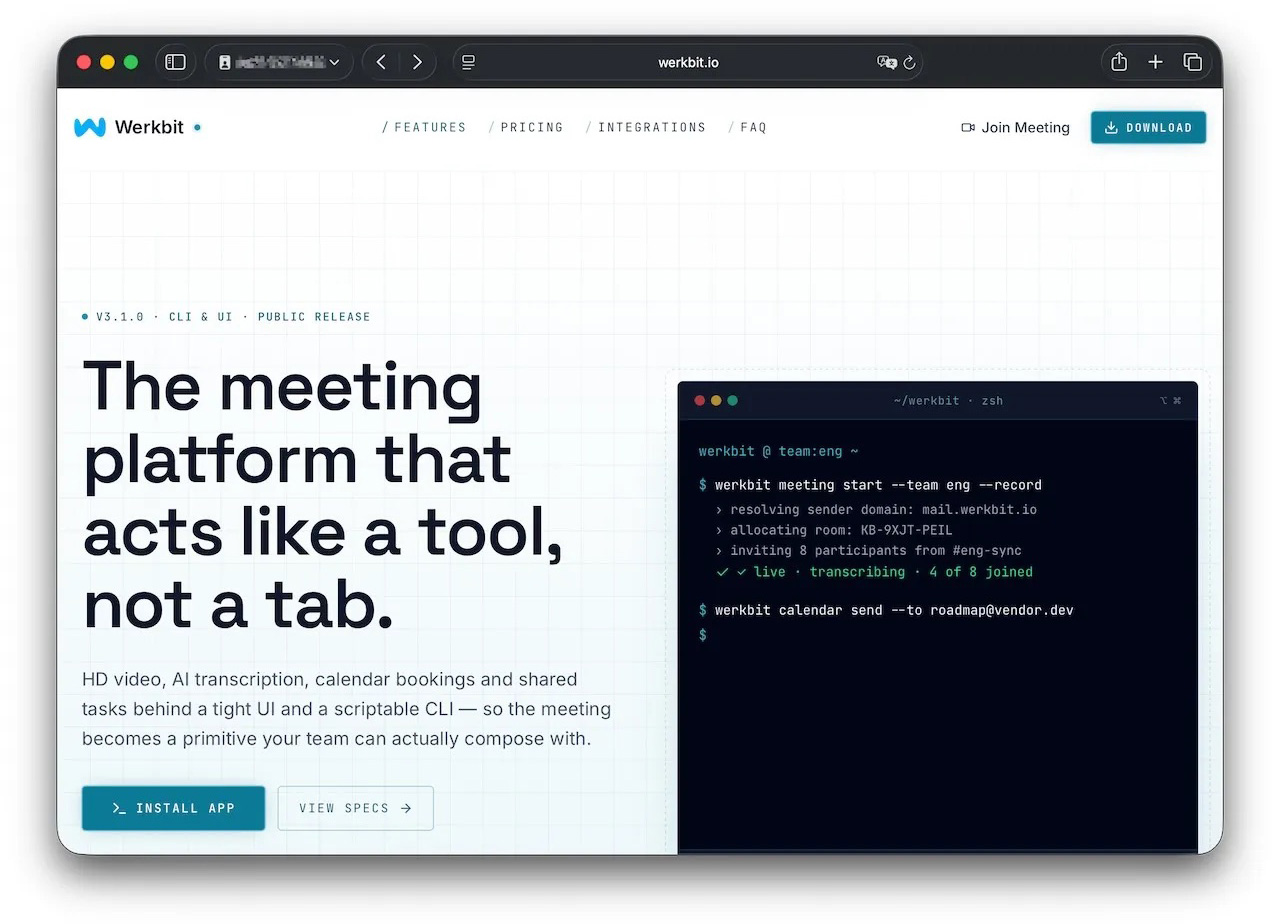
A website that distributes CrashStealer under the guise of the Werkbit app

According to researchers, this is the site victims used to download Werkbit, which secretly contained the CrashStealer malware loader. Source

However, you can’t just visit the site and download the software. Before downloading, visitors are asked to enter a special meeting PIN. This setup likely allows the attackers to limit the distribution scope by targeting only specific, pre-selected victims. Exactly how the cybercriminals choose their targets and deliver the PIN remains unknown.

The “lucky” users with a code end up installing the initial malicious payload — named Werkbit Setup. Interestingly, it carries a valid Apple developer certificate and has successfully passed Apple’s notarization process — meaning it cleared the automated prescan for malicious code. As a result, the attackers manage to bypass the operating system’s built-in Gatekeeper defense. This allows the payload to launch without triggering the usual untrusted software warnings.
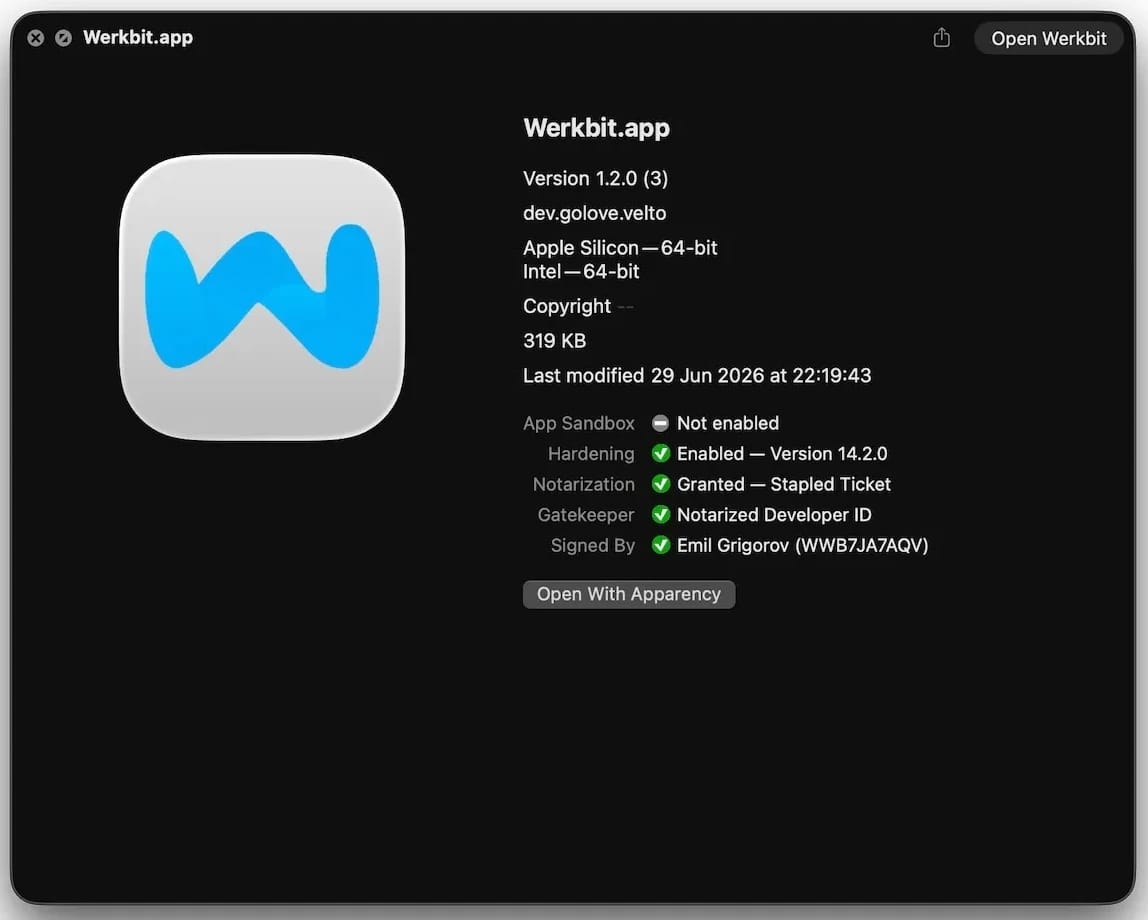
Signed and notarized Werkbit Setup installer

The Werkbit Setup installer is signed with a valid Apple developer certificate and has passed notarization. Source

Once launched, Werkbit Setup first reaches out to GitHub. Researchers believe using this popular platform helps attackers blend in by making these initial network requests look far less suspicious to security tools. After retrieving instructions from a GitHub repository, the program connects directly to the attackers’ server to fetch CrashStealer itself.

The loader then saves the malware to a temporary macOS folder, launches it, and wipes most of the intermediate setup files. As a result, a fully functional infostealer is up and running within seconds of Werkbit Setup starting. By the way, the user never gets any videoconferencing app.

How CrashStealer works

Unlike the Werkbit Setup loader, the CrashStealer malware itself isn’t signed with an Apple developer certificate. To keep users from suspecting anything, the malware disguises itself as the built-in macOS crash reporting tool, CrashReporter, by using the exact same name, app identifier, and a similar icon.

Once launched, CrashStealer completes a sequence of steps to gain access to sensitive data, establish persistence in the system, and cover its tracks:

  1. Remove metadata — including the attribute that flags the app as an internet download.
  2. Display a fake system prompt asking for the user’s macOS password.
  3. Use the previously captured credentials to gain access to Keychain, the built-in macOS password manager.
  4. Check the computer for installed security tools and malware analysis software.
  5. Collect saved browser passwords, cookies, Keychain contents, and data from other password managers and crypto wallets.
  6. Encrypt the data it stole and prepare it for forwarding to the attackers’ server.
  7. Create a copy of itself and establish persistence to launch automatically every time macOS boots.
  8. Delete temporary files and other installation traces to make detection much harder.

Step two deserves a closer look. The password prompt that the user sees looks extremely convincing. What’s more, the malware immediately verifies whether the credentials are correct: if you make a typo and enter an invalid password, CrashStealer will pop the window right back up to ask you again.
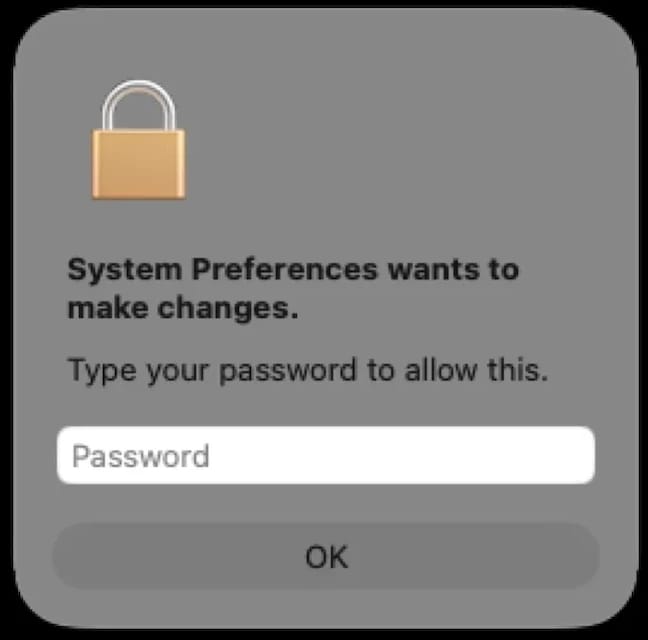
Fake macOS password prompt

Once launched, CrashStealer displays a pop-up that mimics the standard macOS password request. Source

What data is CrashStealer after?

CrashStealer’s hit list is massive. First and foremost, its operators target Keychain: the built-in macOS password manager where the system stores account credentials, cryptographic keys, certificates, tokens, and more.

Users of third-party password managers aren’t safe either: the malware steals data from 14 of these services, including 1Password, Bitwarden, LastPass, Dashlane, Keeper, KeePassXC, NordPass, Enpass, and RoboForm.

In addition, the malware collects all credentials and cookies stored in Chromium-based browsers — Chrome, Brave, Edge, Opera, Opera GX, Vivaldi, Chromium, and NAVER Whale — as well as Firefox. The attackers clearly have a strong interest in crypto assets: CrashStealer specifically targets data from 80 different crypto wallet extensions, including MetaMask, Phantom, Coinbase Wallet, Trust Wallet, Rabby, Exodus, Keplr, and Solflare.

Finally, the malware scans the Documents and Downloads folders to pick files that might be of interest to the cybercriminals. CrashStealer encrypts all the stolen data with the AES-256-GCM algorithm, ZIP’s it up, and sends it to the attackers’ server.

How to protect your device

The spike in attacks on macOS is a clear wake-up call: Apple users need to get proactive about their security. We recommend:

  • Researching apps online before installing them
  • Sticking to utilities from official app stores whenever possible
  • Using a reliable security solution that blocks malicious websites and stops malware activity on your device
  • Keeping all your credentials and banking details in a secure password manager. One option is Kaspersky Password Manager— which, notably, wasn’t listed among the apps targeted by CrashStealer

Kaspersky security solutions detect the malware described in this post and assigns to it the verdicts HEUR:Trojan-Downloader.OSX.Agent.gen and HEUR:Trojan-PSW.OSX.Agent.gen.


  •  

How Google phone number verification works, and whether you should turn it off | Kaspersky official blog

Starting last year, Android users have been seeing the “number is now verified” system notification more frequently. And in some cases people even find mysterious outgoing text messages in their history that they never sent.

These messages often cause confusion and even anxiety: has a virus infected the phone? Are tech giants spying on our phone numbers? Let’s break down how this feature works, and what potential risks it poses to your privacy.

Why all these phone number verifications?

The notification pops up whenever Google’s phone number verification feature is triggered on your device.

Its main job is to make sure that the SIM card tied to a specific phone number is physically inside the phone. Once verified, that phone number automatically links to all active Google accounts on the device.

There are several key services that rely on the verification. Most importantly, it drives Rich Communication Services (RCS) — the modern standard for “rich” messaging right inside your standard text messaging app. It feels like a popular chat app, but without the need to install anything extra. Unlike iMessage, which is locked to Apple’s ecosystem, RCS works across compatible smartphones on various platforms since it’s an industry standard set by carriers rather than tech giants. Since recently, both Apple and Android users have been able to exchange RCS messages. For this feature to work in the Google Messages app, Google needs ongoing confirmation that your SIM card is active. If you pull out your SIM card, RCS chats will keep working for about eight days before turning off automatically.

According to Google, phone number verification serves several other purposes as well:

  • Account security and recovery. A verified phone number enables quick sign-ins to your Google account, two-factor authentication, and easy password recovery.
  • Emergency services and device location. This includes Find My Device, remote phone lock, and sharing your location with emergency responders — including via satellite messaging on the Pixel 9 and certain other modern smartphones.
  • Better sharing on Google. This feature helps other people find you faster on Google Meet or Duo, use Quick Share to send you files, and see that the phone number is linked to your profile.

Google also recently confirmed that this data is used to counter scams. Verification helps block calls or text messages from spoofed numbers if both the real owner of the number and the recipient are using Android devices with verified phone numbers.

How does Google verify phone numbers?

Phone number verification technology has been around on Android for quite some time — Google was sending test SMS messages as far back as in 2019. However, it became widely visible to most users following a Google system update in September 2025. The process was baked deeper into the operating system, with number verification now running by default during initial phone setup, and re-running periodically in the background.

There are two main technical methods for the verification process. Which one your device uses depends on your mobile carrier and your version of Android.

The older method relies on hidden text messages. In the background, your smartphone sends a specialized technical text message to Google’s servers. The operating system intercepts this message before you ever see it, which is why it rarely appears in your standard text messaging app. However, due to software glitches or Android customization quirks, these texts occasionally surface in sent messages, startling users. They typically look like this: “(string of letters and numbers) Google is re-verifying the phone# of this device.” Google explicitly notes in its help documentation that standard messaging rates from your carrier may apply.

In recent years, direct carrier verification (via carrier APIs) has become the primary verification method. This approach is more modern and secure than previous ones. The smartphone sends an encrypted token containing device and SIM card identifiers to the mobile carrier, and the carrier responds with the confirmed phone number. The whole process takes just a couple of seconds and runs completely unnoticed by the user. Both global telecom giants and smaller providers have connected to this verification network. Notably, third-party apps can also tap into the results of this check through Firebase Phone Number Verification, getting confirmation from your mobile carrier about which phone number is active on the device.

“Other device data” and privacy concerns

In its official documentation, Google notes that device identifiers and SIM card data may be collected during verification. In practice, this refers to unique identifiers for the SIM card and its subscriber profile (ICCID and IMSI), as well as technical device identifiers needed to run mobile networks. Google also explicitly states that it does not sell your personal information, including your phone number, to anyone.

Naturally, sending additional unique identifiers to Google — especially given the scale of its advertising business — always raises concern among privacy-conscious users. Here’s what you should keep in mind:

Metadata collection. To run RCS, Google exchanges data with your mobile carrier. Even when the content of RCS messages is encrypted, metadata — such as who is messaging whom and when — can still be stored on your carrier’s servers, and in some cases, on Google’s servers. As cybersecurity experts at the Electronic Frontier Foundation point out, if privacy is your top priority, you’re better off sticking to dedicated encrypted messaging apps.

Linked accounts. If you have both a personal and a work Google account (or a personal and a family account) set up on the same phone, the verified number will automatically link to both profiles. The operating system does not offer built-in tools to separate numbers for different accounts on a single device.

Phone number leaks. Apps on your device can already access various user identifiers, including your phone number. However, this verification system makes it easier to link multiple phone numbers to a user who has multiple Google accounts. And while Google states that it never sells phone numbers, you cannot say the same with confidence about obscure third-party Android developers.

On by default. The feature is enabled out of the box, and most users have no idea their device is silently querying their carrier in the background. While you can opt out in your Google settings once you notice it, there’s no guarantee that any data already collected will actually be deleted.

Turning off verification — why and how

For most users, verification is genuinely helpful. It simplifies account recovery, makes finding a lost phone easier, powers modern text messaging features, and assists emergency services when every second counts.

However, if you want to minimize the amount of metadata sent to Google, mobile carriers, and other data brokers, you can manually disable the feature. Here’s how:

  1. Open your Android smartphone’s settings.
  2. Tap Google, select the account at the top, and switch to the All services tab.
  3. Under Privacy and security, tap Phone number verification.
  4. Turn off automatic phone number verification.

If you also want to disable Better sharing on Google, go to SettingsGoogleManage your Google AccountPersonal infoContact infoPhone, select your number, and turn off the setting.

If you have multiple Google accounts on your phone, you’ll need to repeat these steps for each one. Unfortunately, verification sometimes turns itself back on automatically, and there’s no reliable way to prevent this on standard consumer phones with stock software.

Keep in mind that disabling verification means losing access to RCS chats in Google Messages — forcing you to fall back on basic SMS, or switch to alternative secure messaging apps. You also won’t be able to use that number for quick account recovery should you forget your password.

To thoughtfully customize your privacy settings across all your devices — regardless of the operating system, browser, or app — check out our free online tool, Privacy Checker.

Curious about other privacy risks you might not even know exist? Check out our other deep dives, here:

  •  

How to protect your data after a breakup | Kaspersky official blog

A breakup is a major upheaval — the kind that turns life upside down. The familiar order of things, where two people shared the same interests, moments, and often even the same physical space, collapses in an instant, leaving each of you in a world of your own.

Besides that, couples are connected not just in real life, but digitally too. Shared subscriptions, saved addresses and passwords, access to joint cloud storage — all of that used to be woven into your day-to-day life. Moving on emotionally can take a long time, sure, but there are steps you can take right now that will tighten up your security — even if they won’t help you get over your ex.

Here’s what you need to check after a breakup, which services to disconnect, and why you should do it even if the split was amicable.

Digital hygiene: your insurance policy

Cutting off your ex’s access to your online accounts isn’t paranoia — it’s looking out for your own security. A breakup doesn’t automatically sever your digital ties: any access you granted each other during the relationship stays active until someone manually shuts it down. Most of the time, nobody’s plotting to actually exploit it, yet it can still lead to anything from awkward moments to a genuine risk of being tracked.

Take Aleta Dignard-Fung, of Las Vegas, who told NPR that after breaking up with her boyfriend, it didn’t immediately occur to her that he still knew her Spotify password. One day, in the shower with music playing, she noticed her playlist suddenly switch. Her ex had logged in from another device and started playing his own chosen tracks. “It was just kind of like the Spotify wars, and we’d just spend like 10 minutes trying to override each other’s songs,” she admitted. But the fallout isn’t always this lighthearted.

Relationship coach Susan Winter shared a case from her own practice in that same interview. One of her clients simply couldn’t let go of his ex-girlfriend after their breakup. The two had shared an OpenTable account — the restaurant reservation service — and she’d never revoked his access. He started tracking her bookings: where she was going, what time, how many people. That’s how he kept tabs on whether someone new had entered her life.

These two stories, while showing very different behavior from the exes involved, both trace back to the same root cause: accounts that were never properly locked down. In the former case, it led to an awkward moment. In the latter, it led to anxiety and a real sense of being watched. To make sure neither scenario happens to you, it’s worth running through a quick checklist.

Terminate your partner’s sessions

In the settings for your social media, messaging apps, email, and other key services, pull up the list of active sessions and log out everything except your current devices.

Change your passwords

Update the passwords to any key accounts your partner might have known — say, if you used a meaningful date as your password. If you reused the same password across multiple services, change it everywhere. While you’re at it, review your security questions and your backup email or phone number for account recovery — neither should still be tied to your ex. To skip the hassle of memorizing new credentials while still leveling up your security, we recommend using a password manager — it’ll generate a unique, strong password for every account, and save and sync it across all your devices; the only thing you need to remember is a single main password.

Check two-factor authentication and trusted devices

Make sure verification codes only go to your own device. Remove your partner’s devices from your trusted list — you can do this in your Apple and Google account settings.

Split up your shared Apple/Google accounts

If you shared an Apple or Google account, sign out of that. Turn off Family Sharing, iCloud, and backups. Check your shared photo albums too — anything that lands there automatically is visible to your ex as well.

Review your subscriptions

If you shared subscriptions — streaming services, family plans, that kind of thing — cancel them or set up new ones and link your own card.

Check your bank cards

If your ex’s card is linked to a marketplace, delivery app, or rideshare service account you own, remove it from your saved payment methods. If your card is linked to their account and you no longer have access to it, the safest move is to just get your card reissued.

Revoke smart home access

Cut off your ex’s access to cameras, video doorbells, GPS trackers, and smart speakers. If the devices were on a shared account, change the password or move them over to your own personal account.

Review your privacy settings

Check the privacy settings across your accounts on various services and social media using our free online tool, Privacy Checker. It walks you through a privacy configuration tailored to your operating system, platform, and even your browser.

If you notice signs of stalking

Reach out to advocacy or legal aid organizations — they can help you map out the best course of action. It’s also worth leaning on family and close friends who can support you through a tough situation. On Android devices, you can use our security suite with the Who’s Spying on Me feature. It’s designed to help you detect tracking and stalking so you can take the right steps to protect yourself. The feature includes:

  • Stalkerware Detection. Flags apps designed to secretly monitor your life and collect data you’d never want shared with anyone else.
  • Device Scanner. Finds planted trackers that let someone follow your movements and always know where you are.
  • Permissions Control. Shows which apps have access to permissions that could make it easier for someone to spy on you or compromise your privacy.

What can actually help — and what might make things worse — during this difficult time? Check out our other posts:

  •  

Email hijacking via OAuth | Kaspersky official blog

When targeting an organization to steal information, maintaining a low profile is critical for attackers. They typically aim for long-term persistence, which requires avoiding security alerts while preserving access in case they’re detected and the organization initiates incident response or routine password resets. Malware such as infostealers or ostensibly legitimate remote monitoring and management (RMM) tools fail the first requirement: their use triggers EDR and generates suspicious events in SIEM consoles. Relying on stolen credentials conflicts with the second requirement: the moment the security team suspects a compromise, passwords can be changed immediately — terminating access. If attackers attempt to steal browser cookies instead of passwords, they face a different challenge: many online services now correlate device characteristics with the expected session cookie and block access if the cookie is used on an unrecognized device. Furthermore, cookie theft protection mechanisms implemented in Chromium-based browsers (such as Chrome, Edge, and Opera) this year have made this approach significantly more difficult.

To address this persistence challenge, the ToddyCat APT — whose main game is spying — developed a novel technique. Kaspersky experts discovered this method during an incident investigation and named it Shadow Token via Remote Debug (STRD). This technique allows the attackers to establish reliable, persistent access to a victim’s mailbox and other resources in Google Workspace. With minor adjustments, the same approach could potentially be adapted to target other services that grant third-party application access via OAuth 2.0 authentication.

How an STRD attack works

First, the attackers must compromise the victim’s system with malware. In past campaigns, ToddyCat gained initial access to organizations by exploiting known vulnerabilities in server software and distributing malicious loaders via messaging apps. The specific employee targeted by the attackers might not notice the intrusion at all. This can occur, for example, if the adversary first obtains privileged administrative credentials and uses them to deploy the malware onto targeted machines remotely. Crucially, the deployment and execution of this malware mustn’t trigger immediate security alerts.

Once active, the malware executes an STRD attack, connecting the attackers’ remote service to the victim’s mailbox using the OAuth 2.0 protocol. This process requires no user interaction and shows no visible activity on the screen. To the cloud environment (Google Workspace, in the case at hand), the activity appears as if the user has legitimately authorized a third-party app for email access or data backup.

After that, the malware can terminate its operations and even delete itself from the system. The adversary retains direct access to the mailbox using the acquired OAuth token — and they need no connection to the victim’s endpoint or to the corporate network for that. Depending on the organization’s Google Workspace configuration, this access can persist for an extended period and survive subsequent password resets.

The core concept of Shadow Token via Remote Debug

At the heart of this attack is a connection to Google Workspace services via OAuth 2.0. This is a legitimate workflow used whenever a third-party application requests access to calendar data, emails, or Google Drive files. For example, to display calendar meetings in Zoom and automatically generate conference links, a user must authorize Zoom to access Google services. Similarly, configuring a third-party email client or calendar app requires granting permission. During this authorization process, the service requesting access opens a new browser window. In this window, Google Workspace first prompts the user to select the appropriate account. Once the account is chosen, the subsequent screen displays the specific permissions requested by the third-party app, allowing the user to either approve or deny access. For this scenario to proceed seamlessly, the user must already be authenticated to Google services in their browser — which is typically the case in organizations using Google Workspace. If the user isn’t authenticated, additional steps for entering credentials and completing multi-factor authentication are introduced into the sequence.

The ToddyCat hackers developed a malicious tool called Umbrij to facilitate a two-step covert authorization process when the user is already authenticated in Google. First, the malware identifies the browsers installed on the system, and locates the specific folder storing the user’s active profile for each. The attackers target Chrome and Edge, as these are the browsers most likely serving as the primary ones within the organization.

Next, Umbrij copies the entire user profile folder to a different directory on the machine. It then launches an instance of the browser, specifying the path to the duplicated profile via the command line. Because this duplicate profile contains the user’s session cookies, websites with saved credentials won’t prompt for re-authentication. Furthermore, since this occurs on the exact same computer where the primary browser is running, online services detect no anomalies. The browsing history for this newly launched instance is isolated within the new folder, keeping it hidden from the user’s main account activity.

Crucially, the browser is launched in a dedicated debugging mode typically reserved for web development. The browser window and user interface don’t appear on the screen at all (headless mode). Instead, the browser can be controlled through a debugging port using the DevTools protocol, allowing the malware to issue commands and read the state of the screen. To orchestrate these actions, Umbrij leverages Puppeteer, a legitimate automation library.

After verifying that the debugging browser instance has launched successfully, Umbrij opens a legitimate Google Workspace OAuth screen within it. The request sent to Google is engineered to bypass additional security checks while requesting maximum access privileges. For the application ID — the identity supposedly requesting these extensive permissions — the malware impersonates one of two legitimate tools: Google Workspace Migration for Microsoft Outlook (GWMMO), or Google Workspace Sync for Microsoft Outlook (GWSMO).

When Google opens the window within the headless browser, Umbrij uses debugging tools to programmatically click on the corporate account name and the confirmation buttons. As a result, Google generates an authorization code for the app. Umbrij extracts and saves this code, subsequently forwarding it to the attackers’ command-and-control server. Finally, operating entirely within their own infrastructure rather than on the victim’s computer, the attackers exchange this authorization code for an OAuth access token. This single token is all they need to maintain long-term unrestricted access to the mailbox.

How to protect against OAuth token theft

If a Google Workspace account is compromised, incident response measures must include the following steps after collecting the necessary logs and other forensic data for investigation:

  • Resetting the affected user’s password
  • Terminating all active web sessions for the user
  • Revoking OAuth tokens and third-party app permissions
  • Reviewing and removing access granted through legacy App Passwords

In addition, security and IT teams must systematically audit issued OAuth permissions, revoke unjustifiable access rights, and restrict capabilities that allow excessive or unauthorized permission grants. We covered this topic in detail in our article on blocking unwanted AI assistants.

How to prevent exploitation of Shadow Token via Remote Debug

While Kaspersky users are protected against the Umbrij tool, security teams should proactively implement policies that prevent standard users from launching browsers in debugging mode. This functionality is intended exclusively for website and web app developers. This restriction can be enforced through the DeveloperToolsAvailability group policy (available for both Chrome and Edge).

Additionally, configure monitoring within your SIEM/XDR to track the launch of browser instances with an active debugging port. This event serves as a strong indicator of this specific attack technique.

  •  
❌