❌

Reading view

Why set up a VPN on your router | Kaspersky official blog

VPN use is growing around the world, with the worldwide average holding steady at 20% growth per year. Users have come to appreciate everything a VPN offers: it encrypts your connection, shields you from relentless ISP tracking (and the targeted ads that often come with it), hides your IP address and location, and lets you keep using your favorite paid services while traveling. This matters most at big public events, like international football tournaments, the Olympics, or concerts by popular performers, where the odds of scammers intercepting an unprotected Wi-Fi connection go up sharply.

That said, VPNs come with their own frustrations. One of the biggest is that many smart devices – including TVs, game consoles, streaming boxes, and smart-home gadgets – can’t run a VPN at all. On top of that, you usually have to set up the VPN separately on every single device in your home. Installing the VPN directly on your home router solves both problems at once: it protects your entire home network, including newly added devices. Here’s a closer look at what benefits that setup gives you.

1. Every device gets VPN protection

Turn on a VPN on your router, and every device connected to your home Wi-Fi automatically sends its traffic through that protected, encrypted connection. There’s nothing extra to do: connect your phone, laptop, or TV to the Wi-Fi, and its traffic is already routed through the VPN.

Many paid VPN services cap the number of devices you can use under a single subscription. But your router only counts as one device on that list, even though it might be protecting a dozen or more gadgets in your home at once.

It’s worth noting that installing a VPN on a router is usually only possible with paid VPN services. Free plans typically don’t offer this option, or only allow it in a very limited way.

2. Set it up and forget it

Setting up a VPN on every phone and computer in the house can get tedious fast. And if your home devices run on a mix of operating systems, you’ve to start by locating the VPN settings on each one, since Android, Windows, iOS, and macOS all handle this differently.

With a router setup, you configure the VPN once, and it automatically covers any new device you connect later too.

3. Protection even for devices that don’t support VPN

Plenty of devices can’t run a VPN at all. That includes smart TVs, streaming boxes, game consoles, and nearly every piece of smart-home tech out there, from baby monitors to robot vacuums. A VPN on your router protects all of them, and you don’t have to tinker with your vacuum cleaner or smart bulb’s settings separately.

4. No need to worry about turning the VPN on and off

Many people want to make sure that not a single byte of their data leaves their device before the VPN kicks in. The problem is that there’s always a short gap between turning on a computer or phone and the VPN firing up, and during that window, data travels over the internet unencrypted.

The usual fixes are to turn on special features – such as Always On VPN or a VPN kill switch – in the operating system or VPN app. A more effective option though is running the VPN on the router itself. That way, “not a byte without the VPN” becomes true automatically for every device on your home network. But for complete peace of mind, you’ll still want to set up a kill switch on the router too, so that if the VPN ever disconnects (say, the VPN server becomes temporarily unavailable), your devices lose their internet connection entirely rather than falling back to an unprotected one.

5. Working remotely with two VPNs at once

Another common headache is needing to run two VPN services at the same time. This usually comes up with remote work: you need a corporate VPN to connect to your company’s network, while also wanting a personal VPN for everything else. On many devices, running two VPN connections at once for different purposes is either a real hassle to configure or not possible at all. Constantly switching between the two isn’t convenient either, and it opens up privacy and security gaps.

A VPN on your router solves this too. You simply turn on the corporate VPN on your work computer, and it runs on top of your Wi-Fi connection, which is already protected by your personal VPN on the router. In effect, you end up with one VPN nested inside the other (corporate VPN → Wi-Fi → VPN → internet), but this layered setup rarely causes any issues.

6. Getting around apps that block VPNs

Some banking and streaming apps can detect when a VPN app is running on your device and simply refuse to work. Usually, they can’t tell what kind of VPN it is or why you’re using it. They just object to any VPN connection being active at all. If the VPN runs on your router instead of on the device itself, this problem disappears.

7. Protecting guests on your home network

Any device belonging to friends or family that connects to your Wi-Fi automatically gets VPN protection too, with no setup required on their end.

8. Less strain on your devices

Since the router handles the encryption workload, your phones, tablets, and other lightweight devices can use less computing power and drain less battery than they would if running a VPN themselves.

9. Simplified VPN management

Need to switch VPN servers, change protocols, or tweak other settings? Just do it once, on the router. There’s no need to reconfigure every device separately.

Precautions and things to keep in mind

For all its advantages, running a VPN on your router does come with a few trade-offs worth knowing about.

  • Encrypting traffic for an entire network takes real processing power, so on an underpowered router, your connection speed may end up limited.
  • Some routers don’t support VPNs at all, or only work with older, less secure protocols like PPTP.
  • If your router was issued by your ISP, you may not have enough permissions to install a VPN on it.

In any of these cases, you can buy a more capable router that supports VPNs, and use it either instead of, or alongside the ISP-issued box, setting up your home network and VPN on your own hardware.

With this setup, your devices connect as follows: device → Wi-Fi or Ethernet → personal VPN on router → internet. For computers that also connect to a corporate VPN, the path looks slightly different: corporate VPN on computer → Wi-Fi or Ethernet → personal VPN on router → internet.

If you can’t connect your own router directly to your ISP’s network because your model lacks the right port (for example, with a fiber connection), you can use an Ethernet cable to plug your personal router’s input into your provider’s box. In that case, you can either switch the ISP-issued router into bridge mode or simply turn off its Wi-Fi so it doesn’t add unnecessary wireless clutter, since its only job now is connecting to the provider’s network and passing that connection along to your own router.

It’s also worth noting that some online services – like banks, government sites, online stores, and streaming platforms – may restrict or block access entirely when they detect a foreign IP address through a VPN. To get around this, you can either turn off Wi-Fi on your phone and use your mobile data instead, or take a more sophisticated approach to your router setup, as described below.

Most modern routers let you create more than one Wi-Fi network, usually supporting at least a separate home and guest network, each with their own settings. You can use this to create two networks: one with the VPN always on, and one without. Then, for services that don’t play well with VPNs, you can simply switch to the unsecured Wi-Fi network instead.

If you’re willing to spend some more time on setup, there’s an even more convenient option, known as split tunneling: individually configuring certain services or websites to bypass the VPN while sending everything else through your secure VPN connection as usual. To do this, you’ll need to specify the addresses of the sites that should skip the VPN.

Many feature-rich routers also let you divide your home devices into groups and set different connection rules for each group. That way, you could set things up so your smart TV reaches streaming services without a VPN, while your smart home devices, computers, and phones only ever connect to the internet through the protected channel.

How to set up a VPN on your router

Setting up a VPN on your router might sound more complicated than installing it on individual devices, but it delivers far more comfort and protection for your whole home network.

To do this, you’ll need a router that supports VPNs, and a subscription to a VPN service that can generate configuration files for routers using modern VPN protocols. Kaspersky VPN supports the two most widely used VPN protocols – OpenVPN and WireGuard – for connecting routers to the service.

You can create a Kaspersky VPN configuration file for your router by following our detailed guide. For instructions specific to your router model, we recommend searching online or asking an AI assistant something like “how to set up a VPN on {your router model}“.


  •  

Why live chat agents can read your messages before you hit “Send” | Kaspersky official blog

Virtually every website selling products or services features a live chat widget. It usually appears as a small window in the corner of your screen, complete with an agent’s name and picture.

Sometimes these chats simply collect tickets for tech support or sales to process. But often there’s a real person on the other end of the screen. And here’s where many users get an unwelcome surprise: agents can see absolutely everything you type into the chat box, even if you have no intention of sending it. In this article, we break down why this happens and what you can do about it.

All in the name of customer experience

It’s all thanks to a feature known as live typing preview, or real-time typing view, which exists under one name or another in almost every popular customer chat platform. Here’s how the developer of LiveAgent, a customer support system used by more than 40 000 companies, describes it in its blog: “This live chat typing preview allows agents to anticipate questions and deliver faster responses. Additionally, real-time chat monitoring enables supervisors to oversee chat interactions, ensuring quality and timeliness.”

While that might sound helpful and harmless to some, having their unsent messages watched without their permission can trigger outright panic for others. To make matters worse, it’s almost impossible to tell whether the website uses the feature. That is, unless the chat agent admits it to you directly… or replies to a message you decided not to send.

As an alternative, you can run a quick test: type out a message in the chat box, wait 15 seconds, and see if the agent starts typing a response. If they do, you’re almost certainly dealing with real-time typing view. Whether to continue that conversation is up to you. Most importantly, never type personal information into a chat box — even if you are doing so from a Kaspersky Premium device.

Real-time typing view is just the tip of the iceberg. In reality, websites collect far more information than you might think. You’re likely already familiar with cookies, and have probably asked yourself at least once, “Should I accept these or not?” We answer that and other questions in our post Taking the biscuit: why hackers like cookies so much.

Tracking techniques that use web beacons and tracking pixels are not as widely known. To learn why they’re a concern and how to turn them off, check out our post Who is tracking you on the web and how.

Another technology that remains largely unknown to the general public is session replay scripts. These tools allow website owners to watch a recording of your visit: how fast you moved your cursor, where you clicked, which pages you browsed, and what you added to your shopping cart.

Of course, the primary goal of session replay is the same as real-time typing view: improving customer and user experience. It helps companies analyze your behavior, identify friction points, and make improvements. If a customer fails to complete a checkout or encounters a technical issue, developers can review the recording of their session to pinpoint what went wrong.

In theory, it sounds helpful enough: “We will collect a small amount of data about you to make the site better for you.” In practice, however, this approach comes with significant risks for users.

What’s the catch?

The primary risk here lies in whether websites collect this data legally, how they store it, and whether they share it with anyone. While you can usually gauge legality by reading their privacy policy, the terms of data storage and sharing are often described vaguely.

On top of that, users rarely realize an agent can read their message before it’s actually sent. If you change your mind about asking a question, edit a sentence, or delete your text entirely, that doesn’t mean no one saw the draft. Unlike cookies, opting out of this technology is practically impossible. Most chat widgets simply don’t offer a setting to disable typing previews.

As for tracking pixels, web beacons, and session replays, they’re essentially a form of digital surveillance. Beyond collecting vast amounts of data, they can also slow down your device’s performance. Even worse, if attackers compromise a website’s analytics system, they can gain access to this data, reconstruct your path through the site, and uncover details that can be leveraged in future attacks. To learn more about how scammers pull off these tricks and how social engineering works, check out our post They’re reading you like a book: scammers’ favorite tricks.

While you can’t prevent a potential breach on a third-party website, you can — and should — take steps to secure your own browsing session.

What you can do about it

First and foremost, pay close attention to what you type in a chat box. It’s critical never to share personal data, credit card numbers, logins, passwords, or any other sensitive information with live chat agents.

Beyond that, there’s always a risk of landing on a phishing site and entering your account credentials there. To prevent this, we recommend using our security solutions, which block visits to malicious and suspicious websites. We also suggest storing your credentials in Kaspersky Password Manager — our password manager won’t let you auto-fill saved logins and passwords on a fake site.

Users of Kaspersky Standard, Kaspersky Plus, and Kaspersky Premium have access to our Private Browsing feature (on Windows and macOS). It prevents third-party services from tracking your online activity and collecting real-time information about what you do on websites.

To minimize the risk of data leaks, keep these tips in mind:

  • Never type anything into a chat box that you aren’t prepared to send. On almost every website, the agent can see your text while you type, so deleting a message is no guarantee it stays private.
  • Keep in mind that your activity on a website may be recorded. These recordings can capture your clicks, page navigation, and form inputs. Treat every website as if your actions are being watched.
  • Pay attention to privacy policies. Reputable companies typically state whether they use analytics tools, session recording, or third-party support services.
  • Approach chat interactions with caution. Real-life rules apply here as well: never share verification codes, passwords, phone numbers, or other sensitive details in a chat.
  • Be smart about accepting cookies. Taking a moment to check what information a website collects is well worth the effort — it helps you make an informed choice about whether you’re comfortable sharing that data.

Tired of endless digital tracking? Here’s how you can protect yourself and your data:

  •  

Fake Claude search results lure Mac users into ClickFix attack

Researchers found that cybercriminals are using sponsored search results and shared Claude chats to lure victims into a typical ClickFix attack to install malware on macOS devices.

ClickFix is a social engineering method that tricks users into infecting their own device with malware. Users are instructed to run specific commands that will download malware, usually an infostealer.

The researchers found that when users search for terms like “Claude Mac download,” they may see sponsored Google results that appear to go to the legitimate claude.ai domain.

In reality, the ads resolve to real Claude shared chats, set up to look like official “Claude Code on Mac” or Apple Support guides. Independent research by BleepingComputer found another chat serving the same purpose. The chat instructs victims to open Terminal and paste a base64‑encoded command, which pulls a loader shell script from attacker‑controlled infrastructure and runs it in memory.

The script then profiles the system, pulls down a second-stage payload and runs it through osascript, macOS’s built-in scripting engine. This gives the attacker remote code execution (RCE) without ever dropping a traditional application or binary.

This results in a MacSync‑style payload that harvests browser credentials, cookies, Keychain contents, and crypto wallet data, bundles it, and sends all that information over HTTP to attacker servers.

How to stay safe

Users running macOS Tahoe 26.4 and later will see warnings about possible ClickFix attacks, but other users still have to rely on common sense.

With ClickFix running rampant and inventing new methods all the time, it’s important to stay aware, cautious, and protected.

  • Slow down. Don’t rush to follow instructions on a webpage or prompt, especially if it asks you to run commands on your device or copy and paste code. Attackers rely on urgency to bypass your critical thinking, so be cautious of pages urging immediate action. Sophisticated ClickFix pages add countdowns, user counters, or other pressure tactics to make you act quickly.
  • Avoid running commands or scripts from untrusted sources. Never run code or commands copied from websites, emails, or messages unless you trust the source and understand what the action does.
  • Verify instructions independently. If a website tells you to execute a command or perform a technical action, check through official documentation or contact support before proceeding.
  • Limit copy and paste for commands. Manually typing commands instead of copy and paste can reduce the risk of unknowingly running malicious payloads hidden in copied text.
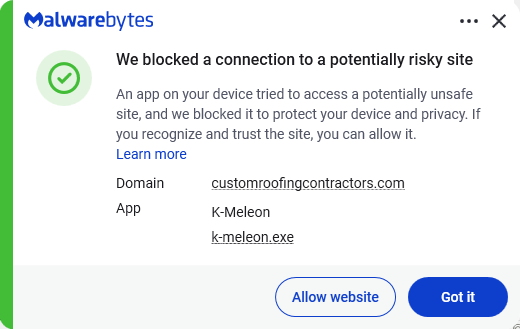
  • Secure your devices. Use an up-to-date, real-time anti-malware solution with web protection. Malwarebytes blocks connections to unsafe sites like these.
    Malwarebytes blocks one of the domains still active
  • Educate yourself on evolving attack techniques. Understanding that attacks may come from unexpected places helps maintain vigilance. Keep reading our blog!
  • Stay away from sponsored ads in search results. Anyone can buy them and make them look legitimate.

Pro tip: The free Malwarebytes Browser Guard extension warns you when a website tries to copy something to your clipboard.


Stop threats before they can do any harm.

Malwarebytes Browser Guard blocks phishing pages and malicious sites automatically. Free, one click to install. Add it to your browser →

  •  

Windows Event Logs for Red Teams

Tim Fowler // Do you know what could be lurking in your Windows event logs? In May of 2022, I was sent a Threat Post article about a new technique […]

The post Windows Event Logs for Red Teams appeared first on Black Hills Information Security, Inc..

  •  

When Infosec and Weed Collide: Handling Administrative Actions Safely

BB King//* The state of Ohio recently validated a webapp pentest finding that sometimes goes overlooked. It relates to the details of administrative functions, how they can be abused, and […]

The post When Infosec and Weed Collide: Handling Administrative Actions Safely appeared first on Black Hills Information Security, Inc..

  •  

How to Pull Wireless Credentials with the Bash Bunny

Sally Vandeven // All of the BHIS testers are pretty geeked about Hak5’s newest toy — the Bash Bunny. Last week, Jordan blogged about the USB Exfiltration payload. Today I […]

The post How to Pull Wireless Credentials with the Bash Bunny appeared first on Black Hills Information Security, Inc..

  •  

How to Get USB_Exfiltration Payload Using the Bash Bunny

Jordan Drysdale // This is a super quick write-up on the first very useful payload we tested and confirmed as 100% reliable on all Windows systems (XP-SP3+) with PowerShell enabled. […]

The post How to Get USB_Exfiltration Payload Using the Bash Bunny appeared first on Black Hills Information Security, Inc..

  •  
❌