
Normal view

Fake virus alerts are invading mobile games

2 June 2026 at 11:03

Sometimes it happens. You’re happily playing a game on your phone or laptop when suddenly alarms pop up out of nowhere:

“Your device is infected!”

“Your iCloud is full!”

“Your account is restricted for watching porn!”

Some games can be played for free if you agree to watch ads, and in others you can get extra lives, perks, or boosters by watching ads. That’s fine, as long as you’re given a choice and the ads are legitimate.

Unfortunately, cybercriminals sometimes manage to buy advertising space and use it to defraud gamers.

Let’s look at some examples.

The iCloud storage scam, or its OneDrive equivalent, is a well-known and long-running scam that claims you need to expand your storage or all your files will be deleted. The websites these messages link to come in many forms, but they all ask for personal and payment details to complete the upgrade.

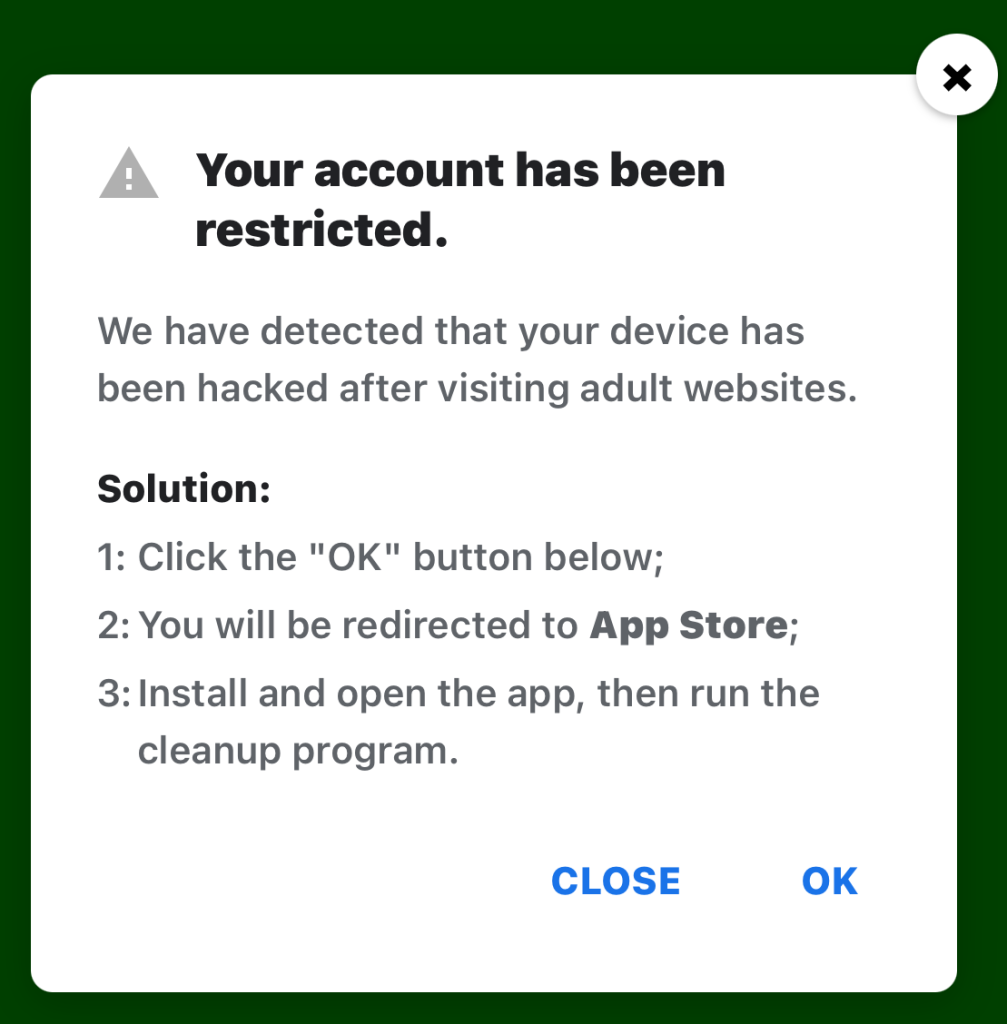
Restricted account

“Your account has been restricted.
We have detected that your device has been hacked after visiting adult websites.
Solution:
1:Click the “OK” button below;

2:You will be redirected to App Store;

3:Install and open the app, then run the cleanup program.”

This ad is a scam and uses a classic scare tactic. It falsely claims your device has been hacked and tries to pressure you into clicking “OK” and installing a cleanup app.

Messages like this sometimes claim to be from your ISP, a “Security Department,” or a generic “Safety Center.”

 Fake Apple security alert

“Apple Security Alert
8 viruses have been detected on your iPhone. Now iOS is damaged by 72%. Further damage to the system will result in device lockup and loss of all data within two minutes.
Please click the button below to remove all viruses.”

This is another fake warning, commonly used by scammers to trick users into clicking links or downloading unnecessary or harmful software. Apple doesn’t send alerts like this, and these messages use vague threats to get your attention.

What kind of app you’re really installing if you follow the instructions depends on your device and your location. If you’re “lucky,” it’s just adware, but you might just as easily end up with an infostealer.

In many cases, you’ll end up with fleeceware, a type of deceptive mobile app where developers lure users in with short free trials that quickly convert into hidden subscription fees, sometimes costing hundreds of dollars per month. These apps often offer some functionality to stay on the barely legal side of things, but at wildly inflated prices.

How to stay safe

The best response to these messages is simply to ignore them.

Real system alerts come from the OS, not from inside a game window or browser tab. Here’s a simple test: If you can switch apps and the “warning” disappears with the browser/game, it was not a system‑level alert.

Check the destination URLs before proceeding. Apple, Google, and major ISPs use predictable domains. A familiar-looking URL is not proof that a message is legitimate, but if the URL looks suspicious, it should definitely be treated as a scam.


Scam or legit? Scam Guard knows.


You may arrive at something that looks like the official App Store or Google Play Store. Be wary of lookalike app stores and unofficial download sites, but if you are on the real store, the app is generally safer to install. However, it’s still worth checking reviews, permissions, and the developer before proceeding.

Visit the official website of the organization the message claims to be from and log in there. If there’s a genuine problem with your account, storage, or device, you’ll find information about it through official channels.

Use an up-to-date, real-time anti-malware solution on your devices that can detect and block malicious apps.


Scammers know more about you than you think. 

Malwarebytes Mobile Security protects you from phishing, scam texts, malicious sites, and more. With real-time AI-powered Scam Guard built right in. 

Download for iOS → Download for Android → 

Fake virus alerts are invading mobile games

2 June 2026 at 11:03

Sometimes it happens. You’re happily playing a game on your phone or laptop when suddenly alarms pop up out of nowhere:

“Your device is infected!”

“Your iCloud is full!”

“Your account is restricted for watching porn!”

Some games can be played for free if you agree to watch ads, and in others you can get extra lives, perks, or boosters by watching ads. That’s fine, as long as you’re given a choice and the ads are legitimate.

Unfortunately, cybercriminals sometimes manage to buy advertising space and use it to defraud gamers.

Let’s look at some examples.

The iCloud storage scam, or its OneDrive equivalent, is a well-known and long-running scam that claims you need to expand your storage or all your files will be deleted. The websites these messages link to come in many forms, but they all ask for personal and payment details to complete the upgrade.

Restricted account

“Your account has been restricted.
We have detected that your device has been hacked after visiting adult websites.
Solution:
1:Click the “OK” button below;

2:You will be redirected to App Store;

3:Install and open the app, then run the cleanup program.”

This ad is a scam and uses a classic scare tactic. It falsely claims your device has been hacked and tries to pressure you into clicking “OK” and installing a cleanup app.

Messages like this sometimes claim to be from your ISP, a “Security Department,” or a generic “Safety Center.”

 Fake Apple security alert

“Apple Security Alert
8 viruses have been detected on your iPhone. Now iOS is damaged by 72%. Further damage to the system will result in device lockup and loss of all data within two minutes.
Please click the button below to remove all viruses.”

This is another fake warning, commonly used by scammers to trick users into clicking links or downloading unnecessary or harmful software. Apple doesn’t send alerts like this, and these messages use vague threats to get your attention.

What kind of app you’re really installing if you follow the instructions depends on your device and your location. If you’re “lucky,” it’s just adware, but you might just as easily end up with an infostealer.

In many cases, you’ll end up with fleeceware, a type of deceptive mobile app where developers lure users in with short free trials that quickly convert into hidden subscription fees, sometimes costing hundreds of dollars per month. These apps often offer some functionality to stay on the barely legal side of things, but at wildly inflated prices.

How to stay safe

The best response to these messages is simply to ignore them.

Real system alerts come from the OS, not from inside a game window or browser tab. Here’s a simple test: If you can switch apps and the “warning” disappears with the browser/game, it was not a system‑level alert.

Check the destination URLs before proceeding. Apple, Google, and major ISPs use predictable domains. A familiar-looking URL is not proof that a message is legitimate, but if the URL looks suspicious, it should definitely be treated as a scam.


Scam or legit? Scam Guard knows.


You may arrive at something that looks like the official App Store or Google Play Store. Be wary of lookalike app stores and unofficial download sites, but if you are on the real store, the app is generally safer to install. However, it’s still worth checking reviews, permissions, and the developer before proceeding.

Visit the official website of the organization the message claims to be from and log in there. If there’s a genuine problem with your account, storage, or device, you’ll find information about it through official channels.

Use an up-to-date, real-time anti-malware solution on your devices that can detect and block malicious apps.


Scammers know more about you than you think. 

Malwarebytes Mobile Security protects you from phishing, scam texts, malicious sites, and more. With real-time AI-powered Scam Guard built right in. 

Download for iOS → Download for Android → 

Your phone called. It needs a cleanup.

1 June 2026 at 10:31

Does it sometimes take your phone a few minutes to accomplish one simple task? That can be wildly frustrating.

But you’re in luck, because we’ve got a free tool that scans your phone for leftover files, temporary data, outdated caches and helps you clean up all that junk.

Introducing our Junk Cleaner for Android.

The new, free feature in our app clears out your unused files, helps protect your privacy, frees up valuable storage space, and improves your device’s performance.

Start cleaning up your phone now. Download the app and clear out your junk.

google-play-badge

How to clean up your Android device

1. Open the Malwarebytes app on your Android device

2. On the Junk Cleaner card, tap Clean

If this is your first time using Junk Cleaner, you’ll need to grant permissions:

  • Allow file access: Tap Give permission, then turn on Allow Malwarebytes to manage all files.
  • Allow usage access: Tap Go to Settings. Under App usage data, tap Malwarebytes, then turn on Permit access to app usage data. If the toggle is grayed out, follow the on-screen instructions to enable access.

3. Return to the Junk Cleaner screen and tap Refresh

4. Tap Select all, then Clean all

Once the cleanup is complete, you’ll see an “All clean” screen showing how much storage space you freed up.

Prefer to remove files individually? Just select the files or folders you want to delete, then tap Clean.

Important: Once files are deleted with Junk Cleaner, they cannot be recovered using the Malwarebytes app.

Get started

Download Malwarebytes for Android and start cleaning up your device today.

Not a Malwarebytes user yet? No problem, it’s never too late to start. Whether you’re looking for yourself, your family, or a small business, we have a range of plans to choose from.


CNET Editors' Choice Award 2026

“One of the best cybersecurity suites on the planet.” 

According to CNET. Read their review


Your phone called. It needs a cleanup.

1 June 2026 at 10:31

Does it sometimes take your phone a few minutes to accomplish one simple task? That can be wildly frustrating.

But you’re in luck, because we’ve got a free tool that scans your phone for leftover files, temporary data, outdated caches and helps you clean up all that junk.

Introducing our Junk Cleaner for Android.

The new, free feature in our app clears out your unused files, helps protect your privacy, frees up valuable storage space, and improves your device’s performance.

Start cleaning up your phone now. Download the app and clear out your junk.

google-play-badge

How to clean up your Android device

1. Open the Malwarebytes app on your Android device

2. On the Junk Cleaner card, tap Clean

If this is your first time using Junk Cleaner, you’ll need to grant permissions:

  • Allow file access: Tap Give permission, then turn on Allow Malwarebytes to manage all files.
  • Allow usage access: Tap Go to Settings. Under App usage data, tap Malwarebytes, then turn on Permit access to app usage data. If the toggle is grayed out, follow the on-screen instructions to enable access.

3. Return to the Junk Cleaner screen and tap Refresh

4. Tap Select all, then Clean all

Once the cleanup is complete, you’ll see an “All clean” screen showing how much storage space you freed up.

Prefer to remove files individually? Just select the files or folders you want to delete, then tap Clean.

Important: Once files are deleted with Junk Cleaner, they cannot be recovered using the Malwarebytes app.

Get started

Download Malwarebytes for Android and start cleaning up your device today.

Not a Malwarebytes user yet? No problem, it’s never too late to start. Whether you’re looking for yourself, your family, or a small business, we have a range of plans to choose from.


CNET Editors' Choice Award 2026

“One of the best cybersecurity suites on the planet.” 

According to CNET. Read their review


❌