A recurring lure in phishing emails impersonating United Healthcare is the promise of a free Oral-B toothbrush. But the interesting part isn’t the toothbrush. It’s the link.
Two examples of phishing emails
Recently we found that these phishers have moved from using Microsoft Azure Blob Storage (links looking like this:
to links obfuscated by using an IPv6-mapped IPv4 address to hide the IP in a way that looks confusing but is still perfectly valid and routable. For example:
http://[::ffff:5111:8e14]/
In URLs, putting an IP in square brackets means it’s an IPv6 literal. So [::ffff:5111:8e14] is treated as an IPv6 address.
::ffff:x:y is a standard form called an IPv4-mapped IPv6 address, used to represent an IPv4 address inside IPv6 notation. The last 32 bits (the x:y part) encode the IPv4 address.
So we need to convert 5111:8e14 to an IPv4 address. 5111 and 8e14 are hexadecimal numbers. In theory that means:
0x5111 in decimal = 20753
0x8e14 in decimal = 36372
But for IPv4-mapped addresses we really treat that last 32 bits as four bytes. If we unpack 0x51 0x11 0x8e 0x14:
0x51 = 81
0x11 = 17
0x8e = 142
0x14 = 20
So, the IPv4 address this URL leads to is 81.17.142.20
The emails are variations on a bogus reward from scammers pretending to be United Healthcare that uses a premium Oral‑B iO toothbrush as bait. Victims are sent to a fast‑rotating landing page where the likely endgame is the collection of personally identifiable information (PII) and card data under the guise of confirming eligibility or paying a small shipping fee.
How to stay safe
What to do if you entered your details
If you submitted your card details:
Contact your bank or card issuer immediately and cancel the card
Dispute any unauthorized charges
Don’t wait for fraud to appear. Stolen card data is often used quickly
Change passwords for accounts linked to the email address you provided
Cybersecurity risks should never spread beyond a headline. If something looks dodgy to you, check if it’s a scam using Malwarebytes Scam Guard. Submit a screenshot, paste suspicious content, or share a link, text or phone number, and we’ll tell you if it’s a scam or legit. Available with Malwarebytes Premium Security for all your devices, and in the Malwarebytes app for iOS and Android.
A recurring lure in phishing emails impersonating United Healthcare is the promise of a free Oral-B toothbrush. But the interesting part isn’t the toothbrush. It’s the link.
Two examples of phishing emails
Recently we found that these phishers have moved from using Microsoft Azure Blob Storage (links looking like this:
to links obfuscated by using an IPv6-mapped IPv4 address to hide the IP in a way that looks confusing but is still perfectly valid and routable. For example:
http://[::ffff:5111:8e14]/
In URLs, putting an IP in square brackets means it’s an IPv6 literal. So [::ffff:5111:8e14] is treated as an IPv6 address.
::ffff:x:y is a standard form called an IPv4-mapped IPv6 address, used to represent an IPv4 address inside IPv6 notation. The last 32 bits (the x:y part) encode the IPv4 address.
So we need to convert 5111:8e14 to an IPv4 address. 5111 and 8e14 are hexadecimal numbers. In theory that means:
0x5111 in decimal = 20753
0x8e14 in decimal = 36372
But for IPv4-mapped addresses we really treat that last 32 bits as four bytes. If we unpack 0x51 0x11 0x8e 0x14:
0x51 = 81
0x11 = 17
0x8e = 142
0x14 = 20
So, the IPv4 address this URL leads to is 81.17.142.20
The emails are variations on a bogus reward from scammers pretending to be United Healthcare that uses a premium Oral‑B iO toothbrush as bait. Victims are sent to a fast‑rotating landing page where the likely endgame is the collection of personally identifiable information (PII) and card data under the guise of confirming eligibility or paying a small shipping fee.
How to stay safe
What to do if you entered your details
If you submitted your card details:
Contact your bank or card issuer immediately and cancel the card
Dispute any unauthorized charges
Don’t wait for fraud to appear. Stolen card data is often used quickly
Change passwords for accounts linked to the email address you provided
Cybersecurity risks should never spread beyond a headline. If something looks dodgy to you, check if it’s a scam using Malwarebytes Scam Guard. Submit a screenshot, paste suspicious content, or share a link, text or phone number, and we’ll tell you if it’s a scam or legit. Available with Malwarebytes Premium Security for all your devices, and in the Malwarebytes app for iOS and Android.
While Americans are sorting through paperwork to get their taxes filed in time, scammers are working overtime to grab a piece of the action.
As tax season ramps up, so does scam activity. Our telemetry shows a spike in robocalls impersonating tax resolution firms, tax relief agencies, and vaguely named “assistance centers.” These calls are designed to create urgency, fear, and confusion in the hope of pushing recipients to call back before they have time to think critically.
These robocalls typically try to collect personal information, pressure victims into paying fake tax debts, or funnel them into questionable tax-relief services.
Below are transcripts of two recent voicemail examples submitted by anonymized Scam Guard users that illustrate how these scams operate.
The scripts: different names, similar playbook
Voicemail #1
“Hi, this is <REDACTED_NAME> calling on March 3rd from the eligibility support and review division at the tax resolution assistance center. I’m contacting you because your account remains under active confirmation review. There is still an opportunity to verify your standing while this evaluation period remains open. To make this simple, we provide a direct proprietary verification line with no weight, allowing immediate access to clear and accurate information. This verification step is brief and focused strictly on determining current eligibility and available options. Please call back at 888-919-9743. Again, 888-919-9743. If this message reached you in error, please call back and press 3 to be removed”
Characteristics:
Claims to be from an “eligibility support and review division at the tax resolution assistance center.”
Says your “account remains under active confirmation review.”
Offers a “direct proprietary verification line.”
Urges quick action while the “evaluation period remains open.”
Provides a callback number and an opt-out option.
Voicemail #2
“Hi, this is <REDACTED_NAME> with professional tax associates. Today is Tuesday March 3rd. I’m calling to follow up on back taxes and missed filings. This may be our only attempt to reach you, and due to new resolution programs that are available for a limited time, we highly recommend you give us a call today. This will be your best opportunity to get a fresh start before it becomes a bigger and permanent issue. Please call us back today at 8338204216 again 8338204216. If you’ve already resolved this issue. You may disregard this message or call back using the number on your caller ID to opt out. Thank you. If you were reached in error or wish to stop future outreach, please press 8 now and you will be removed from future outreach. Thank you and we look forward to assisting you. “
Characteristics:
Claims to be with “professional tax associates.”
References “back taxes and missed filings.”
Warns this “may be our only attempt to reach you.”
Mentions “new resolution programs available for a limited time.”
Provides a callback number and opt-out instructions.
What these robocalls have in common
While the wording differs slightly, the structure and psychological tactics are nearly identical.
Both messages use generic but authoritative language:
“Eligibility support and review division”
“Tax resolution assistance center”
“Professional tax associates”
These names sound legitimate but don’t identify a specific, verifiable company. Scammers often rely on institutional-sounding phrases to create credibility without providing any real details.
Both messages also reference vague “account” problems, but neither voicemail mentions:
Your name
A specific tax year
A case number
A known agency like the IRS
Instead, they reference:
“Active confirmation review”
“Back taxes and missed filings”
“Eligibility and available options”
This vagueness is intentional. It allows the same robocall script to target thousands of people, regardless of their actual tax situation.
What you will always see with scams is urgency. Both calls attempt to rush the recipient into action:
“There is still an opportunity… while this evaluation period remains open.”
“This may be our only attempt to reach you.”
“Limited time resolution programs.”
“Call today.”
Creating urgency reduces the likelihood that someone will pause, research the number, or consult a trusted source.
The second voicemail includes the promise of a “fresh start before it becomes a bigger and permanent issue.” This is a common emotional hook, blending fear (a permanent problem) with hope (a fresh start), which can encourage impulsive callbacks.
Both messages push recipients to call a direct number rather than referencing an official website or established contact method. Legitimate tax agencies, including the IRS, do not initiate contact through unsolicited robocalls asking you to call back immediately.
Both scripts include instructions like:
“Press 3 to be removed.”
“Press 8 now and you will be removed.”
“Call back using the number on your caller ID to opt out.”
These opt-out options create an illusion of compliance and legitimacy. In reality, pressing numbers or calling back can confirm that your phone number is active, which may lead to more scam calls.
How to stay safe
Knowing how to identify scam calls is an important step. So, here are some key red flags to watch for:
No personalization
Vague agency names
Pressure to act immediately
Threat of missed opportunity
Promises of relief without verification
Instructions to call back a random 800/833/888 number
Robotic or heavily scripted tone
If a message checks at least one of these boxes, it is very likely not legitimate.
Before calling a number, verify it by visiting the official site directly.
Beware of unsolicited phone calls or emails, especially those that ask you to act immediately. Government agencies will not call out of the blue to demand sensitive personal or financial information.
Never provide sensitive personal information such as your bank account, charge card, or Social Security number over unverified channels. Instead use a secure method such as your online account or another application on IRS.gov.
While Americans are sorting through paperwork to get their taxes filed in time, scammers are working overtime to grab a piece of the action.
As tax season ramps up, so does scam activity. Our telemetry shows a spike in robocalls impersonating tax resolution firms, tax relief agencies, and vaguely named “assistance centers.” These calls are designed to create urgency, fear, and confusion in the hope of pushing recipients to call back before they have time to think critically.
These robocalls typically try to collect personal information, pressure victims into paying fake tax debts, or funnel them into questionable tax-relief services.
Below are transcripts of two recent voicemail examples submitted by anonymized Scam Guard users that illustrate how these scams operate.
The scripts: different names, similar playbook
Voicemail #1
“Hi, this is <REDACTED_NAME> calling on March 3rd from the eligibility support and review division at the tax resolution assistance center. I’m contacting you because your account remains under active confirmation review. There is still an opportunity to verify your standing while this evaluation period remains open. To make this simple, we provide a direct proprietary verification line with no weight, allowing immediate access to clear and accurate information. This verification step is brief and focused strictly on determining current eligibility and available options. Please call back at 888-919-9743. Again, 888-919-9743. If this message reached you in error, please call back and press 3 to be removed”
Characteristics:
Claims to be from an “eligibility support and review division at the tax resolution assistance center.”
Says your “account remains under active confirmation review.”
Offers a “direct proprietary verification line.”
Urges quick action while the “evaluation period remains open.”
Provides a callback number and an opt-out option.
Voicemail #2
“Hi, this is <REDACTED_NAME> with professional tax associates. Today is Tuesday March 3rd. I’m calling to follow up on back taxes and missed filings. This may be our only attempt to reach you, and due to new resolution programs that are available for a limited time, we highly recommend you give us a call today. This will be your best opportunity to get a fresh start before it becomes a bigger and permanent issue. Please call us back today at 8338204216 again 8338204216. If you’ve already resolved this issue. You may disregard this message or call back using the number on your caller ID to opt out. Thank you. If you were reached in error or wish to stop future outreach, please press 8 now and you will be removed from future outreach. Thank you and we look forward to assisting you. “
Characteristics:
Claims to be with “professional tax associates.”
References “back taxes and missed filings.”
Warns this “may be our only attempt to reach you.”
Mentions “new resolution programs available for a limited time.”
Provides a callback number and opt-out instructions.
What these robocalls have in common
While the wording differs slightly, the structure and psychological tactics are nearly identical.
Both messages use generic but authoritative language:
“Eligibility support and review division”
“Tax resolution assistance center”
“Professional tax associates”
These names sound legitimate but don’t identify a specific, verifiable company. Scammers often rely on institutional-sounding phrases to create credibility without providing any real details.
Both messages also reference vague “account” problems, but neither voicemail mentions:
Your name
A specific tax year
A case number
A known agency like the IRS
Instead, they reference:
“Active confirmation review”
“Back taxes and missed filings”
“Eligibility and available options”
This vagueness is intentional. It allows the same robocall script to target thousands of people, regardless of their actual tax situation.
What you will always see with scams is urgency. Both calls attempt to rush the recipient into action:
“There is still an opportunity… while this evaluation period remains open.”
“This may be our only attempt to reach you.”
“Limited time resolution programs.”
“Call today.”
Creating urgency reduces the likelihood that someone will pause, research the number, or consult a trusted source.
The second voicemail includes the promise of a “fresh start before it becomes a bigger and permanent issue.” This is a common emotional hook, blending fear (a permanent problem) with hope (a fresh start), which can encourage impulsive callbacks.
Both messages push recipients to call a direct number rather than referencing an official website or established contact method. Legitimate tax agencies, including the IRS, do not initiate contact through unsolicited robocalls asking you to call back immediately.
Both scripts include instructions like:
“Press 3 to be removed.”
“Press 8 now and you will be removed.”
“Call back using the number on your caller ID to opt out.”
These opt-out options create an illusion of compliance and legitimacy. In reality, pressing numbers or calling back can confirm that your phone number is active, which may lead to more scam calls.
How to stay safe
Knowing how to identify scam calls is an important step. So, here are some key red flags to watch for:
No personalization
Vague agency names
Pressure to act immediately
Threat of missed opportunity
Promises of relief without verification
Instructions to call back a random 800/833/888 number
Robotic or heavily scripted tone
If a message checks at least one of these boxes, it is very likely not legitimate.
Before calling a number, verify it by visiting the official site directly.
Beware of unsolicited phone calls or emails, especially those that ask you to act immediately. Government agencies will not call out of the blue to demand sensitive personal or financial information.
Never provide sensitive personal information such as your bank account, charge card, or Social Security number over unverified channels. Instead use a secure method such as your online account or another application on IRS.gov.
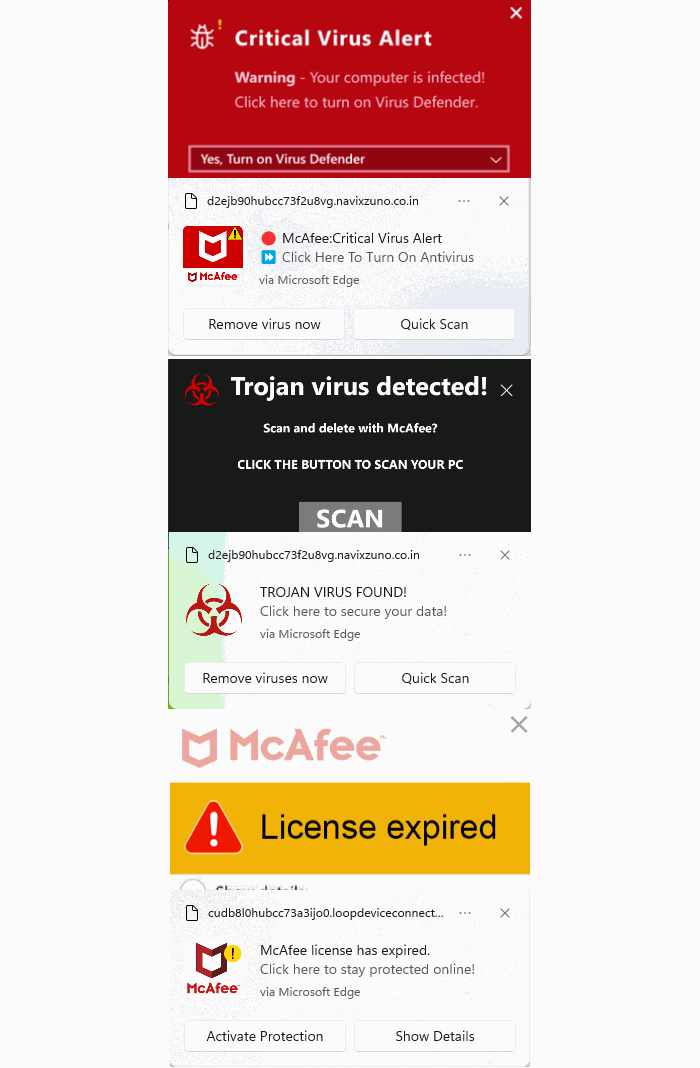
Our support team flagged a number of customers who suspected their device might be infected with malware, but Malwarebytes scans came up empty.
When the customers provided screenshots, our Malware Removal Support team quickly recognized the format as web push notifications.
The reason the scans came up clean is that these notifications aren’t malware on the device. They’re browser notifications from websites that trick users into clicking “Allow.”
We helped the customers disable the push notifications (see below for instructions). But since most of them didn’t know how they got them in the first place, we went down the rabbit hole to find out where they were coming from.
Examples of web push notifications
We started with one of the most prevalent domains called unsphiperidion[.]co.in, but all we found was a misleading advertisement that promised the Adguard browser extension and instead led to Poperblocker.
Fake Adguard browser extension update prompt
But another clue, also mentioned by the Malware Removal Support team—a domain called triviabox[.]co[.]in—practically brought us straight to the source.
We found a site that challenged our intelligence by prompting us to take a quiz.
Quiz website example
Later we found these quizzes come in different flavors. Some about geography, vocabulary, and history, while others are specifically targeted at Canada, Germany, France, Japan, and the US.
But the main goal of these sites is to get you to click the “Start the quiz” button, so the site can send notifications later and make money from ads, affiliate schemes, scams, or unwanted downloads.
Ready to test your knowledge? Start the quiz
What that button does before it starts the quiz is show the visitor a prompt with a misleading background.
Click Allow to continue triggers the browser’s “show notifications” prompt
The show notifications text in the actual prompt tells the real story. You’ll be giving the website permission to show you notifications even when you’re not on the website, which makes it hard for users to determine the origin.
The Click “Allow” to continue text with the red arrow on the website itself is nothing more than a well-placed lure to get you to click that Allow button and open the flood gates. To avoid raising suspicion, the visitor is then presented with the quiz, so later on they will have no reason to suspect what started the ordeal.
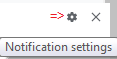
Web push notifications (also called browser push notifications) are not always simple advertisements. Some can be misleading messages about the safety of your computer. The gear icon in the notifications themselves can be very helpful. On Chromium-based browsers, clicking it will lead you to the Notifications settings menu where you can block them.
Unfortunately, we often find them used by “affiliates” to promote security software. If you’re looking for an anti-malware solution that doesn’t make use of such affiliates, you know where to find us.
How to remove and block web push notifications
For every browser, the notifications look slightly different and the methods to disable them are slightly different as well. To make them easier to find, I have split them up by browser.
Chrome
To completely turn off notifications, even from an extension:
Click the three dots button in the upper right-hand corner of the Chrome menu to enter the Settings menu.
In the Settings menu and click on Privacy and Security.
Click on Site settings.
In that menu, select Notifications.
By default, the slider is set to Sites can ask to send notifications, but feel free to move it to Don’t allow sites to send notifications if you wish to block notifications completely.
For more granular control, you can use the Customized behaviors menu to manipulate the individual items.
Customized behaviors section of the Chromium notifications menu
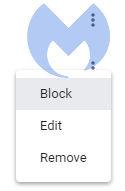
Note that sometimes you may see items with a jigsaw puzzle piece icon in the place of the three stacked dots. These are enforced by an extension, so you would have to figure out which extension is responsible first and then remove it. But for the ones with the three dots behind them, you can click on the dots to open this context menu:
Selecting Block will move the item to the block list. Selecting Remove will delete the item from the list. It will ask permission to show notifications again if you visit their site (unless you have set the slider to Block).
Shortcut: another way to get into the Notifications menu shown earlier is to click on the gear icon in the notifications themselves. This will take you directly to the itemized list.
Firefox
To completely turn off notifications in Firefox:
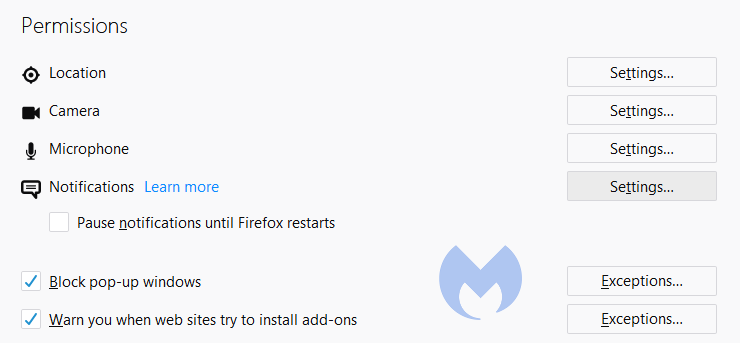
Click the three horizontal bars in the upper right-hand corner of the menu bar and select Options in the settings menu.
On the left-hand side, select Privacy & Security.
Scroll down to the Permissions section and click on Notifications.
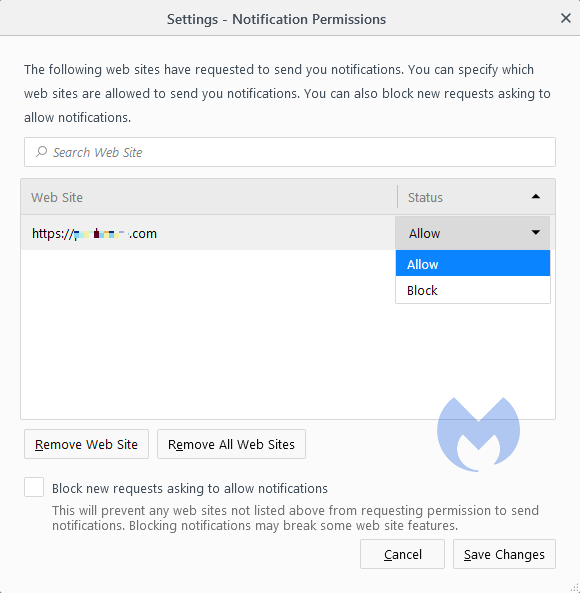
In the resulting menu, put a checkmark in the Block new requests asking to allow notifications box at the bottom.
In the same menu, you can apply a more granular control by setting listed items to Block or Allow by using the drop-down menu behind each item.
Click on Save Changes when you’re done.
Opera
Where push notifications are concerned, you can see how closely related Opera and Chrome are.
Open the menu by clicking the O in the upper left-hand corner.
Click on Settings (on Windows)/Preferences (on Mac).
Click on Advanced and select Privacy & security.
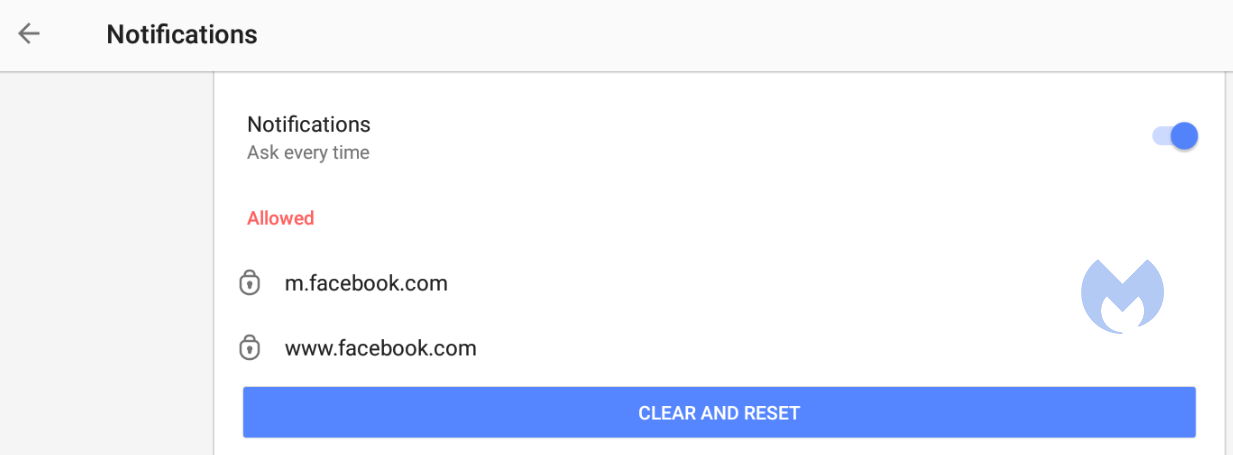
Under Content settings (desktop)/Site settings (Android,) select Notifications.
On Android, you can remove all the items at once or one by one. On desktops, it works exactly the same as it does in Chrome. The same is true for accessing the menu from the notifications themselves. Click the gear icon in the notification, and you will be taken to the Notifications menu.
Edge
In Edge, go to Settings and more in the upper right corner of your browser window, then
Select Settings > Privacy, search, and services > Site permissions > All sites.
Select the website for which you want to block notifications, find the Notifications setting, and choose Block from the dropdown menu.
To manage notifications from your browser address bar:
To check or manage notifications while visiting a website you’ve already subscribed to, follow the steps below:
Select View site information to the left of your address bar.
Under Permissions for this site > Notifications, choose Block from the drop-down menu.
Safari on Mac
On your Mac, open theApple menu, then
Choose System Settings, then click Notifications in the sidebar. (You may need to scroll down.)
Go to Application Notifications, click the website, then turn off Allow Notifications.
The website remains in the list in Notifications settings. To remove it from the list, deny the website permission to send notifications in Safari settings. See Change websites settings.
To stop seeing requests for permission to send you notifications in Safari:
Go to the Safari app on your Mac.
Choose Safari > Settings.
Click Websites, then click Notifications.
Deselect Allow websites to ask for permission to send notifications.
From now on, when you visit a website that wants to send you notifications, you aren’t asked.
Are these notifications useful at all?
While we could conceive of some cases where push notifications might be found useful, we would certainly not hold it against you if you decided to disable them altogether.
Web push notifications are not just there to disturb Windows users. Android, Chromebook, MacOS, even Linux users may see them if they use one of the participating browsers: Chrome, Firefox, Opera, Edge, and Safari. In some cases, the browser does not even have to be opened, and it can still display push notifications.
Be careful out there and think twice before you click “Allow.”
Indicators of Compromise (IOCs)
During the course of the investigation we found—and blocked—these domains related to the campaign:
dailyrumour[.]co.nz
edifaqe[.]org
geniusfun[.]co.in
geniusfun[.]co.za
genisfun[.]co.nz
holicithed[.]com
ivenih[.]org
loopdeviceconnection[.]co.in
mindorbittest[.]com
navixzuno[.]co.in
quizcentral[.]co.in
quizcentral[.]co.za
rixifabed[.]org
triviabox[.]co.in
uhuhedeb[.]org
unsphiperidion[.]co.in
yeqeso[.]org
ylloer[.]org
We don’t just report on threats—we remove them
Cybersecurity risks should never spread beyond a headline. Keep threats off your devices by downloading Malwarebytes today.
Our support team flagged a number of customers who suspected their device might be infected with malware, but Malwarebytes scans came up empty.
When the customers provided screenshots, our Malware Removal Support team quickly recognized the format as web push notifications.
The reason the scans came up clean is that these notifications aren’t malware on the device. They’re browser notifications from websites that trick users into clicking “Allow.”
We helped the customers disable the push notifications (see below for instructions). But since most of them didn’t know how they got them in the first place, we went down the rabbit hole to find out where they were coming from.
Examples of web push notifications
We started with one of the most prevalent domains called unsphiperidion[.]co.in, but all we found was a misleading advertisement that promised the Adguard browser extension and instead led to Poperblocker.
Fake Adguard browser extension update prompt
But another clue, also mentioned by the Malware Removal Support team—a domain called triviabox[.]co[.]in—practically brought us straight to the source.
We found a site that challenged our intelligence by prompting us to take a quiz.
Quiz website example
Later we found these quizzes come in different flavors. Some about geography, vocabulary, and history, while others are specifically targeted at Canada, Germany, France, Japan, and the US.
But the main goal of these sites is to get you to click the “Start the quiz” button, so the site can send notifications later and make money from ads, affiliate schemes, scams, or unwanted downloads.
Ready to test your knowledge? Start the quiz
What that button does before it starts the quiz is show the visitor a prompt with a misleading background.
Click Allow to continue triggers the browser’s “show notifications” prompt
The show notifications text in the actual prompt tells the real story. You’ll be giving the website permission to show you notifications even when you’re not on the website, which makes it hard for users to determine the origin.
The Click “Allow” to continue text with the red arrow on the website itself is nothing more than a well-placed lure to get you to click that Allow button and open the flood gates. To avoid raising suspicion, the visitor is then presented with the quiz, so later on they will have no reason to suspect what started the ordeal.
Web push notifications (also called browser push notifications) are not always simple advertisements. Some can be misleading messages about the safety of your computer. The gear icon in the notifications themselves can be very helpful. On Chromium-based browsers, clicking it will lead you to the Notifications settings menu where you can block them.
Unfortunately, we often find them used by “affiliates” to promote security software. If you’re looking for an anti-malware solution that doesn’t make use of such affiliates, you know where to find us.
How to remove and block web push notifications
For every browser, the notifications look slightly different and the methods to disable them are slightly different as well. To make them easier to find, I have split them up by browser.
Chrome
To completely turn off notifications, even from an extension:
Click the three dots button in the upper right-hand corner of the Chrome menu to enter the Settings menu.
In the Settings menu and click on Privacy and Security.
Click on Site settings.
In that menu, select Notifications.
By default, the slider is set to Sites can ask to send notifications, but feel free to move it to Don’t allow sites to send notifications if you wish to block notifications completely.
For more granular control, you can use the Customized behaviors menu to manipulate the individual items.
Customized behaviors section of the Chromium notifications menu
Note that sometimes you may see items with a jigsaw puzzle piece icon in the place of the three stacked dots. These are enforced by an extension, so you would have to figure out which extension is responsible first and then remove it. But for the ones with the three dots behind them, you can click on the dots to open this context menu:
Selecting Block will move the item to the block list. Selecting Remove will delete the item from the list. It will ask permission to show notifications again if you visit their site (unless you have set the slider to Block).
Shortcut: another way to get into the Notifications menu shown earlier is to click on the gear icon in the notifications themselves. This will take you directly to the itemized list.
Firefox
To completely turn off notifications in Firefox:
Click the three horizontal bars in the upper right-hand corner of the menu bar and select Options in the settings menu.
On the left-hand side, select Privacy & Security.
Scroll down to the Permissions section and click on Notifications.
In the resulting menu, put a checkmark in the Block new requests asking to allow notifications box at the bottom.
In the same menu, you can apply a more granular control by setting listed items to Block or Allow by using the drop-down menu behind each item.
Click on Save Changes when you’re done.
Opera
Where push notifications are concerned, you can see how closely related Opera and Chrome are.
Open the menu by clicking the O in the upper left-hand corner.
Click on Settings (on Windows)/Preferences (on Mac).
Click on Advanced and select Privacy & security.
Under Content settings (desktop)/Site settings (Android,) select Notifications.
On Android, you can remove all the items at once or one by one. On desktops, it works exactly the same as it does in Chrome. The same is true for accessing the menu from the notifications themselves. Click the gear icon in the notification, and you will be taken to the Notifications menu.
Edge
In Edge, go to Settings and more in the upper right corner of your browser window, then
Select Settings > Privacy, search, and services > Site permissions > All sites.
Select the website for which you want to block notifications, find the Notifications setting, and choose Block from the dropdown menu.
To manage notifications from your browser address bar:
To check or manage notifications while visiting a website you’ve already subscribed to, follow the steps below:
Select View site information to the left of your address bar.
Under Permissions for this site > Notifications, choose Block from the drop-down menu.
Safari on Mac
On your Mac, open theApple menu, then
Choose System Settings, then click Notifications in the sidebar. (You may need to scroll down.)
Go to Application Notifications, click the website, then turn off Allow Notifications.
The website remains in the list in Notifications settings. To remove it from the list, deny the website permission to send notifications in Safari settings. See Change websites settings.
To stop seeing requests for permission to send you notifications in Safari:
Go to the Safari app on your Mac.
Choose Safari > Settings.
Click Websites, then click Notifications.
Deselect Allow websites to ask for permission to send notifications.
From now on, when you visit a website that wants to send you notifications, you aren’t asked.
Are these notifications useful at all?
While we could conceive of some cases where push notifications might be found useful, we would certainly not hold it against you if you decided to disable them altogether.
Web push notifications are not just there to disturb Windows users. Android, Chromebook, MacOS, even Linux users may see them if they use one of the participating browsers: Chrome, Firefox, Opera, Edge, and Safari. In some cases, the browser does not even have to be opened, and it can still display push notifications.
Be careful out there and think twice before you click “Allow.”
Indicators of Compromise (IOCs)
During the course of the investigation we found—and blocked—these domains related to the campaign:
dailyrumour[.]co.nz
edifaqe[.]org
geniusfun[.]co.in
geniusfun[.]co.za
genisfun[.]co.nz
holicithed[.]com
ivenih[.]org
loopdeviceconnection[.]co.in
mindorbittest[.]com
navixzuno[.]co.in
quizcentral[.]co.in
quizcentral[.]co.za
rixifabed[.]org
triviabox[.]co.in
uhuhedeb[.]org
unsphiperidion[.]co.in
yeqeso[.]org
ylloer[.]org
We don’t just report on threats—we remove them
Cybersecurity risks should never spread beyond a headline. Keep threats off your devices by downloading Malwarebytes today.
A phishing page disguised as a Google Meet update notice is silently handing victims’ Windows computers to an attacker-controlled management server. No password is stolen, no files are downloaded, and there are no obvious red flags.
It just takes a single click on a convincing Google Meet fake update prompt to enroll your Windows PC into an attacker-controlled device management system.
“To keep using Meet, install the latest version”
The social engineering is almost embarrassingly simple: an app update notice in the right brand colors.
The page impersonates Google Meet well enough to pass a casual glance. But neither the Update now button nor the Learn more link below it goes anywhere near Google.
Both trigger a Windows deep link using the ms-device-enrollment: URI scheme. That’s a handler built into Windows so IT administrators can send staff a one-click device enrollment link. The attacker has simply pointed it at their own server instead.
What “enrollment” actually means for your machine
The moment a visitor clicks, Windows bypasses the browser and opens its native Set up a work or school account dialog. That’s the same prompt that appears when a corporate IT team provisions a new laptop.
The URI arrives pre-populated: The username field reads collinsmckleen@sunlife-finance.com (a domain impersonating Sun Life Financial), and the server field already points to the attacker’s endpoint at tnrmuv-api.esper[.]cloud.
The attacker isn’t trying to perfectly impersonate the victim’s identity. The goal is simply to get the user to click through a trusted Windows enrollment workflow, which grants device control regardless of whose name appears in the form. Campaigns like this rarely expect everyone to fall for them. Even if most people stop, a small percentage continuing is enough for the attack to succeed.
A victim who clicks Next and proceeds through the wizard will hand their machine to an MDM (mobile device management) server they have never heard of.
MDM (Mobile Device Management) is the technology companies use to remotely administer employee devices. Once a machine is enrolled, the MDM administrator can silently install or remove software, enforce or change system settings, read the file system, lock the screen, and wipe the device entirely, all without the user’s knowledge.
There is no ongoing malware process to detect, because the operating system itself is doing the work on the attacker’s behalf.
The attacker’s server is hosted on Esper, a legitimate commercial MDM platform used by real enterprises.
Decoding the Base64 string embedded in the server URL reveals two pre-configured Esper objects: a blueprint ID (7efe89a9-cfd8-42c6-a4dc-a63b5d20f813) and a group ID (4c0bb405-62d7-47ce-9426-3c5042c62500). These represent the management profile that will be applied to any enrolled device.
The ms-device-enrollment: handler works exactly as Microsoft designed it, and Esper works exactly as Esper designed it. The attacker has simply pointed both at someone who never consented.
No malware, no credential theft. That’s the problem.
There is no malicious executable here, and no phished Microsoft login.
The ms-device-enrollment: handler is a documented, legitimate Windows feature that the attacker has simply redirected.
Because the enrollment dialog is a real Windows system prompt rather than a spoofed web page, it bypasses browser security warnings and email scanners looking for credential-harvesting pages.
The command infrastructure runs on a reputable SaaS platform, so domain-reputation blocking is unlikely to help.
Most conventional security tools have no category for “legitimate OS feature pointed at hostile infrastructure.”
The broader trend here is one the security industry has been watching with growing concern: attackers abandoning malware payloads in favor of abusing legitimate operating system features and cloud platforms.
What to do if you think you’ve been affected
Because the attack relies on legitimate system features rather than malware, the most important step is checking whether your device was enrolled.
Check whether your device was enrolled:
Open Settings > Accounts > Access work or school.
If you see an entry you don’t recognize, especially one referencing sunlife-finance[.]com or esper[.]cloud, click it and select Disconnect.
If you clicked “Update now” on updatemeetmicro[.]online and completed the enrollment wizard, treat your device as potentially compromised.
Run an up-to-date, real-time anti-malware solution to check for any secondary payloads the MDM server may have pushed after enrollment.
If you are an IT administrator, consider whether your organization needs a policy blocking unapproved MDM enrollment. Microsoft Intune and similar tools can restrict which MDM servers Windows devices are allowed to join.
We don’t just report on threats—we remove them
Cybersecurity risks should never spread beyond a headline. Keep threats off your devices by downloading Malwarebytes today.
A phishing page disguised as a Google Meet update notice is silently handing victims’ Windows computers to an attacker-controlled management server. No password is stolen, no files are downloaded, and there are no obvious red flags.
It just takes a single click on a convincing Google Meet fake update prompt to enroll your Windows PC into an attacker-controlled device management system.
“To keep using Meet, install the latest version”
The social engineering is almost embarrassingly simple: an app update notice in the right brand colors.
The page impersonates Google Meet well enough to pass a casual glance. But neither the Update now button nor the Learn more link below it goes anywhere near Google.
Both trigger a Windows deep link using the ms-device-enrollment: URI scheme. That’s a handler built into Windows so IT administrators can send staff a one-click device enrollment link. The attacker has simply pointed it at their own server instead.
What “enrollment” actually means for your machine
The moment a visitor clicks, Windows bypasses the browser and opens its native Set up a work or school account dialog. That’s the same prompt that appears when a corporate IT team provisions a new laptop.
The URI arrives pre-populated: The username field reads collinsmckleen@sunlife-finance.com (a domain impersonating Sun Life Financial), and the server field already points to the attacker’s endpoint at tnrmuv-api.esper[.]cloud.
The attacker isn’t trying to perfectly impersonate the victim’s identity. The goal is simply to get the user to click through a trusted Windows enrollment workflow, which grants device control regardless of whose name appears in the form. Campaigns like this rarely expect everyone to fall for them. Even if most people stop, a small percentage continuing is enough for the attack to succeed.
A victim who clicks Next and proceeds through the wizard will hand their machine to an MDM (mobile device management) server they have never heard of.
MDM (Mobile Device Management) is the technology companies use to remotely administer employee devices. Once a machine is enrolled, the MDM administrator can silently install or remove software, enforce or change system settings, read the file system, lock the screen, and wipe the device entirely, all without the user’s knowledge.
There is no ongoing malware process to detect, because the operating system itself is doing the work on the attacker’s behalf.
The attacker’s server is hosted on Esper, a legitimate commercial MDM platform used by real enterprises.
Decoding the Base64 string embedded in the server URL reveals two pre-configured Esper objects: a blueprint ID (7efe89a9-cfd8-42c6-a4dc-a63b5d20f813) and a group ID (4c0bb405-62d7-47ce-9426-3c5042c62500). These represent the management profile that will be applied to any enrolled device.
The ms-device-enrollment: handler works exactly as Microsoft designed it, and Esper works exactly as Esper designed it. The attacker has simply pointed both at someone who never consented.
No malware, no credential theft. That’s the problem.
There is no malicious executable here, and no phished Microsoft login.
The ms-device-enrollment: handler is a documented, legitimate Windows feature that the attacker has simply redirected.
Because the enrollment dialog is a real Windows system prompt rather than a spoofed web page, it bypasses browser security warnings and email scanners looking for credential-harvesting pages.
The command infrastructure runs on a reputable SaaS platform, so domain-reputation blocking is unlikely to help.
Most conventional security tools have no category for “legitimate OS feature pointed at hostile infrastructure.”
The broader trend here is one the security industry has been watching with growing concern: attackers abandoning malware payloads in favor of abusing legitimate operating system features and cloud platforms.
What to do if you think you’ve been affected
Because the attack relies on legitimate system features rather than malware, the most important step is checking whether your device was enrolled.
Check whether your device was enrolled:
Open Settings > Accounts > Access work or school.
If you see an entry you don’t recognize, especially one referencing sunlife-finance[.]com or esper[.]cloud, click it and select Disconnect.
If you clicked “Update now” on updatemeetmicro[.]online and completed the enrollment wizard, treat your device as potentially compromised.
Run an up-to-date, real-time anti-malware solution to check for any secondary payloads the MDM server may have pushed after enrollment.
If you are an IT administrator, consider whether your organization needs a policy blocking unapproved MDM enrollment. Microsoft Intune and similar tools can restrict which MDM servers Windows devices are allowed to join.
We don’t just report on threats—we remove them
Cybersecurity risks should never spread beyond a headline. Keep threats off your devices by downloading Malwarebytes today.
A convincing fake version of the popular Mac utility CleanMyMac is tricking users into installing malware.
The site instructs visitors to paste a command into Terminal. If they do, it installs SHub Stealer, macOS malware designed to steal sensitive data including saved passwords, browser data, Apple Keychain contents, cryptocurrency wallets, and Telegram sessions. It can even modify wallet apps such as Exodus, Atomic Wallet, Ledger Wallet, and Ledger Live so attackers can later steal the wallet’s recovery phrase.
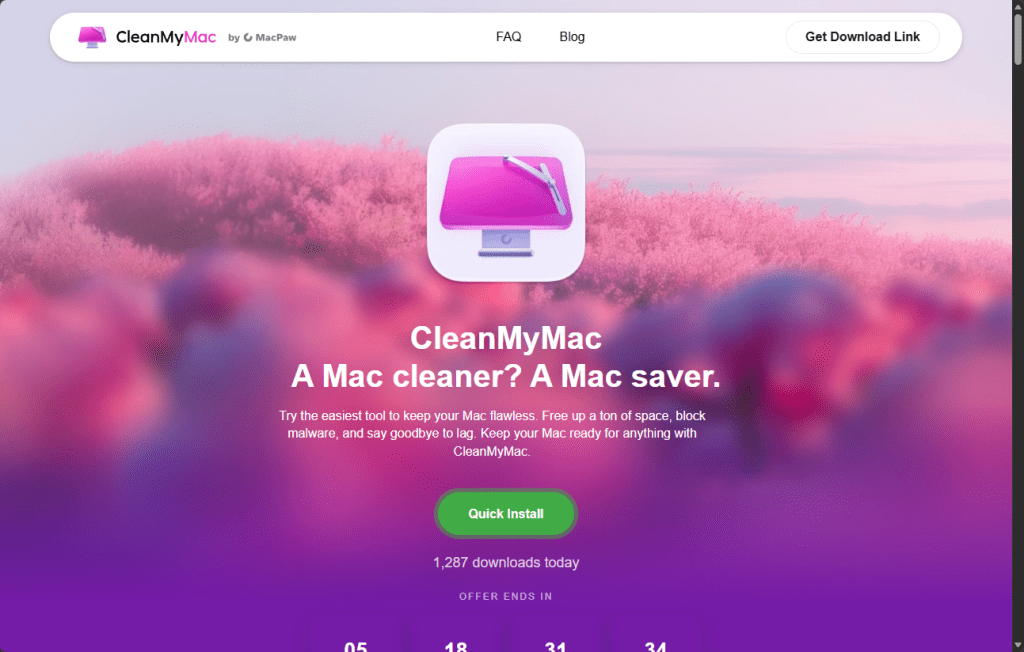
The site impersonates the CleanMyMac website, but is unconnected to the legitimate software or the developers, MacPaw.
Remember: Legitimate apps almost never require you to paste commands into Terminal to install them. If a website tells you to do this, treat it as a major red flag and do not proceed. When in doubt, download software only from the developer’s official website or the App Store.
Read the deep-dive to see what we discovered.
“Open Terminal and paste the following command”
The attack begins at cleanmymacos[.]org, a website designed to look like the real CleanMyMac product page. Visitors are shown what appears to be an advanced installation option of the kind a power user might expect. The page instructs them to open Terminal, paste a command, and press Return. There’s no download prompt, disk image, or security dialog.
That command performs three actions in quick succession:
First, it prints a reassuring line: macOS-CleanMyMac-App: https://macpaw.com/cleanmymac/us/app to make the Terminal output look legitimate.
Next, it decodes a base64-encoded link that hides the real destination.
Finally, it downloads a shell script from the attacker’s server and pipes it directly into zsh for immediate execution.
From the user’s perspective, nothing unusual happens.
This technique, known as ClickFix, has become a common delivery method for Mac infostealers. Instead of exploiting a vulnerability, it tricks the user into running the malware themselves. Because the command is executed voluntarily, protections such as Gatekeeper, notarization checks, and XProtect offer little protection once the user pastes the command and presses Return.
Geofencing: Not everyone gets the payload
The first script that arrives on the victim’s Mac is a loader, which is a small program that checks the system before continuing the attack.
One of its first checks looks at the macOS keyboard settings to see whether a Russian-language keyboard is installed. If it finds one, the malware sends a cis_blocked event to the attacker’s server and exits without doing anything else.
This is a form of geofencing. Malware linked to Russian-speaking cybercriminal groups often avoids infecting machines that appear to belong to users in CIS countries (the Commonwealth of Independent States, which includes Russia and several neighboring nations). By avoiding systems that appear to belong to Russian users, the attackers reduce the risk of attracting attention from local law enforcement.
The behavior does not prove where SHub was developed, but it follows a pattern long observed in that ecosystem, where malware is configured not to infect systems in the operators’ own region.
If the system passes this check, the loader sends a profile of the machine to the command-and-control server at res2erch-sl0ut[.]com. The report includes the device’s external IP address, hostname, macOS version, and keyboard locale.
Each report is tagged with a unique build hash, a 32-character identifier that acts as a tracking ID. The same identifier appears in later communications with the server, allowing the operators to link activity to a specific victim or campaign.
“System Preferences needs your password to continue”
Comparing payloads served with and without a build hash reveals another campaign-level field in the malware builder: BUILD_NAME. In the sample tied to a build hash, the value is set to PAds; in the version without a hash, the field is empty. The value is embedded in the malware’s heartbeat script and sent to the command-and-control (C2) server during every beacon check-in alongside the bot ID and build ID.
What PAds stands for cannot be confirmed from the payload alone, but its structure matches the kind of traffic-source tag commonly used in pay-per-install or advertising campaigns to track where infections originate. If that interpretation is correct, it suggests victims may be reaching the fake CleanMyMac site through paid placements rather than organic search or direct links.
Once the loader confirms a viable target, it downloads and executes the main payload: an AppleScript hosted at res2erch-sl0ut[.]com/debug/payload.applescript. AppleScript is Apple’s built-in automation language, which allows the malware to interact with macOS using legitimate system features. Its first action is to close the Terminal window that launched it, removing the most obvious sign that anything happened.
Next comes the password harvest. The script displays a dialog box that closely mimics a legitimate macOS system prompt. The title reads “System Preferences”, the window shows Apple’s padlock icon, and the message says:
The awkward wording—“for continue” instead of “to continue”—is one clue the prompt is fake, though many users under pressure might not notice it.
“Required Application Helper. Please enter password for continue.”
If the user enters their password, the malware immediately checks whether it is correct using the macOS command-line tool dscl. If the password is wrong, it is logged and the prompt appears again. The script will repeat the prompt up to ten times until a valid password is entered or the attempts run out.
That password is valuable because it unlocks the macOS Keychain, Apple’s encrypted storage system for saved passwords, Wi-Fi credentials, app tokens, and private keys. Without the login password, the Keychain database is just encrypted data. With it, the contents can be decrypted and read.
A systematic sweep of everything worth stealing
With the password in hand, SHub begins a systematic sweep of the machine. All collected data is staged in a randomly named temporary folder—something like /tmp/shub_4823917/—before being packaged and sent to the attackers.
The browser targeting is extensive. SHub searches 14 Chromium-based browsers (Chrome, Brave, Edge, Opera, OperaGX, Vivaldi, Arc, Sidekick, Orion, Coccoc, Chrome Canary, Chrome Dev, Chrome Beta, and Chromium), stealing saved passwords, cookies, and autofill data from every profile it finds. Firefox receives the same treatment for stored credentials.
The malware also scans installed browser extensions, looking for 102 known cryptocurrency wallet extensions by their internal identifiers. These include MetaMask, Phantom, Coinbase Wallet, Exodus Web3, Trust Wallet, Keplr, and many others.
Desktop wallet applications are also targeted. SHub collects local storage data from 23 wallet apps, including Exodus, Electrum, Atomic Wallet, Guarda, Coinomi, Sparrow, Wasabi, Bitcoin Core, Monero, Litecoin Core, Dogecoin Core, BlueWallet, Ledger Live, Ledger Wallet, Trezor Suite, Binance, and TON Keeper. Each wallet folder is capped at 100 MB to keep the archive manageable.
Beyond wallets and browsers, SHub also captures the macOS Keychain directory, iCloud account data, Safari cookies and browsing data, Apple Notes databases, and Telegram session files—information that could allow attackers to hijack accounts without knowing the passwords.
It also copies shell history files (.zsh_history and .bash_history) and .gitconfig, which often contain API keys or authentication tokens used by developers.
All of this data is compressed into a ZIP archive and uploaded to res2erch-sl0ut[.]com/gate along with a hardcoded API key identifying the malware build. The archive and temporary files are then deleted, leaving minimal traces on the system.
The part that keeps stealing after you’ve cleaned up
Most infostealers are smash-and-grab operations: they run once, take everything, and leave. SHub does that, but it also goes a step further.
If it finds certain wallet applications installed, it downloads a replacement for the application’s core logic file from the attacker’s server and swaps it in silently. We retrieved and analyzed five such replacements. All five were backdoored, each tailored to the architecture of the target application.
The targets are Electron-based apps. These are desktop applications built on web technologies whose core logic lives in a file called app.asar. SHub kills the running application, downloads a replacement app.asar from the C2 server, overwrites the original inside the application bundle, strips the code signature, and re-signs the app so macOS will accept it. The process runs silently in the background.
The five confirmed crypto wallet apps are Exodus, Atomic Wallet, Ledger Wallet, Ledger Live, and Trezor Suite.
Exodus: silent credential theft on every unlock
On every wallet unlock, the modified app silently sends the user’s password and seed phrase to wallets-gate[.]io/api/injection. A one-line bypass is added to the network filter to allow the request through Exodus’s own domain allowlist.
Atomic Wallet: the same exfiltration, no bypass required
On every unlock, the modified app sends the user’s password and mnemonic to wallets-gate[.]io/api/injection. No network filter bypass is required—Atomic Wallet’s Content Security Policy already allows outbound HTTPS connections to any domain.
Ledger Wallet: TLS bypass and a fake recovery wizard
The modified app disables TLS certificate validation at startup. Five seconds after launch, it replaces the interface with a fake three-page recovery wizard that asks the user for their seed phrase and sends it to wallets-gate[.]io/api/injection.
Ledger Live: identical modifications
Ledger Live receives the same modifications as Ledger Wallet: TLS validation is disabled and the user is presented with the same fake recovery wizard.
Trezor Suite: fake security update overlay
After the application loads, a full-screen overlay styled to match Trezor Suite’s interface appears, presenting a fake critical security update that asks for the user’s seed phrase. The phrase is validated using the app’s own bundled BIP39 library before being sent to wallets-gate[.]io/api/injection.
At the same time, the app’s update mechanism is disabled through Redux store interception so the modified version remains in place.
Five wallets, one endpoint, one operator
Across all five modified applications, the exfiltration infrastructure is identical: the same wallets-gate[.]io/api/injection endpoint, the same API key, and the same build ID.
Each request includes a field identifying the source wallet—exodus, atomic, ledger, ledger_live, or trezor_suite—allowing the backend to route incoming credentials by product.
This consistency across five independently modified applications strongly suggests that a single operator built all of the backdoors against the same backend infrastructure.
A persistent backdoor disguised as Google’s own update service
To maintain long-term access, SHub installs a LaunchAgent, which is a background task that macOS automatically runs every time the user logs in. The file is placed at:
The script collects a unique hardware identifier from the Mac (the IOPlatformUUID) and sends it to the attacker’s server as a bot ID. The server can respond with base64-encoded commands, which the script decodes, executes, and then deletes.
In practice, this gives the attackers the ability to run commands on the infected Mac at any time until the persistence mechanism is discovered and removed.
The final step is a decoy error message shown to the user:
“Your Mac does not support this application. Try reinstalling or downloading the version for your system.”
This explains why CleanMyMac appeared not to install and sends the victim off to troubleshoot a problem that doesn’t actually exist.
SHub’s place in a growing family of Mac stealers
SHub is not an isolated creation. It belongs to a rapidly evolving family of AppleScript-based macOS infostealers including campaigns such as MacSync Stealer (an expanded version of malware known as Mac.c, first seen in April 2025) and Odyssey Stealer, and shares traits with other credential-stealing malware such as Atomic Stealer.
These families share a similar architecture: a ClickFix delivery chain, an AppleScript payload, a fake System Preferences password prompt, recursive data harvesting functions, and exfiltration through a ZIP archive uploaded to a command-and-control server.
What distinguishes SHub is the sophistication of its infrastructure. Features such as per-victim build hashes for campaign tracking, detailed wallet targeting, wallet application backdooring, and a heartbeat system capable of running remote commands all suggest an author who studied earlier variants and invested heavily in expanding them. The result resembles a malware-as-a-service platform rather than a simple infostealer.
The presence of a DEBUG tag in the malware’s internal identifier, along with the detailed telemetry it sends during execution, suggests the builder was still under active development at the time of analysis.
The campaign also fits a broader pattern of brand impersonation attacks. Researchers have documented similar ClickFix campaigns impersonating GitHub repositories, Google Meet, messaging platforms, and other software tools, with each designed to convince users that they are following legitimate installation instructions. The cleanmymacos.org site appears to follow the same playbook, using a well-known Mac utility as the lure.
What to do if you may have been affected
The most effective part of this attack is also its simplest: it convinces the victim to run the malicious command themselves.
By presenting a Terminal command as a legitimate installation step, the campaign sidesteps many of macOS’s built-in protections. No app download is required, no disk image is opened, and no obvious security warning appears. The user simply pastes the command and presses Return.
This reflects a broader trend: macOS is becoming a more attractive target, and the tools attackers use are becoming more capable and more professional. SHub Stealer, even in its current state, represents a step beyond many earlier macOS infostealers.
For most users, the safest rule is also the simplest: install software only from the App Store or from a developer’s official website. The App Store handles installation automatically, so there is no Terminal command, no guesswork, and no moment where you have to decide whether to trust a random website.
Do not run the command. If you have not yet executed the Terminal command shown on cleanmymacos[.]org or a similar site, close the page and do not return.
Check for the persistence agent. Open Finder, press Cmd + Shift + G, and navigate to ~/Library/LaunchAgents/. If you see a file named com.google.keystone.agent.plist that you did not install, delete it. Also check: ~/Library/Application Support/Google/. If a folder named GoogleUpdate.app is present and you did not install it, remove it.
Treat your wallet seed phrase as compromised. If you have Exodus, Atomic Wallet, Ledger Live, Ledger Wallet, or Trezor Suite installed and you ran this command, assume your seed phrase and wallet password have been exposed. Move your funds to a new wallet created on a clean device immediately. Seed phrases cannot be changed, and anyone with a copy can access the wallet.
Change your passwords. Your macOS login password and any passwords stored in your browser or Keychain should be considered exposed. Change them from a device you trust.
Revoke sensitive tokens. If your shell history contained API keys, SSH keys, or developer tokens, revoke and regenerate them.
Run Malwarebytes for Mac. It can detect and remove remaining components of the infection, including the LaunchAgent and modified files.
Indicators of compromise (IOCs)
Domains
cleanmymacos[.]org — phishing site impersonating CleanMyMac
res2erch-sl0ut[.]com — primary command-and-control server (loader delivery, telemetry, data exfiltration)
wallets-gate[.]io — secondary C2 used by wallet backdoors to exfiltrate seed phrases and passwords
We don’t just report on threats—we remove them
Cybersecurity risks should never spread beyond a headline. Keep threats off your devices by downloading Malwarebytes today.
A convincing fake version of the popular Mac utility CleanMyMac is tricking users into installing malware.
The site instructs visitors to paste a command into Terminal. If they do, it installs SHub Stealer, macOS malware designed to steal sensitive data including saved passwords, browser data, Apple Keychain contents, cryptocurrency wallets, and Telegram sessions. It can even modify wallet apps such as Exodus, Atomic Wallet, Ledger Wallet, and Ledger Live so attackers can later steal the wallet’s recovery phrase.
The site impersonates the CleanMyMac website, but is unconnected to the legitimate software or the developers, MacPaw.
Remember: Legitimate apps almost never require you to paste commands into Terminal to install them. If a website tells you to do this, treat it as a major red flag and do not proceed. When in doubt, download software only from the developer’s official website or the App Store.
Read the deep-dive to see what we discovered.
“Open Terminal and paste the following command”
The attack begins at cleanmymacos[.]org, a website designed to look like the real CleanMyMac product page. Visitors are shown what appears to be an advanced installation option of the kind a power user might expect. The page instructs them to open Terminal, paste a command, and press Return. There’s no download prompt, disk image, or security dialog.
That command performs three actions in quick succession:
First, it prints a reassuring line: macOS-CleanMyMac-App: https://macpaw.com/cleanmymac/us/app to make the Terminal output look legitimate.
Next, it decodes a base64-encoded link that hides the real destination.
Finally, it downloads a shell script from the attacker’s server and pipes it directly into zsh for immediate execution.
From the user’s perspective, nothing unusual happens.
This technique, known as ClickFix, has become a common delivery method for Mac infostealers. Instead of exploiting a vulnerability, it tricks the user into running the malware themselves. Because the command is executed voluntarily, protections such as Gatekeeper, notarization checks, and XProtect offer little protection once the user pastes the command and presses Return.
Geofencing: Not everyone gets the payload
The first script that arrives on the victim’s Mac is a loader, which is a small program that checks the system before continuing the attack.
One of its first checks looks at the macOS keyboard settings to see whether a Russian-language keyboard is installed. If it finds one, the malware sends a cis_blocked event to the attacker’s server and exits without doing anything else.
This is a form of geofencing. Malware linked to Russian-speaking cybercriminal groups often avoids infecting machines that appear to belong to users in CIS countries (the Commonwealth of Independent States, which includes Russia and several neighboring nations). By avoiding systems that appear to belong to Russian users, the attackers reduce the risk of attracting attention from local law enforcement.
The behavior does not prove where SHub was developed, but it follows a pattern long observed in that ecosystem, where malware is configured not to infect systems in the operators’ own region.
If the system passes this check, the loader sends a profile of the machine to the command-and-control server at res2erch-sl0ut[.]com. The report includes the device’s external IP address, hostname, macOS version, and keyboard locale.
Each report is tagged with a unique build hash, a 32-character identifier that acts as a tracking ID. The same identifier appears in later communications with the server, allowing the operators to link activity to a specific victim or campaign.
“System Preferences needs your password to continue”
Comparing payloads served with and without a build hash reveals another campaign-level field in the malware builder: BUILD_NAME. In the sample tied to a build hash, the value is set to PAds; in the version without a hash, the field is empty. The value is embedded in the malware’s heartbeat script and sent to the command-and-control (C2) server during every beacon check-in alongside the bot ID and build ID.
What PAds stands for cannot be confirmed from the payload alone, but its structure matches the kind of traffic-source tag commonly used in pay-per-install or advertising campaigns to track where infections originate. If that interpretation is correct, it suggests victims may be reaching the fake CleanMyMac site through paid placements rather than organic search or direct links.
Once the loader confirms a viable target, it downloads and executes the main payload: an AppleScript hosted at res2erch-sl0ut[.]com/debug/payload.applescript. AppleScript is Apple’s built-in automation language, which allows the malware to interact with macOS using legitimate system features. Its first action is to close the Terminal window that launched it, removing the most obvious sign that anything happened.
Next comes the password harvest. The script displays a dialog box that closely mimics a legitimate macOS system prompt. The title reads “System Preferences”, the window shows Apple’s padlock icon, and the message says:
The awkward wording—“for continue” instead of “to continue”—is one clue the prompt is fake, though many users under pressure might not notice it.
“Required Application Helper. Please enter password for continue.”
If the user enters their password, the malware immediately checks whether it is correct using the macOS command-line tool dscl. If the password is wrong, it is logged and the prompt appears again. The script will repeat the prompt up to ten times until a valid password is entered or the attempts run out.
That password is valuable because it unlocks the macOS Keychain, Apple’s encrypted storage system for saved passwords, Wi-Fi credentials, app tokens, and private keys. Without the login password, the Keychain database is just encrypted data. With it, the contents can be decrypted and read.
A systematic sweep of everything worth stealing
With the password in hand, SHub begins a systematic sweep of the machine. All collected data is staged in a randomly named temporary folder—something like /tmp/shub_4823917/—before being packaged and sent to the attackers.
The browser targeting is extensive. SHub searches 14 Chromium-based browsers (Chrome, Brave, Edge, Opera, OperaGX, Vivaldi, Arc, Sidekick, Orion, Coccoc, Chrome Canary, Chrome Dev, Chrome Beta, and Chromium), stealing saved passwords, cookies, and autofill data from every profile it finds. Firefox receives the same treatment for stored credentials.
The malware also scans installed browser extensions, looking for 102 known cryptocurrency wallet extensions by their internal identifiers. These include MetaMask, Phantom, Coinbase Wallet, Exodus Web3, Trust Wallet, Keplr, and many others.
Desktop wallet applications are also targeted. SHub collects local storage data from 23 wallet apps, including Exodus, Electrum, Atomic Wallet, Guarda, Coinomi, Sparrow, Wasabi, Bitcoin Core, Monero, Litecoin Core, Dogecoin Core, BlueWallet, Ledger Live, Ledger Wallet, Trezor Suite, Binance, and TON Keeper. Each wallet folder is capped at 100 MB to keep the archive manageable.
Beyond wallets and browsers, SHub also captures the macOS Keychain directory, iCloud account data, Safari cookies and browsing data, Apple Notes databases, and Telegram session files—information that could allow attackers to hijack accounts without knowing the passwords.
It also copies shell history files (.zsh_history and .bash_history) and .gitconfig, which often contain API keys or authentication tokens used by developers.
All of this data is compressed into a ZIP archive and uploaded to res2erch-sl0ut[.]com/gate along with a hardcoded API key identifying the malware build. The archive and temporary files are then deleted, leaving minimal traces on the system.
The part that keeps stealing after you’ve cleaned up
Most infostealers are smash-and-grab operations: they run once, take everything, and leave. SHub does that, but it also goes a step further.
If it finds certain wallet applications installed, it downloads a replacement for the application’s core logic file from the attacker’s server and swaps it in silently. We retrieved and analyzed five such replacements. All five were backdoored, each tailored to the architecture of the target application.
The targets are Electron-based apps. These are desktop applications built on web technologies whose core logic lives in a file called app.asar. SHub kills the running application, downloads a replacement app.asar from the C2 server, overwrites the original inside the application bundle, strips the code signature, and re-signs the app so macOS will accept it. The process runs silently in the background.
The five confirmed crypto wallet apps are Exodus, Atomic Wallet, Ledger Wallet, Ledger Live, and Trezor Suite.
Exodus: silent credential theft on every unlock
On every wallet unlock, the modified app silently sends the user’s password and seed phrase to wallets-gate[.]io/api/injection. A one-line bypass is added to the network filter to allow the request through Exodus’s own domain allowlist.
Atomic Wallet: the same exfiltration, no bypass required
On every unlock, the modified app sends the user’s password and mnemonic to wallets-gate[.]io/api/injection. No network filter bypass is required—Atomic Wallet’s Content Security Policy already allows outbound HTTPS connections to any domain.
Ledger Wallet: TLS bypass and a fake recovery wizard
The modified app disables TLS certificate validation at startup. Five seconds after launch, it replaces the interface with a fake three-page recovery wizard that asks the user for their seed phrase and sends it to wallets-gate[.]io/api/injection.
Ledger Live: identical modifications
Ledger Live receives the same modifications as Ledger Wallet: TLS validation is disabled and the user is presented with the same fake recovery wizard.
Trezor Suite: fake security update overlay
After the application loads, a full-screen overlay styled to match Trezor Suite’s interface appears, presenting a fake critical security update that asks for the user’s seed phrase. The phrase is validated using the app’s own bundled BIP39 library before being sent to wallets-gate[.]io/api/injection.
At the same time, the app’s update mechanism is disabled through Redux store interception so the modified version remains in place.
Five wallets, one endpoint, one operator
Across all five modified applications, the exfiltration infrastructure is identical: the same wallets-gate[.]io/api/injection endpoint, the same API key, and the same build ID.
Each request includes a field identifying the source wallet—exodus, atomic, ledger, ledger_live, or trezor_suite—allowing the backend to route incoming credentials by product.
This consistency across five independently modified applications strongly suggests that a single operator built all of the backdoors against the same backend infrastructure.
A persistent backdoor disguised as Google’s own update service
To maintain long-term access, SHub installs a LaunchAgent, which is a background task that macOS automatically runs every time the user logs in. The file is placed at:
The script collects a unique hardware identifier from the Mac (the IOPlatformUUID) and sends it to the attacker’s server as a bot ID. The server can respond with base64-encoded commands, which the script decodes, executes, and then deletes.
In practice, this gives the attackers the ability to run commands on the infected Mac at any time until the persistence mechanism is discovered and removed.
The final step is a decoy error message shown to the user:
“Your Mac does not support this application. Try reinstalling or downloading the version for your system.”
This explains why CleanMyMac appeared not to install and sends the victim off to troubleshoot a problem that doesn’t actually exist.
SHub’s place in a growing family of Mac stealers
SHub is not an isolated creation. It belongs to a rapidly evolving family of AppleScript-based macOS infostealers including campaigns such as MacSync Stealer (an expanded version of malware known as Mac.c, first seen in April 2025) and Odyssey Stealer, and shares traits with other credential-stealing malware such as Atomic Stealer.
These families share a similar architecture: a ClickFix delivery chain, an AppleScript payload, a fake System Preferences password prompt, recursive data harvesting functions, and exfiltration through a ZIP archive uploaded to a command-and-control server.
What distinguishes SHub is the sophistication of its infrastructure. Features such as per-victim build hashes for campaign tracking, detailed wallet targeting, wallet application backdooring, and a heartbeat system capable of running remote commands all suggest an author who studied earlier variants and invested heavily in expanding them. The result resembles a malware-as-a-service platform rather than a simple infostealer.
The presence of a DEBUG tag in the malware’s internal identifier, along with the detailed telemetry it sends during execution, suggests the builder was still under active development at the time of analysis.
The campaign also fits a broader pattern of brand impersonation attacks. Researchers have documented similar ClickFix campaigns impersonating GitHub repositories, Google Meet, messaging platforms, and other software tools, with each designed to convince users that they are following legitimate installation instructions. The cleanmymacos.org site appears to follow the same playbook, using a well-known Mac utility as the lure.
What to do if you may have been affected
The most effective part of this attack is also its simplest: it convinces the victim to run the malicious command themselves.
By presenting a Terminal command as a legitimate installation step, the campaign sidesteps many of macOS’s built-in protections. No app download is required, no disk image is opened, and no obvious security warning appears. The user simply pastes the command and presses Return.
This reflects a broader trend: macOS is becoming a more attractive target, and the tools attackers use are becoming more capable and more professional. SHub Stealer, even in its current state, represents a step beyond many earlier macOS infostealers.
For most users, the safest rule is also the simplest: install software only from the App Store or from a developer’s official website. The App Store handles installation automatically, so there is no Terminal command, no guesswork, and no moment where you have to decide whether to trust a random website.
Do not run the command. If you have not yet executed the Terminal command shown on cleanmymacos[.]org or a similar site, close the page and do not return.
Check for the persistence agent. Open Finder, press Cmd + Shift + G, and navigate to ~/Library/LaunchAgents/. If you see a file named com.google.keystone.agent.plist that you did not install, delete it. Also check: ~/Library/Application Support/Google/. If a folder named GoogleUpdate.app is present and you did not install it, remove it.
Treat your wallet seed phrase as compromised. If you have Exodus, Atomic Wallet, Ledger Live, Ledger Wallet, or Trezor Suite installed and you ran this command, assume your seed phrase and wallet password have been exposed. Move your funds to a new wallet created on a clean device immediately. Seed phrases cannot be changed, and anyone with a copy can access the wallet.
Change your passwords. Your macOS login password and any passwords stored in your browser or Keychain should be considered exposed. Change them from a device you trust.
Revoke sensitive tokens. If your shell history contained API keys, SSH keys, or developer tokens, revoke and regenerate them.
Run Malwarebytes for Mac. It can detect and remove remaining components of the infection, including the LaunchAgent and modified files.
Indicators of compromise (IOCs)
Domains
cleanmymacos[.]org — phishing site impersonating CleanMyMac
res2erch-sl0ut[.]com — primary command-and-control server (loader delivery, telemetry, data exfiltration)
wallets-gate[.]io — secondary C2 used by wallet backdoors to exfiltrate seed phrases and passwords
We don’t just report on threats—we remove them
Cybersecurity risks should never spread beyond a headline. Keep threats off your devices by downloading Malwarebytes today.

 Login
Login