
❌

Normal view

The FROST attack: how SSD access delays expose users’ activity

11 June 2026 at 17:51

Scientists at Graz University of Technology in Austria recently published a paper detailing a new method for tracking users’ activity through their web browsers. The most fascinating thing about this new technique — which they’ve named FROST — is that it relies on a computer’s solid-state drive (SSD) to do the spying. Without getting bogged down in technical details, here’s how the attack works: a hacker lures a victim to a specially crafted website; as long as the site is kept open, the attacker can track exactly what apps the user is launching, and what other web pages they’re visiting.

So, how do they pull this off? The first instinct is naturally to blame the browser. But in modern web browsers, every website runs in an isolated sandbox and is generally locked out from touching other tabs — let alone the computer’s actual hardware. While hackers do find loopholes in these defenses from time to time, that’s not what’s happening here. The FROST attack doesn’t need to break the browser; it works perfectly even with all standard security measures in place. Instead, it hijacks a completely legitimate browser feature called the origin private file system (OPFS), which gives websites their own virtual storage space to store data. However, while this storage is digitally isolated, the data is still physically written to the exact same SSD that every other app and website opened on the computer is using. The researchers discovered that if a malicious page constantly bombards the SSD with data requests, the microscopic delays in data access can help map out what else is running on the PC. Before we dive into the details of how they manage this, let’s take a quick look at the theory behind the attack.

A quick primer on side-channel attacks

The term “side-channel” refers to a method of spying on a computer — or even a single microchip — indirectly. Instead of intercepting the data itself, an attacker might analyze fluctuations in power consumption, monitor the temperature of specific components, or listen in on electromagnetic radiation, among other things. In theory, this means that someone could eavesdrop on a conversation in a room just by using a computer mouse, since the optical sensor can pick up sound vibrations. Similarly, watching a CPU’s clock speed fluctuate could allow a hacker to steal an encryption key. Even a simple LED light on a badge reader can leak enough data about the device’s inner workings for an attacker to clone a smart card.

The beauty of these indirect data leaks — at least from a hacker’s perspective — is that they’re not easy to spot. Device manufacturers rarely account for them when building security systems. The downside, however, is just as obvious: extracting information through a mechanism that was never meant for data transmission is often complex, slow, and laborious. The Austrian researchers focused on a specific subtype known as a contention side-channel attack. This is where a leak occurs because multiple processes are competing for the same resource. In this case, that contested resource is the storage drive’s bandwidth.

Inside the FROST attack

This specific side channel has actually been studied before, including in a 2025 research paper. Back then, however, the setup was rather straightforward: the researchers ran one program on a computer to act as the data source, while a second program running on the same machine tried to intercept that data. While that’s fine for a theoretical academic study, the attack model wasn’t exactly groundbreaking. After all, if a hacker can already run any program they wish, they don’t need to rely on complex side channels — they have plenty of direct ways to steal the data.

Still, last year’s study wasn’t a complete waste of time. It proved that the resolution obtained from monitoring an SSD is quite high, the data leak is real, and the captured information can actually be useful. The FROST attack is essentially a logical continuation of the same idea.

Here’s how it works in practice. Let’s say there’s a fairly large file on an SSD packed with random data. A specific process reads this data at regular intervals and clocks how fast it gets a response. This speed fluctuates depending on how busy the drive is with other tasks. These access delays are the telltale signs of the drive’s activity. The Austrian researchers demonstrated that plotting these delays over time can help pinpoint with reasonable accuracy what other task is running on the computer at that very moment.
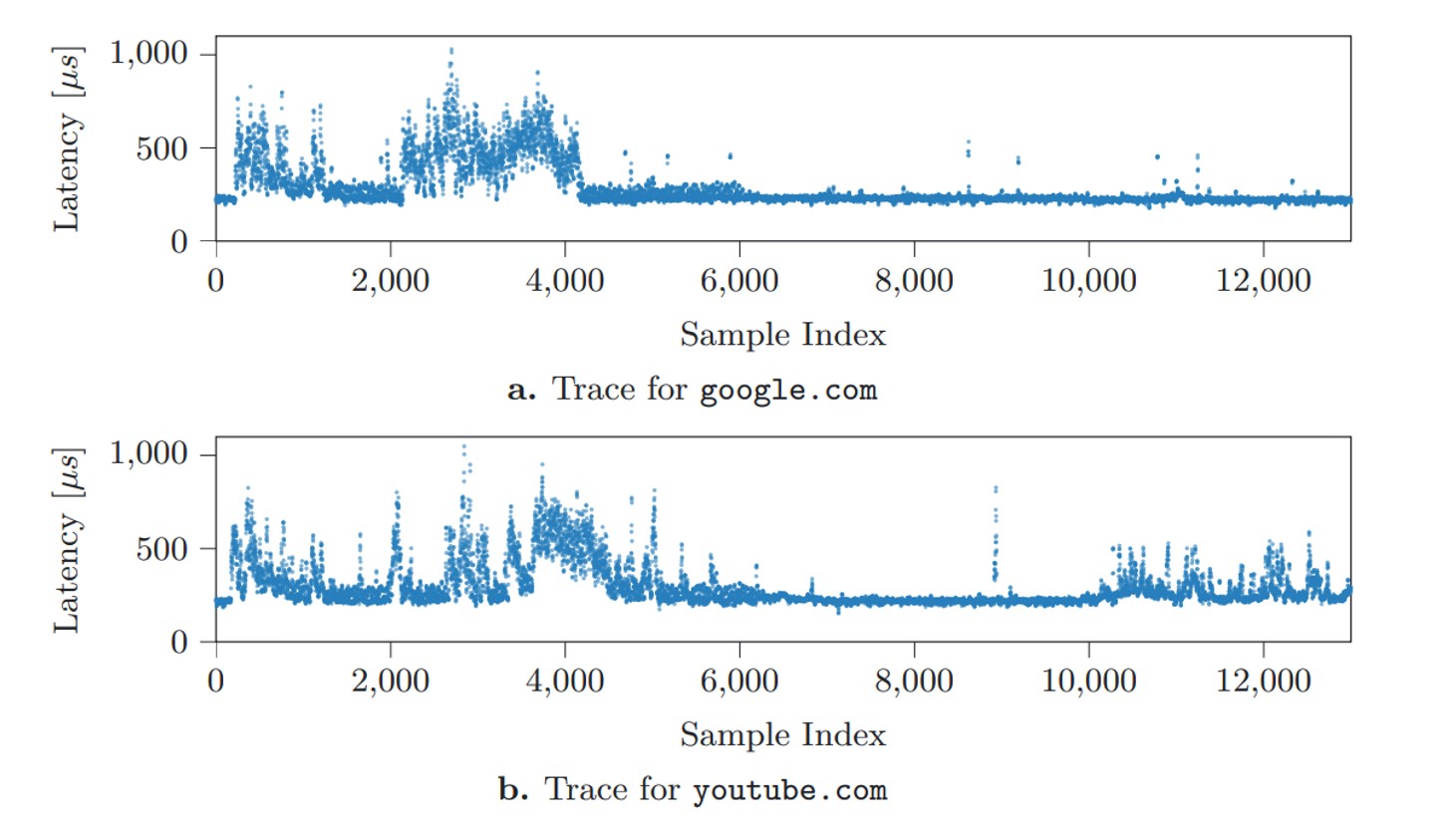
Delay graphs

Distinct latency patterns generated when opening specific websites Source


The researchers mapped out latency graphs, like the ones shown above, for a wide variety of websites and locally running apps. What they found were distinct patterns — or digital fingerprints — generated every single time a specific site loads, or an app launches. Capturing these split-second launch or load windows requires monitoring the SSD continuously over a long period of time. However, these patterns proved to be remarkably consistent across different systems; the authors successfully tested their method on both a Linux desktop and an Apple Mac Mini. From there, the next step sounds simple enough: take a catalog of known fingerprints, measure real-world SSD delays, match the two up, and you know exactly what apps the user is opening, and what sites they’re visiting. But how to actually pull off this kind of surveillance under the radar, without planting malware on the victim’s computer?

And that’s where a relatively new browser feature called the origin private file system (OPFS) comes into play. A hypothetical attacker doesn’t have to trick the user into downloading a shady Trojan. All they need do is have the victim visit a specially crafted webpage, and that page will leverage OPFS to quietly track the SSD’s activity. The clever acronym brings all these moving parts together: FROST stands for Fingerprinting Remotely using OPFS-based SSD Timing. Here’s the step-by-step breakdown of how the entire attack plays out:
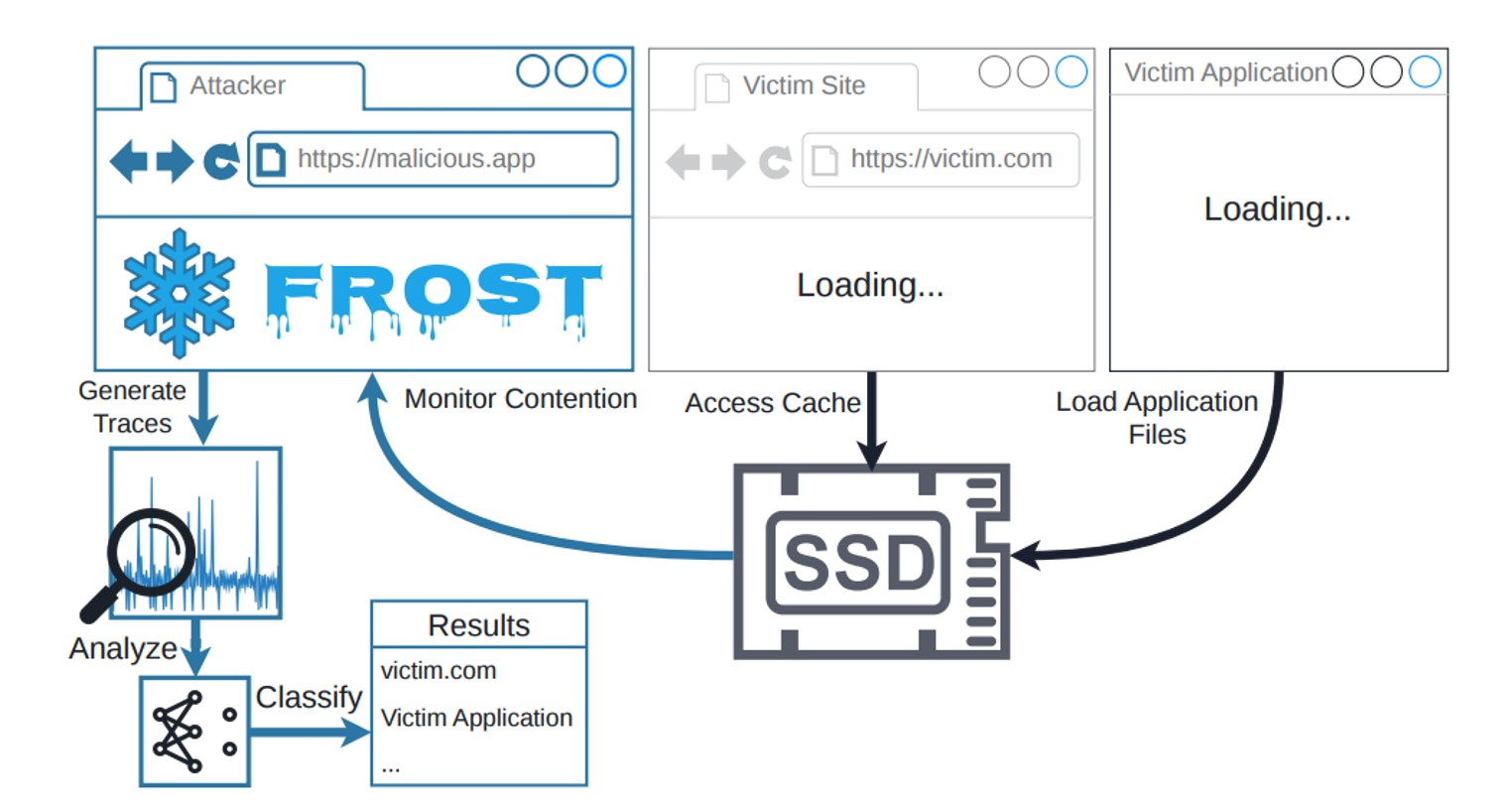
The FROST attack workflow

How the FROST method can be used to spy on a computer’s activity Source

Method limitations

Like any side-channel attack, FROST isn’t exactly built for speed. It’s a slow, methodical process. To figure out just how slow, the researchers built a dedicated testbed to measure it.
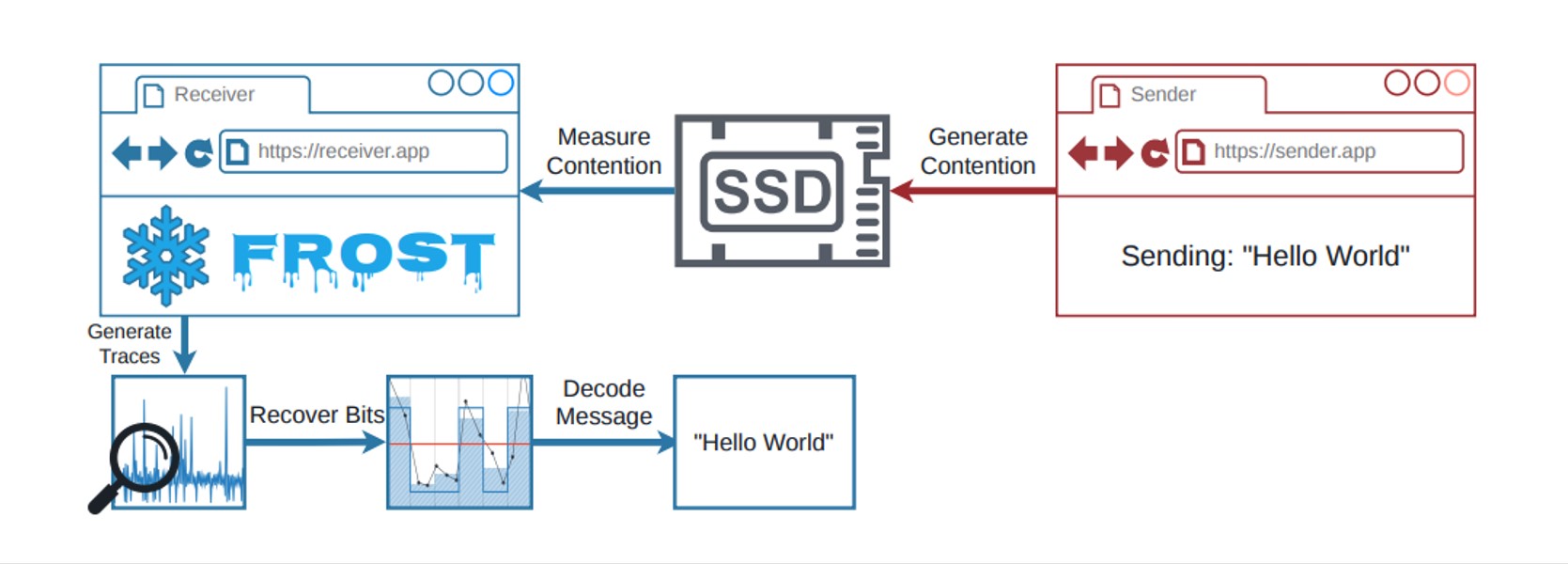
The FROST testbed setup

The testbed setup for measuring the speed of data extraction through OPFS Source

The team ran a program on a computer to transmit data indirectly. Think of it as a digital spy broadcasting a secret message by changing how it interacts with the hard drive. For instance, a 1 in the binary message code could mean the program is actively using the SSD, while a 0 means it’s sitting idle. At the same time, they set up a receiver inside the web browser that accessed the storage drive via OPFS. Because both the browser receiver and the transmitter program were competing for the SSD’s bandwidth, the browser experienced tiny speed delays whenever the transmitter was actively sending data.

This bizarre setup managed to transmit data at 661 bits per second, with nearly 90% accuracy on a Linux desktop with an AMD processor. On an Apple Mac Mini running macOS, the transfer rate hit 719 bits per second, also hovering around 90% accuracy. While these numbers are slightly lower than those in last year’s study — which relied on apps installed directly on the computer — the gap isn’t actually that huge.

That said, the real threat of the FROST attack isn’t raw data transmission; it’s tracking what the user does. Even if a hacker has a database of digital fingerprints for specific apps and websites, the information leaked through a malicious site using OPFS is too noisy. After all, a computer is constantly reading and writing data from/to the SSD in the background. To slice through that digital noise, the researchers turned to a tool that’s becoming standard practice in modern cyberattacks: a neural network. AI trained on known SSD fingerprints could confidently pick out user activity even from a chaotic mess of background data. The final results are eye-opening. On the Apple Mac Mini, the AI accurately identified which website the user opened 89% of the time, and nailed local app launches with 96% accuracy. Crucially, it could even detect what websites were opened in a completely different browser than the one running in the malicious tab. It sounds like a total home run for hackers — except for a massive list of real-world catches.

Is the FROST attack a real-world threat?

Simply knowing which apps are opened or what websites are visited doesn’t give an attacker much leverage. This kind of data is usually useful to advertisers looking to build a user’s digital profile without their permission; however, rolling out this tracking method on a massive scale is hardly realistic. The roadblock comes down to the fundamental way computers handle data: the system regularly dumps frequently accessed data into its RAM. Because the entire FROST attack relies on measuring the relatively slow bandwidth of the physical SSD, the data in RAM is effectively invisible to this method. To bypass this hurdle, the malicious webpage would have to force the OPFS to create a massive file — well over a gigabyte in size. Needless to say, a website that hogs hard drive resources in such an aggressive way would immediately raise red flags. EDR or XDR solutions will most likely flag it as anomalous activity.

Ultimately, this means the FROST attack — like most side-channel spying methods — is only practical for highly targeted operations. But that brings us right back to square one: knowing what apps someone opens or what web pages they browse is a pretty measly reward for the massive effort required to pull off such a sophisticated stunt.

Even so, FROST is light-years ahead of most academic side-channel attacks when it comes to real-world practicality. It doesn’t require preinstalled malware, and the victim doesn’t have to do anything more than open a malicious page. If nothing else, this research is a stark reminder of just how complex modern computers are, and how many unexpected blind spots can lead to data leaks. When building ultra-secure systems for highly classified data, one absolutely has to consider hardware peculiarities. If the prize is big enough, a determined attacker will gladly invest the time to build a hyper-specific complex attack. Research like this serves as proof that, in the world of cybersecurity, that scenario isn’t impossible.


The guide on blocking ChatGPT, Gemini, Claude, and other AI tools at work | Kaspersky official blog

10 June 2026 at 13:53

Unchecked AI in the workplace quickly becomes a massive loophole for data leaks and security breaches. All too often, employees drop sensitive company data into public chatbots, or install rogue AI assistants on their own — in the process handing over way too much access. In a previous post, we broke down the different types of risky AI systems, and later shared some tips on how to turn off the built-in AI features on major tech platforms. Today let’s take a look at practical ways to block or restrict the unauthorized “helpers” employees might be using — from ChatGPT and Grammarly, to meeting bots like Fireflies and Read AI.

How to detect and restrict ChatGPT

ChatGPT is the biggest culprit when it comes to unauthorized AI use worldwide. A quick word of warning, though: an outright ban only sends users hunting for sketchy third-party sites or messaging app chatbots that hook into the same service. That’s why it’s always a good idea to offer an approved alternative before pulling the plug.

Detecting it: keep an eye on the NGFW or web filter for traffic heading to chat.openai.com, chatgpt.com, oaistatic.com, oaiusercontent.com, or cdn.oaistatic.com. It’s also smart to use EDR/EPP tools to scan browser histories, installed apps, and browser extensions across corporate devices.

Locking it down: use the firewall or web filter to block the entire AI Services category, and set up DNS to reroute traffic away from those OpenAI domains. Browser policies can also be used to ban ChatGPT-powered extensions. Better yet, block all extensions not on a pre-approved allowlist. Finally, use application controls and EPP solutions to stop users from installing the official desktop app (ChatGPT.exe or com.openai.chat).

How to detect and restrict Claude and Claude Code

Detecting it: use the NGFW or web filter to track traffic going to claude.ai, anthropic.com, *.anthropic.com, and api.anthropic.com. EDR/EPP or application control tools can also be used to scan employee computers for the desktop app (claude.exe).

Locking it down: drop a blanket block on the AI Services category through the NGFW or web filter, and tweak DNS settings to reroute traffic away from the aforementioned Anthropic domains. Next, use browser policies to shut down Claude-powered extensions. Finally, use application controls and the EPP platform to prevent users from installing the desktop app.

How to detect and restrict Perplexity AI

Detecting it: keep tabs on the NGFW or web filter to flag any traffic heading to *.perplexity.ai or pplx.ai.

Locking it down: just like the others, add the AI Services category to the NGFW or web filter blocklist, and use DNS routing to redirect traffic away from those domains.

Configure the browser to block third-party extensions from being installed. If Firefox is used in the organization, be aware that recent versions come with Perplexity built in. Luckily, these AI features can be turned-off company-wide using enterprise policies — specifically, by setting SidebarChatbot = blocked. The full list of tweaks can be found in the Firefox documentation.

How to detect and restrict DeepSeek

Detecting it: keep an eye on the NGFW or web filter for traffic hitting deepseek.com, chat.deepseek.com, api.deepseek.com, or platform.deepseek.com. For better precision, analyze the SNI (server name identification) in TLS connection requests. For mobile devices, look out for the official app (com.deepseek.chat).

Locking it down: blocklist the AI Services category on the NGFW or web filter, and reroute traffic to DeepSeek’s domains via DNS settings. Use browser policies to block third-party extensions, and lean on MDM/EMM tools to restrict the mobile app.

How to detect and restrict Mistral, xAI Grok, and Character.ai

The playbook for these tools is exactly the same as DeepSeek, so here’s the quick list of domains to watch for and block: chat.mistral.ai, mistral.ai, console.mistral.ai, grok.com, x.ai, api.x.ai, character.ai, beta.character.ai, and c.ai.

A quick word of warning on Grok: because Grok is baked into X, blocking this specific AI access point means blocking the entire social media platform.

How to detect and restrict Slack AI

Detecting it: in the Slack workspace admin dashboard, look under Analytics → Slack AI usage. If an enterprise plan is used, the detailed Slack logs can be searched for any events starting with the ai_ prefix.

Blocking it with policies: in the organization’s Slack settings, click through the Workspace settings → Roles & permissions → Feature access, and change the permission to “no one”. Slack has a step-by-step guide in their help center.

Locking it down: shutting this down at the network level is tricky; it can be pulled off with a finely tuned CASB solution in place. Also, don’t forget the importance of blocking rogue integrations and keeping external AI services from tapping into Slack data in the first place. We covered how to lock this down using OAuth controls in a previous post.

How to detect and restrict Zoom AI Companion

Detecting it: if a corporate Zoom subscription is in use, just head to Admin Center → Reports → AI Companion usage. Detecting Zoom’s AI when employees join external meetings or use free accounts is a lot tougher, but email filters can be set up to flag incoming AI-generated meeting notes by scanning for subject lines or text containing “Meeting summary” or “Meeting assets”.

Blocking it with policies: for the company’s own Zoom subscription, go to the Admin Portal → Account Management → Account Settings → Meeting → AI Companion and toggle it OFF for everyone.

Locking it down: unfortunately, AI Companion is baked into Zoom’s DNA, so the only real option is blocking Zoom altogether.

How to detect and restrict Grammarly

What looks like an innocent spellchecker is actually one of the biggest culprits for workplace data leaks.

Detecting it: check the NGFW or web filter logs for traffic hitting grammarly.com, *.grammarly.com, and gnar.grammarly.com. EDR and MDM/EMM tools can also be used to hunt down the standalone desktop apps (Grammarly Desktop.exe and the macOS version), as well as the Grammarly browser extension.

Locking it down: use firewalls to block those domains at the network level, and EPP to stop employees from installing the desktop app, browser extensions, or the Grammarly add-ins for Microsoft Word and Excel.

How to detect and restrict meeting assistants: Fireflies, Read.ai, Tactiq, Fathom, and Granola

This massive category of third-party SaaS tools records and analyzes meetings — creating a massive risk for data leaks. The trickiest part? Outside clients or vendors can bring these bots into a meeting just as easily as employees can.

Detecting them: run an audit on calendar invites, and look for bot participants using email domains like @fireflies.ai, @read.ai, @tactiq.io, @fathom.video, or @granola.ai. Zoom, Teams, or Google Meet logs can also be used to review external participants who joined past calls.

Locking them down: since it’s impossible to control what outsiders do, blocking these bots comes down to tightening meeting rules. The best moves are: blocking users from granting OAuth permissions for bots to join calls, restricting employees from inviting unapproved external participants, or locking down meeting recording access for external users. That last option is usually the least painful way to keep bots out without disrupting business.

How to detect and restrict AI code editors: Cursor, Windsurf, and the like

Detecting them: use EDR/EPP tools to scan for executables like cursor.exe or windsurf.exe. It’s also worth monitoring network traffic heading to cursor.com and windsurf.com, as well as traffic hitting various AI model API providers. Keep in mind that there’s a pretty extensive list of API hosts to monitor here, since these editors aren’t tied to just one specific AI vendor.

Blocking them with policies: these apps can be prevented from being installed by setting up filters based on the developer’s digital signature certificate. Alternatively, a strict application allowlist can be employed where only pre-approved software is allowed to run.

Locking them down: rely on the EPP/EDR platform to actively detect and block these applications from running.

How to detect and restrict local AI tools: Ollama, LM Studio, and GPT4All

On one hand, this category carries fewer data leak risks because the AI models run completely locally on the user’s machine. On the other hand, it opens up a whole new can of worms: these apps themselves aren’t always highly secure, and can become targets for cyberattacks. Plus, it still means that employees can misuse models or process data in unauthorized ways.

Detecting them: EDR/EPP tools are the best line of defense here. They should be used to flag known local AI files and processes like ollama.exe, ollama serve, lmstudio.exe, LM Studio.app, jan.exe, or gpt4all.exe. From a network perspective, it’s worth scanning for open ports on local devices — typically port 1234 for Ollama and LM Studio, or port 8080 for WebUIs (using an additional fingerprint check of the server response). Another massive red flag is the presence of large files (often several gigabytes) containing language model weights. Look out for extensions like .gguf, .bin, or sometimes .safetensors.

Locking them down: use EPP/EDR platforms or windows AppLocker to block these applications by name, or switch to an application allowlist.

How to detect and restrict autonomous agents: OpenClaw, NemoClaw, and NanoClaw

This is easily one of the most dangerous categories of AI tools out there. These agents mix high-level independence with access to untrusted data, making them a massive security headache.

Detecting them: use EPP/EDR tools to sniff out active processes like openclaw, nanoclaw, nemoclaw, or clawdbot. Also keep an eye out for devices running Node.js that suddenly start launching Bash or Python scripts. Another dead giveaway is the appearance of system folders like ~/openclaw, ~/nanoclaw, ~/.claw*, or ~/clawhub. At the network level, monitor connections to the AI model APIs we mentioned earlier, as well as traffic hitting servers like openclaw.ai, nanoclaw.dev, or clawhub.*.

Locking them down: the safest bet is to use strict application allowlisting (only allowing approved software to run), or to specifically ban the known agent apps listed above. On top of that, consider blocking non-developers from installing Node.js and Docker, neither of which they need on their computers anyway.

❌