Ads promoted browser extensions as tools to find manuals, convert PDFs, or make searches safer. But many of these extensions sent users’ search queries through servers controlled by their operators.
Socket researcher John Tuckner identified 319 extensions with an estimated 13.4 million installs over a decade. The extensions hijacked users’ default search settings and routed their searches through servers controlled by the operators before sending them to Yahoo or Bing. This gave the operators access to users’ queries and let them earn referral payments.
Socket says the extensions were promoted through ads on networks including Google Ads, promoting tools such as “manual finders,” “PDF converters,” “safe search,” and “AI search.”
The extensions were listed in Google’s official store, but most were unlisted. That means people with a direct link could visit a listing and install an extension, while ordinary searches in the store would not show it. An ad offered help with an immediate task, a landing page encouraged installation, and the official store provided a familiar place to complete it.
Search hijacking
The main risk was that operators could see what users searched for. Searches can reveal health worries, financial problems, workplace interests, or other personal matters. Socket says queries were often associated with a unique identifier, which could let the operators link a user’s searches over time.
The proxy could also choose where to send a search. Socket says this could potentially direct users to phishing or malware pages, but it did not find evidence that the extensions had done so.
What should users do?
If your searches start going astray, or you installed a search, PDF-converter, manual-finder, or security extension after clicking an ad, check what’s installed.
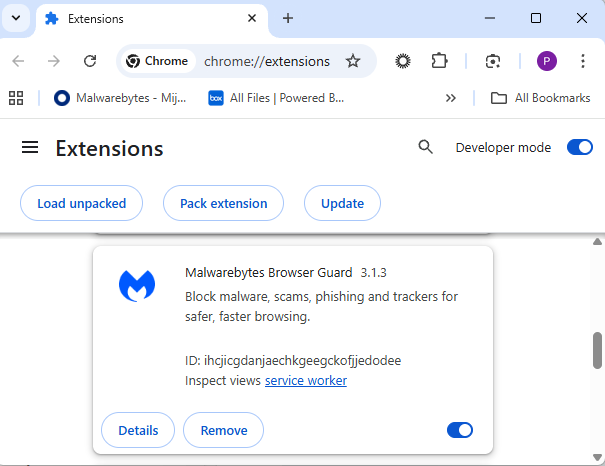
Review your extensions. Enter chrome://extensions in Chrome’s address bar. Remove extensions you don’t recognize, no longer use, or don’t trust. To remove one, select Remove and confirm. If you’re unsure about an extension, check it against the list at the end of Socket’s blog.
Check your search settings. In Chrome, at the top right, select More (the three-dot menu), then Settings > Search engine. If Chrome says an extension is controlling a setting, review or remove that extension. The absence of this notice doesn’t confirm that all your extensions are safe.
Run a Malwarebytes scan to check for malicious extensions and other malware that could be affecting your device.
From reporting threats to removing them.
Cybersecurity risks should never spread beyond a headline. Keep threats off your devices by downloading Malwarebytes today.
Socket’s threat researchers found three malicious Firefox extensions that impersonated the Phantom, Jupiter, and Bitget crypto wallets.
Once installed, the malicious extensions stole recovery phrases and private keys, which would provide the attacker with full control of a wallet.
A crypto wallet is an app, browser extension, or physical device that lets you manage cryptocurrency such as Bitcoin. Despite its name, it doesn’t actually hold your coins. Those are recorded on a blockchain, a shared digital record of transactions. Instead, the wallet manages the secret digital keys that let you access and spend them.
When you create a wallet, you may be given a recovery phrase: a list of words you can use to restore access. Write it down and store it offline. It’s a backup of your keys, not just an ordinary password. Anyone who gets hold of it can take control of your funds, which is why fake wallet extensions try to steal it.
Cybercriminals listed three fake wallet extensions on Firefox Add-ons, impersonating Phantom, Jupiter, and Bitget. The genuine wallets offer extensions for other browsers: Jupiter lists Chrome, Brave, and Edge; Bitget’s extension is for Chrome; and Phantom says its Firefox extension is no longer supported.
The malicious extensions looked for 12-, 15-, 18-, and 24-word recovery phrases, as well as Ethereum and Solana private keys. They could read input fields, detect pasted text, and scan screens displaying recovery phrases.
A recovery phrase or private key is a bearer secret: whoever holds it controls the wallet and can move its assets. The Phantom variant’s backend logged captured secrets, sent them to a Telegram bot, and automatically moved funds to hardcoded payout addresses. Those addresses covered Ethereum, BSC, Polygon, Arbitrum, Optimism, Base, Avalanche, Solana, and Bitcoin. The Phantom variant could read a phrase both when it was typed during import and when it was displayed on a reveal screen.
How to stay safe
Socket says all three listings were live on Firefox Add-ons during its analysis and have since been removed. But if you find one of these extensions in your Firefox browser, you should:
Remove the extension. Use the three-dot menu next to it and choose Remove.
If you ever entered a phrase or key, create a new wallet on a clean device and move your assets immediately. Treat the old wallet as compromised.
In the future, install wallets only from the vendor’s official website link, not from store search results.
The fake Phantom listing asked to access data on all websites and had no privacy policy. These are warning signs to look out for.
Malicious extensions and ClickFix attacks are two hugely popular topics on our blog, and for a good reason: they’re both very common. In this post, we bring them together. Here’s the thing: in our posts about malicious ClickFix instructions, we don’t always explain exactly how users end up on the attackers’ pages in the first place. A recent study gives us a chance to fill that gap and talk about one of those methods: malicious extensions.
Readers who are not deep into cybersecurity may already have a bunch of questions at this point: how can extensions be malicious? where do they come from? and what exactly is ClickFix, anyway? Fret not: this post answers all these questions.
The danger of browser extensions
Let’s start with the basics. Browser extensions or add-ons are lightweight tools installed in your browser to give it extra capabilities or change how it works with web pages. For example, extensions can block ads, translate pages, download audio and video, save passwords, or take screenshots.
Most browser developers offer users an official extension store. For instance, for the most popular browser, Chrome, that store is the Chrome Web Store. There are also alternative platforms for distributing extensions, though browser developers have recently made it much harder to install and use extensions that don’t come from an official source.
Just like any other software, extensions can be useful, but they can also be malicious. In fact, cybercriminals often spread malicious extensions through those very same official stores, and we’ve covered plenty of such cases on our blog before.
It’s no accident that criminals love spreading malicious plug-ins. To work properly, most extensions need permission to read and modify the content of every web page the user visits. Without that permission, add-ons would be basically useless. For instance, a translation extension needs to read all the text on a page before it can swap the original for the translation.
Cybercriminals take advantage of these capabilities for their own purposes: for example, they intercept logins, passwords and other data entered on websites, swap out payment details, or show victims fake forms and messages. And all of this happens on legitimate sites that users have come to trust without a second thought.
Almost twenty malicious extensions for Chrome and Edge
In late August, cybersecurity researchers reported finding 18 malicious extensions for Chrome and one for Edge. They said all 19 add-ons were probably linked to the same campaign. They base this on the similarity of the malicious code and the methods the attackers used. You’ll find the full list of malicious extensions at the end of this post.
Most of the extensions discovered, 14 in total, were built by the attackers themselves. Their first versions weren’t malicious at all and did exactly what users downloaded them for. But after a while, once users had come to trust the add-on, the attackers pushed an update that slipped in malicious functionality.
As for the remaining five extensions, their creators had nothing to do with the cybercriminals at all. They simply sold their creations to them. This way of getting hold of extensions is also popular among cybercrooks. There are plenty of reasons for that: ready-made add-ons can be bought for relatively little money, and criminals don’t have to build or promote them from scratch. And most importantly, along with the extension, they also inherit its existing user base. Upon buying the add-on, all the attackers need to do is add malicious functions and push an update that installs automatically for users. Users are never told that the extension’s real owner has changed.
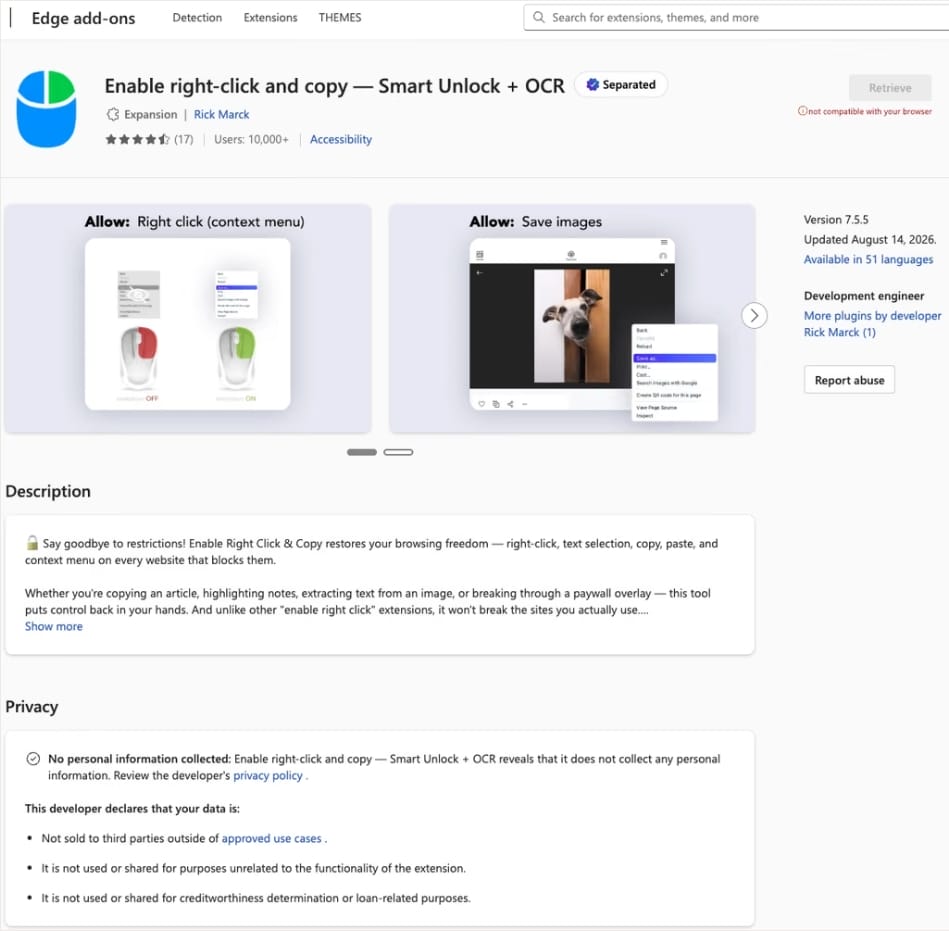
In this case, the add-on cybercriminals bought most often was Enable Right Click & Copy — Smart Unlock + OCR. It had 70 000 users in Chrome and 10 000 in Edge. This purchase is exactly why there’s a single Edge extension among all its Chrome relatives. The add-on itself originally served a perfectly benign purpose: it let users select and copy text on sites where that’s normally blocked, and it could also pull text out of images with optical character recognition (OCR).
At the time of the research, the Edge version of the extension had more than 10 000 users. Source
The malicious functionality introduced into the extension makes it reach out to the attackers’ command-and-control (C2) server to download additional modules of nefarious code. These modules can change over time. Since Chrome automatically updates all installed extensions by default, the malicious version lands on the device without users having to do anything at all.
For the downloaded code to run on the websites the user visits, the extension disables one of their defenses — Content Security Policy (CSP). This mechanism allows website owners to declare which scripts and other resources are allowed to load and run on a page. Once this protection is turned off, the extension can inject code it gets from the C2 server right into the pages open in the browser. The website itself isn’t hacked, and it looks the same to everyone else, but for that one infected user, the legitimate page quietly turns malicious.
What these 19 extensions can do
Now let’s take a closer look at what the malicious modules loaded by the extension are actually capable of. Researchers found 16 such modules, built for all sorts of tasks: from stealing data and hijacking cryptocurrency to the ClickFix attacks we’re focusing on here.
Some of the modules simply collect user data. They intercept logins, passwords, email addresses, and other valuable information the user enters into web forms, including payment details. On top of that, the add-ons steal data from Facebook and LinkedIn accounts and collect browsing history. Criminals can use this information to take over accounts, steal money, and launch further attacks against the victim.
A few other modules focus specifically on stealing cryptocurrency and related data directly. One of them is a crypto drainer, a tool that empties crypto wallets. It works with Ethereum and compatible blockchains as well as Solana and Tron. It replaces the real Connect Wallet and Swap buttons on websites with its own fake ones. When a user clicks one of these buttons, the drainer takes over all further interaction with the wallet and walks the victim through confirming the actions needed to steal their cryptocurrency.
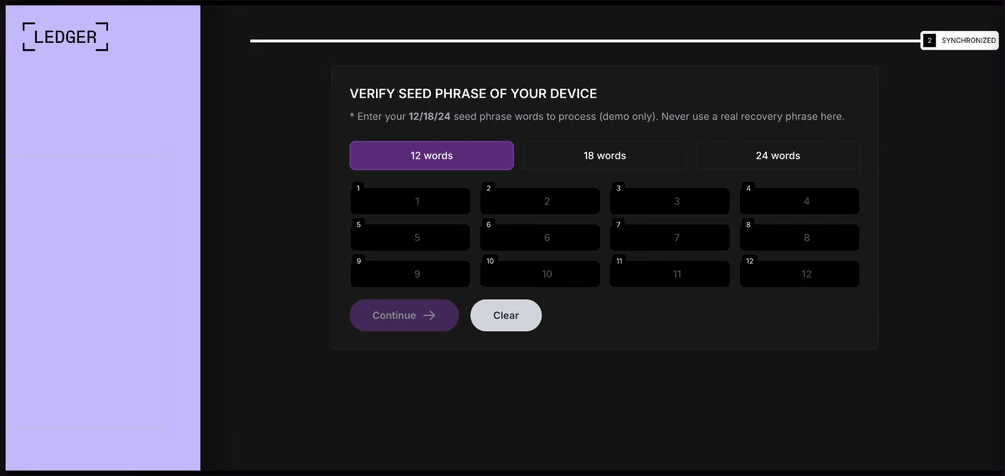
Other modules target users of Ledger and Trezor hardware wallets. Right on the official websites of these services, the malicious extension displays a fake wallet update-and-restore page that asks for a seed phrase of 12, 18, or 24 words. The seed phrase the user enters is forwarded straight to the attackers, giving them full control over the wallet.
The fake form asks the user to enter a seed phrase of 12, 18, or 24 words, which then ends up in the attackers’ hands. Source
Finally, some modules gather information from crypto service pages open in the browser, such as OKX, MEXC, Kraken, KuCoin, Coinbase, Binance, Bybit, and MetaMask, including balance details and active session data that can be used to hijack accounts.
And now we’ve finally reached the module that matters most for this post: the one used for ClickFix attacks. We’ll talk about it in the next part.
How malicious extensions are used in ClickFix attacks
The ClickFix attack technique has become extremely popular among cybercriminals lately. It relies on social engineering: the victim is shown fake instructions supposedly needed to complete some action, such as passing a CAPTCHA check, fixing an error, or updating a program. Following these instructions, the user copies the command suggested by the attackers, pastes it into a system tool built for running these commands, and runs it, all by themselves.
We’ve written about attacks like this and their consequences more than once on our blog. But we rarely dig into exactly how a victim ends up on a page with fake instructions in the first place. A campaign that spread malicious extensions through the Chrome Web Store shows us one way this can happen.
Add-ons turn out to be a very handy tool for ClickFix attacks. As we mentioned earlier, when a user visits a page, extensions are allowed reading and changing its content in order to work. That gives attackers the chance to swap in a fake ClickFix instruction at just the right moment, replacing the content of the page the person actually wanted to open.
What’s more, the ClickFix technique itself lets attackers break out of the browser and gain a foothold directly in the system. That means removing the malicious extension won’t necessarily undo the damage: after the user has run the ClickFix command, malware may already be installed outside the browser.
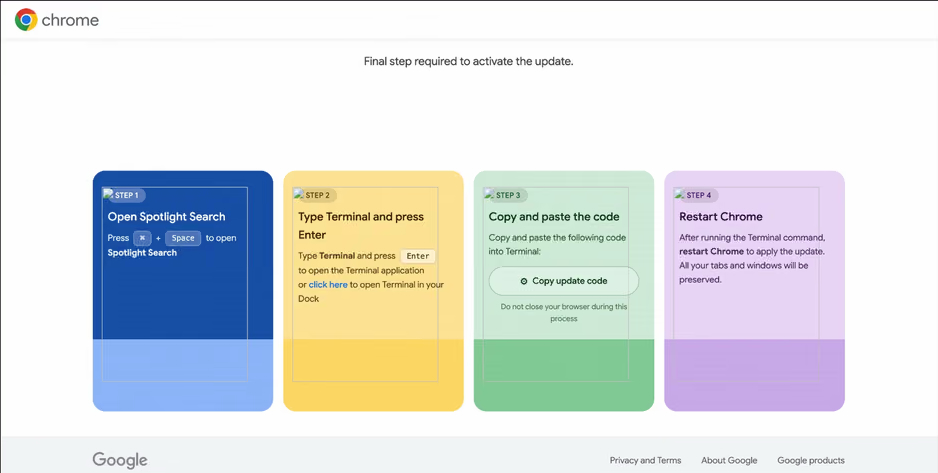
In the specific attack example the researchers describe, the user sees a fake notification saying their browser needs to be updated, along with instructions on how to do it. The instructions change depending on the operating system, and the extension picks up that information automatically too.
In the macOS version of this attack, the user is told to open Terminal, copy a command, paste it there and run it, then restart Chrome to supposedly finish the update. Source
How to avoid falling victim to infected extensions
First off, we recommend checking whether any of the following malicious extensions are already installed in your browser:
Enable Right Click & Copy — Smart Unlock + OCR
RapidLens – Google Lens for Screen Search & Images
Meta & Facebook Ad Library Spy — Save Ads, Finder, Downloader | FeedX-Ray
If you find any of these extensions on your device, we recommend removing it as soon as you can and running a full system scan with a reliable antivirus. As we mentioned above, simply deleting the add-on might not be enough. You can use a free trial version to detect and remove the infection.
How to avoid falling victim to malicious extensions and ClickFix attacks in the future?
Don’t install too many extensions and regularly check the list of those you have.
Remove extensions you don’t use.
Trust the warnings from your operating system and security software, rather than the instructions — or even the demands — of websites and apps.
To get a valid session token to use with Burp Suite tools, I ended up writing a small Python extension (110 lines of code, but who’s counting?) that obtained a new session token for each request, allowing items like Intruder to work as intended. Cool, I was able to use it during the test, but I would like this to be repeatable. So, this blog is releasing Swapper, a regex pattern-based match/replace Burp Suite extension.
Researchers have found yet another family of malicious extensions in the Chrome Web Store. This time, 30 different Chrome extensions were found stealing credentials from more than 260,000 users.
The extensions rendered a full-screen iframe pointing to a remote domain. This iframe overlaid the current webpage and visually appeared as the extension’s interface. Because this functionality was hosted remotely, it was not included in the review that allowed the extensions into the Web Store.
To spread the risk of detections and take-downs, the attackers used a technique known as “extension spraying.” This means they used different names and unique identifiers for basically the same extension.
What often happens is that researchers provide a list of extension names and IDs, and it’s up to users to figure out whether they have one of these extensions installed.
Searching by name is easy when you open your “Manage extensions” tab, but unfortunately extension names are not unique. You could, for example, have the legitimate extension installed that a criminal tried to impersonate.
Searching by unique identifier
For Chrome and Edge, a browser extension ID is a unique 32‑character string of lowercase letters that stays the same even if the extension is renamed or reshipped.
When we’re looking at the extensions from a removal angle, there are two kinds: those installed by the user, and those force‑installed by other means (network admin, malware, Group Policy Object (GPO), etc.).
We will only look at the first type in this guide—the ones users installed themselves from the Web Store. The guide below is aimed at Chrome, but it’s almost the same for Edge.
How to find installed extensions
You can review the installed Chrome extensions like this:
In the address bar type chrome://extensions/.
This will open the Extensions tab and show you the installed extensions by name.
Now toggle Developer mode to on and you will also see their unique ID.
Don’t remove this one. It’s one of the good ones.
Removal method in the browser
Use the Remove button to get rid of any unwanted entries.
If it disappears and stays gone after restart, you’re done. If there is no Remove button or Chrome says it’s “Installed by your administrator,” or the extension reappears after a restart, there’s a policy, registry entry, or malware forcing it.
Alternative
Alternatively, you can also search the Extensions folder. On Windows systems this folder lives here: C:\Users\<your‑username>\AppData\Local\Google\Chrome\User Data\Default\Extensions.
Please note that the AppData folder is hidden by default. To unhide files and folders in Windows, open Explorer, click the View tab (or menu), and check the Hidden items box. For more advanced options, choose Options > Change folder and search options > View tab, then select Show hidden files, folders, and drives.
Chrome extensions folder
You can organize the list alphabetically by clicking on the Name column header once or twice. This makes it easier to find extensions if you have a lot of them installed.
Deleting the extension folder here has one downside. It leaves an orphaned entry in your browser. When you start Chrome again after doing this, the extension will no longer load because its files are gone. But it will still show up in the Extensions tab, only without the appropriate icon.
So, our advice is to remove extensions in the browser when possible.
Malicious extensions
Below is the list of credential-stealing extensions using the iframe method, as provided by the researchers.
Extension ID
Extension name
acaeafediijmccnjlokgcdiojiljfpbe
ChatGPT Translate
baonbjckakcpgliaafcodddkoednpjgf
XAI
bilfflcophfehljhpnklmcelkoiffapb
AI For Translation
cicjlpmjmimeoempffghfglndokjihhn
AI Cover Letter Generator
ckicoadchmmndbakbokhapncehanaeni
AI Email Writer
ckneindgfbjnbbiggcmnjeofelhflhaj
AI Image Generator Chat GPT
cmpmhhjahlioglkleiofbjodhhiejhei
AI Translator
dbclhjpifdfkofnmjfpheiondafpkoed
Ai Wallpaper Generator
djhjckkfgancelbmgcamjimgphaphjdl
AI Sidebar
ebmmjmakencgmgoijdfnbailknaaiffh
Chat With Gemini
ecikmpoikkcelnakpgaeplcjoickgacj
Ai Picture Generator
fdlagfnfaheppaigholhoojabfaapnhb
Google Gemini
flnecpdpbhdblkpnegekobahlijbmfok
ChatGPT Picture Generator
fnjinbdmidgjkpmlihcginjipjaoapol
Email Generator AI
fpmkabpaklbhbhegegapfkenkmpipick
Chat GPT for Gmail
fppbiomdkfbhgjjdmojlogeceejinadg
Gemini AI Sidebar
gcfianbpjcfkafpiadmheejkokcmdkjl
Llama
gcdfailafdfjbailcdcbjmeginhncjkb
Grok Chatbot
gghdfkafnhfpaooiolhncejnlgglhkhe
AI Sidebar
gnaekhndaddbimfllbgmecjijbbfpabc
Ask Gemini
gohgeedemmaohocbaccllpkabadoogpl
DeepSeek Chat
hgnjolbjpjmhepcbjgeeallnamkjnfgi
AI Letter Generator
idhknpoceajhnjokpnbicildeoligdgh
ChatGPT Translation
kblengdlefjpjkekanpoidgoghdngdgl
AI GPT
kepibgehhljlecgaeihhnmibnmikbnga
DeepSeek Download
lodlcpnbppgipaimgbjgniokjcnpiiad
AI Message Generator
llojfncgbabajmdglnkbhmiebiinohek
ChatGPT Sidebar
nkgbfengofophpmonladgaldioelckbe
Chat Bot GPT
nlhpidbjmmffhoogcennoiopekbiglbp
AI Assistant
phiphcloddhmndjbdedgfbglhpkjcffh
Asking Chat Gpt
pgfibniplgcnccdnkhblpmmlfodijppg
ChatGBT
cgmmcoandmabammnhfnjcakdeejbfimn
Grok
We don’t just report on threats—we remove them
Cybersecurity risks should never spread beyond a headline. Keep threats off your devices by downloading Malwarebytes today.
Cybercriminals behind a campaign dubbed DEAD#VAX are taking phishing one step further by delivering malware inside virtual hard disks that pretend to be ordinary PDF documents. Open the wrong “invoice” or “purchase order” and you won’t see a document at all. Instead, Windows mounts a virtual drive that quietly installs AsyncRAT, a backdoor Trojan that allows attackers to remotely monitor and control your computer.
It’s a remote access tool, which means attackers gain remote hands‑on‑keyboard control, while traditional file‑based defenses see almost nothing suspicious on disk.
From a high-level view, the infection chain is long, but every step looks just legitimate enough on its own to slip past casual checks.
Victims receive phishing emails that look like routine business messages, often referencing purchase orders or invoices and sometimes impersonating real companies. The email doesn’t attach a document directly. Instead, it links to a file hosted on IPFS (InterPlanetary File System), a decentralized storage network increasingly abused in phishing campaigns because content is harder to take down and can be accessed through normal web gateways.
The linked file is named as a PDF and has the PDF icon, but is actually a virtual hard disk (VHD) file. When the user double‑clicks it, Windows mounts it as a new drive (for example, drive E:) instead of opening a document viewer. Mounting VHDs is perfectly legitimate Windows behavior, which makes this step less likely to ring alarm bells.
Inside the mounted drive is what appears to be the expected document, but it’s actually a Windows Script File (WSF). When the user opens it, Windows executes the code in the file instead of displaying a PDF.
After some checks to avoid analysis and detection, the script injects the payload—AsyncRAT shellcode—into trusted, Microsoft‑signed processes such as RuntimeBroker.exe, OneDrive.exe, taskhostw.exe, or sihost.exe. The malware never writes an actual executable file to disk. It lives and runs entirely in memory inside these legitimate processes, making detection and eventually at a later stage, forensics much harder. It also avoids sudden spikes in activity or memory usage that could draw attention.
For an individual user, falling for this phishing email can result in:
Theft of saved and typed passwords, including for email, banking, and social media.
Exposure of confidential documents, photos, or other sensitive files taken straight from the system.
Surveillance via periodic screenshots or, where configured, webcam capture.
Use of the machine as a foothold to attack other devices on the same home or office network.
How to stay safe
Because detection can be hard, it is crucial that users apply certain checks:
Don’t open email attachments until after verifying, with a trusted source, that they are legitimate.
Make sure you can see the actual file extensions. Unfortunately, Windows allows users to hide them. So, when in reality the file would be called invoice.pdf.vhd the user would only see invoice.pdf. To find out how to do this, see below.
A group of cybercriminals called DarkSpectre is believed to be behind three campaigns spread by malicious browser extensions: ShadyPanda, GhostPoster, and Zoom Stealer.
We wrote about the ShadyPanda campaign in December 2025, warning users that extensions which had behaved normally for years suddenly went rogue. After a malicious update, these extensions were able to track browsing behavior and run malicious code inside the browser.
Also in December, researchers uncovered a new campaign, GhostPoster, and identified 17 compromised Firefox extensions. The campaign was found to hide JavaScript code inside the image logo of malicious Firefox extensions with more than 50,000 downloads, allowing attackers to to monitor browser activity and plant a backdoor.
The use of malicious code in images is a technique called steganography. Earlier GhostPoster extensions hid JavaScript loader code inside PNG icons such as logo.png for Firefox extensions like “Free VPN Forever,” using a marker (for example, three equals signs) in the raw bytes to separate image data from payload.
Newer variants moved to embedding payloads in arbitrary images inside the extension bundle, then decoding and decrypting them at runtime. This makes the malicious code much harder for researchers to detect.
Based on that research, other researchers found an additional 17 extensions associated with the same group, beyond the original Firefox set. These were downloaded more than 840,000 times in total, with some remaining active in the wild for up to five years.
GhostPoster first targeted Microsoft Edge users and later expanded to Chrome and Firefox as the attackers built out their infrastructure. The attackers published the extensions in each browser’s web store as seemingly useful tools with names like “Google Translate in Right Click,” “Ads Block Ultimate,” “Translate Selected Text with Google,” “Instagram Downloader,” and “Youtube Download.”
The extensions can see visited sites, search queries, and shopping behavior, allowing attackers to create detailed profiles of users’ habits and interests.
Combined with other malicious code, this visibility could be extended to credential theft, session hijacking, or attacks targeting online banking workflows, even if those are not the primary goal today.
How to stay safe
Although we always advise people to install extensions only from official web stores, this case proves once again that not all extensions available there are safe. That said, the risk involved in installing an extension from outside the web store is even greater.
Extensions listed in the web store undergo a review process before being approved. This process, which combines automated and manual checks, assesses the extension’s safety, policy compliance, and overall user experience. The goal is to protect users from scams, malware, and other malicious activity.
Mozilla and Microsoft have removed the identified add-ons from their stores, and Google has confirmed their removal from the Chrome Web Store. However, already installed extensions remain active in Chrome and Edge until users manually uninstall them. When Mozilla blocks an add-on it is also disabled, which prevents it from interacting with Firefox and accessing your browser and your data.
If you’re worried that you may have installed one of these extensions, Windows users can run a Malwarebytes Deep Scan with their browsers closed.
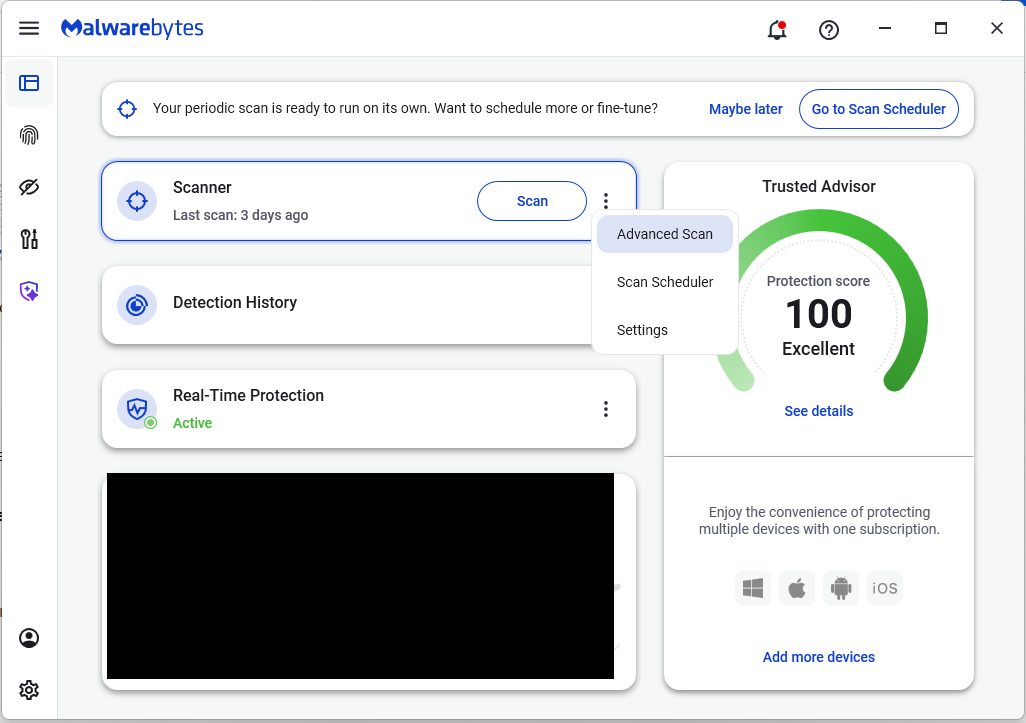
On the Malwarebytes Dashboard click on the three stacked dots to select the Advanced Scan option.
On the Advanced Scan tab, select Deep Scan. Note that this scan uses more system resources than usual.
After the scan, remove any found items, and then reopen your browser(s).
Manual check:
These are the names of the 17 additional extensions that were discovered:
AdBlocker
Ads Block Ultimate
Amazon Price History
Color Enhancer
Convert Everything
Cool Cursor
Floating Player – PiP Mode
Full Page Screenshot
Google Translate in Right Click
Instagram Downloader
One Key Translate
Page Screenshot Clipper
RSS Feed
Save Image to Pinterest on Right Click
Translate Selected Text with Google
Translate Selected Text with Right Click
Youtube Download
Note: There may be extensions with the same names that are not malicious.
We don’t just report on threats—we help safeguard your entire digital identity
Cybersecurity risks should never spread beyond a headline. Protect your, and your family’s, personal information by using identity protection.
In this video, Dave Blandford discusses a beginner's guide to creating Burp Suite extensions. The session covers an overview of what Burp extensions are, how they can improve testing capabilities, and the tools and languages used in developing them.
Jordan Drysdale // tl;dr uBlock Origin appears, based on non-scientific testing, to be fairly effective at keeping trackers from making outbound HTTP GET requests. Tested Extensions: No Add-ons v Ghostery […]

 Login