Researchers have found yet another family of malicious extensions in the Chrome Web Store. This time, 30 different Chrome extensions were found stealing credentials from more than 260,000 users.
The extensions rendered a full-screen iframe pointing to a remote domain. This iframe overlaid the current webpage and visually appeared as the extension’s interface. Because this functionality was hosted remotely, it was not included in the review that allowed the extensions into the Web Store.
To spread the risk of detections and take-downs, the attackers used a technique known as “extension spraying.” This means they used different names and unique identifiers for basically the same extension.
What often happens is that researchers provide a list of extension names and IDs, and it’s up to users to figure out whether they have one of these extensions installed.
Searching by name is easy when you open your “Manage extensions” tab, but unfortunately extension names are not unique. You could, for example, have the legitimate extension installed that a criminal tried to impersonate.
Searching by unique identifier
For Chrome and Edge, a browser extension ID is a unique 32‑character string of lowercase letters that stays the same even if the extension is renamed or reshipped.
When we’re looking at the extensions from a removal angle, there are two kinds: those installed by the user, and those force‑installed by other means (network admin, malware, Group Policy Object (GPO), etc.).
We will only look at the first type in this guide—the ones users installed themselves from the Web Store. The guide below is aimed at Chrome, but it’s almost the same for Edge.
How to find installed extensions
You can review the installed Chrome extensions like this:
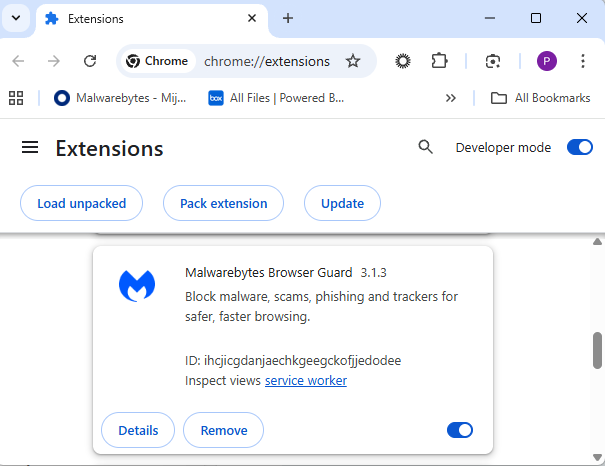
In the address bar type chrome://extensions/.
This will open the Extensions tab and show you the installed extensions by name.
Now toggle Developer mode to on and you will also see their unique ID.
Don’t remove this one. It’s one of the good ones.
Removal method in the browser
Use the Remove button to get rid of any unwanted entries.
If it disappears and stays gone after restart, you’re done. If there is no Remove button or Chrome says it’s “Installed by your administrator,” or the extension reappears after a restart, there’s a policy, registry entry, or malware forcing it.
Alternative
Alternatively, you can also search the Extensions folder. On Windows systems this folder lives here: C:\Users\<your‑username>\AppData\Local\Google\Chrome\User Data\Default\Extensions.
Please note that the AppData folder is hidden by default. To unhide files and folders in Windows, open Explorer, click the View tab (or menu), and check the Hidden items box. For more advanced options, choose Options > Change folder and search options > View tab, then select Show hidden files, folders, and drives.
Chrome extensions folder
You can organize the list alphabetically by clicking on the Name column header once or twice. This makes it easier to find extensions if you have a lot of them installed.
Deleting the extension folder here has one downside. It leaves an orphaned entry in your browser. When you start Chrome again after doing this, the extension will no longer load because its files are gone. But it will still show up in the Extensions tab, only without the appropriate icon.
So, our advice is to remove extensions in the browser when possible.
Malicious extensions
Below is the list of credential-stealing extensions using the iframe method, as provided by the researchers.
Extension ID
Extension name
acaeafediijmccnjlokgcdiojiljfpbe
ChatGPT Translate
baonbjckakcpgliaafcodddkoednpjgf
XAI
bilfflcophfehljhpnklmcelkoiffapb
AI For Translation
cicjlpmjmimeoempffghfglndokjihhn
AI Cover Letter Generator
ckicoadchmmndbakbokhapncehanaeni
AI Email Writer
ckneindgfbjnbbiggcmnjeofelhflhaj
AI Image Generator Chat GPT
cmpmhhjahlioglkleiofbjodhhiejhei
AI Translator
dbclhjpifdfkofnmjfpheiondafpkoed
Ai Wallpaper Generator
djhjckkfgancelbmgcamjimgphaphjdl
AI Sidebar
ebmmjmakencgmgoijdfnbailknaaiffh
Chat With Gemini
ecikmpoikkcelnakpgaeplcjoickgacj
Ai Picture Generator
fdlagfnfaheppaigholhoojabfaapnhb
Google Gemini
flnecpdpbhdblkpnegekobahlijbmfok
ChatGPT Picture Generator
fnjinbdmidgjkpmlihcginjipjaoapol
Email Generator AI
fpmkabpaklbhbhegegapfkenkmpipick
Chat GPT for Gmail
fppbiomdkfbhgjjdmojlogeceejinadg
Gemini AI Sidebar
gcfianbpjcfkafpiadmheejkokcmdkjl
Llama
gcdfailafdfjbailcdcbjmeginhncjkb
Grok Chatbot
gghdfkafnhfpaooiolhncejnlgglhkhe
AI Sidebar
gnaekhndaddbimfllbgmecjijbbfpabc
Ask Gemini
gohgeedemmaohocbaccllpkabadoogpl
DeepSeek Chat
hgnjolbjpjmhepcbjgeeallnamkjnfgi
AI Letter Generator
idhknpoceajhnjokpnbicildeoligdgh
ChatGPT Translation
kblengdlefjpjkekanpoidgoghdngdgl
AI GPT
kepibgehhljlecgaeihhnmibnmikbnga
DeepSeek Download
lodlcpnbppgipaimgbjgniokjcnpiiad
AI Message Generator
llojfncgbabajmdglnkbhmiebiinohek
ChatGPT Sidebar
nkgbfengofophpmonladgaldioelckbe
Chat Bot GPT
nlhpidbjmmffhoogcennoiopekbiglbp
AI Assistant
phiphcloddhmndjbdedgfbglhpkjcffh
Asking Chat Gpt
pgfibniplgcnccdnkhblpmmlfodijppg
ChatGBT
cgmmcoandmabammnhfnjcakdeejbfimn
Grok
We don’t just report on threats—we remove them
Cybersecurity risks should never spread beyond a headline. Keep threats off your devices by downloading Malwarebytes today.
Researchers have found yet another family of malicious extensions in the Chrome Web Store. This time, 30 different Chrome extensions were found stealing credentials from more than 260,000 users.
The extensions rendered a full-screen iframe pointing to a remote domain. This iframe overlaid the current webpage and visually appeared as the extension’s interface. Because this functionality was hosted remotely, it was not included in the review that allowed the extensions into the Web Store.
To spread the risk of detections and take-downs, the attackers used a technique known as “extension spraying.” This means they used different names and unique identifiers for basically the same extension.
What often happens is that researchers provide a list of extension names and IDs, and it’s up to users to figure out whether they have one of these extensions installed.
Searching by name is easy when you open your “Manage extensions” tab, but unfortunately extension names are not unique. You could, for example, have the legitimate extension installed that a criminal tried to impersonate.
Searching by unique identifier
For Chrome and Edge, a browser extension ID is a unique 32‑character string of lowercase letters that stays the same even if the extension is renamed or reshipped.
When we’re looking at the extensions from a removal angle, there are two kinds: those installed by the user, and those force‑installed by other means (network admin, malware, Group Policy Object (GPO), etc.).
We will only look at the first type in this guide—the ones users installed themselves from the Web Store. The guide below is aimed at Chrome, but it’s almost the same for Edge.
How to find installed extensions
You can review the installed Chrome extensions like this:
In the address bar type chrome://extensions/.
This will open the Extensions tab and show you the installed extensions by name.
Now toggle Developer mode to on and you will also see their unique ID.
Don’t remove this one. It’s one of the good ones.
Removal method in the browser
Use the Remove button to get rid of any unwanted entries.
If it disappears and stays gone after restart, you’re done. If there is no Remove button or Chrome says it’s “Installed by your administrator,” or the extension reappears after a restart, there’s a policy, registry entry, or malware forcing it.
Alternative
Alternatively, you can also search the Extensions folder. On Windows systems this folder lives here: C:\Users\<your‑username>\AppData\Local\Google\Chrome\User Data\Default\Extensions.
Please note that the AppData folder is hidden by default. To unhide files and folders in Windows, open Explorer, click the View tab (or menu), and check the Hidden items box. For more advanced options, choose Options > Change folder and search options > View tab, then select Show hidden files, folders, and drives.
Chrome extensions folder
You can organize the list alphabetically by clicking on the Name column header once or twice. This makes it easier to find extensions if you have a lot of them installed.
Deleting the extension folder here has one downside. It leaves an orphaned entry in your browser. When you start Chrome again after doing this, the extension will no longer load because its files are gone. But it will still show up in the Extensions tab, only without the appropriate icon.
So, our advice is to remove extensions in the browser when possible.
Malicious extensions
Below is the list of credential-stealing extensions using the iframe method, as provided by the researchers.
Extension ID
Extension name
acaeafediijmccnjlokgcdiojiljfpbe
ChatGPT Translate
baonbjckakcpgliaafcodddkoednpjgf
XAI
bilfflcophfehljhpnklmcelkoiffapb
AI For Translation
cicjlpmjmimeoempffghfglndokjihhn
AI Cover Letter Generator
ckicoadchmmndbakbokhapncehanaeni
AI Email Writer
ckneindgfbjnbbiggcmnjeofelhflhaj
AI Image Generator Chat GPT
cmpmhhjahlioglkleiofbjodhhiejhei
AI Translator
dbclhjpifdfkofnmjfpheiondafpkoed
Ai Wallpaper Generator
djhjckkfgancelbmgcamjimgphaphjdl
AI Sidebar
ebmmjmakencgmgoijdfnbailknaaiffh
Chat With Gemini
ecikmpoikkcelnakpgaeplcjoickgacj
Ai Picture Generator
fdlagfnfaheppaigholhoojabfaapnhb
Google Gemini
flnecpdpbhdblkpnegekobahlijbmfok
ChatGPT Picture Generator
fnjinbdmidgjkpmlihcginjipjaoapol
Email Generator AI
fpmkabpaklbhbhegegapfkenkmpipick
Chat GPT for Gmail
fppbiomdkfbhgjjdmojlogeceejinadg
Gemini AI Sidebar
gcfianbpjcfkafpiadmheejkokcmdkjl
Llama
gcdfailafdfjbailcdcbjmeginhncjkb
Grok Chatbot
gghdfkafnhfpaooiolhncejnlgglhkhe
AI Sidebar
gnaekhndaddbimfllbgmecjijbbfpabc
Ask Gemini
gohgeedemmaohocbaccllpkabadoogpl
DeepSeek Chat
hgnjolbjpjmhepcbjgeeallnamkjnfgi
AI Letter Generator
idhknpoceajhnjokpnbicildeoligdgh
ChatGPT Translation
kblengdlefjpjkekanpoidgoghdngdgl
AI GPT
kepibgehhljlecgaeihhnmibnmikbnga
DeepSeek Download
lodlcpnbppgipaimgbjgniokjcnpiiad
AI Message Generator
llojfncgbabajmdglnkbhmiebiinohek
ChatGPT Sidebar
nkgbfengofophpmonladgaldioelckbe
Chat Bot GPT
nlhpidbjmmffhoogcennoiopekbiglbp
AI Assistant
phiphcloddhmndjbdedgfbglhpkjcffh
Asking Chat Gpt
pgfibniplgcnccdnkhblpmmlfodijppg
ChatGBT
cgmmcoandmabammnhfnjcakdeejbfimn
Grok
We don’t just report on threats—we remove them
Cybersecurity risks should never spread beyond a headline. Keep threats off your devices by downloading Malwarebytes today.
Cybercriminals behind a campaign dubbed DEAD#VAX are taking phishing one step further by delivering malware inside virtual hard disks that pretend to be ordinary PDF documents. Open the wrong “invoice” or “purchase order” and you won’t see a document at all. Instead, Windows mounts a virtual drive that quietly installs AsyncRAT, a backdoor Trojan that allows attackers to remotely monitor and control your computer.
It’s a remote access tool, which means attackers gain remote hands‑on‑keyboard control, while traditional file‑based defenses see almost nothing suspicious on disk.
From a high-level view, the infection chain is long, but every step looks just legitimate enough on its own to slip past casual checks.
Victims receive phishing emails that look like routine business messages, often referencing purchase orders or invoices and sometimes impersonating real companies. The email doesn’t attach a document directly. Instead, it links to a file hosted on IPFS (InterPlanetary File System), a decentralized storage network increasingly abused in phishing campaigns because content is harder to take down and can be accessed through normal web gateways.
The linked file is named as a PDF and has the PDF icon, but is actually a virtual hard disk (VHD) file. When the user double‑clicks it, Windows mounts it as a new drive (for example, drive E:) instead of opening a document viewer. Mounting VHDs is perfectly legitimate Windows behavior, which makes this step less likely to ring alarm bells.
Inside the mounted drive is what appears to be the expected document, but it’s actually a Windows Script File (WSF). When the user opens it, Windows executes the code in the file instead of displaying a PDF.
After some checks to avoid analysis and detection, the script injects the payload—AsyncRAT shellcode—into trusted, Microsoft‑signed processes such as RuntimeBroker.exe, OneDrive.exe, taskhostw.exe, or sihost.exe. The malware never writes an actual executable file to disk. It lives and runs entirely in memory inside these legitimate processes, making detection and eventually at a later stage, forensics much harder. It also avoids sudden spikes in activity or memory usage that could draw attention.
For an individual user, falling for this phishing email can result in:
Theft of saved and typed passwords, including for email, banking, and social media.
Exposure of confidential documents, photos, or other sensitive files taken straight from the system.
Surveillance via periodic screenshots or, where configured, webcam capture.
Use of the machine as a foothold to attack other devices on the same home or office network.
How to stay safe
Because detection can be hard, it is crucial that users apply certain checks:
Don’t open email attachments until after verifying, with a trusted source, that they are legitimate.
Make sure you can see the actual file extensions. Unfortunately, Windows allows users to hide them. So, when in reality the file would be called invoice.pdf.vhd the user would only see invoice.pdf. To find out how to do this, see below.
Cybercriminals behind a campaign dubbed DEAD#VAX are taking phishing one step further by delivering malware inside virtual hard disks that pretend to be ordinary PDF documents. Open the wrong “invoice” or “purchase order” and you won’t see a document at all. Instead, Windows mounts a virtual drive that quietly installs AsyncRAT, a backdoor Trojan that allows attackers to remotely monitor and control your computer.
It’s a remote access tool, which means attackers gain remote hands‑on‑keyboard control, while traditional file‑based defenses see almost nothing suspicious on disk.
From a high-level view, the infection chain is long, but every step looks just legitimate enough on its own to slip past casual checks.
Victims receive phishing emails that look like routine business messages, often referencing purchase orders or invoices and sometimes impersonating real companies. The email doesn’t attach a document directly. Instead, it links to a file hosted on IPFS (InterPlanetary File System), a decentralized storage network increasingly abused in phishing campaigns because content is harder to take down and can be accessed through normal web gateways.
The linked file is named as a PDF and has the PDF icon, but is actually a virtual hard disk (VHD) file. When the user double‑clicks it, Windows mounts it as a new drive (for example, drive E:) instead of opening a document viewer. Mounting VHDs is perfectly legitimate Windows behavior, which makes this step less likely to ring alarm bells.
Inside the mounted drive is what appears to be the expected document, but it’s actually a Windows Script File (WSF). When the user opens it, Windows executes the code in the file instead of displaying a PDF.
After some checks to avoid analysis and detection, the script injects the payload—AsyncRAT shellcode—into trusted, Microsoft‑signed processes such as RuntimeBroker.exe, OneDrive.exe, taskhostw.exe, or sihost.exe. The malware never writes an actual executable file to disk. It lives and runs entirely in memory inside these legitimate processes, making detection and eventually at a later stage, forensics much harder. It also avoids sudden spikes in activity or memory usage that could draw attention.
For an individual user, falling for this phishing email can result in:
Theft of saved and typed passwords, including for email, banking, and social media.
Exposure of confidential documents, photos, or other sensitive files taken straight from the system.
Surveillance via periodic screenshots or, where configured, webcam capture.
Use of the machine as a foothold to attack other devices on the same home or office network.
How to stay safe
Because detection can be hard, it is crucial that users apply certain checks:
Don’t open email attachments until after verifying, with a trusted source, that they are legitimate.
Make sure you can see the actual file extensions. Unfortunately, Windows allows users to hide them. So, when in reality the file would be called invoice.pdf.vhd the user would only see invoice.pdf. To find out how to do this, see below.
A group of cybercriminals called DarkSpectre is believed to be behind three campaigns spread by malicious browser extensions: ShadyPanda, GhostPoster, and Zoom Stealer.
We wrote about the ShadyPanda campaign in December 2025, warning users that extensions which had behaved normally for years suddenly went rogue. After a malicious update, these extensions were able to track browsing behavior and run malicious code inside the browser.
Also in December, researchers uncovered a new campaign, GhostPoster, and identified 17 compromised Firefox extensions. The campaign was found to hide JavaScript code inside the image logo of malicious Firefox extensions with more than 50,000 downloads, allowing attackers to to monitor browser activity and plant a backdoor.
The use of malicious code in images is a technique called steganography. Earlier GhostPoster extensions hid JavaScript loader code inside PNG icons such as logo.png for Firefox extensions like “Free VPN Forever,” using a marker (for example, three equals signs) in the raw bytes to separate image data from payload.
Newer variants moved to embedding payloads in arbitrary images inside the extension bundle, then decoding and decrypting them at runtime. This makes the malicious code much harder for researchers to detect.
Based on that research, other researchers found an additional 17 extensions associated with the same group, beyond the original Firefox set. These were downloaded more than 840,000 times in total, with some remaining active in the wild for up to five years.
GhostPoster first targeted Microsoft Edge users and later expanded to Chrome and Firefox as the attackers built out their infrastructure. The attackers published the extensions in each browser’s web store as seemingly useful tools with names like “Google Translate in Right Click,” “Ads Block Ultimate,” “Translate Selected Text with Google,” “Instagram Downloader,” and “Youtube Download.”
The extensions can see visited sites, search queries, and shopping behavior, allowing attackers to create detailed profiles of users’ habits and interests.
Combined with other malicious code, this visibility could be extended to credential theft, session hijacking, or attacks targeting online banking workflows, even if those are not the primary goal today.
How to stay safe
Although we always advise people to install extensions only from official web stores, this case proves once again that not all extensions available there are safe. That said, the risk involved in installing an extension from outside the web store is even greater.
Extensions listed in the web store undergo a review process before being approved. This process, which combines automated and manual checks, assesses the extension’s safety, policy compliance, and overall user experience. The goal is to protect users from scams, malware, and other malicious activity.
Mozilla and Microsoft have removed the identified add-ons from their stores, and Google has confirmed their removal from the Chrome Web Store. However, already installed extensions remain active in Chrome and Edge until users manually uninstall them. When Mozilla blocks an add-on it is also disabled, which prevents it from interacting with Firefox and accessing your browser and your data.
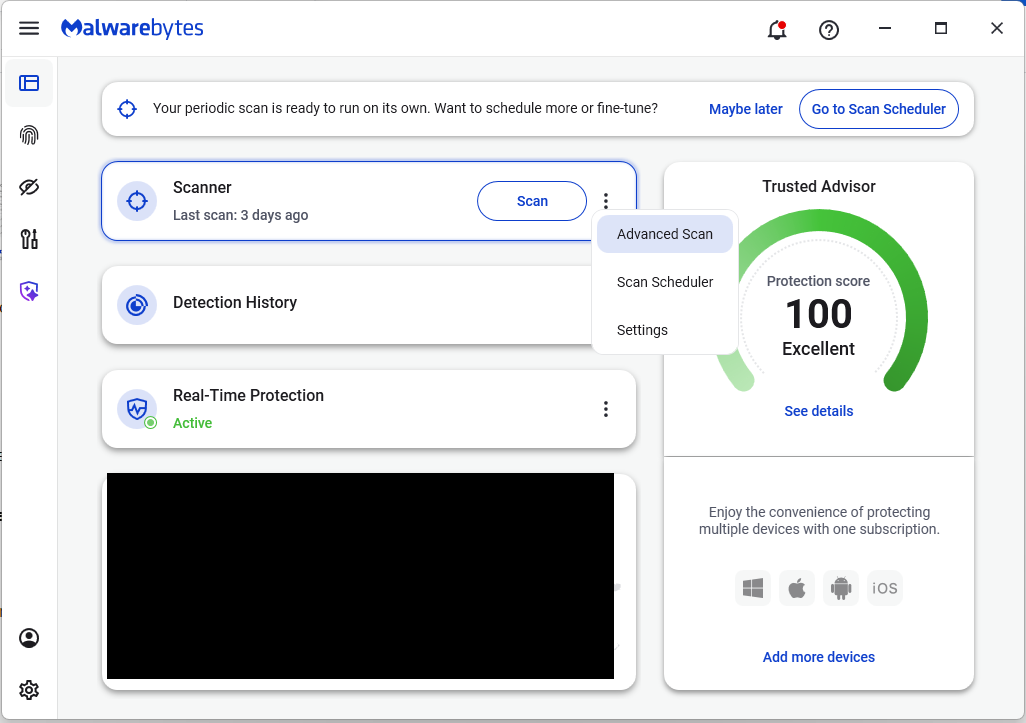
If you’re worried that you may have installed one of these extensions, Windows users can run a Malwarebytes Deep Scan with their browsers closed.
On the Malwarebytes Dashboard click on the three stacked dots to select the Advanced Scan option.
On the Advanced Scan tab, select Deep Scan. Note that this scan uses more system resources than usual.
After the scan, remove any found items, and then reopen your browser(s).
Manual check:
These are the names of the 17 additional extensions that were discovered:
AdBlocker
Ads Block Ultimate
Amazon Price History
Color Enhancer
Convert Everything
Cool Cursor
Floating Player – PiP Mode
Full Page Screenshot
Google Translate in Right Click
Instagram Downloader
One Key Translate
Page Screenshot Clipper
RSS Feed
Save Image to Pinterest on Right Click
Translate Selected Text with Google
Translate Selected Text with Right Click
Youtube Download
Note: There may be extensions with the same names that are not malicious.
We don’t just report on threats—we help safeguard your entire digital identity
Cybersecurity risks should never spread beyond a headline. Protect your, and your family’s, personal information by using identity protection.
A group of cybercriminals called DarkSpectre is believed to be behind three campaigns spread by malicious browser extensions: ShadyPanda, GhostPoster, and Zoom Stealer.
We wrote about the ShadyPanda campaign in December 2025, warning users that extensions which had behaved normally for years suddenly went rogue. After a malicious update, these extensions were able to track browsing behavior and run malicious code inside the browser.
Also in December, researchers uncovered a new campaign, GhostPoster, and identified 17 compromised Firefox extensions. The campaign was found to hide JavaScript code inside the image logo of malicious Firefox extensions with more than 50,000 downloads, allowing attackers to to monitor browser activity and plant a backdoor.
The use of malicious code in images is a technique called steganography. Earlier GhostPoster extensions hid JavaScript loader code inside PNG icons such as logo.png for Firefox extensions like “Free VPN Forever,” using a marker (for example, three equals signs) in the raw bytes to separate image data from payload.
Newer variants moved to embedding payloads in arbitrary images inside the extension bundle, then decoding and decrypting them at runtime. This makes the malicious code much harder for researchers to detect.
Based on that research, other researchers found an additional 17 extensions associated with the same group, beyond the original Firefox set. These were downloaded more than 840,000 times in total, with some remaining active in the wild for up to five years.
GhostPoster first targeted Microsoft Edge users and later expanded to Chrome and Firefox as the attackers built out their infrastructure. The attackers published the extensions in each browser’s web store as seemingly useful tools with names like “Google Translate in Right Click,” “Ads Block Ultimate,” “Translate Selected Text with Google,” “Instagram Downloader,” and “Youtube Download.”
The extensions can see visited sites, search queries, and shopping behavior, allowing attackers to create detailed profiles of users’ habits and interests.
Combined with other malicious code, this visibility could be extended to credential theft, session hijacking, or attacks targeting online banking workflows, even if those are not the primary goal today.
How to stay safe
Although we always advise people to install extensions only from official web stores, this case proves once again that not all extensions available there are safe. That said, the risk involved in installing an extension from outside the web store is even greater.
Extensions listed in the web store undergo a review process before being approved. This process, which combines automated and manual checks, assesses the extension’s safety, policy compliance, and overall user experience. The goal is to protect users from scams, malware, and other malicious activity.
Mozilla and Microsoft have removed the identified add-ons from their stores, and Google has confirmed their removal from the Chrome Web Store. However, already installed extensions remain active in Chrome and Edge until users manually uninstall them. When Mozilla blocks an add-on it is also disabled, which prevents it from interacting with Firefox and accessing your browser and your data.
If you’re worried that you may have installed one of these extensions, Windows users can run a Malwarebytes Deep Scan with their browsers closed.
On the Malwarebytes Dashboard click on the three stacked dots to select the Advanced Scan option.
On the Advanced Scan tab, select Deep Scan. Note that this scan uses more system resources than usual.
After the scan, remove any found items, and then reopen your browser(s).
Manual check:
These are the names of the 17 additional extensions that were discovered:
AdBlocker
Ads Block Ultimate
Amazon Price History
Color Enhancer
Convert Everything
Cool Cursor
Floating Player – PiP Mode
Full Page Screenshot
Google Translate in Right Click
Instagram Downloader
One Key Translate
Page Screenshot Clipper
RSS Feed
Save Image to Pinterest on Right Click
Translate Selected Text with Google
Translate Selected Text with Right Click
Youtube Download
Note: There may be extensions with the same names that are not malicious.
We don’t just report on threats—we help safeguard your entire digital identity
Cybersecurity risks should never spread beyond a headline. Protect your, and your family’s, personal information by using identity protection.
In November 2025, Kaspersky experts uncovered a new stealer named Stealka, which targets Windows users’ data. Attackers are using Stealka to hijack accounts, steal cryptocurrency, and install a crypto miner on their victims’ devices. Most frequently, this infostealer disguises itself as game cracks, cheats and mods.
Here’s how the attackers are spreading the stealer, and how you can protect yourself.
How Stealka spreads
A stealer is a type of malware that collects confidential information stored on the victim’s device and sends it to the attackers’ server. Stealka is primarily distributed via popular platforms like GitHub, SourceForge, Softpedia, sites.google.com, and others, disguised as cracks for popular software, or cheats and mods for games. For the malware to be activated, the user must run the file manually.
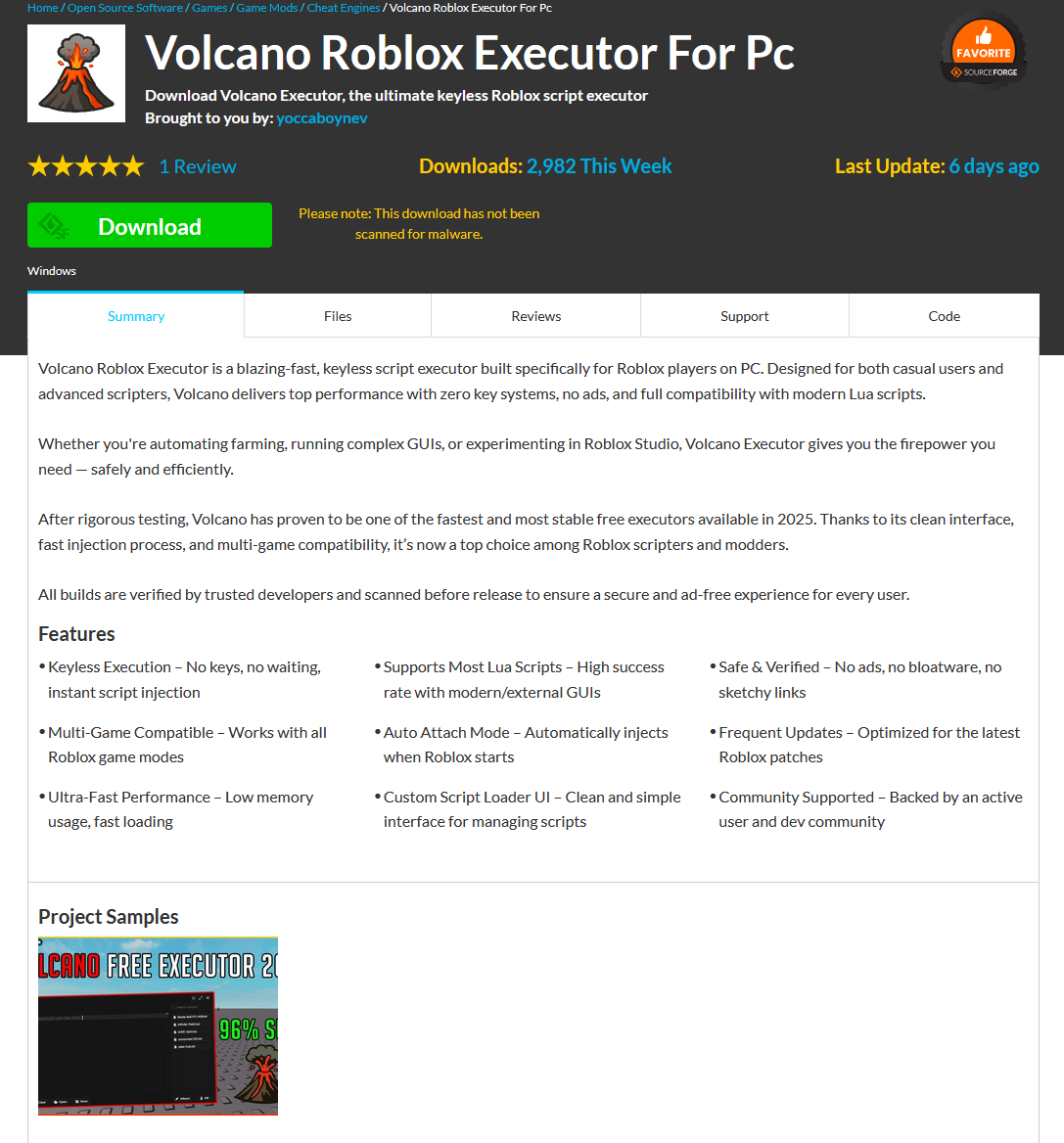
Here’s an example: a malicious Roblox mod published on SourceForge.
Attackers exploited SourceForge, a legitimate website, to upload a mod containing Stealka
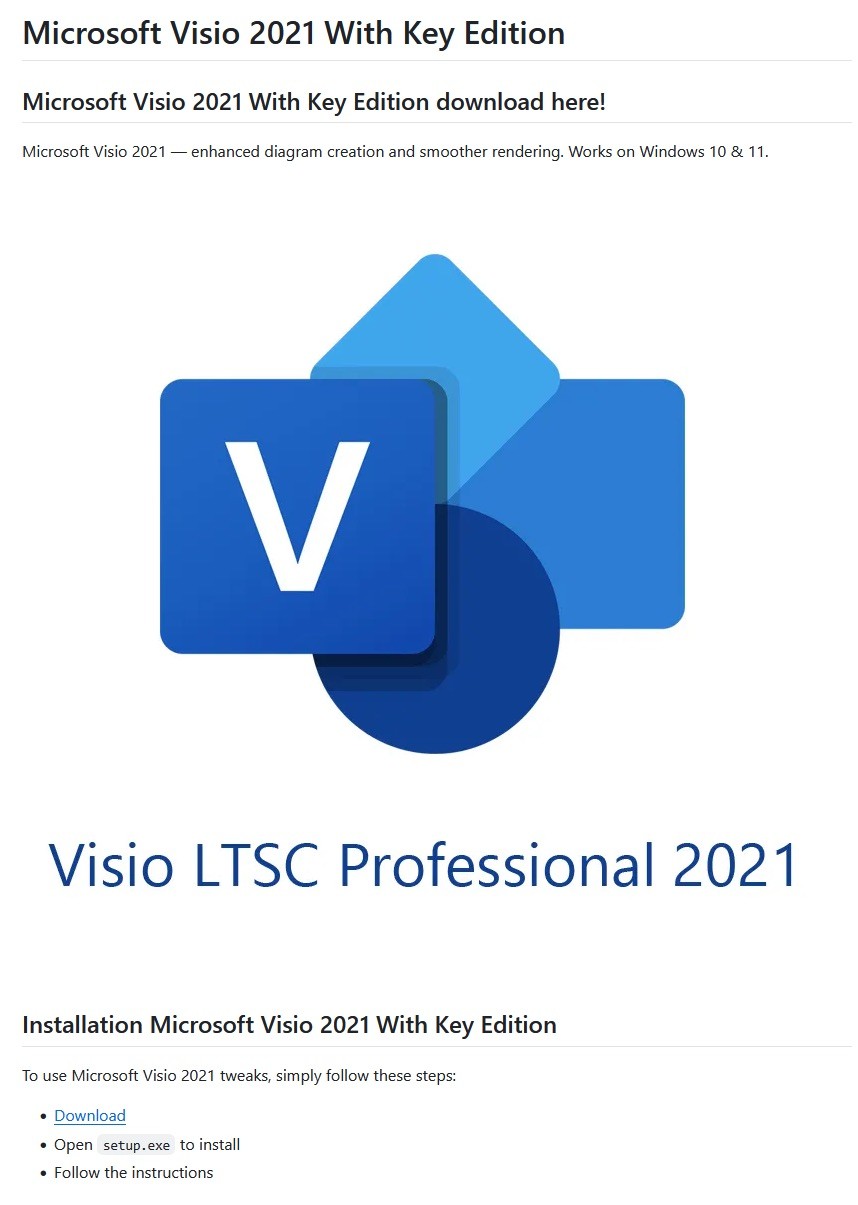
And here’s one on GitHub posing as a crack for Microsoft Visio.
A pirated version of Microsoft Visio containing the stealer, hosted on GitHub
Sometimes, however, attackers go a step further (and possibly use AI tools) to create entire fake websites that look quite professional. Without the help of a robust antivirus, the average user is unlikely to realize anything is amiss.
A fake website pretending to offer Roblox scripts
Admittedly, the cracks and software advertised on these fake sites can sometimes look a bit off. For example, here the attackers are offering a download for Half-Life 3, while at the same time claiming it’s not actually a game but some kind of “professional software solution designed for Windows”.
Malware disguised as Half-Life 3, which is also somehow “a professional software solution designed for Windows”. A lot of professionals clearly spent their best years on this software…
The truth is that both the page title and the filename are just bait. The attackers simply use popular search terms to lure users into downloading the malware. The actual file content has nothing to do with what’s advertised — inside, it’s always the same infostealer.
The site also claimed that all hosted files were scanned for viruses. When the user decides to download, say, a pirated game, the site displays a banner saying the file is being scanned by various antivirus engines. Of course, no such scanning actually takes place; the attackers are merely trying to create an illusion of trustworthiness.
The pirated file pretends to be scanned by a dozen antivirus tools
What makes Stealka dangerous
Stealka has a fairly extensive arsenal of capabilities, but its prime target is data from browsers built on the Chromium and Gecko engines. This puts over a hundred different browsers at risk, including popular ones like Chrome, Firefox, Opera, Yandex Browser, Edge, Brave, as well as many, many others.
Browsers store a huge amount of sensitive information, which attackers use to hijack accounts and continue their attacks. The main targets are autofill data, such as sign-in credentials, addresses, and payment card details. We’ve warned repeatedly that saving passwords in your browser is risky — attackers can extract them in seconds. Cookies and session tokens are perhaps even more valuable to hackers, as they can allow criminals to bypass two-factor authentication and hijack accounts without entering the password.
The story doesn’t end with the account hack. Attackers use these compromised accounts to spread the malware further. For example, we discovered the stealer in a GTAV mod posted on a dedicated site by an account that had previously been compromised.
Beyond stealing browser data, Stealka also targets the settings and databases of 115browser extensions for crypto wallets, password managers, and 2FA services. Here are some of the most popular extensions now at risk:
Finally, the stealer also downloads local settings, account data, and service files from a wide variety of applications:
Crypto wallets. Wallet configurations may contain encrypted private keys, seed-phrase data, wallet file paths, and encryption parameters. That’s enough to at least make an attempt at stealing your cryptocurrency. At risk are 80 wallet applications, including Binance, Bitcoin, BitcoinABC, Dogecoin, Ethereum, Exodus, Mincoin, MyCrypto, MyMonero, Monero, Nexus, Novacoin, Solar, and many others.
Messaging apps. Messaging app service files store account data, device identifiers, authentication tokens, and the encryption parameters for your conversations. In theory, a malicious actor could gain access to your account and read your chats. At risk are Discord, Telegram, Unigram, Pidgin, Tox, and others.
Password managers. Even if the passwords themselves are encrypted, the configuration files often contain information that makes cracking the vault significantly easier: encryption parameters, synchronization tokens, and details about the vault version and structure. At risk are 1Password, Authy, Bitwarden, KeePass, LastPass, and NordPass.
Email clients. These are where your account credentials, mail server connection settings, authentication tokens, and local copies of your emails can be found. With access to your email, an attacker will almost certainly attempt to reset passwords for your other services. At risk are Gmail Notifier Pro, Claws, Mailbird, Outlook, Postbox, The Bat!, Thunderbird, and TrulyMail.
Note-taking apps. Instead of shopping lists or late-night poetry, some users store information in their notes that has no business being there, like seed phrases or passwords. At risk are NoteFly, Notezilla, SimpleStickyNotes, and Microsoft StickyNotes.
Gaming services and clients. The local files of gaming platforms and launchers store account data, linked service information, and authentication tokens. At risk are Steam, Roblox, Intent Launcher, Lunar Client, TLauncher, Feather Client, Meteor Client, Impact Client, Badlion Client, and WinAuth for battle.net.
VPN clients. By gaining access to configuration files, attackers can hijack the victim’s VPN account to mask their own malicious activities. At risk are AzireVPN, OpenVPN, ProtonVPN, Surfshark, and WindscribeVPN.
That’s an extensive list — and we haven’t even named all of them! In addition to local files, this infostealer also harvests general system data: a list of installed programs, the OS version and language, username, computer hardware information, and miscellaneous settings. And as if that weren’t enough, the malware also takes screenshots.
How to protect yourself from Stealka and other infostealers
Secure your device with reliable antivirus software. Even downloading files from legitimate websites is no guarantee of safety — attackers leverage trusted platforms to distribute stealers all the time. Kaspersky Premium detects malware on your computer in time and alerts you to the threat.
Don’t store sensitive information in browsers. It’s handy — no one can argue with that. But unfortunately browsers aren’t the most secure environment for your data. Sign-in credentials, bank card details, secret notes, and other confidential information are better kept in a securely encrypted format in Kaspersky Password Manager, which is immune to the exploits used by Stealka.
Enable two-factor authentication or use backup codes wherever possible.Two-factor authentication (2FA) makes life much harder for attackers, while backup codes help you regain access to your critical accounts if compromised. Just be sure not to store backup codes in text documents, notes, or your browser. For all your backup codes and 2FA tokens, use a reliable password manager.
Curious what other stealers are out there, and what they’re capable of? Read more in our other posts:
In this video, Dave Blandford discusses a beginner's guide to creating Burp Suite extensions. The session covers an overview of what Burp extensions are, how they can improve testing capabilities, and the tools and languages used in developing them.
Jordan Drysdale // tl;dr uBlock Origin appears, based on non-scientific testing, to be fairly effective at keeping trackers from making outbound HTTP GET requests. Tested Extensions: No Add-ons v Ghostery […]

 Login
Login