
Normal view

How Manifest v3 forced us to rethink Browser Guard, and why that’s a good thing 

2 February 2026 at 19:11

As a Browser Guard user, you might not have noticed much difference lately. Browser Guard still blocks scams and phishing attempts just like always, and, in many cases, even better.

But behind the scenes, almost everything changed. The rules that govern how browser extensions work went through a major overhaul, and we had to completely rebuild how Browser Guard protects you.

First, what is Manifest v3 (and v2)? 

Browser extensions include a configuration file called a “manifest”. Think of it as an instruction manual that tells your browser what an extension can do and how it’s allowed to do it.

Manifest v3 is the latest version of that system, and it’s now the only option allowed in major browsers like Chrome and Edge.

In Manifest v2, Browser Guard could use highly customized logic to analyze and block suspicious activity as it happened, protecting you as you browsed the web.

With Manifest v3, that flexibility is mostly gone. Extensions can no longer run deeply complex, custom logic in the same way. Instead, we can only pass static rule lists to the browser, called Declarative Net Request (DNR) rules.

But those DNR rules come with strict constraints.

Rule sets are size-limited by the browser to save space. Because rules are stored as raw JSON files, developers can’t use other data types to make them smaller. And updating those DNR rules can only be done by updating the extension entirely.

This is less of a problem on Chrome, which allows developers to push updates quickly, but other browsers don’t currently support this fast-track process. Dynamic rule updates exist, but they’re limited, and nowhere near large enough to hold the full set of rules.

In short, we couldn’t simply port Browser Guard from Manifest v2 to v3. The old approach wouldn’t keep our users protected.

A note about Firefox and Brave 

Firefox and Brave chose a different path and continue to support the more flexible Manifest v2 method of blocking requests.

However, since Brave doesn’t have its own extension store, users can only install extensions they already had before Google removed Manifest v2 extensions from the Chrome Web Store. Though Brave also has strong out-of-the-box ad protection.

For Browser Guard users on Firefox, rest assured the same great blocking techniques will continue to work.

How Browser Guard still protects you 

Given all of this, we had to get creative.

Many ad blockers already support pattern-based matching to stop ads and trackers. We asked a different question: what if we could use similar techniques to catch scam and phishing attempts before we know the specific URL is malicious?

Better yet, what if we did it without relying on the new DNR APIs?

So, we built a new pattern-matching system focused specifically on scam and phishing behavior, supporting:

  • Full regex-based URL matching
  • Full XPath and querySelector support
  • Matching against any content on the page
  • Favicon spoof detection

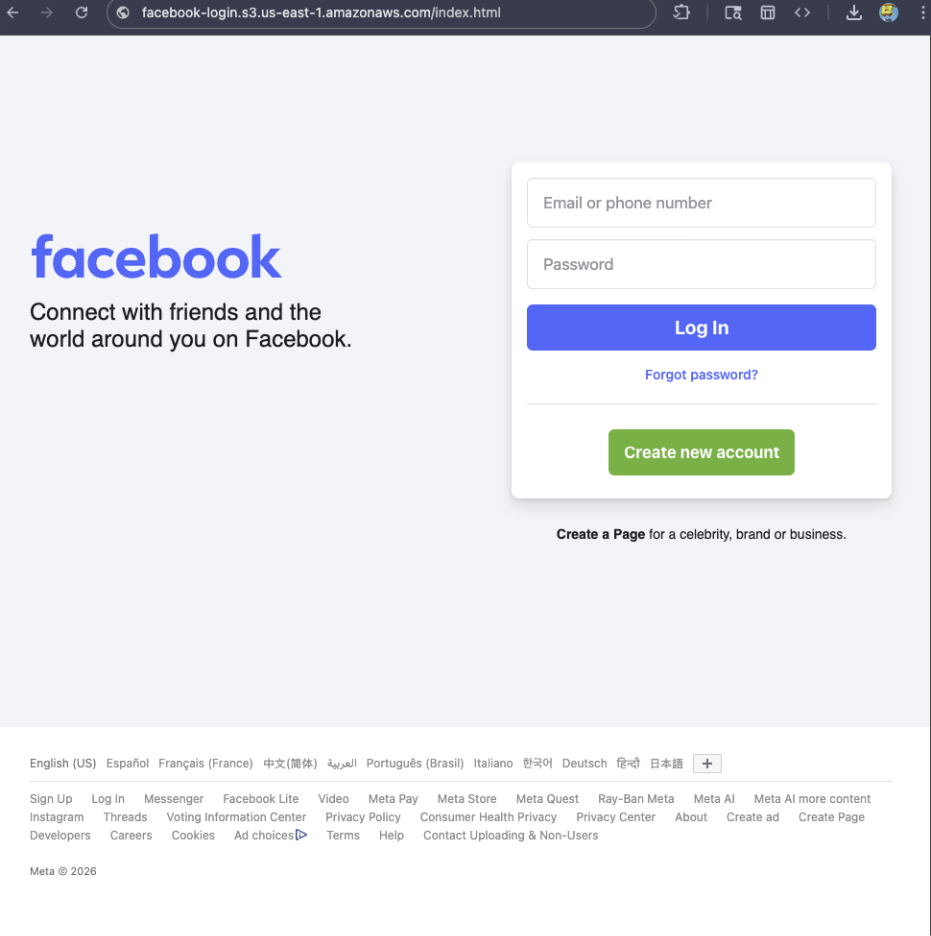
For example, if a site is hosted on Amazon S3, contains a password-input field, and uses a homoglyph in the URL to trick users into thinking they were logging into Facebook, Browser Guard can detect that combination—even if we’ve never seen the URL before.

Fake Facebook login screen

Why this matters more now 

With AI, attackers can create near-perfect duplicates of websites easier than ever. And did you spot the homoglyph in the URL? Nope, neither did I!  

That’s why we designed this system so we can update its rules every 30 minutes, instead of waiting for full extension updates.  

But I still see static blocking rules in Browser Guard 

That’s true—for now.  

We’ve found a temporary workaround that lets us support all the rules that we had before. However, we had to remove some of the more advanced logic that used to sit on top of them.

For example, we can’t use these large datasets to block subframe requests, only main frame requests. Nor can we stack multiple logic layers together; blocking is limited to simple matches (regex, domains and URLs).

Those limits are a big reason we’re investing more heavily in pattern-based and heuristic protection. 

Pure heuristics 

From day one, Browser Guard has used heuristics (behavior) to detect scams and phishing, monitoring behavior on the page to match suspicious activity.

For example, some scam pages deliberately break your browser’s back button by abusing window.replaceState, then trick you into calling that scammer’s “computer helpline.” Others try to convince you to run malicious commands on your computer.

Browser Guard can detect these behaviors and warn you before you fall for them. 

What’s next? 

Did someone say AI?  

You’ve probably seen Scam Guard in other Malwarebytes products. We’re currently working on a version tailored specifically for Browser Guard. More soon!

Final thoughts 

While Manifest v3 introduced meaningful improvements to browser security, it also created real challenges for security tools like Browser Guard.

Rather than scaling back, the Browser Guard team rebuilt our approach from the ground up, focusing on behavior, patterns, and faster response times. The result is protection that’s different under the hood, but just as committed to keeping you safe online.


We don’t just report on scams—we help detect them

Cybersecurity risks should never spread beyond a headline. If something looks dodgy to you, check if it’s a scam using Malwarebytes Scam Guard, a feature of our mobile protection products. Submit a screenshot, paste suspicious content, or share a text or phone number, and we’ll tell you if it’s a scam or legit. Download Malwarebytes Mobile Security for iOS or Android and try it today!
Scam-checking just got easier: Malwarebytes is now in ChatGPT 

2 February 2026 at 14:45

If you’ve ever stared at a suspicious text, email, or link and thought “Is this a scam… or am I overthinking it?” Well, you’re not alone. 

Scams are getting harder to spot, and even savvy internet users get caught off guard. That’s why Malwarebytes is the first cybersecurity provider available directly inside ChatGPT, bringing trusted threat intelligence to millions of people right where these questions happen. 

Simply ask: “Malwarebytes, is this a scam?” and you’ll get a clear, informed answer—super fast. 

How to access 

To access Malwarebytes inside ChatGPT:

  • Sign in to ChatGPT  
  • Go to Apps  
  • Search for Malwarebytes and press Connect  
  • From then on, you can “@Malwarebytes” to check if a text message, DM, email, or other  content seems malicious.  

Cybersecurity help, right when and where you need it 

Malwarebytes in ChatGPT lets you tap into our cybersecurity expertise without ever leaving the conversation. Whether something feels off or you want a second opinion, you can get trusted guidance in no time at all. 

Here’s what you can do: 

Spot scams faster 

Paste in a suspicious text message, email, or DM and get: 

  • A clear, point-by-point breakdown of phishing or any known red flags 
  • An explanation of why something looks risky 
  • Practical next steps to help you stay safe 

You won’t get any jargon or guessing from us. What you will get is 100% peace of mind. 

Check links, domains, and phone numbers 

Not sure if a URL, website, or phone number is legit? Ask for a risk assessment informed by Malwarebytes threat intelligence, including: 

  • Signs of suspicious activity 
  • Whether the link or sender has been associated with scams 
  • If a domain is newly registered, follows redirects, or other potentially suspicious elements 
  • What to do next—block it, ignore it, or proceed with caution 

Powered by real threat intelligence 

The verdicts you get aren’t based on vibes or generic advice. They’re powered by Malwarebytes’ continuously updated threat intelligence—the same real-world data that helps protect millions of devices and people worldwide every day. 

If you spot something suspicious, you can submit it directly to Malwarebytes through ChatGPT. Those reports help strengthen threat intelligence, making the internet safer not just for you, but for everyone.

  • Link reputation scanner: Checks URLs against threat intelligence databases, detects newly registered domains (<30 days), and follows redirects.
  • Phone number reputation check: Validates phone numbers against scam/spam databases, including carrier and location details.  
  • Email address reputation check: Analyzes email domains for phishing & other malicious activity.  
  • WHOIS domain lookup: Retrieves registration data such as registrar, creation and expiration dates, and abuse of contacts.  
  • Verify domain legitimacy: Look up domain registration details to identify newly created or suspicious websites commonly used in phishing attacks.  
  • Get geographic context: Receive warnings when phone numbers originate from unexpected regions, a common indicator of international scam operations. 

Available now 

Malwarebytes in ChatGPT is available wherever ChatGPT apps are available.

To get started, just ask ChatGPT: 

“Malwarebytes, is this a scam?” 

For deeper insights, proactive protection, and human support, download the Malwarebytes app—our security solutions are designed to stop threats before they reach you, and the damage is done.

How fake party invitations are being used to install remote access tools

2 February 2026 at 11:18

“You’re invited!” 

It sounds friendly, familiar and quite harmless. But in a scam we recently spotted, that simple phrase is being used to trick victims into installing a full remote access tool on their Windows computers—giving attackers complete control of the system. 

What appears to be a casual party or event invitation leads to the silent installation of ScreenConnect, a legitimate remote support tool quietly installed in the background and abused by attackers. 

Here’s how the scam works, why it’s effective, and how to protect yourself. 

The email: A party invitation 

Victims receive an email framed as a personal invitation—often written to look like it came from a friend or acquaintance. The message is deliberately informal and social, lowering suspicion and encouraging quick action. 

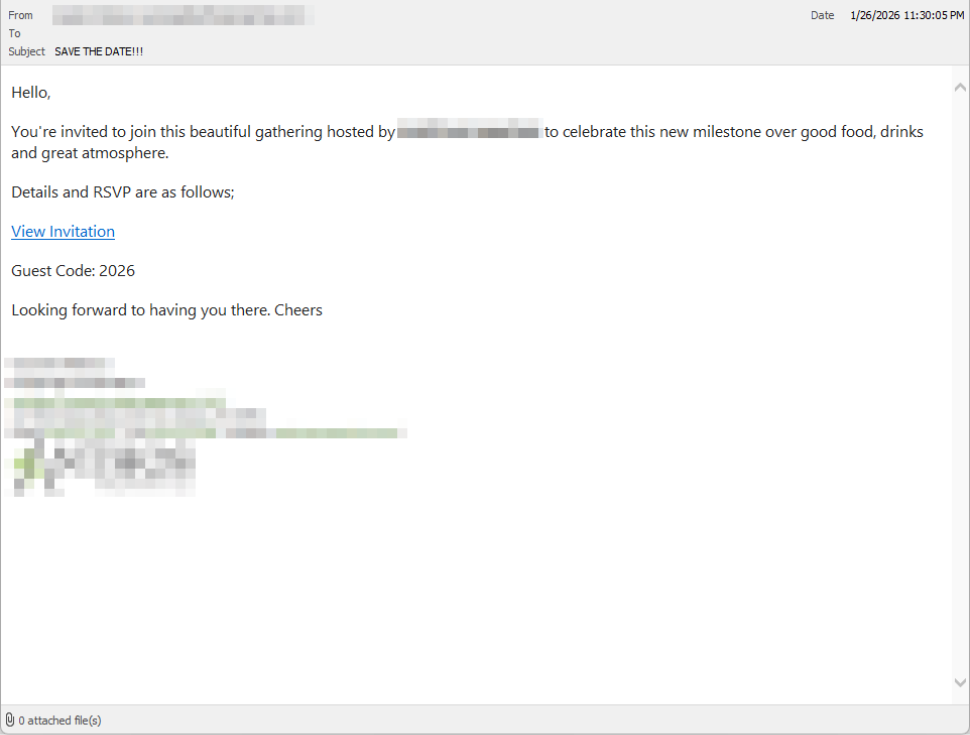
In the screenshot below, the email arrived from a friend whose email account had been hacked, but it could just as easily come from a sender you don’t know.

So far, we’ve only seen this campaign targeting people in the UK, but there’s nothing stopping it from expanding elsewhere. 

Clicking the link in the email leads to a polished invitation page hosted on an attacker-controlled domain. 

Party invitation email from a contact

The invite: The landing page that leads to an installer 

The landing page leans heavily into the party theme, but instead of showing event details, the page nudges the user toward opening a file. None of them look dangerous on their own, but together they keep the user focused on the “invitation” file: 

  • A bold “You’re Invited!” headline 
  • The suggestion that a friend had sent the invitation 
  • A message saying the invitation is best viewed on a Windows laptop or desktop
  • A countdown suggesting your invitation is already “downloading” 
  • A message implying urgency and social proof (“I opened mine and it was so easy!”

Within seconds, the browser is redirected to download RSVPPartyInvitationCard.msi 

The page even triggers the download automatically to keep the victim moving forward without stopping to think. 

This MSI file isn’t an invitation. It’s an installer. 

The landing page

The guest: What the MSI actually does 

When the user opens the MSI file, it launches msiexec.exe and silently installs ScreenConnect Client, a legitimate remote access tool often used by IT support teams.  

There’s no invitation, RSVP form, or calendar entry. 

What happens instead: 

  • ScreenConnect binaries are installed under C:\Program Files (x86)\ScreenConnect Client\ 
  • A persistent Windows service is created (for example, ScreenConnect Client 18d1648b87bb3023) 
  • ScreenConnect installs multiple .NET-based components 
  • There is no clear user-facing indication that a remote access tool is being installed 

From the victim’s perspective, very little seems to happen. But at this point, the attacker can now remotely access their computer. 

The after-party: Remote access is established 

Once installed, the ScreenConnect client initiates encrypted outbound connections to ScreenConnect’s relay servers, including a uniquely assigned instance domain.

That connection gives the attacker the same level of access as a remote IT technician, including the ability to: 

  • See the victim’s screen in real time
  • Control the mouse and keyboard 
  • Upload or download files 
  • Keep access even after the computer is restarted 

Because ScreenConnect is legitimate software commonly used for remote support, its presence isn’t always obvious. On a personal computer, the first signs are often behavioral, such as unexplained cursor movement, windows opening on their own, or a ScreenConnect process the user doesn’t remember installing. 

Why this scam works 

This campaign is effective because it targets normal, predictable human behavior. From a behavioral security standpoint, it exploits our natural curiosity and appears to be a low risk. 

Most people don’t think of invitations as dangerous. Opening one feels passive, like glancing at a flyer or checking a message, not installing software. 

Even security-aware users are trained to watch out for warnings and pressure. A friendly “you’re invited” message doesn’t trigger those alarms. 

By the time something feels off, the software is already installed. 

Signs your computer may be affected 

Watch for: 

  • A download or executed file named RSVPPartyInvitationCard.msi 
  • An unexpected installation of ScreenConnect Client 
  • A Windows service named ScreenConnect Client with random characters  
  • Your computer makes outbound HTTPS connections to ScreenConnect relay domains 
  • Your system resolves the invitation-hosting domain used in this campaign, xnyr[.]digital 

How to stay safe  

This campaign is a reminder that modern attacks often don’t break in—they’re invited in. Remote access tools give attackers deep control over a system. Acting quickly can limit the damage.  

For individuals 

If you receive an email like this: 

  • Be suspicious of invitations that ask you to download or open software 
  • Never run MSI files from unsolicited emails 
  • Verify invitations through another channel before opening anything 

If you already clicked or ran the file:  

  • Disconnect from the internet immediately 
  • Check for ScreenConnect and uninstall it if present 
  • Run a full security scan 
  • Change important passwords from a clean, unaffected device 

For organisations (especially in the UK) 

  • Alert on unauthorized ScreenConnect installations
  • Restrict MSI execution where feasible 
  • Treat “remote support tools” as high-risk software
  • Educate users: invitations don’t come as installers 

This scam works by installing a legitimate remote access tool without clear user intent. That’s exactly the gap Malwarebytes is designed to catch.

Malwarebytes now detects newly installed remote access tools and alerts you when one appears on your system. You’re then given a choice: confirm that the tool is expected and trusted, or remove it if it isn’t.


We don’t just report on threats—we remove them

Cybersecurity risks should never spread beyond a headline. Keep threats off your devices by downloading Malwarebytes today.

❌