Normal view

Received — 8 June 2026 Kaspersky official blog

A guide to disabling Copilot, Gemini, and Apple Intelligence | Kaspersky official blog

4 June 2026 at 21:16

Lately, software developers have been baking AI features straight into everyday work tools, operating systems, and browsers. In some cases, they’re genuinely handy. However, their presence introduces specific risks, which means plenty of companies are hesitant to give employees access to these tools. In a previous post, we categorized these unwanted AI systems, looked at how to spot them at the network and endpoint levels, and covered the ultimate universal kill switch: managing OAuth access across major corporate platforms. In this deep dive, we’re getting tactical: breaking down how to disable or restrict the AI built into popular platforms.

A quick heads-up: major software vendors occasionally change the names of their AI settings and tweak how they function. If any of the options mentioned below are missing or aren’t working as expected, a quick web search for the setting’s name will usually point you to its new location or branding.

How to turn off Microsoft 365 Copilot

Detection: you can check actual Copilot usage in the logs by going to Microsoft 365 admin →  Copilot usage report.

Disabling via policies: in the Microsoft 365Admin Center, go to Settings →  Integrated Apps, find Copilot in the Available Apps list, and select Block. More granular configuration policies are available under Customization →  Policy Management. The Policies page here contains over two thousand entries, so you’ll want to filter them by the keyword “Copilot” (detailed guide). Given that Copilot is a paid add-on for Office, another way to block it — and save money by doing so — is to simply avoid assigning users SKUs that include Copilot.

We recommend separately blocking Copilot Chat, which is available in Teams, Edge, Outlook, and several other services. Yes, it’s not Copilot itself. And yes, it has to be blocked separately by following this guide.

Additional layer of protection: you can block the domains copilot.cloud.microsoft and m365.cloud.microsoft/chat at the web filter or NGFW level. However, Microsoft explicitly advises against this, warning that it could break other Microsoft 365 features.

How to turn off Windows Copilot

Beyond the Office version of Copilot, you also need to manage its consumer-facing cousin.

Detection: look through your NGFW or other network logs for traffic hitting copilot.microsoft.com, bing.com/chat, or edgeservices.bing.com.
Disabling via policies: in Windows Group Policy, navigate to Computer Config →  Admin Templates →  Windows Components →  Windows Copilot. In Microsoft 365 Group Policy, go to Admin center →  Block consumer Copilot for organizational accounts.

Additional layer of protection: block the Copilot.exe executable from running entirely.

How to turn off the Copilot sidebar in Edge

Detection: look through your NGFW or other network logs for traffic hitting copilot.microsoft.com, bing.com/chat, or edgeservices.bing.com.

Blocking: configure the following MS Edge Group Policies: HubsSidebarEnabled = false, EdgeShoppingAssistantEnabled = false, CopilotPageContext = Disabled (false), CopilotNewTabPageEnabled = false, Microsoft365CopilotChatIconEnabled = false, GenAILocalFoundationalModelSettings = 1 (note that disabling this unexpectedly requires a 1 instead of a 0).

Second layer of protection: block the domains copilot.cloud.microsoft and m365.cloud.microsoft/chat at the web filter or NGFW level. However, Microsoft explicitly advises against this, warning that it could break other features.

How to turn off the Gemini Assistant in Google Workspace

Detection: check the Workspace Admin Console (admin.google.com), Gemini usage report section.

Blocking via policies: in the Admin Console, navigate to Apps →  Additional Google services → > Gemini app, and set it to OFF. Then, go to Manage Workspace smart feature settings →  Smart features in Google Workspace, and set it to OFF.

Second layer of protection: block network traffic to the domains gemini.google.com, bard.google.com, and aistudio.google.com.

How to turn off Gemini in Google Chrome

Detection: check your Chrome Enterprise reports (Chrome management →  Reports), or look through network traffic logs for connections to the previously mentioned domains.

Blocking via policies: in your Chrome Enterprise policies, configure the following settings: GenAILocalFoundationalModelSettings = 0, HelpMeWriteSettings = 2 (disabled), TabOrganizerSettings = 2, CreateThemesSettings = 2, DevToolsGenAiSettings = 2.

Additional layer of protection: block network traffic to the domains gemini.google.com, bard.google.com, and aistudio.google.com. Additionally, block unauthorized Chrome/Chromium installations (those outside your policy management) with the help of host-based application control tools like EPP/EDR or AppLocker.

How to turn off Apple Intelligence

Detection: on your NGFW and web filters, traffic hitting apple-relay.apple.com and *.apple-cloudkit.com is a clear indicator that Apple Intelligence is active.

Blocking via policies: any managed Apple device allows you to disable individual AI features, though there isn’t a master switch you can flip to shut down “all AI”. In your MDM profile, you need to set the following keys to false (disabled): allowWritingTools, allowMailSummary, allowGenmoji, allowImagePlayground, allowImageWand, allowPersonalizedHandwritingResults, allowExternalIntelligenceIntegrations, allowExternalIntelligenceIntegrationsSignIn, allowNotesTranscription, and allowNotesTranscriptionSummary. Here is a brief configuration example:

<dict>
<key>PayloadType</key>
<string>com.apple.applicationaccess</string>
<key>allowWritingTools</key>
<false/>
<key>allowMailSummary</key>
<false/>
</dict>

Despite Apple’s shift toward declarative device management, these AI features still need to be managed through traditional MDM payload settings.

Second layer of protection: block network traffic to the hosts mentioned above — though the obvious downside for mobile devices is that this won’t work once they leave the corporate network.


Scams in messengers: exposing the global scam-cartels exploiting everyday messagesng-heist | Kaspersky official blog

1 June 2026 at 09:00

It starts with the familiar: a short message, a trusted name, a routine tone. Delivery updates, work pings, brand alerts hum in the background, rarely attracting scrutiny. You check, you answer… — until minutes later you’ve slipped into a trap built to lower your guard and hijack your trust.

That’s why messaging scams cut deep: they exploit everyday habits where instinct, not caution, leads. Communication once moved slowly, leaving room for doubt. Now it’s instant — and that speed is a weapon in criminal hands.

On our blog, we’ve already examined numerous scam schemes in messaging apps — from pig butchering, where the victim is groomed for a very long time, or catfishing, where the scammer creates a fake identity, to phishing via chatbots or through gift-giving campaigns in messaging apps.

Now, for the first time, Kaspersky has set out to capture the full end-to-end reality of messaging-based scams to understand how quickly harm occurs, how they impact trust and what remains after the interaction ends. What emerges is a highly organized and industrialized scam ecosystem embedded within everyday messaging channels such as SMS, WhatsApp, and email.

Kaspersky experts have prepared a report on targeted scams in messaging apps, detailing not only the financial but also the emotional damage caused by such attacks, as well as providing tips on how to protect yourself and avoid them. In this post, we explore the most interesting facts, but you can find more details in the full report.

The damage is underestimated

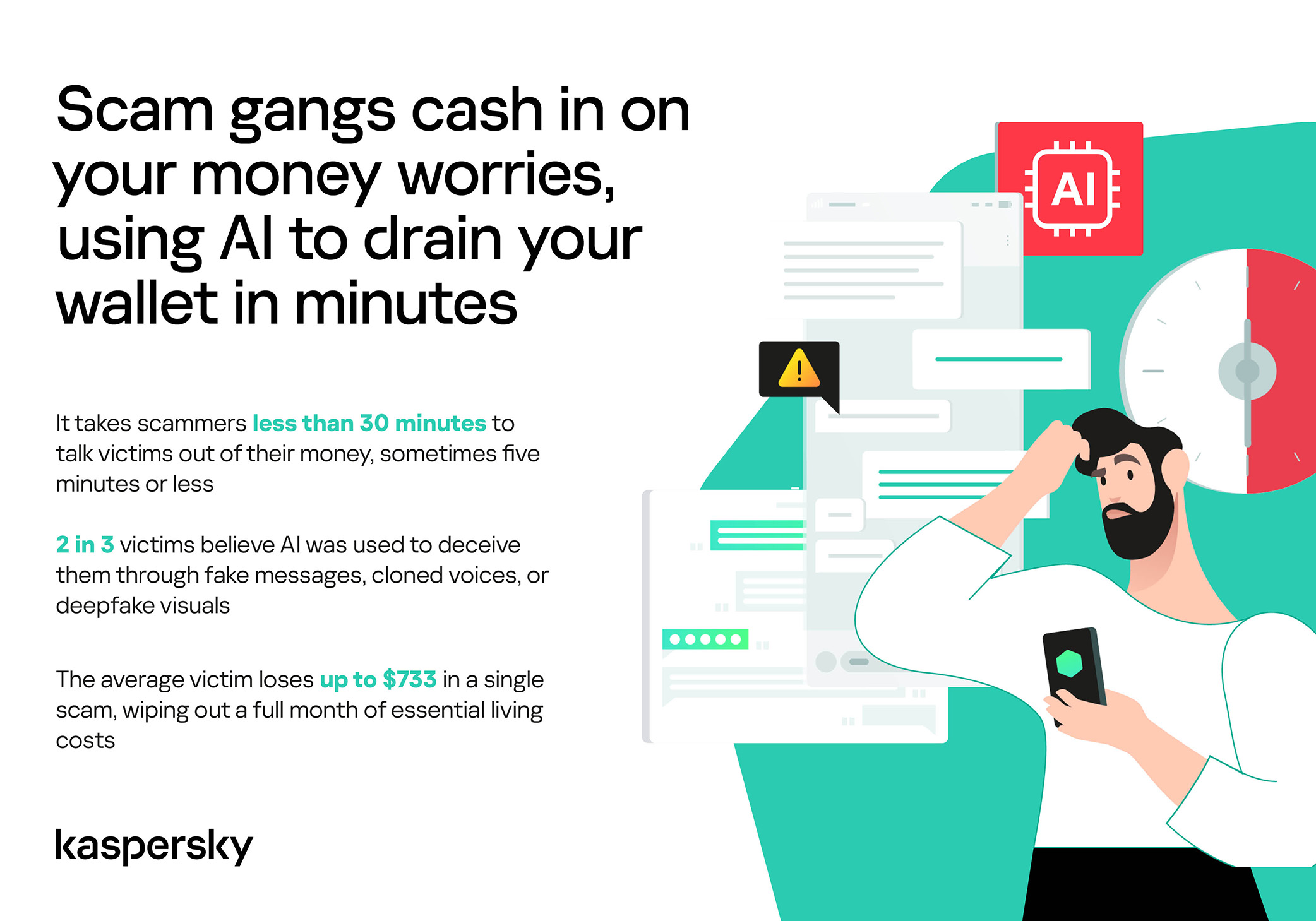
How much do you think a single successful attack via a messaging app costs the average victim? Ten dollars? Or maybe 50? You’re underestimating the scammers. Although more than a third (36%) of victims incur losses of less than $135, on average a victim loses… $733!

Country Average loss per victim
Senegal $392.94
Serbia $493.32
Morocco $504.28
Greece $609.32
United Kingdom $617.38
Côte d’Ivoire $654.11
Spain $672.67
United States $724.73
Portugal $868.20
Italy $896.02
France $1,193.58
Germany $1,369.35

The average amount lost by a victim in a successful attack via a messaging app

On the one hand, the financial hit doesn’t look catastrophic in isolation. These are micro-losses by design. Small enough that some never report them to the police. Small enough that banks don’t always investigate. Small enough to be dismissed as bad luck rather than organized crime.

But $733 is not nothing. It’s enough to cover a month’s worth of groceries, school or daycare fees, or utility bills. Against the backdrop of the global cost-of-living crisis, a single such loss can seriously dent a family’s budget.

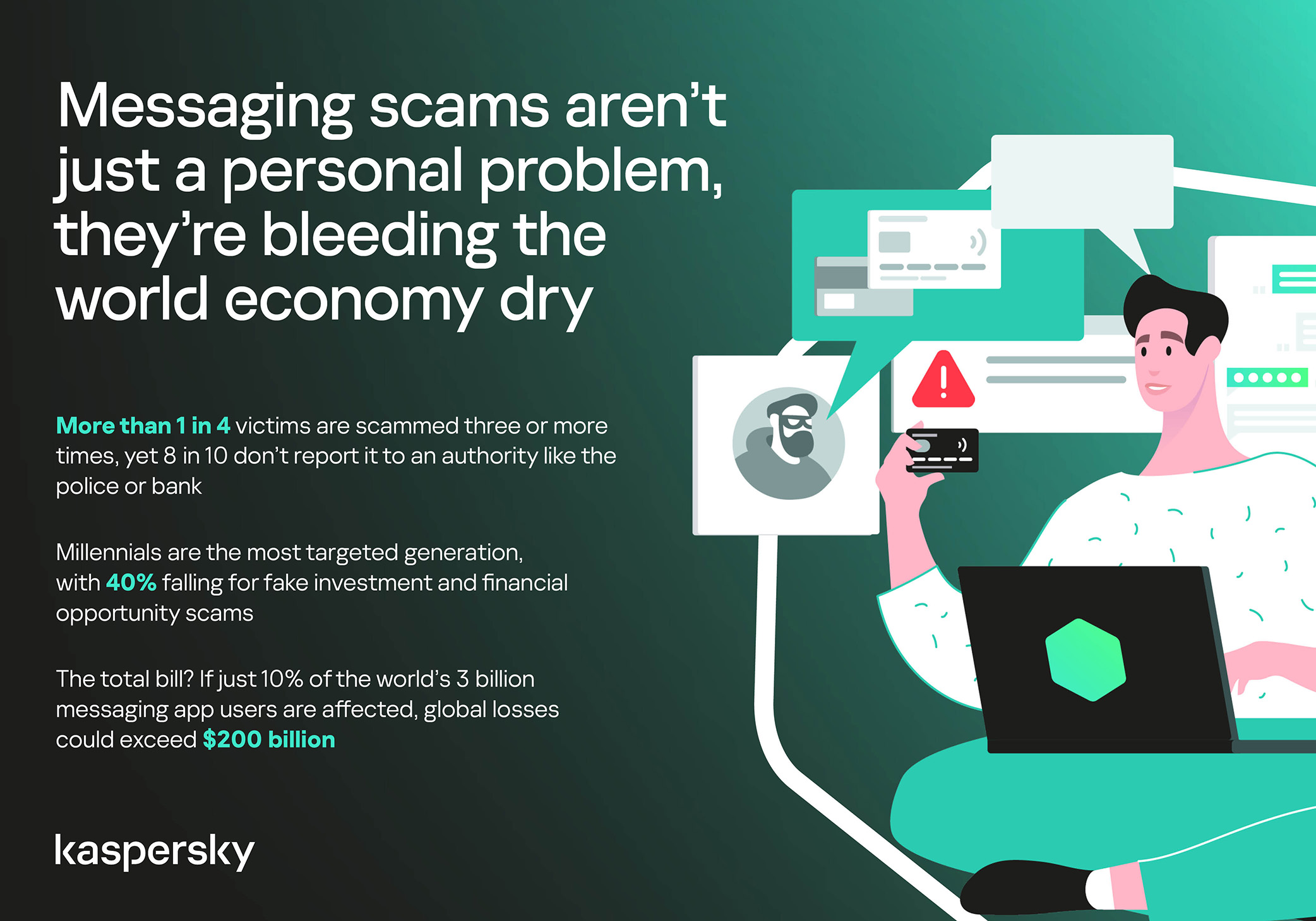
In 11% of cases, losses exceed $1,350, and more than a quarter of victims (28%) report having been scammed three or more times in the past six months. Once scammers discover that a phone number responds, that contact becomes an asset, circulating from one database to another.

Now imagine the scale of the problem: if just 10% of the three billion messaging‑app users worldwide fell victim with the average loss, the total damage would amount to… nearly $220 billion! This is comparable to the GDP of Greece, and exceeds that of Morocco, Serbia, or Côte d’Ivoire.

It becomes clear that behind the daily flood of fraudulent schemes lie large scam cartels operating on an industrial scale, using AI to personalize messages that mimic those of family members, friends, and familiar brands. This, in essence, forms the basis of a full-fledged economy built on digital identity theft.

Scam gangs cash in on your money worries, using AI to drain your wallet in minutes

Speed beats scrutiny

More than half of successful messaging scams (52%) unfold in under 30 minutes — from first contact to the moment money or personal data changes hands — or even faster, before the victim begins to doubt the legitimacy of the sender. In fact, one in seven scams takes less than five minutes — quicker than boiling an egg!

The speed isn’t accidental. It’s the method. Scammers structure their schemes to deny the victim a chance to come to their senses. Every element is engineered to compress the decision-making window: the urgency of the scenario, the familiarity of the format, the plausibility of the request.

They rush you — faster, faster, don’t tell anyone, you only have a few minutes, solve the problem, don’t ask questions. Click the link, fill in the details, approve the transaction, or else… Or else what? The scammers’ imagination knows no bounds here, but if you don’t do something right now, you’ll definitely regret it.

Alas, the realization of what has happened usually comes when the damage is already irreversible. More than half of victims (51%) lose money; another 43% hand over their personal data — most commonly phone numbers, names, and email addresses — to scammers, and often the victim loses both.

Where and how attacks occur

A delivery notification, a bank alert, a message from a merchant you ordered from last week — messaging apps permeate every aspect of everyday life, making such interactions completely normal. An attack shouldn’t feel like an attack. It should feel like the same message you’ve received hundreds of times.

It’s no surprise that scammers focus their attention on this method of communication first and foremost. The most popular platforms for scams are predictable: WhatsApp (43%), SMS/iMessage (40%), Facebook (27%), Telegram (22%), and Instagram (19%) — these are the ones that people trust most.

A wide variety of schemes is used. Brand impersonation is now one of the three most common types of messaging scam worldwide — accounting for 31% of cases. Fake delivery notifications top the list at 38%, followed by investment scams at 37%.

At the same time, nearly two-thirds (63%) of fraudulent schemes span multiple platforms, moving from SMS to WhatsApp, from WhatsApp to Telegram, etc. In this way, scammers achieve two goals: they mimic organic messaging and evade moderation algorithms.

AI has taken scams to a new level

Just a couple of years ago, fraudulent messages gave themselves away with bad grammar, awkward phrasing, illogical requests, and an obsessive sense of urgency. Today, a phishing message looks, sounds, and reads just like the real thing.

Scam cartels want to catch people in motion — between meetings, on a commute, or during everyday tasks — when your attention is already fragmented. They mimic your mother’s turn of phrase. They match your bank’s tone of voice. They copy your courier’s format exactly. They mirror the rhythm, structure, and style of authentic brand communications across messaging platforms. And AI is accelerating all of it.

What this creates is overlap. Legitimate and fraudulent messages appear in the same environment, using the same formats, language, and triggers. The difference between them is no longer obvious.

The data shows that two-thirds of victims (66%) believe AI was used in the scam against them, 42% cite messages written by AI, 31% report generated or cloned voices, and 25% encountered deepfake images or videos.

That’s why mere awareness and “tech-savviness” may no longer be enough to protect oneself. From Gen Z to Gen X, messaging scams cut across every generation.

And what about the emotional toll?

But money is far from the only problem a victim is left with after an attack. After what they’ve been through, people develop distrust toward incoming messages, unfamiliar numbers, and any requests for action. As a result, 99% of fraud victims say they no longer trust incoming notifications in messaging apps.

This creates a crisis of trust in all digital channels in general. Every legitimate message can now be perceived as a scam. Brands, banks, and delivery services are forced to operate in an environment where the customer is, by default, in a state of distrust.

Dr. Elizabeth Carter, a forensic linguist and criminologist at Kingston University in London, notes that scammers use familiar contexts, common social settings and embedded linguistic norms to create the illusion for the victim that their decision-making is rational and reasonable in the moment. However, what is actually happening is that they construct false realities in which those decisions end up causing financial and psychological harm. She also notes that it is very hard to identify a false reality while you are in it.

After realizing they had been deceived, more than half of victims felt anger — the kind that comes from having trusted something and discovering it was used against you. 42% of victims report frustration, 38% — feeling upset. Moreover, several months later, these feelings haven’t gone away: nearly half of all victims (48%) are still angry, a third (33%) remain frustrated, and 30% are upset.

And nearly one in 10 victims don’t tell anyone what happened. They feel shame, a sense of having fallen for something so obvious. This leaves a significant portion of the actual damage unreported: only 24% of victims contact the police, and only 23% report it to their bank.

Messaging scams aren't just a personal problem, they're bleeding the world economy dry

So what can be done?

The crisis of trust — and even a touch of paranoia — that has arisen due to widespread attacks on users can linger in victims’ minds for a long time, affecting their quality of life. To prevent this, follow these guidelines:

  • Pause before you act. The sense of urgency you feel is almost always artificial. A legitimate bank, retailer, or delivery service won’t penalize you for taking 30 seconds to verify before clicking a link or confirming details. It’s precisely this instinct to resolve the situation quickly that scammers are counting on.
  • Verify through another channel. If a message appears to be from a relative, colleague, or company you trust — contact them through another channel before taking any action. Use secure verification methods, and cross-check identities when something doesn’t feel right. For families, agreeing on a “safe word” in advance can defeat even the most convincing voice clones.
  • Use a password manager. It will not only help you generate strong, unique passwords for all your accounts and store them securely, syncing them across all your devices, but also protect you from spoofed sites. Even if you click a phishing link and land on such a site, our password manager will notify you about the domain mismatch and refuse to autofill your username and password.
  • Use protection that works in real time. Modern security solutions, such as Kaspersky Premium, provide real-time protection against malicious links and phishing attempts in the apps and websites you use every day. On Android devices, a dedicated layer of anti-phishing security scans and neutralizes suspicious links as they appear, even within notifications, before you even have a chance to click them.

We’ve covered other threats in messaging apps in similar articles:

❌