❌

Normal view

Open the wrong “PDF” and attackers gain remote access to your PC

5 February 2026 at 14:48

Cybercriminals behind a campaign dubbed DEAD#VAX are taking phishing one step further by delivering malware inside virtual hard disks that pretend to be ordinary PDF documents. Open the wrong “invoice” or “purchase order” and you won’t see a document at all. Instead, Windows mounts a virtual drive that quietly installs AsyncRAT, a backdoor Trojan that allows attackers to remotely monitor and control your computer.

It’s a remote access tool, which means attackers gain remote hands‑on‑keyboard control, while traditional file‑based defenses see almost nothing suspicious on disk.

From a high-level view, the infection chain is long, but every step looks just legitimate enough on its own to slip past casual checks.

Victims receive phishing emails that look like routine business messages, often referencing purchase orders or invoices and sometimes impersonating real companies. The email doesn’t attach a document directly. Instead, it links to a file hosted on IPFS (InterPlanetary File System), a decentralized storage network increasingly abused in phishing campaigns because content is harder to take down and can be accessed through normal web gateways.

The linked file is named as a PDF and has the PDF icon, but is actually a virtual hard disk (VHD) file. When the user double‑clicks it, Windows mounts it as a new drive (for example, drive E:) instead of opening a document viewer. Mounting VHDs is perfectly legitimate Windows behavior, which makes this step less likely to ring alarm bells.

Inside the mounted drive is what appears to be the expected document, but it’s actually a Windows Script File (WSF). When the user opens it, Windows executes the code in the file instead of displaying a PDF.

After some checks to avoid analysis and detection, the script injects the payload—AsyncRAT shellcode—into trusted, Microsoft‑signed processes such as RuntimeBroker.exe, OneDrive.exe, taskhostw.exe, or sihost.exe. The malware never writes an actual executable file to disk. It lives and runs entirely in memory inside these legitimate processes, making detection and eventually at a later stage, forensics much harder. It also avoids sudden spikes in activity or memory usage that could draw attention.

For an individual user, falling for this phishing email can result in:

  • Theft of saved and typed passwords, including for email, banking, and social media.
  • Exposure of confidential documents, photos, or other sensitive files taken straight from the system.
  • Surveillance via periodic screenshots or, where configured, webcam capture.
  • Use of the machine as a foothold to attack other devices on the same home or office network.

How to stay safe

Because detection can be hard, it is crucial that users apply certain checks:

  • Don’t open email attachments until after verifying, with a trusted source, that they are legitimate.
  • Make sure you can see the actual file extensions. Unfortunately, Windows allows users to hide them. So, when in reality the file would be called invoice.pdf.vhd the user would only see invoice.pdf. To find out how to do this, see below.
  • Use an up-to-date, real-time anti-malware solution that can detect malware hiding in memory.

Showing file extensions on Windows 10 and 11

To show file extensions in Windows 10 and 11:

  • Open Explorer (Windows key + E)
  • In Windows 10, select View and check the box for File name extensions.
  • In Windows 11, this is found under View > Show > File name extensions.

Alternatively, search for File Explorer Options to uncheck Hide extensions for known file types.

For older versions of Windows, refer to this article.


We don’t just report on threats—we remove them

Cybersecurity risks should never spread beyond a headline. Keep threats off your devices by downloading Malwarebytes today.
Firefox is giving users the AI off switch

4 February 2026 at 13:07

Some software providers have decided to lead by example and offer users a choice about the Artificial Intelligence (AI) features built into their products.

The latest example is Mozilla, which now offers users a one-click option to disable generative AI features in the Firefox browser.

Audiences are divided about the use of AI, or as Mozilla put it on their blog:

“AI is changing the web, and people want very different things from it. We’ve heard from many who want nothing to do with AI. We’ve also heard from others who want AI tools that are genuinely useful. Listening to our community, alongside our ongoing commitment to offer choice, led us to build AI controls.”

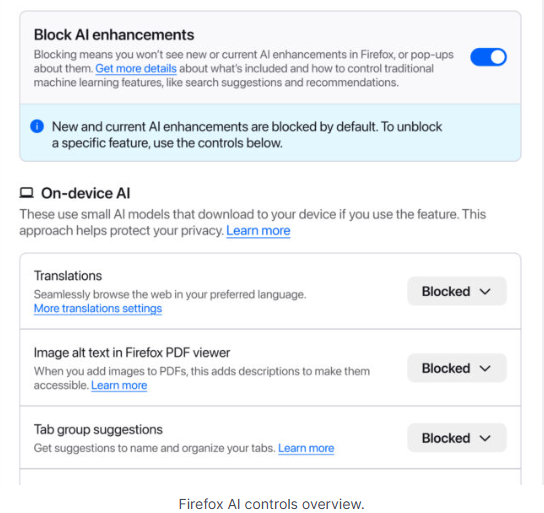
Mozilla is adding an AI Controls area to Firefox settings that centralizes the management of all generative AI features. This consists mainly of a master switch, “Block AI enhancements,” which lets users effectively run Firefox “without AI.” It blocks existing and future generative AI features and hides pop‑ups or prompts advertising them.

Once you set your AI preferences in Firefox, they stay in place across updates. You can also change them whenever you want.

Starting with Firefox 148, which rolls out on February 24, you’ll find a new AI controls section within the desktop browser settings.

Firefox AI choices
Image courtesy of Mozilla

You can turn everything off with one click or take a more granular approach. At launch, these features can be controlled individually:

  • Translations, which help you browse the web in your preferred language.
  • Alt text in PDFs, which add accessibility descriptions to images in PDF pages.
  • AI-enhanced tab grouping, which suggests related tabs and group names.
  • Link previews, which show key points before you open a link.
  • An AI chatbot in the sidebar, which lets you use your chosen chatbot as you browse, including options like Anthropic Claude, ChatGPT, Microsoft Copilot, Google Gemini and Le Chat Mistral.

We applaud this move to give more control to the users. Other companies have done the same, including Mozilla’s competitor DuckDuckGo, which made AI optional after putting the decision to a user vote. Earlier, browser developer Vivaldi took a stand against incorporating AI altogether.

Open-source email service Tuta also decided not to integrate AI features. After only 3% of Tuta users requested them, Tuta removed an AI copilot from its development roadmap.

Even Microsoft seems to have recoiled from pushing AI to everyone, although so far it has focused on walking back defaults and tightening per‑feature controls rather than offering a single, global off switch.

Choices

Many people are happy to use AI features, and as long as you’re aware of the risks and the pitfalls, that’s fine. But pushing these features on users who don’t want them is likely to backfire on software publishers.

Which is only right. After all, you’re paying the bill, so you should have a choice. Before installing a new browser, inform yourself not only about its privacy policy, but also about what control you’ll have over AI features.

Looking at recent voting results, I think it’s safe to say that in the AI gold rush, the real premium feature isn’t a chatbot button—it’s the off switch.


We don’t just report on privacy—we offer you the option to use it.

Privacy risks should never spread beyond a headline. Keep your online privacy yours by using Malwarebytes Privacy VPN.

Fake extension crashes browsers to trick users into infecting themselves

20 January 2026 at 15:40

Researchers have found another method used in the spirit of ClickFix: CrashFix.

ClickFix campaigns use convincing lures—historically “Human Verification” screens—to trick the user into pasting a command from the clipboard. After fake Windows update screens, video tutorials for Mac users, and many other variants, attackers have now introduced a browser extension that crashes your browser on purpose.

Researchers found a rip-off of a well-known ad blocker and managed to get it into the official Chrome Web Store under the name “NexShield – Advanced Web Protection.” Strictly speaking, crashing the browser does provide some level of protection, but it’s not what users are typically looking for.

If users install the browser extension, it phones home to nexsnield[.]com (note the misspelling) to track installs, updates, and uninstalls. The extension uses Chrome’s built-in Alarms API (application programming interface) to wait 60 minutes before starting its malicious behavior. This delay makes it less likely that users will immediately connect the dots between the installation and the following crash.

After that pause, the extension starts a denial-of-service loop that repeatedly opens chrome.runtime port connections, exhausting the device’s resources until the browser becomes unresponsive and crashes.

After restarting the browser, users see a pop-up telling them the browser stopped abnormally—which is true but not unexpected— and offering instructions on how to prevent it from happening in the future.

It presents the user with the now classic instructions to open Win+R, press Ctrl+V, and hit Enter to “fix” the problem. This is the typical ClickFix behavior. The extension has already placed a malicious PowerShell or cmd command on the clipboard. By following the instructions, the user executes that malicious command and effetively infects their own computer.

Based on fingerprinting checks to see whether the device is domain-joined, there are currently two possible outcomes.

If the machine is joined to a domain, it is treated as a corporate device and infected with a Python remote access trojan (RAT) dubbed ModeloRAT. On non-domain-joined machines, the payload is currently unknown as the researchers received only a “TEST PAYLOAD!!!!” response. This could imply ongoing development or other fingerprinting which made the test machine unsuitable.

How to stay safe

The extension was no longer available in the Chrome Web Store at the time of writing, but it will undoubtedly resurface with an other name. So here are a few tips to stay safe:

  • If you’re looking for an ad blocker or other useful browser extensions, make sure you are installing the real deal. Cybercriminals love to impersonate trusted software.
  • Never run code or commands copied from websites, emails, or messages unless you trust the source and understand the action’s purpose. Verify instructions independently. If a website tells you to execute a command or perform a technical action, check through official documentation or contact support before proceeding.
  • Secure your devices. Use an up-to-date real-time anti-malware solution with a web protection component.
  • Educate yourself on evolving attack techniques. Understanding that attacks may come from unexpected vectors and evolve helps maintain vigilance. Keep reading our blog!

Pro tip: the free Malwarebytes Browser Guard extension is a very effective ad blocker and protects you from malicious websites. It also warns you when a website copies something to your clipboard and adds a small snippet to render any commands useless.


We don’t just report on threats—we remove them

Cybersecurity risks should never spread beyond a headline. Keep threats off your devices by downloading Malwarebytes today.

❌