Normal view

File integrity monitoring with AWS Systems Manager and Amazon Security Lake 

27 January 2026 at 19:21

Customers need solutions to track inventory data such as files and software across Amazon Elastic Compute Cloud (Amazon EC2) instances, detect unauthorized changes, and integrate alerts into their existing security workflows.

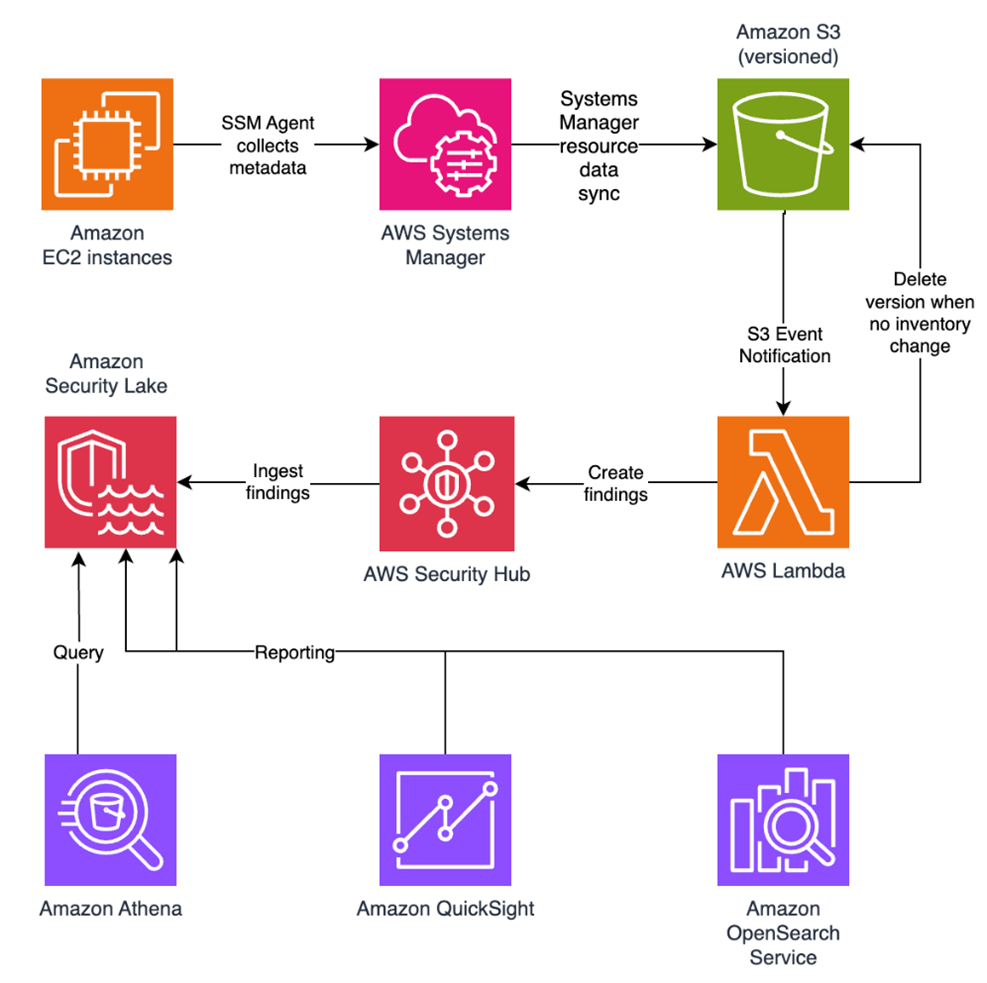
In this blog post, I walk you through a highly scalable serverless file integrity monitoring solution. It uses AWS Systems Manager Inventory to collect file metadata from Amazon EC2 instances. The metadata is sent through the Systems Manager Resource Data Sync feature to a versioned Amazon Simple Storage Service (Amazon S3) bucket, storing one inventory object for each EC2 instance. Each time a new object is created in Amazon S3, an Amazon S3 Event Notification triggers a custom AWS Lambda function. This Lambda function compares the latest inventory version with the previous one to detect file changes. If a file that isn’t expected to change has been created, modified, or deleted, the function creates an actionable finding in AWS Security Hub. Findings are then ingested by Amazon Security Lake in a standard OCSF format, which centralizes and normalizes the data. Finally, the data can be analyzed using Amazon Athena for one-time queries, or by building visual dashboards with Amazon QuickSight and Amazon OpenSearch Service. Figure 1 summarizes this flow:

Figure 1: File integrity monitoring workflow

Figure 1: File integrity monitoring workflow

This integration offers an alternative to the default AWS Config and Security Hub integration, which relies on limited data (for example, no file modification timestamps). The solution presented in this post provides control and flexibility to implement custom logic tailored to your operational needs and support security-related efforts.

This flexible solution can also be used with other Systems Manager Inventory metadata, such as installed applications, network configurations, or Windows registry entries, enabling custom detection logic across a wide range of operational and security use cases.

Now let’s build the file integrity monitoring solution.

Prerequisites

Before you get started, you need an AWS account with permissions to create and manage AWS resources such as Amazon EC2, AWS Systems Manager, Amazon S3, and Lambda.

Step 1: Start an EC2 instance

Start by launching an EC2 instance and creating a file that you will later modify to simulate an unauthorized change.

Create an AWS Identity and Access Management (IAM) role to allow the EC2 instance to communicate with Systems Manager:

  1. Open the AWS Management Console and go to IAM, choose Roles from the navigation pane, and then choose Create role.
  2. Under Trusted entity type, select AWS service, select EC2 as the use case, and choose Next.
  3. On the Add permissions page, search for and select the AmazonSSMManagedInstanceCore IAM policy, then choose Next.
  4. Enter SSMAccessRole as the role name and choose Create role.
  5. The new SSMAccessRole should now appear in your list of IAM roles:
Figure 2: Create an IAM role for communication with Systems Manager

Figure 2: Create an IAM role for communication with Systems Manager

Start an EC2 instance:

  1. Open the Amazon EC2 console and choose Launch Instance.
  2. Enter a Name, keep the default Linux Amazon Machine Image (AMI), and select an Instance type (for example, t3.micro).
  3. Under Advanced details:
    1. IAM instance profile, select the previously created SSMAccessRole
    2. Create a fictitious payment application configuration file in the /etc/paymentapp/ folder on the EC2 instance. Later, you will modify it to demonstrate a file-change event for integrity monitoring. To create this file during EC2 startup, copy and paste the following script into User data.
#!/bin/bash
mkdir -p /etc/paymentapp
echo "db_password=initial123" > /etc/paymentapp/config.yaml
Figure 3: Adding the application configuration file

Figure 3: Adding the application configuration file

  1. Leave the remaining settings as default, choose Proceed without key pair, and then select Launch Instance. A key pair isn’t required for this demo because you use Session Manager for access.

Step 2: Enable Security Hub and Security Lake

If Security Hub and Security Lake are already enabled, you can skip to Step 3.
To start, enable Security Hub, which collects and aggregates security findings. AWS Security Hub CSPM adds continuous monitoring and automated checks against best practices.

  1. Open the Security Hub console.
  2. Choose Security Hub CSPM from the navigation pane and then select Enable AWS Security Hub CSPM and choose Enable Security Hub CSPM at the bottom of the page.

Note: For this demo, you don’t need the Security standards options and can clear them.

Figure 4: Enable Security Hub CSP

Figure 4: Enable Security Hub CSP

Next, activate Security Lake to start collecting actionable findings from Security Hub:

  1. Open the Amazon Security Lake console and choose Get Started.
  2. Under Data sources, select Ingest specific AWS sources.
  3. Under Log and event sources, select Security Hub (you will use this only for this demo):
Figure 5: Select log and event sources

Figure 5: Select log and event sources

  1. Under Select Regions, choose Specific Regions and make sure you select the AWS Region that you’re using.
  2. Use the default option to Create and use a new service role.
  3. Choose Next and Next again, then choose Create.

Step 3: Configure Systems Manager Inventory and sync to Amazon S3

With Security Hub and Security Lake enabled, the next step is to enable Systems Manager Inventory to collect file metadata and configure a Resource Data Sync to export this data to S3 for analysis.

  1. Create an S3 bucket by carefully following the instructions in the section To create and configure an Amazon S3 bucket for resource data sync.
  2. After you created the bucket, enable versioning in the Amazon S3 console by opening the bucket’s Properties tab, choosing Edit under Bucket Versioning, selecting Enable, and saving your changes. Versioning causes each new inventory snapshot to be saved as a separate version, so that you can track file changes over time.

Note: In production, enable S3 server access logging on the inventory bucket to keep an audit trail of access requests, enforce HTTPS-only access, and enable CloudTrail data events for S3 to record who accessed or modified inventory files.

The next step is to enable Systems Manager Inventory and set up the resource data sync:

  1. In the Systems Manager console, go to Fleet Manager, choose Account management, and select Set up inventory.
  2. Keep the default values but deselect every inventory type except File. Set a Path to limit collection to the files relevant for this demo and your security requirements. Under File, set the Path to: /etc/paymentapp/.
Figure 6: Set the parameters and path

Figure 6: Set the parameters and path

  1. Choose Setup Inventory.
  2. In Fleet Manager, choose Account management and select Resource Data Syncs.
  3. Choose Create resource data sync, enter a Sync name, and enter the name of the versioned S3 bucket you created earlier.
  4. Select This Region and then choose Create.

Step 4: Implement the Lambda function

Next, complete the setup to detect changes and create findings. Each time Systems Manager Inventory writes a new object to Amazon S3, an S3 Event Notification triggers a Lambda function that compares the latest and previous object versions. If it finds created, modified, or deleted files, it creates a security finding. To accomplish this, you will create the Lambda function, set its environment variables, add the helper layer, and attach the required permissions.

The following is an example finding generated in AWS Security Finding Format (ASFF) and sent to Security Hub. In this example, you see a notification about a file change on the EC2 instance listed under the Resources section.

{
	...
"Id": "fim-i-0b8f40f4de065deba-2025-07-12T13:48:31.741Z",
	"AwsAccountId": "XXXXXXXXXXXX",
	"Types": [
		"Software and Configuration Checks/File Integrity Monitoring"
	],
	"Severity": {
		"Label": "MEDIUM"
	},
	"Title": "File changes detected via SSM Inventory",
	"Description": "0 created, 1 modified, 0 deleted file(s) on instance i-0b8f40f4de065deba",
	"Resources": [
		{
			"Type": "AwsEc2Instance",
			"Id": "i-0b8f40f4de065deba"
		}
	],
	...
}

Create the Lambda function

This function detects file changes, reports findings, and removes unused Amazon S3 object versions to reduce costs.

  1. Open the Lambda console and choose Create function in the navigation pane.
  2. For Function Name enter fim-change-detector.
  3. Select Author from scratch, enter a function name, select the latest Python runtime, and choose Create function.
  4. On the Code tab, paste the following main function and choose Deploy.
import boto3, os, json, re
from datetime import datetime, UTC
from urllib.parse import unquote_plus
from helpers import is_critical, load_file_metadata, is_modified, extract_instance_id

s3 = boto3.client('s3')
securityhub = boto3.client('securityhub')

CRITICAL_FILE_PATTERNS = os.environ["CRITICAL_FILE_PATTERNS"].split(",")
SEVERITY_LABEL = os.environ["SEVERITY_LABEL"]
	
def lambda_handler(event, context):
	# Safe event handling
	if "Records" not in event or not event["Records"]:
		return

	# Extract S3 event
	record = event['Records'][0]
	bucket = record['s3']['bucket']['name']
	key = unquote_plus(record['s3']['object']['key'])
	current_version = record['s3']['object'].get('versionId')
	if not current_version:
		return

	# Fetching the region name
	account_id = context.invoked_function_arn.split(":")[4]
	region = boto3.session.Session().region_name

	# Get object versions (latest first)
	versions = s3.list_object_versions(Bucket=bucket, Prefix=key).get('Versions', [])
	versions = sorted(versions, key=lambda v: v['LastModified'], reverse=True)

	# Find previous version
	idx = next((i for i,v in enumerate(versions) if v["VersionId"] == current_version), None)
	if idx is None or idx + 1 >= len(versions):
		return
	prev_version = versions[idx+1]["VersionId"]

	# Load both versions
	current = load_file_metadata(bucket, key, current_version)
	previous = load_file_metadata(bucket, key, prev_version)

	# Compare
	created = {p for p in set(current) - set(previous) if is_critical(p)}
	deleted = {p for p in set(previous) - set(current) if is_critical(p)}
	modified = {p for p in set(current) & set(previous) if is_critical(p) and is_modified(p, current, previous)}

	# Report if changes were found
	if created or deleted or modified:
		instance_id = extract_instance_id(bucket, key, current_version)
		now = datetime.now(UTC).isoformat(timespec='milliseconds').replace('+00:00', 'Z')
		finding = {
			"SchemaVersion": "2018-10-08",
			"Id": f"fim-{instance_id}-{now}",
			"ProductArn": f"arn:aws:securityhub:{region}:{account_id}:product/{account_id}/default",
			"AwsAccountId": account_id,
			"GeneratorId": "ssm-inventory-fim",
			"CreatedAt": now,
			"UpdatedAt": now,
			"Types": ["Software and Configuration Checks/File Integrity Monitoring"],
			"Severity": {"Label": SEVERITY_LABEL},
			"Title": "File changes detected via SSM Inventory",
			"Description": (
				f"{len(created)} created, {len(modified)} modified, "
				f"{len(deleted)} deleted file(s) on instance {instance_id}"
			),
			"Resources": [{"Type": "AwsEc2Instance", "Id": instance_id}]
		}
		securityhub.batch_import_findings(Findings=[finding])

	# No change – delete older S3 version
	else:
		if prev_version != current_version:
			try:
				s3.delete_object(Bucket=bucket, Key=key, VersionId=prev_version)
			except Exception as e:
				print(f"Delete previous S3 object version failed: {e}")

Note: In production, set Lambda reserved concurrency to prevent unbounded scaling, configure a dead letter queue (DLQ) to capture failed invocations, and optionally attach the function to an Amazon VPC for network isolation.

Configure environment variables

Configure the two required environment variables in the Lambda console. These two variables (one for critical paths to monitor and one for security finding severity) must be set or the function will fail.

  1. Open the Lambda console and choose Configuration and then select Environment variables.
  2. Choose Edit and then choose Add environment variable.
  3. Under Key, choose CRITICAL_FILE_PATTERNS
    1. Enter ^/etc/paymentapp/config.*$ as the value.
    2. Set the SEVERITY_LABEL to MEDIUM.
Figure 7: CRITICAL_FILE_PATTERNS and SEVERITY_LABEL configuration

Figure 7: CRITICAL_FILE_PATTERNS and SEVERITY_LABEL configuration

Set up permissions

The next step is to attach permissions to the Lambda function

  1. In your Lambda function, choose Configuration and then select Permissions.
  2. Under Execution role, select the role name that will lead to the role in IAM.
  3. Choose Add permissions and select Create inline policy. Select JSON view.
  4. Paste the following policy, and make sure to replace <bucket-name> with the name of your S3 bucket, and you also update <region> and <account-id> with your AWS Region and Account ID:
{
"Version": "2012-10-17",
"Statement": [
	{
		"Effect": "Allow",
		"Action": "securityhub:BatchImportFindings",
		"Resource": "arn:aws:securityhub:<region>:<account-id>:product/<account-id>/default"
	},
	{
		"Effect": "Allow",
		"Action": [
			"s3:GetObject",
			"s3:GetObjectVersion",
			"s3:ListBucketVersions",
			"s3:DeleteObjectVersion"
		],
		"Resource": [
			"arn:aws:s3:::<bucket-name>",
			"arn:aws:s3:::<bucket-name>/*"
			]
		}
	]
}
  1. To finalize, enter a Policy name and choose Create policy.

Add functions to the Lambda layer

For better modularity, add some helper functions to a Lambda layer. These functions are already referenced in the import section of the preceding Lambda function’s Python code. The helper functions check critical paths, load file metadata, compare modification times, and extract the EC2 instance ID.

Open AWS CloudShell from the top-right corner of the AWS console header, then copy and paste the following script and press Enter. It creates the helper layer and attaches it to your Lambda function.

#!/bin/bash
set -e
FUNCTION_NAME="fim-change-detector"
LAYER_NAME="fim-change-detector-layer"

mkdir -p python
cat > python/helpers.py << 'EOF'
import json, re, os
from dateutil.parser import parse as parse_dt
import boto3
s3 = boto3.client('s3')
CRITICAL_FILE_PATTERNS = os.environ.get("CRITICAL_FILE_PATTERNS", "").split(",")

def is_critical(path):
	return any(re.match(p.strip(), path) for p in CRITICAL_FILE_PATTERNS if p.strip())

def load_file_metadata(bucket, key, version_id):
	obj = s3.get_object(Bucket=bucket, Key=key, VersionId=version_id)
	data = {}
	for line in obj['Body'].read().decode().splitlines():
		if line.strip():
			i = json.loads(line)
			n, d, m = i.get("Name","").strip(), i.get("InstalledDir","").strip(), i.get("ModificationTime","").strip()
			if n and d and m: data[f"{d.rstrip('/')}/{n}"] = m
	return data

def is_modified(path, current, previous):
	try: return parse_dt(current[path]) != parse_dt(previous[path])
	except: return current[path] != previous[path]

def extract_instance_id(bucket, key, version_id):
	obj = s3.get_object(Bucket=bucket, Key=key, VersionId=version_id)
	for line in obj['Body'].read().decode().splitlines():
		if line.strip():
			r = json.loads(line)
			if "resourceId" in r: return r["resourceId"]
	return None
EOF

zip -r helpers_layer.zip python >/dev/null
LAYER_VERSION_ARN=$(aws lambda publish-layer-version \
	--layer-name "$LAYER_NAME" \
	--description "Helper functions for File Integrity Monitoring" \
	--zip-file fileb://helpers_layer.zip \
	--compatible-runtimes python3.13 \
	--query 'LayerVersionArn' \
	--output text)

aws lambda update-function-configuration \
	--function-name "$FUNCTION_NAME" \
	--layers "$LAYER_VERSION_ARN" >/dev/null
echo "Layer created and attached to the Lambda function."

Step 5: Set up S3 Event Notifications

Finally, set up S3 Event Notifications to trigger the Lambda function when new inventory data arrives.

  1. Open the S3 console and select the Systems Manager Inventory bucket that you created.
  2. Choose Properties and select Event notifications.
  3. Choose Create event notification.
    1. Enter an Event name.
    2. In the Prefix field, enter AWS%3AFile/ to limit Lambda triggers to file inventory objects only.
      Note: The prefix contains a : character, which must be URL-encoded as %3A.
    3. Under Event types, select Put.
    4. At the bottom, select your newly created Lambda function, and choose Save changes.

In this example, inventory collection runs every 30 minutes (48 times each day) but can be adjusted based on security requirements to optimize costs. The Lambda function is triggered once for each instance whenever a new inventory object is created. You can further reduce event volume by filtering EC2 instances through S3 Event Notification prefixes, enabling focused monitoring of high-value instances.

Step 6: Test the file change detection flow

Now that the EC2 instance is running and the sample configuration file /etc/paymentapp/config.yaml has been initialized, you’re ready to simulate an unauthorized change to test the file integrity monitoring setup.

  1. Open the Systems Manager console.
  2. Go to Session Manager and choose Start session.
  3. Select your EC2 instance and choose Start Session.
  4. Run the following command to modify the file:

echo “db_password=hacked456" | sudo tee /etc/paymentapp/config.yaml

This simulates a configuration tampering event. During the next Systems Manager Inventory run, the updated metadata will be saved to Amazon S3.

To manually trigger this:

  1. Open the Systems Manager console and choose State Manager.
  2. Select your association and choose Apply association now to start the inventory update.
  3. After the association status changes to Success, check your SSM Inventory S3 bucket in the AWS:File folder and review the inventory object and its versions.
  4. Open the Security Hub console and choose Findings. After a short delay, you should see a new finding like the one shown in Figure 8:
Figure 8: View file change findings

Figure 8: View file change findings

Step 7: Query and visualize findings

While Security Hub provides a centralized view of findings, you can deepen your analysis using Amazon Athena to run SQL queries directly on the normalized Security Lake data in Amazon S3. This data follows the Open Cybersecurity Schema Framework (OCSF), which is a vendor-neutral standard that simplifies integration and analysis of security data across different tools and services.

The following is an example Athena query:

SELECT
	finding_info.desc AS description,
	class_uid AS class_id,
	severity AS severity_label,
	type_name AS finding_type,
	time_dt AS event_time,
	region,
	accountid
FROM amazon_security_lake_table_us_east_1_sh_findings_2_0

Note: Be sure to adjust the FROM clause for other Regions. Security Lake processes findings before they appear in Athena, so expect a short delay between ingestion and data availability.
You will see a similar result for the preceding query, shown in Figure 9:

Figure 9: Athena query result in the Amazon Athena query editor

Figure 9: Athena query result in the Amazon Athena query editor

Security Lake classifies this finding as an OCSF 2004 Class, Detection Finding. You can explore the full schema definitions at OCSF Categories. For more query examples, see the Security Lake query examples.
For visual exploration and real-time insights, you can integrate Security Lake with OpenSearch Service and QuickSight, both of which now offer extensive generative AI support. For a guided walkthrough using QuickSight, see How to visualize Amazon Security Lake findings with Amazon QuickSight.

Clean up

After testing the step-by-step guide, make sure to clean up the resources you created for this post to avoid ongoing costs.

  1. Terminate the EC2 instance
  2. Delete the Resource Data Sync and Inventory Association
  3. Remove the Lambda function.
  4. Disable Security Lake and Security Hub CSPM
  5. Delete IAM roles created for this post
  6. Delete the associated SSM Resource Data Sync and Security Lake S3 buckets.

Conclusion

In this post, you learned how to use Systems Manager Inventory to track file integrity, report findings to Security Hub, and analyze them using Security Lake.
You can access the full sample code to set up this solution in the AWS Samples repository.
While this post uses a single-account, single-Region setup for simplicity, Security Lake supports collecting data across multiple accounts and Regions using AWS Organizations. You can also use a Systems Manager resource data sync to send inventory data to a central S3 bucket.

Getting Started with Amazon Security Lake and Systems Manager Inventory provides guidance for enabling scalable, cloud-centric monitoring with full operational context.

Adam Nemeth Adam Nemeth
Adam is a Senior Solutions Architect and generative AI enthusiast at AWS, helping financial services customers by embracing the Day 1 culture and customer obsession of Amazon. With over 24 years of IT experience, Adam previously worked at UBS as an architect and has also served as a delivery lead, consultant, and entrepreneur. He lives in Switzerland with his wife and their three children.

Streamline security response at scale with AWS Security Hub automation

13 January 2026 at 18:45

A new version of AWS Security Hub, is now generally available, introducing new ways for organizations to manage and respond to security findings. The enhanced Security Hub helps you improve your organization’s security posture and simplify cloud security operations by centralizing security management across your Amazon Web Services (AWS) environment. The new Security Hub transforms how organizations handle security findings through advanced automation capabilities with real-time risk analytics, automated correlation, and enriched context that you can use to prioritize critical issues and reduce response times. Automation also helps ensure consistent response procedures and helps you meet compliance requirements.

AWS Security Hub CSPM (cloud security posture management) is now an integral part of the detection engines for Security Hub. Security Hub provides centralized visibility across multiple AWS security services to give you a unified view of your cloud environment, including risk-based prioritization views, attack path visualization, and trend analytics that help you understand security patterns over time.

This is the third post in our series on the new Security Hub capabilities. In our first post, we discussed how Security Hub unifies findings across AWS services to streamline risk management. In the second post, we shared the steps to conduct a successful Security Hub proof of concept (PoC).

In this post, we explore how you can enhance your security operations using AWS Security Hub automation rules and response automation.

We walk through the setup and configuration of automation rules, share best practices for creating effective response workflows, and provide real-world examples of how these tools can be used to automate remediation, escalate high-severity findings, and support compliance requirements.

Security Hub automation enables automatic response to security findings to help ensure critical findings reach the right teams quickly, so that they can reduce manual effort and response time for common security incidents while maintaining consistent remediation processes.

Note: Automation rules evaluate new and updated findings that Security Hub generates or ingests after you create them, not historical findings. These automation capabilities help ensure critical findings reach the right teams quickly.

Why automation matters in cloud security

Organizations often operate across hundreds of AWS accounts, multiple AWS Regions, and diverse services—each producing findings that must be triaged, investigated, and acted upon. Without automation, security teams face high volumes of alerts, duplication of effort, and the risk of delayed responses to critical issues.

Manual processes can’t keep pace with cloud operations; automation helps solve this by changing your security operations in three ways. Automation filters and prioritizes findings based on your criteria, showing your team only relevant alerts. When issues are detected, automated responses trigger immediately—no manual intervention needed.

If you’re managing multiple AWS accounts, automation applies consistent policies and workflows across your environment through centralized management, shifting your security team from chasing alerts to proactively managing risk before issues escalate.

Designing routing strategies for security findings

With Security Hub configured, you’re ready to design a routing strategy for your findings and notifications. When designing your routing strategy, ask whether your existing Security Hub configuration meets your security requirements. Consider whether Security Hub automations can help you meet security framework requirements like NIST 800-53 and identify KPIs and metrics to measure whether your routing strategy works.

Security Hub automation rules and automated responses can help you meet the preceding requirements, however it’s important to understand how your compliance teams, incident responders, security operations personnel, and other security stakeholders operate on a day-to-day basis. For example, do teams use the AWS Management Console for AWS Security Hub regularly? Or do you need to send most findings downstream to an IT systems management (ITSM) tool (such as Jira or ServiceNow) or third-party security orchestration, automation, and response (SOAR) platforms for incident tracking, workflow management, and remediation?

Next, create and maintain an inventory of critical applications. This helps you adjust finding severity based on business context and your incident response playbooks.

Consider the scenario where Security Hub identifies a medium-severity vulnerability on an Elastic Compute Cloud instance. In isolation, this might not trigger immediate action. When you add business context—such as strategic objectives or business criticality—you might discover that this instance hosts a critical payment processing application, revealing the true risk. By implementing Security Hub automation rules with enriched context, this finding can be upgraded to critical severity and automatically routed to ServiceNow for immediate tracking. In addition, by using Security Hub automation with Amazon EventBridge, you can trigger an AWS Systems Manager Automation document to isolate the EC2 instance for security forensics work to then be carried out.

Because Security Hub offers OCSF format and schema, you can use the extensive schema elements that OCSF offers you to target findings for automation and help your organization meet security strategy requirements.

Example use cases

Security Hub automation supports many use cases. Talk with your teams to understand which fit your needs and security objectives. The following are some examples of how you can use security hub automation:

Automated finding remediation

Use automated finding remediation to automatically fix security issues as they’re detected.

Supporting patterns:

  • Direct remediation: Trigger AWS Lambda functions to fix misconfigurations
  • Resource tagging: Add tags to non-compliant resources for tracking
  • Configuration correction: Update resource configurations to match security policies
  • Permission adjustment: Modify AWS Identity and Access Management (IAM) policies to remove excessive permissions

Example:

  • IF finding.type = “Software and Configuration Checks/Industry and Regulatory Standards/CIS AWS Foundations Benchmark”
  • AND finding.title CONTAINS “S3 buckets should have server-side encryption enabled”
  • THEN invoke Lambda function “enable-s3-encryption”

Security finding workflow integration

Integrate findings into your workflow by routing them to the appropriate teams and systems.

Supporting patterns:

  • Ticket creation: Generate JIRA or ServiceNow tickets for manual review
  • Team assignment: Route findings to specific teams based on resource ownership
  • Severity-based routing: Direct critical findings to incident response, others to regular queues
  • Compliance tracking: Send compliance-related findings to GRC systems

Example:

  • IF finding.severity = “CRITICAL” AND finding.productName = “Amazon GuardDuty”
  • THEN send to SNS topic “security-incident-response-team”
  • ELSE IF finding.productFields.resourceOwner = “payments-team”
  • THEN send to SNS topic “payments-security-review”

Automated finding enrichment

Use finding enrichment to add context to findings to improve triage efficiency.

Supporting patterns:

  • Resource context addition: Add business context, owner information, and data classification
  • Historical analysis: Add information about previous similar findings
  • Risk scoring: Calculate custom risk scores based on asset value and threat context
  • Vulnerability correlation: Link findings to known Common Vulnerabilities and Exposures (CVEs) or threat intelligence

Example:

  • IF finding.type CONTAINS “Vulnerability/CVE”
  • THEN invoke Lambda function “enrich-with-threat-intelligence”

Custom security controls

Use custom security controls to meet organization-specific security requirements.

Supporting patterns:

  • Custom policy enforcement: Check for compliance with internal standards
  • Business-specific rules: Apply rules based on business unit or application type
  • Compensating controls: Implement alternatives when primary controls can’t be applied
  • Temporary exceptions: Handle approved deviations from security standards

Example:

  • IF finding.resourceType = “AWS::EC2::Instance” AND
    • finding.resourceTags.Environment = “Production” AND
    • finding.title CONTAINS “vulnerable software version”
  • THEN invoke Lambda function “enforce-patching-policy”

Compliance reporting and evidence collection

Streamline compliance documentation and evidence gathering.

Supporting patterns:

  • Evidence capture: Store compliance evidence in designated S3 buckets
  • Audit trail creation: Document remediation actions for auditors
  • Compliance dashboarding: Update compliance status metrics
  • Regulatory mapping: Tag findings with relevant compliance frameworks

Example:

  • IF finding.complianceStandards CONTAINS “PCI-DSS”
  • THEN invoke Lambda function “capture-pci-compliance-evidence”
  • AND send to SNS topic “compliance-team-notifications”

Set up Security Hub automation

In this section, you’ll walk through enabling up Security Hub and related services and creating automation rules.

Step 1: Enable Security Hub and integrated services

As the first step, follow the instructions in Enable Security Hub.

Note: Security Hub is powered by Amazon GuardDuty, Amazon Inspector, AWS Security Hub CSPM, and Amazon Macie, and these services also need to be enabled to get value from Security Hub.

Step 2: Create automation rules to update finding details and third-party integration

After Security Hub collects findings you can create automation rules to update and route the findings to the appropriate teams. The steps to create automation rules that update finding details or to a set up a third-party integration—such as Jira or ServiceNow—based on criteria you define can be found in Creating automation rules in Security Hub.

With automation rules, Security Hub evaluates findings against the defined rule and then makes the appropriate finding update or calls the APIs to send findings to Jira or ServiceNow. Security Hub sends a copy of every finding to Amazon EventBridge so that you can also implement your own automated response (if needed) for use cases outside of using Security Hub automation rules.

In addition to sending a copy of every finding to EventBridge, Security Hub classifies and enriches security findings according to business context, then delivers them to the appropriate downstream services (such as ITSM tools) for fast response.

Best practices

AWS Security Hub automation rules offer capabilities for automatically updating findings and integrating with other tools. When implementing automation rules, follow these best practices:

  • Centralized management: Only the Security Hub administrator account can create, edit, delete, and view automation rules. Ensure proper access control and management of this account.
  • Regional deployment: Automation rules can be created in one AWS Region and then applied across configured Regions. When using Region aggregation, you can only create rules in the home Region. If you create an automation rule in an aggregation Region, it will be applied in all included Regions. If you create an automation rule in a non-linked Region, it will be applied only in that Region. For more information, see Creating automation rules in Security Hub.
  • Define specific criteria: Clearly define the criteria that findings must match for the automation rule to apply. This can include finding attributes, severity levels, resource types, or member account IDs.
  • Understand rule order: Rule order matters when multiple rules apply to the same finding or finding field. Security Hub applies rules with a lower numerical value first. If multiple findings have the same RuleOrder, Security Hub applies a rule with an earlier value for the UpdatedAt field first (that is, the rule which was most recently edited applies last). For more information, see Updating the rule order in Security Hub.
  • Provide clear descriptions: Include a detailed rule description to provide context for responders and resource owners, explaining the rule’s purpose and expected actions.
  • Use automation for efficiency: Use automation rules to automatically update finding fields (such as severity and workflow status), suppress low-priority findings, or create tickets in third-party tools such as Jira or ServiceNow for findings matching specific attributes.
  • Consider EventBridge for external actions: While automation rules handle internal Security Hub finding updates, use EventBridge rules to trigger actions outside of Security Hub, such as invoking Lambda functions or sending notifications to Amazon Simple Notification Service (Amazon SNS) topics based on specific findings. Automation rules take effect before EventBridge rules are applied. For more information, see Automation rules in EventBridge.
  • Manage rule limits: This is a maximum limit of 100 automation rules per administrator account. Plan your rule creation strategically to stay within this limit.
  • Regularly review and refine: Periodically review automation rules, especially suppression rules, to ensure they remain relevant and effective, adjusting them as your security posture evolves.

Conclusion

You can use Security Hub automation to triage, route, and respond to findings faster through a unified cloud security solution with centralized management. In this post, you learned how to create automation rules that route findings to ticketing systems integrations and upgrade critical findings for immediate response. Through the intuitive and flexible approach to automation that Security Hub provides, your security teams can make confident, data-driven decisions about Security Hub findings that align with your organization’s overall security strategy.

With Security Hub automation features, you can centrally manage security across hundreds of accounts while your teams focus on critical issues that matter most to your business. By implementing the automation capabilities described in this post, you can streamline response times at scale, reduce manual effort, and improve your overall security posture through consistent, automated workflows.

If you have feedback about this post, submit comments in the Comments section. If you have questions about this post, start a new thread on AWS Security, Identity, and Compliance re:Post or contact AWS Support.
 

Ahmed Adekunle Ahmed Adekunle
Ahmed is a Security Specialist Solutions Architect focused on detection and response services at AWS. Before AWS, his background was in business process management and AWS technology consulting, helping customers use cloud technology to transform their business. Outside of work, Ahmed enjoys playing soccer, supporting less privileged activities, traveling, and eating spicy food, specifically African cuisine.
Alex Wadell Alex Waddell
Alex is a Senior Security Specialist Solutions Architect at AWS based in Scotland. Alex provides security architectural guidance and operational best practices to customers of all sizes, helping them implement AWS security services. When not working, Alex enjoys spending time sampling rum from around the world, walking his dogs in the local forest trails, and traveling.
Kyle Shields Kyle Shields
Kyle is a WW Security Specialist Solutions Architect at AWS focused on threat detection and incident response. With over 10 years in cybersecurity and more than 20 years of Army service, he helps customers build effective incident response capabilities while implementing information and cyber security best practices.

Security Hub CSPM automation rule migration to Security Hub

17 December 2025 at 22:06

A new version of AWS Security Hub is now generally available with new capabilities to aggregate, correlate, and contextualize your security alerts across Amazon Web Services (AWS) accounts. The prior version is now known as AWS Security Hub CSPM and will continue to be available as a unique service focused on cloud security posture management and finding aggregation.

One capability available in both services is automation rules. In both Security Hub and Security Hub CSPM, you can use automation rules to automatically update finding fields when the criteria they define are met. In Security Hub, automation rules can be used to send findings to third-party platforms for operational response. Many existing Security Hub CSPM users have automation rules for tasks such as elevating the severity of a finding because it affects a production resource or adding a comment to assist in remediation workflows. While both services offer similar automation rule functionality, rules aren’t synchronized across the two services. If you are an existing Security Hub CSPM customer looking to adopt the new Security Hub, you might be interested in migrating the automation rules that have already been built. This helps keep your automation rules processing close to where you’re reviewing findings. As of publication, this capability is included in the cost of the Security Hub essentials plan. For current pricing details, refer to the Security Hub pricing page.

This post provides a solution to automatically migrate automation rules from Security Hub CSPM to Security Hub, helping you maintain your security automation workflows while taking advantage of the new Security Hub features. If you aren’t currently using automation rules and want to get started, see Automation rules in Security Hub.

Automation rule migration challenge

Security Hub CSPM uses the AWS Security Finding Format (ASFF) as the schema for its findings. This schema is fundamental to how automation rules are applied to findings as they are generated. Automation rules begin by defining one or more criteria and then selecting one or more actions that will be applied when the specified criteria are met. Each criterion specifies an ASFF field, an operator (such as equals or contains), and a value. Actions then update one or more ASFF fields.

The new version of Security Hub uses the Open Cybersecurity Schema Framework (OCSF), a widely adopted open-source schema supported by AWS and partners in the cybersecurity industry. Security Hub automation rules structurally work the same way as Security Hub CSPM rules. However, the underlying schema change means existing automation rules require transformation.

The solution provided in this post automatically discovers Security Hub CSPM automation rules, transforms them into the OCSF schema, and creates an AWS CloudFormation template that you can use to deploy them to your AWS account running the new version of Security Hub. Because of inherent differences between the ASFF and OCSF schemas, some rules can’t be automatically migrated, while others might require manual review after migration.

The following table show the current mapping between ASFF fields supported as criteria and their corresponding OCSF fields. These mappings may change in future service releases. Fields marked as N/A can’t be migrated and will require special consideration when migrating automation rules. They need to be redesigned in the new Security Hub. The solution provided in this post is designed to skip migration of rules with one or more ASFF criteria that don’t map to an OCSF field but will identify those rules in a report for your review.

Rule criterion in ASFF Corresponding OCSF field
AwsAccountId cloud.account.uid
AwsAccountName  cloud.account.name
CompanyName  metadata.product.vendor_name 
ComplianceAssociatedStandardsId compliance.standards
ComplianceSecurityControlId  compliance.control 
ComplianceStatus  compliance.status 
Confidence  confidence_score
CreatedAt  finding_info.created_time 
Criticality  N/A
Description  finding_info.desc 
FirstObservedAt  finding_info.first_seen_time
GeneratorId  N/A
Id  finding_info.uid 
 LastObservedAt finding_info.last_seen_time 
 NoteText comment 
NoteUpdatedAt  N/A
NoteUpdatedBy  N/A
ProductArn  metadata.product.uid 
ProductName  metadata.product.name 
RecordState  activity_name 
RelatedFindingsId  N/A
RelatedFindingsProductArn  N/A
ResourceApplicationArn  N/A
ResourceApplicationName  N/A
ResourceDetailsOther  N/A
ResourceId  resources[x].uid 
ResourcePartition  resources[x].cloud_partition 
ResourceRegion  resources[x].region 
ResourceTags  resources[x].tags 
ResourceType  resources[x].type 
SeverityLabel  vendor_attributes.severity 
SourceUrl  finding_info.src_url 
Title  finding_info.title 
Type  finding_info.types 
UpdatedAt  finding_info.modified_time 
UserDefinedFields  N/A
VerificationState  N/A
WorkflowStatus  status 

The following table shows the ASFF fields that are supported as actions and their corresponding OCSF fields. Note that several action fields aren’t available in OCSF:

Rule action fields in ASFF Corresponding OCSF field
Confidence  N/A
Criticality  N/A
Note  Comment 
RelatedFindings  N/A
Severity  Severity 
Types  N/A
UserDefinedFields  N/A
VerificationState  N/A
Workflow Status  Status 

For Security Hub CSPM automation rules that include actions without OCSF equivalents, the solution is designed to migrate the rules but include only the supported actions. These rules will be designated as partially migrated in the rule description and the migration report. You can use this information to review and modify the rules before enabling them, helping to ensure that the new automation rules behave as expected.

Solution overview

This solution provides a set of Python scripts designed to assist with the migration of automation rules from Security Hub CSPM to the new Security Hub. Here’s how the migration process works:

  1. Begin migration: The solution provides an orchestration script that initiates three sub-scripts and manages passing the proper inputs to them.
  2. Discovery: The solution scans your Security Hub CSPM environment to identify and collect existing automation rules across specified AWS Regions.
  3. Analysis: Each rule is evaluated to determine if it can be fully migrated, partially migrated, or requires manual intervention based on ASFF to OCSF field mapping compatibility.
  4. Transformation: Compatible rules are automatically converted from the ASFF schema to the OCSF schema using predefined field mappings.
  5. Template creation: The solution generates a CloudFormation template containing the transformed rules, maintaining their original order and Regional context.
  6. Deployment: Review the generated template and deploy it to create the migrated rules in Security Hub, where they are created in a disabled state by default.
  7. Validate and enable rules: Review each migrated rule in the AWS Management Console for Security Hub to verify its criteria, actions, and preview your current matching findings if applicable. After confirming that the rules work as intended individually and as a sequence, enable them to resume your automation workflows.
Figure 1: Architecture diagram showing scripts and how they interact with AWS

Figure 1: Architecture diagram showing scripts and how they interact with AWS

The solution, shown in Figure 1, consists of four Python scripts that work together to migrate your automation rules:

  1. Orchestrator: Coordinates discovery, transformation, and generation along with reporting and logging
  2. Rule discovery: Identifies and extracts existing automation rules from Security Hub CSPM across the Regions you specify
  3. Schema transformation: Converts the rules from ASFF to OCSF format using the field mapping detailed earlier
  4. Template generation: Creates CloudFormation templates that you can use to deploy the migrate rules

The scripts use credentials configured using the AWS Command Line Interface (AWS CLI) to discover existing Security Hub automation rules. For details on how to configure credentials using AWS CLI, see Setting up the AWS CLI.

Prerequisites

Before running the solution, ensure you have the following components and permissions in place.

  • Required software:
    • AWS CLI (latest version)
    • Python 3.12 or later
    • Python packages:
      • boto3 (latest version)
      • pyyaml (latest version)
  • Required permissions:
    For rule discovery and transformation:

    • securityhub:ListAutomationRules
    • securityhub:BatchGetAutomationRules
    • securityhub:GetFindingAggregator
    • securityhub:DescribeHub
    • securityhub:ListAutomationRulesV2

    For template deployment:

    • cloudformation:CreateStack
    • cloudformation:UpdateStack
    • cloudformation:DescribeStacks
    • cloudformation:CreateChangeSet
    • cloudformation:DescribeChangeSet
    • cloudformation:ExecuteChangeSet
    • cloudformation:GetTemplateSummary
    • securityhub:CreateAutomationRuleV2
    • securityhub:UpdateAutomationRuleV2
    • securityhub:DeleteAutomationRuleV2
    • securityhub:GetAutomationRuleV2
    • securityhub:TagResource
    • securityhub:ListTagsForResource

AWS account configuration

Security Hub supports a delegated administrator account model when used with AWS Organizations. This delegated administrator account centralizes the management of security findings and service configuration across your organization’s member accounts. Automation rules must be created in the delegated administrator account in the home Region, and in unlinked Regions. Member accounts can’t create their own automation rules.

We recommend using the same account as the delegated administrator for Security Hub CSPM and Security Hub to maintain consistent security management. Configure your AWS CLI with credentials for this delegated administrator account before running the migration solution (see Setting up the AWS CLI for more information).

While this solution is primarily designed for delegated administrator deployments, it also supports single-account Security Hub implementations.

Key migration concepts

Before proceeding with the migration of your automation rules from Security Hub CSPM to Security Hub, it’s important to understand several key concepts that affect how rules are migrated and deployed. These concepts influence the migration process and the resulting behavior of your rules. Understanding them will help you plan your migration strategy and validate the results effectively.

Default rule state

By default, migrated rules are created in a DISABLED state, meaning the actions will not be applied to findings as they are generated. The solution can optionally create rules in an ENABLED state, but this is not recommended. Instead, create the rules in a DISABLED state, review each rule, preview matching findings, and then move the rule to an ENABLED state when ready.

Unsupported fields

The migration report details any rules that can’t be migrated because they include one or more Security Hub CSPM criteria that aren’t supported by the new Security Hub. These cases occur because of the differences between the ASFF and OCSF schemas. These rules require special attention because they can’t be automatically replicated with equivalent behavior. This is particularly important if you have Security Hub CSPM rules that depend on priority order.

When rules have actions that aren’t supported, they will still be migrated if at least one action is supported. Rules with partially supported actions are flagged in the migration report and the new automation rule description and should be reviewed.

Home and linked Regions

Both Security Hub CSPM and Security Hub support a home Region that aggregates findings from linked Regions. However, their automation rules behave differently. Security Hub CSPM automation rules operate on a Regional basis. This means they only affect findings generated in the Region where they are created. Even if you use a home Region, Security Hub CSPM automation rules do not apply to the findings aggregated from linked Regions in the home Region. Security Hub supports automation rules defined in a home Region and applied to all linked Regions, and does not support the creation of automation rules in linked Regions. However, in Security Hub, unlinked Regions can still have their own automation rules that will affect only the findings generated in that Region. Unlinked Regions will need to have automation rules applied separately

The solution supports two deployment modes to handle these differences. The first mode, called Home Region, should be used for Security Hub deployments with a home Region enabled. This mode identifies Security Hub CSPM automation rules from specified Regions and then recreates them with an additional criteria to account for the Region the rule came from. Then, one CloudFormation template is generated that can be deployed in the home Region. The automation rules will still operate as intended because of the addition of the criteria for the original Region where it was created.

The second mode is called Region-by-Region. This mode is for users who don’t currently use a home Region. In this mode, the solution still discovers automation rules in the Regions specified but generates a unique CloudFormation template for each Region. The resulting templates can then be deployed one by one to the delegated administrator account for their corresponding Region. No additional criteria are added to the automation rule in this mode.

It is possible to use a home Region with Security Hub and link some Regions, but not all. If this is the case, run the Home Region mode for the home Region and all linked Regions. Then, re-run the solution in Region-by-Region mode for all unlinked Regions.

Rule order

Both Security Hub CSPM and Security Hub automation rules have an order in which they are evaluated. This can be important for certain situations where different automation rules might apply to the same findings or take actions on the same fields. This solution preserves the original order of your automation rules.

If there are existing Security Hub automation rules, the solution creates the new automation rules beginning after the existing rules. For example, if you have 3 Security Hub automation rules and are migrating 10 new rules, the solution will assign orders 4 through 13 to the new rules.

When using the Home Region mode, the order of automation rules for each Region is preserved and clustered together in the final order. For example, if a user with three Security Hub automation rules in three different Regions migrates the rules, they will be migrated sequentially. The solution will first migrate all rules from Region 1 in their original order, followed by all rules from Region 2 in their original order, and finally all rules from Region 3 in their original order.

Deploy and validate the migration

Now that you have the prerequisites in place and understand the basic concepts, you’re ready to deploy and validate the migration.

To deploy the migration:

1. Clone the Security Hub automation rules Migration Tool from the AWS samples GitHub repository:

git clone https://github.com/aws-samples/sample-SecurityHub-Automation-Rule-Migration.git

2. Run the scripts following the instructions of the README file, which will contain the most up-to-date implementation instructions. This will generate a CloudFormation template that will create the new Security Hub automation rules. Deploy the CloudFormation template using the AWS CLI or console. For more details, see the Create a stack from the CloudFormation console or the README file.

When deployment is complete, you can use the Security Hub console to review your migrated automation rules. Remember that rules are created in a DISABLED state by default. Review each rule’s criteria and actions carefully, checking that they match your intended automation workflow. You can also preview what existing findings would have matched each automation rule in the console.

To review and validate migrated rules:

1. Go to the Security Hub console and choose Automations from the navigation pane.

Figure 2: Security Hub Automations page

Figure 2: Security Hub Automations page

2. Select a rule and then choose Edit at the top of the page.

Figure 3: Security Hub automation rule details

Figure 3: Security Hub automation rule details

3. Choose Preview matching findings. It’s possible that no findings will be returned even if the automation rule is behaving as expected. This means only that there are currently no findings matching the rule criteria in Security Hub. In this case, you can still review the rule criteria.

Figure 4: Security Hub Edit automation rule page

Figure 4: Security Hub Edit automation rule page

4. After validating a rule’s configuration, you can enable it through the console from the rule editing page. You can also update the CloudFormation stack. If you didn’t need to change any criteria or actions of your automation rules, you can re-run the scripts with the optional —create-enabled flag to reproduce the CloudFormation template with all rules enabled and deploy it as an update to the existing stack.

Pay attention to any rules that have partially migrated actions, which will be noted in the Description of each rule. This means one or more actions from the original rule in Security Hub CSPM aren’t supported in Security Hub and the rule might behave differently than intended. The solution also produces a migration report that includes which rules were partially migrated and specifies which actions from the original rule could not be migrated. Review these rules carefully because they might behave differently than expected and need to be modified or recreated.

Figure 5: Review the descriptions of partially migrated automation rules

Figure 5: Review the descriptions of partially migrated automation rules

Conclusion

The new AWS Security Hub provides enhanced capabilities for aggregating, correlating, and contextualizing your security findings. While the schema change from ASFF to OCSF brings improved interoperability and integration options, it requires existing automation rules to be migrated. The solution provided in this post helps automate this migration process through discovering your existing rules, transforming them to the new schema, and generating CloudFormation templates that preserve rule order and Regional context.

After migrating your automation rules, start by reviewing the migration report to identify any rules that weren’t fully migrated. Pay special attention to rules marked as partially migrated, because these might behave differently than their original versions. We recommend testing each rule in a disabled state and validating that rules work together as expected—especially rules that operate on the same fields—before enabling them in your environment.

To learn more about Security Hub and its enhanced capabilities, see the Security Hub User Guide.
If you have feedback about this post, submit comments in the Comments section below.
Joe Wagner

Joe Wagner

Joe is a Senior Security Specialist Solutions Architect who focuses on AWS security services. He loves that cybersecurity is always changing and takes pride in helping his customers navigate it all. Outside of work, you’ll find him trying new hobbies, exploring local restaurants, and getting outside as much as he can.

Ahmed Adekunle

Ahmed Adekunle

Ahmed is a Security Specialist Solutions Architect focused on detection and response services at AWS. Before AWS, his background was in business process management and AWS tech consulting, helping customers use cloud technology to transform their business. Outside of work, Ahmed enjoys playing soccer, supporting less privileged activities, traveling, and eating spicy food, specifically African cuisine.

Salifu (Sal) Ceesay

Salifu (Sal) Ceesay

Sal is a Technical Account Manager at Amazon Web Services (AWS) specializing in financial services. He partners with organizations to operationalize and optimize managed solutions across many use cases, with expertise in native incident detection and response services. Beyond his professional pursuits, Sal enjoys gardening, playing and watching soccer, traveling, and participating in various outdoor activities with his family.

Accelerate investigations with AWS Security Incident Response AI-powered capabilities

21 November 2025 at 19:47

If you’ve ever spent hours manually digging through AWS CloudTrail logs, checking AWS Identity and Access Management (IAM) permissions, and piecing together the timeline of a security event, you understand the time investment required for incident investigation. Today, we’re excited to announce the addition of AI-powered investigation capabilities to AWS Security Incident Response that automate this evidence gathering and analysis work.

AWS Security Incident Response helps you prepare for, respond to, and recover from security events faster and more effectively. The service combines automated security finding monitoring and triage, containment, and now AI-powered investigation capabilities with 24/7 direct access to the AWS Customer Incident Response Team (CIRT).

While investigating a suspicious API call or unusual network activity, scoping and validation require querying multiple data sources, correlating timestamps, identifying related events, and building a complete picture of what happened. Security operations center (SOC) analysts devote a significant amount of time to each investigation, with roughly half of that effort spent manually gathering and piecing together evidence from various tools and complex logs. This manual effort can delay your analysis and response.

AWS is introducing an investigative agent to Security Incident Response, changing this paradigm and adding layers of efficiency. The investigative agent helps you reduce the time required to validate and respond to potential security events. When a case for a security concern is created, either by you or proactively by Security Incident Response, the investigative agent asks clarifying questions to make sure it understands the full context of the potential security event. It then automatically gathers evidence from CloudTrail events, IAM configurations, and Amazon Elastic Compute Cloud (Amazon EC2) instance details and even analyzes cost usage patterns. Within minutes, it correlates the evidence, identifies patterns, and presents you with a clear summary.

How it works in practice

Before diving into an example, let’s paint a clear picture of where the investigative agent lives, how it’s accessed, and its purpose and function. The investigative agent is built directly into Security Incident Response and is automatically available when you create a case. Its purpose is to act as your first responder—gathering evidence, correlating data across AWS services, and building a comprehensive timeline of events so you can quickly move from detection to recovery.

For example: you discover that AWS credentials for an IAM user in your account were exposed in a public GitHub repository. You need to understand what actions were taken with those credentials and properly scope the potential security event, including lateral movement and reconnaissance operations. You need to identify persistence mechanisms that might have been created and determine the appropriate containment steps. To get started, you create a case in the Security Incident Response console and describe the situation.

Here’s where the agent’s approach differs from traditional automation: it asks clarifying questions first. When were the credentials first exposed? What’s the IAM user name? Have you already rotated the credentials? Which AWS account is affected?

This interactive step gathers the appropriate details and metadata before it starts gathering evidence. Specifically, you’re not stuck with generic results—the investigation is tailored to your specific concern.

After the agent has what it needs, it investigates. It looks up CloudTrail events to see what API calls were made using the compromised credentials, pulls IAM user and role details to check what permissions were granted, identifies new IAM users or roles that were created, checks EC2 instance information if compute resources were launched, and analyzes cost and usage patterns for unusual resource consumption. Instead of you querying each AWS service, the agent orchestrates this automatically.

Within minutes, you get a summary, as shown in the following figure. The investigation summary includes a high-level summary and critical findings, which include the credential exposure pattern, observed activity and the timeframe, affected resources, and limiting factors.

This response was generated using AWS Generative AI capabilities. You are responsible for evaluating any recommendations in your specific context and implementing appropriate oversight and safeguards. Learn more about AWS Responsible AI requirements.

Note: The preceding example is representative output. Exact formatting will vary depending on findings.

The investigation summary includes various tabs for detailed information, such as technical findings with an events timeline, as shown in the following figure:

Figure 2 – Security event timeline

Figure 2 – Security event timeline

When seconds count, this transparency is paramount to a quick, high-fidelity, and accurate response—especially if you need to escalate to the AWS CIRT, a dedicated group of AWS security experts, or explain your findings to leadership, creating a single lens for stakeholders to view the incident.

When the investigation is complete, you have a high-resolution picture of what happened and can make informed decisions about containment, eradication, and recovery. For the preceding exposed credentials scenario, you might need to:

  • Delete the compromised access keys
  • Remove the newly created IAM role
  • Terminate the unauthorized EC2 instances
  • Review and revert associated IAM policy changes
  • Check for additional access keys created for other users.

When you engage with the CIRT, they can provide additional guidance on containment strategies based on the evidence the agent gathered.

What this means for your security operations

The leaked credentials scenario shows what the agent can do for a single incident. But the bigger impact is on how you operate day-to-day:

  • You spend less time on evidence collection. The investigative agent automates the most time-consuming part of investigations—gathering and correlating evidence from multiple sources. Instead of spending an hour on manual log analysis, you can spend most of that time on making containment decisions and preventing recurrence.
  • You can investigate in plain language. The investigative agent uses natural language processing (NLP), which you can use to describe what you’re investigating in plain language, such as unusual API calls from IP address X or data access from terminated employee’s credentials, and the agent translates that into the technical queries needed. You don’t need to be an expert in AWS log formats or know the exact syntax for querying CloudTrail.
  • You get a foundation for high-fidelity and accurate investigations. The investigative agent handles the initial investigation—gathering evidence, identifying patterns, and providing a comprehensive summary. If your case requires deeper analysis or you need guidance on complex scenarios, you can engage with the AWS CIRT, who can immediately build on the work the agent has already done, speeding up their response time. They see the same evidence and timeline, so they can focus on advanced threat analysis and containment strategies rather than starting from scratch.

Getting started

If you already have Security Incident Response enabled, the AI-powered investigation capabilities are available now—no additional configuration needed. Create your next security case and the agent will start working automatically.

If you’re new to Security Incident Response, here’s how to set it up:

  1. Enable Security Incident Response through your AWS Organizations management account. This takes a few minutes through the AWS Management Console and provides coverage across your accounts.
  2. Create a case. Describe what you’re investigating; you can do this through the Security Incident Response console or an API, or set up automatic case creation from Amazon GuardDuty or AWS Security Hub alerts.
  3. Review the analysis. The agent presents its findings through the Security Incident Response console, or you can access them through your existing ticketing systems such as Jira or ServiceNow.

The investigative agent uses the AWS Support service-linked role to gather information from your AWS resources. This role is automatically created when you set up your AWS account and provides the necessary access for Support tools to query CloudTrail events, IAM configurations, EC2 details, and cost data. Actions taken by the agent are logged in CloudTrail for full auditability.

The investigative agent is included at no additional cost with Security Incident Response, which now offers metered pricing with a free tier covering your first 10,000 findings ingested per month. Beyond that, findings are billed at rates that decrease with volume. With this consumption-based approach, you can scale your security incident response capabilities as your needs grow.

How it fits with existing tools

Security Incident Response cases can be created by customers or proactively by the service. The investigative agent is automatically triggered when a new case is created, and cases can be managed through the console, API, or Amazon EventBridge integrations.

You can use EventBridge to build automated workflows that route security events from GuardDuty, Security Hub, and Security Incident Response itself to create cases and initiate response plans, enabling end-to-end detection-to-investigation pipelines. Before the investigative agent begins its work, the service’s auto-triage system monitors and filters security findings from GuardDuty and third-party security tools through Security Hub. It uses customer-specific information, such as known IP addresses and IAM entities, to filter findings based on expected behavior, reducing alert volume while escalating alerts that require immediate attention. This means the investigative agent focuses on alerts that actually need investigation.

Conclusion

In this post, I showed you how the new investigative agent in AWS Security Incident Response automates evidence gathering and analysis, reducing the time required to investigate security events from hours to minutes. The agent asks clarifying questions to understand your specific concern, automatically queries multiple AWS data sources, correlates evidence, and presents you with a comprehensive timeline and summary while maintaining full transparency and auditability.

With the addition of the investigative agent, Security Incident Response customers now get the speed and efficiency of AI-powered automation, backed by the expertise and oversight of AWS security experts when needed.

The AI-powered investigation capabilities are available today in all commercial AWS Regions where Security Incident Response operates. To learn more about pricing and features, or to get started, visit the AWS Security Incident Response product page.

If you have feedback about this post, submit comments in the Comments section below.
Daniel Begimher

Daniel Begimher

Daniel is a Senior Security Engineer in Global Services Security, specializing in cloud security, application security, and incident response. He co-leads the Application Security focus area within the AWS Security and Compliance Technical Field Community, holds all AWS certifications, and authored Automated Security Helper (ASH), an open source code scanning tool.

❌