Login
Login


A decade of enterprise identity in the cloud with AWS Managed Microsoft AD
Ten years ago, we launched AWS Directory Service for Microsoft Active Directory, a fully managed Microsoft Active Directory in the AWS Cloud. In that original announcement, Jeff Barr described a straightforward promise: “You will spend less time administering and more time working on your applications and your business.”
A decade later, AWS Managed Microsoft AD has become the identity backbone for thousands of enterprises worldwide. What started as a way to run directory-aware workloads in the cloud now powers SQL Server authentication, Amazon WorkSpaces virtual desktops, and Amazon FSx for Windows File Server for thousands of enterprises worldwide.
The beginning: Solving a real customer problem
In 2015, customers migrating Windows workloads to Amazon Web Services (AWS) faced a familiar challenge. Microsoft Active Directory (AD) had become the dominant standard for enterprise identity, by some estimates commanding 90% market share for directory services in the Fortune 1000. Running SharePoint, SQL Server, .NET applications, or virtually any Windows workload meant running AD.
However, running AD well comes with significant operational overhead. It requires careful capacity planning, high availability design across multiple sites, ongoing patching and maintenance, backup and disaster recovery procedures, and deep expertise that’s increasingly difficult to find and retain. Customers told us they wanted to focus on their applications, not on managing domain controllers.
So we built AWS Managed Microsoft AD. Powered by actual Windows Server, it delivered real Microsoft AD (not a compatible alternative, but the genuine article) as a fully managed service. We handled the domain controller deployment, the multi-AZ high availability, the automated backups, the patching, the monitoring, and many more features including scalability and multi-Region replication. Customers got a directory they could provision in 25–30 minutes and start using immediately.
From that original What’s New announcement by Bryan Nairn:
“AWS Directory Service now lets you run a Microsoft Active Directory (AD) as a managed service… Host monitoring and recovery, data replication, snapshots, and software updates are automatically configured and managed for you.”
The first decade of innovation
Looking back at the past 10 years, we’re struck by how much AWS Managed Microsoft AD has evolved in response to customer feedback. Here are some of the highlights:
2015: Launch of AWS Managed Microsoft AD (Enterprise Edition) in five AWS Regions, powered by Windows Server 2012 R2. Support for trust relationships with on-premises AD, seamless domain join for Amazon Elastic Compute Cloud (Amazon EC2) instances, and integration with Amazon WorkSpaces.
2017: Introduction of Standard Edition, optimized for small and midsize businesses. This gave customers a cost-effective option for resource forest deployments and smaller workloads.
2018: Added support for schema extensions, enabling customers to extend their directory schema for applications that require custom attributes. Support for Group Managed Service Accounts (gMSA) with Windows containers and other services.
2019: Launched multi-Region replication for Enterprise Edition, allowing customers to automatically replicate their directory across AWS Regions for improved performance and disaster recovery. Added directory sharing across AWS accounts and integration with AWS Organizations.
2020: Introduced fine-grained directory settings for security and compliance, enabling customers to configure secure channel settings for protocols and ciphers. Enhanced compliance support—with the service now HIPAA eligible—included as an in-scope service under PCI DSS, and achieving FedRAMP authorization.
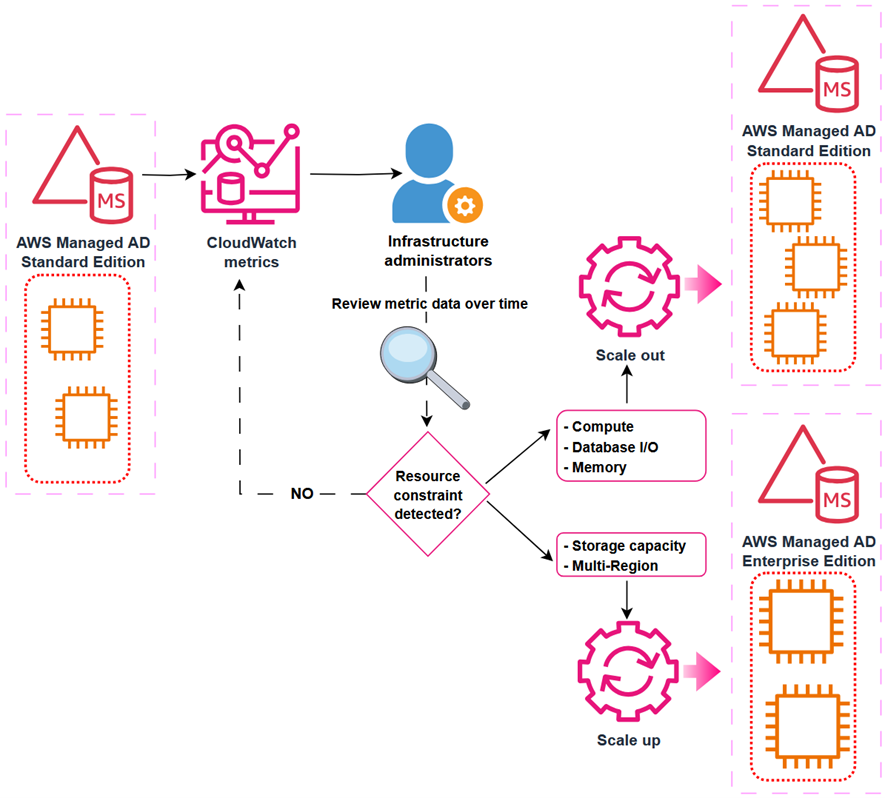
2021: Added CloudWatch metrics for domain controllers, helping customers optimize scaling decisions based on CPU, memory, disk, and AD-specific metrics like DNS and directory read/write operations. Launched integration with AWS Transfer Family for SFTP/FTPS/FTP authentication.
2022: Windows Server 2019 upgrade became available, with customer-initiated updates and automatic migration for all directories beginning in 2023.
2023: AWS Private CA Connector for Active Directory launched, allowing customers to replace self-managed enterprise certificate authorities with AWS Private CA for automatic certificate enrollment to domain-joined objects, with no local agents or proxy servers required.
2024: Launched CRUD APIs for users and groups, enabling IT administrators to manage AD users and groups directly from the AWS Management Console, AWS Command Line Interface (AWS CLI), and APIs, without deploying bastion hosts or opening network ports.
2025: General availability of AWS Managed Microsoft AD (Hybrid Edition), allowing customers to extend their existing AD domain to AWS while retaining administrative control. Introduced self-service edition upgrades through the UpdateDirectorySetup API, eliminating the need for support tickets when scaling from Standard to Enterprise Edition.
2026 and beyond: As we enter our second decade, our roadmap continues to be shaped by the customers who depend on AWS Managed Microsoft AD every day. We’re working on new capabilities driven directly by your feedback, and we look forward to sharing more soon.
Powering identity across AWS
Over the past decade, more than 20 AWS services have added native integration with AWS Managed Microsoft AD. What started with WorkSpaces and EC2 domain join has expanded to more than 20 AWS services, making AWS Managed Microsoft AD foundational for many enterprise customers’ workloads on AWS.
Database services
For many customers, database authentication is a primary driver for adopting AWS Managed Microsoft AD. By pairing Amazon Relational Database Service (Amazon RDS) for SQL Server with AWS Managed Microsoft AD, they gain the benefits of fully managed services while achieving straightforward integration and reduced management overhead. This combination lets developers and DBAs use their existing AD credentials to access SQL Server databases, so they don’t need to manage separate database accounts.
Beyond SQL Server, AWS Managed Microsoft AD enables Windows authentication across the Amazon RDS family:
- Amazon RDS for Oracle
- Amazon RDS for PostgreSQL
- Amazon RDS for MySQL
- Amazon RDS for DB2
- Amazon Aurora MySQL
- Amazon Aurora PostgreSQL
File storage services
Amazon FSx for Windows File Server provides fully managed Windows file shares that integrate natively with AWS Managed Microsoft AD. Customers use AD users and groups to control access to file shares, apply Windows ACLs, and use features like DFS namespaces, all with the same management experience they use on premises.
AWS Storage Gateway supports AD authentication for SMB file shares, enabling hybrid storage architectures where on-premises applications access cloud storage using familiar AD credentials.
AWS Transfer Family added AD integration in 2021, allowing customers to authenticate SFTP, FTPS, and FTP users against their AWS Managed Microsoft AD. This allows customers to migrate file transfer workflows without changing end-user credentials.
End user computing
Amazon end-user computing services were among the first to integrate with AWS Managed Microsoft AD:
- Amazon WorkSpaces: Virtual desktops provisioned and authenticated through AD
- Amazon Workspaces applications (formerly AppStream 2.0): Application streaming with domain-joined fleet instances
- Amazon WorkMail: Business email tied to AD identities
Security and identity
AWS IAM Identity Center (formerly AWS Single Sign-On) uses AWS Managed Microsoft AD as an identity source, synchronizing users and groups to provide single sign-on access across AWS accounts and applications. This provides centralized identity management while using your existing AD infrastructure.
AWS Client VPN authenticates users against AWS Managed Microsoft AD, providing secure remote access using corporate credentials.
AWS Management Console access can be federated through AWS Managed Microsoft AD, so AD users can assume AWS Identity and Access Management (IAM) roles and manage AWS resources with their existing credentials.
Compute services
Amazon EC2 instances (both Windows and Linux) support seamless domain join at launch. Windows instances can be managed using Group Policy, and Linux instances can authenticate users through SSSD or Realm integration.
Amazon Elastic Container Service (Amazon ECS) supports AD authentication for Windows containers through Group Managed Service Accounts (gMSA), enabling containerized applications to authenticate to AD-integrated resources.
Business applications
- Amazon QuickSight provides business intelligence with AD-based user provisioning.
- Amazon Connect provides contact center agent authentication
This breadth of integration means customers can standardize on a single directory for their entire AWS environment, from databases to desktops to file servers to analytics.
Choosing the right edition
Over the years, we’ve learned that customers have different needs when it comes to managed AD. Today, AWS Managed Microsoft AD is available in three editions, each designed for specific use cases.
Standard Edition: Basic, cost-effective identity
Standard Edition is optimized for small and midsize businesses, or for enterprises deploying a resource forest model in a single AWS Region. With 1 GB of directory object storage supporting up to 30,000 objects (approximately 5,000 users), Standard Edition provides everything needed to run directory-aware workloads without the overhead of managing domain controllers.
Common use cases:
- Resource forest deployments – Many customers use Standard Edition as a resource forest, establishing a trust relationship with their on-premises AD. User identities remain in the customer’s existing domain, while the resource forest manages AWS resources like Amazon RDS for SQL Server and FSx for Windows File Server.
- Development and test environments – Cost-effective option for non-production workloads
- Single-Region applications – Workloads that don’t require global presence
Standard Edition is a great starting point, and customers aren’t locked in. With our new self-service upgrade capability (launched October 2025), you can upgrade to Enterprise Edition programmatically through the UpdateDirectorySetup API, no support tickets or maintenance window coordination required.
Enterprise Edition: Built for global scale
Enterprise Edition is designed for organizations with larger user populations, complex deployments, or global footprints. With 17 GB of storage supporting up to 500,000 directory objects, Enterprise Edition provides the capacity and capabilities that large enterprises require.
Key capabilities:
- Multi-Region replication – Automatically replicate your directory across AWS Regions. Users and applications connect to local domain controllers, reducing latency and providing disaster recovery capabilities.
- Extended directory sharing – Share your directory with up to 500 AWS accounts, enabling centralized identity across large organizations using AWS Organizations.
- Higher compute capacity – Larger domain controller instances with more CPU and memory for demanding workloads
If you have users and applications in multiple geographic regions, or anticipate significant growth in directory objects, Enterprise Edition is the right choice.
Hybrid Edition: Extend your existing domain
Launched earlier this year, Hybrid Edition takes a fundamentally different approach. Instead of creating a new AD domain in AWS, Hybrid Edition extends your existing AD domain into the cloud.
What makes Hybrid Edition unique:
- Same domain – AWS Managed Microsoft AD domain controllers join your existing AD. No new domain name, no trust relationships to configure.
- Retain administrative control – Unlike Standard and Enterprise where you receive delegated OU permissions, Hybrid Edition preserves your existing administrative rights. Your AD administrators continue using familiar tools while changes replicate to AWS in real time.
- Preserve existing investments – Security principals, group policies, and permissions transfer seamlessly. No migration of identities required.
Hybrid Edition is ideal for customers who want the operational benefits of AWS-managed domain controller infrastructure without changing their AD architecture or giving up administrative control.
Which edition should you choose?
Use the following table to determine which edition best fits your use case.
| Use case | Edition |
| A new AD domain for AWS workloads in a single Region | Standard Edition |
| A resource forest with trust to on-premises AD | Standard Edition |
| Multi-Region replication for global deployments | Enterprise Edition |
| Support for more than 30,000 directory objects | Enterprise Edition |
| To extend your existing AD domain to AWS | Hybrid Edition |
| To retain full administrative control over your AD | Hybrid Edition |
What we’ve learned: Design decisions that stood the test of time
Looking back at the decisions we made in 2015, several have proven foundational to the service’s success:
- High availability by default – Every AWS Managed Microsoft AD directory deploys with a minimum of two domain controllers across separate Availability Zones. Customers don’t need to design high availability (HA) architecture, it’s built in.
- Real Microsoft AD – We chose to run actual Windows Server AD, not a compatible alternative. This means standard AD administration tools work, existing scripts and automation work, and applications that depend on specific AD behaviors typically work without modification.
- Seamless integration with AWS services – By building native integrations between AWS Managed Microsoft AD and other AWS services, we’ve made it possible for customers to use a single directory across their entire AWS environment.
- Customer retains control – While AWS manages the infrastructure, customers manage their directory content. You control your users, groups, OUs, and policies using familiar tools.
- Room to grow – The edition model (and now self-service upgrades) means customers can start with what they need today and scale as requirements evolve.
Looking ahead: The next chapter
As we celebrate 10 years of AWS Managed Microsoft AD, we’re excited about what’s ahead. The launch of Hybrid Edition earlier this year represents a significant expansion of what’s possible, giving customers new flexibility in how they architect their identity infrastructure for hybrid and multi-cloud environments.
We continue to listen to customer feedback and invest in capabilities that reduce operational burden while expanding what you can build. Whether you’re running your first SQL Server database in the cloud, deploying virtual desktops to a global workforce, or modernizing legacy applications that depend on AD, AWS Managed Microsoft AD is here to help.
Thank you to all the customers who have trusted us with their identity infrastructure over the past decade. Your feedback has shaped this service, and we’re committed to continuing to earn that trust for the next 10 years and beyond.
Resources
Ready to get started or learn more? Here are some resources:
- AWS Directory Service Documentation
- Getting Started with AWS Managed Microsoft AD
- AWS Directory Service Pricing
- Best Practices for AWS Managed Microsoft AD
- AWS Directory Service on the AWS Security Blog
If you have feedback about this post, submit comments in the Comments section below.