Planning a holiday should be exciting, fun, and not a cybersecurity risk. But booking flights, hotels, and rental properties often means sharing sensitive personal and financial information across multiple platforms. Combined with frequent travel scams and recurring data breaches in the travel and hospitality sector, it creates plenty of opportunities for criminals.
This guide covers the most common risks when making travel reservations and explains how to avoid them. Save the adventure for your destination.
Travel bookings combine high-value payments with urgency and emotional decision-making. Attackers love that for several reasons:
Large upfront payments make scams profitable.
Booking confirmations often contain valuable personal data, such as names, travel dates, contact details, and sometimes passport information.
Travel and hospitality companies are frequent breach targets due to complex IT environments and third-party integrations.
Recent years have seen repeated breaches involving hotel chains, booking platforms, cruise operators, and airlines, exposing everything from email addresses to passport numbers.
Common travel-related scams
Fake booking websites
Attackers create convincing clones of airline, hotel, and travel booking websites, often promoted through online ads or SEO poisoning (manipulating search engine results). Victims enter payment details, receive fake confirmations, and only discover the fraud later.
Emails, texts, or messaging app notifications may claim there’s a problem with your booking and urge you to click a link, open an attachment, or call a number. The scammers often impersonate legitimate travel brands and may include real stolen data from previous breaches.
Earlier this year, we wrote about a Booking.com breach that provided scammers with a lot of useful information that could make their messages appear more convincing.
Vacation rental fraud
Scammers post fake listings or hijack legitimate ones on rental platforms. They typically encourage off-platform communication or payments to avoid built-in protections.
In 2024, one of our researchers encountered exactly this type of scam. A supposedly legitimate Airbnb listing in Amsterdam turned out to be fake, and the scammer sent an email claiming to be from TripAdvisor in an attempt to collect payment details.
“Too good to be true” deals
Deep discounts on flights or accommodation are used to lure victims into paying for offers that don’t exist.
If a deal seems unusually generous, look for the catch. Be especially cautious when advertisers claim the offer will end very soon. Creating urgency is one of the oldest tricks in the scammer playbook.
Booking.com has become an increasingly popular brand for scammers to impersonate. According to our—anonymized—Scam Guard data, we’ve recently seen:
Fake cashback emails promising a €435 refund that lead to phishing websites
In-app messages requesting an additional reservation fee
Emails containing PDF attachments that require a “secure viewer,” which turns out to be malware
WhatsApp messages claiming credit card details are missing and directing users to phishing sites
Text messages linking to fake Booking.com pages and demanding card verification before a deadline
The number of scams impersonating Booking.com has been growing. Since the breach disclosed in April, Scam Guard data shows a 56% increase in Booking.com-related scams compared to the previous period, with weekly volume up consistently across five straight weeks.
How to book travel safely
There are a few simple things that can dramatically reduce your risk:
Use secure payment methods. Credit cards offer better fraud protection than debit cards or bank transfers. Never pay anyone asking for payment in cryptocurrencies or gift cards.
Stick to trusted platforms. Even though these are not guaranteed to be safe, using them is better than gambling on an unknown platform.
Don’t click on sponsored search results. I cannot say this often enough.
Verify the existence of the booked accommodation through other channels.
Treat requests to move communication or payment to another platform as suspicious.
Consider urgent language, unexpected attachments, and mismatched sender domains as red flags.
Downloads needed to open an attachment are not to be trusted. These downloads often turn out to be malware. To block and remove malware, use an up-to-date, real-time anti-malware solution.
Pro tip: Malwarebytes Browser Guard will block known phishing websites and can even recognize suspicious websites that are not in our database yet.
We don’t just report on threats—we remove them
Cybersecurity risks should never spread beyond a headline. Keep threats off your devices by downloading Malwarebytes today.
Planning a holiday should be exciting, fun, and not a cybersecurity risk. But booking flights, hotels, and rental properties often means sharing sensitive personal and financial information across multiple platforms. Combined with frequent travel scams and recurring data breaches in the travel and hospitality sector, it creates plenty of opportunities for criminals.
This guide covers the most common risks when making travel reservations and explains how to avoid them. Save the adventure for your destination.
Travel bookings combine high-value payments with urgency and emotional decision-making. Attackers love that for several reasons:
Large upfront payments make scams profitable.
Booking confirmations often contain valuable personal data, such as names, travel dates, contact details, and sometimes passport information.
Travel and hospitality companies are frequent breach targets due to complex IT environments and third-party integrations.
Recent years have seen repeated breaches involving hotel chains, booking platforms, cruise operators, and airlines, exposing everything from email addresses to passport numbers.
Common travel-related scams
Fake booking websites
Attackers create convincing clones of airline, hotel, and travel booking websites, often promoted through online ads or SEO poisoning (manipulating search engine results). Victims enter payment details, receive fake confirmations, and only discover the fraud later.
Emails, texts, or messaging app notifications may claim there’s a problem with your booking and urge you to click a link, open an attachment, or call a number. The scammers often impersonate legitimate travel brands and may include real stolen data from previous breaches.
Earlier this year, we wrote about a Booking.com breach that provided scammers with a lot of useful information that could make their messages appear more convincing.
Vacation rental fraud
Scammers post fake listings or hijack legitimate ones on rental platforms. They typically encourage off-platform communication or payments to avoid built-in protections.
In 2024, one of our researchers encountered exactly this type of scam. A supposedly legitimate Airbnb listing in Amsterdam turned out to be fake, and the scammer sent an email claiming to be from TripAdvisor in an attempt to collect payment details.
“Too good to be true” deals
Deep discounts on flights or accommodation are used to lure victims into paying for offers that don’t exist.
If a deal seems unusually generous, look for the catch. Be especially cautious when advertisers claim the offer will end very soon. Creating urgency is one of the oldest tricks in the scammer playbook.
Booking.com has become an increasingly popular brand for scammers to impersonate. According to our—anonymized—Scam Guard data, we’ve recently seen:
Fake cashback emails promising a €435 refund that lead to phishing websites
In-app messages requesting an additional reservation fee
Emails containing PDF attachments that require a “secure viewer,” which turns out to be malware
WhatsApp messages claiming credit card details are missing and directing users to phishing sites
Text messages linking to fake Booking.com pages and demanding card verification before a deadline
The number of scams impersonating Booking.com has been growing. Since the breach disclosed in April, Scam Guard data shows a 56% increase in Booking.com-related scams compared to the previous period, with weekly volume up consistently across five straight weeks.
How to book travel safely
There are a few simple things that can dramatically reduce your risk:
Use secure payment methods. Credit cards offer better fraud protection than debit cards or bank transfers. Never pay anyone asking for payment in cryptocurrencies or gift cards.
Stick to trusted platforms. Even though these are not guaranteed to be safe, using them is better than gambling on an unknown platform.
Don’t click on sponsored search results. I cannot say this often enough.
Verify the existence of the booked accommodation through other channels.
Treat requests to move communication or payment to another platform as suspicious.
Consider urgent language, unexpected attachments, and mismatched sender domains as red flags.
Downloads needed to open an attachment are not to be trusted. These downloads often turn out to be malware. To block and remove malware, use an up-to-date, real-time anti-malware solution.
Pro tip: Malwarebytes Browser Guard will block known phishing websites and can even recognize suspicious websites that are not in our database yet.
We don’t just report on threats—we remove them
Cybersecurity risks should never spread beyond a headline. Keep threats off your devices by downloading Malwarebytes today.
A Secure Boot certificate refresh is rolling out across supported Windows devices through Windows Update. In June 2026, the Secure Boot certificates that have shipped inside Windows since 2011 begin to expire, and Microsoft is replacing them with new 2023-dated certificates.
The good news: If you keep your PC updated, you probably won’t need to do anything. The bad news: Some older devices may not transition cleanly. Your PC won’t suddenly stop working, but over time it could miss important boot-level security protections without you realizing it.
Here’s what’s going on, why it matters, and how to check that your machine is on the right side of the deadline.
What is Secure Boot, and what’s expiring?
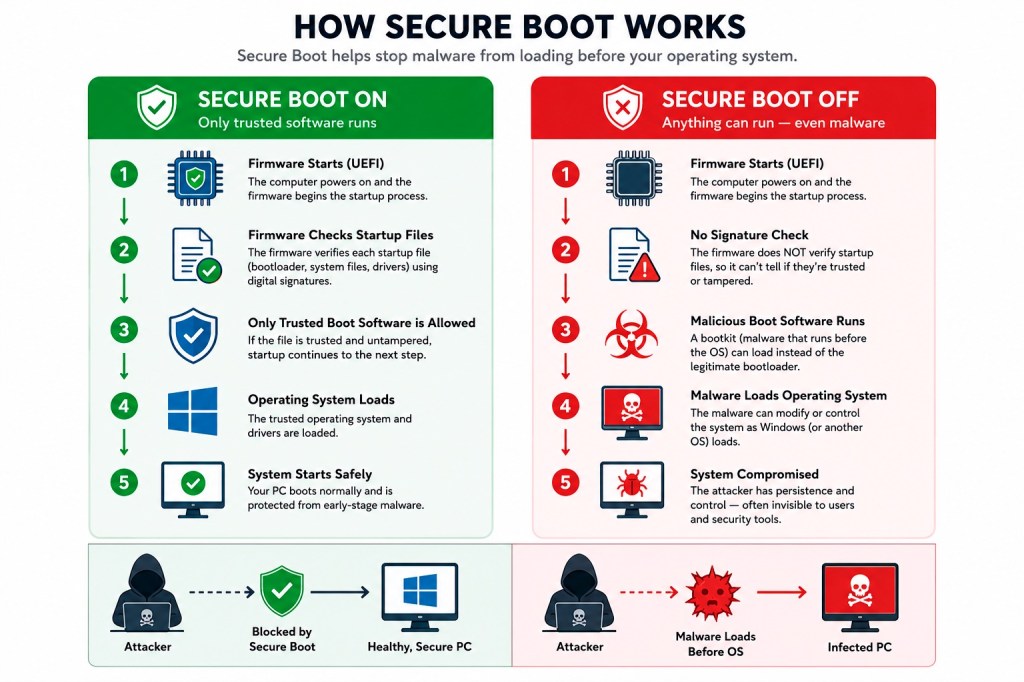
Secure Boot is a UEFI firmware feature built into virtually every PC sold since around 2012. It runs before Windows even starts loading, and its job is to verify that the boot loader and early boot components have been signed by a trusted party. If something tries to insert itself into the boot chain that isn’t on the trust list—a bootkit, for example—Secure Boot refuses to let it run.
The “trusted party” part is the crucial bit. Trust is established through cryptographic certificates baked into your motherboard firmware. The current certificates were issued in 2011 and are now reaching expiration. Three specific certificates are involved:
Microsoft Corporation KEK CA 2011: expires June 24, 2026
Microsoft UEFI CA 2011: expires June 27, 2026
Microsoft Windows Production PCA 2011: expires October 19, 2026
Microsoft is replacing them with a 2023-dated set, including Windows UEFI CA 2023 and Microsoft Corporation KEK 2K CA 2023. According to Microsoft engineers speaking during a March 2026 AMA session, the new certificates are valid until 2038, and a separate post-quantum cryptography transition is planned for around 2030 for future hardware.
“Will my computer stop working?”
No. This is the single most important thing to understand, because the rumor mill has been louder than the facts.
If the deadline arrives and your PC is still running on the 2011 certificates, Windows will still boot, Windows Update will still work, and your PC will continue functioning normally.
What changes is that, in Microsoft’s own words, the device “will no longer be able to receive new security protections” for the early boot process, including updates to Windows Boot Manager, Secure Boot databases, revocation lists, and mitigations for newly discovered boot-level vulnerabilities.
In plain English: Your PC becomes harder to protect over time. It’s protected against today’s known boot threats, but not necessarily against the ones that will be discovered next month or next year.
That’s a problem because bootkits operate underneath Windows and antivirus software. They run before anything else and can disable the security tools that would normally catch them.
The BlackLotus problem
If you want a concrete example of why boot-level security matters, look at BlackLotus.
BlackLotus is a UEFI bootkit that emerged on hacking forums in 2022 and was confirmed in the wild by researchers in early 2023. It exploited CVE-2022-21894, nicknamed “Baton Drop,” to bypass Secure Boot on fully patched Windows systems. Once installed, it could disable BitLocker, Hypervisor-Protected Code Integrity (HVCI), and Microsoft Defender before Windows fully loaded.
Microsoft addressed the underlying flaw in CVE-2023-24932, but fixing vulnerable boot managers safely is complicated. Revoking the wrong boot components can leave systems unbootable, which is why Microsoft has rolled out protections gradually over several years.
The 2026 certificate rollover is a planned lifecycle event (the 2011 certificates were always going to expire), but it also enables the broader Secure Boot hardening Microsoft has been doing in response to vulnerable boot managers and attacks such as BlackLotus.
With the new trust anchors in place, Microsoft can continue rolling out newer 2023-signed boot components and safely revoke vulnerable ones as new threats emerge. Devices that don’t make the transition may eventually miss those future protections.
How the rollout works
Microsoft is using a staged rollout designed to avoid breaking systems.
A scheduled Windows task runs roughly every 12 hours and applies the update in stages:
Add the new Windows UEFI CA 2023 to the firmware’s signature database.
If the old 2011 third-party certificate is still present, add the Microsoft UEFI CA 2023 and Microsoft Option ROM UEFI CA 2023 alongside it.
Add the new Microsoft Corporation KEK 2K CA 2023 key.
Update the Windows Boot Manager to one signed by the new certificate. This step is deferred until the next natural reboot.
Microsoft’s IT pro guidance estimates the full process takes roughly 48 hours and one or more restarts to complete. Each step must succeed before the next one runs, so a device can sit partway through the sequence for a while if (for example) it’s waiting on a firmware update or a scheduled reboot.
For most home users, this happens silently in the background through normal cumulative updates.
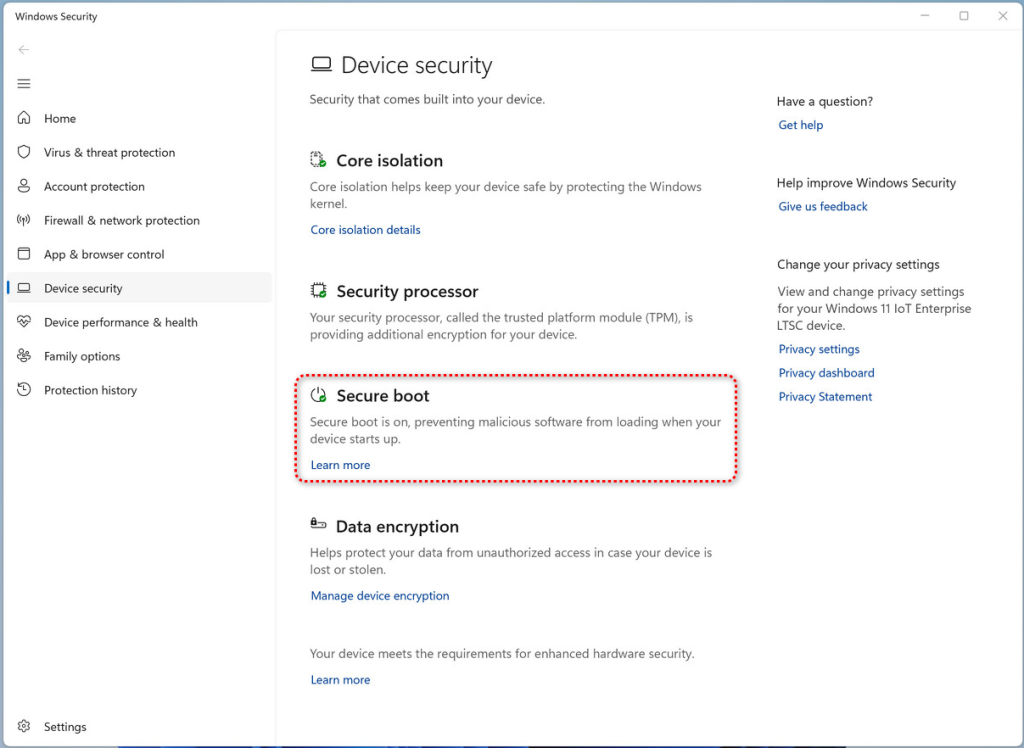
Starting with the April 2026 Windows update, the Windows Security app includes updated Secure Boot status information under Device security that shows whether the new certificates have been applied successfully.
What could go wrong
Most systems will transition without problems, but there are some known trouble spots:
Older PCs with outdated firmware. Some older UEFI firmware implementations don’t properly support the new certificates. These systems may require a BIOS or firmware update from the manufacturer before the transition can complete.
PCs that bypassed Windows 11 requirements. If Secure Boot was disabled to install Windows 11 using unofficial workarounds, the new certificates cannot be applied correctly.
Legacy BIOS / CSM systems. Devices running Legacy BIOS (or UEFI with Compatibility Support Module enabled) aren’t using Secure Boot at all, so they’re outside the scope of this update entirely.
Custom firmware and weird configurations. Some custom or unusual firmware configurations may trigger a BitLocker recovery prompt after the Secure Boot variables change. Microsoft has been careful to note that BitLocker itself is not being disabled, but users should have their recovery keys handy just in case.
Windows Latest reported seeing update failures on thousands of PCs with outdated firmware during testing. Microsoft’s own guidance more broadly warns that firmware, platform, and OEM limitations can block the transition. In many cases, Windows Security will flag affected systems with yellow or red status warnings.
What home users should do
For most people, the advice is straightforward:
Keep Windows fully up to date. Microsoft is rolling the new certificates out through normal Windows updates, and most home users won’t need to do anything beyond installing monthly updates.
Check your Secure Boot status (the text, not just the color). Open Windows Security > Device security > Secure Boot. A green badge with the text “Secure Boot is on, preventing malicious software from loading when your device starts up.” is the all-clear. Microsoft warns that a green checkmark alone doesn’t confirm the new certificates have been applied.
If your device is older, check for a BIOS/firmware update from your manufacturer. Some systems need them before the Secure Boot update can complete properly. This is especially important for PCs built before 2024.
Don’t disable Secure Boot to “fix” something. Disabling Secure Boot is exactly the wrong response—it removes the protection entirely rather than updating it. Some game anti-cheat systems and older apps ask users to do this.
Don’t panic about the new SecureBoot folder. Windows 11’s May 2026 cumulative update (KB5089549) creates a folder at C:\Windows\SecureBoot containing example PowerShell scripts intended for IT administrators. It’s not malware, it’s expected, and you don’t need to delete it.
Use up-to-date, real-time anti-malware protection that can detect threats at the OS level even if something does slip past Secure Boot.
What IT teams should do
If you manage a fleet, Microsoft has published extensive guidance and the work is more involved. The short version:
Inventory your devices now. Pull the manufacturer, model, BIOS version and date, baseboard product, and Secure Boot status across the fleet. Microsoft provides a PowerShell sample script at aka.ms/GetSecureBoot that surfaces the relevant registry keys and event IDs.
Watch Event IDs 1801 and 1808. Event ID 1808 confirms the new certificates are in place. Event ID 1801 means the device has not completed the update.
Test before broad rollout. Microsoft recommends testing at least four devices per unique manufacturer/model/firmware combination. Some systems may need an OEM firmware update before they can accept the new certificates.
Choose one deployment method per device. Use registry keys, Group Policy, WinCS command-line tools, or Intune/ConfigMgr scripts, but don’t mix methods on the same machine.
Pay attention to PXE imaging and Hyper-V. SCCM/MECM PXE servers may need a re-signed boot.wim, and Hyper-V hosts may need updating before new VMs are created with the 2023 KEK in the firmware template.
Document devices that can’t be updated. Older hardware without OEM firmware support may need to be replaced before the deadline or formally accepted as an exception with compensating controls. These devices will keep working, but they may miss future boot-level protections.
The bottom line
This is one of those security events that won’t generate a dramatic incident on June 24, 2026. Nothing visible will break that day.
The risk is what happens in the months and years after. Devices that fail to transition to the new trust chain may slowly fall behind on future boot-level protections as Microsoft continues responding to threats like BlackLotus and other bootkits.
For most home users, Windows Update will handle the transition automatically. Your main job is to keep your system updated and verify Secure Boot status before the deadlines arrive.
If your hardware is older, now is a good time to check whether your manufacturer still provides firmware updates—and whether your PC is ready for the next decade of Secure Boot protections.
“One of the best cybersecurity suites on the planet.”
A Secure Boot certificate refresh is rolling out across supported Windows devices through Windows Update. In June 2026, the Secure Boot certificates that have shipped inside Windows since 2011 begin to expire, and Microsoft is replacing them with new 2023-dated certificates.
The good news: If you keep your PC updated, you probably won’t need to do anything. The bad news: Some older devices may not transition cleanly. Your PC won’t suddenly stop working, but over time it could miss important boot-level security protections without you realizing it.
Here’s what’s going on, why it matters, and how to check that your machine is on the right side of the deadline.
What is Secure Boot, and what’s expiring?
Secure Boot is a UEFI firmware feature built into virtually every PC sold since around 2012. It runs before Windows even starts loading, and its job is to verify that the boot loader and early boot components have been signed by a trusted party. If something tries to insert itself into the boot chain that isn’t on the trust list—a bootkit, for example—Secure Boot refuses to let it run.
The “trusted party” part is the crucial bit. Trust is established through cryptographic certificates baked into your motherboard firmware. The current certificates were issued in 2011 and are now reaching expiration. Three specific certificates are involved:
Microsoft Corporation KEK CA 2011: expires June 24, 2026
Microsoft UEFI CA 2011: expires June 27, 2026
Microsoft Windows Production PCA 2011: expires October 19, 2026
Microsoft is replacing them with a 2023-dated set, including Windows UEFI CA 2023 and Microsoft Corporation KEK 2K CA 2023. According to Microsoft engineers speaking during a March 2026 AMA session, the new certificates are valid until 2038, and a separate post-quantum cryptography transition is planned for around 2030 for future hardware.
“Will my computer stop working?”
No. This is the single most important thing to understand, because the rumor mill has been louder than the facts.
If the deadline arrives and your PC is still running on the 2011 certificates, Windows will still boot, Windows Update will still work, and your PC will continue functioning normally.
What changes is that, in Microsoft’s own words, the device “will no longer be able to receive new security protections” for the early boot process, including updates to Windows Boot Manager, Secure Boot databases, revocation lists, and mitigations for newly discovered boot-level vulnerabilities.
In plain English: Your PC becomes harder to protect over time. It’s protected against today’s known boot threats, but not necessarily against the ones that will be discovered next month or next year.
That’s a problem because bootkits operate underneath Windows and antivirus software. They run before anything else and can disable the security tools that would normally catch them.
The BlackLotus problem
If you want a concrete example of why boot-level security matters, look at BlackLotus.
BlackLotus is a UEFI bootkit that emerged on hacking forums in 2022 and was confirmed in the wild by researchers in early 2023. It exploited CVE-2022-21894, nicknamed “Baton Drop,” to bypass Secure Boot on fully patched Windows systems. Once installed, it could disable BitLocker, Hypervisor-Protected Code Integrity (HVCI), and Microsoft Defender before Windows fully loaded.
Microsoft addressed the underlying flaw in CVE-2023-24932, but fixing vulnerable boot managers safely is complicated. Revoking the wrong boot components can leave systems unbootable, which is why Microsoft has rolled out protections gradually over several years.
The 2026 certificate rollover is a planned lifecycle event (the 2011 certificates were always going to expire), but it also enables the broader Secure Boot hardening Microsoft has been doing in response to vulnerable boot managers and attacks such as BlackLotus.
With the new trust anchors in place, Microsoft can continue rolling out newer 2023-signed boot components and safely revoke vulnerable ones as new threats emerge. Devices that don’t make the transition may eventually miss those future protections.
How the rollout works
Microsoft is using a staged rollout designed to avoid breaking systems.
A scheduled Windows task runs roughly every 12 hours and applies the update in stages:
Add the new Windows UEFI CA 2023 to the firmware’s signature database.
If the old 2011 third-party certificate is still present, add the Microsoft UEFI CA 2023 and Microsoft Option ROM UEFI CA 2023 alongside it.
Add the new Microsoft Corporation KEK 2K CA 2023 key.
Update the Windows Boot Manager to one signed by the new certificate. This step is deferred until the next natural reboot.
Microsoft’s IT pro guidance estimates the full process takes roughly 48 hours and one or more restarts to complete. Each step must succeed before the next one runs, so a device can sit partway through the sequence for a while if (for example) it’s waiting on a firmware update or a scheduled reboot.
For most home users, this happens silently in the background through normal cumulative updates.
Starting with the April 2026 Windows update, the Windows Security app includes updated Secure Boot status information under Device security that shows whether the new certificates have been applied successfully.
What could go wrong
Most systems will transition without problems, but there are some known trouble spots:
Older PCs with outdated firmware. Some older UEFI firmware implementations don’t properly support the new certificates. These systems may require a BIOS or firmware update from the manufacturer before the transition can complete.
PCs that bypassed Windows 11 requirements. If Secure Boot was disabled to install Windows 11 using unofficial workarounds, the new certificates cannot be applied correctly.
Legacy BIOS / CSM systems. Devices running Legacy BIOS (or UEFI with Compatibility Support Module enabled) aren’t using Secure Boot at all, so they’re outside the scope of this update entirely.
Custom firmware and weird configurations. Some custom or unusual firmware configurations may trigger a BitLocker recovery prompt after the Secure Boot variables change. Microsoft has been careful to note that BitLocker itself is not being disabled, but users should have their recovery keys handy just in case.
Windows Latest reported seeing update failures on thousands of PCs with outdated firmware during testing. Microsoft’s own guidance more broadly warns that firmware, platform, and OEM limitations can block the transition. In many cases, Windows Security will flag affected systems with yellow or red status warnings.
What home users should do
For most people, the advice is straightforward:
Keep Windows fully up to date. Microsoft is rolling the new certificates out through normal Windows updates, and most home users won’t need to do anything beyond installing monthly updates.
Check your Secure Boot status (the text, not just the color). Open Windows Security > Device security > Secure Boot. A green badge with the text “Secure Boot is on, preventing malicious software from loading when your device starts up.” is the all-clear. Microsoft warns that a green checkmark alone doesn’t confirm the new certificates have been applied.
If your device is older, check for a BIOS/firmware update from your manufacturer. Some systems need them before the Secure Boot update can complete properly. This is especially important for PCs built before 2024.
Don’t disable Secure Boot to “fix” something. Disabling Secure Boot is exactly the wrong response—it removes the protection entirely rather than updating it. Some game anti-cheat systems and older apps ask users to do this.
Don’t panic about the new SecureBoot folder. Windows 11’s May 2026 cumulative update (KB5089549) creates a folder at C:\Windows\SecureBoot containing example PowerShell scripts intended for IT administrators. It’s not malware, it’s expected, and you don’t need to delete it.
Use up-to-date, real-time anti-malware protection that can detect threats at the OS level even if something does slip past Secure Boot.
What IT teams should do
If you manage a fleet, Microsoft has published extensive guidance and the work is more involved. The short version:
Inventory your devices now. Pull the manufacturer, model, BIOS version and date, baseboard product, and Secure Boot status across the fleet. Microsoft provides a PowerShell sample script at aka.ms/GetSecureBoot that surfaces the relevant registry keys and event IDs.
Watch Event IDs 1801 and 1808. Event ID 1808 confirms the new certificates are in place. Event ID 1801 means the device has not completed the update.
Test before broad rollout. Microsoft recommends testing at least four devices per unique manufacturer/model/firmware combination. Some systems may need an OEM firmware update before they can accept the new certificates.
Choose one deployment method per device. Use registry keys, Group Policy, WinCS command-line tools, or Intune/ConfigMgr scripts, but don’t mix methods on the same machine.
Pay attention to PXE imaging and Hyper-V. SCCM/MECM PXE servers may need a re-signed boot.wim, and Hyper-V hosts may need updating before new VMs are created with the 2023 KEK in the firmware template.
Document devices that can’t be updated. Older hardware without OEM firmware support may need to be replaced before the deadline or formally accepted as an exception with compensating controls. These devices will keep working, but they may miss future boot-level protections.
The bottom line
This is one of those security events that won’t generate a dramatic incident on June 24, 2026. Nothing visible will break that day.
The risk is what happens in the months and years after. Devices that fail to transition to the new trust chain may slowly fall behind on future boot-level protections as Microsoft continues responding to threats like BlackLotus and other bootkits.
For most home users, Windows Update will handle the transition automatically. Your main job is to keep your system updated and verify Secure Boot status before the deadlines arrive.
If your hardware is older, now is a good time to check whether your manufacturer still provides firmware updates—and whether your PC is ready for the next decade of Secure Boot protections.
“One of the best cybersecurity suites on the planet.”

 Login
Login