Reading view

Google Chrome’s silent 4GB AI download problem [updated]

Google Chrome has been quietly downloading a 4GB AI model onto users’ devices without asking first.

Security researcher Alexander Hanff, aka ThatPrivacyGuy, reports that Chrome has been silently installing Gemini Nano, Google’s on-device AI model, as a file called weights.bin stored in the OptGuideOnDeviceModel directory within users’ Chrome profiles. This 4GB download happens automatically when Chrome determines your device meets the hardware requirements. It does not ask for consent, and sends no notification—not even one of those annoying cookie banners you’ve learned to dismiss without reading.

The Gemini Nano model powers features like “Help me write” text composition assistance, on-device scam detection, and a Summarizer API that websites can call directly. These features are enabled by default in some recent Chrome versions. And here’s the kicker: if you discover the file and delete it, Chrome simply downloads it again.

Why this matters

Let’s start with the obvious problem: a 4GB download isn’t trivial for everyone. If you’re lucky enough to have unlimited fiber internet, you might not notice. But for users on metered connections, mobile hotspots, or in developing countries where data is expensive, Google just cost them real money without permission. For rural users or those with bandwidth caps, this kind of silent transfer can blow through monthly limits in minutes.

Hanff focuses on the environmental angle. He calculated that if this model were pushed to just 1 billion Chrome users (roughly 30% of Chrome’s user base), the distribution alone would consume 240 gigawatt-hours of energy and generate 60,000 tons of CO2 equivalent. That’s not including actually using the model, just the downloads.

But to us, the most troubling aspect is the broader pattern this represents. Just a few weeks ago, we reported another unsolicited AI invasion on our personal computers discovered by Hanff. He documented how Anthropic’s Claude Desktop app, which silently installed browser integration files across multiple Chromium browsers, including five browsers he didn’t even have installed. The integration would reinstall itself if removed, and it also happened without any meaningful user disclosure.

Hanff argues that both cases likely violate EU privacy law, specifically the ePrivacy Directive’s rules about storing data on user devices and the GDPR’s requirements around transparency and lawful processing. While these claims haven’t been tested in court, they highlight a fundamental tension: can companies just install whatever they want on your computer as long as they say it’s a feature of an app you installed?

Google might argue that having an AI on your device provides better privacy than cloud-based alternatives. Which is generally true, but it does not apply here, since Chrome’s most prominent AI feature—the “AI Mode” pill in the address bar—doesn’t even use the local model. According to Hanff’s analysis, it routes queries to Google’s cloud servers anyway. 

All in all, users see a 4GB local AI model and reasonably assume their data stays private, when in reality, the most visible AI feature sends everything to Google’s servers.

Tech companies need to stop treating silent deployment as acceptable practice. We see no valid excuse for this. Your device is yours. The storage is yours. The bandwidth is yours. And the electricity bill is yours.

What happened to asking for permission? And when I remove it, I want it gone permanently—not automatic reinstallation.

When are the tech giants going to learn that we don’t want to be left discovering after the fact that our devices have become deployment targets for features we never asked for.

Update May 12, 2026 with do it yourself instructions

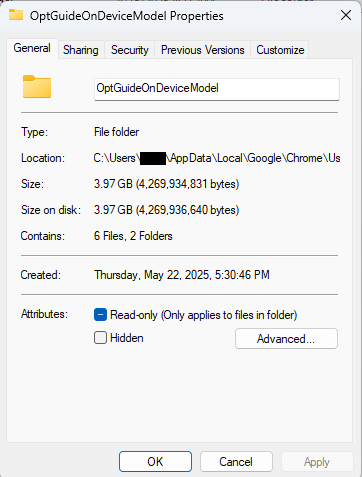
How to check if the AI model is on your computer (Windows)

  1. Open File Explorer
  2. At the top of the File Explorer window, click the address bar and paste:

%LOCALAPPDATA%\Google\Chrome\User Data

  1. Press Enter
  2. Look for a folder named:

OptGuideOnDeviceModel

  1. If you see it, Chrome has likely downloaded the AI model
Properties of the OptGuideOnDeviceModel folder
Properties of the folder

How to check on a Mac

  1. Open Finder
  2. In the menu bar at the top of the screen, click Go > Go to Folder
  3. Paste:

~/Library/Application Support/Google/Chrome/

  1. Look for a folder named:

OptGuideOnDeviceModel

Now, remember, this isn’t malware, and its presence doesn’t mean your computer is infected.

Turn off Chrome AI features

This part is relatively easy. You may find online instructions telling you to edit the Windows registry or use Chrome policies, but for most people the simplest and safest approach is to disable the features directly in Chrome.

We don’t recommend manually editing the registry unless you fully understand what you’re doing. Incorrect changes can cause system problems.

Instead, try this first:

  1. Open Chrome
  2. You can copy and paste this directly into Chrome’s address bar and press Enter:

chrome://settings/ai

  1. On the page that opens, you can turn off features such as:
    • “Help me write”
    • AI summaries
    • On-device AI features

 The exact options may vary depending on your Chrome version and region.

  1. Then restart Chrome to make sure the changes take effect.

This may stop Chrome from downloading or using the AI model, although some users report the files can return after browser updates.

There is probably no need to delete the files unless you specifically need the storage space.

If chrome://settings/ai does not work, the feature may not yet be available in your region, you may be using a managed work or school account, or your version of Chrome may not support these settings yet.

Do you need to delete the OptGuideOnDeviceModel folder?

You can, but there is probably no need to.

If you disable Chrome’s AI features, the downloaded model should no longer be actively used for those features. Leaving the files in place may also prevent Chrome from downloading them again at a later point.


Browse like no one’s watching. 

Malwarebytes Privacy VPN encrypts your connection and never logs what you do, so the next story you read doesn’t have to feel personal. Try it free → 

  •  

Google Chrome’s silent 4GB AI download problem [updated]

Google Chrome has been quietly downloading a 4GB AI model onto users’ devices without asking first.

Security researcher Alexander Hanff, aka ThatPrivacyGuy, reports that Chrome has been silently installing Gemini Nano, Google’s on-device AI model, as a file called weights.bin stored in the OptGuideOnDeviceModel directory within users’ Chrome profiles. This 4GB download happens automatically when Chrome determines your device meets the hardware requirements. It does not ask for consent, and sends no notification—not even one of those annoying cookie banners you’ve learned to dismiss without reading.

The Gemini Nano model powers features like “Help me write” text composition assistance, on-device scam detection, and a Summarizer API that websites can call directly. These features are enabled by default in some recent Chrome versions. And here’s the kicker: if you discover the file and delete it, Chrome simply downloads it again.

Why this matters

Let’s start with the obvious problem: a 4GB download isn’t trivial for everyone. If you’re lucky enough to have unlimited fiber internet, you might not notice. But for users on metered connections, mobile hotspots, or in developing countries where data is expensive, Google just cost them real money without permission. For rural users or those with bandwidth caps, this kind of silent transfer can blow through monthly limits in minutes.

Hanff focuses on the environmental angle. He calculated that if this model were pushed to just 1 billion Chrome users (roughly 30% of Chrome’s user base), the distribution alone would consume 240 gigawatt-hours of energy and generate 60,000 tons of CO2 equivalent. That’s not including actually using the model, just the downloads.

But to us, the most troubling aspect is the broader pattern this represents. Just a few weeks ago, we reported another unsolicited AI invasion on our personal computers discovered by Hanff. He documented how Anthropic’s Claude Desktop app, which silently installed browser integration files across multiple Chromium browsers, including five browsers he didn’t even have installed. The integration would reinstall itself if removed, and it also happened without any meaningful user disclosure.

Hanff argues that both cases likely violate EU privacy law, specifically the ePrivacy Directive’s rules about storing data on user devices and the GDPR’s requirements around transparency and lawful processing. While these claims haven’t been tested in court, they highlight a fundamental tension: can companies just install whatever they want on your computer as long as they say it’s a feature of an app you installed?

Google might argue that having an AI on your device provides better privacy than cloud-based alternatives. Which is generally true, but it does not apply here, since Chrome’s most prominent AI feature—the “AI Mode” pill in the address bar—doesn’t even use the local model. According to Hanff’s analysis, it routes queries to Google’s cloud servers anyway. 

All in all, users see a 4GB local AI model and reasonably assume their data stays private, when in reality, the most visible AI feature sends everything to Google’s servers.

Tech companies need to stop treating silent deployment as acceptable practice. We see no valid excuse for this. Your device is yours. The storage is yours. The bandwidth is yours. And the electricity bill is yours.

What happened to asking for permission? And when I remove it, I want it gone permanently—not automatic reinstallation.

When are the tech giants going to learn that we don’t want to be left discovering after the fact that our devices have become deployment targets for features we never asked for.

Update May 12, 2026 with do it yourself instructions

How to check if the AI model is on your computer (Windows)

  1. Open File Explorer
  2. At the top of the File Explorer window, click the address bar and paste:

%LOCALAPPDATA%\Google\Chrome\User Data

  1. Press Enter
  2. Look for a folder named:

OptGuideOnDeviceModel

  1. If you see it, Chrome has likely downloaded the AI model
Properties of the OptGuideOnDeviceModel folder
Properties of the folder

How to check on a Mac

  1. Open Finder
  2. In the menu bar at the top of the screen, click Go > Go to Folder
  3. Paste:

~/Library/Application Support/Google/Chrome/

  1. Look for a folder named:

OptGuideOnDeviceModel

Now, remember, this isn’t malware, and its presence doesn’t mean your computer is infected.

Turn off Chrome AI features

This part is relatively easy. You may find online instructions telling you to edit the Windows registry or use Chrome policies, but for most people the simplest and safest approach is to disable the features directly in Chrome.

We don’t recommend manually editing the registry unless you fully understand what you’re doing. Incorrect changes can cause system problems.

Instead, try this first:

  1. Open Chrome
  2. You can copy and paste this directly into Chrome’s address bar and press Enter:

chrome://settings/ai

  1. On the page that opens, you can turn off features such as:
    • “Help me write”
    • AI summaries
    • On-device AI features

 The exact options may vary depending on your Chrome version and region.

  1. Then restart Chrome to make sure the changes take effect.

This may stop Chrome from downloading or using the AI model, although some users report the files can return after browser updates.

There is probably no need to delete the files unless you specifically need the storage space.

If chrome://settings/ai does not work, the feature may not yet be available in your region, you may be using a managed work or school account, or your version of Chrome may not support these settings yet.

Do you need to delete the OptGuideOnDeviceModel folder?

You can, but there is probably no need to.

If you disable Chrome’s AI features, the downloaded model should no longer be actively used for those features. Leaving the files in place may also prevent Chrome from downloading them again at a later point.


Browse like no one’s watching. 

Malwarebytes Privacy VPN encrypts your connection and never logs what you do, so the next story you read doesn’t have to feel personal. Try it free → 

  •  

How VoidStealer bypasses Chrome’s protections to hijack sessions and steal data | Kaspersky official blog

Malicious actors have developed a new way to steal data stored by Chrome for Windows. Researchers discovered the technique while analyzing a fresh build of an infostealer known as VoidStealer. The new method allows the malware to bypass Chrome’s Application-Bound (App-Bound) Encryption (ABE), a mechanism intended to protect session cookies and other valuable information stored in the browser.

Google hoped this mechanism would secure the master key Chrome uses to encrypt all sensitive data. Unfortunately, this isn’t the first time malware authors have found a workaround for this defense — leaving secrets stored in Chrome vulnerable once again.

How App-Bound Encryption works in Chrome

Google introduced App-Bound Encryption in July 2024 with the release of Chrome version 127. The company’s announcement mentioned infostealers snatching cookies from Chrome users on Windows as the primary problem ABE was intended to solve. We’ve already covered in detail what these files are and the consequences of their theft, so we’ll only briefly recap the main facts here.

Cookies are small files that the browser saves to the user’s device at a website’s request to remember various site settings. Of particular value to attackers are session cookies, which are used for automatic authentication on websites. It’s thanks to these files that we don’t have to enter a username and password every time we revisit a site.

But this convenience carries a risk: stealing these files allows an attacker to use an already-authenticated session without entering a username or password. This allows them to impersonate the user, which can lead to account hijacking, theft of personal or financial data, and other adverse consequences.

Infostealer Trojans are particularly dangerous for Chrome users on Windows. This is because, on this OS, Chrome previously relied solely on the standard built-in Data Protection API (DPAPI). With this system encryption mechanism, applications don’t need to create and store encryption keys to protect data.

The limitation of DPAPI is that it doesn’t protect data from malware that’s already successfully compromised the system and is capable of executing code on behalf of the logged-in user. This is exactly what stealers exploit: since they typically run with the user’s privileges, they can simply request DPAPI to decrypt the browser’s protected data.

The ABE mechanism was designed to solve that specific problem. The core idea is right in the name: App-Bound Encryption means the encryption is tied to a specific application. To achieve this, a separate service running with system privileges is responsible for protecting the key used to encrypt Chrome’s data. It verifies which application is requesting access to the key, and denies the request if it doesn’t originate from Chrome.

How Chrome's App-Bound Encryption (ABE) works

Chrome’s App-Bound Encryption (ABE) was designed so that only Chrome itself could retrieve the master key needed to decrypt the browser’s stored data. Source

As a result, the architects of this feature assumed that to access ABE-protected browser data, an infostealer would either need to escalate its privileges to system-level, or inject malicious code directly into Chrome. In theory, this should have made attacking Chrome significantly harder and reduced the effectiveness of mass-market infostealers. As you might have guessed, things didn’t go quite that smoothly in practice.

Previous successful bypasses of Chrome’s ABE

Just a couple of months after Google announced the implementation of App-Bound Encryption in Chrome, many infostealer developers claimed they’d already bypassed the protection. Among them were the creators of Meduza Stealer, Whitesnake, Lumma Stealer, and Lumar (also known as PovertyStealer).

Announcement of a new version of the Lumma stealer

Lumma stealer developers announce a bypass for Chrome’s App-Bound Encryption in a new version of the malware

Of course, you shouldn’t take malware developers at their word, but legitimate security researchers were able to confirm at least some of the claims. Bypasses for Google Chrome’s new data protection feature did become available almost immediately after its release.

A month later, in October 2024, tech enthusiast Alex Hagenah published a tool on GitHub called Chrome-App-Bound-Encryption-Decryption to bypass Google’s new security mechanism. Analysis of the tool’s code revealed that its author used roughly the same methods that attackers were already heavily exploiting.

What followed was a game of cat and mouse: security researchers and stealer developers came up with new tricks to circumvent App-Bound Encryption, while Google patched the newly discovered loopholes with varying degrees of success.

VoidStealer — a new data-nabbing menace

This brings us to recent events: in March 2026, news broke about a stealer named VoidStealer, which utilizes a brand-new and, by all accounts, highly effective method for bypassing ABE.

Announcement of a new VoidStealer version

VoidStealer developers advertising a new method for bypassing ABE. Source

The malware authors developed an attack technique that targets the brief moment when the master key sits in the browser’s memory in plaintext. This occurs because, at a certain point, the browser inevitably has to decrypt its data to actually use it — for instance, to automatically sign in to a website with the relevant session cookie or to access saved credentials.

To exploit this window of opportunity, the malware attaches itself to the Chrome process as a debugger — a tool that allows one to control a program’s execution, pause it, and inspect its memory. In legitimate scenarios, these tools are used by developers to find and fix bugs, analyze application behavior, and test performance.

The malware identifies the specific section of code where data decryption takes place. It then sets a breakpoint at that location; when the program’s execution reaches that point, the browser effectively freezes. This is how the malware catches the exact moment the master key is sitting in RAM in plaintext; it then reads the key directly from memory.

It’s worth noting that everything mentioned above also applies to other Chromium-based browsers that use ABE, including Microsoft Edge, Brave, Opera, Vivaldi, and others.

How to avoid falling victim to infostealers

The scale of VoidStealer’s reach could be significant, as its developers operate under the malware-as-a-service (MaaS) model. This means they rent out the ready-made tool to other attackers, so they don’t need to develop custom malware from scratch.

This situation demonstrates that relying solely on built-in security mechanisms isn’t enough. Unfortunately, stealer developers are coming up with new workarounds faster than browser and operating system developers can roll out patches.

Here’s what users can do about it:

  • Avoid installing programs from suspicious sources. This will minimize the chances of malware infiltrating your system.
  • Learn how ClickFix attacks Lately, stealers have frequently been distributed using this specific malicious tactic.
  • Keep your OS and software updated on all devices. Timely updates help patch many of the vulnerabilities that malware exploits.
  • Install a robust security solution on all your devices. It’ll block suspicious activity in real time and alert you to potential threats.

As an added precaution, avoid storing passwords and bank card info in Google Chrome or your Notes app, as these are the first places any self-respecting stealer looks. Instead, use a secure password manager.

Stealers are hunting for your data, finding ways to infiltrate both computers and smartphones alike. To protect yourself from theft, check out our other related posts:

  •  

DarkSword Malware

DarkSword is a sophisticated piece of malware—probably government designed—that targets iOS.

Google Threat Intelligence Group (GTIG) has identified a new iOS full-chain exploit that leveraged multiple zero-day vulnerabilities to fully compromise devices. Based on toolmarks in recovered payloads, we believe the exploit chain to be called DarkSword. Since at least November 2025, GTIG has observed multiple commercial surveillance vendors and suspected state-sponsored actors utilizing DarkSword in distinct campaigns. These threat actors have deployed the exploit chain against targets in Saudi Arabia, Turkey, Malaysia, and Ukraine.

DarkSword supports iOS versions 18.4 through 18.7 and utilizes six different vulnerabilities to deploy final-stage payloads. GTIG has identified three distinct malware families deployed following a successful DarkSword compromise: GHOSTBLADE, GHOSTKNIFE, and GHOSTSABER. The proliferation of this single exploit chain across disparate threat actors mirrors the previously discovered Coruna iOS exploit kit. Notably, UNC6353, a suspected Russian espionage group previously observed using Coruna, has recently incorporated DarkSword into their watering hole campaigns.

A week after it was identified, a version of it leaked onto the internet, where it is being used more broadly.

This news is a month old. Your devices are safe, assuming you patch regularly.

  •  

Strengthening cyber capacity in Kenya: A new toolkit with lessons for the region

When a major cyber incident hits, the first decisions aren’t technical—they’re human. Who takes the lead? How quickly can information be shared? When should governments step in, and how do you protect public trust while keeping essential services running? 

These questions are at the heart of Microsoft’s Advancing Regional Cybersecurity (ARC) initiative, launched in 2025 to help governments strengthen cyber preparedness through practical, public-private collaboration. Today, we’re sharing the first tangible output of that work: the ARC Kenya Exercise Report & Toolkit, developed through a tabletop exercise held in Nairobi in December 2025.  

Developed with Kenya’s National Computer and Cybercrime Coordination Committee (NC4) and RiskSight, the toolkit is a practical planning resource designed to help government and cross-sector leaders prepare for cyber crises before they occur. It is grounded in real conversations among leaders from government, regulators, critical infrastructure operators, law enforcement, academia, and the private sector working through what a serious cyber incident would demand of them, together. 

Stress‑testing decisions before a crisis hits

The ambition of the “Silicon Savannah” makes Kenya a compelling setting for this work. Its digital economy is expanding rapidly—from mobilefirst financial services to cloudenabled public infrastructure—positioning the country as a regional technology leader. But rapid digital growth also brings increased exposure to more sophisticated cyber threats. As systems become more interconnected, a serious cyber incident can quickly disrupt essential services, undermine public trust, and threaten economic stability. 

Kenya’s approach recognizes this reality and reflects a critical principle: cybersecurity is not separate from innovation; it is one of the conditions that allows digital transformation to scale safely. The ARC initiative embodies this philosophy and helps decision makers confront the practical realities of coordination, escalation, and response in this complex environment. 

This is exactly what the ARC Kenya tabletop exercise was designed to do. The objective was not to test tools but to stresstest decision making under pressure. Participants were challenged with complex scenarios—including AIenabled breaches, ransomware attacks, and infrastructurelevel disruptions. The focus was not on technical fixes but on leadership clarity, crossagency coordination, and realtime decision making in highpressure environments. 

The outcome was both a roadmap for the unknown and a clear recognition of the need for shared expectations before a crisis begins—particularly around leadership and authority, trusted information sharing channels, and agreed response frameworks. These gaps, identified by participants themselves, now form the backbone of the ARC Kenya Toolkit. 

What the ARC Kenya toolkit delivers

The toolkit translates the lessons of the exercise into concrete actions that leaders can take now—before the next incident occurs. It also serves as a practical and specific 12month roadmap for strengthening Kenya’s cyber preparedness, moving from lessons identified to durable, institutional capability. Specifically, the toolkit provides recommendations to: 

  • Clarify national leadership during major cyber incidents, enabling government, regulators, law enforcement, and critical infrastructure operators to coordinate more quickly, with fewer gaps and overlaps. 
  • Establish practical, standardsaligned incident response models for the entire country, including priority playbooks that teams can train on and execute consistently. 
  • Strengthen operational readiness across sectors, with better coordination between security operations centers (SOCs), clearer escalation thresholds, and more reliable incident reporting pathways. 
  • Deepen trusted information sharing and publicprivate collaboration through common handling rules, safer “goodfaith” reporting mechanisms, and regular joint exercises to build muscle memory before a crisis.

Taken together, these elements enable leaders not only to respond more effectively to cyber incidents, but to institutionalize preparedness, coordination, and resilience across the national cyber ecosystem. For African countries more broadly, the model also offers a practical pathway to strengthen regional cyber cooperation—by aligning expectations around escalation, information sharing, and public‑private coordination before a crossborder incident occurs. By translating highlevel principles into practical, repeatable approaches to crisis readiness, the toolkit underscores the value of trusted international partnerships and alignment with global norms for responsible state behavior in cyberspace. 

Why Kenya’s approach matters beyond its borders

Many countries across the Global South are grappling with similar challenges: fragmented ownership of critical infrastructure, uneven cyber capacity across sectors, and the need to coordinate rapidly under pressure. While firmly grounded in Kenya’s national context, the lessons from ARC Kenya are therefore intentionally designed to resonate far beyond its borders and to be highly transferable. 

Importantly, this work does not end in Kenya. We are already building on these lessons through ARC engagements in other regions, including a new workstream in Mexico, applying the same approach to strengthen preparedness, coordination, and resilience across different national contexts. 

By design, the ARC initiative is not simply a record of a single exercise. It is a foundation others can build on—at a national or regional level—offering leaders a practical starting point to turn shared responsibility into sustained capability. 

Explore the ARC Kenya Toolkit & Tabletop Exercise


For more than a decade, the Microsoft Digital Crimes Unit (DCU) has persistently disrupted cybercrime and nation-state threats targeting people, organizations, and critical infrastructure. Explore major disruptions—and the ongoing cases and operations behind them here: Disrupting cyberthreats since 2008 | Microsoft

The post Strengthening cyber capacity in Kenya: A new toolkit with lessons for the region appeared first on Microsoft On the Issues.

  •  
❌