Reading view

How Push Notifications Can Betray Your Privacy (and What to Do About It)

Update April 22, 2026. Apple has reportedly addressed part of the issue with the notification database in iOS 26.4.2 and 18.7.8, released today. With this update, notifications marked for deletion should no longer be stored in the notification database.

A phone’s push notifications can contain a significant amount of information about you, your communications, and what you do throughout the day. They’re important enough to government investigations that Apple and Google now both require a judge’s order to hand details about push notifications over to law enforcement, and even with that requirement Apple shares data on hundreds of users. More recently, we also learned from a 404 Media report that law enforcement forensic extraction tools can unearth the text from deleted notifications, including those from secure messaging tools, like Signal. The good news is that you can mitigate some of this risk. 

There are two points where notifications may betray your privacy: when they’re transmitted over cloud servers and once they land on the device. Let’s start with the cloud. It might seem like push notifications come directly from an app, but they are typically routed through either Apple or Google’s servers first (depending on if you use iOS or Android). According to a letter sent to the Department of Justice by Senator Wyden, the content of those notifications may be visible to Apple and Google, and at the very least the companies collect some metadata about what apps send a notification and when. App providers have to make the decision to hide the content from Apple and Google and implement that functionality; Signal is one app that does this. 

Then, once the notifications land on your phone, depending on your settings, the notification content may be visible on your lock screen without needing to unlock the device. This can be dangerous if you lose your device, someone steals it, or it’s confiscated by law enforcement. 

You may clear notifications after looking at them. But it turns out the content notifications get recorded in your device’s internal storage, which then makes them susceptible to recovery with certain types of forensic tools. Notification content may even persist after the app is deleted, if the OS doesn’t fully purge the app’s notification data. 

We still have a lot of unanswered questions about how the notification databases work on devices. We do not know how long notifications are stored, or whether they’re backed up to the cloud, in which case the cloud provider could get backdoor access to the content of messages if the backups are enabled and not end-to-end encrypted. This may also make backups vulnerable to law enforcement demands for data. 

Which is all to say that there are myriad ways that law enforcement can access the content or metadata of push notifications. Let’s fix that.

Consider the Strongest Notification Protections for Your Secure Messaging Apps

Secure chat tools are designed to keep the content of the messages safe inside the app. So, for secure chat apps like WhatsApp and Signal, that means the company that makes those apps cannot see the content of your messages, and they’re only accessible on your and your recipients’ devices. Once messages land on a device, it’s still important to consider some privacy precautions, particularly with notifications. 

Signal
Signal offers three levels of information to include in notifications, all which are pretty self explanatory:

  • Name, Content, and Actions (Name and message on Android) shows the entirety of a message as well as who sent it (on iPhone you can also slide to reply, mark as read, or call back). 
  • Name only only shows the name of the sender. 
  • No Name or Content (No name or message on Android) will only show that you have a message from Signal, not who sent it or what it’s about. 

To change your settings:

  • On iPhone: Tap your profile picture, then Settings > Notifications > Show.
  • On Android: Tap your profile picture, then Notifications > Show

WhatsApp
WhatsApp only has one option for this, and it’s currently limited to iPhone, but you can at least tell the app not to include the content of a message in the notification:

  • Open WhatsApp for iPhone, tap the “You” bar, then Notifications, and disable the Show preview option.

Check your other apps to see if they offer similar settings.

Limit Your Notifications Device-Wide

Since Apple and Google manage push notifications for their respective devices, they also have some visibility into certain data. Push notification data can include certain types of metadata, like which app sent a notification and when, as well as the account ID associated with the phone. In some cases, Apple and Google may have access to unencrypted content, including the content of the text in a notification or other information from the app itself. 

For most app notifications, there’s no simple way to easily figure out what metadata might be gleaned from a notification, or if the notification is unencrypted or not. But some app developers have described details along these lines. For example, Signal president Meredith Whittaker explained on social media how the Signal app handles notifications entirely on-device. Searching online for an app name along with “notification privacy,” “notification encryption” or “notification metadata” may help answer your questions, or you may need to dig around in support forums for the app.
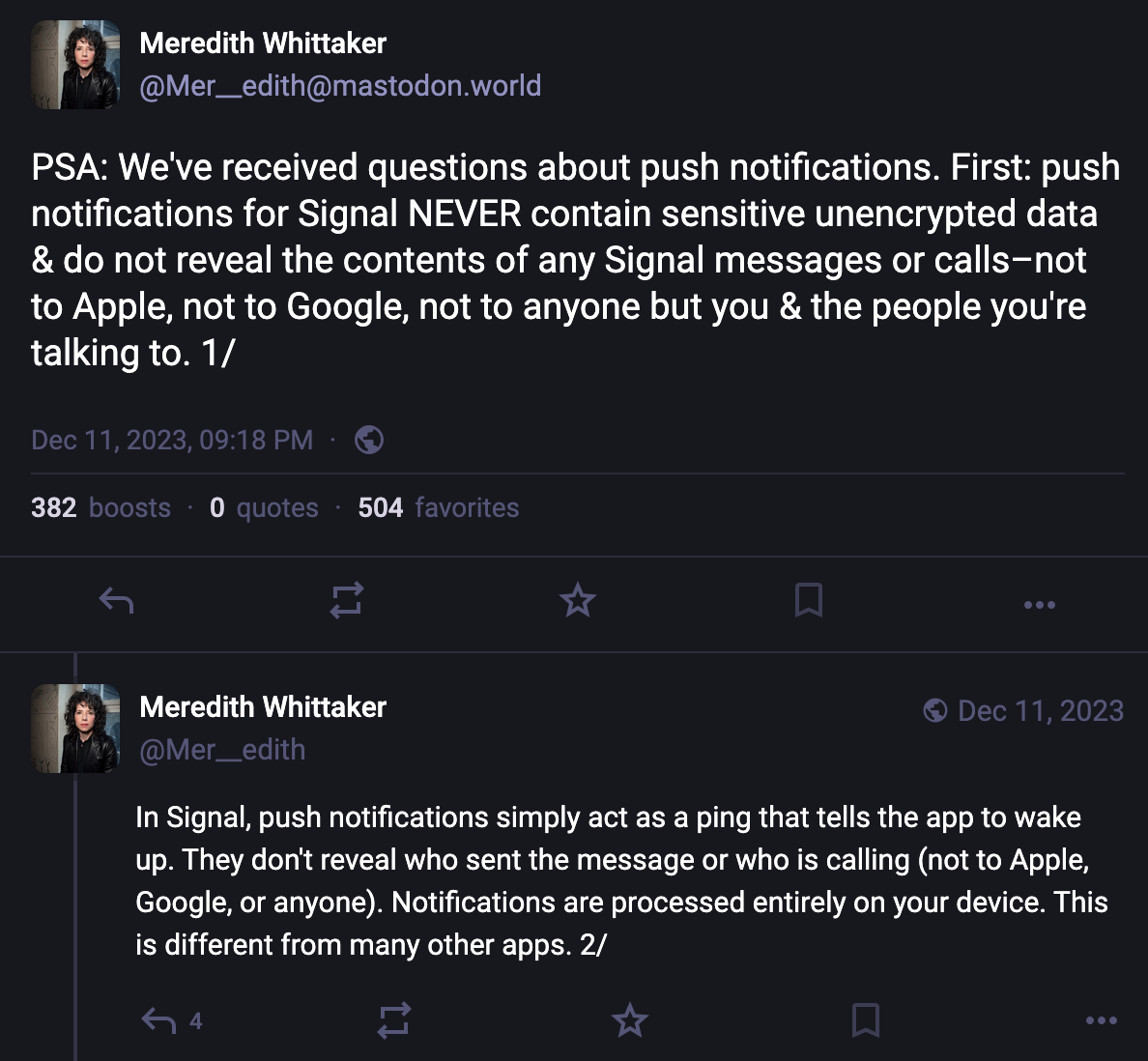
 push notifications for Signal NEVER contain sensitive unencrypted data & do not reveal the contents of any Signal messages or calls-not to Apple, not to Google, not to anyone but you & the people you're talking to. 1/ In Signal, push notifications simply act as a ping that tells the app to wake up. They don't reveal who sent the message or who is calling (not to Apple, Google, or anyone). Notifications are processed entirely on your device. This

It’s also good to reconsider whether any app should be sending you notifications to begin with. Aside from a potential decrease in the number of distractions you endure throughout the day, or the level of chaos on display on your lockscreen, limiting the apps that can send notifications and what content is visible in them can improve your privacy with respect to the sorts of metadata that may be gathered by the companies, as well as any content that may be viewable if someone has physically accessed your device.

To check and change your settings on iPhone

  • Open Settings > Notifications.
  • On the Show Previews option, you can choose whether to show the content of notifications on the lock screen, “Always,” which doesn’t require unlocking the device, “When Unlocked,” which does, and “Never,” which means notifications won’t have any details, just that you have a notification in an app. 
  • Alternatively, you can scroll down and change these settings per app. Just tap the app name, then the Show Previews menu, and choose how you’d like them to appear. Or, if you’ve decided you don’t want notifications from that app at all, uncheck the Allow Notifications option.

To check and change your settings on Android
The core version of Android relies on app developers to develop specific settings more than controlling them on a platform-wide level.

  • Open Settings > Notifications > App notifications to disable notifications from any app completely. Some apps may also offer internal notification options for specific types of notices, like new messages, that you can control in the app itself. Tap an app name, then tap the Addition settings in the app option to potentially customize it more.
  • You can also experiment with the sensitive content setting. This is up to the developer to set properly, but when done so, most notifications will require at least unlocking the device to see them. Open Settings > Notifications > Notifications on lock screen and disable “Show sensitive content.”

Control What Notifications AI Tools Can Access

In an attempt to make notifications easier to skim, both Android and iOS offer optional ways to get notification summaries using their AI tools that summarize the content of notifications. On an individual app level, WhatsApp offers this as well. Some of these summarization tools, like Apple’s, run on the device, while others, like WhatsApp’s, do not. This can all be a lot to keep track of, and sending data off device may create some level of risk for some messages.

Since this is a bit more complicated, we have another blog post that walks through the steps to take to protect messaging from accidentally ending up in AI tools built into Apple and Google's devices. For WhatsApp specifically, we have a blog detailing when you might want to turn on the app’s “Advanced Chat Privacy” feature, which can disable summaries for both yourself and others in the chat.

Balancing security, privacy, and usability with something like push notifications is a complicated task. At the very least, Apple and Google should better ensure that the content of these notifications isn’t transmitted over their servers in plain text. The companies need to also make sure that device operating systems don’t back up the notification database to the cloud, and when an app is deleted, that all notification data is purged.

We appreciate that apps like Signal allow you to control what’s visible with notifications on a per-app basis, and we’d like to see this level of granularity of choices in other secure messaging tools, like WhatsApp. Likewise, more apps should handle push notifications similarly to the way Signal does, where a ping is sent to wake up the app to check for messages, and the content of that message is never sent across servers.

  •  

Direct and reverse NFC relay attacks being used to steal money | Kaspersky official blog

Thanks to the convenience of NFC and smartphone payments, many people no longer carry wallets or remember their bank card PINs. All their cards reside in a payment app, and using that is quicker than fumbling for a physical card. Mobile payments are also secure — the technology was developed relatively recently and includes numerous anti-fraud protections. Still, criminals have invented several ways to abuse NFC and steal your money. Fortunately, protecting your funds is straightforward: just know about these tricks and avoid risky NFC usage scenarios.

What are NFC relay and NFCGate?

NFC relay is a technique where data wirelessly transmitted between a source (like a bank card) and a receiver (like a payment terminal) is intercepted by one intermediate device, and relayed in real time to another. Imagine you have two smartphones connected via the internet, each with a relay app installed. If you tap a physical bank card against the first smartphone and hold the second smartphone near a terminal or ATM, the relay app on the first smartphone will read the card’s signal using NFC, and relay it in real time to the second smartphone, which will then transmit this signal to the terminal. From the terminal’s perspective, it all looks like a real card is tapped on it — even though the card itself might physically be in another city or country.

This technology wasn’t originally created for crime. The NFCGate app appeared in 2015 as a research tool after it was developed by students at the Technical University of Darmstadt in Germany. It was intended for analyzing and debugging NFC traffic, as well as for education purposes and experiments with contactless technology. NFCGate was distributed as an open-source solution and used in academic and enthusiast circles.

Five years later, cybercriminals caught on to the potential of NFC relay and began modifying NFCGate by adding mods that allowed it to run through a malicious server, disguise itself as legitimate software, and perform social engineering scenarios.

What began as a research project morphed into the foundation for an entire class of attacks aimed at draining bank accounts without physical access to bank cards.

A history of misuse

The first documented attacks using a modified NFCGate occurred in late 2023 in the Czech Republic. By early 2025, the problem had become large scale  and noticeable: cybersecurity analysts uncovered more than 80 unique malware samples built on the NFCGate framework. The attacks evolved rapidly, with NFC relay capabilities being integrated into other malware components.

By February 2025, malware bundles combining CraxsRAT and NFCGate emerged, allowing attackers to install and configure the relay with minimal victim interaction. A new scheme, a so-called “reverse” version of NFCGate, appeared in spring 2025, fundamentally changing the attack’s execution.

Particularly noteworthy is the RatOn Trojan, first detected in the Czech Republic. It combines remote smartphone control with NFC relay capabilities, letting attackers target victims’ banking apps and cards through various technique combinations. Features like screen capture, clipboard data manipulation, SMS sending, and stealing info from crypto wallets and banking apps give criminals an extensive arsenal.

Cybercriminals have also packaged NFC relay technology into malware-as-a-service (MaaS) offerings, and reselling them to other threat actors through subscription. In early 2025, analysts uncovered a new and sophisticated Android malware campaign in Italy, dubbed SuperCard X. Attempts to deploy SuperCard X were recorded in Russia in May 2025, and in Brazil in August of the same year.

The direct NFCGate attack

The direct attack is the original criminal scheme exploiting NFCGate. In this scenario, the victim’s smartphone plays the role of the reader, while the attacker’s phone acts as the card emulator.

First, the fraudsters trick the user into installing a malicious app disguised as a banking service, a system update, an “account security” app, or even a popular app like TikTok. Once installed, the app gains access to both NFC and the internet — often without requesting dangerous permissions or root access. Some versions also ask for access to Android accessibility features.

Then, under the guise of identity verification, the victim is prompted to tap their bank card to their phone. When they do, the malware reads the card data via NFC and immediately sends it to the criminals’ server. From there, the information is relayed to a second smartphone held by a money mule, who helps extract the money. This phone then emulates the victim’s card to make payments at a terminal or withdraw cash from an ATM.

The fake app on the victim’s smartphone also asks for the card PIN — just like at a payment terminal or ATM — and sends it to the attackers.

In early versions of the attack, criminals would simply stand ready at an ATM with a phone to use the duped user’s card in real time. Later, the malware was refined so the stolen data could be used for in-store purchases in a delayed, offline mode, rather than in a live relay.

For the victim, the theft is hard to notice: the card never left their possession, they didn’t have to manually enter or recite its details, and the bank alerts about the withdrawals can be delayed or even intercepted by the malicious app itself.

Among the red flags that should make you suspect a direct NFC attack are:

  • prompts to install apps not from official stores;
  • requests to tap your bank card on your phone.

The reverse NFCGate attack

The reverse attack is a newer, more sophisticated scheme. The victim’s smartphone no longer reads their card — it emulates the attacker’s card. To the victim, everything appears completely safe: there’s no need to recite card details, share codes, or tap a card to the phone.

Just like with the direct scheme, it all starts with social engineering. The user gets a call or message convincing them to install an app for “contactless payments”, “card security”, or even “using central bank digital currency”. Once installed, the new app asks to be set as the default contactless payment method — and this step is critically important. Thanks to this, the malware requires no root access — just user consent.

The malicious app then silently connects to the attackers’ server in the background, and the NFC data from a card belonging to one of the criminals is transmitted to the victim’s device. This step is completely invisible to the victim.

Next, the victim is directed to an ATM. Under the pretext of “transferring money to a secure account” or “sending money to themselves”, they are instructed to tap their phone on the ATM’s NFC reader. At this moment, the ATM is actually interacting with the attacker’s card. The PIN is dictated to the victim beforehand — presented as “new” or “temporary”.

The result is that all the money deposited or transferred by the victim ends up in the criminals’ account.

The hallmarks of this attack are:

  • requests to change your default NFC payment method;
  • a “new” PIN;
  • any scenario where you’re told to go to an ATM and perform actions there under someone else’s instructions.

How to protect yourself from NFC relay attacks

NFC relay attacks rely not so much on technical vulnerabilities as on user trust. Defending against them comes down to some simple precautions.

  • Make sure you keep your trusted contactless payment method (like Google Pay or Samsung Pay) as the default.
  • Never tap your bank card on your phone at someone else’s request, or because an app tells you to. Legitimate apps might use your camera to scan a card number, but they’ll never ask you to use the NFC reader for your own card.
  • Never follow instructions from strangers at an ATM — no matter who they claim to be.
  • Avoid installing apps from unofficial sources. This includes links sent via messaging apps, social media, SMS, or recommended during a phone call — even if they come from someone claiming to be customer support or the police.
  • Use comprehensive security on your Android smartphones to block scam calls, prevent visits to phishing sites, and stop malware installation.
  • Stick to official app stores only. When downloading from a store, check the app’s reviews, number of downloads, publication date, and rating.
  • When using an ATM, rely on your physical card instead of your smartphone for the transaction.
  • Make it a habit to regularly check the “Payment default” setting in your phone’s NFC menu. If you see any suspicious apps listed, remove them immediately and run a full security scan on your device.
  • Review the list of apps with accessibility permissions — this is a feature commonly abused by malware. Either revoke these permissions for any suspicious apps, or uninstall the apps completely.
  • Save the official customer service numbers for your banks in your phone’s contacts. At the slightest hint of foul play, call your bank’s hotline directly without delay.
  • If you suspect your card details may have been compromised, block the card immediately.

  •  
❌