Reading view

Hidden prompt turns Microsoft Copilot into an AI worm

A security researcher has demonstrated how Microsoft Copilot for Word can be tricked into spreading a self‑propagating prompt‑injection “AI worm.” The attack silently alters documents and embeds its own hidden instructions into newly created files, allowing it to spread through normal document-sharing workflows without macros or traditional malware.

The technique allows an attacker to hide a JSON‑formatted prompt as white text on a white background inside a Word document. When someone asks Copilot for Word to draft or edit content based on that document, Copilot strips away the formatting, reads the hidden text, and treats the embedded instructions as part of the user’s request.

Copilot then modifies the active document and appends the full malicious prompt as hidden white text. That new document becomes a new carrier. Anyone who later uses it as source material for Copilot triggers the same behavior, allowing the prompt injection to spread to more documents. Because the documents are created and edited by legitimate users, the attack can be difficult to trace.

The researcher could still reproduce the full worm chain even after Microsoft rolled out multiple mitigations, including upgrades to newer GPT‑5.5 and 5.6 models.

At the time of writing, there is no complete mitigation for this broader class of attacks across comparable large language model (LLM)‑based products. It’s characterized as an architectural weakness of current LLM systems: attacker‑controlled content shares the same context window as trusted instructions. Attacks that exploit this behavior are known as prompt injection attacks and may never be fixed.

How to stay safe

Treat documents from outside your organization as untrusted, especially if you plan to use them with Copilot for Word.

Review any attached document before using it as Copilot source material, and carefully verify Copilot‑generated/edited documents before sharing or reusing them.

If you don’t use Copilot, you can disable it.

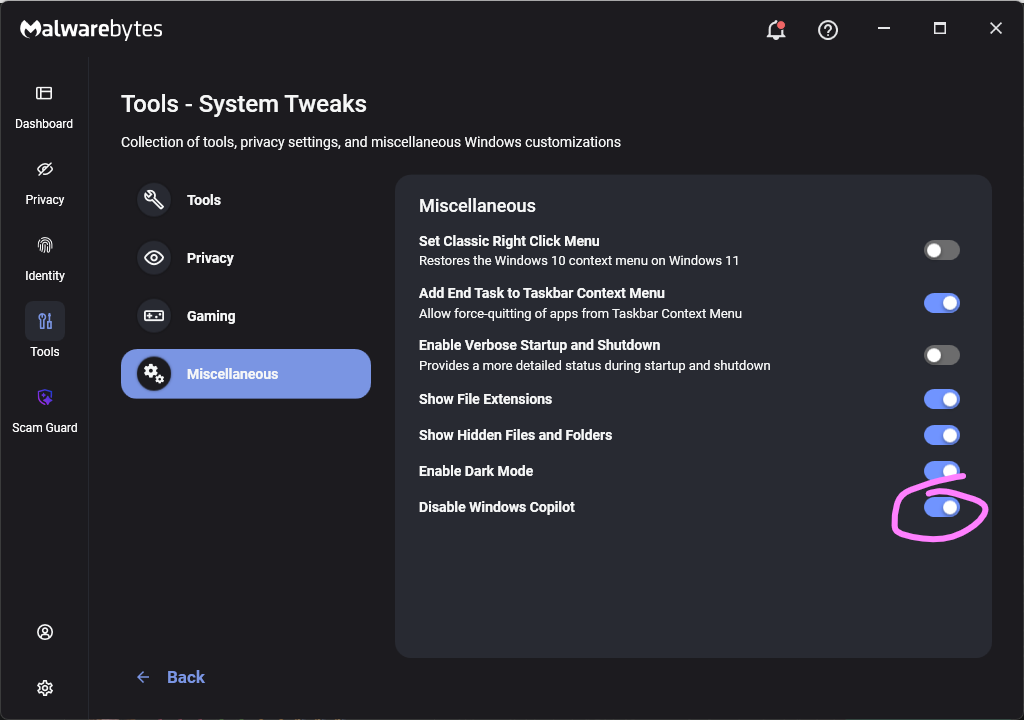
Malwarebytes users can turn off Copilot under Tools > System Tweaks > Miscellaneous.

Malwarebytes setting to disable Copilot

Or in Word itself:

For individual users who don’t want Copilot in Word:

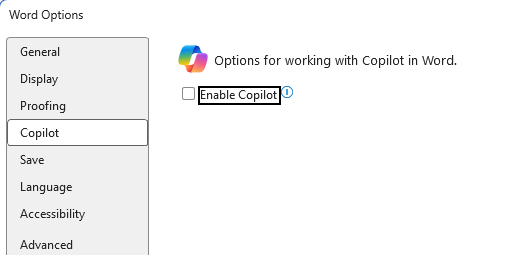
  • Open Word, go to File > Options > Copilot and clear the Enable Copilot checkbox, then restart Word.
    uncheck Enable Copilot in Word
  • In some versions of Word, the setting appears under File > Options > General in a Copilot section. In both cases, the key is unchecking the “Enable Copilot” setting.

You can also remove the Copilot icon from the ribbon by right‑clicking the ribbon, open the customization dialog, locate the Copilot/Assistance button, and removing it.

Alternatively, you can limit Copilot’s role by following these instructions:

  • In Word, go to File > Account > Account Privacy > Manage Settings, and uncheck Turn on optional connected experiences. This reduces certain cloud‑powered AI features, including Copilot‑related functions that rely on those services.
  • In the Microsoft 365 Admin Center, under Copilot > Settings, set Pin Microsoft 365 Copilot Chat to Do not pin Copilot chat in Microsoft 365 apps so the chat pane doesn’t appear by default in apps like Word.

This doesn’t remove Copilot entirely or stop these attacks, but it does reduce its visibility and limits some of its cloud‑assisted functionality.


From reporting threats to removing them.

Cybersecurity risks should never spread beyond a headline. Keep threats off your devices by downloading Malwarebytes today.

  •  

Yarbo responds to robot flaws that could mow down their owners

A researcher found that Yarbo yard robots came with a host of vulnerabilities which, among others, allowed an attacker to harvest WiFi passwords.

Security researcher Andreas Makris found he could remotely hijack thousands of Yarbo yard robots worldwide, and proved it by having his mower run him over. The root cause was a cluster of “legacy” design choices: every robot shared the same hardcoded root password, remote tunnels were left open, and Message Queuing Telemetry Transport (MQTT) messaging was so weakly protected that once you had one device, you effectively had the worldwide fleet.

An attacker could pull GPS coordinates, email addresses, and Wi‑Fi passwords, turn cameras into remote spying tools, and even re‑arm the mower after someone hit the emergency stop. 

All of this was enabled by a persistent backdoor tunnel that users could neither see nor meaningfully control. The risks fell into three very different buckets:

  • A heavy mower with remotely controllable blades and an emergency stop that can be bypassed is a real-world safety hazard.
  • Exposed telemetry meant attackers could map where devices were, see who owned them, and in some reports even view camera feeds.
  • Network abuse through shared root credentials meant compromised robots could scan local networks, steal more data, or be folded into a botnet.

Yarbo’s public response is unusually detailed for a consumer Internet of Things (IoT) vendor. It’s also refreshingly blunt in admitting that the researcher’s core findings were accurate. The company temporarily disabled the remote diagnostic tunnels, reset root passwords, locked down unauthenticated endpoints, and began ripping out unnecessary legacy access paths.

More importantly, Yarbo promises structural changes:

  • Unique per‑device credentials.
  • Over-the-Air  (OTA) credential rotation.
  • Audited, allowlist‑based remote diagnostics.
  • Dedicated security contact, with a possible bug bounty to follow.

That is the sort of long‑term security hygiene we rarely see spelled out this clearly after an IoT fiasco.

From a disclosure and remediation standpoint, Yarbo is doing many things right: crediting the researcher, apologizing, prioritizing fixes, and explaining both short‑term patches and long‑term architectural changes in human language. For buyers of connected devices with blades, that level of transparency is a positive precedent.

But Yarbo has explicitly chosen to keep a remote access tunnel, although wrapped in better controls and logs, instead of offering users the option to remove or fully opt out of it.

How to secure IoT devices

The vulnerabilities uncovered in the Yarbo case present an almost a live-action demo of what the IoT Cybersecurity Improvement Act is trying to prevent in US government deployments. While the Act doesn’t apply to Yarbo directly, its National Institute of Standards and Technology (NIST)-driven requirements map neatly onto what went wrong here.

So, it’s still up to users to make sure you:

  • Change the default credentials.
  • Check if the vendor will make updates available and how easy it is to install them before buying an IoT product. And then install the updates when available.
  • If you can, put your IoT devices on a separate network. Use a guest Wi‑Fi or separate VLAN when available.
  • Disable what you don’t need. Turn off UPnP, remote access, cloud control, and unnecessary services if you’re not actively using them.
  • If your router or security suite logs connections from IoT devices, skim those logs for odd spikes or unknown destinations.

Let’s face it, an incognito window can only do so much. 
 
Breaches, dark web trading, credit fraud. Malwarebytes Identity Theft Protection monitors for all of it, alerts you fast, and comes with identity theft insurance. 

  •  

“Reprompt” attack lets attackers steal data from Microsoft Copilot

Researchers found a method to steal data which bypasses Microsoft Copilot’s built-in safety mechanisms.  

The attack flow, called Reprompt, abuses how Microsoft Copilot handled URL parameters in order to hijack a user’s existing Copilot Personal session.

Copilot is an AI assistant which connects to a personal account and is integrated into Windows, the Edge browser, and various consumer applications.

The issue was fixed in Microsoft’s January Patch Tuesday update, and there is no evidence of in‑the‑wild exploitation so far. Still, it once again shows how risky it can be to trust AI assistants at this point in time.

Reprompt hides a malicious prompt in the q parameter of an otherwise legitimate Copilot URL. When the page loads, Copilot auto‑executes that prompt, allowing an attacker to run actions in the victim’s authenticated session after just a single click on a phishing link.

In other words, attackers can hide secret instructions inside the web address of a Copilot link, in a place most users never look. Copilot then runs those hidden instructions as if the users had typed them themselves.

Because Copilot accepts prompts via a q URL parameter and executes them automatically, a phishing email can lure a user into clicking a legitimate-looking Copilot link while silently injecting attacker-controlled instructions into a live Copilot session.

What makes Reprompt stand out from other, similar prompt injection attacks is that it requires no user-entered prompts, no installed plugins, and no enabled connectors.

The basis of the Reprompt attack is amazingly simple. Although Copilot enforces safeguards to prevent direct data leaks, these protections only apply to the initial request. The attackers were able to bypass these guardrails by simply instructing Copilot to repeat each action twice.

Working from there, the researchers noted:

“Once the first prompt is executed, the attacker’s server issues follow‑up instructions based on prior responses and forms an ongoing chain of requests. This approach hides the real intent from both the user and client-side monitoring tools, making detection extremely difficult.”

How to stay safe

You can stay safe from the Reprompt attack specifically by installing the January 2026 Patch Tuesday updates.

If available, use Microsoft 365 Copilot for work data, as it benefits from Purview auditing, tenant‑level data loss prevention (DLP), and admin restrictions that were not available to Copilot Personal in the research case. DLP rules look for sensitive data such as credit card numbers, ID numbers, health data, and can block, warn, or log when someone tries to send or store it in risky ways (email, OneDrive, Teams, Power Platform connectors, and more).

Don’t click on unsolicited links before verifying with the (trusted) source whether they are safe.

Reportedly, Microsoft is testing a new policy that allows IT administrators to uninstall the AI-powered Copilot digital assistant on managed devices.

Malwarebytes users can disable Copilot for their personal machines under Tools > Privacy, where you can toggle Disable Windows Copilot to on (blue).

How to use Malwarebytes to disable Windows Copilot

In general, be aware that using AI assistants still pose privacy risks. As long as there are ways for assistants to automatically ingest untrusted input—such as URL parameters, page text, metadata, and comments—and merge it into hidden system prompts or instructions without strong separation or filtering, users remain at risk of leaking private information.

So when using any AI assistant that can be driven via links, browser automation, or external content, it is reasonable to assume “Reprompt‑style” issues are at least possible and should be taken into consideration.


We don’t just report on threats—we remove them

Cybersecurity risks should never spread beyond a headline. Keep threats off your devices by downloading Malwarebytes today.

  •  
❌