
Reading view

Advanced Flow will make Android sideloading safer

Google has announced the introduction of Advanced Flow, designed to let Android users install apps from unverified developers more safely than before.

This process is known as sideloading. It means installing an app on your device from somewhere other than the Google Play store, usually by downloading and opening its installation file yourself.​

Right now, that typically involves:

  • Downloading an app file (an APK on Android) from a website, email, or another source instead of Google Play.​
  • Manually installing it, often after turning on a setting that allows apps from “unknown” or “unverified” developers.

From Google’s point of view, this has been a security weak spot. Scammers regularly abuse sideloading to trick victims into installing malware while bypassing built‑in protections.

They often pressure victims into installing apps that turn out to be infostealers or other malware. According to research by the Global Anti-Scam Alliance (GASA), scams caused an estimated $442 billion in losses last year.

So anything that helps reduce that risk is welcome.

What Google is changing isn’t dramatic, but it does make the process of installing an app from outside the official Play Store more secure. In simple terms, Advanced Flow adds extra steps and delays so scammers can’t rush people into disabling protections and installing their malware.

How Advanced Flow works

To sideload apps using Advanced Flow, users will need to go through a series of steps:

  • Enable developer mode in system settings. This is easy enough, and helps prevent accidental or one-tap bypasses often used in high-pressure scams.
  • Complete a quick safety check to make sure that no one is talking you into turning off your security. Scammers often pressure victims into disabling protections.
  • Restart your device, which cuts off any remote access or active phone calls a scammer might be using to guide you.
  • Wait one day, then you can confirm the change using biometrics (like fingerprint or face unlock) or your device PIN. This one-time, one-day delay breaks the urgency scammers rely on, giving you time to think.

Once you’ve confirmed you understand the risks, you’re all set to install apps from unverified developers. You can allow this for seven days or indefinitely. For safety, you’ll still see a warning that the app is from an unverified developer, but you can just tap “Install Anyway.”

In addition to the Advanced Flow, Google is introducing free, limited distribution accounts for students and hobbyists. These let developers share apps with a small group (up to 20 devices) without needing ID verification or a registration fee. 

What this means for users

So after these changes, these will be the options for users that have “developer mode” enabled on their Android device.

  • Sideloading directly from verified developers
  • Sideloading from developers with limited distribution accounts
  • Sideloading from unverified developers with Advanced Flow
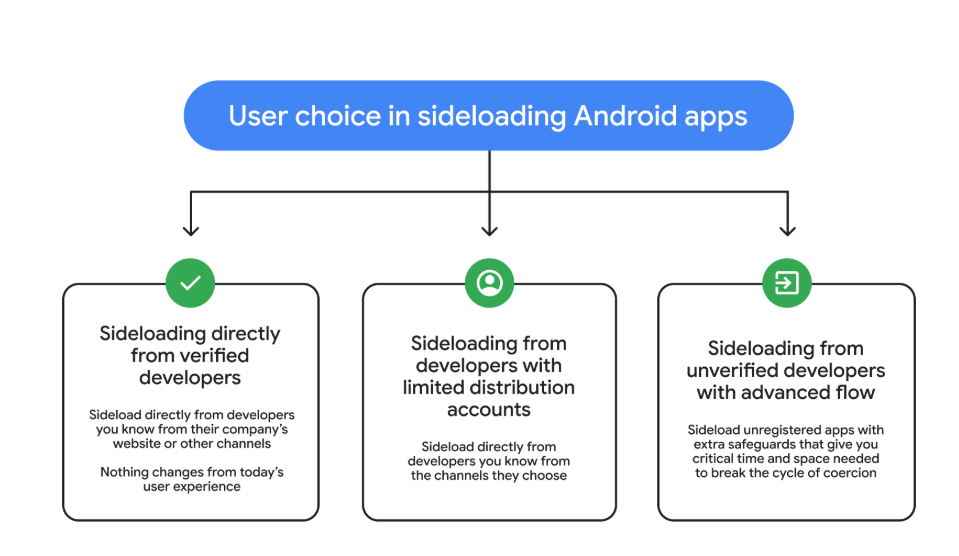
3 sideloading options
Image courtesy of Google

Advanced Flow is expected to roll out in August 2026.

Overall, it seems a reasonable compromise. Sideloading isn’t going away, so this keeps that ability but adds meaningful barriers against scam‑driven installs, thwarting social‑engineering campaigns without outright killing power‑user workflows. The one-day delay could turn out to be frustrating though, even if it’s only a one-time event.


We don’t just report on phone security—we provide it

Cybersecurity risks should never spread beyond a headline. Keep threats off your mobile devices by downloading Malwarebytes for iOS, and Malwarebytes for Android today.

  •  

Google cracks down on Android apps abusing accessibility

Google just dropped a bombshell for app developers with the latest version of its Android mobile operating system. The company can now prevent apps from installing if they try to use the system’s accessibility features.

The new development, live in version 17.2 of Android, is all about security, explains the company. It stops certain kinds of apps from using the accessibility service if Advanced Protection Mode (APM) is enabled.

The accessibility API lets app developers support users living with disabilities who need extra help using their phones. Apps can use this API to access the screen in unique ways, control input for the user, and use voice services, for example.

Sadly, as with most useful tools, someone will always find a way to misuse it and ruin it for everyone else. Malware developers have been using this API for years as a way into your bank account. The accessibility service has a lot of power: Any app with permissions to use it can read what’s on your screen.

Many Android banking Trojans are little more than accessibility API wrappers with criminal intent. They steal 2FA codes, impersonate victims, and drain accounts while victims sleep.

Two tricks dominate. The first is fake overlays. The accessibility API lets you put overlays on top of another app’s screen. Banking and cryptocurrency Trojan developers can use this to capture your keystrokes (you think you’re just logging into your banking app, but malware is collecting everything you type).

The second is permission abuse. Once the Trojan has your passwords, it can authorize its own transactions.

The number of malware frameworks taking advantage of the accessibility API has grown. DroidLock uses it to steal your personal data before demanding a ransom. Albiriox uses it to install itself and give remote control to attackers halfway around the world.

We saw both in December, and just last month Malwarebytes researcher Stefan Dasic noticed an accessibility service-abusing malware program posing as a fake Google Security page.

Google’s nuclear option

Google has tried before to curb misuse of the API. In 2017, it warned developers to justify their use of accessibility features or risk removal from the Play Store. Developers revolted, and Google relented. But then, in November 2021, it began demanding permission forms for accessibility API usage for Android 12+ apps.

Now the company is getting tougher still, enforcing stricter accessibility API rules. Apps can no longer freely enable accessibility services using a simple software flag. Instead, only apps whose core purpose is accessibility will be allowed to use it.

Google’s examples include screen readers, switch inputs, voice controls, and Braille displays. With these new rules, password managers or automation apps aren’t getting to the accessibility API anymore.

At least, not if the user has APM turned on.

Launched in May last year, APM is Google’s version of Apple’s Lockdown Mode. It introduces far tighter security controls for people who switch it on, making it harder for malware to exploit them.

The trade-off for that extra security is more limited functionality. For example, only apps from trusted sources will install, and data transfer via USB is restricted. Accessibility API access is now restricted too.

So now, you can be a password manager or an accessibility tool, but not both. Developers relying on accessibility for convenience features will need to find another way.

This is Google acknowledging that some APIs are too dangerous to leave open, even if some legitimate apps suffer. The company is betting that most users care more about not getting robbed than having their password manager use the accessibility API for convenience.

Malware authors will adapt, as always. But for now, Google just made phones with APM turned on a lot harder to mess with.


We don’t just report on phone security—we provide it

Cybersecurity risks should never spread beyond a headline. Keep threats off your mobile devices by downloading Malwarebytes for iOS, and Malwarebytes for Android today.

  •  

High-severity Qualcomm bug hits Android devices in targeted attacks

Google has patched 129 vulnerabilities in Android in its March 2026 Android Security Bulletin, including a Qualcomm display flaw that is known to be actively exploited.

You can check your device’s Android version, security update level, and Google Play system update in Settings. You should get a notification when updates are available, but you can also check for them yourself.

On most phones, go to Settings > About phone (or About device), then tap Software updates to see if anything new is available. The exact steps may vary slightly depending on the brand and Android version you’re on.

If your Android phone shows a patch level of 2026-03-05 or later, these issues are fixed.

Keeping your device up to date protects you from known vulnerabilities and helps you stay safe. We know that because of patch gaps and end-of-support cycles, some users may not receive these updates. That’s why additional protection for your Android device is important.

Technical details

The Android zero-day, tracked as CVE-2026-21385, is a high‑severity bug in a Qualcomm graphics/display component that attackers are already exploiting in limited, targeted attacks.

The vulnerability lives in an open‑source Qualcomm graphics/display component used by a large number of Android chipsets, with Qualcomm listing that well over 230 different chipset models are affected. Based on recently published Android and chipset market‑share percentages, it is reasonable to assume the issue affects hundreds of millions of devices worldwide, even if the exact number is hard to pin down.

On most Android phones, you can view the processor model in Settings > About phone (or About device) > Detailed info and specs, and look for entries such as “Processor,” “Chipset,” or “SoC.” Names like “Snapdragon 8 Gen 2,” “Snapdragon 778G,” or “Qualcomm SM8xxx/SM7xxx,” indicate a Qualcomm chipset and that the device may be in the affected family.

Google says there are signs that CVE‑2026‑21385 is already being used in “limited, targeted exploitation,” which usually means a small number of high‑value targets rather than broad, drive‑by attacks on the general public. Current descriptions point to a memory corruption scenario in the graphics component. The official description says:

“Memory corruption while using alignments for memory allocation.”

This means that if an attacker can get a malicious app or local code onto the device, they can feed specially crafted data into the graphics component’s driver and corrupt memory in a controlled way. In practice, a bug like this is a good candidate for turning a normal app’s limited access into something much more powerful, like using it as a building block in a chain of exploits to escalate privileges or to escape a sandbox.

As you can see, the attacker needs some kind of local foothold first, such as getting you to install a malicious app, exploiting another vulnerability, or abusing a compromised app already on the device. 

How to stay safe

From the available information, attackers would need to trick a user into installing a malicious app that could then compromise the device. That’s why it’s a good idea to follow these safety precautions:

  • Only install apps from official app stores whenever possible and avoid installing apps promoted in links in SMS, email, or messaging apps.
  • Before installing finance‑related or retailer apps, verify the developer’s name, number of downloads, and user reviews rather than trusting a single promotional link.
  • Protect your devices. Use an up-to-date, real-time anti-malware solution like Malwarebytes for Android.
  • Scrutinize permissions. Does an app really need the permissions it’s requesting to do the job you want it to do? Especially if it asks for accessibility, SMS, or camera access.
  • Keep Android, Google Play services, and all other important apps up to date so you get the latest security fixes.

We don’t just report on phone security—we provide it

Cybersecurity risks should never spread beyond a headline. Keep threats off your mobile devices by downloading Malwarebytes for iOS, and Malwarebytes for Android today.

  •  

A WhatsApp bug lets malicious media files spread through group chats

WhatsApp is going through a rough patch. Some users would argue it has been ever since Meta acquired the once widely trusted messaging platform. User sentiment has shifted from “trusted default messenger” to a grudgingly necessary Meta product.

Privacy-aware users still see WhatsApp as one of the more secure mass-market messaging platforms if you lock down its settings. Even then, many remain uneasy about Meta’s broader ecosystem, and wish all their contacts would switch to a more secure platform.

Back to current affairs, which will only reinforce that sentiment.

Google’s Project Zero has just disclosed a WhatsApp vulnerability where a malicious media file, sent into a newly created group chat, can be automatically downloaded and used as an attack vector.

The bug affects WhatsApp on Android and involves zero‑click media downloads in group chats. You can be attacked simply by being added to a group and having a malicious file sent to you.

According to Project Zero, the attack is most likely to be used in targeted campaigns, since the attacker needs to know or guess at least one contact. While focused, it is relatively easy to repeat once an attacker has a likely target list.

And to put a cherry on top for WhatsApp’s competitors, a potentially even more serious concern for the popular messaging platform, an international group of plaintiffs sued Meta Platforms, alleging the WhatsApp owner can store, analyze, and access virtually all of users’ private communications, despite WhatsApp’s end-to-end encryption claims.

How to secure WhatsApp

Reportedly, Meta pushed a server change on November 11, 2025, but Google says that only partially resolved the issue. So, Meta is working on a comprehensive fix.

Google’s advice is to disable Automatic Download or enable WhatsApp’s Advanced Privacy Mode so that media is not automatically downloaded to your phone.

And you’ll need to keep WhatsApp updated to get the latest patches, which is true for any app and for Android itself.

Turn off auto-download of media

Goal: ensure that no photos, videos, audio, or documents are pulled to the device without an explicit decision.

  • Open WhatsApp on your Android device.
  • Tap the three‑dot menu in the top‑right corner, then tap Settings.
  • Go to Storage and data (sometimes labeled Data and storage usage).
  • Under Media auto-download, you will see When using mobile data, when connected on Wi‑Fi. and when roaming.
  • For each of these three entries, tap it and uncheck all media types: Photos, Audio, Videos, Documents. Then tap OK.
  • Confirm that each category now shows something like “No media” under it.

Doing this directly implements Project Zero’s guidance to “disable Automatic Download” so that malicious media can’t silently land on your storage as soon as you are dropped into a hostile group.

Stop WhatsApp from saving media to your Android gallery

Even if WhatsApp still downloads some content, you can stop it from leaking into shared storage where other apps and system components see it.

  • In Settings, go to Chats.
  • Turn off Media visibility (or similar option such as Show media in gallery). For particularly sensitive chats, open the chat, tap the contact or group name, find Media visibility, and set it to No for that thread.

WhatsApp is a sandbox, and should contain the threat. Which means, keeping media inside WhatsApp makes it harder for a malicious file to be processed by other, possibly more vulnerable components.

Lock down who can add you to groups

The attack chain requires the attacker to add you and one of your contacts to a new group. Reducing who can do that lowers risk.

  • ​In Settings, tap Privacy.
  • Tap Groups.
  • Change from Everyone to My contacts or ideally My contacts except… and exclude any numbers you do not fully trust.
  • If you use WhatsApp for work, consider keeping group membership strictly to known contacts and approved admins.

Set up two-step verification on your WhatsApp account

Read this guide for Android and iOS to learn how to do that.


We don’t just report on phone security—we provide it

Cybersecurity risks should never spread beyond a headline. Keep threats off your mobile devices by downloading Malwarebytes for iOS, and Malwarebytes for Android today.

  •  

Malware in 2025 spread far beyond Windows PCs

This blog is part of a series highlighting new and concerning trends we noticed over the last year. Trends matter because they almost always provide a good indication of what’s coming next.

If there’s one thing that became very clear in 2025, it’s that malware is no longer focused on Windows alone. We’ve seen some major developments, especially in campaigns targeting Android and macOS. Unfortunately, many people still don’t realize that protecting smartphones, tablets, and other connected devices is just as essential as securing their laptops.

Android

Banking Trojans on Android are not new, but their level of sophistication continues to rise. These threats continue to be a major problem in 2025, often disguising themselves as fake apps to steal credentials or stealthily take over devices. A recent wave of advanced banking Trojans, such as Herodotus, can mimic human typing behaviors to evade detection, highlighting just how refined these attacks have become. Android malware also includes adware that aggressively pushes intrusive ads through free apps, degrading both the user experience and overall security.

Several Trojans were found to use overlays, which are fake login screens appearing on top of real banking and cryptocurrency apps. They can read what’s on the screen, so when someone enters their username and password, the malware steals them.

macOS

One of the most notable developments for Mac users was the expansion of the notorious ClickFix campaign to macOS. Early in 2025, I described how criminals used fake CAPTCHA sites and a clipboard hijacker to provide instructions that led visitors ro infect their own machines with the Lumma infostealer.

ClickFix is the name researchers have since given to this type of campaign, where users are tricked into running malicious commands themselves. On macOS, this technique is being used to distribute both AMOS stealers and the Rhadamanthys infostealer.

Cross-platform

Malware developers increasingly use cross-platform languages such as Rust and Go to create malware that can run on Windows, macOS, Linux, mobile, and even Internet of Things (IoT) devices. This enables flexible targeting and expands the number of potential victims. Malware-as-a-Service (MaaS) models are on the rise, offering these tools for rent or purchase on underground markets, further professionalizing malware development and distribution.

Social engineering

iPhone users have been found to be more prone to scams and less conscious about mobile security than Android owners. That brings us to the first line of defense, which has nothing to do with the device or operating system you use: education.

Social engineering exploits human behavior, and knowing what to look out for makes you far less likely to fall for a scam.

Fake apps that turn out to be malware, malicious apps in the Play Store, sextortion, and costly romance scams all prey on basic human emotions. They either go straight for the money or deliver Trojan droppers as the first step toward infecting a device.

We’ve also seen consistent growth in Remote Access Trojan (RAT) activity, often used as an initial infection method. There’s also been a rise in finance-focused attacks, including cryptocurrency and banking-related targets, alongside widespread stealer malware driving data breaches.

What does this mean for 2026?

Taken together, these trends point to a clear shift. Cybercriminals are increasingly focusing on operating systems beyond Windows, combining advanced techniques and social engineering tailored specifically to mobile and macOS.


We don’t just report on threats—we remove them

Cybersecurity risks should never spread beyond a headline. Keep threats off your devices by downloading Malwarebytes today.

  •  
❌