Reading view

Google Chrome’s silent 4GB AI download problem [updated]

Google Chrome has been quietly downloading a 4GB AI model onto users’ devices without asking first.

Security researcher Alexander Hanff, aka ThatPrivacyGuy, reports that Chrome has been silently installing Gemini Nano, Google’s on-device AI model, as a file called weights.bin stored in the OptGuideOnDeviceModel directory within users’ Chrome profiles. This 4GB download happens automatically when Chrome determines your device meets the hardware requirements. It does not ask for consent, and sends no notification—not even one of those annoying cookie banners you’ve learned to dismiss without reading.

The Gemini Nano model powers features like “Help me write” text composition assistance, on-device scam detection, and a Summarizer API that websites can call directly. These features are enabled by default in some recent Chrome versions. And here’s the kicker: if you discover the file and delete it, Chrome simply downloads it again.

Why this matters

Let’s start with the obvious problem: a 4GB download isn’t trivial for everyone. If you’re lucky enough to have unlimited fiber internet, you might not notice. But for users on metered connections, mobile hotspots, or in developing countries where data is expensive, Google just cost them real money without permission. For rural users or those with bandwidth caps, this kind of silent transfer can blow through monthly limits in minutes.

Hanff focuses on the environmental angle. He calculated that if this model were pushed to just 1 billion Chrome users (roughly 30% of Chrome’s user base), the distribution alone would consume 240 gigawatt-hours of energy and generate 60,000 tons of CO2 equivalent. That’s not including actually using the model, just the downloads.

But to us, the most troubling aspect is the broader pattern this represents. Just a few weeks ago, we reported another unsolicited AI invasion on our personal computers discovered by Hanff. He documented how Anthropic’s Claude Desktop app, which silently installed browser integration files across multiple Chromium browsers, including five browsers he didn’t even have installed. The integration would reinstall itself if removed, and it also happened without any meaningful user disclosure.

Hanff argues that both cases likely violate EU privacy law, specifically the ePrivacy Directive’s rules about storing data on user devices and the GDPR’s requirements around transparency and lawful processing. While these claims haven’t been tested in court, they highlight a fundamental tension: can companies just install whatever they want on your computer as long as they say it’s a feature of an app you installed?

Google might argue that having an AI on your device provides better privacy than cloud-based alternatives. Which is generally true, but it does not apply here, since Chrome’s most prominent AI feature—the “AI Mode” pill in the address bar—doesn’t even use the local model. According to Hanff’s analysis, it routes queries to Google’s cloud servers anyway. 

All in all, users see a 4GB local AI model and reasonably assume their data stays private, when in reality, the most visible AI feature sends everything to Google’s servers.

Tech companies need to stop treating silent deployment as acceptable practice. We see no valid excuse for this. Your device is yours. The storage is yours. The bandwidth is yours. And the electricity bill is yours.

What happened to asking for permission? And when I remove it, I want it gone permanently—not automatic reinstallation.

When are the tech giants going to learn that we don’t want to be left discovering after the fact that our devices have become deployment targets for features we never asked for.

Update May 12, 2026 with do it yourself instructions

How to check if the AI model is on your computer (Windows)

  1. Open File Explorer
  2. At the top of the File Explorer window, click the address bar and paste:

%LOCALAPPDATA%\Google\Chrome\User Data

  1. Press Enter
  2. Look for a folder named:

OptGuideOnDeviceModel

  1. If you see it, Chrome has likely downloaded the AI model
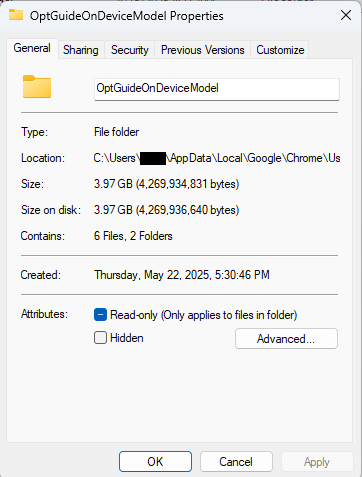
Properties of the OptGuideOnDeviceModel folder
Properties of the folder

How to check on a Mac

  1. Open Finder
  2. In the menu bar at the top of the screen, click Go > Go to Folder
  3. Paste:

~/Library/Application Support/Google/Chrome/

  1. Look for a folder named:

OptGuideOnDeviceModel

Now, remember, this isn’t malware, and its presence doesn’t mean your computer is infected.

Turn off Chrome AI features

This part is relatively easy. You may find online instructions telling you to edit the Windows registry or use Chrome policies, but for most people the simplest and safest approach is to disable the features directly in Chrome.

We don’t recommend manually editing the registry unless you fully understand what you’re doing. Incorrect changes can cause system problems.

Instead, try this first:

  1. Open Chrome
  2. You can copy and paste this directly into Chrome’s address bar and press Enter:

chrome://settings/ai

  1. On the page that opens, you can turn off features such as:
    • “Help me write”
    • AI summaries
    • On-device AI features

 The exact options may vary depending on your Chrome version and region.

  1. Then restart Chrome to make sure the changes take effect.

This may stop Chrome from downloading or using the AI model, although some users report the files can return after browser updates.

There is probably no need to delete the files unless you specifically need the storage space.

If chrome://settings/ai does not work, the feature may not yet be available in your region, you may be using a managed work or school account, or your version of Chrome may not support these settings yet.

Do you need to delete the OptGuideOnDeviceModel folder?

You can, but there is probably no need to.

If you disable Chrome’s AI features, the downloaded model should no longer be actively used for those features. Leaving the files in place may also prevent Chrome from downloading them again at a later point.


Browse like no one’s watching. 

Malwarebytes Privacy VPN encrypts your connection and never logs what you do, so the next story you read doesn’t have to feel personal. Try it free → 

  •  

Browser Guard gets even better with Access Control 

Have you ever been on a website when a pop-up suddenly asked for access to your camera, microphone, location, or notifications? Whether you clicked “allow,” dismissed it, or just wondered why it appeared, those permission requests aren’t always harmless. Some sites can abuse those permissions.

With Access Control, a new feature in Browser Guard, you decide exactly which websites can access your device and stop the rest. That means you choose which websites can: 

  • Use your camera
  • Use your microphone
  • Access your location
  • Send you notifications 

Further, not only can you control which websites have access to your devices, but you can also block websites or even require those specific sites to request permission every single time they try to gain access to your machines. You can always allow trusted sites to access your camera or location while blocking everything else.  

Access Control is now available for Malwarebytes subscribers using Chrome and Edge browsers on a Windows device. 

How to use Access Control 

We designed Access Control to be both powerful and simple because we know every moment you spend getting set up is another moment you’re left unprotected.  

How to use Access Control:  

  • Install/Open Browser Guard: Click the Malwarebytes icon in your browser’s header 
  • Access Dashboard: Click the Dashboard tab at the bottom of the extension panel. 
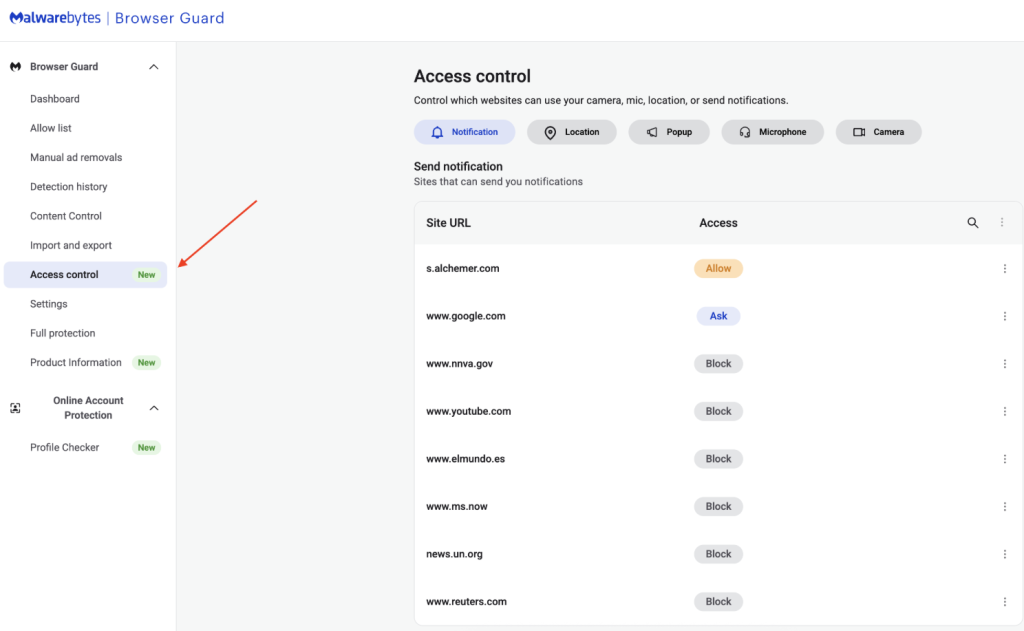
  • Navigate to Access Control: On the left sidebar of the web page, select Access Control. 
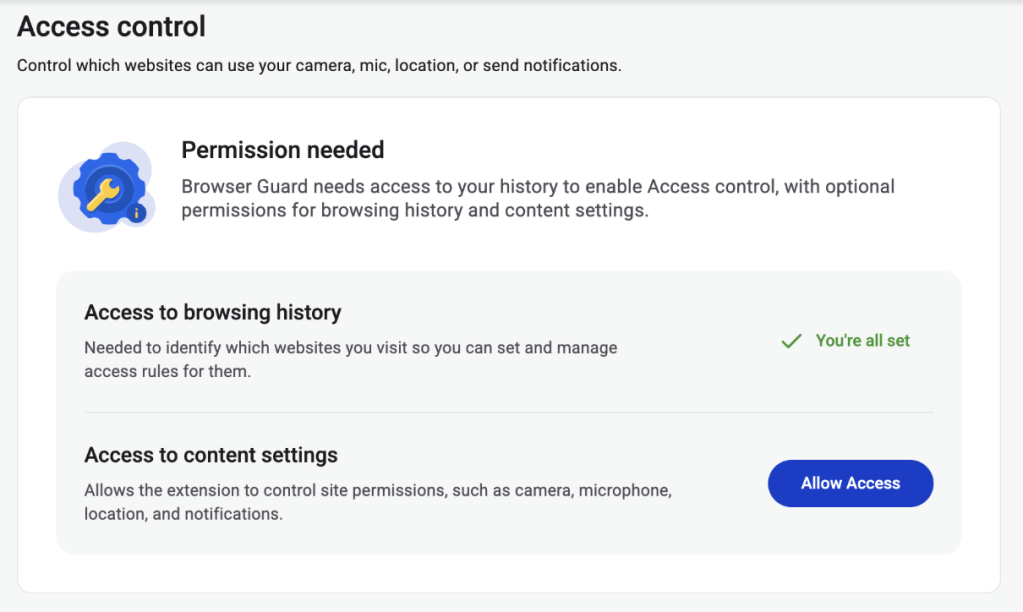
  • Manage Permissions: See visited websites, click “Allow” to enable or disable Malwarebytes’ ability to see visited sites.
  • Access Control requires some access to your browsing to protect you online
  • Access Control lets you choose individual sites to block and allow

This feature is rolling out in beta first, so you might see improvements and updates as we refine it. Currently, the feature works across Chrome and Edge, but will roll out to other browsers soon.  

Access Control is another step toward making privacy simple and accessible.  Not a subscriber yet? Check out  Malwarebytes’ plans today to unlock this feature and more. 


We don’t just report on threats—we remove them

Cybersecurity risks should never spread beyond a headline. Keep threats off your devices by downloading Malwarebytes today.

  •  

Update Chrome now: Zero-day bug allows code execution via malicious webpages

Google has issued a patch for a high‑severity Chrome zero‑day, tracked as CVE‑2026‑2441, a memory bug in how the browser handles certain font features that attackers are already exploiting.

CVE-2026-2441 has the questionable honor of being the first Chrome zero-day of 2026. Google considered it serious enough to issue a separate update of the stable channel for it, rather than wait for the next major release.

How to update Chrome

The latest version number is 145.0.7632.75/76 for Windows and macOS, and 145.0.7632.75 for Linux. So, if your Chrome is on version 145.0.7632.75 or later, it’s protected from these vulnerabilities.

The easiest way to update is to allow Chrome to update automatically. But you can end up lagging behind if you never close your browser or if something goes wrong, such as an extension preventing the update.

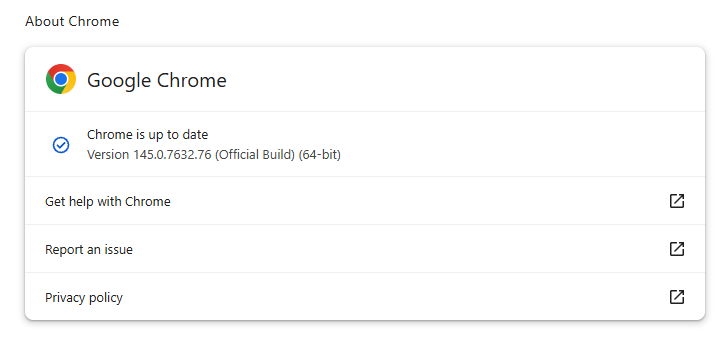
To update manually, click the More menu (three dots), then go to Settings > About Chrome. If an update is available, Chrome will start downloading it. Restart Chrome to complete the update, and you’ll be protected against these vulnerabilities.

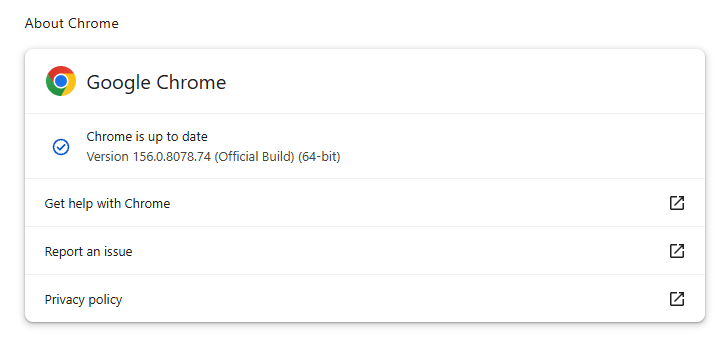
Chrome is up to date
Chrome at version 145.0.7632.76 is up to date

You can also find step-by-step instructions in our guide to how to update Chrome on every operating system.

Technical details

Google confirms it has seen active exploitation but is not sharing who is being targeted, how often, or detailed indicators yet.

But we can derive some information from what we know.

The vulnerability is a use‑after‑free issue in Chrome’s CSS font feature handling (CSSFontFeatureValuesMap), which is part of how websites display and style text. More specifically: The root cause is an iterator invalidation bug. Chrome would loop over a set of font feature values while also changing that set, leaving the loop pointing at stale data until an attacker managed to turn that into code execution.

Use-after-free (UAF) is a type of software vulnerability where a program attempts to access a memory location after it has been freed. That can lead to crashes or, in some cases, lets an attacker run their own code.

The CVE-record says, “Use after free in CSS in Google Chrome prior to 145.0.7632.75 allowed a remote attacker to execute arbitrary code inside a sandbox via a crafted HTML page.” (Chromium security severity: High)

This means an attacker would be able to create a special website, or other HTML content that would run code inside the Chrome browser’s sandbox.

Chrome’s sandbox is like a secure box around each website tab. Even if something inside the tab goes rogue, it should be confined and not able to tamper with the rest of your system. It limits what website code can touch in terms of files, devices, and other apps, so a browser bug ideally only gives an attacker a foothold in that restricted environment, not full control of the machine.

Running arbitrary code inside the sandbox is still dangerous because the attacker effectively “becomes” that browser tab. They can see and modify anything the tab can access. Even without escaping to the operating system, this is enough to steal accounts, plant backdoors in cloud services, or reroute sensitive traffic.

If chained with a vulnerability that allows a process to escape the sandbox, an attacker can move laterally, install malware, or encrypt files, as with any other full system compromise.

How to stay safe

To protect your device against attacks exploiting this vulnerability, you’re strongly advised to update as soon as possible. Here are some more tips to avoid becoming a victim, even before a zero-day is patched:

  • Don’t click on unsolicited links in emails, messages, unknown websites, or on social media.
  • Enable automatic updates and restart regularly. Many users leave browsers open for days, which delays protection even if the update is downloaded in the background.
  • Use an up-to-date, real-time anti-malware solution which includes a web protection component.

Users of other Chromium-based browsers can expect to see a similar update.


We don’t just report on threats—we help safeguard your entire digital identity

Cybersecurity risks should never spread beyond a headline. Protect your, and your family’s, personal information by using identity protection.

  •  
❌