
Normal view

Mental health apps are leaking your private thoughts. How do you protect yourself? | Kaspersky official blog

10 March 2026 at 16:33

In February 2026, the cybersecurity firm Oversecured published a report that makes you want to factory reset your phone and move into a remote cabin in the woods. Researchers audited 10 popular Android mental health apps — ranging from mood trackers and AI therapists to tools for managing depression and anxiety — and uncovered… 1575 vulnerabilities! Fifty-four of those flaws were classified as critical. Given the download stats on Google Play, as many as 15 million people could be affected. The real kicker? Six out of the ten apps tested explicitly promised users that their data was “fully encrypted and securely protected”.

We’re breaking down this scandalous “brain drain”: what exactly could leak, how it’s happening, and why “anonymity” in these services is usually just a marketing myth.

What was found in the apps

Oversecured is a mobile app security firm that uses a specialized scanner to analyze APK files for known vulnerability patterns across dozens of categories. In January 2026, researchers ran ten mental health monitoring apps from Google Play through the scanner — and the results were, shall we say, “spectacular”.

App Type Installs Security vulnerabilities
High-severity Medium-severity Low-severity Total
Mood & habit tracker 10M+ 1 147 189 337
AI therapy chatbot 1M+ 23 63 169 255
AI emotional health platform 1M+ 13 124 78 215
Health & symptom tracker 500k+ 7 31 173 211
Depression management tool 100k+ 0 66 91 157
CBT-based anxiety app 500k+ 3 45 62 110
Online therapy & support community 1M+ 7 20 71 98
Anxiety & phobia self-help 50k+ 0 15 54 69
Military stress management 50k+ 0 12 50 62
AI CBT chatbot 500k+ 0 15 46 61
Total 14.7М+ 54 538 983 1575

Vulnerabilities found in the 10 tested mental health apps. Source

The anatomy of the flaws

The discovered vulnerabilities are diverse, but they all boil down to one thing: giving attackers access to data that should be under lock and key.

For starters, one of the vulnerabilities allows an attacker to access any internal activity of the app — even that never intended for external eyes. This opens the door to hijacking authentication tokens and user session data. Once an attacker has those, they essentially could gain access to a user’s therapy records.

Another issue is insecure local data storage with read permissions granted to any other app on the device. In other words, that random flashlight app or calculator on your smartphone could potentially read your cognitive behavioral therapy (CBT) logs, personal notes, and mood assessments.

The researchers also found unencrypted configuration data baked right into the APK installation files. This included backend API endpoints and hardcoded URLs for Firebase databases.

Furthermore, several apps were caught using the cryptographically weak java.util.Random class to generate session tokens and encryption keys.

Finally, most of the tested apps lacked root/jailbreak detection. On a rooted device, any third-party app with root privileges could gain total access to every bit of locally stored medical data.

Shockingly, of the 10 apps analyzed, only four received updates in February 2026. The rest haven’t seen a patch since November 2025, and one hasn’t been touched since September 2024. Going 18 months without a security patch is a lifetime in this industry — especially for an app housing mood journals, therapy transcripts, and medication schedules.

Here’s a quick reminder of just how dangerous the misuse of this type of data gets. In 2024, the tech world was rocked by a sophisticated attack on XZ Utils, a critical component found in virtually every operating system based on the Linux kernel. The attacker successfully pressured the maintainer into handing over code commit permissions by exploiting the developer’s public admission of burnout and a lack of motivation to carry on with the project. Had the attack been completed, the damage would have been mind-boggling given that roughly 80% of the world’s servers run on Linux.

What could leak?

What do these apps collect and store? It’s the kind of stuff you’d likely only share with a trusted clinician: therapy session transcripts, mood logs, medication schedules, self-harm indicators, CBT notes, and various clinical assessment scales.

As far back as 2021, complete medical records were selling on the dark web for US$1000 each. For comparison, a stolen credit card number goes for anywhere between US$5 and US$30. Medical records contain a full identity package: name, address, insurance details, and diagnostic history. Unlike a credit card, you can’t exactly “reissue” your medical history. Furthermore, medical fraud is notoriously difficult to spot. While a bank might flag a suspicious transaction in hours, a fraudulent insurance claim for a phantom treatment can go unnoticed for years.

We’ve seen this movie before

The Oversecured study isn’t just an isolated horror story.

Back in 2020, Julius Kivimäki hacked the database of the Finnish psychotherapy clinic Vastaamo, making off with the records of 33 000 patients. When the clinic refused to cough up a €400 000 ransom, Kivimäki began sending direct threats to patients: “Pay €200 in Bitcoin within 24 hours, or else your records go public”. Ultimately, he leaked the entire database onto the dark web anyway. At least two people died by suicide, and the clinic was forced into bankruptcy. Kivimäki was eventually sentenced to six years and three months in prison, marking a record-breaking trial in Finland for the sheer number of victims involved.

In 2023, the U.S. Federal Trade Commission (FTC) slapped the online therapy giant BetterHelp with a US$7.8 million fine. Despite stating on their sign-up page that your data was strictly confidential, the company was caught funneling user info — including mental health questionnaire responses, emails, and IP addresses — to Facebook, Snapchat, Criteo, and Pinterest for targeted advertising. After the dust settled, 800 000 affected users received a grand total of… US$10 each in compensation.

By 2024, the FTC set its sights on the telehealth firm Cerebral, tagging them with a US$7 million fine. Through tracking pixels, Cerebral leaked the data of 3.2 million users to LinkedIn, Snapchat, and TikTok. The haul included names, medical histories, prescriptions, appointment dates, and insurance info. And the cherry on top? The company sent promotional postcards (sans envelopes) to 6000 patients, which effectively broadcasted that the recipients were undergoing psychiatric treatment.

In September 2024, security researcher Jeremiah Fowler stumbled upon an exposed database belonging to Confidant Health, a provider specializing in addiction recovery and mental health services. The database contained audio and video recordings of therapy sessions, transcripts, psychiatric notes, drug test results, and even copies of driver’s licenses. In total, 5.3 terabytes of data, 126 000 files, or 1.7 million records were sitting there without a password.

Why anonymity is an illusion

Developers love to drop the line: “We never share your personal data with anyone.” Technically, that might be true — instead, they share “anonymized profiles”. The catch? De-anonymizing that data isn’t exactly rocket science anymore. Recent research highlights that using LLMs to strip away anonymity has become a routine reality.

Even the “anonymization” process itself is often a mess. A study by Duke University revealed that data brokers are openly hawking the mental health data of Americans. Out of 37 brokers surveyed, 11 agreed to sell data linked to specific diagnoses (like depression, anxiety, and bipolar disorder), demographic parameters, and in some cases, even names and home addresses. Prices started as low as US$275 for 5000 aggregated records.

According to the Mozilla Foundation, by 2023, 59% of popular mental health apps failed to meet even the most basic privacy standards, and 40% had actually become less secure than the previous year. These apps allowed account creation via third-party services (like Google, Apple, and Facebook), featured suspiciously brief privacy policies that glossed over data collection details, and employed a clever little loophole: some privacy policies applied strictly to the company’s website, but not the app itself. In short, your clicks on the site were “protected”, but your actions within the app were fair game.

How to protect yourself

Cutting these apps out of your life entirely is, of course, the most foolproof option — but it’s not the most realistic one. Besides, there’s no guarantee you can actually nuke the data already collected — even if you delete your account. We previously covered the grueling process of scrubbing your info from data broker databases; it’s possible, but prepare for a headache. So, how can you stay safe?

  • Check permissions before you hit “Install”. In Google Play, navigate to App description → About this app → Permissions. A mood tracker has no business asking for access to your camera, microphone, contacts, or precise GPS location. If it does, it’s not looking out for your well-being — it’s harvesting data.
  • Actually read the privacy policy. We get it — nobody reads these multi-page manifestos. But when a service is vacuuming up your most intimate thoughts, it’s worth a skim. Look for the red flags: does the company share data with third parties? Can you manually delete your records? Does the policy explicitly cover the app itself, or just the website? You can always feed the policy text into an AI and ask it to flag any privacy deal-breakers.
  • Check the last updated date. An app that hasn’t seen an update in over six months is likely a playground for unpatched vulnerabilities. Remember: six out of the 10 apps Oversecured tested hadn’t been touched in months.
  • Disable everything non-essential in your phone’s privacy settings. Whenever prompted, always select “ask not to track”. When an app pleads with you to enable a specific type of tracking — claiming it’s for “internal optimization” — it’s almost always a marketing ploy rather than a functional necessity. After all, if the app truly won’t work without a certain permission, you can always go back and toggle it on later.
  • Don’t use “Sign in with…” services. Authenticating via Facebook, Apple, Google, or Microsoft creates additional identifiers and gives companies a golden opportunity to link your data across different platforms.
  • Treat everything you type like a public social media post. If you wouldn’t want a random stranger on the internet reading it, you probably shouldn’t be typing it into an app with over 150 vulnerabilities that hasn’t seen a patch since the year before last.

What else you should know about privacy settings and controlling your personal data online:

How to disable unwanted AI assistants and features on your PC and smartphone | Kaspersky official blog

5 March 2026 at 13:25

If you don’t go searching for AI services, they’ll find you all the same. Every major tech company feels a moral obligation not just to develop an AI assistant, integrated chatbot, or autonomous agent, but to bake it into their existing mainstream products and forcibly activate it for tens of millions of users. Here are just a few examples from the last six months:

On the flip side, geeks have rushed to build their own “personal Jarvises” by renting VPS instances or hoarding Mac minis to run the OpenClaw AI agent. Unfortunately, OpenClaw’s security issues with default settings turned out to be so massive that it’s already been dubbed the biggest cybersecurity threat of 2026.

Beyond the sheer annoyance of having something shoved down your throat, this AI epidemic brings some very real practical risks and headaches. AI assistants hoover up every bit of data they can get their hands on, parsing the context of the websites you visit, analyzing your saved documents, reading through your chats, and so on. This gives AI companies an unprecedentedly intimate look into every user’s life.

A leak of this data during a cyberattack — whether from the AI provider’s servers or from the cache on your own machine — could be catastrophic. These assistants can see and cache everything you can, including data usually tucked behind multiple layers of security: banking info, medical diagnoses, private messages, and other sensitive intel. We took a deep dive into how this plays out when we broke down the issues with the AI-powered Copilot+ Recall system, which Microsoft also planned to force-feed to everyone. On top of that, AI can be a total resource hog, eating up RAM, GPU cycles, and storage, which often leads to a noticeable hit to system performance.

For those who want to sit out the AI storm and avoid these half-baked, rushed-to-market neural network assistants, we’ve put together a quick guide on how to kill the AI in popular apps and services.

How to disable AI in Google Docs, Gmail, and Google Workspace

Google’s AI assistant features in Mail and Docs are lumped together under the umbrella of “smart features”. In addition to the large language model, this includes various minor conveniences, like automatically adding meetings to your calendar when you receive an invite in Gmail. Unfortunately, it’s an all-or-nothing deal: you have to disable all of the “smart features” to get rid of the AI.

To do this, open Gmail, click the Settings (gear) icon, and then select See all settings. On the General tab, scroll down to Google Workspace smart features. Click Manage Workspace smart feature settings and toggle off two options: Smart features in Google Workspace and Smart features in other Google products. We also recommend unchecking the box next to Turn on smart features in Gmail, Chat, and Meet on the same general settings tab. You’ll need to restart your Google apps afterward (which usually happens automatically).

How to disable AI Overviews in Google Search

You can kill off AI Overviews in search results on both desktops and smartphones (including iPhones), and the fix is the same across the board. The simplest way to bypass the AI overview on a case-by-case basis is to append -ai to your search query — for example, how to make pizza -ai. Unfortunately, this method occasionally glitches, causing Google to abruptly claim it found absolutely nothing for your request.

If that happens, you can achieve the same result by switching the search results page to Web mode. To do this, select the Web filter immediately below the search bar — you’ll often find it tucked away under the More button.

A more radical solution is to jump ship to a different search engine entirely. For instance, DuckDuckGo not only tracks users less and shows little ads, but it also offers a dedicated AI-free search — just bookmark the search page at noai.duckduckgo.com.

How to disable AI features in Chrome

Chrome currently has two types of AI features baked in. The first communicates with Google’s servers and handles things like the smart assistant, an autonomous browsing AI agent, and smart search. The second handles locally more utility-based tasks, such as identifying phishing pages or grouping browser tabs. The first group of settings is labeled AI mode, while the second contains the term Gemini Nano.

To disable them, type chrome://flags into the address bar and hit Enter. You’ll see a list of system flags and a search bar; type “AI” into that search bar. This will filter the massive list down to about a dozen AI features (and a few other settings where those letters just happen to appear in a longer word). The second search term you’ll need in this window is “Gemini“.

After reviewing the options, you can disable the unwanted AI features — or just turn them all off — but the bare minimum should include:

  • AI Mode Omnibox entrypoint
  • AI Entrypoint Disabled on User Input
  • Omnibox Allow AI Mode Matches
  • Prompt API for Gemini Nano
  • Prompt API for Gemini Nano with Multimodal Input

Set all of these to Disabled.

How to disable AI features in Firefox

While Firefox doesn’t have its own built-in chatbots and hasn’t (yet) tried to force upon users agent-based features, the browser does come equipped with smart-tab grouping, a sidebar for chatbots, and a few other perks. Generally, AI in Firefox is much less “in your face” than in Chrome or Edge. But if you still want to pull the plug, you’ve two ways to do it.

The first method is available in recent Firefox releases — starting with version 148, a dedicated AI Controls section appeared in the browser settings, though the controls are currently a bit sparse. You can use a single toggle to completely Block AI enhancements, shutting down AI features entirely. You can also specify whether you want to use On-device AI by downloading small local models (currently just for translations) and configure AI chatbot providers in sidebar, choosing between Anthropic Claude, ChatGPT, Copilot, Google Gemini, and Le Chat Mistral.

The second path — for older versions of Firefox — requires a trip into the hidden system settings. Type about:config into the address bar, hit Enter, and click the button to confirm that you accept the risk of poking around under the hood.

A massive list of settings will appear along with a search bar. Type “ML” to filter for settings related to machine learning.

To disable AI in Firefox, toggle the browser.ml.enabled setting to false. This should disable all AI features across the board, but community forums suggest this isn’t always enough to do the trick. For a scorched-earth approach, set the following parameters to false (or selectively keep only what you need):

  • ml.chat.enabled
  • ml.linkPreview.enabled
  • ml.pageAssist.enabled
  • ml.smartAssist.enabled
  • ml.enabled
  • ai.control.translations
  • tabs.groups.smart.enabled
  • urlbar.quicksuggest.mlEnabled

This will kill off chatbot integrations, AI-generated link descriptions, assistants and extensions, local translation of websites, tab grouping, and other AI-driven features.

How to disable AI features in Microsoft apps

Microsoft has managed to bake AI into almost every single one of its products, and turning it off is often no easy task — especially since the AI sometimes has a habit of resurrecting itself without your involvement.

How to disable AI features in Edge

Microsoft’s browser is packed with AI features, ranging from Copilot to automated search. To shut them down, follow the same logic as with Chrome: type edge://flags into the Edge address bar, hit Enter, then type “AI” or “Copilot” into the search box. From there, you can toggle off the unwanted AI features, such as:

  • Enable Compose (AI-writing) on the web
  • Edge Copilot Mode
  • Edge History AI

Another way to ditch Copilot is to enter edge://settings/appearance/copilotAndSidebar into the address bar. Here, you can customize the look of the Copilot sidebar and tweak personalization options for results and notifications. Don’t forget to peek into the Copilot section under App-specific settings — you’ll find some additional controls tucked away there.

How to disable Microsoft Copilot

Microsoft Copilot comes in two flavors: as a component of Windows (Microsoft Copilot), and as part of the Office suite (Microsoft 365 Copilot). Their functions are similar, but you’ll have to disable one or both depending on exactly what the Redmond engineers decided to shove onto your machine.

The simplest thing you can do is just uninstall the app entirely. Right-click the Copilot entry in the Start menu and select Uninstall. If that option isn’t there, head over to your installed apps list (Start → Settings → Apps) and uninstall Copilot from there.

In certain builds of Windows 11, Copilot is baked directly into the OS, so a simple uninstall might not work. In that case, you can toggle it off via the settings: Start → Settings → Personalization → Taskbar → turn off Copilot.

If you ever have a change of heart, you can always reinstall Copilot from the Microsoft Store.

It’s worth noting that many users have complained about Copilot automatically reinstalling itself, so you might want to do a weekly check for a couple of months to make sure it hasn’t staged a comeback. For those who are comfortable tinkering with the System Registry (and understand the consequences), you can follow this detailed guide to prevent Copilot’s silent resurrection by disabling the SilentInstalledAppsEnabled flag and adding/enabling the TurnOffWindowsCopilot parameter.

How to disable Microsoft Recall

The Microsoft Recall feature, first introduced in 2024, works by constantly taking screenshots of your computer screen and having a neural network analyze them. All that extracted information is dumped into a database, which you can then search using an AI assistant. We’ve previously written in detail about the massive security risks Microsoft Recall poses.

Under pressure from cybersecurity experts, Microsoft was forced to push the launch of this feature from 2024 to 2025, significantly beefing up the protection of the stored data. However, the core of Recall remains the same: your computer still remembers your every move by constantly snapping screenshots and OCR-ing the content. And while the feature is no longer enabled by default, it’s absolutely worth checking to make sure it hasn’t been activated on your machine.

To check, head to the settings: Start → Settings → Privacy & Security → Recall & snapshots. Ensure the Save snapshots toggle is turned off, and click Delete snapshots to wipe any previously collected data, just in case.

You can also check out our detailed guide on how to disable and completely remove Microsoft Recall.

How to disable AI in Notepad and Windows context actions

AI has seeped into every corner of Windows, even into File Explorer and Notepad. You might even trigger AI features just by accidentally highlighting text in an app — a feature Microsoft calls “AI Actions”. To shut this down, head to Start → Settings → Privacy & Security → Click to Do.

Notepad has received its own special Copilot treatment, so you’ll need to disable AI there separately. Open the Notepad settings, find the AI features section, and toggle Copilot off.

Finally, Microsoft has even managed to bake Copilot into Paint. Unfortunately, as of right now, there is no official way to disable the AI features within the Paint app itself.

How to disable AI in WhatsApp

In several regions, WhatsApp users have started seeing typical AI additions like suggested replies, AI message summaries, and a brand-new Chat with Meta AI button. While Meta claims the first two features process data locally on your device and don’t ship your chats off to their servers, verifying that is no small feat. Luckily, turning them off is straightforward.

To disable Suggested Replies, go to Settings → Chats → Suggestions & smart replies and toggle off Suggested replies. You can also kill off AI Sticker suggestions in that same menu. As for the AI message summaries, those are managed in a different location: Settings → Notifications → AI message summaries.

How to disable AI on Android

Given the sheer variety of manufacturers and Android flavors, there’s no one-size-fits-all instruction manual for every single phone. Today, we’ll focus on killing off Google’s AI services — but if you’re using a device from Samsung, Xiaomi, or others, don’t forget to check your specific manufacturer’s AI settings. Just a heads-up: fully scrubbing every trace of AI might be a tall order — if it’s even possible at all.

In Google Messages, the AI features are tucked away in the settings: tap your account picture, select Messages settings, then Gemini in Messages, and toggle the assistant off.

Broadly speaking, the Gemini chatbot is a standalone app that you can uninstall by heading to your phone’s settings and selecting Apps. However, given Google’s master plan to replace the long-standing Google Assistant with Gemini, uninstalling it might become difficult — or even impossible — down the road.

If you can’t completely uninstall Gemini, head into the app to kill its features manually. Tap your profile icon, select Gemini Apps activity, and then choose Turn off or Turn off and delete activity. Next, tap the profile icon again and go to the Connected Apps setting (it may be hiding under the Personal Intelligence setting). From here, you should disable all the apps where you don’t want Gemini poking its nose in.

How to disable AI in macOS and iOS

Apple’s platform-level AI features, collectively known as Apple Intelligence, are refreshingly straightforward to disable. In your settings — on desktops, smartphones, and tablets alike — simply look for the section labeled Apple Intelligence & Siri. By the way, depending on your region and the language you’ve selected for your OS and Siri, Apple Intelligence might not even be available to you yet.

Other posts to help you tune the AI tools on your devices:

Quick digest of Kaspersky’s report “Spam and Phishing in 2025” | Kaspersky official blog

11 February 2026 at 22:32

Every year, scammers cook up new ways to trick people, and 2025 was no exception. Over the past year, our anti-phishing system thwarted more than 554 million attempts to follow phishing links, while our Mail Anti-Virus blocked nearly 145 million malicious attachments. To top it off, almost 45% of all emails worldwide turned out to be spam. Below, we break down the most impressive phishing and spam schemes from last year. For the deep dive, you can read the full Spam and Phishing in 2025 report on Securelist.

Phishing for fun

Music lovers and cinephiles were prime targets for scammers in 2025. Bad actors went all out creating fake ticketing aggregators and spoofed versions of popular streaming services.

On these fake aggregator sites, users were offered “free” tickets to major concerts. The catch? You just had to pay a small “processing fee” or “shipping cost”. Naturally, the only thing being delivered was your hard-earned cash straight into a scammer’s pocket.

Free Lady Gaga tickets? Only in a mousetrap

With streaming services, the hustle went like this: users received a tempting offer to, say, migrate their Spotify playlists to YouTube by entering their Spotify credentials. Alternatively, they were invited to vote for their favorite artist in a chart — an opportunity most fans find hard to pass up. To add a coat of legitimacy, scammers name-dropped heavy hitters like Google and Spotify. The phishing form targeted multiple platforms at once — Facebook, Instagram, or email — requiring users to enter their credentials to vote hand over their accounts.

A phishing page masquerading as an artist voting platform

This phishing page mimicking a multi-login setup looks terrible — no self-respecting designer would cram that many clashing icons onto a single button

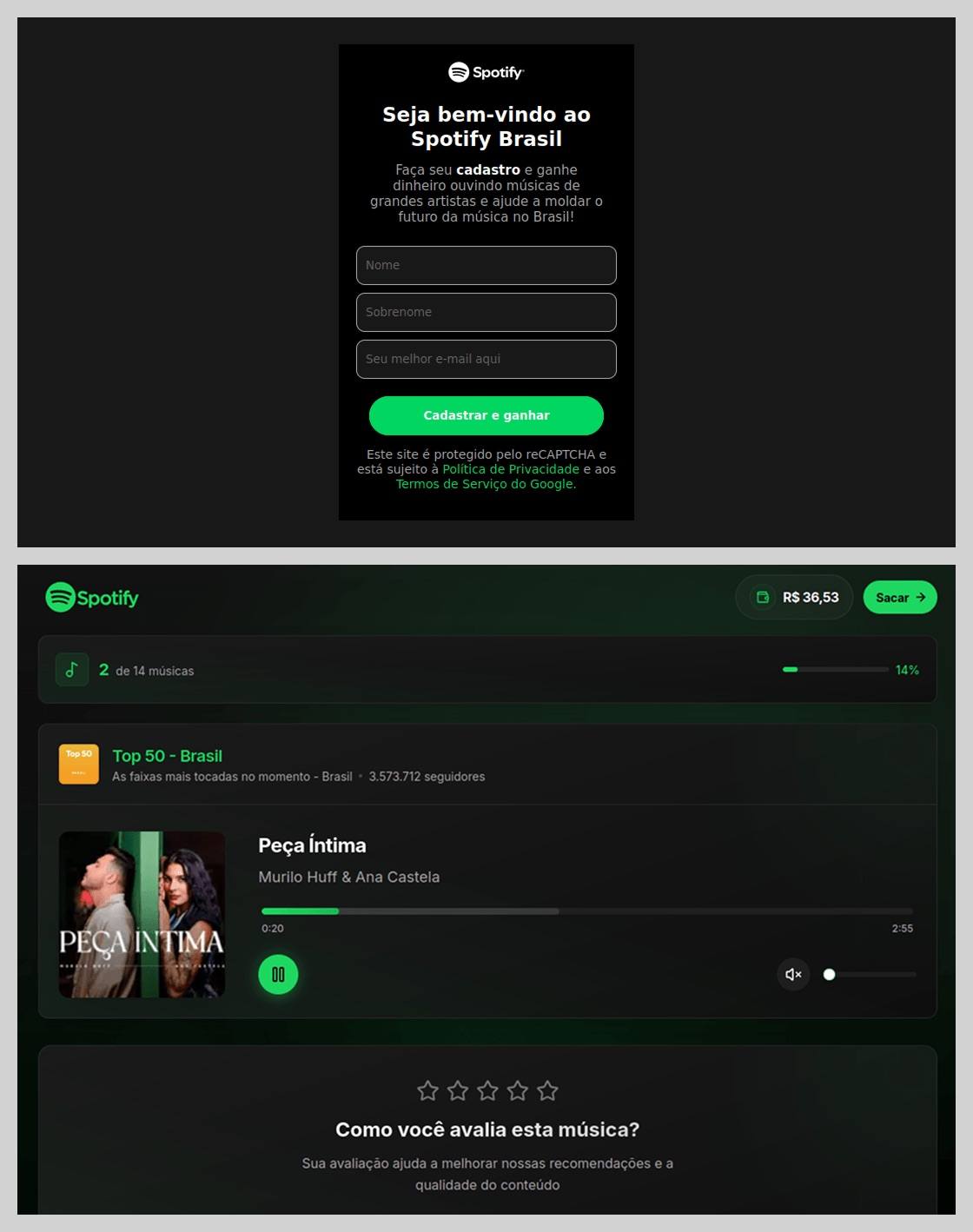
In Brazil, scammers took it a step further: they offered users the chance to earn money just by listening to and rating songs on a supposed Spotify partner service. During registration, users had to provide their ID for Pix (the Brazilian instant payment system), and then make a one-time “verification payment” of 19.9 Brazilian reals (about $4) to “confirm their identity”. This fee was, of course, a fraction of the promised “potential earnings”. The payment form looked incredibly authentic and requested additional personal data — likely to be harvested for future attacks.

An imitation service claiming to pay users for listening to tracks on Spotify

This scam posed as a service for boosting Spotify ratings and plays, but to start “earning”, you first had to pay up

The “cultural date” scheme turned out to be particularly inventive. After matching and some brief chatting on dating apps, a new “love interest” would invite the victim to a play or a movie and send a link to buy tickets. Once the “payment” went through, both the date and the ticketing site would vanish into thin air. A similar tactic was used to sell tickets for immersive escape rooms, which have surged in popularity lately; the page designs mirrored real sites to lower the user’s guard.

A fake version of a popular Russian ticketing aggregator

Scammers cloned the website of a well-known Russian ticketing service

Phishing via messaging apps

The theft of Telegram and WhatsApp accounts became one of the year’s most widespread threats. Scammers have mastered the art of masking phishing as standard chat app activities, and have significantly expanded their geographical reach.

On Telegram, free Premium subscriptions remained the ultimate bait. While these phishing pages were previously only seen in Russian and English, 2025 saw a massive expansion into other languages. Victims would receive a message — often from a friend’s hijacked account — offering a “gift”. To activate it, the user had to log in to their Telegram account on the attacker’s site, which immediately led to another hijacked account.

Another common scheme involved celebrity giveaways. One specific attack, disguised as an NFT giveaway, stood out because it operated through a Telegram Mini App. For the average user, spotting a malicious Mini App is much harder than identifying a sketchy external URL.

Phishing bait featuring a supposed papakha NFT giveaway by Khabib Nurmagomedov

Scammers blasted out phishing bait for a fake Khabib Nurmagomedov NFT giveaway in both Russian and English simultaneously. However, in the Russian text, they forgot to remove a question from the AI that generated the text, “Do you need bolder, formal, or humorous options?” — which points to a rushed job and a total lack of editing

Finally, the classic vote for my friend messenger scam evolved in 2025 to include prompts to vote for the “city’s best dentist” or “top operational leader” — unfortunately, just bait for account takeovers.

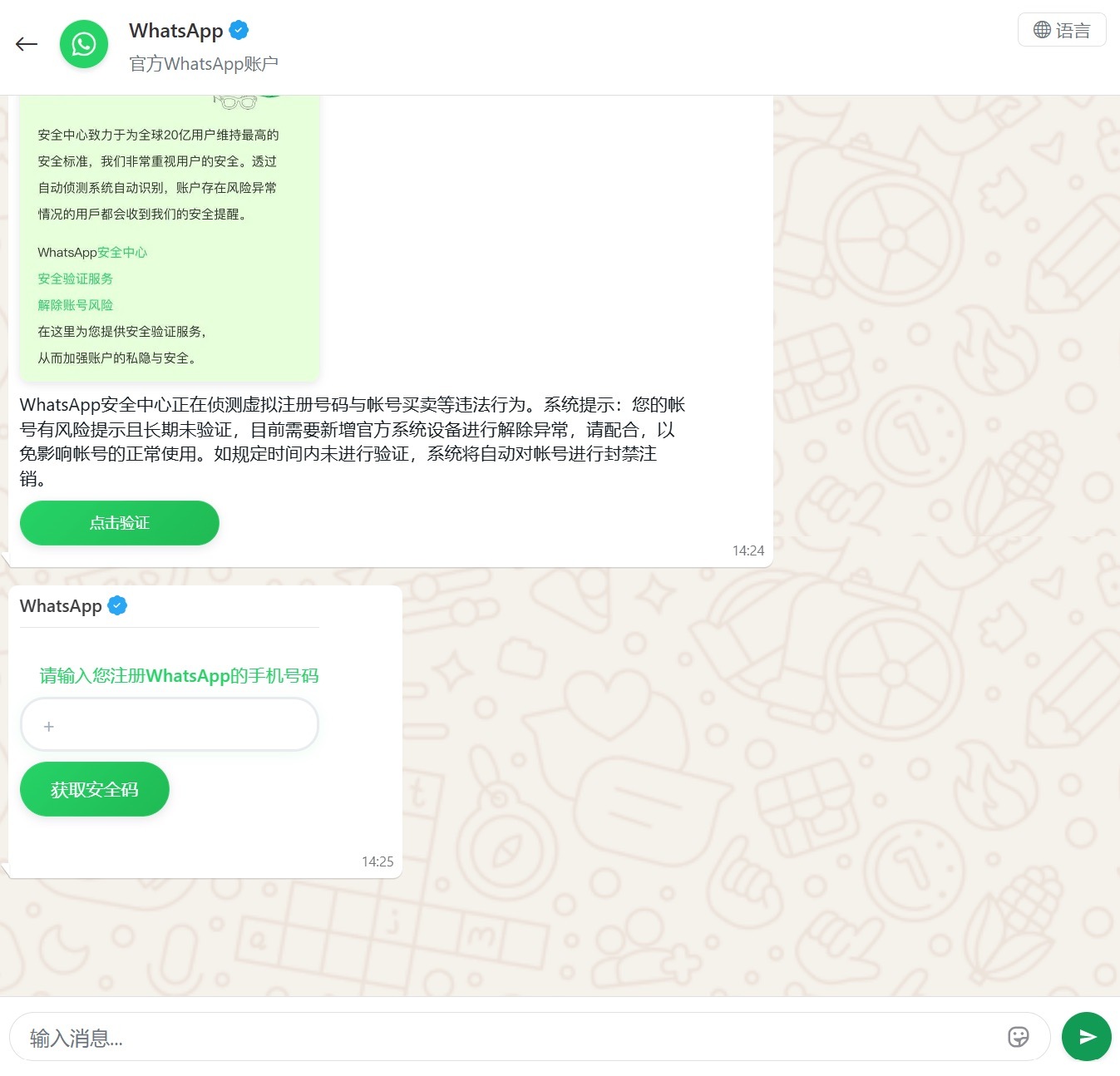
Another clever method for hijacking WhatsApp accounts was spotted in China, where phishing pages perfectly mimicked the actual WhatsApp interface. Victims were told that due to some alleged “illegal activity”, they needed to undergo “additional verification”, which — you guessed it — ended up with a stolen account.

A Chinese method for hijacking WhatsApp accounts

Victims were redirected to a phone number entry form, followed by a request for their authorization code

Impersonating Government Services

Phishing that mimics government messages and portals is a “classic of the genre”, but in 2025, scammers added some new scripts to the playbook.

In Russia, vishing attacks targeting government service users picked up steam. Victims received emails claiming an unauthorized login to their account, and were urged to call a specific number to undergo a “security check”. To make it look legit, the emails were packed with fake technical details: IP addresses, device models, and timestamps of the alleged login. Scammers also sent out phony loan approval notifications: if the recipient hadn’t applied for a loan (which they hadn’t), they were prompted to call a fake support team. Once the panicked victim reached an “operator”, social engineering took center stage.

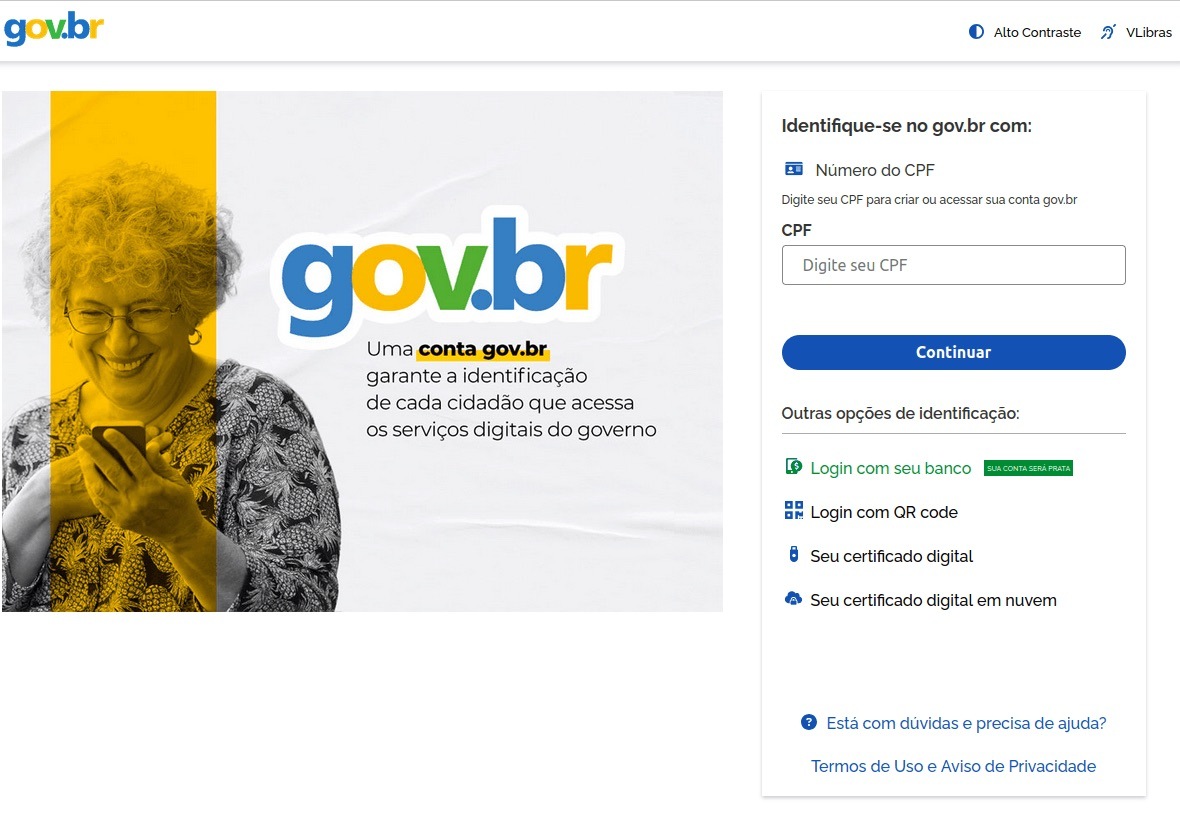
In Brazil, attackers hunted for taxpayer numbers (CPF numbers) by creating counterfeit government portals. Since this ID is the master key for accessing state services, national databases, and personal documents, a hijacked CPF is essentially a fast track to identity theft.

A fake Brazilian government services portal

This fraudulent Brazilian government portal of surprisingly high quality

In Norway, scammers targeted people looking to renew their driver’s licenses. A site mimicking the Norwegian Public Roads Administration collected a mountain of personal data: everything from license plate numbers, full names, addresses, and phone numbers to the unique personal identification numbers assigned to every resident. For the cherry on top, drivers were asked to pay a “license replacement fee” of 1200 NOK (over US$125). The scammers walked away with personal data, credit card details, and cash. A literal triple-combo move!

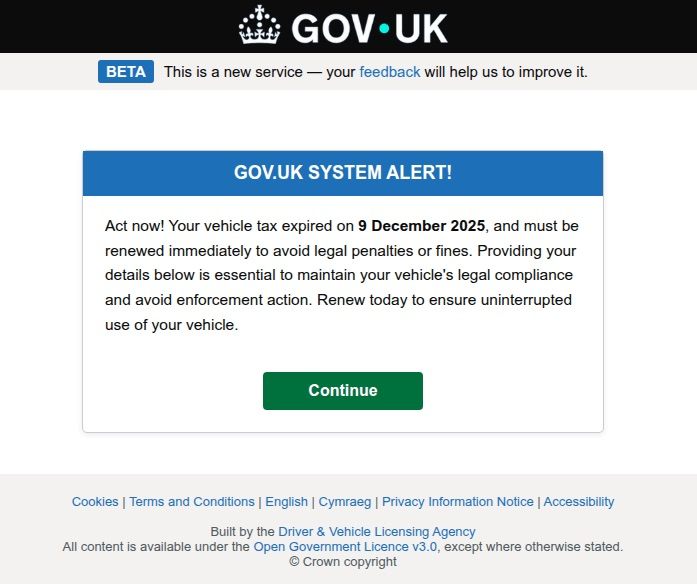
Generally speaking, motorists are an attractive target: they clearly have money and a car and a fear of losing it. UK-based scammers played on this by sending out demands to urgently pay some overdue vehicle tax to avoid some unspecified “enforcement action”. This “act now!” urgency is a classic phishing trope designed to distract the victim from a sketchy URL or janky formatting.

A fake demand for British motorists to pay overdue vehicle tax

Scammers pressured Brits to pay purportedly overdue vehicle taxes “immediately” to keep something bad from happening

Let us borrow your identity, please

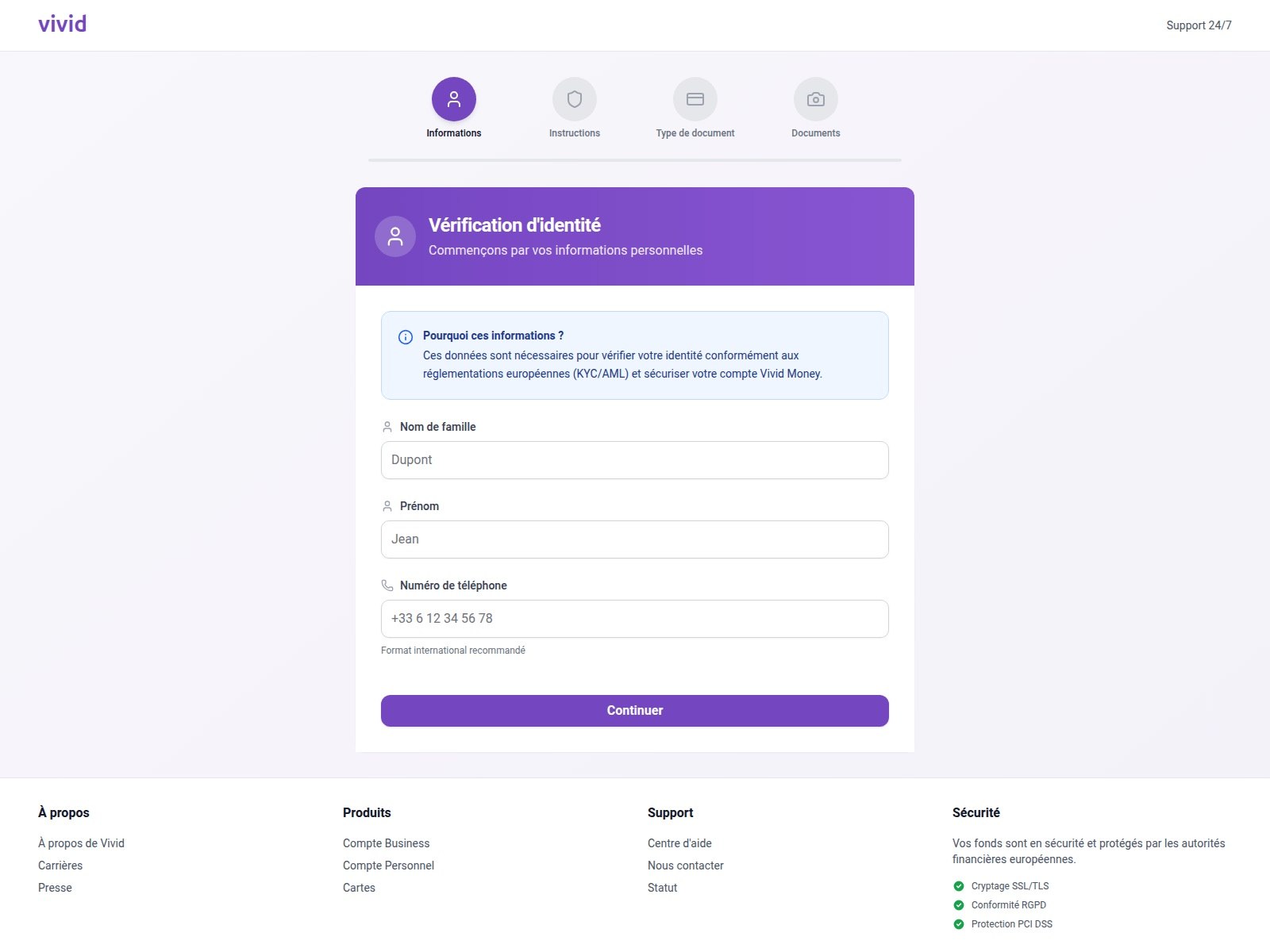
In 2025, we saw a spike in phishing attacks revolving around Know Your Customer (KYC) checks. To boost security, many services now verify users via biometrics and government IDs. Scammers have learned to harvest this data by spoofing the pages of popular services that implement these checks.

A fake Vivid Money page

On this fraudulent Vivid Money page, scammers systematically collected incredibly detailed information about the victim

What sets these attacks apart is that, in addition to standard personal info, phishers demand photos of IDs or the victim’s face — sometimes from multiple angles. This kind of full profile can later be sold on dark web marketplaces or used for identity theft. We took a deep dive into this process in our post, What happens to data stolen using phishing?

AI scammers

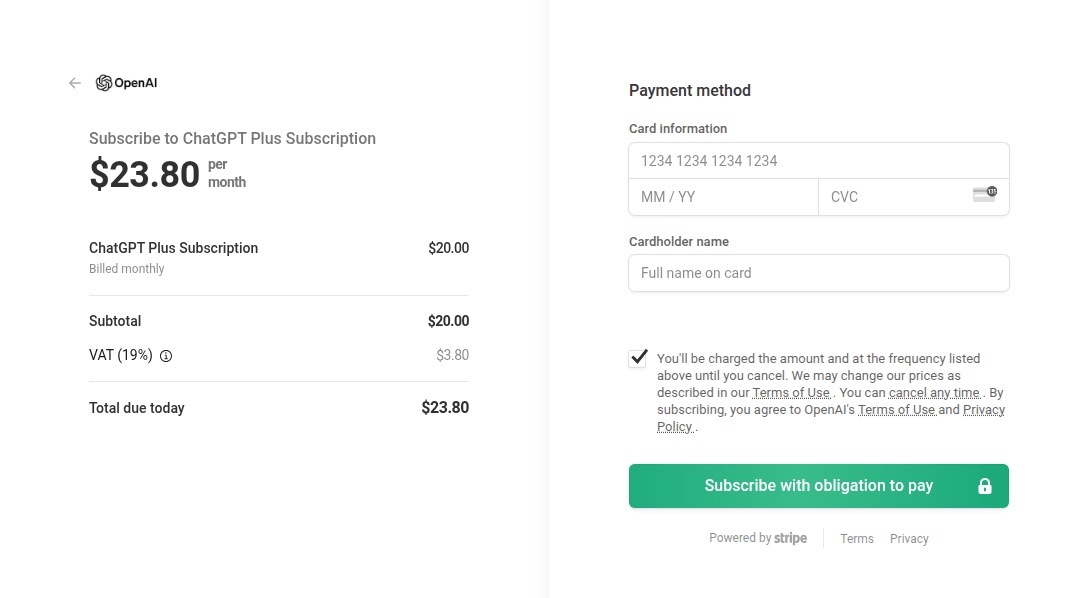
Naturally, scammers weren’t about to sit out the artificial intelligence boom. ChatGPT became a major lure: fraudsters built fake ChatGPT Plus subscription checkout pages, and offered “unique prompts” guaranteed to make you go viral on social media.

A fake ChatGPT checkout page

This is a nearly pixel-perfect clone of the original OpenAI checkout page

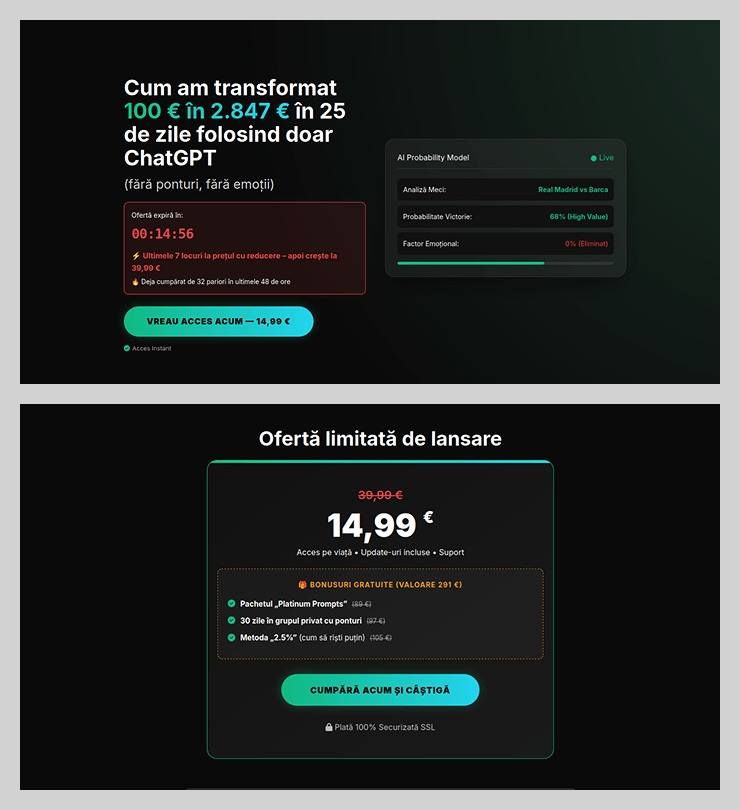
The “earn money with AI” scheme was particularly cynical. Scammers offered passive income from bets allegedly placed by ChatGPT: the bot does all the heavy lifting while the user just watches the cash roll in. Sounds like a dream, right? But to “catch” this opportunity, you had to act fast. A special price on this easy way to lose your money was valid for only 15 minutes from the moment you hit the page, leaving victims with no time to think twice.

A phishing page offering AI-powered earnings

You’ve exactly 15 minutes to lose €14.99! After that, you lose €39.99

Across the board, scammers are aggressively adopting AI. They’re leveraging deepfakes, automating high-quality website design, and generating polished copy for their email blasts. Even live calls with victims are becoming components of more complex schemes, which we detailed in our post, How phishers and scammers use AI.

Booby-trapped job openings

Someone looking for work is a prime target for bad actors. By dangling high-paying remote roles at major brands, phishers harvested applicants’ personal data — and sometimes even squeezed them for small “document processing fees” or “commissions”.

A phishing page offering remote work at Amazon

“$1000 on your first day” for remote work at Amazon. Yeah, right

In more sophisticated setups, “employment agency” phishing sites would ask for the phone number linked to the user’s Telegram account during registration. To finish “signing up”, the victim had to enter a “confirmation code”, which was actually a Telegram authorization code. After entering it, the site kept pestering the applicant for more profile details — clearly a distraction to keep them from noticing the new login notification on their phone. To “verify the user”, the victim was told to wait 24 hours, giving the scammers, who already had a foot in the door, enough time to hijack the Telegram account permanently.

Hype is a lie (but a very convincing one)

As usual, scammers in 2025 were quick to jump on every trending headline, launching email campaigns at breakneck speed.

For instance, following the launch of $TRUMP meme coins by the U.S. President, scam blasts appeared promising free NFTs from “Trump Meme Coin” and “Trump Digital Trading Cards”. We’ve previously broken down exactly how meme coins work, and how to (not) lose your shirt on them.

The second the iPhone 17 Pro hit the market, it became the prize in countless fake surveys. After “winning”, users just had to provide their contact info and pay for shipping. Once those bank details were entered, the “winner” risked losing not just the shipping fee, but every cent in their account.

Riding the Ozempic wave, scammers flooded inboxes with offers for counterfeit versions of the drug, or sketchy “alternatives” that real pharmacists have never even heard of.

And during the BLACKPINK world tour, spammers pivoted to advertising “scooter suitcases just like the band uses”.

Even Jeff Bezos’s wedding in the summer of 2025 became fodder for “Nigerian” email scams. Users received messages purportedly from Bezos himself or his ex-wife, MacKenzie Scott. The emails promised massive sums in the name of charity or as “compensation” from Amazon.

How to stay safe

As you can see, scammers know no bounds when it comes to inventing new ways to separate you from your money and personal data — or even stealing your entire identity. These are just a few of the wildest examples from 2025; you can dive into the full analysis of the phishing and spam threat landscape over at Securelist. In the meantime, here are a few tips to keep you from becoming a victim. Be sure to share these with your friends and family — especially kids, teens, and older relatives. These groups are often the main targets in the scammers’ crosshairs.

  1. Check the URL before entering any data. Even if the page looks pixel-perfect, the address bar can give the game away.
  2. Don’t follow links in suspicious messages, even if they come from someone you know. Their account could easily have been hijacked.
  3. Never share verification codes with anyone. These codes are the master keys to your digital life.
  4. Enable two-factor authentication everywhere you can. It adds a crucial extra hurdle for hackers.
  5. Be skeptical of “too good to be true” offers. Free iPhones, easy money, and gifts from strangers are almost always a trap. For a refresher, check out our post, Phishing 101: what to do if you get a phishing email.
  6. Install robust protection on all your devices. Kaspersky Premium automatically blocks phishing sites, malicious attachments, and spam blasts before you even have a chance to click. Plus, our Kaspersky for Android app features a three-tier anti-phishing system that can sniff out and neutralize malicious links in any message from any app. Read more about it in our post, A new layer of anti-phishing security in Kaspersky for Android.

Embedding Meterpreter in Android APK

By: BHIS
15 October 2018 at 17:52

Joff Thyer// Mobile is everywhere these days. So many applications in our daily life are being migrated towards a cloud deployment whereby the front end technology is back to the […]

The post Embedding Meterpreter in Android APK appeared first on Black Hills Information Security, Inc..

WEBCAST: Web App Assessments for Non-Majors

BB King // BB King looks at testing modern web apps in that “enterprise environment” so many of us inhabit. Taking the perspective of the Lonely Application Security Person in […]

The post WEBCAST: Web App Assessments for Non-Majors appeared first on Black Hills Information Security, Inc..

Android Dev & Penetration Testing Setup – Part 1

By: BHIS
17 January 2017 at 19:07

Joff Thyer // Editor’s Note:  This is part 1 of a 3 part series.  Part 1 will discuss configuring your virtual machine engine and virtual hardware emulation.  Part 2 covers installing […]

The post Android Dev & Penetration Testing Setup – Part 1 appeared first on Black Hills Information Security, Inc..

❌