
Normal view

Firefox joins Chrome and Edge as sleeper extensions spy on users

19 January 2026 at 13:47

A group of cybercriminals called DarkSpectre is believed to be behind three campaigns spread by malicious browser extensions: ShadyPanda, GhostPoster, and Zoom Stealer.

We wrote about the ShadyPanda campaign in December 2025, warning users that extensions which had behaved normally for years suddenly went rogue. After a malicious update, these extensions were able to track browsing behavior and run malicious code inside the browser.

Also in December, researchers uncovered a new campaign, GhostPoster, and identified 17 compromised Firefox extensions. The campaign was found to hide JavaScript code inside the image logo of malicious Firefox extensions with more than 50,000 downloads, allowing attackers to to monitor browser activity and plant a backdoor.

The use of malicious code in images is a technique called steganography. Earlier GhostPoster extensions hid JavaScript loader code inside PNG icons such as logo.png for Firefox extensions like “Free VPN Forever,” using a marker (for example, three equals signs) in the raw bytes to separate image data from payload.

Newer variants moved to embedding payloads in arbitrary images inside the extension bundle, then decoding and decrypting them at runtime. This makes the malicious code much harder for researchers to detect.

Based on that research, other researchers found an additional 17 extensions associated with the same group, beyond the original Firefox set. These were downloaded more than 840,000 times in total, with some remaining active in the wild for up to five years.

GhostPoster first targeted Microsoft Edge users and later expanded to Chrome and Firefox as the attackers built out their infrastructure. The attackers published the extensions in each browser’s web store as seemingly useful tools with names like “Google Translate in Right Click,” “Ads Block Ultimate,” “Translate Selected Text with Google,” “Instagram Downloader,” and “Youtube Download.”

The extensions can see visited sites, search queries, and shopping behavior, allowing attackers to create detailed profiles of users’ habits and interests.

Combined with other malicious code, this visibility could be extended to credential theft, session hijacking, or attacks targeting online banking workflows, even if those are not the primary goal today.

How to stay safe

Although we always advise people to install extensions only from official web stores, this case proves once again that not all extensions available there are safe. That said, the risk involved in installing an extension from outside the web store is even greater.

Extensions listed in the web store undergo a review process before being approved. This process, which combines automated and manual checks, assesses the extension’s safety, policy compliance, and overall user experience. The goal is to protect users from scams, malware, and other malicious activity.

Mozilla and Microsoft have removed the identified add-ons from their stores, and Google has confirmed their removal from the Chrome Web Store. However, already installed extensions remain active in Chrome and Edge until users manually uninstall them. When Mozilla blocks an add-on it is also disabled, which prevents it from interacting with Firefox and accessing your browser and your data.

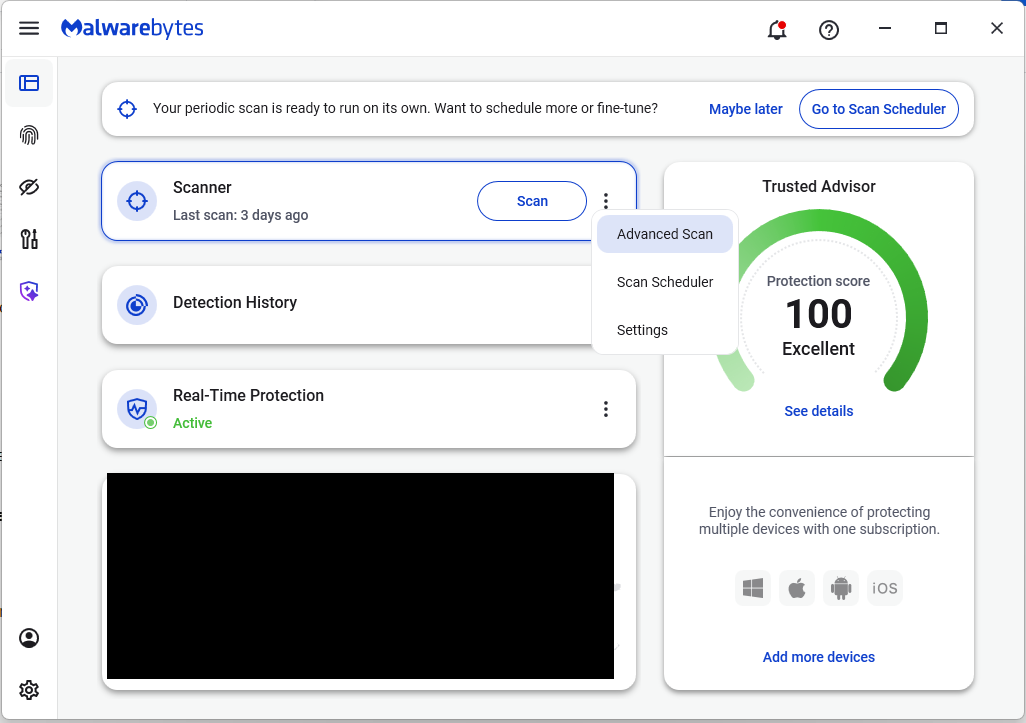
If you’re worried that you may have installed one of these extensions, Windows users can run a Malwarebytes Deep Scan with their browsers closed.

  • On the Malwarebytes Dashboard click on the three stacked dots to select the Advanced Scan option.
    Advanced Scan to find Sleep extensions
  • On the Advanced Scan tab, select Deep Scan. Note that this scan uses more system resources than usual.
  • After the scan, remove any found items, and then reopen your browser(s).

Manual check:

These are the names of the 17 additional extensions that were discovered:

  • AdBlocker
  • Ads Block Ultimate
  • Amazon Price History
  • Color Enhancer
  • Convert Everything
  • Cool Cursor
  • Floating Player – PiP Mode
  • Full Page Screenshot
  • Google Translate in Right Click
  • Instagram Downloader
  • One Key Translate
  • Page Screenshot Clipper
  • RSS Feed
  • Save Image to Pinterest on Right Click
  • Translate Selected Text with Google
  • Translate Selected Text with Right Click
  • Youtube Download

Note: There may be extensions with the same names that are not malicious.


We don’t just report on threats—we help safeguard your entire digital identity

Cybersecurity risks should never spread beyond a headline. Protect your, and your family’s, personal information by using identity protection.
“Reprompt” attack lets attackers steal data from Microsoft Copilot

15 January 2026 at 14:16

Researchers found a method to steal data which bypasses Microsoft Copilot’s built-in safety mechanisms.  

The attack flow, called Reprompt, abuses how Microsoft Copilot handled URL parameters in order to hijack a user’s existing Copilot Personal session.

Copilot is an AI assistant which connects to a personal account and is integrated into Windows, the Edge browser, and various consumer applications.

The issue was fixed in Microsoft’s January Patch Tuesday update, and there is no evidence of in‑the‑wild exploitation so far. Still, it once again shows how risky it can be to trust AI assistants at this point in time.

Reprompt hides a malicious prompt in the q parameter of an otherwise legitimate Copilot URL. When the page loads, Copilot auto‑executes that prompt, allowing an attacker to run actions in the victim’s authenticated session after just a single click on a phishing link.

In other words, attackers can hide secret instructions inside the web address of a Copilot link, in a place most users never look. Copilot then runs those hidden instructions as if the users had typed them themselves.

Because Copilot accepts prompts via a q URL parameter and executes them automatically, a phishing email can lure a user into clicking a legitimate-looking Copilot link while silently injecting attacker-controlled instructions into a live Copilot session.

What makes Reprompt stand out from other, similar prompt injection attacks is that it requires no user-entered prompts, no installed plugins, and no enabled connectors.

The basis of the Reprompt attack is amazingly simple. Although Copilot enforces safeguards to prevent direct data leaks, these protections only apply to the initial request. The attackers were able to bypass these guardrails by simply instructing Copilot to repeat each action twice.

Working from there, the researchers noted:

“Once the first prompt is executed, the attacker’s server issues follow‑up instructions based on prior responses and forms an ongoing chain of requests. This approach hides the real intent from both the user and client-side monitoring tools, making detection extremely difficult.”

How to stay safe

You can stay safe from the Reprompt attack specifically by installing the January 2026 Patch Tuesday updates.

If available, use Microsoft 365 Copilot for work data, as it benefits from Purview auditing, tenant‑level data loss prevention (DLP), and admin restrictions that were not available to Copilot Personal in the research case. DLP rules look for sensitive data such as credit card numbers, ID numbers, health data, and can block, warn, or log when someone tries to send or store it in risky ways (email, OneDrive, Teams, Power Platform connectors, and more).

Don’t click on unsolicited links before verifying with the (trusted) source whether they are safe.

Reportedly, Microsoft is testing a new policy that allows IT administrators to uninstall the AI-powered Copilot digital assistant on managed devices.

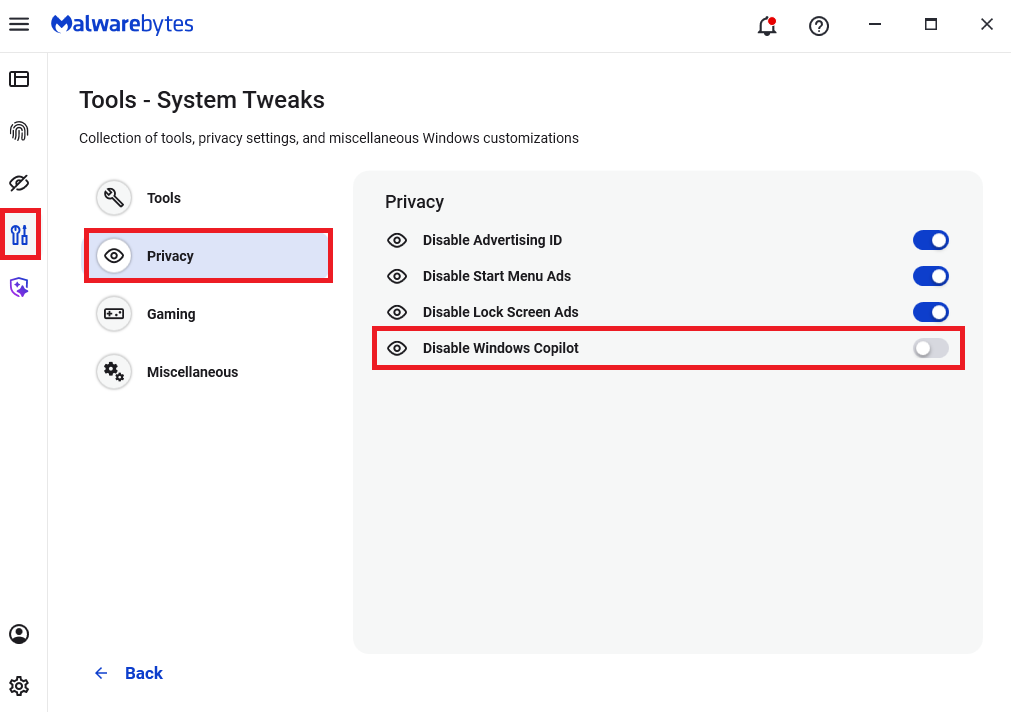
Malwarebytes users can disable Copilot for their personal machines under Tools > Privacy, where you can toggle Disable Windows Copilot to on (blue).

How to use Malwarebytes to disable Windows Copilot

In general, be aware that using AI assistants still pose privacy risks. As long as there are ways for assistants to automatically ingest untrusted input—such as URL parameters, page text, metadata, and comments—and merge it into hidden system prompts or instructions without strong separation or filtering, users remain at risk of leaking private information.

So when using any AI assistant that can be driven via links, browser automation, or external content, it is reasonable to assume “Reprompt‑style” issues are at least possible and should be taken into consideration.


We don’t just report on threats—we remove them

Cybersecurity risks should never spread beyond a headline. Keep threats off your devices by downloading Malwarebytes today.

Phishing scammers are posting fake “account restricted” comments on LinkedIn

14 January 2026 at 16:55

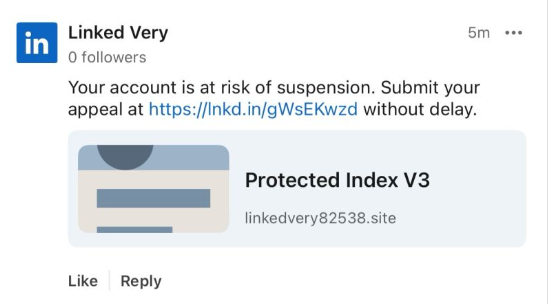
Recently, fake LinkedIn profiles have started posting comment replies claiming that a user has “engaged in activities that are not in compliance” with LinkedIn’s policies and that their account has been “temporarily restricted” until they submit an appeal through a specified link in the comment.

The comments come in different shapes and sizes, but here’s one example we found.

Your account is at risk of suspension

The accounts posting the comments all try to look like official LinkedIn bots and use various names. It’s likely they create new accounts when LinkedIn removes them. Either way, multiple accounts similar to the “Linked Very” one above were reported in a short period, suggesting automated creation and posting at scale.

The same pattern is true for the links. The shortened link used in the example above has already been disabled, while others point directly to phishing sites. Scammers often use shortened LinkedIn links to build trust, making targets believe the messages are legitimate. Because LinkedIn can quickly disable these links, attackers likely test different approaches to see which last the longest.

Here’s another example:

As a preventive measure, access to your account is temporarily restricted

Malwarebytes blocks this last link based on the IP address:

Malwarebytes blocks 103.224.182.251

If users follow these links, they are taken to a phishing page designed to steal their LinkedIn login details:

fake LinkedIn log in site
Image courtesy of BleepingComputer

A LinkedIn spokesperson confirmed to BleepingComputer they are aware of the situation:

“I can confirm that we are aware of this activity and our teams are working to take action.”

Stay safe

In situations like this awareness is key—and now you know what to watch for. Some additional tips:

  • Don’t click on unsolicited links in private messages and comments without verifying with the trusted sender that they’re legitimate.
  • Always log in directly on the platform that you are trying to access, rather than through a link.
  • Use a password manager, which won’t auto-fill in credentials on fake websites.
  • Use a real-time, up-to-date anti-malware solution with a web protection module to block malicious sites.

Pro tip: The free Malwarebytes Browser Guard extension blocks known malicious websites and scripts.


We don’t just report on scams—we help detect them

Cybersecurity risks should never spread beyond a headline. If something looks dodgy to you, check if it’s a scam using Malwarebytes Scam Guard, a feature of our mobile protection products. Submit a screenshot, paste suspicious content, or share a text or phone number, and we’ll tell you if it’s a scam or legit. Download Malwarebytes Mobile Security for iOS or Android and try it today!

❌