Login
Login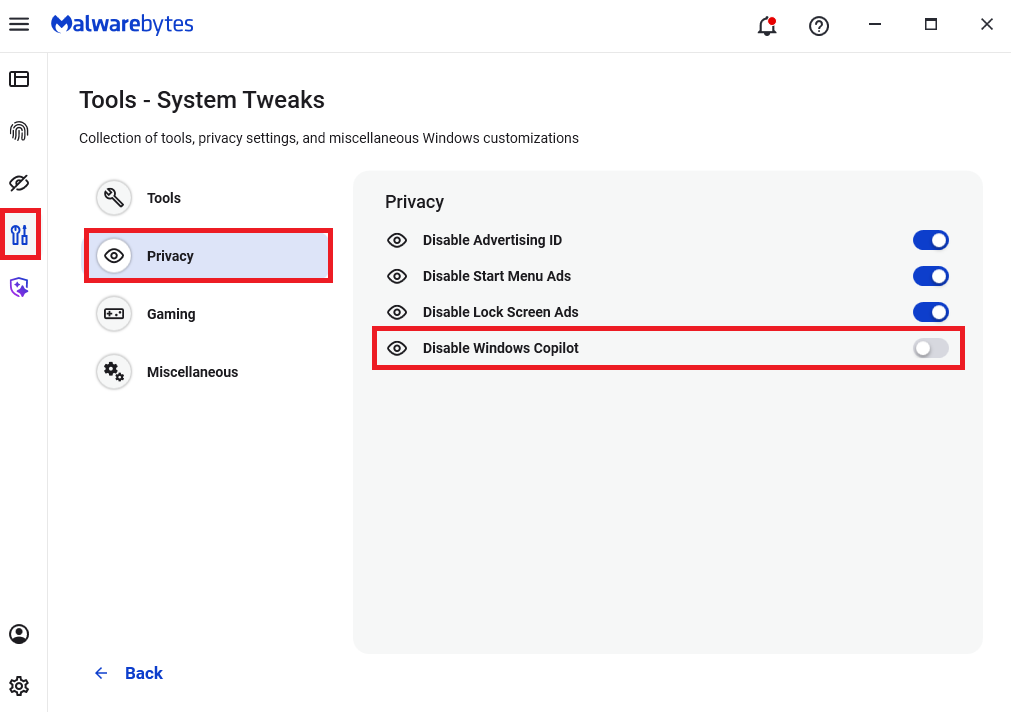


“Reprompt” attack lets attackers steal data from Microsoft Copilot
Researchers found a method to steal data which bypasses Microsoft Copilot’s built-in safety mechanisms.
The attack flow, called Reprompt, abuses how Microsoft Copilot handled URL parameters in order to hijack a user’s existing Copilot Personal session.
Copilot is an AI assistant which connects to a personal account and is integrated into Windows, the Edge browser, and various consumer applications.
The issue was fixed in Microsoft’s January Patch Tuesday update, and there is no evidence of in‑the‑wild exploitation so far. Still, it once again shows how risky it can be to trust AI assistants at this point in time.
Reprompt hides a malicious prompt in the q parameter of an otherwise legitimate Copilot URL. When the page loads, Copilot auto‑executes that prompt, allowing an attacker to run actions in the victim’s authenticated session after just a single click on a phishing link.
In other words, attackers can hide secret instructions inside the web address of a Copilot link, in a place most users never look. Copilot then runs those hidden instructions as if the users had typed them themselves.
Because Copilot accepts prompts via a q URL parameter and executes them automatically, a phishing email can lure a user into clicking a legitimate-looking Copilot link while silently injecting attacker-controlled instructions into a live Copilot session.
What makes Reprompt stand out from other, similar prompt injection attacks is that it requires no user-entered prompts, no installed plugins, and no enabled connectors.
The basis of the Reprompt attack is amazingly simple. Although Copilot enforces safeguards to prevent direct data leaks, these protections only apply to the initial request. The attackers were able to bypass these guardrails by simply instructing Copilot to repeat each action twice.
Working from there, the researchers noted:
“Once the first prompt is executed, the attacker’s server issues follow‑up instructions based on prior responses and forms an ongoing chain of requests. This approach hides the real intent from both the user and client-side monitoring tools, making detection extremely difficult.”
How to stay safe
You can stay safe from the Reprompt attack specifically by installing the January 2026 Patch Tuesday updates.
If available, use Microsoft 365 Copilot for work data, as it benefits from Purview auditing, tenant‑level data loss prevention (DLP), and admin restrictions that were not available to Copilot Personal in the research case. DLP rules look for sensitive data such as credit card numbers, ID numbers, health data, and can block, warn, or log when someone tries to send or store it in risky ways (email, OneDrive, Teams, Power Platform connectors, and more).
Don’t click on unsolicited links before verifying with the (trusted) source whether they are safe.
Reportedly, Microsoft is testing a new policy that allows IT administrators to uninstall the AI-powered Copilot digital assistant on managed devices.
Malwarebytes users can disable Copilot for their personal machines under Tools > Privacy, where you can toggle Disable Windows Copilot to on (blue).

In general, be aware that using AI assistants still pose privacy risks. As long as there are ways for assistants to automatically ingest untrusted input—such as URL parameters, page text, metadata, and comments—and merge it into hidden system prompts or instructions without strong separation or filtering, users remain at risk of leaking private information.
So when using any AI assistant that can be driven via links, browser automation, or external content, it is reasonable to assume “Reprompt‑style” issues are at least possible and should be taken into consideration.
We don’t just report on threats—we remove them
Cybersecurity risks should never spread beyond a headline. Keep threats off your devices by downloading Malwarebytes today.