Normal view

Received — 8 June 2026 Kaspersky official blog

A guide to disabling Copilot, Gemini, and Apple Intelligence | Kaspersky official blog

4 June 2026 at 21:16

Lately, software developers have been baking AI features straight into everyday work tools, operating systems, and browsers. In some cases, they’re genuinely handy. However, their presence introduces specific risks, which means plenty of companies are hesitant to give employees access to these tools. In a previous post, we categorized these unwanted AI systems, looked at how to spot them at the network and endpoint levels, and covered the ultimate universal kill switch: managing OAuth access across major corporate platforms. In this deep dive, we’re getting tactical: breaking down how to disable or restrict the AI built into popular platforms.

A quick heads-up: major software vendors occasionally change the names of their AI settings and tweak how they function. If any of the options mentioned below are missing or aren’t working as expected, a quick web search for the setting’s name will usually point you to its new location or branding.

How to turn off Microsoft 365 Copilot

Detection: you can check actual Copilot usage in the logs by going to Microsoft 365 admin →  Copilot usage report.

Disabling via policies: in the Microsoft 365Admin Center, go to Settings →  Integrated Apps, find Copilot in the Available Apps list, and select Block. More granular configuration policies are available under Customization →  Policy Management. The Policies page here contains over two thousand entries, so you’ll want to filter them by the keyword “Copilot” (detailed guide). Given that Copilot is a paid add-on for Office, another way to block it — and save money by doing so — is to simply avoid assigning users SKUs that include Copilot.

We recommend separately blocking Copilot Chat, which is available in Teams, Edge, Outlook, and several other services. Yes, it’s not Copilot itself. And yes, it has to be blocked separately by following this guide.

Additional layer of protection: you can block the domains copilot.cloud.microsoft and m365.cloud.microsoft/chat at the web filter or NGFW level. However, Microsoft explicitly advises against this, warning that it could break other Microsoft 365 features.

How to turn off Windows Copilot

Beyond the Office version of Copilot, you also need to manage its consumer-facing cousin.

Detection: look through your NGFW or other network logs for traffic hitting copilot.microsoft.com, bing.com/chat, or edgeservices.bing.com.
Disabling via policies: in Windows Group Policy, navigate to Computer Config →  Admin Templates →  Windows Components →  Windows Copilot. In Microsoft 365 Group Policy, go to Admin center →  Block consumer Copilot for organizational accounts.

Additional layer of protection: block the Copilot.exe executable from running entirely.

How to turn off the Copilot sidebar in Edge

Detection: look through your NGFW or other network logs for traffic hitting copilot.microsoft.com, bing.com/chat, or edgeservices.bing.com.

Blocking: configure the following MS Edge Group Policies: HubsSidebarEnabled = false, EdgeShoppingAssistantEnabled = false, CopilotPageContext = Disabled (false), CopilotNewTabPageEnabled = false, Microsoft365CopilotChatIconEnabled = false, GenAILocalFoundationalModelSettings = 1 (note that disabling this unexpectedly requires a 1 instead of a 0).

Second layer of protection: block the domains copilot.cloud.microsoft and m365.cloud.microsoft/chat at the web filter or NGFW level. However, Microsoft explicitly advises against this, warning that it could break other features.

How to turn off the Gemini Assistant in Google Workspace

Detection: check the Workspace Admin Console (admin.google.com), Gemini usage report section.

Blocking via policies: in the Admin Console, navigate to Apps →  Additional Google services → > Gemini app, and set it to OFF. Then, go to Manage Workspace smart feature settings →  Smart features in Google Workspace, and set it to OFF.

Second layer of protection: block network traffic to the domains gemini.google.com, bard.google.com, and aistudio.google.com.

How to turn off Gemini in Google Chrome

Detection: check your Chrome Enterprise reports (Chrome management →  Reports), or look through network traffic logs for connections to the previously mentioned domains.

Blocking via policies: in your Chrome Enterprise policies, configure the following settings: GenAILocalFoundationalModelSettings = 0, HelpMeWriteSettings = 2 (disabled), TabOrganizerSettings = 2, CreateThemesSettings = 2, DevToolsGenAiSettings = 2.

Additional layer of protection: block network traffic to the domains gemini.google.com, bard.google.com, and aistudio.google.com. Additionally, block unauthorized Chrome/Chromium installations (those outside your policy management) with the help of host-based application control tools like EPP/EDR or AppLocker.

How to turn off Apple Intelligence

Detection: on your NGFW and web filters, traffic hitting apple-relay.apple.com and *.apple-cloudkit.com is a clear indicator that Apple Intelligence is active.

Blocking via policies: any managed Apple device allows you to disable individual AI features, though there isn’t a master switch you can flip to shut down “all AI”. In your MDM profile, you need to set the following keys to false (disabled): allowWritingTools, allowMailSummary, allowGenmoji, allowImagePlayground, allowImageWand, allowPersonalizedHandwritingResults, allowExternalIntelligenceIntegrations, allowExternalIntelligenceIntegrationsSignIn, allowNotesTranscription, and allowNotesTranscriptionSummary. Here is a brief configuration example:

<dict>
<key>PayloadType</key>
<string>com.apple.applicationaccess</string>
<key>allowWritingTools</key>
<false/>
<key>allowMailSummary</key>
<false/>
</dict>

Despite Apple’s shift toward declarative device management, these AI features still need to be managed through traditional MDM payload settings.

Second layer of protection: block network traffic to the hosts mentioned above — though the obvious downside for mobile devices is that this won’t work once they leave the corporate network.


Study on the Wi-Fi security situation in Mexico | Kaspersky official blog

By: GReAT
2 June 2026 at 14:00

One of the biggest football (soccer) events of this summer is the World Cup 2026. The tournament is co-hosted by three countries: the U.S., Canada, and Mexico. Unfortunately, events of this scale attract not just fans, but also scammers from all over the globe. We’ve already covered how cybercriminals are prepping for the World Cup online, and today we’re talking about digital security for fans on the ground in Mexico.

The country will host 13 matches and welcome millions of tourists. They’ll be staying in hotels, heading to games, checking out restaurants, navigating airports, and visiting popular tourist spots — and everywhere they go, the temptation to connect to public Wi-Fi will be high.

We’ve surveyed more than 84 500 (!) public Wi-Fi access points in Mexico City, Guadalajara, and Monterrey — and we have a lot to share about their security. Spoiler alert: many networks are still using outdated security standards, so you really shouldn’t go on vacation without reliable protection and an eSIM.

What and how we tested

Walking across Mexico looking for public Wi-Fi access points would have been a bit tough, though that’s exactly what we did for a similar Wi-Fi security survey in Paris. You can check out the results of that in our post, How safe is Wi-Fi in Paris?

This time the mission was far more demanding: mapping the wireless landscape of three major metropolises. That’s why we went wardriving — scanning for and logging wireless networks from a moving vehicle while equipped with a smartphone or laptop. It’s similar to searching for Wi-Fi on your phone, where the device constantly listens for nearby networks. Except instead of connecting to them, we just collect data about them.

All information was used strictly for passive observation and infrastructure analysis. Beyond receiving publicly broadcast service information, the experts of Kaspersky’s Global Research and Analysis Team (GReAT) didn’t attempt to authenticate, intercept traffic, exploit systems, or otherwise interact with the wireless networks they discovered. Mobile access points deployed in cars and on mobile devices were excluded from the sample.

Our main target was Mexico City — the capital and one of the most densely populated cities in Latin America. We took a drive through popular tourist spots: Mexico City Stadium, Mexico City International Airport, Zócalo, Paseo de la Reforma, Colonia Roma, La Condesa, Polanco, Coyoacán.

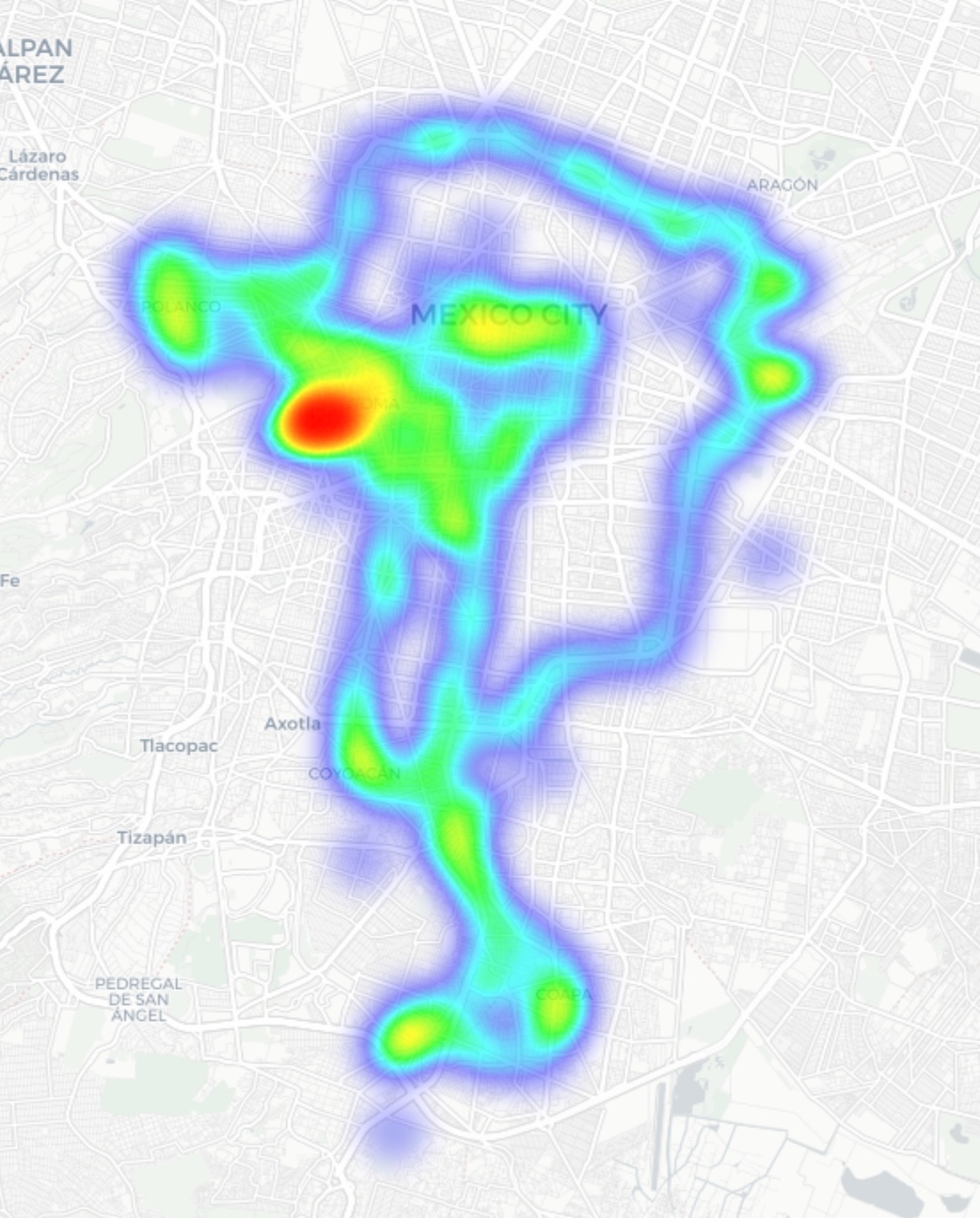
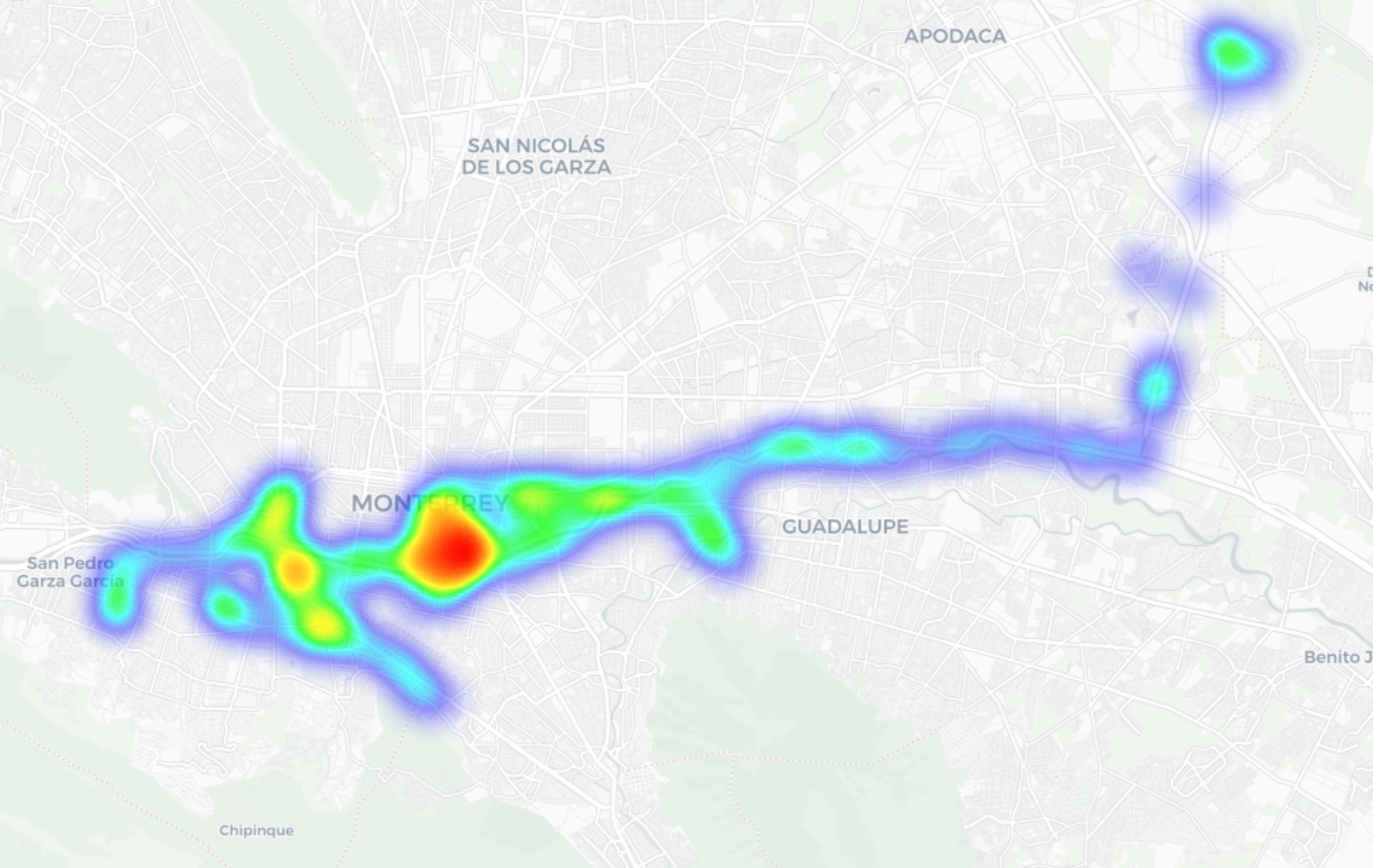
In Guadalajara and Monterrey, we drove similar routes: stadiums, main avenues, airports, and popular neighborhoods. Below you can see a heatmap of the areas we covered, ranging from red for areas with the highest density of public access points, through yellow and green, to blue for the lowest concentration.

Heatmap showing the locations of all Wi-Fi access points we covered in Mexico City
Heatmap showing the locations of all Wi-Fi access points we covered in Guadalajara
Heatmap showing the locations of all Wi-Fi access points we covered in Monterrey

We used passive radio reconnaissance to log 84 500 signals and 69 500 unique network identifiers across these three cities. The majority of the signals were caught in Mexico City (61.4%), followed by Guadalajara (23.6%) and Monterrey (14.8%).

What we analyzed:

  • Wireless network identifiers (SSIDs): the names that show up in your list of available Wi-Fi networks
  • Information that can be gleaned from these identifiers
  • Default router configurations and how ISPs deploy their networks
  • Frequencies used and signal characteristics
  • Channel load and radio frequency spectrum usage
  • Wireless network security configurations:
    • Open and insecure networks
    • Networks with WPS enabled
    • Secure networks (WPA2/WPA3) with WPS activated

You can find the full version of the study on the Securelist blog.

Telltale public Wi-Fi access point names

Network names (SSIDs) can tell you a lot by unintentionally revealing information about hardware manufacturers, ISPs, deployment methods, and whether an access point belongs to a business or a private user.

About 34% of the public Wi-Fi networks we logged didn’t bother changing their names at all, either sticking with the factory SSIDs from the router manufacturers or using standard naming conventions from their ISPs. For attackers, this can be a pretty solid hint, since this kind of network name lets them know which provider owns a given access point, what hardware is being used, and how it’s likely configured by default.

Another troubling nuance is the large number of Wi-Fi networks (over 30%) that use the access point’s MAC address (BSSID) as the visible network name. The first few bytes of a BSSID contain an Organizationally Unique Identifier (OUI), which gives away the router’s manufacturer. This is a useful lead for bad actors: they can find out who made the hardware and test for vulnerabilities specific to that brand’s models.

Is Mexican Wi-Fi well-protected?

An access point secured with WPA2/WPA3 can be considered more or less safe. All other authentication mechanisms yield much weaker results. We grouped the public Wi-Fi networks into four categories:

  • Secure (WPA2/WPA3)
  • Unsecured (open/WEP)
  • Weak (WPA)
  • Undetermined

The results are roughly the same across all three cities: about 82% of all analyzed access points are protected by secure standards. The outdated and insecure WPA protocol was practically nonexistent. However, more than 10% of the access points turned out to be completely unsecured. Connecting to these networks carries the risk of traffic interception and hidden surveillance.

But security isn’t evaluated by WPA protocols alone. We also checked for the presence of WPS, the infamous feature for quickly connecting to a network without entering a password, which is highly vulnerable to attacks. It turned out that WPS is enabled on nearly half (47%) of the access points in Mexico City, 43% in Guadalajara, and 41% in Monterrey. On average, 45% of the access points are potentially vulnerable to WPS-related attacks — sacrificing security for the sake of convenience.

What’s more, this feature frequently remained active even on seemingly secure WPA2/WPA3 networks — about half of them utilized WPS. This shows that having WPA2/WPA3 is still not enough to consider a Wi-Fi access point safe, as additional features like WPS can still leave the door open to attacks.

What else every tourist needs to know

Digital risks on a trip aren’t limited to public Wi-Fi alone, especially now that many are shifting away from public Wi-Fi to an eSIM. There are still plenty of threats in crowded places: public USB chargers, QR codes with swapped links, NFC and Bluetooth attacks, and, of course, social engineering tactics. Let’s break it all down.

Charging stations. Public USB chargers can also be dangerous: bad actors could potentially gain access to the data on your device or try to install malware. We covered these attacks in detail in our post, Data theft during smartphone charging.

Dangerous QR codes. Criminals can plant phishing QR codes in popular tourist spots. The pretexts can vary wildly; for instance, ads for team-specific fan “events”, or links supposedly offering discounts or restaurant menus. In reality, any QR code posted on the street can be considered insecure by default, and you shouldn’t scan them with your smartphone unless you have a QR code threat analyzer installed.

Fake broadcasts, tickets, and betting pools. Earlier, we described cases where bad actors were distributing malware via fake IPTV apps to capitalize on the WC26 hype. Remember, even if you plan to watch the tournament from home, you still need to stay alert and not trust the first sites that pop up advertising free broadcasts, offering betting pools, or promising unbelievably generous payouts.

NFC and Bluetooth attacks. Leaving Bluetooth enabled in crowded places can also cause problems: someone might try to discover your device, track you, or initiate an unwanted pairing request. NFC services with contactless payments create additional risks too — especially when paying in sketchy spots.

How to protect yourself and your devices

Despite the prevalence of secure WPA2/WPA3 public Wi-Fi access points in Mexico City, Guadalajara, and Monterrey, our study shows that public Wi-Fi networks remain vulnerable. It’s also important to remember that attackers can create fake networks — so-called evil twins — disguised as legitimate public Wi-Fi in airports, hotels, cafés, and tourist spots.

For the average user, it’s practically impossible to tell how safe a specific access point is when trying to connect. That’s why the safest option is to use cellular data to access the internet — completely eliminating the need for Wi-Fi. Besides, there’s no need to research the nuances of local laws, rates, and other cellular details for every country you plan to visit; you can just buy a global eSIM online in two clicks. We explained how to make the entire process hassle-free in our post, Internet on the go with Kaspersky eSIM Store.

If you still plan on connecting to public Wi-Fi, always use a VPN to secure your device and data when connecting to unfamiliar — especially unsecured — Wi-Fi networks. This creates an encrypted tunnel between your device and the VPN server, making it impossible to intercept your data along the way. Haven’t picked a VPN yet? Try Kaspersky VPN Secure Connection, which is included with both Kaspersky Premium and Kaspersky Plus subscriptions.

Now, if you still plan to attend the World Cup without any cybersecurity solution, at least follow these basic rules of digital hygiene:

  • Don’t use public USB chargers
  • Don’t send sensitive information over connections that aren’t secure
  • Don’t log in to banking, email, or social media accounts over unsecured Wi-Fi
  • Turn off Bluetooth and NFC while walking around in crowded places
  • Don’t trust QR codes posted on the street
  • Connect to public Wi-Fi only when absolutely necessary

What else to read to make sure cheering for your favorite team isn’t only exciting, but also safe:

How fake Android IPTV apps are stealing users’ money and data | Kaspersky official blog

Threat actors are already gearing up for this year’s biggest football (soccer) event, the World Cup 2026. With millions of fans looking for ways to stream matches online, many will turn to IPTV apps to watch live TV broadcasts over the internet. It’s no surprise, then, that cybersecurity researchers have discovered multiple campaigns over the past few months where malware was disguised as fake Android IPTV apps.

In this post, we discuss what IPTV apps are, how criminals use fake versions to spread malware, what this malware is capable of, and, most importantly, how to avoid becoming a victim.

What are IPTV apps?

IPTV stands for Internet Protocol Television. This technology delivers TV content over the internet instead of through cable, over-the-air antennas, or satellites. Naturally, the simplest and most common examples of IPTV are the official platforms of TV networks, which can include both websites and dedicated apps.

However, alongside official options, pirate IPTV services also exist. They usually lure users with free or dirt-cheap access to content that can otherwise be hard to find without expensive subscriptions — most notably broadcasts of various sporting events; football matches in particular.

As is typically the case with pirated content, these apps are blocked from official app stores, forcing users to download them from third-party sites. Consequently, the risk of using these services isn’t tied to IPTV technology itself, but rather to the fake apps and modified APK files distributed under the guise of well-known platforms — both official and pirated.

Massiv banking Trojan disguised as IPTV apps

For instance, in February researchers found the Massiv banking Trojan distributed under the guise of fake IPTV apps. Even then, experts noted that this wasn’t the only malware leveraging this tactic — several others were also spotted in the wild. The primary targets of these IPTV-mimicking malicious fakes have mostly been users in Portugal, Spain, France, and Türkiye.

In most cases, the discovered fake IPTV apps lacked the advertised functionality, so users didn’t get access to any content after installing the apps. Instead, the fake app would open the website of a legitimate IPTV service in a built-in browser to mimic normal functioning and avoid raising user suspicion.

Of course, the most interesting activity happened out of the user’s sight. These are some of the features the malware did have:

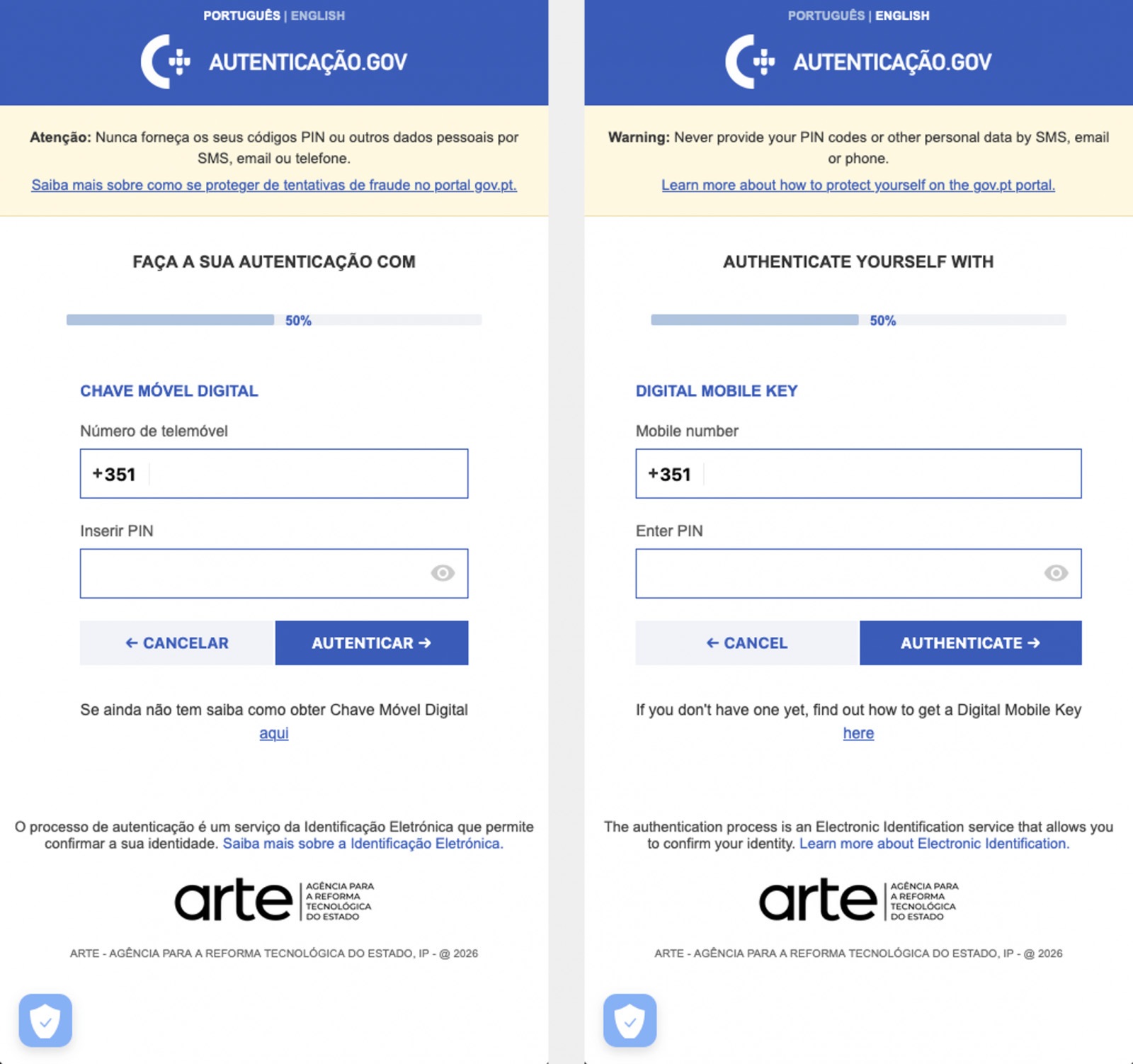
  • Displaying fake windows on top of legitimate ones: fake forms for entering bank details or signing in to official services, as shown in the screenshot below.
  • Activating a keylogger: recording and transmitting screen keyboard taps to the attackers.
  • Hijacking control of the compromised device.
Massiv Trojan steals Chave Móvel Digital data

The Massiv banking Trojan mimics the interface of the Portuguese government app Chave Móvel Digital in a fake pop-up window, looking even more convincing than the official version from Google Play. Source

Perseus steals valuable information from users’ notes

In March, researchers reported on a new campaign where several fake IPTV apps were used to distribute an even more advanced and feature-rich malware strain: Perseus.

Research into Perseus shows that the malware is based on the source code of an Android banking Trojan called Cerberus, which leaked nearly six years ago. Perseus comes in two different versions: Turkish and English. The English-language version is more advanced and shows clear signs of AI-driven refinement.

Perseus abuses Accessibility Services, a set of Android features originally designed to make life easier for users with severe visual impairments. Fraudsters learned long ago how to leverage this tool to steal data from Android devices — a topic we’ve covered in detail across several of our posts.

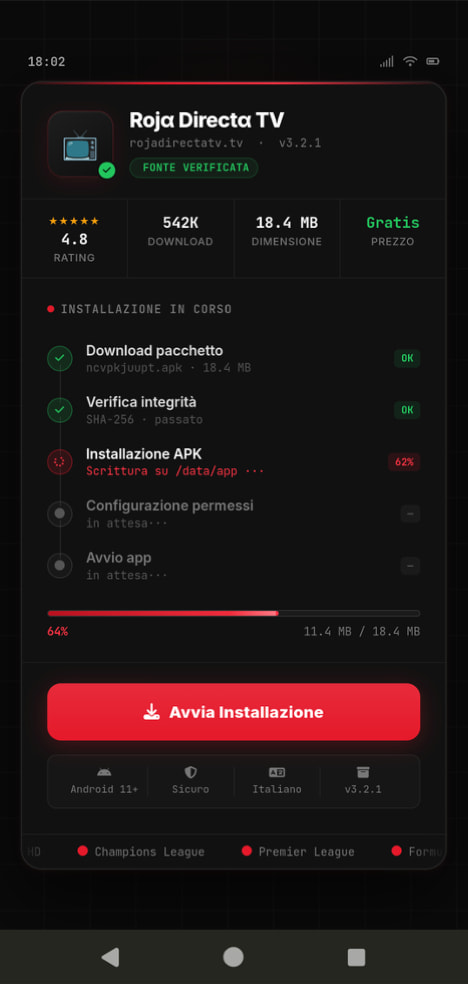
Fake IPTV app used for distributing Perseus

An example of a malicious APK disguised as Roja Directa TV, another IPTV app. Source

By abusing Accessibility Services, Perseus gains remote control over the victim’s device. Here’s what it can do:

  • Continuously capture and exfiltrate screenshots.
  • Send a structured map of the device’s UI for remote manipulation.
  • Mimic taps, swipes, text input, long presses, and other UI interactions.
  • Turn on the screen, launch apps, and block them from running.
  • Trigger a pitch-black screen overlay to hide its activities.
  • Log keystrokes.

On top of that, the English-language version of Perseus boasts another notable feature. The malware can hunt for sensitive information like passwords, recovery phrases, and financial data across an entire range of note-taking apps: Google Keep, Xiaomi Notes, Samsung Notes, ColorNote, Evernote, Microsoft OneNote, and Simple Notes.

All of these capabilities help criminals drain football fans’ money not just from various banking services, but from cryptocurrency apps as well.

How not to let cybercrooks ruin your World Cup

The World Cup is just around the corner, and millions of fans worldwide will definitely want to tune in to this year’s premier football event. Past experience shows that cybercriminals frequently cash in on major spectacles like this. So, how can you watch the  matches safely?

  • Don’t download apps from unofficial stores.
  • Even when downloading an app from an official store — since malware occasionally slips through the cracks there, too— read the reviews carefully. Users who have been burned by fakes and malware often leave comments to warn others.
  • Install a robust security app to keep all your devices safe from malware.
  • Avoid storing passwords or other sensitive information in note-taking apps. To ensure your data and finances stay secure, use a reliable password manager. By the way, Kaspersky Password Manager includes an encrypted note-taking feature, allowing you to store your valuable information safely.

You can’t even watch TV safely anymore these days! Check out other threats facing TV lovers:

❌