❌

Normal view

Received — 3 October 2026 ⏭ Kaspersky official blog

110 vulnerabilities fixed in Google Pixel devices | Kaspersky official blog

2 October 2026 at 14:44

On September 15 this year, Google published details of patches for 110 vulnerabilities in its own Google Pixel smartphones. Among all the disclosed flaws, CVE-2026-58704 stands out the most, for it appears that this zero-day is being exploited in targeted attacks.

In today’s post, we talk about what’s so special about the Google Pixel, and why these devices get security updates all of their own – separate from regular Android updates. We also cover the vulnerabilities addressed in this latest update, with a special focus on the mentioned, most dangerous one – CVE-2026-58704 – and wrap up with tips on how to both protect your device and avoid becoming a victim of cyberattack on it.

Why do Google Pixel phones get security updates separate from Android?

The reader might reasonably wonder: I’ve already installed this month’s Android security updates on my Google Pixel. Isn’t that the same thing? Google Pixel does run on Android and receives those security updates, which are detailed in the monthly Android Security Bulletin. However, manufacturers of Android-based devices use different sets of hardware and software components. That’s why, alongside vulnerabilities common to all Android devices, there are security issues specific to individual manufacturers’ devices.

For its own smartphones, Google publishes separate security updates, covered by a dedicated Pixel Update Bulletin. Rather than replacing the Android Security Bulletin, this document complements it by detailing vulnerabilities specific to devices manufactured by Google. Other Android smartphones also receive similar updates from their manufacturers.

The Pixel Update Bulletin for September 2026 clearly shows why Google needs separate updates for its smartphones in the first place. Many of the vulnerabilities it fixes affect specific Pixel hardware (or hardware-related) components: the modem, bootloader, GPU, fingerprint scanner components, and other parts of the device. On smartphones from other manufacturers, these features might rely on entirely different hardware and software components, so the fixes listed in the Pixel Update Bulletin don’t apply to those phones.

That said, these vulnerabilities could still be relevant for Pixel owners who’ve flashed their devices with custom ROMs. Switching to a different OS doesn’t alter the device’s hardware components, and may not replace the firmware. Therefore, the vulnerabilities themselves may persist, but whether patches are available, and how they’re installed, depends on the specific OS.

CVE-2026-58704: a zero-day vulnerability being actively exploited in the wild

Now let’s look closer at the specific vulnerabilities Google fixed in September. The most significant one is the above-mentioned CVE-2026-58704.

This vulnerability affects the Cellular Modem component, which handles the smartphone’s communication with cellular networks. It stems from a logic error in the code, which, under certain conditions, allows bypassing the intended permission check.

Successful exploitation of CVE-2026-58704 lets attackers escalate privileges on the smartphone to gain broader access to its functions and data. Note that the attack takes place over a cellular network and the threat actors need low-level privileges on the targeted device to start with.

In practice, this means attackers can’t exploit CVE-2026-58704 to attack a Pixel from just anywhere over the internet, as they’d apparently need to either compromise the cellular network the target smartphone is already connected to or, more likely, force it to connect to a malicious base station under their control.

Google hasn’t disclosed all the details of this vulnerability yet, and the related report is not publicly accessible. As a result, the technical details that would show how easy it is for attackers to exploit CVE-2026-58704 remain unknown pending installation of the patches on all devices.

Nevertheless, Google claims that there are signs of limited exploitation of CVE-2026-58704.

What we know about the other 109 vulnerabilities

Of the remaining 109 vulnerabilities found in Google Pixel devices, only one is rated moderate; the others are either high (62) or outright critical (46). Nine of these flaws fall into the RCE (remote code execution) category. This means that if an attacker successfully exploits one of these vulnerabilities, they can remotely force the device to run malicious code. The exact conditions for the attack depend on the specific vulnerability.

Another 88 vulnerabilities fall into the elevation of privilege (EoP) category. These let an attacker who’s already gained a certain level of access to the device expand their privileges. The CVE-2026-58704 vulnerability discussed above falls into this same category, which is why the September bulletin lists 89 EoP vulnerabilities in total.

Finally, 10 vulnerabilities can lead to information disclosure (ID), and two more to denial of service (DoS). In short, that’s a hefty list of flaws, so Google Pixel owners shouldn’t wait around to install the patches.

How to avoid becoming a victim

Google Pixel owners can install the update that fixes the vulnerabilities covered in this post by following this path: Settings → Security & privacy → System & updates → Security update → Install. Keep in mind that the phone will automatically restart to finish installing the update.

To keep your phone secure we recommend the following general measures:

  • Install security updates on your phone regularly and promptly – whether it’s a Google Pixel, an Android smartphone from a different manufacturer, or even an iPhone.
  • Avoid installing apps from questionable sources.
  • Read reviews before installing apps from official stores, since malware isn’t uncommon there too. Users who have already been burned will often sound the alarm in the reviews long before store moderators get around to removing the dangerous app.
  • Install a reliable security solution to keep you from downloading malware, and warn you about suspicious activity on your device.

Received — 19 September 2026 ⏭ Kaspersky official blog

Protecting your smart TV and set-top box from being hacked | Kaspersky official blog

14 September 2026 at 17:59

In 2026, the owner of an ordinary home router, smart TV, or TV box is a prime target for cybercriminals. These devices are readily recruited into botnets and residential proxy networks, which we’ve covered before.

Criminals “sublease” the infected device by letting outsiders pay to visit any website from the victim’s IP address, so it looks like the device’s owner is doing it. The service is in demand across all kinds of shady schemes: from ad fraud and spam campaigns to password bruteforcing and account hacking. In our previous post, we described how home routers get recruited into these proxy networks; today we take a look at an even more vulnerable, and equally ubiquitous category of devices: smart TVs and TV boxes.

These appeal to criminals for two reasons. First, unlike computers and smartphones, TVs are almost always plugged into the power and have a fast internet connection. A dark screen doesn’t mean the device is switched off. On top of that, the limited user interface and monitoring tools mean suspicious background processes can easily slip unnoticed past users.

The threat is evolving and growing more aggressive. A recent study found that once proxyware turns up on a set-top box, the risks to its owner go well beyond having their traffic siphoned off.

Anatomy of the infection

The researchers focused on a popular TV box by SuperBox, which we already covered earlier in the post Is your TV box renting out your network?

SuperBox’s marketing leans heavily on the promise of providing thousands of TV channels, with no subscription or monthly fees. But out of the box, the device can’t actually do anything of the sort. To get access to pirated content, you need to install the brand’s proprietary app store.

When you launch it and install additional apps, the thousands of TV channels do appear. Meanwhile behind the scenes, with no warnings or permission prompts, the device floods external sites with unauthorized requests, and network traffic spikes sharply.

The researchers uncovered several alarming facts. First, the victim gets enrolled into as many as five botnets at once. The SuperBox runs clients for several proxyware networks simultaneously, which even try to compete with one another by blocking rival software from being installed.

But the real shock was the attacks on the internal network. The TV box’s proxyware places no limits on what its paying clients can actually do on the network. They can reach not only external sites but also devices inside your home network.

Normally, your home router and ISP settings protect you from outside attacks. But proxyware bypasses these barriers because it operates from inside the network. During an experiment, the researchers confirmed that an attacker on the internet can easily leverage the infected set-top box to open the admin panel of a home router, such as a Linksys, which is supposed to be accessible only to its owner when connected to the home Wi-Fi network. This means hackers can try to steal data from other devices in the same household, or even encrypt home network storage (NAS).

At the same time, flaws in SuperBox’s factory firmware let hackers remotely install and run any application with superuser privileges, and the threat is anything but hypothetical. Over three weeks of monitoring, the test set-top box was hit by more than 1300 attacks through the home proxy network. Attackers installed three different types of malware, including a module for launching DDoS attacks.

The malware uses several methods to gain a foothold in the system, and it survives reboots and power failures alike.

How to tell if your set-top box is working for hackers

If you have a cheap TV set-top box or Android TV from a little-known brand, it’s worth checking it for anomalies.

The most reliable method is to review the network traffic. Use the statistics in your router’s control panel, but note that some budget models may lack this feature. This feature is called Traffic Analyzer on Asus routers, Traffic Usage on TP-Link, and Traffic Monitor on Keenetic. Find your TV or set-top box in the device list and check the ratio of downloaded to uploaded data. They should consume a lot of traffic to download video while sending very little. If your box is quietly pushing gigabytes of data out or staying chatty on the network even while idle, that’s a telltale sign it’s infected.

If traffic statistics aren’t available, look for indirect signs:

  • The network and memory activity LEDs won’t stop blinking even though no one’s using the device.
  • The set-top box’s casing is constantly warm or hot.
  • The interface lags behind the remote, and the box freezes at random moments that have nothing to do with heavy video playback.
  • Your other devices (computers or phones) are seeing a real drop in internet speed.
  • When trying to visit familiar sites over your home Wi-Fi, you’re constantly hit with a CAPTCHA — a sign your network may be compromised and flagged as a spam source.
  • Your ISP’s tech support calls you asking about suspicious network loads.

What to do with an infected device

The best solution is to disconnect the device from the internet and dispose of it. If you have to keep using it, follow these steps to minimize the risks:

  1. Do a factory (hard) reset. Restore the set-top box to its original state.
  2. Take it offline before setting up again. The first time you turn it on after a reset, skip the Wi-Fi setup step and don’t plug in the Ethernet cable.
  3. Block app installation. Go to Android settings and disable installation of apps from unknown sources. Be sure to turn off any debugging features if enabled: USB debugging, Wireless debugging, and ADB. Menu item names may differ depending on your Android version and device manufacturer.
  4. Isolate it on the network. Set up a guest Wi-Fi network on your router and connect the TV box to it. Enable Client Isolation in your router’s settings, if it has it. This will stop the box from seeing other devices on your home network, which protects your computers and network storage.
  5. Check for updates. Once the box is connected to the guest network, check for official firmware updates: manufacturers sometimes patch known vulnerabilities, though with lesser-known brands, you shouldn’t count on it.

Your most reliable safeguards

Buying cheap devices with pirate streaming features and installing software from shady sources is a surefire way to compromise your home network. Your IP address will become a source of malicious activity, which at best gets you blocked by your ISP and at worst puts you on law enforcement’s radar. What’s more, hackers can use the box as a launchpad to attack your home computers and NAS, which can lead to personal data theft or a ransomware attack.

The best protection is to buy devices from trusted brands and pay for legal content. And to rule out someone hijacking control of your network, make sure your router’s admin panel and other home devices are protected with unique, strong passwords. To avoid having to remember them all, use a reliable password manager such as Kaspersky Password Manager. Additionally, the Smart Home Monitor feature included in Kaspersky Premium lets you keep all your devices fully under control.

There may be more things you don’t know about your smart home devices:

This Android malware steals banking credentials even without an internet connection | Kaspersky official blog

31 August 2026 at 19:18

Cybersecurity researchers have discovered a new family of Android malware, and it goes by the name of Manic. It lets criminals spy on their victims, steal banking credentials, and take remote control of infected devices.

But its most unusual trick is this: Manic can send stolen data back to attackers even when the given device has no internet connection. Apparently, random mobile internet outages seem to get in cybercriminals’ way just as much as anyone else’s, so the actors behind Manic came up with an unusual workaround.

People across a wide range of European countries are at risk, from Russia to the United Kingdom. In this post, we walk through what this Trojan can actually do, how it smuggles stolen data out to attackers, and how you can protect your Android device from Manic and other similar threats.

How Manic spreads, and who’s at risk

Researchers haven’t yet pinned down exactly how attackers are getting Manic onto people’s devices. Typically, malware like this spreads through channels like:

  • Infected apps on legitimate app stores
  • Malicious APK files shared on pirate websites
  • Download links sent through messaging apps and email
  • Scam sites

Google has told journalists it hasn’t found any trace of Manic spreading through apps on the Google Play Store. That suggests people are most likely installing infected apps from unofficial sources.

Experts have traced the beginnings of the attackers’ infrastructure for this campaign to February 2026. The earliest samples of the malware itself turned up in late May of this year. Since then, the criminals behind the Trojan have refined the ways it hides from detection on a victim’s device.

Manic currently combines the powers of a banking Trojan, spyware, and a remote-access tool that lets an attacker control the device. Attackers are especially interested in data from sources like:

  • Banking apps and payment services
  • Official government apps
  • Crypto wallets and cryptocurrency exchanges
  • Two-factor authentication apps
  • Text messages and notifications: mainly the one-time codes used to verify logins or approve transactions

By looking at which banking apps Manic targets, researchers have been able to work out which countries it has in its sights. It turns out its reach is broad, covering Austria, the Czech Republic, Estonia, France, Germany, Lithuania, the Netherlands, Poland, Russia, Slovakia, Spain, Ukraine, and the United Kingdom.

Stolen passwords, intercepted codes, remote control: what Manic can actually do

Let’s look at exactly what information Manic steals, and how it manages to get it. The malware’s main trick relies on abusing Android’s Accessibility services, a set of built-in features designed to help users with visual impairments. Used as intended, these features are genuinely helpful for people with vision loss. But criminals have long been quietly exploiting the very same tools for their own purposes.

Once a user grants an app permission to use Accessibility services, that app can “see” the text and buttons on the screen, interact with them, scroll through pages, and carry out actions automatically — all as if a user were doing it themselves. Attackers use this to read messages on screen, quietly grant the malware extra permissions, interfere with attempts to uninstall it, switch off security protections, or control other apps without the victim ever noticing.

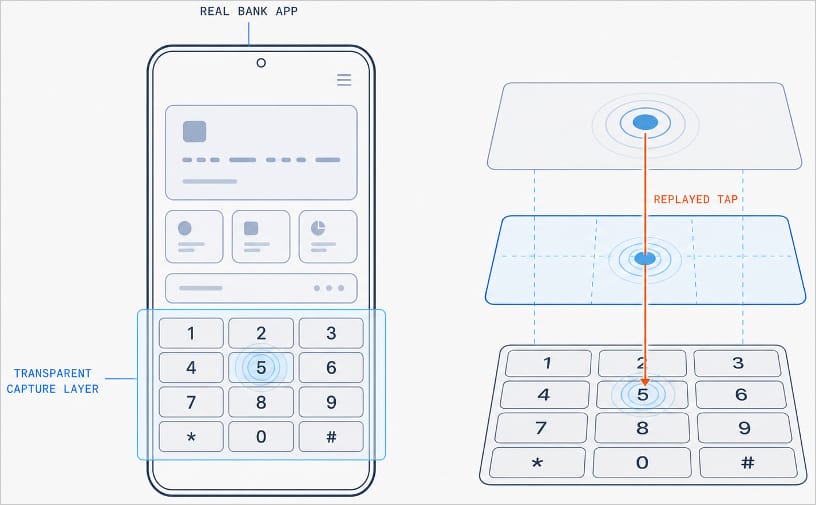
With Manic, this abuse of Accessibility services is paired with the Trojan’s own advanced capabilities. It can generate an invisible keyboard that overlays the phone’s real one. When a user types their password to log in to a banking app, Manic records exactly which keys they pressed. Then it uses Accessibility services to instantly replay that same keystroke on the actual app keyboard.

Manic generates a transparent capture layer that covers the phone's keyboard

Manic generates a transparent capture layer that covers the phone’s keyboard, recording each tap and relaying it to the real keyboard. Source

This means attackers don’t have to build a fake login screen for every single app they want to target. Because Manic works as an invisible layer sitting on top of the genuine app, everything looks and behaves as usual, so a phone owner has no reason to suspect they’re handing over their PIN or password to a criminal.

Manic doesn’t simply log everything a user types, either. It automatically recognizes what kind of information it has just captured and sorts it into categories: passwords, email logins, four-to-six-digit SMS codes, strings of characters that look like crypto wallet seed phrases, and phone unlock codes or pattern locks. Alongside the captured text itself, Manic also records which app it came from, when it was entered, whether the user typed it manually or used autofill, and whether that app is on its hit list.

Manic’s abilities don’t stop at collecting information. Using Accessibility services once again, it also lets attackers take remote control of an infected device. To conceal this activity, Manic can show a black screen or fake a system update.

On top of Accessibility services, the malware also asks for permission to read text messages and notifications. That lets attackers intercept two-factor authentication codes and one-time verification codes before a victim even has a chance to type them into the app.

Put together, this hands attackers not just passwords, banking credentials, and verification codes, but the ability to remotely control the victim’s phone as well.

Even being offline won’t save you from data theft

Manic’s original method for relaying stolen data off the device and back to the attackers deserves a separate mention. Even today, devices get knocked offline more often than people might expect, and Manic’s creators built a workaround specifically for such situations.

Normally, malware like this collects information on the device and sends it straight to a server controlled by the attackers. But what happens when the infected device has no direct internet access, or can’t reach the command-and-control server for some other reason?

In that case, Manic simply stores the stolen data on the device and starts scanning nearby for other infected phones it can reach over Wi-Fi or Bluetooth. If it finds one with internet access, it hands over the encrypted data to that phone, which then forwards it on to the attackers’ server.

But it doesn’t stop there. Data can hop across a chain of infected devices. By default, Manic allows up to four of these relay devices in the chain. If no suitable device is nearby, the data simply stays on the original phone, and Manic tries again later.

How to protect your phone from Manic and other banking Trojans

Android malware keeps getting more sophisticated. That makes it worth remembering — and actually following — a few basic digital hygiene habits for Android phone and tablet users:

  • Avoid installing apps from unofficial sources.
  • Don’t grant apps permission to use Accessibility services unless this is absolutely necessary and you understand exactly why they need it.
  • Install reliable security software on all your devices, run scans regularly, and take its warnings and recommendations seriously. We recommend Kaspersky for Android. Our Android security apps are temporarily unavailable on the Google Play Store, so to install them on an Android device we recommend using an alternative app store or installing the APK file manually from our website. A full step-by-step guide is available in our post, How to install or update Kaspersky apps for Android in 2026.

Malware doesn’t just target smartphones; it feels at home on other Android-powered devices too — from streaming boxes to… cars. Check out the details in our related posts:

Received — 3 August 2026 ⏭ Kaspersky official blog

How Google phone number verification works, and whether you should turn it off | Kaspersky official blog

22 July 2026 at 17:59

Starting last year, Android users have been seeing the “number is now verified” system notification more frequently. And in some cases people even find mysterious outgoing text messages in their history that they never sent.

These messages often cause confusion and even anxiety: has a virus infected the phone? Are tech giants spying on our phone numbers? Let’s break down how this feature works, and what potential risks it poses to your privacy.

Why all these phone number verifications?

The notification pops up whenever Google’s phone number verification feature is triggered on your device.

Its main job is to make sure that the SIM card tied to a specific phone number is physically inside the phone. Once verified, that phone number automatically links to all active Google accounts on the device.

There are several key services that rely on the verification. Most importantly, it drives Rich Communication Services (RCS) — the modern standard for “rich” messaging right inside your standard text messaging app. It feels like a popular chat app, but without the need to install anything extra. Unlike iMessage, which is locked to Apple’s ecosystem, RCS works across compatible smartphones on various platforms since it’s an industry standard set by carriers rather than tech giants. Since recently, both Apple and Android users have been able to exchange RCS messages. For this feature to work in the Google Messages app, Google needs ongoing confirmation that your SIM card is active. If you pull out your SIM card, RCS chats will keep working for about eight days before turning off automatically.

According to Google, phone number verification serves several other purposes as well:

  • Account security and recovery. A verified phone number enables quick sign-ins to your Google account, two-factor authentication, and easy password recovery.
  • Emergency services and device location. This includes Find My Device, remote phone lock, and sharing your location with emergency responders — including via satellite messaging on the Pixel 9 and certain other modern smartphones.
  • Better sharing on Google. This feature helps other people find you faster on Google Meet or Duo, use Quick Share to send you files, and see that the phone number is linked to your profile.

Google also recently confirmed that this data is used to counter scams. Verification helps block calls or text messages from spoofed numbers if both the real owner of the number and the recipient are using Android devices with verified phone numbers.

How does Google verify phone numbers?

Phone number verification technology has been around on Android for quite some time — Google was sending test SMS messages as far back as in 2019. However, it became widely visible to most users following a Google system update in September 2025. The process was baked deeper into the operating system, with number verification now running by default during initial phone setup, and re-running periodically in the background.

There are two main technical methods for the verification process. Which one your device uses depends on your mobile carrier and your version of Android.

The older method relies on hidden text messages. In the background, your smartphone sends a specialized technical text message to Google’s servers. The operating system intercepts this message before you ever see it, which is why it rarely appears in your standard text messaging app. However, due to software glitches or Android customization quirks, these texts occasionally surface in sent messages, startling users. They typically look like this: “(string of letters and numbers) Google is re-verifying the phone# of this device.” Google explicitly notes in its help documentation that standard messaging rates from your carrier may apply.

In recent years, direct carrier verification (via carrier APIs) has become the primary verification method. This approach is more modern and secure than previous ones. The smartphone sends an encrypted token containing device and SIM card identifiers to the mobile carrier, and the carrier responds with the confirmed phone number. The whole process takes just a couple of seconds and runs completely unnoticed by the user. Both global telecom giants and smaller providers have connected to this verification network. Notably, third-party apps can also tap into the results of this check through Firebase Phone Number Verification, getting confirmation from your mobile carrier about which phone number is active on the device.

“Other device data” and privacy concerns

In its official documentation, Google notes that device identifiers and SIM card data may be collected during verification. In practice, this refers to unique identifiers for the SIM card and its subscriber profile (ICCID and IMSI), as well as technical device identifiers needed to run mobile networks. Google also explicitly states that it does not sell your personal information, including your phone number, to anyone.

Naturally, sending additional unique identifiers to Google — especially given the scale of its advertising business — always raises concern among privacy-conscious users. Here’s what you should keep in mind:

Metadata collection. To run RCS, Google exchanges data with your mobile carrier. Even when the content of RCS messages is encrypted, metadata — such as who is messaging whom and when — can still be stored on your carrier’s servers, and in some cases, on Google’s servers. As cybersecurity experts at the Electronic Frontier Foundation point out, if privacy is your top priority, you’re better off sticking to dedicated encrypted messaging apps.

Linked accounts. If you have both a personal and a work Google account (or a personal and a family account) set up on the same phone, the verified number will automatically link to both profiles. The operating system does not offer built-in tools to separate numbers for different accounts on a single device.

Phone number leaks. Apps on your device can already access various user identifiers, including your phone number. However, this verification system makes it easier to link multiple phone numbers to a user who has multiple Google accounts. And while Google states that it never sells phone numbers, you cannot say the same with confidence about obscure third-party Android developers.

On by default. The feature is enabled out of the box, and most users have no idea their device is silently querying their carrier in the background. While you can opt out in your Google settings once you notice it, there’s no guarantee that any data already collected will actually be deleted.

Turning off verification — why and how

For most users, verification is genuinely helpful. It simplifies account recovery, makes finding a lost phone easier, powers modern text messaging features, and assists emergency services when every second counts.

However, if you want to minimize the amount of metadata sent to Google, mobile carriers, and other data brokers, you can manually disable the feature. Here’s how:

  1. Open your Android smartphone’s settings.
  2. Tap Google, select the account at the top, and switch to the All services tab.
  3. Under Privacy and security, tap Phone number verification.
  4. Turn off automatic phone number verification.

If you also want to disable Better sharing on Google, go to Settings → Google → Manage your Google Account → Personal info → Contact info → Phone, select your number, and turn off the setting.

If you have multiple Google accounts on your phone, you’ll need to repeat these steps for each one. Unfortunately, verification sometimes turns itself back on automatically, and there’s no reliable way to prevent this on standard consumer phones with stock software.

Keep in mind that disabling verification means losing access to RCS chats in Google Messages — forcing you to fall back on basic SMS, or switch to alternative secure messaging apps. You also won’t be able to use that number for quick account recovery should you forget your password.

To thoughtfully customize your privacy settings across all your devices — regardless of the operating system, browser, or app — check out our free online tool, Privacy Checker.

Curious about other privacy risks you might not even know exist? Check out our other deep dives, here:

Received — 8 June 2026 ⏭ Kaspersky official blog

How fake Android IPTV apps are stealing users’ money and data | Kaspersky official blog

Threat actors are already gearing up for this year’s biggest football (soccer) event, the World Cup 2026. With millions of fans looking for ways to stream matches online, many will turn to IPTV apps to watch live TV broadcasts over the internet. It’s no surprise, then, that cybersecurity researchers have discovered multiple campaigns over the past few months where malware was disguised as fake Android IPTV apps.

In this post, we discuss what IPTV apps are, how criminals use fake versions to spread malware, what this malware is capable of, and, most importantly, how to avoid becoming a victim.

What are IPTV apps?

IPTV stands for Internet Protocol Television. This technology delivers TV content over the internet instead of through cable, over-the-air antennas, or satellites. Naturally, the simplest and most common examples of IPTV are the official platforms of TV networks, which can include both websites and dedicated apps.

However, alongside official options, pirate IPTV services also exist. They usually lure users with free or dirt-cheap access to content that can otherwise be hard to find without expensive subscriptions — most notably broadcasts of various sporting events; football matches in particular.

As is typically the case with pirated content, these apps are blocked from official app stores, forcing users to download them from third-party sites. Consequently, the risk of using these services isn’t tied to IPTV technology itself, but rather to the fake apps and modified APK files distributed under the guise of well-known platforms — both official and pirated.

Massiv banking Trojan disguised as IPTV apps

For instance, in February researchers found the Massiv banking Trojan distributed under the guise of fake IPTV apps. Even then, experts noted that this wasn’t the only malware leveraging this tactic — several others were also spotted in the wild. The primary targets of these IPTV-mimicking malicious fakes have mostly been users in Portugal, Spain, France, and Türkiye.

In most cases, the discovered fake IPTV apps lacked the advertised functionality, so users didn’t get access to any content after installing the apps. Instead, the fake app would open the website of a legitimate IPTV service in a built-in browser to mimic normal functioning and avoid raising user suspicion.

Of course, the most interesting activity happened out of the user’s sight. These are some of the features the malware did have:

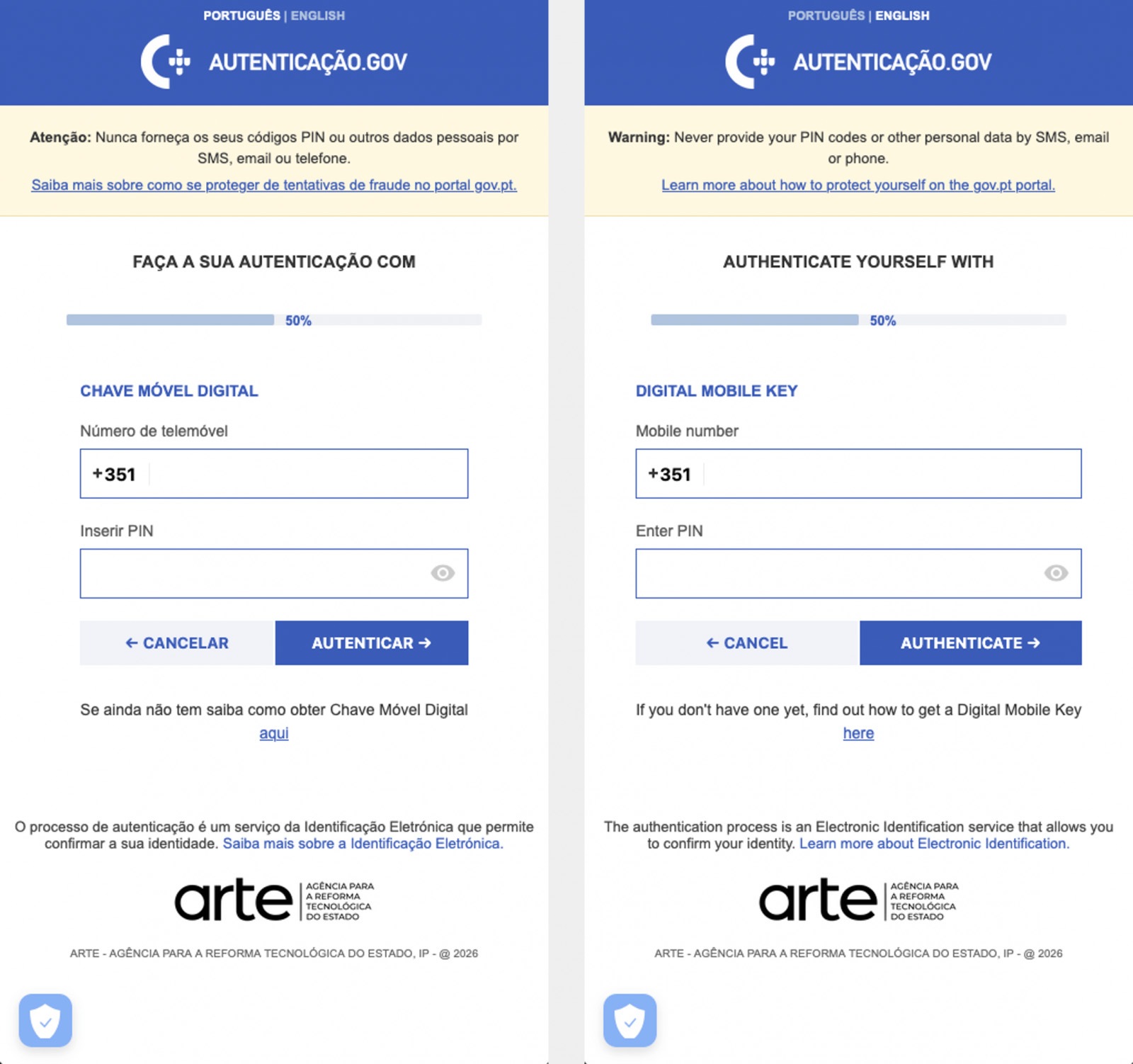
  • Displaying fake windows on top of legitimate ones: fake forms for entering bank details or signing in to official services, as shown in the screenshot below.
  • Activating a keylogger: recording and transmitting screen keyboard taps to the attackers.
  • Hijacking control of the compromised device.
Massiv Trojan steals Chave Móvel Digital data

The Massiv banking Trojan mimics the interface of the Portuguese government app Chave Móvel Digital in a fake pop-up window, looking even more convincing than the official version from Google Play. Source

Perseus steals valuable information from users’ notes

In March, researchers reported on a new campaign where several fake IPTV apps were used to distribute an even more advanced and feature-rich malware strain: Perseus.

Research into Perseus shows that the malware is based on the source code of an Android banking Trojan called Cerberus, which leaked nearly six years ago. Perseus comes in two different versions: Turkish and English. The English-language version is more advanced and shows clear signs of AI-driven refinement.

Perseus abuses Accessibility Services, a set of Android features originally designed to make life easier for users with severe visual impairments. Fraudsters learned long ago how to leverage this tool to steal data from Android devices — a topic we’ve covered in detail across several of our posts.

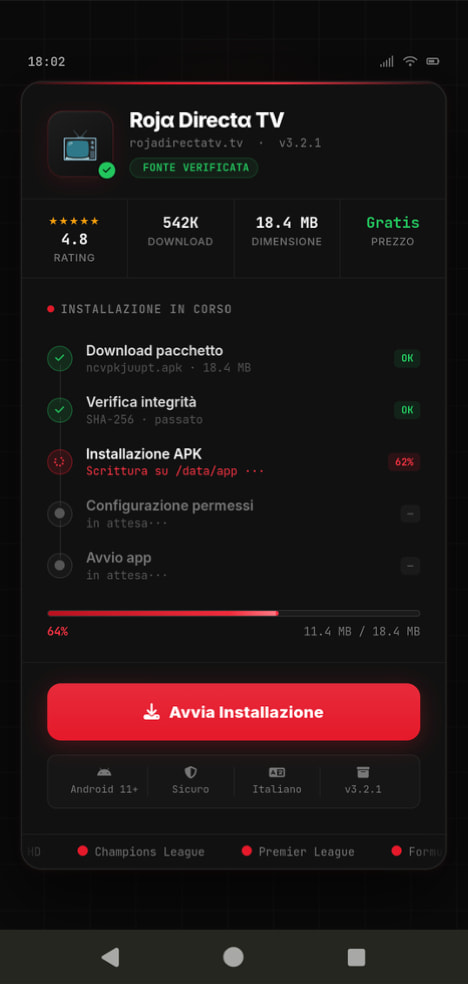
Fake IPTV app used for distributing Perseus

An example of a malicious APK disguised as Roja Directa TV, another IPTV app. Source

By abusing Accessibility Services, Perseus gains remote control over the victim’s device. Here’s what it can do:

  • Continuously capture and exfiltrate screenshots.
  • Send a structured map of the device’s UI for remote manipulation.
  • Mimic taps, swipes, text input, long presses, and other UI interactions.
  • Turn on the screen, launch apps, and block them from running.
  • Trigger a pitch-black screen overlay to hide its activities.
  • Log keystrokes.

On top of that, the English-language version of Perseus boasts another notable feature. The malware can hunt for sensitive information like passwords, recovery phrases, and financial data across an entire range of note-taking apps: Google Keep, Xiaomi Notes, Samsung Notes, ColorNote, Evernote, Microsoft OneNote, and Simple Notes.

All of these capabilities help criminals drain football fans’ money not just from various banking services, but from cryptocurrency apps as well.

How not to let cybercrooks ruin your World Cup

The World Cup is just around the corner, and millions of fans worldwide will definitely want to tune in to this year’s premier football event. Past experience shows that cybercriminals frequently cash in on major spectacles like this. So, how can you watch the  matches safely?

  • Don’t download apps from unofficial stores.
  • Even when downloading an app from an official store — since malware occasionally slips through the cracks there, too— read the reviews carefully. Users who have been burned by fakes and malware often leave comments to warn others.
  • Install a robust security app to keep all your devices safe from malware.
  • Avoid storing passwords or other sensitive information in note-taking apps. To ensure your data and finances stay secure, use a reliable password manager. By the way, Kaspersky Password Manager includes an encrypted note-taking feature, allowing you to store your valuable information safely.

You can’t even watch TV safely anymore these days! Check out other threats facing TV lovers:

❌