❌

Normal view

Received — 29 September 2026 ⏭ Kaspersky official blog

Why set up a VPN on your router | Kaspersky official blog

28 September 2026 at 16:59

VPN use is growing around the world, with the worldwide average holding steady at 20% growth per year. Users have come to appreciate everything a VPN offers: it encrypts your connection, shields you from relentless ISP tracking (and the targeted ads that often come with it), hides your IP address and location, and lets you keep using your favorite paid services while traveling. This matters most at big public events, like international football tournaments, the Olympics, or concerts by popular performers, where the odds of scammers intercepting an unprotected Wi-Fi connection go up sharply.

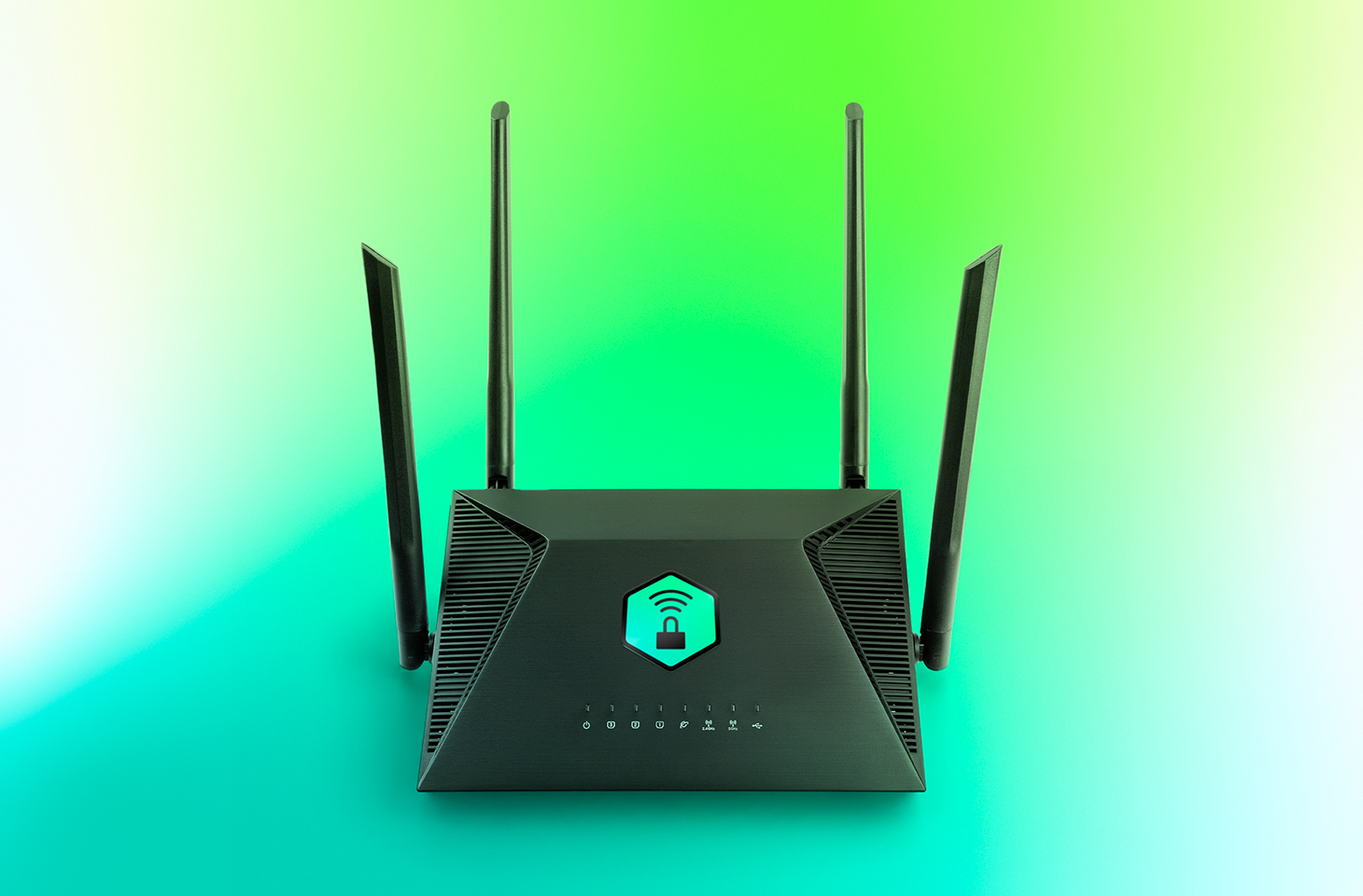
That said, VPNs come with their own frustrations. One of the biggest is that many smart devices – including TVs, game consoles, streaming boxes, and smart-home gadgets – can’t run a VPN at all. On top of that, you usually have to set up the VPN separately on every single device in your home. Installing the VPN directly on your home router solves both problems at once: it protects your entire home network, including newly added devices. Here’s a closer look at what benefits that setup gives you.

1. Every device gets VPN protection

Turn on a VPN on your router, and every device connected to your home Wi-Fi automatically sends its traffic through that protected, encrypted connection. There’s nothing extra to do: connect your phone, laptop, or TV to the Wi-Fi, and its traffic is already routed through the VPN.

Many paid VPN services cap the number of devices you can use under a single subscription. But your router only counts as one device on that list, even though it might be protecting a dozen or more gadgets in your home at once.

It’s worth noting that installing a VPN on a router is usually only possible with paid VPN services. Free plans typically don’t offer this option, or only allow it in a very limited way.

2. Set it up and forget it

Setting up a VPN on every phone and computer in the house can get tedious fast. And if your home devices run on a mix of operating systems, you’ve to start by locating the VPN settings on each one, since Android, Windows, iOS, and macOS all handle this differently.

With a router setup, you configure the VPN once, and it automatically covers any new device you connect later too.

3. Protection even for devices that don’t support VPN

Plenty of devices can’t run a VPN at all. That includes smart TVs, streaming boxes, game consoles, and nearly every piece of smart-home tech out there, from baby monitors to robot vacuums. A VPN on your router protects all of them, and you don’t have to tinker with your vacuum cleaner or smart bulb’s settings separately.

4. No need to worry about turning the VPN on and off

Many people want to make sure that not a single byte of their data leaves their device before the VPN kicks in. The problem is that there’s always a short gap between turning on a computer or phone and the VPN firing up, and during that window, data travels over the internet unencrypted.

The usual fixes are to turn on special features – such as Always On VPN or a VPN kill switch – in the operating system or VPN app. A more effective option though is running the VPN on the router itself. That way, “not a byte without the VPN” becomes true automatically for every device on your home network. But for complete peace of mind, you’ll still want to set up a kill switch on the router too, so that if the VPN ever disconnects (say, the VPN server becomes temporarily unavailable), your devices lose their internet connection entirely rather than falling back to an unprotected one.

5. Working remotely with two VPNs at once

Another common headache is needing to run two VPN services at the same time. This usually comes up with remote work: you need a corporate VPN to connect to your company’s network, while also wanting a personal VPN for everything else. On many devices, running two VPN connections at once for different purposes is either a real hassle to configure or not possible at all. Constantly switching between the two isn’t convenient either, and it opens up privacy and security gaps.

A VPN on your router solves this too. You simply turn on the corporate VPN on your work computer, and it runs on top of your Wi-Fi connection, which is already protected by your personal VPN on the router. In effect, you end up with one VPN nested inside the other (corporate VPN → Wi-Fi → VPN → internet), but this layered setup rarely causes any issues.

6. Getting around apps that block VPNs

Some banking and streaming apps can detect when a VPN app is running on your device and simply refuse to work. Usually, they can’t tell what kind of VPN it is or why you’re using it. They just object to any VPN connection being active at all. If the VPN runs on your router instead of on the device itself, this problem disappears.

7. Protecting guests on your home network

Any device belonging to friends or family that connects to your Wi-Fi automatically gets VPN protection too, with no setup required on their end.

8. Less strain on your devices

Since the router handles the encryption workload, your phones, tablets, and other lightweight devices can use less computing power and drain less battery than they would if running a VPN themselves.

9. Simplified VPN management

Need to switch VPN servers, change protocols, or tweak other settings? Just do it once, on the router. There’s no need to reconfigure every device separately.

Precautions and things to keep in mind

For all its advantages, running a VPN on your router does come with a few trade-offs worth knowing about.

  • Encrypting traffic for an entire network takes real processing power, so on an underpowered router, your connection speed may end up limited.
  • Some routers don’t support VPNs at all, or only work with older, less secure protocols like PPTP.
  • If your router was issued by your ISP, you may not have enough permissions to install a VPN on it.

In any of these cases, you can buy a more capable router that supports VPNs, and use it either instead of, or alongside the ISP-issued box, setting up your home network and VPN on your own hardware.

With this setup, your devices connect as follows: device → Wi-Fi or Ethernet → personal VPN on router → internet. For computers that also connect to a corporate VPN, the path looks slightly different: corporate VPN on computer → Wi-Fi or Ethernet → personal VPN on router → internet.

If you can’t connect your own router directly to your ISP’s network because your model lacks the right port (for example, with a fiber connection), you can use an Ethernet cable to plug your personal router’s input into your provider’s box. In that case, you can either switch the ISP-issued router into bridge mode or simply turn off its Wi-Fi so it doesn’t add unnecessary wireless clutter, since its only job now is connecting to the provider’s network and passing that connection along to your own router.

It’s also worth noting that some online services – like banks, government sites, online stores, and streaming platforms – may restrict or block access entirely when they detect a foreign IP address through a VPN. To get around this, you can either turn off Wi-Fi on your phone and use your mobile data instead, or take a more sophisticated approach to your router setup, as described below.

Most modern routers let you create more than one Wi-Fi network, usually supporting at least a separate home and guest network, each with their own settings. You can use this to create two networks: one with the VPN always on, and one without. Then, for services that don’t play well with VPNs, you can simply switch to the unsecured Wi-Fi network instead.

If you’re willing to spend some more time on setup, there’s an even more convenient option, known as split tunneling: individually configuring certain services or websites to bypass the VPN while sending everything else through your secure VPN connection as usual. To do this, you’ll need to specify the addresses of the sites that should skip the VPN.

Many feature-rich routers also let you divide your home devices into groups and set different connection rules for each group. That way, you could set things up so your smart TV reaches streaming services without a VPN, while your smart home devices, computers, and phones only ever connect to the internet through the protected channel.

How to set up a VPN on your router

Setting up a VPN on your router might sound more complicated than installing it on individual devices, but it delivers far more comfort and protection for your whole home network.

To do this, you’ll need a router that supports VPNs, and a subscription to a VPN service that can generate configuration files for routers using modern VPN protocols. Kaspersky VPN supports the two most widely used VPN protocols – OpenVPN and WireGuard – for connecting routers to the service.

You can create a Kaspersky VPN configuration file for your router by following our detailed guide. For instructions specific to your router model, we recommend searching online or asking an AI assistant something like “how to set up a VPN on {your router model}“.


Received — 3 August 2026 ⏭ Kaspersky official blog

ScreenConnect leveraged in cyberattacks | Kaspersky official blog

Leveraging legitimate software is one of cybercriminals’ tactics of choice, with remote management tools ranking among their top tools. A recent example involves the remote administration utility ScreenConnect. It’s designed for IT support teams to troubleshoot systems and configure software seamlessly in the background. However, when weaponized by threat actors, ScreenConnect becomes a versatile attack vehicle used to harvest data, deploy malware, and move laterally across corporate networks.

During a recent incident detected by Kaspersky Managed Detection and Response, our experts identified an attempt to use ScreenConnect in an attack. This allowed a detailed study of how attackers used this application in a large-scale malware distribution campaign. The following breakdown illustrates the mechanics of ScreenConnect-assisted attacks, and outlines key strategies to defend your organization against them.

How ScreenConnect reaches target computers

In the campaign analyzed by our experts, the attackers bundled ScreenConnect with legitimate free business software. They established a network of phishing websites to spoof popular tools, including OBS Studio, DS4Windows, DNS Jumper, Glary Utilities, Bandizip, Process Hacker, and others.

These rogue websites featured high-quality designs that could be taken for the official pages, making them highly convincing to unsuspecting users. Once the victim clicks the download button for the software, an archive is downloaded to their computer that contains additional files alongside the requested application:

  • A legitimately signed Microsoft executable (exe), renamed to match the expected application installer (for example, OBS-Studio-Installer.exe)
  • A malicious library named res.1033.dll
  • An Assets directory containing installers for both ScreenConnect and the intended application

Launching the renamed file disguised as the app installer triggers DLL sideloading of a malicious library. This library silently runs the ScreenConnect installation without restarting the system, while using the standard Windows installer to set up the software the user originally tried to install.

The attackers used search engine optimization techniques to drive traffic to their fake websites. As a result, these malicious pages appeared at the top of search results for certain free software utilities on major search engines.

Our experts discovered over 90 domain names translated into more than 10 different languages. While most of these websites targeted English, Russian, and Chinese speakers, several domains catered to German, French, Spanish, Arabic, and other regional audiences.

A detailed analysis of the IP addresses and associated spoofed domains is available in our technical research article on Securelist, along with full indicators of compromise.

Why the attackers exploited ScreenConnect

In this campaign, attackers leveraged ScreenConnect to generate and execute malicious scripts on victim machines. These scripts served several key functions: they created exclusions for specific drives, directories, and processes within Windows Defender, disabled the User Account Control (UAC) security mechanism, and delivered and deployed AsyncRAT – a remote access Trojan.

To maintain persistence, the scripts configured a Windows scheduled task to run the malicious code at preset intervals. AsyncRAT then established a connection with the attackers’ command-and-control server to receive further instructions.

The primary objective of this campaign appears to be gaining unauthorized access to enterprise systems, likely to then resell it on cybercrime marketplaces.

How to secure corporate infrastructure

Although ScreenConnect in and of itself is a legitimate tool, its presence poses a security risk to corporate environments. Consequently, Kaspersky security solutions detect this application as not-a-virus:HEUR:RemoteAdmin.MSIL.ConnectWise.gen.

Security teams should implement the following controls:

  • Enforce strict application control policies, including software allowlisting and restrictions on MSI package installations from unverified sources
  • Monitor for newly installed remote management utilities and scheduled tasks
  • Filter outbound network traffic from workstations to unknown IP addresses and domains

As noted previously, this campaign was originally detected through the Kaspersky Managed Detection and Response service, which can be employed to protect against such threats.

Received — 23 June 2026 ⏭ Kaspersky official blog

How Hola Browser was weaponized to spread a Monero miner | Kaspersky official blog

In early June, cybersecurity researchers discovered that a compromised version of the Israel-based Hola Browser for Windows (version 1.251.91.0) was secretly downloading a Monero crypto miner to users’ devices. Shortly after the discovery, Hola confirmed that it had fallen victim to a supply chain attack. In this article, we break down how the attack went down, how the crypto miner works, and what it means for affected users.

What is Hola Browser, and how was the malware discovered?

The Israeli company Hola is best known for its VPN service, which users primarily rely on to bypass geo-restrictions and access region-locked content. In addition to the VPN, the company develops Hola Browser — a Chromium-based browser that comes with built-in VPN and proxy features.

Researchers first spotted signs of trouble during a standard compliance check for the AppEsteem Windows Certified Application program. As part of this certification process, independent cybersecurity firms audit software to ensure it only contains the components it claims to have and is free of unwanted or malicious features. Even after a certificate is granted, apps are regularly re-evaluated to ensure they continue to meet AppEsteem’s strict guidelines.

It was during one of these routine follow-up checks that experts noticed an unauthorized file bundling itself with version 1.251.91.0 of Hola Browser for Windows. Once installed, the file saved itself to the hard drive at C:\Program Files\Hola\me{.}exe. The file immediately raised red flags for researchers due to a laundry list of suspicious characteristics: it wasn’t on the list of approved application files, lacked a timestamp, and had no digital signature. On top of that, its code was heavily obfuscated, and it possessed the ability to inject itself directly into system memory.

Interestingly, researchers noted that the file didn’t show up in every single installation. Because the infection wasn’t widespread across all users, experts suspected early on that a specific stage in the Hola Browser distribution pipeline had been compromised. Hola later confirmed this theory, admitting it had fallen victim to a supply chain attack.

As for the suspicious me{.}exe file itself, closer analysis revealed that it was a stealthy crypto miner configured to mine Monero. We’ll now dive into the technical details of how it works.

How did attackers use Hola Browser to mine Monero?

Crypto miners are programs that harness a computer’s processing power to mine cryptocurrency. While some users install this software intentionally to generate a bit of income, miners that run on a machine without the owner’s knowledge are typically classified as unwanted.

Running a hidden miner can noticeably slow down the device, spike the user’s electricity bill, and shorten the hardware’s lifespan. That being said, it’s worth noting that a crypto miner infection will not actually steal the owner’s cryptocurrency; the damage is strictly limited to the hijackers leeching your computer’s hardware resources to line their own pockets.

As we mentioned above, the malicious download bundled with Hola Browser sneaked a Monero crypto miner onto victims’ devices. Launched in 2014 and built on the CryptoNote protocol, Monero currently trades at around US$330 per coin.

Compared to heavyweights like Bitcoin or Ethereum, Monero is a bit exotic and lesser-known to the general public. This niche status shows in its relatively modest price growth and smaller market capitalization — which is roughly 200 times lower than Bitcoin’s. However, Monero has one defining feature: privacy. While Bitcoin and Ethereum operate on fully transparent, public blockchains, where anyone can trace transactions, Monero is a “privacy coin”. It uses advanced cryptographic mechanisms to mask the sender, receiver, and transaction amounts. This extreme anonymity is exactly why hackers love hidden Monero miners — it makes it difficult for law enforcement and cybersecurity professionals to follow the money trail.

Additionally, Monero’s underlying algorithm is explicitly designed to mine efficiently using standard computer processors (CPUs). This stands in stark contrast to many other popular cryptocurrencies, which require specialized ASIC hardware or high-end graphics cards (GPUs) to be profitable.

But let’s look closer at how this played out with Hola Browser. When researchers dissected the malicious me{.}exe code, they found it was automatically adding its own files to the Microsoft Defender exclusion list. By allowlisting itself, the malware successfully blinded Windows’ built-in antivirus, allowing the crypto miner to run in the background completely unhindered.

Once inside, the program made a copy of itself under the name HolaMonitorService{.}exe, and set up a persistent Windows background service called hola_monitor_svc. This maneuver allowed the malware to entrench itself in the system, automatically launching every time the computer restarted. To avoid raising any red flags with sudden massive performance drops, the miner was programmed to stay dormant, kicking into gear only when the computer was idle.

How to protect your device from crypto miners and malware

To their credit, Hola’s development team responded swiftly to the initial reports of the suspicious file. They confirmed the supply chain breach, but stated that the incident only impacted 0.1% of their user base. The company has since tightened up security around its update distribution pipeline to guarantee that users only receive approved, certified, and digitally-signed software components moving forward.

In light of this incident, we highly recommend that all Hola Browser users update to the latest version immediately — especially those running the application on Windows.

More broadly, this situation is a textbook reminder of why it’s so critical to keep all your software up to date and run a robust cybersecurity solution on all your gadgets. For instance, Kaspersky Premium provides real-time alerts about suspicious software behavior and blocks threats instantly. As an added bonus, a Kaspersky Premium subscription includes a secure and reliable VPN.

Don’t forget that malicious crypto miners don’t just target PCs; they also go after smartphones, often disguising themselves as anything from popular mobile games to official government service apps. Check out our previous posts to learn more:

❌